

Avid 9935-65126-05, 9935-65128-09, 9935-65494-00, 9935-65131-13, 9935-65492-02 User manual
...Page 1

Avid® Media Composer
Editing Guide
®
Page 2

Legal Notices
Product specifications are subject to change without notice and do not represent a commitment on the part of Avid Technology, Inc.
This product is subject to the terms and conditions of a software license agreement provided with the software. The product may
only be used in accordance with the license agreement.
This product may be protected by one or more U.S. and non-U.S patents. Details are available at www.avid.com/patents.
This document is protected under copyright law. An authorized licensee of Avid Media Composer may reproduce this publication for
the licensee’s own use in learning how to use the software. This document may not be reproduced or distributed, in whole or in part,
for commercial purposes, such as selling copies of this document or providing support or educational services to others. This
document is supplied as a guide for Avid Media Composer. Reasonable care has been taken in preparing the information it contains.
However, this document may contain omissions, technical inaccuracies, or typographical errors. Avid Technology, Inc. does not
accept responsibility of any kind for customers’ losses due to the use of this document. Product specifications are subject to change
without notice.
Copyright © 2013 Avid Technology, Inc. and its licensors. All rights reserved.
The following disclaimer is required by Apple Computer, Inc.:
APPLE COMPUTER, INC. MAKES NO WARRANTIES WHATSOEVER, EITHER EXPRESS OR IMPLIED, REGARDING THIS
PRODUCT, INCLUDING WARRANTIES WITH RESPECT TO ITS MERCHANTABILITY OR ITS FITNESS FOR ANY PARTICULAR
PURPOSE. THE EXCLUSION OF IMPLIED WARRANTIES IS NOT PERMITTED BY SOME STATES. THE ABOVE EXCLUSION
MAY NOT APPLY TO YOU. THIS WARRANTY PROVIDES YOU WITH SPECIFIC LEGAL RIGHTS. THERE MAY BE OTHER
RIGHTS THAT YOU MAY HAVE WHICH VARY FROM STATE TO STATE.
The following disclaimer is required by Sam Leffler and Silicon Graphics, Inc. for the use of their TIFF library:
Copyright © 1988–1997 Sam Leffler
Copyright © 1991–1997 Silicon Graphics, Inc.
Permission to use, copy, modify, distribute, and sell this software [i.e., the TIFF library] and its documentation for any purpose is
hereby granted without fee, provided that (i) the above copyright notices and this permission notice appear in all copies of the
software and related documentation, and (ii) the names of Sam Leffler and Silicon Graphics may not be used in any adver tising or
publicity relating to the software without the specific, prior written permission of Sam Leffler and Silicon Graphics.
THE SOFTWARE IS PROVIDED “AS-IS” AND WITHOUT WARRANTY OF ANY KIND, EXPRESS, IMPLIED OR OTHERWISE,
INCLUDING WITHOUT LIMITATION, ANY WARRANTY OF MERCHANTABILITY OR FITNESS FOR A PARTICULAR PURPOSE.
IN NO EVENT SHALL SAM LEFFLER OR SILICON GRAPHICS BE LIABLE FOR ANY SPECIAL, INCIDENTAL, INDIRECT OR
CONSEQUENTIAL DAMAGES OF ANY KIND, OR ANY DAMAGES WHATSOEVER RESULTING FROM LOSS OF USE, DATA OR
PROFITS, WHETHER OR NOT ADVISED OF THE POSSIBILITY OF DAMAGE, AND ON ANY THEORY OF LIABILITY, ARISING
OUT OF OR IN CONNECTION WITH THE USE OR PERFORMANCE OF THIS SOFTWARE.
The following disclaimer is required by the Independent JPEG Group:
This software is based in part on the work of the Independent JPEG Group.
This Software may contain components licensed under the following conditions:
Copyright (c) 1989 The Regents of the University of California. All rights reserved.
Redistribution and use in source and binary forms are permitted provided that the above copyright notice and this paragraph are
duplicated in all such forms and that any documentation, advertising materials, and other materials related to such distribution and
use acknowledge that the software was developed by the University of California, Berkeley. The name of the University may not be
used to endorse or promote products derived from this software without specific prior written permission. THIS SOFTWARE IS
PROVIDED ``AS IS'' AND WITHOUT ANY EXPRESS OR IMPLIED WARRANTIES, INCLUDING, WITHOUT LIMITATION, THE
IMPLIED WARRANTIES OF MERCHANTABILITY AND FITNESS FOR A PARTICULAR PURPOSE.
Copyright (C) 1989, 1991 by Jef Poskanzer.
Permission to use, copy, modify, and distribute this software and its documentation for any purpose and without fee is hereby
granted, provided that the above copyright notice appear in all copies and that both that copyright notice and this permission notice
appear in supporting documentation. This software is provided "as is" without express or implied warranty.
Copyright 1995, Trinity College Computing Center. Written by David Chappell.
Permission to use, copy, modify, and distribute this software and its documentation for any purpose and without fee is hereby
granted, provided that the above copyright notice appear in all copies and that both that copyright notice and this permission notice
appear in supporting documentation. This software is provided "as is" without express or implied warranty.
Page 3

Copyright 1996 Daniel Dardailler.
Permission to use, copy, modify, distribute, and sell this software for any purpose is hereby granted without fee, provided that the
above copyright notice appear in all copies and that both that copyright notice and this permission notice appear in supporting
documentation, and that the name of Daniel Dardailler not be used in advertising or publicity pertaining to distribution of the software
without specific, written prior permission. Daniel Dardailler makes no representations about the suitability of this software for any
purpose. It is provided "as is" without express or implied warranty.
Modifications Copyright 1999 Matt Koss, under the same license as above.
Copyright (c) 1991 by AT&T.
Permission to use, copy, modify, and distribute this software for any purpose without fee is hereby granted, provided that this entire
notice is included in all copies of any software which is or includes a copy or modification of this software and in all copies of the
supporting documentation for such software.
THIS SOFTWARE IS BEING PROVIDED "AS IS", WITHOUT ANY EXPRESS OR IMPLIED WARRANTY. IN PARTICULAR,
NEITHER THE AUTHOR NOR AT&T MAKES ANY REPRESENTATION OR WARRANTY OF ANY KIND CONCERNING THE
MERCHANTABILITY OF THIS SOFTWARE OR ITS FITNESS FOR ANY PARTICULAR PURPOSE.
This product includes software developed by the University of California, Berkeley and its contributors.
The following disclaimer is required by Nexidia Inc.:
© 2010 Nexidia Inc. All rights reserved, worldwide. Nexidia and the Nexidia logo are trademarks of Nexidia Inc. All other
trademarks are the property of their respective owners. All Nexidia materials regardless of form, including without limitation,
software applications, documentation and any other information relating to Nexidia Inc., and its products and services are the
exclusive property of Nexidia Inc. or its licensors. The Nexidia products and services described in these materials may be covered
by Nexidia's United States patents: 7,231,351; 7,263,484; 7,313,521; 7,324,939; 7,406,415, 7,475,065; 7,487,086 and/or other
patents pending and may be manufactured under license from the Georgia Tech Research Corporation USA.
The following disclaimer is required by Paradigm Matrix:
Portions of this software licensed from Paradigm Matrix.
The following disclaimer is required by Ray Sauers Associates, Inc.:
“Install-It” is licensed from Ray Sauers Associates, Inc. End-User is prohibited from taking any action to derive a source code
equivalent of “Install-It,” including by reverse assembly or reverse compilation, Ray Sauers Associates, Inc. shall in no event be liable
for any damages resulting from reseller’s failure to perform reseller’s obligation; or any damages arising from use or operation of
reseller’s products or the software; or any other damages, including but not limited to, incidental, direct, indirect, special or
consequential Damages including lost profits, or damages resulting from loss of use or inability to use reseller’s products or the
software for any reason including copyright or patent infringement, or lost data, even if Ray Sauers Associates has been advised,
knew or should have known of the possibility of such damages.
The following disclaimer is required by Videomedia, Inc.:
“Videomedia, Inc. makes no warranties whatsoever, either express or implied, regarding this product, including warranties with
respect to its merchantability or its fitness for any particular purpose.”
“This software contains V-LAN ver. 3.0 Command Protocols which communicate with V-LAN ver. 3.0 products developed by
Videomedia, Inc. and V-LAN ver. 3.0 compatible products developed by third parties under license from Videomedia, Inc. Use of this
software will allow “frame accurate” editing control of applicable videotape recorder decks, videodisc recorders/players and the like.”
The following disclaimer is required by Altura Software, Inc. for the use of its Mac2Win software and Sample Source
Code:
©1993–1998 Altura Software, Inc.
The following disclaimer is required by Ultimatte Corporation:
Certain real-time compositing capabilities are provided under a license of such technology from Ultimatte Corporation and are
subject to copyright protection.
The following disclaimer is required by 3Prong.com Inc.:
Certain waveform and vector monitoring capabilities are provided under a license from 3Prong.com Inc.
The following disclaimer is required by Interplay Entertainment Corp.:
The “Interplay” name is used with the permission of Interplay Entertainment Corp., which bears no responsibility for Avid products.
This product includes portions of the Alloy Look & Feel software from Incors GmbH.
Page 4

This product includes software developed by the Apache Software Foundation (http://www.apache.org/).
© DevelopMentor
This product may include the JCifs library, for which the following notice applies:
JCifs © Copyright 2004, The JCIFS Project, is licensed under LGPL (http://jcifs.samba.org/). See the LGPL.txt file in the Third Par ty
Software directory on the installation CD.
Avid Interplay contains components licensed from LavanTech. These components may only be used as part of and in connection
with Avid Interplay.
Attn. Government User(s). Restricted Rights Legend
U.S. GOVERNMENT RESTRICTED RIGHTS. This Software and its documentation are “commercial computer software” or
“commercial computer software documentation.” In the event that such Software or documentation is acquired by or on behalf of a
unit or agency of the U.S. Government, all rights with respect to this Software and documentation are subject to the terms of the
License Agreement, pursuant to FAR §12.212(a) and/or DFARS §227.7202-1(a), as applicable.
Trademarks
003, 192 Digital I/O, 192 I/O, 96 I/O, 96i I/O, Adrenaline, AirSpeed, ALEX, Alienbrain, AME, AniMatte, Archive, Archive II, Assistant
Station, AudioPages, AudioStation, AutoLoop, AutoSync, Avid, Avid Active, Avid Advanced Response, Avid DNA, Avid DNxcel, Avid
DNxHD, Avid DS Assist Station, Avid Ignite, Avid Liquid, Avid Media Engine, Avid Media Processor, Avid MEDIArray, Avid Mojo, Avid
Remote Response, Avid Unity, Avid Unity ISIS, Avid VideoRAID, AvidRAID, AvidShare, AVIDstripe, AVX, Beat Detective, Beauty
Without The Bandwidth, Beyond Reality, BF Essentials, Bomb Factory, Bruno, C|24, CaptureManager, ChromaCurve,
ChromaWheel, Cineractive Engine, Cineractive Player, Cineractive Viewer, Color Conductor, Command|24, Command|8,
Control|24, Cosmonaut Voice, CountDown, d2, d3, DAE, D-Command, D-Control, Deko, DekoCast, D-Fi, D-fx, Digi 002, Digi 003,
DigiBase, Digidesign, Digidesign Audio Engine, Digidesign Development Partners, Digidesign Intelligent Noise Reduction,
Digidesign TDM Bus, DigiLink, DigiMeter, DigiPanner, DigiProNet, DigiRack, DigiSerial, DigiSnake, DigiSystem, Digital
Choreography, Digital Nonlinear Accelerator, DigiTest, DigiTranslator, DigiWear, DINR, DNxchange, Do More, DPP-1, D-Show, DSP
Manager, DS-StorageCalc, DV Toolkit, DVD Complete, D-Verb, Eleven, EM, Euphonix, EUCON, EveryPhase, Expander,
ExpertRender, Fader Pack, Fairchild, FastBreak, Fast Track, Film Cutter, FilmScribe, Flexevent, FluidMotion, Frame Chase, FXDeko,
HD Core, HD Process, HDpack, Home-to-Hollywood, HYBRID, HyperSPACE, HyperSPACE HDCAM, iKnowledge, Image
Independence, Impact, Improv, iNEWS, iNEWS Assign, iNEWS ControlAir, InGame, Instantwrite, Instinct, Intelligent Content
Management, Intelligent Digital Actor Technology, IntelliRender, Intelli-Sat, Intelli-sat Broadcasting Recording Manager, InterFX,
Interplay, inTONE, Intraframe, iS Expander, iS9, iS18, iS23, iS36, ISIS, IsoSync, LaunchPad, LeaderPlus, LFX, Lightning, Link &
Sync, ListSync, LKT-200, Lo-Fi, MachineControl, Magic Mask, Make Anything Hollywood, make manage move | media, Marquee,
MassivePack, Massive Pack Pro, Maxim, Mbox, Media Composer, MediaFlow, MediaLog, MediaMix, Media Reader, Media
Recorder, MEDIArray, MediaServer, MediaShare, MetaFuze, MetaSync, MIDI I/O, Mix Rack, Moviestar, MultiShell, NaturalMatch,
NewsCutter, NewsView, NewsVision, Nitris, NL3D, NLP, NSDOS, NSWIN, OMF, OMF Interchange, OMM, OnDVD, Open Media
Framework, Open Media Management, Painterly Effects, Palladium, Personal Q, PET, Podcast Factory, PowerSwap, PRE,
ProControl, ProEncode, Profiler, Pro Tools, Pro Tools|HD, Pro Tools LE, Pro Tools M-Powered, Pro Transfer, QuickPunch,
QuietDrive, Realtime Motion Synthesis, Recti-Fi, Reel Tape Delay, Reel Tape Flanger, Reel Tape Saturation, Reprise, Res Rocket
Surfer, Reso, RetroLoop, Reverb One, ReVibe, Revolution, rS9, rS18, RTAS, Salesview, Sci-Fi, Scorch, ScriptSync,
SecureProductionEnvironment, Serv|GT, Serv|LT, Shape-to-Shape, ShuttleCase, Sibelius, SimulPlay, SimulRecord, Slightly Rude
Compressor, Smack!, Soft SampleCell, Soft-Clip Limiter, SoundReplacer, SPACE, SPACEShift, SpectraGraph, SpectraMatte,
SteadyGlide, Streamfactory, Streamgenie, StreamRAID, SubCap, Sundance, Sundance Digital, SurroundScope, Symphony, SYNC
HD, SYNC I/O, Synchronic, SynchroScope, Syntax, TDM FlexCable, TechFlix, Tel-Ray, Thunder, TimeLiner, Titansync, Titan, TL
Aggro, TL AutoPan, TL Drum Rehab, TL Everyphase, TL Fauxlder, TL In Tune, TL MasterMeter, TL Metro, TL Space, TL Utilities,
tools for storytellers, Transit, TransJammer, Trillium Lane Labs, TruTouch, UnityRAID, Vari-Fi, Video the Web Way, VideoRAID,
VideoSPACE, VTEM, Work-N-Play, Xdeck, X-Form, Xmon and XPAND! are either registered trademarks or trademarks of Avid
Technology, Inc. in the United States and/or other countries.
Adobe and Photoshop are either registered trademarks or trademarks of Adobe Systems Incorporated in the United States and/or
other countries. Apple and Macintosh are trademarks of Apple Computer, Inc., registered in the U.S. and other countries. Windows
is either a registered trademark or trademark of Microsoft Corporation in the United States and/or other countries. All other
trademarks contained herein are the property of their respective owners.
Footage
Arri — Courtesy of Arri/Fauer — John Fauer, Inc.
Bell South “Anticipation” — Courtesy of Two Headed Monster — Tucker/Wayne Atlanta/GMS.
Canyonlands — Courtesy of the National Park Service/Department of the Interior.
Eco Challenge British Columbia — Courtesy of Eco Challenge Lifestyles, Inc., All Rights Reserved.
Eco Challenge Morocco — Courtesy of Discovery Communications, Inc.
It’s Shuttletime — Courtesy of BCP & Canadian Airlines.
Page 5

Nestlé Coffee Crisp — Courtesy of MacLaren McCann Canada.
Saturn “Calvin Egg” — Courtesy of Cossette Communications.
“Tigers: Tracking a Legend” — Courtesy of www.wildlifeworlds.com, Carol Amore, Executive Producer.
"The Big Swell" — Courtesy of Swell Pictures, Inc.
Windhorse — Courtesy of Paul Wagner Productions.
Arizona Images — KNTV Production — Courtesy of Granite Broadcasting, Inc.,
Editor/Producer Bryan Foote.
Canyonlands — Courtesy of the National Park Service/Department of the Interior.
Ice Island — Courtesy of Kurtis Productions, Ltd.
Tornados + Belle Isle footage — Courtesy of KWTV News 9.
WCAU Fire Story — Courtesy of NBC-10, Philadelphia, PA.
Women in Sports – Paragliding — Courtesy of Legendary Entertainment, Inc.
Avid Media Composer Editing Guide • 0130-07971-01-C • June 2013
Page 6

Contents
Using This Guide. . . . . . . . . . . . . . . . . . . . . . . . . . . . . . . . . . . . . . . . . . . . 24
Symbols and Conventions . . . . . . . . . . . . . . . . . . . . . . . . . . . . . . . . . . . . . . . . . . . . 24
If You Need Help. . . . . . . . . . . . . . . . . . . . . . . . . . . . . . . . . . . . . . . . . . . . . . . . . . . . 25
Avid Training Services . . . . . . . . . . . . . . . . . . . . . . . . . . . . . . . . . . . . . . . . . . . . . . . 26
Chapter 1 Editing Overview . . . . . . . . . . . . . . . . . . . . . . . . . . . . . . . . . . . . . . . . . . . . 27
Editing Workflow . . . . . . . . . . . . . . . . . . . . . . . . . . . . . . . . . . . . . . . . . . . . . . . . . . . . 27
Starting a Project. . . . . . . . . . . . . . . . . . . . . . . . . . . . . . . . . . . . . . . . . . . . . . . . . . . . 28
Preparing to Edit . . . . . . . . . . . . . . . . . . . . . . . . . . . . . . . . . . . . . . . . . . . . . . . . . . . . 29
Editing a Sequence. . . . . . . . . . . . . . . . . . . . . . . . . . . . . . . . . . . . . . . . . . . . . . . . . . 30
Outputting a Sequence . . . . . . . . . . . . . . . . . . . . . . . . . . . . . . . . . . . . . . . . . . . . . . . 32
Chapter 2 Starting a Project. . . . . . . . . . . . . . . . . . . . . . . . . . . . . . . . . . . . . . . . . . . . 34
Turning on Your Equipment . . . . . . . . . . . . . . . . . . . . . . . . . . . . . . . . . . . . . . . . . . . 34
Working with the Desktop . . . . . . . . . . . . . . . . . . . . . . . . . . . . . . . . . . . . . . . . . . . . . 35
Starting Your Avid Editing Application (Windows). . . . . . . . . . . . . . . . . . . . . . . . . . . 41
Starting Your Avid Editing Application (Macintosh). . . . . . . . . . . . . . . . . . . . . . . . . . 41
Working with Projects . . . . . . . . . . . . . . . . . . . . . . . . . . . . . . . . . . . . . . . . . . . . . . . . 42
Creating a New Project . . . . . . . . . . . . . . . . . . . . . . . . . . . . . . . . . . . . . . . . . . . . . . . 50
Working with Color Spaces in HD Projects . . . . . . . . . . . . . . . . . . . . . . . . . . . . . . . . 54
Opening and Closing Projects. . . . . . . . . . . . . . . . . . . . . . . . . . . . . . . . . . . . . . . . . . 58
Deleting a Project . . . . . . . . . . . . . . . . . . . . . . . . . . . . . . . . . . . . . . . . . . . . . . . . . . . 61
Quitting and Turning Off Equipment . . . . . . . . . . . . . . . . . . . . . . . . . . . . . . . . . . . . . 62
Changing Project and User Names. . . . . . . . . . . . . . . . . . . . . . . . . . . . . . . . . . . . . . 63
Backing Up Your Project Information . . . . . . . . . . . . . . . . . . . . . . . . . . . . . . . . . . . . 64
Avid Attic Folder . . . . . . . . . . . . . . . . . . . . . . . . . . . . . . . . . . . . . . . . . . . . . . . . . . . . 65
Chapter 3 Working with the Project Window . . . . . . . . . . . . . . . . . . . . . . . . . . . . . . 70
Overview of the Project Window . . . . . . . . . . . . . . . . . . . . . . . . . . . . . . . . . . . . . . . . 70
Controlling Project Window Display . . . . . . . . . . . . . . . . . . . . . . . . . . . . . . . . . . . . . 71
Page 7

Using the Bins Tab . . . . . . . . . . . . . . . . . . . . . . . . . . . . . . . . . . . . . . . . . . . . . . . . . . 72
Using the Settings Tab . . . . . . . . . . . . . . . . . . . . . . . . . . . . . . . . . . . . . . . . . . . . . . . 78
Using the Format Tab . . . . . . . . . . . . . . . . . . . . . . . . . . . . . . . . . . . . . . . . . . . . . . . . 79
Using the Usage Tab . . . . . . . . . . . . . . . . . . . . . . . . . . . . . . . . . . . . . . . . . . . . . . . . 80
Using the Info Tab. . . . . . . . . . . . . . . . . . . . . . . . . . . . . . . . . . . . . . . . . . . . . . . . . . . 85
Managing Bins and Memory . . . . . . . . . . . . . . . . . . . . . . . . . . . . . . . . . . . . . . . . . . . 86
Understanding User Profiles . . . . . . . . . . . . . . . . . . . . . . . . . . . . . . . . . . . . . . . . . . . 87
Managing User Profiles. . . . . . . . . . . . . . . . . . . . . . . . . . . . . . . . . . . . . . . . . . . . . . . 88
Customizing the Avid User Interface. . . . . . . . . . . . . . . . . . . . . . . . . . . . . . . . . . . . . 90
Using Workspaces . . . . . . . . . . . . . . . . . . . . . . . . . . . . . . . . . . . . . . . . . . . . . . . . . . 93
Working with Bins and Projects in an Avid Shared Storage Environment . . . . . . . 100
Chapter 4 Using Tools . . . . . . . . . . . . . . . . . . . . . . . . . . . . . . . . . . . . . . . . . . . . . . . 107
Using the Tools Menu . . . . . . . . . . . . . . . . . . . . . . . . . . . . . . . . . . . . . . . . . . . . . . . 107
Using Tabs . . . . . . . . . . . . . . . . . . . . . . . . . . . . . . . . . . . . . . . . . . . . . . . . . . . . . . . 107
Using a Deck Controller . . . . . . . . . . . . . . . . . . . . . . . . . . . . . . . . . . . . . . . . . . . . . 108
Deck Controller Window Reference . . . . . . . . . . . . . . . . . . . . . . . . . . . . . . . . . . . . 109
The Command Palette . . . . . . . . . . . . . . . . . . . . . . . . . . . . . . . . . . . . . . . . . . . . . . 110
Using the Avid Calculator . . . . . . . . . . . . . . . . . . . . . . . . . . . . . . . . . . . . . . . . . . . . 114
Using The Console Window . . . . . . . . . . . . . . . . . . . . . . . . . . . . . . . . . . . . . . . . . . 115
Using the Hardware Tool . . . . . . . . . . . . . . . . . . . . . . . . . . . . . . . . . . . . . . . . . . . . 116
External Controllers as Editing Control Surfaces . . . . . . . . . . . . . . . . . . . . . . . . . . 117
Chapter 5 Logging . . . . . . . . . . . . . . . . . . . . . . . . . . . . . . . . . . . . . . . . . . . . . . . . . . 118
Using Avid Log Exchange to Prepare Log Files for Import . . . . . . . . . . . . . . . . . . . 118
Avid Log Specifications . . . . . . . . . . . . . . . . . . . . . . . . . . . . . . . . . . . . . . . . . . . . . . 126
Creating an Avid Log. . . . . . . . . . . . . . . . . . . . . . . . . . . . . . . . . . . . . . . . . . . . . . . . 135
Double-Checking Log Files . . . . . . . . . . . . . . . . . . . . . . . . . . . . . . . . . . . . . . . . . . . 136
Transferring Bins from MediaLog . . . . . . . . . . . . . . . . . . . . . . . . . . . . . . . . . . . . . . 136
Logging Directly into a Bin . . . . . . . . . . . . . . . . . . . . . . . . . . . . . . . . . . . . . . . . . . . 138
Understanding the Pulldown Phase . . . . . . . . . . . . . . . . . . . . . . . . . . . . . . . . . . . . 146
Setting the Pulldown Phase . . . . . . . . . . . . . . . . . . . . . . . . . . . . . . . . . . . . . . . . . . 149
Film-Related Log Information . . . . . . . . . . . . . . . . . . . . . . . . . . . . . . . . . . . . . . . . . 149
Chapter 6 Preparing for Capture . . . . . . . . . . . . . . . . . . . . . . . . . . . . . . . . . . . . . . . 159
Logging and Shot Logs . . . . . . . . . . . . . . . . . . . . . . . . . . . . . . . . . . . . . . . . . . . . . . 159
7
Page 8

Importing Shot Log Files . . . . . . . . . . . . . . . . . . . . . . . . . . . . . . . . . . . . . . . . . . . . . 160
Preparing the Hardware for Capture . . . . . . . . . . . . . . . . . . . . . . . . . . . . . . . . . . . . 163
Selecting Settings for Capture . . . . . . . . . . . . . . . . . . . . . . . . . . . . . . . . . . . . . . . . 167
Configuring Decks. . . . . . . . . . . . . . . . . . . . . . . . . . . . . . . . . . . . . . . . . . . . . . . . . . 179
Understanding Timecode . . . . . . . . . . . . . . . . . . . . . . . . . . . . . . . . . . . . . . . . . . . . 183
Connecting a DV Device . . . . . . . . . . . . . . . . . . . . . . . . . . . . . . . . . . . . . . . . . . . . . 184
Setting Up the Capture Tool . . . . . . . . . . . . . . . . . . . . . . . . . . . . . . . . . . . . . . . . . . 185
Preparing to Capture Audio. . . . . . . . . . . . . . . . . . . . . . . . . . . . . . . . . . . . . . . . . . . 198
Preparing to Capture Video. . . . . . . . . . . . . . . . . . . . . . . . . . . . . . . . . . . . . . . . . . . 212
Capture Preparations Check List . . . . . . . . . . . . . . . . . . . . . . . . . . . . . . . . . . . . . . 221
Chapter 7 Capturing Media . . . . . . . . . . . . . . . . . . . . . . . . . . . . . . . . . . . . . . . . . . . 223
Capturing and Logging at the Same Time . . . . . . . . . . . . . . . . . . . . . . . . . . . . . . . 224
Capturing Directly from a DV Device . . . . . . . . . . . . . . . . . . . . . . . . . . . . . . . . . . . 234
Frame Chase Capture. . . . . . . . . . . . . . . . . . . . . . . . . . . . . . . . . . . . . . . . . . . . . . . 236
Batch Capturing from Logged Clips . . . . . . . . . . . . . . . . . . . . . . . . . . . . . . . . . . . . 239
Recapturing and Decomposing. . . . . . . . . . . . . . . . . . . . . . . . . . . . . . . . . . . . . . . . 243
Alternate Source Capture . . . . . . . . . . . . . . . . . . . . . . . . . . . . . . . . . . . . . . . . . . . . 253
Using Capture Function Keys . . . . . . . . . . . . . . . . . . . . . . . . . . . . . . . . . . . . . . . . . 255
Handling Errors During the Capture Process . . . . . . . . . . . . . . . . . . . . . . . . . . . . . 256
Creating Subclips While Capturing . . . . . . . . . . . . . . . . . . . . . . . . . . . . . . . . . . . . . 257
Adding Markers On-the-Fly While Capturing . . . . . . . . . . . . . . . . . . . . . . . . . . . . . 259
Naming a New Tape from the Keyboard While Capturing . . . . . . . . . . . . . . . . . . . 259
Controlling Decks from the Keyboard . . . . . . . . . . . . . . . . . . . . . . . . . . . . . . . . . . . 260
Ejecting Tapes with a Button or Key . . . . . . . . . . . . . . . . . . . . . . . . . . . . . . . . . . . . 261
Using Dolby E Media. . . . . . . . . . . . . . . . . . . . . . . . . . . . . . . . . . . . . . . . . . . . . . . . 261
Delaying Audio During Capture. . . . . . . . . . . . . . . . . . . . . . . . . . . . . . . . . . . . . . . . 264
Live Capturing with External Timecode. . . . . . . . . . . . . . . . . . . . . . . . . . . . . . . . . . 264
Capturing to the Timeline . . . . . . . . . . . . . . . . . . . . . . . . . . . . . . . . . . . . . . . . . . . . 266
Capturing Video Without Pulldown into a 24p NTSC Project . . . . . . . . . . . . . . . . . 268
Remote Play, Capture, and Punch-In . . . . . . . . . . . . . . . . . . . . . . . . . . . . . . . . . . . 268
Relinking Clips by Key Number. . . . . . . . . . . . . . . . . . . . . . . . . . . . . . . . . . . . . . . . 273
Modifying the Pulldown Phase After Capturing. . . . . . . . . . . . . . . . . . . . . . . . . . . . 275
DV and HDV Scene Extraction . . . . . . . . . . . . . . . . . . . . . . . . . . . . . . . . . . . . . . . . 277
8
Page 9

Using the Panasonic VariCam . . . . . . . . . . . . . . . . . . . . . . . . . . . . . . . . . . . . . . . . 279
Chapter 8 Importing Files. . . . . . . . . . . . . . . . . . . . . . . . . . . . . . . . . . . . . . . . . . . . . 281
Preparing to Import Files. . . . . . . . . . . . . . . . . . . . . . . . . . . . . . . . . . . . . . . . . . . . . 282
Creating and Modifying Import Settings . . . . . . . . . . . . . . . . . . . . . . . . . . . . . . . . . 282
Importing Media Files . . . . . . . . . . . . . . . . . . . . . . . . . . . . . . . . . . . . . . . . . . . . . . . 285
Importing with Multichannel Audio . . . . . . . . . . . . . . . . . . . . . . . . . . . . . . . . . . . . . 289
Importing Audio Files from a Music CD. . . . . . . . . . . . . . . . . . . . . . . . . . . . . . . . . . 291
Adjusting Gain Before Importing Audio Files . . . . . . . . . . . . . . . . . . . . . . . . . . . . . 292
Sample Rate Conversion and Audio Import . . . . . . . . . . . . . . . . . . . . . . . . . . . . . . 293
Setting Sample Rate Conversion Options Before Importing Audio Files . . . . . . . . 294
Photoshop Graphics Import . . . . . . . . . . . . . . . . . . . . . . . . . . . . . . . . . . . . . . . . . . 295
Digital Bars and Tone . . . . . . . . . . . . . . . . . . . . . . . . . . . . . . . . . . . . . . . . . . . . . . . 300
Importing Color Bars and Other Test Patterns . . . . . . . . . . . . . . . . . . . . . . . . . . . . 300
Importing Editcam Files. . . . . . . . . . . . . . . . . . . . . . . . . . . . . . . . . . . . . . . . . . . . . . 302
Setting XDCAM Import Options . . . . . . . . . . . . . . . . . . . . . . . . . . . . . . . . . . . . . . . 303
Importing XDCAM Media . . . . . . . . . . . . . . . . . . . . . . . . . . . . . . . . . . . . . . . . . . . . 304
Importing XDCAM EX Media. . . . . . . . . . . . . . . . . . . . . . . . . . . . . . . . . . . . . . . . . . 305
Automatically Importing Proxy Media from an XDCAM Device. . . . . . . . . . . . . . . . 307
Importing Proxy Media from an XDCAM Disk . . . . . . . . . . . . . . . . . . . . . . . . . . . . . 309
Copying XDCAM Proxy Media to a Local Drive or a Server . . . . . . . . . . . . . . . . . . 310
Manually Importing XDCAM Media from the XDCAM Disk. . . . . . . . . . . . . . . . . . . 310
Importing Essence Marks as Markers in XDCAM Media . . . . . . . . . . . . . . . . . . . . 311
Editing XDCAM Proxy Media . . . . . . . . . . . . . . . . . . . . . . . . . . . . . . . . . . . . . . . . . 312
Batch Importing High-Resolution XDCAM Media from the XDCAM Disk . . . . . . . . 313
Editing and Finishing High-Resolution XDCAM Media . . . . . . . . . . . . . . . . . . . . . . 316
Importing P2 Clips and Media . . . . . . . . . . . . . . . . . . . . . . . . . . . . . . . . . . . . . . . . . 316
Importing Sequences from Pro Tools through Interplay . . . . . . . . . . . . . . . . . . . . . 317
Using the Drag-and-Drop Method to Import Files . . . . . . . . . . . . . . . . . . . . . . . . . . 317
Reimporting Files . . . . . . . . . . . . . . . . . . . . . . . . . . . . . . . . . . . . . . . . . . . . . . . . . . 318
Batch Import Dialog Box . . . . . . . . . . . . . . . . . . . . . . . . . . . . . . . . . . . . . . . . . . . . . 320
Chapter 9 Working with Bins . . . . . . . . . . . . . . . . . . . . . . . . . . . . . . . . . . . . . . . . . . 323
Object Icons in Bins . . . . . . . . . . . . . . . . . . . . . . . . . . . . . . . . . . . . . . . . . . . . . . . . 323
Bin Views . . . . . . . . . . . . . . . . . . . . . . . . . . . . . . . . . . . . . . . . . . . . . . . . . . . . . . . . 325
9
Page 10

Bin Procedures . . . . . . . . . . . . . . . . . . . . . . . . . . . . . . . . . . . . . . . . . . . . . . . . . . . . 333
Working with Bin Columns . . . . . . . . . . . . . . . . . . . . . . . . . . . . . . . . . . . . . . . . . . . 345
Modifying Clip Information. . . . . . . . . . . . . . . . . . . . . . . . . . . . . . . . . . . . . . . . . . . . 352
Working with Film Information in Bins . . . . . . . . . . . . . . . . . . . . . . . . . . . . . . . . . . . 362
Creating a Storyboard . . . . . . . . . . . . . . . . . . . . . . . . . . . . . . . . . . . . . . . . . . . . . . . 365
Setting the Bin Display . . . . . . . . . . . . . . . . . . . . . . . . . . . . . . . . . . . . . . . . . . . . . . 366
Sifting Clips and Sequences . . . . . . . . . . . . . . . . . . . . . . . . . . . . . . . . . . . . . . . . . . 366
Working with Restricted Material. . . . . . . . . . . . . . . . . . . . . . . . . . . . . . . . . . . . . . . 371
Printing Bins . . . . . . . . . . . . . . . . . . . . . . . . . . . . . . . . . . . . . . . . . . . . . . . . . . . . . . 373
Chapter 10 Acquisition of File-Based Media (AMA) . . . . . . . . . . . . . . . . . . . . . . . . 374
The Avid Media Access (AMA) Workflow . . . . . . . . . . . . . . . . . . . . . . . . . . . . . . . . 374
Viewing Installed AMA Plug-ins . . . . . . . . . . . . . . . . . . . . . . . . . . . . . . . . . . . . . . . 378
Selecting the AMA Settings. . . . . . . . . . . . . . . . . . . . . . . . . . . . . . . . . . . . . . . . . . . 378
Copying File-Based Media to a FireWire or Network Drive. . . . . . . . . . . . . . . . . . . 380
Dragging and Dropping File-based Media Directly to a Bin . . . . . . . . . . . . . . . . . . 380
Creating Dynamic Media Folders . . . . . . . . . . . . . . . . . . . . . . . . . . . . . . . . . . . . . . 381
Linking Media with AMA . . . . . . . . . . . . . . . . . . . . . . . . . . . . . . . . . . . . . . . . . . . . . 388
Relinking to AMA-Linked QuickTime Files . . . . . . . . . . . . . . . . . . . . . . . . . . . . . . . 391
Spanned Clips. . . . . . . . . . . . . . . . . . . . . . . . . . . . . . . . . . . . . . . . . . . . . . . . . . . . . 392
AMA Linking with Ancillary Data . . . . . . . . . . . . . . . . . . . . . . . . . . . . . . . . . . . . . . . 393
AMA Linking with Multichannel Audio . . . . . . . . . . . . . . . . . . . . . . . . . . . . . . . . . . . 393
The AMA Plug-in Log File . . . . . . . . . . . . . . . . . . . . . . . . . . . . . . . . . . . . . . . . . . . . 396
Using Virtual Volumes. . . . . . . . . . . . . . . . . . . . . . . . . . . . . . . . . . . . . . . . . . . . . . . 396
Virtual Volumes and AMA Bins . . . . . . . . . . . . . . . . . . . . . . . . . . . . . . . . . . . . . . . . 397
Deleting Clips . . . . . . . . . . . . . . . . . . . . . . . . . . . . . . . . . . . . . . . . . . . . . . . . . . . . . 397
Using AMA Plug-Ins . . . . . . . . . . . . . . . . . . . . . . . . . . . . . . . . . . . . . . . . . . . . . . . . 398
Understanding the Source Settings Histogram . . . . . . . . . . . . . . . . . . . . . . . . . . . . 428
Adjusting the Source Settings Histogram . . . . . . . . . . . . . . . . . . . . . . . . . . . . . . . . 429
Working with Export Volumes . . . . . . . . . . . . . . . . . . . . . . . . . . . . . . . . . . . . . . . . . 430
AS-11 Support. . . . . . . . . . . . . . . . . . . . . . . . . . . . . . . . . . . . . . . . . . . . . . . . . . . . . 436
Chapter 11 Managing Media Files . . . . . . . . . . . . . . . . . . . . . . . . . . . . . . . . . . . . . . 439
Working with Media Files in an Avid Interplay Environment . . . . . . . . . . . . . . . . . . 440
Using Avid Editing Systems in an Avid LANshare Workgroup . . . . . . . . . . . . . . . . 441
10
Page 11

Viewing Media with a 100Base-T Connection to Avid ISIS. . . . . . . . . . . . . . . . . . . 442
Understanding Drive Mounting . . . . . . . . . . . . . . . . . . . . . . . . . . . . . . . . . . . . . . . . 442
Mounting and Unmounting Drives. . . . . . . . . . . . . . . . . . . . . . . . . . . . . . . . . . . . . . 443
Using the Media Tool . . . . . . . . . . . . . . . . . . . . . . . . . . . . . . . . . . . . . . . . . . . . . . . 443
Consolidating Media . . . . . . . . . . . . . . . . . . . . . . . . . . . . . . . . . . . . . . . . . . . . . . . . 449
Using the Consolidate Command . . . . . . . . . . . . . . . . . . . . . . . . . . . . . . . . . . . . . . 451
Using the Transcode Command . . . . . . . . . . . . . . . . . . . . . . . . . . . . . . . . . . . . . . . 455
Consolidate or Transcode AMA Clips Only. . . . . . . . . . . . . . . . . . . . . . . . . . . . . . . 458
Background Consolidate and Transcode . . . . . . . . . . . . . . . . . . . . . . . . . . . . . . . . 459
Loading the Media Database . . . . . . . . . . . . . . . . . . . . . . . . . . . . . . . . . . . . . . . . . 463
Refreshing Media Directories . . . . . . . . . . . . . . . . . . . . . . . . . . . . . . . . . . . . . . . . . 464
Deleting Unreferenced Clips and Media . . . . . . . . . . . . . . . . . . . . . . . . . . . . . . . . . 465
Backing Up Media Files . . . . . . . . . . . . . . . . . . . . . . . . . . . . . . . . . . . . . . . . . . . . . 466
Finding a Related Media File . . . . . . . . . . . . . . . . . . . . . . . . . . . . . . . . . . . . . . . . . 466
Relinking Media Files . . . . . . . . . . . . . . . . . . . . . . . . . . . . . . . . . . . . . . . . . . . . . . . 467
Unlinking Media Files . . . . . . . . . . . . . . . . . . . . . . . . . . . . . . . . . . . . . . . . . . . . . . . 475
Archiving and Restoring Media Files to Videotape . . . . . . . . . . . . . . . . . . . . . . . . . 476
Sequence and Clip Information Summary . . . . . . . . . . . . . . . . . . . . . . . . . . . . . . . 481
Chapter 12 Viewing and Marking Footage . . . . . . . . . . . . . . . . . . . . . . . . . . . . . . . . 486
Viewing Methods. . . . . . . . . . . . . . . . . . . . . . . . . . . . . . . . . . . . . . . . . . . . . . . . . . . 487
Customizing the Composer Window and Monitors . . . . . . . . . . . . . . . . . . . . . . . . . 488
Using the Info Window . . . . . . . . . . . . . . . . . . . . . . . . . . . . . . . . . . . . . . . . . . . . . . 495
Using the Timecode Window . . . . . . . . . . . . . . . . . . . . . . . . . . . . . . . . . . . . . . . . . 496
Playing Video to the Client Monitor . . . . . . . . . . . . . . . . . . . . . . . . . . . . . . . . . . . . . 497
Activating and Deactivating the Client Monitor Display. . . . . . . . . . . . . . . . . . . . . . 498
Selecting the Video Display Settings . . . . . . . . . . . . . . . . . . . . . . . . . . . . . . . . . . . 499
Playing Video to a Full-Screen Monitor. . . . . . . . . . . . . . . . . . . . . . . . . . . . . . . . . . 500
Adjusting the Play Delay Offset . . . . . . . . . . . . . . . . . . . . . . . . . . . . . . . . . . . . . . . 501
Using the Tool Palette. . . . . . . . . . . . . . . . . . . . . . . . . . . . . . . . . . . . . . . . . . . . . . . 502
Playing Selected Clips in a Loop. . . . . . . . . . . . . . . . . . . . . . . . . . . . . . . . . . . . . . . 503
Loading and Clearing Footage . . . . . . . . . . . . . . . . . . . . . . . . . . . . . . . . . . . . . . . . 503
Controlling Playback . . . . . . . . . . . . . . . . . . . . . . . . . . . . . . . . . . . . . . . . . . . . . . . . 506
Playing Back to a DV Device . . . . . . . . . . . . . . . . . . . . . . . . . . . . . . . . . . . . . . . . . 514
11
Page 12

Video Quality Options for Playback. . . . . . . . . . . . . . . . . . . . . . . . . . . . . . . . . . . . . 516
Setting the Video Quality for Playback . . . . . . . . . . . . . . . . . . . . . . . . . . . . . . . . . . 517
Marking and Subcataloging Footage . . . . . . . . . . . . . . . . . . . . . . . . . . . . . . . . . . . 518
Using Markers . . . . . . . . . . . . . . . . . . . . . . . . . . . . . . . . . . . . . . . . . . . . . . . . . . . . . 523
Finding Frames, Clips, and Bins . . . . . . . . . . . . . . . . . . . . . . . . . . . . . . . . . . . . . . . 538
Sequence and Clip Information Summary . . . . . . . . . . . . . . . . . . . . . . . . . . . . . . . 550
Chapter 13 PhraseFind. . . . . . . . . . . . . . . . . . . . . . . . . . . . . . . . . . . . . . . . . . . . . . . . 555
Purchasing and Activating PhraseFind . . . . . . . . . . . . . . . . . . . . . . . . . . . . . . . . . . 555
Understanding PhraseFind . . . . . . . . . . . . . . . . . . . . . . . . . . . . . . . . . . . . . . . . . . . 566
Using PhraseFind . . . . . . . . . . . . . . . . . . . . . . . . . . . . . . . . . . . . . . . . . . . . . . . . . . 567
The Results Window . . . . . . . . . . . . . . . . . . . . . . . . . . . . . . . . . . . . . . . . . . . . . . . . 569
Filtering Your Find Results . . . . . . . . . . . . . . . . . . . . . . . . . . . . . . . . . . . . . . . . . . . 572
Find Window Attributes . . . . . . . . . . . . . . . . . . . . . . . . . . . . . . . . . . . . . . . . . . . . . . 572
Chapter 14 Creating and Editing Sequences . . . . . . . . . . . . . . . . . . . . . . . . . . . . . . 575
Entering Source/Record Mode . . . . . . . . . . . . . . . . . . . . . . . . . . . . . . . . . . . . . . . . 576
Creating a New Sequence . . . . . . . . . . . . . . . . . . . . . . . . . . . . . . . . . . . . . . . . . . . 576
Making a First Edit . . . . . . . . . . . . . . . . . . . . . . . . . . . . . . . . . . . . . . . . . . . . . . . . . 581
Creating an Instant Rough Cut . . . . . . . . . . . . . . . . . . . . . . . . . . . . . . . . . . . . . . . . 582
Undoing or Redoing Edits . . . . . . . . . . . . . . . . . . . . . . . . . . . . . . . . . . . . . . . . . . . . 583
Editing Additional Clips into the Sequence . . . . . . . . . . . . . . . . . . . . . . . . . . . . . . . 584
Mixing Frame Rates and Field Motion Types . . . . . . . . . . . . . . . . . . . . . . . . . . . . . 587
Mixing Frame Sizes and Aspect Ratios . . . . . . . . . . . . . . . . . . . . . . . . . . . . . . . . . 596
Refreshing Sequences to Use Current Clip Attributes . . . . . . . . . . . . . . . . . . . . . . 601
Lifting, Extracting, and Copying Material. . . . . . . . . . . . . . . . . . . . . . . . . . . . . . . . . 602
Adding Comments to Sequence Clips . . . . . . . . . . . . . . . . . . . . . . . . . . . . . . . . . . 605
Playing Back a Sequence . . . . . . . . . . . . . . . . . . . . . . . . . . . . . . . . . . . . . . . . . . . . 605
Understanding Sync Breaks . . . . . . . . . . . . . . . . . . . . . . . . . . . . . . . . . . . . . . . . . . 607
Fixing Sync Breaks . . . . . . . . . . . . . . . . . . . . . . . . . . . . . . . . . . . . . . . . . . . . . . . . . 610
Understanding Sync Lock . . . . . . . . . . . . . . . . . . . . . . . . . . . . . . . . . . . . . . . . . . . . 610
Ganging Footage in Monitors . . . . . . . . . . . . . . . . . . . . . . . . . . . . . . . . . . . . . . . . . 613
Sync Point Editing . . . . . . . . . . . . . . . . . . . . . . . . . . . . . . . . . . . . . . . . . . . . . . . . . . 614
Autosyncing Clips . . . . . . . . . . . . . . . . . . . . . . . . . . . . . . . . . . . . . . . . . . . . . . . . . . 615
Understanding AutoSequence . . . . . . . . . . . . . . . . . . . . . . . . . . . . . . . . . . . . . . . . 617
12
Page 13

Adding Audio or Video to Original Videotape Using AutoSequence . . . . . . . . . . . . 618
Resyncing Subframe Audio. . . . . . . . . . . . . . . . . . . . . . . . . . . . . . . . . . . . . . . . . . . 619
Resyncing Audio for a Selected Subclip . . . . . . . . . . . . . . . . . . . . . . . . . . . . . . . . . 620
Working with Phantom Marks . . . . . . . . . . . . . . . . . . . . . . . . . . . . . . . . . . . . . . . . . 620
Creating Video and Audio Leaders . . . . . . . . . . . . . . . . . . . . . . . . . . . . . . . . . . . . . 622
Chapter 15 Script-Based Editing . . . . . . . . . . . . . . . . . . . . . . . . . . . . . . . . . . . . . . . . 624
Understanding Lined Scripts . . . . . . . . . . . . . . . . . . . . . . . . . . . . . . . . . . . . . . . . . . 624
Script Integration — Lining in the Digital Realm . . . . . . . . . . . . . . . . . . . . . . . . . . . 626
Understanding the Script Window. . . . . . . . . . . . . . . . . . . . . . . . . . . . . . . . . . . . . . 628
Working with the Script Window . . . . . . . . . . . . . . . . . . . . . . . . . . . . . . . . . . . . . . . 630
Working with Script Text . . . . . . . . . . . . . . . . . . . . . . . . . . . . . . . . . . . . . . . . . . . . . 632
Working with Page or Scene Numbers and Searching in a Script . . . . . . . . . . . . . 635
Linking Clips to a Script. . . . . . . . . . . . . . . . . . . . . . . . . . . . . . . . . . . . . . . . . . . . . . 637
Interpolating Position for Script Integration . . . . . . . . . . . . . . . . . . . . . . . . . . . . . . . 639
Working with Slates in the Script Window. . . . . . . . . . . . . . . . . . . . . . . . . . . . . . . . 639
Working with Takes in the Script Window . . . . . . . . . . . . . . . . . . . . . . . . . . . . . . . . 642
Indicating Off-Screen Dialog in a Script . . . . . . . . . . . . . . . . . . . . . . . . . . . . . . . . . 644
Using Color Indicators in the Script Window . . . . . . . . . . . . . . . . . . . . . . . . . . . . . . 645
Script Marks . . . . . . . . . . . . . . . . . . . . . . . . . . . . . . . . . . . . . . . . . . . . . . . . . . . . . . 646
Finding Clips and Script . . . . . . . . . . . . . . . . . . . . . . . . . . . . . . . . . . . . . . . . . . . . . 663
Editing From the Script Window . . . . . . . . . . . . . . . . . . . . . . . . . . . . . . . . . . . . . . . 664
Chapter 16 Using the Timeline . . . . . . . . . . . . . . . . . . . . . . . . . . . . . . . . . . . . . . . . . 667
Customizing Timeline Views . . . . . . . . . . . . . . . . . . . . . . . . . . . . . . . . . . . . . . . . . . 668
Navigating in the Timeline. . . . . . . . . . . . . . . . . . . . . . . . . . . . . . . . . . . . . . . . . . . . 688
Working with Segments . . . . . . . . . . . . . . . . . . . . . . . . . . . . . . . . . . . . . . . . . . . . . 693
Working with Multiple Tracks . . . . . . . . . . . . . . . . . . . . . . . . . . . . . . . . . . . . . . . . . 707
In to Out Highlighting in the Timeline . . . . . . . . . . . . . . . . . . . . . . . . . . . . . . . . . . . 720
Editing in Heads or Heads Tails View. . . . . . . . . . . . . . . . . . . . . . . . . . . . . . . . . . . 721
Performing a Quick Edit Using the Top and Tail Commands . . . . . . . . . . . . . . . . . 722
Working with Add Edits (Match Frames). . . . . . . . . . . . . . . . . . . . . . . . . . . . . . . . . 723
Dupe Detection . . . . . . . . . . . . . . . . . . . . . . . . . . . . . . . . . . . . . . . . . . . . . . . . . . . . 724
Editing with the Film Track . . . . . . . . . . . . . . . . . . . . . . . . . . . . . . . . . . . . . . . . . . . 727
Tracking Color Frame Shifts . . . . . . . . . . . . . . . . . . . . . . . . . . . . . . . . . . . . . . . . . . 728
13
Page 14

Finding Black Holes and Flash Frames . . . . . . . . . . . . . . . . . . . . . . . . . . . . . . . . . 729
Printing the Timeline . . . . . . . . . . . . . . . . . . . . . . . . . . . . . . . . . . . . . . . . . . . . . . . . 730
Activating and Deactivating I/O Hardware . . . . . . . . . . . . . . . . . . . . . . . . . . . . . . . 731
Chapter 17 Working with Trim Edits . . . . . . . . . . . . . . . . . . . . . . . . . . . . . . . . . . . . . 732
Trimming with the Timeline Palette . . . . . . . . . . . . . . . . . . . . . . . . . . . . . . . . . . . . . 733
Understanding Trim Displays . . . . . . . . . . . . . . . . . . . . . . . . . . . . . . . . . . . . . . . . . 733
Setting Small Trim Display . . . . . . . . . . . . . . . . . . . . . . . . . . . . . . . . . . . . . . . . . . . 735
Trim Settings Overview . . . . . . . . . . . . . . . . . . . . . . . . . . . . . . . . . . . . . . . . . . . . . . 736
Timeline Trim States . . . . . . . . . . . . . . . . . . . . . . . . . . . . . . . . . . . . . . . . . . . . . . . . 736
Selecting Trim Sides . . . . . . . . . . . . . . . . . . . . . . . . . . . . . . . . . . . . . . . . . . . . . . . . 737
Overwrite Trimming. . . . . . . . . . . . . . . . . . . . . . . . . . . . . . . . . . . . . . . . . . . . . . . . . 741
Ripple Trimming . . . . . . . . . . . . . . . . . . . . . . . . . . . . . . . . . . . . . . . . . . . . . . . . . . . 743
Dual-Roller Trimming . . . . . . . . . . . . . . . . . . . . . . . . . . . . . . . . . . . . . . . . . . . . . . . 744
Refining Trims . . . . . . . . . . . . . . . . . . . . . . . . . . . . . . . . . . . . . . . . . . . . . . . . . . . . . 745
Reviewing Trim Edits . . . . . . . . . . . . . . . . . . . . . . . . . . . . . . . . . . . . . . . . . . . . . . . 746
Trimming On-the-Fly . . . . . . . . . . . . . . . . . . . . . . . . . . . . . . . . . . . . . . . . . . . . . . . . 747
Using Dual-Image Playback During Trims . . . . . . . . . . . . . . . . . . . . . . . . . . . . . . . 748
Trimming During a Playback Loop . . . . . . . . . . . . . . . . . . . . . . . . . . . . . . . . . . . . . 748
Creating Overlap Edits . . . . . . . . . . . . . . . . . . . . . . . . . . . . . . . . . . . . . . . . . . . . . . 749
Extending an Edit . . . . . . . . . . . . . . . . . . . . . . . . . . . . . . . . . . . . . . . . . . . . . . . . . . 750
Maintaining Sync While Trimming. . . . . . . . . . . . . . . . . . . . . . . . . . . . . . . . . . . . . . 751
Slipping or Sliding Segments . . . . . . . . . . . . . . . . . . . . . . . . . . . . . . . . . . . . . . . . . 752
Trimming in Two Directions. . . . . . . . . . . . . . . . . . . . . . . . . . . . . . . . . . . . . . . . . . . 756
Using the Transition Corner Display . . . . . . . . . . . . . . . . . . . . . . . . . . . . . . . . . . . . 757
Chapter 18 Working with Audio. . . . . . . . . . . . . . . . . . . . . . . . . . . . . . . . . . . . . . . . . 759
Overview of Audio Tools . . . . . . . . . . . . . . . . . . . . . . . . . . . . . . . . . . . . . . . . . . . . . 760
Working with Multichannel Audio Tracks . . . . . . . . . . . . . . . . . . . . . . . . . . . . . . . . 762
The Track Control Panel . . . . . . . . . . . . . . . . . . . . . . . . . . . . . . . . . . . . . . . . . . . . . 765
Using Audio Scrub . . . . . . . . . . . . . . . . . . . . . . . . . . . . . . . . . . . . . . . . . . . . . . . . . 768
Audio Displays in the Timeline . . . . . . . . . . . . . . . . . . . . . . . . . . . . . . . . . . . . . . . . 772
Displaying Audio Formats in Bins . . . . . . . . . . . . . . . . . . . . . . . . . . . . . . . . . . . . . . 779
Working with Surround Sound Audio . . . . . . . . . . . . . . . . . . . . . . . . . . . . . . . . . . . 779
Adjusting the Play Buffer Size for Audio (Software-only Models) . . . . . . . . . . . . . . 787
14
Page 15

Using the Audio Mixer Tool. . . . . . . . . . . . . . . . . . . . . . . . . . . . . . . . . . . . . . . . . . . 788
Rendering and Unrendering Order for Audio Effects . . . . . . . . . . . . . . . . . . . . . . . 795
Audio Volume Staging and an Audio Editing Workflow. . . . . . . . . . . . . . . . . . . . . . 796
Using Clip Volume and Pan Mode . . . . . . . . . . . . . . . . . . . . . . . . . . . . . . . . . . . . . 797
Using Volume and Pan Automation . . . . . . . . . . . . . . . . . . . . . . . . . . . . . . . . . . . . 813
Copying, Pasting and Moving Audio Keyframes . . . . . . . . . . . . . . . . . . . . . . . . . . . 821
Using Live Mix Mode. . . . . . . . . . . . . . . . . . . . . . . . . . . . . . . . . . . . . . . . . . . . . . . . 825
Fading and Dipping Audio. . . . . . . . . . . . . . . . . . . . . . . . . . . . . . . . . . . . . . . . . . . . 830
Adjusting Audio Clip Gain in the Timeline . . . . . . . . . . . . . . . . . . . . . . . . . . . . . . . . 832
Audio Sample Rate Conversion . . . . . . . . . . . . . . . . . . . . . . . . . . . . . . . . . . . . . . . 834
Changing the Audio Sample Rate for Sequences and Audio Clips . . . . . . . . . . . . 834
Mixing Down Audio Tracks . . . . . . . . . . . . . . . . . . . . . . . . . . . . . . . . . . . . . . . . . . . 835
Splitting Multichannel Tracks to Mono Tracks. . . . . . . . . . . . . . . . . . . . . . . . . . . . . 837
Using the Audio EQ Tool. . . . . . . . . . . . . . . . . . . . . . . . . . . . . . . . . . . . . . . . . . . . . 838
Recording Voice-Over Narration . . . . . . . . . . . . . . . . . . . . . . . . . . . . . . . . . . . . . . . 850
Chapter 19 Using External Audio Devices . . . . . . . . . . . . . . . . . . . . . . . . . . . . . . . . 858
Configuring an External Controller . . . . . . . . . . . . . . . . . . . . . . . . . . . . . . . . . . . . . 860
Configuring External Controller Settings . . . . . . . . . . . . . . . . . . . . . . . . . . . . . . . . . 861
Using an External Fader Controller or Mixer to Record Volume Automation . . . . . 863
Adjusting the Volume or Pan of Individual Keyframes . . . . . . . . . . . . . . . . . . . . . . 864
Using the 002 and the Command|8 . . . . . . . . . . . . . . . . . . . . . . . . . . . . . . . . . . . . 865
Using Mbox Family Audio Devices . . . . . . . . . . . . . . . . . . . . . . . . . . . . . . . . . . . . . 872
Configuring USB-to-MIDI Software for External Controllers . . . . . . . . . . . . . . . . . . 875
Avid HD Native and Pro Tools|HD Hardware Configuration for Avid Editing Systems 878
Using a GPI Device with the Audio Punch-In Tool . . . . . . . . . . . . . . . . . . . . . . . . . 883
Chapter 20 Using Avid Artist Series Controllers . . . . . . . . . . . . . . . . . . . . . . . . . . . 890
Installing EuControl Software . . . . . . . . . . . . . . . . . . . . . . . . . . . . . . . . . . . . . . . . . 890
Configuring Avid Artist Series Controller Settings. . . . . . . . . . . . . . . . . . . . . . . . . . 892
Configuring Ethernet Connections (Macintosh) . . . . . . . . . . . . . . . . . . . . . . . . . . . 893
Setting the IP Address . . . . . . . . . . . . . . . . . . . . . . . . . . . . . . . . . . . . . . . . . . . . . . 894
Configuring EuControl Settings. . . . . . . . . . . . . . . . . . . . . . . . . . . . . . . . . . . . . . . . 897
Artist Series Controller Button Mappings . . . . . . . . . . . . . . . . . . . . . . . . . . . . . . . . 900
Customizing Avid Artist Series Controls . . . . . . . . . . . . . . . . . . . . . . . . . . . . . . . . . 902
15
Page 16

Moving Through Footage with Artist Series Controllers . . . . . . . . . . . . . . . . . . . . . 905
Volume Automation and Pan on Artist Series Controllers. . . . . . . . . . . . . . . . . . . . 906
Recording Volume Automation and Pan with Artist Series Controllers. . . . . . . . . . 907
Using the Latch Mode Feature on Artist Series Controllers . . . . . . . . . . . . . . . . . . 909
Using the Artist Series Controller for Editing Media . . . . . . . . . . . . . . . . . . . . . . . . 909
Controller Application Sets. . . . . . . . . . . . . . . . . . . . . . . . . . . . . . . . . . . . . . . . . . . 910
Chapter 21 Using Audio Plug-Ins . . . . . . . . . . . . . . . . . . . . . . . . . . . . . . . . . . . . . . . 918
Real-Time AudioSuite Plug-Ins . . . . . . . . . . . . . . . . . . . . . . . . . . . . . . . . . . . . . . . . 918
Avid AudioSuite Plug-Ins. . . . . . . . . . . . . . . . . . . . . . . . . . . . . . . . . . . . . . . . . . . . . 925
Working with Dolby E Surround Sound Plug-ins. . . . . . . . . . . . . . . . . . . . . . . . . . . 936
Core Avid Audio Plug-Ins . . . . . . . . . . . . . . . . . . . . . . . . . . . . . . . . . . . . . . . . . . . . 937
Chapter 22 Exporting Frames, Clips, or Sequences . . . . . . . . . . . . . . . . . . . . . . . 1005
Understanding Export . . . . . . . . . . . . . . . . . . . . . . . . . . . . . . . . . . . . . . . . . . . . . . 1005
Preparing to Export a Sequence . . . . . . . . . . . . . . . . . . . . . . . . . . . . . . . . . . . . . . 1007
Exporting With the Send To Templates . . . . . . . . . . . . . . . . . . . . . . . . . . . . . . . . 1008
Send To Templates Reference . . . . . . . . . . . . . . . . . . . . . . . . . . . . . . . . . . . . . . . 1011
Creating a Custom Send To Template for Exporting to Third-Party Applications . 1012
Exporting With the Export Command or the Drag-and-Drop Method . . . . . . . . . . 1014
Customizing Export Settings . . . . . . . . . . . . . . . . . . . . . . . . . . . . . . . . . . . . . . . . . 1018
Guidelines for Exporting OMFI and AAF Files . . . . . . . . . . . . . . . . . . . . . . . . . . . 1019
Exporting Projects and Bins Using AFE Files (Windows Only). . . . . . . . . . . . . . . 1022
Exporting QuickTime Movies . . . . . . . . . . . . . . . . . . . . . . . . . . . . . . . . . . . . . . . . 1024
Installing or Copying the Avid Codecs for QuickTime on Other Systems . . . . . . . 1027
Exporting from a Third-Party QuickTime or AVI Application . . . . . . . . . . . . . . . . . 1028
Exporting as Windows Media (Windows Only) . . . . . . . . . . . . . . . . . . . . . . . . . . . 1029
Creating a Custom Profile for Windows Media Export (Windows Only) . . . . . . . . 1029
Exporting Media to XDCAM Devices . . . . . . . . . . . . . . . . . . . . . . . . . . . . . . . . . . 1031
Exporting to XDCAM . . . . . . . . . . . . . . . . . . . . . . . . . . . . . . . . . . . . . . . . . . . . . . . 1031
Exporting XDCAM OP1a Media . . . . . . . . . . . . . . . . . . . . . . . . . . . . . . . . . . . . . . 1033
Exporting Your Clip or Sequence to a P2 Card. . . . . . . . . . . . . . . . . . . . . . . . . . . 1034
Exporting as Windows Media Using a VC1 Resolution. . . . . . . . . . . . . . . . . . . . . 1035
Using Avid Interplay Media Services. . . . . . . . . . . . . . . . . . . . . . . . . . . . . . . . . . . 1036
Chapter 23 Generating Output. . . . . . . . . . . . . . . . . . . . . . . . . . . . . . . . . . . . . . . . . 1038
16
Page 17

Preparing for Output: Overview. . . . . . . . . . . . . . . . . . . . . . . . . . . . . . . . . . . . . . . 1038
Selecting the Device for Output . . . . . . . . . . . . . . . . . . . . . . . . . . . . . . . . . . . . . . 1039
Selecting the Sync Source for Output. . . . . . . . . . . . . . . . . . . . . . . . . . . . . . . . . . 1039
Selecting a Video Output Signal . . . . . . . . . . . . . . . . . . . . . . . . . . . . . . . . . . . . . . 1043
Calibrating for Video Output . . . . . . . . . . . . . . . . . . . . . . . . . . . . . . . . . . . . . . . . . 1043
Preparing for Converting HD Formats. . . . . . . . . . . . . . . . . . . . . . . . . . . . . . . . . . 1050
Preparing for Audio Output . . . . . . . . . . . . . . . . . . . . . . . . . . . . . . . . . . . . . . . . . . 1053
Preparing Record Tapes . . . . . . . . . . . . . . . . . . . . . . . . . . . . . . . . . . . . . . . . . . . . 1059
Enabling Assemble-Edit Recording. . . . . . . . . . . . . . . . . . . . . . . . . . . . . . . . . . . . 1061
Using ExpertRender to Prepare Effects for a Digital Cut . . . . . . . . . . . . . . . . . . . 1062
Using the Digital Cut Tool . . . . . . . . . . . . . . . . . . . . . . . . . . . . . . . . . . . . . . . . . . . 1063
Output Mode Resolution Options . . . . . . . . . . . . . . . . . . . . . . . . . . . . . . . . . . . . . 1071
Outputting DV 50 and DVCPRO HD Media Directly to a DV Device . . . . . . . . . . 1073
Selecting Output and Timecode Formats for 23.976p, 24p, and 25p Projects . . . 1074
Selecting Output Formats for 23.976p, 24p, and 25p Projects . . . . . . . . . . . . . . . 1075
Output Format Reference for 23.976p, 24p, and 25p Projects . . . . . . . . . . . . . . . 1075
Selecting the Timecode Format for Output . . . . . . . . . . . . . . . . . . . . . . . . . . . . . . 1078
Outputting Drop-Frame and Non-Drop-Frame Timecode Simultaneously for Downstream
Encoding . . . . . . . . . . . . . . . . . . . . . . . . . . . . . . . . . . . . . . . . . . . . . . . . . . . . . . 1079
Indicating the Destination Timecode Rate . . . . . . . . . . . . . . . . . . . . . . . . . . . . . . 1079
Selecting the Video Pulldown Cadence . . . . . . . . . . . . . . . . . . . . . . . . . . . . . . . . 1080
Performing an Insert Edit with Pulldown . . . . . . . . . . . . . . . . . . . . . . . . . . . . . . . . 1080
Digital Cuts and Audio. . . . . . . . . . . . . . . . . . . . . . . . . . . . . . . . . . . . . . . . . . . . . . 1081
Changing the Default Pulldown Phase for Sequences . . . . . . . . . . . . . . . . . . . . . 1082
Understanding DV Digital Cut Delay . . . . . . . . . . . . . . . . . . . . . . . . . . . . . . . . . . 1083
Delaying the Sequence for a Digital Cut . . . . . . . . . . . . . . . . . . . . . . . . . . . . . . . . 1084
Using EDL Manager . . . . . . . . . . . . . . . . . . . . . . . . . . . . . . . . . . . . . . . . . . . . . . . 1084
Using FilmScribe . . . . . . . . . . . . . . . . . . . . . . . . . . . . . . . . . . . . . . . . . . . . . . . . . . 1085
Understanding Matchback . . . . . . . . . . . . . . . . . . . . . . . . . . . . . . . . . . . . . . . . . . 1085
Vertical Blanking Information . . . . . . . . . . . . . . . . . . . . . . . . . . . . . . . . . . . . . . . . 1086
Preserving HD Closed Captioning and Ancillary Data . . . . . . . . . . . . . . . . . . . . . 1091
Chapter 24 Conforming and Transferring Projects . . . . . . . . . . . . . . . . . . . . . . . . 1107
Understanding Conforming . . . . . . . . . . . . . . . . . . . . . . . . . . . . . . . . . . . . . . . . . . 1107
17
Page 18

Preparations for Conforming . . . . . . . . . . . . . . . . . . . . . . . . . . . . . . . . . . . . . . . . . 1108
Conforming Workflow . . . . . . . . . . . . . . . . . . . . . . . . . . . . . . . . . . . . . . . . . . . . . . 1113
Conforming Sequences with Color Correction . . . . . . . . . . . . . . . . . . . . . . . . . . . 1122
Transferring Project and Media Files Between Avid Editing Systems . . . . . . . . . 1124
Chapter 25 Working with Avid Interplay from an Avid Editing System . . . . . . . . 1134
Dos and Don’ts for Editors Working with Avid Interplay . . . . . . . . . . . . . . . . . . . . 1135
Checklist for Editors Working with Interplay . . . . . . . . . . . . . . . . . . . . . . . . . . . . . 1137
Working with Interplay and Remote Assets . . . . . . . . . . . . . . . . . . . . . . . . . . . . . 1140
Administrator Settings for Avid Editing Clients . . . . . . . . . . . . . . . . . . . . . . . . . . . 1142
Using the Interplay Window . . . . . . . . . . . . . . . . . . . . . . . . . . . . . . . . . . . . . . . . . 1143
Connecting to the Avid Interplay Database. . . . . . . . . . . . . . . . . . . . . . . . . . . . . . 1143
Creating Avid Editing Projects in an Interplay Environment . . . . . . . . . . . . . . . . . 1150
Interplay Settings in the Editing Application . . . . . . . . . . . . . . . . . . . . . . . . . . . . . 1152
Defining the Interplay Folder Setting. . . . . . . . . . . . . . . . . . . . . . . . . . . . . . . . . . . 1153
Defining the Media Creation Settings . . . . . . . . . . . . . . . . . . . . . . . . . . . . . . . . . . 1155
Connecting to Avid Shared Storage and Mounting Workspaces . . . . . . . . . . . . . 1156
Editing with Remote Assets . . . . . . . . . . . . . . . . . . . . . . . . . . . . . . . . . . . . . . . . . 1159
Managing Remote Assets with the Interplay Window . . . . . . . . . . . . . . . . . . . . . . 1171
Finding Remote Assets . . . . . . . . . . . . . . . . . . . . . . . . . . . . . . . . . . . . . . . . . . . . . 1190
Capturing Media to Interplay Folders . . . . . . . . . . . . . . . . . . . . . . . . . . . . . . . . . . 1193
Using the Interplay Central Messages Window . . . . . . . . . . . . . . . . . . . . . . . . . . 1194
Performing a Send-to-Playback as a Background Process from an Avid Editing Application
1201
Chapter 26 Interplay Synced Projects . . . . . . . . . . . . . . . . . . . . . . . . . . . . . . . . . . 1203
Synced Projects . . . . . . . . . . . . . . . . . . . . . . . . . . . . . . . . . . . . . . . . . . . . . . . . . . 1203
Enabling Interplay Synced Projects . . . . . . . . . . . . . . . . . . . . . . . . . . . . . . . . . . . 1205
Working with Synced Projects. . . . . . . . . . . . . . . . . . . . . . . . . . . . . . . . . . . . . . . . 1206
Creating a New Synced Project . . . . . . . . . . . . . . . . . . . . . . . . . . . . . . . . . . . . . . 1207
Opening an Existing Synced Project. . . . . . . . . . . . . . . . . . . . . . . . . . . . . . . . . . . 1209
Deleting Synced Projects . . . . . . . . . . . . . . . . . . . . . . . . . . . . . . . . . . . . . . . . . . . 1211
Updating a Synced Project . . . . . . . . . . . . . . . . . . . . . . . . . . . . . . . . . . . . . . . . . . 1212
Chapter 27 Using Your Avid Editing Application with Interplay Sphere . . . . . . . 1214
Working with Remote Editing . . . . . . . . . . . . . . . . . . . . . . . . . . . . . . . . . . . . . . . . 1215
18
Page 19

Using the Disk Cache to Manage Cached Media . . . . . . . . . . . . . . . . . . . . . . . . . 1220
Uploading Media Using the Remote Upload Service . . . . . . . . . . . . . . . . . . . . . . 1221
Interplay Sphere and Dynamic Relink. . . . . . . . . . . . . . . . . . . . . . . . . . . . . . . . . . 1227
Upload Queue Window Dialog Box. . . . . . . . . . . . . . . . . . . . . . . . . . . . . . . . . . . . 1228
Supported Project Types and Formats . . . . . . . . . . . . . . . . . . . . . . . . . . . . . . . . . 1230
Chapter 28 Using Interplay Transfer to Export Media . . . . . . . . . . . . . . . . . . . . . . 1231
Installing the Interplay Transfer Client Software . . . . . . . . . . . . . . . . . . . . . . . . . . 1231
Setting Transfer Settings in the Avid Editing Application . . . . . . . . . . . . . . . . . . . 1232
Transferring Avid Assets from an Avid Editing Application . . . . . . . . . . . . . . . . . . 1240
Transferring Avid Assets to a Playback Device . . . . . . . . . . . . . . . . . . . . . . . . . . 1240
Monitoring Transfers from Within the Avid Editing Application . . . . . . . . . . . . . . . 1242
Chapter 29 Using MultiRez and Dynamic Relink . . . . . . . . . . . . . . . . . . . . . . . . . . 1245
Understanding MultiRez and Proxy Editing. . . . . . . . . . . . . . . . . . . . . . . . . . . . . . 1245
Acquiring Media at Multiple Resolutions . . . . . . . . . . . . . . . . . . . . . . . . . . . . . . . . 1247
Understanding How Clips are Associated with Multiple Resolutions . . . . . . . . . . 1251
Options for Clip and Media Association . . . . . . . . . . . . . . . . . . . . . . . . . . . . . . . . 1253
Understanding Dynamic Relink. . . . . . . . . . . . . . . . . . . . . . . . . . . . . . . . . . . . . . . 1256
Workflow: Editing a Film or HD Project using MultiRez . . . . . . . . . . . . . . . . . . . . 1260
Considerations When Working with Dynamic Relink . . . . . . . . . . . . . . . . . . . . . . 1266
Using the Dynamic Relink Settings Dialog Box. . . . . . . . . . . . . . . . . . . . . . . . . . . 1266
Relinking in Frame Chase Editing. . . . . . . . . . . . . . . . . . . . . . . . . . . . . . . . . . . . . 1273
Using the Relink Dialog Box in an Avid Interplay Environment. . . . . . . . . . . . . . . 1274
Displaying Whether Media Is Available for Dynamic Relinking. . . . . . . . . . . . . . . 1274
MultiRez Button Menu. . . . . . . . . . . . . . . . . . . . . . . . . . . . . . . . . . . . . . . . . . . . . . 1279
MultiRez Bin Headings . . . . . . . . . . . . . . . . . . . . . . . . . . . . . . . . . . . . . . . . . . . . . 1281
Understanding Options for Deleting MultiRez Clips and Media . . . . . . . . . . . . . . 1282
Deleting MultiRez Clips and Media from a Bin . . . . . . . . . . . . . . . . . . . . . . . . . . . 1283
Working with Partially Online Files . . . . . . . . . . . . . . . . . . . . . . . . . . . . . . . . . . . . 1284
Quality Matching . . . . . . . . . . . . . . . . . . . . . . . . . . . . . . . . . . . . . . . . . . . . . . . . . . 1287
Chapter 30 MultiCamera Editing . . . . . . . . . . . . . . . . . . . . . . . . . . . . . . . . . . . . . . . 1292
Understanding Grouping and Multigrouping Clips . . . . . . . . . . . . . . . . . . . . . . . . 1292
Creating Group Clips. . . . . . . . . . . . . . . . . . . . . . . . . . . . . . . . . . . . . . . . . . . . . . . 1293
Creating Multigroup Clips . . . . . . . . . . . . . . . . . . . . . . . . . . . . . . . . . . . . . . . . . . . 1294
19
Page 20

MultiCamera Displays . . . . . . . . . . . . . . . . . . . . . . . . . . . . . . . . . . . . . . . . . . . . . . 1295
MultiCamera Editing Techniques . . . . . . . . . . . . . . . . . . . . . . . . . . . . . . . . . . . . . 1301
Selective Camera Cutting . . . . . . . . . . . . . . . . . . . . . . . . . . . . . . . . . . . . . . . . . . . 1306
Chapter 31 The Avid Marketplace . . . . . . . . . . . . . . . . . . . . . . . . . . . . . . . . . . . . . . 1308
Avid Marketplace Media Libraries . . . . . . . . . . . . . . . . . . . . . . . . . . . . . . . . . . . . . 1308
Avid Marketplace Media Libraries Quick Start . . . . . . . . . . . . . . . . . . . . . . . . . . . 1309
Creating a User Sign In and Password . . . . . . . . . . . . . . . . . . . . . . . . . . . . . . . . . 1311
Licensing Options . . . . . . . . . . . . . . . . . . . . . . . . . . . . . . . . . . . . . . . . . . . . . . . . . 1312
About the Stock Footage Clips . . . . . . . . . . . . . . . . . . . . . . . . . . . . . . . . . . . . . . . 1313
Searching through Stock Footage. . . . . . . . . . . . . . . . . . . . . . . . . . . . . . . . . . . . . 1313
Downloading Stock Footage Clips to Your Avid Bin . . . . . . . . . . . . . . . . . . . . . . . 1321
Purchasing Your Stock Footage . . . . . . . . . . . . . . . . . . . . . . . . . . . . . . . . . . . . . . 1328
Downloading your High Resolution Stock Footage . . . . . . . . . . . . . . . . . . . . . . . 1329
Relinking High Resolution Media to Your Sequence . . . . . . . . . . . . . . . . . . . . . . 1332
Avid Marketplace Plug-ins. . . . . . . . . . . . . . . . . . . . . . . . . . . . . . . . . . . . . . . . . . . 1333
Purchasing and Downloading a Plug-in from the Avid Marketplace . . . . . . . . . . . 1333
Chapter 32 Settings . . . . . . . . . . . . . . . . . . . . . . . . . . . . . . . . . . . . . . . . . . . . . . . . . 1335
Understanding Settings. . . . . . . . . . . . . . . . . . . . . . . . . . . . . . . . . . . . . . . . . . . . . 1337
Working with Settings . . . . . . . . . . . . . . . . . . . . . . . . . . . . . . . . . . . . . . . . . . . . . . 1339
Options for Moving User Settings Files. . . . . . . . . . . . . . . . . . . . . . . . . . . . . . . . . 1348
Summary of Settings. . . . . . . . . . . . . . . . . . . . . . . . . . . . . . . . . . . . . . . . . . . . . . . 1348
AMA Settings . . . . . . . . . . . . . . . . . . . . . . . . . . . . . . . . . . . . . . . . . . . . . . . . . . . . 1351
Audio Settings . . . . . . . . . . . . . . . . . . . . . . . . . . . . . . . . . . . . . . . . . . . . . . . . . . . . 1353
Audio Project Settings. . . . . . . . . . . . . . . . . . . . . . . . . . . . . . . . . . . . . . . . . . . . . . 1354
Bin Settings . . . . . . . . . . . . . . . . . . . . . . . . . . . . . . . . . . . . . . . . . . . . . . . . . . . . . . 1360
Capture Settings . . . . . . . . . . . . . . . . . . . . . . . . . . . . . . . . . . . . . . . . . . . . . . . . . . 1361
Communication (Serial) Ports Tool Settings . . . . . . . . . . . . . . . . . . . . . . . . . . . . . 1366
Composer Settings . . . . . . . . . . . . . . . . . . . . . . . . . . . . . . . . . . . . . . . . . . . . . . . . 1367
Controller Settings. . . . . . . . . . . . . . . . . . . . . . . . . . . . . . . . . . . . . . . . . . . . . . . . . 1370
Correction Settings . . . . . . . . . . . . . . . . . . . . . . . . . . . . . . . . . . . . . . . . . . . . . . . . 1371
Deck Configuration Settings . . . . . . . . . . . . . . . . . . . . . . . . . . . . . . . . . . . . . . . . . 1372
Deck Settings . . . . . . . . . . . . . . . . . . . . . . . . . . . . . . . . . . . . . . . . . . . . . . . . . . . . 1373
Deck Preferences Settings . . . . . . . . . . . . . . . . . . . . . . . . . . . . . . . . . . . . . . . . . . 1374
20
Page 21

Desktop Play Delay. . . . . . . . . . . . . . . . . . . . . . . . . . . . . . . . . . . . . . . . . . . . . . . . 1376
Dynamic Relink Settings . . . . . . . . . . . . . . . . . . . . . . . . . . . . . . . . . . . . . . . . . . . . 1376
Effect Editor Settings. . . . . . . . . . . . . . . . . . . . . . . . . . . . . . . . . . . . . . . . . . . . . . . 1379
E-mail Settings . . . . . . . . . . . . . . . . . . . . . . . . . . . . . . . . . . . . . . . . . . . . . . . . . . . 1381
Export Settings . . . . . . . . . . . . . . . . . . . . . . . . . . . . . . . . . . . . . . . . . . . . . . . . . . . 1382
Film and 24P Settings . . . . . . . . . . . . . . . . . . . . . . . . . . . . . . . . . . . . . . . . . . . . . . 1406
Full Screen Playback Settings . . . . . . . . . . . . . . . . . . . . . . . . . . . . . . . . . . . . . . . 1407
General Settings . . . . . . . . . . . . . . . . . . . . . . . . . . . . . . . . . . . . . . . . . . . . . . . . . . 1411
Grid Settings . . . . . . . . . . . . . . . . . . . . . . . . . . . . . . . . . . . . . . . . . . . . . . . . . . . . . 1412
Import Settings . . . . . . . . . . . . . . . . . . . . . . . . . . . . . . . . . . . . . . . . . . . . . . . . . . . 1414
Interface Settings . . . . . . . . . . . . . . . . . . . . . . . . . . . . . . . . . . . . . . . . . . . . . . . . . 1420
Interplay Folder, Interplay Server, and Interplay User Settings . . . . . . . . . . . . . . 1421
Keyboard Settings. . . . . . . . . . . . . . . . . . . . . . . . . . . . . . . . . . . . . . . . . . . . . . . . . 1422
Marquee Title Settings . . . . . . . . . . . . . . . . . . . . . . . . . . . . . . . . . . . . . . . . . . . . . 1423
Media Creation Settings . . . . . . . . . . . . . . . . . . . . . . . . . . . . . . . . . . . . . . . . . . . . 1424
Media Services Settings (Windows Only) . . . . . . . . . . . . . . . . . . . . . . . . . . . . . . . 1427
Mouse Settings . . . . . . . . . . . . . . . . . . . . . . . . . . . . . . . . . . . . . . . . . . . . . . . . . . . 1427
Passthrough Mix Tool . . . . . . . . . . . . . . . . . . . . . . . . . . . . . . . . . . . . . . . . . . . . . . 1428
PortServer Settings . . . . . . . . . . . . . . . . . . . . . . . . . . . . . . . . . . . . . . . . . . . . . . . . 1428
Remote Play and Capture Settings. . . . . . . . . . . . . . . . . . . . . . . . . . . . . . . . . . . . 1428
Sphere Playback Settings (Windows Only). . . . . . . . . . . . . . . . . . . . . . . . . . . . . . 1429
Sphere Upload Settings (Window Only) . . . . . . . . . . . . . . . . . . . . . . . . . . . . . . . . 1430
Render Settings . . . . . . . . . . . . . . . . . . . . . . . . . . . . . . . . . . . . . . . . . . . . . . . . . . 1431
S3D Settings . . . . . . . . . . . . . . . . . . . . . . . . . . . . . . . . . . . . . . . . . . . . . . . . . . . . . 1433
Safe Colors Settings . . . . . . . . . . . . . . . . . . . . . . . . . . . . . . . . . . . . . . . . . . . . . . . 1434
Script Settings . . . . . . . . . . . . . . . . . . . . . . . . . . . . . . . . . . . . . . . . . . . . . . . . . . . . 1435
Sound Card Configuration Settings
(Windows Only) . . . . . . . . . . . . . . . . . . . . . . . . . . . . . . . . . . . . . . . . . . . . . . . . . 1436
Timeline Settings. . . . . . . . . . . . . . . . . . . . . . . . . . . . . . . . . . . . . . . . . . . . . . . . . . 1436
Transfer Settings. . . . . . . . . . . . . . . . . . . . . . . . . . . . . . . . . . . . . . . . . . . . . . . . . . 1438
Trim Settings. . . . . . . . . . . . . . . . . . . . . . . . . . . . . . . . . . . . . . . . . . . . . . . . . . . . . 1440
Video Display Settings . . . . . . . . . . . . . . . . . . . . . . . . . . . . . . . . . . . . . . . . . . . . . 1441
Video Input Tool Settings . . . . . . . . . . . . . . . . . . . . . . . . . . . . . . . . . . . . . . . . . . . 1442
21
Page 22

Video Output Tool Settings . . . . . . . . . . . . . . . . . . . . . . . . . . . . . . . . . . . . . . . . . . 1443
Video Satellite Settings . . . . . . . . . . . . . . . . . . . . . . . . . . . . . . . . . . . . . . . . . . . . . 1449
Workspace Linking Settings . . . . . . . . . . . . . . . . . . . . . . . . . . . . . . . . . . . . . . . . . 1450
Chapter 33 File Format Specifications . . . . . . . . . . . . . . . . . . . . . . . . . . . . . . . . . . 1451
Specifications for Graphics (Image) Files . . . . . . . . . . . . . . . . . . . . . . . . . . . . . . . 1451
Specifications for Animation Files . . . . . . . . . . . . . . . . . . . . . . . . . . . . . . . . . . . . . 1456
Specifications for Importing OMFI Files . . . . . . . . . . . . . . . . . . . . . . . . . . . . . . . . 1458
Working with BWF Files . . . . . . . . . . . . . . . . . . . . . . . . . . . . . . . . . . . . . . . . . . . . 1459
Field Ordering in Graphic Imports and Exports. . . . . . . . . . . . . . . . . . . . . . . . . . . 1465
Chapter 34 Resolutions and Storage Requirements . . . . . . . . . . . . . . . . . . . . . . . 1468
Compression and Avid Editing Applications . . . . . . . . . . . . . . . . . . . . . . . . . . . . . 1468
Monitor Display Resolutions . . . . . . . . . . . . . . . . . . . . . . . . . . . . . . . . . . . . . . . . . 1469
Resolution Specifications . . . . . . . . . . . . . . . . . . . . . . . . . . . . . . . . . . . . . . . . . . . 1470
Support for Uncompressed HD Media . . . . . . . . . . . . . . . . . . . . . . . . . . . . . . . . . 1483
Mixing Resolutions . . . . . . . . . . . . . . . . . . . . . . . . . . . . . . . . . . . . . . . . . . . . . . . . 1483
Resolution Groups and Image Quality . . . . . . . . . . . . . . . . . . . . . . . . . . . . . . . . . 1484
Estimating Drive Space Requirements . . . . . . . . . . . . . . . . . . . . . . . . . . . . . . . . . 1484
Storage Requirements . . . . . . . . . . . . . . . . . . . . . . . . . . . . . . . . . . . . . . . . . . . . . 1485
Considerations for Managing Storage. . . . . . . . . . . . . . . . . . . . . . . . . . . . . . . . . . 1496
Chapter 35 Working in HD and High-Resolution Projects . . . . . . . . . . . . . . . . . . 1498
Delivery Methods for Cinema and Television . . . . . . . . . . . . . . . . . . . . . . . . . . . . 1498
Transferring Film to Tape . . . . . . . . . . . . . . . . . . . . . . . . . . . . . . . . . . . . . . . . . . . 1499
HD Workflow: Video-Based Television . . . . . . . . . . . . . . . . . . . . . . . . . . . . . . . . . 1508
Producing Graphics for Broadcast . . . . . . . . . . . . . . . . . . . . . . . . . . . . . . . . . . . . 1510
Creating a Film-Based Project . . . . . . . . . . . . . . . . . . . . . . . . . . . . . . . . . . . . . . . 1510
Changing the Project Format . . . . . . . . . . . . . . . . . . . . . . . . . . . . . . . . . . . . . . . . 1514
Changing the Sequence Format . . . . . . . . . . . . . . . . . . . . . . . . . . . . . . . . . . . . . . 1515
(Symphony) Converting a 24p NTSC Sequence to 1080p/23.976 . . . . . . . . . . . . 1517
Converting a 23.976p NTSC Sequence to 720p/23.976. . . . . . . . . . . . . . . . . . . . 1518
Editing at 60 fps . . . . . . . . . . . . . . . . . . . . . . . . . . . . . . . . . . . . . . . . . . . . . . . . . . 1518
Displaying 24p and 25p Media . . . . . . . . . . . . . . . . . . . . . . . . . . . . . . . . . . . . . . . 1519
Outputting a Sequence . . . . . . . . . . . . . . . . . . . . . . . . . . . . . . . . . . . . . . . . . . . . . 1520
(Symphony) Using HD Universal Mastering . . . . . . . . . . . . . . . . . . . . . . . . . . . . . 1520
22
Page 23

Working with HDV . . . . . . . . . . . . . . . . . . . . . . . . . . . . . . . . . . . . . . . . . . . . . . . . . 1525
Understanding HDV . . . . . . . . . . . . . . . . . . . . . . . . . . . . . . . . . . . . . . . . . . . . . . . 1526
HDV Workflow. . . . . . . . . . . . . . . . . . . . . . . . . . . . . . . . . . . . . . . . . . . . . . . . . . . . 1527
Capturing and Importing HDV . . . . . . . . . . . . . . . . . . . . . . . . . . . . . . . . . . . . . . . . 1528
Playing Back HDV Media . . . . . . . . . . . . . . . . . . . . . . . . . . . . . . . . . . . . . . . . . . . 1529
Outputting HDV . . . . . . . . . . . . . . . . . . . . . . . . . . . . . . . . . . . . . . . . . . . . . . . . . . . 1529
Raster Dimensions . . . . . . . . . . . . . . . . . . . . . . . . . . . . . . . . . . . . . . . . . . . . . . . . 1533
Raster Sizes . . . . . . . . . . . . . . . . . . . . . . . . . . . . . . . . . . . . . . . . . . . . . . . . . . . . . 1534
Chapter 36 Dual Link HD RGB Support . . . . . . . . . . . . . . . . . . . . . . . . . . . . . . . . . 1536
HD RGB Capture . . . . . . . . . . . . . . . . . . . . . . . . . . . . . . . . . . . . . . . . . . . . . . . . . 1536
HD RGB Playback to High Resolution Monitor . . . . . . . . . . . . . . . . . . . . . . . . . . . 1537
HD RGB Digital Cut. . . . . . . . . . . . . . . . . . . . . . . . . . . . . . . . . . . . . . . . . . . . . . . . 1537
Chapter 37 International Character Support (ICS) in Avid Editing Applications 1538
Choosing a Locale on an English Language Operating System. . . . . . . . . . . . . . 1538
Using a Local Language Operating System
(Windows Only) . . . . . . . . . . . . . . . . . . . . . . . . . . . . . . . . . . . . . . . . . . . . . . . . . 1539
Non-English Character Support (Macintosh) . . . . . . . . . . . . . . . . . . . . . . . . . . . . 1539
Non-English Character Support (Windows) . . . . . . . . . . . . . . . . . . . . . . . . . . . . . 1542
Using Foreign Keyboard Mapping (Windows). . . . . . . . . . . . . . . . . . . . . . . . . . . . 1546
Considerations for International Character Support . . . . . . . . . . . . . . . . . . . . . . . 1546
Chapter 38 Open I/O Support. . . . . . . . . . . . . . . . . . . . . . . . . . . . . . . . . . . . . . . . . . 1550
Index . . . . . . . . . . . . . . . . . . . . . . . . . . . . . . . . . . . . . . . . . . . . . . . . . . . . 1552
23
Page 24

Using This Guide
This guide contains the task-oriented instructions, conceptual information, and reference
information you need to use the features of your Avid editing application. The contents of this
guide is also available in the Help.
This guide is intended for all users, from beginning to advanced.
Unless noted otherwise, the material in this document applies to the Windows
operating systems. The majority of screen shots in this document were captured on a Windows
system, but the information applies to both Windows and Mac OS X systems. Where differences
exist, both Windows and Mac OS X screen shots are shown.
The documentation describes the features and hardware of all models. Therefore, your system
n
might not contain certain features and hardware that are covered in the documentation.
Symbols and Conventions
Avid documentation uses the following symbols and conventions:
Symbol or Convention Meaning or Action
®
and Mac OS® X
n
c
w
> This symbol indicates menu commands (and subcommands) in the
A note provides important related information, reminders,
recommendations, and strong suggestions.
A caution means that a specific action you take could cause harm to
your computer or cause you to lose data.
A warning describes an action that could cause you physical harm.
Follow the guidelines in this document or on the unit itself when
handling electrical equipment.
order you select them. For example, File > Import means to open the
File menu and then select the Import command.
This symbol indicates a single-step procedure. Multiple arrows in a list
indicate that you perform one of the actions listed.
Page 25

Symbol or Convention Meaning or Action
If You Need Help
(Windows), (Windows
only), (Macintosh), or
(Macintosh only)
Bold font Bold font is primarily used in task instructions to identify user interface
Italic font Italic font is used to emphasize certain words and to indicate variables.
Courier Bold font
Ctrl+key or mouse action Press and hold the first key while you press the last key or perform the
If You Need Help
If you are having trouble using your Avid product:
1. Retry the action, carefully following the instructions given for that task in this guide. It is
especially important to check each step of your workflow.
2. Check the latest information that might have become available after the documentation was
published:
- If the latest information for your Avid product is provided as printed release notes, they
are shipped with your application and are also available online.
This text indicates that the information applies only to the specified
operating system, either Windows or Macintosh OS X.
items and keyboard sequences.
Courier Bold font identifies text that you type.
mouse action. For example, Command+Option+C or Ctrl+drag.
- If the latest information for your Avid product is provided as a ReadMe file, it is
supplied on your Avid installation CD or DVD as a PDF document
(README_product.pdf) and is also available online.
You should always check online for the most up-to-date release notes or ReadMe
because the online version is updated whenever new information becomes available. To
view these online versions, select ReadMe from the Help menu, or visit the Knowledge Base
at www.avid.com/readme.
3. Check the documentation that came with your Avid application or your hardware for
maintenance or hardware-related issues.
4. Visit the online Knowledge Base at www.avid.com/onlinesupport. Online services are
available 24 hours per day, 7 days per week. Search this online Knowledge Base to find
answers, to view error messages, to access troubleshooting tips, to download updates, and to
read or join online message-board discussions.
25
Page 26

Avid Training Services
Avid makes lifelong learning, career advancement, and personal development easy and
convenient. Avid understands that the knowledge you need to differentiate yourself is always
changing, and Avid continually updates course content and offers new training delivery methods
that accommodate your pressured and competitive work environment.
For information on courses/schedules, training centers, certifications, courseware, and books,
please visit www.avid.com/support and follow the Training links, or call Avid Sales at
800-949-AVID (800-949-2843).
Avid Training Services
26
Page 27

1 Editing Overview
The topics in this chapter provide an overview of the editing workflow:
• Editing Workflow
• Starting a Project
• Preparing to Edit
• Editing a Sequence
• Outputting a Sequence
Editing Workflow
Your editing workflow depends on a variety of factors. For example, you might work on a
standard-definition video project, a film project, or an HD project.
The following procedure lists the basic steps for editing a sequence and refers you to sections of
the documentation for more information.
1. Create or open a project.
For more information, see “Starting a Project” on page 34.
2. Set the appropriate Project settings and create a bin structure.
For more information, see “Working with the Project Window” on page 70.
3. Capture or import the media.
For more information, see “Preparing for Capture” on page 159, “Capturing Media” on
page 223, and “Importing Files” on page 281.
4. Organize your bins to suit your project’s needs.
For more information, see “Working with Bins” on page 323.
5. View your clips in advance and mark IN and OUT points, or create subclips based on
selected portions of your master clips.
For more information, see “Viewing and Marking Footage” on page 486.
6. Build your sequence in the Timeline.
Page 28

For more information, see “Creating and Editing Sequences” on page 575 and “Using the
Timeline” on page 667.
7. Use Trim mode, Effect mode, and Color Correction mode to fine-tune your edits and effects.
For more information, see “Working with Trim Edits” on page 732 and the Effects and Color
Correction Guide for your Avid editing application.
8. Add any titles you need.
For more information, see the “Creating Titles” and “Editing with Titles” chapters in the
Effects and Color Correction Guide for your Avid editing application.
9. Use audio tools to adjust and mix multiple audio tracks and prepare for final output.
For more information, see “Working with Audio” on page 759.
10. Export the sequence or output a digital cut.
For more information, see “Exporting Frames, Clips, or Sequences” on page 1005 or
“Generating Output” on page 1038.
If you are working in an offline to online project, see “Conforming and Transferring
Projects” on page 1107.
Starting a Project
Starting a Project
Whenever you start to work on a new project, follow these basic steps:
1. Turn on your equipment in a prescribed order and start your Avid editing application.
For more information, see “Turning on Your Equipment” on page 34.
2. Select or create a new project
For more information, see “Starting a Project” on page 34.
3. Select the Project settings from the Settings list.
For more information, see “Working with the Project Window” on page 70.
4. Create and organize bins.
For more information, see “Working with Bins” on page 323.
5. Back up your project on a regular basis.
For more information, see “Starting a Project” on page 34.
28
Page 29
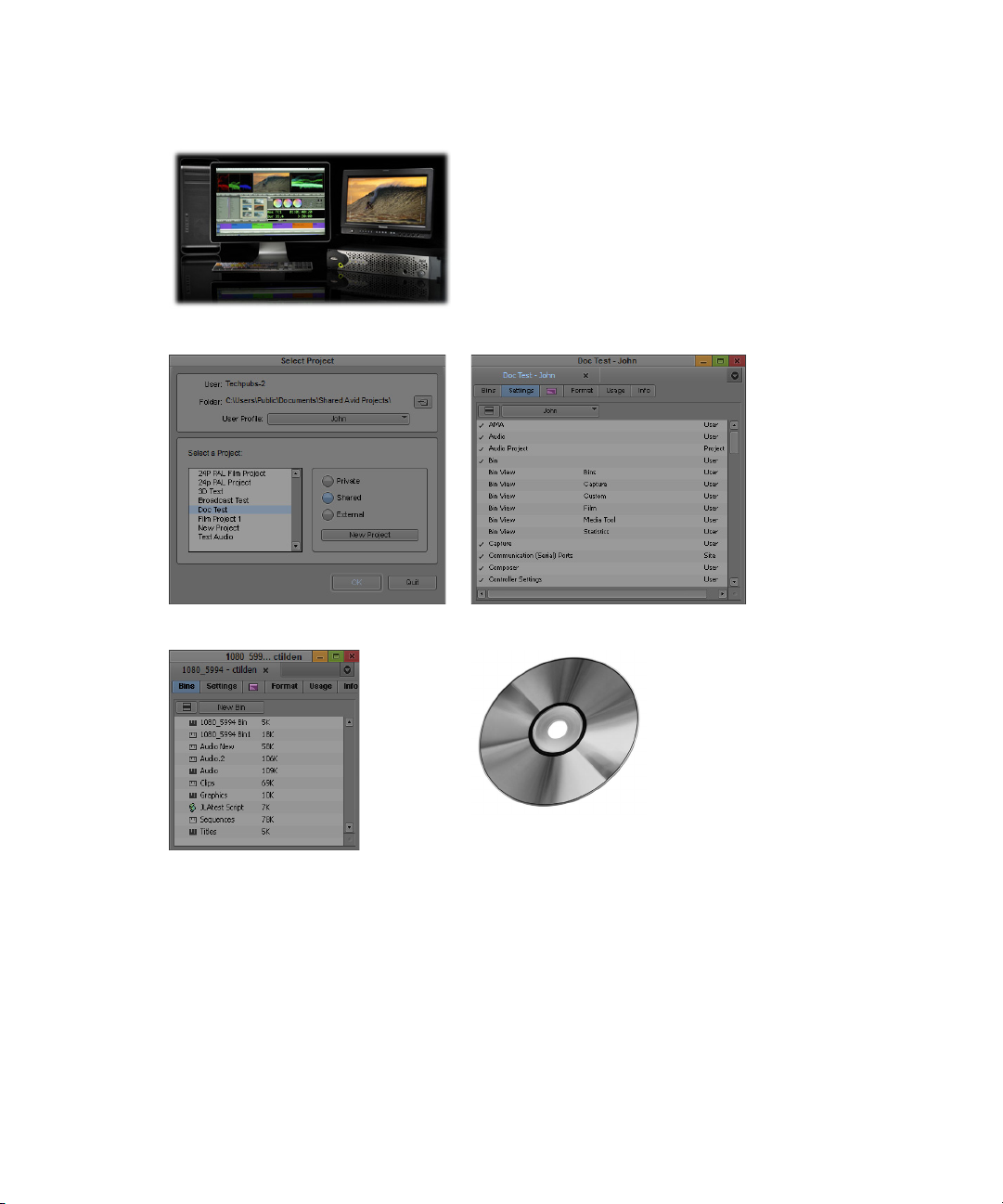
1 Turn on your system and start your Avid editing application
Preparing to Edit
2 Select or create a project 3 Select the Project settings
4 Create and organize bins
Preparing to Edit
When you capture and organize footage before you edit, follow these basic steps:
1. Batch capture, log and capture, or capture on-the-fly your source material into your Avid
editing application.
For more information, see “Preparing for Capture” on page 159 and “Capturing Media” on
page 223.
5 Back up the project
29
Page 30
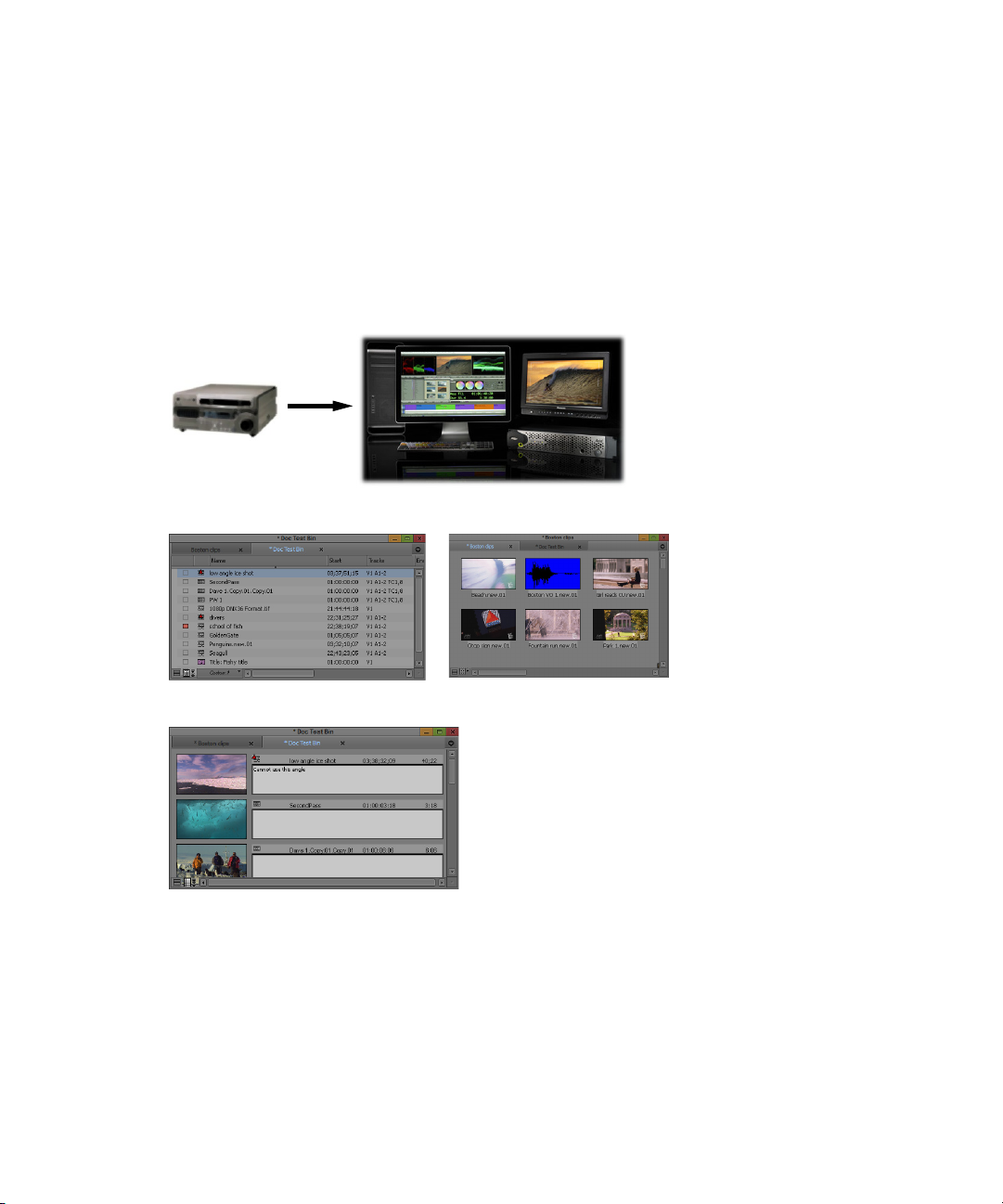
2. Use bins to organize your project items.
For more information, see “Working with Bins” on page 323.
3. Use the Media tool to manage media files.
For more information, see “Managing Media Files” on page 439.
4. Use the bins to create storyboards.
For more information, see “Creating a Storyboard” on page 365.
1 Capture footage, creating master clips and media files
Editing a Sequence
2 Sort and organize clips in bins
4 Previsualize with storyboards
Editing a Sequence
When you edit your video and audio, follow these basic steps:
1. View your clips and mark IN and OUT points, or create subclips based on selected portions
of your master clips.
For more information, see “Viewing and Marking Footage” on page 486.
3 Manage media files for storage efficiency and backup security
30
Page 31

Editing a Sequence
2. Build your sequence in Source/Record mode in the Timeline. See “Creating and Editing
Sequences” on page 575.
3. Use Segment, Trim, and Effect modes to fine-tune your edits and effects.
For more information, see “Using the Timeline” on page 667, “Working with Trim Edits” on
page 732, and the Effects and Color Correction Guide for your Avid editing application.
4. Use the Audio tool to adjust and mix multiple audio tracks and prepare for final playback or
output.
For more information, see “Working with Audio” on page 759.
5. Continue to edit if further adjustments are required.
1 Screen, mark, and subcatalog footage
2 Edit in Source/Record mode and the Timeline
3 Fine-tune edits and effects
31
Page 32

4 Fine-tune audio pan, volume, and EQ
5 Screen and continue editing, repeating any or all of steps 1 through 4 as necessary
Outputting a Sequence
Outputting a Sequence
When your sequence is finished, you can output it in any of the following ways:
• Export as a file or a series of files.
For more information, see “Exporting Frames, Clips, or Sequences” on page 1005.
• Output a digital cut in one or more formats.
For more information, see “Generating Output” on page 1038.
™
• Generate a cut list through Avid FilmScribe
.
• Generate an EDL through Avid EDL Manager.
For more information on FilmScribe or EDL Manager, see the Avid Media Composer,
NewsCutter, and Symphony Supporting Applications Guide, or the FilmScribe or EDL
Manager Help.
32
Page 33

Finished sequence. Output options include:
Outputting a Sequence
Export a file
Generate a cut list
Output to tape
Generate an EDL
33
Page 34

2 Starting a Project
Your work begins when you turn on your system, start your Avid editing application, and open
an existing project or create a new project. The following topics describe procedures for starting
your work, as well as several techniques to safeguard and restore your work if necessary:
• Turning on Your Equipment
• Working with the Desktop
• Starting Your Avid Editing Application (Windows)
• Starting Your Avid Editing Application (Macintosh)
• Working with Projects
• Quitting and Turning Off Equipment
• Avid Projects and Avid Users Folders
• Changing Project and User Names
• Backing Up Your Project Information
• Avid Attic Folder
Turning on Your Equipment
Avid recommends that you turn on your equipment in the following order:
1. Storage devices.
2. Peripheral devices (such as monitors and speakers).
3. Computer system.
4. Avid input/output hardware device.
Do not disconnect devices while you run your Avid editing application. Before you start your
n
Avid editing application, make sure you connect all your devices first.
Page 35

Working with the Desktop
You can use some of the desktop navigation features of your operating system to speed your
work or customize for your convenience while you edit. You can:
• Control how the Windows taskbar appears on the screen (Windows only).
• Use the Macintosh Dock as a quick way to launch your Avid editing application (Macintosh
only).
• Use shortcut menus (also sometimes known as context menus) to quickly access editing
commands.
• Use standard keyboard shortcuts to navigate and select options in dialog boxes and menus.
• Use the mouse scroll wheel for navigation and customize mouse button functions.
You also use the desktop for backups and transferring projects, as described in “Backing Up
Your Project Information” on page 64 and “Avid Projects and Avid Users Folders” on page 46.
For information on the Windows desktop and icons, see your Microsoft® documentation. For
n
information on the System Folder and the desktop and icons, see your Macintosh documentation.
Using the Windows Taskbar (Windows Only)
Working with the Desktop
By default, the Windows taskbar always appears on the bottom of your screen, on top of your
Avid editing application. You have two other choices:
• Keep the taskbar hidden behind your Avid editing application
• Set the taskbar to appear only when you drag the mouse pointer to it
If you keep the taskbar hidden while you run your Avid editing application and you minimize an
application such as Help, you do not see the minimized icon in the taskbar.
For more information about the taskbar, see the Windows Help.
You can also drag the taskbar to the top, bottom, or either side of the monitor.
n
When you work in your Avid editing application, you can minimize windows (such as the Project
window and bins). The icons appear in your Avid editing application window, not in the taskbar.
To see the taskbar and minimized icons:
t Minimize your Avid editing application.
35
Page 36

To change the taskbar settings:
1. Right-click an unused part of the taskbar, and select Properties.
The Taskbar and Start Menu Properties dialog box opens.
2. Select the options you want:
t To keep the taskbar hidden, deselect “Keep the task bar on top of other windows” and
“Auto hide the task bar.”
t To set the taskbar to appear when you want, select “Keep the task bar on top of other
windows” and “Auto hide the task bar.”
3. Click OK.
Using the Macintosh Dock (Macintosh Only)
You can place an application icon alias on the Dock for easy access to your Avid editing
application. The Dock is hidden when your Avid editing application is active. For full
information on using the Dock, see the Macintosh documentation.
To display the Dock:
t Move the mouse pointer to the edge of the screen where the Dock is hidden.
Working with the Desktop
Using Shortcut Menus
In addition to standard menus to find a command you need, you can use shortcut menus. Shortcut
menus show the most frequently used commands for a window or a screen object.
Most shortcut menus contain a What’s This? command to access Help for the window or the
object.
To use a shortcut menu:
t Right-click a window or a screen object.
Using the Keyboard for Navigating in Dialog Boxes and Menus
To navigate in dialog boxes and menus and to select and deselect options:
Option Command
To move from tabbed page to tabbed page
within a dialog box.
To move from check box to check box or from
option to option in a dialog box.
Press Page Up or Page Down.
Press Tab.
36
Page 37

Option Command
Working with the Desktop
To select or deselect a check box or an option
in a dialog box.
To move up or down in a menu, or increment a
numeric value.
Press Right Arrow, Left Arrow, or the space bar.
Press Up Arrow or Down Arrow.
Using the Mouse Scroll Wheel for Navigating
You can use the mouse scroll wheel to navigate in your Avid editing application, as described in
the following table. You can also set the speed to scroll with the mouse wheel, and assign
functions to three additional mouse buttons, as described in “Customizing Mouse Functions” on
page 37.
To scroll through items in a window or function area
with a vertical scroll bar (such as a bin).
To move the position bar one frame at a time in the
Timeline.
To move the slider one unit at a time in a tool or
window containing a slider (such as the Effect Editor).
To move the slider 10 units at a time in a tool or
window containing a slider (such as the Effect Editor).
Use the scroll wheel.
Ctrl (Windows) or Control (Macintosh) +
use the scroll wheel.
Use the scroll wheel.
Press Shift + use the scroll wheel.
Customizing Mouse Functions
Your Avid editing application lets you set the speed of scrolling with the mouse wheel, and lets
you assign functions to three additional mouse buttons.
When you map mouse buttons, make sure that the modifier key that you assign to the button and
n
command does not already have an alternate function.
You cannot assign functions to the standard left and right mouse buttons.
To set the mouse scroll speed:
1. In the Project window, click the Settings tab, and then double-click Mouse.
The Mouse Settings dialog box opens.
37
Page 38

Working with the Desktop
2. Select a speed from the Vertical Scroll Speed menu.
Normal is the default setting. Normal scrolls one item at a time. Moderate scrolls two items
at a time, and Fast scrolls four items at a time.
To assign functions to additional mouse buttons:
1. In the Project window, click the Settings tab, and then double-click Mouse.
The Mouse Settings dialog box opens.
2. Select Tools > Command Palette.
The Command palette opens.
3. Select Button to Button Reassignment at the bottom of the Command palette.
4. Click the tab from which you want to select a user-selectable button.
5. Click the mouse, and drag the button from the Command palette to a button location on the
Mouse Settings dialog box.
Optimum Performance (Windows 7)
The following list contains suggestions for ensuring optimum performance when working with
your Avid editing application on a Windows 7 system:
• It is required to turn off File Sharing. If you do not do this, you might receive Access Denied
errors after you move files.
In Control Panel > Network and Sharing Center > File Sharing, select Turn off File Sharing.
• Disable CPU throttling.
In Control Panel > Hardware and Sound > Power Options, select High Performance.
• Do not enable the Windows Display setting “Show window contents while dragging.” This
setting hinders redraw performance on your Avid editing system.
38
Page 39

Working with the Desktop
In Control Panel > Appearance and Personalization > Personalization > Window Color and
Appearance > Effects, deselect Show window contents while dragging.
• Enable setting to adjust for best performance.
In Control Panel > System and Maintenance > System > Advanced System Settings >
Performance Settings, select Adjust for best performance.
• Disable Desktop compositing.
In Control Panel > System and Maintenance > System > System Protection > Advanced tab
> Performance Setting, deselect Enable desktop composition.
• Disable Windows Defender.
In Control Panel > Security > Windows Defender > Tools > Options > Administrator
Options, deselect Use Windows Defender > Save.
• Disable Sidebar.
Right-click the Sidebar or Sidebar icon on your desktop > Properties > Deselect Start
Sidebar when Windows starts > Right click icon and select Exit.
• Disable Hibernation in the Power options.
In Control Panel > Performance Information and Tools > Power Options > Change when the
computer sleeps > Put the computer to sleep, select Never.
• Change Advanced Power Settings.
In Control Panel > Performance Information and Tools > Power Options > Change when the
computer sleeps > Change advanced power settings > High Performance (instead of
Balanced) Hard disk > Turn off hard disk after Setting: Never.
In Control Panel > Performance Information and Tools > Power Options > Change when the
computer sleeps > Change advanced power settings > High Performance (instead of
Balanced) Sleep > Sleep after Setting: Never.
• Set automatic updates to Notify you but don’t automatically download.
In Control Panel > System and Maintenance > Windows Updates > Change settings, select
“Notify me but don’t automatically download them or install them.”
• Turn off the firewall for Avid Interplay.
In Control Panel > Security > Windows Firewall, select Turn Windows Firewall on or off.
• Do not leave the Console window open when you edit. The performance of your Avid
editing system slows considerably when the Console window is open.
• Do not leave a Windows Explorer window open. Windows Explorer attempts to update file
information.
• Do not leave an e-mail application open if it is set to do periodic checks for mail.
• Do not run any application that periodically “wakes up” and performs an action.
39
Page 40

Working with the Desktop
• Disable screen savers.
• Do not keep media on the same partition where you install your Avid editing application.
Avid recommends external media drives.
• Always use small fonts with the display driver to avoid missing characters in the dialog
boxes in your Avid editing application.
• After you move a drive from one system to another, restart your system. Windows does not
recognize the drive until you restart.
• Ensure you do not accidentally delete locked items from your desktop.
Right-click the Recycle Bin icon on your desktop > Properties > General tab > Display
delete confirmation dialog.
• When you advance by single frames through the Timeline, deselect Render On-the Fly to
enable faster response time.
In your Avid editing application, deselect Clip > Render On-the-Fly
• Do not name files with special characters (/ \ : ? ” < > | *). Windows does not recognize
special characters in file names. Bin names are limited to 27 characters (not including the
four characters reserved for the file name extension).
• Do not schedule automatic backups at times when your Avid editing system might be in use.
• Do not run any application that includes prescheduled or automatically scheduled activities,
such as a calendar program.
• Do not leave other applications running. Some applications, such as Microsoft Office, run
background processes.
• Do not allow the Find Fast background process (find.exe) to run. The process tries to update
its cache of file and folder locations. Check your Startup folder, and delete the file if it is
there. To locate the find.exe, select Start > Search > find.exe.
Optimum Performance (Macintosh)
The following list contains suggestions for ensuring optimum performance when working with
your Avid editing application on a Macintosh system:
• Do not select the option that puts the hard disk to sleep when possible.
In System Preferences > Hardware Energy Saver, deselect Put the hard disk(s) to sleep when
possible.
• Set sleep options to Never in Energy Saver preference.
In System Preferences > Hardware Energy Saver, select Never.
• Disable screensavers.
In System Preferences > Personal Desktop & Screen Saver > Screen Saver, select Never.
40
Page 41

Starting Your Avid Editing Application (Windows)
Antivirus Applications
Antivirus programs that contain autoscanning features can interfere with the operation of your
Avid editing application. Since virus scanning is a processor-and disk-intensive activity, it can
interfere with capturing and playing real-time effects in your Avid editing application.
Avid recommends you do not scan files or schedule any background tasks such as virus scanning
when you use your Avid editing application.
File deletion protection utilities also consume system resources and could interfere with the
proper operation of your Avid editing application. These utilities automatically back up any files
that you delete, even temporary files that you create and delete with your Avid editing
application. This consumes a large amount of disk space.
Starting Your Avid Editing Application (Windows)
By default, your Avid editing application is located in the following folder:
drive:\Program Files\Avid\Avid editing application
The installation process adds a desktop icon and a pointer to your Avid editing application in the
Start menu.
c
Your Avid editing application does not start properly if you move the application file from
the Avid editing application folder.
If you install your Avid editing application on a laptop computer, a dialog box might open with a
n
message about incompatible power management schemes. Avid recommends you use the
“Always On” power scheme for Windows XP and the “High Performance” power option for
Windows 7 when you work with Avid editing applications. Other power schemes might affect
performance of editing functions (for example, capture and digital cuts).
To start your Avid editing application, do one of the following:
t Click Start > All Programs > Avid > Avid editing application.
t Double-click the Avid editing application desktop icon.
After your Avid editing application starts, the Select Project dialog box opens. For more
information on the Select Project dialog box, see “Working with Projects” on page 42.
Starting Your Avid Editing Application (Macintosh)
Your Avid editing application is in the following location:
41
Page 42

n
c
n
Working with Projects
Macintosh HD/Applications/Avid editing application
For most users, the desktop or Dock is a more convenient location to start your Avid editing
application. The installation process places a shortcut alias icon for your Avid editing application
on the desktop.
For more information to make an alias and use the Dock, see your Macintosh documentation.
Your Avid editing application does not start properly if you move the application file from
the Avid editing application folder. You can drag it onto the Dock, and an alias appears on
the Dock.
When you start your Avid editing application, you might see a message box which indicates there
is no input or output signal. Check to ensure that your Avid input/output hardware is connected
to the system with the cables secured and that it is turned on.
To start your Avid editing application, do one of the following:
t Double-click the alias icon for your Avid editing application on the desktop.
t Double-click the alias icon for your Avid editing application on the Dock.
t Select Go > Applications, and then double-click the Avid editing application folder. Then
double-click the Avid editing application file.
You might see a license agreement. After your Avid editing application starts, the Select
Project dialog box opens. For more information on the Select Project dialog box, see
“Working with Projects” on page 42.
Working with Projects
When you start the editing application, the system displays the project log in window. Amongst
other settings, you can determine the location of the project. Media Composer allows you work
with projects in a private location or one that can be shared with other users.
The best choices for a shared structure are either Shared or External. These types of projects are
created in a common location, making it easier for the Administrator to locate and delete old
projects.
If you work in an Interplay environment, you can also share a synced project. For more
information, see “Interplay Synced Projects” on page 1203.
If you will be working in a shared project environment, you should carefully consider the
n
location of your projects and media. This will make for a much more efficient working
environment in terms of time and disk storage space.
42
Page 43

Working with Projects
If you are working with projects created on local drives, then note the following:
• A local project resides on the C: drive of the Avid editing system.
• If the connection between the Avid editing system and shared storage is lost, the project and
its contents are unlikely to become corrupt as a by-product.
• You cannot login to the project from another workstation. The exception is if you are in an
Interplay environment. In this case, you (or other users) must go to the Interplay Projects
folder to locate the contents created in this project.
• From an administration standpoint, you must clean these projects up or archive them from
each editing system. At a large site this can become time consuming and needs to become
part of the Administrator’s workflow.
For information on the files and folders that your Avid editing application creates as part of a
project, see “Avid Projects and Avid Users Folders” on page 46.
You should also back up your project information regularly to a separate storage device, as
described in “Backing Up Your Project Information” on page 64.
Private
A Private Project is stored locally. It can be accessed only by the user currently logged on to the
editing machine. On a Windows system, a Private Project is always stored under the user’s
Documents directory. An administrator may be able to access this project if they have read/write
permission to the user’s directory.
43
Page 44

Working with Projects
Shared
A Shared Project is stored locally. It can be accessed by any user that can log on the editing
machine. On a Windows system, a Shared Project is always stored in the machine’s Shared
Documents directory.
External
An External Project can be saved to any directory, either local or remote. Depending on the
file-system permissions set on the selected folder, other users or an administrator may or may not
be able to access the project. The external option is particularly useful when you want to save the
project on shared network drive to make project maintenance easier.
Avid does not support sharing bins in an Interplay environment. If you create projects on shared
n
storage, do not allow editors to work in the same bin at the same time. This can result in data
loss or media corruption. Instead of sharing bins, editors should use the Interplay Window to
collaborate and share material.
44
Page 45

Synced
Working with Projects
A Synced Project is stored locally and in your Interplay database. It can be accessed by any user
who has permissions for the project. On a Windows system, a Synced Project is always stored in
the machine’s Shared Documents directory and in a corresponding project folder on Interplay.
45
Page 46

Working with Projects
Avid Projects and Avid Users Folders
When you create a new project or user profile, your Avid editing application creates files and
folders in the Avid Projects and the Avid Users folders.
Locations of Avid Project Folders
By default, the system installs two Avid Projects folders:
46
Page 47

Private Shared
Working with Projects
Windows drive:\Documents and
Settings\Windows login
name\Documents\Avid Projects
Macintosh Macintosh HD/Users/Mac login
name/Documents/Avid Projects
Locations of Avid Users Folders
drive:\Documents and Settings\All
Users\Shared Documents\Shared Avid
Projects
Macintosh HD/Users/Shared/Avid editing
application/Shared Avid Projects
The Avid Users folder is located in the application folder:
Windows 7 drive:\Documents and Settings\All Users\Shared Documents\Avid editing
application\Avid Users
Macintosh Macintosh HD/Users/Shared/Avid editing application/Avid Users
(Windows only) The location of the Avid Users folder depends on the installation path for your
n
Avid editing application.
Files and Folders Created For Projects
When you create a new project, your Avid editing application creates a folder with the name that
you entered when you created the project. The following three files are stored within the project
folder:
• A project file (.avp)
• A project settings file (.xml)
• A bin file (.avb)
The project folder and the three files all use the project name you provide. The project folder is
stored in the Avid Projects folder.
Your project settings are initially set to the default values. As you create additional bins for the
project (see “Creating a New Bin” on page 73), additional bin (.avb) files are added to the project
folder.
47
Page 48

Files and Folders Created For User Profiles
1
2
5
3
4
6
7
When you create a new user profile, your Avid editing application creates a folder for the user
and two files that are stored within the user folder:
• A user profile file (.ave)
• A user settings file (.xml)
The user folder and the two files all use the user profile name you provide. The new folder is
stored in the Avid Users folder.
Select Project Dialog Box
The Select Project dialog box lets you find and open a project, create a new project, or establish
user profiles.
Working with Projects
Element Description
1 User Displays the login name of the user currently logged into the system. To change to a
different user, log out and log in as that user.
2 Folder Displays the path of the current folder. This path determines which projects appear in
the project list and where a new project is created.
You cannot type into the User or Folder text boxes.
n
48
Page 49

Working with Projects
Element Description (Continued)
3 User Profile Displays the name associated with the current settings. By default your Avid editing
application uses the login name. The list button changes profiles or creates a new one.
For more information, see “Understanding User Profiles” on page 87.
4 Project list Displays a list of the Avid projects in the currently selected folder. Double-click a
project to open it.
5 Browse button Lets you navigate to a different folder. The projects in this folder appear in the project
list. See “Opening and Closing Projects” on page 58.
6 Folder buttons The button you select will set the location where you can browse or create projects.
Private: Local folder for the user currently logged in.
Shared: Local folder that is visible to all users that have accounts on this system.
External: Local or remote folder that any other users may have access to depending on
the file permissions set on this folder.
Synced: (Interplay only) Local and Interplay folder that other users may have access to
depending on permissions.
For more information, see “Working with Projects” on page 42.
7 New Project button Opens the New Project dialog box to create a new project.
Project Types
The following table lists the format options available for your project. Depending on the model
of your Avid editing application, your format options might not include all items listed here.
Project Type Source Footage Transfer Color Space
23.976p NTSC For film-originated or video-originated footage that has been shot at
23.976 fps or film-originated footage transferred on digital videotape
(such as Digital Betacam
24p NTSC For film-originated or other 24-fps footage transferred to NTSC videotape YCbCr
24p PAL For film-originated or other 24-fps footage transferred to PAL videotape
at 25 fps
25i PAL For PAL video-originated footage (25 fps) YCbCr
25p PAL For 25-fps film footage transferred to PAL videotape YCbCr
30i NTSC For NTSC video-originated or other 30-fps footage transferred to NTSC
videotape
™
)
YCbCr
YCbCr
YCbCr
49
Page 50

Creating a New Project
Project Type Source Footage Transfer (Continued) Color Space
720p/23.976 For film-originated material transferred to videotape. YCbCr
720p/25 For video-originated material that can be captured, edited and output for
HD broadcast. It can also be captured in DVCProHD format.
720p/29.97 For video-originated material. Can be directly captured, edited, and output
for HD broadcast.
720p/50 For HDV broadcast (European broadcast). YCbCr
720p/59.94 For video-originated material. Can be directly captured, edited, and output
for HD broadcast.
1080p/23.976 For film footage transferred to videotape, or high-resolution files from
digital film cameras.
1080p/24 For film footage transferred to videotape, or high-resolution files from
digital film cameras. True 24-fps editing.
1080p/25 For film footage transferred to videotape, or high-resolution files from
digital film cameras.
1080p/29.97 For film footage transferred to videotape, or high-resolution files from
digital film cameras.
1080i/50 For video-originated material, or high-resolution files from digital film
cameras. Can be directly captured, edited, and output for HD broadcast.
1080i/59.94 For video-originated material, or high-resolution files from digital film
cameras. Can be directly captured, edited, and output for HD broadcast.
YCbCr
YCbCr
YCbCr
YCbCr
RGB
YCbCr
RGB
YCbCr
RGB
YCbCr
RGB
YCbCr
RGB
YCbCr
RGB
Some older versions of Avid editing applications provided HD project types based on HDV
n
requirements. In current versions of Avid editing applications, these are replaced by standard
HD projects that let you specify the raster dimensions for editing and playback.
Set film preferences in the Film and 24P Settings dialog box immediately after you create a
n
project to provide your Avid editing application with important information about the type of film
and audio transfer you used for your project.
Creating a New Project
You can create a project in any format. The settings you choose for your project will dictate the
way in which your material is handled for the various editing functions within the Avid
application.
50
Page 51

Creating a New Project
The project format describes the frame size, aspect ratio, frame rate, and the color space for all
sequences created within the project. You should set your project format according to the quality
required for the final delivery.
Read the following topics before setting your project format:
• Setting the Project Format to Accommodate Variable Resolutions
• Setting the Project Color Space
To create a new project:
1. In the Select Project dialog box, select the folder in which you want to create the project:
Private, Shared, External, or Synced — see Working with Projects.
You must be logged in to Interplay to create a Synced Project. For more information on synced
n
projects, see “Interplay Synced Projects” on page 1203.
2. Click New Project.
The New Project dialog box opens.
3. Type the name of your new project in the text box.
4. Click the Format menu and select a project format that matches your media and delivery
requirements.
The rest of the options might change depending on the project format you choose.
Example of the New Project dialog box
51
Page 52

5. Set the following option(s), where applicable:
Option SD HD
Creating a New Project
Project
Format
Aspect Ratio The numerical ratio of the picture width to height. Set
Raster
Dimension
A combination of the video format (e.g. NTSC, PAL,
HD), the video mode (e.g. 1080p, 720p) and the frame
rate (e.g. 23.97, 24, 25 fps). Choose the most
appropriate combination for your output format.
the aspect ratio for standard (SD) video and television
at 4:3, and at 16:9 for HD.
The project uses the aspect ratio setting to determine
the display setting in the monitors, and as a factor in
determining whether material requires resizing or
repositioning in sequences. For more information,
“Mixing Frame Sizes and Aspect Ratios” on page 596.
Set the spatial resolution at which your clips will be
processed on the timeline. The resolution is the number
of pixel columns (width) by the number of pixel rows
(height), for example 1920 by 1080. Some devices
create media in non-standard resolutions--for example,
HDV (1440 x 1080).
Note: These non-standard dimensions are only
available if there is an Avid codec to support it.
The Raster Dimension menu appears only for HD
projects on a supported system. For more information,
Select either
4:3 or 16:9
Always uses the 16:9
aspect ratio.
Color Space Set the color coordinate system to be used for
interpreting color values in your media and
transforming them to the selected color space for the
editing application.
When using source material
n
that is full frame, the frame
compatible format is generated
on the fly which may result in a
performance slowdown.
Film Available for 23.976p, 24p, 25p, 720p, and 1080p film
projects. Click the Film button and select a format for
film gauge tracking from the Default Film Type menu.
Audio
Transfer Rate
Available for 24p PAL projects. N/A
Always uses
YCC
N/A
YCC 709 or RGB 709
52
Page 53

Option SD HD
Matchback Available for 25i PAL, 30i NTSC, 720p, and 1080i
Matchback projects only. Select Matchback, then click
the Film button and select a format for film gauge
tracking from the Default Film Type menu.
The Matchback item appears only if your Avid
n
editing application includes the Matchback
option.
Creating a New Project
SearchData
Folder
6. Click OK.
7. Double-click the project name to open the project.
Specifies the location for the folder to be used by
PhraseFind. By default, this is set in the Projects folder.
This folder keeps an index of text or phonetic searches.
Your Avid editing application creates the new project files and folder, and then returns to the
Select Project dialog box. The project name is highlighted in the Projects list.
The Project window, the Composer window, and the Timeline open with your User settings
loaded.
Project name and user name in the title bar (left) and Close button (right) in the Project window
8. (Option) If your project uses a film project type, set film preferences immediately after you
create the project.
53
Page 54

Working with Color Spaces in HD Projects
Setting the Project Format to Accommodate Variable Resolutions
Regardless of the project output format, you can still work with media of different frame sizes,
aspect ratios, and pixel aspect ratios in the same sequence. For example, you can mix SD 4:3,
HD 16:9, and 2K+ media formats. Your Avid editing application automatically resizes and
repositions these clips to match the project's format settings.
The original media size, resolution and color properties are preserved in the metadata of the clip
n
in case the sequence needs to be conformed in other applications.
If you intend to output in multiple formats, e.g. broadcast in NTSC, PAL, and HD, then you can
edit your project format in the highest format which in this case would be HD. After outputting
to HD, you can then switch the project format to NTSC, and reformat and re-render any
necessary titles/effects before output. (See Mixing Frame Sizes and Aspect Ratios; Mixing
Frame Rates and Field Motion Types in the online help.)
Working with Color Spaces in HD Projects
In full HD projects, some Avid editing applications and Avid input/output hardware devices let
you work in either the YCbCr or the RGB color space. Your Avid editing application uses a
project’s color space setting to control how it displays video, processes most effects, and outputs
sequences.
RGB and YCbCr both separate colors into three channels, but they store color information
differently. When you choose which color space to work in, you need to take several factors into
consideration, including the color space of your media, your output needs, and your performance
expectations for your Avid editing application while editing.
The RGB color space is not available for 720p or NTSC/PAL SD projects.
Understanding the YCbCr Color Space
YCbCr performs better, but is of lesser quality.
YCbCr stores brightness (Y) separately from colors (Cb and Cr). Since humans are more
susceptible to changes in light than in color, YCbCr discards half the chrominance data
(one-third of the overall data) with little discernible difference to image quality. Media that uses
YCbCr takes up less disk space than media that uses RGB, and less bandwidth is required to play
it.
YCbCr is the only color space available for SD media, because SD requires lower bandwidths
and might need to maintain backwards compatibility with black-and-white displays. When you
only need SD output, you only need to work in the YCbCr color space.
54
Page 55

Working with Color Spaces in HD Projects
Newer HD technologies can display detailed images with sharp changes in color. Because some
color data is missing, YCbCr media does not take full advantage of HD display hardware. The
limited color information available in YCbCr also means that the results of effects processing are
not as good as they could be with RGB media.
Understanding the RGB Color Space
RGB produces higher quality images and effects, but takes up more space.
RGB separates images into their constituting colors: red (R), green (G), and blue (B) and does
not discard any of the chrominance data. As a result, video images look sharper, particularly
those with fast motion or abrupt changes in color. Newer HD formats support RGB only.
Because no color data is lost, your Avid editing application can make more precise calculations
when processing effects using RGB media. The quality improvement over YCbCr processing is
most noticeable in effects that perform color analysis, such as chroma keyers. Even if the
original video data is in YCbCr, your should consider converting to RGB to process effects as
precisely as possible.
The disadvantage of RGB is file size. Media that uses RGB takes up more disk space than media
that uses YCbCr, and more bandwidth is required to play it. Some systems might not be able to
handle playback of RGB material smoothly, particularly when you use the J-K-L keys to play at
greater than normal speed or to play in reverse.
RGB media requires high bandwidth. For effective playback of multiple streams of video at
n
higher resolutions, you should distribute the video tracks as evenly as possible among available
drives, and target separate drives for audio and video.
Choosing a Color Space for Your Project
Your choice of a color space depends on both your input/output hardware and your desired
output. For information on how to define the color space for a project, see “Changing the Project
Color Space for an HD Project” on page 57.
If your hardware supports both RGB and YCbCr, choose the color space that corresponds to your
output needs.
If your hardware supports only YCbCr, you can choose RGB for your project color space to
maintain maximum quality throughout your workflow. Your Avid editing application converts
your material to YCbCr right before sending it to the hardware for monitoring or output.
The project color space specifies how your Avid editing application processes effects in real
time. Your Avid editing application supports native processing of effects in either the RGB or
YCbCr color spaces. For example, this means that RGB media does not need to be converted to
YCbCr for processing, maintaining maximum video quality until the final output.
55
Page 56

Mixing Media of Different Color Spaces
You can work with media of different color spaces in the same sequence. For example, you can
mix SD YCbCr and HD RGB. When you mix media in this way, your video editing application
converts media to the project’s color space when necessary. This conversion takes place
internally during the processing of real-time effects and prior to output.
The color space of your media depends on its format. Tape-based SD and HD media uses the
YCbCr color space. Newer HD digital formats, such as R3D, use RGB. See “Resolution
Specifications” on page 1470 for information about supported formats.
You can check the color space of the media for any clip in your project by viewing the Color
Space bin heading in the bin that contains the clip. For more information, see “Moving,
Aligning, and Deleting Bin Columns” on page 346.
Setting the Project Color Space
When assembling a project, it is very common to have media originating from different sources.
These can include SD or HD tapes, file-based cameras, film frames scanned to files, and even
computer-generated graphics. Each of these media sources can have arbitrary color encoding
(i.e. color model, gamma, bit depth, etc.). The editor needs to see each of these media sources
with their true colors from the beginning to the end of the editing process.
Working with Color Spaces in HD Projects
When a project is created, a common color space needs to be selected for the processing of all
media within a sequence. This color space maintains a consistent color appearance when color
values from different media sources are sent to a particular device (either a monitor, storage, or
output).
The working color space should be set according to the delivery requirements. As an example,
for broadcast HD TV, set it to Rec. 709. For a sequence that will be delivered in multiple formats,
the working color space should be set to the highest overall precision and range.
Color Space is the predefined limit for the range of colors that can be represented in a given file,
application or device. When images are processed, the color that they were encoded with by the
camera is transformed to the color space of the Media Composer application. This is known as
color mapping.
When these same images need to be viewed on a monitor, the colors need to be mapped to the
color space of the monitor. (The color space of the monitor is not set within Media Composer. It
needs to be calibrated separately as per the vendor’s instructions).
56
Page 57

Changing the Project Color Space for an HD Project
The Color Space setting determines the color coordinate system to be used for interpreting color
values in your media and transforming them to the selected color space for the editing
application.The RGB color space is only available in full HD projects. 720p and NTSC/PAL
projects can only use the YCbCr color space.
The project color space can be changed at any time. All color transformations are applied on the
media during playback.
Changing the project color space does not affect the rendering of titles and effects or change the
color space of imported media. Your Avid editing application controls these according to their
Media Creation Settings. For more information, see “Media Creation Settings” on page 1424.
To change the project color space:
1. Click the Format tab in the Project window.
2. Click the Color Space menu, and select either RGB 709 or YCbCr 709, depending on the
color space you want to use.
Working with Color Spaces in HD Projects
Color Space menu in the Format tab of the Project window
Your Avid editing application now displays video and processes real-time effects in the new
color space. The final output is also in the new space.
57
Page 58

Setting Project-Naming Conventions
The system limits bins and project names to 27 characters, not including the period and
3-character extension that the system automatically adds to a file name. If you plan to move bins
and projects from one platform to another, do not use the characters / \ : * ? “ < > | or leading
spaces, trailing spaces, or trailing periods, when you name a project, bin, and user.
(Macintosh only) If you use your Avid editing application as a standalone editor (and don’t plan
to move your bins or projects to another platform), you can extend bin and project names to 31
characters. You can also choose to accept or not accept the Windows compatible file naming
convention of special characters and spacing.
To use Windows compatible file names
1. Click the Settings tab in the Project window.
The Settings list appears.
2. Double-click General Settings.
3. Select Use Windows compatible file names.
This prevents your Avid editing application from accepting the restricted characters in a bin,
project, or user name.
Opening and Closing Projects
To extend project and bin names to 31 characters (Macintosh only)
1. Click the Settings tab in the Project window.
The Settings list appears.
2. Double-click General Settings.
3. Select Allow files names to extend 27 characters.
This extends the names of projects and bins to 31 characters.
Opening and Closing Projects
You can open a project from the Select Project dialog box, and navigate from the Select Project
dialog box to find any project on your system.
If you have already created a project, when you enter your Avid editing application you can
bypass the Select Project dialog box and have your last project open automatically.
If you choose to install the sample startup project and media when you install your Avid editing
application, you can open this project from the Select Project dialog box. The startup project,
called Avid Boston Project DV25, contains a complete sequence with rendered effects and titles,
as well as all the video and audio clips used in the sequence.
58
Page 59

Opening and Closing Projects
Use the startup project to learn how to edit with your Avid editing application, before you
capture any media of your own. You can explore the sequence in the Timeline to learn how it is
assembled, and use the clips to practice viewing and editing techniques described in this guide.
If a sequence that was created in an older version of an Avid editing application contains effects
n
or color corrections, you might need to update the sequence. If a sequence requires updating, the
Update Sequence dialog box might open when you load the sequence. For more information, see
“Updating and Reverting Existing Effects in Sequences” in the Help.
To open an existing project:
1. In the Select Project dialog box, select the folder in which the project is located: Private,
Shared, or External.
For more information, see “Select Project Dialog Box” on page 48.
2. Do one of the following:
t Select a project in the Select Project dialog box, and then click OK.
t Double-click a project name in the Projects list.
The Project window, the Composer window, and the Timeline open with the User settings
loaded. The title bar of the Project window contains the project name and the user profile
selected in the Select Project dialog box.
To browse for a project in a location other than the default Shared and Private folders:
1. Start your Avid editing application.
The Select Project dialog box opens.
59
Page 60

Browse button in the Select Project dialog box
2. Click the Browse button.
Opening and Closing Projects
The Browse for Folder (Windows) or Project Directory (Macintosh) dialog box opens.
3. Navigate to the folder that contains the project you want.
4. Click OK (Windows) or Choose (Macintosh).
5. Select a project in the Projects list.
6. Click OK.
The Project window, the Composer window, and the Timeline open with the User settings
loaded. The title bar of the Project window contains the project name and the user profile
selected in the Select Project dialog box.
The next time you open the Select Project dialog box, the path you selected will be displayed
when you click the External button.
To open a project automatically:
1. Click the Settings tab in the Project window.
The Settings list appears.
2. Double-click any Interface setting.
The Interface Settings dialog box opens.
3. Click the General tab, select “Automatically Launch Last Project at Startup,” and then click
OK.
60
Page 61

Deleting a Project
The next time you start your Avid editing application, it opens your last project.
To turn off the automatic opening of projects so that you can select another project when
you start your Avid editing application:
1. Deselect “Automatically Launch Last Project at Startup,” and then click OK.
2. Quit your Avid editing application and restart it.
The Select Project dialog box opens.
3. Select a project and click OK.
The Project window, the Composer window, and the Timeline open with the User settings
loaded.
To open the startup project:
1. In the Select Project dialog box, click the Shared folder button.
2. Double-click Avid Boston Project DV25 in the Project list.
The Avid Boston Project DV25 project opens.
The footage in the Avid Boston Project DV25 project is shot in 16:9 aspect ratio. To view the
n
footage correctly in monitors, click the Format tab in the Project Window and set aspect ratio to
16:9.
3. In the Format tab of the Project window, ensure that Aspect Ratio is set to 16:9.
The footage in the Avid Boston Project DV25 project is shot in 16:9 aspect ratio.
4. Use the Bins tab in the Project window to open one or both of the bins in the project:
- Boston Seq DV25 contains a complete sequence
- Boston Project source contains all the video and audio clips in the project
For more information on opening bins, see “Opening and Closing Bins” on page 74.
To close the current project, do one of the following:
t With the Project window active, select File > Close Project.
t Click the Close button in the Project window.
Deleting a Project
To delete a project:
1. Start your Avid editing application.
The Select Project dialog box opens.
2. Click the project you want to delete.
61
Page 62

Quitting and Turning Off Equipment
3. Press the Delete key.
4. If you see a message asking if you want to delete the selected project and associated bins,
click OK
The deleted project no longer appears in the Select Project dialog box.
c
Deleting a project also deletes any bins that are in that project.
Media related to a deleted project is not deleted with the project folder. For more information on
n
deleting media files, see “Deleting Items from a Bin” on page 337 and “Deleting Media Files
with the Media Tool” on page 447.
Quitting and Turning Off Equipment
If you work in an Avid Unity™ environment, your Avid editing application writes a media
database file (.mdb) to the workspace where you work. Before you quit your Avid editing
application, make sure that the workspace has approximately 50 MB of storage space available.
Ask your Avid Unity administrator to increase the space if you need more storage.
To quit your Avid editing application and leave it immediately:
t (Macintosh) Select Avid editing application > Quit Avid editing application.
t (Windows) Select File > Exit.
The project closes and your Avid editing application quits.
To quit your Avid editing application and view the Select Project dialog box:
1. Click the Close button at the far right (Windows) or at the far left (Macintosh) of the Project
window’s title bar.
The Select Project dialog box opens.
2. Click Quit.
A message box opens.
3. Do one of the following:
t Click Leave to quit your Avid editing application.
t Click Cancel to return to the Select Project dialog box and select another project.
To view remaining storage on your media drives:
1. Click the Info tab in the Project window, and then click Hardware.
The Hardware tool opens.
2. Click the appropriate drive tab.
62
Page 63

Changing Project and User Names
For more information, see “Using the Hardware Tool” on page 116.
c
c
Quit your Avid editing application before you turn off your equipment.
To turn off your equipment:
1. Turn off the system by doing the following:
For a Windows system:
a. Click the Start button, and select Shut Down.
The Shut Down Windows dialog box opens.
b. Click the menu, and select Shut down.
c. Click OK.
For a Macintosh system:
t Select Apple menu > Shut Down.
2. If you have an Avid input/output device attached to your system, turn it off.
3. Turn off peripheral devices (such as monitors and speakers).
4. Turn off external storage devices.
Never remove media drives from your Avid system when it is turned on. Shut down the
computer, and then remove the drives.
5. Turn off all other hardware.
Changing Project and User Names
You cannot change project or user names from within your Avid editing application. You must
change the names from your desktop before you start your Avid editing application. For
information about the location of the Avid Projects and Avid Users folders, see “Avid Projects
and Avid Users Folders” on page 46.
c
When you change a user name or a project name, make sure you change the name of the
folder and all the files in the folder that have the old name. Your Avid editing application
does not automatically change the names of corresponding files in the folder.
To change a project name or user name:
1. Navigate to the Avid Projects or Avid Users folder, and then double-click the folder to open
it.
2. Click the name of the folder you want to change.
The name highlights.
63
Page 64

3. Type the new name of the folder.
4. Double-click the folder with the new name to open it.
The folder contains profile, settings, and project files with the old name.
5. Change the old name of each file to the new name.
Do not change the name of the file MCState in the Avid Users folder.
n
6. Close the windows, and restart your Avid editing application.
The new project name or user name appears in the Select Project dialog box.
Backing Up Your Project Information
Although your Avid editing application automatically saves your bins, projects, and settings, you
should back up these items frequently. Because the storage requirements are minimal, you can
back up these files to a variety of storage devices, such as:
•USB (thumb) drive
• CD-ROM or DVD-ROM
• Network storage device (such as a file server)
Backing Up Your Project Information
• Mass-storage device
To back up the larger media files created when you capture footage, use a high-capacity storage
n
device. For information on backing up media files, see “Backing Up Media Files” on page 466.
To save your work on a drive or on removable media:
1. Mount the drive or insert the storage media (USB drive, CD-ROM, or DVD-ROM).
2. (Windows only) From the Windows desktop, double-click the My Computer icon.
3. Double-click the icon for the destination storage drive or storage media to open it.
Double-click any additional folders to target the appropriate storage location.
4. Navigate to the folder that contains the project folder or the user folder you want to save.
5. Drag a project folder or a user folder to the targeted storage location.
6. When the system finishes copying the files, unmount the drive or eject the media and store it.
To restore a project or user information from a backup storage device:
1. Mount the drive or insert the removable media that contains the backup copies you want to
restore.
2. From the desktop, double-click the icons for the drive or storage media and for the internal
hard drive (Windows) or for the Macintosh HD (Macintosh).
64
Page 65

3. Drag the copies from the storage device to the appropriate folder on the internal hard drive
(Windows) or
When you start your Avid editing application, the restored project and user profile appear in
the Select Project dialog box.
If you restore a single bin or bins, you must relink them to the project from within the Project
n
window. For more information, see “Opening and Closing Bins” on page 74.
Macintosh HD/Users/Shared
Avid Attic Folder
The Avid Attic folder contains backup files of each bin in a project. You retrieve files from the
Avid Attic folder in the following circumstances:
• When you want to replace current changes to a sequence or clip with a previous version
• When the current bin file becomes corrupted
For information on retrieving files from the Avid Attic folder, see “Retrieving Files from the
Avid Attic Folder (Windows)” on page 66 and “Retrieving Files from the Avid Attic Folder
(Macintosh)” on page 68.
Avid Attic Folder
(Macintosh).
For information on setting automatic save features, see “Saving Bins” on page 77.
(Macintosh only) If you deselected the “Allow filenames to exceed 27 characters” option in the
n
General Settings dialog box, you cannot retrieve a backup file with a file name larger than the
27-character limit. You must rename the file before you retrieve it.
The Avid Attic folder contains a folder for each project. Each project folder contains a Bins
folder. When a bin is saved, a folder with the bin’s name is created in the Bins folder and a copy
of the bin file is stored in the folder with the bin name. The system adds the file name extension
.bak plus a version number to the bin’s file name. The bin file with the highest version number
represents the latest copy of the bin file.
When you view a bin folder in Details view (Windows) or List view (Macintosh), you can also
identify the most recent backup file based on the timestamp of creation displayed in the Modified
column (Windows) or Date Modified column (Macintosh).
The oldest backup file is overwritten only if the second-oldest backup file is more than 2 hours
n
old.
65
Page 66

Retrieving Files from the Avid Attic Folder (Windows)
To retrieve a file from the Avid Attic folder:
1. Minimize your Avid editing application.
2. From the desktop, double-click the Avid Attic folder, located in:
Avid Attic Folder
(Windows XP)
Documents\Avid editing application
(Windows Vista or Windows 7)
editing application
drive:\Documents and Settings\All Users\Shared
.
drive:/Users/Public/Public Documents/Avid
.
The Avid Attic folder opens and displays a folder for each project.
3. Double-click a project folder, and then double-click the Bins folder.
The Bins folder opens and displays a folder for each bin in the project.
4. Double-click the folder for the bin you want to retrieve.
5. If the bin folder is not already in the Details view, select View > Details.
The bin folder displays the backup bin files and their creation dates. A backup bin file has
the same name as the bin, with a number appended. For example, a bin named Source Clips
might have backup bin files named Source Clips.1 and Source Clips.2.
6. Select the backup bin file or files you want to retrieve.
66
Page 67

7. Ctrl+drag the selected backup bin files to the desktop.
This makes a copy of the files, leaving the original files in the Avid Attic folder.
To copy backup files to a new bin:
1. Click the taskbar item for your Avid editing application to restore it.
If the taskbar is hidden, see “Using the Windows Taskbar (Windows Only)” on page 35.
n
2. Click the Project window to activate it, and click the Bins tab to display the Bins list.
3. Select File > Open Bin.
4. From the Files of Type list, select All Files (*.*).
5. Navigate to the desktop, select one of the backup bin files you copied, and click Open.
The backup bin opens. When you open a backup bin, a link to the backup bin on the desktop
is created in the Other Bins folder.
Your Avid editing application does not allow a bin and a copy of a bin to be open at the same
n
time. You must keep all other bins closed and open the backup bins one at a time.
6. Create a new bin.
Avid Attic Folder
For example, if you are retrieving clips from a backup bin called Audio.2, you can call the
new bin Audio New.
67
Page 68

Avid Attic Folder
7. Select the material you want to keep from the backup bin, and drag the files to the new bin.
8. Repeat steps 3 through 7 for any other backup bin files you copied to the desktop.
9. Select and delete the backup bins in the Other Bins folder.
10. Drag the backup bin files on the desktop to the Recycle Bin.
Retrieving Files from the Avid Attic Folder (Macintosh)
To retrieve a file from the Avid Attic folder:
1. Minimize your Avid editing application.
2. From the desktop, double-click the
application/Avid Attic
folder.
The Avid Attic folder opens and displays a folder for each project.
3. Double-click a project folder, and then double-click the Bins folder.
The Bins folder opens and displays a folder for each bin in the project.
4. Double-click the folder for the bin you want to retrieve.
Macintosh HD/Users/Shared/Avid editing
68
Page 69

Avid Attic Folder
5. Select View > as List, if the bin folder is not already in the List view.
The bin folder displays the backup bin files and their creation dates. A backup bin file has
the same name as the bin, with a number appended. For example, a bin named Source Clips
might have backup bin files named Source Clips.1 and Source Clips.2.
6. Command+click the files you want to retrieve.
7. Option+drag the selected backup bin files to the desktop.
This makes a copy of the files, leaving the original files in the Avid Attic folder.
To copy backup files to a new bin:
1. Click the icon for your Avid editing application on the Dock to activate your Avid editing
application.
2. Click the Project window to activate it, and click Bins to display the Bins list.
3. Select File > Open Bin.
4. Navigate to the desktop, select one of the backup bin files you copied, and click Open.
The backup bin opens. When you open a backup bin, a link to the backup bin on the desktop
is created in the Other Bins folder.
Your Avid editing application does not allow a bin and copy of a bin to be open at the same time.
n
You must keep all other bins closed and open the backup bins one at a time.
5. Create a new bin.
For example, if you are retrieving clips from a backup bin called Source Clips.2, you can call
the new bin Source Clips New.
6. Open the new bin and open the backup bin in the Other Bins folder.
7. Select the material you want to keep from the backup bin, and drag the files to the new bin.
8. Repeat steps 3 through 7 for any other backup bin files you copied to the desktop.
9. Select and delete the backup bins in the Other Bins folder.
10. Drag the backup bin files on the desktop to the Trash.
69
Page 70

3 Working with the Project Window
The Project window provides controls for structuring and viewing important information about
your current project. You can also modify User, Project, and Site settings from the Project
window and display a list of effects.
The following topics describe features of the Project window:
• Overview of the Project Window
• Controlling Project Window Display
• Using the Bins Tab
• Using the Settings Tab
• Using the Format Tab
• Using the Usage Tab
• Using the Info Tab
• Managing Bins and Memory
• Understanding User Profiles
• Managing User Profiles
• Customizing the Avid User Interface
• Using Workspaces
• Working with Bins and Projects in an Avid Shared Storage Environment
• Working with Export Volumes
Overview of the Project Window
The Project window is a central location for important information and tools that you need as
you work on your project.
Page 71

Controlling Project Window Display
Project window information is organized in tabs.
Tab Function
Bins Lets you create and open bins. See “Using the Bins Tab” on page 72.
Volume Lets you create an Export Volume. See “Working with Export Volumes” on
page 430.
Settings Lets you view and modify settings. See “Using the Settings Tab” on page 78.
Effects Lets you access a library of effects. See “Applying Effects” in the Help.
Format Lets you view information about the format of the project. See “Using the Format
Tab” on page 79.
Usage Lets you view information about the work session usage.
Info Lets you view information about system memory usage and system hardware
configuration.
Controlling Project Window Display
The Project window opens automatically when you select a project. You can use the Project
window’s tab to change the display of information in the window.
The Project window is always open when you are working in a project. However, it might
become hidden behind open bins or tools.
To change the information display in the Project window:
t Click one of the tabs.
71
Page 72

To locate and redisplay the Project window, do one of the following:
t Select Tools > Project.
t Click in an area of the Project window to bring it forward.
To close the Project window, do one of the following:
t With the Project window active, select File > Close Project.
t Click the Close button in the Project window.
The Select Project dialog box opens.
Using the Bins Tab
When you create a project, your Avid editing application automatically creates a bin with the
name of the new project, which displays in the Bins tab. You can rename this bin and create
additional bins as you work in your project.
The word bin is a movie industry term that refers to a container that holds pieces of film. In your
Avid editing application, bins contain master clips that are created when you capture source
material. Bins also contain the sequences, subclips, group clips, and effect clips that you create
during a project. From the Project window, you can view a list of bins associated with the
project, and open, close, and create bins. You can also open bins that you create for
other projects.
Using the Bins Tab
Viewing a List of Bins
You can view a list of bins in the Project window. The Bins list displays the number, names,
sizes, and location of the bins. Bins from other projects appear in the Project window in italic.
To view a list of bins associated with the project:
t Click the Bins tab in the Project window.
72
Page 73

Fast menu button (top) and Bins list with bin icons (bottom) in the Bins tab of the Project window.
Creating a New Bin
To create a new bin from the Project window:
1. Do one of the following:
t Select File > New Bin.
t Click the New Bin button in the Project window.
Using the Bins Tab
A new (empty) bin opens and is given the name of the project as displayed in the title bar of
the Project window. The new bin appears in the Bins list in the Project window with a
default name highlighted and a number appended to it.
2. In the Project window, click the new bin name and type in a new name.
3. Press Enter (Windows) or Return (Macintosh).
A corresponding bin file is placed in the Avid Projects folder, and a backup copy is placed in
the Avid Attic folder. For more information, see “Avid Projects and Avid Users Folders” on
page 46 and “Avid Attic Folder” on page 65.
To place a bin in a folder:
t Drag the bin to the folder icon.
Renaming a Bin
Each new bin that you create takes the name of the project that appears in the title bar of the
Project window and is numbered incrementally.
73
Page 74

If you plan to move bins and projects from one platform to another, do not use the characters / \ :
n
* ? “ < > | or leading spaces, trailing spaces, or trailing periods, when you name a project, bin,
and user. Bin and project names are limited to 27 characters, not including the period and
3-character extension that the system automatically adds to a file name.
(Macintosh only) You can set the Use Windows compatible File Names option in your Avid
n
editing application’s General Settings dialog box to prevent your Avid editing application from
accepting these restricted characters in a bin, project, or user name. If you use your Avid editing
application as a standalone editing application (and don’t plan to move your bins or projects to
another platform), you have the option to extend bin and project names to 31 characters.
To change the name of a bin:
1. Click the bin name in the Bins list.
2. Type a new name.
Opening and Closing Bins
You can open a single bin or open multiple bins at once. You can also open a bin from another
project.
Using the Bins Tab
c
n
Never open a bin that is stored on a removable disk or equivalent device; otherwise, your
Avid editing application cannot save your work. Always copy the bin to a project folder on
the system drive before you open it.
To open a bin directly:
1. Click the Bins tab.
2. Double-click the Bin icon next to the bin name.
The bin opens in a separate window. The Bin icon appears dimmed in the Bins list,
indicating the bin is open.
You can also open a bin by dragging it from the Bins tab in the Project window to an open bin.
The bin opens as a tab in the existing bin.
To open several bins at once from the Project window:
1. Click a Bin icon in the Bins list.
2. Ctrl+click (Windows) or Command+click (Macintosh) each additional bin you want to
open.
3. Do one of the following:
t To open each bin in a separate window, select File > Open Selected Bins.
t To open all bins as tabs in a single bin, select File > Open Selected Bins In One Window.
74
Page 75

Using the Bins Tab
The selected bins open either in separate windows or in a single window with tabs indicating
the bins.
You can also open multiple bins by dragging them from the Bins tab in the Project window to an
n
open bin. The bins open as tabs in the existing bin.
To open a bin from another project:
1. Select File > Open Bin.
The Open a Bin dialog box opens.
2. Find and select the bin you want.
Bins have the file name extension .avb.
3. Click Open.
The bin appears in the Bins list in a folder called Other Bins. The name Other Bins appears
in italic. You can rename this folder. This option is useful when you want to open a bin not
currently displayed in the Project window.
The Other Bins folder disappears from the Bins list when you delete all the bins in the Other Bins
n
folder. Deleting bins from the Other Bins folder does not remove the bins from your system; only
the pointers to the bins are removed.
To close a bin, do one of the following:
t Click the Close button.
t Select File > Close Bin.
Displaying Folders of Bins in the Bins List
You can add folders to the Bins list to help organize your project. You can drag bins into folders
or drag folders into folders.
To create a folder in a project:
1. Click the Fast menu button, and select New Folder.
A new untitled folder appears.
2. Click the untitled folder name in the Bins list and rename it.
To show or hide the folder’s contents in the Bins list in the Project window:
t Click the arrow next to a folder icon.
To view a list of only the folder contents and not the folders:
t Click the Fast Menu button, and select Flat View.
75
Page 76

The Trash icon and its contents disappear until Flat View is deselected.
Creating a Folder
To create a folder in a project:
1. Click the Bins tab in the Project window.
2. Click the Fast Menu button, and select New Folder.
A new untitled folder appears.
3. Click the untitled folder name in the Bins list and rename it.
Deleting a Bin or Folder
You can delete bins and folders along with their contents from the Bins list. Deleted bins and
folders are moved to a Trash folder in the Bins list until you empty the Trash. If you need a
deleted bin or folder, you can retrieve it from the Trash. For more information, see “Viewing and
Emptying the Trash” on page 76.
Using the Bins Tab
c
Only bins and folders appear in the Trash. If you select a clip, subclip, or effect directly in a
bin and press the Delete key, the item is permanently deleted and does not appear in the
Tras h.
To delete a bin or folder from the Project window, do the following:
t Select the bin or the folder you want to delete in the Bins list, and press the Delete key.
A Trash icon appears in the Bins list in the Project window. The Trash contains the deleted
item.
The Trash is not visible in the Project window until you delete your first item.
n
Viewing and Emptying the Trash
If you need to view the contents in the Trash or decide you do not want to delete those items, you
must first move the bins and folders from the Trash.
c
Emptying the trash permanently removes the bins or folders from the drive.
If you change the name of the Trash icon, you cannot empty the Trash.
n
To view items in the Trash:
1. Click the arrow next to the Trash icon in the Bins list.
2. Click the bins or folders you want to keep (or view), and drag them from the Trash to the
Bins list in the Project window.
76
Page 77

3. Double-click the bin or folder to view it.
To empty the Trash in the Bins list:
1. Click the Fast Menu button, and select Empty Trash.
A message box opens.
2. Click Empty Trash to delete the bins or folders from the Trash and from your hard drive.
Saving Bins
Your Avid editing application automatically saves changes to your work on a regular basis. You
can modify the frequency of the automatic backups.
You can also manually save a specific bin, selected bins, or all bins. You might want to do this
immediately after performing an important edit.
When you work with bins, an asterisk appears before the bin name in the bin’s title bar. The
asterisk indicates that the changes to the bin have not been saved. After you save the bin, your
Avid editing application removes the asterisk.
When an autosave occurs, any open bins update with changes made since the last autosave, and
copies of these bins are placed in the project’s backup bin folder:
Using the Bins Tab
Windows 7 drive:\Users\Public\Public Documents\Avid editing application\Avid Attic
folder
Macintosh /Users/Shared/Avid editing application/Avid Attic folder
Your Avid editing application automatically saves copies of all bins into the Avid Attic folder at
regular intervals for backup. When your work is lost, or when you want to recover an earlier
version of a bin or sequence, you can retrieve files from the Avid Attic folder.
To adjust the frequency of automatic saves:
1. In the Project window, click the Settings tab, and then double-click Bin.
The Bin Settings dialog box opens.
2. Type a number in the Auto-Save interval text box.
3. Click OK.
Setting to zero the maximum number of files stored in the Avid Attic folder as well as the
n
maximum number of versions of a bin deletes existing files in the project folder in the Avid Attic
folder and prevents any backup bins from being saved. For more information about backup
options, see “Bin Settings” on page 1360.
77
Page 78

Saving Bins Manually
To save a specific bin:
1. Click the bin to activate it.
2. Select File > Save Bin.
To save selected bins:
1. In the Bins tab, click a Bin icon to select it, and then Ctrl+click any additional bins.
2. Select File > Save All.
The system saves all the selected bins.
The Save Bin command appears dimmed if there were no changes since the last time the active
n
bin was saved.
To save all the bins:
1. Click the Bins tab in the Project window.
2. Select File > Save All.
The system saves all the bins for the project.
Using the Settings Tab
Using the Settings Tab
From the Settings tab in the Project window, you can view, select, open, and alter various User,
Project, and Site settings. Each setting either displays information about that specific tool or
window or lets you select options or preferences associated with that tool or window. For more
information, see “Viewing and Modifying Settings” on page 1339.
To view the Settings list:
t Click the Settings tab in the Project window.
78
Page 79

Using the Format Tab
To open a setting:
t Double-click the setting in the Settings list.
To view Help for a setting:
t Open a setting and press the F1 key (Windows) or the Help key (Macintosh).
Using the Format Tab
The Format tab in the Project window lets you view basic project information, such as the video
format (NTSC, for example). The information lists the options you selected in the New Project
dialog box when you created the project.
79
Page 80

Using the Usage Tab
For some project formats, the Project Type list lets you change the format of the project to
another format that shares the same frame rate. For example, if you are working in a 1080i/59.94
HD project, you can change the project format to 30i NTSC.
If you switch from one project type, aspect ratio, color space, or raster dimension to another
n
during the course of your workflow, you might create precomputed clips that have not rendered
with the quality that you need for your final output. You might need to manually purge the
precomputed clips and re-render effects. For more information, see “Ensuring the Quality Level
of Precomputed Clips” in the Help.
For 24p PAL projects, the Format tab shows the audio transfer rate you selected when you
n
created the project. The actual audio transfer rate might be different from the display if you used
the Film and 24P Settings dialog box to change the audio transfer rate.
To open the Format tab:
t Click the Format tab.
Using the Usage Tab
The Statistics feature gathers and reports information on system usage. You can use this
information to support business functions such as resource management.
All statistics are gathered and reported by project. The file that contains this information is
formatted so you can use it as input to software programs such as analysis applications,
spreadsheets, or report generators.
c
Do not rely on the Statistics feature for billing or other financial purposes.
80
Page 81

To view and update statistics for an open project:
t Click the Usage tab in the Project window.
To print the Statistics file:
t Select File > Print Usage.
Statistics File Structure and Layout
A new Statistics file is created each time you open the project. The files are stored in a Statistics
folder inside each project folder.
The file name has the following format:
Statistics.yymmdd.HHMMSS
where:
Variable Description
yy Indicates the last two digits of the year
mm Indicates the month
Using the Usage Tab
dd Indicates the day
HH Indicates the hour
MM Indicates the minutes
SS Indicates the seconds
The statistics file is formatted as comma-separated ASCII text, so it can be accepted by a variety
of software programs. Each line in the file is tagged with indicators for identifying content and
data type to assist in programming custom applications. The following illustration shows a
sample Statistics file.
81
Page 82

Using the Usage Tab
The values in the first column indicate the content of the line:
82
Page 83

Using the Usage Tab
01
02
03
100
101
102
104
105
106
110
111
113
114
115
116
117
title1
title2
Title Only
project info
Time Project open
Capture tool open
Capture tool active
Captured Media bytes used
Rendered Effects bytes used
Effects rendering time
Title tool open
Title tool active
Title tool rendering
Capture tool capturing
Capture tool logging
user comments
The values in the second column indicate the type of data in the line:
01
02
03
04
project info
time used
bytes used
text string
Importing the Statistics File into a Spreadsheet
You can import the Statistics file into a spreadsheet or other program as an ASCII file and use
your Avid editing application to set up the proper format.
To import a Statistics file into Microsoft Excel:
1. Start Microsoft Excel.
2. Select File > Open, and navigate to the Statistics file you want to import.
(Windows only) Make sure All Files (*.*) is selected in the Files of Type list.
3. Click Open.
83
Page 84

Using the Usage Tab
The Text Import wizard starts.
4. Select Delimited for the Original Data Type, and click Next.
5. Select Comma for Delimiters, and click Next.
6. Select General for Column Data Format.
7. Click Finish.
The statistics file appears in spreadsheet format.
The following illustration is the sample file from the previous section as it appears when you
import it into a spreadsheet.
Displaying Disk Space Statistics
You must use a Console command to calculate and display statistics for disk space in the Usage
window.
To display disk space statistics in the Usage window:
1. Select Tools > Console.
2. In the command entry text box, type:
toggleStatSpace
84
Page 85

Using the Info Tab
3. Press Enter (Windows) or Return (Macintosh).
4. Select File > Load Media Database.
After the media database is loaded, the Usage window displays the number of files and disk
space used for captured media and rendered effects.
To update the display:
t Click the Usage tab in the Project window.
To prevent recalculation:
t Reenter the
toggleStatSpace
command.
Using the Info Tab
The Info display in the Project window lets you view system memory information and access the
Hardware tool. The items listed in this display are for information only and cannot be changed.
The Hardware tool gives a visual representation of usage for each drive and provides operating
system information.
To open the Info display:
t In the Project window, click the Info tab.
To display system memory information:
t In the Project window, click the Info tab, and then click the Memory button.
The Memory window opens with the following information:
Item Description
Objects The total number of memory handles currently used by your Avid
editing application. Objects include memory requirements of your Avid
editing application, such as windows, clips, sequences, and other items
associated with a project.
You can improve the performance of large projects when you reduce the number of objects. To do this,
n
close unused bins, unmount unused media drives, consolidate finished elements, eliminate old material
from the project, or divide the project into separate projects. Then quit and restart your Avid editing
application. If performance is still slow, restart your system.
Total physical memory (Windows) or
Total Mem (Macintosh)
Available physical memory (Windows)
or Free Mem (Macintosh)
The total number of bytes of RAM (random-access memory).
The amount of RAM available for allocation by the Windows or
Macintosh system.
85
Page 86

Managing Bins and Memory
Item Description
Total page file The total number of bytes stored in the paging file. The paging file is
used as virtual memory by the Windows system.
Available page file The total number of bytes available in the paging files.
Working set (minimum and maximum) The set of memory pages currently available to your Avid editing
application in RAM.
To open the Hardware tool, do one of the following:
t In the Project window, click the Info tab, and then click the Hardware button.
t Select Tools > Hardware.
The Hardware tool opens.
For more information about the Hardware tool, see “Using the Hardware Tool” on page 116.
n
Managing Bins and Memory
System memory usage increases depending on how many bins you have open, the number of
sequences in a bin, the number of tools that are open, and the size of a sequence. Using more
memory can slow system performance.
In the Bin tab of the Project window, a memory usage indicator increases and updates as you
open and close bins. Avid recommends that you keep memory usage below 80-85%. If you
exceed the recommended usage, a dialog box opens informing you that your memory usage is
high and recommends that you close some bins and save your project.
If your system is running low on memory and you need to free up memory, you can either close
your bins or use the Clear Memory button. If you close your bins, some of your memory remains
unavailable until you exit your Avid editing application because the online master clips remain in
memory. The Clear Memory button, however, closes and saves all of your open bins and clears
out any cached data of the online master clips.
Bins containing sequences use more memory than bins containing master clips. For bins that
contain a large number of sequences, you can free up memory and still keep your old sequences.
Create an archive bin and move older sequences that you do not use anymore to the archive bin.
Keep the archive bin closed.
To free up memory:
1. Click the Info tab of the Project window.
2. Click the Clear Memory button.
86
Page 87

A dialog box opens asking if you want to close and save all opened bins.
3. Click OK.
This operation deletes cached data for the online master clips only. Memory might also be
used by other parts of your Avid editing application and will not be reduced by using the
Clear Memory button.
Understanding User Profiles
User profiles let you switch between settings without having to log out of your system and log
back in under a different user name.
User profiles let you establish separate settings for different editing functions. User “Jane,” for
example, can have separate profiles for “Audio editor,” “Film editor,” or for “Assistant 1,”
“Assistant 2,” and so on.
User profile folders are kept in the following folder:
Windows XP drive:\Documents and Settings\All Users\Shared Documents\Avid editing
application\Avid Users\UserName
Understanding User Profiles
Windows Vista and
Windows 7
Macintosh /Users/Shared/Avid editing application/Avid Users/UserName
drive:\Users\Public\Public Documents\Avid editing application\Avid
Users\UserName
You can do the following with user profiles:
• Create new user profiles
• Switch between user profiles
• Return to the original user profile
• Import settings from another user or user profile
• Create a user profile on one system, export it to a server, and then import the same user
profile from another system to the new system.
When you export a user profile, you can select either a Personal or Group profile.
- When you select Personal, the user profile performs an auto-load and an auto-save every
time you open a project. Every time the user profile is updated, it saves the new profile
information. For example, you can create the user profile Jennie on one system, export it
87
Page 88

to another location (a server), and then import it to a different system. Any time you
change the Jennie user profile, it updates to the server and when you open the Jennie
user profile on either system, it uses the most updated Jennie user profile.
- When you select Group, the user profile auto-loads but it does not auto-save. Changes
made to the user profile only affect the system where you made the change. The changes
do not update to the server.
When you export User Profiles in an Avid shared storage environment, make sure the workspace
n
containing the user profile has the same drive letter on all systems.
You can not share user profiles across platforms (Macintosh to Windows or Windows to
n
Macintosh).
• Update a user profile to add user settings to an existing Settings list.
For example, if you upgrade to a version of your Avid editing application that contains the
Send To option from a version that did not have that option, you can choose the Update User
Profile option to make sure the Send To settings templates appear in your Settings list.
For step-by-step procedures, see “Managing User Profiles” on page 88.
Managing User Profiles
Managing User Profiles
To create a user profile:
1. Click the Settings tab in the Project window.
The User Profile Selection menu in the Settings tab of the Project window
88
Page 89

Managing User Profiles
2. Click the User Profile Selection menu, and select Create User Profile.
The Create User Profile dialog box opens.
3. Type a name in the Profile Name text box, and then click OK.
The new user profile appears selected in the menu, and the user profile name appears in the
Project window title bar.
To import user settings from another user or user profile:
1. Click the Settings tab.
2. Click the User Profile Selection menu, and select another user profile.
3. The new user profile name appears in the Project window title bar.
To return to the original user profile:
1. Click the Settings tab.
2. Click the User Profile Selection menu, and select the default user profile.
If you use a user profile other than the default and you change to another project, the default
n
user settings load, even though the Project window displays your non-default user profile name.
You must reselect the user profile.
To import user settings from another user or user profile:
1. Click the Settings tab.
2. Click the User Profile Selection menu, and select Import User or User Profile.
3. Navigate to the user or user profile you want to import.
To export user settings to another user or user profile:
1. Click the Settings tab.
2. Click the User Profile Selection menu, and select Export User or User Profile.
3. Select Personal or Group.
4. Navigate to the location where you want to place the user or user profile.
5. Click OK.
To update user profiles:
1. Click the Settings tab.
2. Click the User Profile Selection menu, and select Update User Profiles.
Any new settings added to the upgraded version of your Avid editing application appear in
the Settings list.
89
Page 90

To delete a user profile from your desktop:
1. Navigate to the Avid Users folder, and then select the user folder you want to delete.
For information about the location of the Avid folders, see “Avid Projects and Avid Users
Folders” on page 46.
2. Do one of the following:
t (Windows) Press the Delete key, then click OK in the dialog box.
t (Macintosh) Drag the folder to the Trash.
3. Empty the Recycle Bin (Windows) or the Trash (Macintosh) to remove the files from the
system.
4. Close the windows, and restart your Avid editing application.
The deleted user no longer appears in the Select Project dialog box.
Customizing the Avid User Interface
The Interface Settings dialog box provides you with controls for customizing the brightness and
the colors of the Avid user interface. For complete reference information on the Interface
Settings dialog box, see “Interface Settings” on page 1420.
Customizing the Avid User Interface
The Interface Settings dialog box allows you to set the highlight color for buttons. You can also
control the brightness of the user interface, which includes the following components:
• Application, tool, toolbar, and dialog box backgrounds
• Buttons and button contents
• Project background
The Avid editing application lets you modify the colors of some interface components using
controls not included in the Interface Settings dialog box:
• Bin media object color — see “Assigning Colors to Objects in a Bin” on page 341.
• Timeline clip color — see “Displaying Clip Colors in the Timeline” on page 672.
• Timeline track colors — see “Changing the Track Color” on page 676.
• Bin background color — see “Changing the Bin Background Color” on page 340.
Changing Interface Component Colors
You can use a brightness selection slider and selection buttons to change the appearance of some
interface components.
90
Page 91

Customizing the Avid User Interface
c
When you use the selection slider to modify interface settings, it overwrites any previous
user settings. Avid recommends you save a copy of your user settings before you use the
selection slider.
To set the brightness and color of interface components:
1. In the Project window, click the Settings tab, and then double-click Interface.
The Interface dialog box opens.
2. Click a highlight color to change button highlight colors.
3. Click the Interface Brightness slider to adjust the brightness of the user interface. The Avid
editing application provides several presets on the slider.
4. (Option) If you want to set the color of the video, audio, or timecode tracks to the default,
select the appropriate option.
91
Page 92

5. (Option) If you want to be able to set custom background colors for bins, select Allow
Custom Bin Backgrounds.
For more information, see “Changing the Bin Background Color” on page 340.
6. Do one of the following:
t Click Apply to apply the changes you selected.
If you click Cancel after you click Apply, interface components retain the colors you
applied.
t Click OK to close the dialog box and put the new setting into effect.
t Click Cancel to close the dialog box.
The changes you select do not take effect.
Changing Font and Point Size
You can change the default font and point sizes of the Project, Bin, Composer monitor, Script,
and Timeline windows. You can vary the fonts and point sizes across these windows. For
example, you can set the Project window to Helvetica, 13 pt.; set one Bin window to Times
Roman, 11 pt.; and set another Bin window to Arial, 12 pt.
Customizing the Avid User Interface
The table describes the windows you can change, and where these changes are saved.
Window Location of Changes
Project Changes the font and point size of the text in the Project window; saves as a Project
setting.
Bin Changes the font and point size of the text in the Bin window; saves as a Bin setting
(not a Bin View setting).
Composer
monitor
Script Changes the font and point size of the text in the Script window; saves as a Script
Timeline Changes the font and point size of clip text; saves as a Timeline View setting.
To change the font in the Project, Bin, Composer monitor, Script, or Timeline window:
Changes the font and point size of the sequence or source clip name text; saves as a
Composer setting.
setting.
1. Click the Project, Bin, Composer monitor, Script, or Timeline window to make it active.
2. Select Edit > Set Font.
The Set Font dialog box opens.
3. Click the Font menu, and select a font.
92
Page 93

Any font installed on the Avid system appears in the list. For information on adding fonts to your
n
system, see the documentation for your operating system.
4. Type another point size for the font in the Size text box.
5. Click OK.
The new font and point size appear in the active window.
When you close the window, the last font and point size applied are saved with the window.
Using Workspaces
Your Avid editing application provides default layouts of windows and tools designed to utilize
the application interface efficiently. These layouts are organized as workspaces, and the default
workspaces include the following:
• Audio Editing
• Color Correction
• Source/Record Editing
• Effects Editing
Using Workspaces
•Capture
If you are accustomed to working with a particular group of windows arranged and sized in a
particular setup, you can assign them to a workspace setting that you can then recall with a
workspace button.
For example, during capture you might want to display the Capture tool and Video Input tool in
specific locations. During effects editing, you might want to display the Effect Palette and Effect
Editor in particular locations and sizes.
While in a workspace, you can move tool windows or open and close tool windows. The next
time you select that workspace, the tool windows appear with the arrangement you set for the
workspace.
You can assign up to 12 buttons that let you switch between workspaces. Workspace settings are
user settings, so different users can have separate workspace arrangements. This is useful if there
is more than one user accessing the same Avid system. Each user can assign up to 12
workspaces. You can also link the mode buttons in the Timeline palette to specific workspaces.
And you can map the Workspace buttons in the Command palette to toolbars in the Timeline; in
the Tool palette, or to a keyboard setting.
You cannot assign certain tool windows to a workspace, such as the Hardware tool, the
n
Communication (Serial) Ports tool, and the Media tool.
93
Page 94

Using Workspaces
To select a workspace, do the following:
t Select Windows > Workspaces > workspacename.
To customize the workspace:
1. For the workspace you want to customize, select Windows > Workspaces > workspacename.
2. Open other tools with which you want to work, and position them where you want them.
3. Select Windows > Workspaces > New Workspace.
4. Type a name for the new workspace in the Workspace Name text box.
5. (Option) Select Based on Workspace, and then select a different workspace from the active
one.
6. Click OK.
The new workspace appears in the Workspaces menu.
To remove your customizations:
1. Select Windows > Workspaces > Restore Current to Default.
A message box warns you that the action deletes your custom workspace settings.
2. Click OK.
The workspace settings revert to the default settings on which you based the customizations.
To link a mode button in the Timeline palette to a workspace:
1. In the Settings list of the Project window, double-click Workspace Linking.
The Workspace Linking Settings dialog box opens.
2. Click one of the following, and then select a workspace to which you want to link a mode
button:
t Source/Record mode
t Effects mode
t Color Correction mode
The mode button is linked to the workspace.
3. Click OK.
When you click the mode button in the Timeline palette, the assigned workspace opens.
To delete a custom workspace:
1. Select Windows > Workspaces > Delete Workspace.
The Delete Workspace dialog box opens.
2. Click OK.
94
Page 95

The active workspace is deleted.
Linking User Settings and Workspaces
You can link User settings to a workspace. You can create a customized workspace, set up
specific options in any Settings dialog box, and link them together by name.
For example, you can create an Audio workspace that opens the Audio Mixer tool and Audio
tool. This workspace can also open a customized Timeline (with enlarged audio tracks and
rubberbanding displays).
To link a workspace to another setting:
1. Select Windows > Workspaces > workspacename for the workspace you want to link.
2. In the Settings list of the Project window, create a new setting for any setting you want to
link to your workspace. For information on creating custom settings, see “Duplicating
Settings” on page 1342.
3. Double-click a setting that you want to link to your workspace, and change the settings you
want to customize — for example, click Timeline and then select the Timeline settings you
want.
4. Name this setting with the same name of your workspace. For more information, see
“Naming Settings” on page 1343.
Using Workspaces
5. Double-click another setting. Select the options you want, close the dialog box.
6. Name this setting with the same name of your workspace.
95
Page 96

Using Workspaces
Examples of linked settings (top and center) and a linked workspace view (bottom)
7. In the Settings list of the Project window, double-click the workspace you want to link.
The Workspace View Setting dialog box opens.
8. Select Link to Named settings.
9. Type the name of the custom settings to which you want to link the workspace.
96
Page 97

Using Workspaces
For more information about creating and naming custom settings, see “Working with
Settings” on page 1339.
You can link workspaces only to User settings.
n
10. (Option) Click the Bin Layout menu and select a layout you want to link to the workspace.
For more information, see “Using Bin Layouts” on page 98.
11. Click OK.
The workspace is linked to the custom setting you specified.
To link a workspace to an unnamed setting:
1. Do one of the following:
t For the workspace you want to link, select Windows > Workspaces > workspace.
t In the Settings list of the Project window, double-click the workspace you want to link.
The Workspace View Setting dialog box opens.
2. Select Link to Named settings and make sure there is nothing entered in the text box below
it.
3. Click OK.
The workspace is linked to all the unnamed settings in the Settings list.
Assigning a Workspace or Bin Layout Button
When you assign a workspace or bin layout to a button, the button displays the first two
characters of the workspace or layout name. If the assigned workspace or layout is not
available — for example, if you deleted the workspace or the bin layout — the button remains
visible but the label displays italicized characters.
To assign a workspace button:
1. Select Tools > Command Palette.
Workspace buttons in the Workspaces tab of the Command Palette
2. Click the Workspaces tab.
97
Page 98

Using Workspaces
3. Select Button to Button Reassignment.
4. Click a workspace button and drag the button to a location on another palette (for example,
the Tool palette) or the Keyboard setting.
The workspace button appears in the new location.
To assign a bin layout button:
1. Select Tools > Command Palette.
2. Click the Workspaces tab.
3. Click the workspace menu next to the button you want to assign.
Bin layouts appear in the menu below the divider line.
Bin Layout menu in the Workspaces tab of the Command Palette
4. Select Button to Button Reassignment.
5. Click a bin layout button and drag the button to a location on another palette (for example,
the Tool palette) or the Keyboard setting.
The bin layout button appears in the new location.
Using Bin Layouts
You can arrange and save bin window configurations independently of workspaces, including the
contents of bin windows containing tabbed bins. You can also link a specific bin layout to a
workspace. This allows you to open bin layouts at any time to customize the interface of your
Avid editing application.
When you open a bin layout, the Avid editing application opens all bins saved in the bin layout
and places them in the position configured in the layout. If you close the application, the position
of bins in your current configuration is saved but not the bin layout setting. To save a custom bin
layout, you must use the Bin Layout menu.
98
Page 99

Using Workspaces
Keyboard settings and toolbar button mappings for workspaces are user settings. Bin layouts are
project settings. When you link bin layouts to workspaces, to keyboard settings, or to toolbar
buttons, you can access these layout assignments only when you work in a project containing a
bin layout with the same name as when you created the link. For this reason, you should be
careful to maintain a consistent bin layout naming convention for your projects.
If you delete a bin layout, the layout is deleted from your project. If you have an identical bin
layout in another project, the layout is deleted only from the open project.
If you assign a bin layout button to a toolbar or a keyboard setting, deleting the bin layout does
n
not remove the bin layout button. To remove the bin layout button, you must either assign a
different button or a blank button to the toolbar or keyboard setting.
To open a bin layout, do the following:
t Select Windows > Bin Layout > bin layout.
To save a custom bin layout:
1. Select Windows > Bin Layout > New Bin Layout.
The New Bin Layout dialog box opens.
2. Type a name for the bin layout, and then click OK.
The application saves the bin layout, and the layout appears in the Bin Layout menu and in
the Settings tab of the Project window.
To link a bin layout to a workspace view:
1. Do one of the following:
t Select Windows > Workspaces > Properties.
t In the Settings tab of the Project window, double-click the Workspace View you want to
link.
The Workspace View Setting dialog box opens.
2. Click the Bin Layout menu and select a bin.
3. Click OK.
To modify a bin layout:
1. Arrange and size your bins.
2. Select Windows > Bin Layout > Save Current.
To delete a bin layout:
1. Select Windows > Bin Layout > Delete Bin Layout.
The Delete Bin Layout dialog box opens.
99
Page 100

Working with Bins and Projects in an Avid Shared Storage Environment
2. Click OK.
Working with Bins and Projects in an Avid Shared
Storage Environment
Avid ISIS let you share bins and projects across the network. When you place your bins and
projects on Avid Workspaces (drive volumes), several users can work on the same project at the
same time.
For example, an editor creates sequences in one bin while an assistant recaptures media in
another bin. At the same time, other users add audio effects or titles to other bins in the project.
Each user performs tasks from their own computer. Your Avid editing application provides a
locking mechanism to help you keep track of who is currently working in a bin. The method
allows one user to write to a bin; multiple users can read the files in that bin.
c
The lock does not prevent you from deleting the media in a locked bin if you have write
access to the workspace. It ensures only that you do not overwrite changes to the bin.
In an Avid shared storage environment, your Avid editing application creates and stores projects
and bins on the client’s internal drive. If you move or save these projects and bins to the
workspace, only one client can work on the project at a time. If two or more users work
simultaneously on the same project, only one user can update the files. Other users can open and
play sequences but cannot make any changes to them.
For information on managing workspaces, see the clients’ Quick Start cards.
You can also use an asset manager such as Avid Interplay to collaborate on projects. For more
n
details, refer to “Working with Avid Interplay from an Avid Editing System” on page 1134.
Sharing Bins and Projects in Avid Shared Storage
Sharing Only Bins
If you share only bins, you store the project on your local system and store bins and media files
on the shared workspace. This method allows users in a shared environment to share only
selected bins with other users. The system identifies the shared bins as follows:
• Stores the bin in a Unity Bins folder in the Project window. This folder is similar to the
Other Bins folder.
• Displays a second column of information for the bin that identifies the computer that
currently has the bin locked.
• Uses bold text to identify bins that are locked by another user.
100
 Loading...