

Page 1
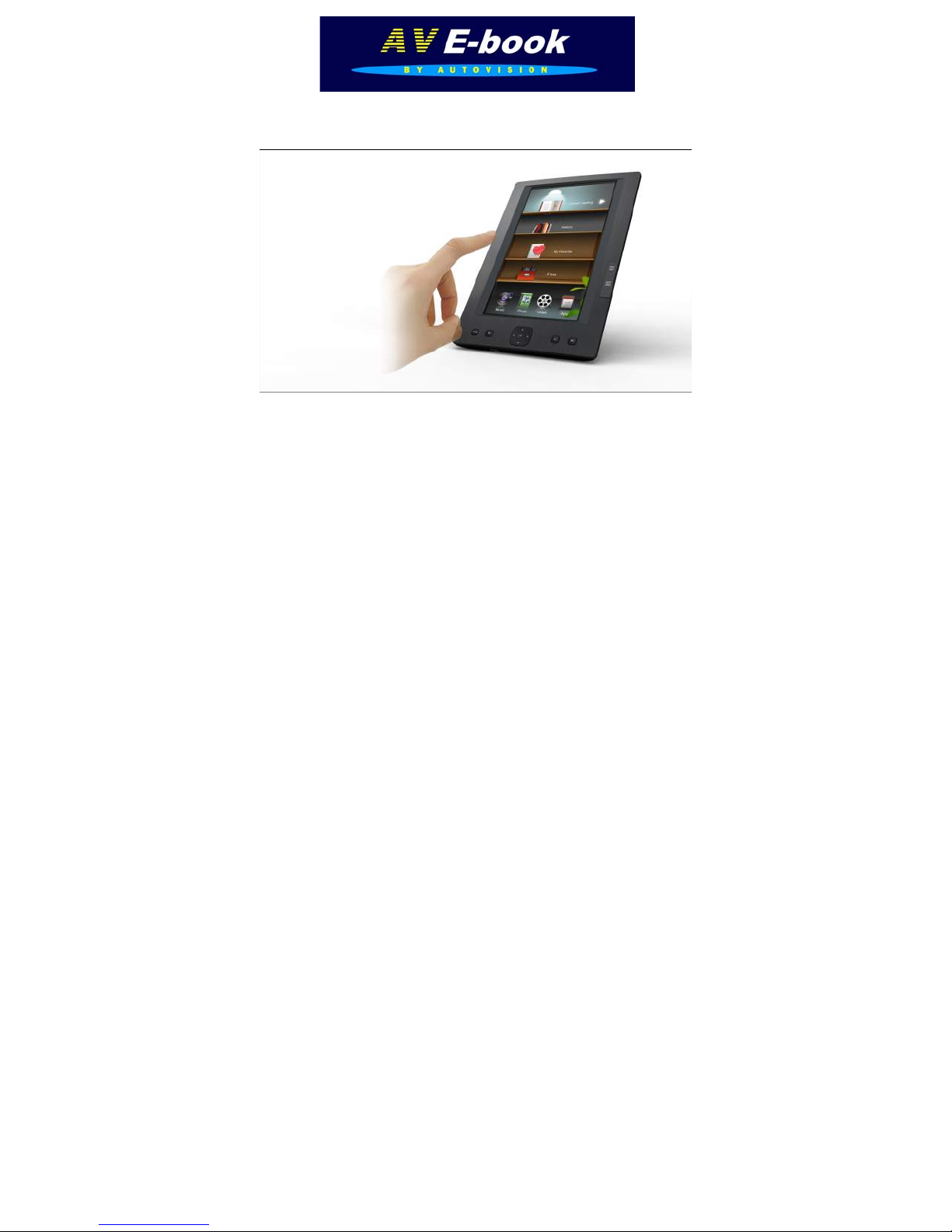
AV-E701 E-b ook Reader
User’s Manual v02
Page 2

Introduction
Thank you for purchasing this EBook Reader.
This manual contains important safety information and operation instructions, so please read all these
instructions carefully before using the EBook Reader and keeps it for future reference.
This manual will help you use all of the exiting features to make your EBook Reading more enjoyable.
We have done our best to produce a complete and accurate manual; however, we cannot ensure
there are no errors or omissions. We also have no responsibility for damages or loss of data caused
by improper operation.
The instruction manual is subject to change for improvement without notice.
Their respective companies or organizations own trademarks and trade names used in this user’s
manual.
Page 3
CONTENT
Regulatory Information: FCC Part 15 / Copyright 3
Important Safety Precautions 3-4
Main Features 6
Overview 7
Getting Started 8
Turn on the E-Book reader 8
Connect to the PC & Download files from PC 8
Information about e-Books, epub, DRM, Adobe Digital Edition 9
Inserting SD/MMC card 10
Charging the battery 11
Using home menu 12
Item introduction 12
Tips for your using 13
Reading E-Book 14
Now reading 15
Reading a book from history 15
EBook function menu 16
Reading EBook with background music 17
1
Page 4

Listening to Music 18
Playing music 19
Music function menu 19
Repeat / Equalizer 20
Lyric Displaying 20
Viewing Photos 21
Playing a slide show 21
Calendar 22
Applications 22
Settings 22
Brightness /Backlight time / G Sensor / Erase Activation Record 23
Media Lib Update / Language / Time/ Date 24
System Information 24
Explorer 25
Troubleshooting 26
Specifications 27
2
Page 5

Regulatory Information: FCC Part 15
This device complies with part 15 of the FCC rules. Operation is subject to the following two conditions:
(1) this device may not cause harmful interference, and
(2) this device must accept any interference received, including interference that may cause undesired operation.
Note: This equipment has been tested and found to comply with the limits for a Class B digital device, pursuant to part 15 of
the FCC Rules. These limits are designed to provide reasonable protection against harmful interference in a residential
installation. This equipment generates, uses and can radiate radio frequency energy and, if not installed and used in
accordance with the instructions, may cause harmful interference to radio communications. However, there is no guarantee
that interference will not occur in a particular installation. If this equipment does cause harmful interference to radio or
television reception, which can be determined by turning the equipment off and on, the user is encouraged to try to correct
the interference by one or more of the following measures:
y Reorient or relocate the receiving antenna.
y Increase the separation between the equipment and receiver.
y Connect the equipment into an outlet on a circuit different from that to which the receiver is connected.
y Consult the dealer or an experienced radio/TV technician for help.
WARNING: THE MANUFACTURER IS NOT RESPONSIBLE FOR ANY RADIO OR TV INTERFERENCE CAUSED BY
UNAUTHORIZED MODIFICATIONS TO THE DEVICE. ANY SUCH MODIFICATIONS COULD VOID THE USER'S
AUTHORITY TO OPERATE THE EQUIPMENT.
3
Page 6

Copyright
Contains Reader® Mobile technology by Adobe Systems Incorporated
Important Safety Precautions
Always follow these basic safety precautions when using your device. This will reduce the risk of product
damage and personal injury.
y Do not disassemble, repair or modify the device by yourself. Refer servicing to qualified personnel.
y Do not dispose of the device in fire to avoid explosion because the device has built-in battery.
y Do not touch the device with bare hands if the built-in battery is leaking. In this case, contact service
center for help since the liquid may remain in the device. If your body or clothes has contacted with the
battery liquid, wash it off thoroughly with water. Also, if some of liquid gets into your eyes, do not rub
your eyes but immediately wash them with clean water, and consult a doctor.
y Keep the device away from direct sunlight and heat source.
y Do not expose the unit to rain or moisture to avoid any malfunction.
y Do not use the device in rather dry environment to avoid static.
y Never apply heavy impact on the device like dropping it or placing it on the magnet.
y Route USB cable so that people and pets are not likely to trip over or accidentally pull on them as they
move around or walk through the area.
y Disconnect the USB cable from the computer when you do not use the device for a long time.
y Clean only with dry cloth. Make sure the device is turned off before cleaning. Do not use liquid
cleanser.
4
Page 7
y Be sure to back up your files. We will not be liable for the loss of data due to improper operation, repair
or other causes.
y At full power, the prolonged listening of the walkman can damage the ear of the use.
Precautions in using the headphone
y Do not use the headphone while driving an automobile or riding a bicycle. It is not only dangerous, but
also against the law. To avoid an accident, do not turn up the volume of the headphones too high while
walking.
y It’s not recommended that you use the headphones at a high volume for an extended time as this may
cause hearing damage.
BOX CONTENT:
e-Reader
Soft protective pouch
Earphone
USB cable
100-240 Volt adapter
User Manual
5
Page 8

Main Features
y 7” TFT color display 800*480
y Built-in rechargeable lithium battery
y Reading EBook in PDF/e-PUB/TXT format
y Quick reading EBook in browse history
y Rotate the screen to toggle between vertical and horizontal display while reading EBook
y Playback of WAV, APE, FLAC, OGG, MP3, WMA, and AAC audio files
y Multiple equalizers (EQ) and 3D sound effects
y Display titles, artists and albums of music files (ID3 tag)
y Lyrics synchronization while music is playing
y Supports JPEG/GIF/PNG photo formats
y Folder navigation
y Compatible with SD/MMC card (up to 16G)
y USB 2.0 high speed transmission
6
Page 9
Overview
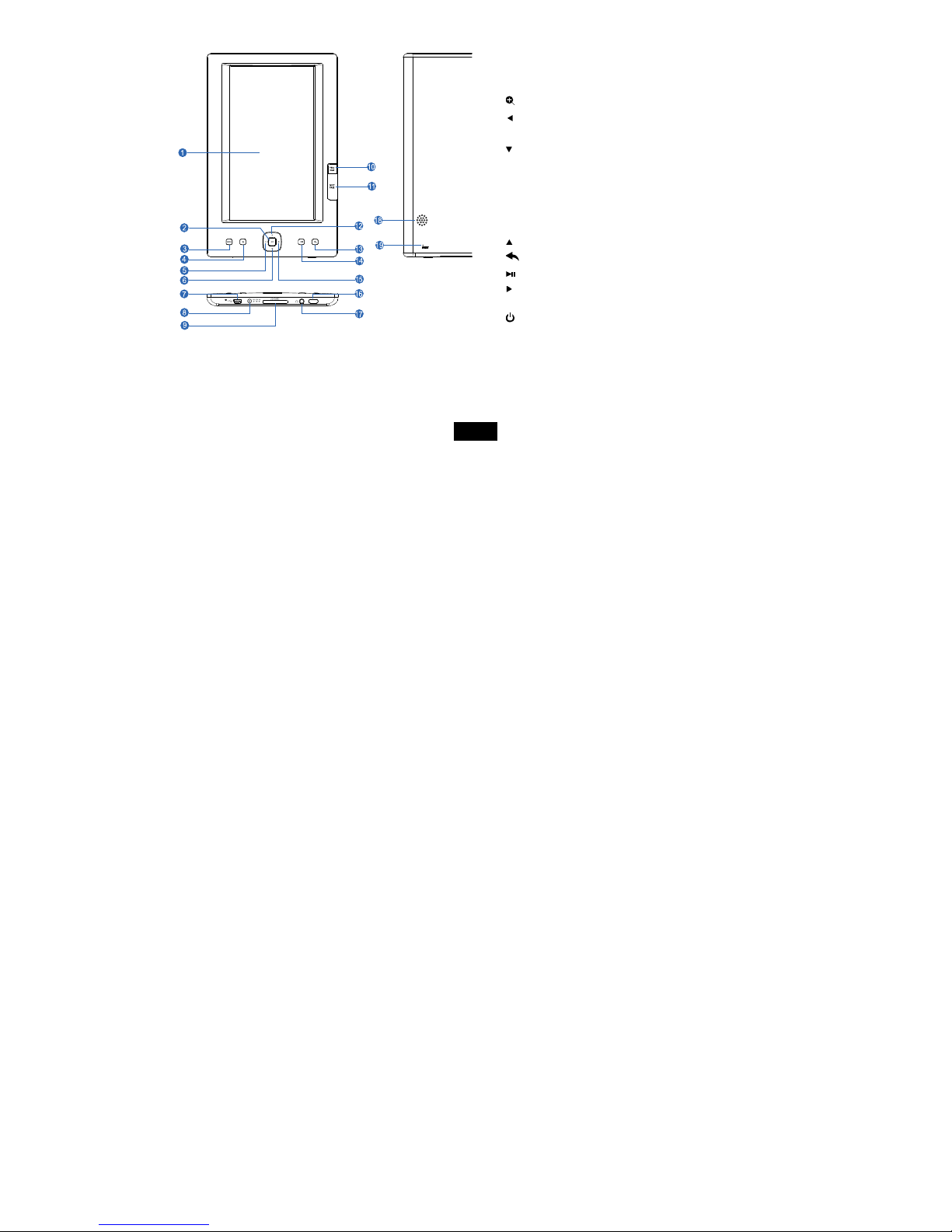
1. Display screen
2. [OK] Confirm the selection
3. [MENU] Open the function menu for each mode
4. [
] Open Zoom-in option window
5. [
] Previous option; Fast backward search;
Move cursor left
6. [
] Decrease the volume; Move cursor down
7. Mini USB connector
8. 5V 2A DC Input socket
9. SD/MMC-card slot
10. [PREV PAGE] Go to previous page
11. [NEXT PAGE] Go to next page
12. [
] Increases the volume; Move cursor up
13. [
] Exit button
14. [
] Starts/Pause/Resume playback;
15. [
] Next option; Fast forward search; Move
cursor right
16. [
] Power on/off
17. Earphone jack
18. Loud speaker
19. RESET hole
7
Page 10

Getting Started
Turn on the E-Book reader
Press and hold the [ ] button to turn on the E-Book reader, if the device with low battery, plug one end of the
power adaptor into the DC socket in the E-Book reader, and the other into a wall outlet.
Note: To turn off the E-Book reader, please press and hold the [
Connect to the PC & Download files from PC
Connect the device to computer for downloading files or charging the device.
1. Make sure that your computer has been started before you start.
2. Connect the mini plug of the USB cable to the mini USB port on the device, and push the other end into a
free USB port on your computer.
3. When the device is connected to your computer, a “Removable Disk” will be created in “My computer”.
4. Open the Windows Explorer or My computer. “Removable Disk” is displayed.
5. Drag and drop the files on your computer to the “Removable Disk”. .
6. If you authorized the device by using EBook website tools, there will be a hidden folder such like
“adobe-digital-editions” generate in your device. Please do not delete this hide “adobe-digital-editions”
folder or format the device unless you want to re-authorize the device.
Note: The battery of the device is charging automatically when the device is connected to the computer.
Don’t disconnect the USB cable during file transferring. It may cause malfunction of the device and files.
8
] button again.
Page 11

IMPORTENT NOTE ABOUT eBooks:
EBooks in ePub format, ere secured by met DRM (Digital Rights Management)
To download digital EBooks, put it on your eReader and read it, ePub format, you need the program “Adobe
Digital Editions” (ADE).
You can find this program via the website link: http://www.adobe.com/products/digitaleditions/help/
Download and install the program on your pc.
Then you can create an account, Adobe-id, and you have to authorize your e-Reader with your pc.
If you authorized the device by using EBook website tools, there will be a hidden folder such
like“adobe-digital-editions” generate in your device. Please do not delete this hide “adobe-digital-editions”
folder or format the device unless you want to re-authorize the device.
9
Page 12

Disconnect the device from PC
After finishing transferring, please disconnect the device from the computer as the following:
1 Left click the”
” icon at the taskbar.
2 Click the pop-up mini-window with message of “Stop the USB Mass Storage Device –Driver (X)”.
3 When you are prompted to remove the device, you can unplug the device safely.
Inserting SD/MMC card
You can attach a SD or MMC card to the E-Book reader.
1. Align your card with the slot. Put it in place.
2. Push the card until it is locked.
To remove the SD/MMC card: press the card to release it and pull out the card.
Note: Please insert or pull out the card when the E-Book Reader is off, or the internal files of the device will
be lost or damaged.
10
Page 13

Charging the battery
y The battery of the E-Book reader is charging automatically when the device is connected to the computer
or connected to a wall outlet. When charging, the indicate lighter is red, and it will turn green after it full
charged.
y Read the battery level indication of your device:
Full Three-quarters full Half
Important:
y Recommended temperature for battery charging is 0
y Fully charge it before you use the device for the first time or when you have not used it for a long time.
y Charge the device right now when the “Low battery” message is displayed.
y Do not over charge or discharge the device. Over charging or discharging will shorten the battery life.
y The battery could be over discharged if the device is not used for a long time (over three months). To
avoid over discharge, fully charge the device every three months and always keep the voltage of the
battery above 50%.
y If the device is not used for a long time, keep it under the temperature of 23
±
20% RH to maintain the performance of the battery.
full
Low Empty
℃
to 35 ℃.
±5℃
and the moisture of 65
11
Page 14
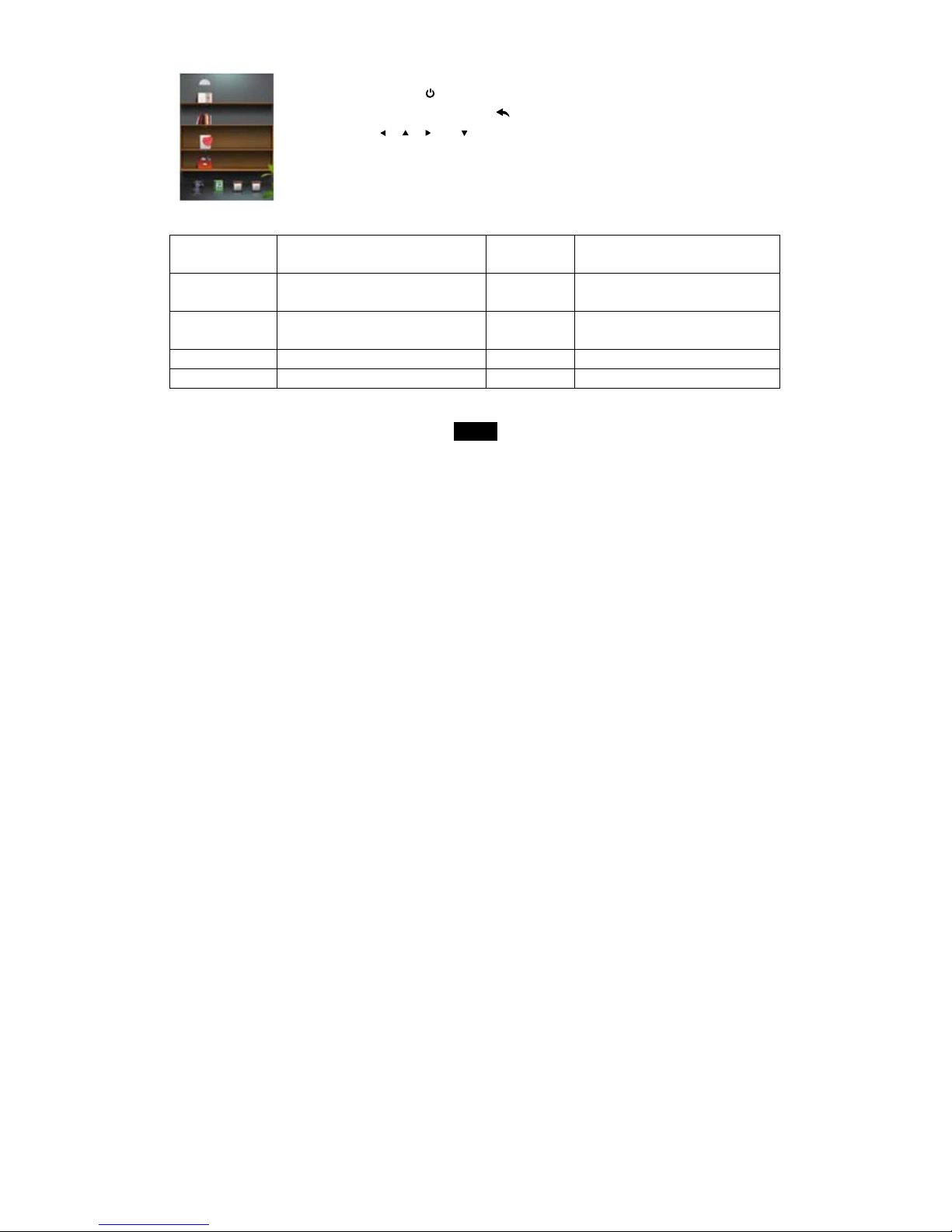
Using home menu
1. Press and hold the [ ] button, the home menu appears on the screen.
Or, in another modes, press the [
2. Press the [
Favorite, eBook, Music, Photo, Calendar and App.
3. Then press the [OK] button to enter the desired mode.
], [ ], [ ] or [ ] button to select: Now reading, Browser History, My
Item introduction
Home menu
items
Now reading Read further in the eBook you
Browser History Browse your EBook reading
eBook List all your EBooks in the device Photo View photos.
Calendar See the Calendar App Settings and Explorer
Description Home menu
were reading.
history,
] button to return to the home menu.
Description
items
My Favorite Find your favorite eBook you have
saved.
Music Play music tracks.
12
Page 15

Tips for your using
y Page up/down: while reading a book, you can press the [PREV PAGE] and [NEXT PAGE] button to page up
and page down.
y Zoom in: while reading a book, you can press the [ ] button to open zoom-in options pop-up window.
y Function menu: while reading a book, watching a video, listen to music or browsing photos, you can
press the [MENU] button to open function menu.
y Exit: press the [ ] button, you can exit and return to previous screen.
y Reset the E-Book reader: If a malfunction of the E-Book reader occurs, take a metal pin, e.g. the end of a
paper clip, and press it into the RESET hole to re-initialize the system of your E-Book reader.
13
Page 16

Reading E-Book
1. In the home menu, press the [
2. Press the [OK] button to enter your EBook library.
3. Use the [
4. Press the [OK] button to start reading the book.
Note: The EBook reader can synchronize the EBooks with DRM to itself by using
EBook website tools. Different eBooks takes different time to open; normally the big
size eBook takes more time to open.
While reading a book, you can:
y Page up/down: Press the [PREV PAGE] and [NEXT PAGE] button to page up and down.
y Zoom in: Press the [
] to chose the font size and press the [OK] button to confirm.
[
y Rotate: Press the [
the screen to rotate automatically in the Setting function. Then the device can rotate automatically
when you rotate it )
y Exit: Press the [
] button to open the zoom-in options pop-up window (A,A,A). please use [ ] or
] button to toggle between vertical and horizontal display. (Note: you also can set
] button to return to eBook library
], [ ] ,[ ] or [ ] button to the desired EBook.
], [ ], [ ] or [ ] button to select the eBook mode.
14
Page 17

Now reading
You can enter immediately the last read eBook directly through the “Now reading” function
on the main menu.
Reading a book from history
1. In the home menu, press the [ ], [ ], [ ] or [ ] button to select the Browse
History mode.
2. Use the [
3. Press the [OK] button to start reading the book.
] or [ ] button select a desired book.
15
Page 18

EBook function menu
While reading a book, press the [MENU] button to open the EBook setting function menu,
1. Use the [
2. Press the [OK] button to select the item.
y Favorite: save the eBook as My Favorite eBook, press the [OK] button to confirm.
y Goto: you can use the [ ] or [ ] button to select the percentage (or table of content, This function is
y Background: you can use the [ ] or [ ] button to select a background, and press the [OK] button to
y Brightness: you can use the [ ] or [ ] button to select the brightness while reading the eBook, and
While reading a book, press the [OK] button to open the EBook bookmark function menu,
y Save Mark: Save the current page to mark. Use the [ ] or [ ] button to select a column, and then
y Load, delete and replace Mark: Load the saved mark. Use the [ ] or [ ] button to select a mark,
] or [ ] button to select the desired item.(include Favorite, Goto, Background, Brightness))
only available for the book contains the table of content) you like to start to read, and press the [OK]
button to confirm.
confirm. This function can be only used in the TXT format eBooks.
press the [OK] button to confirm.
press the [OK] button to confirm.
press the [OK] ,then use the [
this mark, and
to replace this old mark.
] or [ ] button to select the load this mark, select the to delete
16
Page 19

Reading EBook with background music
1. In the home menu, press the [ ], [ ], [ ] or [ ] button to select the Music mode.
2. Press the [OK] button to enter music list.
3. Use the [
song.
4. Press the [
5. In the home menu, press the [
6. Press the [OK] button to enter your EBook library.
7. Use the [
library.
8. Select the desired EBook.
9. Press the [OK] button to start reading the book.
Now, you can read your book with background music.
] or [ ] button to select desired audio file, and then press the [OK] button to start playing the
] button repeatedly to go back to the home menu.
], [ ], [ ] or [ ] button to select the EBook mode.
] or [ ] button to select desired EBook, and then press the [OK] button the open the EBook
17
Page 20

Listening to Music
Playing music
1. In the home menu, press the [
2. Press the [OK] button to enter your music list.
3. Use the [
4. Press the [OK] button to start listening to the song.
While music playing, you can:
y Pause/Resume Playing: Press [
again.
y Skipping Tracks: Press [
y Searching: Press and hold [
forward within a track.
y Adjust Volume: Press the [
y Exit: Press the [
y Power Off: Press and hold the [
] button to return to music list menu.
], [ ], [ ] or [ ] button to select the Music mode.
] or [ ] button to select desired audio file.
] button to pause playing. To resume playing, press [ ] butto n
] or [ ] button to skip to previous/next track.
] button to fast rewind within a track; Press and hold [ ] button to fast
] or [ ] button to increase/decrease the volume.
] button to turn off the EBook Reader.
18
Page 21

Music function menu
While music playing, press the [MENU] button to open the music function menu,
1. Use the [
2. Press the [OK] button to select the item.
y Repeat Mode: set the music repeat mode. Use [ ] or [ ] button to select among: Once, Repeat,
y Play mode: Use [ ] or [ ] button to select the play mode: In order or Shuffle.
y EQ Sel: Use [ ] or [ ] button to select your equalizer: Rock, Pop, Classic, Bass, Jazz or User EQ.
y User EQ Setup: setup the user EQ.
] or [ ] button to select the desired item.
Repeat All, All Repeat,and Intro. And then press [
previous screen.
a) Repeat: Repeat the current song.
b) All Repeat: Repeat all songs.
a) In Order: Play all songs in order.
b) Shuffle: Play all songs at random order.
a) Use the [
b) Press the [
c) Press the [ ] or [ ] button to select and press the [OK] button to confirm settings.
] or [ ] button to select the value bar you want to adjust.
] or [ ] button to pull up or down the ball on the bar.
] button to confirm, or press [ ] button to back to
19
Page 22

Lyric Displaying
This device supports lyrics display while music playing. Only the lyrics in LRC format can be displayed.
To add lyrics to the music, take “love music. Mp3” for example:
1. Download the corresponding lyrics with extension “.lrc” from the Internet.
2. Rename the lyrics file as “love music.lrc”. Make sure the lyrics filename is the same as the music file
name.
3. Copy both files into the same folder on the EBook Reader.
4. The lyrics will be displayed on the screen while the music is playing.
20
Page 23

Viewing Photos
Viewing a photo
1. In the home menu, press the [
2. Press the [OK] button to enter folder list screen.
3. Use the [
button.
4. Select the desired picture file.
5. Press the [OK] button to start viewing the photo.
While viewing photo, you can:
y Start/Pause Playing a slide: Press the [
] button again.
press [
y Skipping photos: Press [
y Exit: Press the [
] button to return to picture list menu.
] or [ ] button to select the photo folder, and then press the [OK]
] or [ ] button to skip to previous/next photo.
] button to start playing a slide show. To pause playing,
], [ ], [ ] or [ ] button to select the Photo mode.
Playing a slide show
1. While viewing a photo, press the [MENU] button to open the photo function menu
2. In the photo function menu, use [
3. Press the [OK] button to select the item.
4. Press the [
] button to start playing a slide show from the current photo.
] or [ ] to select different interval time for playing a slide show.
21
Page 24

Calendar
1. When you choose the Explorer in the App and press [ok] button
2. Press the [OK] button to check the calendar.
3. Use the [
], [ ], [ ] or [ ] button to navigate among days.
Applications – system settings
1. In the home menu, press the [ ], [ ], [ ] or [ ] button to select the App mode.
2. In the App function, you can select Settings and Explorer,
3. press [ok] button to confirm
Settings
1. When you select the Settings.
2. Use [
3. Then press the [ok] button to enter the submenu.
4. Use the [
5. Press the [ok] button to confirm. Or press the [
] or [ ] button to select a setting item.
] or [ ] button to select a value.
] button to exit and not confirm
22
Page 25

Set brightness
1. Use [ ] or [ ] button to select Brightness, and then press the [ok] button
2. Press the [ ] or [ ] button to select a desired brightness level, and then press the [ok] button to confirm.
Set the backlight time
1. Use [ ] or [ ] button to select LightTime, and then press the [ok] button
2. Press the [
] or [ ] button to select a desired backlight time, and then press the [ok] button to confirm.
Set the automatic rotation (Gsensor)
1. Use [ ] or [ ] button to select Automatic rotation and then press the [ok] button.
2. Use [
] or [ ] button to select: turn off or turn on and press [ok] button to confirm.
Erase activation record:
1. Use [ ] or [ ] button to select Erase activation record and then press the [ok] button.
2. Use [
3. Attention: you can use this function if you want to re-authorize the device. Erase the activation record
] or [ ] button to select “YES” and press [ok] button to confirm.
may cause your device cannot read the old DRM books you bought by the old account.
23
Page 26

MediaLib update
1. Use [ ] or [ ] button to select MediaLib update and then press the [ok] button. This function is to
update the internal memory when the memory changed.
Language
1. Use [ ] or [ ] button to select Language function in the Settings menu.
2. Press the [ ] or [ ] button to select a desired language and press [ok] button to confirm.
Time and Date Setting
1. Use [ ] or [ ] button to select Time and date setting function in the settings menu. Then press [ ] or [ ]
to highlight an item.
2. Use the [
press the [
3. Use the [ok] button to confirm your settings.
] or [ ] button to highlight next or previous setting (hour/minutes or year/month/day), and then
] or [ ] button to adjust the time or date.
System Information
1. Use [ ] or [ ] button to select System Information in the settings menu.
2. Then you can check the information of your device.
24
Page 27

Explorer
1. When you choose the Explorer in the App and press [ok] button.
2. Press [
3. Then you can find the folders in the memory, to open a folder, press [
4. Use [
5. Press [
If you authorized the device by using EBook website tools, there will be a hidden folder such like
“adobe-digital-editions” generate in your device. Please do not delete this hide “adobe-digital-editions” folder
or format the device unless you want to re-authorize the device.
] or [ ] to select memory files or card memory(if you insert a card).
press [OK] button.
] or [ ] to highlight a file in the folder, you can
z Select the
z Select the
] to return to previous screen.
then press [ok] button to play this file directly.
then press [ok] button to delete this file.
25
] or [ ] to select the folder and
Page 28

Troubleshooting
If you have problems in operating your device, please check the points below before sending it to service
center.
Cannot power on / off
y The battery may be exhausted. Please recharge the battery.
Files cannot be downloaded
y Check if the driver is installed correctly in the computer.
y Check the connection between the device and PC.
No sound from the headphone
y Please ensure the volume is not 0, and the connection of headphone is no problem.
y Check if the format of music file is supported by the device.
The words of LCD display abnormality
y Please ensure you select the correct language.
The buttons do not work
y Press the reset hole with metal pin to re-initialize the system of the device.
Can’t read, download eBooks
y Check DRM and authorization, see page 8.
y Is it the right e-Book format? Must be PDF, e-Pub, TXT
26
Page 29

Specifications
Display 7” TFT LCD 16:9 Size L*W*H: (mm) 134*208*13mm
Resolution 800*480 Support Card SD/MMC up to 16G
Power Supply AC Adapter 5V 2A Storage condition Humidity<90%,-20~60°C
System
compatible
E BOOK Support PDF, e-PUB,TXT
Photo format JPEG 8000*8000pels, GIF 1000*1000pels ,PNG 960*720pels
Music format WAV,APE, FLAC, OGG, MP3, WMA, AAC,
Windows 7, VISTA, XP,
MAC OS 10.0 and above
Working condition Humidity <80%,0~45°C
Battery
Include rechargeable battery 2900mAh
Audio playtime>10-hr via headphone, book reading 8hours/charge
27
Page 30
Disposing of the battery / batteries
Please check local regulations for disposal of batteries or call your local city office or your
household waste disposal service or the shop where you purchased the product.
The battery / batteries should never be placed in municipal waste. Use a battery disposal facility
in your neighborhood or community, if available.
WEEE (Waste Electrical and Electronic Equipment Directive)
If at any time in the future you should need to dispose of this product please
note that: Waste electrical products should not be disposed of with
household waste.
Please recycle where facilities exist. Check with your Local Authority or
retailer for recycling advice.
Implementation, changes, typographical faults under restrictions.
AV G$ © 2010 V-02
AV Audio® is a registered Trade Mark from Autovision UA - www.autovision.nl
28
 Loading...