

Page 1
AV Department Limited
www.avdept.co.uk
01383 825709
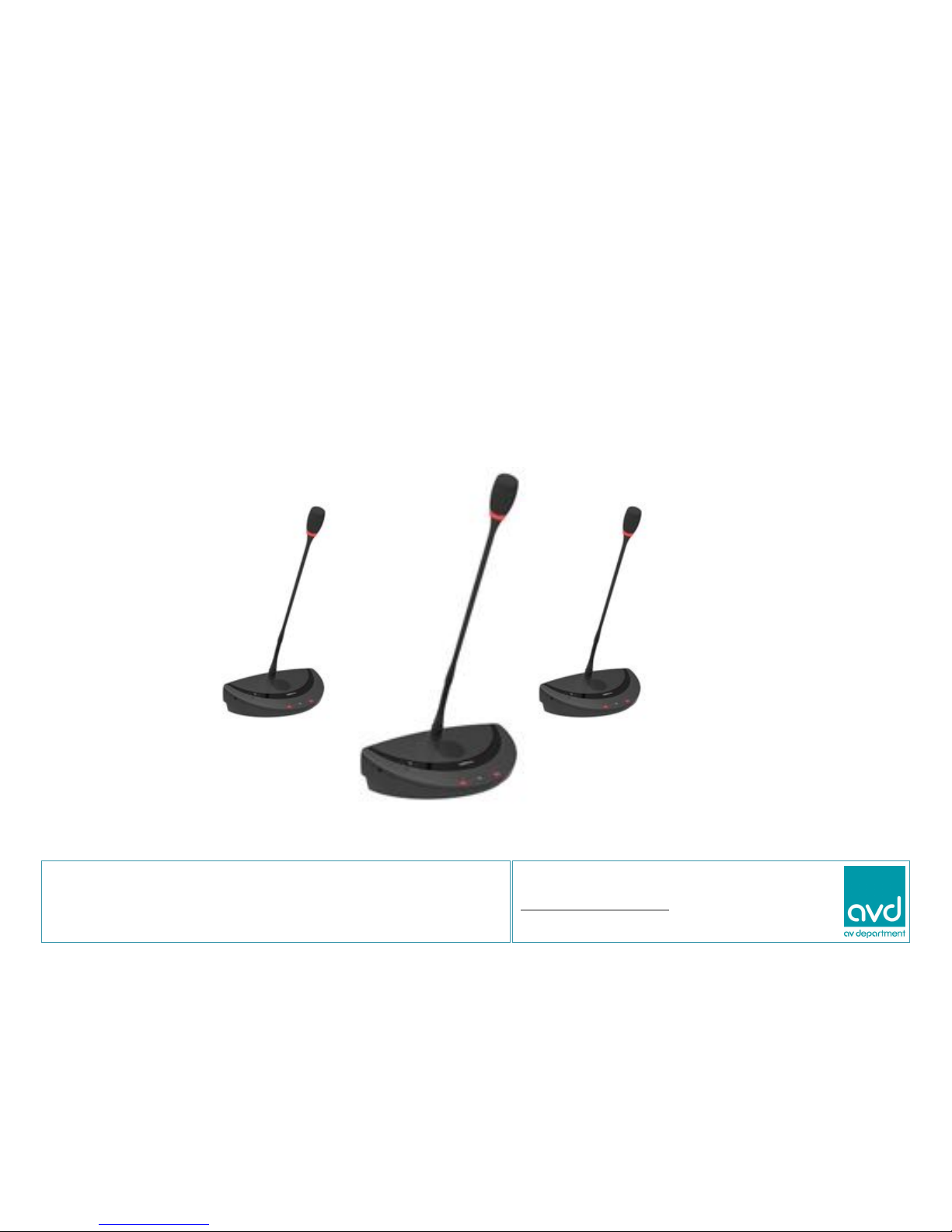
Title: Guide to Confidea G3 Wireless Microphones
Quick Guide
Page 2
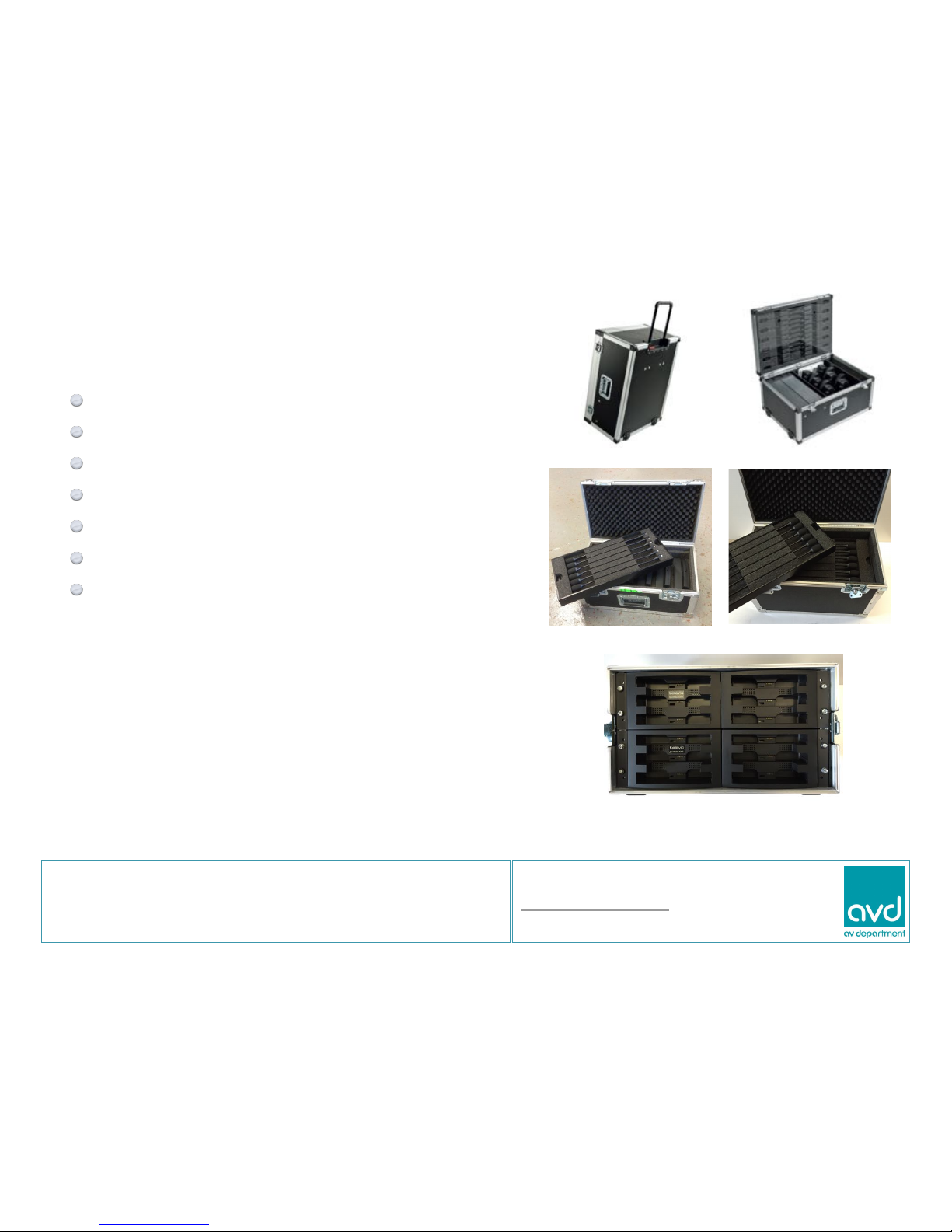
System components:-
Access Point + PSU
Delegate Microphone Bases
Chair’s Microphone Base
Batteries
Microphone stems
Battery Chargers
Netbook PC + PSU + Cat 5 cable
Charge the batteries when you receive system!
Do not transport system with batteries in charger!
AV Department Limited
www.avdept.co.uk
01383 825709
Title: Guide to Confidea G3 Wireless Microphones
Systems come in a wheeled combo box or !
individual cases for components
12 mic system case
6 mic case 12 mic case
12 battery charger
Please note that G2 and G3 systems are not compatible!
Page 3
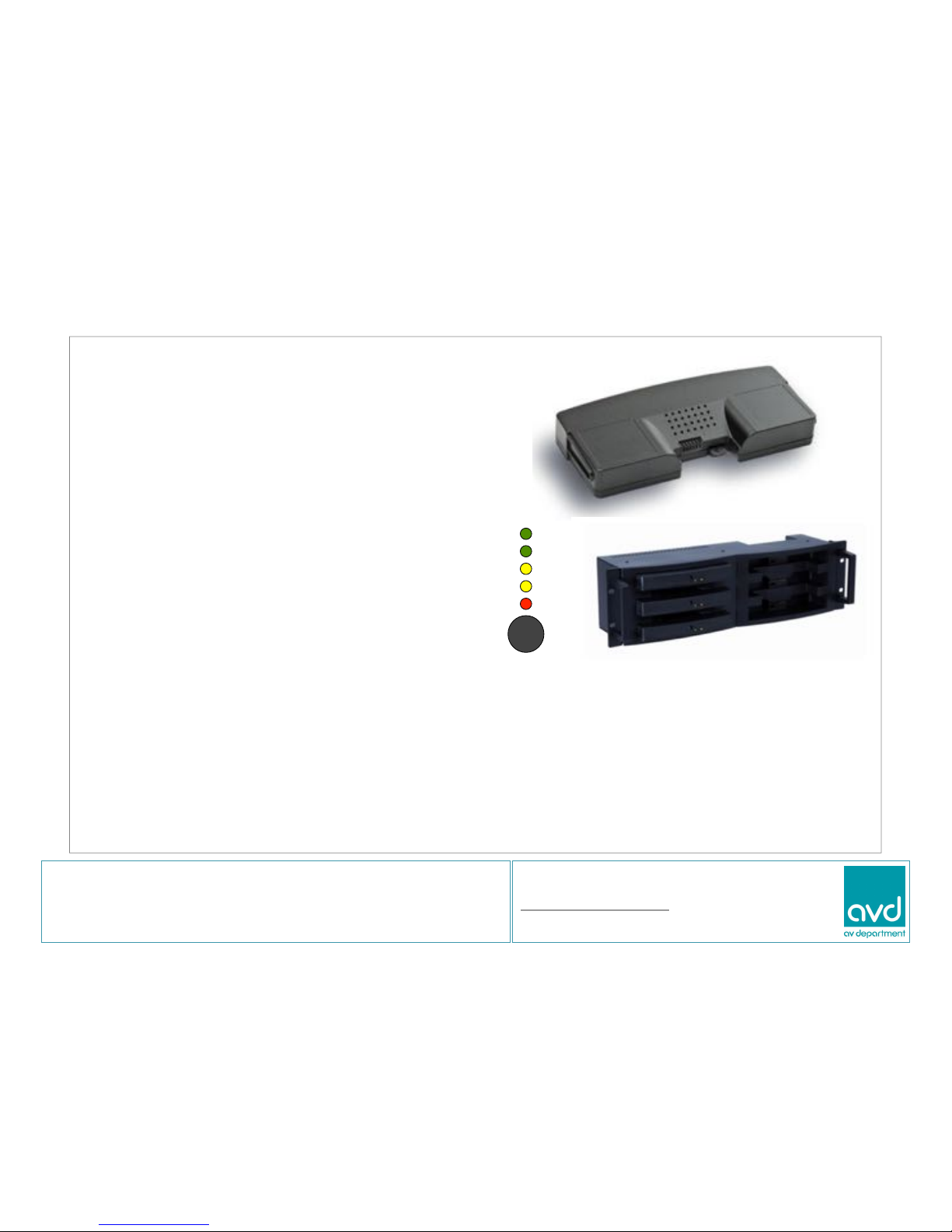
A word about battery management...
The mics use a Lithium Ion battery (Like a laptop)
Charge before use. Check battery capacity with
status test button on the battery pack itself.
5 LEDs indicates a full charge 16 - 20 hours
4 LEDs indicates 12 - 16 hours
3 LEDs indicates 8 - 12 hours
2 LEDs indicates 4 - 8 hours
1 LEDs indicates less than 4 hours
LED 3 flashing after battery test shows the charging circuitry is OK.
Do not charge with the lids on the chargers as there is a heat build up.!
Do not charge after use if going back into storage as it is best to leave batteries at
about 50% charge if stored for a prolonged period.
AV Department Limited
www.avdept.co.uk
01383 825709
Title: Guide to Confidea G3 Wireless Microphones
Page 4
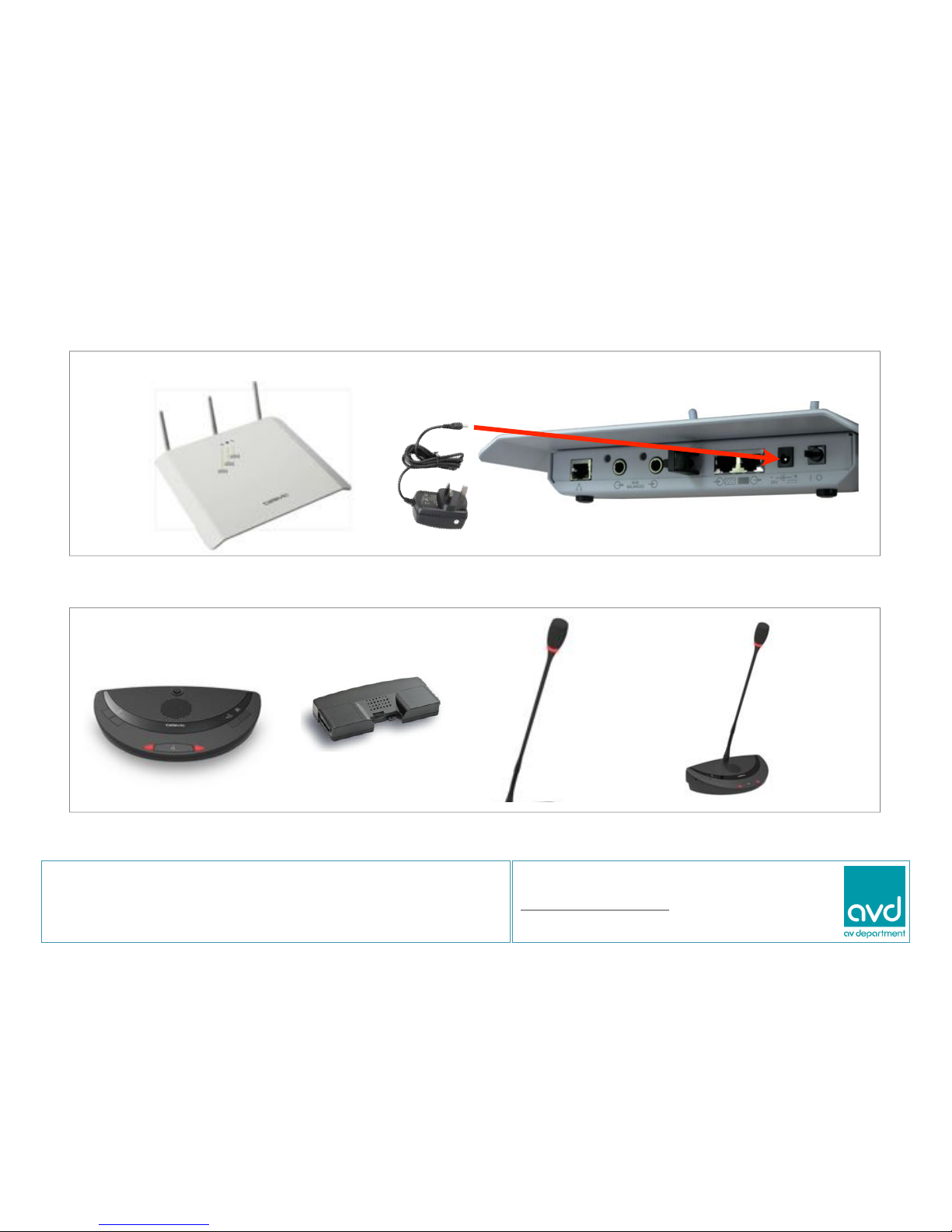
Power the Access Point Plug in PSU and switch on
Stage 1
Stage 2
Put together the microphone bases
+ + =
AV Department Limited
www.avdept.co.uk
01383 825709
Title: Guide to Confidea G3 Wireless Microphones
Page 5
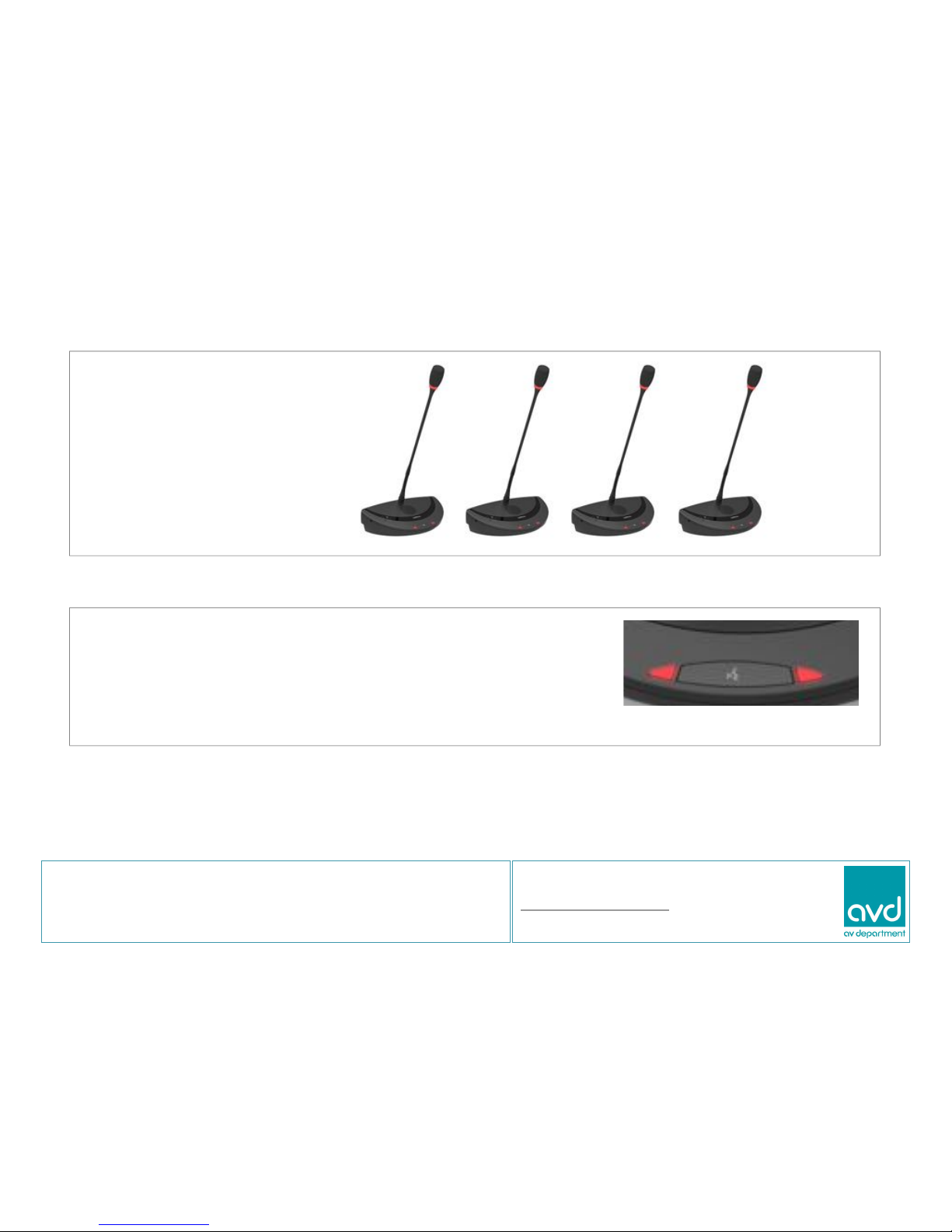
Place microphones on table
Stage 3
Stage 4
Press the microphone button on each unit in sequence.
The lights will flash as the microphone is registered onto !
the system via the access point.
AV Department Limited
www.avdept.co.uk
01383 825709
Title: Guide to Confidea G3 Wireless Microphones
Page 6
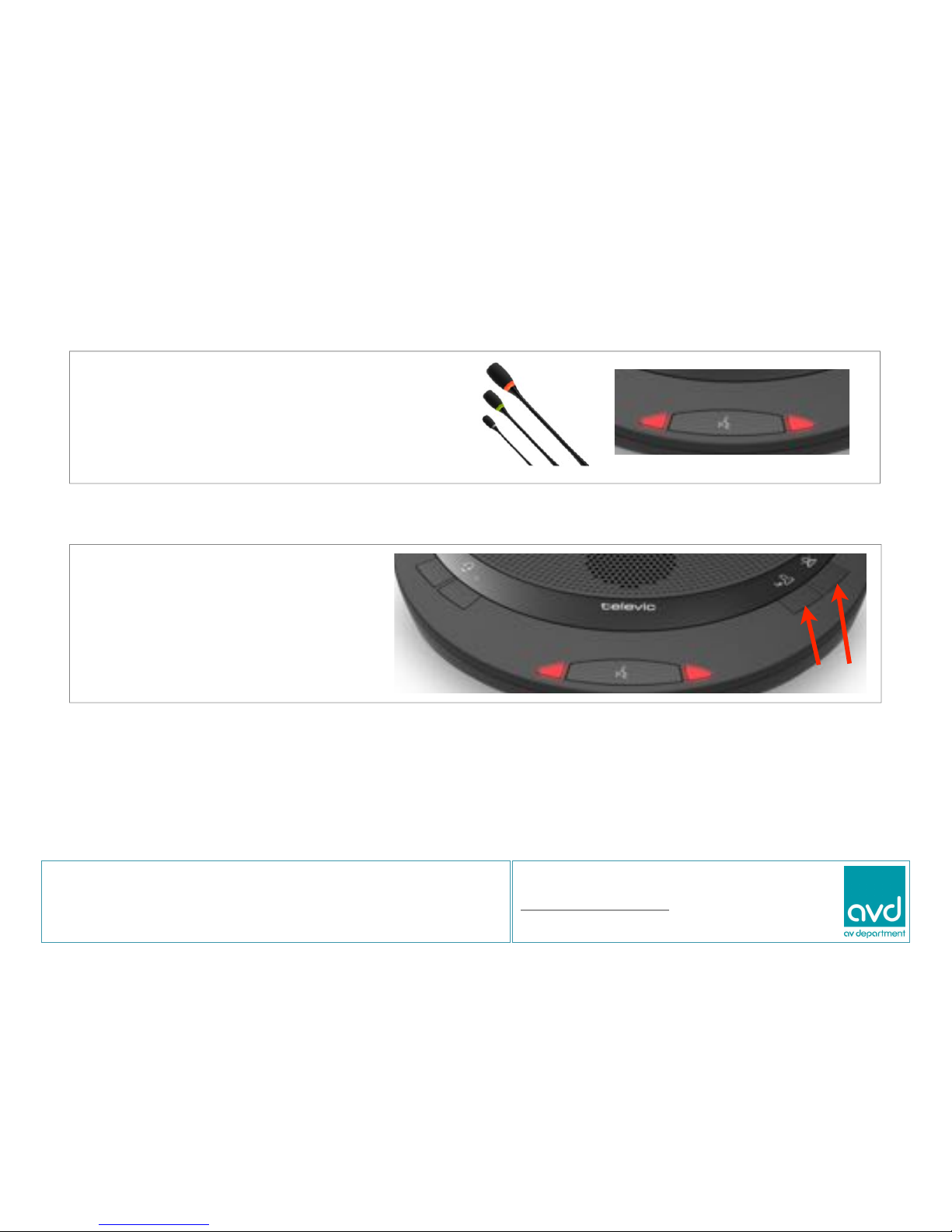
To use the system press, and release,
the microphone button. The lights will
come on red when the microphone is
live.
Stage 5
Stage 6
The Chair’s microphone can
cut off all microphones by
pressing ‘A’
AB
AV Department Limited
www.avdept.co.uk
01383 825709
Title: Guide to Confidea G3 Wireless Microphones
The default mode of operation is ‘Direct’ where microphones can be switch on and off
at will. When used in ‘Request’ mode the microphone lights green and the Chair can!
make the next speaker live by pressing ‘B’.
Page 7
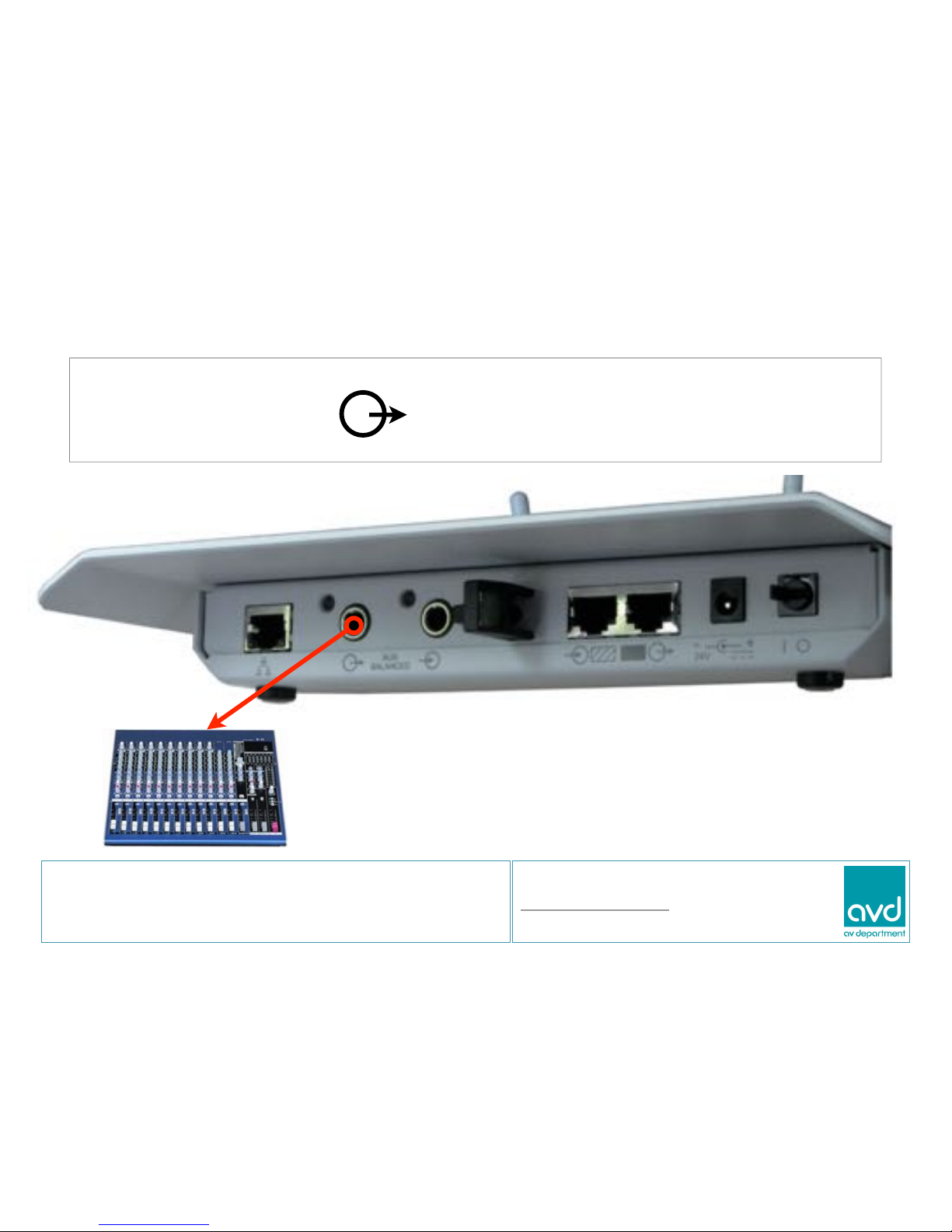
Stage 7
Connect the Access Point to an external PA using the TRS Jack socket
marked ‘AUX BALANCED’
The out put is a standard balanced line level analogue
audio signal and can connect to a PA system, a
Recording device, a Video / Telephone conference codec,
or any other audio device.
AV Department Limited
www.avdept.co.uk
01383 825709
Title: Guide to Confidea G3 Wireless Microphones
Page 8
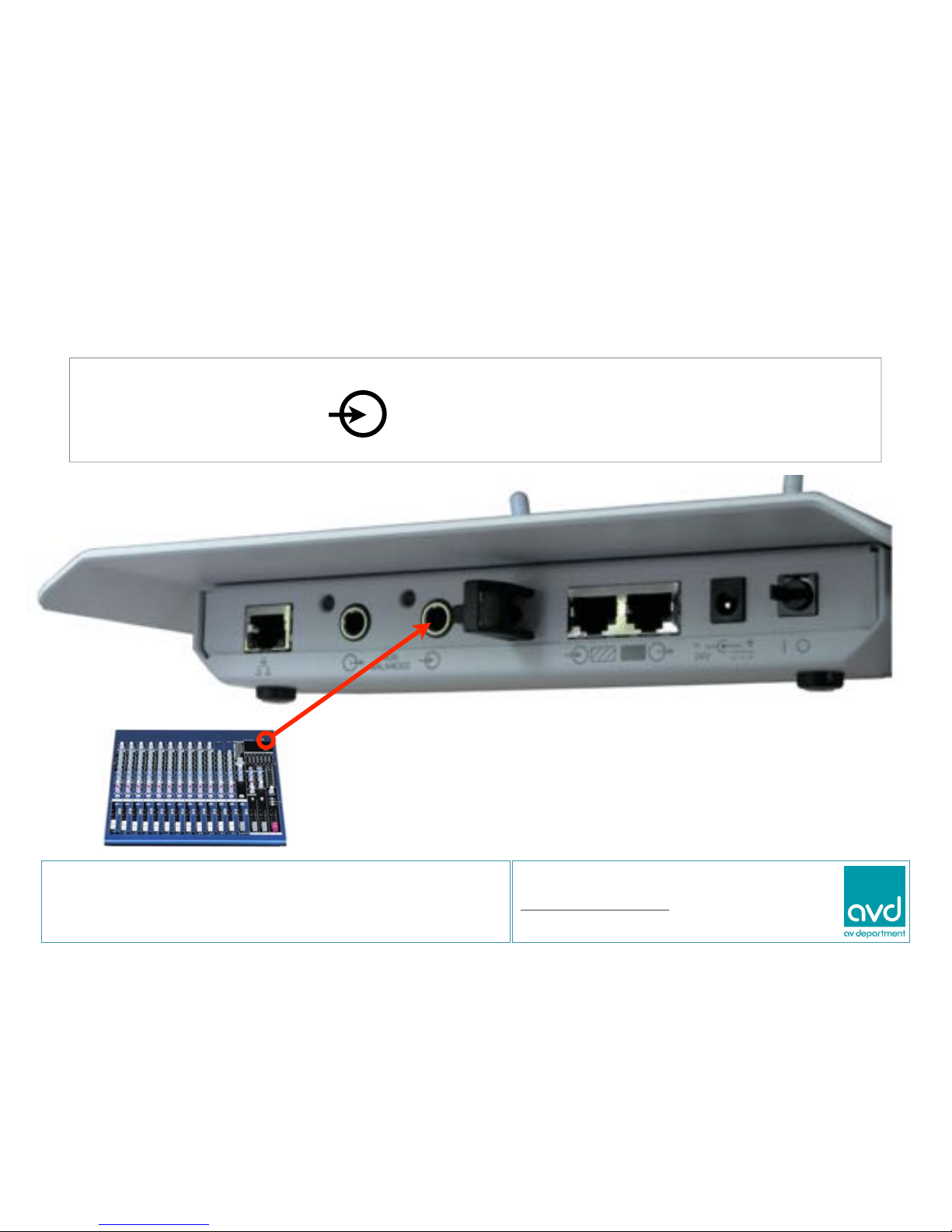
Stage 8
Connect external audio to the Access Point via the TRS Jack socket
marked ‘AUX BALANCED‘
This allows the speakers in the microphone bases to carry
other audio sources or a full mix of audio.
AV Department Limited
www.avdept.co.uk
01383 825709
Title: Guide to Confidea G3 Wireless Microphones
Page 9
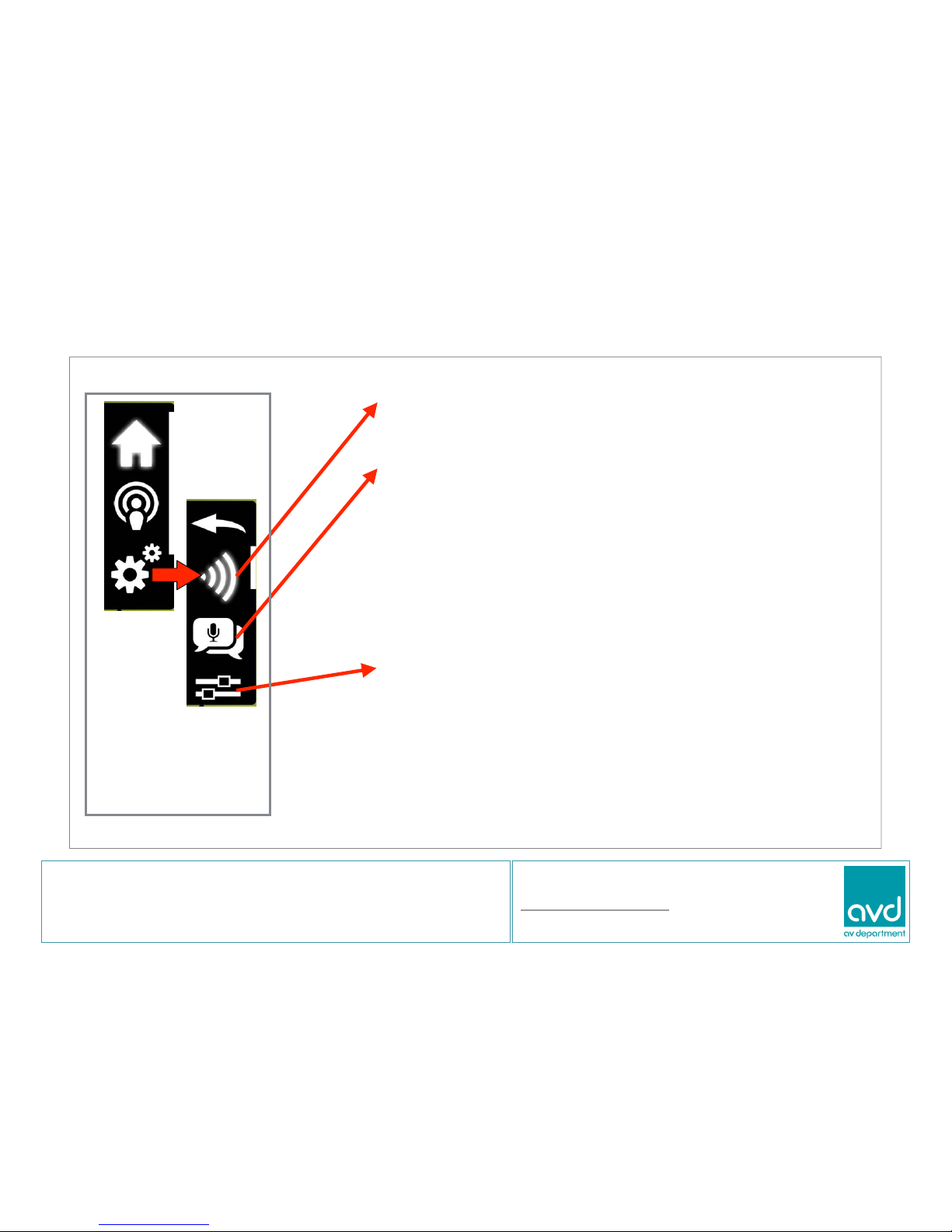
Stage 9
Transmission Frequency
•
Frequency selection ‘Auto 5.745 - 5.805 GHz’
Microphone Management
•
Max chair microphones ‘1’
•
Max active microphones ‘4’
•
Microphone mode ‘Direct’
•
LS Volume ’18’ (speakers in microphone bases)
•
Stand alone mode ‘Enabled’
•
Mic presents ‘Average’
Audio Control
•
Aux In (External source in) ‘On’ and level ‘15’
•
Aux Out (PA system connection) ‘On’ and level ’15’
•
Audio routing ‘Distance conferencing’
The above are different to ‘Factory Reset’ defaults
and should be adjusted after a reset.
AV Department Limited
www.avdept.co.uk
01383 825709
Title: Guide to Confidea G3 Wireless Microphones
Our default settings are as follows:-
Click on the ‘cogs’
to access settings
menu
Page 10
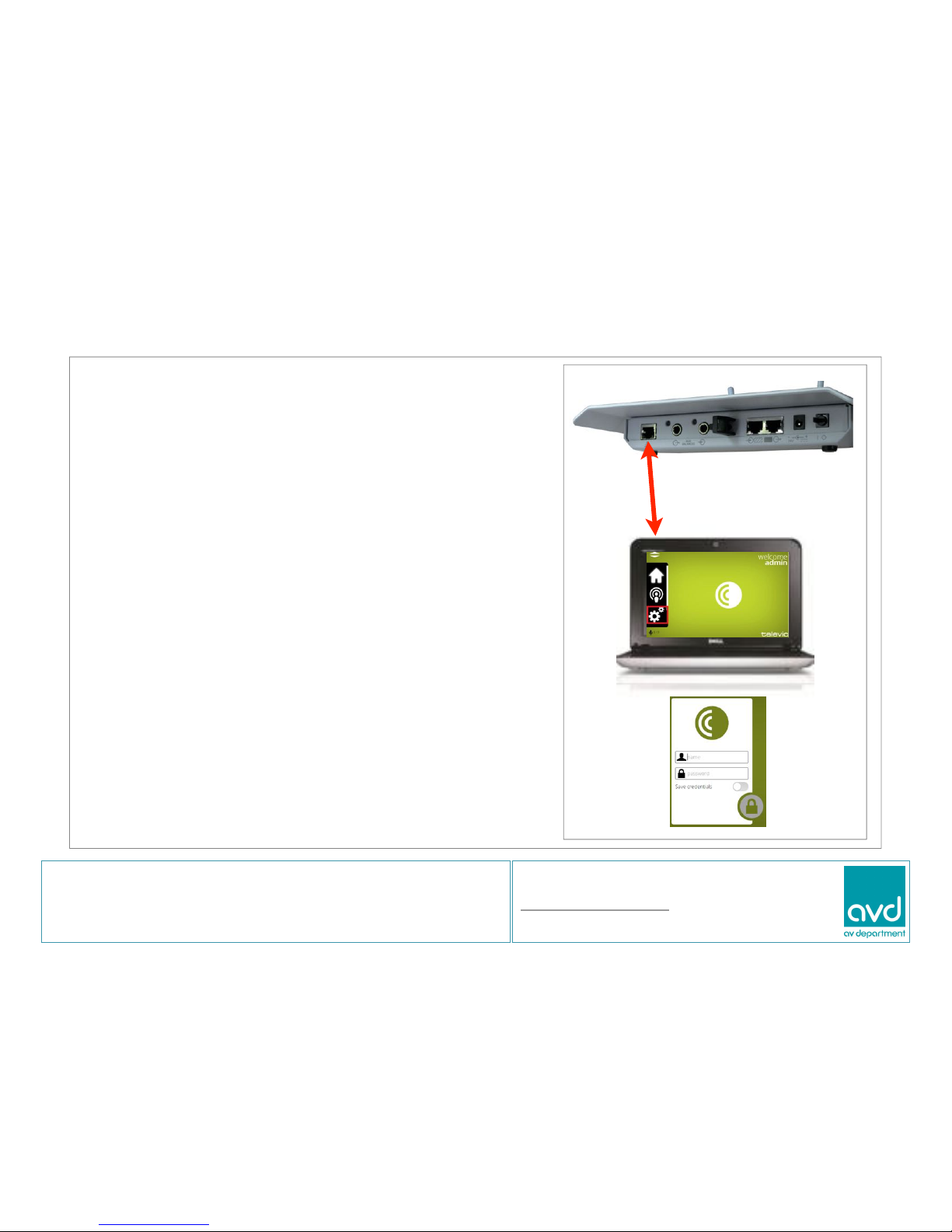
Stage 10
To make adjustments to levels and operational
modes, connect the supplied Netbook to the Access
Point using the ‘Cat 6 RJ45 network cable’ cable.
No special software is required as the server is built
into the Access Point which is viewed via a web
browser. (Google Chrome is preferred)
Connect the Netbook (Netbook log in is ‘aud10’)
and go to the windows desk top. A web browser
should then start and connect to the Access Point
server. If the browser does not automatically show
the home screen displayed. Then in the address
line type:- http://192.168.1.110 (Noted on Access
Point)
Once connected you will be asked to log in, the
default log in is ‘admin’ and ‘admin’. Please refer to
the system manual for further information and
functionality.
AV Department Limited
www.avdept.co.uk
01383 825709
Title: Guide to Confidea G3 Wireless Microphones
Page 11
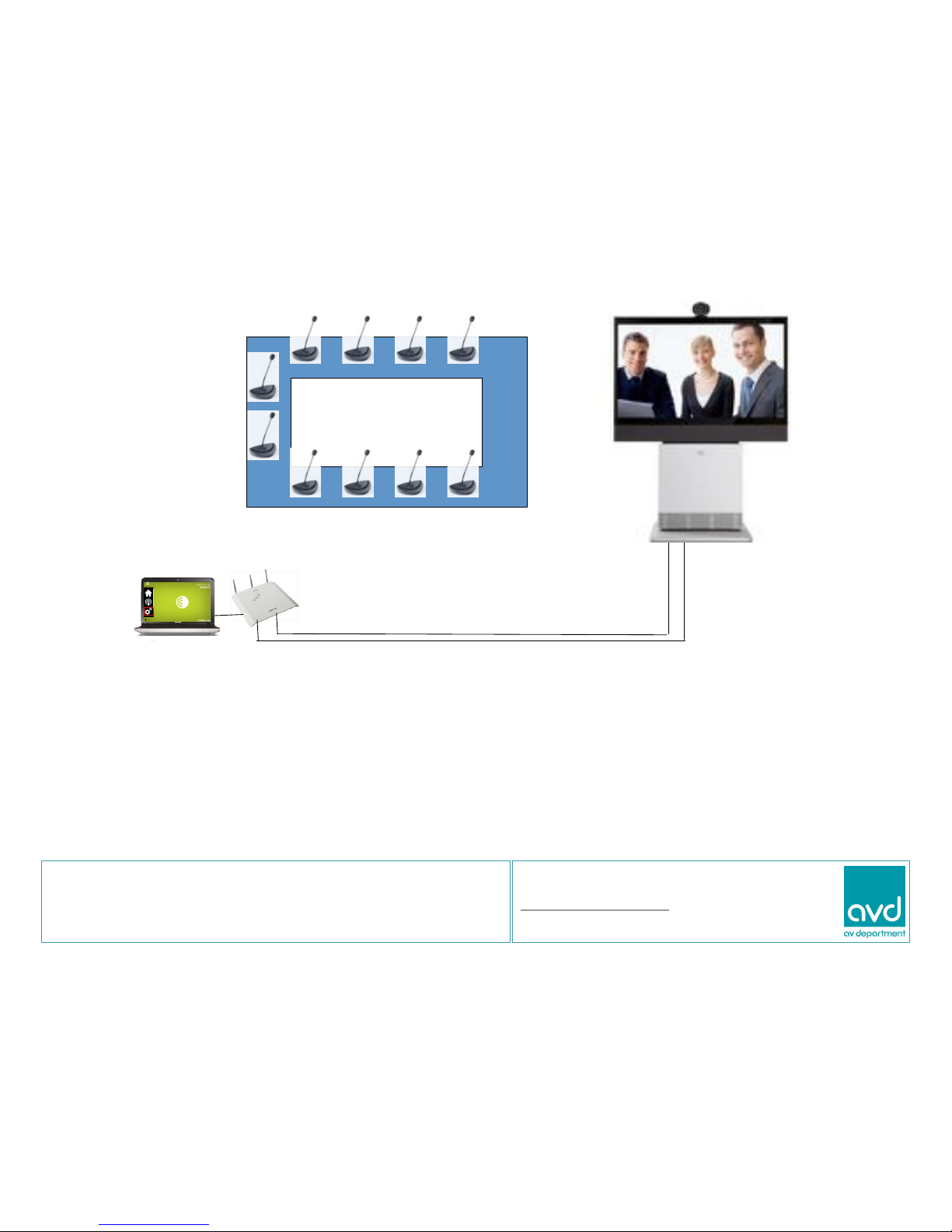
Seated observersBoardroom table
VC audio output connected to Access Point Aux in.
Access Point Aux out connected to VC audio input.
Distance Conferencing set to ‘On’ in ‘Conference Management’, ‘Aux’ tab on Access
Point server control. This will allow the microphone speakers to carry all audio but
remove incoming VC audio from the audio going back to the VC so eliminating
feedback / echo.
AV Department Limited
www.avdept.co.uk
01383 825709
Title: Guide to Confidea G3 Wireless Microphones
Page 12
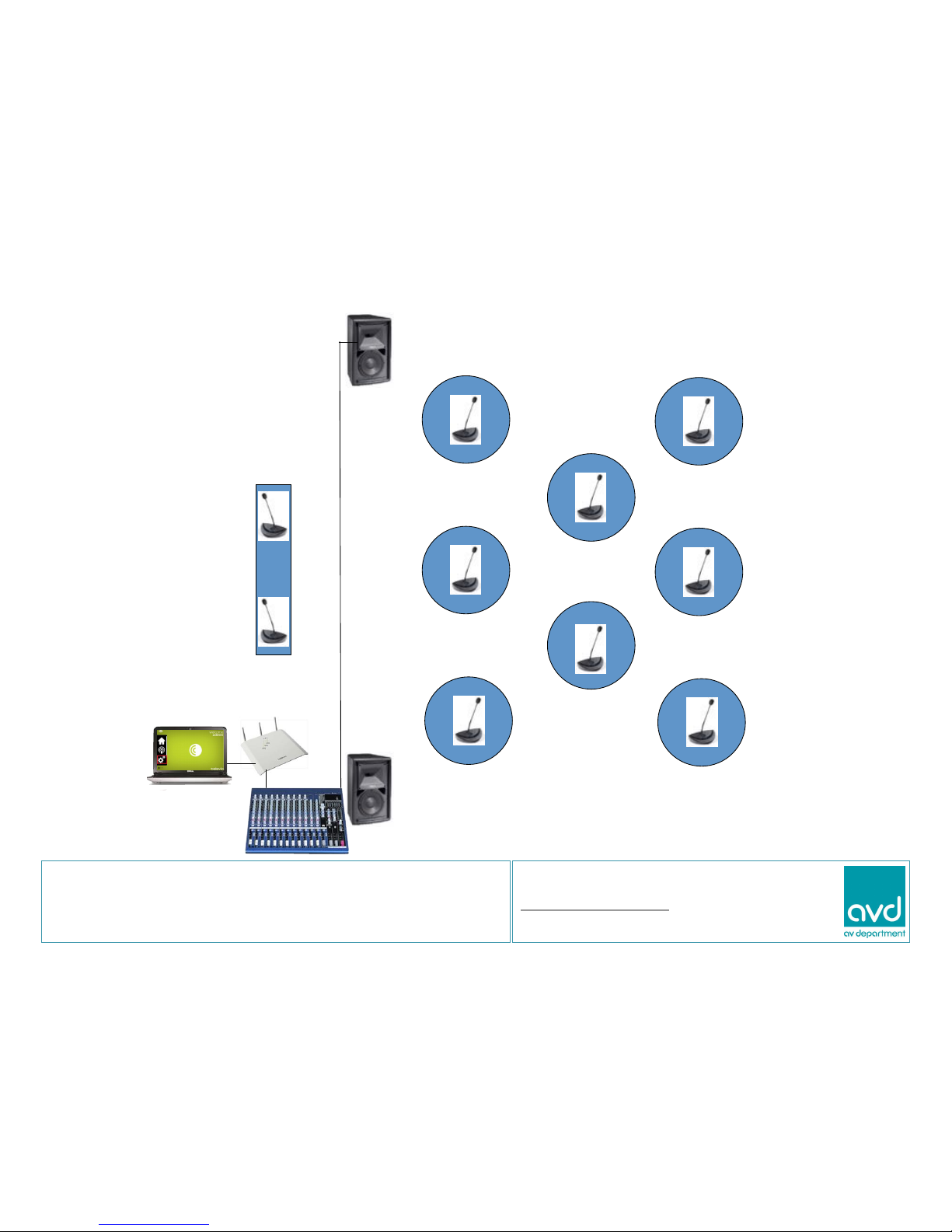
Cabaret tables
Top table
AV Department Limited
www.avdept.co.uk
01383 825709
Title: Guide to Confidea G3 Wireless Microphones
Page 13
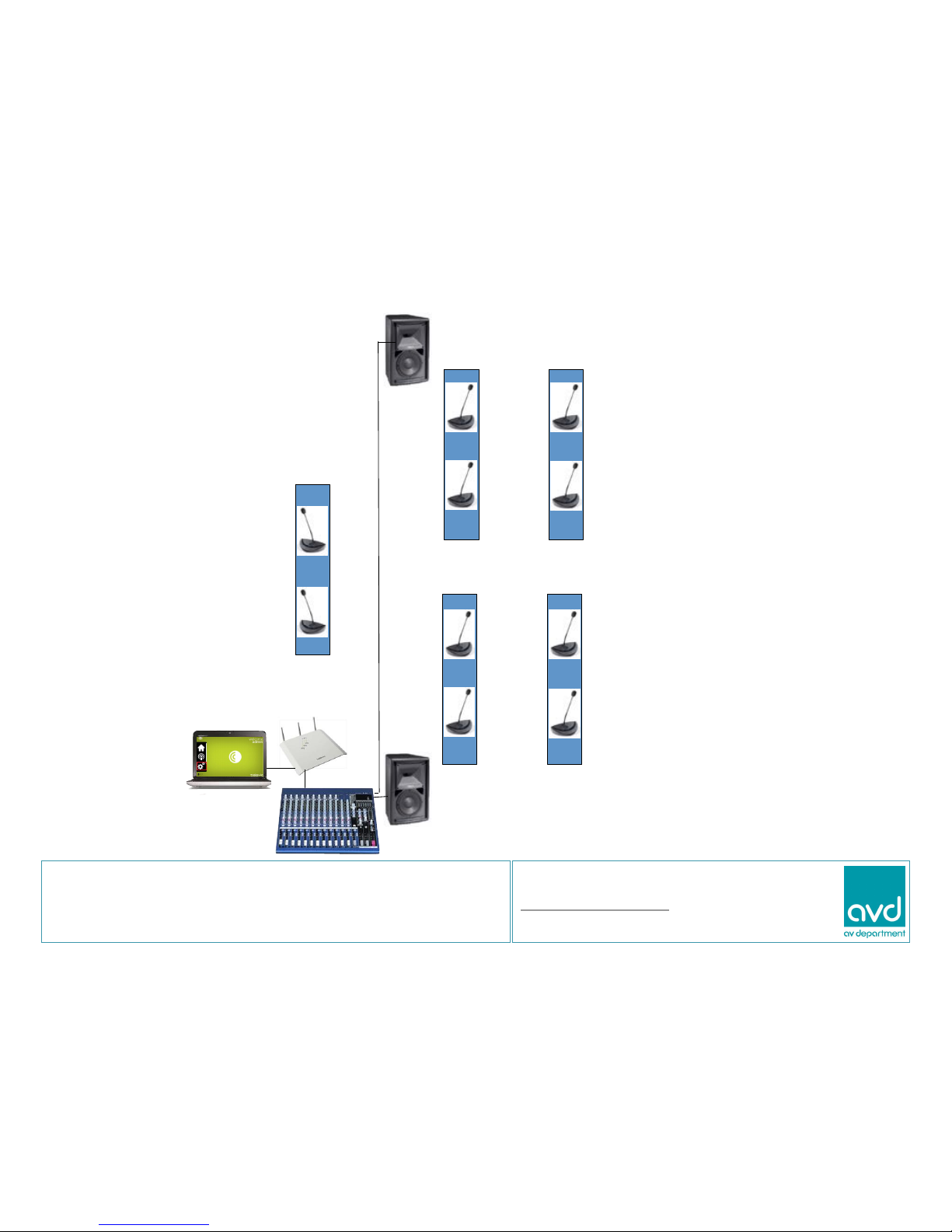
Classroom tables
Top table
AV Department Limited
www.avdept.co.uk
01383 825709
Title: Guide to Confidea G3 Wireless Microphones
Page 14
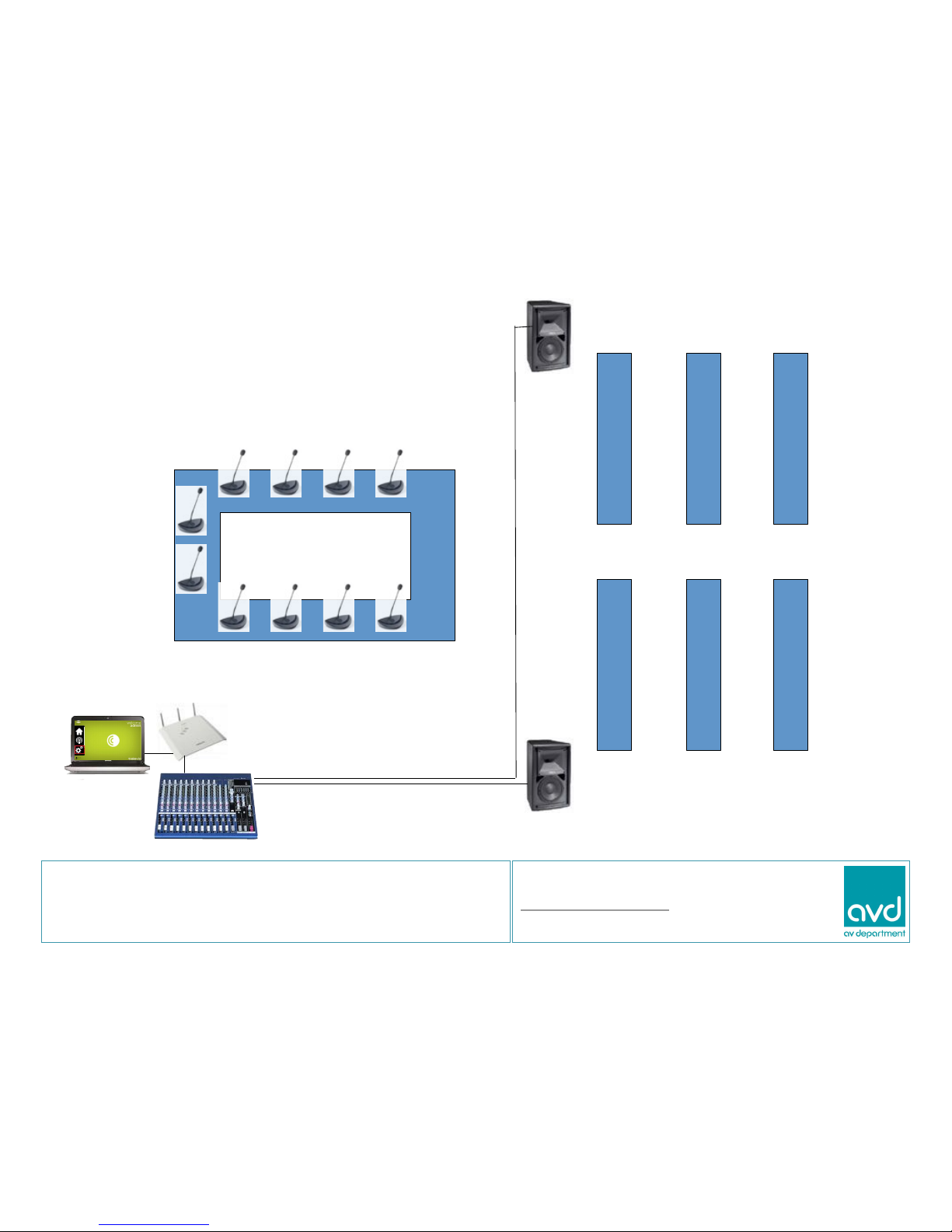
Seated observersBoardroom table
AV Department Limited
www.avdept.co.uk
01383 825709
Title: Guide to Confidea G3 Wireless Microphones
 Loading...