

Avaya Partner Partner 6D, Partner 18D, Partner 34D, Partner 3910, Partner MLS 12 Reference Manual
...Page 1

How to Use Your
PARTNER® Phone
518-457-701
Issue 2
Comcode 700361330
May 2005
Page 2

Copyright 2005, Avaya Inc.
All Rights Reserved
Responsibility for Your Company’s
Telecommunications Security
Notice
Every effort was made to ensure that the
informa tion in this d o cument wa s co mplete and
accurate at the time of printing. However,
information is subject to change.
Preventi n g Toll Fraud
“Toll fraud” is the unauthorized use of your
telecommunica tions system by an unauthorized
party (for example, a person who is not a
corporate empl oye e, agent, subcontract or, or is
not working on your company's behalf). Be
aware that there may be a risk of toll fraud
associated with your system and that, if toll
fraud occurs, it can resu lt in substantial
additional charges for your telecommunications
services.
Avaya Fraud Intervention
If you suspect that you ar e be in g v icti m iz ed by
toll fraud and you nee d te c hni cal assistance or
support, in the United States and Canada, call
the Technical Service Center's Toll Fraud
Intervention Hotline at
1-800-643-2353.
How to Get Help
For additional support telephone numbers, go to
the Avaya Web s ite:
http:/www.avaya.com/support/
If you are:
• Within the United States, click Escalation
Contacts, which includes escalation phone
numbers within the USA.
• Outside t he U nited States, click Escalation
Lists then click Global Escalation List,
which includes phone numbers for the
regional Centers of Excellence.
The final responsibility for securing both this
system and its networked equipment rests with
you - Avaya’s customer system administrator,
your telecommunications peers, and your
managers. Base t he fulfillment of your
responsibility on acquire d knowledge and
resources from a vari ety of sources including
but not limited to:
• Install ation docum ents
• System administration documents
• Security docume nts
• Hardware-/soft w are -ba sed security tools
• Shared information between you and your
peers
• Telecommuni ca ti ons security experts
To prevent intrusions to your
telecommunications equipment, you and your
peers should careful ly program and configure :
• Your Avaya-provided tele c ommunications
systems and their interfaces
• Your Avaya-provided softw ar e
applications, as well as their un derlying
hardware/soft w are pl atforms and interfaces
• Any other equipment networked to your
Avaya produc ts.
To order copies of this and other documents:
Call: Av aya Publications Center
Voice 1.800.457.1235 or
1.207.866.6701
FAX 1.800.457.1764 or
1.207.626.7269
Write: Globalware Sol uti ons
200 Ward Hill Avenue
Haverhill, MA 01835 USA
Attention: Avaya Account Managem ent
E-mail: [email protected]
For the most current versions of documentation,
go to the Avaya Web site:
http://www.avaya.com/support/
Page 3

Contents
Basic Phone Functions. . . . . . . . . . . . . . . . . . . . . . . . . . . . . . . .5
Make a Call . . . . . . . . . . . . . . . . . . . . . . . . . . . . . . . . . . . . . . . . . . . . . . . . . .5
Answer a Call . . . . . . . . . . . . . . . . . . . . . . . . . . . . . . . . . . . . . . . . . . . . . . . .5
Use the Hold Feature . . . . . . . . . . . . . . . . . . . . . . . . . . . . . . . . . . . . . . . . . .5
Transfer a Call to an Extension . . . . . . . . . . . . . . . . . . . . . . . . . . . . . . . . . . .6
Transfer a Call to a Voice Mailbox . . . . . . . . . . . . . . . . . . . . . . . . . . . . . . . .6
Make a Conference Call . . . . . . . . . . . . . . . . . . . . . . . . . . . . . . . . . . . . . . . .6
Use Your Voice Mailbox . . . . . . . . . . . . . . . . . . . . . . . . . . . . . . . . . . . . . . . .7
Join a Call in Progress . . . . . . . . . . . . . . . . . . . . . . . . . . . . . . . . . . . . . . . . .7
Forward Your Calls . . . . . . . . . . . . . . . . . . . . . . . . . . . . . . . . . . . . . . . . . . . .7
Send Calls to a Covering Extension . . . . . . . . . . . . . . . . . . . . . . . . . . . . . . .8
Adjust the Volume . . . . . . . . . . . . . . . . . . . . . . . . . . . . . . . . . . . . . . . . . . . . .8
Adjust the Display Contrast . . . . . . . . . . . . . . . . . . . . . . . . . . . . . . . . . . . . . .9
Advanced Phone Functions . . . . . . . . . . . . . . . . . . . . . . . . . . .10
Screen Calls . . . . . . . . . . . . . . . . . . . . . . . . . . . . . . . . . . . . . . . . . . . . . . . .10
Record Calls . . . . . . . . . . . . . . . . . . . . . . . . . . . . . . . . . . . . . . . . . . . . . . . .10
Lock Your Extension . . . . . . . . . . . . . . . . . . . . . . . . . . . . . . . . . . . . . . . . . .11
Use Group Calling . . . . . . . . . . . . . . . . . . . . . . . . . . . . . . . . . . . . . . . . . . . .11
Use Group Pickup . . . . . . . . . . . . . . . . . . . . . . . . . . . . . . . . . . . . . . . . . . . .12
Personalizing Your Phone. . . . . . . . . . . . . . . . . . . . . . . . . . . . .13
Program Your Phone . . . . . . . . . . . . . . . . . . . . . . . . . . . . . . . . . . . . . . . . . .13
Feature Dial Codes . . . . . . . . . . . . . . . . . . . . . . . . . . . . . . . . . .14
Speed Dialing. . . . . . . . . . . . . . . . . . . . . . . . . . . . . . . . . . . . . . .16
System Speed Dial . . . . . . . . . . . . . . . . . . . . . . . . . . . . . . . . . . . . . . . . . . .16
Personal Speed Dial . . . . . . . . . . . . . . . . . . . . . . . . . . . . . . . . . . . . . . . . . .16
How to Use Your PARTNER Phone 3
Page 4

Contents
Directories . . . . . . . . . . . . . . . . . . . . . . . . . . . . . . . . . . . . . . . . .1 7
System Speed Dial Directory . . . . . . . . . . . . . . . . . . . . . . . . . . . . . . . . . . . 17
Personal Speed Dial Directory . . . . . . . . . . . . . . . . . . . . . . . . . . . . . . . . . . 19
System Extensions Directory . . . . . . . . . . . . . . . . . . . . . . . . . . . . . . . . . . . 20
4 How to Use Your PARTNER Phone
Page 5

Make a Call
To make an outside call:
1 Press S, a line button, or lift the handset.
2 If required, dial the outside line code, usually 9, and then dial
the telephone number.
To make an inside call:
1 Press either i button.
2 Lift the handset, if desired.
3 Dial an extension.
Basic Phone Functions
Answer a Call
To answer an outside call or inside call:
• Press the button for the line you wish to answer, lift the
handset, or press S.
To enable Hands-Free Answer on Intercom:
•Press
(not ringing) intercom calls without having to lift the handset
or press any buttons.
m which allows you to respond to voice-signaled
Use the Hold Feature
1 While active on a call, press h.
2 To retrieve a call from hold while on the handset or speaker,
press the line button next to the winking green light (a call you
put on hold) or the winking red light (a call put on hold at
another extension).
How to Use Your PARTNER Phone 5
Page 6

Transfer a Call to an Extension
Transfer a Call to an Extension
1 Press &.
2 Dial the extension number.
3 Perform one of the following steps:
• To transfer the call without announcing it, hang up.
• To announce the call before transferring it, wait for the
called party to answer. When the called party answers,
announce the call. To complete the transfer, hang up.
If you want to cancel the transfer and return to that call,
press the intercom button or line button of the call you were
transferring.
Basic Phone Functions
Transfer a Call to a Voice Mailbox
1 Press f 14.
2 Dial the extension number.
3 Hang up.
Make a Conference Call
While connected to the firs t party:
1 Press C.
2 Press an idle intercom or line button.
3 Call the next party.
4 Press C again. Calls are now conferenced.
5 Repeat steps 1 through 4 to add up to a total of 2 outside and
2 inside connections.
You can remove the last-added outside party from the conference
by pressing
6 How to Use Your PARTNER Phone
f 06.
Page 7

Basic Phone Functions
Use Your Voice Mailbox
To listen to your messages:
•Press i 777.
To have voice mail answer your calls immediately:
•Press Do Not Disturb.
Do Not Disturb must be programmed previously on a button.
Join a Call in Progress
A steady red light indicates a call in progress on another
extension.
Use Your Voice Mailb ox
You cannot join a call if Privacy is enabled or Automatic
Extension Privacy is assigned at the other extension.
1 Press the button next to the red light.
2 Lift the handset or press S.
Forward Your Calls
1 Press f 11.
2 Dial your extension number.
3 Dial the destination extension number.
4 To cancel, follow steps 1 through 3, but dial your extension
number in step 3.
Y our System Administrator can program this feature on a
button.
How to Use Your PARTNER Phone 7
Page 8

Send Calls to a Covering Extension
Send Calls to a Covering Extension
To use this feature, a voice mail system must be installed and
administered in the PARTNER system, and your extension must
be a subscriber to the voice mail system.
1 Press f 20.
2 Dial your extension number.
3 Dial the covering extension number.
To send calls to the covering extension as soon as they start to
ring, press Do Not Disturb.
Do Not Disturb must be programmed previously on a button.
To cancel call coverage, follow steps 1 through 3, but dial your
extension number in step 3.
Basic Phone Functions
Adjust the Volume
To adjust the ringer volume:
• To increase volume, press + or while the phone is idle
or ringing and the handset is in its cradle.
• To decrease volume, press - or while the phone is idle
or ringing and the handset is in its cradle.
To adjust the speaker volume (while using the speaker) or
handset volume (while using the handset):
• To increase volume, press
• To decrease volume, press
+ or .
- or .
8 How to Use Your PARTNER Phone
Page 9

Basic Phone Functions
Adjust the Display Contrast
The phone must be idle and the handset must be in its cradle
when you adjust the display contrast.
To adjust the display contrast:
Adjust the Display Contrast
• To increase contrast, press
• To decrease contrast, press
* then press + or .
* then press - or .
How to Use Your PARTNER Phone 9
Page 10

Advanced Phone Functions
Screen Calls
To listen to a caller leaving a voice mail message:
• Press the programmed Call Screen button while the call is
To screen all incoming calls:
• Press the programmed Call Screen button. The steady
Record Calls
ringing.
green light indicates the call screening feature is activated.
This procedure requires special programming in your voice mail
system.
This feature is available on PARTNER ACS Release 3.0 or later
systems using PARTNER Messaging R1.0 and later systems or
PMVS R5.0 and later systems.
To record a conversation (to be stored in your voice mailbox):
• Press the programmed Record Call button at any time
during the call.
You may record conference calls, but only one of the other
parties can be on an inside extension.
10 How to Use Your PARTNER Phone
Page 11

Advanced Phone Functions
Lock Your Extension
To prevent unauthorized people from making outside calls from
your extension while you are away:
1 Press f 21.
2 Dial a 4-digit code (0–9).
3 Redial the 4-digit code.
This feature also prevents calls from being screened.
To unlock your extension:
1 Press f 21.
2 Dial the 4-digit code used to lock the extension.
Lock Your Extension
Use Group Calling
To make or transfer a call to all extensions in a Calling Group:
1 Press i.
2 Lift the handset.
3 Dial 7 and the group number (1–4).
To page all extensions in a Calling Group:
1 Press i.
2 Lift the handset.
3 Dial *7 and the group number. Begin speaking after the
beep.
How to Use Your PARTNER Phone 11
Page 12

Use Group P ickup
Use Group Pickup
To answer a call at any extension in a Pickup Group:
1 Press i.
2 Lift the handset.
3 Dial 66 and the group number (1–4).
Advanced Phone Functions
12 How to Use Your PARTNER Phone
Page 13

Personalizing Your Phone
Program Your Phone
To program unused buttons to access frequently used system
features, extensions, and phone numbers:
1 Press f 00.
2 Press the appropriate button.
3 Dial one of the following:
• feature dial-code
• phone number
• for an inside extension, press
extension.
See “Feature Dial Codes” on page 14 for a list of common
features and dial codes.
4 Do one of the following:
• To program another button, return to step 2.
• To exit, press
f 00.
i and dial the
How to Use Your PARTNER Phone 13
Page 14

Feature Dial Codes
Feature Dial Code
Account Code Entry
Background Music f 19 to turn on and off
Call Coverage
Call Forwarding/Call
Follow-Me
Call Recording f 24 to turn on and off
Call Screening
Conference Drop f 06
f 12 + account code + f 12
f 20 + your extension and covering
extension
f 11 + your extension + extension where
you want your calls to ring
This feature requires a button with lights.
f 25
You can program this button via Central Telephone
Programming only.
The last added outside party is dropped from a
conference call.
Do Not Disturb
Exclusive Hold
Last Number Redial
Message Light On/Off To turn on:
Privacy
Recall
14 How to Use Your PARTNER Phone
f 01 to turn on and off
This feature requires a button with lights.
f 02
f 05
To turn off:
f 07
This feature requires a button with lights.
f 03
f 09 + extension
f 10 + extension
Page 15

Feature Dial Codes
Feature Dial Code
Save Number Redial To save a number: f 04 after dialing the
number, but before hanging up
To redial a stored number: f 04
Voice Cover f 15
Voice Mailbox Access
Voice Mail Transfer
i 777
f 14
How to Use Your PARTNER Phone 15
Page 16

System Speed Dial
To use a system speed dial code:
Speed Dialing
•Press
System speed dial cod es are set by your sys tem
administrator.
f, then a 3-digit code.
Personal Speed Dial
To program your personal speed dial codes:
1 Press f 00.
2 Press f and select a 2-digit code between 80 and 99.
3 Dial the telephone number.
4 Repeat steps 2 and 3 for more numbers or, to exit, press
f 00.
To use your personal speed dial codes:
•Press
f, then the 2-digit code you selected.
16 How to Use Your PARTNER Phone
Page 17

System Speed Dial Directory
Name Code Name Code
600 625
601 626
602 627
603 628
604 629
605 630
606 631
607 632
Directories
608 633
609 634
610 635
611 636
612 637
613 638
614 639
615 640
616 641
617 642
618 643
619 644
620 645
621 646
622 647
623 648
624 649
How to Use Your PARTNER Phone 17
Page 18

System Speed Dial Directory
Name Code Name Code
Directories
650 675
651 676
652 677
653 678
654 679
655 680
656 681
657 682
658 683
659 684
660 685
661 686
662 687
663 688
664 689
665 690
666 691
667 692
668 693
669 694
670 695
671 696
672 697
673 698
674 699
18 How to Use Your PARTNER Phone
Page 19

Directories
Personal Speed Dial Directory
Code Name
80
81
82
83
84
85
86
87
Personal Speed Dial Directory
88
89
90
91
92
93
94
95
96
97
98
99
How to Use Your PARTNER Phone 19
Page 20
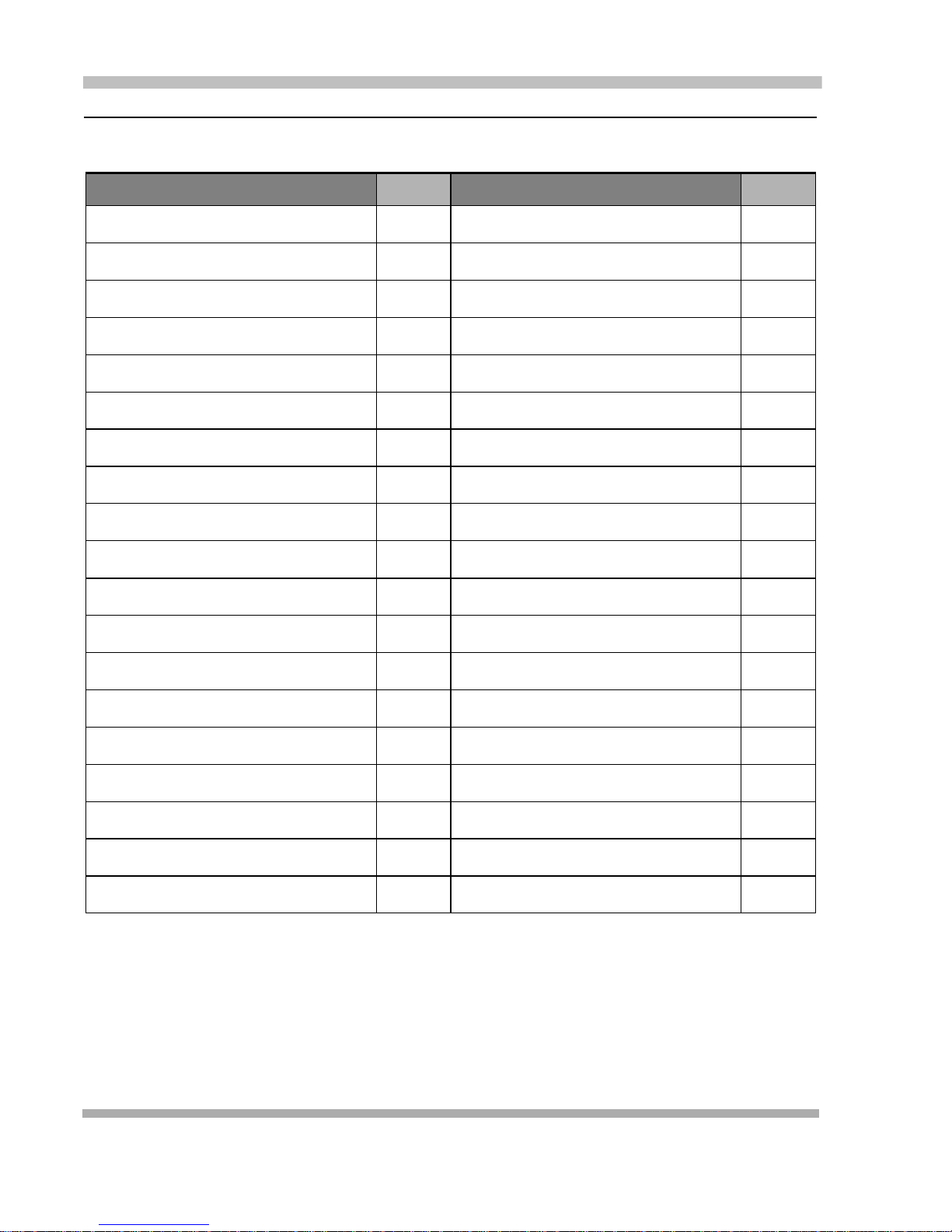
System Extensions Directory
Directories
System Extensions Directory
Name Ext. Name Ext.
20 How to Use Your PARTNER Phone
 Loading...