

Page 1

15-601041 Issue 26.k.- (16 August 2012 - 08:17)
Product Description
IP Office 8.1
Page 2

Product Description
IP Office 8.1
© 2012 AVAYA All rights reserved.
Page 2
Issue 26.k.- (16 August 2012)
© 2012 AVAYA All Rights Reserved.
Notice
While reasonable efforts were made to ensure that the information in this document was complete and accurate at the time of
printing, Avaya Inc. can assume no liability for any errors. Changes and corrections to the information in this document may be
incorporated in future releases.
Documentation Disclaimer
Avaya Inc. is not responsible for any modifications, additions, or deletions to the original published version of this documentation
unless such modifications, additions, or deletions were performed by Avaya.
Link Disclaimer
Avaya Inc. is not responsible for the contents or reliability of any linked Web sites referenced elsewhere within this
Documentation, and Avaya does not necessarily endorse the products, services, or information described or offered within
them. We cannot guarantee that these links will work all of the time and we have no control over the availability of the linked
pages.
License
USE OR INSTALLATION OF THE PRODUCT INDICATES THE END USER’S ACCEPTANCE OF THE TERMS SET FORTH
HEREIN AND THE GENERAL LICENSE TERMS AVAILABLE ON THE AVAYA WEBSITE AT
http://support.avaya.com/LicenseInfo/ (“GENERAL LICENSE TERMS”). IF YOU DO NOT WISH TO BE BOUND BY THESE
TERMS, YOU MUST RETURN THE PRODUCT(S) TO THE POINT OF PURCHASE WITHIN TEN (10) DAYS OF DELIVERY
FOR A REFUND OR CREDIT.
Avaya grants End User a license within the scope of the license types described below. The applicable number of licenses and
units of capacity for which the license is granted will be one (1), unless a different number of licenses or units of capacity is
specified in the Documentation or other materials available to End User. “Designated Processor” means a single stand-alone
computing device. “Server” means a Designated Processor that hosts a software application to be accessed by multiple users.
“Software” means the computer programs in object code, originally licensed by Avaya and ultimately utilized by End User,
whether as stand-alone Products or pre-installed on Hardware. “Hardware” means the standard hardware Products, originally
sold by Avaya and ultimately utilized by End User.
License Type(s): Designated System(s) License (DS).
End User may install and use each copy of the Software on only one Designated Processor, unless a different number of
Designated Processors is indicated in the Documentation or other materials available to End User. Avaya may require the
Designated Processor(s) to be identified by type, serial number, feature key, location or other specific designation, or to be
provided by End User to Avaya through electronic means established by Avaya specifically for this purpose.
Copyright
Except where expressly stated otherwise, the Product is protected by copyright and other laws respecting proprietary rights.
Unauthorized reproduction, transfer, and or use can be a criminal, as well as a civil, offense under the applicable law.
Third-Party Components
Certain software programs or portions thereof included in the Product may contain software distributed under third party
agreements (“Third Party Components”), which may contain terms that expand or limit rights to use certain portions of the
Product (“Third Party Terms”). Information identifying Third Party Components and the Third Party Terms that apply to them is
available on Avaya’s web site at: http://support.avaya.com/ThirdPartyLicense/
Avaya Fraud Intervention
If you suspect that you are being victimized by toll fraud and you need technical assistance or support, call Technical Service
Center Toll Fraud Intervention Hotline at +1-800-643-2353 for the United States and Canada. Suspected security vulnerabilities
with Avaya Products should be reported to Avaya by sending mail to: [email protected].
For additional support telephone numbers, see the Avaya Support web site (http://www.avaya.com/support).
Trademarks
Avaya and the Avaya logo are registered trademarks of Avaya Inc. in the United States of America and other jurisdictions.
Unless otherwise provided in this document, marks identified by “®,” “™” and “SM” are registered marks, trademarks and
service marks, respectively, of Avaya Inc. All other trademarks are the property of their respective owners.
Documentation information
For the most current versions of documentation, go to the Avaya Support web site (http://www.avaya.com/support) or the IP
Office Knowledge Base (http://marketingtools.avaya.com/knowledgebase/).
Avaya Support
Avaya provides a telephone number for you to use to report problems or to ask questions about your contact center. The
support telephone number is 1 800 242 2121 in the United States. For additional support telephone numbers, see the Avaya
Web site: http://www.avaya.com/support.
Page 3

Product Description
IP Office 8.1
© 2012 AVAYA All rights reserved.
Page 3
Issue 26.k.- (16 August 2012)
Contents
Contents
1. Introduction
................................................................ 6Avaya IP Office
................................................................ 9What's New in IP Office Release 8.1
................................................................ 10Voice Communication Solution Features
................................................................ 11Data Communication Solution Features
................................................................ 12Applications Platform Features
................................................................ 13Management Tools
................................................................ 14Scalable Platform
................................................................ 14Telephone Options
................................................................ 14Application and Feature Licensing
................................................................ 14Country Availability
2. IP Office Basic Edition PARTNER®
Mode
................................................................ 20Hardware
................................................................ 22Telephones
................................................................ 29System Administration
................................................................ 32System Features
3. IP Office Basic Edition Norstar®
Mode
................................................................ 51Hardware
................................................................ 53Telephones
................................................................ 57System Administration
................................................................ 60System Features
4. IP Office Server Edition
................................................................ 77Mid-market Overview
................................................................ 77IP Office Solution Overview
................................................................ 81IP Office Key Components
................................................................ 81IP Office Deployment Options
................................................................ 82IP Office Scalability
................................................................ 82IP Office Resiliency
................................................................ 84IP Office Centralized Licensing
................................................................ 86IP Office Centralized Management
................................................................ 87Documentation, Training, and Localization
................................................................ 89Serviceability
5. IP Office 500 Platform
................................................................ 91IP Office 500 Control Unit
................................................................ 93IP500 Base Cards
................................................................ 98IP500 Trunk Cards
................................................................ 102External Expansion Modules
6. Telephones
................................................................ 1099600 Series IP Telephones
................................................................ 125B100 Conference Telephones
................................................................ 1319504 and 9508 Digital Telephones
................................................................ 134
1600 Series IP Telephones and 1400 Series
Digital Telephones
................................................................ 142T3 Telephones
................................................................ 146Wireless Phone Solutions
................................................................ 187Other Phones Supported
................................................................ 216Analog Telephones
................................................................ 222Headsets
................................................................ 223Summary
7. Features and Call Handling
................................................................ 228Basic Call Handling
................................................................ 232Advanced Call Handling
................................................................ 238Key and Lamp Operation
................................................................ 240Outbound Call Handling Features
................................................................ 242Forwarding
................................................................ 244Avaya Telephone Features
................................................................ 248Inbound Call Handling
................................................................ 250Contact Center Features
................................................................ 251Miscellaneous Features
................................................................ 252System Short Codes
8. IP Telephony
................................................................ 256
Gateways, Gatekeepers and H.323 - Technology
Overview
................................................................ 256SIP - Session Initiation Protocol
................................................................ 257IP Telephony Features
................................................................ 259SIP Trunks
................................................................ 261SIP Endpoint Support
................................................................ 266IP Office 8.1 Interoperability
................................................................ 269Remote Phone Support
................................................................ 272Avaya Session Border Controller for Enterprise
................................................................ 272VoIP FAQ
9. Public and Private Voice Networks
................................................................ 278Private Circuit Switched Voice Networking
................................................................ 279Public Voice Networking
................................................................ 281E1R2 Channel Associated Signaling
................................................................ 281Session Initiation Protocol (SIP)
................................................................ 284Packet Based Voice Networking
................................................................ 285Supplementary Services within IP Networks
................................................................ 286
Multi-Site Networking (Small Community
Networking)
................................................................ 289Internetworking with Other Avaya Products
................................................................ 290Common Networking Features
10. Data Networking Services
................................................................ 293LAN/WAN Services
................................................................ 293Internet Access
................................................................ 294Remote Access Features
................................................................ 294LAN to LAN Routing
................................................................ 295SSL/VPN Remote Access
................................................................ 295Data Networking Features
11. Unified Communications Module
12. Applications Server
13. User Call Control Applications
................................................................ 306one-X Portal for IP Office
................................................................ 320IP Office Video Softphone
................................................................ 327Flare Communicator
14. Receptionist
................................................................ 337SoftConsole Options
................................................................ 338SoftConsole Administration
................................................................ 339SoftConsole PC Requirements
Page 4

Product Description
IP Office 8.1
© 2012 AVAYA All rights reserved.
Page 4
Issue 26.k.- (16 August 2012)
Contents
15. Computer Telephony Integration
................................................................ 341CTI with IP Office
................................................................ 342TAPILink Lite (1st Party TAPI Support)
................................................................ 342TAPILink Pro (3rd Party TAPI Support)
................................................................ 342Support for Developers
................................................................ 343TAPI Functions Supported by IP Office
16. Messaging
................................................................ 350IP Office Essential Edition - Embedded Voicemail
................................................................ 352IP Office Preferred Edition - Voicemail Pro
................................................................ 356
IP Office Preferred Edition - Voicemail Pro
Resilience and Backup
................................................................ 359Interaction of Voicemail with Email Systems
................................................................ 360Unified Messaging Service (UMS)
................................................................ 363Fax Messages
................................................................ 364
Text-to-Speech Email Reading (Microsoft
Exchange only)
................................................................ 365Networked Messaging
................................................................ 366Auto Attendant
................................................................ 367Personal Numbering
................................................................ 368
Accessing Database Information within Call Flows
(IVR)
................................................................ 369
Using Text To Speech (TTS) Facilities within a Call
Flow
................................................................ 370Visual Basic (VB) Scripting
................................................................ 371Extended Personal Greetings
................................................................ 372Hunt Group Broadcast Messages
................................................................ 372Personal Distribution Lists
................................................................ 373Cascaded Out-Calling
................................................................ 374Campaign Manager
................................................................ 375Call Recording
................................................................ 376Call Screening
................................................................ 377IP Office ContactStore
................................................................ 379
Centralized Messaging with Avaya Communication
Manager
................................................................ 380Voicemail Feature Comparison
17. Mobility
................................................................ 385one-X Mobile Preferred for IP Office
................................................................ 387On-Site Mobility
................................................................ 389External Mobility
................................................................ 3923rd Party Mobility Solutions for Use with IP Office
18. Audio Conferencing
................................................................ 396
IP Office Preferred Edition Meet-Me Conferencing
Solution
................................................................ 397IP Office Conferencing Capacity
................................................................ 398IP Office Standard Conferencing Features
19. The Contact Center
................................................................ 400Customer Call Reporter
20. Management Utilities
................................................................ 416IP Office Web Manager
................................................................ 422IP Office Simplified Manager
................................................................ 424IP Office Monitor
................................................................ 425Simple Network Management Protocol (SNMP)
................................................................ 426System Status Application
................................................................ 427Data Migration Manager
21. IP Office Support Services and
Automated On-Boarding
................................................................ 432Avaya Global Services
................................................................ 433On-Boarding Automation
22. Technical Specifications
................................................................ 439Interfaces
................................................................ 439Protocols
23. Licenses
24. Appendix
Page 5

Product Description
IP Office 8.1
© 2012 AVAYA All rights reserved.
Page 5
Issue 26.k.- (16 August 2012)
Chapter 1.
Introduction
Page 6

Product Description
IP Office 8.1
© 2012 AVAYA All rights reserved.
Page 6
Issue 26.k.- (16 August 2012)
1. Introduction
This document is not a contractual document. The specification of the Avaya IP Office family is
subject to change without notice. Not all components and features documented are available in all
territories; refer to your Avaya representative for further details. This document should be read in
conjunction with any issued technical bulletins and/or product offer announcements.
Avaya IP Office
Simple, Powerful Communications for Small Businesses.
What is IP Office?
IP Office is a versatile communications solution that combines the reliability and ease of a traditional telephony
system with the applications and advantages of an IP telephony solution. This converged communications
solution can help businesses reduce costs, increase productivity, and improve customer service.
How can I use it in my business?
Avaya IP Office unifies your communications, providing your employees with a solution that lets them handle all
their business communications on the device of their choice: their laptop, mobile phone, office telephone or
home telephone; using wired, wireless or broadband connections.
What are my choices?
Successful companies are always looking for new ways to do more with less – keeping their business flexible,
innovative and competitive without driving up operating costs and capital expenses. Avaya IP Office is the right
choice for any small business today – whether you have 5, 25, 250 or 1000 employees… just getting started or
already established have a single location or multiple locations across the globe...
With IP Office you can tailor the solution to your user needs (e.g. Teleworker, Mobile Worker, Customer Service
Agent, etc.). Whether you have 5 employees, 25, 250 or more, IP Office is the right choice.
IP Office: Three key things to know
All small and medium size businesses are seeking ways to reduce costs and improve the way it operates. Like
every business, you’re looking to keep all your customers, add new ones and grow at the pace that’s right for
you. Avaya understands this. With over one hundred years of experience as a leader in communications, we
know that the right solution for your business is one that helps you increase profitability, improve productivity
and gain competitive advantages.
Serving Customers Effectively with Unified Communications
Your office telephone, cell phone, e-mail, texting, instant messaging and even your home telephone are all
essential to the way you work today. Unlike other solutions, Avaya IP Office uses built-in intelligence to simplify
your use of wired, wireless and Internet communications. Instead of keeping your communications separate,
Avaya IP Office brings them together so you can easily turn a home or mobile phone into an office extension,
collaborate with dozens of customers or staff members on a conference call and get detailed reports that show
how well your company is responding to customers. With rich functionality, IP Office naturally creates new ways
of thinking about the role communications can play in your business.
See what Avaya can do for you
You need a communications system – every business does. To find one that’s right for your business, start with
Avaya. With solutions like IP Office, we’re revolutionizing how small and medium size businesses communicate.
Now is the time to see what an Avaya solution can do for your business.
Reduce monthly costs. Now.
IP Office will help you lower the cost of communications, with capabilities like conferencing, making calls over a
managed Internet service (Voice over IP) and the "all-in-one" benefits of a converged communications system.
Leave the office. Be accessible.
With easy, flexible options for call/message forwarding and one-number reachability, IP Office keeps everyone
in touch. Get the freedom to go where you want and never miss important business calls.
Serve better. Sell more.
IP Office can give you a customer sales and service center designed for your needs and your budget – with all
the routing and reporting capabilities you need. Deliver the personal service that builds sales and loyalty.
Get connected
Talk to your Avaya Business Partner. Discuss where you want communications to add value to your business.
Learn about the different service and support options that are available. See why thousands of growing
businesses rely on the innovative Avaya IP Office solution.
Page 7

Product Description
IP Office 8.1
© 2012 AVAYA All rights reserved.
Page 7
Issue 26.k.- (16 August 2012)
The right choice for you and your business
How we communicate is a personal choice – it has to match the needs of your business. And your needs change
depending on whether your employees are working in the office, at home, or on the road. That’s why when you
choose IP Office you can also choose from a whole range of communication tools and applications designed to
boost productivity. Choose a basic telephone or one with all the "bells and whistles." Connect our IP telephones
directly to your office LAN – you can even take them home and get all the features you have at the office. With
Avaya IP Office, a PC or laptop and an internet connection you can turn the screen of your PC into a telephone.
And our wireless solutions make it easier to roam the office. With all of our IP Office capabilities, our goal is to
make your communications simple and cost-effective. Let your Avaya BusinessPartner put together a selection
of tools and applications that's right for you.
Fine-tuning performance
How many calls are you handling an hour, a day? What are your peak calling periods? How many calls typically
turn into sales? The Avaya IP Office reporting capabilities can help you measure and manage your availability
and response to customers.
Day-to-day administration
Once your system is up and running you will benefit from the graphical administration tools that simplify dayto-day tasks, such as updating directories and moving telephone extensions.
Getting started
Is your communications network ready for IP Office? We'll make sure. Avaya has created assessment and
automated configuration tools to make sure that when your system is installed it’s ready to meet your needs
starting Day One.
Keeping ongoing management simple
Concerned about needing extra resources to administer a system as powerful as IP Office? There’s no need for
worry. IP Office comes with a whole set of graphical tools to keep ongoing management simple.
Does my current phone system give my business what it needs?
If it is based on old technology, probably not. Your competitors will react faster and appear more professional
with the latest in communications software. IP Office delivers the capabilities that allow you to keep up with or
overtake the competition.
Do I need to understand the technology to implement it?
No. IP Office is designed specifically to give you more functionality without making more demands on your
resources. Rely on your certified Avaya BusinessPartner for support before, during and after your purchase.
We'll take care of you so you don’t have to worry.
Do I need to spend a lot?
Not at all. You have choices based on your budget needs. Easy leasing or financing plans not only make this
affordable; they help you quickly cut monthly expenses immediately. And you only have to buy/lease what you
need, when you need it.
Is IP technology established and reliable?
Yes. With over 170,000 systems and 6 Million users worldwide Avaya IP Office has the track record businesses
like yours can rely on. Customers like you are saving money and boosting productivity and many are managing
IP Office themselves.
I have old systems but am adding an office. Should I consider newer technology?
Not only would this be a way for you to experience the rich functionality of the latest communications
applications, but we may be able to network with your existing equipment, as well as provide a gradual
migration plan for your other locations.
I have a Nortel BCM or Nortel Norstar system. Can I keep my existing telephones?
Yes. IP Office supports the majority of Nortel BCM and Norstar telephones. You can save between 40 to 60% of
your original investment by keeping your existing telephones. Whether you want to add additional telephones
or replace older telephones, IP Office supports nearly every kind.
How quickly can I get up and running?
Just say "when" – an authorized Avaya BusinessPartner can tailor a solution to your needs and your budget. By
saving you money and helping you grow, IP Office repays your investment and lets you reallocate resources to
other business priorities.
Lowering long distance costs
Routing telephone calls over the Internet (Voice over IP or VoIP for short) – is growing in popularity.
Particularly in the case of international calls, VoIP generates significant savings. If your company is already
linking multiple offices using high-speed data circuits, the VoIP capabilities in IP Office make it possible to route
voice calls over the existing infrastructure, providing another way to lower costs and leverage your investment.
However you do it, the VoIP capabilities of IP Office are a way to put money back in your pocket.
Page 8

Product Description
IP Office 8.1
© 2012 AVAYA All rights reserved.
Page 8
Issue 26.k.- (16 August 2012)
Eliminating conferencing fees
Collaborate with customers, partners, suppliers and remote employees. IP Office includes a 128 party audio
conference bridge (64 max in one conference) to keep people working together and travel costs down. With
Avaya IP Office, your organization can have its own private, secure conference bridge and eliminate expensive
fees to third party conference providers.
Maximizing productivity
When employees can’t get to the office (because of storms, personal issues or other reasons) IP Office allows
them to work as at home (or any other location) as productively as though they were in the office.
And keep in mind…
IP Office delivers a whole range of capabilities. Only you can put a number on the value that many of these
capabilities will have for your business.
Examples:
· Having calls automatically routed to a cell telephone or other location, so important customers can get
through to the right person in real-time
· Being able to operate as a 24/7 business, without a 24/7 staff
· Using your communications to quickly identify when your top customers call
How IP Office is benefiting businesses today
· More room for sales
With IP Office, a leading provider of commercial food service equipment now handles 50% more calls
per day, without extra staff and without sacrificing the personal service it knows is the key to sales
· At the head of the class
By relying on IP Office to connect nearly 50 buildings, a public school system saved thousands of
dollars on inter-office calls and simplified communications
· Lowering global costs
By using IP Office to hold teleconferences and make phone calls across the IP network, a strategic
consulting firm is saving up to $30,000 per year
IP Office can grow as your business grows to meet your needs
Capacities: 2-384 extensions on a single location; up to 192 analog lines; 192/240 T1/E1 lines; 128 VoIP trunk
lines; up to 1000 users across 32 locations.
Call handling and messaging
Get 24-hour support for callers/customers without a 24-hour staff. IP Office has a range of messaging, auto
attendant and Interactive Voice Response (IVR) capabilities. Integrate messaging and advanced call handling
into your customer service operations. Handle voice mail and email in a single mailbox.
Communication with customers
Set up a formal or informal customer service center. Integrate your customer data base into your call handling.
Manage the quality of your customer interactions.
Work anywhere
Give your employees all the communications capabilities they have at the office whether they are working from
home, a hotel or a remote office.
Collaborate with customers, vendors and remote staff
Don’t pay any more fees to outside conferencing service providers. Use IP Office built in audio conferencing that
is easy to set up and use while saving you money
Secure converged communications
Use IP Office as a secure router with a built-in firewall/VPN. Route voice calls over a managed Internet service
(VoIP) and pocket the savings. Simple administration Windows-based, graphical tools cut the time and expense
of administration.
Page 9

Product Description
IP Office 8.1
© 2012 AVAYA All rights reserved.
Page 9
Issue 26.k.- (16 August 2012)
What's New in IP Office Release 8.1
The features listed below are available worldwide unless otherwise specified. Not all of the features in IP Office
Release 8.1 are supported on all platforms and phones - please see each feature's description for more
information.
IP Office Control Unit Support
IP Office Release 8.1 is supported on the IP500, IP500 V2, and IP Office for Linux.
New Hardware Components
· IP Office Server Edition – Primary/Secondary Servers
o
HP DL 360 G7
o
HP DL120 G7
· IP Office Server Edition – Expansion Server
o
HP DL120 G7
IP Office Licensing Changes
· New Licensees for Server Edition
· Remote worker seats included with Essential edition is increased from 2 seats to 4 seats.
· User Profile licenses (Teleworker, Office Worker, Mobile User, Power User) running on a pre 8.0 Essential
Edition will be valid if the system is upgraded to 8.1 with an upgrade license or if the system is upgraded
during the entitlement period without an upgrade license. Only IP Office 500v2 systems have entitlement
period.
· Behavior not changing but listed for completeness:
o
New R8.1 systems will require Preferred Edition licenses in order for the User Profile licenses to be valid.
· The automatic trial licenses available during the entitlement period with release 8.0.16 and associated alarms
will be removed and will not be available.
End-point additions
· Flare Communicator for Windows
· Flare Communicator for iPad
IP Office Enhancements
· SIP Trunks
· one-X ® Mobile Preferred for IP Office enhancements
· Web Manager Enhancement supporting Upgrade, Back-up & restore
· Changeable RTP ports
· Contact Center Enhancements
o
CCR DDI Report
o
Scheduled Reports for the current day
o
CDR Answered event renamed
o
Changes to duration of events for CDR
o
Wallboard – Manual Layout and Font Sizing
o
Wallboard – Bookmark and Auto-Login
o
Wallboard – Statistics values on Leader Board
o
Wallboard – Configurable update interval
o
Wallboard – Monitor table
o
CCR support for 96x1 Phones
o
CCR Client Browser on Windows 7
Page 10

Product Description
IP Office 8.1
© 2012 AVAYA All rights reserved.
Page 10
Issue 26.k.- (16 August 2012)
· VoiceMail Pro Password length configuration
· Security Documentation
· Avaya Audio Branding change
· one-X ® Portal for IP Office websockets
· Debug enhancement – Logger stamp support
· SSL/VPN Remote Access
· On-Boarding automation to support the introduction of the new Avaya IP Office Support Services
IP Office Demo Kits
· Power Demo Kit
· IP Office Anywhere
Voice Communication Solution Features
IP Office offers a comprehensive list of features and benefits for the small or mid-size business, including:
· Full PBX Features
Caller ID, Call Forwarding, Conference Calling, Voice Messaging and more.
· Trunk Interfaces
A variety of network trunk interfaces, including E1, T1, PRI, ISDN, SIP, analog loop start and analog
ground start for comprehensive network connectivity. Not all trunk types are available in all territories,
please check for local availability.
· Extensions
Support for a range of extensions, from 2 to 384 that provide sophisticated voice performance for new
and growing businesses.
· Telephones
A variety of telephones including analog, digital and IP hard and softphones (wired and wireless) that
provide the appropriate desktop or device telephone for every need.
· Advanced Call Routing
Incoming calls are directed to the best available person or messaging service, according to the
company's unique criteria.
· Alternate Call Routing
Ensures reliable handling of calls by selecting from analog, digital or VoIP trunks.
· QSIG Networking
Standards-based multi-site networking to interoperate with other PABXs (licensed feature).
· Integrated H.323 and SIP Gatekeeper and Gateway for Converged Communications
The IP Office acts as an IP telephony server with Quality of Service (QoS) support through DiffServ for
call routing.
· SIP Trunking
SIP trunking to Internet Telephony Service Providers. IP Office allows users with non-SIP telephones to
make and receive SIP trunk calls.
Page 11

Product Description
IP Office 8.1
© 2012 AVAYA All rights reserved.
Page 11
Issue 26.k.- (16 August 2012)
Data Communication Solution Features
For offices with basic data networking needs, IP Office can provide a complete data communications and
networking solution:
· Internet Access
Firewall protected leased line or dial-up connectivity via PRI, T1 or WAN port: high-speed dialed access,
direct leased line connections for high usage and Web site hosting, integral security, and efficient access
to information and a larger business presence via the Web.
· Routing
Integral Static or Dynamic (RIP I/II) routing for both Internet and Branch-to-Branch solutions.
· Security
NAT (Network Address Translation) and built in firewall to protect your internal network and IPSec
support allows secure VPN data transmission across public IP Networks using 3DES encryption.
· DHCP
Automatic IP address allocation for local and remotely attached PC's and other devices, including IP
telephones.
· LAN Switching
The IP Office 500 V2 offers 2 switched Layer 3 Ethernet ports.
· LDAP Client Support
For standards based directory synchronization with Avaya one-X™ Portal for IP Office and Phone
Manager.
Page 12

Product Description
IP Office 8.1
© 2012 AVAYA All rights reserved.
Page 12
Issue 26.k.- (16 August 2012)
Applications Platform Features
IP Office provides big business benefits and enhanced productivity for small and mid-size businesses with a full
complement of sophisticated applications.
IP Office provides a number of free applications (e.g., Microsoft TAPI service). These applications can be
upgraded to provide enhanced functionality through the purchase of license keys. The complete list of
applications are:
· Receptionist/Operator SoftConsole
A graphical User Interface (GUI) for attendants on their PC desktop for call handling. Works with a
telephone and is an easy way to learn and use sophisticated tools in a comfortable environment.
· Avaya one-X™ Portal for IP Office
A powerful client/server web application that allows the user to control and manage phone calls from a
web browser with the standard LDAP protocol for connectivity to external directories.
· Open CTI interfaces
IP Office has a built in TAPI server that integrates easily with popular contact management applications
such as Outlook. Sophisticated custom applications can be rapidly developed and deployed with our full
software development kit.
· Voicemail
Callers can always be answered with a personal voicemail greeting before a message is taken and
message notification set. Messages can be shared (forwarded) with colleagues and retrieved by any
telephone capable of tone dialing. When used with Avaya one-X™ Portal for IP Office, the PC can be used
to control message playback.
· Integrated Voicemail to Email Presentation
Voice messages can be copied into email messages and delivered into the email system. IP Office uses
SMTP or MAPI to deliver a copy of the voice message.
· Unified Messaging (UMS)
The Unified Messaging Service within Preferred Edition provides a higher level of integration to
synchronize both voicemail and email inboxes.
· Auto-Attendant
Simplify service for administrators with this easy-to-use feature with the ability to construct customized
automated services allowing callers to efficiently navigate the system, and reach the right person,
without the assistance of an operator. Available with Preferred Edition and with Essential Edition.
· Interactive Voice Response (IVR) and Text to Speech
Create automated customized systems allowing callers to interact with business information, for
example, reading email, account enquiry systems, automated ordering systems, ticket purchasing
systems, PIN checking, remote time sheet management, etc. Enhance these systems by using Text To
Speech to read information back to callers. Available with Advanced Edition.
· Queue Manager and Campaign Manager
Powerful voice and IVR applications for the Contact Center that facilitate agent and traffic management
for better productivity and customer service.
· Customer Call Reporter (CCR)
Available with Advanced Edition and combined with the built-in Automatic Call Distribution functionality
of IP Office, CCR enables a small business to track and measure customer service and agent productivity
levels.
· CCR delivers:
· Simple/Intuitive Reporting
· Browser/Thin Client Architecture
· Single Server Efficiency (with Preferred Edition)
· Target Segment: Small Business<30 agents
· Can support up to 150 agents
· 30 supervisors
· One administrator
Page 13

Product Description
IP Office 8.1
© 2012 AVAYA All rights reserved.
Page 13
Issue 26.k.- (16 August 2012)
Management Tools
Avaya IP Office is easily managed with its management options.
IP Office Web Manager is a new browser-based management tool designed to simplify the installation and
maintenance process by providing an intuitive and user-friendly management tool that runs on most standard
browsers. The new IP Office Web Manager eliminates the need to have Windows operating system as it can run
on any device that supports standard browsers. IP Office Web Manager supports the following Editions of IP
Office:
· Basic Edition A-Law
· Basic Edition Mu-Law
· Basic Edition PARTNER Mode
· Basic Edition Norstar Mode (PBX, KTS)
IP Office manager is a Windows based PC software application. It can be used from the LAN, remote on the
WAN, or connected via the built-in RAS using a TA or a modem to manage any IP Office edition.
The System Status application is a useful diagnostic tool that provides enhanced details about equipment and
resources in the IP Office system. This includes indication of alarms and details of current calls in progress for
local or remote diagnostics.
Page 14

Product Description
IP Office 8.1
© 2012 AVAYA All rights reserved.
Page 14
Issue 26.k.- (16 August 2012)
Scalable Platform
The IP Office 500 V2 offers a modular, flexible chassis which with capacity for up to 16 analog trunks or 16
ISDN BRI trunks (32 channels) or 8 digital PRI trunks (up to 192 T1 channels or 240 E1 channels) using
internal daughter cards. Up to 12 Expansion Modules may be added to provide a combination of up to 384
analog, digital or IP extensions, with additional analog trunks through external Analog 16 modules. Features
include up to 148 optional voice compression channels, 2 independently switched LAN ports and built-in
Embedded Voicemail.
Telephone Options
IP Office supports multiple telephone solutions, giving the small and mid-size businesses maximum flexibility to
choose according to their current and future needs.
· IP Telephones
IP Office's integral H.323 server supports Avaya 1600 and 5600 Series IP telephones, selected Avaya
9600 Series IP telephones, Avaya T3 Series IP telephones, Avaya 3600 Series wireless VoIP telephones
and the IP Office Video Softphone.
· Digital Telephones
IP500 digital station 8 cards and Combination Cards plus IP Office digital station 16 or 30 Expansion
Modules support the Avaya 9500, 1400 and 5400 Series of digital telephones and Avaya T3 Series
telephones, plus selected 2400 and 4400 Series telephones.
The new TCM8 digital extension card as well as the DS16A and DS30A digital expansion module support
BCM / Norstar, T7000 Series telephones and other telephones and button modules.
· ETR Telephones
IP500 V2 ETR 6 cards support the Avaya ETR telephones as used on PARTNER ACS systems (Essential
Edition – PARTNER Mode only).
· Analog Telephones
IP500 Phone 2, Phone 8 and Combination Cards plus IP Office Phone 16 or 30 Expansion Modules
support standard analog telephones, faxes and modems, with support for calling line identification and
message waiting indication where these services are provided.
· Wireless Telephones
Avaya DECT R4 base stations can be added to support the Avaya DECT R4 3720 and 3725 telephones.
The IP Office digital station interfaces support the Avaya 3810 telephone. The Avaya 3600 Series
wireless VoIP telephones are also supported.
With the new hardware modules TCM8, DS16A, and DS30A Nortel digital Mobility solutions are also
supported.
· Third Party SIP Endpoints
IP Office's integrated SIP Server supports third-party SIP endpoints such as, desktop telephones,
softphones and conferencing speakerphones.
For a complete overview over of supported telephones please refer to the Telephones section of this Product
Description.
Application and Feature Licensing
Some IP Office applications and features require a license key. Each license key is derived from the feature
being enabled combined with the serial number of the Feature Key installed with the IP Office system.
IP500 and IP500 V2 systems use a mandatory Feature Key installed with every system.
Licenses are supplied in two forms; time limited trial licenses and indefinite licenses. Trial licenses allow
applications to run in fully functional form for 60 days (from the date of license generation), after which time
they cannot be used until upgraded at cost to the full license but can be ordered at any time during the product
ownership.
For further details of the IP Office licenses, including Trial Licenses, refer to the Licenses section.
Country Availability
IP Office is available from distribution partners in the following countries. Please refer to your country price list
for the availability of individual items.
Americas
EMEA
APAC
107
443
Page 15

Product Description
IP Office 8.1
© 2012 AVAYA All rights reserved.
Page 15
Issue 26.k.- (16 August 2012)
· Argentina
· Brazil
· Canada
· Chile
· Colombia
· Dominican Republic
· Ecuador
· Guatemala
· Honduras
· Jamaica
· Mexico
· Panama
· Peru
· Puerto Rico
· Trinidad & Tobago
· United States
· Venezuela
· Austria
· Bahrain
· Belgium
· Bulgaria
· Cyprus
· Czech Republic
· Denmark
· Egypt
· Estonia
· Finland
· France
· Germany
· Greece
· Hungary
· Iceland
· Ireland
· Israel
· Italy
· Kuwait
· Latvia
· Liechtenstein
· Lithuania
· Luxembourg
· Malta
· Morocco
· Netherlands
· Norway
· Oman
· Pakistan
· Poland
· Portugal
· Romania
· Russian Federation
· Saudi Arabia
· Slovak Republic
· Slovenia
· South Africa
· Spain
· Sweden
· Switzerland
· Turkey
· UAE
· United Kingdom
· Australia
· China
· Hong Kong
· India
· Malaysia
· New Zealand
· Phillipines
· Singapore
· Sri Lanka
· Taiwan
· Thailand
· Vietnam
Page 16

Product Description
IP Office 8.1
© 2012 AVAYA All rights reserved.
Page 16
Issue 26.k.- (16 August 2012)
Page 17

Product Description
IP Office 8.1
© 2012 AVAYA All rights reserved.
Page 17
Issue 26.k.- (16 August 2012)
Chapter 2.
IP Office Basic Edition
PARTNER® Mode
Page 18

Product Description
IP Office 8.1
© 2012 AVAYA All rights reserved.
Page 18
Issue 26.k.- (16 August 2012)
2. IP Office Basic Edition PARTNER® Mode
The IP Office Basic Edition Partner Mode continues the evolution of communications systems for small
businesses.
PARTNER Mode is designed to work directly out of the box without any programming or administration, allowing
users to immediately make and place calls via analog trunks.
PARTNER Mode provides the end user a similar desktop experience as the PARTNER ACS: e.g. 2 dedicated
intercom buttons, key system functionality, Caller ID, etc. This helps minimize training requirements and
provides the end user with the same comfort level they have come to expect with the PARTNER ACS system.
PARTNER Mode provides enhanced features such as Visual Voice, Remote Call Forwarding, 64-party
Conferencing, SIP Trunking, Full PRI/T1 and more.
PARTNER Mode provides the same 2-digit extension numbering plan as PARTNER ACS (default), and now
supports a 3-digit flexible numbering plan (extensions 100 – 599).
PARTNER Mode supports all current and "Euro" versions of PARTNER ACS telephones, the 1400 Series digital
telephones, the current 3920 and 3910 wireless products, as well as most analog devices (fax, wireless
headsets, analog telephones). The original MLS Series telephones and older wireless telephones are not
supported.
PARTNER Mode also supports a new line of Avaya digital telephones – the 9500 Series telephones, and supports
the Nortel T-Series and M-Series digital telephones.
PARTNER Mode includes Embedded Voicemail; providing a 2-port Automated Attendant (upgradeable to 6ports) and voice mail coverage activated for all telephones. The Embedded Voicemail offers a variable number
of hours of storage:
· 2-ports = 15 hours of storage
· 4-ports = 20 hours of storage
· 6-ports = 25 hours of storage
System Capacities
PARTNER Mode supports larger telephone and trunk capacity as follows (may not be attained simultaneously):
100 Telephones:
· Up to 100 digital telephones
(1400 Series, 9500 Series, T-series
and M-Series telephones)
· Up to 100 analog telephones
· Up to 18 PARTNER ETR telephones
(additional non ETR telephones can be
added total to reach system capacity)
64 Trunks:
· Up to 32 analog CO lines
· 1 PRI/T1 (24 lines)
· Up to 20 SIP lines
· can support up to 72 trunks, but not simultaneously
IP Office Basic Edition Mu-Law
When the IP500 V2 containing a IP Office Mu-Law SD card is first started, it will boot-up as "Basic Edition",
which has the same look and feel as PARTNER Mode, supporting out of the box operations, two intercom
buttons, key system functionality, voice mailboxes on all telephones, TUI programming support, etc. "Basic
Edition" makes starting and using the system quick and easy.
Users who need full IP Office Essential Edition functionality can apply the Essential edition license and the use
Manager to change mode from "Basic Edition" to "Essential Edition". Once the system reboots, it re-starts as
"Essential Edition."
Page 19
Product Description
IP Office 8.1
© 2012 AVAYA All rights reserved.
Page 19
Issue 26.k.- (16 August 2012)
System Programming
System programming is accomplished in two ways:
· Telephone User Interface (TUI) from extension 10 or extension 11; and uses the same
administration codes as the PARTNER ACS system.
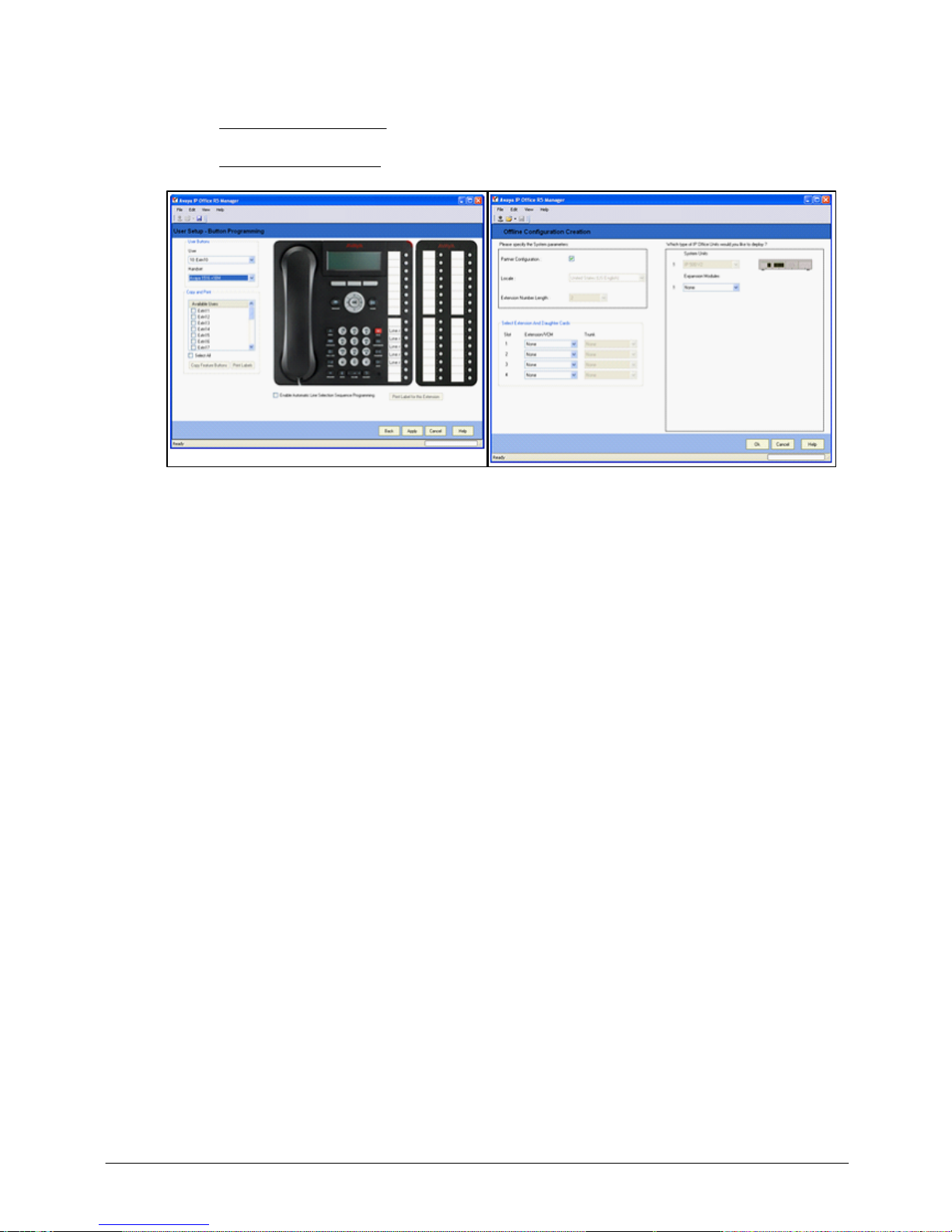
· Graphical User Interface (GUI) – PARTNER Mode provides a "Simplified Manager" mode in the IP
Office Manager software; allowing you to program the system in less than 30 minutes.
Page 20
Product Description
IP Office 8.1
© 2012 AVAYA All rights reserved.
Page 20
Issue 26.k.- (16 August 2012)
Hardware
Control Unit
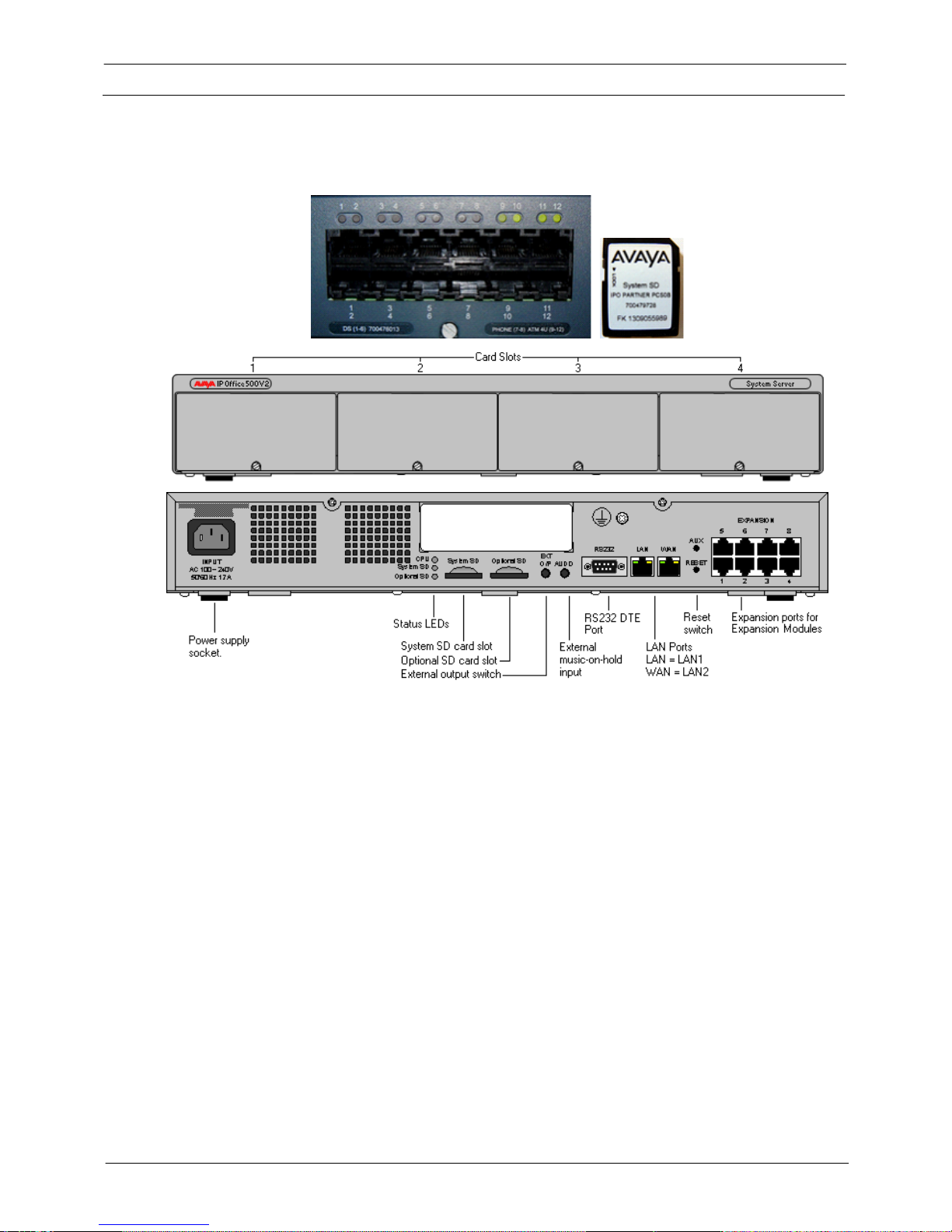
PARTNER Mode software runs on the IP500 V2 control unit. A PARTNER Mode SD card or IP Office Mu-Law SD
card is required and is installed in the rear of the control unit, providing operating software, Feature Key,
Licenses and directs the system to boot up in PARTNER mode or Quick Mode. An optional SD card may be
installed in the optional SD card slot, providing redundant backup and system upgrade capabilities.
The front of the IP500 V2 Control Unit has 4 expansion bays, which supports the following system modules:
· Combination Card – Analog Trunks (Max 2 per system)
The Combination Card provides 6 digital station (DS) ports (Ports 1-6); 2 analog station ports (Ports 7-
8); 4 CO Line ports (Ports 9-12) and 10 Voice Compression Channels.
· ETR6 Card (Max 3 per system)
The ETR6 Card provides 6 ETR (PARTNER ACS telephone) station ports (Ports 1-6); and supports (1) of
the following optional trunk cards: ATM4 or PRI/T1. When an ATM4 is added, ports 7-8 become Power
Failure Transfer ports, and ports 9-12 provide 4 additional CO Line Ports. Compatible only with
PARTNER Mode and Mu-Law SD cards with Basic Edition, in North America market only.
· DS8 Card (Max 3 per system)
The DS8 Card provides eight digital station ports (Ports 1-8); and supports (1) of the following optional
trunk cards: ATM4 or PRI/T1. When an ATM4 is added, ports 9-12 provide 4 additional CO Line Ports.
This card supports only the 1400 and 9500 Series telephones.
· TCM8 Card (Max 4 per system)
The TCM8 Card provides eight digital station ports (Ports 1-8); and supports (1) of the following
optional trunk cards: ATM4 or PRI/T1. When an ATM4 is added, ports 9-12 provide 4 additional CO
Line Ports. This card supports only Norstar® T-Series and M-Series telephones.
· Phone 2 (Max 4 per system)
The Phone 2 module provides two additional analog station ports and supports one of the following
optional trunk cards: ATM4 or PRI/T1.
· Phone 8 (Max 4 per system)
The Phone 8 module provides eight additional analog station ports and supports one of the following
optional trunk cards: ATM4 or PRI/T1.
Page 21
Product Description
IP Office 8.1
© 2012 AVAYA All rights reserved.
Page 21
Issue 26.k.- (16 August 2012)
Expansion Modules
PARTNER Mode supports following expansion modules:
· DS16 – provides additional 16 digital station ports (1400 and 9500 Series telephones only)
· DS16A – provides additional 16 digital station ports (Norstar T-Series and M-Series telephones only)
· ATM16 (limit 1 per system) – provides additional 16 analog CO lines
· Phone 16 – provides additional 16 analog stations
· Phone 30 – provides additional 30 analog stations
· DS30 – provides additional 30 digital station ports (1400 and 9500 Series telephones only)
· DS30A – provides additional 30 digital station ports (Norstar T-Series and M-Series telephones only)
Trunk Cards
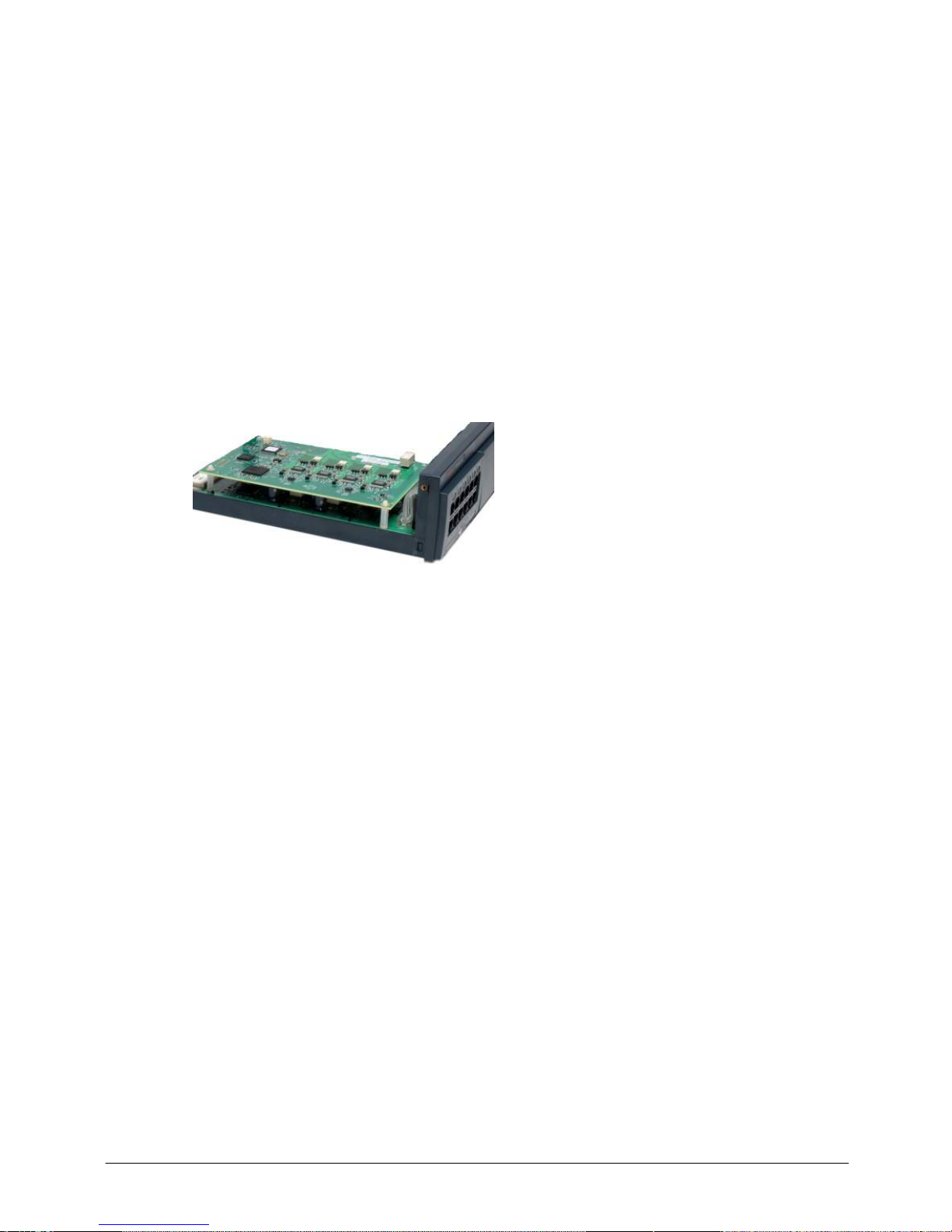
PARTNER Mode supports the following trunk cards, which are mounted on any ETR6, DS8, TCM8, Phone 2 or
Phone 8 base card:
· ATM4 – provides four analog CO line ports. Supports Caller ID
· PRI/T1 – supports full PRI or T1. Limit 1 PRI/T1 card per system
Page 22
Product Description
IP Office 8.1
© 2012 AVAYA All rights reserved.
Page 22
Issue 26.k.- (16 August 2012)
Telephones
PARTNER Mode supports the following telephones:
· 1400 Series digital telephones
· 9500 Series digital telephones
· Norstar T-Series and M-Series digital telephones
· PARTNER ACS telephones
· PARTNER ACS "Euro" telephones
· Wireless telephones
· Analog "POTS" telephones
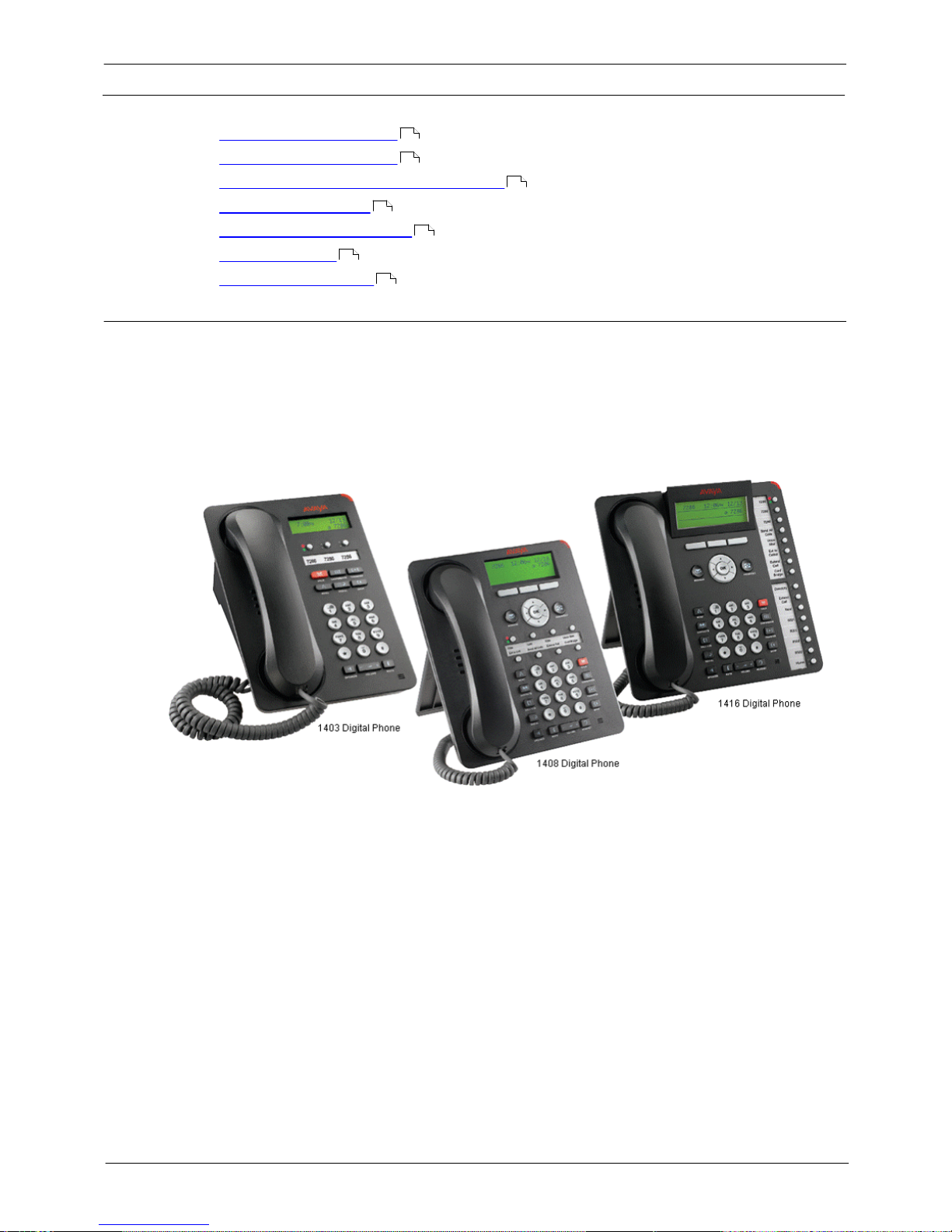
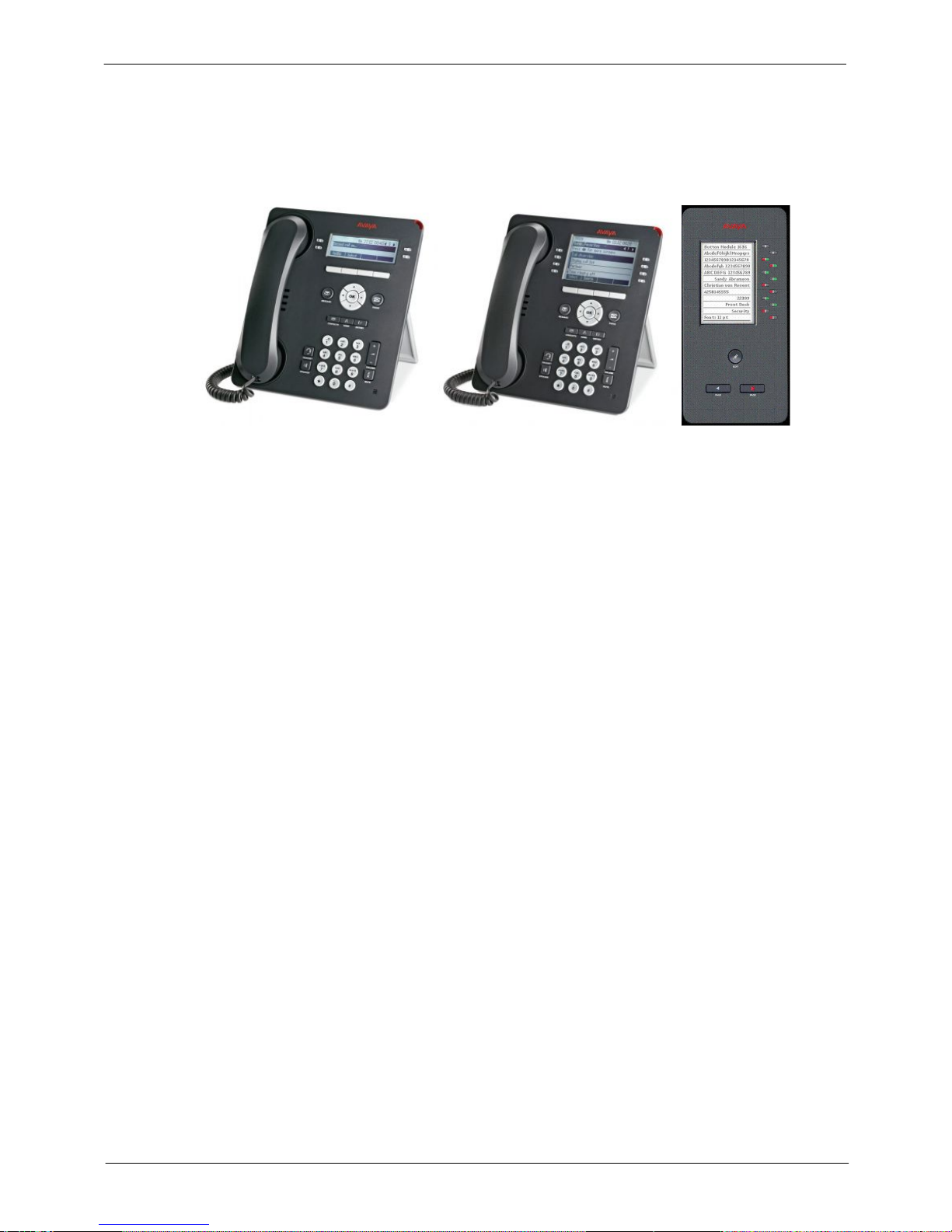
1400 Series telephones
The following 1400 Series telephones are supported.
· 1416 Display Telephones
· 1408 Display Telephones
· 1403 Display Telephone
· DBM32 Button Module
Programmable Buttons
As well as the usual dialing keys, Avaya 1400 digital telephones have dedicated function buttons like Mute,
Volume, Hold, Conference and Transfer. In addition to these, there are keys that can be programmed with a
range of selected special functions. These keys can be used for calling other extensions on the system (Direct
Station Select or DSS keys), or can be used for options from speed dialing numbers to controlling features such
as Do Not Disturb. Many features use an indicator to show whether a feature is enabled.
Button programming is done through the TUI or Simplified Manager as part of the system configuration.
22
23
24
25
26
27
28
Page 23
Product Description
IP Office 8.1
© 2012 AVAYA All rights reserved.
Page 23
Issue 26.k.- (16 August 2012)
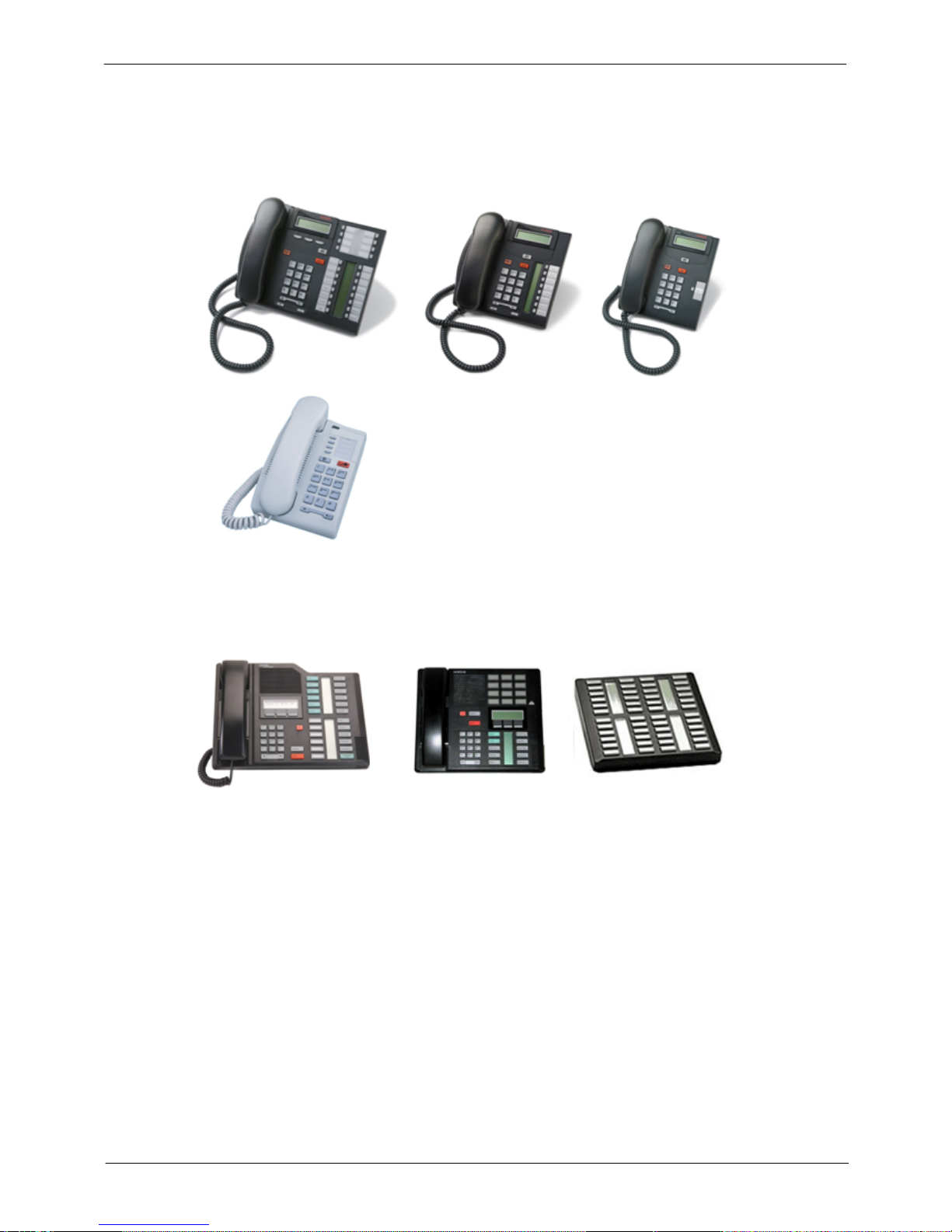
9500 Series telephones
The following 9500 Series telephones are supported.
· 9504 Display Telephone
· 9508 Display Telephone
· BM12 Button Module
9504
9508
BM12
Programmable Buttons
The Avaya 9500 Series telephones are "paper label free," providing programmable labels in the display. The
9504 has four buttons (with Red & Green LED’s) and has two "pages" providing a total of 12 programmable
buttons. The 9508 has eight buttons (with Red and Green LED’s) and has two "pages" providing a total of 24
programmable buttons.
As well as the usual dialing keys, Avaya 9500 digital telephones have dedicated function buttons like Mute,
Volume, Speaker, Headset, Call Logs and Contacts. In addition to these, there are keys that can be
programmed with a range of selected special functions. These keys can be used for calling other extensions on
the system (Direct Station Select or DSS keys), or can be used for options from speed dialing numbers to
controlling features such as Do Not Disturb. Many features use an indicator to show whether a feature is
enabled.
Button programming is done through the TUI or Simplified Manager as part of the system configuration.
Page 24
Product Description
IP Office 8.1
© 2012 AVAYA All rights reserved.
Page 24
Issue 26.k.- (16 August 2012)
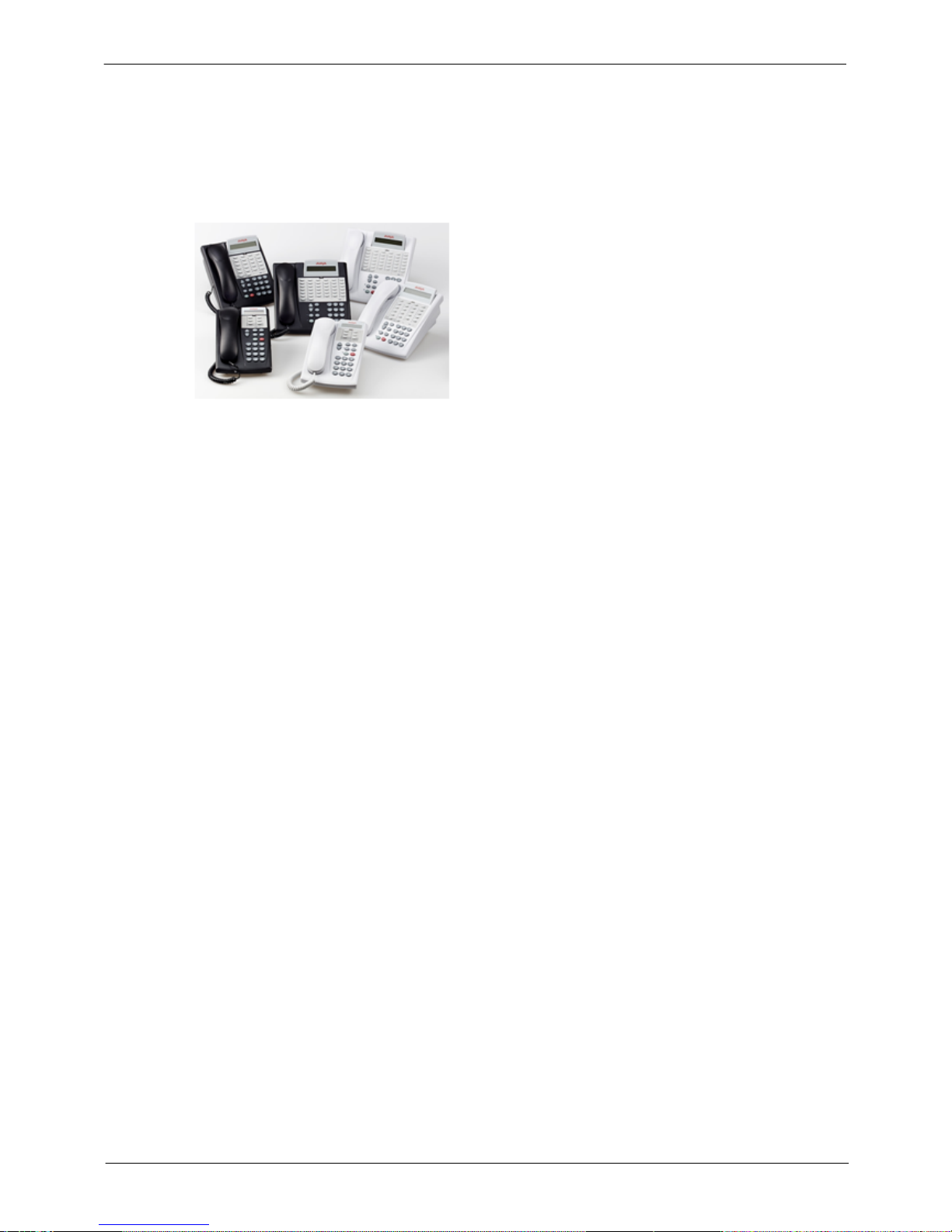
Norstar T-Series and M-Series telephones
The following Norstar telephones are supported on PARTNER Mode:
· T-Series Telephones: T7316E, T7208, T7100, T7000 and the T24KIM (not shown)
· M-Series Telephones: M7324, M7310 and the CAP/KLM Button Module
Page 25
Product Description
IP Office 8.1
© 2012 AVAYA All rights reserved.
Page 25
Issue 26.k.- (16 August 2012)
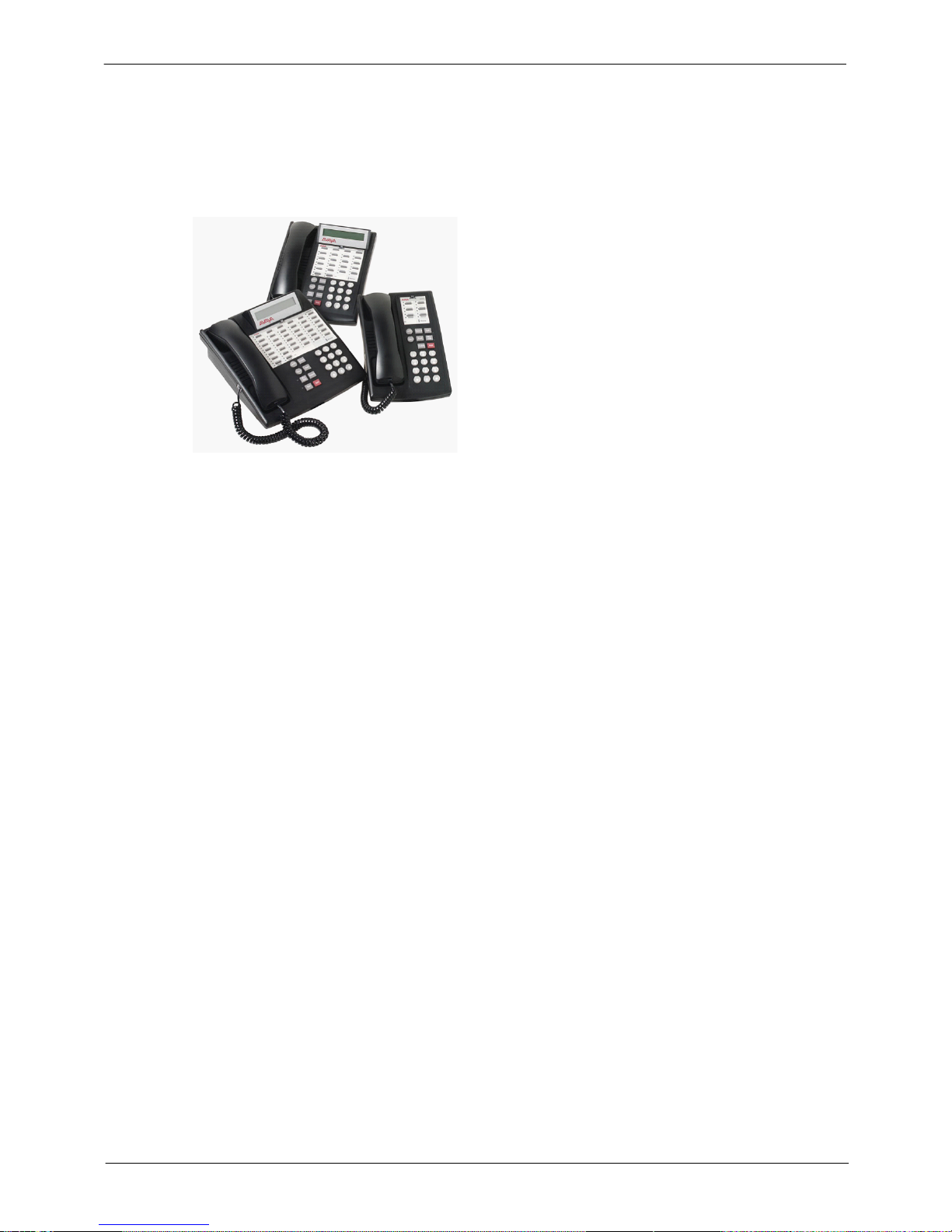
PARTNER ACS telephones
The following PARTNER ACS telephones are supported on PARTNER Mode:
· 6 Button Display Telephone*
· 18 Button Display Telephone*
· 34 Button Display Telephone (up to 4 per system, 2 per ETR card)*
* = Supported, but no longer sold new
Not Supported:
· Call Assist-48 (CA-48) Adjunct
Default Button Features:
When connected to PARTNER Mode, the top row of buttons on the 18D and 34D telephones come preprogrammed with the following features:
· Last Number
· Conference Drop
· Voicemail Access
· Recall
Page 26
Product Description
IP Office 8.1
© 2012 AVAYA All rights reserved.
Page 26
Issue 26.k.- (16 August 2012)
PARTNER ACS "Euro" telephones
The following PARTNER ACS “Euro” telephones are supported on PARTNER Mode:
· 6 Button non-Display Telephone
· 18 Button non-Display Telephone
· 18 Button Display Telephone
· 34 Button Display Telephone (up to 4 per system)
Not supported:
· Call Assist-24 (CA-24) Adjunct
Default Button Features:
When connected to the PARTNER Mode, the top row of buttons on the 18D and 34D telephones come preprogrammed with the following features:
· Last Number
· Conference Drop
· Voicemail Access
· Recall
Note: PARTNER ACS telephones are only available in the North America region, and work only with PARTNER
Mode and Mu-Law SD cards running in Basic Edition.
Page 27
Product Description
IP Office 8.1
© 2012 AVAYA All rights reserved.
Page 27
Issue 26.k.- (16 August 2012)
Wireless telephones
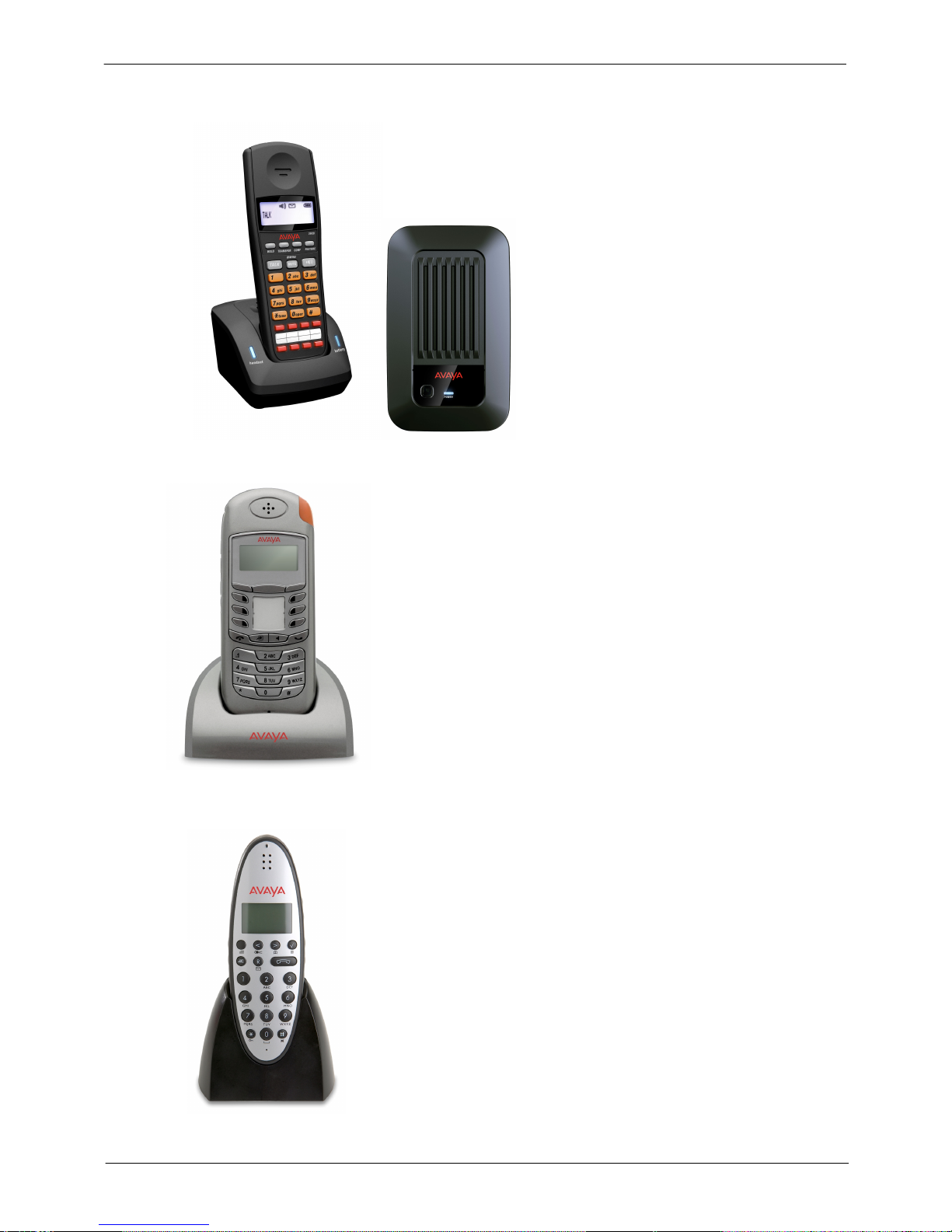
3920 Wireless
T7406E Wireless
Digital Mobility 7400 Wireless
Note 1: The 3910 Wireless telephone is discontinued, but it is still supported.
Page 28

Product Description
IP Office 8.1
© 2012 AVAYA All rights reserved.
Page 28
Issue 26.k.- (16 August 2012)
Note 2: PARTNER ACS telephones are only available in the North America region, and work only with PARTNER
Mode and Mu-Law SD cards running in Basic Edition.
Analog "POTS" telephones
The system supports a wide variety of industry standard analog telephones and devices, for example: fax
machines, credit card readers; wireless headsets, cordless telephones.
Analog devices are connected to the system:
· To one of the analog ports on the Combination Card
· Via a Phone 2 or Phone 8 Module
· To an ETR station port (directly or bridged with a PARTNER ETR telephone)
The major features work the same, regardless how they are connected: e.g. Hold, Conference, Transfer, Call
Waiting, Message Waiting, Incoming Caller ID.
Analog telephones have access to all dial-code features familiar to PARTNER users: e.g. Call pickup, Line
pickup, Call Forwarding activation/deactivation, etc.
Analog telephones connected to a phone module or Combination Card default to intercom dial tone. To place an
outgoing call, the user will dial 9. Analog telephones connected to an ETR module follows programmed
Automatic Line Selection.
Page 29
Product Description
IP Office 8.1
© 2012 AVAYA All rights reserved.
Page 29
Issue 26.k.- (16 August 2012)
System Administration
The PARTNER Mode and IP Office Basic Edition Mu-Law can be programmed in the following ways:
· Telephone User Interface (TUI) from extension 10 or extension 11; and uses the same administration
codes as the PARTNER ACS system. Button Programming Features use the same codes as the
PARTNER ACS system.
TUI programming is an alternate way to do System Administration and Programming on the PARTNER
Mode. It is based on the PARTNER ACS TUI, but with improvements.
Using TUI System Administration on ETR, 1400 Series, 9500 Series and Norstar sets, the buttons
under the display become soft-keys which are used to navigate and change the administration items.
There are also shortcut codes which enable the administrator to jump to particular administration
items.
Centralized Programming is similar to System Administration, but it is used to administer buttons and
other options for any phone in the system.
Individual Programming continues to be supported, allowing the phone user to program buttons on
their sets.
· Graphical User Interface (GUI) – PARTNER Mode can be administered using the IP Office Web
Manager. IP Office Web Manager is a new browser-based management tool designed to simplify the
installation and maintenance process by providing an intuitive and user-friendly management tool that
runs on most standard browsers. The new IP Office Web Manager eliminates the need to have windows
operating system as it can run on any device that supports standard browsers.
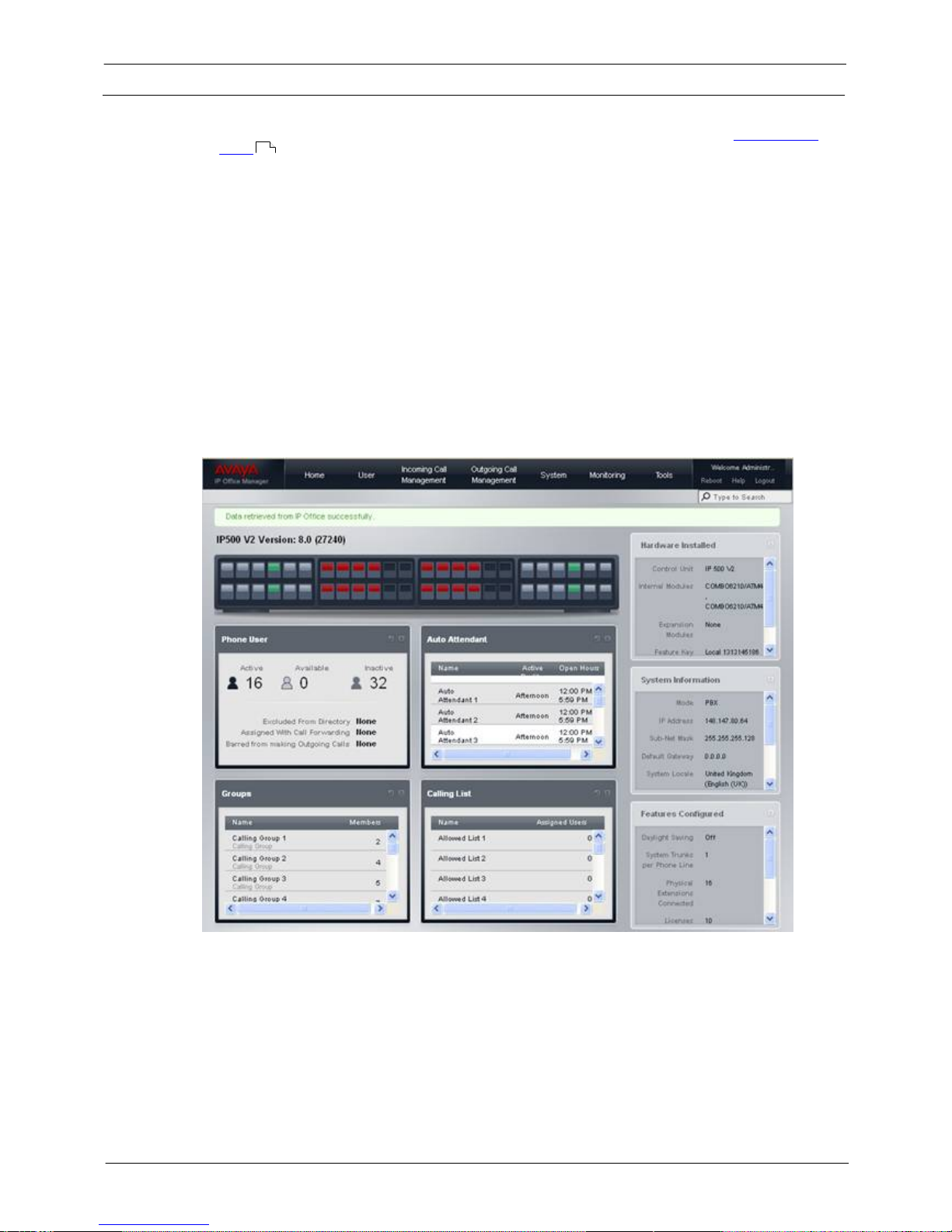
Web Manager main screen
For off line configuration, Upgrades, back-up and restore it is recommended that Manager continues to be used.
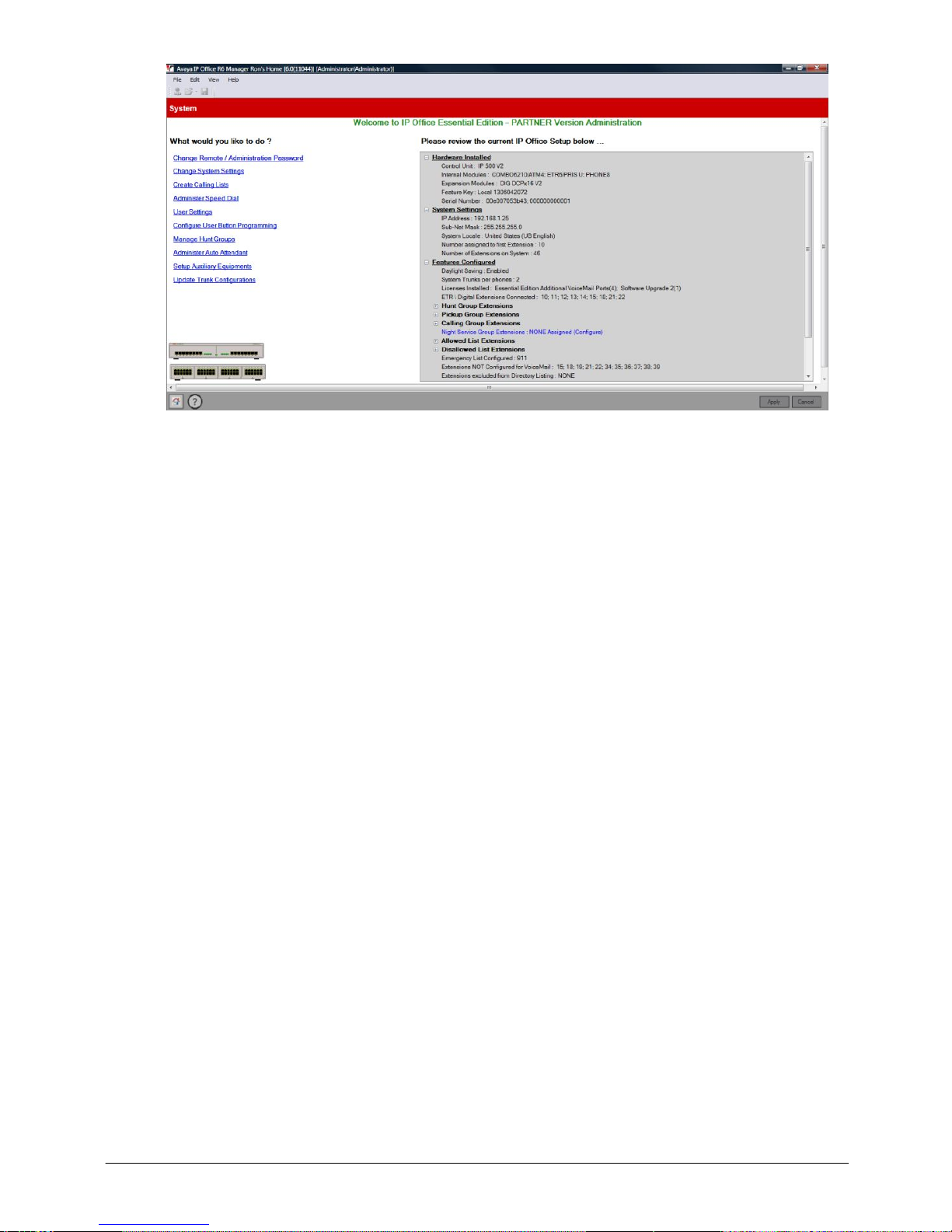
"Simplified Manager" is a PC GUI application inherent to the IP Office Manager application. Although system
administration can be completed via either the TUI or GUI method; some advanced features such as SIP and
PRI/E1 administration require the Manager application.
When you execute Manager, the program searches for any IP500 V2 units running PARTNER Mode on your
network and will automatically connect using the default login and password. You are then presented with a
"Simplified Manager" Screen:
31
Page 30
Product Description
IP Office 8.1
© 2012 AVAYA All rights reserved.
Page 30
Issue 26.k.- (16 August 2012)
By using the system hyperlinks, you are able to quickly and easily administer the PARTNER Mode system in a
short time. Further details can be found in the IP Office Norstar PARTNER Manager documentation guide posted
on the Avaya Support website.
Page 31

Product Description
IP Office 8.1
© 2012 AVAYA All rights reserved.
Page 31
Issue 26.k.- (16 August 2012)
Application Programming Interface (TAPI)
Application Programming Interface (TAPI) allows new and existing server-based applications from Avaya’s
Developer Connection (DevConnect) program to work with and enhance the operation of the system. The
current requirement is to support a screen pop type application called “Pickup IP” which is also supported on IP
Office.
The TAPI API only supports 1st Party TAPI applications.
System Programming Procedures
Code
Feature
Code
Feature
#101
System Date
#321
VMS Cover Rings
#103
System Time
#322
Remote Call Forwarding
#104
Number of Lines
#323
Personalized Station Ringing
#105
Transfer Return Rings
#399
Copy Settings
#107
Recall Timer Duration
#401
Outgoing Call Restriction
#109
Outside Conference Denial
#402
Toll Call Prefix
#119
Ring on Transfer
#403
System Password
#123
Backup Programming—Automatic
#405
Disallowed List Assignments
#124
Backup Programming—Manual
#406
Emergency Phone Number List
#125
Restore Programming
#407
Allowed Phone Number Lists
#126
Automatic Daylight/Standard Times
#408
Allowed List Assignments
#127
Hold Reminder Tone
#409
Forced Account Code List
#128
Network Time Synchronization
#501
Pickup Group Extensions
#203
Hold Disconnect Time
#502
Calling Group Extensions
#205
Direct Extension Dial Lines
#503
Night Service Button
#206
Group Call Distribution
#504
Night Service Group Extensions
#208
Line Coverage Extension
#505
Hunt Group Extensions
#301
Line Assignment
#506
VMS Hunt Delay
#303
Display Language
#507
VMS Hunt Schedule
#304
Automatic Extension Privacy
#601
Fax Machine Extensions
#305
Abbreviated Ringing
#602
Music-On-Hold
#306
Transfer Return Extension
#603
Hotline
#307
Forced Account Code Entry
#604
Doorphone Extension 1
#308
Distinctive Ring
#605
Doorphone Extension 2
#309
Intercom Dial Tone
#606
Doorphone Alert Extensions
#310
Automatic VMS Cover
#610
SMDR Output Format
#311
External Hotline
#612
Contact Closure Group
#316
Call Waiting
#613
Contact Closure Operation Type
#317
Caller ID Log Answered Calls
#617
Loudspeaker Paging Line
#318
Caller ID Call Log Line Association
#728
System Reset—Programming Saved
#320
Call Coverage Rings
#730
Remote Administration Password
Centralized Telephone Programming
Extensions 10 and 11 can program other extensions on the system from their telephones.
Page 32

Product Description
IP Office 8.1
© 2012 AVAYA All rights reserved.
Page 32
Issue 26.k.- (16 August 2012)
System Features
The system provides the majority of the feature set that is ideal for businesses. A listing of the built-in features
is detailed below. Feature descriptions can be found on the following pages. TUI Feature Programming Codes (if
applicable) are also provided.
911 Emergency Dialing
Direct Line Pickup Features
PBX Mode
Abbreviated Ringing
Display
Personal Line Termination
Absent Text
Display Language
Personalized Station Ringing
Absent Text Message Inspect
Display SD Card Feature Key ID
POT Support
Account Codes
Display System IP Address
Privacy
Allowed/Disallowed Lists
Display System Release
Recall
Application Programming Interface
(TAPI)
Distinctive / Differentiated Ring
Redialing Features
Attendant/Operator Positions
Do Not Disturb (Send All Calls)
Remote Call Forwarding / Mobile
Twinning
Auto Attendants - Emergency
Greeting
Do Not Disturb Override
Remote Access to Modem
Auto Attendants - Multiple
Doorphones (max of 2)
Ringing Line Preference
Automatic Callback
Emergency Phone Number List
Ring on Transfer
Automatic Daylight Savings Time
External Hotline
SD Card Startup / Shut Down via TUI
Automatic Extension Privacy
Extension Hunt Groups
SMDR
Auto Dialing
Extension Name Display
Speed Dial Features
Automatic Line Selection
Fax Machine Extensions
Station Lock/Unlock
Automatic VMS Coverage
Feature Button
Sub-Menus (see Auto Attendants)
Backup Failure Alarm
Flexible Dial Plan
System Password
Backup Programming Automatic
Group Calling – Ring/Page
System Groups
Backup Programming Manual
Group Hunting – Ring/Voice
Signal
Transfer / Transfer Return
Bridging (Joining Calls)
Group Pickup
Transfer Return to Programmable
Extension
Call Coverage
Hold
Unique Line Ringing with Override
Call Forwarding - Internal
Hold Release on Abandon
VMS Cover Button
Call Log (Digital Sets only)
Hold Reminder Tone
VMS Cover Ring Interval
Call Logs (ETR sets)
Hot Dial
VMS Hunt Delay
Call Pickup
Hotline
VMS Hunt Schedule
Call Timer
Idle Intercom Timeout
Voicemail
Call Timer Continuity
Intercom Manual Dial
Bypass Greeting
Call Waiting
Intercom Dial Tone
Change Message Status to New
Caller ID Features
Line Coverage Extension
Choice of Language
Cell Phone Connect
Line Ringing Options
End of Recording Options
Centralized Telephone Programming
Message Alert Notification
Outcalling Notification
CO Disconnect Time
Music On Hold
Phantom Mailboxes
Conference Drop
Network Time Synchronization
Voicemail to E-mail
Contact Closure Support
Night Service
Voice Mailbox Transfer – Direct
Copy Settings
On Hook Dialing
Voice Messaging
Direct Inward Dialing (DID)
One Touch Transfer
Visual Messaging
DID to Auto Attendant
Paging Features
Wake-up Service
Page 33

Product Description
IP Office 8.1
© 2012 AVAYA All rights reserved.
Page 33
Issue 26.k.- (16 August 2012)
911 Emergency Dialing
911 Emergency Dialing can be made from any extension, regardless of any restrictions.
Abbreviated Ringing
This feature activates or deactivates Abbreviated Ringing at the system telephone at a specific extension. When
you are on a call and Abbreviated Ringing is Active, any incoming call rings only once. The green light next to
the line button flashes until the call is answered or the caller hangs up (or for a transferred call, until the call
returns to the transfer return extension).
This feature prevents incoming calls from distracting you when you are busy on another call. To allow calls to
ring repeatedly, set Abbreviated Ringing to Not Active.
Absent Text Messaging
This feature allows you to post a message (such as "Do Not Disturb" or "Away from desk") on the display of
your PARTNER ETR or digital system telephones. When another extension calls your extension, your active
Absent Text Message appears on the caller’s display.
The system provides 15 pre-defined messages, plus 2 that may be customized by each user. Pre-defined
messages include:
Back Soon
Back Tomorrow
Do Not Disturb
On Vacation
Out to Lunch
At Home
Away from Desk
Be Right Back
Please Call
On Holiday until
Meeting until
Don’t disturb until
With visitors until
With cust. til
At lunch until
Absent Text Message Inspect
The Inspect feature is a soft-key option, and allows you to remotely inspect the active Absent Text Message at
another user’s extension.
Pressing the Absent Text Message button will provide you with an INSP option in the display. Press the button
associated with the Inspect option and you are prompted to dial the extension number or press the Auto
Intercom button you wish to view. When you do, the active message for that user is displayed.
Account Code Entry
Account Code Entry (ACE) is used to enter an account code (up to 15 digits) for an incoming or outgoing call
currently being handled.
The Account code is printed in the SMDR record for the call for the customer to use for cost tracking purposes.
There are two different ways the feature can be used:
· Voluntary — Account Code Entry is optional.
· Forced – Account Code Entry is mandatory before dialing on an idle CO facility.
Forced account codes are validated against a list of pre-defined account codes which is created via the Manager
application.
Allowed Lists / Disallowed Lists
Allowed Lists Use this feature to specify telephone numbers that users can dial regardless of other dialing
restrictions, as long as they have access to an outside line. For example, if you restrict an entire category of
calls through Disallowed Phone Number Lists (#404), you can permit calls to a specific number in that category
by placing that number on an Allowed Phone Number List.
The System Administrator can create up to eight Allowed Phone Number Lists of up to 10 telephone numbers
each.
Page 34

Product Description
IP Office 8.1
© 2012 AVAYA All rights reserved.
Page 34
Issue 26.k.- (16 August 2012)
Disallowed Lists allow you to specify telephone numbers that users cannot dial. For example, you may want
to prevent calls to a specific telephone number or to categories of numbers, such as international numbers. The
System Administrator can create up to eight Disallowed Phone Number Lists of up to 10 telephone numbers
each.
Allowed and Disallowed Phone Numbers can be up to 12 digits long and may include 0–9, #, *, and ‘hold’ (a
wildcard character, displayed as “!”).
Attendant Positions
Extension 10 and Extension 11 serve as system attendant positions. TUI System Administration can only be
done at these extensions. Night Service and Unlock capabilities can only be initialized from Extension 10. When
a user dials 0, Extension 10 will ring.
Auto Attendants (Multiple) / Sub-Menus / Emergency Greeting
The system supports up to 9 Automated Attendants / Sub-menus. A sub-menu is the same group of selector
codes as is used in an Auto Attendant.
Each Auto Attendant has its own greeting (Morning / Afternoon / Evening), its own language (English / French /
Spanish), its own set of selector codes (based on its time profile), and separate VMS Hunt and Delay Schedules.
Each Auto Attendant supports its own Emergency Greeting announcement, which can be remotely recorded and
activated, and plays before the Auto Attendant Greeting.
Each Auto Attendant can be accessed by dialing the appropriate Auto Attendant dial codes (to record greetings,
menu prompts, etc.).
Auto Dialing
Enables a user to dial outside numbers, extension numbers, feature codes or account codes with a single touch
by pressing a programmed button.
Three types of auto dial are supported:
· Auto Dial – Outside
· Auto Dial – ICM (internal extension)
· Auto Dial – ICM Page (voice signaling)
Automatic Callback
When calling an extension that is busy, press the Auto Callback softkey and the system will call you when the
extension becomes free.
Automatic Daylight Savings Time
This feature automatically updates the system clock for annual Daylight Savings Time and Standard Time
changes. Turn this feature off if you live in an area without daylight savings time.
Automatic Extension Privacy
Prevents other extensions with access to the same line from joining a call. Use this feature for extensions
connected to a modem, fax, or any device whose function can be disrupted by someone trying to join it.
Automatic Line Selection
Specifies the order in which the system selects an available line (intercom or outside) when a user at the
extension lifts the handset or presses SPEAKER to make a call without first selecting a specific line button.
For extensions with analog telephones, set Automatic Line Selection to intercom first. This enables analog
telephones to access system features, including intercom calling. When users lift the handsets on analog
telephones, they hear intercom dial tone. To access an outside line, they must dial 9.
Page 35

Product Description
IP Office 8.1
© 2012 AVAYA All rights reserved.
Page 35
Issue 26.k.- (16 August 2012)
Automatic Voicemail Coverage
Use this feature to program a button to turn VMS Cover on and off, routing unanswered intercom and
transferred calls for a users’ extension to the Call Answer Service of the voice messaging system after the
specified number of rings (factory setting is three rings).
Backup Failure Alarm
When an Automatic Backup fails, a ‘Backup Failed’ message is displayed on Extension 10 and 11.
Backup Programming - Automatic
The system does a nightly backup to the system SD card. No manual intervention or external PC is required.
Backup Programming - Manual
The administrator may do a manual system programming backup to the system SD card via the TUI.
Bridging (Joining Calls)
A user can bridge (join) on any active call by pressing the associated CO line button (assuming Privacy is not
active on the originating extension.) When a call is bridged, the red and green LED’s will alternate on all
telephones which are bridged on the call.
Call Coverage
This feature is used to redirect all Intercom, Transferred, DID and outside calls from a user’s extension to
another extension.
When Call Coverage is activated, covered calls are routed to the covering extension after a specified number of
rings.
Call Forwarding - Internal
The Call Forwarding provides a means of redirecting Intercom (ICOM), CO, and Transfer calls from one
extension to another specified extension.
Call Log - Digital Sets
Call Log is a fixed button on digital telephones and provides a visual record of calls made and received,
including unanswered calls. Details are store for both users (maximum 30 entries) and hunt groups (maximum
10 entries). The method of operation varies according to the phone type but in all cases the call records can be
used for return calls.
Call Logs - ETR sets
Use this feature to program extensions to log answered Caller ID calls so that calls answered at an individual
extension can be viewed in the Caller ID Call Log. Once the feature is activated for an extension, when a user
activates the Caller ID Call Logging and Dialing (F23), all Caller ID calls that are answered by that extension are
logged.
Up to 3 extensions can be designated to log all calls, both answered and unanswered, regardless of where they
terminated in the system.
Call Pickup
This feature is used to answer any intercom, transferred or outside call ringing at another specified extension.
Page 36

Product Description
IP Office 8.1
© 2012 AVAYA All rights reserved.
Page 36
Issue 26.k.- (16 August 2012)
Call Timer Display
Displays the duration of a call from the time it was answered.
Call Waiting
Call waiting applies to analog, single line telephones, and applies to the following types of calls:
· Intercom calls
· Transferred calls
· Forwarded calls
· Covered calls
· Outside calls (if the extension has a line appearance of the line)
· Voice Signaled calls
Caller ID Features
The following Caller ID features are supported:
· Caller ID Inspect (FEATURE 17)
Allows you to view Caller ID information for a second call, without disconnecting the current call or
putting it on hold. Use this feature to inspect ringing, active, or held calls.
· Caller ID Name Display (FEATURE 16)
When an incoming call is ringing at a display telephone, both the name and number appear on the
user’s display. The Number is displayed on the top line, and the Name on the 2nd line. In some cases
users may wish to see the Caller ID Name on the top line and the Caller ID Number on the 2nd line.
This feature provides this capability.
CO Disconnect Time
Use this feature to change the hold disconnect time for an outside line. Different telephone companies use
different length signals. The length of the signal is called the CO or Hold Disconnect time. If you place a call on
hold and the caller hangs up, but the call does not disconnect within a minute after the caller.
Conference Drop
On 1400 and 9500 digital telephones, you may choose which specific party you want to drop from a conference
call. On ETR and analog telephones, the last party added to the conference call is automatically dropped.
Conferencing
The system supports up to 64-party conferencing. A maximum of 2 analog lines can be in any conference call.
Conference calls may consist of combinations of analog lines, digital lines (PRI/T1, SIP), analog telephones, ETR
telephones or digital telephones.
Contact Closure Support for 2 Devices
The IP500 V2 Control Unit has a Contact Closure control jack on the back panel. This is a 3.5 mm stereo jack
that can drive two external adjunct relays.
This feature allows users at eligible extensions to control an external adjunct by entering feature codes at their
system or standard telephone. The port can control a variety of devices, the most common being door strikes,
night bells, lighting, or voice recording systems.
Copy Settings
This feature allows a System Administrator to copy extension-specific programming from one extension to
another. When the Extension Copy operation is performed, the destination extension will have the same
properties as the originating extension.
Page 37

Product Description
IP Office 8.1
© 2012 AVAYA All rights reserved.
Page 37
Issue 26.k.- (16 August 2012)
Extension Copy can only be performed from an Attendant Extension in System Programming Mode or from the
Windows Manager PC application.
Dial Code Features
· ‘F’ represents the FEATURE button.
· ‘I’ represents the INTERCOM button.
· ‘XX’ represents a system extension number.
· ‘PP’ represents a Personal Speed Dial code.
· ‘G’ represents a single-digit group number.
· ‘LL’ represents a system line number.
Feature
Partner Mode Code
Norstar/BCM Code
Do Not Disturb
F01
F85
Do Not Disturb Cancel
F01
F#85
Recall
F03
F71
Save Number Redial
F04
F67
Last Number Redial
F05F5Conference Drop
F06
F934 (new)
Privacy
F07
F83
Call Forward
F11F4Call Forward Cancel
F11
F#4
Account Code Entry
F12
F900
Voice Mailbox Transfer
F14
F986
VMS Cover
F15
F984
Caller ID Name Display
F16
F933 (new)
Caller ID Inspect
F17
F811
Call Coverage
F20
F932 (new)
Station Lock
F21
F936 (new)
Station Unlock
F22
F937 (new)
Caller ID Log
F23
F812
Hot Dial
F26
F935 (new)
Message Alert Notification
F27
F938 (new)
Absent Message
F28
F931 (new)
Contact Closure 1
F41
F9*41
Contact Closure 2
F42
F9*42
System Release
F590
F9*80
System IP Address
F591
F9*81
SD Card Serial Number
F592
F9*82
System Speed Dial
F6XX (00-99)
F06XX (00-99)
Personal Speed Dial
FXX (80-99)
F*4XX (80-99)
DND Override Numbers
F7XX (00-19)
F07XX (00-19)
Call Transfer
Fixed Button
F70
Voice Announce to Extension
I* + XX
F66 + XX (new)
Call Park to own Extension
Transfer + XX
F74 (new)
Direct Inward Dialing (DID)
Use this feature to have Direct Inward Dialing (DID) numbers on a PRI / T1 or SIP line routed automatically to a
specific extension, hunt group, or calling group. When a Direct Inward Dialing (DID) call arrives, the system
"collects" the digits from the T1 service provider (that is, the number that was dialed) and matches the number
to a DID Mapping Table you created. If the incoming number matches an entry in the DID Mapping table, the
call rings at the matching extension or hunt group.
Page 38

Product Description
IP Office 8.1
© 2012 AVAYA All rights reserved.
Page 38
Issue 26.k.- (16 August 2012)
Direct Inward Dialling (DID) to Auto Attendant
DID calls can be directed to and answered by any Automated Attendant.
Direct Line Pickup
With the Direct Line Pickup features, you can access a ringing or held call or a call in progress. You can also
select a line to use that is not assigned to your telephone. The Direct Line Pickup features are:
· Direct Line Pickup—Active Line
· Direct Line Pickup—Idle Line
Display Language
All system telephones offer the choice of 3 display language:
· US English
· Canadian French
· Latin American Spanish
Each individual extension may select their own language.
Display SD Card Feature Key ID
Displays the SD Card Feature Key ID on any display telephone.
Display System IP Address
Displays the IP address currently assigned to the IP500 V2 system.
Display System Release
Displays the software release running on the IP500 V2 system.
Distinctive / Differentiated Ringing
The system provides different ring patterns for external calls, internal calls and transferred calls.
Do Not Disturb
Use this feature to be able to press a programmed button to prevent incoming calls for the extension from
ringing (lights still flash). When Do Not Disturb is on, outside callers hear ringing while inside callers hear a
busy signal. Calls are immediately sent to your voice mailbox.
Do Not Disturb Override
Allows a user to input a list of up to 20 telephone numbers and/or internal extension numbers that will ring at
the users’ station when Do Not Disturb is activated.
Doorphones
A doorphone is usually placed near an entrance, to screen visitors. You can connect up to two doorphones to
the system.
Page 39

Product Description
IP Office 8.1
© 2012 AVAYA All rights reserved.
Page 39
Issue 26.k.- (16 August 2012)
Emergency Phone Number List
Create a list of up to 10 telephone numbers that all users can dial regardless of dialing restrictions, provided
they have access to an outside line. Typical list entries include fire, police and emergency services numbers.
Extension Hunt Groups
Use this feature to assign any number of extensions to a Hunt Group. When extensions are in a Hunt Group, an
incoming call searches or “hunts” for the longest idle extension that is available. The system supports up to six
Hunt Groups.
Extension Name Display
The user’ name and extension number is displayed on the phone display.
External Hotline
When a user lifts the handset of an external hotline, a predetermined outside number is dialed automatically.
The external number might be, for example, a frequently called service bureau. The external hotline must be a
single line telephone, not a system telephone, and should not have a dial pad.
Fax Machine Extensions
Allows you to connect your fax machine to your system, allowing you to share network facilities.
Flexible Dial Plan
Through Manager, the system defaults to a fixed 2-digit dial plan (extensions 10 – 57); but can be changed to a
flexible 3-digit dial plan (extensions 100 – 599).
Group Calling - Ring / Page
Use this feature to ring, page, or transfer calls simultaneously to all of the extensions in any one of four Calling
Groups. (G represents a Calling Group number from 1–4.) When paging, you hear a beep and can begin
speaking. Your voice is heard on the speakers of all idle system telephones in the selected Calling Group. The
first extension to answer the call (on ETR sets - by picking up the handset or pressing SPEAKER, on 1400 Series
sets - or by pressing the ANSWER softkey on the display) is connected to the caller.
You can group page employees for general announcements; this is an inexpensive alternative to a paging
system.
Group Hunting - Ring / Page
Use this feature to distribute call volume among extensions in a group, to off-load call activity from a single
user. When an intercom or transferred call is placed to a Hunt Group (where G is a Hunt Group number from 1–
6), the system rings or voice-signals the first available extension in the group, passing over busy extensions (or
those with Do Not Disturb on) in a circular hunt. If a ringing call is not answered within three rings, the call
moves to the next available extension, and so on, until the call is answered or the caller hangs up.
For a voice-signaled call, only the first available extension is signaled; if that extension does not answer, the
call does not keep hunting. After an extension receives a Hunt Group call, the next call to the Hunt Group will
not ring or voice-signal that extension first unless all other extensions in the group are busy or do not answer.
Group Pickup
Use this feature to answer any outside, intercom, or transferred call ringing at an extension in a Pickup Group
(where G is a Pickup Group number from 1–4). When a call rings at an extension that is in a Pickup Group, you
can answer the call at any extension without knowing which extension or line is ringing and without being in the
same Pickup Group. The system can have up to four Pickup Groups.
Page 40

Product Description
IP Office 8.1
© 2012 AVAYA All rights reserved.
Page 40
Issue 26.k.- (16 August 2012)
Hold Reminder
If a call is left on hold for longer than a specified period, the extension will ring back, alerting you that the call
is still on hold. This ring continues to sound until the held call is retrieved, or until the caller hangs up.
Hot Dial
This feature enables a user to start dialing a number without first pressing the speaker button or going offhook.
Hotline
This feature allows designated extensions to automatically place an intercom call to another designated
extension, when it goes off-hook.
Intercom Dial Codes
· ‘I’ represents the INTERCOM button.
· ‘XX’ represents a system extension number.
· ‘G’ represents a single-digit group number.
· ‘LL’ represents a system line number.
Intercom Dial
Code
Feature
I6XX
Call Pickup
I66G
Group Pickup
I68LL
Direct Line Pickup—Active Line
I70
Loudspeaker Paging
I*70
Simultaneous Paging
I7G
Group Calling—Ring
I*7G
Group Calling—Page
I77G
Group Hunting—Ring
I*77G
Group Hunting—Voice Signal
I8LL
Direct Line Pickup—Idle Line
Intercom Dial Tone
Use this feature to determine the type of dial tone that the system provides at an extension. It may be
necessary to change this setting to Machine (outside line) dial tone for an auto-dialing device, such as a fax or
modem, that has trouble making calls. For example, if you have a modem that checks for outside line dial tone
before dialing, use this procedure to change from Regular to Machine dial tone.
Intercom Manual Dialing
Users can make an internal call to another extension by ringing it (dialing its extension number) or voice
signaling the extension by prefixing the extension number with a *.
Line Coverage Extension
Use this feature to identify an extension as the “owner” of a specific outside line, so the extension can activate
Call Coverage or VMS Cover for that line.
Line Ringing Options
This feature specifies the options: Immediate Ring, Delayed Ring or No Ring for incoming calls on a line
appearance programmed on the extension.
Page 41

Product Description
IP Office 8.1
© 2012 AVAYA All rights reserved.
Page 41
Issue 26.k.- (16 August 2012)
Log All Calls
Up to three extensions can be designated to log all calls, both answered and unanswered, regardless of where
they terminated in the system.
Message Alert Notification
Message Alert Notification allows any ETR or Digital telephone, programmed with Auto Intercom buttons, to see
which users have new messages waiting in their mailbox.
When the Message Alert Notification button is pressed, the DSS/BLF buttons programmed on the user’s
telephone will display a flashing red LED when the associated user has new voice mails waiting.
This feature may be left on at all times or deactivated by pressing the Message Alert button again.
Music on Hold
Connect an audio source to the Music-On-Hold port on the processor module so that a caller hears music when
placed on hold when the Music-On-Hold feature has been activated.
Network Time Synchronization
Use this feature to specify whether you want to synchronize the system clock with the network time delivered
by your service provider over Caller ID. If Network Time Synchronization is set to Active, the system will use
the network time provided by your service provider; if it is set to Not Active, the system will use the time
provided by its system clock.
Night Service
When Night Service is on and a call comes in, all extensions in the Night Service Group ring immediately,
regardless of normal Line Ringing settings.
One-Touch Transfer
This feature allows a user to automatically transfer a connected call with one-touch -- by pressing a preprogrammed Auto Dial Intercom for the destination extension. (The Transfer button is not used.)
· The transfer is completed when the transferring station goes on-hook, or touches the Transfer button
or Complete soft-key.
· The user initiating the transfer is able to consult and complete the transfer or blind transfer after
successfully initiating a one-touch transfer.
The LEDs at the phone initiating the transfer, as well as other appearances of the call in the system, behave the
same as if the user touched the Transfer button to initiate the transfer.
Paging Features
· Loudspeaker Paging - Users can initiate a call (either manually dialed or intercom auto dialed) to an
extension connected to an analog station port that connects them to an external loudspeaker paging
system.
· Simultaneous Paging is a feature that pages both the external loudspeaker paging system (via the
paging port) as well as voice signals all of the extensions in Calling Group 1.
PBX Mode
The system can operate in Key System mode (default) where all lines appear on all telephones; or can be
administered to operate in PBX-mode. PBX-mode provides 3 Intercom buttons per telephone which work similar
to System Access buttons (provides intercom dial tone, d1al 9 to access an outside line).
Note: On PARTNER ETR sets, the system provides 2 Intercom buttons per telephone.
Page 42

Product Description
IP Office 8.1
© 2012 AVAYA All rights reserved.
Page 42
Issue 26.k.- (16 August 2012)
Personal Line Termination
Allows you to assign a line / lines to specific extension / extensions.
Personalized Station Ringing
Allows you to assign a personalized ring pattern to an extension
POTS (Plain Old Telephone Set) Support
POTS (single line analog telephones) are supported on the system. They are connected to an analog station
port on the Combo module; a port on the Phone-2, Phone-8 or Phone-16 module, or to an ETR port.
Privacy
Privacy prevents other users from joining on your call.
Recall
Use this feature to send a timed switch hook flash over the telephone line to “recall” a new dial tone or to
access certain central office features, such as Call Waiting or 3-way calling.
Redialing Features
There are two features which offer redial functionality:
· Last Number Redial (FEATURE 05): Last Number Redial redials all digits dialed on the last outside call
except account codes.
o
On 1400 Series telephones, there is a fixed Redial button, which allows you to scroll through and
redial the last 20 number called from that telephone set.
· Save Number Redial (FEATURE 04): Saves into temporary memory the last outside number (up to 28
digits) dialed from a system telephone. Use this feature to save a number before you hang up on a
busy or unanswered call. Once saved, the number can be redialed at any time. The number stays in
memory until a different one is saved.
Remote Call Forwarding / Mobile Twinninng
Remote Call Forwarding is supported. This feature (FEATURE 11) allows a user to send internal and external
calls destined for a particular extension to an external phone number (off the system) over an analog trunk.
Remote Call Forwarding will not alert the internal extension, but immediately sends the call out to the
predefined number.
Remote Access to the Built-in Modem
This feature allows for unattended access to the built-in modem (x76) by calling into the system:
· by a DID number, or
· by transferring to the modem via the Automated Attendant.
When an Automated Attendant Selector code with the "Transfer To Number" action has the modem as its
destination, the system will transfer the call to the built-in modem.
Ring on Transfer
This is used to specify what the caller hears while they are being transferred. If Ring on Transfer is set to
Active, callers hear ringing while they are being transferred; if it is set to Not Active callers hear beeps or Music
on Hold if this is activated and a music source is connected to the system.
Page 43

Product Description
IP Office 8.1
© 2012 AVAYA All rights reserved.
Page 43
Issue 26.k.- (16 August 2012)
Ringing Line Preference
When an extension is on-hook and the extension is ringing, the user simply goes off-hook to answer the call
and is automatically connected to the ringing call. If more than one call is alerting, the system automatically
connects the user to the longest ringing call.
SD Card Start-up / Shut Down via TUI
A new TUI command is provided to shut down and restart the system SD card slot and the optional SD card
slot, without shutting down the entire system. This allows for removal and reinstallation of the system SD and
optional SD cards.
Speed Dial Options
The system supports the following types of Speed Dialing:
· Personal Directory - 1400 and 9500 Telephones only
Each user can store up to 20 frequently-dialed names and numbers in their extension. Personal
Directory numbers can be dialed quickly by pressing CONTACTS and dialing the first few letters of the
person’s name. Personal Directory numbers programmed for a particular extension are for use only at
that extension.
· Personal Speed Dial (FEATURE 80 – 99) – ETR and Analog Telephones only.
Each user can store up to 20 frequently-dialed numbers (no name) in their extension. Personal Speed
Dial numbers can be dialed quickly by pressing FEATURE (or # at intercom dial tone on a single-line
telephone) and the two-digit speed dial code from 80 through 99. The Personal Speed Dial numbers
programmed for a particular extension are for use only at that extension.
On analog telephones, a user will press the # key (instead of the Feature key) then dial the 2-digit number.
· System Speed Dial – 1400 and 9500 Telephones only
System Speed Dialing is a shared list of up to 100 frequently-dialed names and numbers (FEATURE
600 – 699). All users on the system may use these numbers by pressing CONTACTS and dialing the
first few letters of the party’s name.
· System Speed Dial (FEATURE 600 – 699) – ETR and Analog Telephones only.
System Speed Dialing is a shared list of up to 100 frequently-dialed numbers (no name) up to 28
characters in length. All users on the system may dial a System Speed Dial number by pressing
FEATURE (or # at intercom dial tone on a single-line telephone) and the three digit speed dial code,
from 600 through 699.
Station Lock / Unlock
Station Lock helps to prevent unauthorized people from making outside calls from extensions. Users enter a
four-digit code on their telephone dialpad to “lock” your extension. To unlock the phone, the user enters the
identical code.
Station Message Detail Reporting (SMDR)
SMDR is a call reporting feature that provides records of call activity. It is commonly used in many types of
business, including Legal, Contact Centers, Sales and Real Estate. Call reporting information allows users to:
· Detect any unauthorized calls.
· Bill clients or projects.
· Bill back by department.
· Reduce telephone costs by identifying the need to change telecommunications services
· Print Caller ID information.
The output is generally sent to a PC running an optional Call Accounting software package.
Page 44

Product Description
IP Office 8.1
© 2012 AVAYA All rights reserved.
Page 44
Issue 26.k.- (16 August 2012)
System Groups
The system supports the following types of groups:
· Pickup Groups (4 Groups) (INTERCOM 6xx)
When a call rings at an extension assigned to a Pickup Group, a user at any other extension in the
system can answer the ringing call by dialing the Pickup Group code. The Pickup Group feature helps
when a user needs to answer calls on lines or pools not assigned to his or her telephone.
· Calling Groups (4 Groups) (INTERCOM 7x / *7x)
A Calling Group is a group of extensions that can be called at the same time. Any user in the system
can ring or page all extensions in a Calling Group at the same time or transfer a call to a Calling
Group. The first extension to pick up the call is connected to the caller. A typical use of this feature is
to have callers ring into a Calling Group of sales representatives, or to create a “Page All” group.
· Hunt Groups (6 Groups) (INTERCOM 77G / *77G)
When extensions are in a Hunt Group, an incoming call searches or “hunts” for the first available
extension.
· Night Service Group (1 Group) (#504)
When Night Service is activated and a call comes in, all extensions assigned to the Night Service Group
ring immediately, regardless of normal Line Ringing settings.
System Password
Allows you to define a four-digit password that users can enter from system telephones to override dialing
restrictions (if the extension has access to an outside line) or turn Night Service on and off. Not available on
analog telephones.
Transfer / Transfer Return
You can transfer calls to an extension or group using the TRANSFER button on a system telephone or the
switchhook on a single-line telephone.
Transferred calls return to the originating extension if they are not answered. You also can program the number
of times a transferred call rings before it returns to an extension.
Transfer Return to a Programmable Extension
This feature provides an option to re-route unanswered transferred calls to an alternate extension.
· Programmable on a per extension basis.
· The existing System Programming option, Transfer Return Rings, will be used to indicate when
transferred calls are returned to the Transfer Return extension.
If a call is routed to a transfer return extension and there are no available intercom appearances to terminate
the call, the call will continue to alert at the transfer destination until the transfer return extension becomes
available.
The default value for each transfer return extension is its own extension.
Unique Line Ringing / Override Line Ringing
This feature allows users to differentiate by sound which line is ringing by assigning a ring pattern to it. Once a
ring pattern is assigned to a line, incoming calls on that line ring with the assigned ring pattern.
· Eight ring patterns are available.
· Unique Line Ringing does not apply to DID calls because the channel used is not guaranteed.
· The default is pattern 1.
If the Override Line Ringing feature is active, then incoming calls on a line that ring at an extension ring with
the configured extension ring pattern.
Page 45

Product Description
IP Office 8.1
© 2012 AVAYA All rights reserved.
Page 45
Issue 26.k.- (16 August 2012)
Visual Voice Messaging
Supported on 1400 and 9500 digital telephones only. Allows the user to manage their voice mail messages via
their display. Features supported include:
· access new /old / saved messages.
· next and previous message.
· fast forward and rewind.
· pause message.
· save, delete and copy message to other users of the system.
· change default greeting.
· change password.
· change message status from old / saved to New.
Voicemail Options
· Bypass Greeting
o
After a call goes to an extension's voice mailbox, the caller can press the 1 key to bypass the
mailbox greeting and begin recording a message.
· Change Message Status to New (*06)
o
This feature provides the ability to change the status of a message from Old or Saved to New.
o
Users can dial *06 at any time after the Old or Saved message begins to play through the 3
second pause after the caller information portion of the message.
· The message is moved to the queue of New messages.
o
When a message is marked as New, the system does not initiate a new Voicemail to Email
message, but the extension's message waiting light is illuminated.
· Choice of Language
o
Each Auto Attendant can have a primary language assigned to it. The language applies to the prerecorded prompts available to that Auto Attendant. This overrides the system language setting.
o
The per-extension Display Language setting will also override the system language and change all
the displays, pre-recorded greetings, and prompts to the chosen language.
· End of Recording options
o
When a caller has finished leaving a message in an extension's mailbox, the caller can touch the #
key to signal the end of recording of the message.
o
If the message is less than 3 seconds, the system will play the following prompt: "Message too
short. Deleted. Goodbye."
o
If the message is longer than 3 seconds, the system will play the following prompt: "Your
message has been sent. Goodbye."
· Outcalling Notification
o
If you use the Outcalling option, Embedded Voicemail will call the number which you have
programmed to signal that a new message has arrived in your mailbox.
· Each user can have 1 number programmed for outcalling notification.
· The system will make up to 3 attempts (in 5-minute intervals) to contact the user.
· After 3 attempts, outcalling notification will cease until another new voice message arrives.
· Phantom Mailboxes
o
Provides voice mailbox support for all extensions (10-57), without requiring the physical hardware
to be present. Extensions without hardware are called phantom extensions.
· Note: Ports 7 and 8 of an ETR-6 module can be used for phantom extensions even though
you cannot plug a phone into them.
o
Calls to a phantom extension go directly to voice mail.
· DTMF breakout service can be used to transfer the call.
o
Phantom voice mailboxes:
Page 46

Product Description
IP Office 8.1
© 2012 AVAYA All rights reserved.
Page 46
Issue 26.k.- (16 August 2012)
· Default like a normal mailbox.
· Can be accessed remotely if the remote access feature of the mailbox is enabled.
· Voicemail to Email can be activated for a phantom mailbox via the Simplified Manager.
VMS Cover
Allows you to turn VMS Cover on and off, routing unanswered intercom and transferred calls for users'
extensions to the Call Answer Service of the voice messaging system after the specified number of rings.
VMS Cover Ring Interval
Allows you to define the number of times a call rings before it is sent to a user’s voice mailbox.
VMS Hunt Delay
Allows you to determine when outside calls should be answered by the Automated Attendant of the voice
messaging system. You can set the system for any number of rings, 0–6. Assigning more rings gives the
operator an opportunity to answer calls before they go to the Automated Attendant.
VMS Hunt Delay is programmable on a per-line basis. In addition, you can program this feature so that calls can
be handled one way during the day and a different way when the system is in Night Service.
VMS Hunt Schedule Interval
Allows you to determine when outside lines are covered by the Automated Attendant. Options include all the
time, only during Day operation (Night Service is off), or only during Night operation (Night Service is on).
Voice Mailbox Transfer - Direct
Allows you to transfer a call directly into a user's voice mailbox without ringing their extension.
Voice Messaging
The system has Embedded Voicemail included as standard. All extensions are automatically assigned a
mailbox.
Embedded Voicemail also provides:
· A 2-port, single level Automated Attendant
· Separate Morning, Afternoon, Evening and Out of Hours menu greetings with time profiles
· Dial by Name capability
· Variable hours of storage:
o
2-ports = 15 Hours
o
4-ports = 20 Hours
o
6-ports = 25 Hours
· Up to three minutes per message
· Fast Forward, Rewind, Replay and Skip capability
· Voicemail to e-mail capability
· Remote message retrieval
· Visual Messaging (on digital telephones only)
Page 47

Product Description
IP Office 8.1
© 2012 AVAYA All rights reserved.
Page 47
Issue 26.k.- (16 August 2012)
Wake-Up Service
This feature allows a system phone (x10) to set a Wake-up Call on behalf of another user.
· When a Wake-up Call is scheduled, the system will place an intercom call to the target extension at the
scheduled time.
o
Wake Up calls ring for approximately 30 seconds (and overrides DND).
o
If the target extension is busy on a call or has an alerting call, the Wake Up call is delivered to the
phone as an intercom call.
o
If the Wake Up call is answered, the user will hear Music On Hold if it is active; otherwise, they will
hear silence.
o
If the Wake Up call is not answered, the system will make a 2nd attempt 5 minutes later.
· If the call is not answered after the 2nd attempt, then the Wake Up call is abandoned.
o
A scheduled Wake Up call occurs once in a 24 hour period.
Page 48

Product Description
IP Office 8.1
© 2012 AVAYA All rights reserved.
Page 48
Issue 26.k.- (16 August 2012)
Chapter 3.
IP Office Basic Edition
Norstar® Mode
Page 49

Product Description
IP Office 8.1
© 2012 AVAYA All rights reserved.
Page 49
Issue 26.k.- (16 August 2012)
3. IP Office Basic Edition Norstar® Mode
The IP Office Basic Edition – Norstar® Mode (hereafter referred to as Norstar Mode) continues the evolution of
communications systems for small businesses.
Norstar Mode is designed to work directly out of the box without any programming or administration, allowing
users to immediately make and place calls via analog trunks.
Norstar Mode provides the end user a similar desktop experience as the PARTNER ACS: e.g. 2 dedicated
intercom buttons, key system functionality, Caller ID, etc. This helps minimize training requirements and
provides the end user with the same comfort level they have come to expect with the PARTNER ACS system.
Norstar Mode provides the bulk of the feature set that the PARTNER ACS R8 supported; plus integrates
enhanced features from the IP Office Essential Edition platform, such as Mobile Twinning, Visual Voicemail, 64party Conferencing, SIP Trunking, Full PRI/T1 and more.
Norstar Mode provides the same 2-digit extension numbering plan as PARTNER ACS (default), and now
supports a 3-digit flexible numbering plan (extensions 100 – 599).
Norstar Mode supports all T-Series and M-Series Nortel telephones, the 1400 Series digital telephones, the
7406E and digital Mobility Wireless products, as well as most analog devices (fax, wireless headsets, analog
telephones). The original MLS Series telephones and older wireless telephones are not supported.
Norstar Mode also supports a new line of Avaya 9500 Series digital telephones.
Norstar Mode includes Embedded Voicemail; providing a 2-port Automated Attendant (upgradeable to 6-ports)
and voice mail coverage activated for all telephones. Embedded Voicemail offers a variable number of hours of
storage:
· 2-ports = 15 hours of storage
· 4-ports = 20 hours of storage
· 6-ports = 25 hours of storage
System Capacities
Norstar Mode supports larger telephone and trunk capacity as follows (may not be attained simultaneously):
· 100 Telephones:
· Up to 100 digital
telephones
· Up to 100 analog
telephones
· 64 Trunks:
· Up to 32 analog CO lines
· Up to 12 BRI channels
· 1 PRI/E1 (30 lines)
· Up to 20 SIP lines
IP Office Basic Edition A-Law
When the IP500 V2 containing a IP Office A-Law SD card is first started, it will boot-up as "Basic Edition", which
has the same look and feel as Norstar Mode, e.g.: out of the box operations, two intercom buttons, key system
functionality, voice mailboxes on all telephones, TUI programming support, etc. "Basic Edition" makes starting
and using the system quick and easy.
Users who need full IP Office Essential Edition functionality can apply the Essential edition license and the use
Manager to change mode from "Basic Edition" to "Essential Edition". Once the system reboots, it re-starts as
"Essential Edition."
Page 50
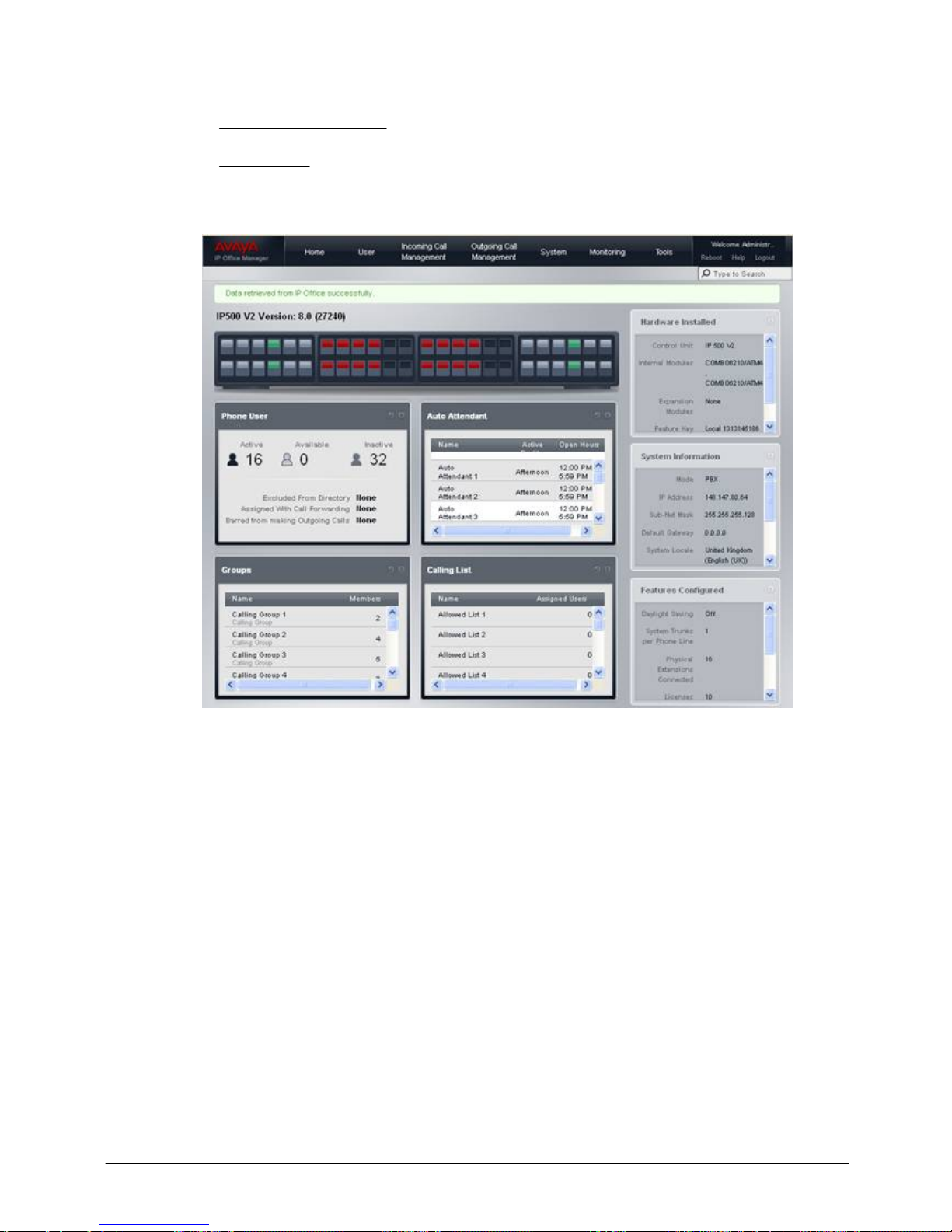
Product Description
IP Office 8.1
© 2012 AVAYA All rights reserved.
Page 50
Issue 26.k.- (16 August 2012)
System Programming
System programming is accomplished in two ways:
· Telephone User Interface (TUI) from extension 10 or extension 11; and uses the same
administration codes as the Norstar system.
· Web Manager (GUI) – IP Office Web Manager is a new browser based management tool (replacing
Simplified Manager) designed to simplify the installation and maintenance process by providing an
intuitive and user-friendly management tool that runs on most standard browsers. The new IP Office
Web Manager eliminates the need to have windows operating system as it can run on any device that
supports standard browsers.
Web Manager main screen
Page 51
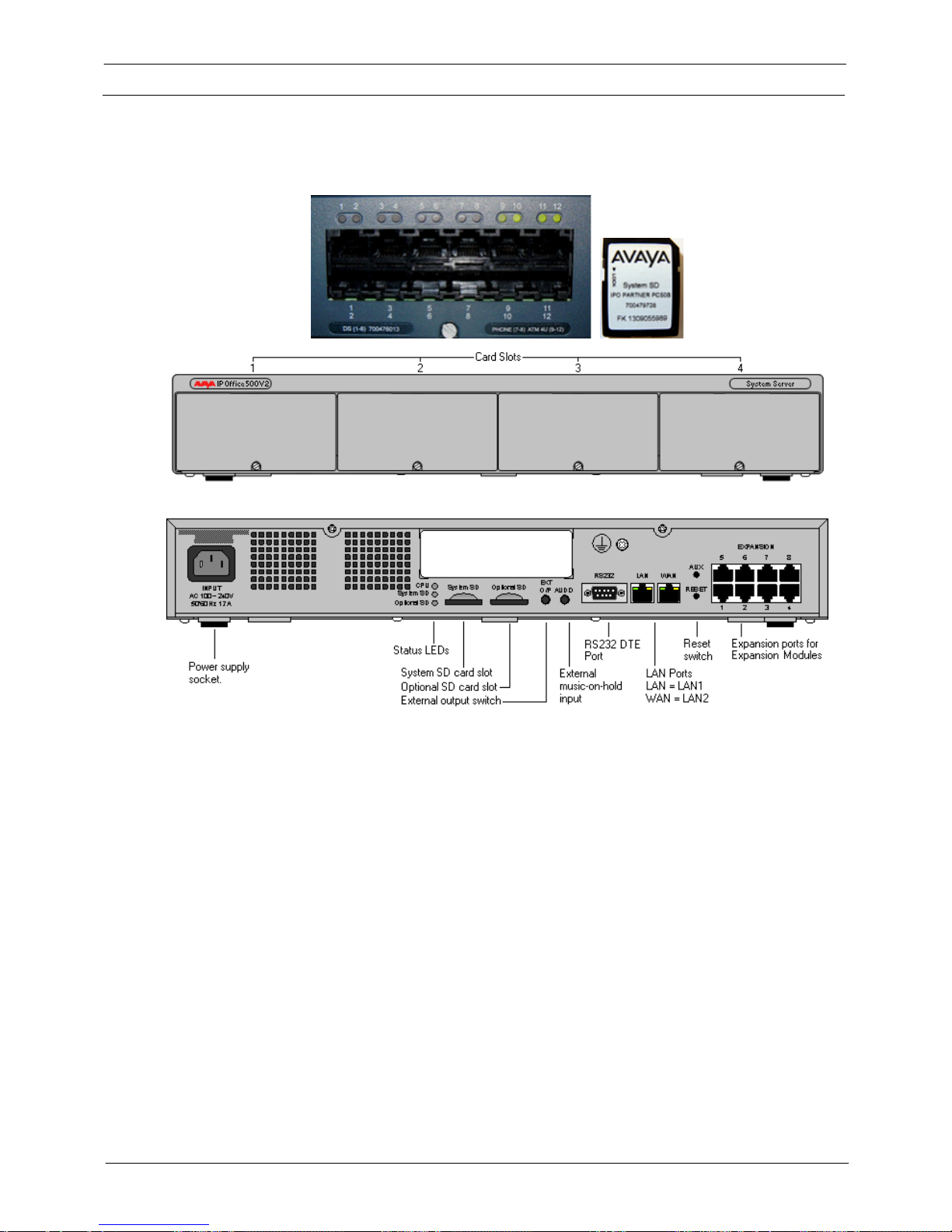
Product Description
IP Office 8.1
© 2012 AVAYA All rights reserved.
Page 51
Issue 26.k.- (16 August 2012)
Hardware
Control Unit
Norstar Mode software runs on the IP500 V2 control unit. A Norstar Mode SD card or IP Office Essential Edition
A-Law SD card is required and is installed in the rear of the control unit, providing operating software, Feature
Key, Licenses and directs the system to boot up in Norstar mode or Quick Mode. An optional SD card may be
installed in the optional SD card slot, providing redundant backup and system upgrade capabilities.
The front of the IP500 V2 Control Unit has 4 expansion bays, which supports the following system modules:
· Combination Card – Analog Trunks
The Combination Card provides 6 digital station (DS) ports (Ports 1-6); 2 analog station ports (Ports 7-
8); 4 CO line ports (Ports 9-12) and 10 voice compression channels.
· Combination Card – BRI Trunks
The Combination Card provides 6 digital station (DS) ports (Ports 1-6); 2 analog station ports (Ports 7-
8); 2 BRI trunks (Ports 9 & 10, each trunk providing 2B+D digital channels) and 10 voice compression
channels.
Note: The system supports a maximum of two Combination Cards of either type.
· DS8 Card (Max 3 per system)
The DS8 Card provides 8 digital station ports (Ports 1-8); and supports (1) of the following optional
trunk cards: ATM4, BRI4 (supports 2 BRI trunks via ports 9 & 10), BRI-8 (supports 4 BRI trunks via
ports 9-12), or a PRI/E1. This card supports only the 1400 and 9500 Series telephones.
Note: Each BRI trunk provides 2B+D digital channels.
· TCM8 Card (Max 4 per system)
The TCM-8 Card provides 8 digital station ports (Ports 1-8); and supports (1) of the following optional
trunk cards: ATM4, BRI4 (supports 2 BRI trunks via ports 9 & 10), BRI-8 (supports 4 BRI trunks via
ports 9-12), or a PRI/E1. This card supports only Norstar T-Series and M-Series telephones.
Note - each BRI trunk provides 2B+D digital channels.
· Phone 2 (Max 4 per system)
The Phone 2 module provides two additional analog station ports and supports one of the following
optional trunk cards: ATM4, BRI4, BRI8 or PRI/E1.
Page 52
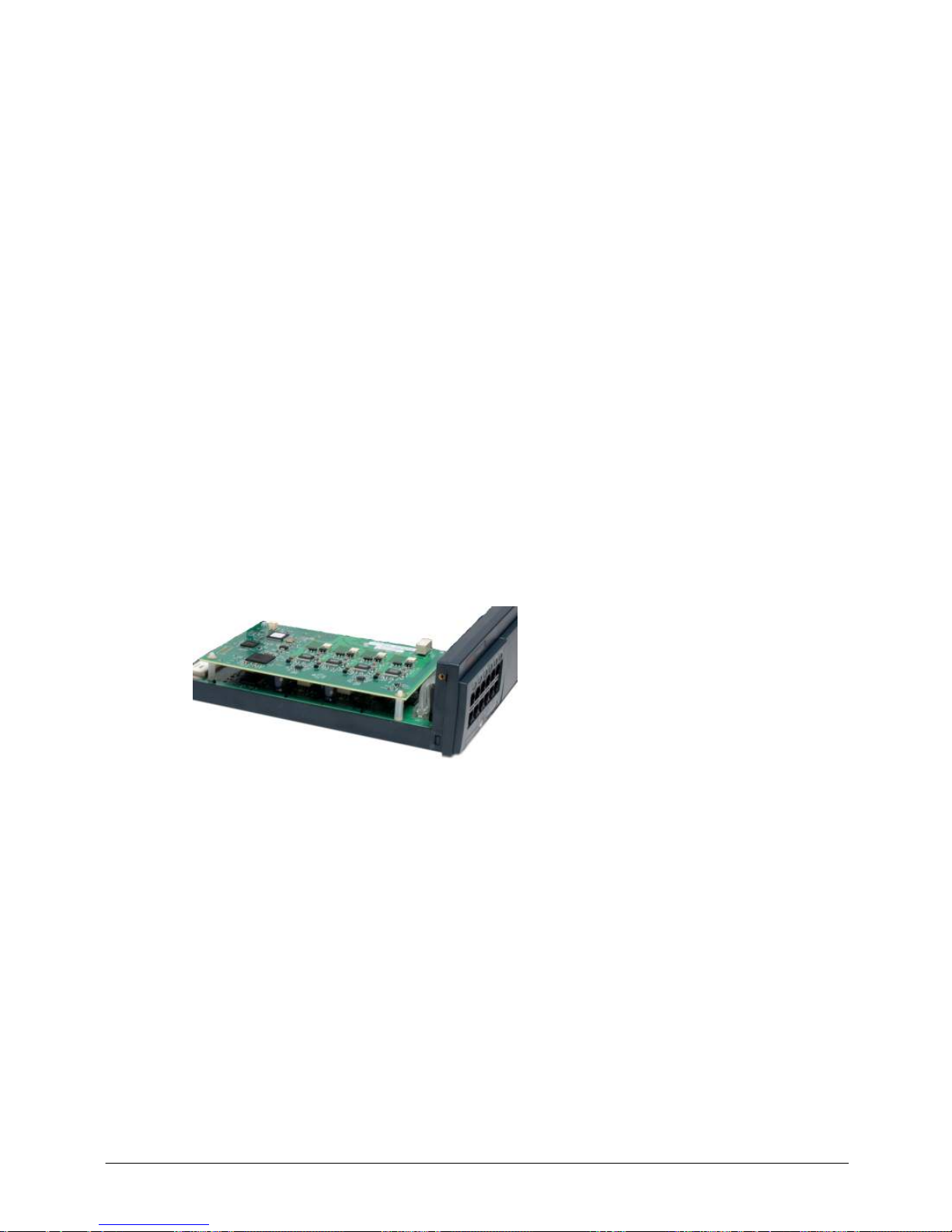
Product Description
IP Office 8.1
© 2012 AVAYA All rights reserved.
Page 52
Issue 26.k.- (16 August 2012)
· Phone 8 (Max 4 per system)
The Phone 8 module provides eight additional analog station ports and supports one of the following
optional trunk cards: ATM4, BRI4, BRI8 or PRI/E1.
Expansion Modules
Norstar Mode supports following expansion modules:
· DS16 – provides additional 16 digital station ports (1400 and 9500 Series telephones only)
· DS16A – provides additional 16 digital station ports (Norstar T-Series and M-Series telephones only)
· ATM 16 (Limit 1 per system) – provides additional 16 analog CO lines
· Phone 16 – provides additional 16 analog station ports
· Phone 30 – provides additional 30 analog station ports
· DS30 – provides additional 30 digital station ports (1400 and 9500 Series telephones only)
· DS30A – provides additional 30 digital station ports (Norstar T-Series and M-Series telephones only)
Trunk Cards
Norstar Mode supports the following trunk cards, which are mounted on any DS8, TCM8, Phone 2 or Phone 8
base card:
· ATM4 – provides four analog CO line ports. Supports Caller ID.
Limit 4 ATM4 cards per system.
· PRI/E1 – supports full PRI or T1.
Limit 1 PRI/E1 card per system
· BRI4 – provides two BRI trunks. Each BRI trunk provides 2B+D digital channels.
Limit 4 BRI4 cards per system.
· BRI8 – provides four BRI trunks. Each BRI trunk provides 2B+D digital channels.
Limit 1 BRI8 card per system.
Page 53
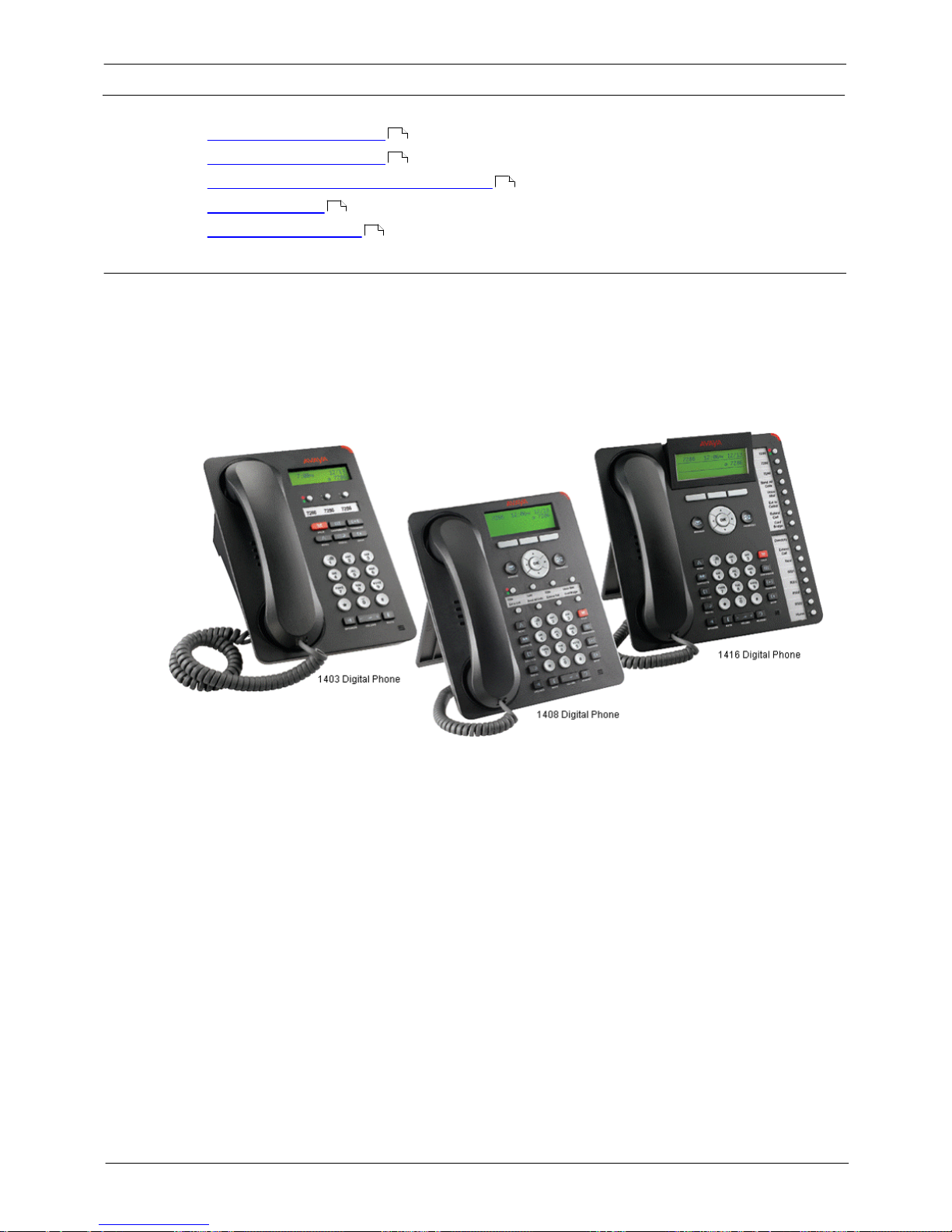
Product Description
IP Office 8.1
© 2012 AVAYA All rights reserved.
Page 53
Issue 26.k.- (16 August 2012)
Telephones
Norstar Mode supports the following telephones:
· 1400 Series digital telephones
· 9500 Series digital telephones
· Norstar T-Series and M-Series digital telephones
· Wireless telephones
· Analog "POTS" telephones
1400 Series telephones
The following 1400 Series telephones are supported.
· 1416 Display Telephones
· 1408 Display Telephones
· 1403 Display Telephone
· DBM32 Button Module
Programmable Buttons
As well as the usual dialing keys, Avaya 1400 digital telephones have dedicated function buttons like Mute,
Volume, Hold, Conference and Transfer. In addition to these, there are keys that can be programmed with a
range of selected special functions. These keys can be used for calling other extensions on the system (Direct
Station Select or DSS keys), or can be used for options from speed dialing numbers to controlling features such
as Do Not Disturb. Many features use an indicator to show whether a feature is enabled.
Button programming is done through the TUI or Simplified Manager as part of the system configuration.
22
23
24
27
28
Page 54
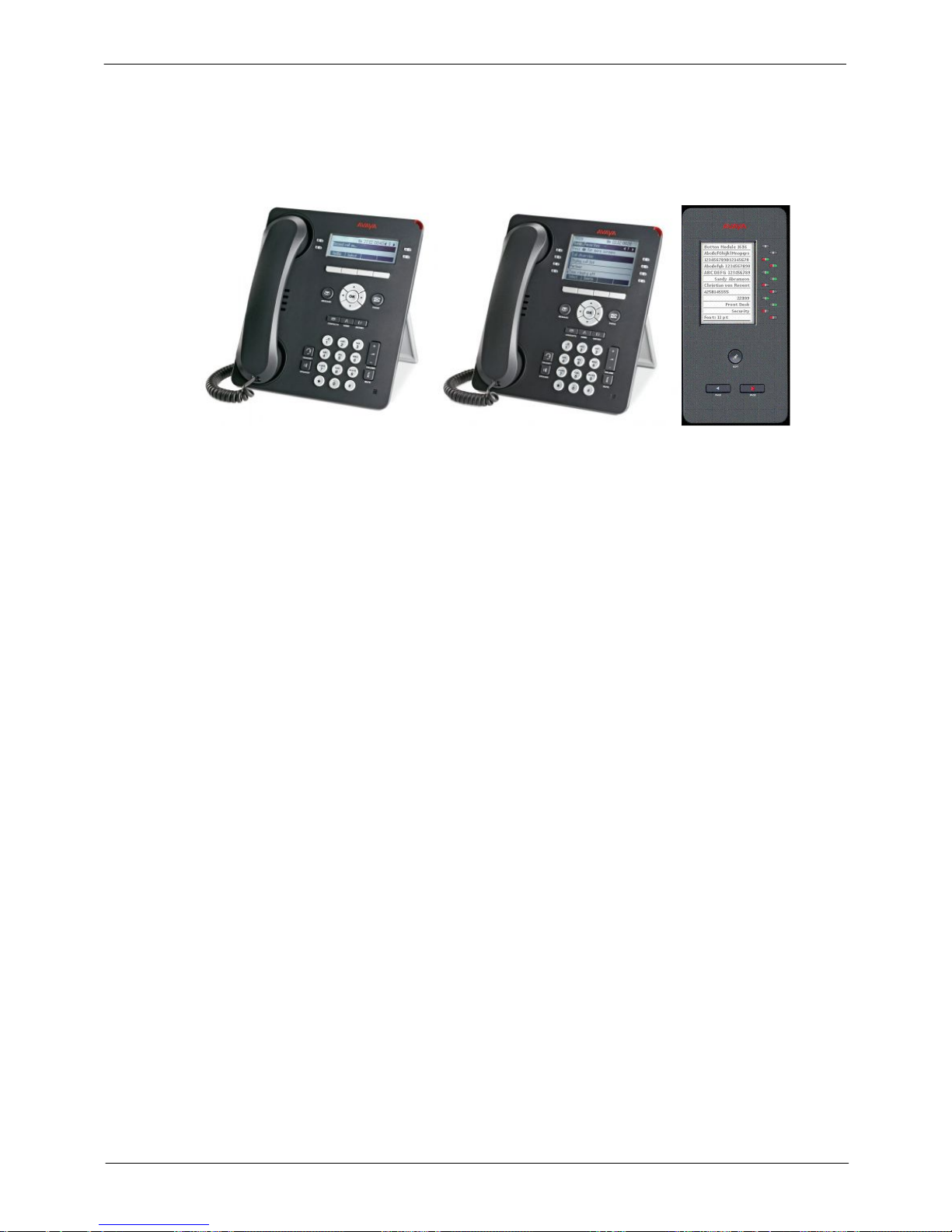
Product Description
IP Office 8.1
© 2012 AVAYA All rights reserved.
Page 54
Issue 26.k.- (16 August 2012)
9500 Series telephones
The following 9500 Series telephones are supported.
· 9504 Display Telephone
· 9508 Display Telephone
· BM12 Button Module
9504
9508
BM12
Programmable Buttons
The Avaya 9500 Series telephones are "paper label free," providing programmable labels in the display. The
9504 has four buttons (with Red & Green LED’s) and has two "pages" providing a total of 12 programmable
buttons. The 9508 has eight buttons (with Red and Green LED’s) and has two "pages" providing a total of 24
programmable buttons.
As well as the usual dialing keys, Avaya 9500 digital telephones have dedicated function buttons like Mute,
Volume, Speaker, Headset, Call Logs and Contacts. In addition to these, there are keys that can be
programmed with a range of selected special functions. These keys can be used for calling other extensions on
the system (Direct Station Select or DSS keys), or can be used for options from speed dialing numbers to
controlling features such as Do Not Disturb. Many features use an indicator to show whether a feature is
enabled.
Button programming is done through the TUI or Simplified Manager as part of the system configuration.
Page 55
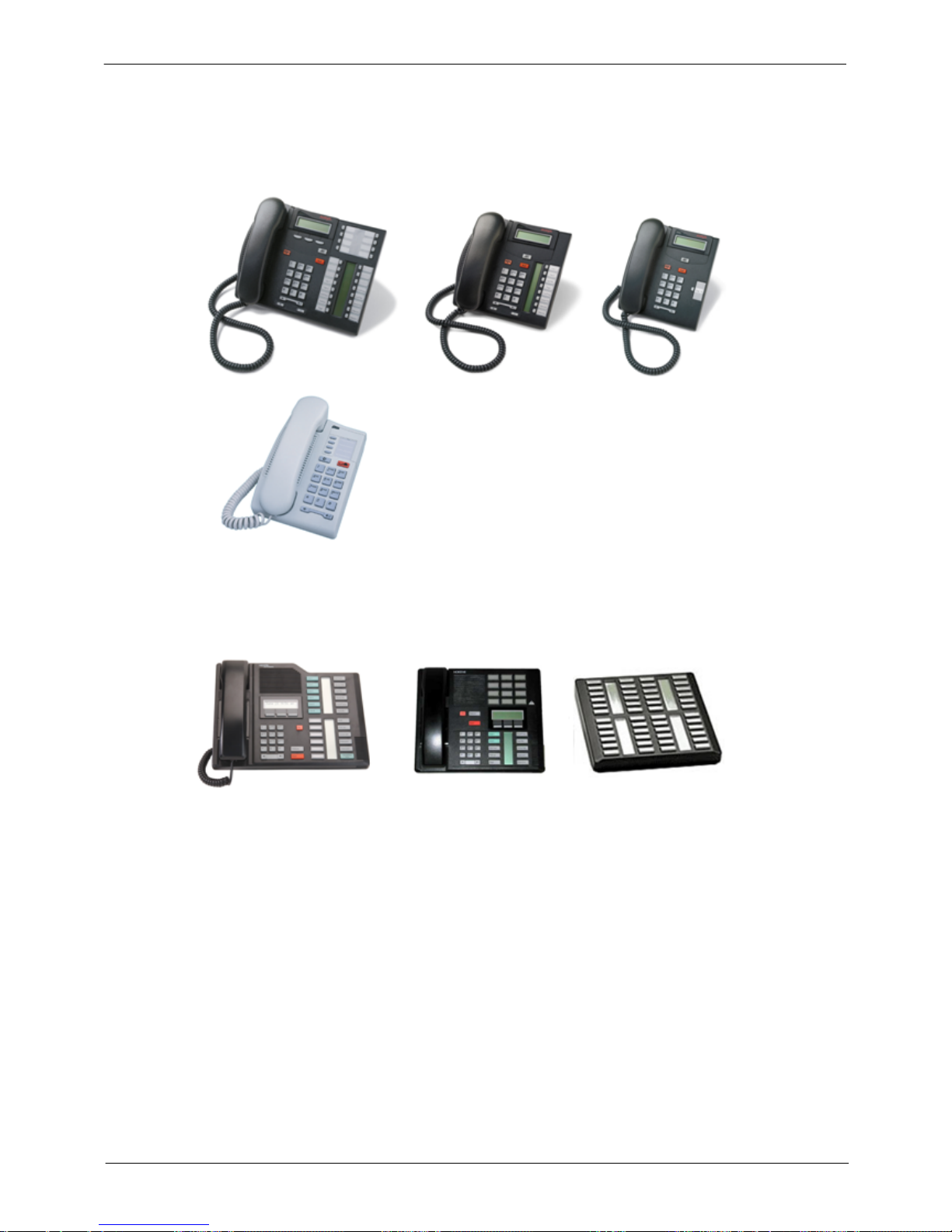
Product Description
IP Office 8.1
© 2012 AVAYA All rights reserved.
Page 55
Issue 26.k.- (16 August 2012)
Norstar T-Series and M-Series telephones
The following Norstar telephones are supported on PARTNER Mode:
· T-Series Telephones: T7316E, T7208, T7100, T7000 and the T24KIM (not shown)
· M-Series Telephones: M7324, M7310 and the CAP/KLM Button Module
Page 56
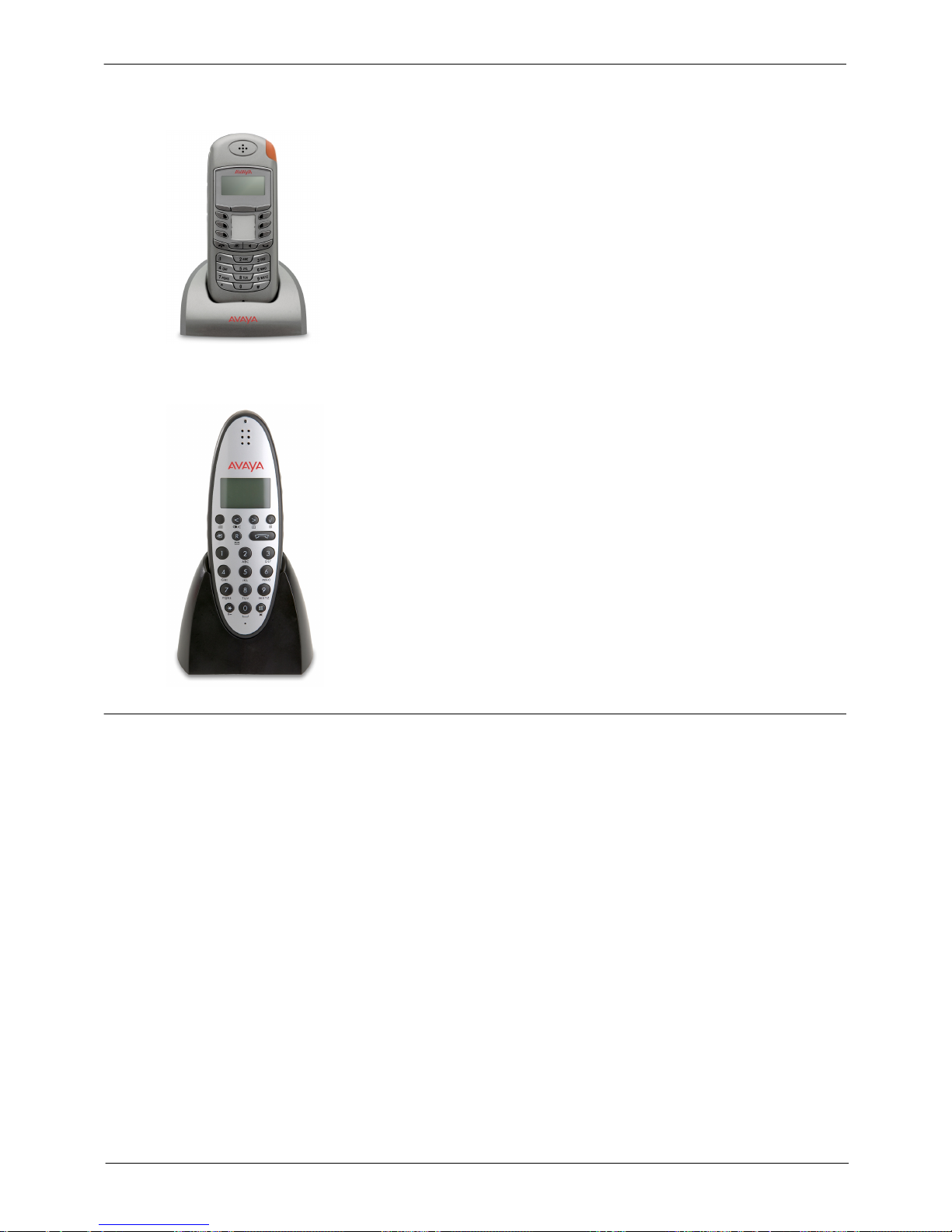
Product Description
IP Office 8.1
© 2012 AVAYA All rights reserved.
Page 56
Issue 26.k.- (16 August 2012)
Wireless Telephones
T7406E Wireless
Digital Mobility 7400/4100 Series Wireless
Analog "POTS" telephones
The system supports a wide variety of industry standard analog telephones and devices, for example: fax
machines, credit card readers; wireless headsets, cordless telephones.
Analog devices are connected to the system:
· To one of the analog ports on the Combination Card
· Via a Phone 2 or Phone 8 Module
The major features work the same, regardless how they are connected: e.g. Hold, Conference, Transfer, Call
Waiting, Message Waiting, Incoming Caller ID.
Analog telephones have access to all dial-code features familiar to PARTNER users: e.g. Call pickup, Line
pickup, Call Forwarding activation/deactivation, etc.
Analog telephones connected to a phone module or Combination Card default to intercom dial tone. To place an
outgoing call, the user will dial 9. Analog telephones connected to an ETR module follows programmed
Automatic Line Selection.
Page 57
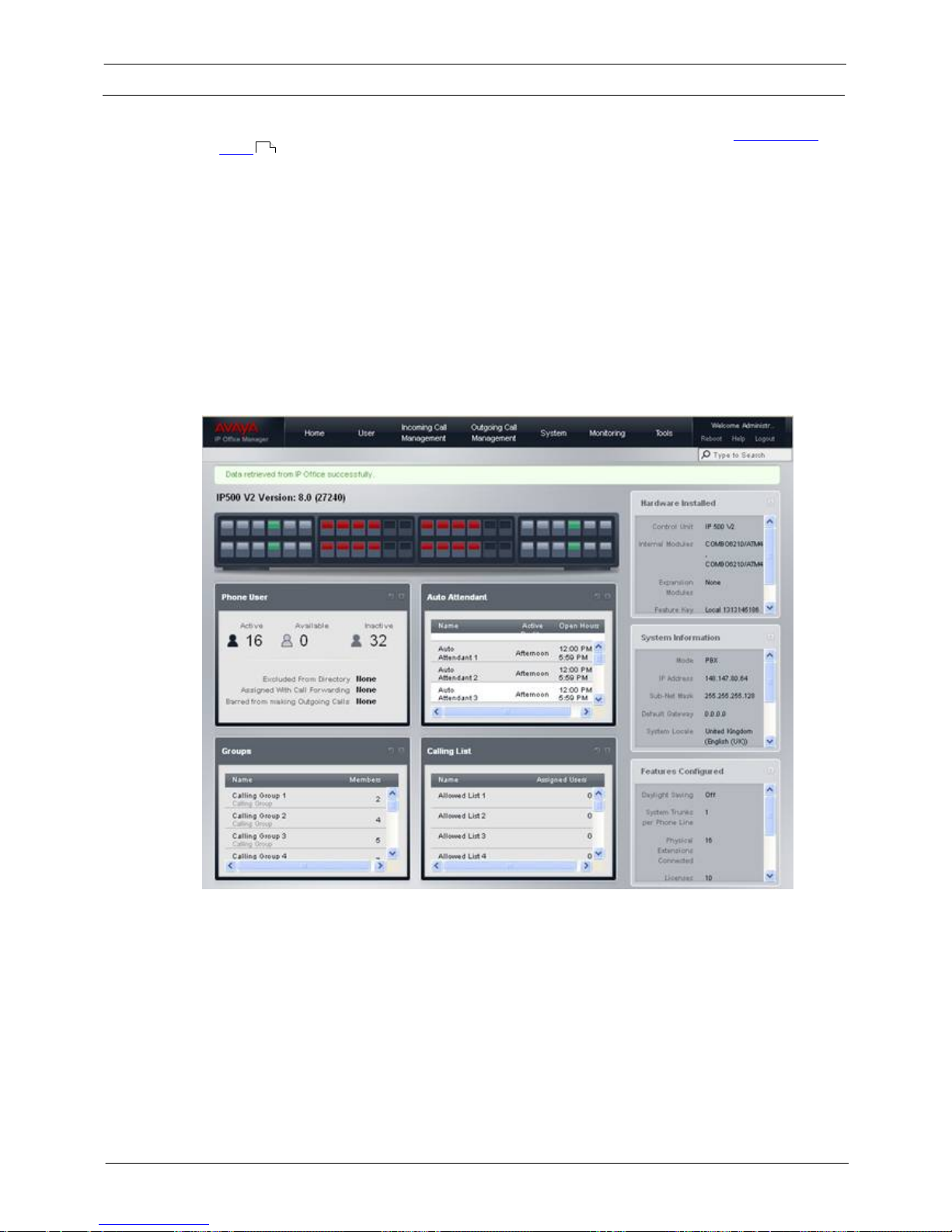
Product Description
IP Office 8.1
© 2012 AVAYA All rights reserved.
Page 57
Issue 26.k.- (16 August 2012)
System Administration
The Norstar Mode and IP Office Basic Edition A-Law can be programmed in the following ways:
· Telephone User Interface (TUI) from extension 10 or extension 11; and uses the same administration
codes as the Norstar system.
TUI programming is an alternate way to do System Administration and Programming on the Norstar
Mode. It is based on the Norstar TUI, but with improvements.
Using TUI System Administration on ETR, 1400, 9500 and select Norstar telephones, the buttons under
the display become soft-keys which are used to navigate and change the administration items. There
are also shortcut codes which enable the administrator to jump to particular administration items.
Centralized Programming is similar to System Administration, but it is used to administer buttons and
other options for any telephone in the system.
Individual Programming continues to be supported, allowing the telephone user to program buttons on
their telephones.
· Web Manager (GUI) – IP Office Web Manager is a new browser based management tool designed to
simplify the installation and maintenance process by providing an intuitive and user-friendly
management tool that runs on most standard browsers. The new IP Office Web Manager eliminates the
need to have windows operating system as it can run on any device that supports standard browsers.
Web Manager main screen
For off line configuration, Upgrades, back-up and restore it is recommended that Manager continues to be used.
"Simplified Manager" is a PC GUI application inherent to the IP Office Manager application. Although system
administration can be completed via either the TUI or GUI method; some advanced features such as SIP and
PRI/E1 administration require the Manager application.
When you execute Manager, the program searches for any IP500 V2 units running Norstar Mode on your
network and will automatically connect using the default login and password. You are then presented with a
"Simplified Manager" Screen:
59
Page 58
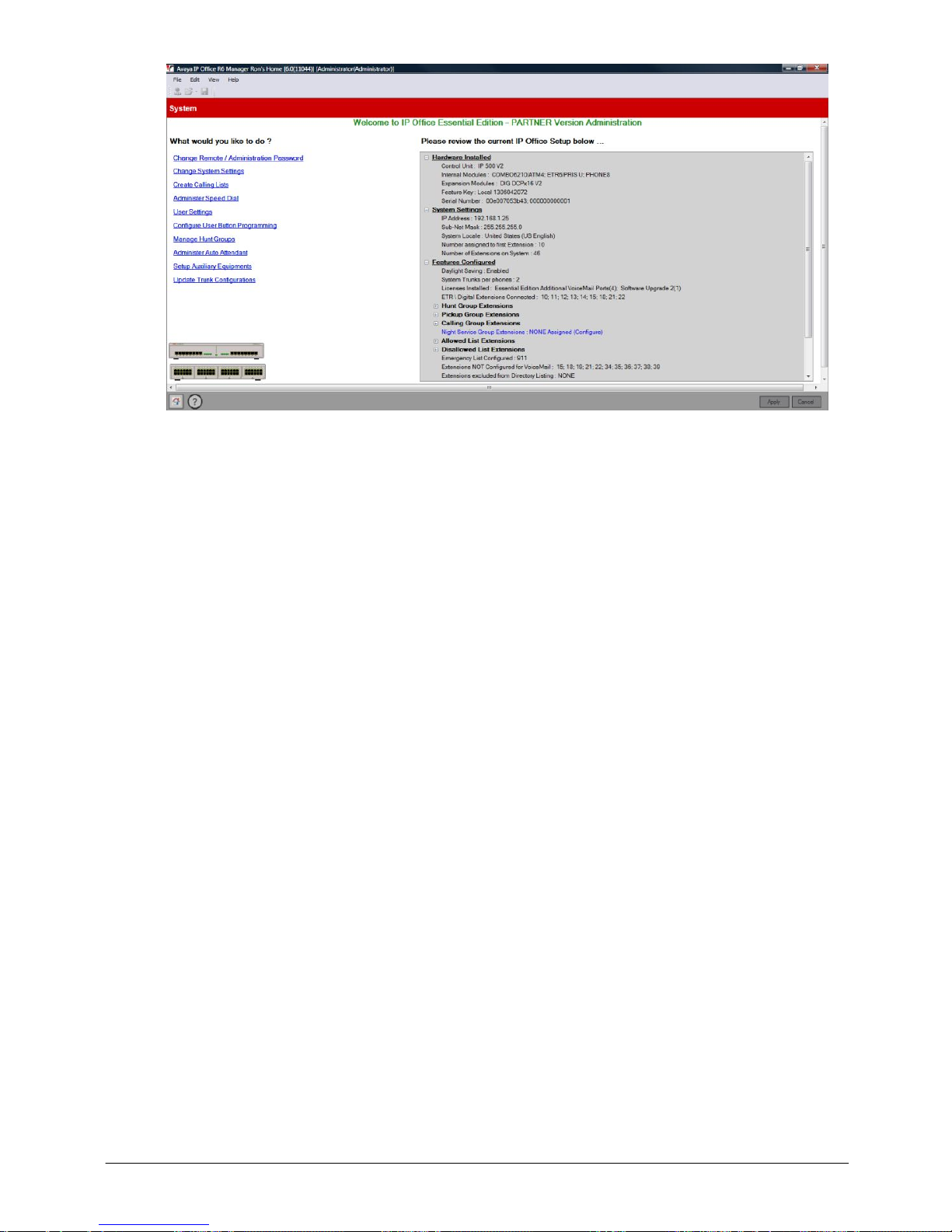
Product Description
IP Office 8.1
© 2012 AVAYA All rights reserved.
Page 58
Issue 26.k.- (16 August 2012)
By using the system hyperlinks, you are able to quickly and easily administer the Norstar Mode system in a
short time. Further details can be found in the IP Office Norstar Mode Manager documentation guide posted on
the Avaya Support website.
Page 59

Product Description
IP Office 8.1
© 2012 AVAYA All rights reserved.
Page 59
Issue 26.k.- (16 August 2012)
Application Programming Interface (TAPI)
Application Programming Interface (TAPI) allows new and existing server-based applications from Avaya’s
Developer Connection (DevConnect) program to work with and enhance the operation of the system. The
current requirement is to support a screen pop type application called “Pickup IP” which is also supported on IP
Office.
The TAPI API only supports 1st Party TAPI applications.
System Programming Procedures
Code
Feature
Code
Feature
#101
System Date
#321
VMS Cover Rings
#103
System Time
#322
Remote Call Forwarding
#104
Number of Lines
#323
Personalized Station Ringing
#105
Transfer Return Rings
#399
Copy Settings
#107
Recall Timer Duration
#401
Outgoing Call Restriction
#109
Outside Conference Denial
#402
Toll Call Prefix
#119
Ring on Transfer
#403
System Password
#123
Backup Programming—Automatic
#405
Disallowed List Assignments
#124
Backup Programming—Manual
#406
Emergency Phone Number List
#125
Restore Programming
#407
Allowed Phone Number Lists
#126
Automatic Daylight/Standard Times
#408
Allowed List Assignments
#127
Hold Reminder Tone
#409
Forced Account Code List
#128
Network Time Synchronization
#501
Pickup Group Extensions
#203
Hold Disconnect Time
#502
Calling Group Extensions
#205
Direct Extension Dial Lines
#503
Night Service Button
#206
Group Call Distribution
#504
Night Service Group Extensions
#208
Line Coverage Extension
#505
Hunt Group Extensions
#301
Line Assignment
#506
VMS Hunt Delay
#303
Display Language
#507
VMS Hunt Schedule
#304
Automatic Extension Privacy
#601
Fax Machine Extensions
#305
Abbreviated Ringing
#602
Music-On-Hold
#306
Transfer Return Extension
#603
Hotline
#307
Forced Account Code Entry
#604
Doorphone Extension 1
#308
Distinctive Ring
#605
Doorphone Extension 2
#309
Intercom Dial Tone
#606
Doorphone Alert Extensions
#310
Automatic VMS Cover
#610
SMDR Output Format
#311
External Hotline
#612
Contact Closure Group
#316
Call Waiting
#613
Contact Closure Operation Type
#317
Caller ID Log Answered Calls
#617
Loudspeaker Paging Line
#318
Caller ID Call Log Line Association
#728
System Reset—Programming Saved
#320
Call Coverage Rings
#730
Remote Administration Password
Centralized Telephone Programming
Extensions 10 and 11 can program other extensions on the system from their telephones.
Page 60

Product Description
IP Office 8.1
© 2012 AVAYA All rights reserved.
Page 60
Issue 26.k.- (16 August 2012)
System Features
The system provides the majority of the feature set that the Norstar PARTNER ACS R8 supports. A listing of the
built-in features is detailed below. Feature descriptions can be found on the following pages. TUI Feature
Programming Codes (if applicable) are also provided.
911 Emergency Dialing
Direct Line Pickup Features
PBX Mode
Abbreviated Ringing
Display
Personal Line Termination
Absent Text
Display Language
Personalized Station Ringing
Absent Text Message Inspect
Display SD Card Feature Key ID
POT Support
Account Codes
Display System IP Address
Privacy
Allowed/Disallowed Lists
Display System Release
Recall
Application Programming Interface
(TAPI)
Distinctive / Differentiated Ring
Redialing Features
Attendant/Operator Positions
Do Not Disturb (Send All Calls)
Remote Call Forwarding / Mobile
Twinning
Auto Attendants - Emergency
Greeting
Do Not Disturb Override
Remote Access to Modem
Auto Attendants - Multiple
Doorphones (max of 2)
Ringing Line Preference
Automatic Callback
Emergency Phone Number List
Ring on Transfer
Automatic Daylight Savings Time
External Hotline
SD Card Startup / Shut Down via TUI
Automatic Extension Privacy
Extension Hunt Groups
SMDR
Auto Dialing
Extension Name Display
Speed Dial Features
Automatic Line Selection
Fax Machine Extensions
Station Lock/Unlock
Automatic VMS Coverage
Feature Button
Sub-Menus (see Auto Attendants)
Backup Failure Alarm
Flexible Dial Plan
System Password
Backup Programming Automatic
Group Calling – Ring/Page
System Groups
Backup Programming Manual
Group Hunting – Ring/Voice
Signal
Transfer / Transfer Return
Bridging (Joining Calls)
Group Pickup
Transfer Return to Programmable
Extension
Call Coverage
Hold
Unique Line Ringing with Override
Call Forwarding - Internal
Hold Release on Abandon
VMS Cover Button
Call Log (Digital Sets only)
Hold Reminder Tone
VMS Cover Ring Interval
Call Logs (ETR sets)
Hot Dial
VMS Hunt Delay
Call Pickup
Hotline
VMS Hunt Schedule
Call Timer
Idle Intercom Timeout
Voicemail
Call Timer Continuity
Intercom Manual Dial
Bypass Greeting
Call Waiting
Intercom Dial Tone
Change Message Status to New
Caller ID Features
Line Coverage Extension
Choice of Language
Cell Phone Connect
Line Ringing Options
End of Recording Options
Centralized Telephone Programming
Message Alert Notification
Outcalling Notification
CO Disconnect Time
Music On Hold
Phantom Mailboxes
Conference Drop
Network Time Synchronization
Voicemail to E-mail
Contact Closure Support
Night Service
Voice Mailbox Transfer – Direct
Copy Settings
On Hook Dialing
Voice Messaging
Direct Inward Dialing (DID)
One Touch Transfer
Visual Messaging
DID to Auto Attendant
Paging Features
Wake-up Service
Page 61

Product Description
IP Office 8.1
© 2012 AVAYA All rights reserved.
Page 61
Issue 26.k.- (16 August 2012)
911 Emergency Dialing
911 Emergency Dialing can be made from any extension, regardless of any restrictions.
Abbreviated Ringing
This feature activates or deactivates Abbreviated Ringing at the system telephone at a specific extension. When
you are on a call and Abbreviated Ringing is Active, any incoming call rings only once. The green light next to
the line button flashes until the call is answered or the caller hangs up (or for a transferred call, until the call
returns to the transfer return extension).
This feature prevents incoming calls from distracting you when you are busy on another call. To allow calls to
ring repeatedly, set Abbreviated Ringing to Not Active.
Absent Text Messaging
This feature allows you to post a message (such as "Do Not Disturb" or "Away from desk") on the display of
your PARTNER ETR or digital system telephones. When another extension calls your extension, your active
Absent Text Message appears on the caller’s display.
The system provides 15 pre-defined messages, plus 2 that may be customized by each user. Pre-defined
messages include:
Back Soon
Back Tomorrow
Do Not Disturb
On Vacation
Out to Lunch
At Home
Away from Desk
Be Right Back
Please Call
On Holiday until
Meeting until
Don’t disturb until
With visitors until
With cust. til
At lunch until
Absent Text Message Inspect
The Inspect feature is a soft-key option, and allows you to remotely inspect the active Absent Text Message at
another user’s extension.
Pressing the Absent Text Message button will provide you with an INSP option in the display. Press the button
associated with the Inspect option and you are prompted to dial the extension number or press the Auto
Intercom button you wish to view. When you do, the active message for that user is displayed.
Account Code Entry
Account Code Entry (ACE) is used to enter an account code (up to 15 digits) for an incoming or outgoing call
currently being handled.
The Account code is printed in the SMDR record for the call for the customer to use for cost tracking purposes.
There are two different ways the feature can be used:
· Voluntary — Account Code Entry is optional.
· Forced – Account Code Entry is mandatory before dialing on an idle CO facility.
Forced account codes are validated against a list of pre-defined account codes which is created via the Manager
application.
Allowed Lists / Disallowed Lists
Allowed Lists Use this feature to specify telephone numbers that users can dial regardless of other dialing
restrictions, as long as they have access to an outside line. For example, if you restrict an entire category of
calls through Disallowed Phone Number Lists (#404), you can permit calls to a specific number in that category
by placing that number on an Allowed Phone Number List.
The System Administrator can create up to eight Allowed Phone Number Lists of up to 10 telephone numbers
each.
Page 62

Product Description
IP Office 8.1
© 2012 AVAYA All rights reserved.
Page 62
Issue 26.k.- (16 August 2012)
Disallowed Lists allow you to specify telephone numbers that users cannot dial. For example, you may want
to prevent calls to a specific telephone number or to categories of numbers, such as international numbers. The
System Administrator can create up to eight Disallowed Phone Number Lists of up to 10 telephone numbers
each.
Allowed and Disallowed Phone Numbers can be up to 12 digits long and may include 0–9, #, *, and ‘hold’ (a
wildcard character, displayed as “!”).
Attendant Positions
Extension 10 and Extension 11 serve as system attendant positions. TUI System Administration can only be
done at these extensions. Night Service and Unlock capabilities can only be initialized from Extension 10. When
a user dials 0, Extension 10 will ring.
Auto Attendants (Multiple) / Sub-Menus / Emergency Greeting
The system supports up to 9 Automated Attendants / Sub-menus. A sub-menu is the same group of selector
codes as is used in an Auto Attendant.
Each Auto Attendant has its own greeting (Morning / Afternoon / Evening), its own language (English / French /
Spanish), its own set of selector codes (based on its time profile), and separate VMS Hunt and Delay Schedules.
Each Auto Attendant supports its own Emergency Greeting announcement, which can be remotely recorded and
activated, and plays before the Auto Attendant Greeting.
Each Auto Attendant can be accessed by dialing the appropriate Auto Attendant dial codes (to record greetings,
menu prompts, etc.).
Auto Dialing
Enables a user to dial outside numbers, extension numbers, feature codes or account codes with a single touch
by pressing a programmed button.
Three types of auto dial are supported:
· Auto Dial – Outside
· Auto Dial – ICM (internal extension)
· Auto Dial – ICM Page (voice signaling)
Automatic Callback
When calling an extension that is busy, press the Auto Callback softkey and the system will call you when the
extension becomes free.
Automatic Daylight Savings Time
This feature automatically updates the system clock for annual Daylight Savings Time and Standard Time
changes. Turn this feature off if you live in an area without daylight savings time.
Automatic Extension Privacy
Prevents other extensions with access to the same line from joining a call. Use this feature for extensions
connected to a modem, fax, or any device whose function can be disrupted by someone trying to join it.
Automatic Line Selection
Specifies the order in which the system selects an available line (intercom or outside) when a user at the
extension lifts the handset or presses SPEAKER to make a call without first selecting a specific line button.
For extensions with analog telephones, set Automatic Line Selection to intercom first. This enables analog
telephones to access system features, including intercom calling. When users lift the handsets on analog
telephones, they hear intercom dial tone. To access an outside line, they must dial 9.
Page 63

Product Description
IP Office 8.1
© 2012 AVAYA All rights reserved.
Page 63
Issue 26.k.- (16 August 2012)
Automatic Voicemail Coverage
Use this feature to program a button to turn VMS Cover on and off, routing unanswered intercom and
transferred calls for a users’ extension to the Call Answer Service of the voice messaging system after the
specified number of rings (factory setting is three rings).
Backup Failure Alarm
When an Automatic Backup fails, a ‘Backup Failed’ message is displayed on Extension 10 and 11.
Backup Programming - Automatic
The system does a nightly backup to the system SD card. No manual intervention or external PC is required.
Backup Programming - Manual
The administrator may do a manual system programming backup to the system SD card via the TUI.
Bridging (Joining Calls)
A user can bridge (join) on any active call by pressing the associated CO line button (assuming Privacy is not
active on the originating extension.) When a call is bridged, the red and green LED’s will alternate on all
telephones which are bridged on the call.
Call Coverage
This feature is used to redirect all Intercom, Transferred, DID and outside calls from a user’s extension to
another extension.
When Call Coverage is activated, covered calls are routed to the covering extension after a specified number of
rings.
Call Forwarding - Internal
The Call Forwarding provides a means of redirecting Intercom (ICOM), CO, and Transfer calls from one
extension to another specified extension.
Call Log - Digital Telephones
Call Log is a fixed button on digital telephones and provides a visual record of calls made and received,
including unanswered calls. Details are store for both users (maximum 30 entries) and hunt groups (maximum
10 entries). The method of operation varies according to the phone type but in all cases the call records can be
used for return calls.
Call Logs - ETR Telephones
Use this feature to program extensions to log answered Caller ID calls so that calls answered at an individual
extension can be viewed in the Caller ID Call Log. Once the feature is activated for an extension, when a user
activates the Caller ID Call Logging and Dialing (F23), all Caller ID calls that are answered by that extension are
logged.
Up to 3 extensions can be designated to log all calls, both answered and unanswered, regardless of where they
terminated in the system.
Call Timer Display
Displays the duration of a call from the time it was answered.
Page 64

Product Description
IP Office 8.1
© 2012 AVAYA All rights reserved.
Page 64
Issue 26.k.- (16 August 2012)
Call Waiting
Call waiting applies to analog, single line telephones, and applies to the following types of calls:
· Intercom calls
· Transferred calls
· Forwarded calls
· Covered calls
· Outside calls (if the extension has a line appearance of the line)
· Voice Signaled calls
Caller ID Features
The following Caller ID features are supported:
· Caller ID Inspect (FEATURE 17)
Allows you to view Caller ID information for a second call, without disconnecting the current call or
putting it on hold. Use this feature to inspect ringing, active, or held calls.
· Caller ID Name Display (FEATURE 16)
When an incoming call is ringing at a display telephone, both the name and number appear on the
user’s display. The Number is displayed on the top line, and the Name on the 2nd line. In some cases
users may wish to see the Caller ID Name on the top line and the Caller ID Number on the 2nd line.
This feature provides this capability.
CO Disconnect Time (Programmable)
Use this feature to change the hold disconnect time for an outside line. Different telephone companies use
different length signals. The length of the signal is called the CO or Hold Disconnect time. If you place a call on
hold and the caller hangs up, but the call does not disconnect within a minute after the caller.
Conference Drop
On 1400 and 9500 digital telephones, you may choose which specific party you want to drop from a conference
call. On ETR and analog telephones, the last party added to the conference call is automatically dropped.
Conferencing
The system supports up to 64-party conferencing. A maximum of 2 analog lines can be in any conference call.
Conference calls may consist of combinations of analog lines, digital lines (PRI/T1, SIP), analog telephones, ETR
telephones or digital telephones.
Contact Closure Support for 2 Devices
The IP500 V2 Control Unit has a Contact Closure control jack on the back panel. This is a 3.5 mm stereo jack
that can drive two external adjunct relays.
This feature allows users at eligible extensions to control an external adjunct by entering feature codes at their
system or standard telephone. The port can control a variety of devices, the most common being door strikes,
night bells, lighting, or voice recording systems.
Copy Settings
This feature allows a System Administrator to copy extension-specific programming from one extension to
another. When the Extension Copy operation is performed, the destination extension will have the same
properties as the originating extension.
Extension Copy can only be performed from an Attendant Extension in System Programming Mode or from the
Windows Manager PC application.
Page 65

Product Description
IP Office 8.1
© 2012 AVAYA All rights reserved.
Page 65
Issue 26.k.- (16 August 2012)
Dial Code Features
· ‘F’ represents the FEATURE button.
· ‘I’ represents the INTERCOM button.
· ‘XX’ represents a system extension number.
· ‘PP’ represents a Personal Speed Dial code.
· ‘G’ represents a single-digit group number.
· ‘LL’ represents a system line number.
Feature
Partner Mode Code
Norstar/BCM Code
Do Not Disturb
F01
F85
Do Not Disturb Cancel
F01
F#85
Recall
F03
F71
Save Number Redial
F04
F67
Last Number Redial
F05F5Conference Drop
F06
F934 (new)
Privacy
F07
F83
Call Forward
F11F4Call Forward Cancel
F11
F#4
Account Code Entry
F12
F900
Voice Mailbox Transfer
F14
F986
VMS Cover
F15
F984
Caller ID Name Display
F16
F933 (new)
Caller ID Inspect
F17
F811
Call Coverage
F20
F932 (new)
Station Lock
F21
F936 (new)
Station Unlock
F22
F937 (new)
Caller ID Log
F23
F812
Hot Dial
F26
F935 (new)
Message Alert Notification
F27
F938 (new)
Absent Message
F28
F931 (new)
Contact Closure 1
F41
F9*41
Contact Closure 2
F42
F9*42
System Release
F590
F9*80
System IP Address
F591
F9*81
SD Card Serial Number
F592
F9*82
System Speed Dial
F6XX (00-99)
F06XX (00-99)
Personal Speed Dial
FXX (80-99)
F*4XX (80-99)
DND Override Numbers
F7XX (00-19)
F07XX (00-19)
Call Transfer
Fixed Button
F70
Voice Announce to Extension
I* + XX
F66 + XX (new)
Call Park to own Extension
Transfer + XX
F74 (new)
Direct Inward Dialing (DID)
Use this feature to have Direct Inward Dialing (DID) numbers on a PRI / T1 or SIP line routed automatically to a
specific extension, hunt group, or calling group. When a Direct Inward Dialing (DID) call arrives, the system
"collects" the digits from the T1 service provider (that is, the number that was dialed) and matches the number
to a DID Mapping Table you created. If the incoming number matches an entry in the DID Mapping table, the
call rings at the matching extension or hunt group.
Direct Inward Dialling (DID) to Auto Attendant
DID calls can be directed to and answered by any Automated Attendant.
Page 66

Product Description
IP Office 8.1
© 2012 AVAYA All rights reserved.
Page 66
Issue 26.k.- (16 August 2012)
Direct Line Pickup
With the Direct Line Pickup features, you can access a ringing or held call or a call in progress. You can also
select a line to use that is not assigned to your telephone. The Direct Line Pickup features are:
· Direct Line Pickup—Active Line
· Direct Line Pickup—Idle Line
Display Language
All system telephones offer the choice of 3 display language:
· US English
· Canadian French
· Latin American Spanish
Each individual extension may select their own language.
Display SD Card Feature Key ID
Displays the SD Card Feature Key ID on any display telephone.
Display System IP Address
Displays the IP address currently assigned to the IP500 V2 system.
Display System Release
Displays the software release running on the IP500 V2 system.
Distinctive / Differentiated Ringing
The system provides different ring patterns for external calls, internal calls and transferred calls.
Do Not Disturb
Use this feature to be able to press a programmed button to prevent incoming calls for the extension from
ringing (lights still flash). When Do Not Disturb is on, outside callers hear ringing while inside callers hear a
busy signal. Calls are immediately sent to your voice mailbox.
Do Not Disturb Exceptions
Allows a user to input a list of up to 20 telephone numbers and/or internal extension numbers that will ring at
the users’ station when Do Not Disturb is activated.
Doorphones
A doorphone is usually placed near an entrance, to screen visitors. You can connect up to two doorphones to
the system.
Emergency Phone Number List
Create a list of up to 10 telephone numbers that all users can dial regardless of dialing restrictions, provided
they have access to an outside line. Typical list entries include fire, police and emergency services numbers.
Page 67

Product Description
IP Office 8.1
© 2012 AVAYA All rights reserved.
Page 67
Issue 26.k.- (16 August 2012)
Extension Hunt Groups
Use this feature to assign any number of extensions to a Hunt Group. When extensions are in a Hunt Group, an
incoming call searches or “hunts” for the longest idle extension that is available. The system supports up to six
Hunt Groups.
Extension Name Display
The user’ name and extension number is displayed on the phone display.
External Hotline
When a user lifts the handset of an external hotline, a predetermined outside number is dialed automatically.
The external number might be, for example, a frequently called service bureau. The external hotline must be a
single line telephone, not a system telephone, and should not have a dial pad.
Fax Machine Extensions
Allows you to connect your fax machine to your system, allowing you to share network facilities.
Flexible Dial Plan
Through Manager, the system defaults to a fixed 2-digit dial plan (extensions 10 – 57); but can be changed to a
flexible 3-digit dial plan (extensions 100 – 599).
Group Calling - Ring / Page
Use this feature to ring, page, or transfer calls simultaneously to all of the extensions in any one of four Calling
Groups. (G represents a Calling Group number from 1–4.) When paging, you hear a beep and can begin
speaking. Your voice is heard on the speakers of all idle system telephones in the selected Calling Group. The
first extension to answer the call (on ETR sets - by picking up the handset or pressing SPEAKER, on 1400 Series
sets - or by pressing the ANSWER softkey on the display) is connected to the caller.
You can group page employees for general announcements; this is an inexpensive alternative to a paging
system.
Group Hunting - Ring / Page
Use this feature to distribute call volume among extensions in a group, to off-load call activity from a single
user. When an intercom or transferred call is placed to a Hunt Group (where G is a Hunt Group number from 1–
6), the system rings or voice-signals the first available extension in the group, passing over busy extensions (or
those with Do Not Disturb on) in a circular hunt. If a ringing call is not answered within three rings, the call
moves to the next available extension, and so on, until the call is answered or the caller hangs up.
For a voice-signaled call, only the first available extension is signaled; if that extension does not answer, the
call does not keep hunting. After an extension receives a Hunt Group call, the next call to the Hunt Group will
not ring or voice-signal that extension first unless all other extensions in the group are busy or do not answer.
Group Pickup
Use this feature to answer any outside, intercom, or transferred call ringing at an extension in a Pickup Group
(where G is a Pickup Group number from 1–4). When a call rings at an extension that is in a Pickup Group, you
can answer the call at any extension without knowing which extension or line is ringing and without being in the
same Pickup Group. The system can have up to four Pickup Groups.
Hold Reminder
If a call is left on hold for longer than a specified period, the extension will ring back, alerting you that the call
is still on hold. This ring continues to sound until the held call is retrieved, or until the caller hangs up.
Page 68

Product Description
IP Office 8.1
© 2012 AVAYA All rights reserved.
Page 68
Issue 26.k.- (16 August 2012)
Hot Dial
This feature enables a user to start dialing a number without first pressing the speaker button or going offhook.
Hotline
This feature allows designated extensions to automatically place an intercom call to another designated
extension, when it goes off-hook.
Intercom Dial Codes
· ‘I’ represents the INTERCOM button.
· ‘XX’ represents a system extension number.
· ‘G’ represents a single-digit group number.
· ‘LL’ represents a system line number.
Intercom Dial
Code
Feature
I6XX
Call Pickup
I66G
Group Pickup
I68LL
Direct Line Pickup—Active Line
I70
Loudspeaker Paging
I*70
Simultaneous Paging
I7G
Group Calling—Ring
I*7G
Group Calling—Page
I77G
Group Hunting—Ring
I*77G
Group Hunting—Voice Signal
I8LL
Direct Line Pickup—Idle Line
Intercom Dial Tone
Use this feature to determine the type of dial tone that the system provides at an extension. It may be
necessary to change this setting to Machine (outside line) dial tone for an auto-dialing device, such as a fax or
modem, that has trouble making calls. For example, if you have a modem that checks for outside line dial tone
before dialing, use this procedure to change from Regular to Machine dial tone.
Intercom Manual Dialing
Users can make an internal call to another extension by ringing it (dialing its extension number) or voice
signaling the extension by prefixing the extension number with a *.
Line Coverage Extension
Use this feature to identify an extension as the “owner” of a specific outside line, so the extension can activate
Call Coverage or VMS Cover for that line.
Line Ringing Options
This feature specifies the options: Immediate Ring, Delayed Ring or No Ring for incoming calls on a line
appearance programmed on the extension.
Log All Calls
Up to three extensions can be designated to log all calls, both answered and unanswered, regardless of where
they terminated in the system.
Page 69

Product Description
IP Office 8.1
© 2012 AVAYA All rights reserved.
Page 69
Issue 26.k.- (16 August 2012)
Message Alert Notification
Message Alert Notification allows any ETR or Digital telephone, programmed with Auto Intercom buttons, to see
which users have new messages waiting in their mailbox.
When the Message Alert Notification button is pressed, the DSS/BLF buttons programmed on the user’s
telephone will display a flashing red LED when the associated user has new voice mails waiting.
This feature may be left on at all times or deactivated by pressing the Message Alert button again.
Music on Hold
Connect an audio source to the Music-On-Hold port on the processor module so that a caller hears music when
placed on hold when the Music-On-Hold feature has been activated.
Night Service
When Night Service is on and a call comes in, all extensions in the Night Service Group ring immediately,
regardless of normal Line Ringing settings.
One-Touch Transfer
This feature allows a user to automatically transfer a connected call with one-touch -- by pressing a preprogrammed Auto Dial Intercom for the destination extension. (The Transfer button is not used.)
· The transfer is completed when the transferring station goes on-hook, or touches the Transfer button
or Complete soft-key.
· The user initiating the transfer is able to consult and complete the transfer or blind transfer after
successfully initiating a one-touch transfer.
The LEDs at the phone initiating the transfer, as well as other appearances of the call in the system, behave the
same as if the user touched the Transfer button to initiate the transfer.
Paging Features
· Loudspeaker Paging - Users can initiate a call (either manually dialed or intercom auto dialed) to an
extension connected to an analog station port that connects them to an external loudspeaker paging
system.
· Simultaneous Paging is a feature that pages both the external loudspeaker paging system (via the
paging port) as well as voice signals all of the extensions in Calling Group 1.
PBX Mode
The system can operate in Key System mode (default) where all lines appear on all telephones; or can be
administered to operate in PBX-mode. PBX-mode provides three Intercom buttons per telephone which work
similar to System Access buttons (provides intercom dial tone, dial 9 to access an outside line).
Note: On PARTNER ETR sets, the system provides two Intercom buttons per telephone.
Personal Line Termination
Allows you to assign a line / lines to specific extension / extensions.
Personalized Station Ringing
Allows you to assign a personalized ring pattern to an extension
Page 70

Product Description
IP Office 8.1
© 2012 AVAYA All rights reserved.
Page 70
Issue 26.k.- (16 August 2012)
POTS (Plain Old Telephone Set) Support
POTS (single line analog telephones) are supported on the system. They are connected to an analog station
port on the Combo module; a port on the Phone-2, Phone-8 or Phone-16 module, or to an ETR port.
Privacy
Privacy prevents other users from joining on your call.
Recall
Use this feature to send a timed switch hook flash over the telephone line to “recall” a new dial tone or to
access certain central office features, such as Call Waiting or 3-way calling.
Redialing Features
There are two features which offer redial functionality:
· Last Number Redial (FEATURE 05): Last Number Redial redials all digits dialed on the last outside call
except account codes.
o
On 1400 Series telephones, there is a fixed Redial button, which allows you to scroll through and
redial the last 20 number called from that telephone set.
· Save Number Redial (FEATURE 04): Saves into temporary memory the last outside number (up to 28
digits) dialed from a system telephone. Use this feature to save a number before you hang up on a
busy or unanswered call. Once saved, the number can be redialed at any time. The number stays in
memory until a different one is saved.
Remote Call Forwarding
Remote Call Forwarding is supported. This feature (FEATURE 11) allows a user to send internal and external
calls destined for a particular extension to an external phone number (off the system) over an analog trunk.
Remote Call Forwarding will not alert the internal extension, but immediately sends the call out to the
predefined number.
Remote Access to the Built-in Modem
This feature allows for unattended access to the built-in modem (x76) by calling into the system:
· by a DID number, or
· by transferring to the modem via the Automated Attendant.
When an Automated Attendant Selector code with the "Transfer To Number" action has the modem as its
destination, the system will transfer the call to the built-in modem.
Ring on Transfer
This is used to specify what the caller hears while they are being transferred. If Ring on Transfer is set to
Active, callers hear ringing while they are being transferred; if it is set to Not Active callers hear beeps or Music
on Hold if this is activated and a music source is connected to the system.
Ringing Line Preference
When an extension is on-hook and the extension is ringing, the user simply goes off-hook to answer the call
and is automatically connected to the ringing call. If more than one call is alerting, the system automatically
connects the user to the longest ringing call.
Page 71

Product Description
IP Office 8.1
© 2012 AVAYA All rights reserved.
Page 71
Issue 26.k.- (16 August 2012)
SD Card Start-up / Shut Down via TUI
A new TUI command is provided to shut down and restart the system SD card slot and the optional SD card
slot, without shutting down the entire system. This allows for removal and reinstallation of the system SD and
optional SD cards.
Speed Dial Options
The system supports the following types of Speed Dialing:
· Personal Directory - 1400 and 9500 Telephones only
Each user can store up to 20 frequently-dialed names and numbers in their extension. Personal
Directory numbers can be dialed quickly by pressing CONTACTS and dialing the first few letters of the
person’s name. Personal Directory numbers programmed for a particular extension are for use only at
that extension.
· Personal Speed Dial (FEATURE 80 – 99) – ETR and Analog Telephones only.
Each user can store up to 20 frequently-dialed numbers (no name) in their extension. Personal Speed
Dial numbers can be dialed quickly by pressing FEATURE (or # at intercom dial tone on a single-line
telephone) and the two-digit speed dial code from 80 through 99. The Personal Speed Dial numbers
programmed for a particular extension are for use only at that extension.
On analog telephones, a user will press the # key (instead of the Feature key) then dial the 2-digit number.
· System Speed Dial – 1400 and 9500 Telephones only
System Speed Dialing is a shared list of up to 100 frequently-dialed names and numbers (FEATURE
600 – 699). All users on the system may use these numbers by pressing CONTACTS and dialing the
first few letters of the party’s name.
· System Speed Dial (FEATURE 600 – 699) – ETR and Analog Telephones only.
System Speed Dialing is a shared list of up to 100 frequently-dialed numbers (no name) up to 28
characters in length. All users on the system may dial a System Speed Dial number by pressing
FEATURE (or # at intercom dial tone on a single-line telephone) and the three digit speed dial code,
from 600 through 699.
Station Lock / Unlock
Station Lock helps to prevent unauthorized people from making outside calls from extensions. Users enter a
four-digit code on their telephone dialpad to “lock” your extension. To unlock the phone, the user enters the
identical code.
Station Message Detail Reporting (SMDR)
SMDR is a call reporting feature that provides records of call activity. It is commonly used in many types of
business, including Legal, Contact Centers, Sales and Real Estate. Call reporting information allows users to:
· Detect any unauthorized calls.
· Bill clients or projects.
· Bill back by department.
· Reduce telephone costs by identifying the need to change telecommunications services
· Print Caller ID information.
The output is generally sent to a PC running an optional Call Accounting software package.
System Groups
The system supports the following types of groups:
· Pickup Groups (4 Groups) (INTERCOM 6xx)
When a call rings at an extension assigned to a Pickup Group, a user at any other extension in the
system can answer the ringing call by dialing the Pickup Group code. The Pickup Group feature helps
when a user needs to answer calls on lines or pools not assigned to his or her telephone.
Page 72

Product Description
IP Office 8.1
© 2012 AVAYA All rights reserved.
Page 72
Issue 26.k.- (16 August 2012)
· Calling Groups (4 Groups) (INTERCOM 7x / *7x)
A Calling Group is a group of extensions that can be called at the same time. Any user in the system
can ring or page all extensions in a Calling Group at the same time or transfer a call to a Calling
Group. The first extension to pick up the call is connected to the caller. A typical use of this feature is
to have callers ring into a Calling Group of sales representatives, or to create a “Page All” group.
· Hunt Groups (6 Groups) (INTERCOM 77G / *77G)
When extensions are in a Hunt Group, an incoming call searches or “hunts” for the first available
extension.
· Night Service Group (1 Group) (#504)
When Night Service is activated and a call comes in, all extensions assigned to the Night Service Group
ring immediately, regardless of normal Line Ringing settings.
System Password
Allows you to define a four-digit password that users can enter from system telephones to override dialing
restrictions (if the extension has access to an outside line) or turn Night Service on and off. Not available on
analog telephones.
Transfer / Transfer Return
You can transfer calls to an extension or group using the TRANSFER button on a system telephone or the
switchhook on a single-line telephone.
Transferred calls return to the originating extension if they are not answered. You also can program the number
of times a transferred call rings before it returns to an extension.
Transfer Return to a Programmable Extension
This feature provides an option to re-route unanswered transferred calls to an alternate extension.
· Programmable on a per extension basis.
· The existing System Programming option, Transfer Return Rings, will be used to indicate when
transferred calls are returned to the Transfer Return extension.
If a call is routed to a transfer return extension and there are no available intercom appearances to terminate
the call, the call will continue to alert at the transfer destination until the transfer return extension becomes
available.
The default value for each transfer return extension is its own extension.
Unique Line Ringing / Override Line Ringing
This feature allows users to differentiate by sound which line is ringing by assigning a ring pattern to it. Once a
ring pattern is assigned to a line, incoming calls on that line ring with the assigned ring pattern.
· Eight ring patterns are available.
· Unique Line Ringing does not apply to DID calls because the channel used is not guaranteed.
· The default is pattern 1.
If the Override Line Ringing feature is active, then incoming calls on a line that ring at an extension ring with
the configured extension ring pattern.
Page 73

Product Description
IP Office 8.1
© 2012 AVAYA All rights reserved.
Page 73
Issue 26.k.- (16 August 2012)
Visual Voice Messaging
Supported on 1400 and 9500 digital telephones only. Allows the user to manage their voice mail messages via
their display. Features supported include:
· access new /old / saved messages.
· next and previous message.
· fast forward and rewind.
· pause message.
· save, delete and copy message to other users of the system.
· change default greeting.
· change password.
· change message status from old / saved to New.
Voicemail Options
· Bypass Greeting
o
After a call goes to an extension's voice mailbox, the caller can press the 1 key to bypass the
mailbox greeting and begin recording a message.
· Change Message Status to New (*06)
o
This feature provides the ability to change the status of a message from Old or Saved to New.
o
Users can dial *06 at any time after the Old or Saved message begins to play through the 3
second pause after the caller information portion of the message.
· The message is moved to the queue of New messages.
o
When a message is marked as New, the system does not initiate a new Voicemail to Email
message, but the extension's message waiting light is illuminated.
· Choice of Language
o
Each Auto Attendant can have a primary language assigned to it. The language applies to the prerecorded prompts available to that Auto Attendant. This overrides the system language setting.
o
The per-extension Display Language setting will also override the system language and change all
the displays, pre-recorded greetings, and prompts to the chosen language.
· End of Recording options
o
When a caller has finished leaving a message in an extension's mailbox, the caller can touch the #
key to signal the end of recording of the message.
o
If the message is less than 3 seconds, the system will play the following prompt: "Message too
short. Deleted. Goodbye."
o
If the message is longer than 3 seconds, the system will play the following prompt: "Your
message has been sent. Goodbye."
· Outcalling Notification
o
If you use the Outcalling option, Embedded Voicemail will call the number which you have
programmed to signal that a new message has arrived in your mailbox.
· Each user can have 1 number programmed for outcalling notification.
· The system will make up to 3 attempts (in 5-minute intervals) to contact the user.
· After 3 attempts, outcalling notification will cease until another new voice message arrives.
· Phantom Mailboxes
o
Provides voice mailbox support for all extensions (10-57), without requiring the physical hardware
to be present. Extensions without hardware are called phantom extensions.
· Note: Ports 7 and 8 of an ETR-6 module can be used for phantom extensions even though
you cannot plug a phone into them.
o
Calls to a phantom extension go directly to voice mail.
· DTMF breakout service can be used to transfer the call.
o
Phantom voice mailboxes:
Page 74

Product Description
IP Office 8.1
© 2012 AVAYA All rights reserved.
Page 74
Issue 26.k.- (16 August 2012)
· Default like a normal mailbox.
· Can be accessed remotely if the remote access feature of the mailbox is enabled.
· Voicemail to Email can be activated for a phantom mailbox via the Simplified Manager.
VMS Cover
Allows you to turn VMS Cover on and off, routing unanswered intercom and transferred calls for users'
extensions to the Call Answer Service of the voice messaging system after the specified number of rings.
VMS Cover Ring Interval
Allows you to define the number of times a call rings before it is sent to a user’s voice mailbox.
VMS Hunt Delay
Allows you to determine when outside calls should be answered by the Automated Attendant of the voice
messaging system. You can set the system for any number of rings, 0–6. Assigning more rings gives the
operator an opportunity to answer calls before they go to the Automated Attendant.
VMS Hunt Delay is programmable on a per-line basis. In addition, you can program this feature so that calls can
be handled one way during the day and a different way when the system is in Night Service.
VMS Hunt Schedule Interval
Allows you to determine when outside lines are covered by the Automated Attendant. Options include all the
time, only during Day operation (Night Service is off), or only during Night operation (Night Service is on).
Voice Mailbox Transfer - Direct
Allows you to transfer a call directly into a user's voice mailbox without ringing their extension.
Voice Messaging
The system has Embedded Voicemail included as standard. All extensions are automatically assigned a
mailbox.
Embedded Voicemail also provides:
· A 2-port, single level Automated Attendant
· Separate Morning, Afternoon, Evening and Out of Hours menu greetings with time profiles
· Dial by Name capability
· Variable hours of storage:
o
2-ports = 15 Hours
o
4-ports = 20 Hours
o
6-ports = 25 Hours
· Up to three minutes per message
· Fast Forward, Rewind, Replay and Skip capability
· Voicemail to e-mail capability
· Remote message retrieval
· Visual Messaging (on digital telephones only)
Page 75

Product Description
IP Office 8.1
© 2012 AVAYA All rights reserved.
Page 75
Issue 26.k.- (16 August 2012)
Wake-Up Service
This feature allows a system phone (x10) to set a Wake-up Call on behalf of another user.
· When a Wake-up Call is scheduled, the system will place an intercom call to the target extension at the
scheduled time.
o
Wake Up calls ring for approximately 30 seconds (and overrides DND).
o
If the target extension is busy on a call or has an alerting call, the Wake Up call is delivered to the
phone as an intercom call.
o
If the Wake Up call is answered, the user will hear Music On Hold if it is active; otherwise, they will
hear silence.
o
If the Wake Up call is not answered, the system will make a 2nd attempt 5 minutes later.
· If the call is not answered after the 2nd attempt, then the Wake Up call is abandoned.
o
A scheduled Wake Up call occurs once in a 24 hour period.
Page 76

Product Description
IP Office 8.1
© 2012 AVAYA All rights reserved.
Page 76
Issue 26.k.- (16 August 2012)
Chapter 4.
IP Office Server Edition
Page 77
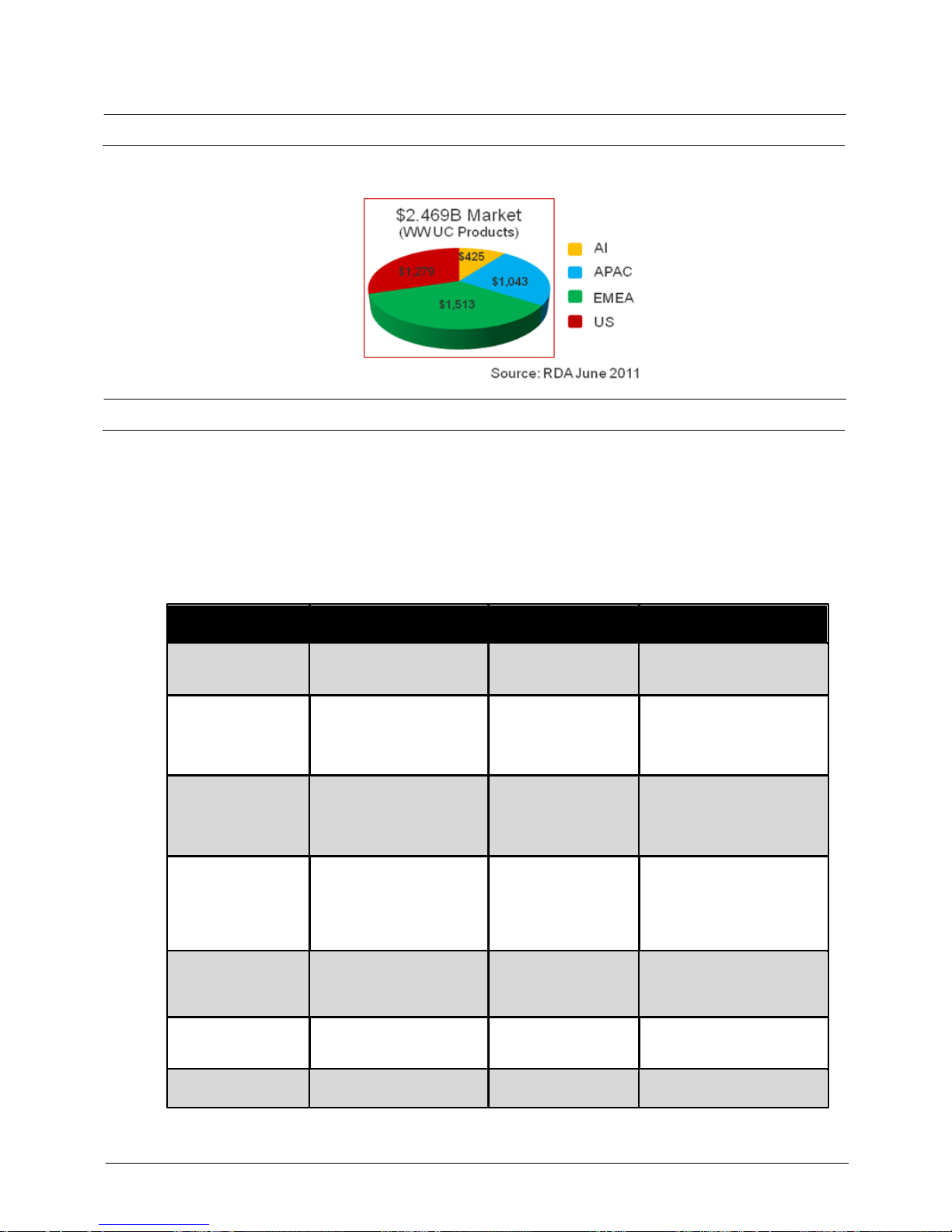
Product Description
IP Office 8.1
© 2012 AVAYA All rights reserved.
Page 77
Issue 26.k.- (16 August 2012)
4. IP Office Server Edition
Mid-market Overview
The term 'mid-market' refers to midsize enterprise companies with 250 to 1000 users. The total addressable
market is about a ~$2.5B market on the products side and an additional $4.6B for services.
IP Office Solution Overview
IP Office Server Edition has been specifically designed to address up to a 1000 users on a single site and also to
accommodate companies with up to a 1000 users across 32 locations.
The top two requirements that the majority of the mid-sized enterprise customers are looking for in their
unified communications solutions are Total Cost of Ownership (TCO) and simplicity. IP Office showcases the
best TCO advantage compared to the competition, including one of the simplest solutions to deploy and
manage.
Differences Between IP Office Server Edition and IP Office Preferred/Advanced
Edition
Feature
Preferred/Advanced
Edition
Server Edition
Server Edition Comments
Capacity
32 locations
1000 users total
7200 BHCC
32 locations
1000 users total
14400 BHCC (Max)
Multi-Site (SCN)
Freeform
Star, mesh, chain
SCN trunks anywhere
SCN trunk channels licensed
Single or double star
No additional SCN
trunks
Unlimited SCN trunk
channel licenses
Restricted topology allows
many optimizations
Other H.323 trunk types still
allowed
Administration
Limited centralized (Multisite (SCN) Manager)
Fully centralized
(Server Edition
Manager)
Consolidated mode for full
centralization. Nonconsolidated mode for
freeform per device
configuration
Licensing
Distributed
Central pool
All common licenses
centralized.
Some still distributed (See
section 6.6.4 for a complete
list)
All administered centrally
User Profile
Licenses
Telecommuter
Mobile Worker
Office Worker
Power User
Office Worker
Power User
O/G Call Routing
no default assistance
Simplified
SE Manager and default
routes allow simpler O/G call
routing
I/C Call Routing
no default assistance
Simplified
Common ICRs allow simpler
I/C call routing and resilience
Page 78

Product Description
IP Office 8.1
© 2012 AVAYA All rights reserved.
Page 78
Issue 26.k.- (16 August 2012)
Time
Freeform
Simplified by default,
can still be freeform
Primary Server acts as
solution time server by
default
System directory
Freeform
Simplified by default,
can still be freeform
Primary Server acts as
solution directory server by
default
Fax transport
IP Office T.38 fax transport
G.711 fax transport
No need to configure codec
sets to enforce; G.711 fax
transport used automatically
SIP Trunk Direct
Media to remote
device across SCN
None
Direct media supported
to remote H.323 and IP
DECT endpoints
Includes SIP Info and RFC
2833 support
Hunt Groups
Freeform
Hunt groups only on
primary
Performance optimized for
VMPro location (also on
Primary)
Automatic resilience when
secondary present
Overcomes SoftConsole
limitations
SoftConsole
Up to 4 per IP Office
Up to 10 on Primary
Overcomes SoftConsole IP
connectivity and SCN
limitations
Add/remove device
Manual
Integrated via SE
Manager
Auto population of Multi-Site
links and common
configuration
Device Status/
connectivity
Not checked
Access and
interconnects checked
by SE Manager
Immediate indication if device
offline or incorrectly
networked
IP Office Initial
configuration
Manual
Automated with Initial
Configuration Utility
(ICU)
Remote install technician
without IP Office knowledge
Upgrades
Individual
Centralized
Backup/restore
Individual per IP Office and
per application
Centralized
Security settings not backed
up
Embedded VM/AA
Supported
Not supported
Central VMPro only
Voicemail Pro
Ports
40
100
Additional VMPro ports (up-to
100 Max) can be added on
Secondary server for
resiliency
Voicemail Pro
VRL, VRLA, VBA,
Database access
Supported on Windows
VMPro server
Not supported
CCR
Supported
Not supported
Use DevConnect Solutions for
Call Center/Contact Center/
Call Reporting applications
Software
distribution
Admin DVD + Apps DVD
Single ISO distribution
Software Only
Solution
No
Yes (Controlled
introduction at present)
Single management
portal
No
Yes
Page 79

Product Description
IP Office 8.1
© 2012 AVAYA All rights reserved.
Page 79
Issue 26.k.- (16 August 2012)
Differences Between IP Office Server Edition Multi-Site Solution and IP Office
Legacy SCN Multi-Site Solution
Feature
IPO SCN
Server Edition MultiSite
Server Edition Comments
Topology
Freeform
Star, mesh, chain
SCN trunks anywhere.
Single or double star.
No additional SCN
trunks
Restricted topology allows
many optimizations.
Other H.323 trunk types still
allowed
Administration
Limited centralized (SCN
Manager)
Fully centralized
(Server Edition
Manager)
Consolidated mode for full
centralization. Nonconsolidated mode for
freeform per device
configuration
Licensing
Distributed
Central pool
All common licenses
centralized
Some still distributed
All administered centrally
SSL VPN
Separate independent
access
Integrated access via
Server Edition (SE)
Manager
Allows remote solution
management behind Services
VPN Gateway
O/G Call Routing
Complex, no default
assistance
Simplified
SE Manager and default
routes allow simpler O/G call
routing
I/C Call Routing
Complex, no default
assistance
Simplified
Common ICRs allow simpler
I/C call routing and resilience
Time
Freeform/complex
Simplified by default,
can still be freeform
Primary Server acts as
solution time server by
default
System directory
Freeform/complex
Simplified by default,
can still be freeform
Primary Server acts as
solution directory server by
default
Fax transport
IP Office T.38 fax transport
across SCN
G.711 fax transport
across SCN
No need to configure codec
sets to enforce; G.711 fax
transport used automatically
SIP Trunk Direct
Media to remote
device across SCN
None
Direct media supported
to remote H.323 and IP
DECT endpoints
Includes SIP Info and RFC
2833 support
Phone Resilience
Admin
Freeform/complex
Simplified
SE Manager admin allows
only Primary and/or
Secondary to act as phone
backup server
Hunt Groups
Freeform
Hunt groups only on
primary
Performance optimized for
VMPro location (also on
Primary)
Automatic resilience when
secondary present
Overcomes SoftConsole
limitations
SoftConsole
Up to 4 per IP Office
Up to 10 on Primary
Overcomes SoftConsole IP
connectivity and SCN
limitations
IP Phones with no
default user
Not resilient
Resilient
Allows hot desk phones to be
resilient
Add/remove node
Manual
Integrated via SE
Manager
Auto population of Multi-Site
links and common
configuration
Offline device
Cannot be managed
Managed via SE
Manager
Includes online/offline
synchronization
Page 80

Product Description
IP Office 8.1
© 2012 AVAYA All rights reserved.
Page 80
Issue 26.k.- (16 August 2012)
Device Status/
connectivity
Not checked
Access and
interconnects checked
by SE Manager
Immediate indication if device
offline or incorrectly
networked
SCN trunk channels
Limited by licenses
Unlimited
No multi-networking license
required
IP Office Initial
configuration
Manual
Automated with Initial
Configuration Utility
(ICU)
Remote install technician
without IP Office knowledge
Upgrades
Individual
Centralized
Upgrades to all remote nodes
can be performed from
Primary Location
Backup/restore
Individual per IP Office and
per application
Centralized
Security settings not backed
up
Page 81
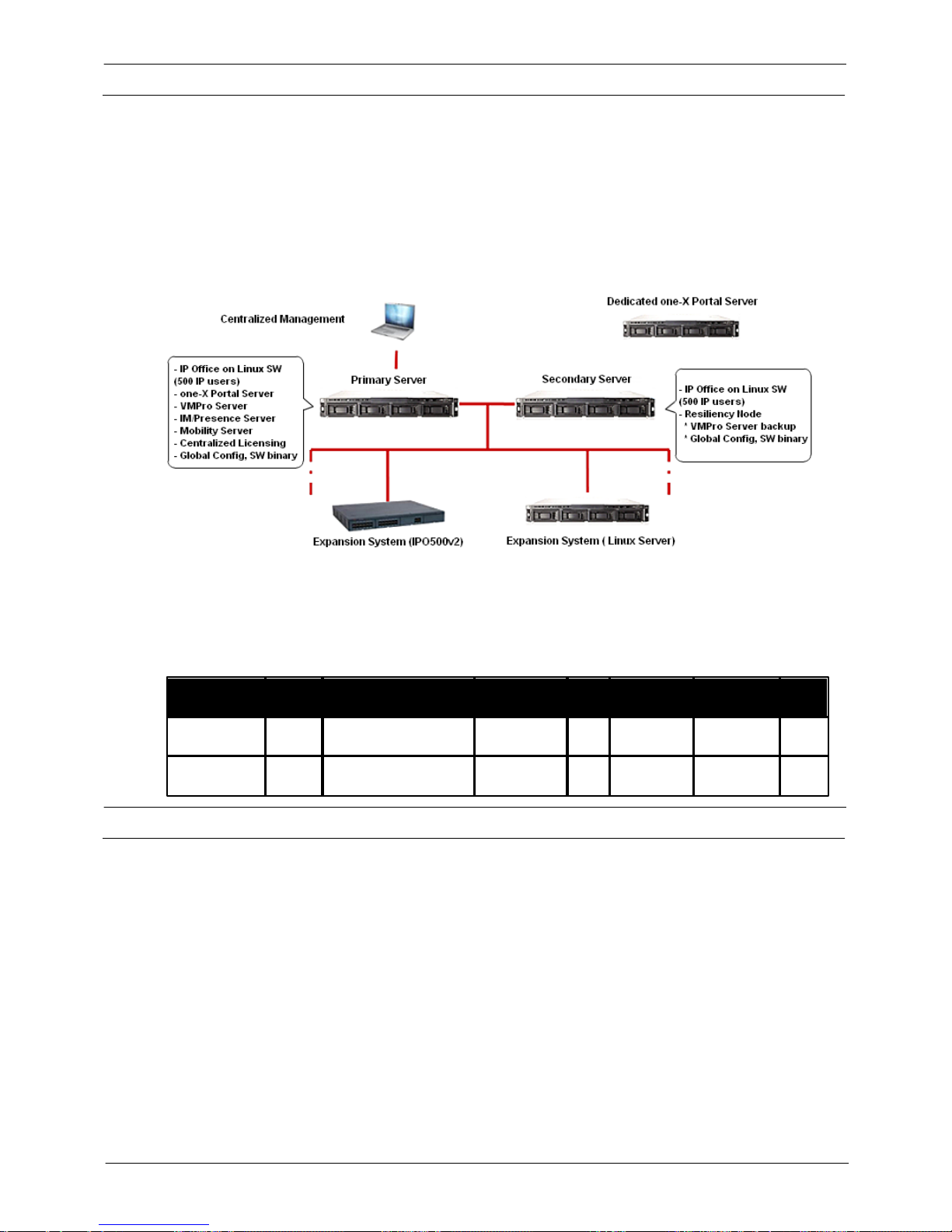
Product Description
IP Office 8.1
© 2012 AVAYA All rights reserved.
Page 81
Issue 26.k.- (16 August 2012)
IP Office Key Components
IP Office address Mid-market via three key components:
1.
IP Office software running on a Linux server (required).
2.
IP Office software running on the IP500v2 (optional).
3.
IP Office Server Edition license (required for each component).
Note: The IP500v1 chassis is not supported with IP Office Server Edition.
The software running on both the Linux server and the IP Office 500v2 is identical and hence the feature set
delivered by the two components are the same (except those listed below) and co-exist as part of a single
solution.
The Primary Server running the Avaya IP Office Server Edition Linux software is the main server and the only
mandatory component required for the IP Office Mid-market offer to work. A secondary Linux server can be
added for additional scalability and/or resiliency. The IP Office 500v2 expansion system can also be added for
additional scalability or for adding support for analog/digital stations and trunk ports.
Following are the server models that Avaya will source:
Model #
Order
Code
Description
Application
RAM
CPU
Power
Supply
RAID
HP DL360G7
270393
DL360G7 SRVR IPO
R8.1+SE PRIMARY
Primary or
Secondary
12GBDual Quad-
Core
Hot Swap
Yes
HP DL120G6
270395
DL120G7 SRVR IPO
R8.1+SE EXP
Primary or
Secondary
12GBSingle Quad-
Core
Single
N/A
IP Office Deployment Options
Increasingly, companies have started adopting a pure IP model with SIP trunking. However, many companies
still prefer a hybrid solution with a mix of analog, digital, and IP stations, as well as TDM trunking options.
IP Office has been designed with these different solution requirements for different customer needs in mind.
The flexibility and variety of the deployment options make the IP Office solution a very versatile solution and
caters to different product needs.
There are two deployment scenarios for IP Office:
1.
Server Edition with pure IP deployment:
· All IP phones with SIP trunking everywhere
· Use Avaya-sourced server for Applications, IP phones, and SIP trunks
2.
Server Edition with hybrid deployment:
· A mix of Analog, Digital, or IP phones everywhere
· Use Avaya-sourced server for Applications, IP phones, and SIP trunks
· Use IP500v2 for TDM stations and trunking
Page 82
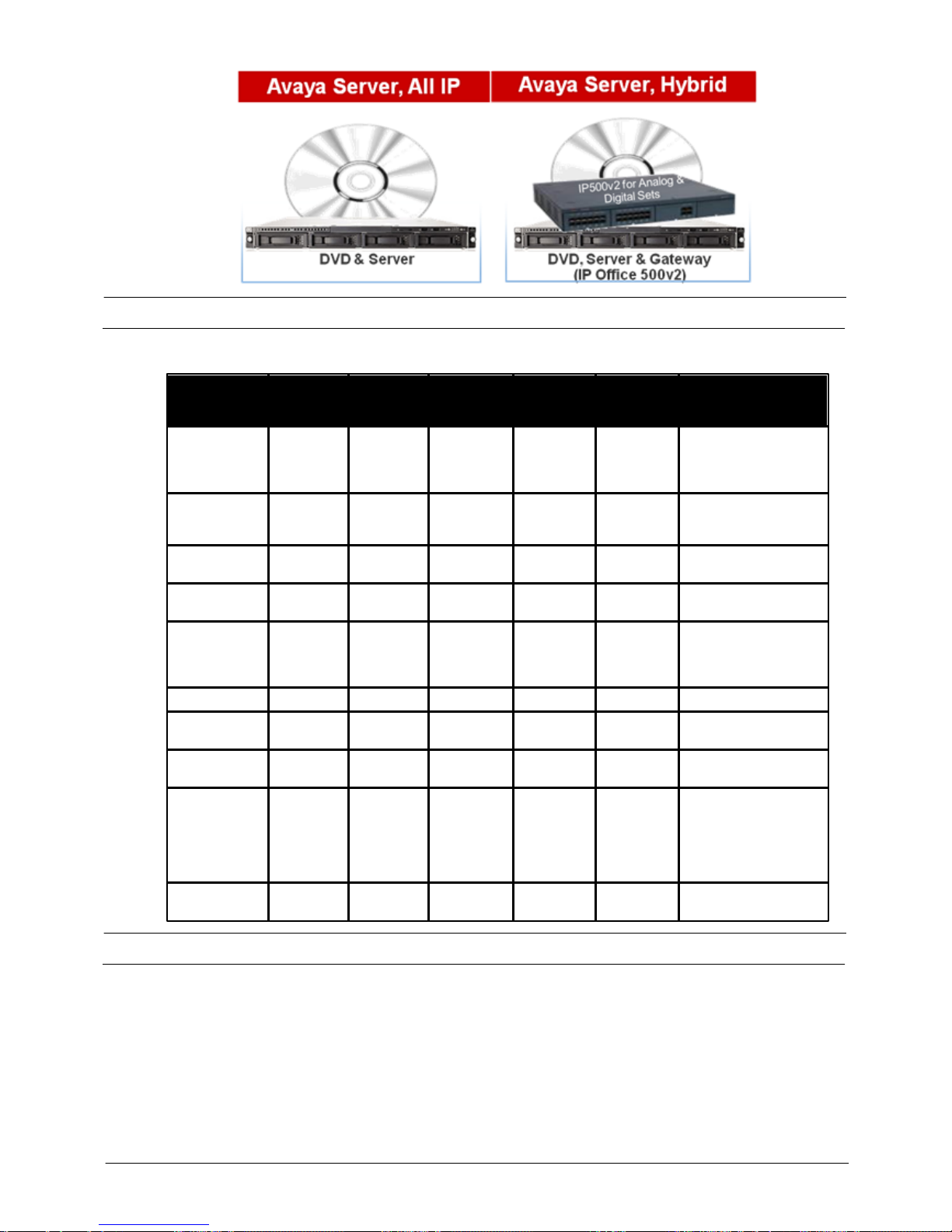
Product Description
IP Office 8.1
© 2012 AVAYA All rights reserved.
Page 82
Issue 26.k.- (16 August 2012)
IP Office Scalability
IP Office is designed to scale up to support a 1000 users on a single site or across a maximum of 32 sites. The
table below lists the servers and server capacities.
Primary
Server
Secondary
Server
IP500v2
Expansion
System
Linux
Expansion
System
Dedicated
1X Portal
Server
Comments
Avaya Tested
and Sourced
HP DL 360
G7
HP DL120
G7
HP DL 360
G7
HP DL 120
G7
IP 500 v2
HP DL 120
G7
HP DL 120
G7
HP Servers tested and
sourced by Avaya
Avaya Tested
but NOT
Sourced
Dell R610
Dell R610
N/A
Dell R210
Dell R210
Dell servers tested by
Avaya
User
Scalability
DL360: 500
DL120: 250
DL360: 500
DL120: 250
384
500
N/A
1x Portal
Scalability
DL360: 200
DL120: 100
N/A
N/A
N/A
500
VMPro Port
Scalability
DL360: 100
DL120: 40
DL360: 100
DL120:
40
N/A
N/A
N/a
Centralized deployment
only with voicemail
resiliency on
secondary.
Receptionists
10
N/A
N/A
N/A
N/A
Conference
Channels
128
128
SIP/H.323
Trunks
DL360: 250
DL120: 125
DL360: 250
DL120: 125
125
125
N/A
Phones
DL360: 500
IP Phones
DL120: 250
IP Phones
DL360: 500
IP Phones
DL120: 250
IP Phones
384 Analog,
Digital,
H.323, or
SIP
IP-DECT* or
Wi-Fi
500
N/A
* 120 IP DECT
endpoints maximum
**Avaya 16xx/96xx
H.323 endpoints only
VCM
Channels
N/A
N/A
148
N/A
N/A
G.711, G729, G.723,
G.722, T.38
IP Office Resiliency
IP Office resiliency can be divided into three distinct categories. The primary server and secondary server can
each support up-to 1000 users in Resilience mode.
Note: The Primary and Secondary servers can be C-located or can be on separate locations to support GeoRedundancy.
Page 83
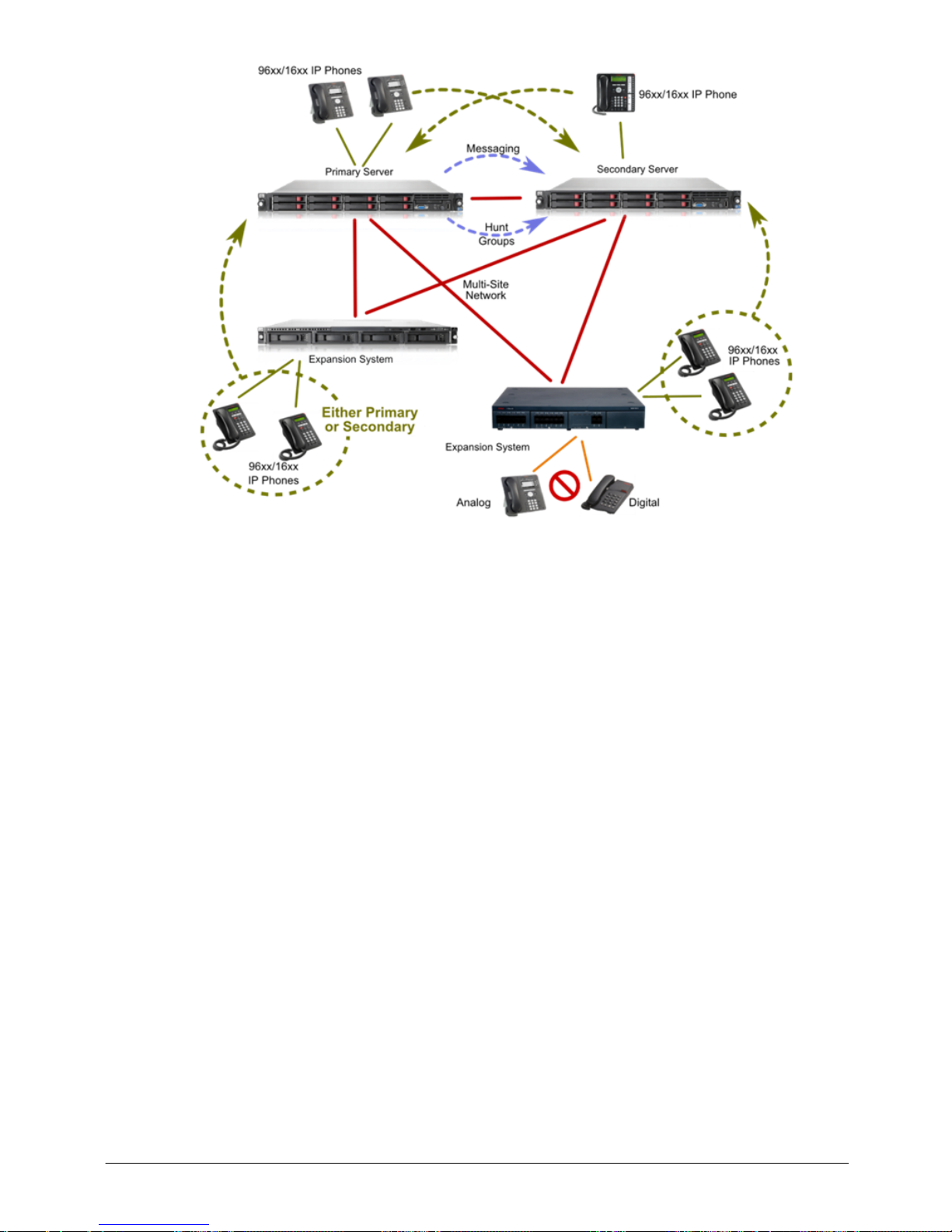
Product Description
IP Office 8.1
© 2012 AVAYA All rights reserved.
Page 83
Issue 26.k.- (16 August 2012)
1.
Hardware Resiliency
· RAID support
· Dual PSU on Avaya sourced HP DL360 G7
2.
Users and Application Resiliency
· VMPro server – Primary + Backup in 1+1 redundant active/passive configuration. Manual or autofailback control.
· IP Phones – 1:1 resilience to backup IP Office. Manual failback control (Phone reset). Avaya H.323
phones only.
Note: Expansion systems (gateways) cannot act as backup nodes for the Linux Servers.
· Hunt groups - 1:1 resilience to backup Server. Auto-failback control (device rediscovery – idle group).
· Inter IP Office device links – Multi-Site Network (SCN) backup. Double star. 1:1 resilience. Auto-
failback control (device rediscovery)
· Inter IP Office device links – PSTN backup. M:N resilience via Alternate Route Selection (ARS). Autofailback control (link availability)
· Trunks – M:N resilience via ARS. Auto-failback control (trunk availability)
· Incoming Call Routes – Incoming Call Routes are common to all devices hence persist on user failover
3.
Trunk Resiliency
· PSTN Back-up
Page 84
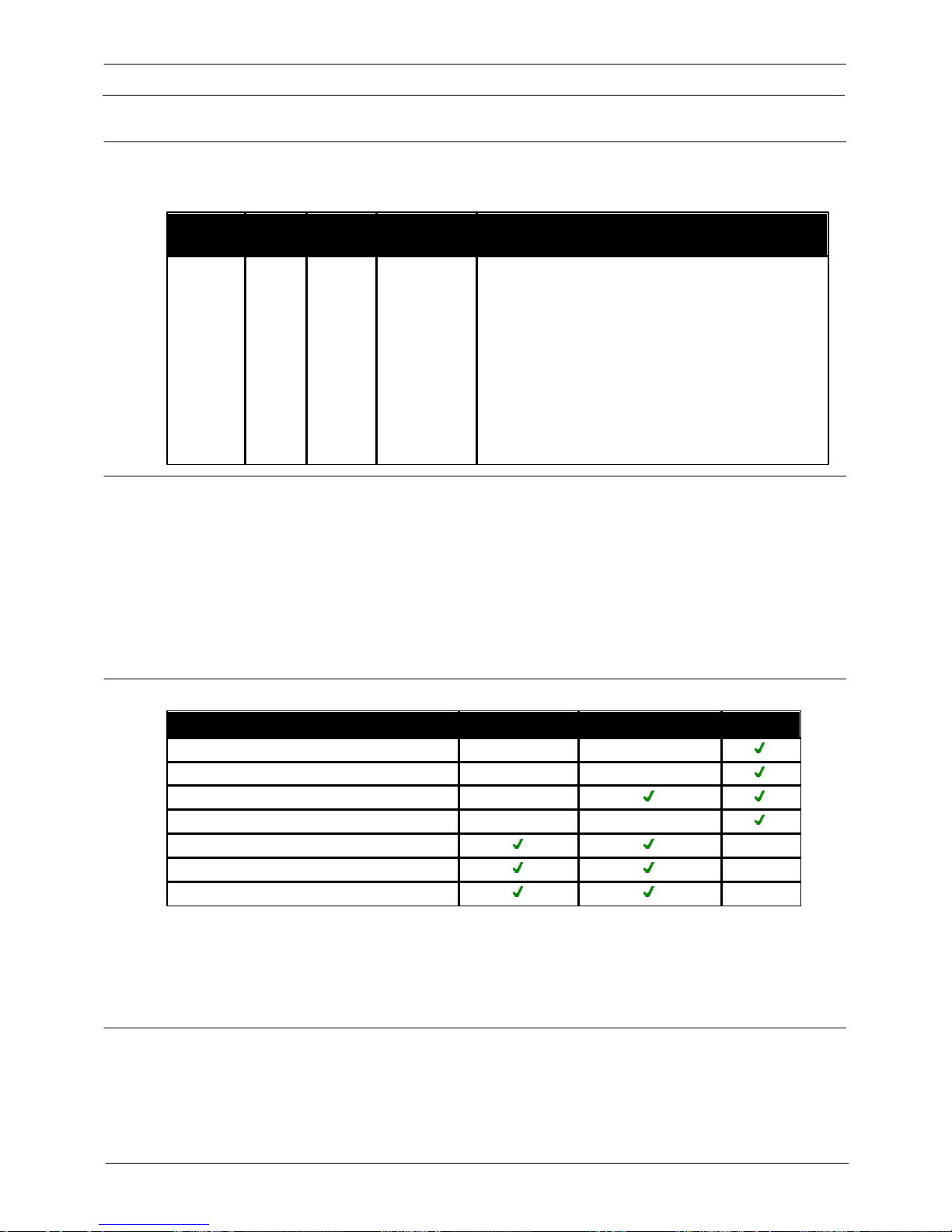
Product Description
IP Office 8.1
© 2012 AVAYA All rights reserved.
Page 84
Issue 26.k.- (16 August 2012)
IP Office Centralized Licensing
IP Office Server Edition supports centralized licensing. All the user-specific and system-specific licenses can be
managed from the Primary Server that also acts as the centralized licensing server.
New Licenses
The only new license for the IP Office is the new system software license called Server Edition. The feature Key
Serial Number (System ID) is derived from platform hardware.
License
Name
Order
Code
License
Type
License
Description
Comments
Server
Edition
270397
System
SW
IPO R8.1+
SERVER
EDITION LIC
Required per node (Linux server or IP500v2)
Bundles in:
1.
Features from Essential Edition
2.
Features from Preferred Edition
3.
Centralized VMPro
4.
Two (2) ports of VMPro
5.
Unlimited SCN(multisite networking) channels
Enables meet-me conferencing, advanced messaging,
automated attendant, call recording, conditional call
routing, queue announcements, mobile twinning, call
control and call-back.
Note: Advanced Edition is not supported on Server
Edition.
IP Office Centrally Residing Licenses
· Server Edition (includes aggregation of VMPro ports from all nodes)
· Avaya and 3rd-party Endpoints
· SIP trunk channels
· Office Worker
· Power User
· Receptionist (for SoftConsole)
· UMS Web Services (for hunt groups)
IP Office Locally Residing Licenses
License Name
Primary Server
Secondary Server
IP500v2
Additional PRI Channels
IPSec Tunnelling
CTI Link Pro
TAPI Wav
Additional Messaging Ports
Messaging TTS Pro
Messaging Recordings Administrators
Notes:
· All locally residing licenses are still managed centrally using the Manager tool.
· The Locally residing licenses need to be provisioned separately based on the table above.
· For Voicemail resiliency, separate VMPro Ports on the Secondary Server are required to support more than
the two (2) default ports.
Voice Compression Module (VCM) v2
The current versions of the VCM32 and VCM64 modules include 12 IP endpoint licenses.
The new VCM32v2 and VCM64v2 does not include the 12 IP endpoint licenses. This allows all IP endpoint
licenses to be centrally managed by the server edition.
Page 85

Product Description
IP Office 8.1
© 2012 AVAYA All rights reserved.
Page 85
Issue 26.k.- (16 August 2012)
Material Code
Description
700504031
VCM 32 V2 NEW
700504032
VCM 64 V2 NEW
Using VCM32v1 and VCM64v1 with R8.1
1.
With SME editions
· The VCMs will work as-is and will include 12 IP endpoint licenses.
2.
With Server edition
· The 12 IP Endpoint licenses will be included locally on the IP500v2 expansion systems. These 12 IP
endpoint licenses will not be available on the primary server for centralized management. These licenses
will need to be managed locally.
Using VCM32v2 and VCM64v2 with R8.1
1.
With SME editions
· The VCMs will work as-is and will NOT include 12 IP endpoint licenses.
2.
With Server edition
· The VCMs will work as-is and will NOT include 12 IP endpoint licenses.
Using VCM32v1 and VCM64v1 with R8.0
· No change.
Using VCM32v2 and VCM64v2 with R8.0 or earlier
· A service pack will be required for the SW to recognize the v2 versions of the card.
IP Office Server Edition Unsupported Licenses
The following is a list of licenses that are not applicable or supported with IP Office Server Edition.
· Advanced Edition-CCR Agent and Supervisor (CCR not yet supported on Server Edition)
· Teleworker, Mobile Worker, and Avaya Softphone licenses
· Embedded Messaging Ports (Embedded messaging not supported on Server Edition)
· VMPro TTS (Generic/Scansoft), Networked Messaging, Database interface, VB Script (Not supported on
VMPro for Linux)
· All Avaya Office Aura Edition (B5800) licenses
· Various legacy licenses (CCC, Phone Manager, VCM channels, Mobility)
Page 86
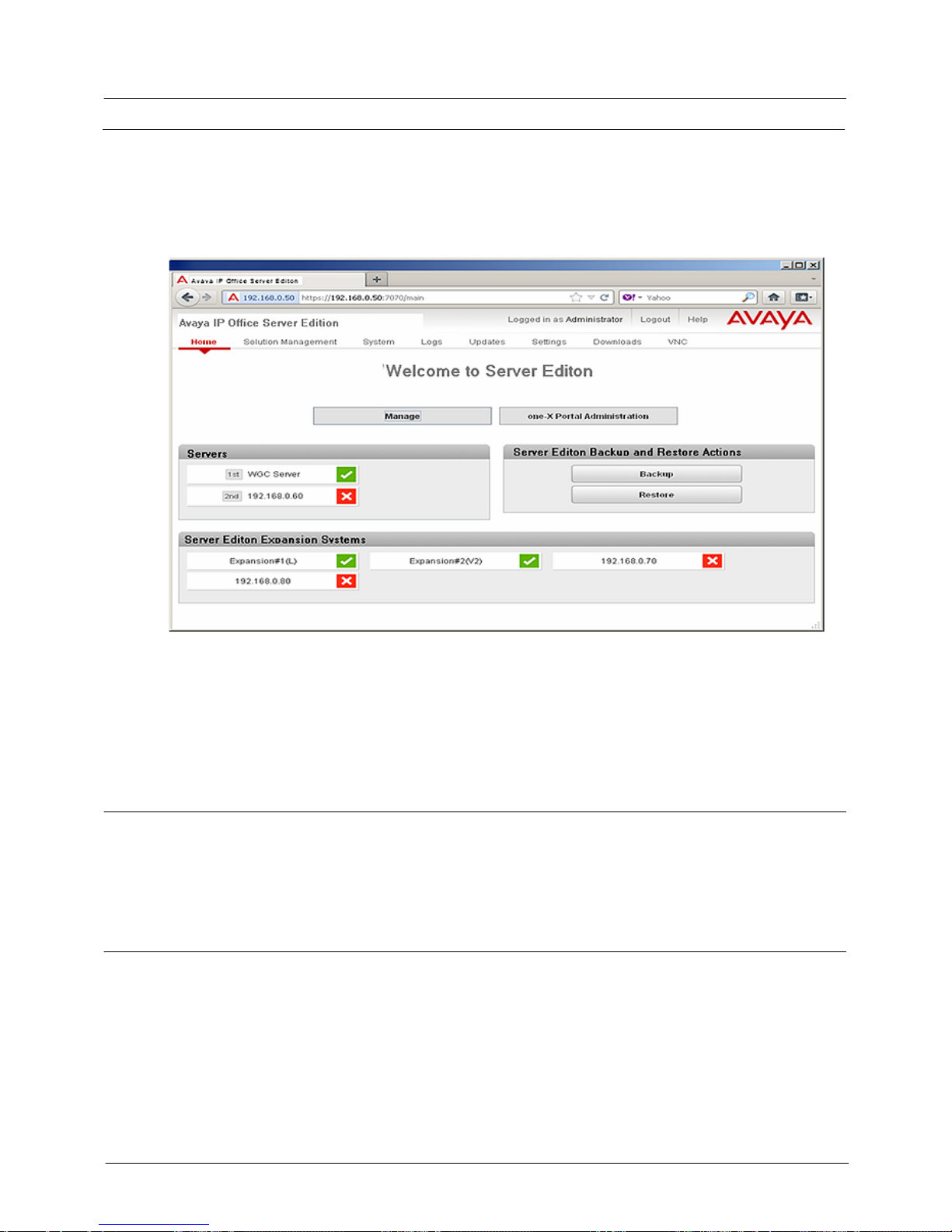
Product Description
IP Office 8.1
© 2012 AVAYA All rights reserved.
Page 86
Issue 26.k.- (16 August 2012)
IP Office Centralized Management
The IP Office Server Edition management framework includes a Web Control GUI that acts as key element for
centralized management and provides solution-wide status and control. From this control GUI page, installers
can manage and control the different Linux sub-systems and various global controls like back-up and restore,
software upgrades, inventory management, and more.
This web control GUI also acts as a central repository for other management tools including IP Office Manager,
VMPro Manager, one-X Portal Manager, SSA, and system monitor, as well as security, password, and inventory
management.
The IP Office Manager can be launched directly from the web control GUI. If the manager tool does not exist,
the web control GUI automatically downloads and installs the latest version of the manager tool.
The following PBX functions are solution-wide at a multi-site level:
· Users
· Hunt Groups
· Short Codes
· Incoming Call Routes
· Directory
· Time Profiles
· Account Codes
· User Rights
Templates
Several templates are supported and can be created from the IP Office Manager in the Server Edition mode:
· Line, User
· Extension
· Hunt Group
· Time Profile
· Firewall
· IP Route
· ARS entries
Note: IP Office Manager supports both online as well as offline configuration modes.
Backup and Restore
IP Office Server Edition has several backup and restore options:
· Automated 24 hour local backup of firmware, configuration, and security settings (not Linux packages)
· Manual backup/restore commands from Phone, SSA, Manager
· Automated use of backup copy on restart errors
· IP Office Manager for Server Edition saves a complete set of configuration files on Primary Server and can
optionally save to local PC directory
Page 87

Product Description
IP Office 8.1
© 2012 AVAYA All rights reserved.
Page 87
Issue 26.k.- (16 August 2012)
· VMPro and one-X Portal can be administered to save periodic backup sets on the Primary Server (manual
or automatic)
· Primary Server has manual Backup/Restore commands on Web Control that copies all backup file sets
· No automated options
· No application packages
Installation and Upgrades
License Name
Order Code
License Type
License Description
Comments
Installation
DVD
700503228
System SW DVD
IPO R8.1 SERVER EDITION
INSTL DVD
1.
A single distribution contains the software components for the whole solution, which includes the server
and user applications, as well as phone and Avaya Office 500 firmware.
2.
Avaya servers come with distribution pre-installed.
3.
Linux servers support a web based 'Ignition' process to personalize them for their intended use:
a.
Primary
b.
Secondary
c.
Linux Expansion
d.
one-X Portal server
4.
A simple, single screen utility (Initial Configuration Utility) is run automatically to allow an Avaya Office
device to be centrally-detected and administered as part of the solution.
5.
Upgrades are automated, solution-wide, and centrally-managed.
Ignition Process
The IP Office Ignition process involves using a simple utility to seamlessly add/install expansion systems such
that they can become part of a single logical Server Edition multisite network. This utility is designed for
installers who lack detailed IP Office knowledge. The installer needs to know some basic LAN and Primary/
Secondary Server information and must pre-populate most fields with existing data.
Much of the configuration is handled behind the scenes and includes security settings, multi-site networking
(SCN) trunks, users, extensions, voicemail, directory, time, ARS, short codes, etc.
Documentation, Training, and Localization
Documentation
IP Office documentation will be available in the following languages:
· US English
· French
· LA Spanish
· German
· Italian
Training
A four (4) hour web-based training activity will be available that covers the IP Office Mid-market
content for Release 8.1. Training will be available in English only.
Page 88
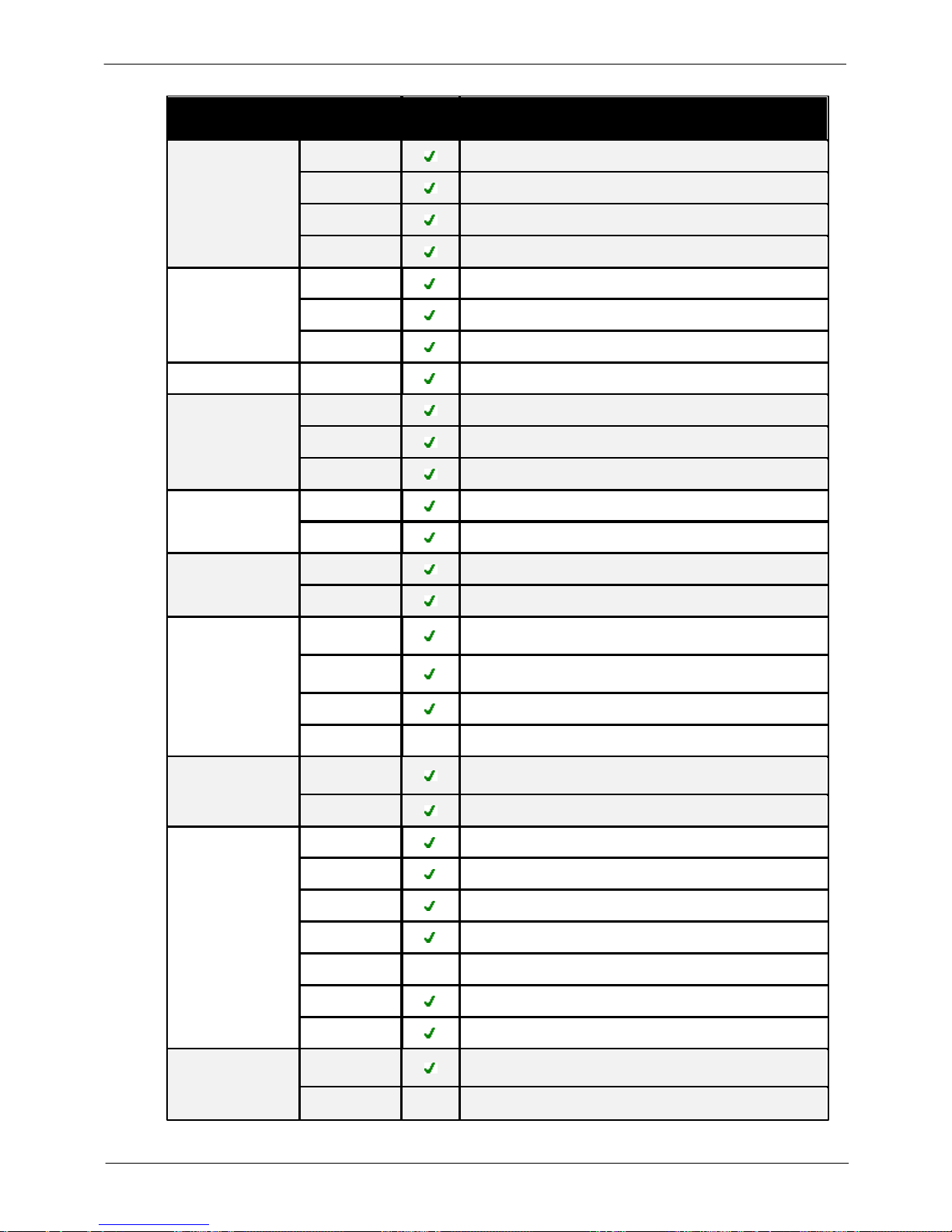
Product Description
IP Office 8.1
© 2012 AVAYA All rights reserved.
Page 88
Issue 26.k.- (16 August 2012)
Localization
Application
EFIGS
Other (see language codes below)
CCR
GUI
RUS, PTB, NLD
Installer
RUS, PTB
Admin docs
RUS
User docs
RUS, PTB
Manager
GUI
Simp CH, PTB, NLD
Admin docs
Simp CH, RUS, PTB
Install docs
Simp CH, RUS
Quick Manager
Install docs
RUS
Video Softphone
GUI
Simp CH, RUS, PTB, JPN, NLD
User doc
Simp CH, PTB
Install doc
RUS
one-X Portal
GUI
Simp CH, RUS, PTB, NLD
Docs
Simp CH, RUS, PTB, NLD
SSA
GUI
Simp CH, PTB, NLD
Admin doc
Simp CH, RUS, PTB, JPN
VmPRO
GUI
Simp CH, RUS, PTB, KOR, NLD, DAN, FIN, NOR, PTG, ESP,
SVE
Prompts
Simp CH, RUS, PTB, KOR, NLD, DAN, FIN, ELL, HUN, NOR,
PLK, PTG, ESP, SVE
Admin Doc
RUS
User Doc
*ESLA
Simp CH
Embedded
Voicemail
Prompts
Simp CH, RUS, PTB, KOR, NLD, DAN, FIN, NOR, PTG, ESP,
SVE
Docs
--
Phones
GUI
Simp CH, RUS, PTB, NLD, DAN, FIN, NOR, PTG, ESP, SVE
9500 doc
Simp CH, RUS, PTB
BST doc
--
B100 doc
PTB
4600/5600 doc
E, Fr
Simp CH, NLD
1100/1200 doc
PTB
1600 doc
Simp CH, RUS
Softconsole
GUI
Simp CH, RUS, PTB, KOR, NLD, DAN, FIN, NOR, PTG, ESP,
SVE
Docs
E, Fr
Simp CH, RUS
Page 89

Product Description
IP Office 8.1
© 2012 AVAYA All rights reserved.
Page 89
Issue 26.k.- (16 August 2012)
*Localization table language codes:
· EFIGS: US English, French,
Italian, German, LA Spanish
· Simp CH: Simplified Chinese
· RUS: Russian
· PTB: Brazilian Portuguese
· KOR: Korean
· JPN: Japanese
· NLD: Netherlands
· DAN: Denmark
· FIN: Finland
· ELL: Greece
· HUN: Hungary
· NOR: Norway
· PLK: Poland
· PTG: Portuguese
· ESP: Spanish
· SVE: Swedish
Serviceability
IP Office supports serviceability via SSL/VPN technology. The SSL/VPN client is embedded in the IP Office
software (both for IP500v2 and Linux). The server side is the Avaya VPN Gateway (AVG). AVG is virtualized
software can be loaded on any server (see server hardware requirements).
Note: Please refer to SSL/VPN Remote Access for more details on Serviceability.
295
Page 90

Product Description
IP Office 8.1
© 2012 AVAYA All rights reserved.
Page 90
Issue 26.k.- (16 August 2012)
Chapter 5.
IP Office 500 Platform
Page 91

Product Description
IP Office 8.1
© 2012 AVAYA All rights reserved.
Page 91
Issue 26.k.- (16 August 2012)
5. IP Office 500 Platform
IP Office is a modular communications solution that scales from 2 to 384 extensions on a single platform. IP
Office supports up to 32 sites and 1000 users in a multi-site network with resilient and redundant capabilities. It
provides a hybrid PBX with both Time Division Multiplexing (TDM) and IP telephone and trunk support that can
be used in either mode or both concurrently. IP Office has data capabilities built in, providing IP routing,
switching and firewall protection between LAN and WAN (LAN2). IP Office has a web based applications suite
that delivers contact center reporting, voice and email messaging, Interactive Voice Response, conferencing and
computer telephony integration.
IP Office solutions are built from hardware units and application software. Hardware provides the connectivity
for voice and data circuits and processor units for the solution software. Each IP Office solution will require a
system control unit (IP500 V2), trunk connections to service provider, and expansion modules for TDM
telephone cabling. IP Telephones connect over LAN connections to the IP Office solution.
IP Office 500 Control Unit
The IP500 V2 control unit is compatible with all IP500 base extension and Voice Compression Modules (VCM)
cards as well as all external IP500 expansion modules.
IP500 V2 is a stackable unit with an optional 19" rack mounting kit and an optional wall mounting kit for
smaller configurations. The control unit provides the following functionality:
· 4 slots to house a mixture of extension cards and VCM cards and the Unified Communications Module:
o
Digital Station 8 card. Supporting IP Office digital telephones
o
TCM8 Station card supporting select Nortel digital telephones (IP500 V2 control unit only)
o
Phone 2 and Phone 8 cards
o
VCM32 and VCM64 cards
o
4-Port Expansion card
o
ETR6 port phone card (IP500 V2 only, North America only)
o
Combination Card with 10 VCM channels, 4 analog trunks, 6 Digital Station (DS) and 2 Phone
ports (IP500 V2 only)
o
Combination Card with 10 VCM channels, 2 BRI trunk interfaces (4 channels), 6 Digital Station
(DS) and 2 Phone ports (IP500 V2 only)
· Optional trunk card support:
o
Analog Trunk Module 4 card
o
BRI4 and BRI8 cards (2 x 2B+D and 4 x 2B+D channels respectively)
o
Single and Dual Universal PRI cards
o
IP500 Legacy Card Carrier: this card allows up to two IP400 Trunk or VCM Cards to be used with
the IP500 control unit
o
IP500 V2: 2 Slots for SD cards (System and optional) – System SD card is required for system
operation as well as licensing of optional features and storage for embedded voicemail in Essential
Edition.
o
9-pin RS232 DTE Port for maintenance.
o
Support for up to 12 IP500 Expansion Modules:
· Phone modules (16, 30)
· Digital Station modules (16, 30) supporting IP Office telephones with RJ45 connector
· Digital Station modules (16A, 30A) supporting Nortel telephones with RJ21 connector (IP500
V2 control unit only)
· Analog Trunk Module 16
· IP500 So8 module
· IP400 expansion modules (not WAN3 10/100 or Network Alchemy modules)
o
External output socket supporting two relay on/off switch ports, e.g. for door entry systems
o
Audio input port for external music on hold source
Page 92
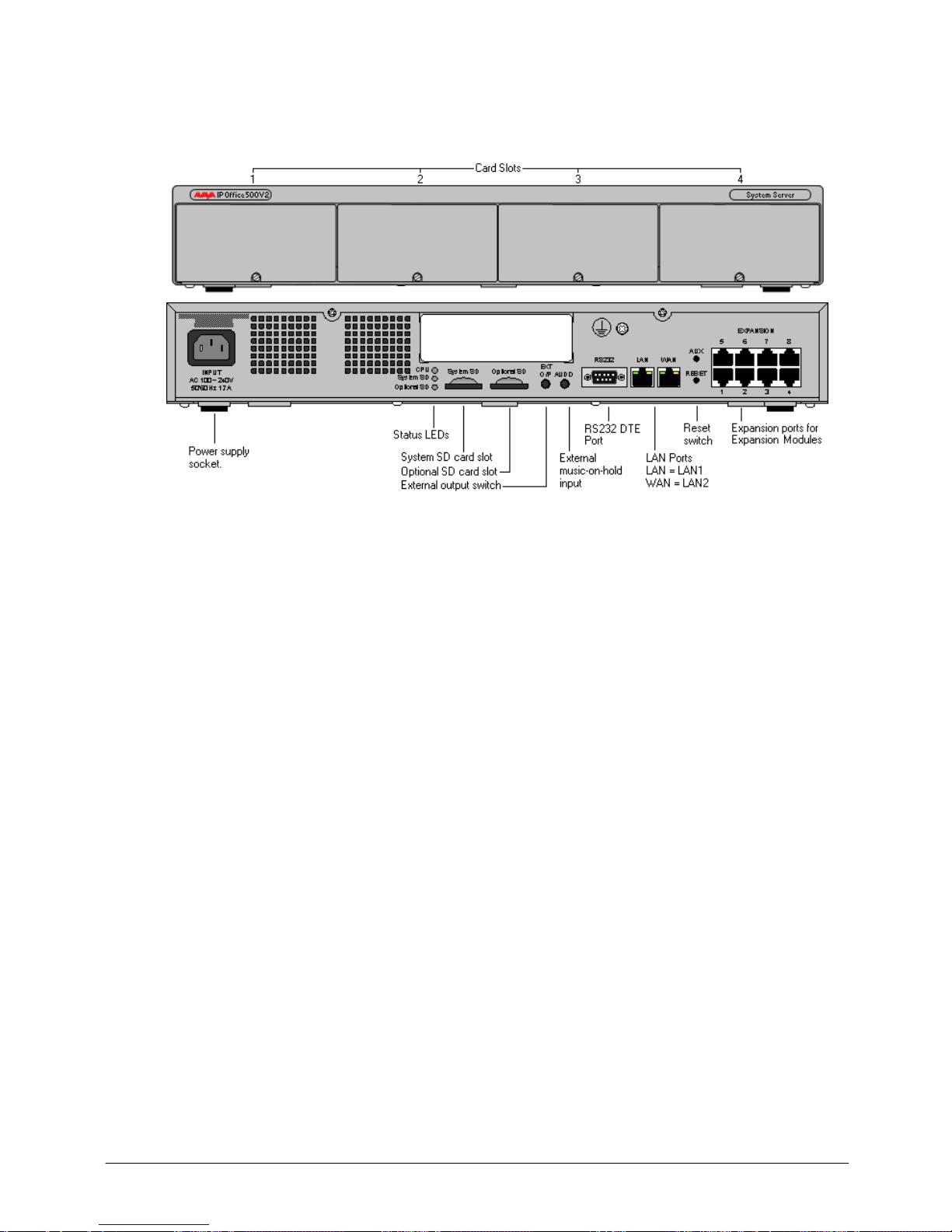
Product Description
IP Office 8.1
© 2012 AVAYA All rights reserved.
Page 92
Issue 26.k.- (16 August 2012)
o
48 Data channels
o
Up to 40 voicemail ports
o
Two 10/100 switched Ethernet ports (Layer 3)
Page 93
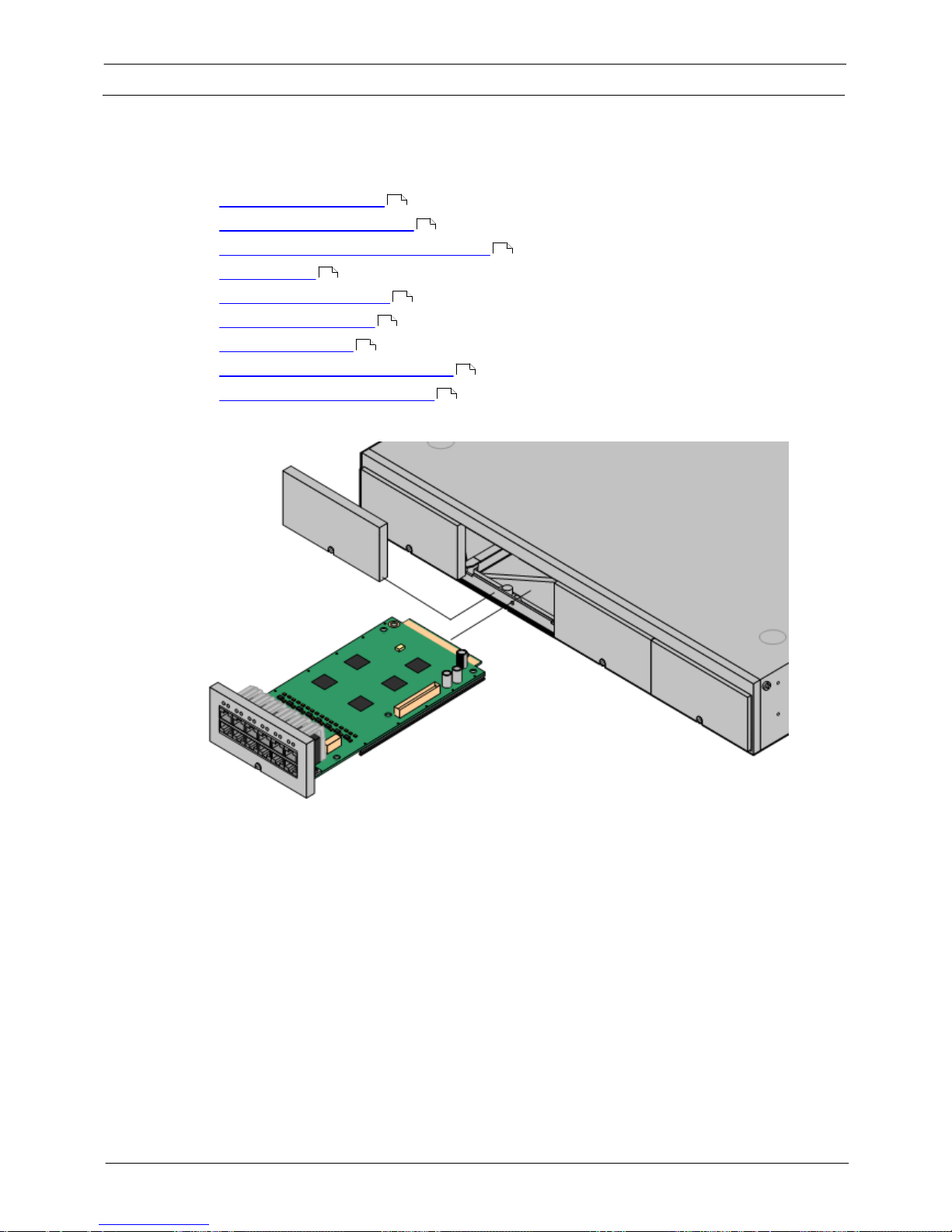
Product Description
IP Office 8.1
© 2012 AVAYA All rights reserved.
Page 93
Issue 26.k.- (16 August 2012)
IP500 Base Cards
The IP500 control unit has 4 slots for the insertion of cards. These cards can be divided into two types; base
cards and trunk cards. Base cards include a front panel and ports for cable connections. Trunk cards can be
added to a base card in order to provide additional facilities (typically trunk connections).
The following base cards are available:
· IP500 Digital Station 8 Card (Maximum 3)
· IP500 Digital TCM Station 8 Card (Maximum 4)
· IP500 Analog Phone 2 Card and Phone 8 Card (Maximum 4)
· IP500 VCM Card (Maximum 2)
· IP500 4-Port Expansion Card (Maximum 1)
· IP500 Legacy Card Carrier (Maximum 2)
· ETR 6 Port Phone Card (Maximum 3, IP500 V2 only)
· Combination Card with 4 Analog Trunks (Maximum 2, no trunk card, IP500 V2 only)
· Combination Card with 2 BRI Trunks (Maximum 2, no trunk card, IP500 V2 only)
94
94
95
97
97
98
95
96
96
Page 94
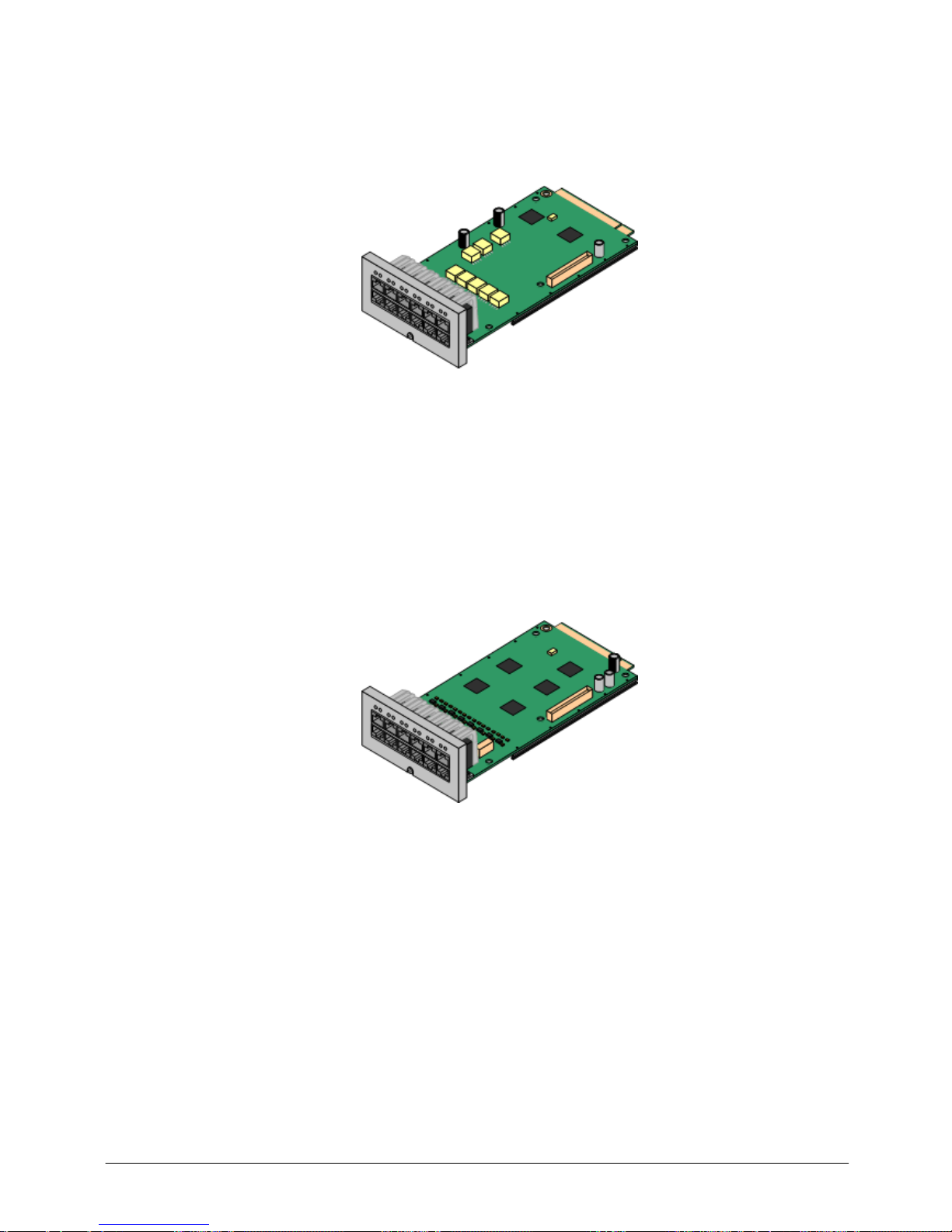
Product Description
IP Office 8.1
© 2012 AVAYA All rights reserved.
Page 94
Issue 26.k.- (16 August 2012)
IP500 Digital Station 8 Card
This card provides 12 RJ45 ports. The first 8 ports are DS ports for the connection of Avaya digital telephones
other than IP telephones. The card can be fitted with an IP500 trunk card, which then uses the additional 4
RJ45 ports for trunk connections.
A variant of the digital station card, Digital Station TCM8, supports select Nortel digital telephones. Refer to the
Telephone section for details.
· This card accepts one IP500 trunk card of any type.
· This card supports selected Avaya 2400, 5400 and 9500 Series telephones, plus T3 telephones(EMEA
only) and 3810 wireless telephones (North America only).
· 4400 Series telephones (4406D, 4412D and 4424D) are not supported on this card, only on Digital
Station expansion modules. Therefore a maximum of 360 x 4400 Series telephones are supported in
the system.
· 6400 Series telephones are supported but only if you are running pre-Release 7.0 in IP Office
'mode' (the phone will work after Release 7.0, but it will not be supported).
IP500 Analog Phone 2 Card
This card provides 2 analog extension ports (1-2) for the connection of analog telephones. The card can be
fitted with an IP500 trunk card, which then uses the last 4 RJ45 ports (9-12) for trunk connections.
· This card accepts one IP500 trunk card of any type.
Page 95
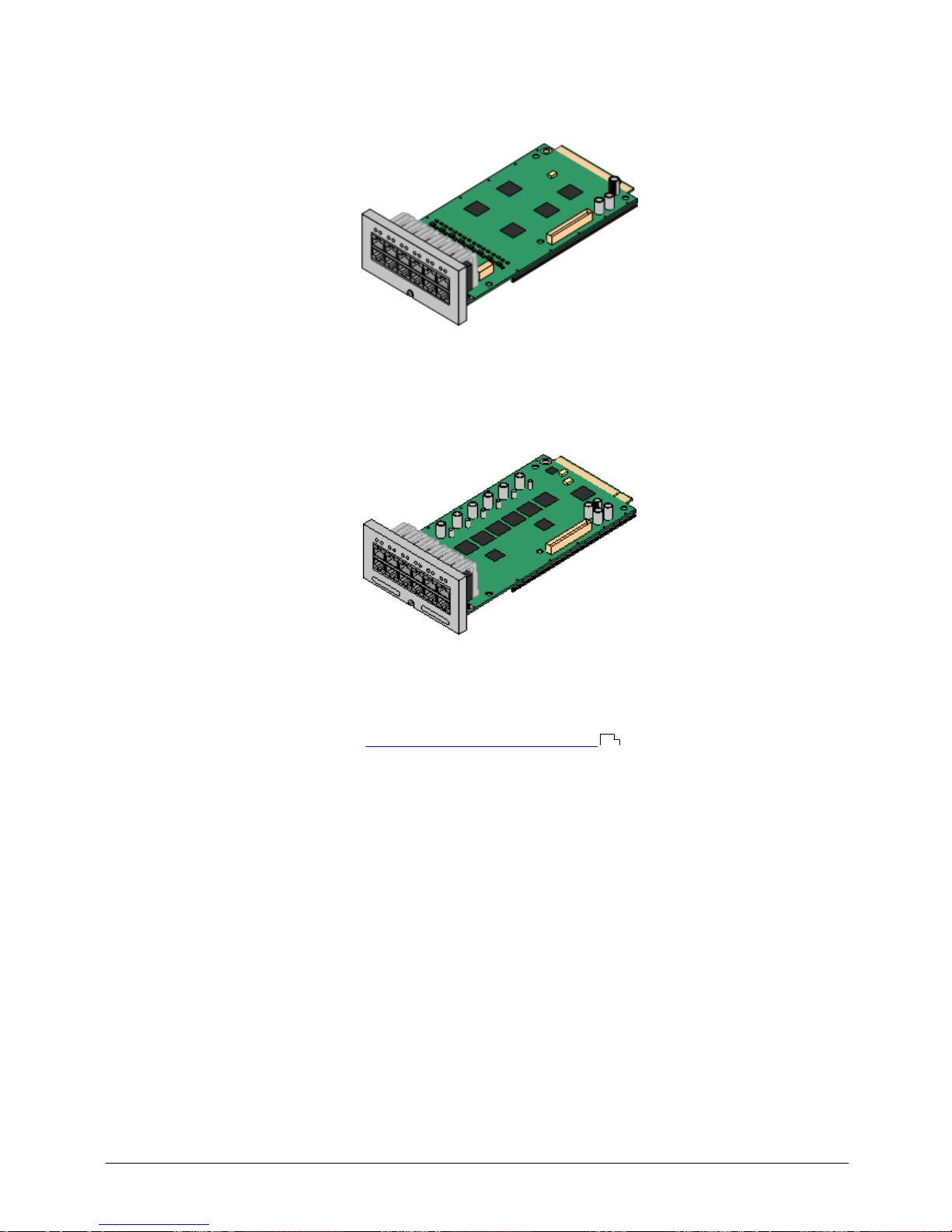
Product Description
IP Office 8.1
© 2012 AVAYA All rights reserved.
Page 95
Issue 26.k.- (16 August 2012)
IP500 Analog Phone 8 Card
This card provides 8 analog extension ports for the connection of analog telephones. The card can be fitted with
an IP500 trunk card, which then uses the additional 4 RJ45 ports for trunk connections.
· This card accepts one IP500 trunk card of any type. When fitted with an Analog Trunk card, it provides
a single power-fail port.
IP500 ETR 6 port Phone Card
This card can be fitted with an IP500 trunk card, which then uses the additional 4 RJ45 ports for trunk
connections. A maximum of three of these cards is allowed in the IP500 V2 control units.
This card
· accepts one IP500 trunk card of any type. When fitted with an Analog Trunk card, it provides a single
power-fail port.
· works in IP500 V2 only.
· is only supported by the IP Office Basic Edition - PARTNER Mode .
18
Page 96
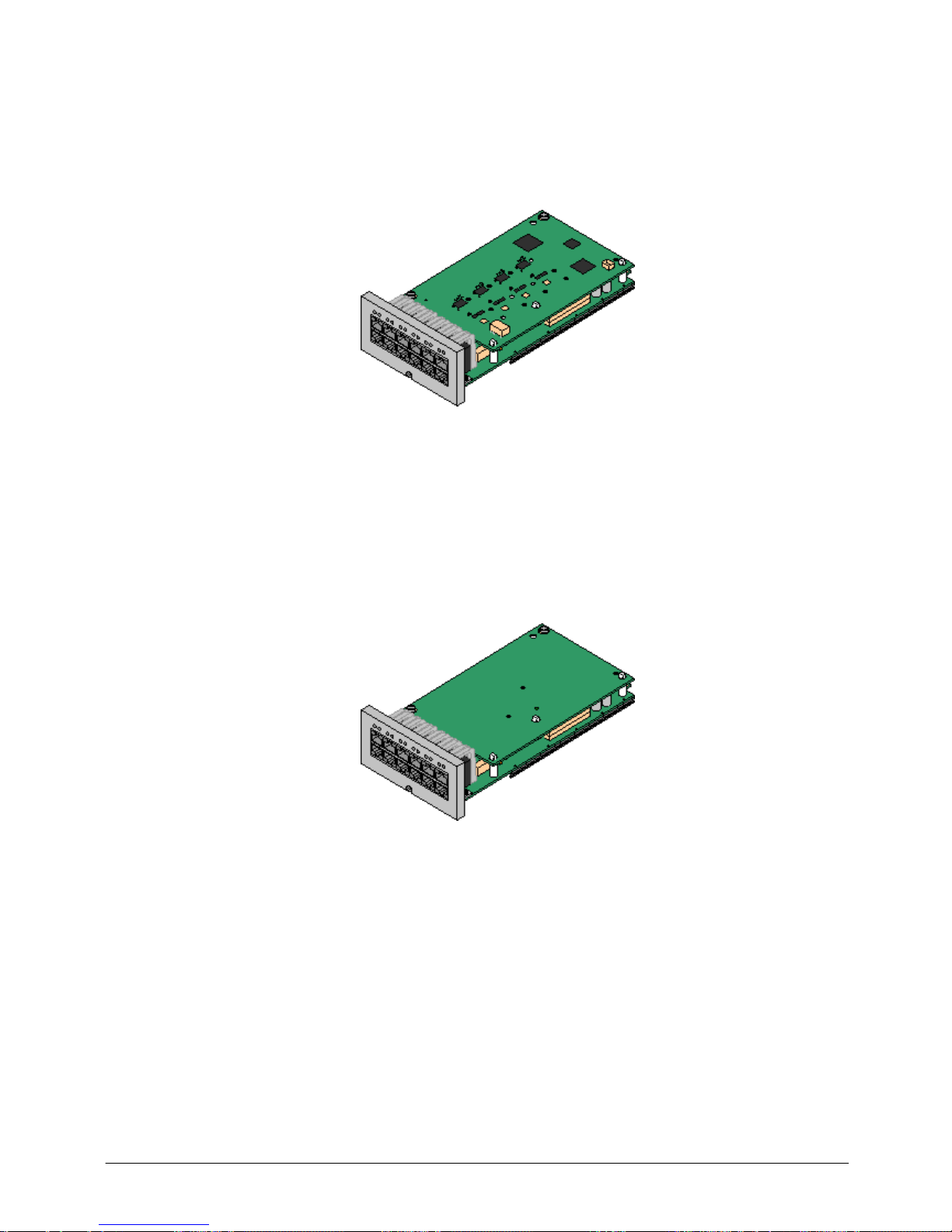
Product Description
IP Office 8.1
© 2012 AVAYA All rights reserved.
Page 96
Issue 26.k.- (16 August 2012)
IP500 Combination Card with 4 Analog Trunks
This card works in the IP500 V2 only and provides:
· 4 Analog trunk ports.
· 2 Analog extension ports for the connection of analog telephones.
· 6 Digital Station (DS) ports for the connection of Avaya digital telephones.
· 10 VCM channels to support IP telephones or voice networking.
This card already includes an IP500 trunk card, therefore no additional trunk card is possible. It provides a
single power-fail port (port 8). A maximum of two of these cards is allowed in the control unit.
IP500 Combination Card with 2 BRI trunks
This card works in the IP500 V2 only and provides
· 2 BRI trunk ports (4 channels).
· 2 Analog extension ports for the connection of analog telephones.
· 6 Digital Station (DS) ports for the connection of Avaya digital telephones
· 10 VCM channels to support IP telephones or voice networking
This card already includes an IP500 trunk card, therefore no additional trunk card is possible. A maximum of
two of these cards is allowed in the chassis.
Page 97
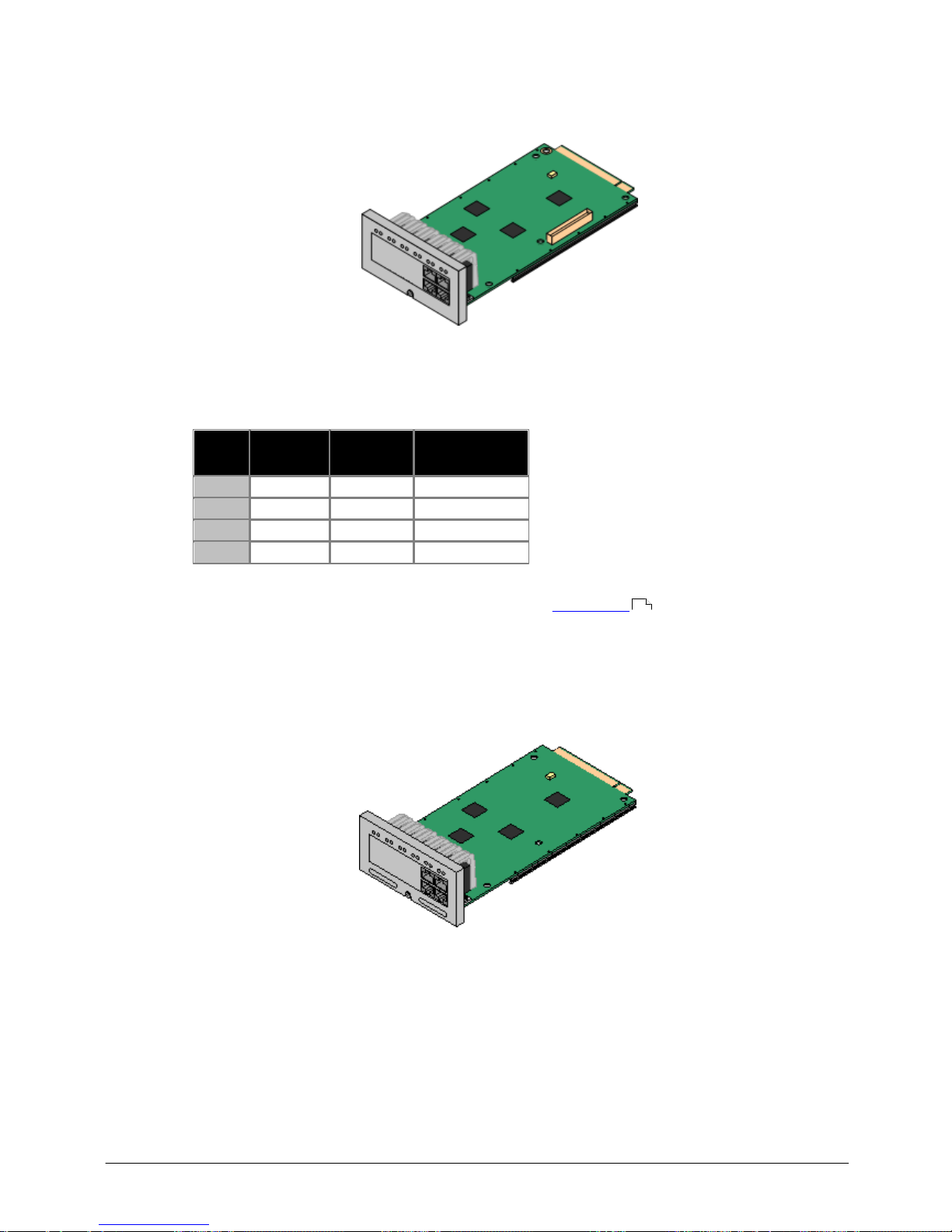
Product Description
IP Office 8.1
© 2012 AVAYA All rights reserved.
Page 97
Issue 26.k.- (16 August 2012)
IP500 VCM Card
This card provides voice compression channels for use with VoIP calls, SIP trunks and IP-based voice
networking. The module is available in variants supporting 32 or 64 channels.
The maximum number of voice compression channels supported, using IP500 VCM base cards, Combination
Cards and / or IP400 VCM cards on IP500 Legacy Card Carriers, is 148.
Please note, the maximum number of channels which may be used on each IP500 VCM card varies according to
the codec used, as shown in the following table.
Maximum VCM channels available, by codec type:
VCM 32
Card
VCM 64
Card
Combination
Card
G.7113264
10
G.7293060
10
G.7232244
10
G.7223060
10
· This card accepts one IP500 trunk card of any type.
For more details about VCM channel requirements please refer to IP Telephony .
IP500 4-Port Expansion Card
· This card provides connectors for 4 additional expansion modules.
· The 4-port expansion card must be inserted in slot 4 of the control unit.
· It is not possible to connect a trunk card to the 4-port expansion card.
254
Page 98
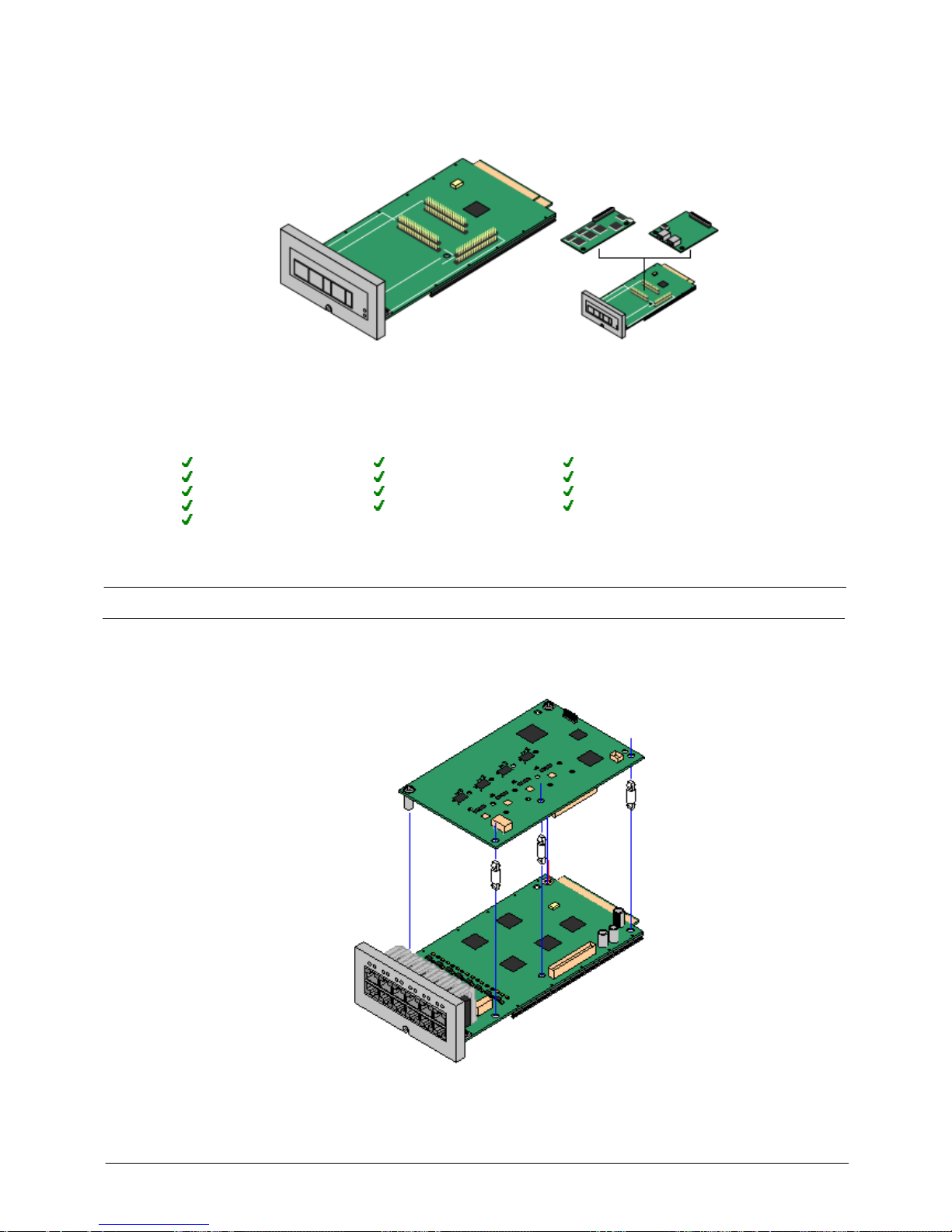
Product Description
IP Office 8.1
© 2012 AVAYA All rights reserved.
Page 98
Issue 26.k.- (16 August 2012)
IP500 Legacy Card Carrier
This card allows a variety of IP400 trunk or VCM cards to be used with the IP500 control unit. The front of the
card includes a number of panels that can be snapped off to match the ports available when an IP400 trunk
card is fitted.
· This card does not accept any IP500 trunk cards.
· The IP500 control unit can accept up to 2 IP400 trunk or VCM cards by mounting each card on an
IP500 Legacy Card Carrier
· This card supports the following IP400 cards:
· PRI T1
· Dual PRI T1
· PRI 30 E1 (1.4)
· Dual PRI E1
· PRI 30 E1R2 RJ45
· Dual PRI E1R2 RJ45
· ANLG 4 UNI
· BRI-8 (UNI)
· VCM 4
· VCM 8
· VCM 16
· VCM 24
· VCM 30
IP500 Trunk Cards
IP500 trunk cards can be fitted to existing IP500 base cards to provide support for trunk ports. The trunk card
uses the ports provided on the base card for cable connection. The addition of an IP500 trunk card is supported
on IP500 Digital Station, IP500 Analog Phone and IP500 VCM base cards. They are not supported on the IP500
Legacy Card Carrier base card.
In systems with both Analog Phone 8 base cards and analog trunk cards, combining the two types are
recommended as it then provides analog power failure support for one trunk/extension (not applicable to the
Analog Phone 2 base card).
Page 99

Product Description
IP Office 8.1
© 2012 AVAYA All rights reserved.
Page 99
Issue 26.k.- (16 August 2012)
Each trunk card is supplied with the spacer pegs required for installation and a label to identify the card's
presence on the physical unit once installed.
· IP500 Analog Trunk Card (Maximum 4).
· IP500 BRI Trunk Card (Maximum 4).
· IP500 Universal PRI Trunk Card (Maximum 4).
Page 100

Product Description
IP Office 8.1
© 2012 AVAYA All rights reserved.
Page 100
Issue 26.k.- (16 August 2012)
IP500 Analog Trunk Card
This card can be added to an IP500 Digital Station card, IP500 Analog Phone base card, or IP500 VCM card. It
allows that card to then also support 4 analog loop-start trunks. Only one analog V.32 modem is supported on
a system.
· When fitted to an IP500 Analog Phone 8 base card (not Phone 2), the combination supports 1 power
failure extension to trunk connection.
· The card provides a V32 modem for remote access (only one per system)--supported on ETR and TCM
cards.
IP500 BRI Trunk Card (Euro ISDN)
This type of card can be added to an IP500 Digital Station card, IP500 Analog Phone card, TMC8 card or IP500
VCM card. It allows that card to then also support up to 4 BRI trunk connections, each trunk providing 2B+D
digital channels. The card is available in 2 port (4 channels) and 4 port (8 channels) variants.
The ports on IP500 BRI cards can be individually configured to operate as an S-interface (S0 mode). When set
as an S interface the settings for the Line will be exactly the same as for a circuit on an So8 Expansion Module.
· These trunks support the mobility features of Mobile Call Control and one-X Mobile client .
236
 Loading...