

Page 1
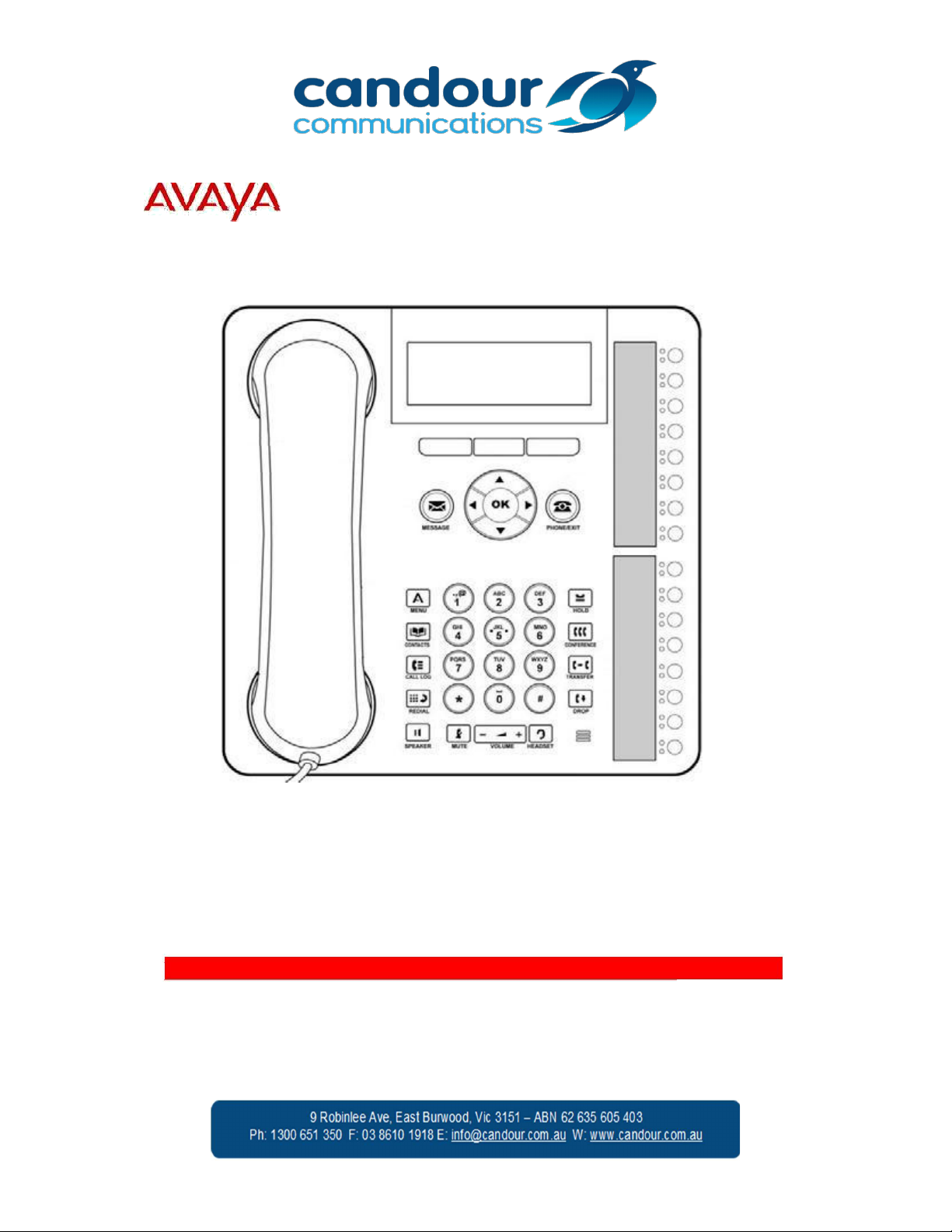
IP Office 1416/1616 Telephone Quick Reference
Guide
The telephone supports 16 programmable call appearance and feature buttons. The labels for these are
displayed in the main display and can be controlled by the adjacent buttons.
Your system administrator can assign functions to the telephone call appearance and feature buttons, or you
can assign them yourself. However, you cannot replace the call appearance buttons set by your system
administrator. There are features that the system administrator can set, but you cannot assign those features.
More information
Log on to www.avaya.com/support for the latest support information, including user guide, installation and
maintenance guide, interactive document and software downloads.
Page 2
will still continue alerting visually.
To redirect the call to voicemail, press the
>> double
-
arrow soft key and then press the
To VM
soft key.
To answer the c
all using the handset, lift the handset.
To answer the call without using the handset, press the
SPEAKER
key.
To answer the call using a headset, press the
HEADSET
key.
To switch to the handset, lift the handset.
To switch to the handsfree mode, press the
SPEAKER
key and then replace the handset.
To switch to the headset mode, press the
HEADSET
key and then replace the handset.
If you are already on a call, answering a new call automatically places the existing call on hold.
To answer a new call, press the appearance button. T
he existing call is placed on hold.
Alternatively, use the up and down arrow keys, to scroll the display and highlight the waiting call then
press the double
-
arrow (>>) soft key and do one of the following:
Answer
,
To VM
,
Ignore
or
Drop.
Making calls
If you are not already on a call, just dial the number. Use the first available appearance button for the call.
Alternatively, press a specific appearance button in order to make a call using that button.
Setting a callback
If the call is to an internal user and they do not answer, press the >> double-arrow soft key to access additional options.
For example, to set a callback, press the AutCB soft key. When the user ends their current or next call, the system will
call you and, when you answer, automatically make another call attempt to the user.
Calling a person from the contacts list
You can call directory contact. You can also use the directory in any function where Dir is displayed.
1. Press the CONTACTS key. The console displays the directory menu.
2. Use the left and right arrow keys to select the type of directory entries you want; External, Users, Groups,
Personal and All.
3. Use the up and down arrow keys to scroll through the list or to dial the name you want to find to display
matching entries. To return to the full list, press Clear.
4.Press Call.
Redialing a previous number
1. Press Redial. Use the up and down arrow keys to scroll through the 10 most recent outgoing calls.
2. Press Call or OK to call the number displayed in the call record.
Answering calls
A slow flashing appearance button indicates an alerting call. This may also be accompanied by ringing and a
flashing message lamp. If you are currently not on a call:
To make the ringing quiet, press the >> double-arrow soft key and then press the Ignore soft key. The call
After you have answered the call, you can switch between different talk modes:
To put a call on hold, press the call appearance key or any other appearance key.
Answering a new call
Diverting a call to voicemail
You can transfer a call directly to your voicemail mailbox.
1. Use the up and down arrow keys to highlight the call if it is not highlighted.
2. Press the >> double-arrow soft key.
3. Press To VM. The call is redirected to your mailbox.
Silence a ringing call
You can silence the ringer of a currently alerting call. The call will continue alerting visually but with no audible ring.
1. Use the up and down arrow keys to highlight the call if it is not highlighted.
2. Press the >> double-arrow soft key.
3. Press Ignore.
Page 3
Use the
Drop key to end the current call.
Press the
SPEAKER
key to end the current call that is on the speaker mode.
Press the
HEADSET
key to end the current call that is on th
e headset mode.
Replace the handset to end the current call that is on the handset mode.
Call handling
Adjusting the call volume
While on a call, you can adjust the volume of an incoming call. The volume is adjusted separately for the
device, that is, handset, headset or speaker, that you are currently using.
1. Press the VOLUME key.
2. Use the plus key (+) and the minus key (-) to adjust the volume.
Muting a call
To ensure that a caller cannot hear you, place the telephone on mute. However, you can still hear the caller. The
mute setting remains active even if you switch between calls using hold or appearance buttons. If you change
the listening mode, for example, from the handset to the speaker, the mute setting is canceled.
1. To activate mute, press the MUTE key. The button will be lit while mute is active.
2. To switch mute off, press the MUTE key again.
Ending a call
Starting a conference
Press the CONFERENCE key to start a conference with all the connected calls and calls placed on hold.
Alternatively, to start a conference or to add another party to a conference:
1. Press the CONFERENCE key. The telephone system automatically places the current call on hold.
2. Dial the number of the person that you want to add to the conference.
3. Press the CONFERENCE key again or press the Join soft key after the call is answered and the
person would like to join the conference.
4. Press Drop key and then press the appearance key of the held call if the call is not answered.
Dropping/Muting
1. While in the conference, press the DROP key, the details menu appears. Scroll through the list of callers
in the conference and:
To drop a caller from the conference, highlight the call and press Drop.
To mute a caller, highlight the call and press Mute. Repeat this to unmute. To
return to the call display, press the Exit soft key.
Transferring calls
To transfer a call, your telephone must have an available call appearance button. If all the call appearance buttons
are in use, end or park one of the existing calls.
1. Press the TRANSFER key. The telephone system automatically places the current call on hold.
2. Dial the number to which you want to transfer the call. Alternatively, press Dir to select a
destination from the director y.
To complete the transfer, press the TRANSFER key or press the Complete soft key while the
call is still ringing or after it is answered.
If the transfer destination does not answer or does not want to accept the call, press Cancel.
Transferring to voicemail
You can use the Message key to transfer a call to another user or to the voicemail mailbox of a group.
1. When connected to a call, press the Message key. You can still continue talking.
2. Dial the extension number of the user or group and press Select.
Page 4

Checking messages
1. Press the MESSAGE button. Enter your voicemail password if requested and press Done.
2. The numbers shown next to Listen indicate the number of new, old and saved messages.
3. Highlight Listen and press Select.
4. Use the Up and Down arrow keys to highlights the messages that is New, Old or Saved, that you want to listen
to and press Select. The details of the first message of that type are displayed.
5. You can use the up and down arrow keys to scroll through the messages.
6. Use the soft keys to control the playback actions for the current message.
By default, messages are automatically deleted at a set time after being played. The delay depends on the
particular
voicemail server, for example, 24 hours for embedded voicemail and 30 days for Voicemail Pro.
Voicemail On/Off
You can switch on or switch off the voicemail for your unanswered calls. This does not switch off your mailbox; you can
still play existing messages and use other functions.
1. Press the MESSAGE button. Enter your voicemail password if requested and press Done.
2. Use the up and down arrow keys to highlight Voicemail.
3. Press the Select soft key.
4. Press the On or Off soft key to change the setting.
 Loading...