

Page 1
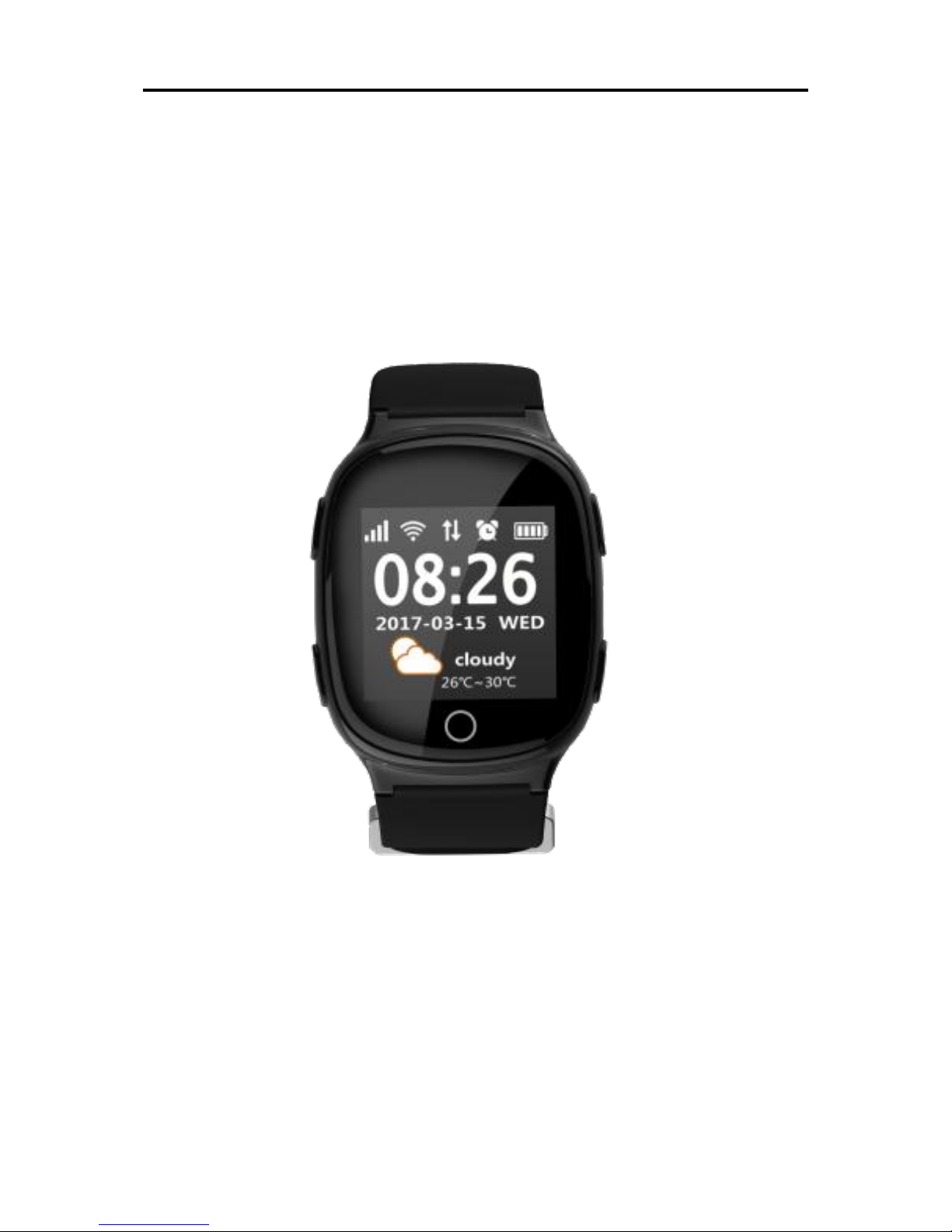
K30
GPS Smart Watch
Quick Start Guide
Please read carefully the instruction manual
before use for quick start. Product appearance
and color is subject to material object!
Page 2

I. Preparation before Use
Select SIM card of GSM network, must
have 2g data traffic. Refer to the opinion of
distributor. (Please turn off the watch when
installs the card).
SIM card of watch should activate GPRS
function and caller ID display function.
Install APP client in the mobile phone;
inquire about your distributor for client details.
Two-dimension code is used for user
registration.
II. Product Function
●GPS+wifi+basestation triple positioning method
●GPRS real-time positioning, monitoring
●Management and control of mobile phone client
●SOS emergency alarm
●Visual phone book ●Heart rate
●Sports step counts ●Footprint
●Watch alarm clock ●Intercom
●Security zone ●Medicine reminder
●Low battery alarm ●Sports reminder
●Remote power-off ●Sedentary reminder
III. Operating Instructions of Client (Security
Guard)
3.1Download Client
Scan the following two-dimension code to
Page 3
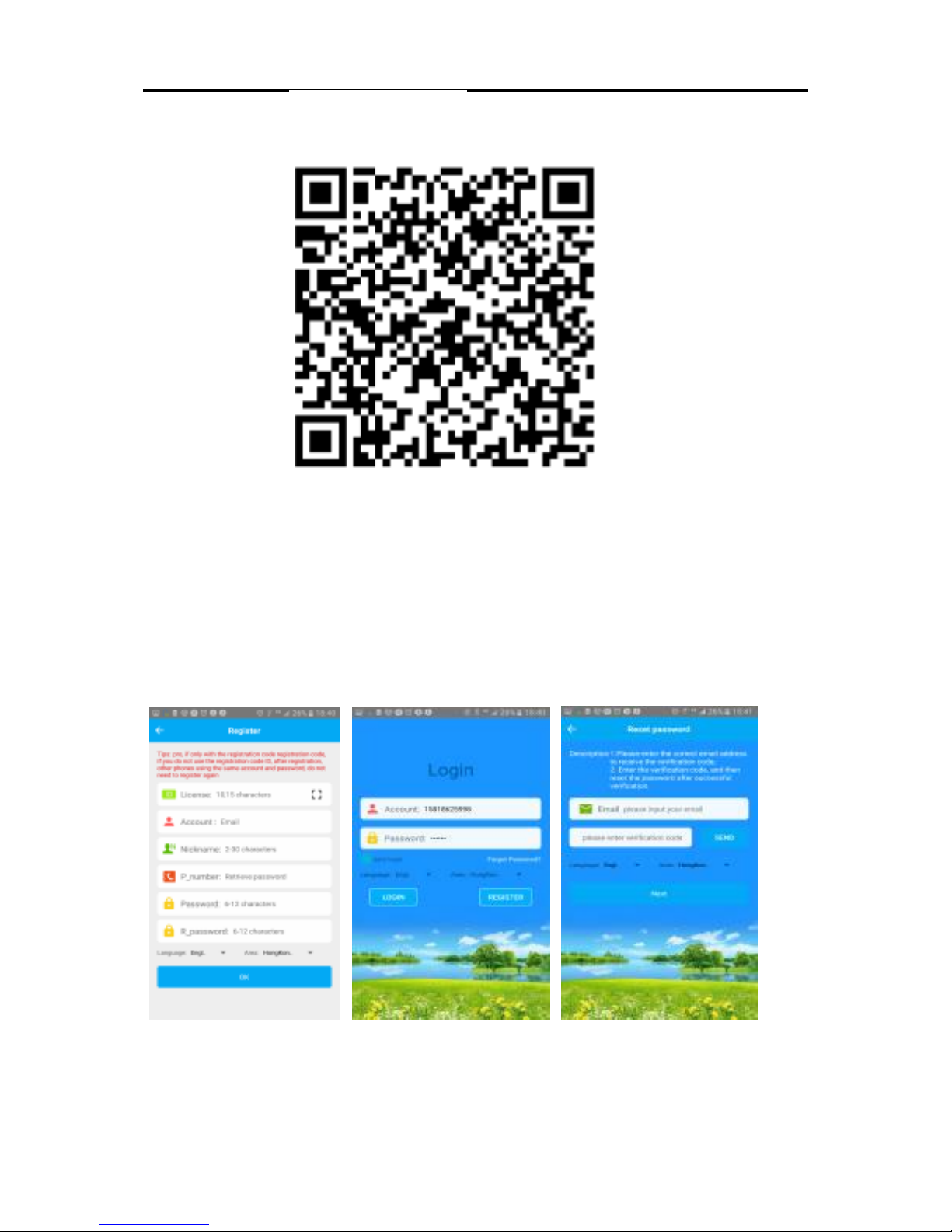
download Android and IOS mobile phone Client
(please select security guard).
3.2 APP Registration
Manually register the account number:
Scan 15-digit registration code or manually input
the registration code to register. Registration code
is unique and can’t be registered repeatedly.
Main interface map is as follows:
FAQ(1): Input wrong registration code, may
input id or IMEI.
Page 4
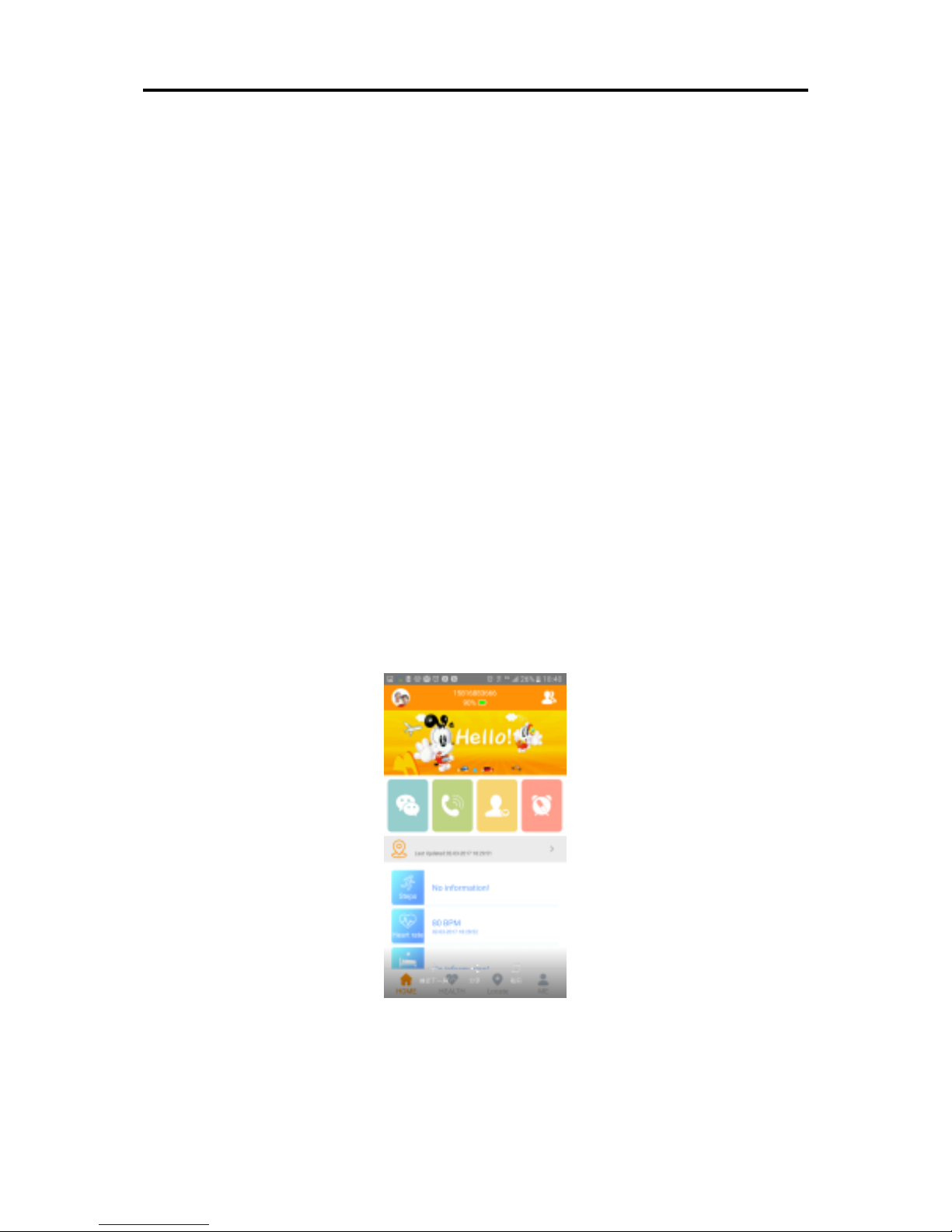
(2): Registration code has been used and should
be restored and then use.
( 3): Account number has been registered,
should change the account number or restore the
account number.
( 4): Retrieve password: Password can be
retrieved using registration code and account
number, also can be retrieved using the mailbox
when you register or the mailbox which is filled
in the personal information.
3.3 Introduction to main interface function
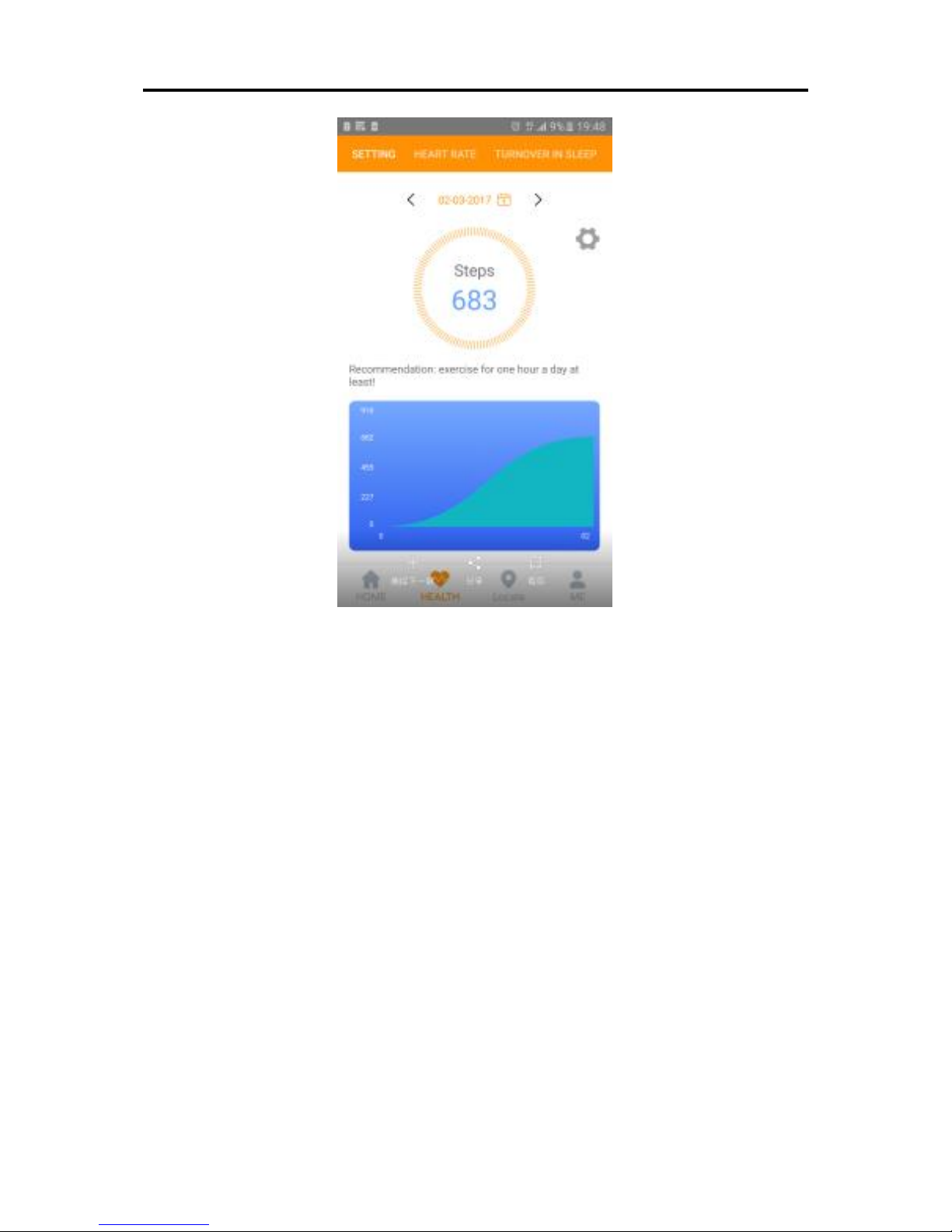
3.3.1 APP function menu interface
After completing the registration, input
correct account number and password in the login
interface, click to log in and enter main interface.
Explanation to partial functions of homepage:
⑴WeChat: Realize the voice dialog of watch and
app.
Page 5

App sends voice: After starting sound
recording, app begins sound recording and sends
to the watch, the longest voice is 15 seconds.
After the watch receives the voice, watch
interface has prompt, click to play the voice.
Sound recording of watch: Touch screen or
shortcut key to enter WeChat interface, long press
intercom icon or shortcut key to record, release to
send the record to app; when App receives the
voice, it will give notice.
(2)Call: Enter the dialing interface of mobile
phone, is unrelated to the watch.
(3)Phone book: Familiarity number, set up 30
familiarity numbers for the watch.
(4)Medicine reminder: Set up medicine taking
text or voice reminding for the watch in divided
period.
(5)Health: View the current and historical data
of corresponding step counts, overturn and heart
rate.
Page 6
⑹Positioning: View the watch position in real
time.
Map interface can display the position of all
the devices and app mobile phone, switch the
current device, click “positioning”, the watch
begins to fix position for 3 minutes in real-time,
upload interval is 20 seconds, restore to default
work mode after 3 minutes. In the map interface,
you can know the positioning method of watch in
real time. When positioning icon is red, it is gps
positioning, blue is base station positioning,
green is wifi positioning, i.e. network positioning.
Page 7
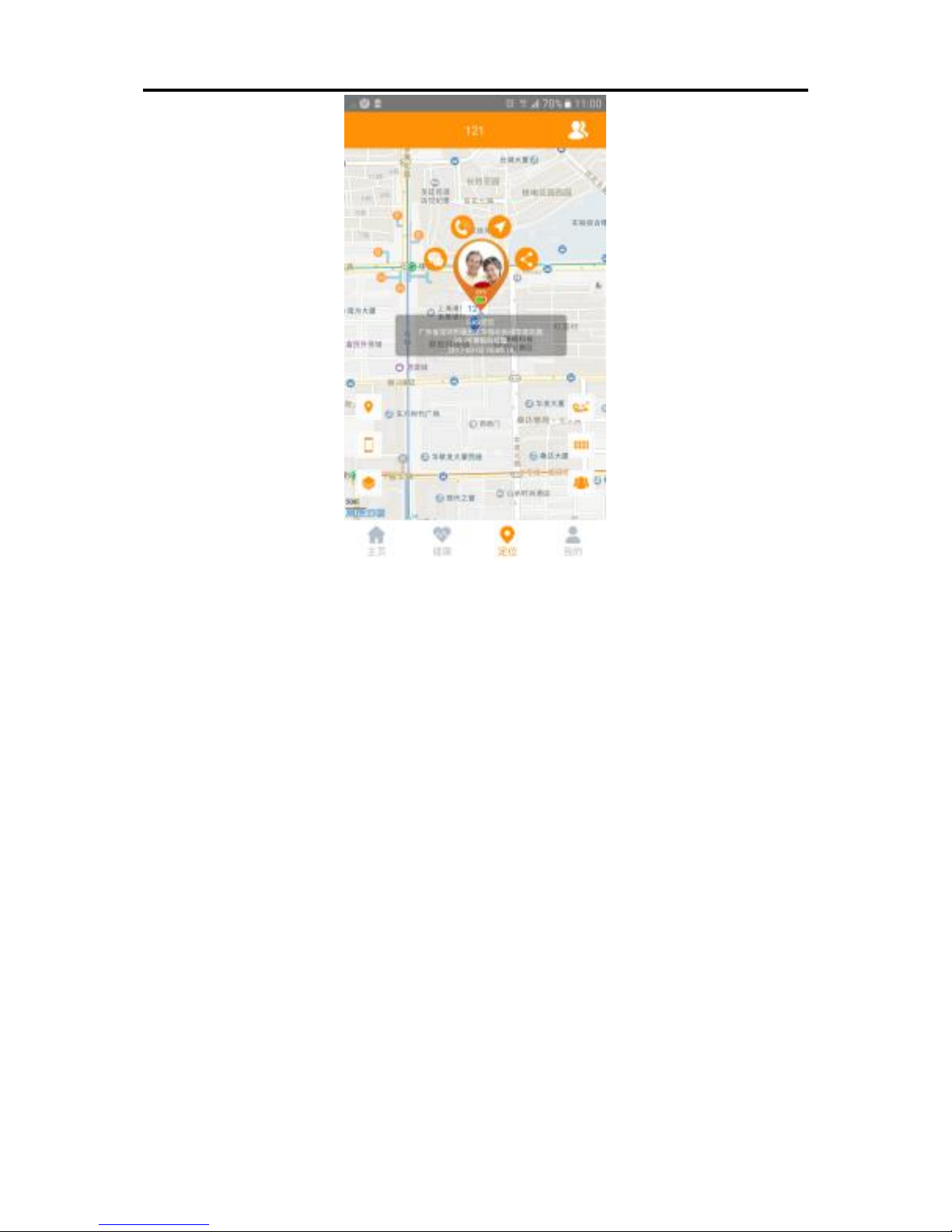
In the map interface, switch to WeChat, call,
health, railing and other interfaces.
①Trace: Inquire about historical trace of watch
according to time range. Base station switch of
the interface refers to the switch for displaying
base station position point when inquires about
the trace. Turn off the trace, it doesn’t display
base station positioning point; turn on the trace to
display base station positioning point.
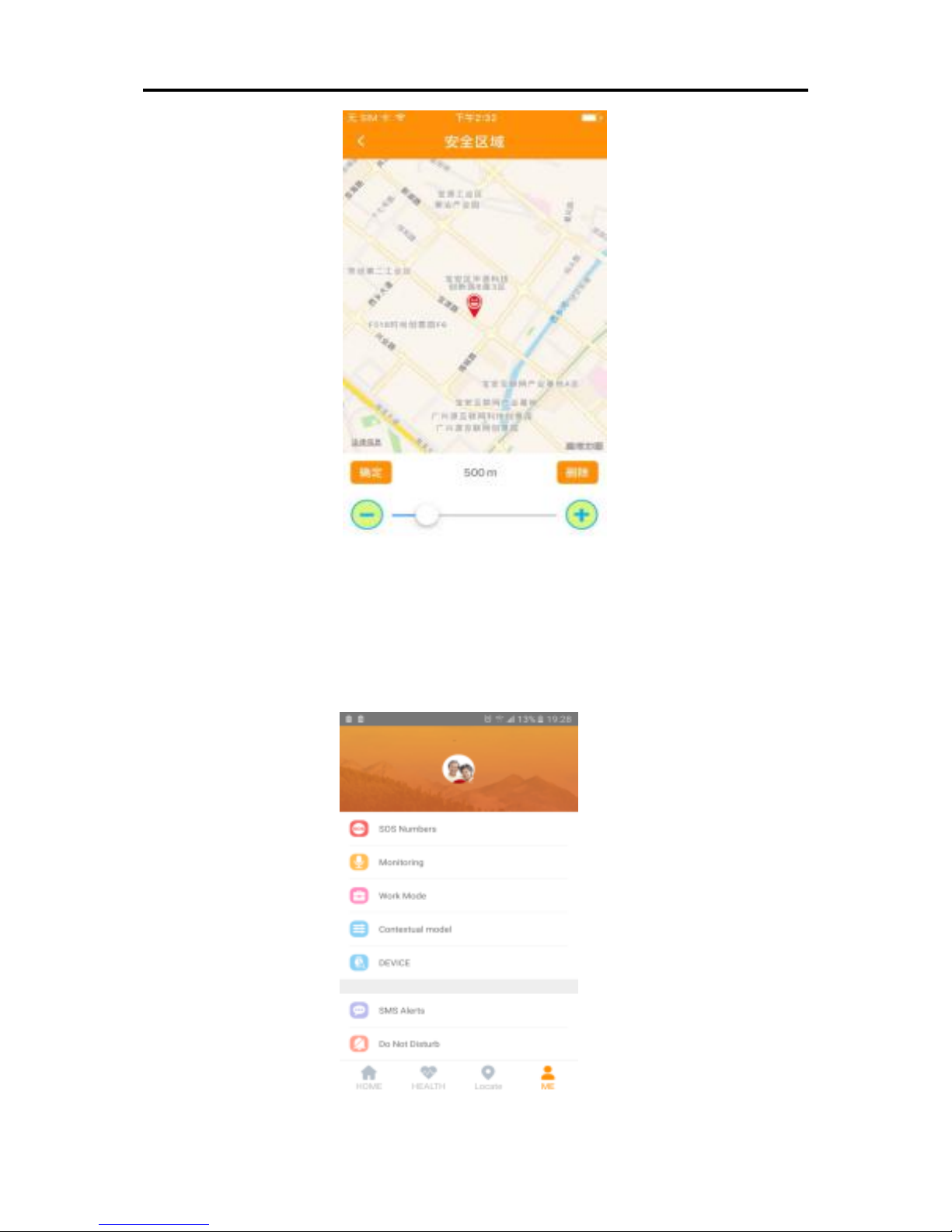
②Security zone: Minimum radius of railing is
200 meters. When the user comes from inside of
railing to outside and conducts positioning, it
would give the railing alarm. Only one electronic
railing can be set up.
Page 8
(7)Mine: Set up information and parameters
of the watch.
①Set up SOS numbers: It can set up 3 numbers;
Page 9

the watch presses SOS key for 3 seconds and
gives an alarm in an emergency, dial 3 numbers
in a loop. If there is no answer, dial two loops.
②Voice monitoring: It is generally set as parents'
number; after enabling monitoring, the watch
actively dials the setup number, the watch can't
hear the sound of mobile phone, mobile phone
can hear the surrounding sound of the watch.
③Do not disturb time period: Within do not
disturb time period, the watch can't receive any
call.
④SMS reminder settings: Low battery, sos, take
down 3 alarm SMS switches, send the alarm SMS
to the number which is set up in the watch. Alarm
SMS is charged according to normal SMS; after
setting up the number, it is defaulted as voice
monitoring.
⑤Profiles: 4 modes, vibration and ring, ring,
vibration, silent.
⑥Work mode: 3 basic work modes (normal
mode, power saving mode and real-time
positioning mode); different work modes have
different upload intervals. Normal mode: Upload
interval is 600 seconds Power saving mode:
Upload interval is 3600 seconds Real-time
positioning: Upload interval is 60 seconds
⑦Watch alarm clock: It can set up 3 alarm
clocks; can set up alarm clock method according
Page 10

to own needs.
⑧Find device: The watch is not at hand; send the
instruction, the watch would ring for one minute
so that convenient for finding, press the key to
stop ringing.
⑨Device list: Device ID of children and the aged
can be switched; after switching, it can change
into current settings for control.
⑩Remote power-off: After the watch powers on
and works normally, it can't press the key to
power off, only can power off remotely using
app.
Information center: Click to view the alarm
information record of the watch.
For brief explanation of other relevant
functions, refer to “About Us and Help”; the
customer can enter to understand.
Notes: You can view ID registered by the
customer in the device list; if the ID is
inconsistent with ID stuck on the watch, the
watch can't connect app.
IV. Instructions of Watch
4.1Introduction to Watch
Page 11
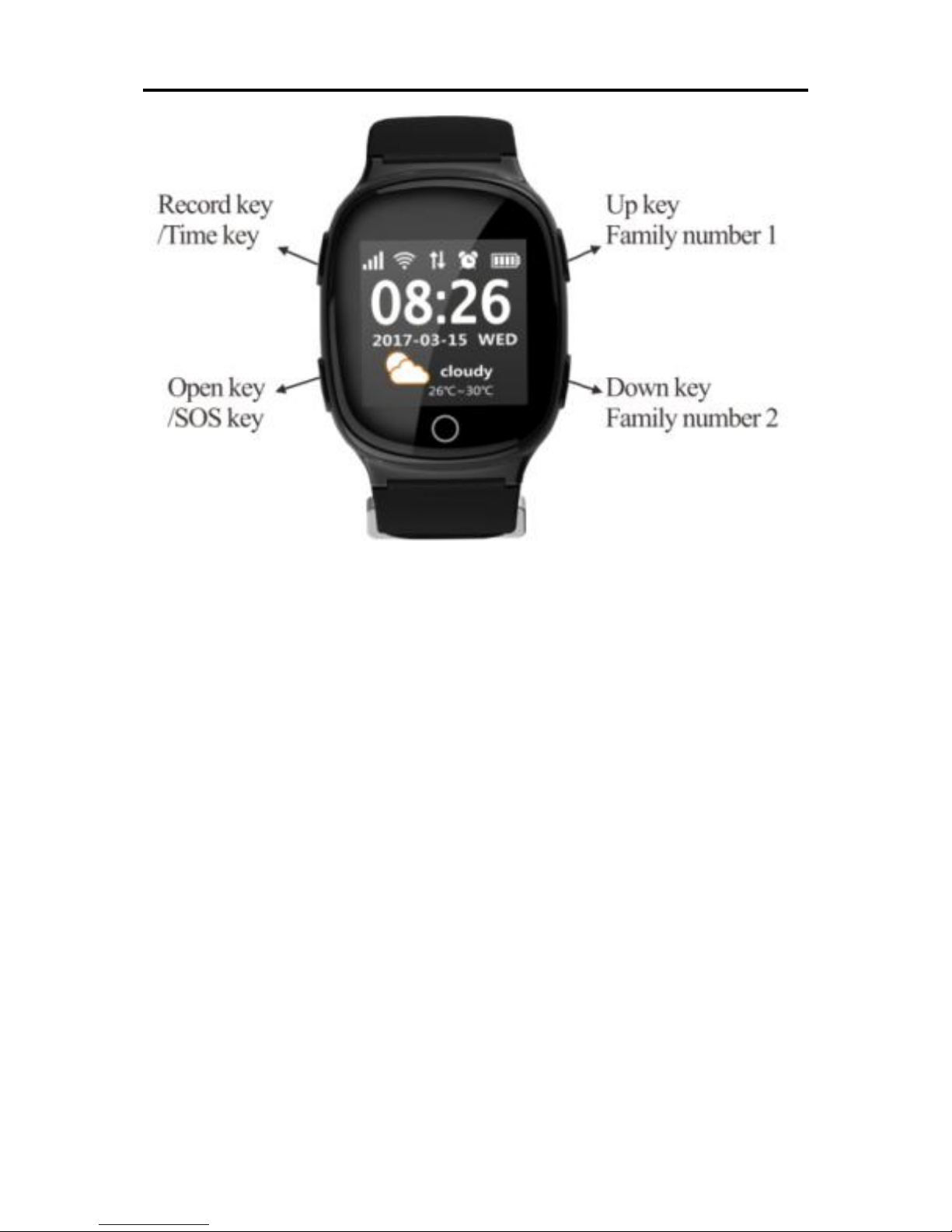
4.1.1 sos emergency alarm: Long press sos key
for 3 seconds, watch screen displays sos, the
watch enters the alarm status, dial 3 sos numbers
in two loops. If the telephone is put through, it
would not continue to dial; if there is no answer,
it keeps dialing until completes two loops. The
watch can send SMS to the monitoring number
(default is off), send alarm notice to APP at the
same time.
4.1.2 Recording key function: When the watch
is in the standby interface, long press the key to
directly enter the sound recording interface; at
this time, long press sound recording, release to
send; press once to tell time in a voice.
Page 12
4.1.3 Up key function: When the watch is in the
standby interface, press the key once to directly
enter the volume adjustment interface, at this
time, it is volume up key. When the watch is in
phone book interface, it is up key; long press to
dial familiarity number 1.
4.1.4 Down key function: When the watch is in
the standby interface, press the key once to
directly enter phone book interface, it is down
key. When the watch is in the volume interface, it
is down key, long press to dial familiarity number
2.
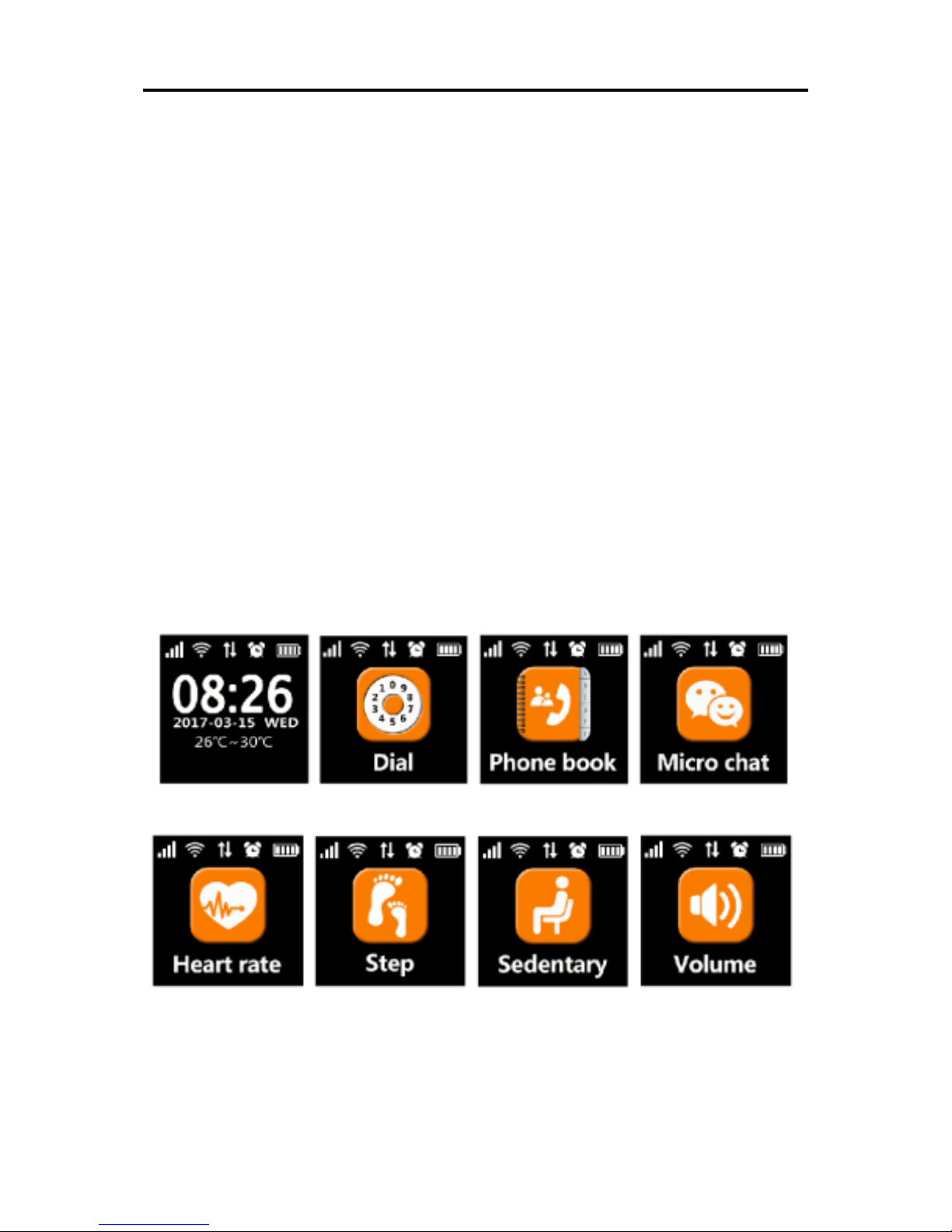
4.2 Part of Screen Display and Instructions
4.2.1 Main interface: First line small icon is gsm
signal, ring mode (icon is not displayed), voice
sign, positioning icon, networking sign and
Page 13

battery sign. Below are time (Gregorian calendar),
date, weather and temperature.
4.2.2 Dialing: Input the number manually for
dialing and calling.
4.2.3 Phone book: Click to see 30 numbers set
up by app, turn the page left and right to click
dialing.
4.2.4 WeChat: Realize WeChat of APP and
watch; in the sound recording interface, long
press to record, release to send the record.
4.2.5 Traditional opera: Enter the music player
interface and play the built-in traditional opera
excerpts for leisure pastime of the aged.
4.2.6 Step counts: Step counts is defaulted as off
and should be enabled in app; after enabling step
counts, the watch would automatically count
steps; after there is number, click the interface to
see the steps.
4.2.6.1 Sports reminder: Turn on step counts,
enable sports reminder switch. If step counts
don’t exceed 1000 steps, remind you of sports
from 5 p.m. every day.
4.2.7 Sedentary reminder:If sits down for a long
time and doesn’t do sports, set up time interval to
remind the aged of standing up and exercising.
4.2.8 Volume: Adjust the volume of the system.
4.2.9 app download: Two-dimension code of the
interface is used for downloading app, click to
Page 14

zoom in two-dimension code icon; the follows is
registration code of the watch for automatic
recognition.
V. Troubleshooting
When the watch is turned on for the first
time, it can’t connect to the server; app sends
instruction to display that the device is not online.
(1)Check whether SIM card of watch is gsm
network, for example, the watch doesn’t support
China Telecom.
(2)Check whether SIM card of watch is activated
data traffic, must be compatible with 2g data
traffic, the watch only can use 2g data traffic
currently.
(3)Check whether server parameters (IP, port and
ID) are correct, must guarantee that ID bar code
stuck on the watch is consistent with read-in ID
when the watch leaves the factory. The customer
can edit SMS (pw,123456,ts#) using the mobile
phone and send to the watch for viewing the
watch parameters (the watch must install the card
and power on, SMS must be input using English
input method). If you have any question, inquire
about the agent.
(4)If can’t register, there are two conditions: a.
Prompt that device number doesn’t exist or
device number has been registered, must ask the
Page 15

agent for handling. b. Prompt that the account
number has been registered, the customer can
register again after changing one account number.
 Loading...