

Page 1
LED RF & DMX WiFi Interface Ethernet - User Manual
Item no: LC-012-000
1. Product Description
The RF & DMX Wifi Interface Ethernet works with RF-receiver series or DMX 512 decoders to be
controlled by iOS or Android system via WiFi. With the interface you can control via WIFI
upto 8 different zones.
2. Specification
Operation Voltage: 12VDC included in the set, via RF or DMX signal,
Operation Frequenz 2.4G
Dimensions: 110 x 85 x 24,2mm
3. Function/Introduction
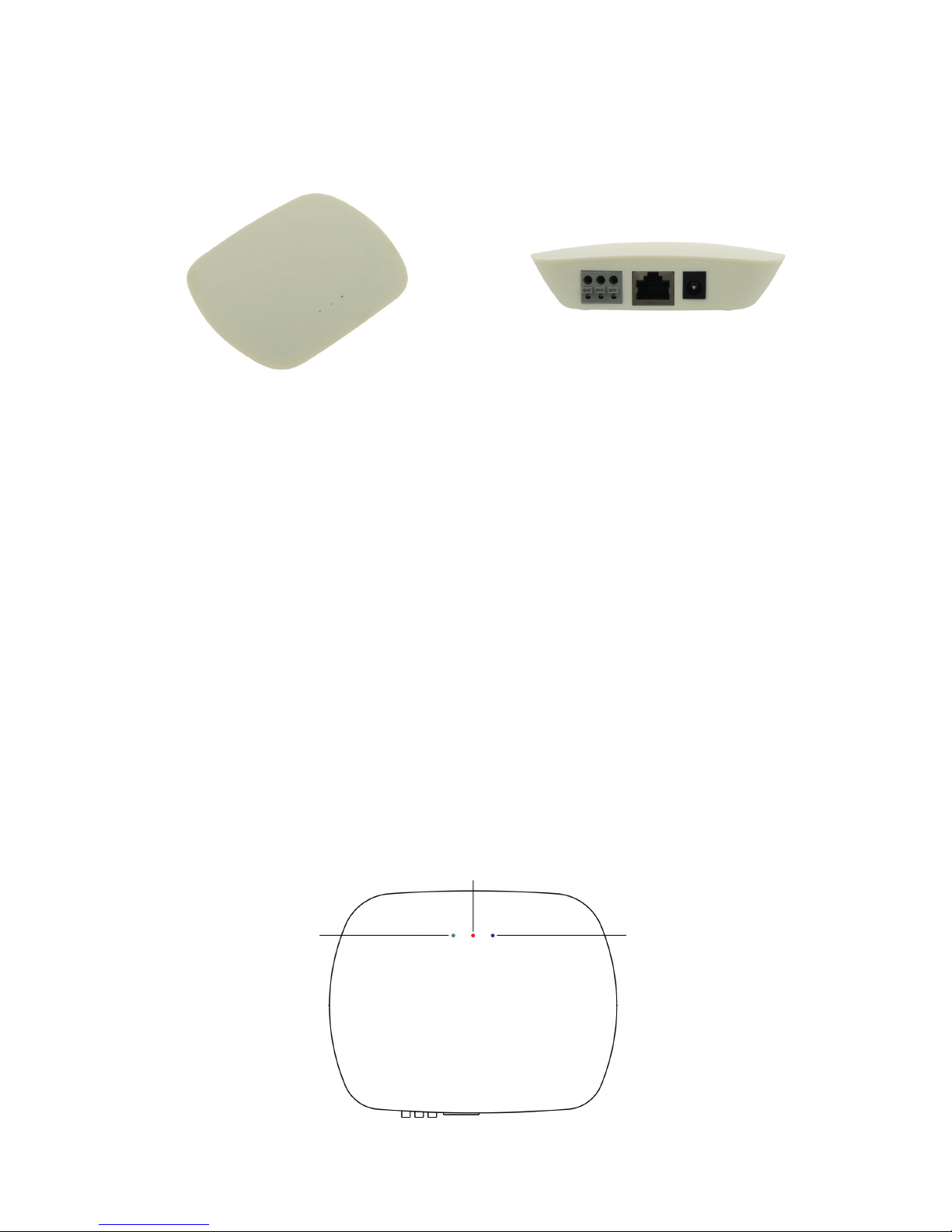
green LED indicator:
Power on
red LED indicator:
data transfer activ
blue LED indicator:
WiFi connection activ
Page 2
4. User Manual
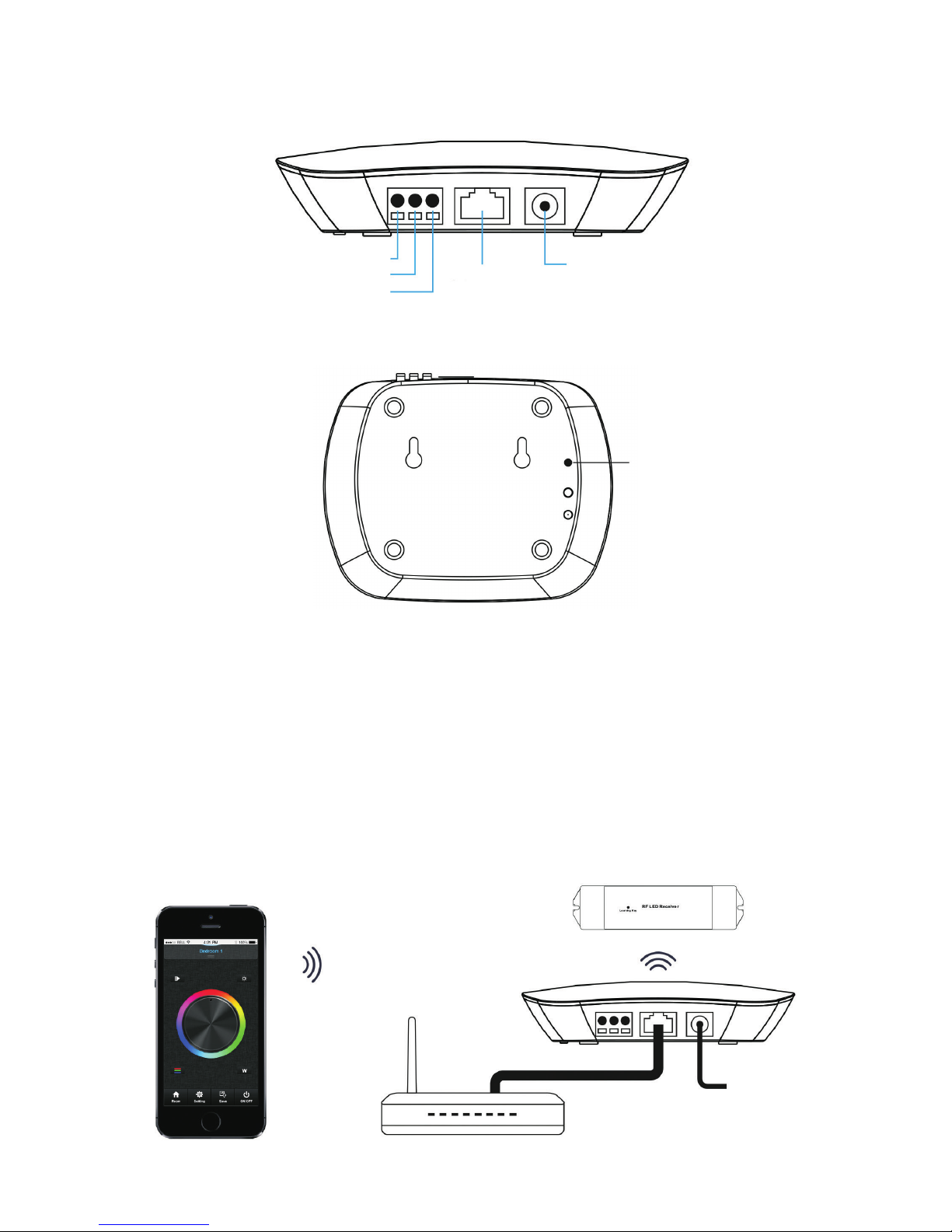
There are three methods to connect the interface:
1. Connect your cell phone or tablet with the home net router (WiFi-RF)
2. Connect your cell phone or tablet with the convertor (WiFi-RF)
3. Connect you cell phone with your home net router (WiFi-DMX512)
DMX512 signal
output
12VDC power input
Ethernet
GND
D+
D-
Method 1: Connect your cell phone or tablet with the home net router (WiFi-RF)
reset button:
press and hold for
10 seconds - reset to
factory settings / clear all
connections
12VDC power input
Router
Page 3
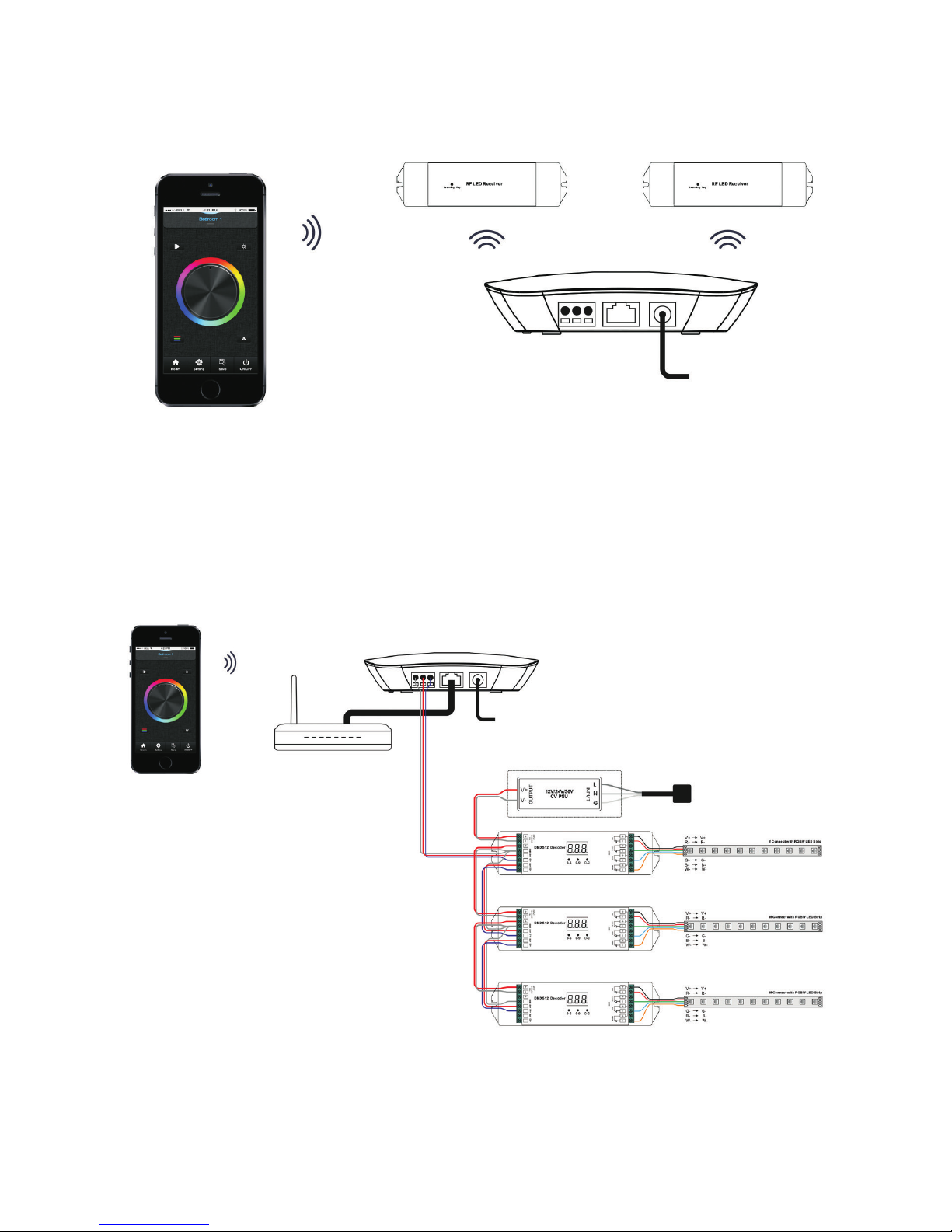
Method 2: Connect your cell phone or tablet with the convertor (WiFi-RF)
Method 3: Connect you cell phone with your home net router (WiFi-DMX512)
12VDC power input
12VDC power input
Router
Page 4
Installation of the „Easylighting“ APP:
1. Download the application app „Easylighting“ on your smartphone or tablet
or scanning on of the below two QR Codes (Android or IOS System) to download
the necessary APP:
2. If the convertor has connected with router, then connect your cell phone to your router network.
If the convertor did not connect with router, then connect your cell phone to the convertor network
directly (password: 0123456789 - as per interface backside)
3. Open the easylighting application and operating according the application manual.
1. The product shall be installedc and serviced by a qualified person.
2. Please avoid directly sun and rain/wet conditions.
3. Always be sure to mount this unit in an area with proper ventilation to avoid overhaeting.
4. Please check if the output voltage of any LED power supplies used comply with the working
voltage of the product.
5. Never connect any cables while power is on and always assure correct connections to avoid
short circuits before switching on.
6. Please ensure that the cable is secured tightly in the connector.
7. For update information please consult your supplier.
5. Safety warnings
Set DMX Address:
Set DMX decoders address as follows for multi-zone RF remote or Easylighting APP:
DMX decoders with address 001 will be controlled by zone 1,
DMX decoders with address 005 will be controlled by zone 2,
DMX decoders with address 009 will be controlled by zone 3,
DMX decoders with address 013 will be controlled by zone 4,
DMX decoders with address 017 will be controlled by zone 5,
DMX decoders with address 021 will be controlled by zone 6,
DMX decoders with address 025 will be controlled by zone 7,
DMX decoders with address 029 will be controlled by zone 8,
Each zone can pair endless of DMX decoders if you set the address accordingly.
Page 5
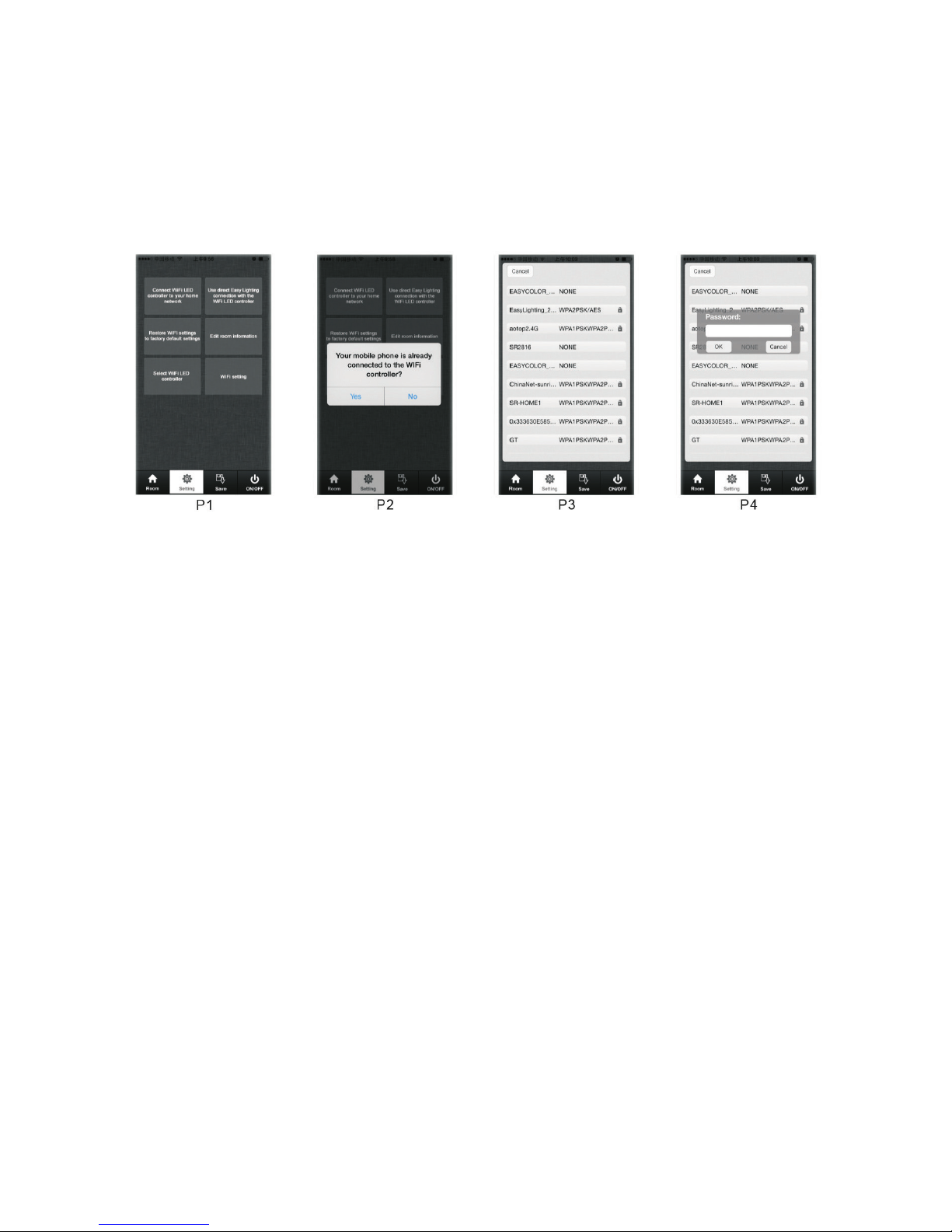
Easylighting application manual:
Configure
There are two different ways to configure smart phone or tablet connect to the interface:
1. Connect WiFi LED controller to your home network
2. Use direkt EasyLighting connection with the WiFi LED controller
Connect WiFi LED controller to your home network
Most popular way when need to control LED lighting by own house‘s WiFi.
1) Using the WiFi connection on the smartphone or tablet, locate the LED RF & DMX WiFi Interface
Ethernet Controller and connect it - enter the password on the device below (factory setting password: 0123456789)
2) Open the Easylighting APP
3) Short press the „Setting“ Button (P1)
4) Choose the button „Connect WiFi LED controller in your home network“
5) Press „Yes“, it will search all the router around automatically. (P2, P3)
6) Choose your home network (P3)
7) enter your router password and press the „OK“ button (P4)
8) The interface is now connected with your home network via your router.
Use direct EasyLighting connection with the WiFi LED controller
1) Using the WiFi connection on the smartphone or tablet, locate the LED RF & DMX WiFi Interface
Ethernet Controller and connect it - enter the password on the device below (factory setting password: 0123456789)
2) Open the Easylighting APP
3) Short press the „Setting“ Button (P1)
4) Choose the button „Use direct Easy Lighting connection with the WiFi LED controller“
5) Press „Yes“ to confirm the connection
6) The interface is now connected with your smartphone or tablet.
Page 6
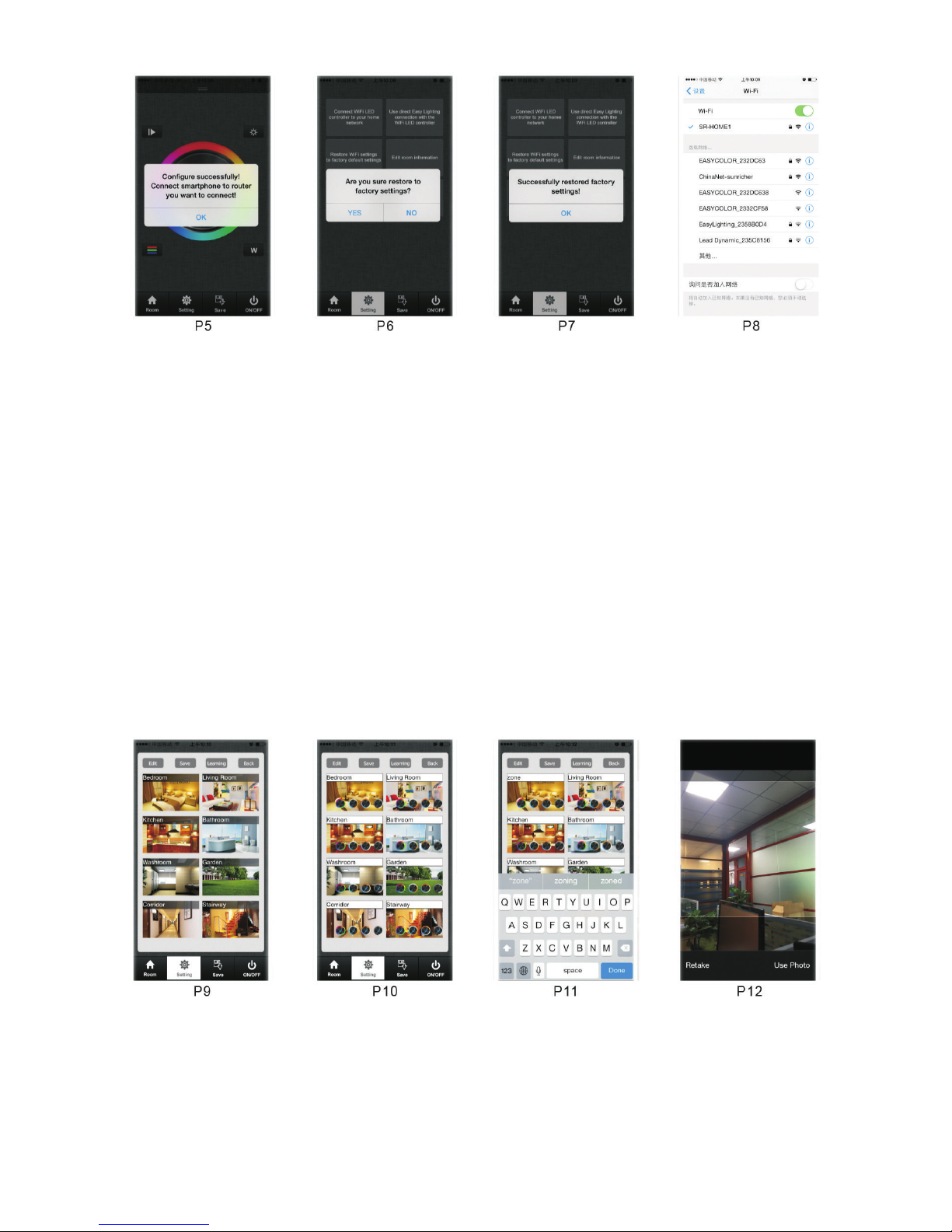
Restore WiFi settings to factory default setting
When we control WiFi by exist network, the mold of WiFi controller was changed. Easilighting cannot be search in the network list unless we reset the router. Then we can use this button to restore
the WiFi controller to factory setting. (This function only is use when using exist WiFi network).
1) Connect exist WiFi and make sure WiFi controller already be configure to this network
2) Open the Easylighting APP
3) Short press the „Setting“ Button
4) Choose the connection „Restore WiFi setting to factory default settings“
5) Press „Yes“ it will indicate successful restore factory setting (P6)
6) Press „OK“, after around 1 minute you will find the controller in your network list again on your
smartphone or tablet.
Page 7

a) Edit room / zone name
1) Press in the Menu Room editing information the point „Edit“ on the above left side (P9)
2) Choose the required zone/room (for example Bedroom)
3) Clear the old name and enter a new name (for exampel zone
4) Press short „Save“ Button (P11)
b) Change the picture for the room
1) Press in the Menu Room editing information the point „Edit“ on the above left side (P9)
2) Choose the required zone/room (for example Bedroom)
3) Camera function from smartphone or tablet will opened automatically
4) Take a picture
5) Press short „Use Photo“
6) Press „Save“ Button to confirm the settings
c) Edit the color wheel for corresponding LED lighting
1) Press in the Menu Room editing information the point „Edit“ on the above left side (P9)
2) In the room menu there are four different color wheels for Mono, Dynamic White, RGB and
RGBW.
3) Cancel the mark for other three color wheels and keep one which you connected the LED (take
single color as example) (P10)
4) Press the „Save“ Button to confirm the setting
Different zones which were edited to different color wheel cannot be choose at same time. different
Zones which were edited to same color wheel or did not be edited any color wheel can be selectted
at same time.
Room editing information
1) Open the Easylighting APP
2) Short press the „Setting“ Button
3) Short press „Edit room information“ there will be room editing page as (P9).
Page 8
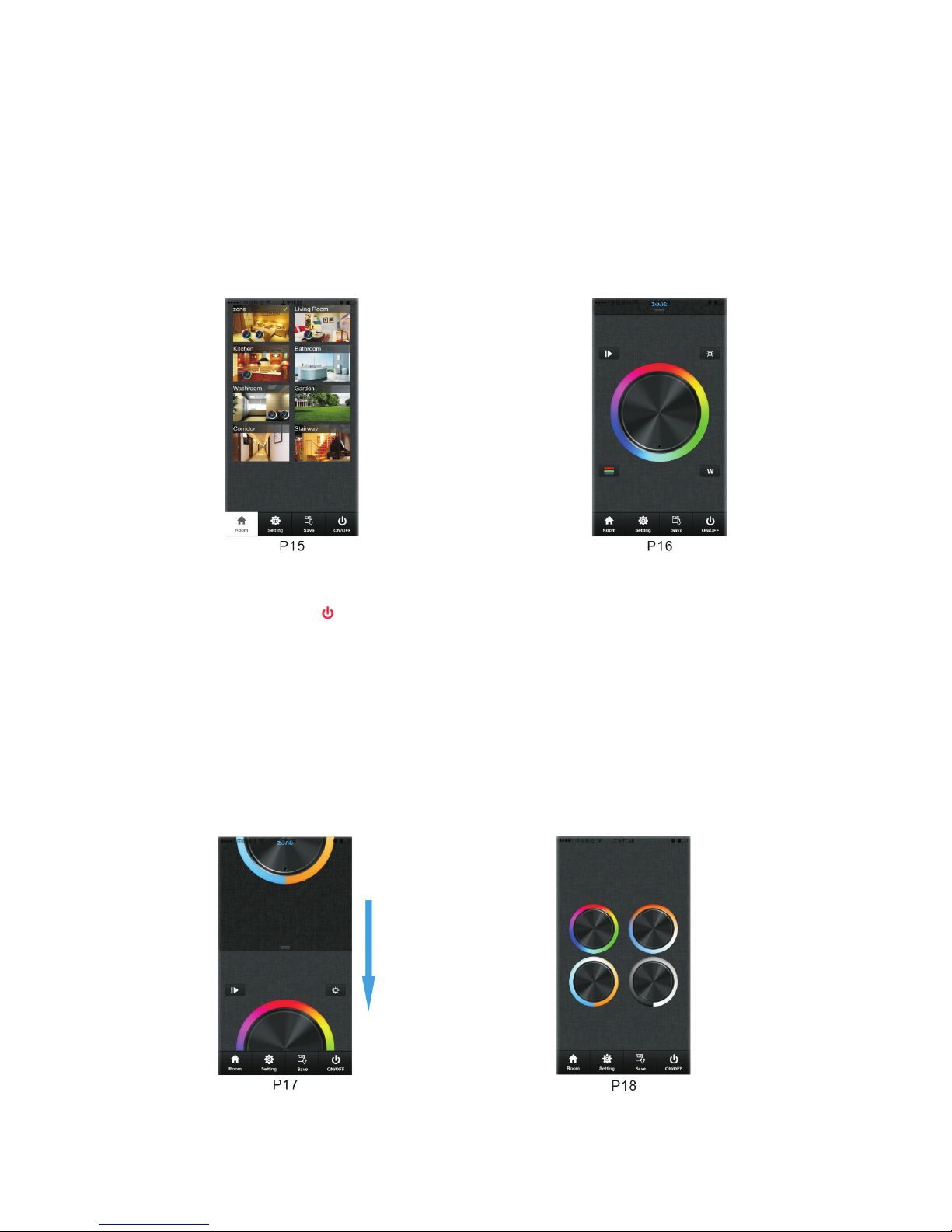
Long press on the middle of the room picture to turn on/off the corresponding rooms/zones.
There will be a red off mark
on the right upper side of the room picture when the room is
switched off.
Color wheel
There will be four different color wheels we can select if we did not edit in the zone/room:
Mono, DW, RGB and RGBW
1. Slide the upper areas from top to down to choose the color wheel from on to one.
Press twice to get to the color wheel selection menu, where you can also select the desired color
wheel.
Zone / Room Button
1. Press the Zone / Room Button
2. Press short in the middle of the zone / room picture
3. on the right upper side there will be a mark to confirm the selection. multiple rooms can be
choose at same time
4. Press the Zone / Room Button again to confirm the „Room‘s“ selection.
5. Upper area will indicate rooms name we selected
Page 9
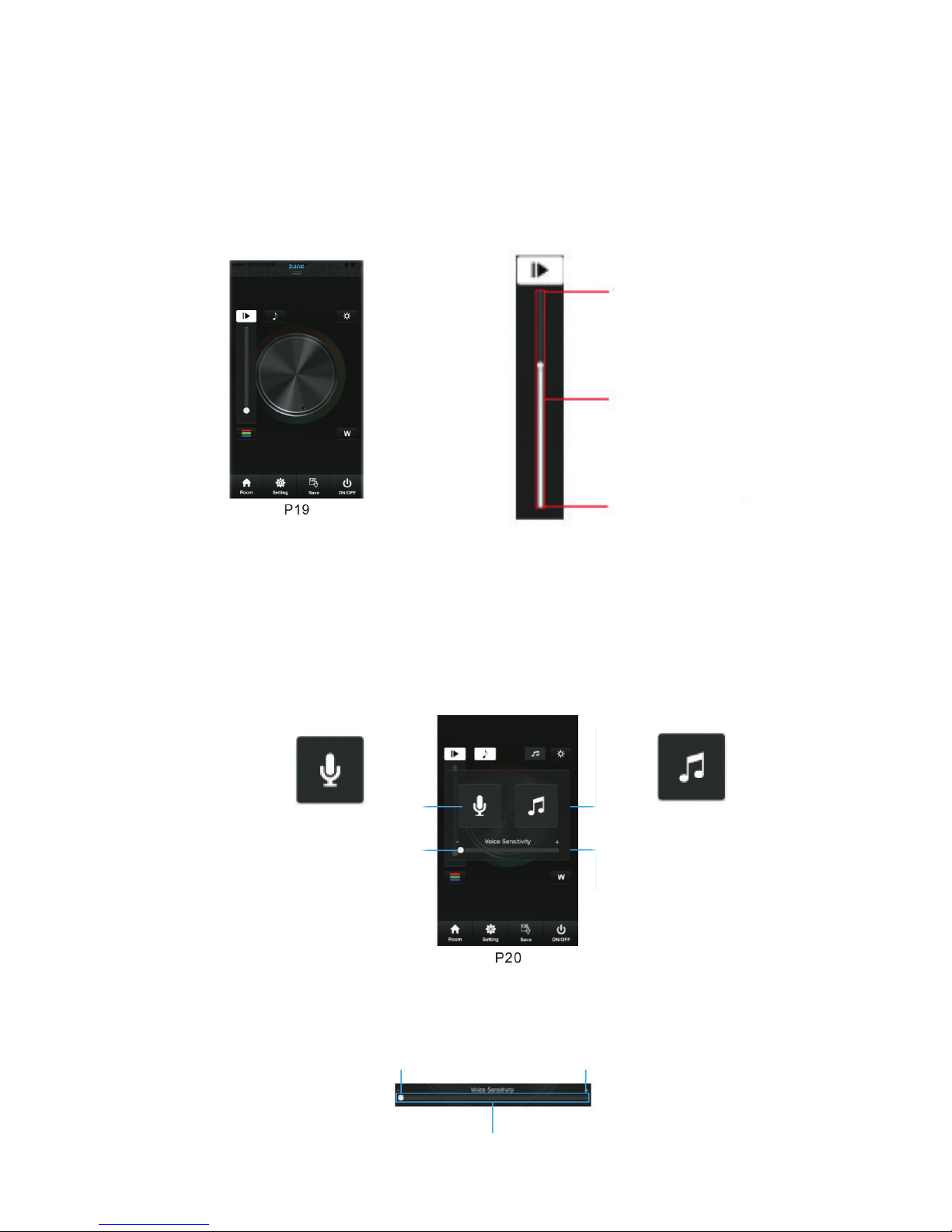
Pause & Play Button
The Play Button only exists in RGB or RGBW color wheel interface. Press the Pause & Play button,
a color begins to start, press again, it stops. Press the Pause & Play button again to start the next
saved color gradient. There are a total of 10 pre-programmed color gradients stored. If you select a
color while the gradient has stopped, the gradient program will start all over again.
fastest speed
moving speed adjustible
lowest speed
Music
LED lighting will move according the
voice decibel nearby. Bigger decibel,
faster speed. LED lighting will back to
adjusted speed when no voice effected
LED lighting will move according the level of music voice.
Bigger decibel , faster speed.
LED lighting will back to adjusted speed when no voice
effect. When choose the music button, it will open your
local music player.
language sensitivity
Lowest setting needs loud
sounds to change the speed
Highest setting requires
quiet sounds to change the
speedfront.
Page 10
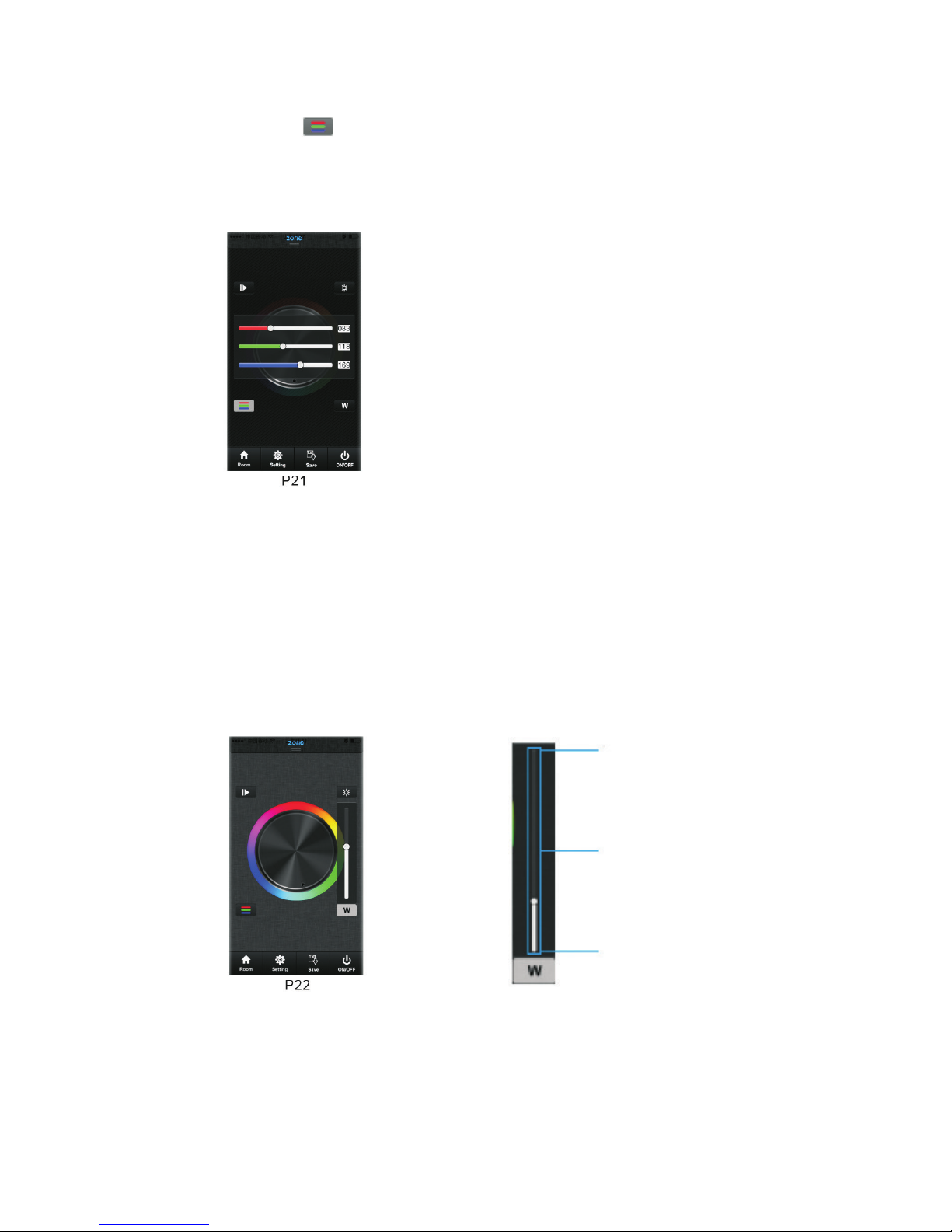
RGB / RGBW brightness level line
This button exists only in RGB/RGBW color wheel.
1. Short press the button
2. Brightness level can be adjusted from 0 - 255 to an accurae color.
White Button
This button only exists in RGBW channels color wheel interface to adjust white channel brightness
independently.
100% brightness
white channels
brightness level
1% brightness
Long press of the White (W) Button to switch the white channel ON/OFF independently.
Before adjust the color by color line, LED might in
already in an existing color, so we need zero clearing
each channel first: moving each channel in any level
between 1-225, then move it back to zero, then RGB
lightig will off which means zero clearing successfully.
Page 11
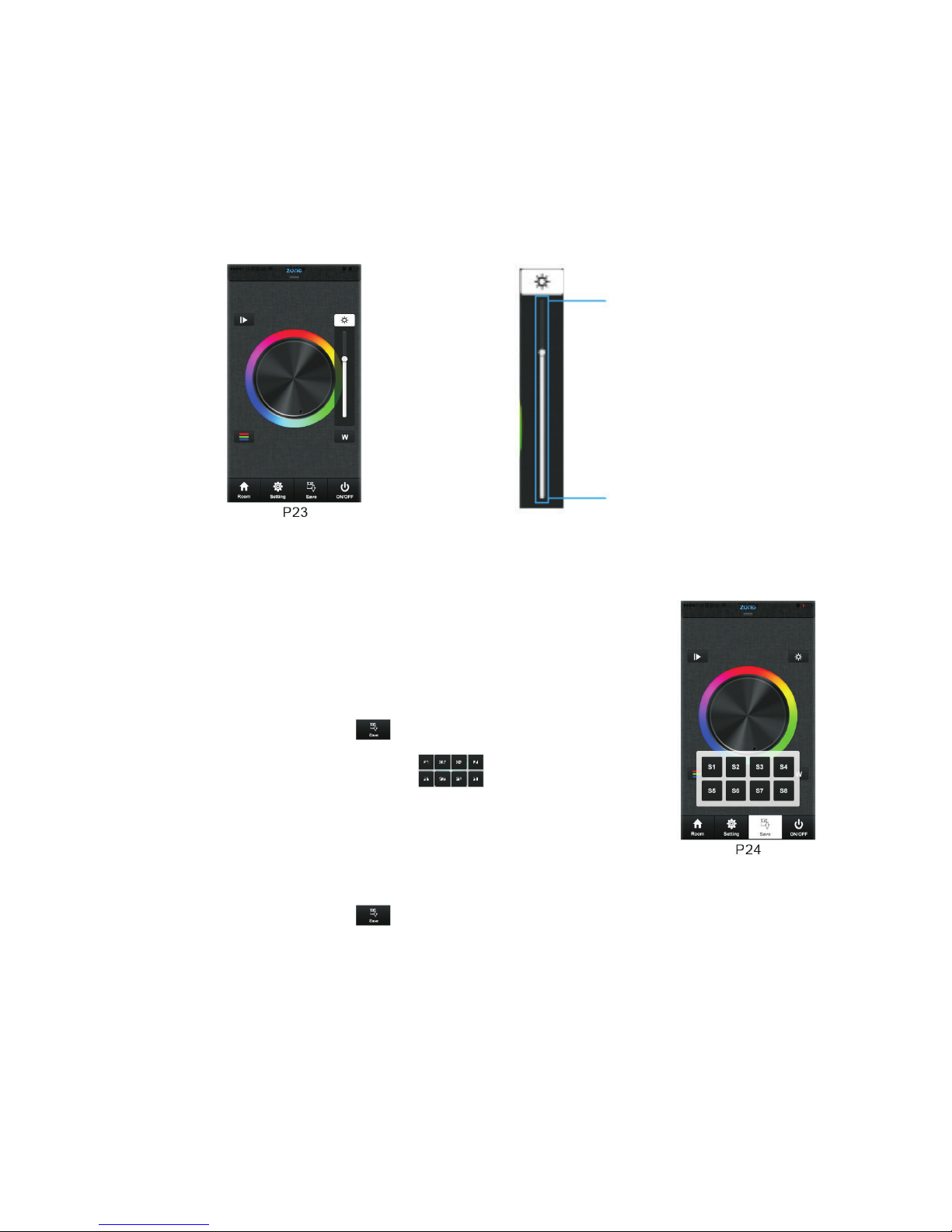
Brightness Button
The Brightness Button exists only in DW, RGB and RGBW color wheel.
in RGB color wheel interface, it only adjusts R, G and B three channels brightness and cannot ajdust
W (White) channel, We need use W button to adjust W (White) channel brightness independently.
100% Helligkeit
1% Helligkeit
in RGB and DW color wheel interface, it adjusts all channels brightness.
Save Button
Save:
1. Select the zone/room
2. Select a color or color moving mode
3. Short press of the Save Button
4. long press of one of the Buttons S1-S8
5. LED lighting will flash indicate save successfully.
Recall of the saved color/color move mode over the buttons S1-S8:
1. Select the zone/room
2. Short press of the Save Button
3. Short Press of one of the Buttons S1-S8
4. LED will indicate saved color or moving modes
 Loading...