

Page 1

a
skye
User Guide
Page 2

Introduction
Keys and Parts
Wireless Technology
auris skye App
Getting Started
Setup AirPlay / DLNA on WiFi Network
Setup Mac or PC on WiFi Network
Factory Reset
Setup AirPlay / DLNA on skye WiFi Direct
Setup Mac or PC on sky WiFi Direct
Specifications
Product Safety
Safety Instructions
Warranty
2
3
4
6
8
9
16
17
18
22
24
26
27
28
CONTENTS
1
Page 3

KEYS AND PARTS
30-pin connector
Status Indicator
WHITE Pulse
Booting - Updating
WHITE Solid
Ready for Setup and
Playback
ORANGE Pulse
Network Problem
Reset button
3
CONGRATULATIONS!
Thank you for purchasing auris skye that’s been intuitively designed to enable you to
wirelessly stream all your favorite tunes from your iPhone, iPad, iPod Touch, Android,
Windows Phone or iTunes (Mac or PC) in your home WiFi network with AirPlay and
DLNA support.
The following pages explain the features and operations of skye. Please take a few
moments to read this user guide.
In the Box
auris skye
User Guide
Please read all safety instructions before proceeding. The answers to most set up and
performance questions can be found in this guide. If you have any further questions
about the operation or use of this product, please contact our customer care team for
assistance on [email protected].
2
Page 4

EXTRAORDINARY WIRELESS TECHNOLOGY
The intuitively designed and stylish skye fits right into your 30-pin Docking station,
while its wireless technology, which supports AirPlay and DLNA, gives you the
freedom to move about as you please with your entire music library in the palm
of your hand. You can stream your audio wirelessly and effortlessly from your iOS,
Android, Windows device and Mac or PC by setting up skye in your WiFi network.
All devices connected to the same network will then be able to stream music in
full quality, while connected to the Internet at the same time.
AirPlay
AirPlay is a technology designed by Apple to transmit audio instantly from source
to source within a WiFi network. Once AirPlay is installed, you can stream from
iTunes - both on Mac and PC - or you can use your iOS devices: iPad, iPhone
or iPod Touch.
4
5
DLNA
DLNA is wireless sound for Android and Windows devices. DLNA is a widely
supported streaming standard that makes skye compatible with most Android and
Windows devices enabling them to stream music to docking stations anywhere,
anytime.
WiFi DIRECT
skye WiFi Direct is wireless sound straight out of the box. skye is designed
to stream music directly to your speaker system with WiFi Direct. There’s no
need for a WiFi router.
5
Page 5
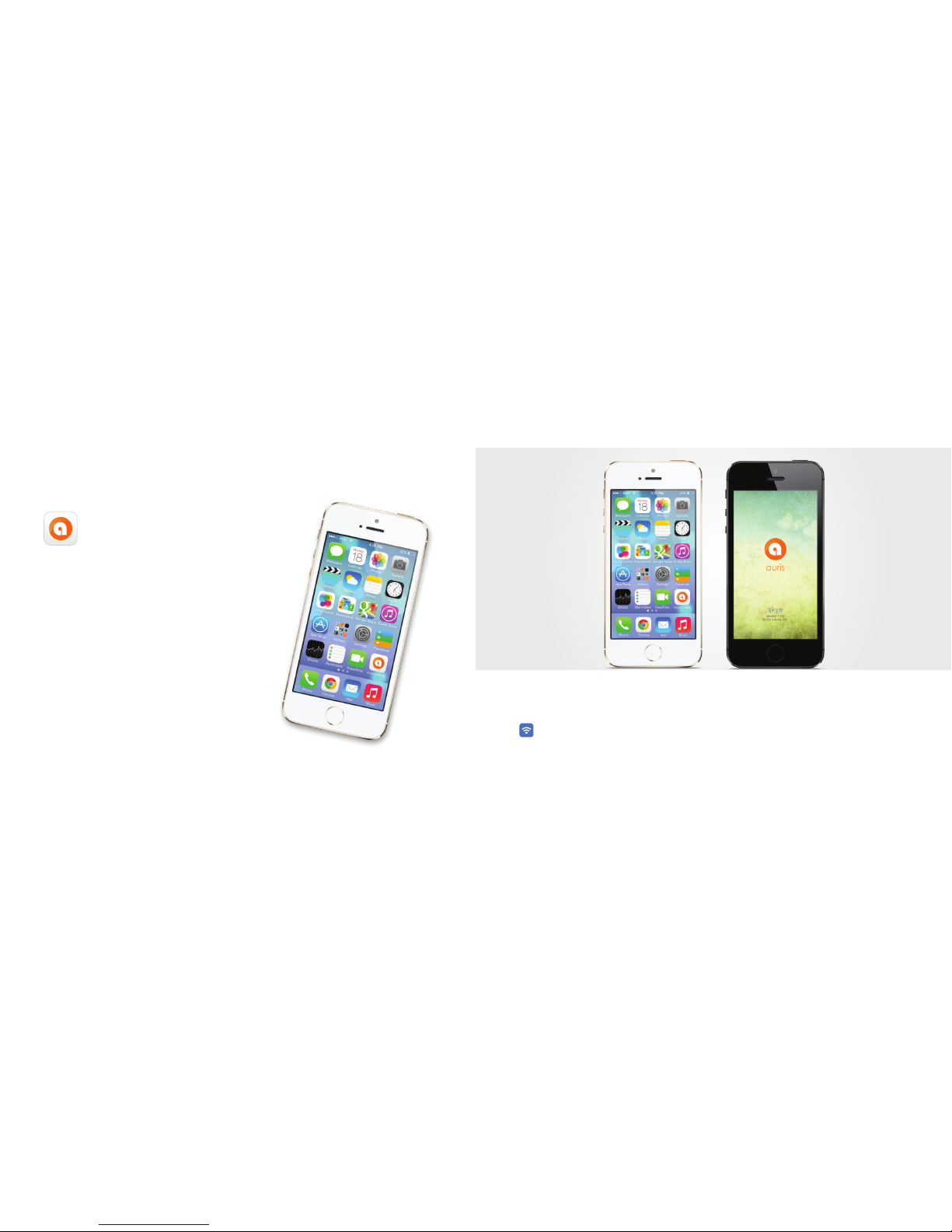
Download the ‘auris skye’ App from Apple App Store or Google Play Store.
Make sure your home WiFi is up and running and within range of both
your speaker and iPhone.
76
auris skye App
Add another dimension to your skye
device by downloading the free auris
skye App from Apple’s App Store to
your iOS device.
With the auris skye App, it’s a breeze
to set up and manage skye. The app will
walk you through the simple steps to
connect skye to your WiFi network, and
choose and manage your settings, all
wirelessly.
Available for iOS and Android
Page 6
GETTING STARTED
We have done everything in our power to make your auris skye set up as simple and
user friendly as possible.
You can connect to your skye in two different ways:
1. With AirPlay / DLNA on WiFi network (using the skye Control App)
2. With AirPlay / DLNA on Direct WiFi network
skye needs to be set up to connect properly over AirPlay or DLNA to your
WiFi network (using the auris skye App) only the first time. Once they're
set up, you will be able to play from all compatible devices.
Please Note:
Avoid using WEP encryption and TKIP security on your router. We recommend WPA2
encryption + AES which also enhances security significantly. For instructions on
changing the security type on your router, please refer to your router's documentation.
8
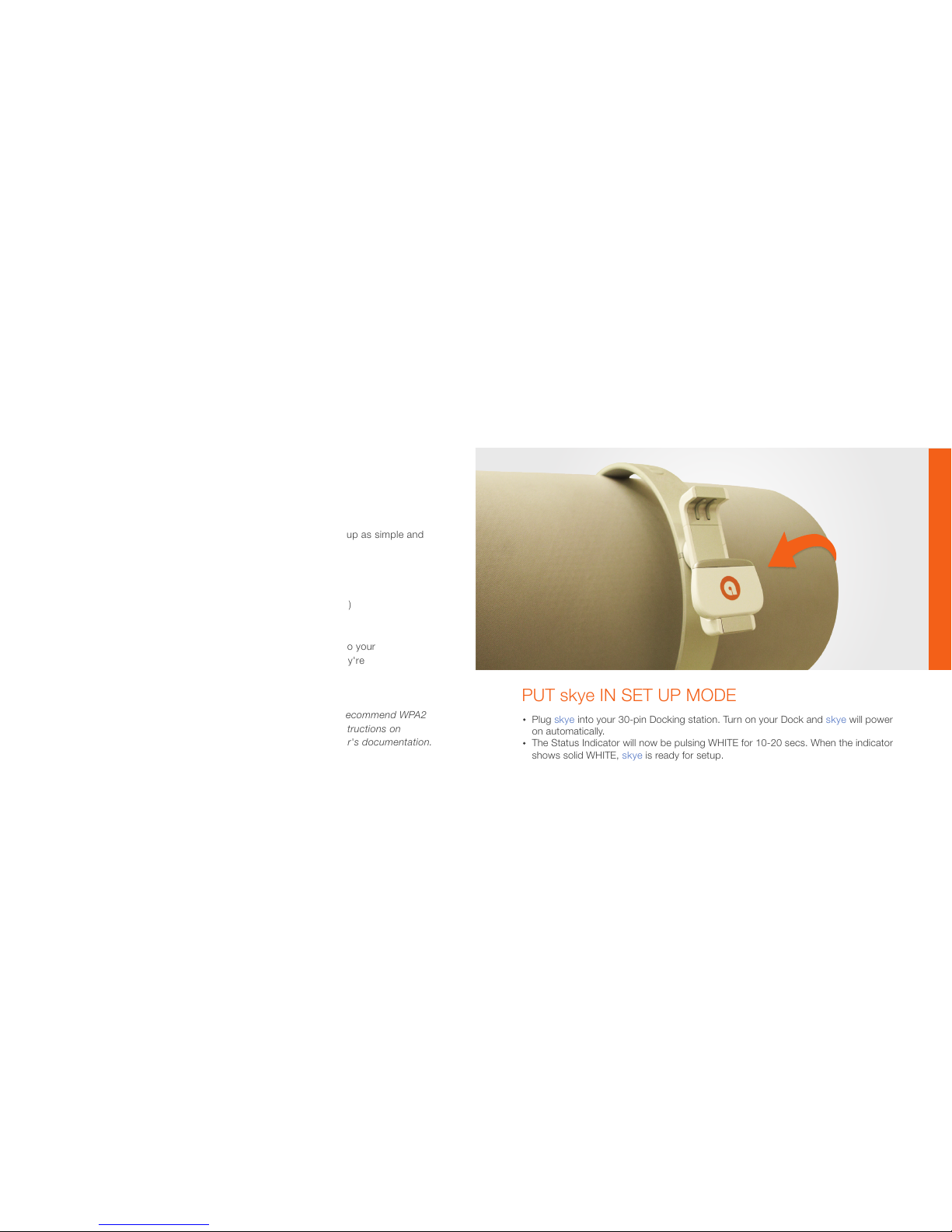
Plug skye into your 30-pin Docking station. Turn on your Dock and skye will power
on automatically.
The Status Indicator will now be pulsing WHITE for 10-20 secs. When the indicator
shows solid WHITE, skye is ready for setup.
PUT skye IN SET UP MODE
AirPlay / DLNA on WiFi Network
9
Page 7
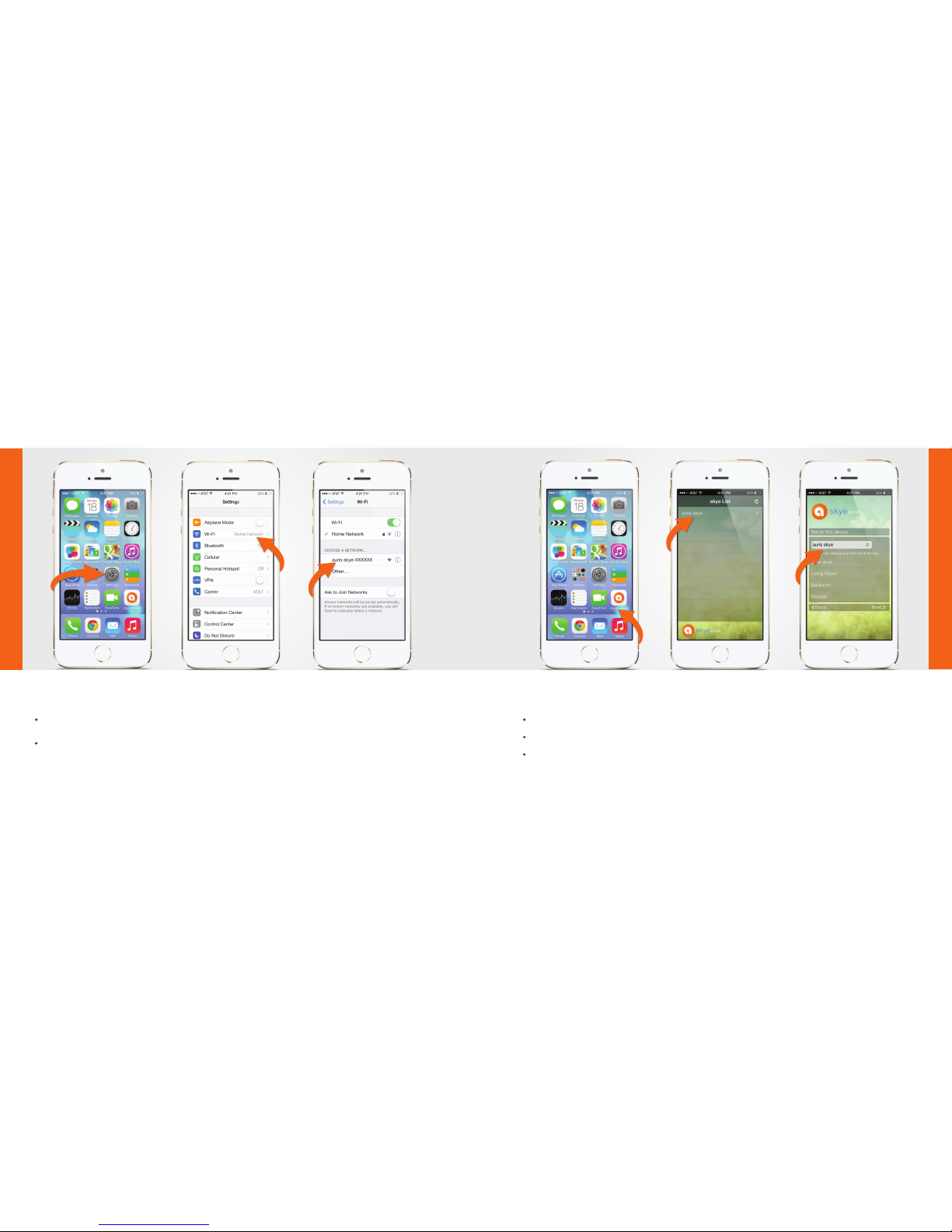
FIND YOUR skye
Open ‘Settings’ and press ‘WiFi’ connections on your iPhone.
Choose ‘auris skye-XXXXXX’ network.
AirPlay / DLNA on WiF i Network
10
SETUP YOUR skye
Open ‘skye Control’ App. The app will now search for skye devices.
Select ‘auris skye’ in the skye list.
Choose a personal name for your skye device and select ‘Next’.
AirPlay / DLNA on WiFi Netw ork
11
Page 8
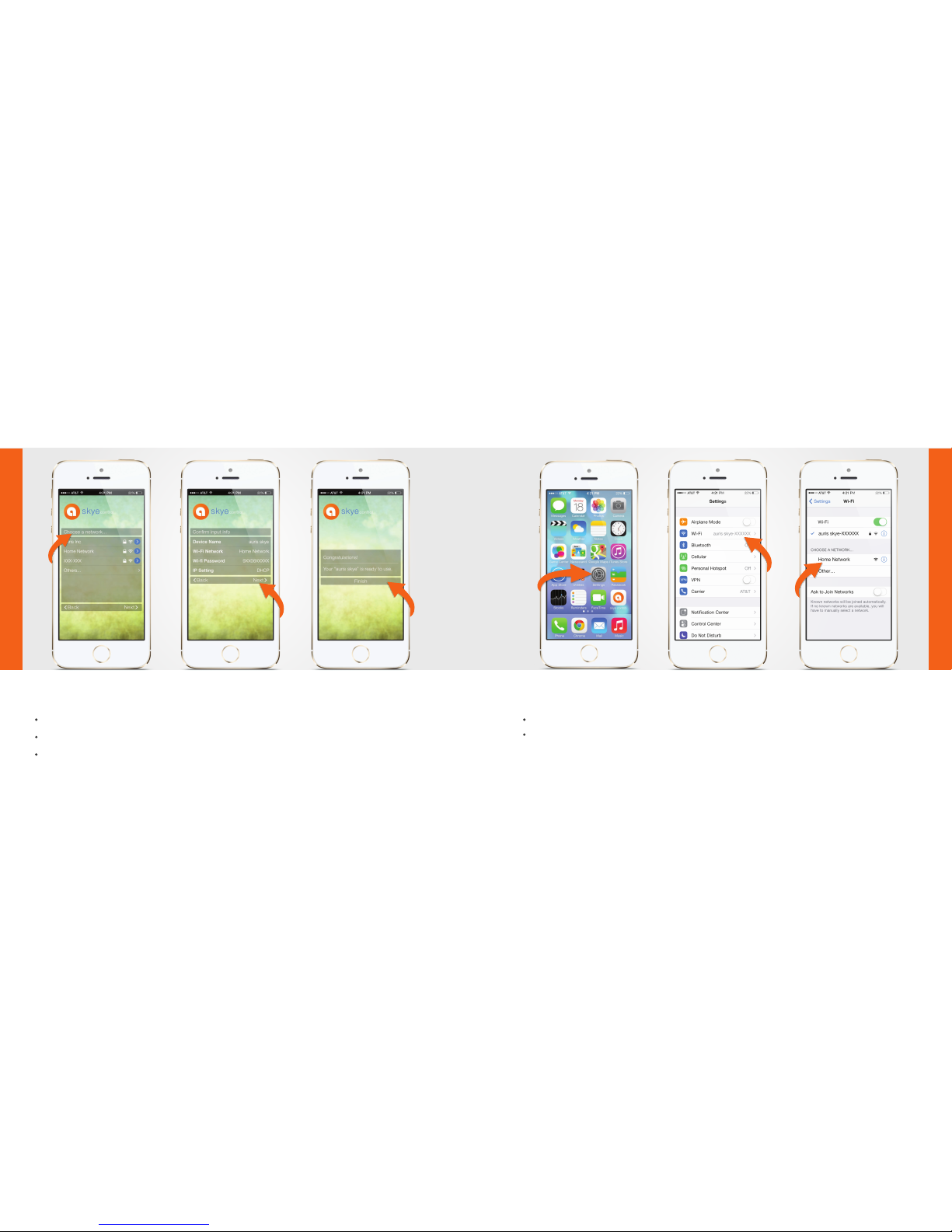
Select your Home WiFi Network and enter Password. (if needed)
Confirm settings by pressing ‘Next’.
Click ‘Finish’.
skye Control App will now scan for reachable WiFi networks. If your wireless network is
not displayed, check your wireless router or if you are out of range.
AirPlay / DLNA on WiF i Network
12
RE-CONNECT TO YOUR HOME NETWORK
Open ‘Settings’ and press ‘WiFi’ connections on your iPhone.
Choose your Home WiFi Network.
Your iPhone may do this automatically.
AirPlay / DLNA on WiFi Netw ork
13
Page 9
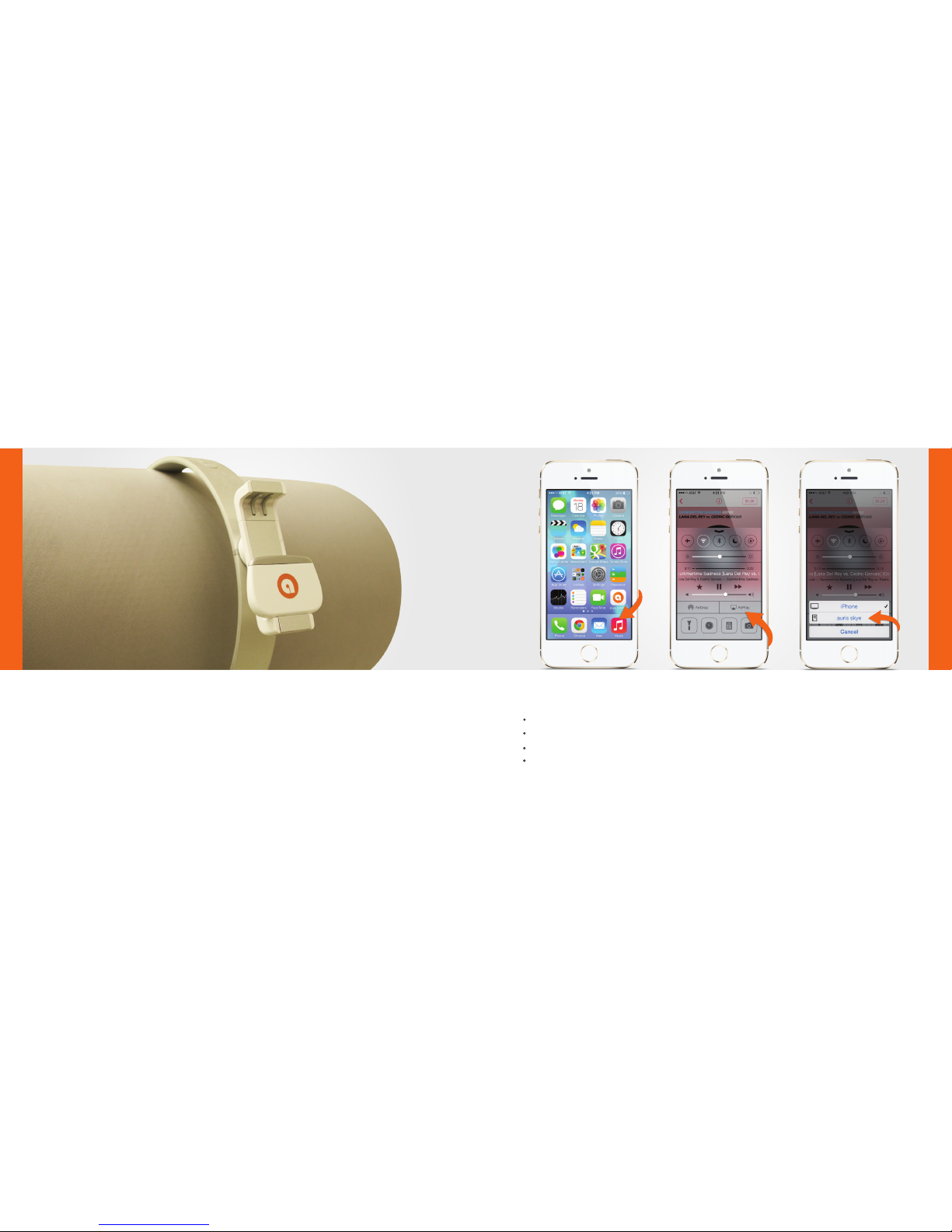
YOUR skye IS NOW READY
If the Status indicator shows solid WHITE light, you’re ready to set your music free!
If the Status Indicator is pulsing orange, go to page 9 and start over
or visit: www.theauris.com
AirPlay / DLNA on WiFi Network
14
Select ‘Music’ on your iPhone, iPad or iPod Touch.
Press ‘AirPlay’ icon.
Select your skye device.
Press ‘Play’ and set your music free!
SET YOUR MUSIC FREE!
AirPlay / DLNA on WiFi Network
15
Page 10

Open ‘iTunes’ on your Mac or PC.
Click ‘AirPlay’ icon and choose your skye device.
Select ‘Play’ and set your music free!
SET YOUR MUSIC FREE!
Mac or PC on WiFi N etwork
16
Press and hold the ‘Reset button’ with a needle while skye is plugged in your dock.
Release the ‘Reset button’ when the Status indicator turns solid ORANGE.
It will now emit the WHITE setup sequence and enter setup mode.
To clear all settings on your auris skye you need to perform a factory reset.
FACTORY RESET
17
Page 11
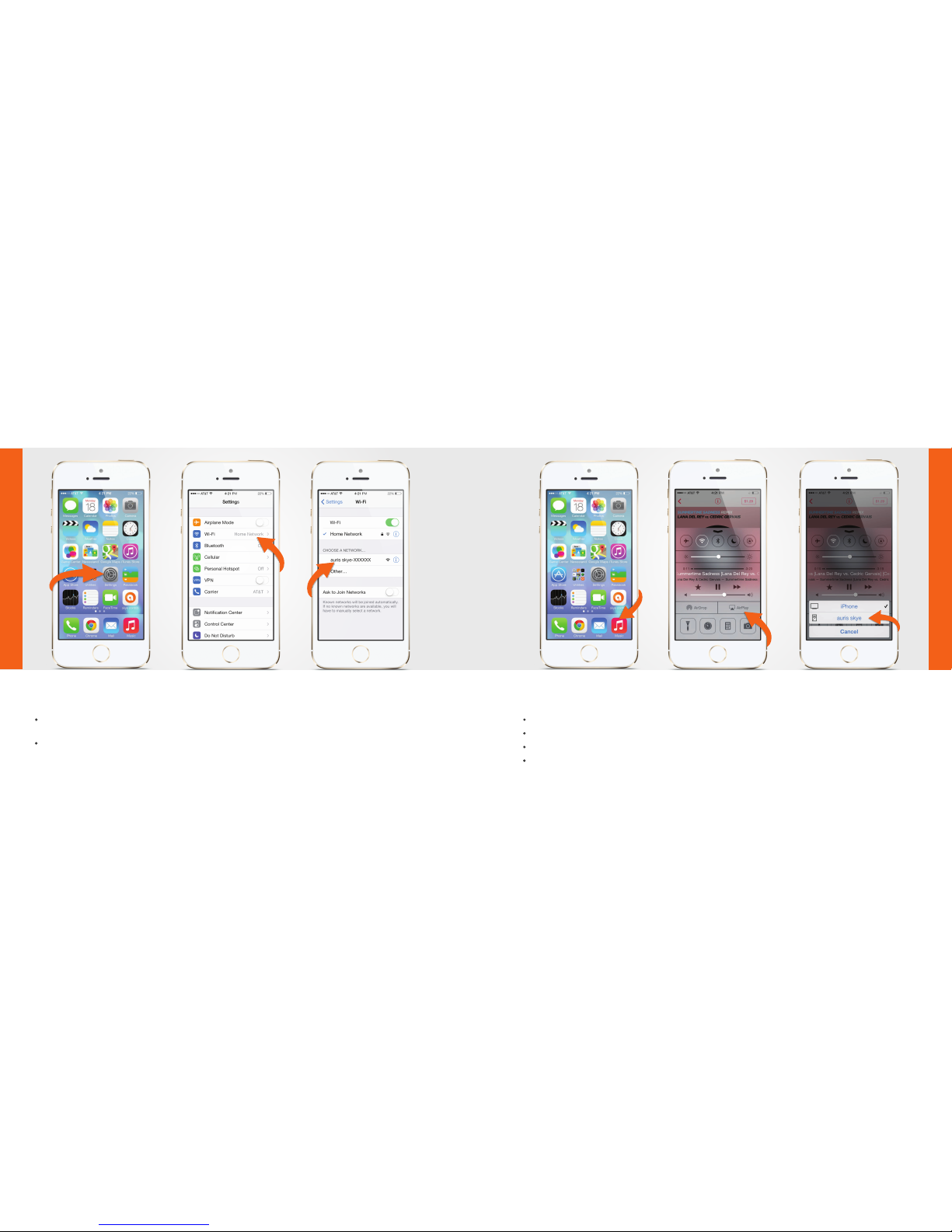
FIND YOUR skye
Open ‘Settings’ and press ‘WiFi’ connections on your iPhone.
Choose ‘auris skye-XXXXXX’ network.
AirPlay / DLNA on s kye W iFi Direct
18
Select ‘Music’ on your iPhone, iPad or iPod Touch.
Press ‘AirPlay’ icon.
Select your skye device.
Press ‘Play’ and set your music free!
SET YOUR MUSIC FREE!
AirPlay / DLNA on skye WiFi D irect
19
Page 12
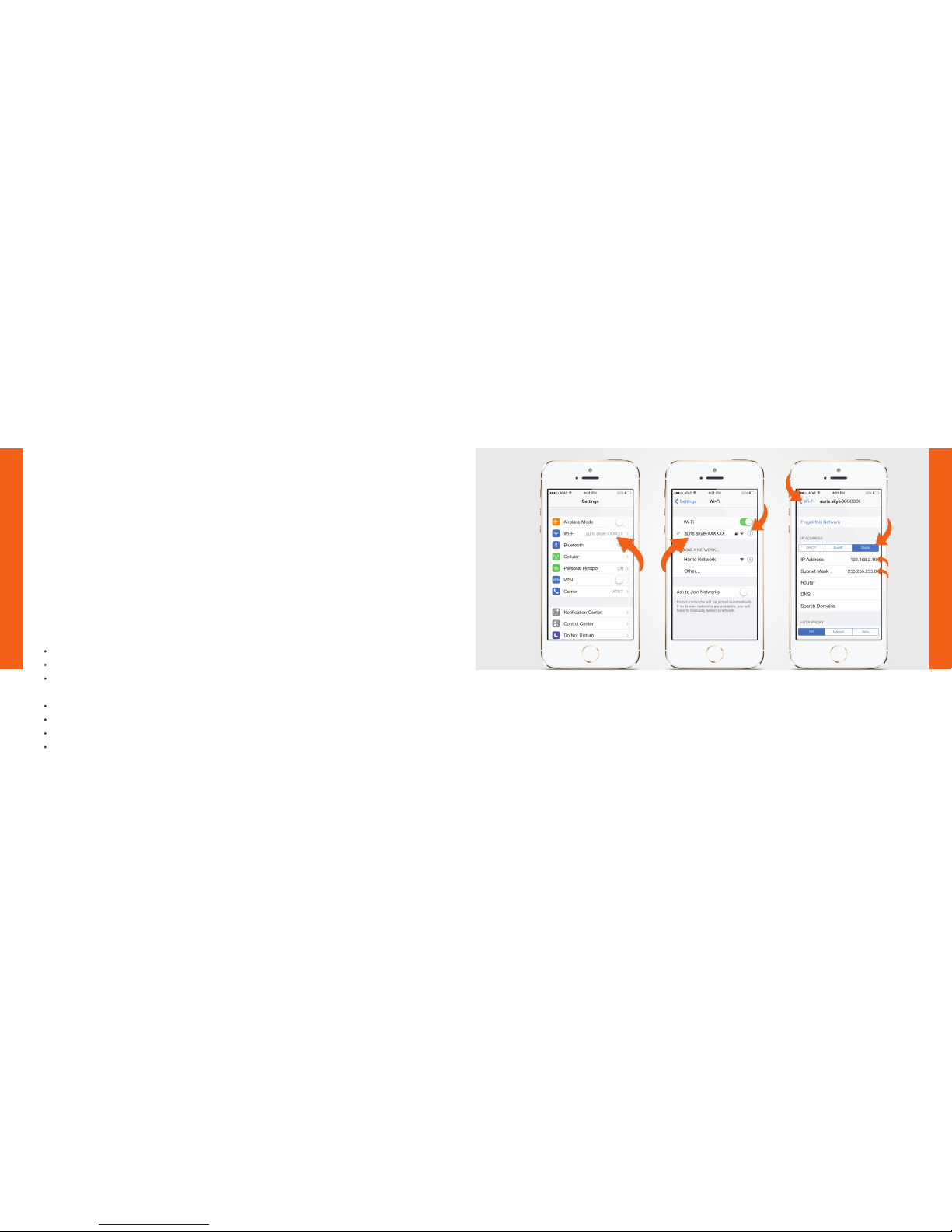
Plug skye into your 30-pin Docking station and connect via W iFi Direct.(refer Pg 18-19)
Select Settings and then WiFi on your iPhone or iPad.
Press the blue icon to the right of the selected skye network to enter WiFi connection
setup.
Under IP-address select Static.
Insert 192.168.2.10 as IP-address.
Insert 255.255.255.0 as Subnet Mask.
End configuration by pressing WiFi in the upper left corner.
The iOS operating sy stem currently does not suppo rt simult aneous use of Internet
data and music se rvices along with W iFi s ervices suc h as W iFi Direct . This means
that when your iPhon e or iPad is connected to your skye via WiFi Direct - you will
not have access t o the internet nor be able to use streaming music se rvices such
as Pandora, Spotify or Radio.
However, help is at hand, here's a guide that shows you how to enable
WiFi Direc t and stream music at the same time.
Simply follow the given steps:
Important note on skye WiFi Direct for iOS devices
skye WiF i Direct
20
If your iPhone or iPad has strong 3G/4G coverage you will now be able to use a streaming
music service along with WiFi Direct, as well as use normal Internet services simultaneously.
Enabling the workaround is a one-time operation on your iDevice, so it stays there until you
actively decide to disable it again (by using the "Forget this Network" option on your
WiFi Direct connection).
skye WiFi Direct
21
Page 13
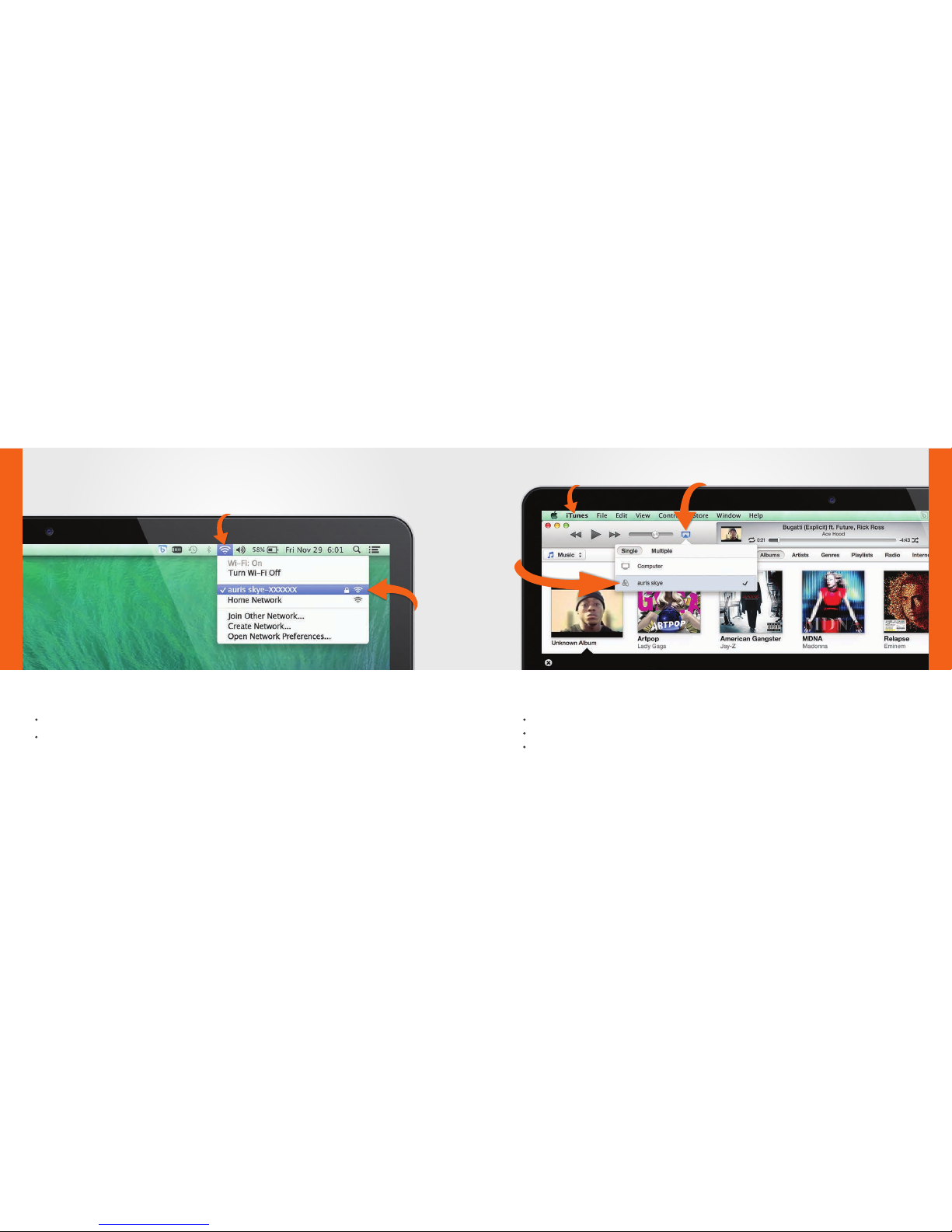
Open ‘WiFi’ connections on your Mac or PC.
Choose the ‘auris skye-XXXXXX’ network.
FIND YOUR skye
Mac or PC on skye WiFi D irect
22
Open ‘iTunes’ on your Mac or PC.
Click ‘AirPlay’ icon and choose your skye device.
Select ‘Play’ and set your music free!
SET YOUR MUSIC FREE!
Mac or PC on sky e WiF i Direct
23
Page 14

SPECIFICATIONS
Platform CPU Freescale IMX 28
OS Linux
Memory Nand 128MB
Flash 64MB
Power Unit Powered via 30-pin Dock 5V 500ma
WiFi Frequency Band 2.4GHz
802.11b/g/n Up to 150Mbps
Data Transmission Speed 802.11n: 150Mbps
802.11g: 6, 9, 12, 18, 24, 36, 48,
54Mbps
802.11b: 1, 2, 5.5, 11Mbps
Encryption 64/128 bits WPA,
WPA2 + Authentication: 802.1x,
Antenna 1 internal
24
WiFi Protocol AirPlay Yes
AirPlay Plus Yes, support WiFi Direct Connect
UPNP Yes, 1.0
DLNA Yes, DMR
Audio Format MP3 Yes
AAC Yes
Vorbis/OGG Yes
MIDI Yes
PCM/WAV Yes
WMA Yes
AC3 Yes
FLAC Yes
Dimensions Height 1.73 inches (44 mm)
Width 2.52 inches (64 mm)
Depth 0.39 inches (10 mm)
Weight 0.04 ounces (16 grams)
25
Page 15

PRODUCT SAFETY
When used in the directed manner, this unit has been designed and manufactured
to ensure your personal safety. Improper use of this product can result in potential
electrical shock or fire hazards. Please read all safety and operating instructions
carefully before installation and use. Keep these instructions handy for future
reference.
Users of this product are cautioned not to make modifications or changes that are
not approved by Auris, Inc. Doing so may void the compliance of this product and
may result in the loss of the user’s authority to operate the equipment.
CAUTION: To reduce the risk of electric shock do not
remove cover (or back). No user-serviceable parts inside.
Refer servicing to qualified service personnel.
26
SAFETY INSTRUCTIONS
Keep product dry to avoid affecting the interior circuitry of the product.
Don’t put the product in direct sunlight or place in hot areas.
High temperature will shorten the life of electronic device.
Don’t expose to extreme temperatures, it may damage the internal circuit
board.
Don’t take the product apart or the warranty will be voided.
Don’t drop the product.
Don’t use chemical or detergent to clean the product.
Due to isolating characteristic of the product, do not use the product at
excessive volume while driving or in any other activity where failure to hear
surrounding sounds could be dangerous.
Using the product at excessive volumes may cause permanent hearing damage.
You can get the most out of your equipment and enjoy great audio performance
even at safe levels.
27
Page 16

WARRANTY
Don’t worry. Your auris skye is covered under our warranty. For warranty information
please visit:
www.theauris.com/warranty
This device complies with Part 15 of the FCC Rules. Operation is subject to the
following two conditions:
(1) This device may not cause harmful interference, and
(2) This device must accept any interference received, including interference that can
cause undesired operation.
Any changes or modifications to the device will void the user’s authority to operate
the device.
This device complies with FCC radiation exposure limits set for an uncontrolled
environnment. This device should be installed and operated with minimum distance
of 20cm between the radiator and the body.
FCC ID: 2ABCJAU03
28
www.theauris.com
Copyright 2013 Auris, Inc. All rights reserved.
AirPlay, iPhone, iPad, iPod Touch, iTunes, Mac are trademarks
of Apple Inc., registered in the U.S. and other countries
All other trademarks and logos are property of their respective owners.
Designed in the U.S.A. I Made in China.
Page 17

www.theauris.com
theauris
@theauris
Auris, Inc.
Santa Clara, CA 95054, USA
 Loading...