

Page 1
User Manual
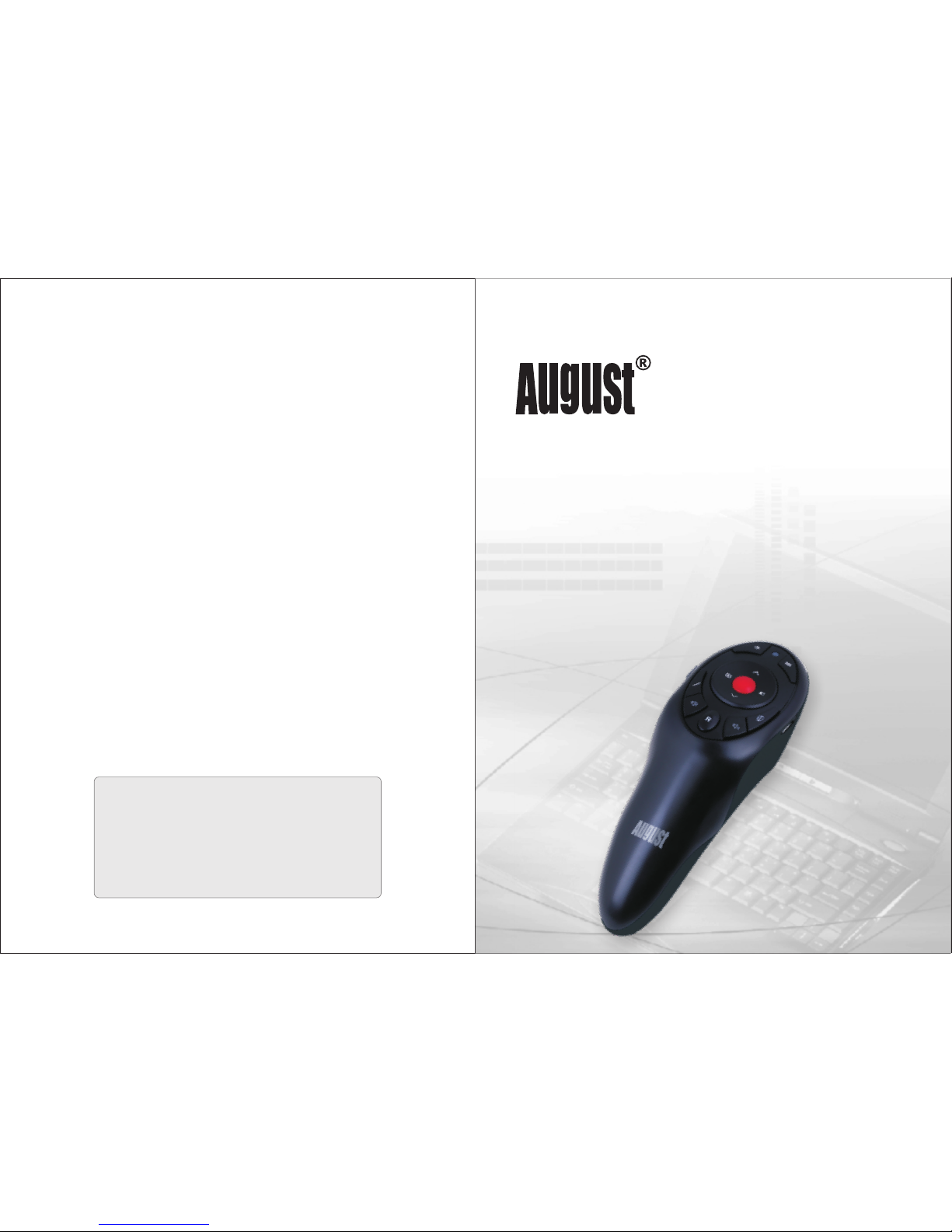
Wirel ess Presen ter for Comp uter
Téléc ommande de p résentat ion pour Ord inateur
Kabel loser Pres enter für Computer
Telecoman do di Presen tazioni pe r Computer
Mando i nalámbri co para pres entacion es
August International Ltd
United Kingdom
Telephone: +44 (0) 845 250 0586
Email: [email protected]
Web: www.augustint.com
LP320
Page 2
English
1. Introduc tion
This wireless presenter is designed to control your computer during
presentations. It gives you the freedom to speak without having to
stand by your computer or relying on an assistant. Simple to use, just
plug and play, no driver required.
The device enables you to control your computer wirelessly from up
to15 meters away, using a Radio Frequency (RF) transmitter that
doesn't require line of sight to your PC. With its in-built laser pointer,
the LP320 is the ideal tool for presentations, teaching, meetings,
speeches, training etc.
Plug and Play for Comp uter Power Point Presentation
Air Mouse and red lase r
Internal Storage for US B Signal Receiver
Operating Range: u p to 15m
Compatible with Wi ndows 8, 7, Vista, X P, 2000, 98 & Mac OS
2. Main Featu res
- 1 -
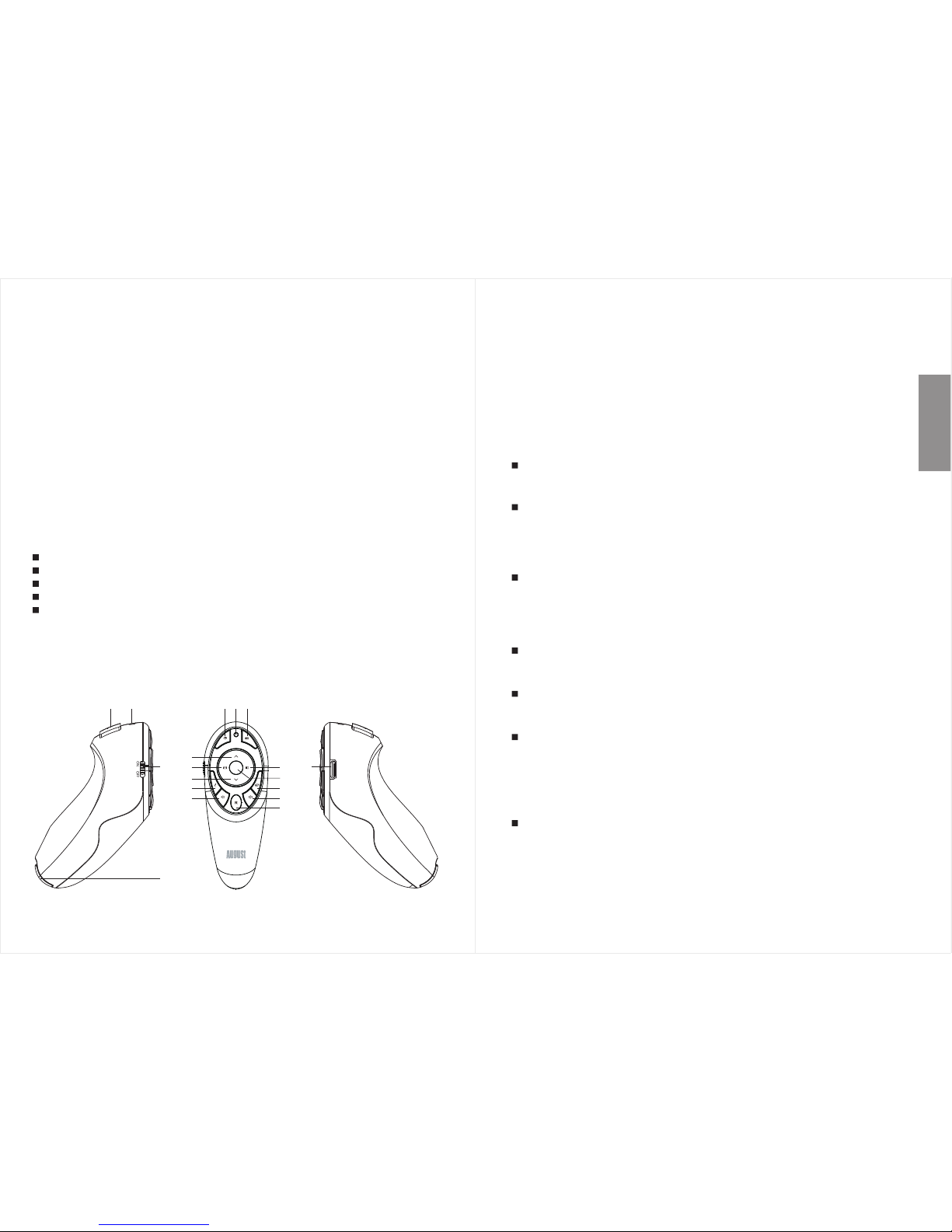
3. Device Lay out
- 2 -
User Manual
1 2 34
5
6
9
8
7
10
11
12
13
14
15
17
16
18
1. Mouse Left Clic k
2. Laser emitter
3. Indicator Lig ht
4. Eraser
5. Pen / Highlight er / Print
6. Volume Control
7. Mouse Right Cli ck
8. Mute
9. Air Mouse Switch
10. Keyboard
11. Page Up
12. Start Slides how
13. Page Down
14. Blank Screen
15. Laser Button
16. Power Switch
17. Receiver
18. Charging Por t
Laser B utt on
Press and hold to ligh t the laser.
Page Up / S cro ll Up
The page up button, ac tivates the (UPAR ROWPIC), it can be
used to go to the previo us slide in power point and to navigate
through pages in oth er applications.
Page Do wn / Sc roll Down
The page up button, ac tivates the (DOWNARROWPIC), it can be
used to go to the next sli de in power point and to navigate through
pages in other appli cations.
Start / S top S lideshow
Press to start or stop a slid eshow.
Blank S cre en
Press to show a black screen.
Highl igh ter / Print
In slideshow mode, p ress it to change between the highlighter
and marker pen, press the left click button to highlight or mark
your slides during a p resentation. In other applications, t his
button can be used to pr int.
Erase r
In slideshow mode, p ress it to switch to eraser function, then use
left click to remove highlighter or marks.
Page 3
English
- 3 -
- 4 -
Volume Control
Press and hold, then move the device right or up to increase the
volume and move the de vice down or left to decrease the volume.
Mute
Press to mute or un-mute.
Air mou se Sw itch
Press to switch the air mouse on or off.
Left Bu tto n
Right B utt on
Keybo ard
USB Cha rgi ng Pport
Press to left click.
Press to right click.
Press to open the on-screen keyboard.
USB Rec eiv er
4. Installa tion
Plug the USB receive r into your computers USB port. The system
will automatical ly search for the new hardware and complete t he
installation.
5. Charging
This device contai ns a built-in Lithium rechargeable batt ery. When
the battery is low, the indicator light will flash quickly when pr ess any
button is pressed. To charge, connect th e micro USB lead to the
device's power soc ket, and the other end of the USB cable to a
powered USB port. Whilst charging, the indicator light will f lash
slowly. Aft er the battery is fully charged, the indica tor will light
constantly.
Note:
If battery level is lo w, th e co ntrol dis tance will decre ase.
Please only use properly certified chargers with this device.
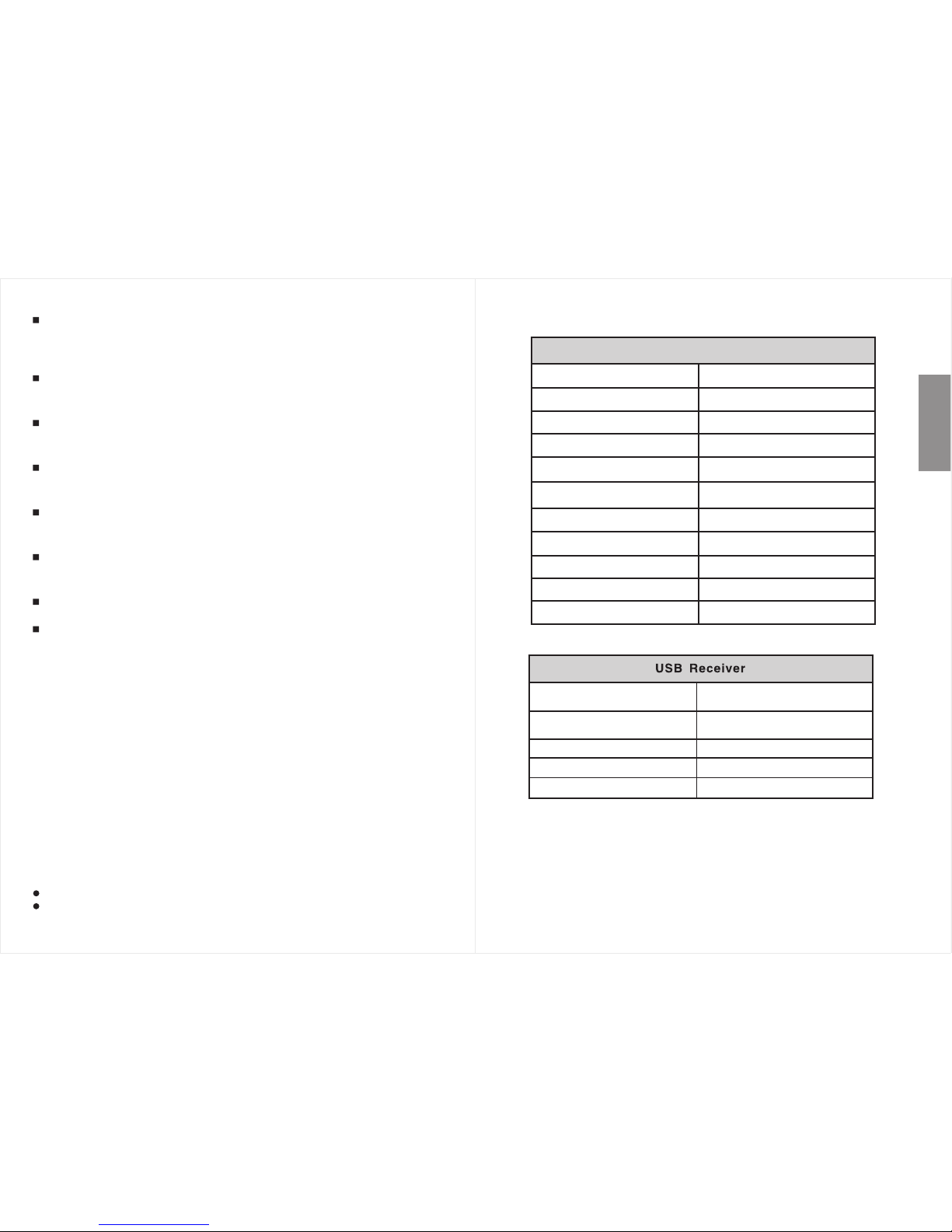
6. Specific ations
<1mW
Laser ra nge
Up to 15mOperat ing range
Freque ncy
Batter y
Up to 200m
3.7V/5 50mAh Li- ion ba ttery
Up to 500 Cy cles
3 hours
Presenter
Batter y Cycles
Chargi ng Tim e
Laser wa velengt h
Laser po wer
Dimens ions
650nm
104 x 41 x 74m m
2.4GHz
Tech nology Radi o Frequen cy
Wei ght
69g
Wei ght
Windows 98 / 2000 / XP / Vista / 7 / 8
and Mac OS
4.5 - 5.5V
43 x 17 x 7mm
Dimens ion
Wor k voltage
Operat ing sy ste ms
USB vers ion
USB1 .1, comp atible wi th USB2.0
and USB3.0
7g
 Loading...