

Page 1
Visit us on the World Wide Web
www.augenus.com
Redefining the Sound of Symphony™
7” eReader
Redefining the Sound of Symphony™
EBA 701
Printed in China
Page 2

Congratulations
Table of Contents
Thank you for your purchase of an Augen product. Your business
is very appreciated.
Our goal is that you will be completely satisfied with this
product’s quality and performance. We offer warranties on all
our products
Since 2004, Augen Electronics has shared the fun of discovering
innovative products that make life better and more enjoyable.
We strive to deliver outstanding customer service that exceeds
your expectations.
Enjoy your purchase!
Introduction and Specifications .........................
Safety Information & What is inside the box .....
eReader Control Panel ...................................
2
3
4-5
Charging the eReader ............................. 6
Main Menu ..........................................
Settings ......................................................
Wi-Fi ...............................................................
7-11
12-17
18
Browser ............................................................... 19
Buy Books ............................................................... 20
DRM Register ............................................................... 20-21
Music ............................................................... 22
Video, Notepad ......................................................... 23
USB Connection ................................................ 24
Power Off .......................................................... 24
How to Transfer Files ............................................ 25
Help Reference .................................................... 26
Augen Cus
FCC Statement of Compliance ..........................
tomer Service and Support ............ 27
28
>1<
Page 3
Product introduction:
Copyright
The information contained in this document is provided “as is” and is subject to
alteration without notice.
Safety Information
Read all safety information carefully before using the eReader
WARNING: Failure to comply with this safety information could result in fire,
electric-shock, or other injuries and damages
Augen Electronics makes no warranty of any kind with regard to this manual, including,
but not limited to, the implied warranties of merchantability and fitness for a particular
purpose.
Augen Electronics shall not be liable for any errors contained herein or for incidental or
consequential damages in connection with the furnishing, performance, or use of this
manual or the examples herein.
All rights reserved to:
© 2008 Augen Electronics Corporation
Specifications
● Display: 7 inch, TFT
● Resolution: 800 x 480
● Processor : ARM9 , 400 Mhz
● RAM memory: SDRAM 64MB
● Operating system: Linux2.6.24
● Reader formats supported: TXT ,PDF,HTML,CHM,RTF,FB2
EPUB, WORD,TCR,PAML DOC.,OPEN E-BOOK,OPEN
READER,MOBI, etc.
● Music format supported: MP3,WMA
● Image formats supported: JPG, PNG, GIF, BMP
● Video formats supported: AVI, MPEG-4
● Office file format support: Notepad
● Support E-bookmark
● Support TEXT to Speech function
● G-Sensor for Book and picture file
● Support recent reading record
● Compatible to SD card up to 32G
● Language: English
● Dimensions: 226 x 130 x 13mm
Never attempt to repair the eReader yourself.
The eReader should be repaired only by an Augen Technical Service Provider
NOTICE: Failure to follow these handling instruction could result in damage to
your eReader:
• Avoid using the eReader in exteme weather conditions, as it may
damaged by extreme temperature
•
Avoid wet locations. In case the eReader gets wet, unplug all cables, turn
the device off and allow it to dry thoroughly before turning it back on
•
Keep the eReader clean; avoid dusty and damp conditions
•
Do not bend, puncture, incinerate, or open the eReader
•
Avoid dropping the eReader
Use clean cloth for cleaning the eReader, do not use liquid or aerosol type
of cleaners
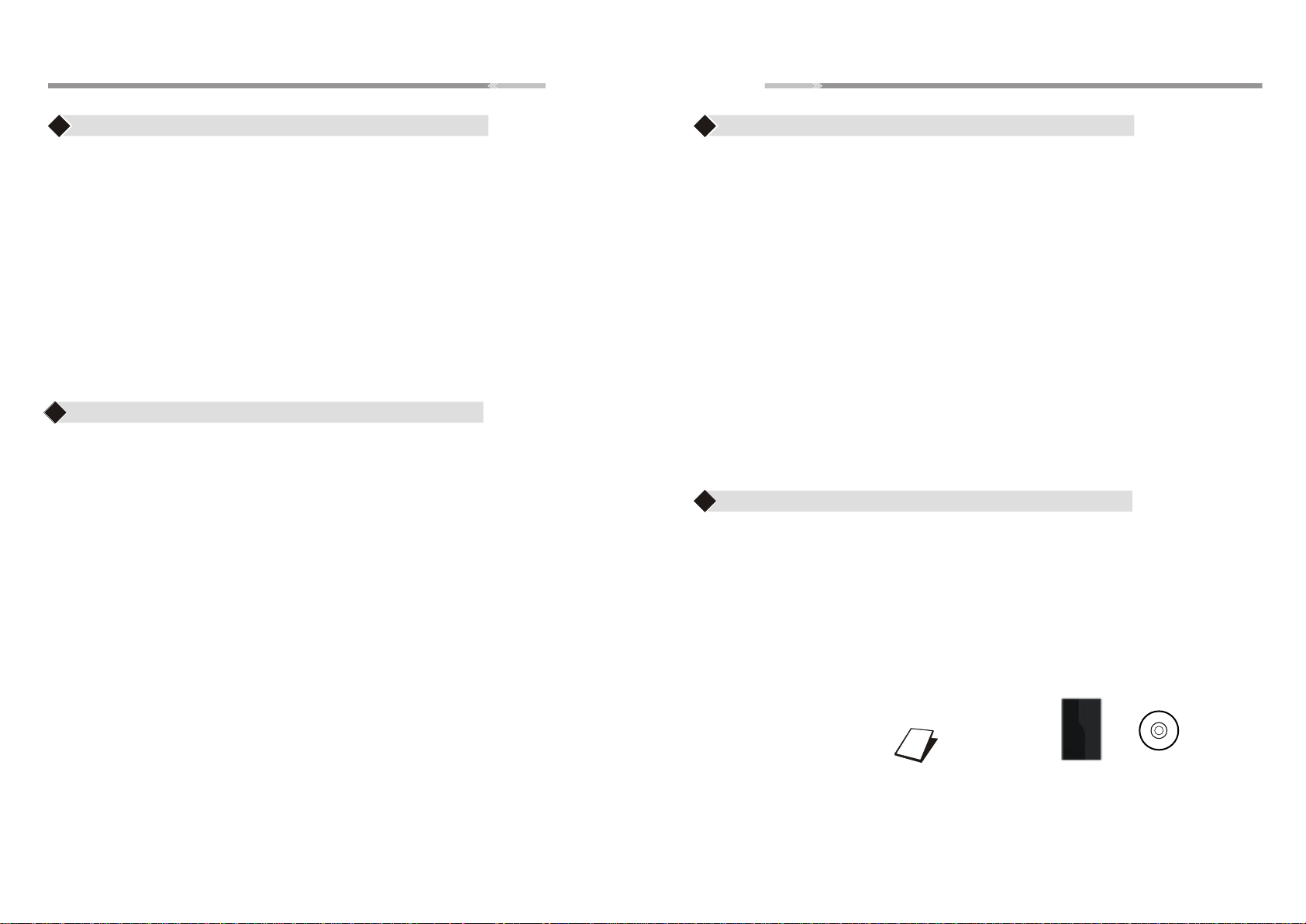
What’s in the box
5. Leather Case 1 Pc
1. eReader 1 Pc
2. Usb Cable 1 Pc
5. 1 Pc
6. CD 1 Pc
3. User Manual 1 Pc
4. AC Adapter 1 Pc
eReader
USB Cable
User Manual
AC adapter
Leather Case CD
>2<
>3<
Page 4
eReader Control Panel
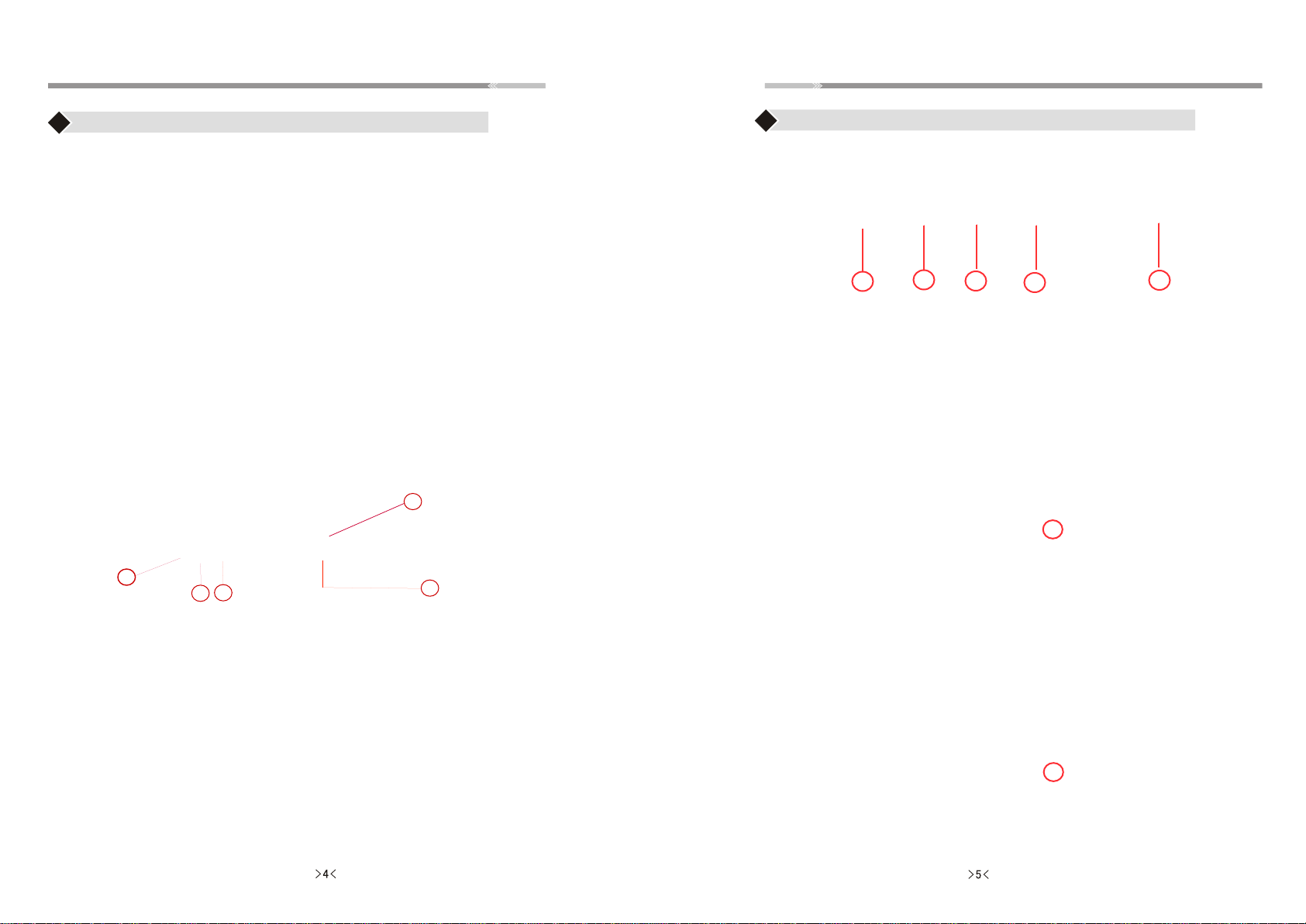
eReader Control Panel
Front View
8
9
10
11
1. Previous page/ + Volume increase
2. Next Page / - Volume decrease
3. Home
4. Next Page
5. Menu
6. Joystick Button
7. Back
8. Enter Button
9. Sleeping Screen / Renew
10. Lower Case
11. ALT: Press ALT key with any key together.
Example: ALT + key “1” = “!” ALT + key “Q” = “+”
ALT + key “2” = “@”
12. Zoom In/Out
12
Bottom View
10
11
13. DC jack
14. USB slot
15. Headphone Jack: uses 3.5mm jack
16. SD Card Slot
17. Power Button
12
Back View
18. Speaker
19. Reset
13
14
15
16
Page 5
Charging the eReader
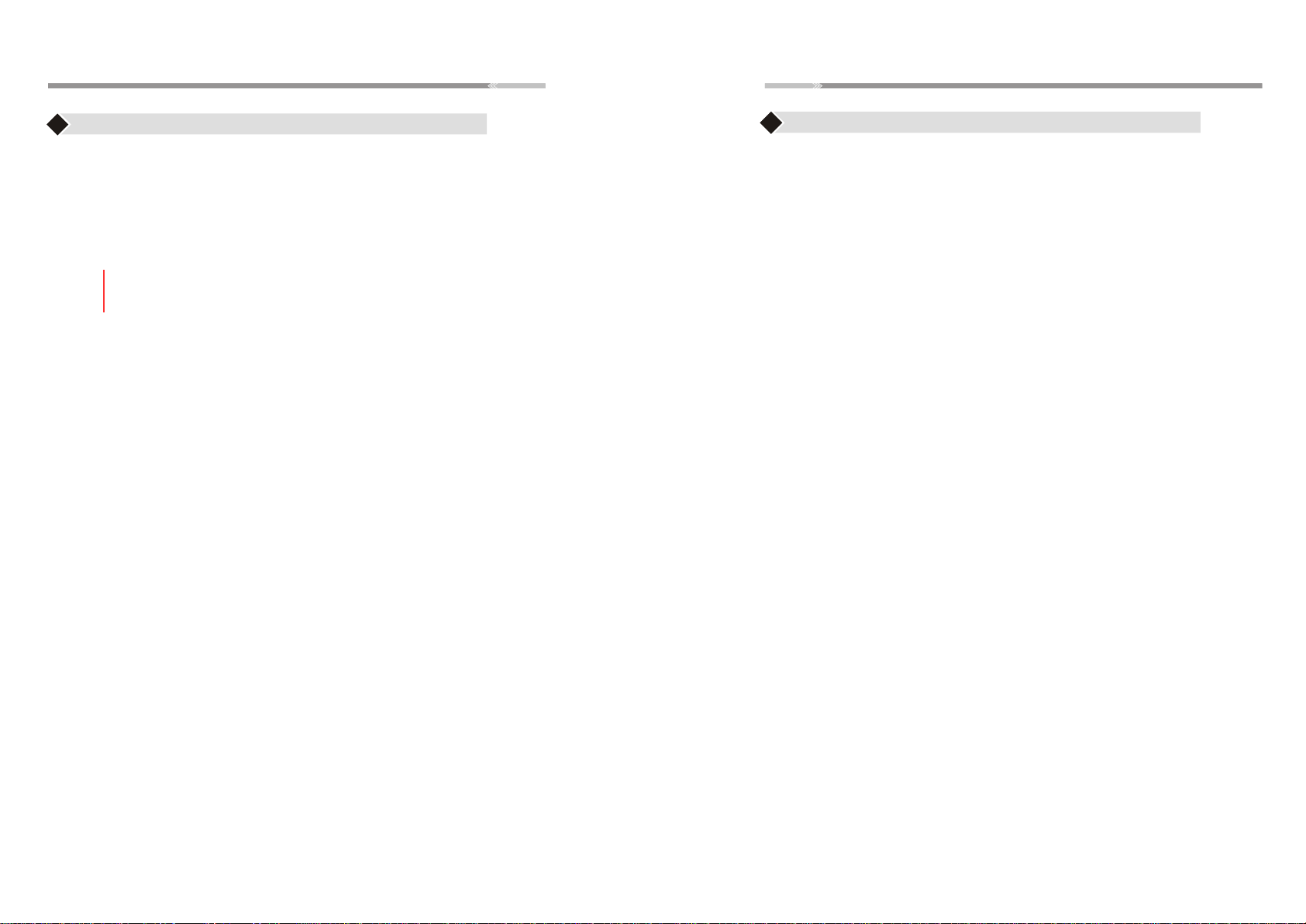
♦ Use the AC adapter and plug the adapter to the DC jack of
the eReader
♦ Battery Indicator will show:
eReader is charging
Battery is full
Note: Please charge the eReader at least 4 hours.
Main Menu
Note: eReader’s Main Menu contains:
Continue Reading , Favorite, Library, Settings, WIFI, Browser,
Buy books, DRM Register, Music, Video, Notepad, Power off
>6<
Use the “Joystick” to scroll/highlight the menu and press
the “Enter” button to enter to the desired menu
>7<
Page 6
Main Menu
Main Menu
Continue Reading
♦ Select this option to go back to the last state or page where you
left your ebook file.
♦ Use the “Joystick” to highlight “Continue Reading” option
♦ Press the “Enter” button to open the option. Press “Home” button
to go back to the Main Menu
Favorite
♦ Use the “Joystick” to highlight “Favorite” Menu and press
the “Enter” button to open the menu
Library
♦ Use the “Joystick” to Highlight “Library” menu and press the “Enter” button,
the submenu will be listed on the right. Library Submenu contains:
Back to Parent, Audio, Digital Editions, Download, Free eBook, Picture,
Video
♦ The Favorite menu list the websites that is saved to your eReader
♦ Press “Back” button to go back to the HOME menu
>8<
>9<
Page 7

Main Menu
Main Menu
Back to Parent
♦ Select “Back to Parent” to go back to the HOME menu
♦ Use the “Joystick” to highlight on the following options:
♦ Press the “Enter” button to open the selected option.
♦ Once done, Press the “Back” button to go back to the submenu or
press “Home” button to go to the Main Menu
Digital Editions
contains DRM eBooks file. You can save your DRM eBook in this
♦
folder.
Download
♦
Can save any ebook files to this folder
Free eBooks - contains free E-book files (may vary)
My Books - All files downloaded from the internet will be save to this folder
Picture - contains picture files
Audio - contains Mp3 files, Audio files saved into the eReader
Read PDF format file UI: Read other formats file UI:
View Pictures:
Afteropening apicture, press “ Menu”button. Menu option contains
Zoom, Rotate functions
Press “Exit” or “ Back” button to exit this option.
To change display orientation from Portrait view to Landscape view,
Move reader’s direction, use G-sensor function.
Video- contains video files saved into the eReader
Read Files/Books
♦ After opening an eBook file, press “ Menu” button.Menu options
contains :
Font, GotoPage, Zoom(for PDF format),RefreshMode,Pronounce(Text to speech),
Bookmark,Rotate,Favorite,Style,Outline(for PDF format),Time, Exit.
Press “Exit” or “ Back” button to exit to this option.
Note: To change screen orientation while reading from Portrait view,
to Landscape bview use G-sensor function
>10<
>11<
Page 8

Settings
Settings
♦ Use the “Joystick” button to highlight the “Settings” menu
♦ Press the “Enter” button to open “Settings” menu,
Settings Submenu contains:
Back to Parent, U Disk, Upgrade, Default, Format, Time,
Help, System Info, Backlight, Language.
Back to Parent
♦ Select “Back to Parent” to go back to the HOME menu
Use the “Joystick” button to highlight on the following options:
U Disk
♦
Use the U Disk Option if your computer did not recognize your
eReader automatically
♦ While the eReader is connected to USB. On the Settings Menu,
use the “Joystick” button to highlight the U Disk option and press
“Enter” button. The display will appear as shown in page 22.
Upgrade
♦ For Upgrade options: NOT available on this model
Default
♦
Use to restore the settings of the eReader to factory Default
Settings
>12<
♦ Use the “Joystick” button to highlight the buttons. Highlight
restore button and press “enter” button to restore back to default
or highlight Cancel button to abort the operation
>13<
Page 9

Settings
Settings
Format
♦ Use to format the entire device.
Caution: Formatting the device will erase all data on the device
Time
♦ Use the “Joystick” button to highlight “Time” option and press the
“Enter” button to open the menu
♦ Use the “Joystick” button to (left/right) to highlight the buttons
“Format and Cancel”. Press “Enter” button to complete the
operation
>14<
♦ Press “Joystick” button(left/right) for adjust the month,
Date ,year and time, press “Joystick” button(up/down) for line
option
♦ Press the “Enter” button to complete the settings.
>15<
Page 10
Settings
Settings
Help
♦ Press“Joystick” to highlight “Help ” menu,UM soft copy will be
available
System Info
♦ Press “Joystick” to highlight “System Info ” and press “Enter”
button to open the menu. Detailed information of the device will
be provided;
Bright
Language
♦ Use “Joystick” to scroll Up/Down for “Language” selection,
English and Simplified Chinese are available
♦ Press “Enter” button to select the desired Language
Use “Joysick” to adjust backlight to “ Low “ or “ High”
Press “ Enter” button to complete the settings
>16<
>17<
Page 11
Wi-Fi
♦ Use the “Joystick” to highlight the “Wi-Fi” option and
press “Enter” button.
Note: Please make sure to have the wireless password/key
to be able to connect to Internet. Call your ISP/network
provider for the wireless settings
♦ If Wi-Fi is “OFF”, put a check on “Enable Network” box by
pressing “Enter” button. Once enabled, the Wi-Fi will scan
for available networks.
♦ Use the “Joystick” to highlight the wireless network and
press “Enter” button. If your wireless network is secured,the
password prompt will appear. Enter the wireless password and
press “Enter” button
Browser
♦ Use the “Joystick” button to highlight “Browser” option and
press “Enter” button to open the browser
Note:It needs to connected to Wifi first,then this option will work.
♦ Press “Menu” button, 3 lines options will be shown in the
lower left:
1. Favorite- saving links to Favorite,
2. Open Url- opens a new link
3. Exit
♦ Once connected, it will automatically go back to the Main
Menu
>18<
>19<
Page 12

Buy Books
♦ Select this option to go to buy books website directly
(ebooksmedia.com)
♦ Use " Joystick" to highlight " Buy books" option
♦ Press" Enter" button to open this option
♦ Press " Home" button to go back to the Main Menu.
Note:It needs to connect to Wi-Fi first,then this option will work.
DRM Register
♦ There are two ways for you to read the DRM file:
1. Using Adobe Digital Edition:
For details on how to install and use the Digital Edition Software,
please visit the link below:
http://www.adobe.com/products/digitaleditions/help
Note: Please create an Adobe ID before downloading the Adobe
Digital Edition Software.
2. Using your eReader:
Prior to downloading ebooks, you need to create an Adobe ID and
register the device.
Step 1: Please Create an Adobe ID.
Visit the link: www.adobe.com
Click the “Your account” link on the upper right hand corner
of the website and click “Create an Adobe Account” button
in the next page. A registration form will show.
Please provide all necessary information and submit.
Step 2: On the eReader, Connect to Wi-Fi
Step 3: On the eReader’s Main Menu, Use the Joystick to highlight
“DRM Register” option and press “Enter”.
Input your Adobe ID and password and select “Activate”.
press Enter.
Note:If you are experiencing issues with creating a new Adobe ID go to
support and search for "Adobe account, password, and login FAQ"
DRM Register - Continued
Once you activated the DRM, it will display “Device has been
activated”. If you want to deactivate it, you must do hard reset.
Step 4: eReader is now ready to download DRM ebooks. You can
visit ebooks sites to purchase and download DRM ebooks.
Step 5: Downloaded files will be saved into Digital Editions folder
under Library
Note: Once you downloaded the DRM ebooks to the eReader. You will
not be able to copy it from another device.
DRM Hard Reset
Step 1: Please press z, y, j, Number “3” key consecutively. The Testing
window will appear, please select "DRM Hard Reset", then press
“Enter” button
Step 2: On screen Keyboard will pop up, please input the code "8299",
press OK. Press the “Back” button and you can now input or
activate a different Adobe ID
>20<
>21<
Page 13
Music
♦ Use “Joystick” button to highlight “Music” option and press
“Enter” button.
♦ Use the “Joystick” button (up/down) to select the desired
audio file on the list
♦ Press “Enter” button for PLAY/PAUSE, Press “Back” button
to go back to the Main Menu
♦ Press “+ Volume/ - Volume” button to adjust the volume
>22<
Video
♦ Use the “Joystick” to highlight “Video” option and press the
“Enter ”button open the video menu, Use the “Joystick” button
(up/down direction) to choose your desired video file
♦ Press “enter” button to PLAY/PAUSE,Press “Back” button to go
back to the Main Menu
♦ Press “+ Volume/- Volume” button to adjust the volume
♦ Use the “Joystick” to highlight “Notepad” menu. Press “Enter”
button to open the Notepad.
♦ Press “Back” button to go back to the Main Menu
Note: File is automatically saved once any text typed on the notepad or
you can press” Menu” choice “ Export” save files to SD card
Notepad
>23<
Page 14
USB Connection
♦ Connect the USB cable to your computer
♦ Pop up window will appear on the device "The usb is connected. Are
you sure to start Udisk?”
♦ Press OK
♦ Computer will recognize the eReader as a “Removable disk”
Power-Off
♦ Use the “Joystick” to highlight the “Power Off” option and
Press “Enter” button to shutdown the eReader
♦ Another way to shutdown the eReader is to press and hold the
Power button till it shutdown.
Note: If the computer using Windows 98 operating system,
Please install windows 98 2.0 USB driver from the CD in first.
How to Transfer Files (Music,Video,Photo,etc)
♦ Press “Complete” button on the bottom part of the eReader after
transferring files. The eReader will be automatically disconnected
from the computer
♦ Windows Operating system recognizes the eReader as “removable
disk”. Choose “open folder to view files”
Note: Some operating systems are not set for AutoPlay window. In this
case, go to “My Computer” and look for “Removable Disk” and
double click to enter
♦ Simply locate your files (songs, photos etc...) on your “Local Disk”
using “my computer” function. Once found, drag and drop your
desired files into the disk drive (removable disk) assigned to the
eReader
>24<
>25<
Page 15

Help Reference
1. CD comes with Windows 98 USB 2.0 driver
2. “Calibre” is a software that can manage files downloaded to library
database, convert eBooks file to different file formats.
3. Install Calibre to your computer
4. Use Calibre .msi for installation using windows operating system
5. Use Calibre .dmg for installation using to Mac operating system
Augen Service & Support
250 N.Dixie Hwy. #13
Hollywood, FL 33020
If you have questions, please feel free to contact our customer service
representatives at 1-877-AUGENOK or by email at [email protected]
All rights reserved to:
© 2008 Augen Electronics Corporation
Augen Electronics Corporation
250 N.Dixe Hwy. #13
Hollywood, FL 33020
Shop online: www.augenus.com
Augen Customer Service Team hours of operations:
MON-FRI 10:00AM – 5:00 PM (EST)
Augen Technical Support Team
>26<
>27<
Page 16
FCC regulations
FCC Declaration of Conformity Statement
This device complies with Part 15 of the FCC Rules. Operation is
subject to the following two conditions: (1) This device may not
cause harmful interference; and (2) this device must accept any
interference received, including interference that may cause
undesired operation.• Radio and Television Interference: This
equipment has been tested and found to comply with the limits
for a Class B digital device, pursuant to Part 15 of the FCC Rules.
These limits are designed to provide reasonable protection
against harmful interference in a residential installation. This
equipment generates, uses and can radiate radio frequency
energy and, if not installed and used in accordance with the
instructions, may cause harmful interference to radio communi
-
cations. However, there is no guarantee that interference will not
occur in a particular installation.•If this equipment does cause
interference to radio or television reception, which can be
encour aged to try to correct the interference by one or more of
the following measures:
• Increase the separation between the equipment and receiver.
•
• Consult the dealer or an experienced radio/TV technician for
expressly approved by Augen could
void the user’s authority to operate the equipment.
FCC Statement of Compliance
Redefining the Sound of Symphony™
>28<
 Loading...