

Page 1
USER GUIDE
FIDELIA
Page 2
COPYRIGHT © 2012–2014 BY AUDIOFILE ENGINEERING, LLC
All rights reserved. No part of this publication may be
reproduced, stored in a retrieval system, or transmitted,
in any form, or by any means, electronic, mechanical,
photocopying, recording, or otherwise, without the prior
consent of the publisher.
DEVELOPED IN MINNEAPOLIS
Page 3

A DIGITAL MUSIC PLAYER FOR !
THE SOPHISTICATED MUSIC LOVER
Fidelia is an elegant and powerful music player created exclusively for OS X.
Anyone with a passion for music knows the value of high-quality hardware,
whether it's a perfectly calibrated power amp or world-class pair of speakers.
Shouldn't your software live up to the same high standards?
Fidelia lets discerning OS X users truly optimize their home listening experience,
preserving maximum sonic fidelity across multiple file formats and delivering
uncluttered utility with an elegant user interface. Powered by Audiofile Engineering's
Fidelia Audio System, it gives you the tools and the freedom to savor the sounds !
that you love, all the way from your hard drive to your eardrums.
Page 4
THE GUIDE
AT A GLANCE
1 BASICS
2 PREFERENCES
3 SUPPORT
4 FIDELIA REMOTE
5 CREDITS
Page 5

1.1 1.2 1.3
LICENSING THE PLAYER LIBRARY
BASICS
CHAPTER 1
Page 6

1.1
LICENSING
Page 7
7
CHAPTER 1 / LICENSING
WELCOME TO FIDELIA
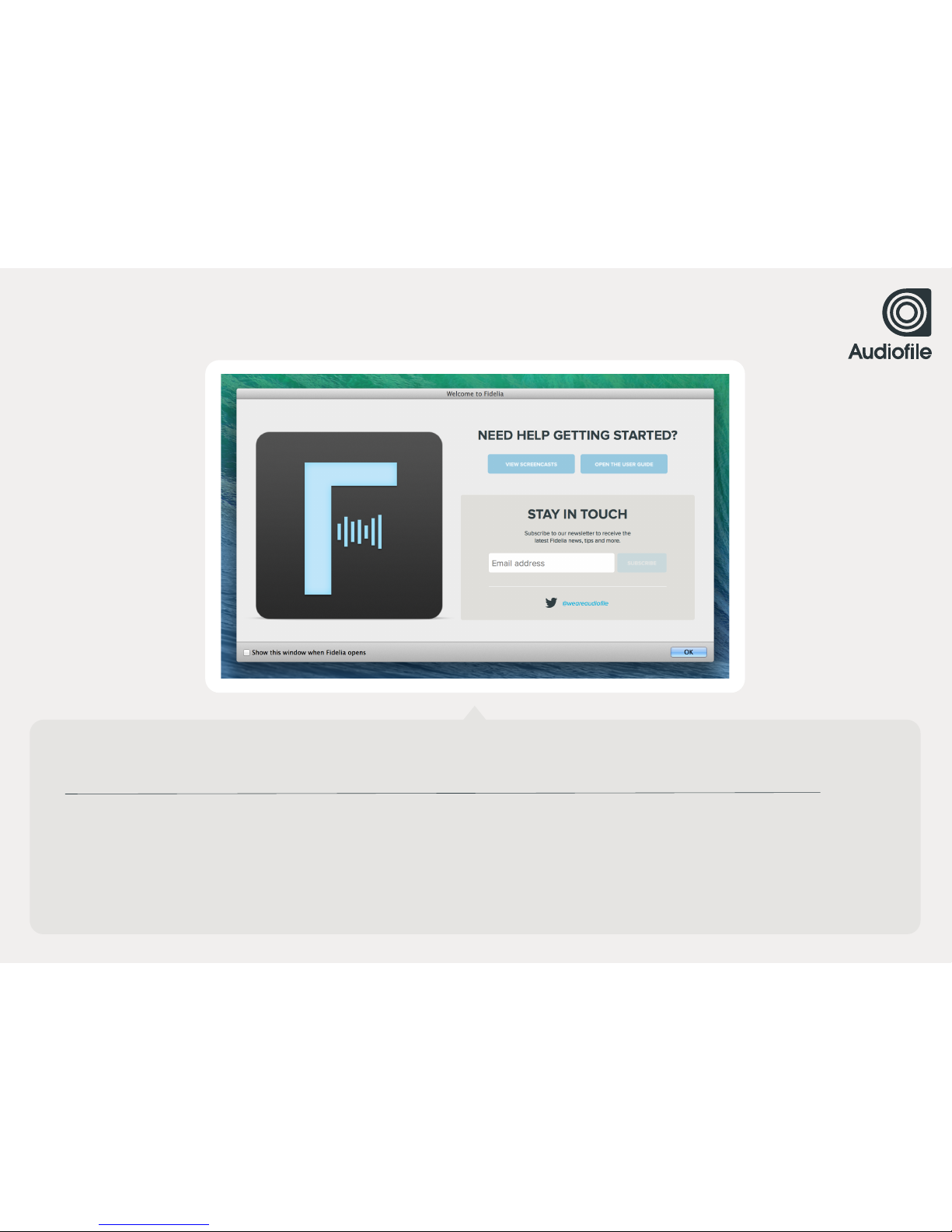
WHEN YOU FIRST LAUNCH FIDELIA, A WELCOME SCREEN APPEARS
From this welcome screen you can view relevant screencasts, open the User Guide and subscribe to the Audiofile newsletter.
Click “OK” to hide this window and begin your Fedelia experience. To return to this window, choose Help > Welcome to Fidelia.!
VERSIONS OF FIDELIA PURCHASED FROM THE MAC APP STORE WILL LAUNCH IMMEDIATELY INTO ITS FULL WORKING MODE.
Page 8
8
CHAPTER 1 / LICENSING
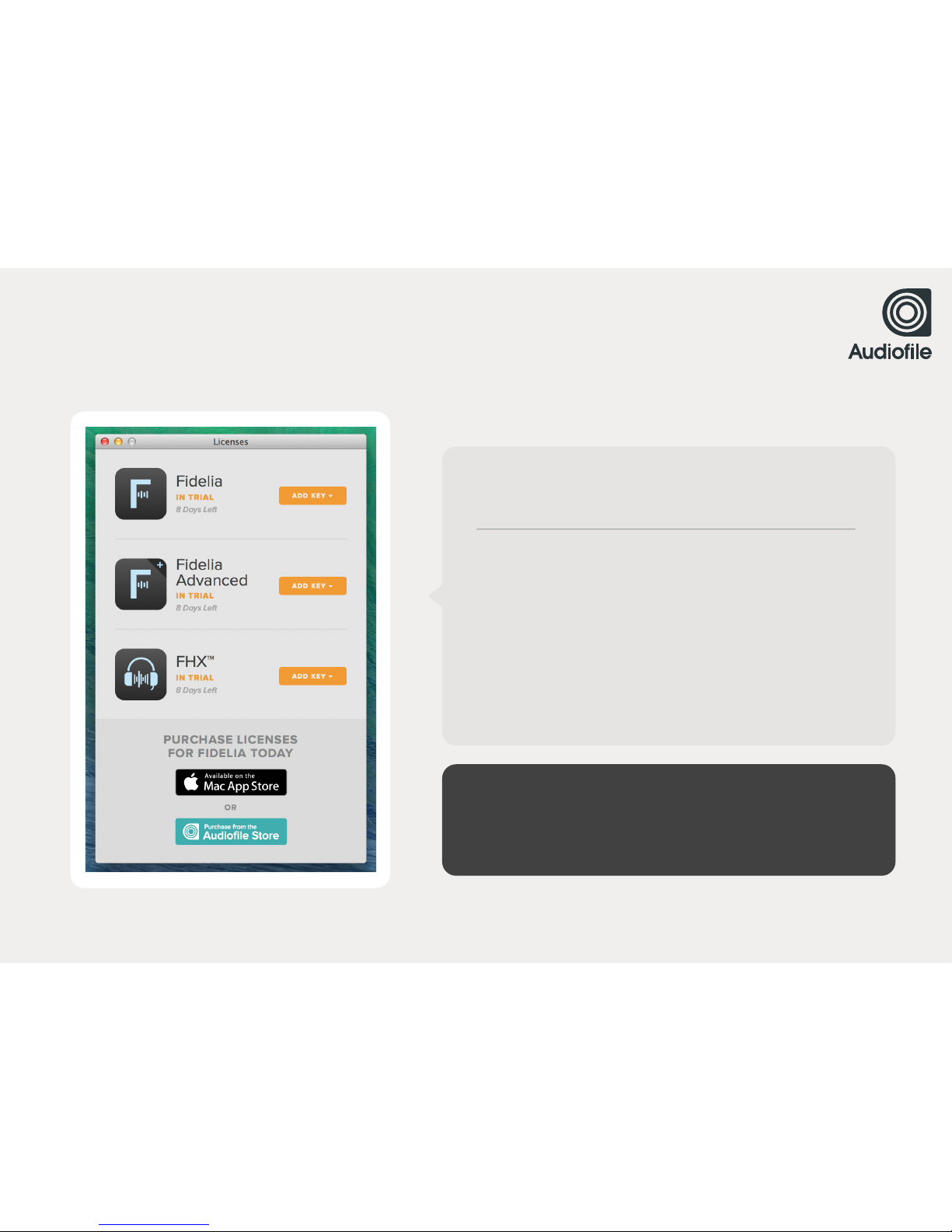
LICENSES PANE
UPON FIRST LAUNCH, YOU WILL ALSO SEE THE LICENSES PANE
Fidelia’s Licenses pane allows you to manage all of your Fideliarelated licenses, including those for Fidelia Advanced and FHX™.
To add a license, simply click “Add Key” next to the relevant !
product. A popover will appear, allowing you to add your user !
name and license key.
TO OPEN THE LICENSES PANE, CHOOSE FIDELIA > LICENSES
The Licenses pane in copies of Fidelia purchased directly from the
App Store will not require you to add a license. Instead, App Store
users will see “Restore Purchase” buttons next to each product.
Page 9

TRIAL MODE
Fidelia is unlicensed but will remain fully-featured during its
15 day trial period.
CHAPTER 1 / LICENSING
IN TRIAL
8 Days Left
LICENSED
UNAVAILABLE
LICENSED MODE
Fidelia is running in its full-featured mode and licensed to you.
UNAVAILABLE MODE
Fidelia is unavailable. Either your trial mode ended or your !
license has become corrupt or invalid. Contact our support team.
support@audiofile-engineering.com.
Page 10

CHAPTER 1 / LICENSING
IN TRIAL
8 Days Left
TRIAL PERIOD
FIDELIA AND ITS FEATURE UPGRADES RUN IN TRIAL MODE FOR 15 DAYS
During the trial period, the application functions fully.
The App Store does not support trial versions or modes
for apps and/or feature upgrades.
Page 11

1.2
THE PLAYER
Page 12
12
CHAPTER 1 / THE PLAYER
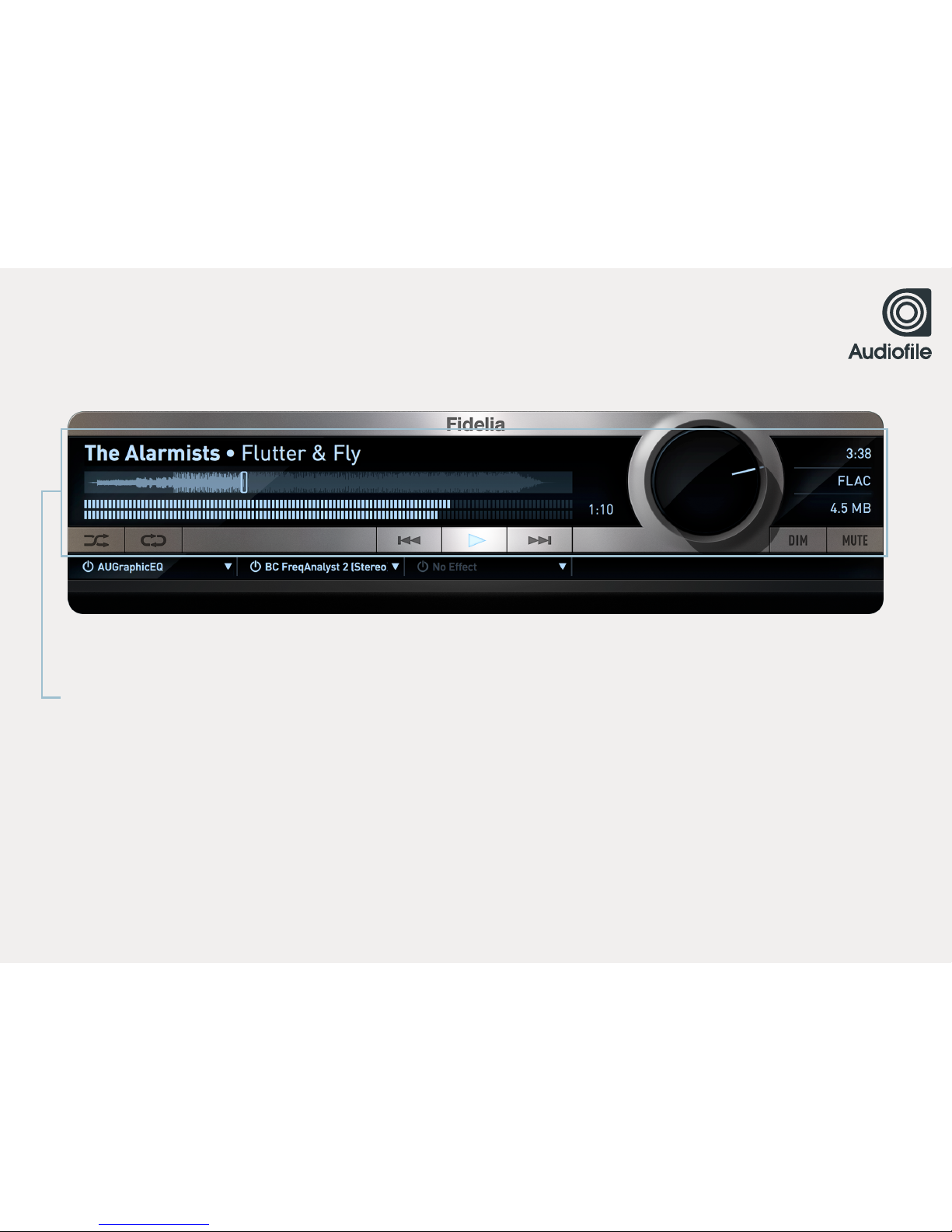
TRANSPORT
THE TRANSPORT FEATURES PLAYBACK, TRACK NAVIGATION, AND VOLUME CONTROL
The volume knob is controlled by moving the mouse along a vertical or horizontal axis (specified in Preferences > General).
The "Dim" button lowers the audio by 20dB.
The "Mute" button mutes the audio.
The buttons to the far left are Shuffle and Repeat. Click Repeat once to repeat the song, and click it twice to repeat the playlist.
Page 13
13
CHAPTER 1 / THE PLAYER
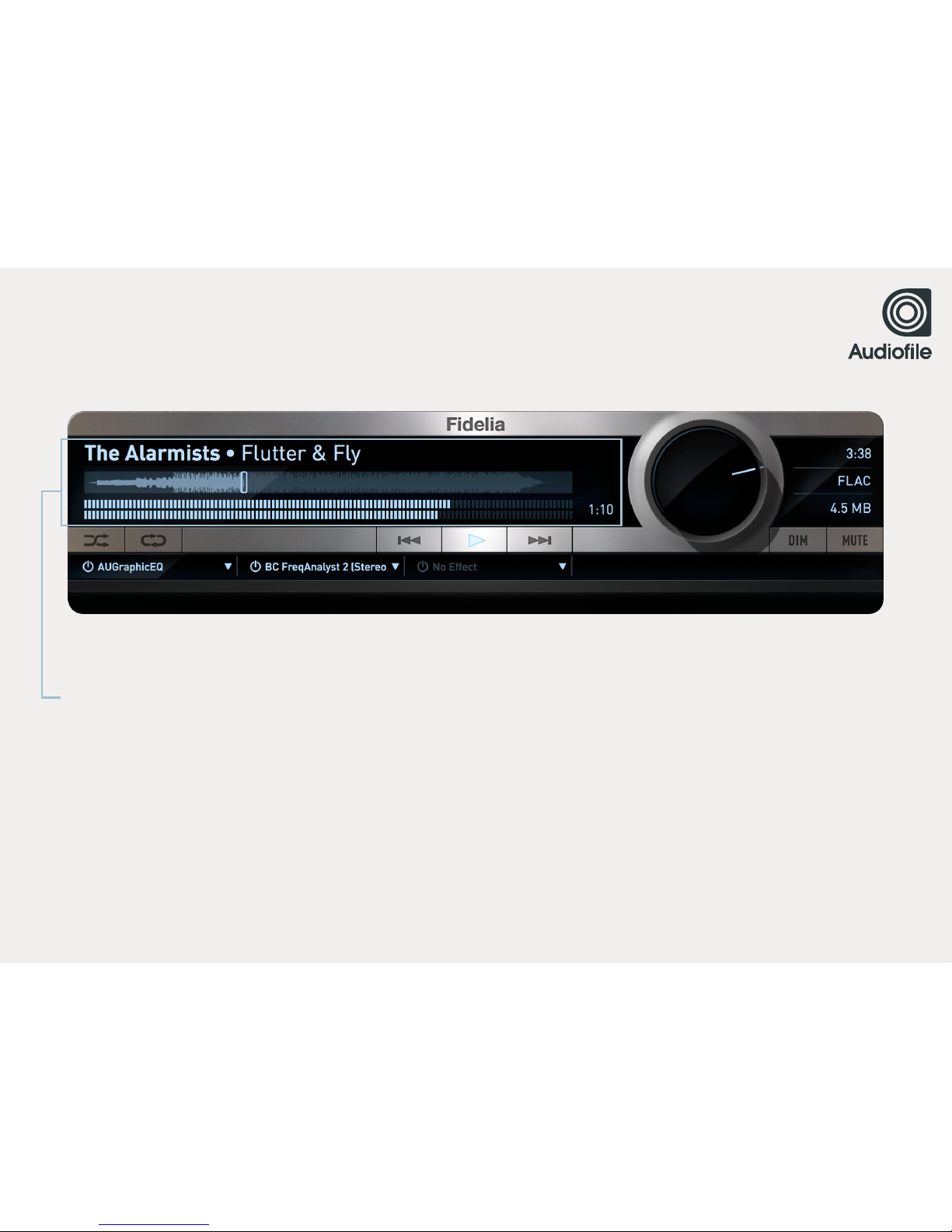
WAVEFORM, METER & SONG INFO
The section in the upper left portion of the Player features the song waveform, meter, and song info (Artist name and Song name).
It also features the elapsed or remaining time of a track. Click on the elapsed time to toggle between counting up or down.
Page 14
14
CHAPTER 1 / THE PLAYER
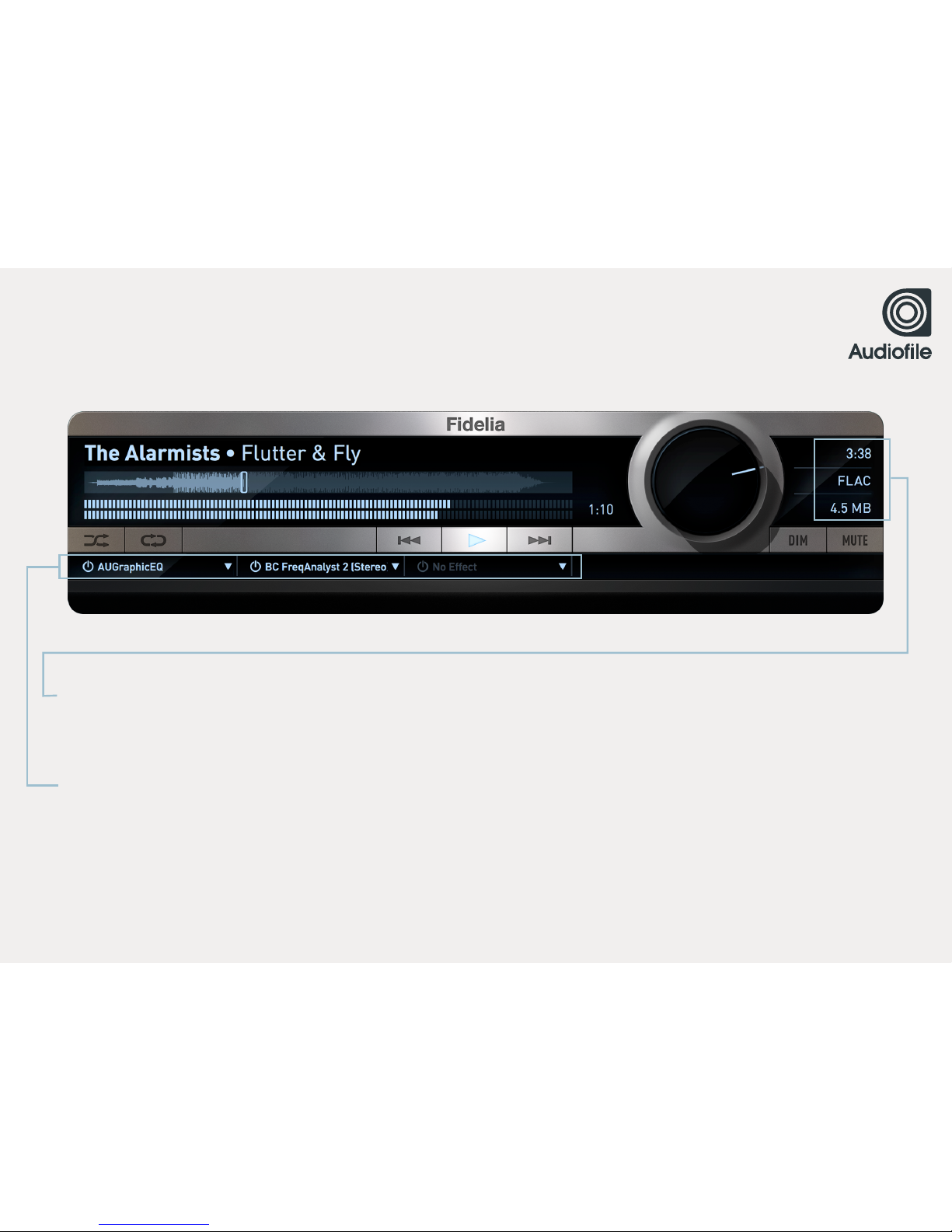
FINE DETAILS
The file details section is in the upper right corner of the Player. It features track length, file type, and file size information.
EFFECTS
The bottom portion of the Player is the effect rack. You can host three Audio Units plug-ins in the Player.
To view the effect interface, click on the effect name.
To add/remove an effect click on the triangle and navigate the contextual menu.
To disable an effect click on the power button to the left of the effect.
Page 15

1.3
LIBRARY
Page 16
16
CHAPTER 1 / LIBRARY
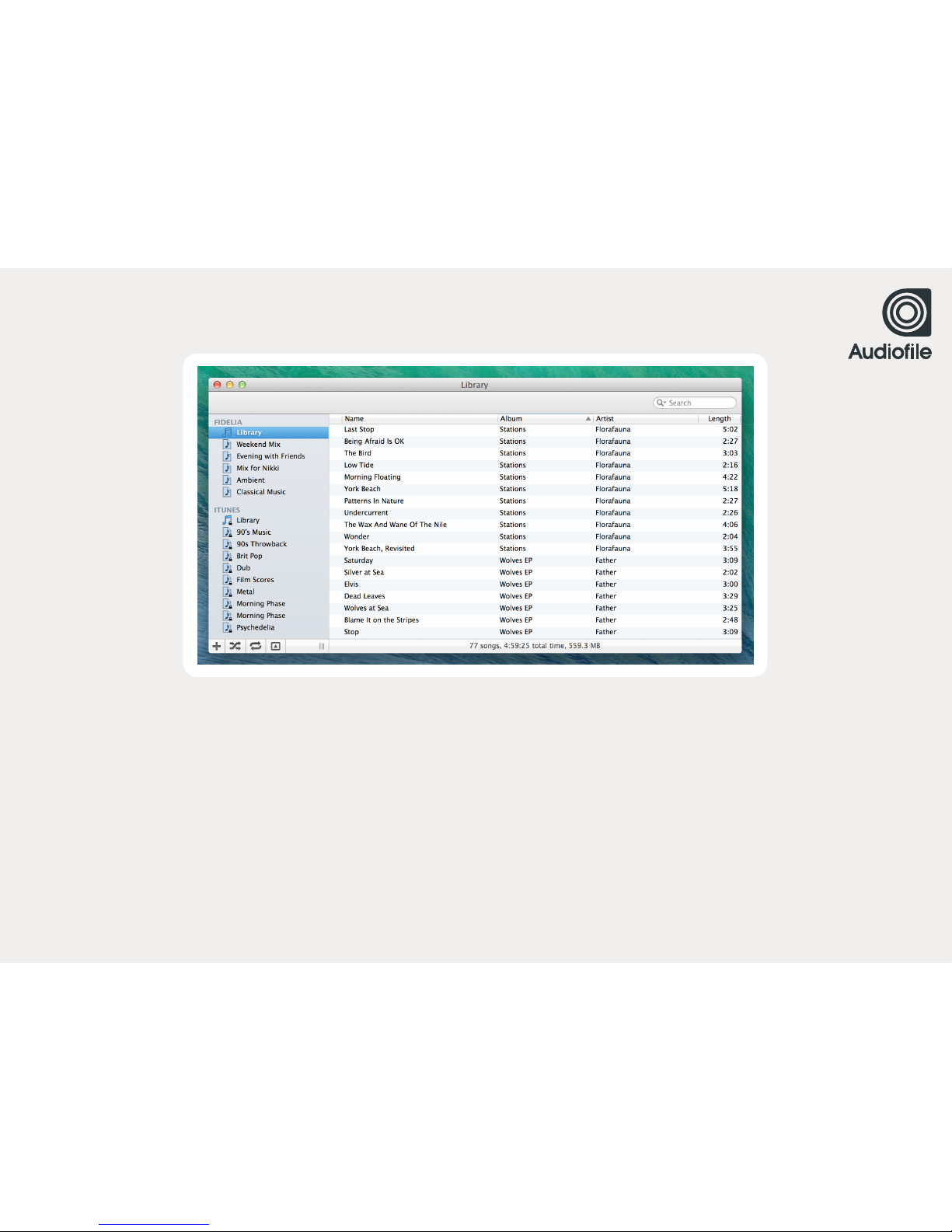
THE LIBRARY
TO ACCESS THE LIBRARY, SELECT WINDOW > LIBRARY
Page 17
17
CHAPTER 1 / LIBRARY
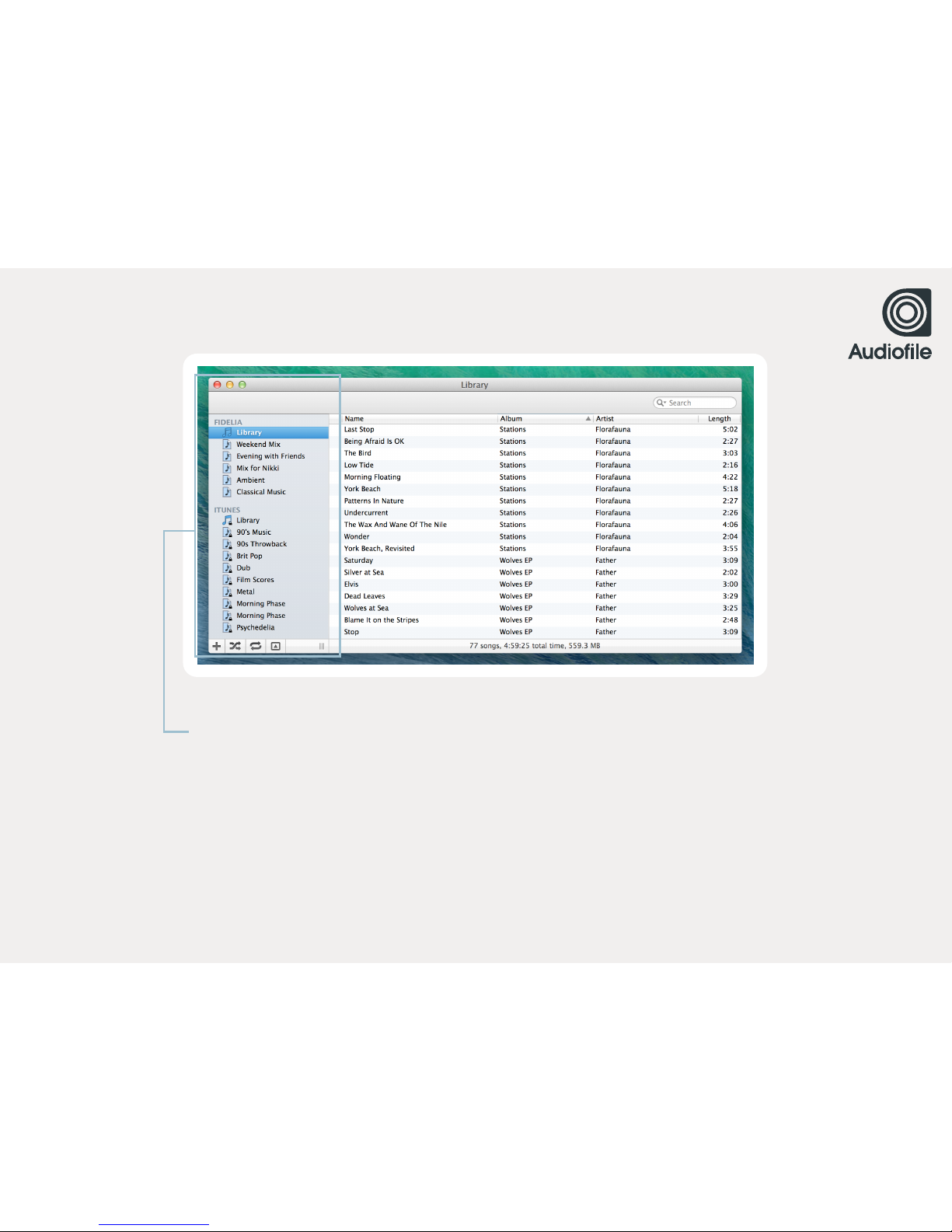
PLAYLIST SECTION
The Playlist section is on the left side of the Library window. It features the Fidelia library and
iTunes library. Notice that the iTunes library and subsequent playlists contain a lock symbol
which means that they are not editable within Fidelia. Of course, the Fidelia library and Fidelia
playlists are completely configurable.
The bottom of the Playlist section contains three buttons. In order from left to right they are
create playlist, shuffle, and repeat. The repeat button has three modes - off, repeat all, and !
repeat one.
Page 18
18
CHAPTER 1 / LIBRARY
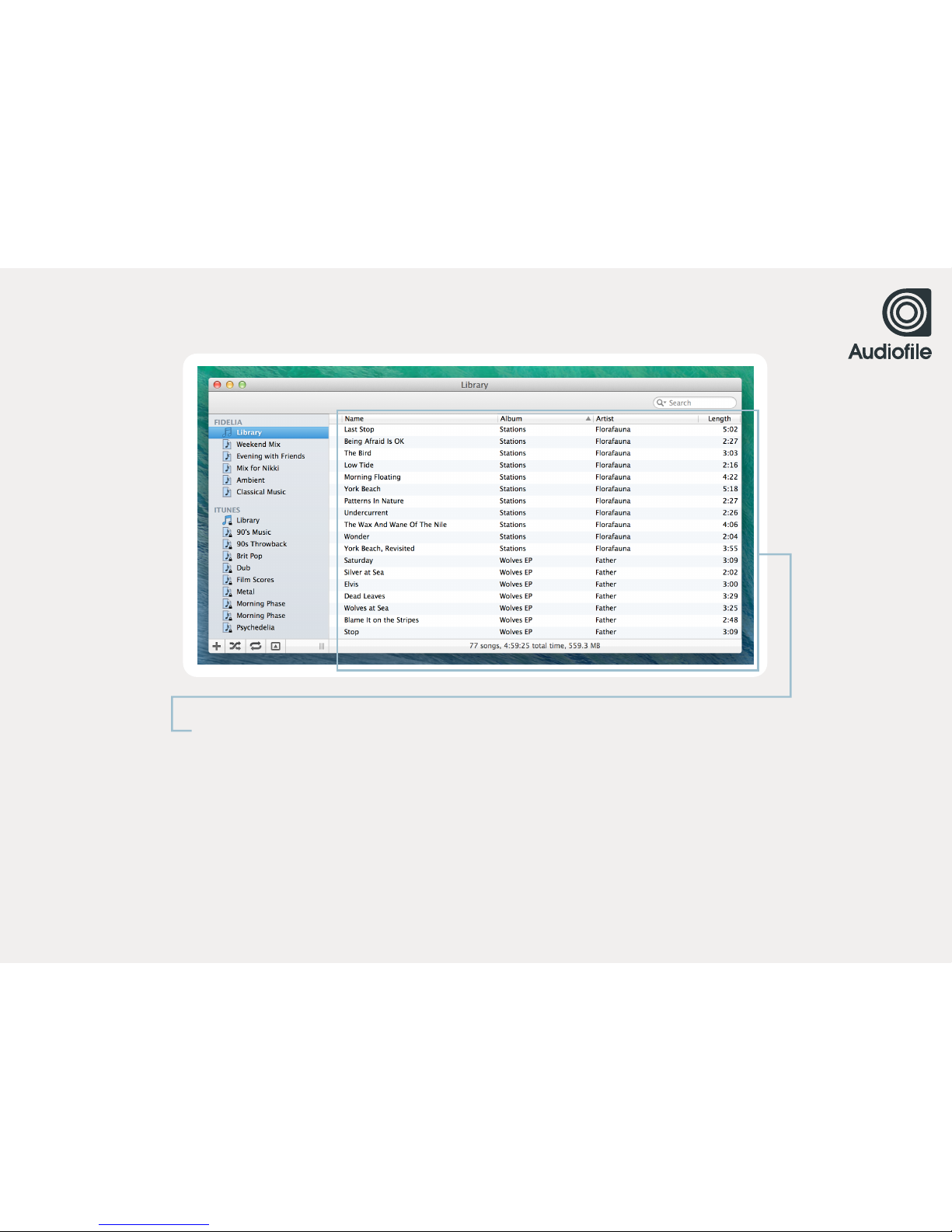
SONG SECTION
THE SONG SECTION DISPLAYS ALL THE SONGS IN THE SELECTED LIBRARY/PLAYLIST.
Columns can be hidden or revealed using the View menu. Choose as many or as few !
columns from the list as you wish.
Once viewable, a column can also be reordered. Simply click the column name and drag !
it horizontally to its desired position.
The search field in the upper right corner searches artist, album, composer and song name.
Page 19
PREFERENCES
CHAPTER 2
2.1 2.2 2.3
GENERAL COMMANDS FORMAT
2.4
ITUNES
2.5 2.6 2.7
OUTPUT FHX™ ADVANCED
Page 20

2.1
GENERAL
Page 21
21
CHAPTER 2 / GENERAL
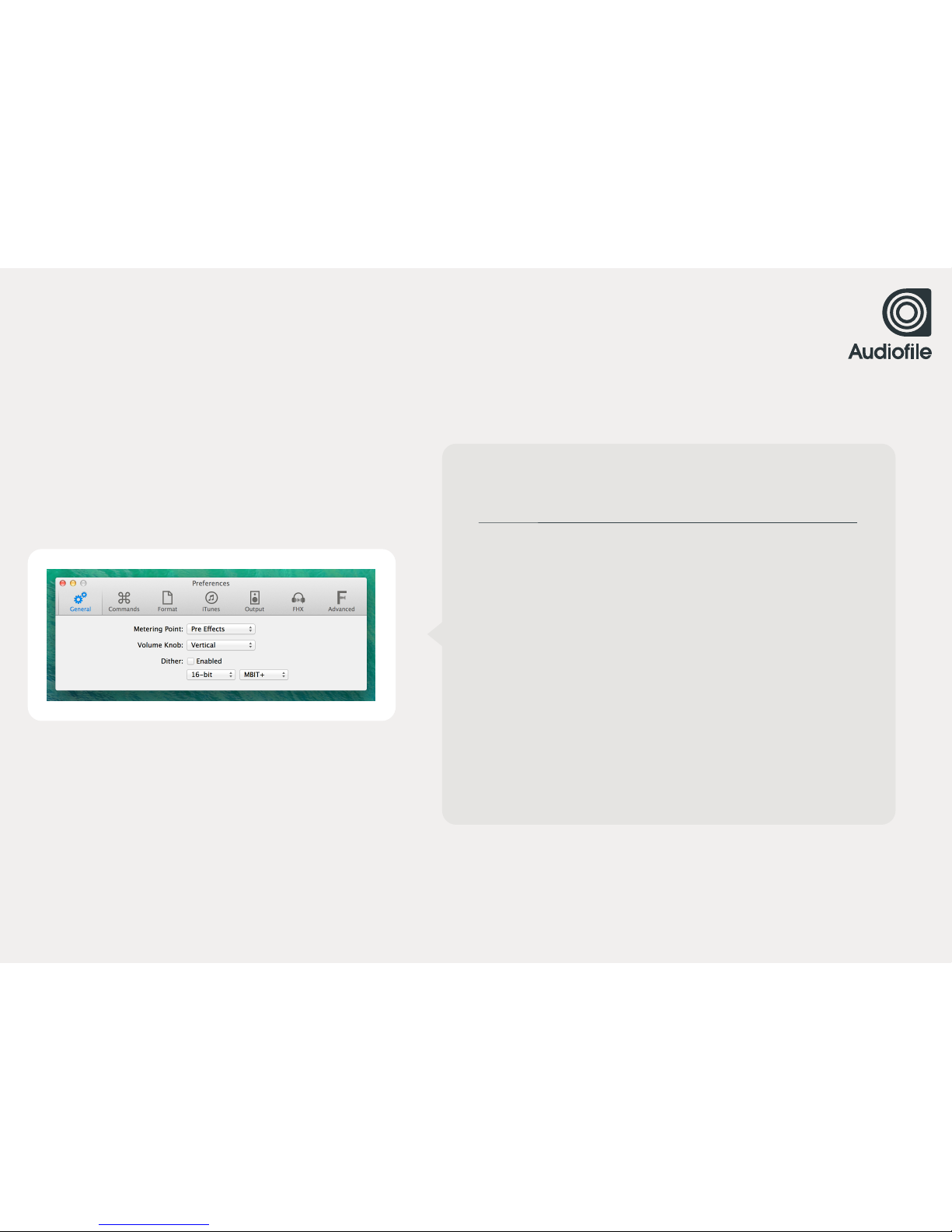
GENERAL
METERING POINT
Determines the metering point used to measure level displayed
on the meter in the Player. Use the drop-down menu to select a !
Pre Effects, Post Effects, or Post Volume metering point.
VOLUME KNOB
Determines which mouse axis controls the Volume Knob on the
Player. Use the drop-down menu to select Horizontal or Vertical.
DITHER
Choose the Bit Range and Dither processor. When the Dither !
button is toggled the output is dithered on-the-fly to the selected !
bit range using the selected dithering processor. For detailed !
information on MBIT+ Dither, please download iZotope's !
comprehensive dithering guide.
Page 22

2.2
COMMANDS
Page 23
23
CHAPTER 2 / COMMANDS
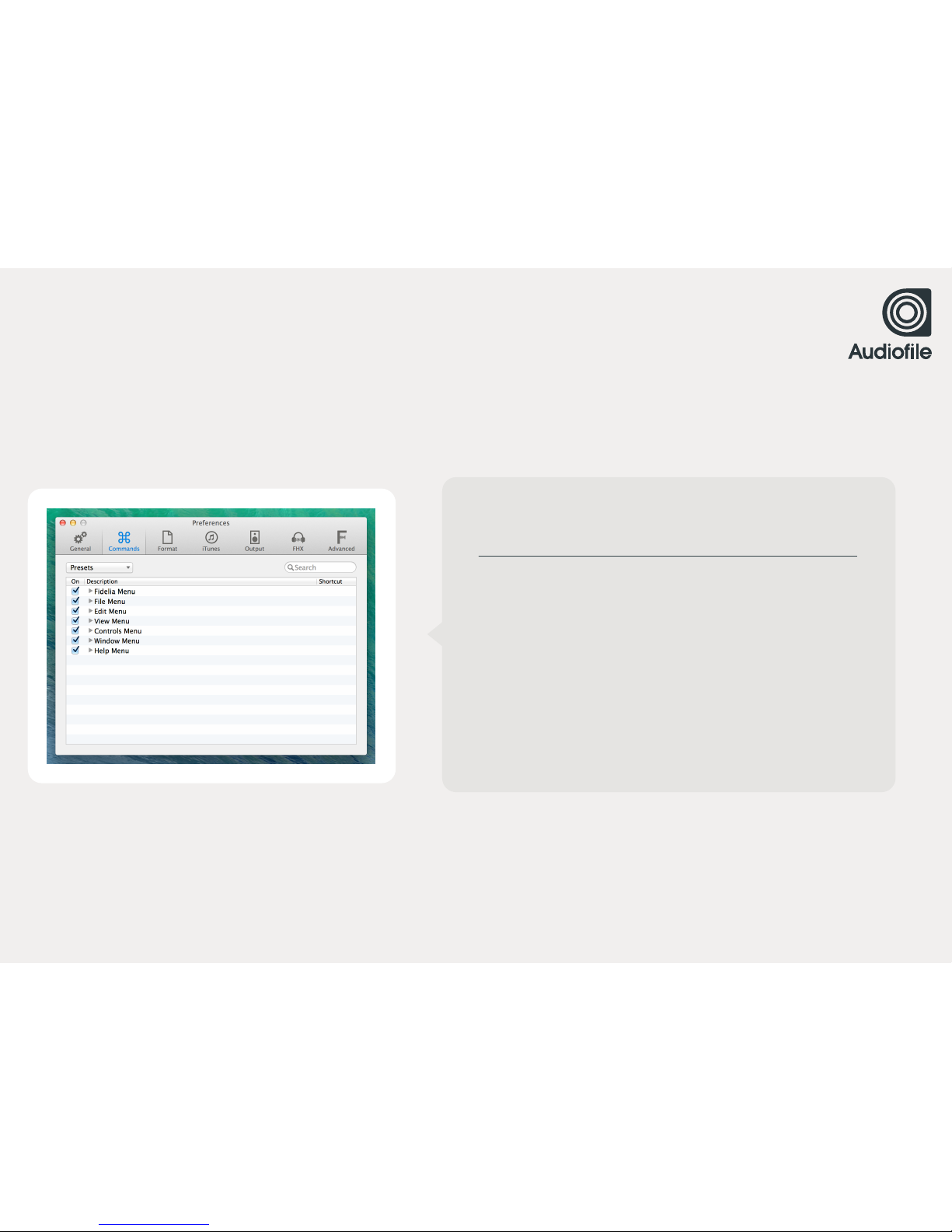
COMMANDS
You can easily assign Keyboard Commands to menu commands. !
Access the Keyboard Commands panel by selecting Fidelia >
Preferences > Commands.
BROWSE COMMANDS
You can browse commands by expanding the categories and
scrolling through the list.
SEARCH
Or you can use the search field at the top right of the panel to
quickly find any existing Commands.
Page 24
24
CHAPTER 2 / COMMANDS
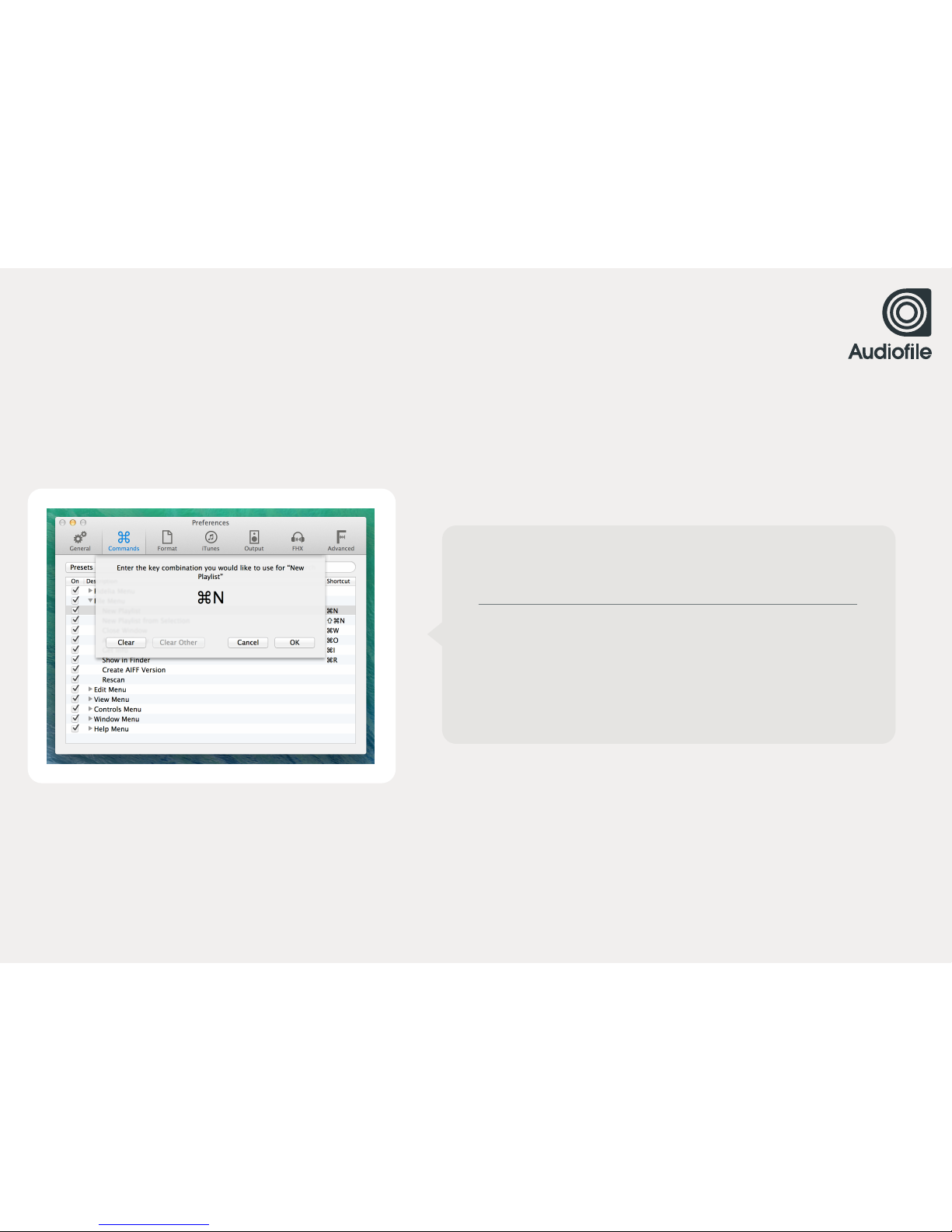
ASSIGN COMMANDS
Double-click a command in the list and a sheet is displayed
prompting you to assign a keyboard shortcut for that item.
Type a Keyboard Shortcut and click the "OK" button. You will !
be warned if the shortcut is already in use. To remove a shortcut,
click "Clear."
Page 25
25
CHAPTER 2 / COMMANDS
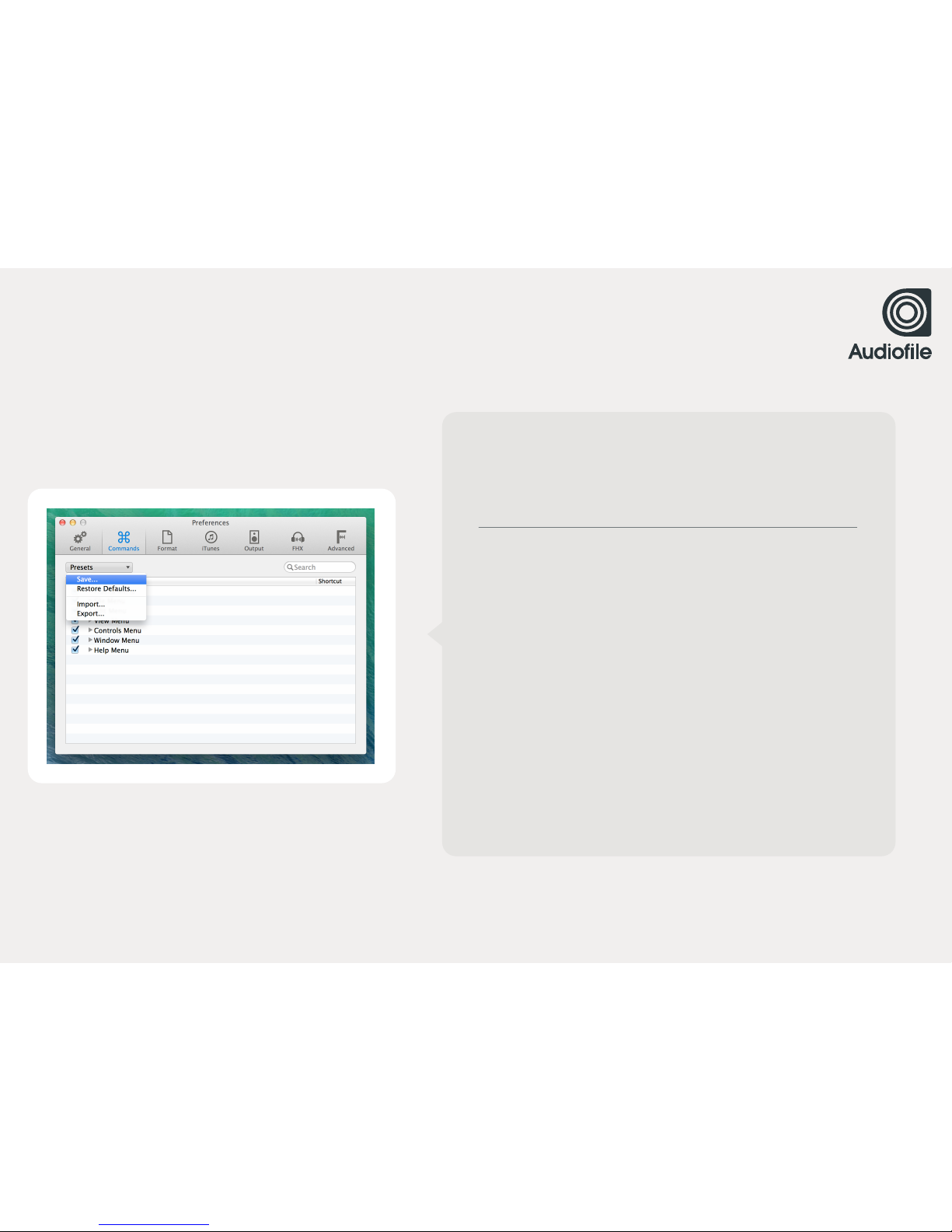
SAVE, EXPORT !
& LOAD PRESETS
SAVE
You can save Keyboard Commands as presets. To save your !
Keyboard Commands, select "Save..." from the drop-down menu !
at the upper left of the panel. Saved Commands are automatically
added to the drop-down menu.
RESTORE DEFAULTS…
Restores all default commands, removing any user-created !
commands from Fidelia’s Keyboard Commands library.
IMPORT
If you wish to import an existing keyboard command, select !
“Import…” from the drop-down menu.
EXPORT
If you wish to specify the save location, select "Export..." from the
drop-down menu.
Page 26

2.3
FORMAT
Page 27
27
CHAPTER 2 / FORMAT
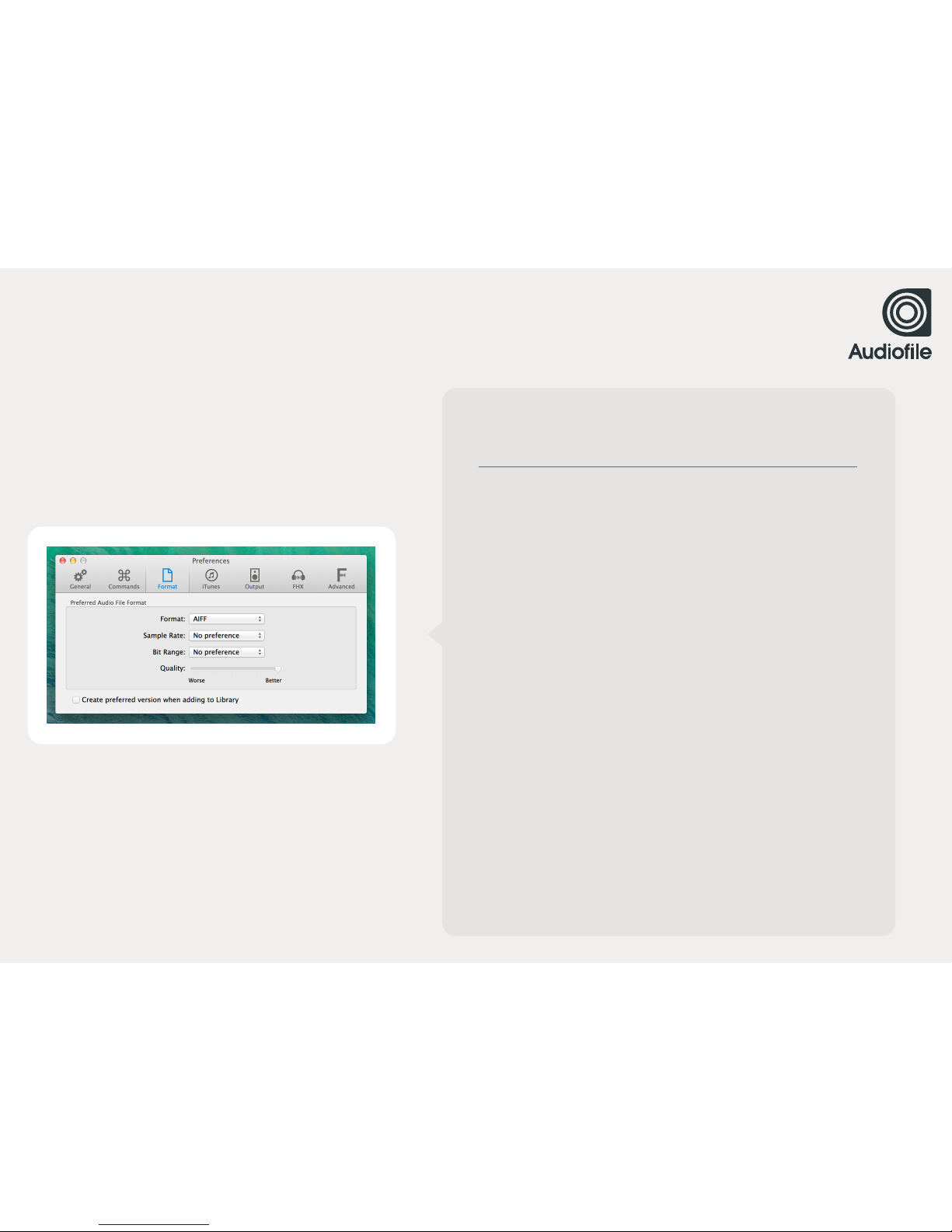
FORMAT
FORMAT
Choose the preferred audio file format from the following options:
AIFF, Wave, CAF, AAC, Apple Lossless, Ogg Vorbis, and FLAC.
SAMPLE RATE
Choose the sample rate of the preferred audio file format from !
the following options: 44.1kHz, 48kHz, 88.2kHz, 96kHz, 176.4kHz,
and 192kHz.
BIT RANGE
Choose the bit range of the preferred audio file format from the !
following options: 16-bit, 24-bit, and 32-bit.
QUALITY
The Quality slider activates if Ogg Vorbis is the preferred format.
The Compression slider activates if FLAC is the preferred format.
CREATE PREFERRED VERSION WHEN ADDING TO LIBRARY
Create preferred version when adding to Library Toggle this
checkbox for Fidelia to create the preferred audio file when a file !
is added to the Fidelia Library. The converted file is created in the
same directory as the original file and does not overwrite the !
original file. Note that you can perform this action on an individual
basis using the "Create File Type Version" command from the File
menu (or with a keyboard shortcut associated to the command).
Page 28

2.4
ITUNES
Page 29
29
CHAPTER 2 / ITUNES
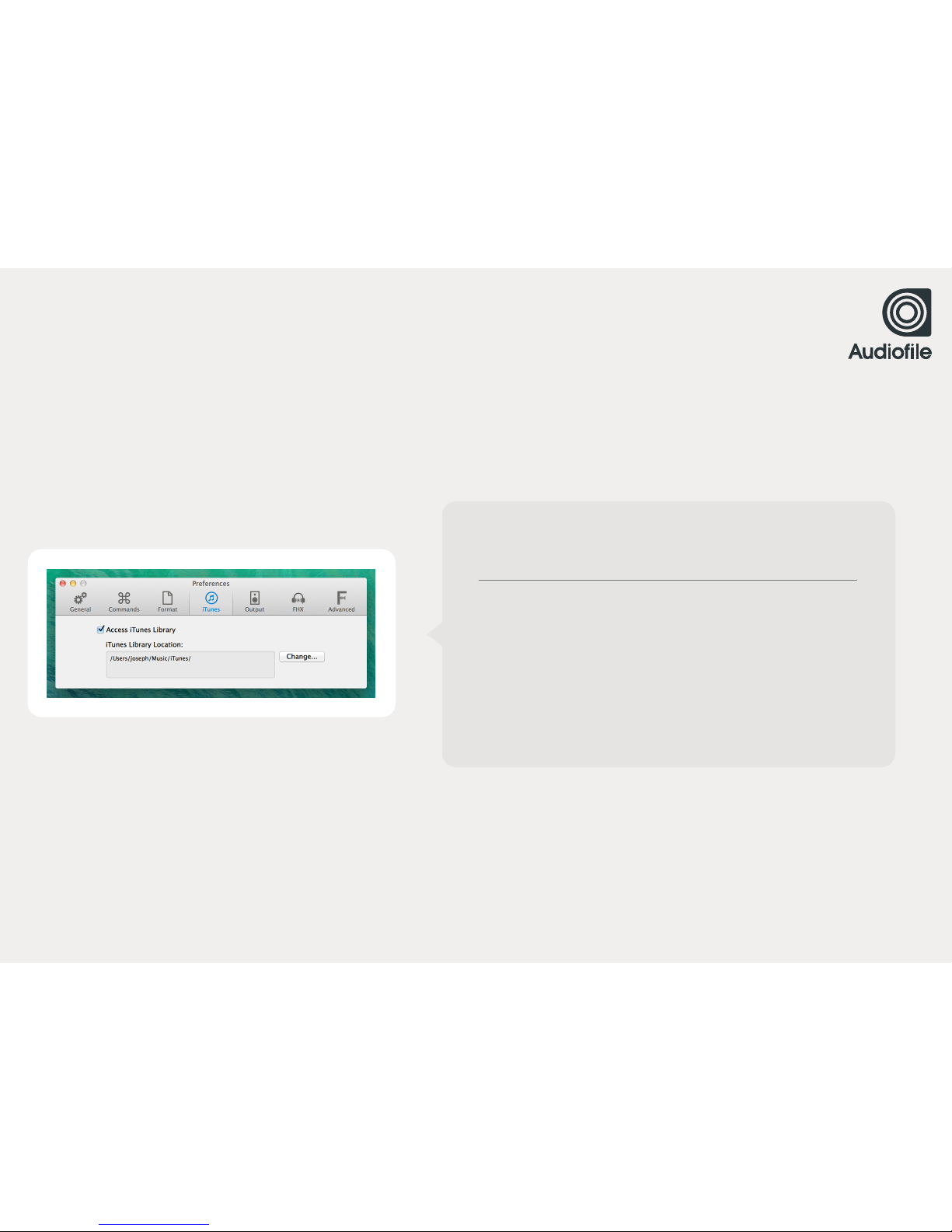
ITUNES
ACCESS ITUNES LIBRARY
Toggle this checkbox to allow Fidelia access to your iTunes library.
CHANGE
Select the "Change..." button to navigate to an iTunes library. You
must select the "iTunes Music Library.xml" or "iTunes Library.xml" !
file in the iTunes folder. If you have both of these files, select the
"iTunes Library.xml" file.
Page 30

TROUBLESHOOTING
It can be the case that the "iTunes Music Library.xml" or "iTunes Library.xml" file is out of sync with the iTunes !
library database file. For reference, please read this Apple knowledgebase article:
http://support.apple.com/kb/ht1660
Quote: "This file contains some (but not all) of the same information stored in the iTunes Library file. The purpose
of the iTunes Library.xml file is to make your music and playlists available to other applications on your computer.
In Mac OS X other iLife applications (like iPhoto, iDVD, and iMovie) use this file to make it easier for you to add
music from your iTunes library to your projects."
If your iTunes Library and XML files are out of sync, please utilize Apple's iTunes Support resources to resolve
the issue: http://www.apple.com/support/itunes/
PLEASE NOTE
Fidelia syncs with the selected iTunes library on launch. If any changes are !
made to your iTunes Library click File > Rescan to see those changes in Fidelia.
CHAPTER 2 / ITUNES
Page 31

2.5
OUTPUT
Page 32
32
CHAPTER 2 / OUTPUT
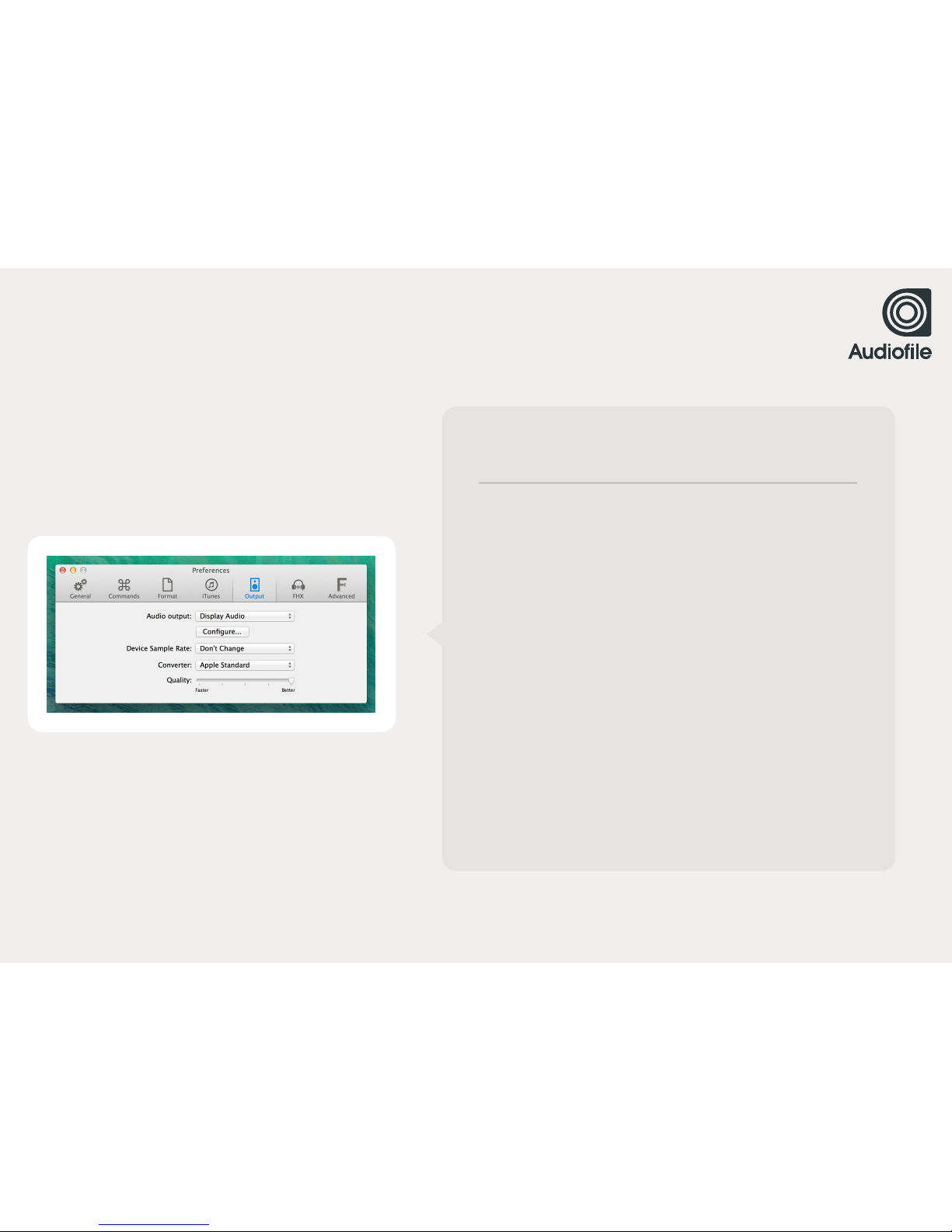
OUTPUT
AUDIO OUTPUT
Select Fidelia's final audio destination from the list of available !
system outputs. If the audio output you desire isn't in this list, !
select the "Configure..." button to launch Audio MIDI Setup.
DEVICE SAMPLE RATE
Using this drop-down menu you can choose to set a fixed sample
rate of 44.1 kHz, 48.0 kHz, 88.2 kHz, 96.0 kHz, or have the device
change to match the sample rate of the song.
CONVERTER
Select your desired output converter from the choices available. !
Fidelia offers two options: iZotope 64-Bit SRC Resampler or Apple
AUConverter.
QUALITY
Adjust the Quality slider to alter the quality of the output conversion
process. Choose between getting Faster results (less CPU intensive)
versus getting Better results (more CPU intensive) that take longer
to complete.
Page 33

2.6
FHX™
Page 34
34
CHAPTER 2 / FHX™
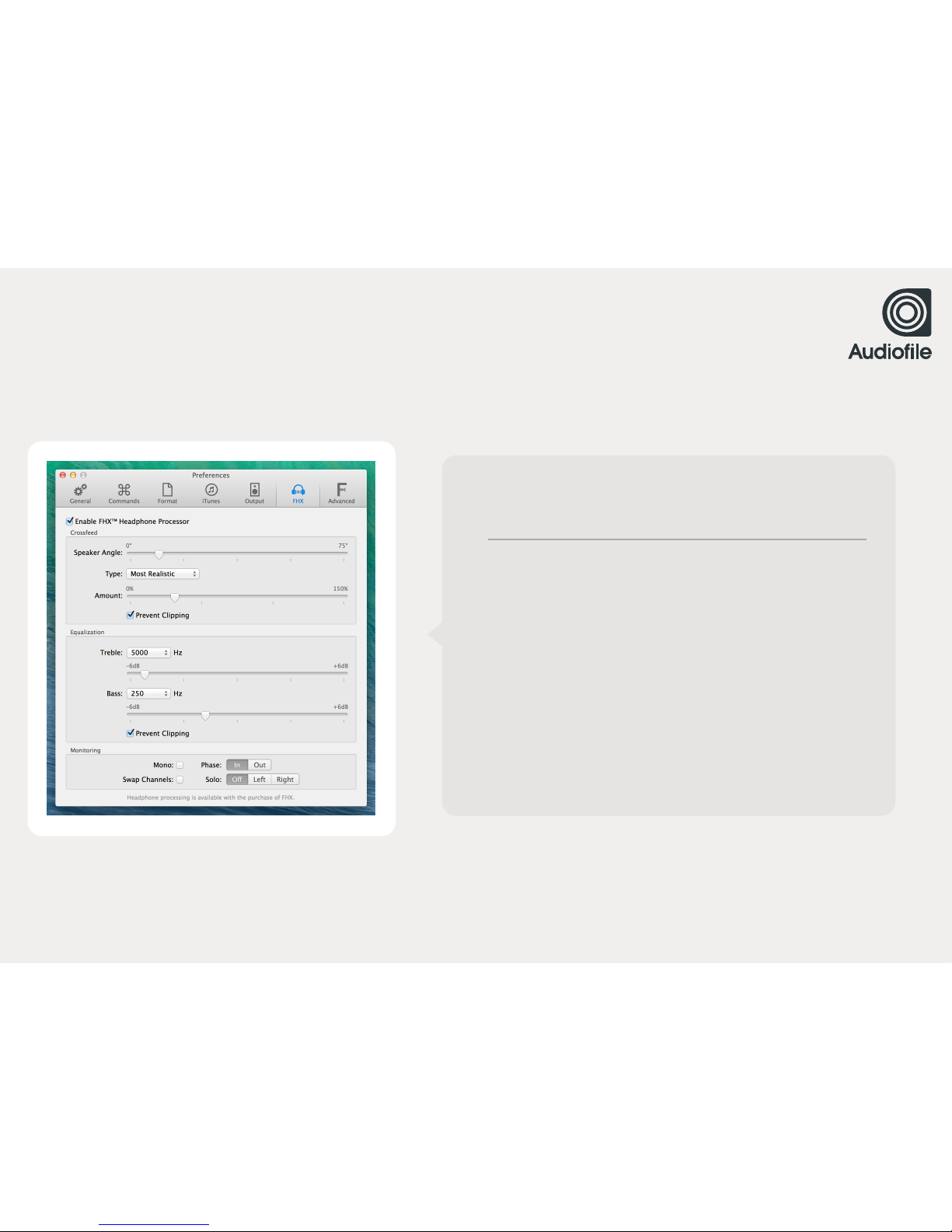
USING FHX™
FHX WAS DESIGNED TO ADDRESS A NUMBER OF ISSUES OFTEN
ASSOCIATED WITH LISTENING TO MUSIC ON HEADPHONES
FHX was designed by mastering engineer Devin Kerr and is a !
result of extensive research and listening tests. By incorporating !
several broad spatial characteristics of an ideal loudspeaker !
playback setup, FHX creates a more spacious, natural soundstage
over headphones—enabling an exceptional listening experience
that will truly inspire and engage. With user controls that are simple !
and effective, the algorithm can be fine tuned to your personal !
music library, listening preferences, and hardware.
Note: FHX™ is a paid feature add-on.
Page 35
CHAPTER 2 / FHX™
WHAT’S WRONG WITH HEADPHONES
In theory: nothing; in the real world: a lot. The main “problem”
with headphones is that most music is created (recorded, mixed,
mastered) on speakers, with tools that were primarily designed
for loudspeaker playback. Hence, a type of auditory translation
error occurs when music is instead played back on headphones.
VS
Page 36
36
CHAPTER 2 / FHX™
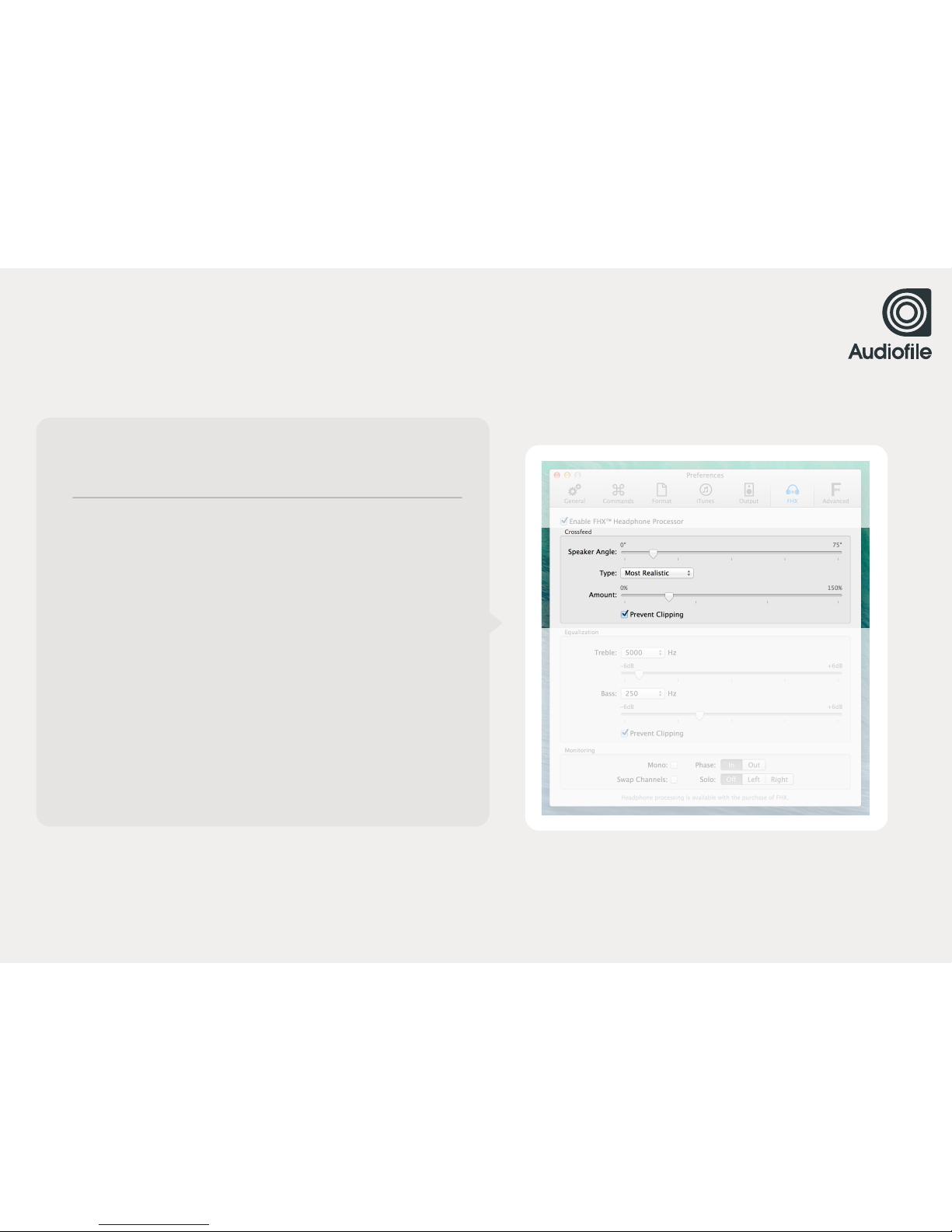
CROSSFEED
The biggest difference between headphone and loudspeaker
listening is crossfeed. In the case of stereo loudspeaker listening, a
sound fed from the right loudspeaker not only reaches the right ear
of the listener, but a portion of the sound also reaches the left, far ear
as well.
The inverse is true of the left loudspeaker: sounds emitted reach the
left ear first, while a portion also reaches the right ear. Thus, sounds
presented over loudspeakers are partly crossfed to each opposing
ear of the listener.
Comparing to a headphone environment: sounds fed from the
left channel of a pair of headphones only reach the left ear, and
likewise, sounds fed from the right channel only reach the right
ear. The subjective effects of these differences between
headphone and loudspeaker listening are extremely significant.
Page 37
37
CHAPTER 2 / FHX™
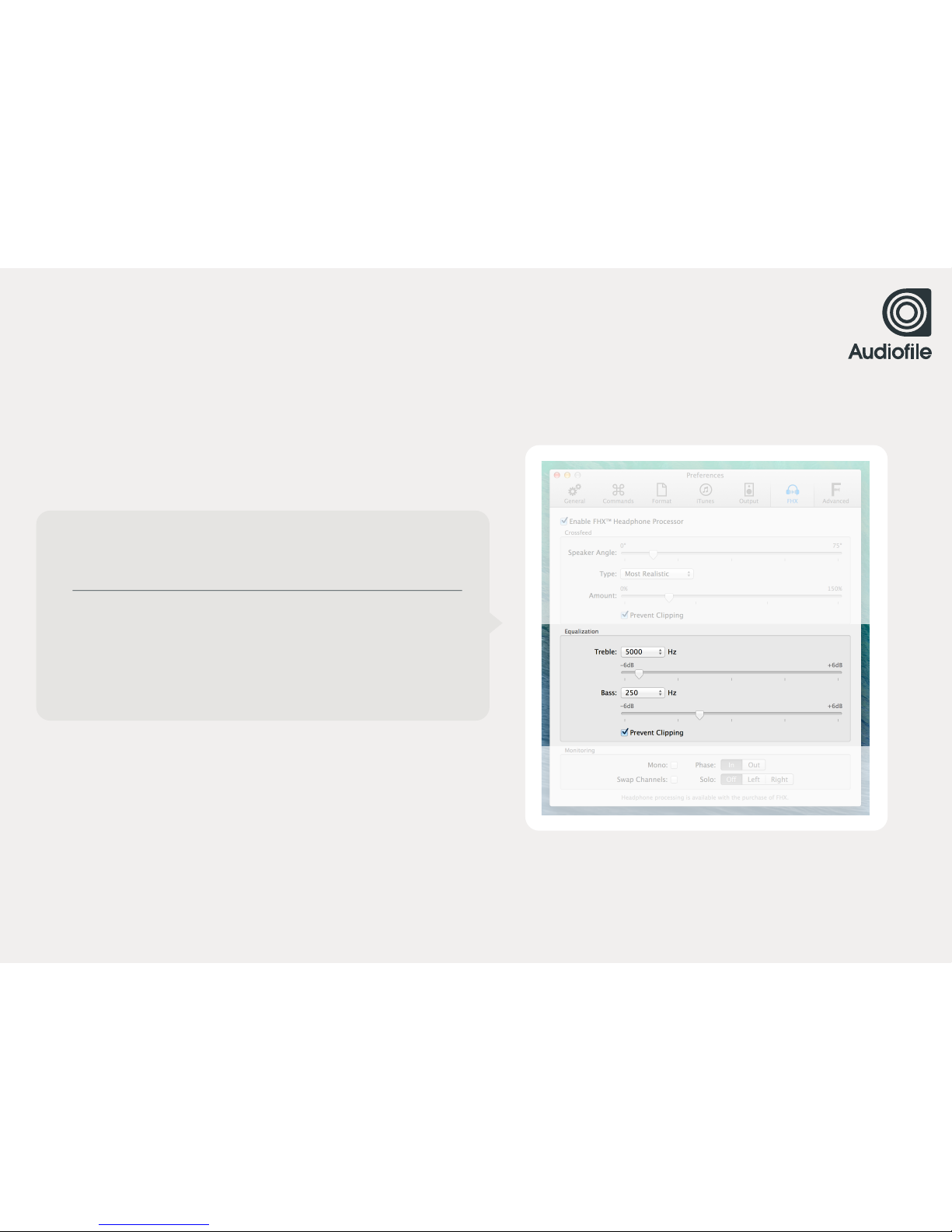
EQUALIZATION
FHX utilizes a unique, dynamic-range optimized equalization section
to maintain the highest possible digital resolution at any setting. !
So, you’ll never need to worry about digital clipping, distortion, or !
loss of headroom when using FHX.
Page 38
38
CHAPTER 2 / FHX™
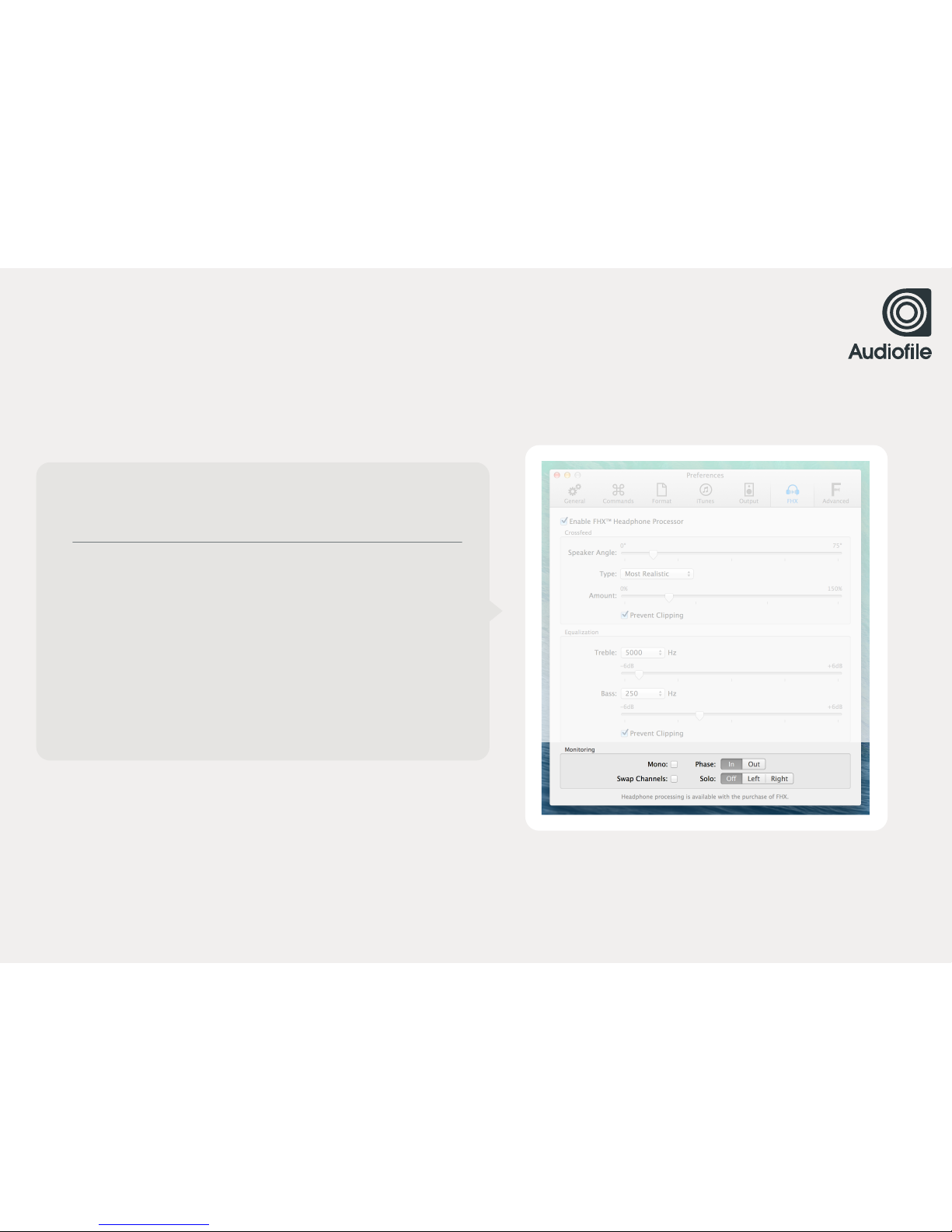
MONITORING
The FHX monitoring section offers several key monitoring facilities
that are typically reserved for high-end monitor controllers or !
mastering consoles.
Mono enables a user to monitor the mono summation of the left and
right channels. This control is post “Balance” and “Phase” processing.
Phase allows inversion of the right channel polarity. Swap Channels
swaps the left and right channels such that left becomes right, and
right becomes left. Balance allows you to adjust balance of the left
and right channels.
Page 39

2.7
ADVANCED
Page 40

40
CHAPTER 2 / ADVANCED
FIDELIA ADVANCED
The "Audio device is exclusive to Fidelia" checkbox toggles what !
is commonly known as "hog mode". Enabling this makes Fidelia !
the only application that can access the selected audio device.
DITHER SETTINGS
For detailed information on MBIT+, please download iZotope's
comprehensive dithering guide.
FILTER STEEPNESS
The critical step in any resampling implementation is the lowpass !
filter used to discard frequencies which cannot be represented or
are undesirable in the target format. The steepness parameter !
controls the steepness of the transition band of the lowpass filter.
Higher steepness will reject unwanted frequencies but cause !
more ringing in the time-domain and a higher CPU load.
CUTOFF SCALING
The cutoff frequency of the resampler's lowpass filter can be scaled
back from the Nyquist frequency. The cutoff frequency is computed
by multiplying the Nyquist frequency by the value of the cutoff !
scaling parameter. Larger values of cutoff scaling offer a flatter !
pass-band, while smaller values offer better aliasing suppression.
Typical values are close to 1.0.
PRERINGING
All lowpass filters are characterized by the amount of ringing they
introduce into their output. The steeper the filter, the greater the
amount of ringing.
Note: Advanced is a paid feature add-on.
Page 41

MORE ABOUT
PRERINGING
There are two general types of ringing: pre-ringing and post-ringing. Preringing will smear transients
earlier in time, while postringing will smear transients later in time. This control allows users to select
pre-ringing, post-ringing, or anywhere in between. A value of 1.0 produces a linear phase filter with
equal pre- and post-ringing. A value of 0.0 produces a minimum phase filter which offers no
pre-ringing but has non-linear phase distortion which can be objectionable. Setting intermediate
values allows a continuous tradeoff between pre-ringing and post-ringing and allows users to
linearize phase in the pass-band as much as possible.
CHAPTER 2 / ADVANCED
Page 42

SUPPORT
CHAPTER 3
Page 43
43
CHAPTER 3 / SUPPORT
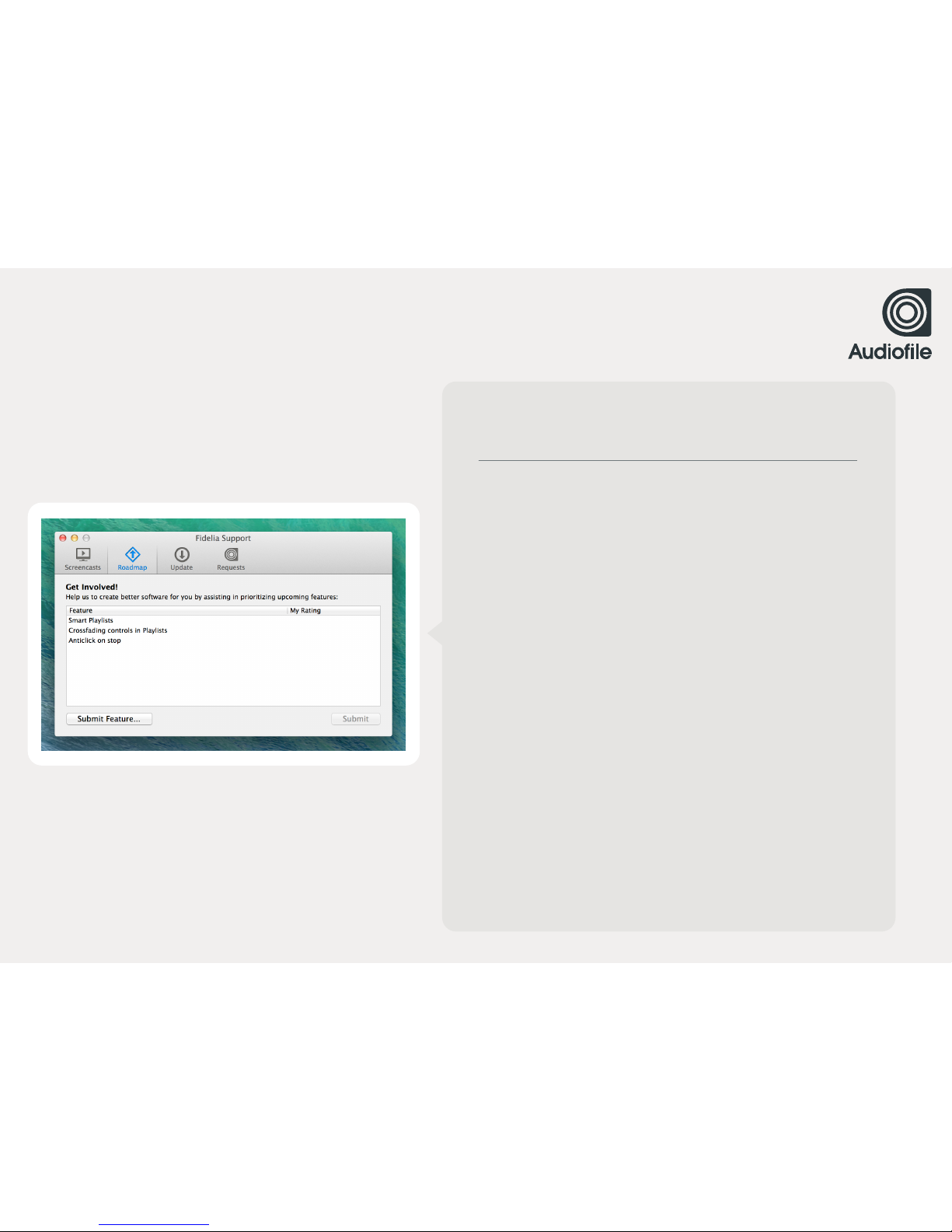
SUPPORT PANE
SCREENCASTS
Displays a current list of all video tutorials available for Fidelia.
Select a screencast in the left column and it will load to the right.
Select "Notify me of new tutorials" if you wish to be notified when
new screencasts are posted. There are currently no screencasts
available for Fidelia.
ROADMAP
Displays a list of upcoming features.
UPDATES
This pane configures how and when Fidelia checks for updates.
To check for updates every time you launch Fidelia, select
"At startup." To check Daily, Weekly, or Monthly, select the check !
box next to the pop-up list and select option. To check for updates
immediately, click the "Check Now" button.
REQUESTS
This pane allows you to submit and track support requests. The
Help Desk will automatically populate contact information using
the "Me" entry from Address Book. You can change this information
at any time.
Note: Your email address is used to track requests. Please make
sure it is correct.
Page 44

FIDELIA REMOTE
CHAPTER 4
Page 45
45
CHAPTER 4 / FIDELIA REMOTE
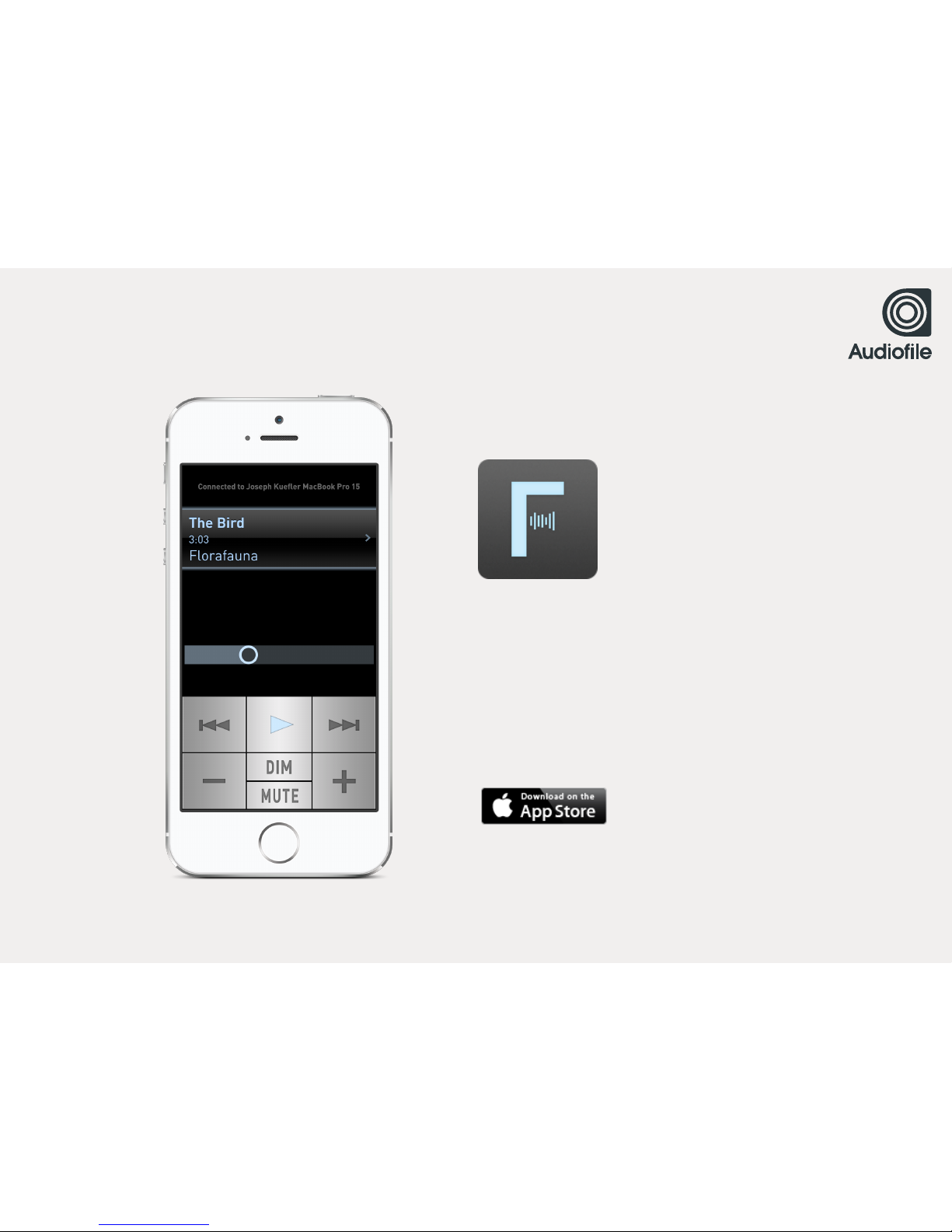
FIDELIA REMOTE
FOR IOS
Fidelia Remote for iOS turns your iPhone or iPod touch !
into a full-featured remote control for the Fidelia music
player. Browse your Fidelia library and playlists, adjust !
playback volume and navigate between or within tracks !
from as far away as your wireless network allows.
GET IT ON THE
APP STORE
Page 46

CREDITS
CHAPTER 5
Page 47
47
CHAPTER 5 / CREDITS
ACKNOWLEDGEMENTS
iZotope 64-bit SRC™, MBIT+™ dither, Consumer Restoration & SonicFit™
IZOTOPE.COM
FHX™ by Devin Kerr
DAVIDKERR.COM
Musepack by the Musepack Development Team
MUSEPACK.NET
Monkey’s Audio by Matt Ashland
MONKEYSAUDIO.COM
WavPack by David Bryant
WAVPACK.COM
Ogg Vorbis & FLAC by the Xiph.org Foundation
XIPH.ORG
Sparkle by Andy Matuschak
SPARKLE.ANDYMATUSCHAK.ORG
SPECIAL THANKS
The Intrepid Travis "T-Dawg" Burgess, Corey Walo,
Avi Agrawal, Alex Henderson, Chris Smalley, !
Dan Comerchero, Josh Lynch, Jason Hinze, !
David Hearst, Rob Crane, Devin Kerr, Chris Liscio, !
Jeremy Todd, Mark Ethier, Alex Westner, Scott Simon,
Craig Hanson, Alexander Ljung, Henrik Lenberg,
Brian & Martina McConnon, Marcus Ryle, !
Jim D’Addario, Taylor Carrigan, Chris Masterson,
James Cigler, Ryan Hisey, Dave Gan, Josh Johnson,
Patrick Flanagan, Jeff Krumm, Craig Linssen, !
Michael Wong, Stephen Chick, Bill Stewart.
 Loading...