

Page 1
QUICK START
USER GUIDE
TM
Advanced Tracking Technologies Inc.
© 2004 ATTI All rights reserved
Page 2

Page 3

Shadow Tracker ™ Lite Version 2.0
GPS System
______________________________________
COPYRIGHT NOTICE
Copyright 2004 Advanced Tracking Technologies, Inc.
All rights reserved.
TRADEMARKS
ATTI, Advanced Tracking Technologies, MobilEyes, and Shadow Tracker are trademarks of
Advanced Tracking Technologies, Inc.
Microsoft, Windows and the Windows logo are registered trademarks of the Microsoft
Corporation.
Pentium is the registered trademark of Intel Corporation.
Other brands and products are trademarks of their respective holders.
RESTRICTED RIGHTS LEGEND
Use, duplication, or disclosure by the Government is subject to restrictions as set forth in
subparagraph ©(1)(ii) of the Rights in Technical Data and Computer Software clause at DFARS
252.227-7013 or subparagraphs ©(1) and (2) of Commercia Software-Restricted Rights at 48
CFR 52.227-19, as applicable.
Advanced Tracking Technologies, Inc.
6001 Savoy, Suite 600
Houston, Texas 77036
Visit our website at:
www.AdvanTrack.com
For Technical Support:
[email protected]
Page 4

Page 5

Table Of Contents
Overview of Shadow Tracker™ Lite ................................................ 1
System Requirements ...................................................................... 2
Software Installation............................................................................. 2
Starting Shadow Tracker™ Lite ....................................................... 3
Getting to know Shadow Tracker™ Lite ......................................... 4
Database Maintenance ...................................................................... 5
Database Backup ...................................................................... 5
Database Purge ............................................................................. 6
Database Compact ...................................................................... 7
User Notes ............................................................................................ 8
Page 6

Overview of Shadow TrackerÔ Lite Version 2.0
The Advanced Tracking Technologies, Inc. (ATTI) family of products includes Shadow
TrackerÔ Lite Version 2.0, a vehicle tracking product designed exclusively for the
consumer market. The Shadow Tracker LiteÔ V2.0 vehicle monitoring system
provides mileage documentation and performs vehicle tracking services for any
vehicle.
How does this vehicle monitoring system work?
The Shadow TrackerÔ Jr. is a miniature tracking device for monitoring the travel
activities of vehicles using GPS (Global Positioning System), a technology created
and maintained by the U.S. Department of Defense. Designed to be easily used within
the vehicle, Shadow TrackerÔ Jr. gathers and stores GPS signals telling the locations
of where the vehicle has been, how long the vehicle was there, the time at each
location and the speed.
The Shadow TrackerÔ Jr. unit is then downloaded to the Shadow Tracker LiteÔ V2.0
software which displays the complete route of the vehicle. Speed along the route is
displayed by an easy to read color-coded line. The map displays street names,
destinations, speed and other travel related activities, or it may be printed in the form
of a detailed report. Additionally, when plugged into a laptop, Shadow Tracker LiteÔ
V2.0 becomes an on-board navigation device displaying planned destination routes
you define as well as your current real time location.
Benefits of Shadow TrackerÔ Lite V2.0:
! Prints the complete travel route of any vehicle
! Documents individual mileage and time for tax purposes
! Indicates speed of the vehicle along the route
! Shows number of stops and time spent at each destination
! Shows the miles driven at any time
! Comes with map of the U.S.A., complete with street names
! Hardware is easy to install in any vehicle
! Software is user friendly
! No monthly fees
1
Page 7
System Requirements
Before installing Shadow Tracker™ Lite V2.0, make sure your computer meets these
minimum requirements:
! Pentium 166 MHz processor minimum; 350 MHz recommended
! 16MB RAM; 32MB or greater recommended
! SVGA Monitor
! 12x CD ROM drive
! 2MB Video RAM
! 1.44 Floppy Drive
! One open 9 pin com port
! WindowsÒ 95, 98, NT, 2000 or ME.
Color selection in the Video Driver Settings should be set to a minimum of
256 colors and a WindowsÒ compatible color printer for best viewing results.
Software Installation
Before installing the Shadow Tracker™ Lite V2.0 software, verify that you have
closed all open programs - including those that run in the background, such as screen
savers.
! Insert the Shadow TrackerÔ Lite V2.0 CD into the CD ROM drive of
your computer.
! Click RUN from the Windows Start menu located on your taskbar.
! In the command line box labeled "Open", type the drive letter of your CD ROM
drive then type :\Setup. (Example: D:\Setup)
! Click OK. (Do not type a space between the drive letter and the slash.) An
install screen will appear.
! Follow the on-screen instructions for loading the program by typing in the CD Key
located on the back cover of your Shadow TrackerÔ Lite V2.0 CD case.
! In the Choose Destination Location window, the default location for Shadow
Tracker™ Lite V2.0 is c:\Program Files\STLite\. You can specify another location.
Click Next when you are finished.
! You will receive a series of messages as Shadow Tracker™ Lite V2.0 loads the
necessary files to your local computer. When complete, you will receive a message
indicating Shadow Tracker™ Lite V2.0 has been properly installed.
Shadow TrackerÔ Lite V2.0 uses certain data files for map viewing. These files are NOT
copied to your computer and can only be accessed from your CD. Therefore, your Shadow
Tracker™ Lite V2.0 CD must always be in your CD ROM drive in order for the Shadow
TrackerÔ Lite V2.0 software to function. You cannot manually copy these files.
2
Page 8
Starting Shadow TrackerÔ Lite Version 2.0
When you are ready to begin using Shadow TrackerÔ Lite V2.0, open the program by
clicking the Shadow TrackerÔ Lite V2.0 program name listed under Programs of your
WindowsÒ Start Menu.
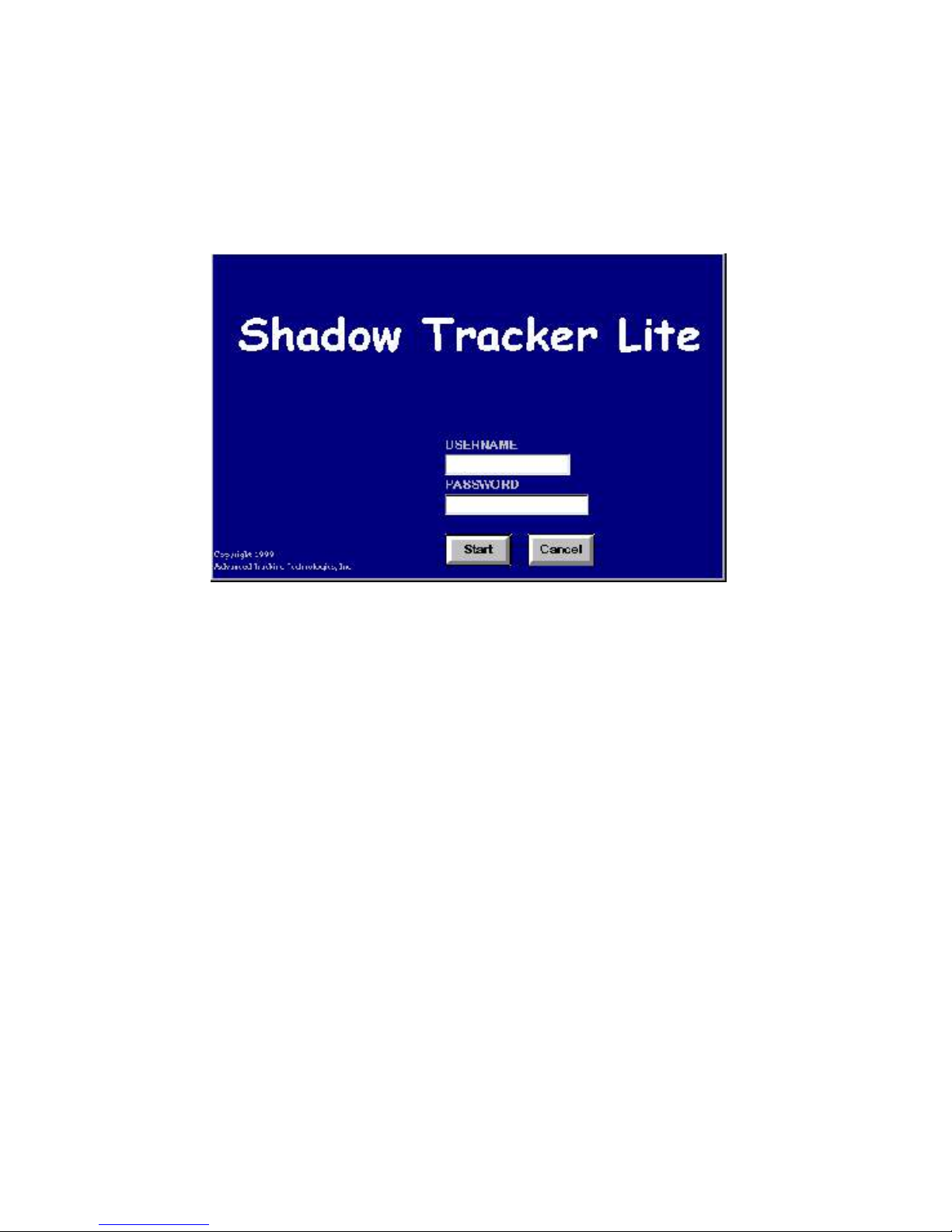
You will be prompted for a Username and Password to open Shadow TrackerÔ Lite
V2.0.
The default login and password is:
Username: Administrator
Password: root (case sensitive)
Once you are in the Shadow TrackerÔ Lite V2.0 program, you have access to Help
Files and Training Cards.
Click Help from the menubar for complete instructions and interactive assistance
on how to use the Shadow TrackerÔ Lite V2.0 program.
3
Page 9

Getting to know Shadow Tracker™ Lite Version 2.0
All of the features of Shadow TrackerÔ Lite V2.0 can be accessed from the main
window by selecting an item from the menu bar.
!Map
Use items from here to adjust map display options,
create a route, draw a street on the map or search for a
street or city.
!Track
From here you can display a historical track or plot your
real time location. Print a report or print the map's display.
!Pinpoint
Create, view and adjust pinpoint locators or adjust the
target area deviation for location display.
!Unit
Download, add, remove, erase, assign a driver or view
the settings of a Shadow TrackerÔ Jr., Pro or Performer unit.
!Tools
From here you can purge old tracking data or
compact/repair your database. You can also change your
username and/or password.
!Help
Use the Help Topics and Training Cards to assist you in getting
the most from your Shadow TrackerÔ Lite V2.0 system.
For more information about using Shadow TrackerÔ Jr., Pro or Performer see the
Shadow TrackerÔ Jr., Pro, Performer Hardware Manual.
4
Page 10
Database Maintenance
Performing regular Database Maintenance is an important part of safeguarding your GPS data
records. Shadow Tracker ™ Lite makes it easy to perform routine Database operations quickly
and safely. The Database Backup, Database Purge and Database Compact and Repair utilities
will help you to keep your Shadow Tracker ™ Lite program running at its best.
Before performing any database maintenance, it is recommended that you always make a copy of
your database first, just in case.
Database Backup
To make a backup of your database:
1. From the Shadow Tracker ™ Lite program window, click Tools and then click Data
backup…
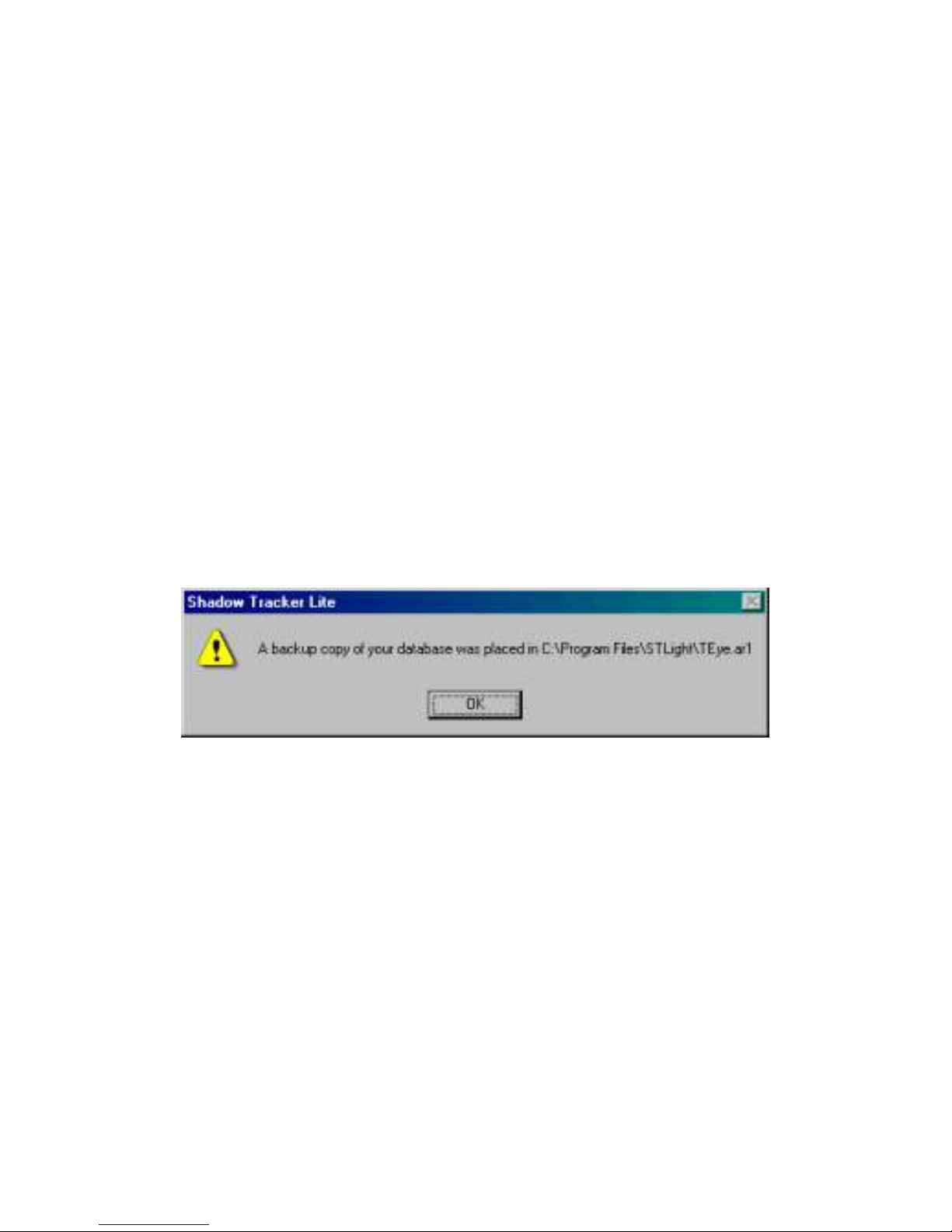
A backup of your database will be created and placed in the Shadow Tracker ™ Lite program
folder. You will receive a confirmation message informing you that the backup was successfully
performed, as well as the location and file name of the backup. (below)
Note: Backup databases are saved using an “.AR#” file extension.
5
Page 11
Database Purge
It is recommended that you discard unused GPS data from the database on a periodic basis.
Doing this will assure efficient data processing and program response. In most cases, data
downloaded from your tracking units make up around 85% of the size of your database. Your
database should not reach 1 gigabyte in size or damage to the database structure and/or data will
occur. The size of your database is displayed at the bottom of the Shadow Tracker ™ Lite
program window.
To make sure you are getting the true database size you can at anytime perform a compact on the
database. This will delete unused space and reduce the database down to its smallest size.
If you wish to keep all of your data for future reference, make a copy of your database first and
place it in a safe location. That way, you will always have these records available in the future.
You can later connect to your backup database to view the archived records.
To purge unused data from your database:
1. From the Shadow Tracker ™ Lite program window, click Tools and then click Data
Purge…
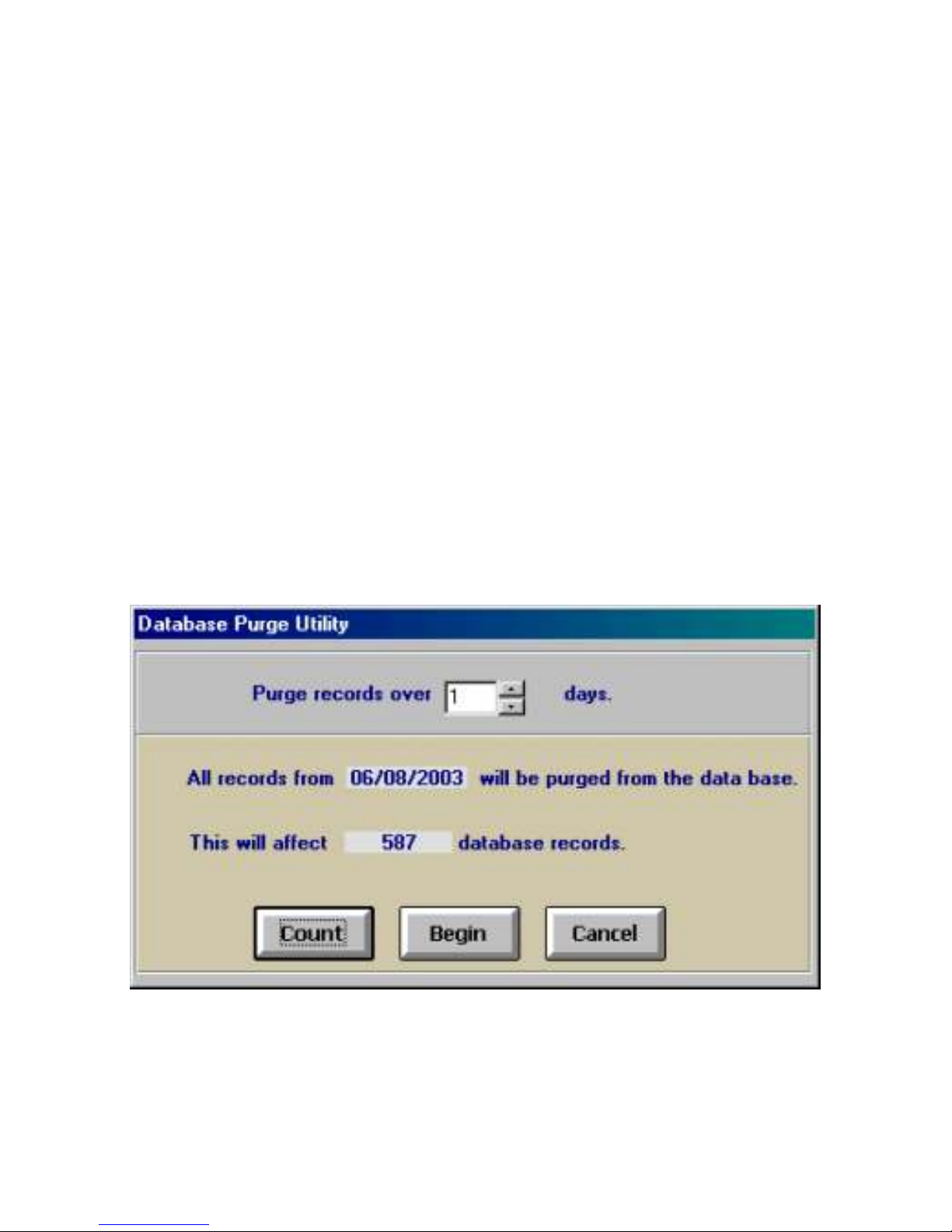
2. In the Database Purge Utility window use the up/down arrows to select the date range of
GPS records to be deleted. To view the number of GPS records to be deleted, click Count.
Click Begin to delete the GPS records. (below)
3. You will receive a message asking “Are you certain you wish to discard these GPS records?'
To proceed click Yes .
You will then receive a notification that the “Clearing of Records has been completed.” Click OK.
6
Page 12
Database Compact
Data in your program is constantly being added, evaluated and rearranged. Your database can
become fragmented and use disk space inefficiently. Compacting the database makes a copy of
the database and then rearranges how the data file is stored on disk. At anytime, especially after
you purge data, you can perform a compact on your database to release disk space so your
program runs more efficiently.
To compact your database:
1. From the Shadow Tracker ™ Lite program window, click Tools and then click Data
Cleanup…
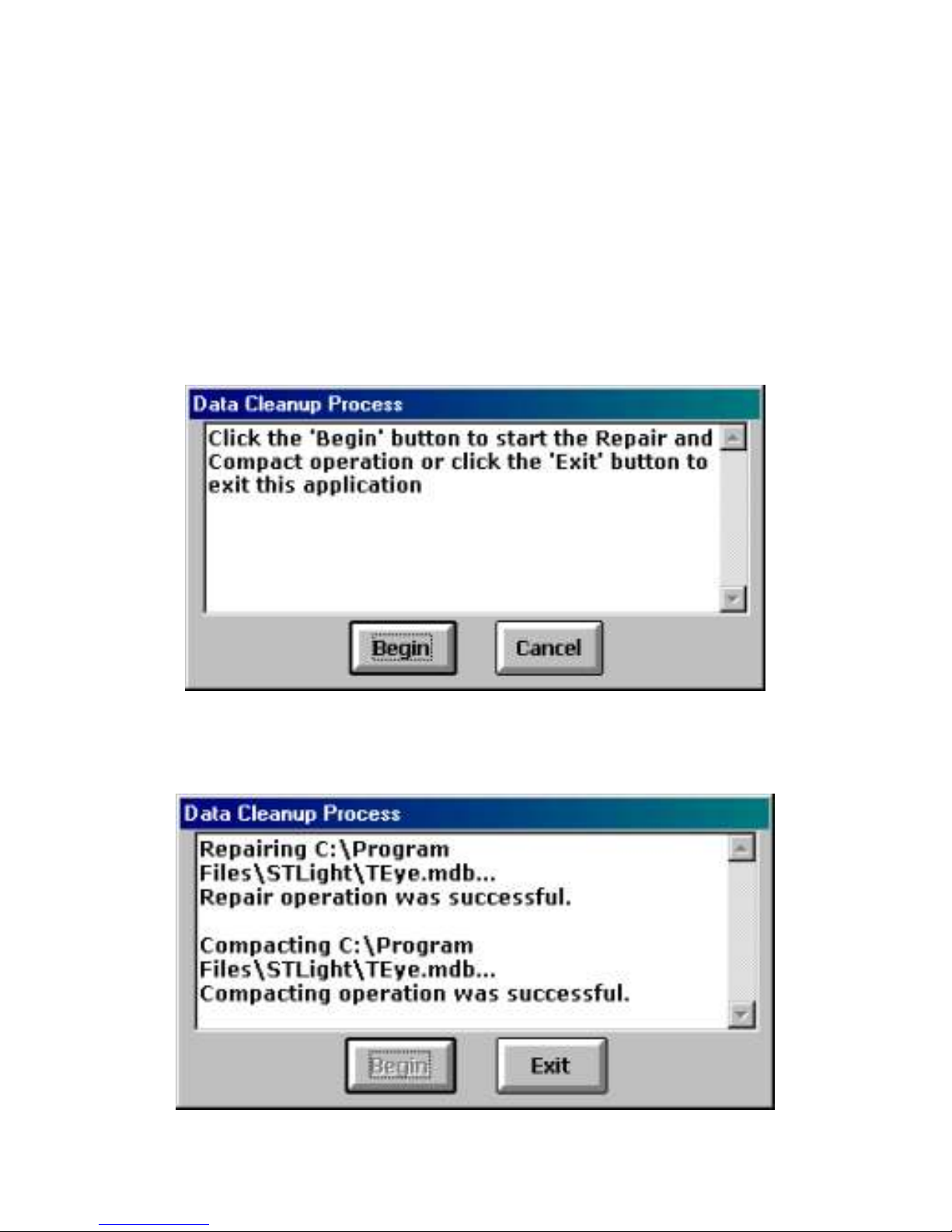
2. From the Data Cleanup Process window click Begin. (below)
You will receive a confirmation message that the Repair and Compacting operations were
successful. Click Exit. (below)
7
Page 13

8
User Notes:
Page 14

9
User Notes:
Page 15

Shadow Tracker™Lite
Quick Start User Guide
Manual Number: M-
21611
Page 16

TM
Advanced Tracking Technologies Inc.
P.O. Box 168
Sugar Land, Texas 77487
Tel: (713) 353-6065
Fax: (713) 353-6050
www.AdvanTrack.com
 Loading...