

Page 1

Attainment WorkStation
User’s Guide
Page 2

Attainment WorkStation
contents
Getting Started ............................................................................... 3
What’s in the Box ....................................................................... 3
Quick Tour ...................................................................................... 4
Front & Side Views ..................................................................... 4
Back View ................................................................................. 5
Rear Connectors ........................................................................ 5
Setup.............................................................................................. 6
On Screen Display .......................................................................... 7
Touch Screen.................................................................................. 8
Care and Customer Support ........................................................... 9
Cleaning the Computer ............................................................... 9
Common Problems ..................................................................... 9
Attainment Software DVD ............................................................ 9
Customer Support ...................................................................... 9
Appendix ...................................................................................... 10
Hardware Specifications ............................................................. 10
Third Party Software .................................................................. 10
Safety Precautions ..................................................................... 10
Attainment Software License ....................................................... 11
Attainment Workstation Limited Warranty Statement ..................... 12
The information included in this manual may be modified at any
time without notification.
Any changes will be updated in future versions of this manual.
Attainment Company, Inc. makes no warranties, expressed or
implied, of the accuracy or completeness of the contents.
For your records:
Please record the serial number found on the back of your
Attainment WorkStation, purchase date, and invoice number.
Serial Number: _________________
Date Purchased: _________________
Invoice Number: _________________
© 2012 Attainment Company, Inc. All rights reserved.
Other product names or trademarks are used herein for identification
purposes only and belong to their respective companies.
Revision 7.0
User’s Guide
2
Page 3

Attainment WorkStation
g
etting started
What’s in the box
Make sure you have received everything as you unpack your computer. Contact the
Attainment Company if any item is missing or damaged.
A. Attainment Workstation 20” Wide Screen Computer
B. Power Adapter and Power Cord
C. Wireless Keyboard and Mouse with USB receiver
D. Mouse pad
E. Attainment Workstation Software DVD and system CD
F. Stylus pen
G. Windows 7 Professional Installation DVD
H. Attainment Workstation User’s Guide
User’s Guide
G
A
H
B
C
F
3
E
D
Page 4

q
uick tour
K
Front & Side Views
G
E
F
Attainment WorkStation
User’s Guide
A BD
H
I
J
L
A. Microphone
B. Webcam
C. 20” Wide Screen TFT LCD display
with Optical Touch Screen
D. System Power LED
E. Monitor Power LED
F. Hard Drive Activity LED
N
O
C
M
P
G. System Power Button
H. Mode / Monitor Power Button
I. Menu / Enter Button
J. Up / Volume Up Button
K. Down / Volume Down Button
L. USB 3.0 port
M. USB 3.0 port with Super Charger
N. Card Reader Drive
O. Power Jack
P. CDRW/DVD Drive
4
Page 5
K
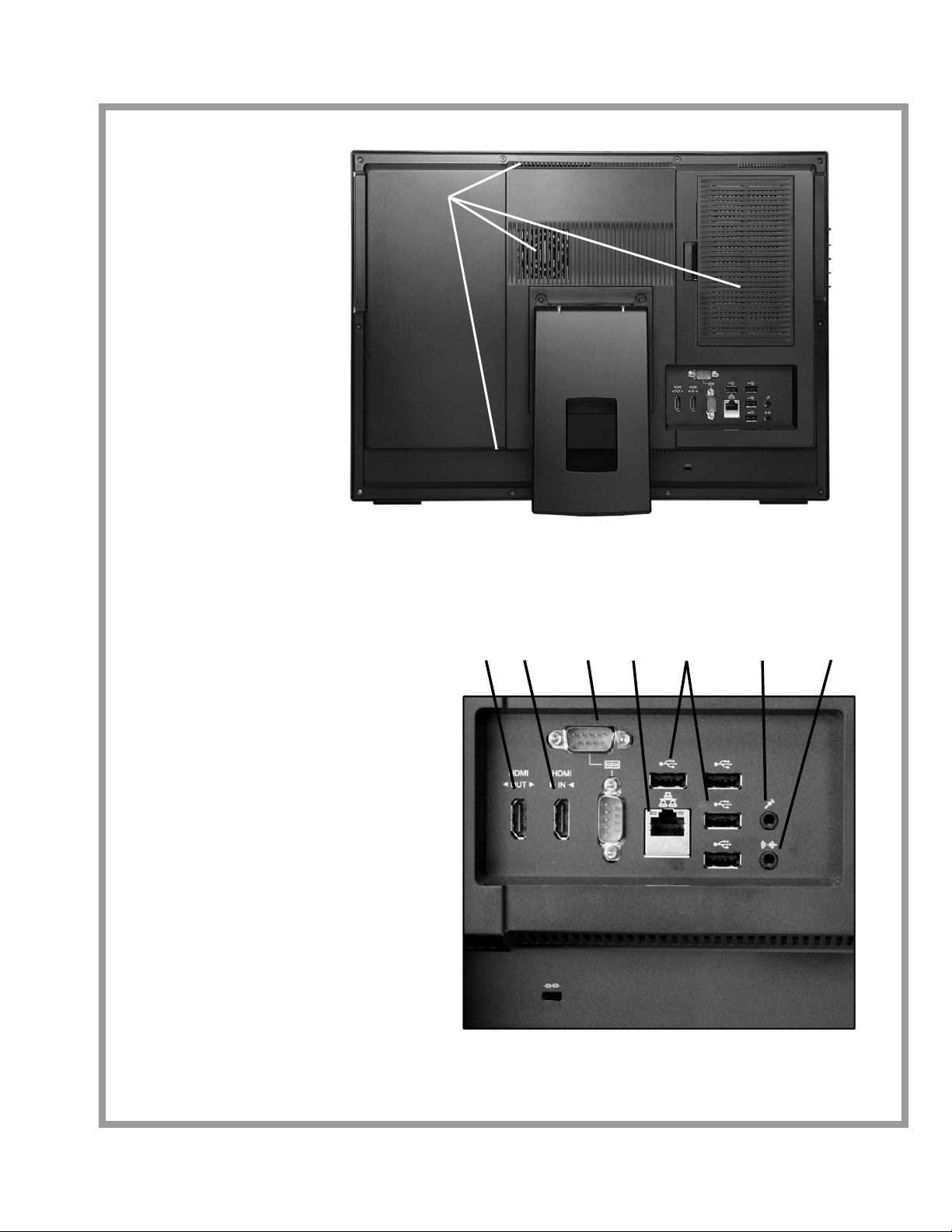
Back View
A. Ventilation
B. Stand
C. RAM compartment
Rear Connectors
D. HDMI Out
Attainment WorkStation
User’s Guide
A
C
B
D E F G H I J
E. HDMI In
F. 9-pin Serial Ports
G. RJ-45 10/100/1000 LAN Jack
H. 4 x USB 2.0 Ports
I. External Microphone Jack
J. Headphones/Speakers
K. Kensington Security Slot
5
Page 6
s
etup
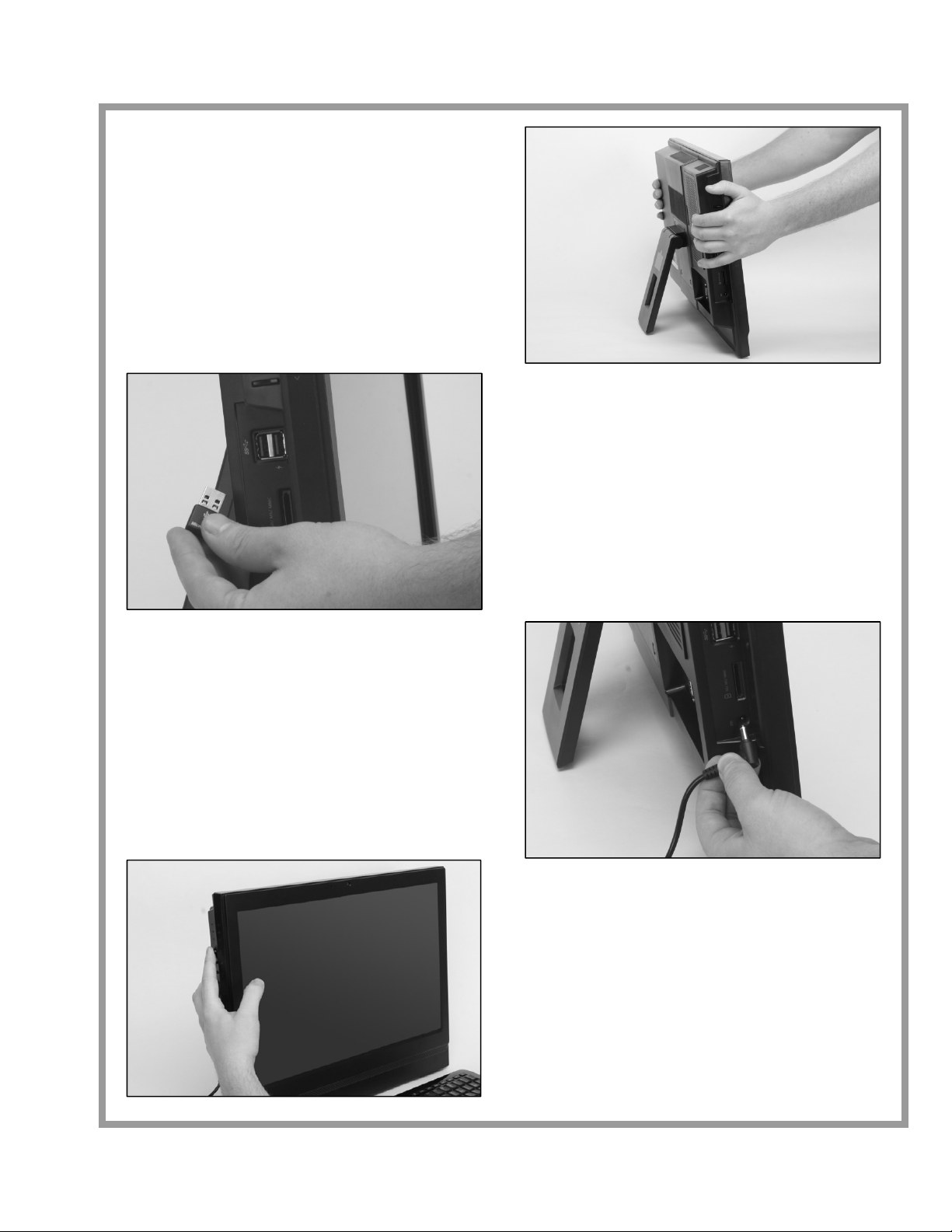
Step 1.
Place the computer on a flat and steady surface
such as a table or desk.
Pull out the stand and tilt the LCD display to
an angle as needed for best visibility and
stability.
Step 2.
Plug the wireless USB receiver into any one of
the side or rear USB ports. The USB receiver
included with the keyboard and mouse will not
work with any other keyboard or mouse. You
may want to label or color code these devices if
you have multiple systems with wireless
keyboards and mice.
Connect additional cables such as network or
USB printer cables to their respective ports.
Step 3.
Plug the power adapter cable into the DC
Power-In port on the left side of the system.
Connect the female end of the AC power
cord to the power adapter, and then plug
the male end into an electrical outlet. A
quality surge suppressor or battery backup
system is recommended to prevent
electrical damage to the computer.
Step 4.
Turn the computer on by pressing the power
button on the left side of the monitor.
Attainment WorkStation
User’s Guide
6
Page 7
Attainment WorkStation
)
On-Screen Display (OSD
The on-screen display (OSD) allows you to adjust viewing options of the monitor, such
as brightness, contrast, and color temperature.
On-Screen Menu
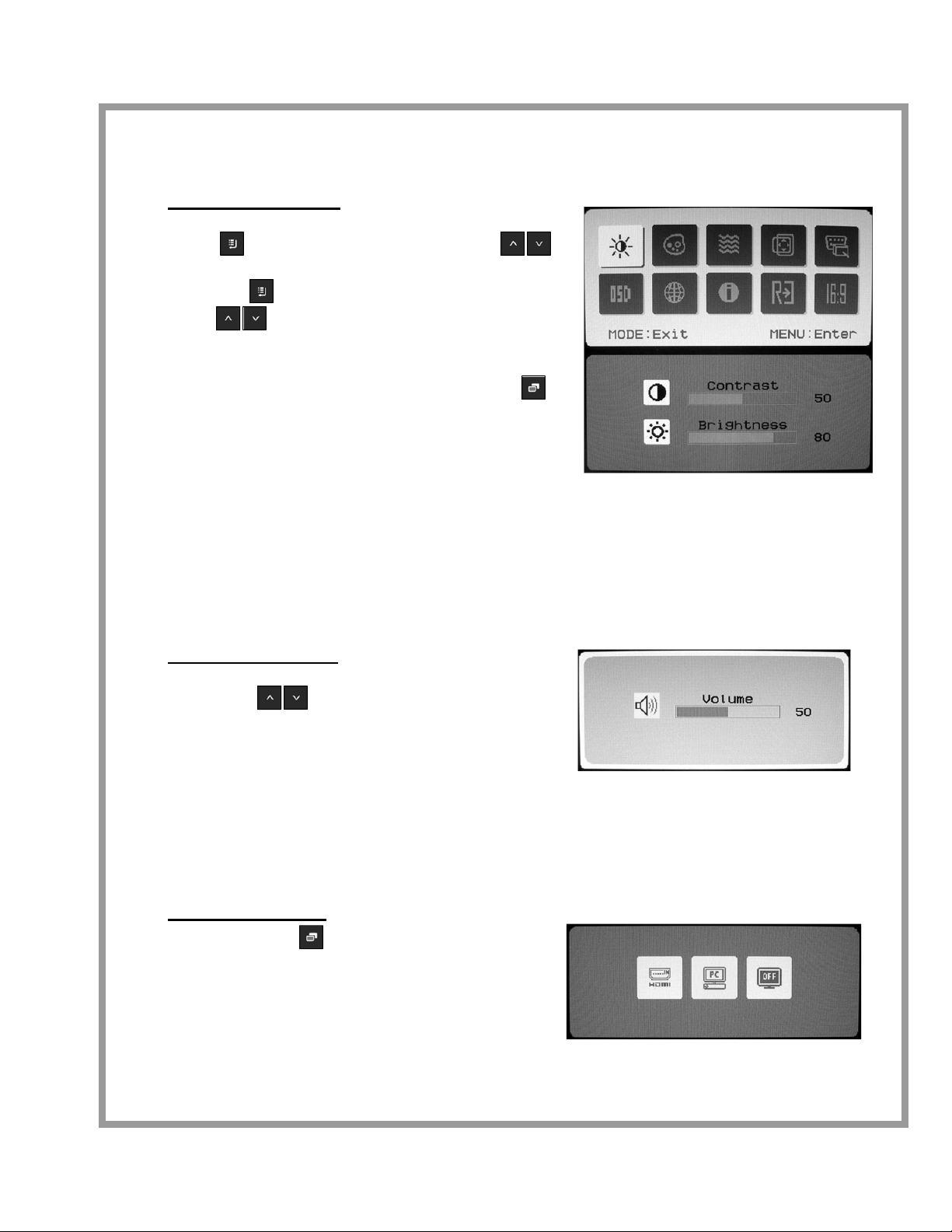
To display the On-Screen menu: Press the
Menu button. Use the Up and Down
buttons to choose a desired function and press
the Menu button to select it. Use the Up and
Down buttons to modify the selected
function.
After modifying the settings, press the Mode
button to save and exit.
The On-Screen display menu will automatically
exit after 10 seconds of inactivity. The duration
of inactivity can be set within the OSD function on the OSD main menu.
You can restore all volume and display settings to the defaults by selecting Reset from the
Reset function.
Speaker Volume
To adjust the speaker volume: Press the Up
and Down buttons to adjust the system
volume. A volume level indicator is displayed on
the screen while adjusting the volume.
Mode Selection
Press the Mode button to view the signal
source for the LCD monitor. Press it again to
select between HDMI in, PC, or to power off the
monitor. Turning off the monitor does not turn
off the computer.
User’s Guide
7
Page 8
Attainment WorkStation
Touch Screen
The Attainment WorkStation uses the built-in touch features of Windows 7. All settings
for the touch screen are configured through the Windows Control Panel.
Calibrating the Touch Screen
Use the Calibration utility to increase the acuracy of the touch screen.
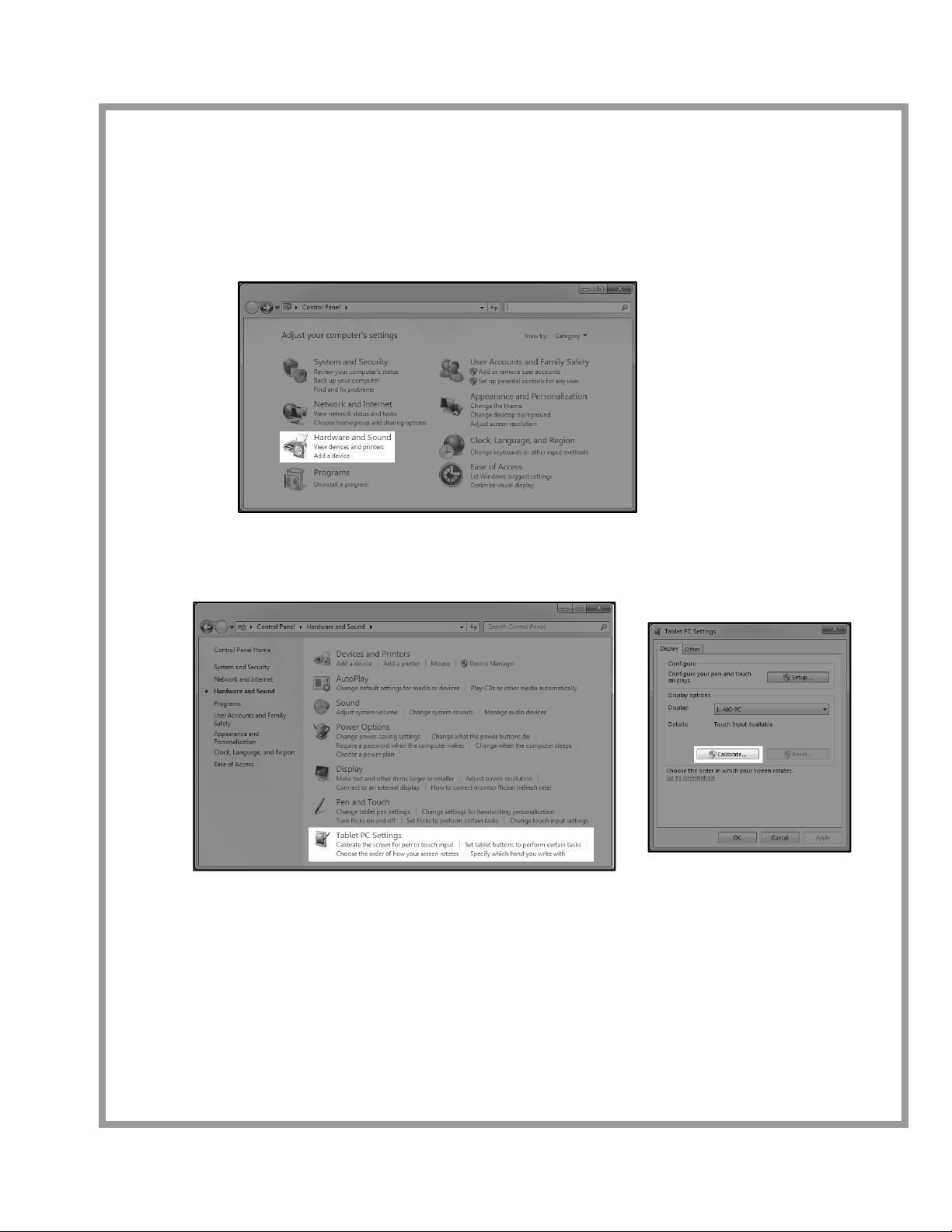
1. Click the Start button and select Control Panel and then Hardware and Sound.
2. Select Tablet PC Settings and then click the Calibrate button to begin the Calibration
process. Use your finger to touch the screen at the indicated points. When finished,
click Yes to save the configuration data.
There are 16 different reference points when calibration is first performed. The initial
calibration applies to all users. Additional calibrations use only 4 reference points and
apply only to the current user account. To reset all calibration data, click the Reset
button on the Tablet PC Settings screen.
Additional Touch Screen Options
Additional touch options, such as double-click speed and right-click settings, are
available through the Pen and Touch settings in the Control Panel. In the Pen
and Touch settings, select the Touch tab to view these additional options.
User’s Guide
8
Page 9

Attainment WorkStation
pp
t
care and customer su
or
User’s Guide
Cleaning the computer
To clean the outside of the computer, use a soft, damp cloth.
To clean the touch screen, use soft, damp cloth or an LCD cleaning cloth.
Always unplug the computer before cleaning. Never spray liquid cleaners directly on the
computer. Always apply the cleaner to a soft cloth first before wiping the computer.
Common Problems
Computer does not turn on: Make sure the power adapter cable is securely plugged into
the side of the computer. Make sure the power cord is plugged tightly into the power
adapter. If the green LED on top of the adapter is not on, unplug the power cord from the
power adapter, wait 30 seconds, and re-plug the power cord into the adapter. The green
LED on top of the adapter should light when power is supplied.
No Sound: Adjust the volume using the Up and Down buttons on the left side of the
monitor, or the volume buttons on the keyboard. Verify the default Playback device. Rightclick the speaker icon in the system tray and select Playback devices. Make sure the
Speakers are selected as the default playback device with a green checkmark.
Display is dim: Adjust the Brightness or Contrast using the On Screen Menu. See page 7
for instructions.
The cursor does not move to where I touch the screen: Perform a calibration of the
touch screen. Open the Control Panel from the Start Menu. Select Hardware and Sound,
and then select Tablet PC Settings. Click the Calibrate button to begin the Calibration
process. Use your finger to touch the screen at the indicated points. When finished, click
Yes to save the configuration data. See page 8 for additional information about touch
screen calibration.
Attainment WorkStation Software DVD
The Attainment WorkStation Software DVD allows you to reinstall any of the Attainment
software that came preinstalled on your system. Insert the DVD and choose Run
autorun.exe. Click the Attainment Software button from the Autoplay menu to choose
which applications to install. All third party applications required by the Attainment
Software can be reinstalled from the Extras menu on the DVD. System drivers are also
included on the DVD in the event a system restore is required.
Customer Support
If you have questions about using any Attainment Software, first review the PDF manuals
included with the software. Documentation for all Attainment programs is located in the
Start Menu in All Programs > Attainment Company > Documentation folder. If you require
additional software support or if you have problems with the computer hardware, call
Attainment’s customer service at 1-800-327-4269.
If we determine that you have a hardware problem we will issue an RMA and provide
instructions for sending your computer in for repair.
You may be charged for services not covered under the warranty. If any charges are
applicable, you will be notified before any service is performed.
9
Page 10

a
pp
endix
System Hardware Specifications (subject to change)
Monitor: 20” TFT LCD panel, 1600x900 with Optical Multi-Touch screen
OS: Windows® 7 Professional, 64bit
Processor: Intel® Core™ i5 series processor
Motherboard: MSI Computer Corporation, Intel® LGA1155, Intel® H61 Chipset
RAM: 4GB (1x4GB) SODIMM DDR3, 1333, two sockets, 4GB Max
Hard Drive: 250GB, SATA2, 7200, 16MB Cache
CD/DVD Drive: Super-Multi Slim CD/DVD Rewriter, 24x/8x
LAN: Realtek® Gigabit Ethernet Port
Audio: Realtek® High Definition Audio
Speakers: 2 x 3Watt stereo speakers
Video: Intel® HD Graphics
Webcam: 0.3 MP with microphone
USB Ports: 4 x USB 2.0 (back), 2 x USB 3.0 (side).
Attainment WorkStation
User’s Guide
Card Reader: 6-in-1 Card Reader (SD, mini SD, MS, MS Pro, MMC, xD)
Additional Ports: HDMI out, HDMI in, 2 x 9-pin Serial Ports, Mic in, Headphone out
Power Supply: 120W, 19V AC adapter
Dimensions (approximate): 19.5” x 14.5” x 3.5”
Installed Third Party Software (subject to change)
Adobe Systems Incorporated – Adobe® Reader®
Oracle Corporation - Java SE Runtime Environment (JRE)
Apple® QuickTime® Player
Microsoft® IntelliType Pro, Keyboard software
Microsoft® IntelliPoint, Mouse software
MSI is a registered trademark of Micro-Star Int’l Co., Ltd.
Adobe and Adobe Reader are either registered trademarks or trademarks of Adobe Systems Incorpo rated in the United St ates and/or other countries.
Apple and QuickTime and Qu ickTime are trademarks o f Apple Inc., registered i n the U.S. and other cou ntries.
Intel and Intel Core are trademarks of Intel Corporation in the U.S. and/or other countries.
Java is a registered trademark of Oracle and/or its affiliates.
Microsoft and Windows are ei ther registered tradema rks or trademarks of Micros oft Corp. in the United S tates and/or other countries.
Realtek is a trademark of Realtek Semiconductor Corporation
Other company and product names may be trademarks of their respective owners.
Safety Precautions
• Avoid operating this computer in dusty environments
• Do not cover the fans or ventilation holes on the top or back of the computer
while operating the computer.
• Place the power adapter in such a way that people cannot step on it. Do not place
anything on top of the power adapter.
10
Page 11

Attainment WorkStation
pp
a
endix
Attainment Company Software License
Single-User License
Attainment Company, Inc. grants the original purchaser a Single-User License of the
pre-installed Attainment Software. Under this license, the purchaser may use the
software only on the machine they were pre-installed.
Ownership
Attainment Company, Inc. retains title to software programs. Purchaser gains title to
enclosed Attainment Software DVD.
Copyright
The Programs are protected by United States copyright laws and international
copyright treaties.
Warranty Attainment Company, Inc. warrants that the enclosed DVD is free of
defects in materials and workmanship for the warranty duration of the machine. If
you discover a defect, return the enclosed DVD to Attainment Company for a free
replacement. (There is a replacement charge of $15.00, plus shipping and handling,
for replacement after such warranty expires.)
Limitation of Liability
Attainment Company, Inc. shall not be liable for damages, including incidental or
consequential, arising from the use of the programs or any documentation. Some
states do not allow the limitation or exclusion of liability for incidental or
consequential damages, so this limitation may not apply to you.
Technical Support
If you have problems running any of the Programs, please call Attainment Technical
Support. If possible, be near your computer while we discuss solutions.
User’s Guide
11
Page 12

Attainment WorkStation
pp
a
endix
User’s Guide
Attainment WorkStation Limited Warranty Statement
Attainment Company, Inc. (“Attainment”) warrants to the user that this all-in-one computer will be free from
defects in materials and workmanship for a period of two (2) years from the date of invoice. This warranty
applies to the components comprising the computer system, including: CPU, motherboard, memory, modem,
hard drive, cdrw-dvd combination drive, speakers, touch-screen, power supply, mouse, keyboard, and the
original hard drive configuration.
Peripheral devices including: alternate input devices, power protection, printers, and any other external
devices that can be connected to the computer and are sold as separate options are covered under their
respective manufacturer’s warranties, not this warranty.
Hardware additions, software not preinstalled by Attainment, upgrades, modifications, or configuration
changes not authorized by Attainment are not covered by this warranty.
All component items not normally carried and offered for sale by Attainment or otherwise identified as "special"
or “custom” ordered goods are covered under their respective manufacturer's warranties, not this warranty.
User is required to: (1) operate the equipment in an environment meeting the manufacturer’s specifications;
(2) protect the supply of electricity to the equipment through the use of appropriate surge protection devices;
(3) comply with the manufacturer’s operating manual; (4) permit no work on the equipment except by a
qualified service provider authorized by Attainment; (5) print out or make note of any error or diagnostic
messages when experiencing hardware difficulties and communicate it to an authorized service representative
when requesting service or replacement.
Some problems or defects may require the reformatting or replacement of a hard disk drive. Under such
circumstances all data on the disk drive may be lost. Neither Attainment nor the authorized service provider
shall be liable for the loss or destruction of data or media resulting from the services performed hereunder.
The user is solely responsible for the security of user’s data. It is strongly advised that user implement and
maintain a daily routine to backup data to minimize the loss of data in the event of equipment failure. An
authorized service representative will initially diagnose problems over the telephone. Telephone technical
services are available from Attainment Monday through Friday, during normal business hours.
This warranty is a limited warranty and, as the sole remedy for a breach of this warranty, Attainment will, at
its discretion, repair or replace defective components with new or reconditioned components of equivalent or
better performance during the warranty period. Attainment will restore the system unit to its original operating
configuration as needed at no additional cost when the system unit is delivered freight prepaid to the servicing
facility.
Attainment will complete warranty service within a period of seven (7) to ten (10) business days and return
the unit to the user freight prepaid.
Component failures that have, in the sole opinion of Attainment, failed because of damage caused by accident,
misuse, mishandling, misapplication, lack of proper maintenance or act of God, are not covered by this
warranty.
ATTAINMENT IS NOT LIABLE FOR AND SPECIFICALLY DISCLAIMS ANY INCIDENTAL OR CONSEQUENTIAL,
DIRECT OR INDIRECT, STATUTORY, PUNITIVE OR EXEMPLARY DAMAGES, INCLUDING BUT NOT LIMITED TO
LOST PROFITS OR LOSS OF USE, BASED ON ANY LEGAL THEORY, OR FOR ANY SOFTWARE OR DATA THAT
MAY BE LOST DUE TO HARDWARE FAILURE OR SERVICING IN ACCORDANCE WITH THIS WARRANTY.
In order to take advantage of this warranty, the user must provide a valid proof of warranty purchase.
EXCEPT FOR THE WARRANTIES SET FORTH HEREIN, ATTAINMENT DISCLAIMS ALL OTHER WARRANTIES
EXPRESS OR IMPLIED INCLUDING BUT NOT LIMITED TO WARRANTIES OF MERCHANTABILITY OR FITNESS
FOR A PARTICULAR PURPOSE OR ANY WARRANTIES ARISING FROM A COURSE OF DEALING, USAGE, OR
TRADE. ANY IMPLIED WARRANTIES THAT MAY BE IMPOSED BY APPLICABLE LAW ARE LIMITED TO THE
DURATION OF THIS LIMITED WARRANTY.
This warranty gives you specific legal rights which may vary from state to state.
12
 Loading...