

Page 1

Atrust t100
UUsseerr’’ss MMaannuuaall
Page 2

Page 3

Preface
Copyright
This publication, including all photographs, illustrations and software, is protected
under international copyright laws, with all rights reserved. Neither this manual, nor
any of the material contained herein, may be reproduced without the express
written consent of the manufacturer.
Version 1.0, May 2008
Trademarks
Other product names mentioned herein are used for identification purposes only
and may be trademarks and/or registered trademarks of their respective
companies.
Limitation of Liability
While reasonable efforts have been made to ensure the accuracy of this manual,
the manufacturer and distributor assume no liability resulting from errors or
omissions in this manual, or from the use of the information contained herein.
1
Page 4

Preface
Table of Contents
About This User’s Manual-------------------------------------------------- 3
Notes for This Manual ------------------------------------------------------- 3
Safety Precautions ----------------------------------------------------------- 3
GETTING TO KNOW YOUR Atrust t100 ................................................... 7
Out of the Box ----------------------------------------------------------------- 7
Optional Items ------------------------------------------------------------------ 8
Front View ---------------------------------------------------------------------- 9
Rear View----------------------------------------------------------------------10
Hardware Features----------------------------------------------------------11
GETTING STARTED ................................................................................... 13
Setting Up Your Atrust t100-----------------------------------------------13
Desktop Setup------------------------------------------------------------------13
Using the LCD Bracket-------------------------------------------------------14
Making Connections ---------------------------------------------------------- 15
Powering On Your Atrust t100--------------------------------------------15
BIOS INTRODUCTION ............................................................................... 17
BIOS Overview---------------------------------------------------------------17
2
Page 5

Atrust t100 User’s Manual
About This User’s Manual
This User’s Manual provides information regarding the various components of
the TC1 and how to use them. The following are the major sections of this
User’s Manual:
Getting to Know Your Atrust t100–introduces you to the Atrust t100 and
it’s components.
Getting Started–provides information on getting started with your Atrust
t100.
BIOS Introduction–provides basic information on your Atrust t100 BIOS
settings and configuration.
Using Your Atrust t100–provides information on using the Atrust t100’s
utilities.
Support CD & System Recovery–provides information on the support CD
and system recovery.
Appendix–contains the Atrust t100 safety statements.
Notes for This Manual
The following notes and warnings are used throughout this manual allowing
you to complete tasks safely and effectively.
WARNING! Important information that must be followed for safe
operation.
IMPORTANT! Vital information that must be followed to prevent
damage to data, components, or persons.
TIP: Tips for completing tasks.
NOTE: Information for special situations.
3
Page 6
Atrust t100 User’s Manual
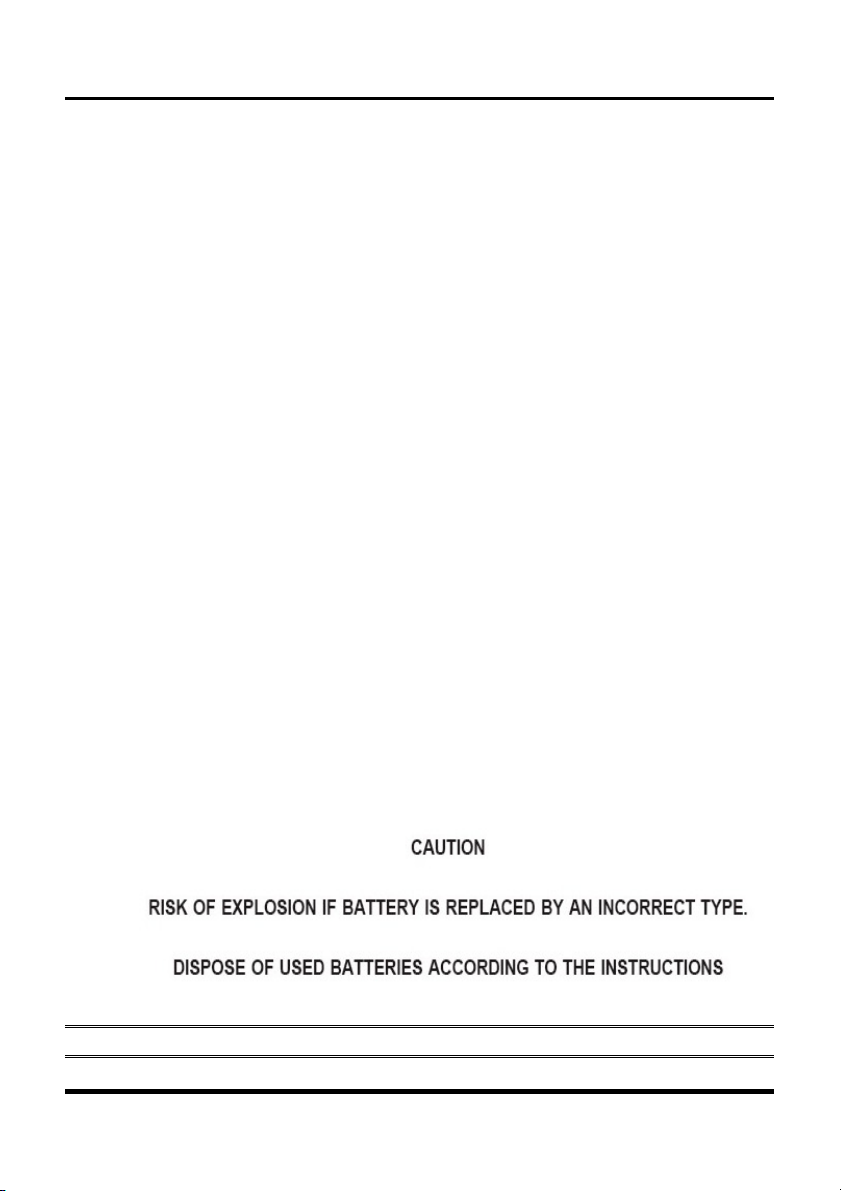
Safety Precautions
The following safety precautions help to prolong the life of your Atrust t100.
Refer all servicing to qualified personnel, except in specific instances outlined
in this manual. Do not use strong solvents such as thinners, benzene, or other
chemicals on the Atrust t100 cover or components.
Disconnect the AC power before cleaning. Wipe the Atrust t100 using a clean
cellulose sponge or chamois cloth dampened with a solution of nonabrasive
detergent and a few drops of warm water and remove any extra moisture with
a dry cloth.
DO NOT expose to liquids, rain, or moisture.
DO NOT install in dirty or dusty environments.
DO NOT install in environments with ambient temperatures less than 0°C
(32°F) or greater than 40°C (104°F)
DO NOT expose to strong magnetic or electrical fields.
DO NOT install on uneven or unstable work surfaces.
DO NOT place or drop objects on top of the Atrust t100.
DO NOT dispose of the Atrust t100 in municipal waste. Check local
regulations for disposal of electronic products.
DO NOT carry or cover the Atrust t100 with any materials that reduce air
circulation when powered ON.
4
Page 7
錯誤! 尚未定義樣式。
FFeeddeerraall CCoommmmuunniiccaattiioonn CCoommmmiissssiioonn IInntteerrffeerreennccee SSttaatteemmeenntt
This equipment has been tested and found to comply with the limits for a Class
B digital device, pursuant to Part 15 of the FCC Rules. These limits are
designed to provide reasonable protection against harmful interference in a
residential installation. This equipment generates, uses and can radiate radio
frequency energy and, if not installed and used in accordance with the
instructions, may cause harmful interference to radio communications.
However, there is no guarantee that interference will not occur in a particular
installation. If this equipment does cause harmful interference to radio or
television reception, which can be determined by turning the equipment off and
on, the user is encouraged to try to correct the interference by one of the
following measures:
- Reorient or relocate the receiving antenna.
- Increase the separation between the equipment and receiver.
- Connect the equipment into an outlet on a circuit different from that
to which the receiver is connected.
- Consult the dealer or an experienced radio/TV technician for help.
FCC Caution: Any changes or modifications not expressly approved by the
party responsible for compliance could void the user's authority to operate this
equipment.
This device complies with Part 15 of the FCC Rules. Operation is subject to the
following two conditions: (1) This device may not cause harmful interference,
and (2) this device must accept any interference received, including
interference that may cause undesired operation.
5
Page 8

Atrust t100 User’s Manual
IMPORTANT NOTE:
FCC Radiation Exposure Statement:
This equipment complies with FCC radiation exposure limits set forth for an
uncontrolled environment. This equipment should be installed and operated
with minimum distance 20cm between the radiator & your body.
This transmitter must not be co-located or operating in conjunction with any
other antenna or transmitter.
6
Page 9

Out of the Box
Unpack the Atrust t100 package and ensure the following items are included.
or
錯誤! 尚未定義樣式。
Getting to Know Your Atrust t100
or
Atrust t100 Power Adapter and Cable
Desktop Bracket LCD Bracket
7
Page 10

Atrust t100 User’s Manual
User’s Manual Recovery CD
If any item is missing or damaged, contact your dealer.
Optional Items
Keyboard Mouse
8
Page 11

Front View
Refer to the following diagram to identify the components on the front of the
Atrust t100.
No. Item Description
錯誤! 尚未定義樣式。
1 Power button Press to power the Atrust t100 on or off
2 Power LED Lights blue when Atrust t100 is powered on
3 USB Ports Connect USB devices, such as a keyboard or
mouse, to these ports
4 DOM LED Lights yellow when the HDD is accessed
5 SD Card Reader Supports standard SD cards
9
Page 12

Atrust t100 User’s Manual
Rear View
Refer to the following diagram to identify the I/O ports on the rear of the
Atrust t100.
No. Item Description
1 DC Jack Connect the supplied power cable to this port
2 LAN Port Connect an RJ-45 Ethernet cable to this port
3 USB Ports Connect USB devices, such as a keyboard or
mouse, to these ports
4 Analog Audio I/O Connect analog audio devices to these ports
5 Video Out Connect a VGA display device to his port
10
Page 13

錯誤! 尚未定義樣式。
Hardware Features
Item Specification Remarks
CPU VIA Eden ULV 500MHz/1W, Eden
1GHz/5W
Chipset VIA VX800/VX800U
DRAM: One SODIMM Module,
512MB/1GB
Flash: Disk On Module (DOM),
4GB/8GB
Display Resolution: Max 1600x1200
Communications
Input/Output
LAN: Integrated 10/100 Ethernet VIA VT-6107
Wireless LAN: Internal USB Module VT-6656 -
Bluetooth: Internal Module Qcom QBTM400-
4 x USB Ports 2.0 2 Front, 2 Rear
1 x LAN RJ-45 Rear
Optional
Optional Memory
Optional
optional
02 (T6) - optional
1 x VGA, 15 pin D-Sub Rear
2 x Audio Jacks–Line Out/Mic In Rear
Expansion Slots 1 x SD Card Front
Input/Output DC +12V 3A Adapter, 100-240V, 50-60Hz Power Supply
(LI SHIN)
Power Consumption 23W
11
Page 14

Atrust t100 User’s Manual
Item Specification Remarks
Power Supply
Input/Output DC +9V 2.315A Adapter, 100-240V, 5060Hz
(PIE)
Power Consumption 22W
Power LED:
Front LED Indicators
Blue – Power On/S1 Stage
Orange – S3 Stage
Off – Power OFF/S4/S5 stage
HDD LED: Yellow Front
Mounting Built-in Kensington Slot (Rear), Optional Vertical Stand,
Optional VESA Mounting Bracket
Accessories Power Adapter, User’s Manual, Recovery DVD,
Keyboard, Mouse
Operating 0 to 40 degree C, 5% to 95% RH, 3km Environment
Non-operating -20 to 60 degree C, 5% to 95% RH, 12km
Regulatory
BSMI,CCC,FCC,NRTL
RF interference,NCC,SRRC,FCC
12
Page 15

Setting Up Your Atrust t100
The Atrust t100 supports three versatile installation methods; standard desktop,
upright desktop, and discrete installation using the LCD bracket.
Desktop Setup
You can place the Atrust t100 directly on your desktop, supported by the four
rubber feet or by placing the Atrust t100 in the desktop bracket you can install
the Atrust t100 upright to save desk space.
To install the desktop bracket, perform the following steps:
1. Place the cradle on a dust-free, level surface.
2. Insert the Atrust t100 in to the cradle as shown.
錯誤! 尚未定義樣式。
Getting Started
13
Page 16

Atrust t100 User’s Manual
Using the LCD Bracket
Using the discrete LCD bracket, you can install the Atrust t100 behind a
standard LCD display, hiding unsightly cables and maximizing desktop space.
To install the LCD bracket, perform the following steps:
1. Install the LCD bracket on the rear of the LCD display using the
supplied mounting screws.
2. Slide the Atrust t100 into the LCD bracket as shown.
NOTE: Ensure the Atrust t100 is correctly fitted into the bracket to avoid
damaging the unit or the LCD display.
14
Page 17

Making Connections
The following diagram illustrates the basic requirements for Atrust t100
connection, including LCD display, keyboard, mouse, network, and audio I/O.
Powering On Your Atrust t100
After making the required connections, perform the following steps to power
on the Atrust t100:
1. Connect the power adapter to the power cable as shown.
錯誤! 尚未定義樣式。
15
Page 18

Atrust t100 User’s Manual
2. Connect the power adapter to the rear of Atrust t100 and the power
cable to a power outlet.
3. Press the power button on the Atrust t100 front panel.
The Power LED lights blue and the Atrust splash screen displays.
Atrust t100 is ready for operation when the desktop displays.
16
Page 19

錯誤! 尚未定義樣式。
BIOS Introduction
BIOS Overview
The following table describes the first, second, and third level Atrust t100
BIOS options.
Top Level Menu 2nd Level Menu 3rd Level Menu
Main
Advanced
Version
Build Data
ID
Processor
Speed
Count
System Memory
System Time
System Date
IDE Configuration
VGA Buffer Size
OnBoard Lan
OnBoard Audio
Base Clock Frequency
for SD
17
Page 20

Atrust t100 User’s Manual
Top Level Menu 2nd Level Menu 3rd Level Menu
Boot Boot Setting
Configuration
Change Supervisor
Password
Change User Password
Exit
Save Changes and Exit
Discard Changes and
Exit
Discard Changes
Load Optimal Defaults
Quick Boot
Quiet Boot
Hit ‘DEL’ Message
Display
Security
18
Page 21

Federal Communication Commission Interference Statement
This equipment has been tested and found to comply with the limits for a Class B digital
device, pursuant to Part 15 of the FCC Rules. These limits are designed to provide
reasonable protection against harmful interference in a residential installation. This
equipment generates, uses and can radiate radio frequency energy and, if not installed
and used in accordance with the instructions, may cause harmful interference to radio
communications. However, there is no guarantee that interference will not occur in a
particular installation. If this equipment does cause harmful interference to radio or
television reception, which can be determined by turning the equipment off and on, the
user is encouraged to try to correct the interference by one of the following measures:
- Reorient or relocate the receiving antenna.
- Increase the separation between the equipment and receiver.
- Connect the equipment into an outlet on a circuit different from that
to which the receiver is connected.
- Consult the dealer or an experienced radio/TV technician for help.
FCC Caution: Any changes or modifications not expressly approved by the party
responsible for compliance could void the user's authority to operate this equipment.
This device complies with Part 15 of the FCC Rules. Operation is subject to the following
two conditions: (1) This device may not cause harmful interference, and (2) this device
must accept any interference received, including interference that may cause undesired
operation.
IMPORTANT NOTE:
FCC Radiation Exposure Statement:
This equipment complies with FCC radiation exposure limits set forth for an uncontrolled
environment. This equipment should be installed and operated with minimum distance
20cm between the radiator & your body.
This transmitter must not be co-located or operating in conjunction with any other
antenna or transmitter.
 Loading...