

Page 1

www.atronic.com
Rev. 1.0
April 2007
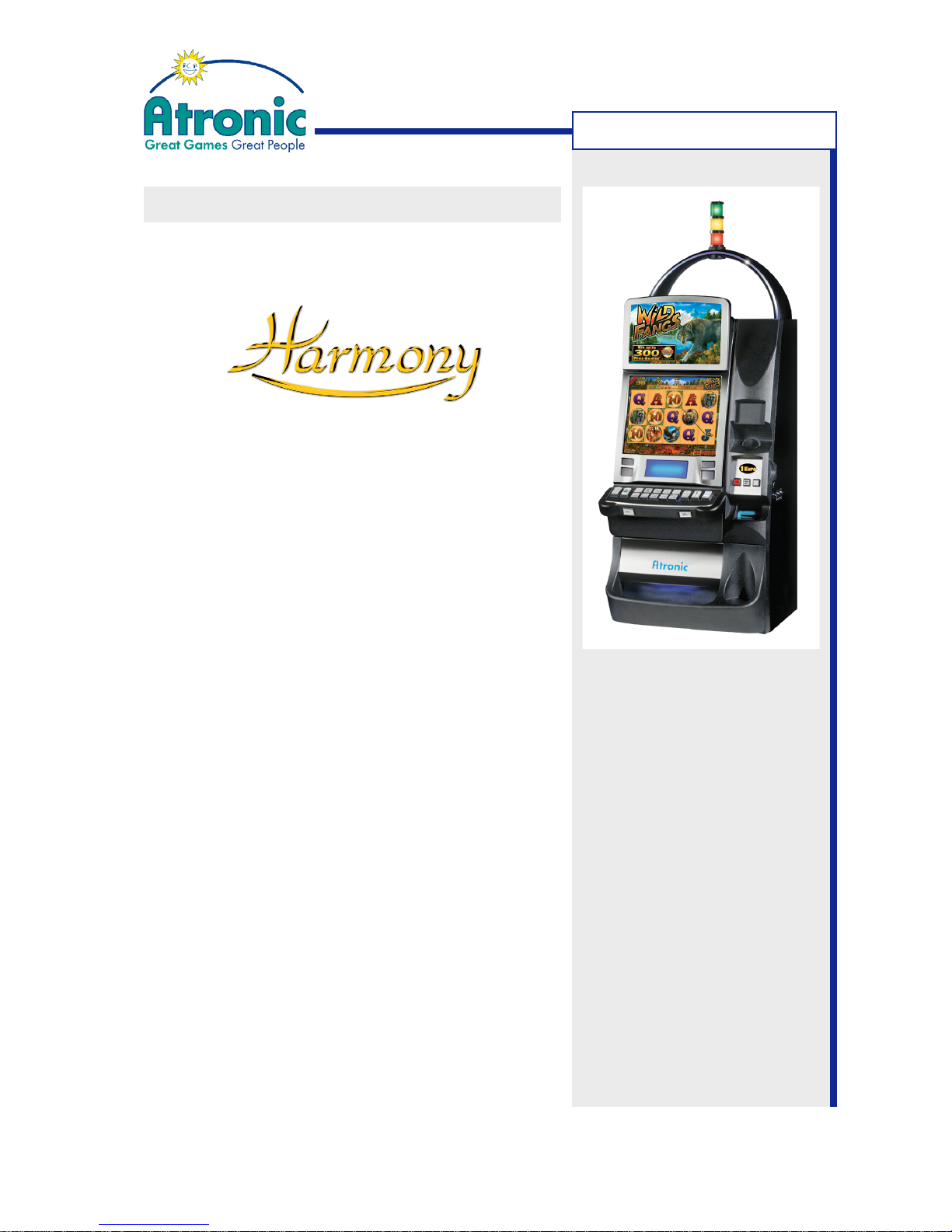
Atronic Harmony™ Upright
Operating Manual
for C-Level Software C4.1.2
Page 2

2
April 2007
Harmony™ Upright - Operating Manual - C-Level
RELEASE INFO
Release Info:
Atronic Harmony™Upright
Operating Manual
for C-Level Software
Version C4.1.2
Rev. 1.0
Rel. April 2007
Copyright Notice:
© 2007, Atronic. All rights reserved.
No part of this publication may be copied or distributed, transmitted, transcribed,
stored in a retrieval system, or translated into any human or computer language, in
any form or by any means, electronic, mechanical, magnetic, manual, or otherwise, or
disclosed to third parties without the express written permission obtained from a
properly authorized official of Atronic.
DISCLAIMER
Atronic makes no representation or warranties, express or implied, with respect to
this publication, or any product of Atronic, including but not limited to warranties of
merchantability or fitness for any particular purpose. Atronic reserves the right to
make changes, enhancements, revisions and alterations of any kind to this publication
or the product(s) it covers without obligation to notify any person, institution or
organization of such changes, enhancements, revisions and alterations.
TRADEMARKS
This document may contain trademarks of Atronic. All other brand and product names
are trademarks or registered trademarks of their respective companies.
Page 3

3
April 2007
Harmony™ Upright - Operating Manual - C-Level
CONTENT
Introduction .............................................................................
Additonal Manuals ......................................................................
How to identify the Software Level ..............................................
Machine Components ...............................................................
Gameplay
Money In ......................................................................................
Game Screen .............................................................................
Button Panel / Select Bet ...........................................................
Button Panel / Additional Buttons ...............................................
Game Play .................................................................................
Double Up Feature (Gamble) .......................................................
Change Denomination, Info Screen ..............................................
Cash Out ...................................................................................
Payout Limit, Residual Credits Payout ........................................
Handpay .....................................................................................
Machine Handling
Open / Close the Maindoor .........................................................
Switch Machine On / Off .............................................................
Open the Hopper Drawer ............................................................
Remove the Hopper ....................................................................
Hopper Empty / Hopper Refill ......................................................
Exchange the Cashbox .................................................................
Read the Mechanical Meters ......................................................
Touch Screen Calibration ............................................................
Service Game ............................................................................
Out of Service Screen ................................................................
Celebration Limit .......................................................................
Remote Key In / Key Credits .......................................................
Troubleshooting
Reset Status- and Error Messages ..........................................
Clearing a Hopper Jam ...............................................................
Clearing a Bill Jam .....................................................................
Clearing a Coin Jam ...................................................................
Service Menu
Overview ....................................................................................
Flowchart ...................................................................................
Audit Menu
Overview ...................................................................................
Flowchart ..................................................................................
History Folder (Softmeters) Overview .........................................
Machine Conversion Guidelines
Game Conversion ........................................................................
Paytable Conversion ...................................................................
Exchanging the Top Glass ...........................................................
4
5
6
8
11
12
13
14
15
18
19
20
21
22
23
27
27
28
28
29
31
31
32
33
33
34
35
37
38
39
40
42
43
45
46
47
49
50
51
Page 4
4
April 2007
Harmony™ Upright - Operating Manual - C-Level
INTRODUCTION
INTRODUCTION
This manual aims to provide qualified technical service
staff with detailed information, how to operate and
maintain an Atronic Harmony™ Upright video slot
machine.
Atronic Harmony™ machines use Atronic's Hi(!)bility™
technology platform. Information included in this
document relates to machines that use Hi(!)bility™
C-Level game software.
Release C4.1.2 STD
using Base version HBS-STD-11.1.2.81
NOTE!
The information in this manual includes the most up-to-date
information available just prior to print. All part numbers and
descriptions have been carefully reviewed and checked for
accuracy. All drawings and diagrams contain the latest (newest)
revision released by Atronic. If earlier revisions of diagrams or
drawings are required, please contact your Atronic Technical
Services representative.
NOTE!
Information in this document is subject to change without notice
and does not represent a commitment on the part of Atronic.
No part of this manual may be reproduced or transmitted in any
form or by any means, electronic or mechanical, including
photocopying and recording, for any purpose other than the
purchaser’s personal use without written consent of Atronic.
© Copyright Atronic, 2007. All rights reserved.
Atronic International
Borsigstr. 26
32312 Luebbecke, Germany
(+49) 5741 273 720
FAX (+49) 5741 273 727
Page 5
5
April 2007
Harmony™ Upright - Operating Manual - C-Level
INTRODUCTION
ADDITIONAL MANUALS
Following topics are covered by additional manuals:
• Installation and Commissioning
(incl. safety instructions, technical data, etc.)
->See manual "Installation" for Harmony™ Upright
cabinets.
• Setup, Configuration and Software Reference.
->See manual "Software / Basic Setup" for a
certain game software version
(for example C-Level 4.1.2).
• Linked Progressive Jackpot Configuration
->See manual "Progressive Jackpots" within folder
"Applications" on Atronic Service Manual CD.
• Peripherals
(coin- and bill acceptors, hopper, printer, etc.)
->See folder "Peripherals" on Atronic Service
Manual CD.
• Spare Parts
->See "Parts Catalogue" for Harmony™ Upright
cabinets.
All mentioned manuals can be found on a CD-ROM
titled "Atronic Service Manual 2007"
If this manual did not came with this CD-ROM, please
ask Atronic Technical Service for a free copy.
Page 6
6
April 2007
Harmony™ Upright - Operating Manual - C-Level
HOW TO IDENTIFY THE SOFTWARE LEVEL
This section explains, how to identify the software
version and its software level. The naming of the Main
Base EPROM indicates the software level (major
version) and the jurisdiction.
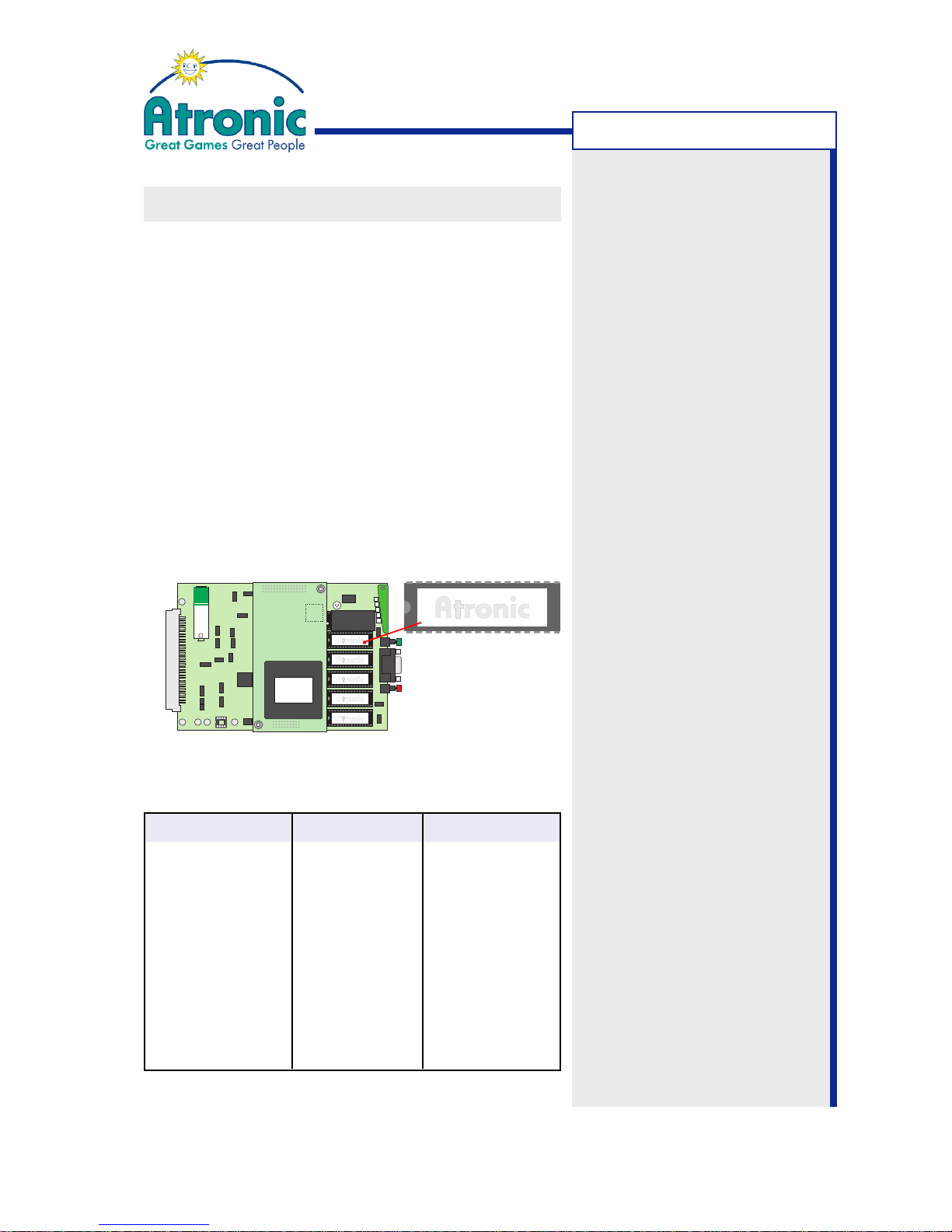
To identify the Main Base EPROM version:
1. Turn the audit key. The Audit Menu is displayed.
2. Touch the folder MACHINE INFORMATION and write down the MAIN BASE VERSION, which is the
first entry of the section SOFTWARE INFORMATION (e.g. HBS-STD-11.1.2.81)
or
1. Open the maindoor and open the logic box.
2. Remove the mainboard and check the label of the
EPROM mounted on socket U5.
Software Level Matrix
Main Base Version Software Level Jurisdiction
HBS-STD-3.x.x.xx A-Level Standard
HBS-USA-4.x.x.xx A-Level USA
HBS-STD-5.x.x.xx B-Level 1.2.1 Standard
HBS-USA-5.x.x.xx B-Level 1.2.1 USA
HBS-STD-7.x.x.xx B-Level 1.2.3 Standard
HBS-USA-7.x.x.xx B-Level 1.2.3 USA
HBS-STD-10.x.x.xx C-Level 1.x.x Standard
HBS-STD-11.x.x.xx C-Level 4.x.x Standard
HBS-USA-11.x.x.xx C-Level 4.1.x USA
Software Version:
This term is used to identify a
particular software set,
comprising of EPROMs, CDROM and Security Device.
Software versions can differ in
jurisdiction, game title, linked
gaming concept and paytable.
-> see also section "Boards
and EPROMs".
Software Level:
This term is used to identify a
level of functionality and
compatibility. It does not
reflect to a certain game title.
The software level is
determined by the Main Base
EPROM version.
Software Manuals:
Atronic software manuals refer
to a certain software level.
For example:
Atronic Hi(!)bility™
Software / Basic Setup
for C-Level Software
Version C4.1.2
66001234 8M MX27C8000PC-10MB U05
HBS-STD-11.1.2.81
+
P1
U5
U6
U7
U8
U9
U22
SD
U2-F
INTRODUCTION
Page 7

7
April 2007
Harmony™ Upright - Operating Manual - C-Level
- blank page -
Page 8
8
April 2007
Harmony™ Upright - Operating Manual - C-Level
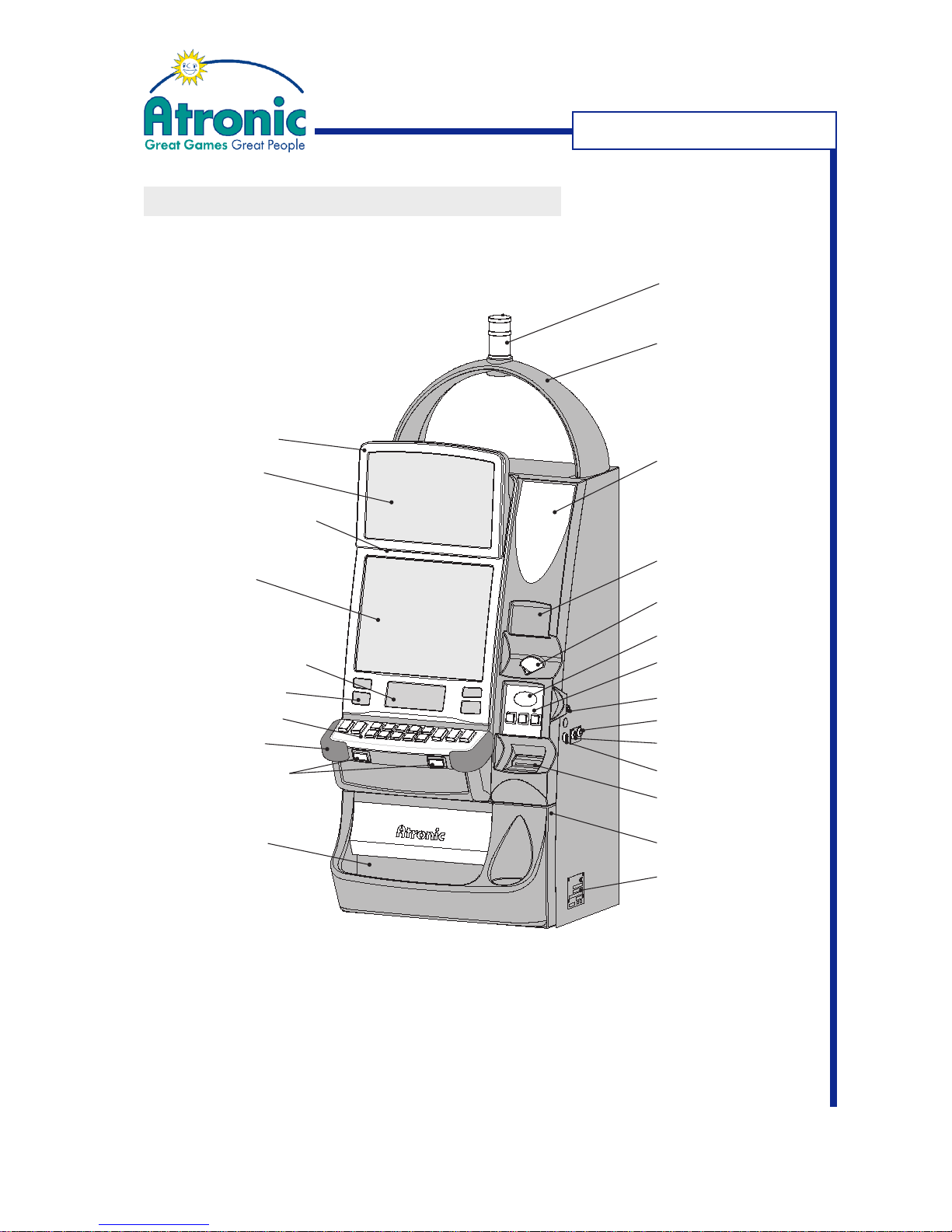
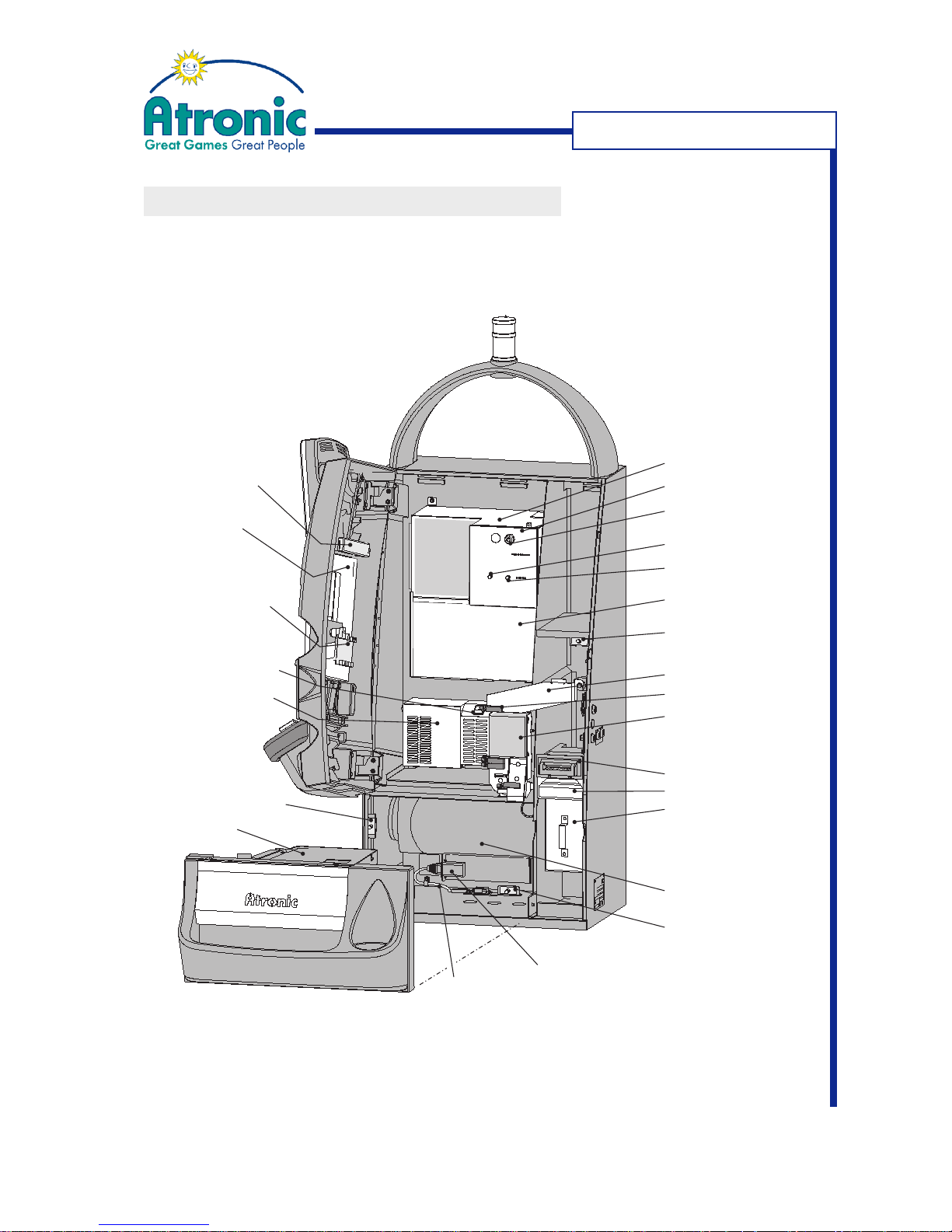
MACHINE COMPONENTS 1
M
ACHINE COMPONENTS
Toplight
Arch
Online System
Module (optional)
Voucher Printer
(optional)
Coin Entry
Coin Decal
Functional
Button Panel
Main Door Lock
Jackpot Key Switch
Audit Key Switch
Hopper Drawer Lock
Bill Entry / Bill Decal
Hopper Drawer
Name Plate
Coin Bowl
Arm Rest
Button Panel
Loudspeakers
Player Tracking
System (optional)
Monitor
Top Glass
Mechanical Meters
Front Buttons
Feature Box
Page 9
9
April 2007
Harmony™ Upright - Operating Manual - C-Level
MACHINE COMPONENTS
Logicbox
Logicbox Door
Logicbox Lock
Reset Button
Service Button
Maindoor Switch
Coin Unit
Optic Boards
Coin Acceptor
Bill Acceptor
- Head
- Stacker
- Cashbox
Hopper Drawer Switch
Monitor
Button Board
Mechanical
Meters (Cover)
Power Supply
Power Switch
Bill Door Switch
Hopper
Mains Cable
Mains Filter
Subwoofer Cabinet
Multimediaboard
Cover
MACHINE COMPONENTS 2
Page 10

10
April 2007
Harmony™ Upright - Operating Manual - C-Level
- blank page -
Page 11

11
April 2007
Harmony™ Upright - Operating Manual - C-Level
GAMEPLAY
GAMEPLAY
This chapter describes features and operating devices
for gameplay. It includes following sections:
• Money In
Describes different ways of inserting money or
booking money to the machine.
• Game Screen
Describes the layout of the game screen.
• Button Panel / Select Bet
Describes how to place a bet.
• Button Panel / Additional Buttons
Describes the use of additional buttons on the
button panel.
• Gameplay
Describes the sequence of a winning or nonwinning game.
• Double Up
Describes the Double Up feature (Gamble).
• Change Denomination
Describes how to change the denomination for
gameplay.
• Info Screen
Describes the info screen function (paytable-onscreen).
• Cash Out
Describes different way to cash out money.
• Handpay
Describes when a handpay is initiated and how
it is handled.
Page 12

12
April 2007
Harmony™ Upright - Operating Manual - C-Level
GAMEPLAY
Note:
Customized machines may use
a different hardware setup
other than described.
MONEY IN
Depending on hardware configuration, the machine
accepts coins/token and bills. Additionally the machine
is prepared for
Ticketing
(optional) and
Wagering
Account Transfers
(optional), and supports
Remote
Key In
function.
Coin In
Harmony™ machines accept one specific type of coin
or token, which was determined by customer
specification. Coin in mechanics, coin acceptor and
hopper are customized to this specific coin size and
weight to provide highest performance, reliability and
security.
Bill In
Harmony™ machines feature JCM™ UBA-type bill
acceptors to provide highest acceptance rates and
best reliability. The decal below the bill in, will specify
accepted currency and bill values. Acceptance of each
bill type can be enabled/disabled seperately.
Ticket In (optional)
Optionally the machine supports Ticket In / Ticket Out
using SAS enhanced validation or system validation.
Connection to a fibre optic network requires an optional Atronic fibre optic kit.
Cashless / Smart Card (optional)
Harmony™ machines feature cashless transfers from/
to a casino managed wagering account by means of
an external cashless wagering system. The card
handling is managed by an (optional) player interface.
Games of software versions C4.1.x and higher feature
AFT transfers using SAS6 commands.
Note: Support of cashless transfer functionality is
application- and software-dependent.
Note:
In order to allow ticket
redemption, an optional ticket
in dongle (obtainable from
Atronic) has to be installed.
Note:
In order to allow cashless
transfers using player cards,
an optional player interface /
card terminal has to be
installed.
Page 13
13
April 2007
Harmony™ Upright - Operating Manual - C-Level
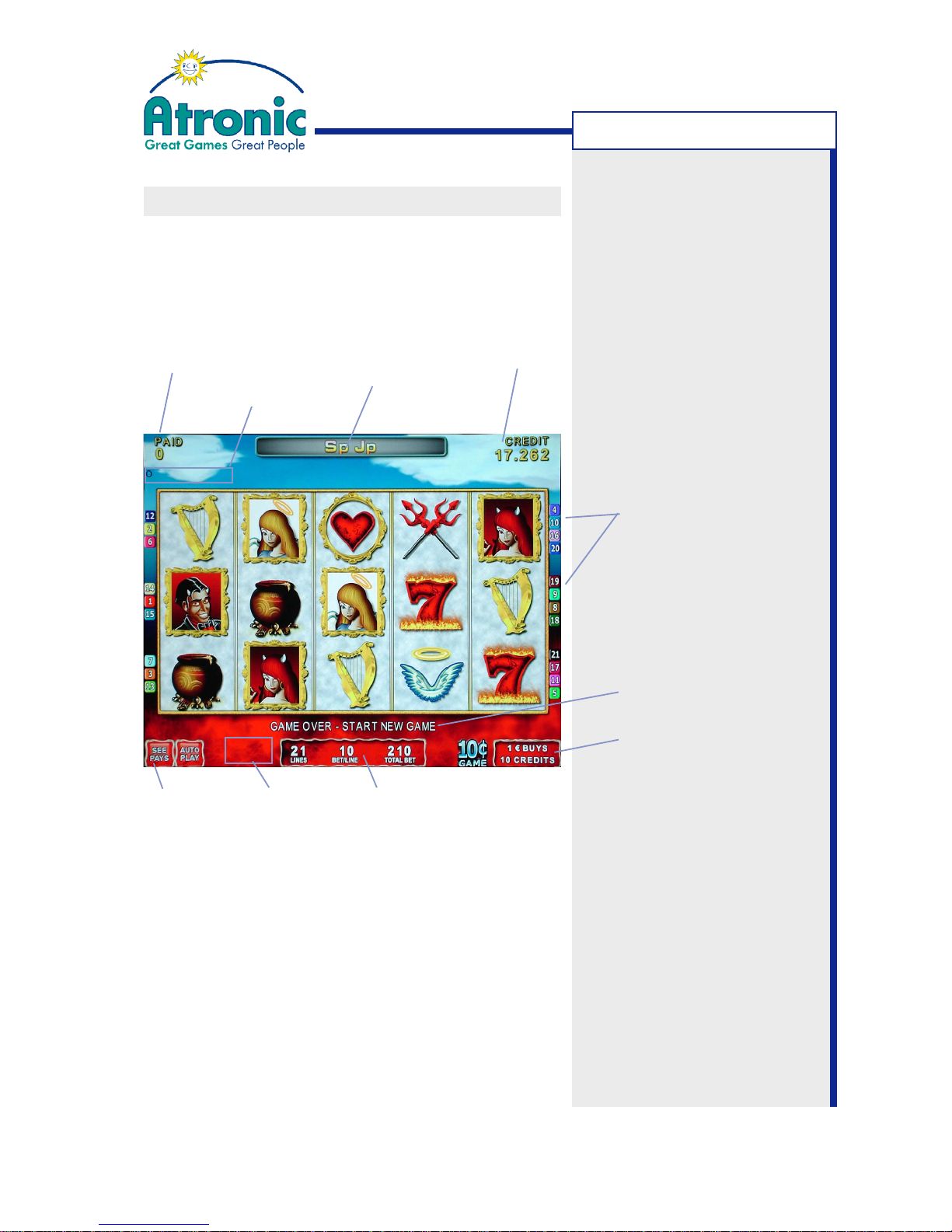
Paid Meter In-machine Display Credit Meter
(only applicable, if configured for Prog. Jackpot)
Machine State Window
Active Paylines
Player Message Window
Denomination and
Tokenisation Window
Info
Screen
Bet SettingsMachine State
Window
GAMEPLAY
GAME SCREEN
The game screen displays the game reels, credit
meter, paid meter and other information that is relevant for the players. Additionally it displays handpay
and jackpot messages as well as error messages in
case of an unexpected machine state.
Toggle Feature Credit Meter
Touch the credit meter area to display the credit meter
amount in Credits or Cash.
Page 14
14
April 2007
Harmony™ Upright - Operating Manual - C-Level
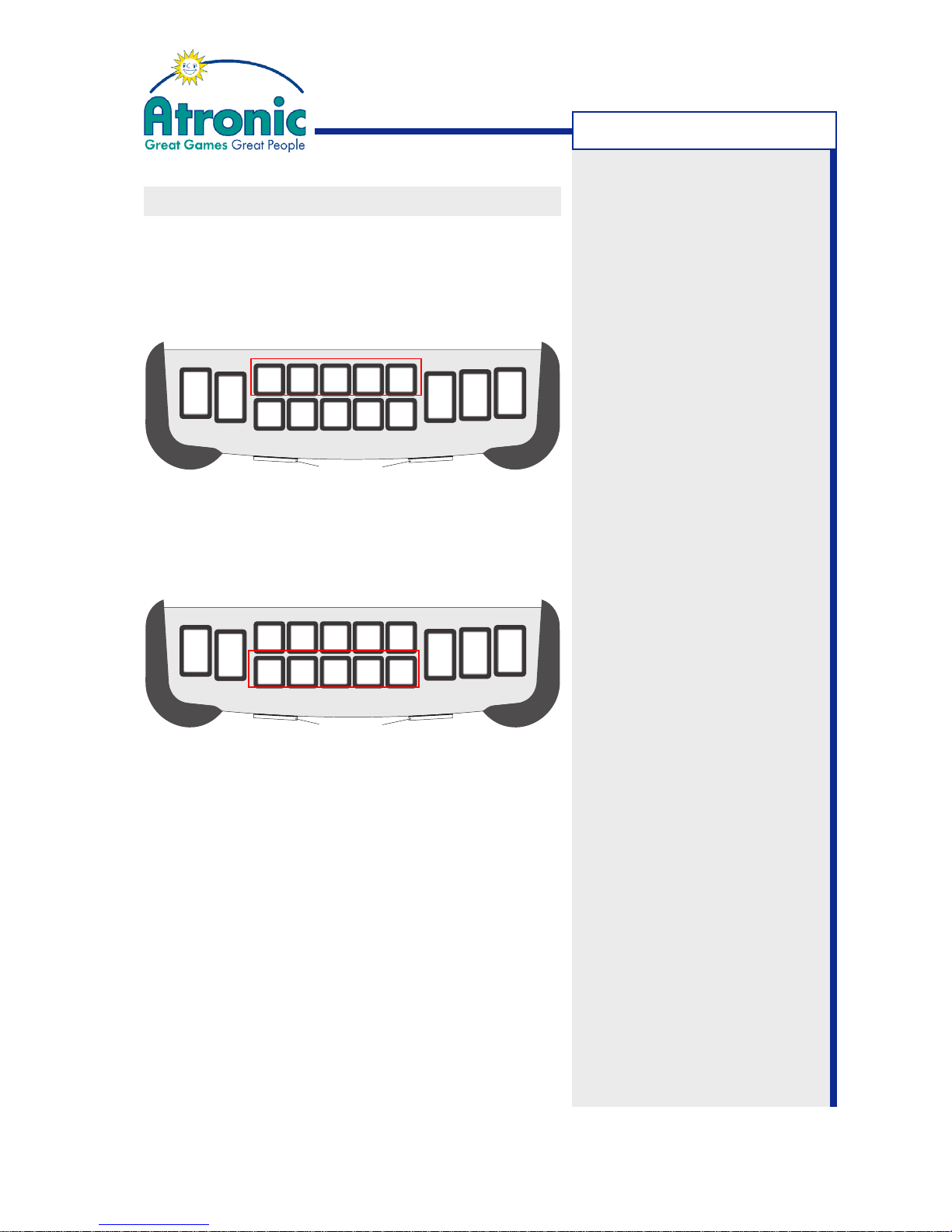
BUTTON PANEL / SELECT BET
Depending on remaining credits, possible bets are
indicated by lit and flashing buttons.
1.Select the number of lines to play.
Selectable PLAY X LINES buttons are lit.
2. Select the bet per line. Selectable BET X CREDITS
PER LINE buttons are flashing.
The game starts immediately with the selected bet.
TOTAL BET = LINES x BET PER LINE
If a certain combination of LINES and BET PER LINE
is not lit, there are not enough credits to play this
bet. Insert money or play another bet.
GAMEPLAY
Note:
Figures are for example only. Other bet/line
configurations may use different bet/line steps.
AUTO
PLAY
SEE
PAYS
PLAY
LINE
1
PLAY
LINES
5
PLAY
LINES
9
PLAY
LINES
15
PLAY
LINES
210
CREDIT
PER LINE
BET 1
CREDITS
PER LINE
BET 2
CREDITS
PER LINE
BET 3
CREDITS
PER LINE
BET 5
CREDITS
PER LINE
BET 10
MAX BET
CREDITS
G
A
M
B
L
E
REPEAT
THE
BET
REPEAT THE BET
21
AUTO
PLAY
SEE
PAYS
PLAY
LINE
1
PLAY
LINES
5
PLAY
LINES
9
PLAY
LINES
15
PLAY
LINES
210
CREDIT
PER LINE
BET 1
CREDITS
PER LINE
BET 2
CREDITS
PER LINE
BET 3
CREDITS
PER LINE
BET 5
CREDITS
PER LINE
BET 10
MAX BET
CREDITS
G
A
M
B
L
E
REPEAT
THE
BET
REPEAT THE BET
21
Page 15
15
April 2007
Harmony™ Upright - Operating Manual - C-Level
GAMEPLAY
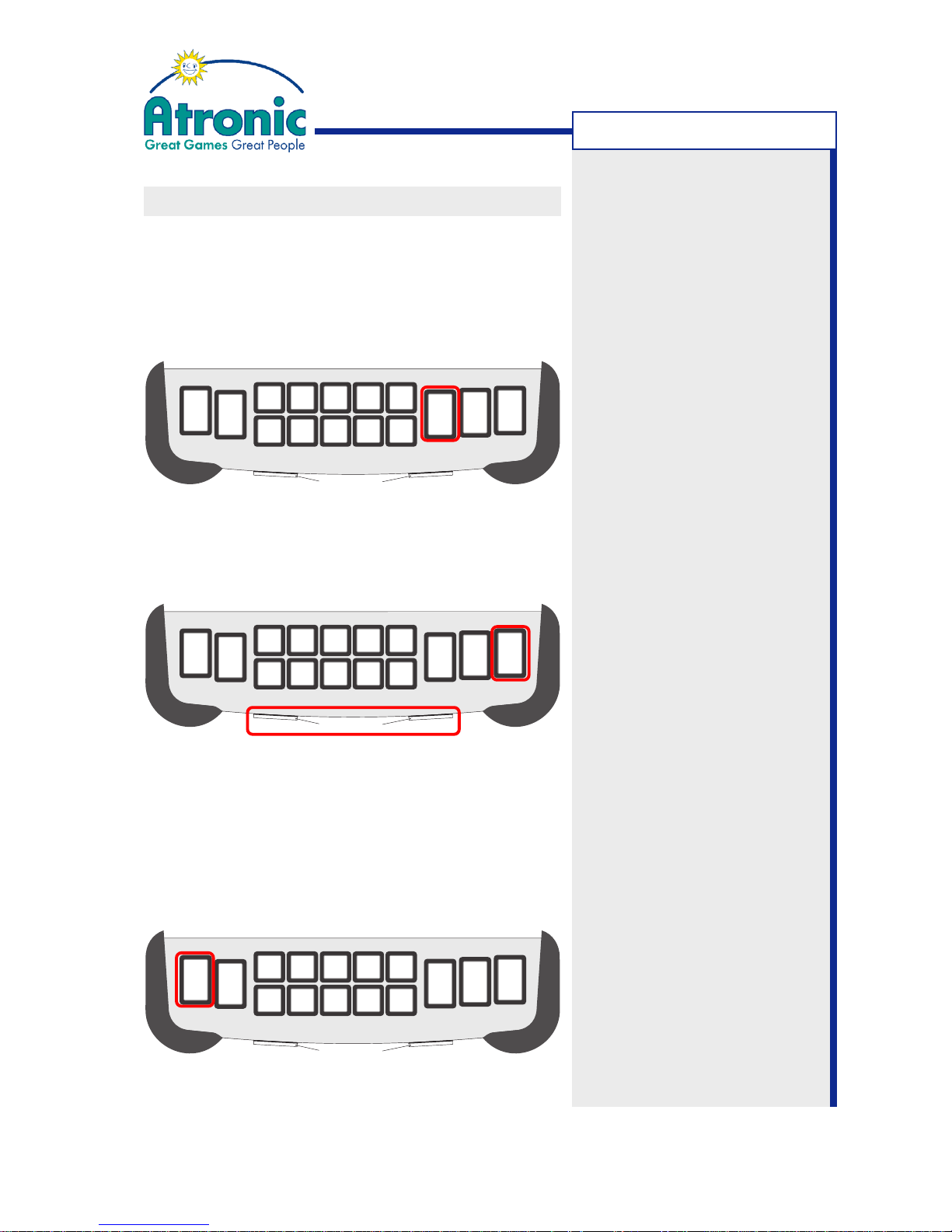
BUTTON PANEL / ADDITONAL BUTTONS
Max Bet
Pessing this button immediately starts a game with
the highest bet setting. If there are enough credits
on the credit meter to play max. bet, the MAX BET
button is lit.
MAX BET = Max. LINES x Max. BET
PER LINE
Repeat The Bet
Pressing this button starts a game with the previous
bet settings. REPEAT THE BET front buttons are
available only on Harmony™ upright machines.
Autoplay
Pressing the AUTOPLAY button starts gaming (with
the current bet) in autoplay mode. Games will start
automatically until any other button is pressed or player
interaction is necessary. In case of a win smaller than
5 times the bet, a shortened win presentation (<1s)
is displayed. For wins higher than 5 times the bet,
the full win presentation is displayed.
continues on next page...
AUTO
PLAY
SEE
PAYS
PLAY
LINE
1
PLAY
LINES
5
PLAY
LINES
9
PLAY
LINES
15
PLAY
LINES
210
CREDIT
PER LINE
BET 1
CREDITS
PER LINE
BET 2
CREDITS
PER LINE
BET 3
CREDITS
PER LINE
BET 5
CREDITS
PER LINE
BET 10
MAX BET
CREDITS
G
A
M
B
L
E
REPEAT
THE
BET
REPEAT THE BET
21
AUTO
PLAY
SEE
PAYS
PLAY
LINE
1
PLAY
LINES
5
PLAY
LINES
9
PLAY
LINES
15
PLAY
LINES
210
CREDIT
PER LINE
BET 1
CREDITS
PER LINE
BET 2
CREDITS
PER LINE
BET 3
CREDITS
PER LINE
BET 5
CREDITS
PER LINE
BET 10
MAX BET
CREDITS
G
A
M
B
L
E
REPEAT
THE
BET
REPEAT THE BET
21
AUTO
PLAY
SEE
PAYS
PLAY
LINE
1
PLAY
LINES
5
PLAY
LINES
9
PLAY
LINES
15
PLAY
LINES
210
CREDIT
PER LINE
BET 1
CREDITS
PER LINE
BET 2
CREDITS
PER LINE
BET 3
CREDITS
PER LINE
BET 5
CREDITS
PER LINE
BET 10
MAX BET
CREDITS
G
A
M
B
L
E
REPEAT
THE
BET
REPEAT THE BET
21
Page 16
16
April 2007
Harmony™ Upright - Operating Manual - C-Level
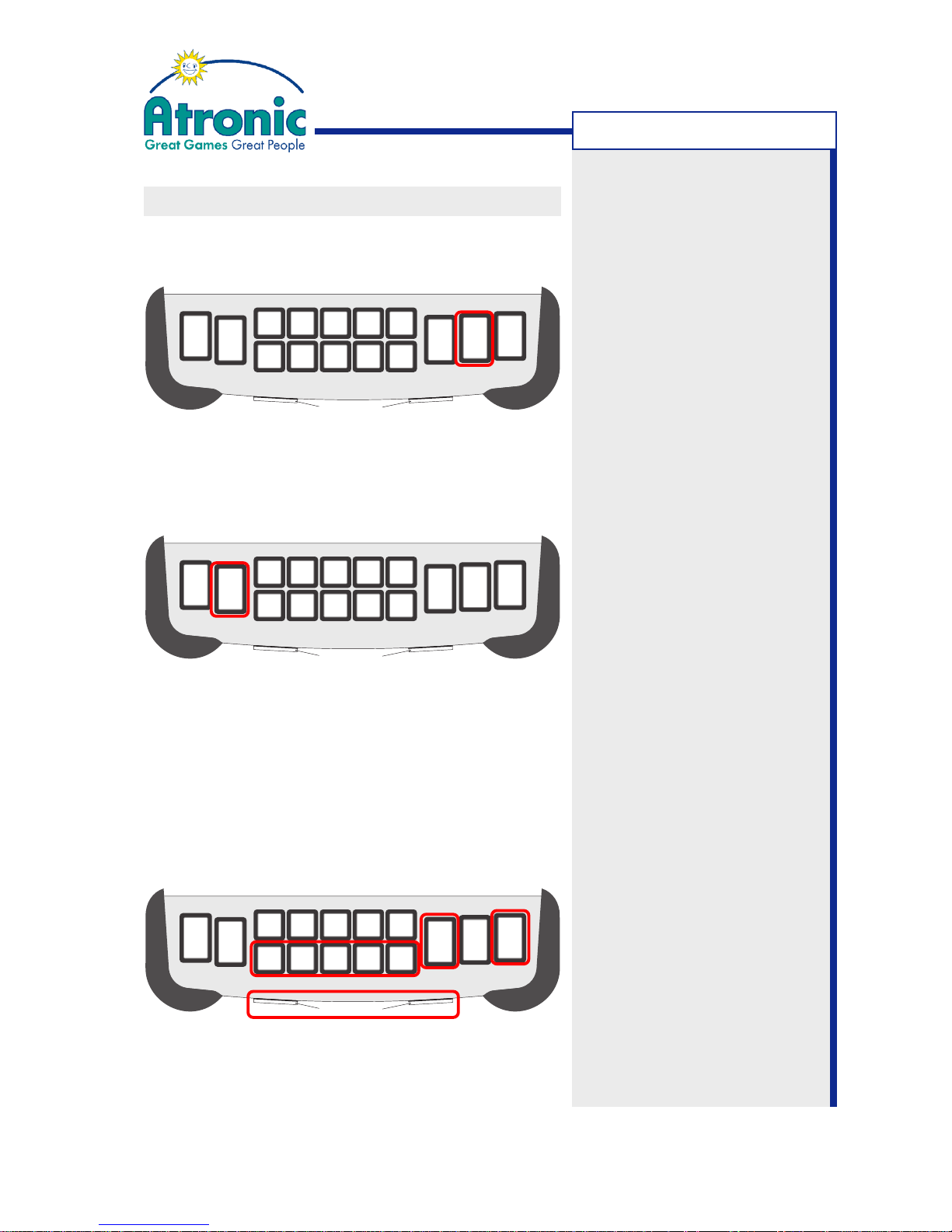
BUTTON PANEL / ADDITONAL BUTTONS
Gamble
Activates the double up feature (see page 18).
See Pays
Activates the info screen (see page 19).
Continuous Play
Press and hold a button that usually starts a game,
to initiate continuous play. Games will start
automatically until the button is released. Continuous
play games are faster than single triggered games.
In case of a win smaller than 5 times the bet, a
shortened win presentation (<1s) is displayed.
continues on next page...
AUTO
PLAY
SEE
PAYS
PLAY
LINE
1
PLAY
LINES
5
PLAY
LINES
9
PLAY
LINES
15
PLAY
LINES
210
CREDIT
PER LINE
BET 1
CREDITS
PER LINE
BET 2
CREDITS
PER LINE
BET 3
CREDITS
PER LINE
BET 5
CREDITS
PER LINE
BET 10
MAX BET
CREDITS
G
A
M
B
L
E
REPEAT
THE
BET
REPEAT THE BET
21
AUTO
PLAY
SEE
PAYS
PLAY
LINE
1
PLAY
LINES
5
PLAY
LINES
9
PLAY
LINES
15
PLAY
LINES
210
CREDIT
PER LINE
BET 1
CREDITS
PER LINE
BET 2
CREDITS
PER LINE
BET 3
CREDITS
PER LINE
BET 5
CREDITS
PER LINE
BET 10
MAX BET
CREDITS
G
A
M
B
L
E
REPEAT
THE
BET
REPEAT THE BET
21
AUTO
PLAY
SEE
PAYS
PLAY
LINE
1
PLAY
LINES
5
PLAY
LINES
9
PLAY
LINES
15
PLAY
LINES
210
CREDIT
PER LINE
BET 1
CREDITS
PER LINE
BET 2
CREDITS
PER LINE
BET 3
CREDITS
PER LINE
BET 5
CREDITS
PER LINE
BET 10
MAX BET
CREDITS
G
A
M
B
L
E
REPEAT
THE
BET
REPEAT THE BET
21
GAMEPLAY
Page 17
17
April 2007
Harmony™ Upright - Operating Manual - C-Level
BUTTON PANEL / ADDITONAL BUTTONS
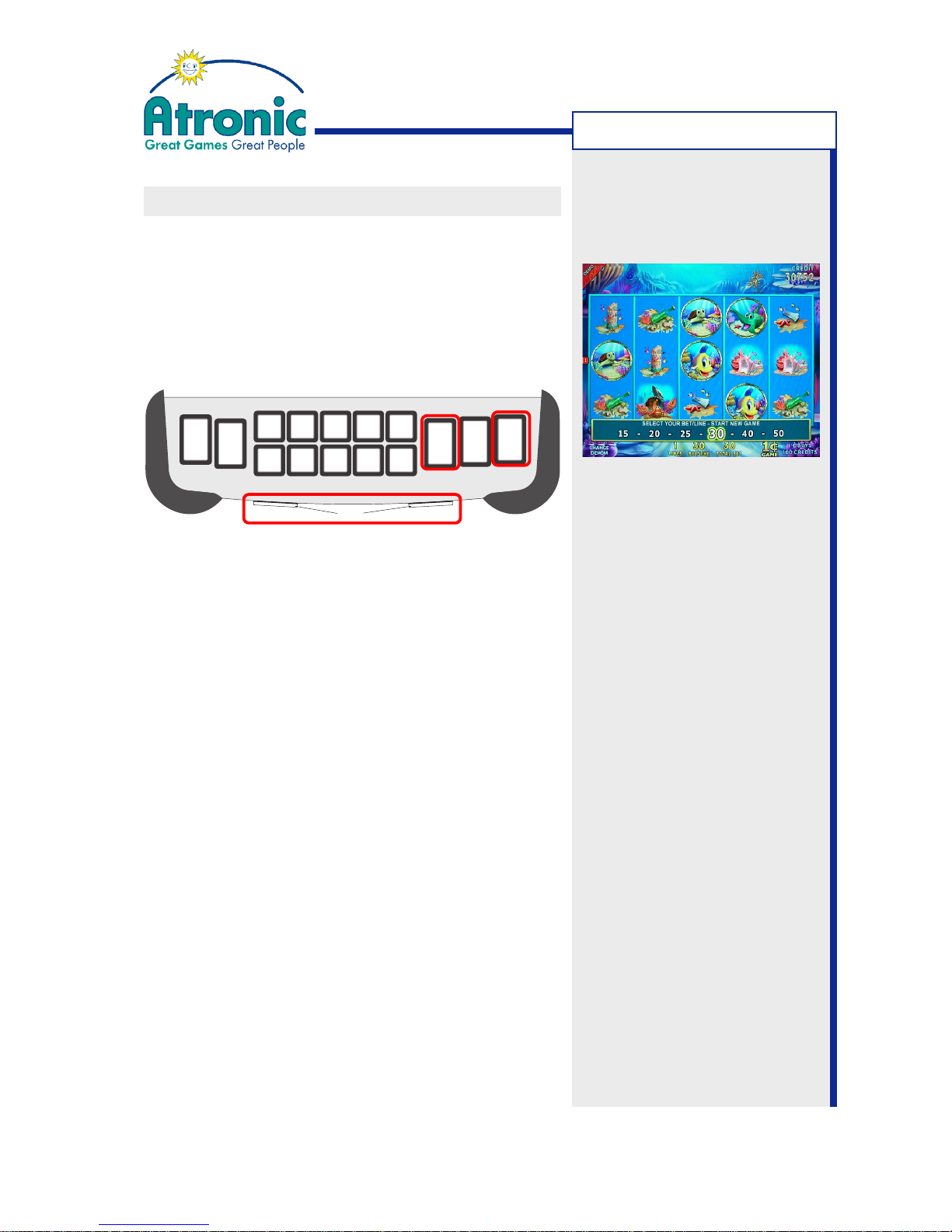
Bet Step
Games that feature a high bet paytable provide
additional bet/line settings. These high bet settings
(>10 credits per line) are selectable by pressing the
BET XX - XX CREDITS PER LINE button. A bet step
screen is displayed allowing to step through the
settings. Press the SPIN button to start the game.
AUTO
PLAY
SEE
PAYS
PLAY
LINE
1
PLAY
LINES
5
PLAY
LINES
9
PLAY
LINES
15
PLAY
LINES
CREDIT
PER LINE
BET 1
CREDITS
PER LINE
BET 2
CREDITS
PER LINE
BET 3
CREDITS
PER LINE
BET 5
CREDITS
PER LINE
BET 10
G
A
M
B
L
E
21
CREDITS
PER LINE
BET
15-50
SPIN
SPIN
Bet step screen
GAMEPLAY
Page 18
18
April 2007
Harmony™ Upright - Operating Manual - C-Level
GAMEPLAY
GAME PLAY
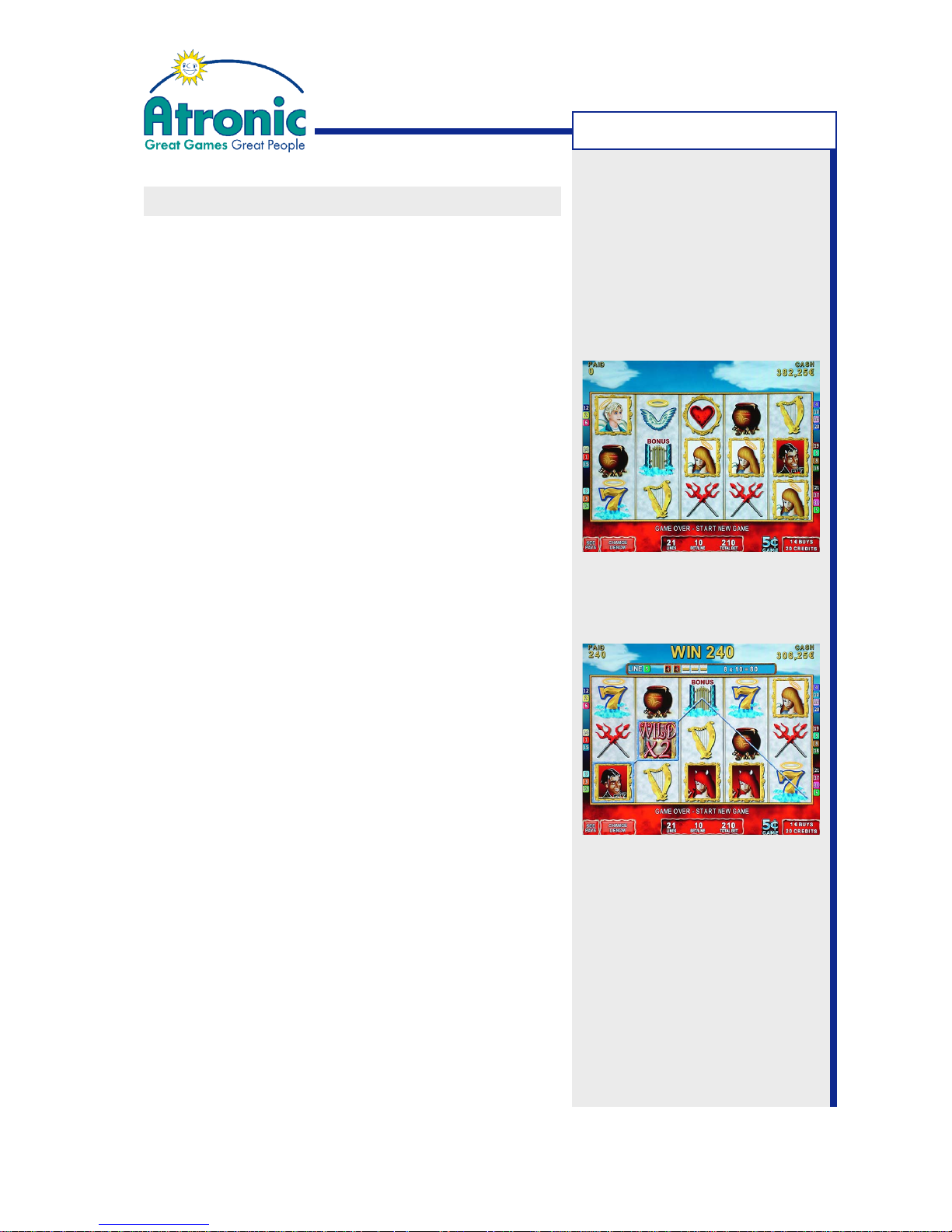
When a valid bet has been selected, the reels spin
for some seconds before they stop.
No winning combinations on any active pay line:
• Game routine is over.
• If credits remain on the credit meter, GAME OVER
- START NEW GAME is displayed and another bet
can be placed.
• If not enough credits remain on the credit meter
to play the current selected bet, insert a sufficient
amount of money or choose another LINES or
CREDITS PER LINE setting to resume playing.
• If no credits remain on the credit meter, GAME
OVER - INSERT MONEY is displayed. Credits must
be added to select a new bet.
Winning combinations on active pay line(s):
• When there are winning combinations on one or
more pay lines, a win presentation is displayed.
The winning combination(s) and the relevant pay
line(s) is(are) highlighted and animated. The win
presentation toggles between the wins on each
active pay line, showing winning combination and
win amount.
• The totalized win amount (in credits) is displayed
on the win meter.
• If the Double Up feature is enabled, the GAMBLE
button is lit. Pressing the GAMBLE button will
enter the Double Up feature.
• The game ends after the double up (if enabled) has
been played or a new game is started.
- Total win below jackpot limit is booked to paid
meter and credit meter.
- A win exceeding an adjusted limit results in an
immediate payout or in a handpay.
• The paid meter is reset when a new game is started.
Page 19
19
April 2007
Harmony™ Upright - Operating Manual - C-Level
DOUBLE UP FEATURE (GAMBLE)
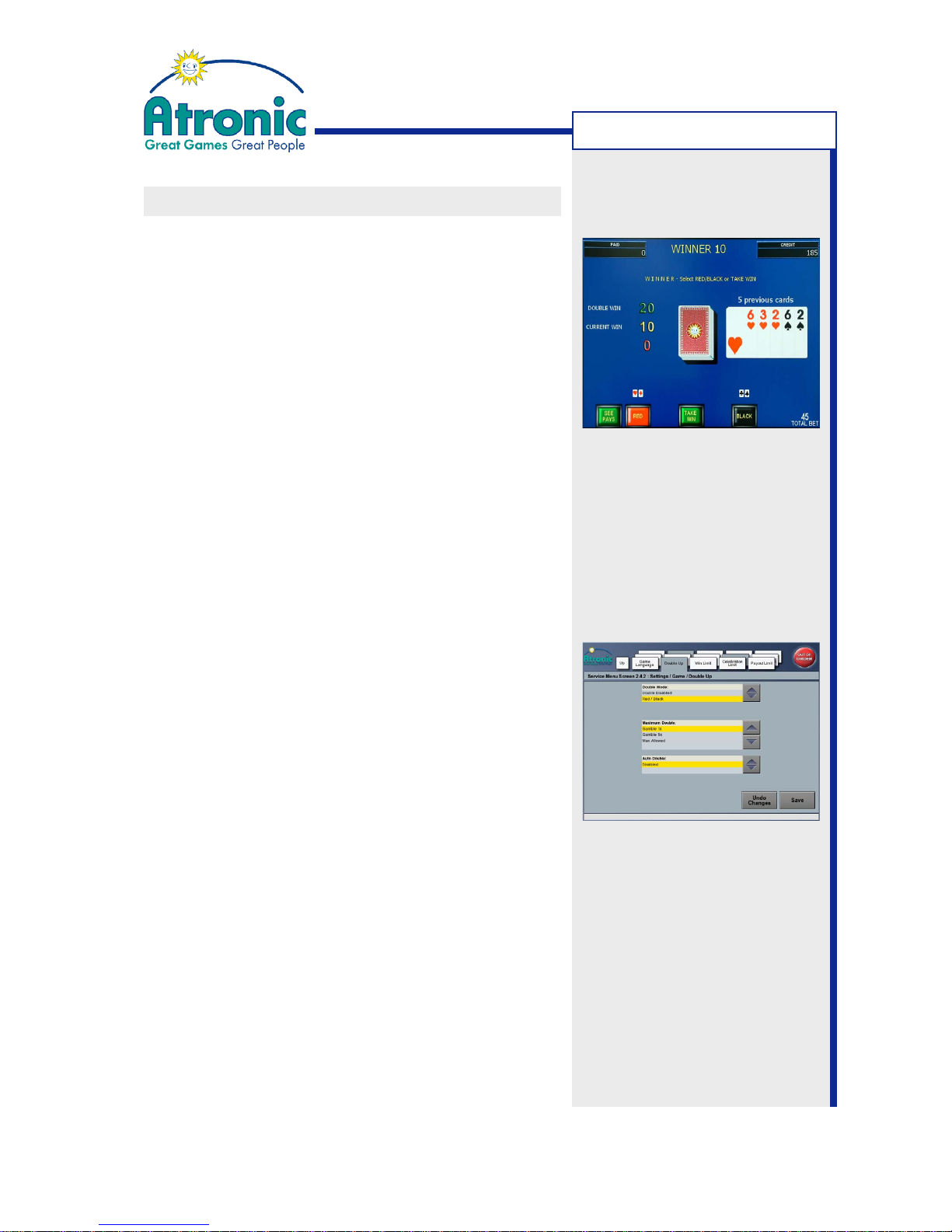
After a win, the double up feature can be activated by
pressing the GAMBLE button. This feature gives the
option to wager the won credits of the recent game
in a double or nothing bet. Players can place their
bet on
red
or
black
. If the color of the drawn card
matches, the win is doubled. If not, the bet is lost.
Leave double up by activating the TAKE WIN button.
The double up feature is available only, if the Initial
Setup (basic setup after RAM reset) setting DOUBLE
UP ALLOWED has been set to YES. Otherwise the
menu item is greyed out and double up can not be
activated.
To activate and adjust the double up feature, open
"Service Menu / Settings / Game / Double Up". Make
sure that there are no credits remaining on the credit
meter before you enter this menu. Otherwise the
menu item is greyed out and double up can not be
activated and adjusted.
Double Mode
Set the double mode to DOUBLE DISABLED
(disabled) or RED / BLACK (enabled).
Maximum Double
Adjust the number of allowed double up steps to
GAMBLE 1x, GAMBLE 5x or MAX ALLOWED.
Note: Gamble wins will never exceed the game top
award. Would the next double up step possibly
exceed the top award, "NO MORE DOUBLE UPS"
is displayed and the feature ends.
Auto Double
If enabled, the Double Up feature starts
automatically after a winning game. Availability of
AUTO DOUBLE depends on game version and
jurisdictional setting.
GAMEPLAY
Note:
The double up feature is not
available in all jurisdictions.
Page 20
20
April 2007
Harmony™ Upright - Operating Manual - C-Level
CHANGE DENOMINATION
If more than one PLAYER DENOMINATION has been
set during Initial Setup, these (up to 5) player
selectable denominations are available for gameplay.
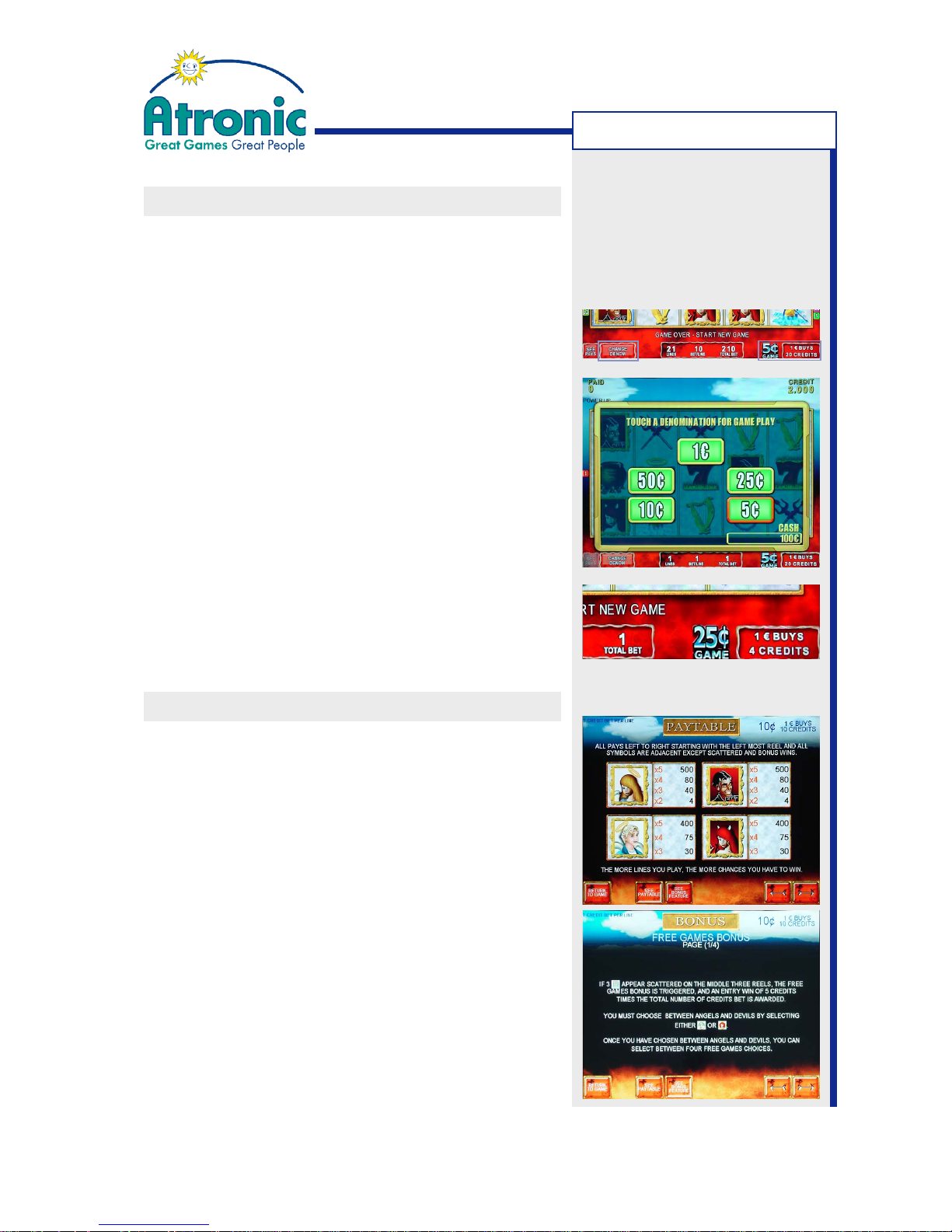
1. Touch the CHANGE DENOM on-screen button in
the lower left or touch the denomination window
in the lower right corner of the game screen.
2. A denomination selection window is displayed,
showing all available denomination presets. The current denomination is highlighted.
Active money for gameplay is displayed in the lower right corner.
3. Touch a denomination to select for game play.
4. The denomination selection window closes and the
reel picture of the latest game that has been played
with this denomination is restored and displayed.
5. The new denomination setting (for example 25c) is
displayed in the denomination window in the lower
right corner of the game screen.
INFO SCREEN (Paytable on Screen)
All player relevant information can be displayed by
activating the SEE PAYS button (on button panel or
on-screen).
The displayed info screen provides information about:
• General game rules
• Paytable (in credits)
• Payout handling
• Winning combinations
• Bonus features
• Scattered wins
• Autoplay and Continuous Play
The info screen can be activated also with no credits
on the credit meter.
Return to game by touching the RETURN TO GAME
on-screen button or by pressing the SEE PAYS button.
GAMEPLAY
Page 21
21
April 2007
Harmony™ Upright - Operating Manual - C-Level
GAMEPLAY
Cashout
Button
Functional
Button Panel
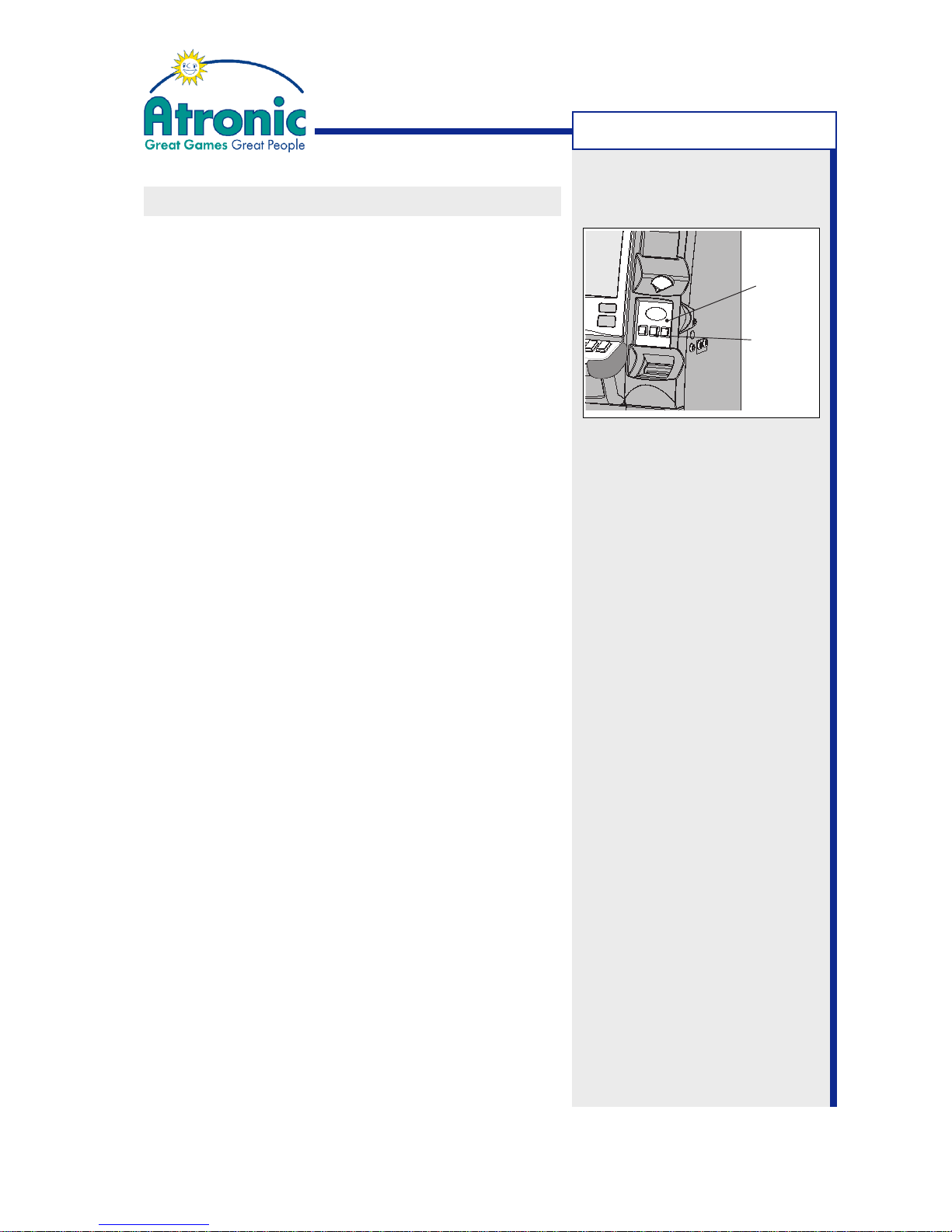
CASH OUT
Press the CASH OUT button located on the functional
button panel to collect credits.
Hopper Payout
Usually all cashable credits are paid out by the hopper.
If the number of coins to be cashed out, is exceeding
the HOPPER PAYOUT LIMIT, a handpay is initiated.
The HOPPER PAYOUT LIMIT (in coins) can be adjusted
via "Service Menu / Settings / Hardware / Hopper /
General".
The setting "Service Menu / Settings / Hardware /
Hopper / Payout Limit Procedure" determines how
many coins are paid out before a handpay is initiated.
Ticket Payout (optional)
If the machine is configured for ticketing, the payout
is carried out by tickets only, or by a combination of
tickets and coins. The way the payout is splitted into
tickets and coins can be adjusted via "Service Menu /
Settings / Hardware / Printer / Barcode Payout". See
also manual "Software / Basic Setup" for details.
Note: If the ticket printer is not operational, the cashout is carried out by the hopper (if applicable).
Cashless / Smart Card (optional)
The cashless transfer function allows electronic credit
transfers from/to a casino managed wagering account
by means of an external cashless wagering system.
Card handling is managed by an (optional) player
interface with card reader. Game software of revision
C4.0.0 and higher, supports EFT (SAS5 commands)
and AFT (SAS6 commands).
Note: Support of cashless functionality is applicationand software-dependent.
continues on next page...
Page 22
22
April 2007
Harmony™ Upright - Operating Manual - C-Level
CASH OUT
Payout Limit
Game software of revision C4.1.2 features an
adjustable PAYOUT LIMIT. If the amount to be cashed
out is exceding this limit, a handpay is initiated and
has to be acknowledged by an attendant. The payout
limit applies to all payout devices in case the payout
was initiated by pressing the CASH OUT button.
The PAYOUT LIMIT can be adjusted via "Service Menu /
Settings / Game / Payout Limit".
Residual Credits Payout
Residual credits are credits that remain on the credit
meter after a cashout, because the remaining credit
value is less than one coin's credit value. RESIDUAL
CREDITS PAYOUT must be configured during Initial
Setup. Available options are:
• Handpay / Locked
When residual credits remain after a cashout,
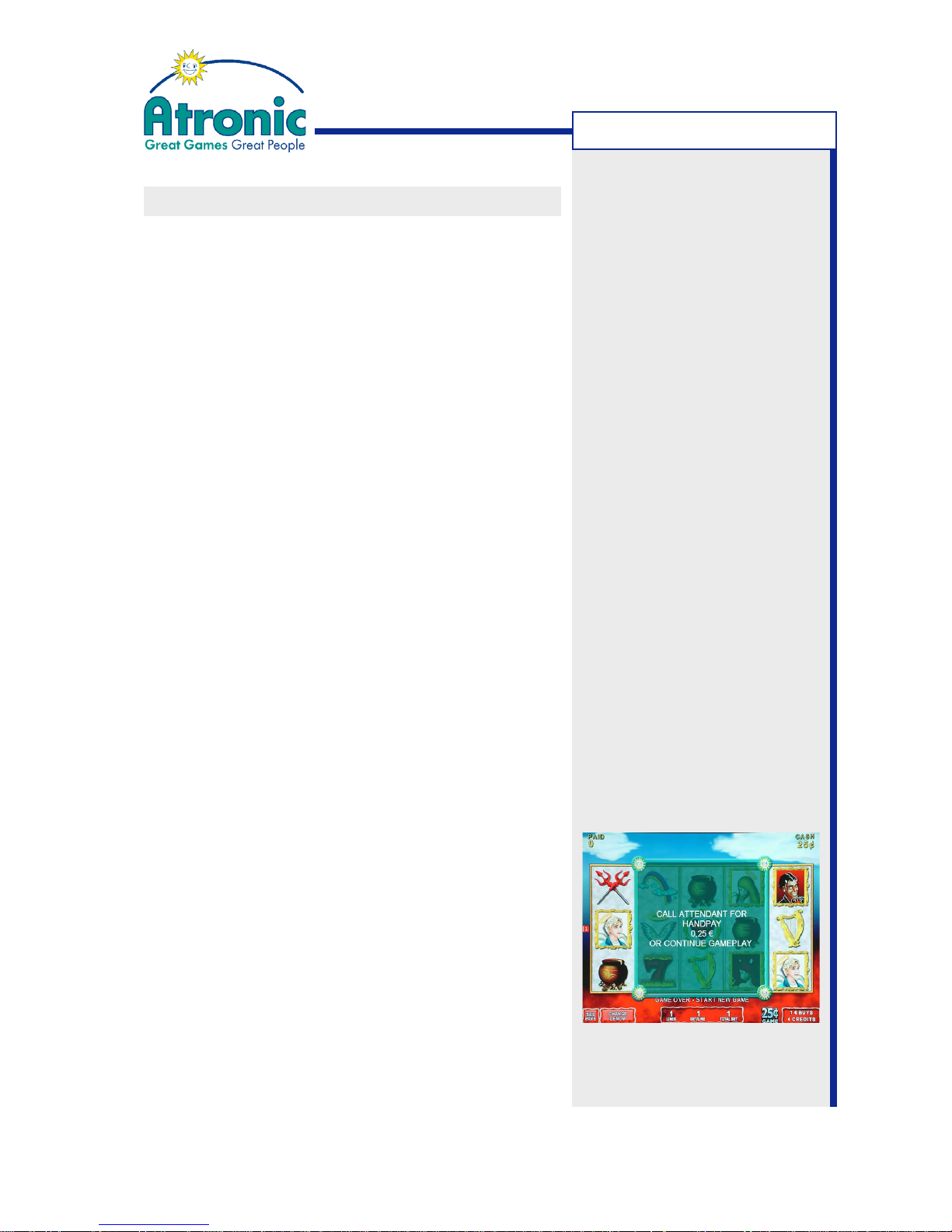
"PRESS CASHOUT FOR HANDPAY OR CONTINUE
GAMEPLAY" is displayed. When the cashout button is pressed again, the machine goes into handpay mode and the message "CALL ATTENDANT FOR
HANDPAY XX (CURRENCY)" is displayed. The button panel is deactivated. An attendant must confirm the handpay using the jackpot key.
• Handpay / Playable
When residual credits remain after a cashout,
"PRESS CASHOUT FOR HANDPAY XXX OR CONTINUE GAMEPLAY" is displayed. When the cashout
button is pressed again, the machine goes into
handpay mode, but the button panel stays active.
In case a new bet is placed, the machine returns
to game mode and sends a handpay canceled message to the system.
• No Handpay
When residual credits remain after a cashout and
the cashout button is pressed again, the message "INSERT MONEY OR PLAY OFF RESIDUAL
CREDITS" is displayed. No handpay is possible.
Note:
If a voucher printer is
configured to pay out residual
credits, these settings only
apply in case of a voucher
printer malfunction.
Example of a handpay message
with HANDPAY / PLAYABLE set.
GAMEPLAY
Page 23

23
April 2007
Harmony™ Upright - Operating Manual - C-Level
HANDPAY
This section desribes in which cases a handpay is
initiated, the machine behaviour during a handpay and
how to reset a handpay.
A handpay by an attendant is necessary, if the machine
can not or must not fulfill the cashout. The handpay
amount is displayed on screen and the machine is
locked until the handpay is reset by an attendant.
Cashout Handpay (Cancelled Credits)
Cashout Handpay:
The cashout was initiated by pressing the cashout
button, but the payout devices can not or must not
fulfill the cashout request.
• The hopper is empty and the HOPPER EMPTY PRO-
CEDURE is set to handpay mode.
->The remaining amount is a handpay.
• The hopper is jammed and the HOPPER JAM PRO-
CEDURE is set to handpay mode.
->The remaining amount is a handpay.
• The amount to be paid out exceeds the HOPPER
PAYOUT LIMIT.
->As adjusted with setting HOPPER PAYOUT
LIMIT PROCEDURE.
• Payout of residual credits with setting RESIDUAL
CREDIT PAYOUT set to HANDPAY LOCKED or HANDPAY PLAYABLE.
->The residual credits amount is a handpay.
• The amount to be paid out exceeds the PAYOUT
LIMIT.
->The entire amount is a handpay.
continues on next page...
Note: Cashout handpays are
metered to statistics "Hand
Paid w/wo JP".
GAMEPLAY
Page 24
24
April 2007
Harmony™ Upright - Operating Manual - C-Level
HANDPAY
Jackpot Handpay
Jackpot Handpay:
The handpay is initiated automatically because the
win amount exceeds an adjusted limit.
• The total win amount of a single game exceeds the
UPPER CELEBRATION LIMIT (if activated).
-> The entire win amount is a handpay.
• The total win amount of a single game exceeds the
LOWER CELEBRATION LIMIT (if activated) and the
celebration limit destination setting is set to
HANDPAY.
-> The entire win amount is a handpay.
• The total win amount of a single game exceeds the
($1200) WIN LIMIT (if activated).
-> The entire win amount is a handpay.
• Adding the win amount to the credit meter would
exceed the ACTIVE CURRENCY LIMIT, but the automatically initiated payout would exceed the HOPPER PAYOUT LIMIT.
-> The entire win amount is a handpay.
Caution:
Hitting the Top Award or a progressive
win does not automatically initiate a
handpay. The win amount has to exceed
the CELEBRATION LIMIT in order to
initiate a handpay.
If the win amount is smaller than the
CELEBRATION LIMIT or the CELEBRATION
LIMIT is disabled, the win amount is
booked to the credit meter instead.
continues on next page...
GAMEPLAY
Note: Jackpot handpays are
metered to statistics "Jackpot
w/wo Prog. and Bonus".
Note: See also section
"Celebration Limit" on page 34.
Page 25
25
April 2007
Harmony™ Upright - Operating Manual - C-Level
HANDPAY (continued)
Machine Behavior
This section describes the behavior of the game, when
a handpay has been initiated.
• The machine is locked and prevents further playing, inserting money or cashout money.
• The handpay amount is displayed on screen.
• The toplight is flashing (as adjusted).
• A handpay message is sent to the online system.
(if applicable).
The machine remains locked until the handpay is reset
by an attendant using the jackpot key.
Handpay Reset Procedure
1. Determine the handpay amount and write it down.
The handpay amount is displayed by an on-screen
pop-up window or in the player message window
in the lower part of the game screen.
Note:
The displayed totalized handpay amount may consist of an progressive amount and additional wins.
2. Carry out the handpay according to the casino inhouse rules.
3. Turn the jackpot key 90° clockwise and release, to
clear the handpay message.
4. The paid amount is displayed on the paid meter.
5. With ticket printer only:
If setting JACKPOT RECEIPT has been enabled, a
handpay receipt (with barcode offset) is printed.
The jackpot receipt is intended for accounting only
and is not cashable or playable.
GAMEPLAY
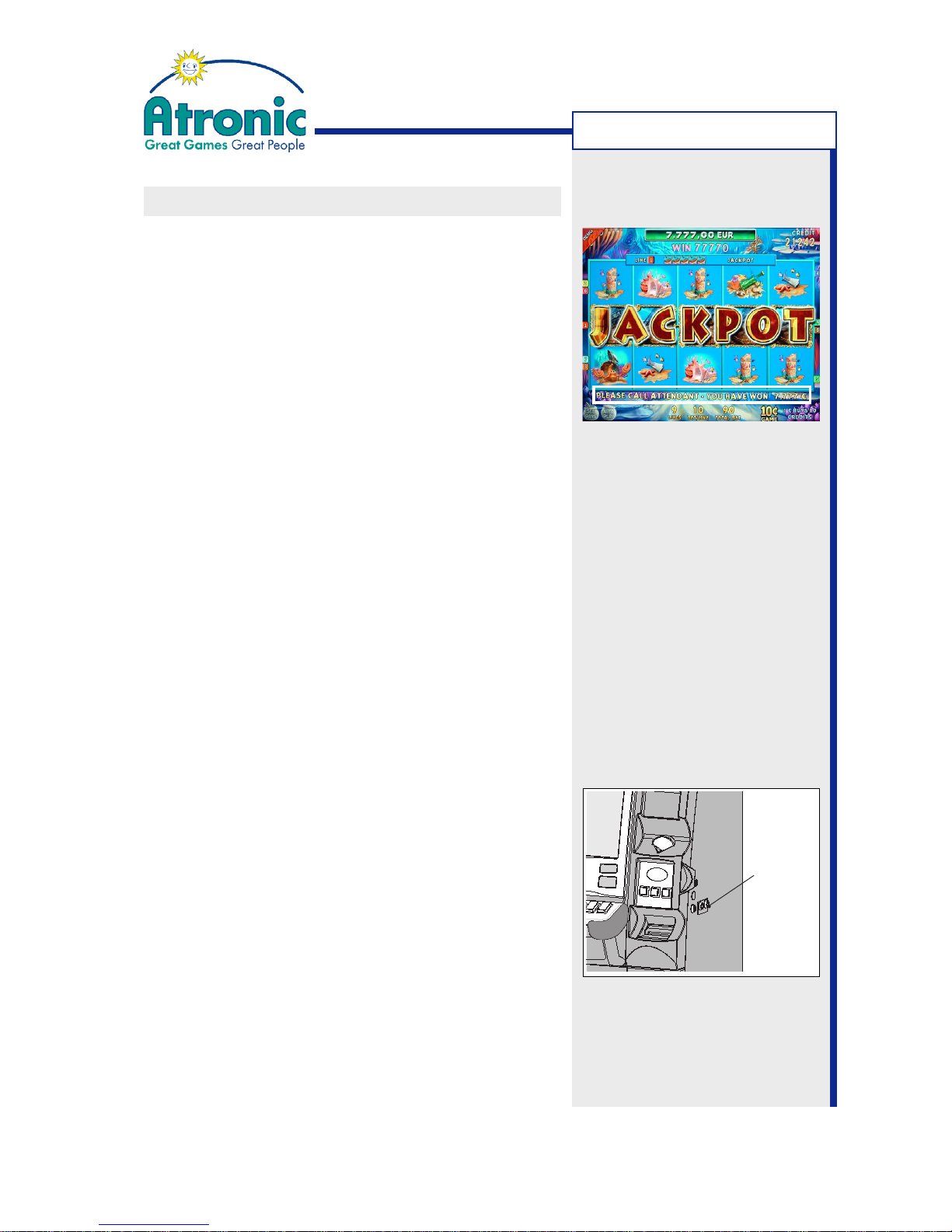
Jackpot celebration with
handpay message, initiated by
a progressive win that
exceeds the adjusted
celebration limit.
Jackpot Key
Switch
Page 26

26
April 2007
Harmony™ Upright - Operating Manual - C-Level
- blank page -
Page 27
27
April 2007
Harmony™ Upright - Operating Manual - C-Level
MACHINE HANDLING
This chapter includes the machine handling
instructions for Harmony™ Upright cabinets.
OPENING THE MAIN DOOR
1. Unlock the maindoor lock by turning the key 90°
clockwise and open the maindoor.
2. A “FRONT DOOR OPEN” message will appear on
screen accompanied by an audible signal. Also an
"O" is displayed in the upper left screen to indicate
that the maindoor has been opened.
3. The toplight flashes as adjusted in "Service Menu /
Settings / Basic / Top Light".
CLOSING THE MAIN DOOR
1. Insert the maindoor key and make sure the maindoor lock is unlocked (turn 90° clockwise).
2. Close the maindoor and turn the key 90
O
counter-
clockwise.
3. The "FRONT DOOR OPEN" messages disappears
immediately when the door is closed. The "O" message disappears after one game cycle.
SWITCH MACHINE ON / OFF
1. Open the maindoor.
2. Locate the mains power rocker switch and switch
the machine power ON or OFF. When mains power
is on, the switch is illuminated.
3. Close and lock the maindoor.
MACHINE HANDLING
Any attempt to slam the door closed with the
maindoor lock locked may damage the locking
mechanism.
!
!
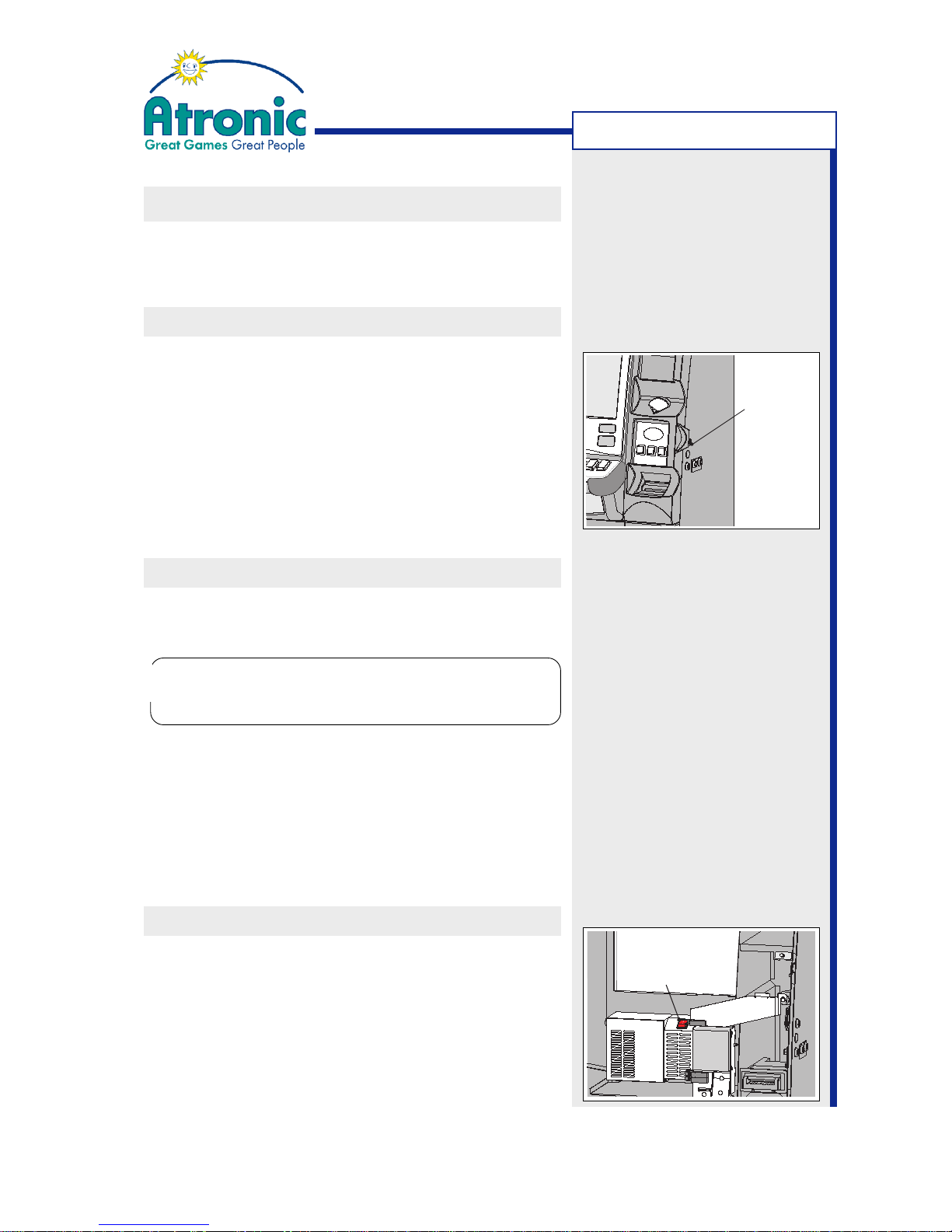
Power Switch
Main Door
Lock
Page 28
28
April 2007
Harmony™ Upright - Operating Manual - C-Level
OPEN THE HOPPER DRAWER
This section describes, how to open the hopper
drawer.
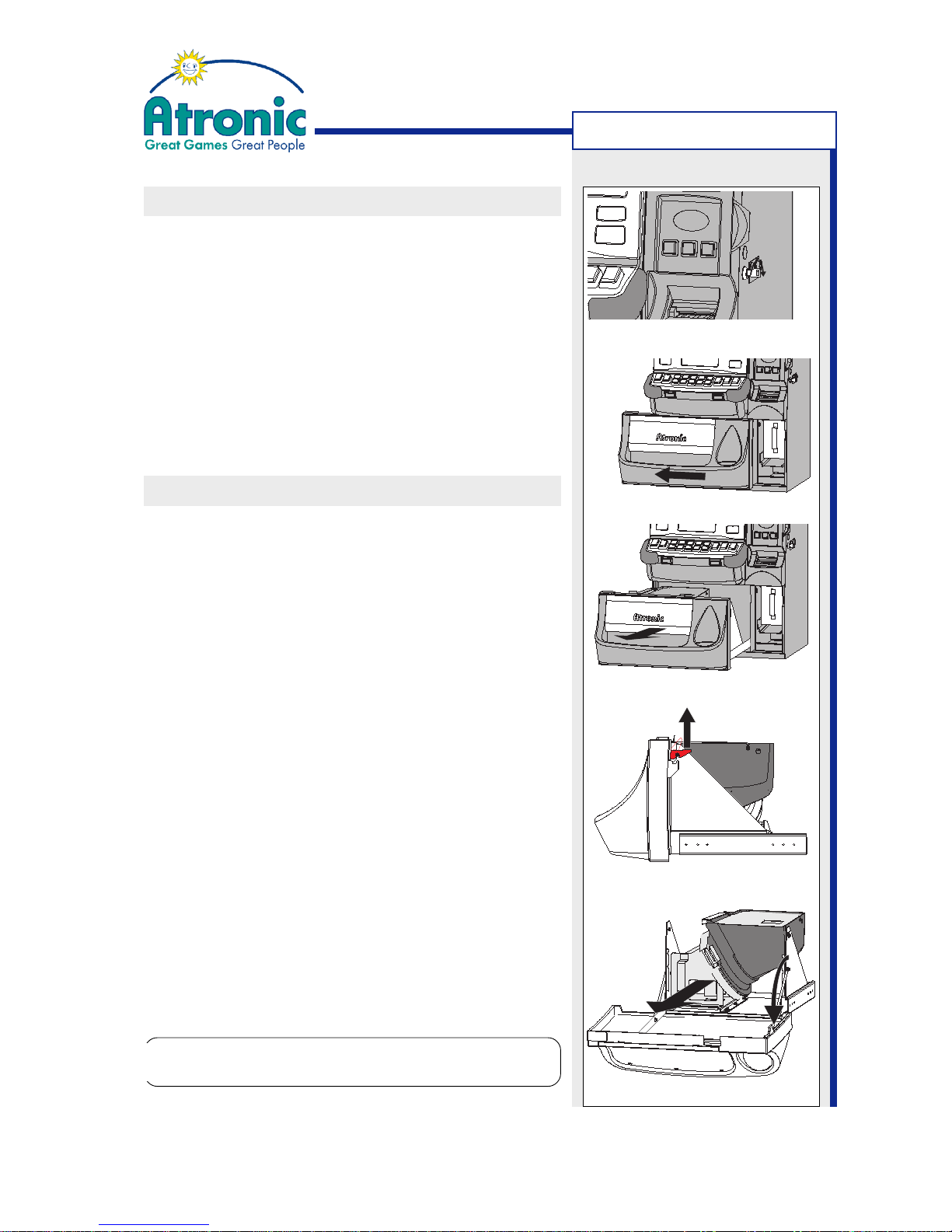
1. Unlock the hopper drawer (fig. a),
2. Slide the hopper drawer to the left (fig. b)
3. Pull out the hopper drawer (fig. c).
REMOVE THE HOPPER
This section describes, how to remove or replace the
hopper.
1. Power down the machine.
2. Make sure the coin bowl is empty and open the
hopper drawer.
3. Lift the coin bowl retaining levers on both sides of
the hopper drawer (fig. d).
4. Gently lower the coin bowl until it stops (fig. e).
5. Slide the hopper completely out of the hopper
support guide. Do not use the coin switch or any
other sensitive part to carry or pull the hopper!
6. Re-install the hopper after maintenance or install
a new hopper.
7. Close the coin bowl and make sure the coin bowl
retaining levers are fully engaged.
8. (optional) Clear the message "Hopper failure check
connectors" using the audit key.
MACHINE HANDLING
Figure a
Figure c
Figure b
Caution!
The (filled) hopper is heavy!
!
!
figure d
figure e
Coin Bowl
Retaining Lever
Page 29

29
April 2007
Harmony™ Upright - Operating Manual - C-Level
MACHINE HANDLING
HOPPER EMPTY / HOPPER REFILL
This section describes, how to handle a hopper empty
situation.
When the hopper runs empty during a cashout, the
machine behavior depends on the settings "Service
Menu / Setting / Hardware / Hopper / Empty Procedure"
and "Service Menu / Setting / Hardware / Hopper /
General / Hopper Refill".
HOPPER EMPTY PROCEDURE is set to
"If hopper is empty, left amount is handpaid".
1. Carry out a handpay of the remaining cashout
amount (as indicated on-screen) and reset the
handpay message by turning the jackpot key.
2. The messages CALL ATTENDANT - HOPPER EMPTY is displayed. This message can not be cleared
via audit key or the jackpot key.
3. Open the hopper drawer (see previous page).
4. Refill the hopper and check that no coins have fallen into the cabinet. Remove all foreign objects from
the hopper drawer area.
5. Close hopper drawer and maindoor.
Note: Internal casino rules for coin handling may
require additional tasks not described in this
procedure.
continues on next page...
Page 30
30
April 2007
Harmony™ Upright - Operating Manual - C-Level
MACHINE HANDLING
HOPPER EMPTY / HOPPER REFILL
HOPPER EMPTY PROCEDURE is set to
"If hopper is empty, hopper must be refilled to
continue payout".
1. The messages CALL ATTENDANT - HOPPER EMPTY is displayed. This message can not be cleared
via audit key or the jackpot key.
2. Open the hopper drawer.
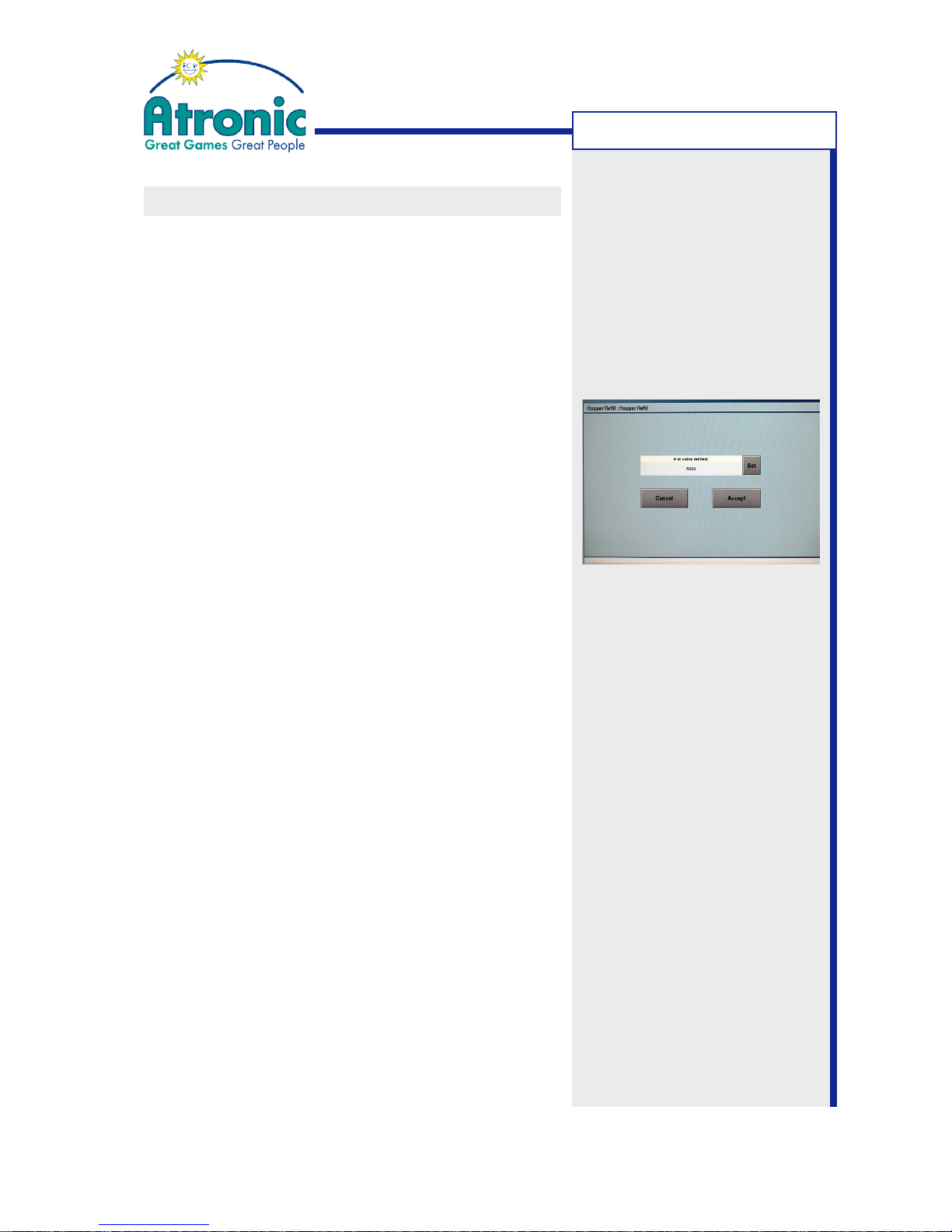
If setting "Service Menu / Settings / Hardware /
Hopper / General / Hopper Refill" is enabled, the
hopper refill menu is displayed. Enter the number
of coins to refill and confirm.
3. Refill the hopper and check that no coins have fallen
into the cabinet. Remove all foreign objects from
the hopper drawer area.
4. Close the hopper drawer. The payout continues after the hopper drawer was closed.
Interrupt Refill Mode
If want to interrupt a payout in refill mode (because
the win amount is to high) follow these steps:
1. Open the hopper drawer.
2. The hopper refill menu is displayed. Press CANCEL and confirm the next menu with YES.
3. Close the hopper drawer. The payout continues after the hopper drawer was closed.
4. Open the maindoor while the hopper is running.
5. Press the Service Button located at front of the
logic box to enter the Service Menu.
6. Select "Settings / Hardware / Hopper / Hopper
Empty" and set the hopper empty mode to "If hopper is empty, left amount is handpay".
7. Press SAVE, to save settings.
7. Close the maindoor. A handpay of the remaining
amount is initiated.
Note: Internal casino rules for
coin handling may require additional tasks not described in
this procedure.
Page 31
31
April 2007
Harmony™ Upright - Operating Manual - C-Level
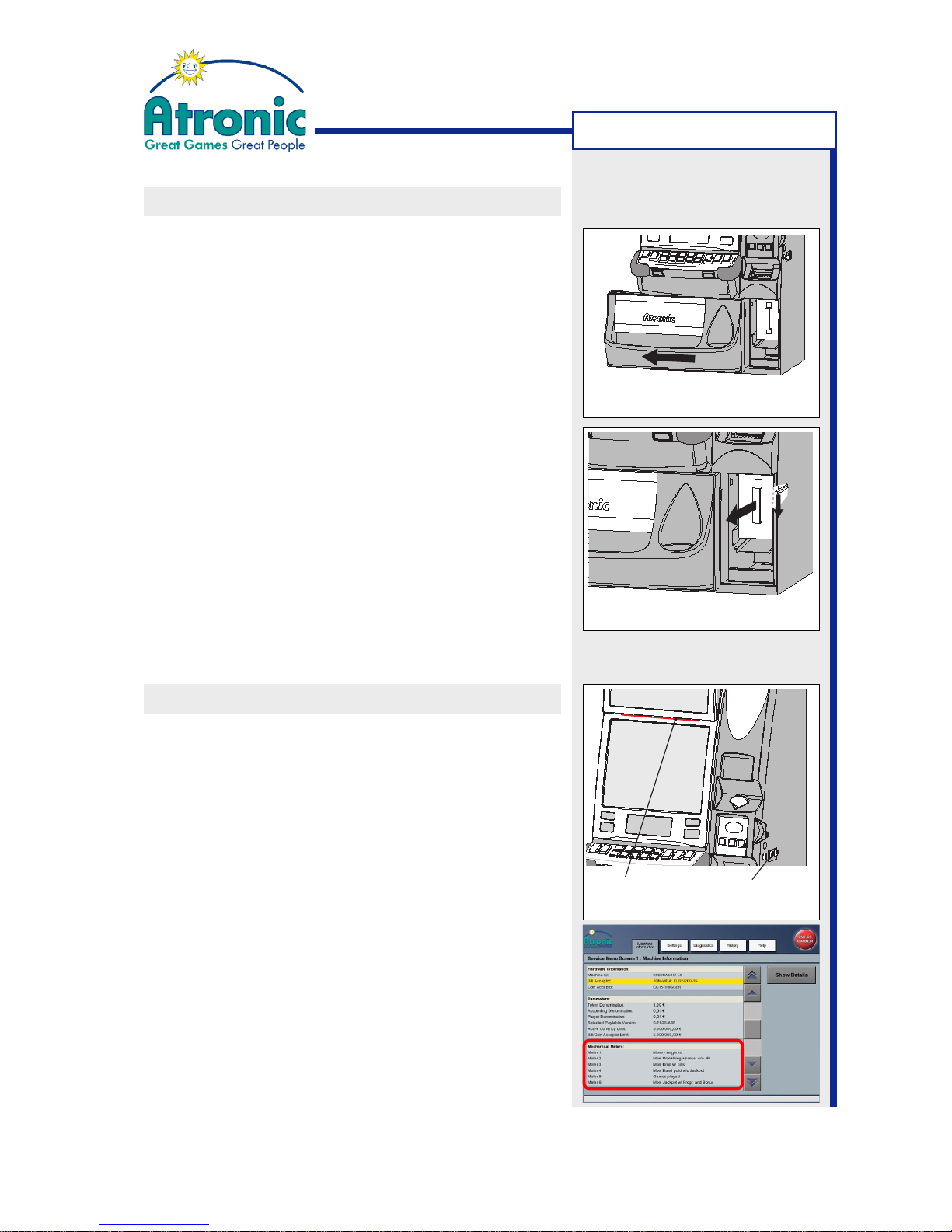
EXCHANGE THE CASHBOX
This section describes, how to exchange or remove
the cashbox (bill stacker) of a Harmony™ Upright
cabinet.
1. Unlock the hopper drawer lock and leave the hopper
drawer lock unlocked. Do not remove the key.
2. Slide the coin bowl to the left (fig. a).
3.
JCM WBA bill acceptors:
Depress the cashbox release lever and take the
cashbox out (fig. b).
JCM UBA bill acceptors:
Pull the cashbox handle and take the cashbox out.
4. Install an empty cashbox and make sure it is fully
engaged.
5. Slide the coin bowl back to the right, lock the hopper drawer and remove the key.
Note: Casino rules for bill handling may require additional tasks not described in this procedure.
READ THE MECHANICAL METERS
The mechanical meters (Hardmeters) of a Harmony™
Upright cabinet are located above the monitor.
1. Turn the audit key switch 90° clockwise to illuminate the mechanical meters and to enter the Audit Menu.
In order to review what each meter counts, touch
the Audit Menu on-screen folder MACHINE INFORMATION and scroll down to the MECHANICAL METERS entry.
2. Read the mechanical meters.
3. When finished, release and remove the audit key.
Note: See manual "Software / Basic Setup" for CLevel software for a detailed metering description.
MACHINE HANDLING
Figure a
Figure b
Audit Key
Switch
Mechanical
Meters
Page 32
32
April 2007
Harmony™ Upright - Operating Manual - C-Level
MACHINE HANDLING
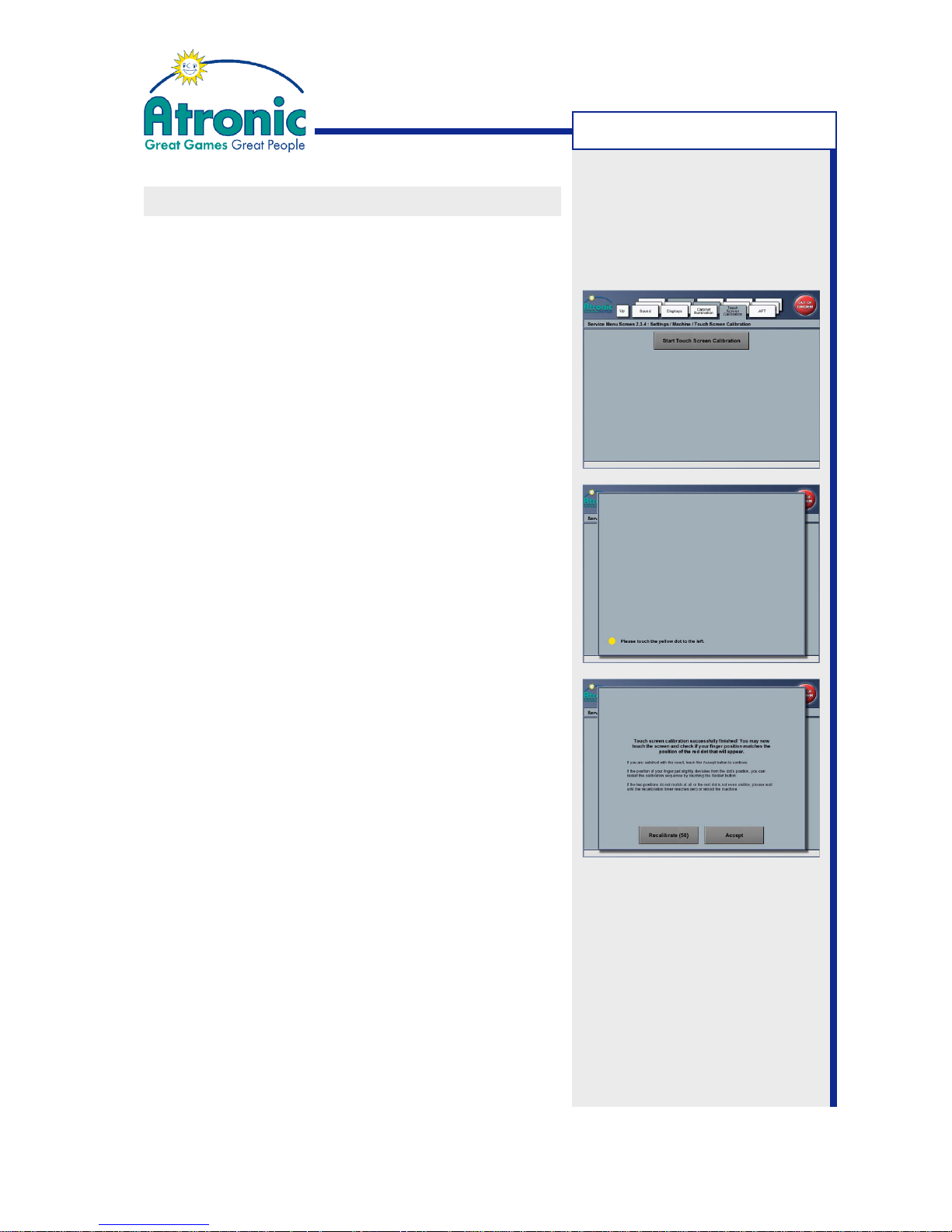
TOUCH SCREEN CALIBRATION
To calibrate the display touch screen, follow these
steps.
1. Activate the Audit Menu (turn audit key) and select the TOUCH SCREEN CALIBRATION folder tab.
or
Activate Service Menu and select "Service Menu /
Settings / Machine / Touch Screen Calibration".
2. Touch the START TOUCH SCREEN CALIBRATION
button and follow the on-screen instructions.
3. Touch the two yellow dots displayed on screen. The
controller uses the data perceived immediately before you lift off your finger to register a calibration
touch. Therefore, you can touch the screen, move
your finger to the target, hold for a second, and
then lift your finger off. This method will result in a
more accurate calibration.
4. Touch the screen and check, if your fingers position matches the position of the red dot that will
appear.
5. If you are satisfied with the result, touch the ACCEPT button to continue. Otherwise touch the RECALIBRATE button.
Page 33
33
April 2007
Harmony™ Upright - Operating Manual - C-Level
MACHINE HANDLING
SERVICE GAME
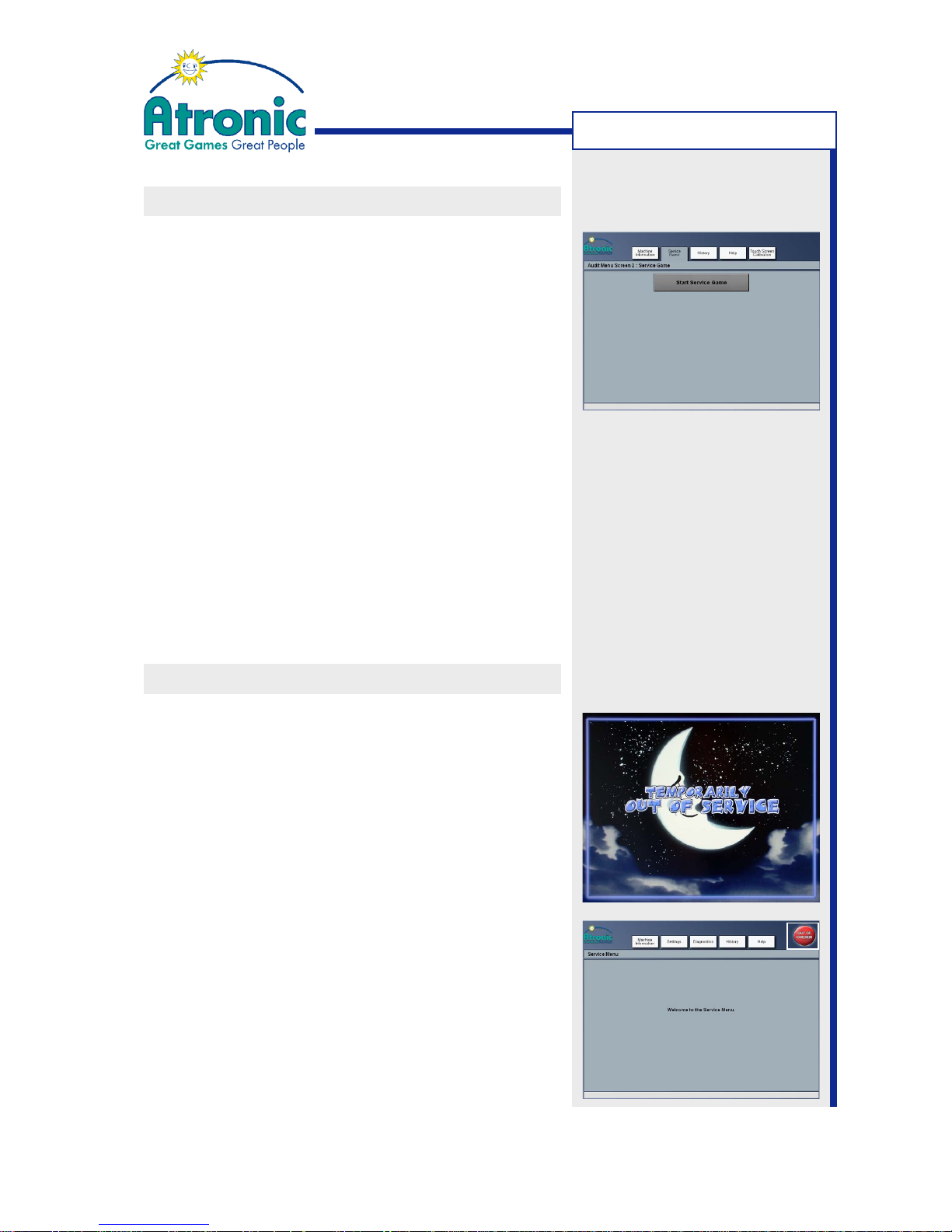
This function allows simulated game play for testing
or promotional purposes. The service game is only
available while the maindoor is open and no credits
are on the credit meter. Hardmeters and statistical
data are not influenced by service games.
1. Make sure no credits remain on the credit meter.
2. Open the maindoor.
3. Activate the Audit Menu, by turning the audit key.
4. Touch the SERVICE GAME folder tab and then touch
the START SERVICE GAME button. After about 10
seconds the service game starts. An amount of
virtual credits (5x MaxBet) is booked to the credit
meter. These credits can not be cashed out.
5. Play the service game.
6. To leave service game mode, close the maindoor
and remove the audit key. All virtual credits are
removed from the credit meter.
OUT OF SERVICE SCREEN
The "out of service" screen is intended to prevent
players from inserting money into a machine that is
temporarily out of service. This screen can also be
used to reserve a machine for a particular player.
1. Open the maindoor and press the service button
located at front of the logic box. The Service Menu
is displayed.
2. Touch the OUT OF ORDER button in the upper right
screen. The "out of service" screen is displayed.
3. Close and lock the maindoor.
4. To leave the "out of service" screen, open the maindoor and press the service button again.
5. Close the maindoor to return to game mode.
Page 34
34
April 2007
Harmony™ Upright - Operating Manual - C-Level
MACHINE HANDLING
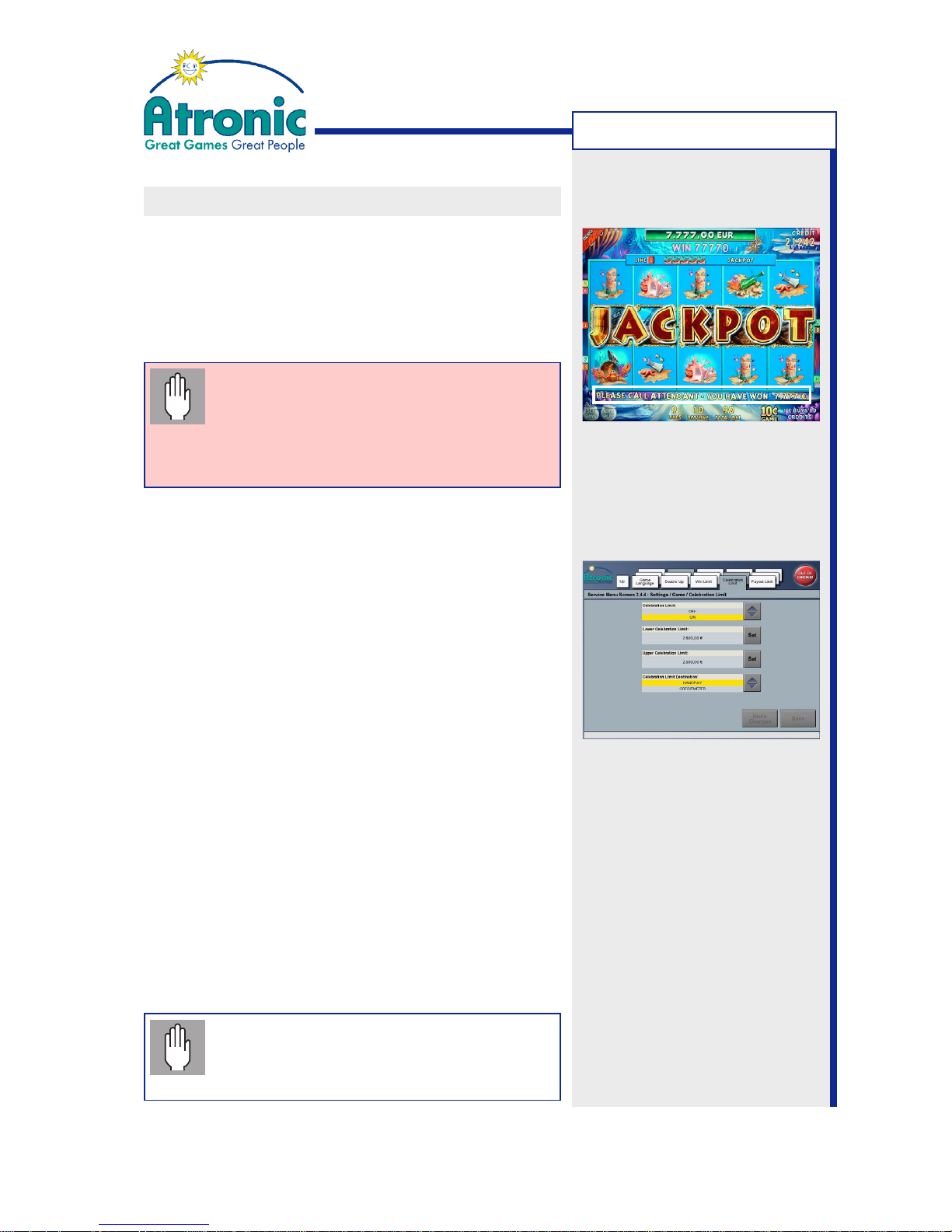
CELEBRATION LIMIT
The celebration limit determines the threshold for
jackpot handpays. A win that exceeds this limit
initiates a jackpot celebration and needs to be
acknowledged by an attendant using the jackpot key.
Default value (in currency) for both limits is the top
award amount of the highest player denomination.
Important: A top award win combination
(5x top symbol) or a progressive jackpot
win does not automatically initiate a
handpay! The win amount has to exceed
the celebration limit, in order to initiate a
jackpot handpay.
Open the Service Menu and select "Settings / Game /
Celebration Limit" to adjust the limit.
Celebration Limit
Enables or disables the celebration limit.
Note: Disabling the celebration limit will disable
all jackpot handpays (except handpays initiated by
the win limit or the active currency limit).
Lower Celebration Limit
Sets the threshold for the lower celebration limit.
A win that exceeds this limit, initiates a handpay
or can be booked to card or credit meter, depending
on setting CELEBRATION LIMIT DESTINATION.
Upper Celebration Limit
Sets the threshold for the upper celebration limit. A
win that exceeds this limit always initiates a handpay.
Celebration Limit Destination
Sets the destination for wins exceeding the lower
but not the upper celebration limit.
• With cashless transaction mode EFT the settings
HANDPAY and CARD are selectable.
• With cashless transaction mode AFT the settings
HANDPAY and CREDITMETER are selectable.
Note: If celebration limit destination has
been set to CARD, and no player card is
available/operational, the amount is booked
to the credit meter instead.
Jackpot celebration with
handpay message, initiated by
a progressive win that
exceeds the adjusted
celebration limit.
Page 35
35
April 2007
Harmony™ Upright - Operating Manual - C-Level
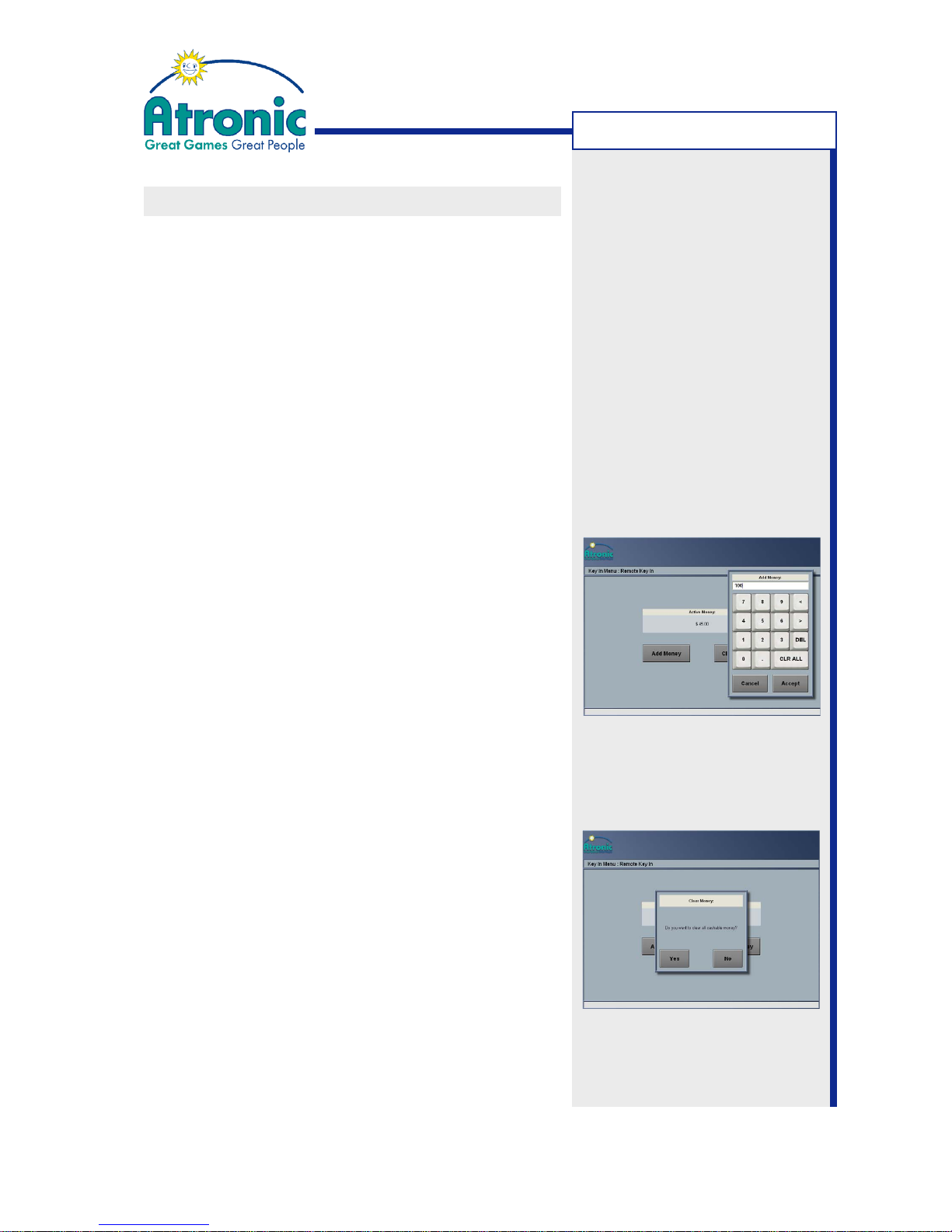
REMOTE KEY IN / KEY CREDITS
The remote key in function enables an attendant to
add or clear money to/from the credit meter by using
the jackpot key.
• The remote key in function is available only, if it has
been enabled during Initial Setup on page ADDITIONAL JACKPOT KEY FUNCTIONALITY.
• The remote key in mode is not available while the
machine is locked during handpay or jackpot.
• Remote key bookkeepings can be reviewed in "Audit
Menu / History / Accounting / Accounting Information / Key In" + "Key Out".
Add Money
1. Turn the jackpot key to start the remote key menu.
The amount of active money is displayed.
2. Select ADD MONEY and enter the amount of money
to be added to the credit meter by means of the
displayed number pad. Confirm entered value with
ACCEPT.
3. Confirm adding money with YES or refuse with NO.
4. Release the jackpot key.
Clear Money
1. Turn the jackpot key to start remote key menu. The
amount of active money is displayed.
2. Select CLEAR MONEY.
3. "Do you want to clear all cashable money?" is displayed. Confirm with YES or refuse with NO.
4. Release the jackpot key.
The number of cleared credits is displayed on the
paid meter (in credits).
Note: Remote key in mode is
not available in certain jurisdictions!
MACHINE HANDLING
Page 36

36
April 2007
Harmony™ Upright - Operating Manual - C-Level
- blank page -
Page 37
37
April 2007
Harmony™ Upright - Operating Manual - C-Level
TROUBLESHOOTING
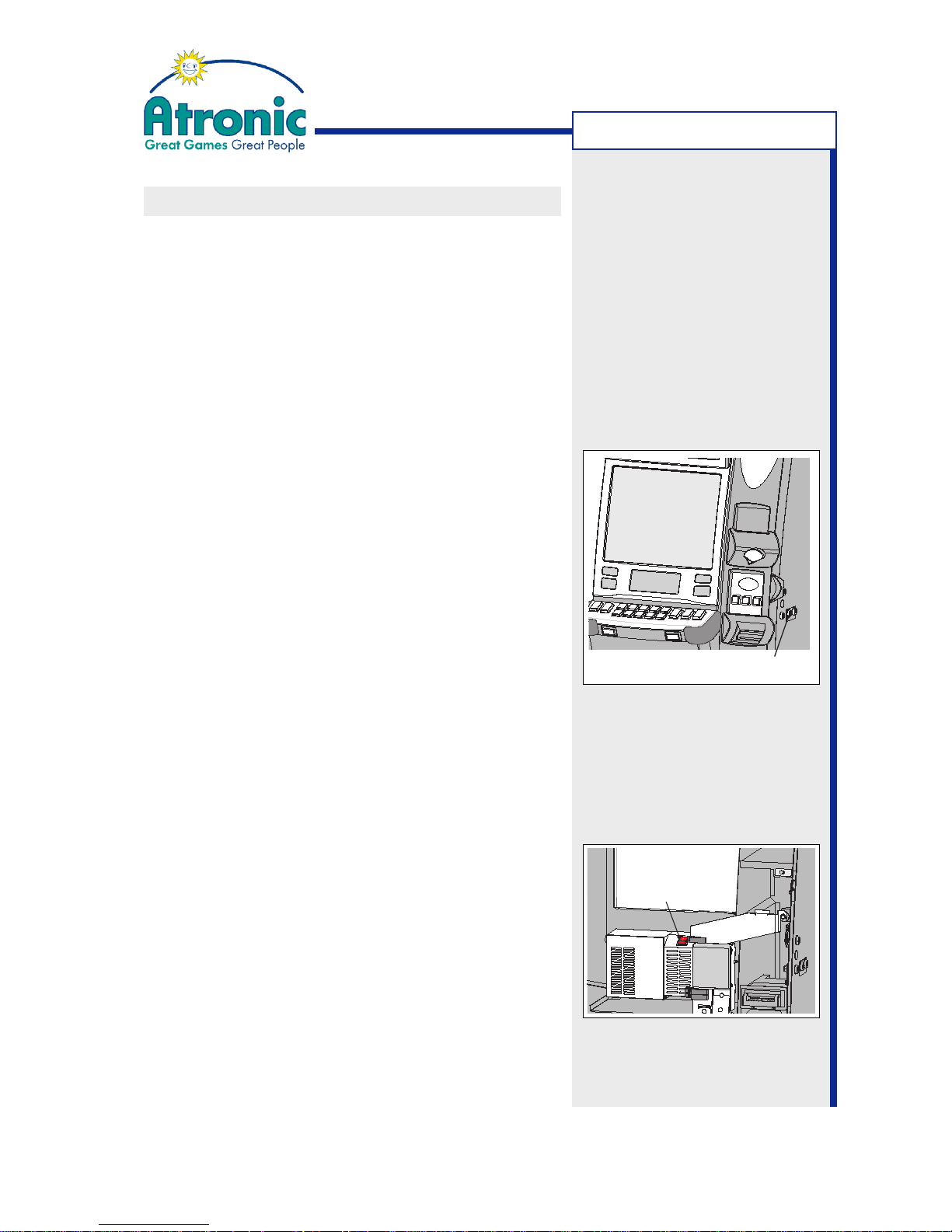
Audit Key Switch
Power Switch
RESET STATUS- AND ERROR MESSAGES
Occasionally, machines encounter a problem that
forces the machine into a machine lock (tilt) that has
to be reset. Also some on-screen messages require
to be confirmed and reset by an attendant.
For example: If the logic box was opened, the message
LOGIC BOX OPEN must be reset manually, after the
logic box was closed.
Follow these steps to reset status messages.
Reset a Status Message using the Audit Key
1. Make a note of the on-screen information, type of
error, game state, credit meter, etc..
2. Activate the Audit Menu, by turning the audit key.
3. Release the audit key to exit the Audit Menu. The
status message expires.
4. Verify the information that was noted before activating the Audit Menu.
Restarting the machine
In case of a machine freeze initiated by an error at
the peripheral hardware (e.g. bill acceptor), it can be
necessary to restart the machine to reinitialize the
peripheral hardware.
1. Make a note of the on-screen information, type of
error, game state, credit meter, etc..
2. Open the maindoor and power down the machine.
3. Wait at least 10 seconds (until the machine is
free of any voltage).
4. Turn machine power on. Do not close the maindoor
to prevent the machine from entering game mode.
5. Enter "Service Menu / Diagnostics" to check for
defective machine components.
6. Close the maindoor to enter game mode.
Page 38
38
April 2007
Harmony™ Upright - Operating Manual - C-Level
TROUBLESHOOTING
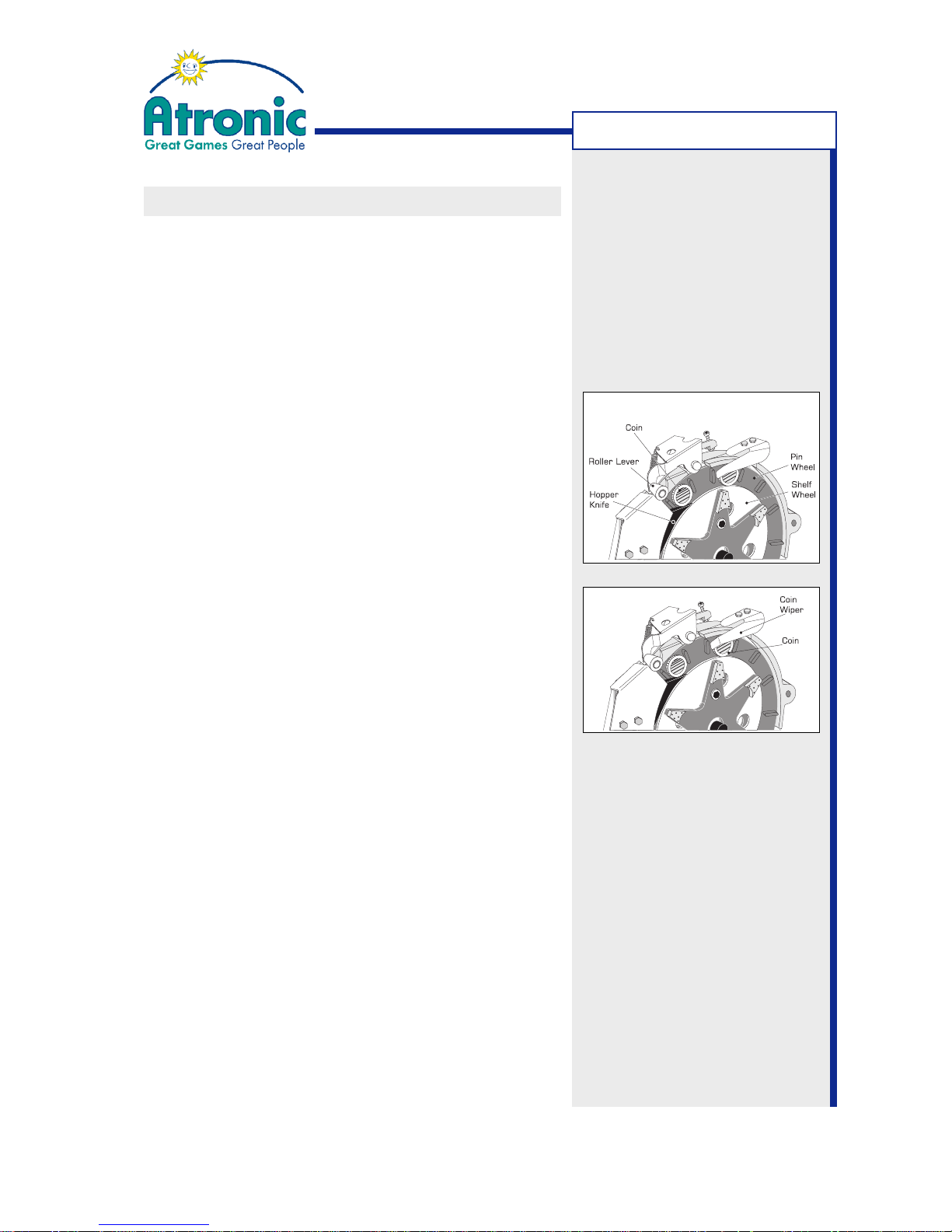
CLEARING A HOPPER JAM
To clear a hopper jam, carefully follow these steps.
(Procedure description instancing SUZO hopper)
1. Power down the machine.
2. Open the the hopper drawer.
3. Remove any coins that may have collected around
the roller lever.
4. Check if coins have jammed under the hopper knife.
5. If necessary, correct the alignment of the hopper
knife. The front surface of the hopper knife should
be flush to the pin wheel and lay gently on the
shelf wheel.
6. If necessary, correct the coin wiper alignment. The
coin wiper should guide but not hold the coin. There should be a small distance (<1 mm) between
coin and coin wiper or it should only lightly brush
the surface of the coin.
7. When the coin jam is cleared, close the hopper
drawer and turn the machine power on.
8. (
only if HOPPER JAM PROCEDURE is set to "pay-
out continues after jam is cleared").
Make sure that the hopper has paid out the correct number of coins.
9. Perform a hopper test.
Open "Service Menu / Diagnostics / Hopper" and
select PAY OUT X COINS for testing. Check the
number of coins paid out and the hopper timings.
If any timing value is below 12 msec, a hopper
adjustment is mandatory.
The payout behavior in case of a hopper jam depends
on the setting "Service Menu / Settings / Hardware /
Hopper / Jam Procedure". These two settings are
available:
• If a hopper jam occurs, left amount is handpay.
• If a hopper jam occurs, the hopper jam has to be
cleared. After the hopper drawer door is opened
and closed, the payout continues.
Page 39
39
April 2007
Harmony™ Upright - Operating Manual - C-Level
TROUBLESHOOTING
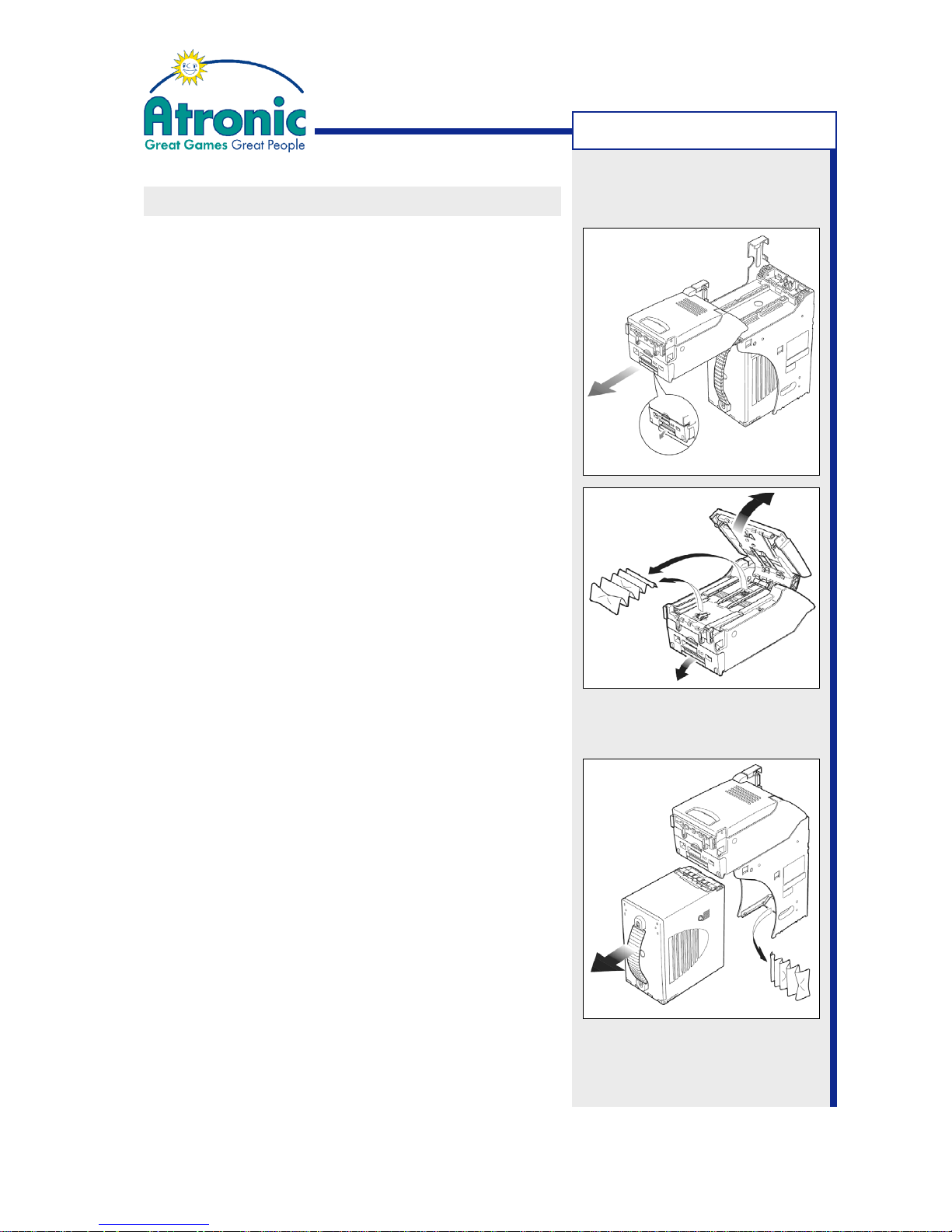
CLEARING A BILL JAM
Follow these procedures to clear a bill jam in a JCM™
UBA-type bill acceptor.
Procedure for Acceptor Head
1. Open the maindoor.
2. Push the acceptor head release lever downwards
and slide out the acceptor head assembly (1).
3. Pull the acceptor head opening latch on top of the
acceptor head to open it (2).
4. Remove the jammed bill and any debris.
5. Close the acceptor head and make sure it is fully
engaged.
6. Slide the acceptor head assembly back into it's
mounting frame and close the maindoor.
7. Clear bill acceptor error message via audit key.
Procedure for Stacking Unit and Cashbox
1. Unlock the hopper drawer and open it.
2. Remove the cashbox.
3. Remove the jammed bill and any debris.
4. Reinstall the cashbox.
5. Clear bill acceptor error message via audit key.
(1)
(2)
Page 40
40
April 2007
Harmony™ Upright - Operating Manual - C-Level
TROUBLESHOOTING
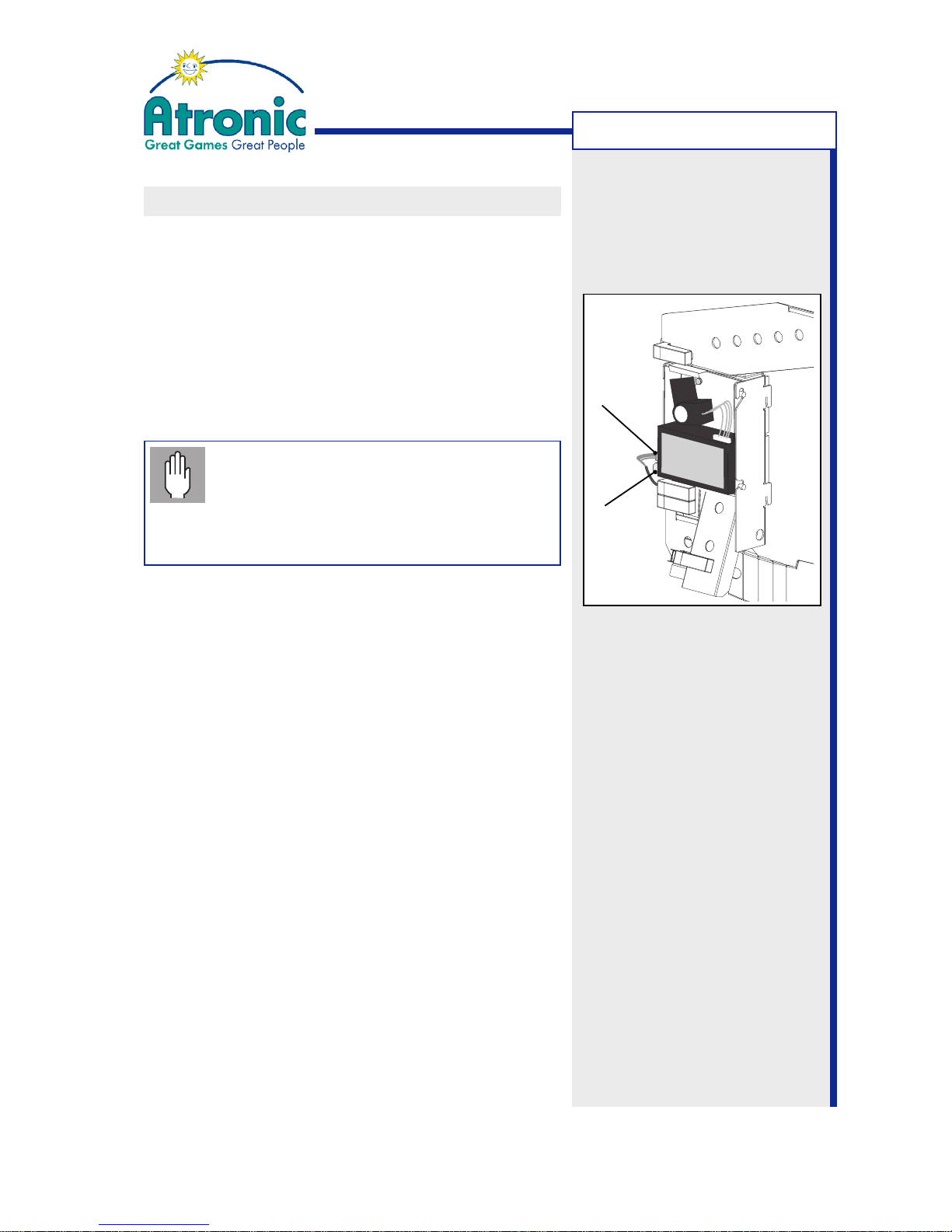
CLEARING COIN IN JAM
This section explains, how to clear a coin jam at the
coin unit.
1. Open the maindoor and leave the maindoor switch
in open position to ensure that the coin acceptor
is disabled.
2. Gently bend the spring clip to the left until it releases the coin acceptor.
3. Carefully unplug the coin acceptor.
Do not unplug by pulling at the cables.
Do not unplug the coin acceptor while it
is active (lit green LED at MC-16). This
may cause permanent damage to the
coin acceptor!
4. Take the coin acceptor out.
5. Carefully remove coins that may have jammed inside the coin acceptor.
6. (CC-16, MC-16, IC-16 coin comparitors only)
Check the sample coin for proper seating.
7. Check the coin chutes for jammed coins and/or debris and clear them, if needed.
8. Re-install coin acceptor and plug in the connector.
9. Turn machine power on and close and lock the maindoor.
10.(Optional)
Check coin handling with "Service Menu / Diagnostics / Coin Acceptor / Coin Diverter Test" and "Optic Test".
Spring
Clip
Connector
Page 41

41
April 2007
Harmony™ Upright - Operating Manual - C-Level
- blank page -
Page 42
42
April 2007
Harmony™ Upright - Operating Manual - C-Level
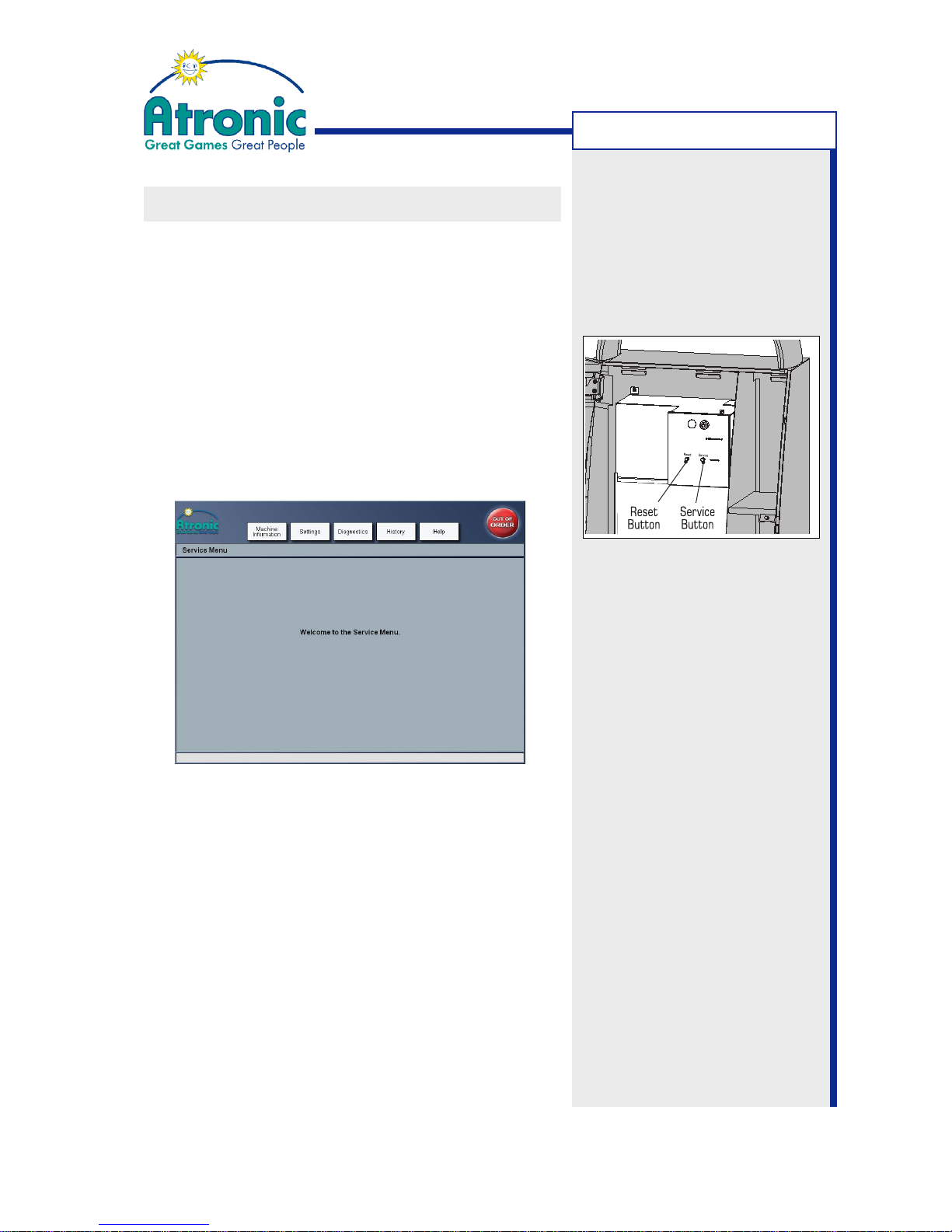
SERVICE MENU
SERVICE MENU
Several pages of information, configuration and
diagnostics can be accessed from the Service Menu.
The structure of the Service Menu is designed to be
user friendly and self-explanatory.
To access the Service Menu:
• Press the service button located at the front of
the logic box. The maindoor switch must be in the
open position.
• To exit the Service Menu, press the service button
again or close the maindoor.
The Service Menu consists of folders that contain
pages of information and settings. To navigate to the
desired folder, touch the assigned folder tab.
Some menus have information stored on more than
one page. Use the scroll bars to navigate through
the items.
Note:
(Only if a commboard is installed)
The Service Menu can be activated (without opening
the maindoor) by sending SAS long poll 0A "enter
maintenance mode". To exit Service Menu send 0B
"exit maintenance mode".
Note:
See manual "Software / Basic
Setup" for a certain software
version for a detailed
description of each Service
menu item.
Page 43
43
April 2007
Harmony™ Upright - Operating Manual - C-Level
SERVICE MENU
2.2.1. Date / Time
2.1.2. Top Light
2.1.3. Playfield Height Adj.
2.2.1. General Configuration
2.2.2.1. Procedures
2.2.2.2. Activate Coinacceptor
2.2.2. Coin Acceptor
2.2.3.1. Operation Mode
2.2.3.2. Bills Enabled
2.2.3.3. Voucher Redemption
2.2.3. Bill Acceptor
2.2.4. Hopper
2.2.5. Printer
2.2.4.1. General
2.2.4.2. Empty Procedure
2.3.1. Sound
2.3.2. Displays
2.3.3. Touch Calibration
2.3.1.1. Sound Configuration
2.3.1.2. Master Volume
2.3.1.3. Base Volume
2.4.1. Game Language
2.1. Basic
2.2. Hardware
2.3. Machine
2.4. Game
2.5. Jackpot Configuration
2. Settings
1. Machine Information
3. Diagnostics
3.1 Coin Acceptor
Coin Diverter Test
Optics Test
Bills Enabled
Validator Test with Stacking
Validator T. without Stacking
Pay out 1 coin
3.2 Bill Acceptor
3.3 Hopper
3.5 Other Tests
Toplight
Lamps
Switches
Buttons
ALink Status
4. History
4.2. Game
4.1. Accounting
4.2.4. Statistics per Game
4.3.1. Money Log
4.3.2. Event Log
4.3. Logs
4.4. Cashless & Progressive
4.4.1. Cashless and Progressive Inf.
5.1. Hardware Error Codes
5. Help
4.1.2. Each Bill Count
4.3.3. Background Exceptions
4.3.1.4.1. Wagering Account Transfer
4.3.1.4.2. Cashable Electronic Promotion
4.3.1.4.3. Non Cashable Electronic Promo.
4.3.1.4.4. Bonus
2.2.5.1. Barcode Payout
2.2.5.2. Casino Information
2.2.5.3. Currency Setup
2.2.4.3. Payout LimitProcedure
2.2.4.4. Jam Procedures
2.3.1.4. Game Volume
2.3.3.1. Bottom Screen
2.4.2. Double Up
2.4.3. Win Limit
2.4.4. Celebration Limit
Pay out x coins
Pay out all coins
3.4 Printer
Barcode Voucher
4.1.1. Accounting Information
4.2.3. Statistics per Denom.
4.2.2. Statistics
4.2.1. Last Games
4.3.1.1. Coins
4.3.1.2. Bills
4.3.1.3. Vouchers
4.3.1.4. Transactions
4.3.1.5. Others
4.3.1.1.1. Last 10 Hopper Payouts
4.3.1.1.2. Last 10 Hopper Refills
4.3.1.2.1. Last 10 Bills Inserted
4.3.1.2.2. Last 10 Stacker Clearances
4.3.1.3.1. Last 35 Vouchers In
4.3.1.3.2. Last 35 Vouchers Out
4.3.1.5.1. Last 10 Handpays
4.3.1.5.2. Last 10 Denom. Changes
4.3.1.5.3. Last 10 Prog. Jackpots
4.4.2. Progressive Split Information
4.4.3. Progressive Table
Game Authentification
2.3.4. AFT
4.4.4. Voucher and Handpay
2.3.x. Cabinet Illumination**
2.3.3.2. Top Screen*
2.4.5. Payout Limit
4.2.3.1. General Statistics
4.2.3.2. Bet-Line Table
4.3.1.4.1. Legacy Bonus***
4.3.1.4.2. AFT Transfers***
4.4.5. Jackpot Statistics
4.4.2.1. Progressive Split Statistic
4.4.2.2. Hidden Split Statistic
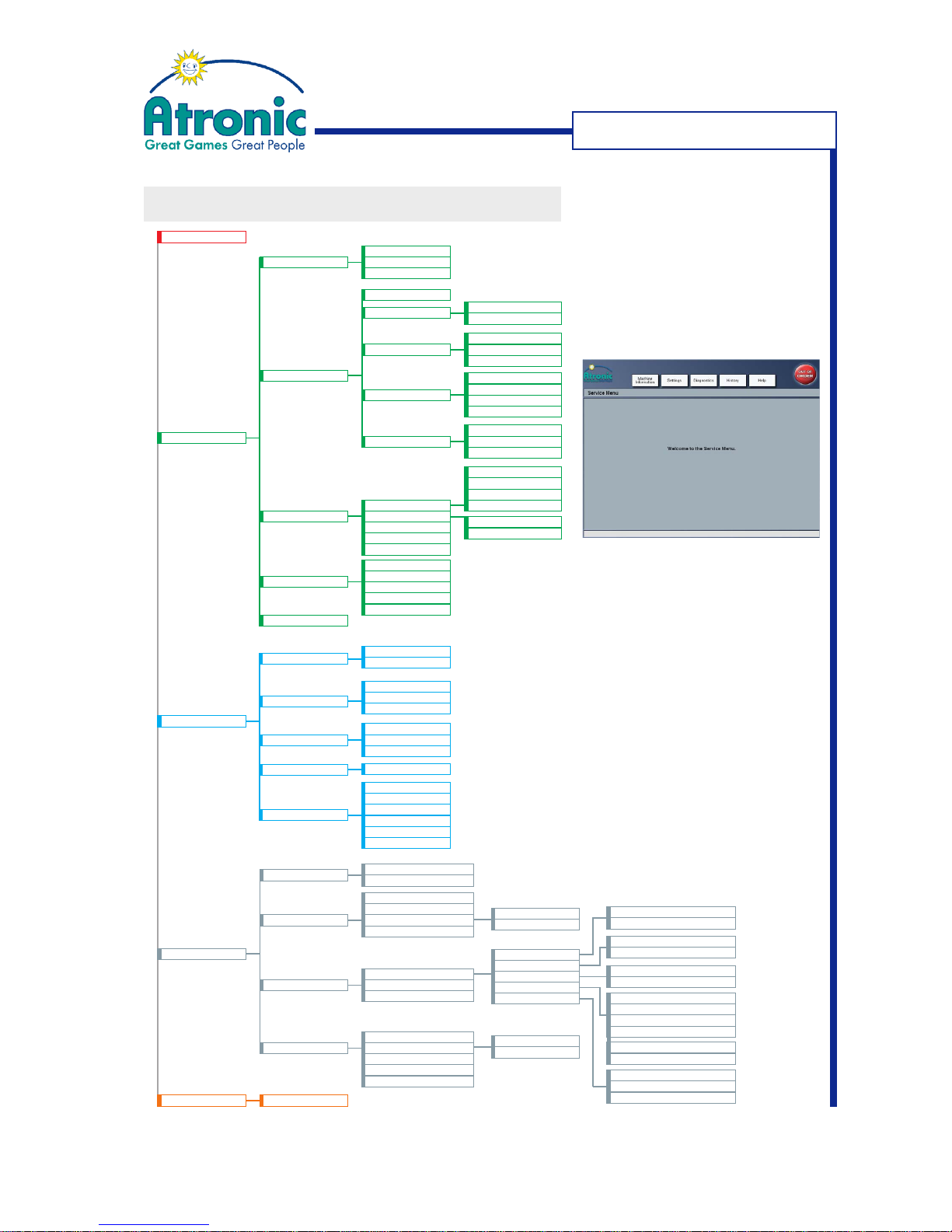
SERVICE MENU FLOWCHART
Note:
Some items are application
dependent or not available in
certain jurisdictions.
* only with e-motion™ cabinet
** only with Harmony™ cabinet
*** only with AFT configured
Note:
See manual "Software / Basic
Setup" for a certain software
version for a detailed
description of each Service
menu item.
*
Page 44

44
April 2007
Harmony™ Upright - Operating Manual - C-Level
- blank page -
Page 45
45
April 2007
Harmony™ Upright - Operating Manual - C-Level
AUDIT MENU
Audit Key Switch
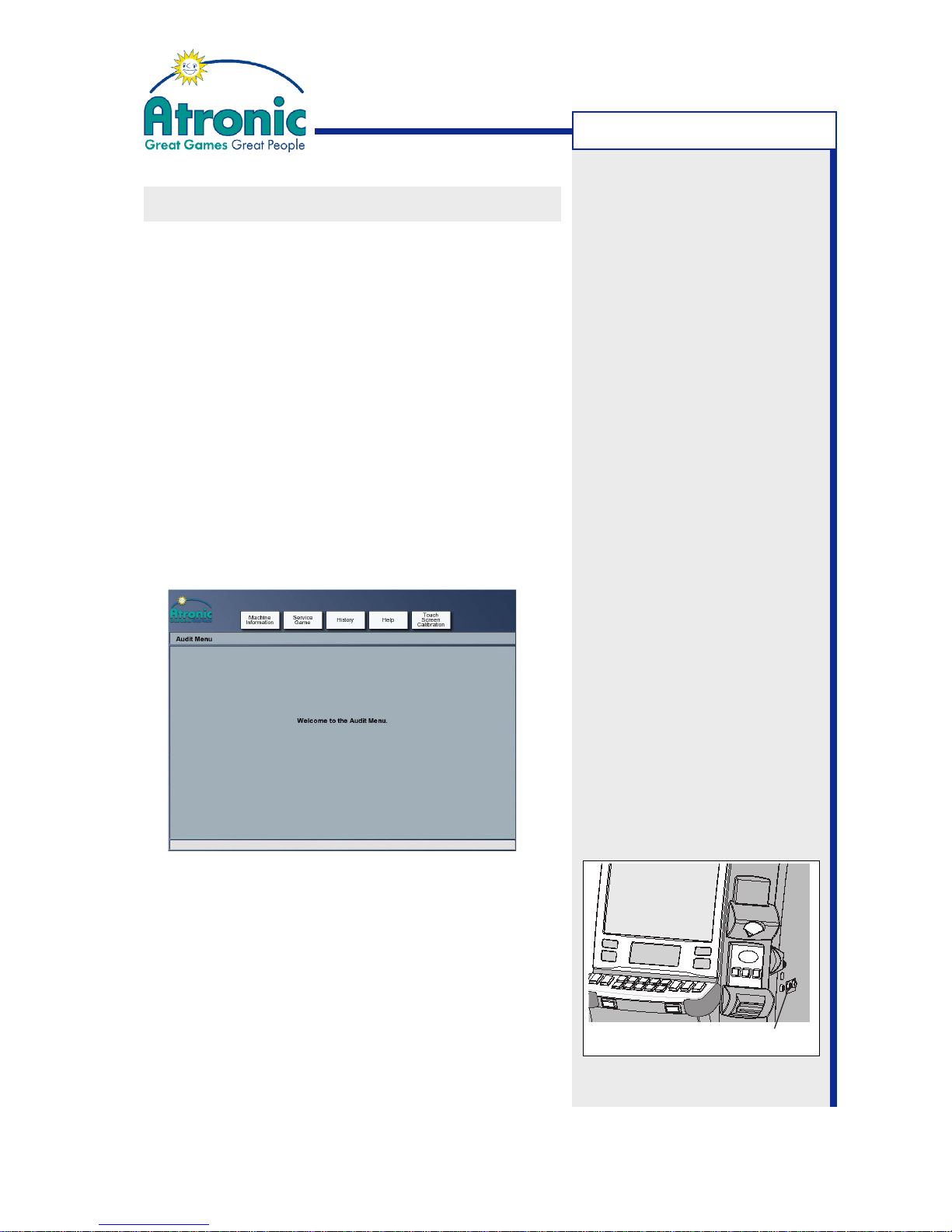
AUDIT MENU
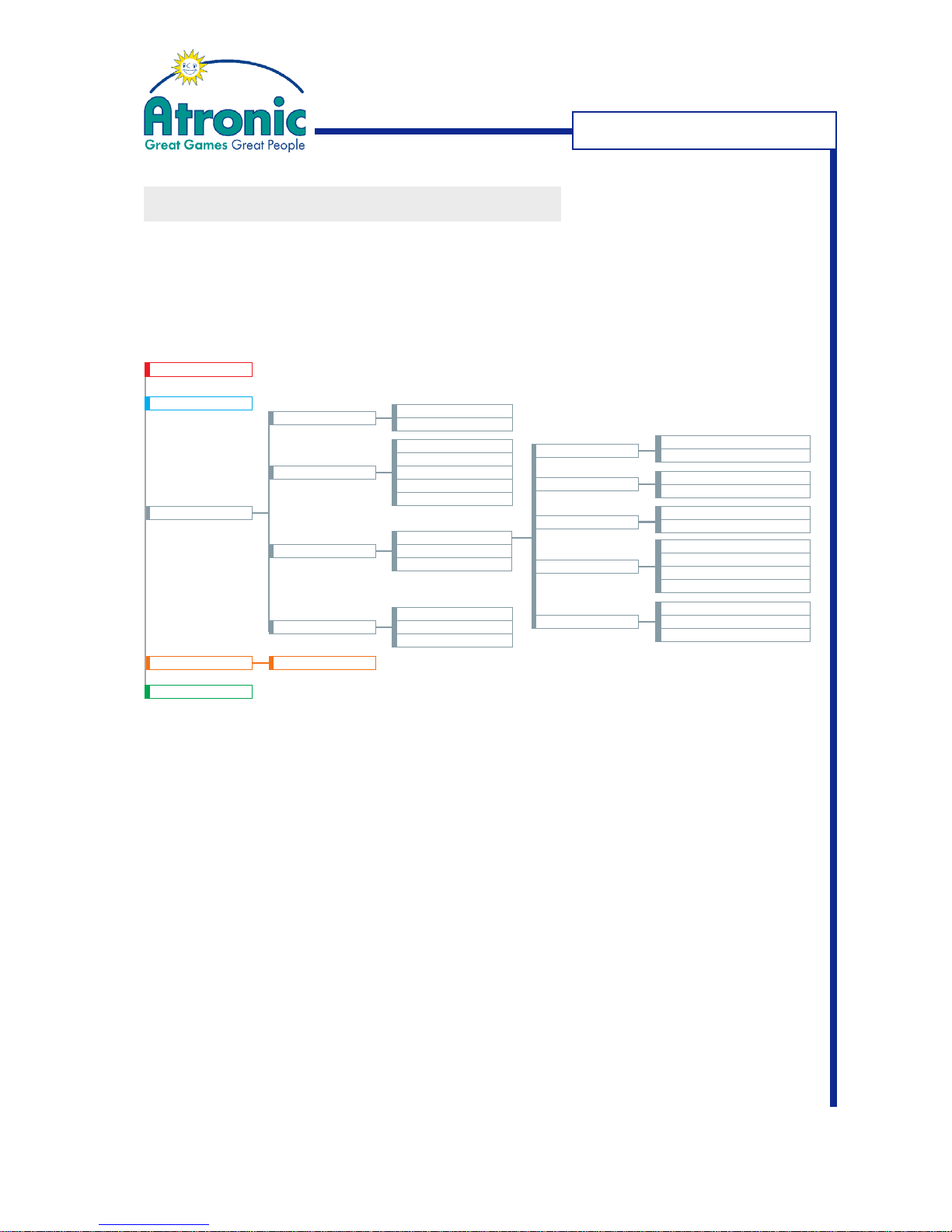
The Audit Menu gives access to the softmeters and
some additional functions and information.
The
following menus are available via Audit Menu:
Machine Information
Displays game software revisions and machine and
game settings.
Service Game
Allows simulated game play for test purposes.
History
Contains accounting and game statistics
(softmeters), machine logs and last game recall.
Help
Contains a hardware error listing
Touch Screen Calibration
Allows re-calibration of the touch screen controller.
To access the Audit Menu:
• Turn the Audit Key while the machine is in idle
mode. The Audit Menu can not be accessed
while a game is in progress or waiting for player
interaction (double up).
• To exit the Audit Menu, remove audit key.
Show Details
To view a brief description of an particular item or meter,
select the item and touch the SHOW DETAILS button.
Note:
See manual "Software / Basic
Setup" for a certain software
version for a detailed
description of each Audit Menu
item.
Page 46
46
April 2007
Harmony™ Upright - Operating Manual - C-Level
3. History
3.2. Game
3.1. Accounting
3.2.4. Statistics per Game
3.2.5. Bet-Line Table
3.3.1. Money Log
3.3.2. Event Log
3.3. Logs
3.4. Cashless & Progressive
3.4.1. Cashless and Progressive
4.1. Hardware Error Codes
4. Help
3.1.2. Each Bill Count
3.3.3. Background Exceptions
3.3.1.4.1. Wagering Account Transfer
3.3.1.4.2. Cashable Electronic Promotion
3.3.1.4.3. Non Cashable Electronic Promo.
3.3.1.4.4. Bonus
3.1.1. Accounting Information
3.2.3. Statistics per Denom.
3.2.2. Statistics
3.2.1. Last Games
3.3.1.1. Coins
3.3.1.2. Bills
3.3.1.3. Vouchers
3.3.1.4. Transactions
3.3.1.5. Others
3.3.1.1.1. Last 10 Hopper Payouts
3.3.1.1.2. Last 10 Hopper Refills
3.3.1.2.1. Last 10 Bills Inserted
3.3.1.2.2. Last 10 Stacker Clearances
3.3.1.3.1. Last 35 Vouchers In
3.3.1.3.2. Last 35 Vouchers Out
3.3.1.5.1. Last 10 Handpays
3.3.1.5.2. Last 10 Denomination Changes
3.3.1.5.3. Last 10 Progressive Jackpots
3.4.2. Voucher and Handpay
3.4.3. Jackpot Statistics
2. Service Game
1. Machine Information
5. Touch Screen Calibration
AUDIT MENU
Note:
Some items are application dependent or not available
in certain jurisdictions.
AUDIT MENU FLOWCHART
This overview shows all menus available in the Audit
Menu.
Note:
See manual "Software / Basic
Setup" for a certain software
version for a detailed
description of each Audit Menu
item.
Page 47
47
April 2007
Harmony™ Upright - Operating Manual - C-Level
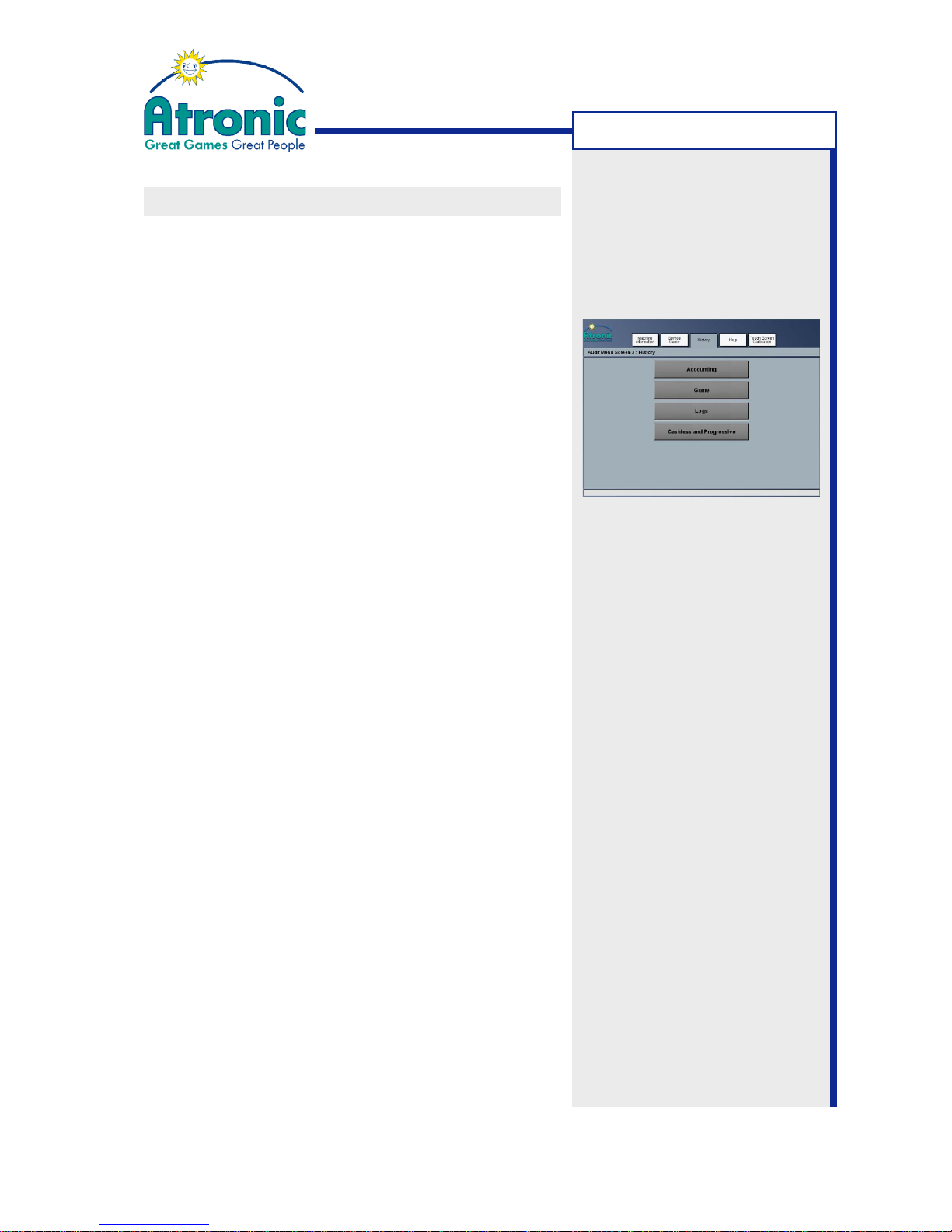
HISTORY FOLDER (Soft Meters)
Accounting
Provides ACCOUNTING INFORMATION (softmeters)
and EACH BILL COUNT.
Game
Provides last games recall, game statistics and a
bet-line table.
To review the last 20 games that have been played:
1. Select HISTORY / GAME / LAST GAMES.
A list of the last 20 games is displayed.
2. Select a game to be reviewed and touch the SELECT GAME button. Statistics of the selected game
are displayed.
3. Touch START REPLAY to activate a game replay.
4. Wait some seconds until "HIT LIT BUTTON FOR
NEXT GAMESTEP" is displayed in the lower left of
the game screen. Then press the lit button on the
button panel to start next gamestep.
5. Repeat for each gamestep until the replay ends.
Logs
Provides a money log, an event log and a background
exception log (error log).
Money Log:
Shows all money transactions.
Event Log:
Displays all events happened at the machine with
date and time (e.g. power up).
Background Exceptions:
This list is intended for internal manufacturer use
and should not list any entries.
Cashless & Progressive
Provides statistics from cashless transactions,
voucher and handpay statistics and progressive jackpot statistics (if applicable).
AUDIT MENU
Note:
See manual "Software / Basic
Setup" for a certain software
version for a detailed
description of each History
folder item.
Page 48

48
April 2007
Harmony™ Upright - Operating Manual - C-Level
- blank page -
Page 49

49
April 2007
Harmony™ Upright - Operating Manual - C-Level
MACHINE CONVERSION GUIDELINES
Machine conversions can be classified into three
different types.
Game Conversion
Paytable Conversion
Denomination Conversion
Each type of conversion can be done individually or in
any combination.
GAME CONVERSION
If a machine is to be converted to a new game theme,
these areas of the machine are involved.
Software
Glass
Button Panel / Legend Foils
A game conversion will require a Clear Memory
Procedure (RAM Reset), which clears all softmeters
and game settings!
Software
A complete software set contains:
• Base-software, game-software, multimedia BIOS,
and paytable (all EPROMs).
• A security chip (Tiny)
• Multimedia-software (CD-ROM)
Glass
If the glasses of machine, topper and base stand are
themed, they need to be replaced. The top glass insert
comes as a printed graphic film (see page 46).
Button Panel / Legend Foils
A button panel conversion is necessary, if a new
paytable setting with different LINES and BET PER
LINES steps is used. In most cases a button panel
conversion can be done by changing the legend foil
button inserts. A legend foil kit consists of a group
of button inserts.
Use a gaspipe pliers with soft clamping to carefully
remove the button lens caps.
Note:
The Atronic Technical Service
team will be pleased to assist
you in all matters regarding
machine conversions and floor
planning.
MACHINE CONVERSION
Page 50

50
April 2007
Harmony™ Upright - Operating Manual - C-Level
PAYTABLE CONVERSION
In order to change the number of lines or the bet per
line settings or the payout percentage, it is necessary
to re-configure the paytable settings or to change
the paytable EPROM. Following areas of the machine
are involved in a paytable conversion.
Paytable Software
Button Panel / Legend Foils
Paytable Software
Configurable paytable software allows to change
paytable settings by means of a Clear Memory
Procedure. Change of EPROM is not necessary. After
a RAM Reset the Initial Setup starts automatically,
allowing to re-configure paytable settings.
->
See manual " Software / Basic Setup" chapter Initial
Setup for details.
Paytable EPROMs are available as fully or partly
configurable versions. If the desired settings are not
included within the installed paytable EPROM, a
EPROM change is necessary. Change of paytable
EPROM requires a Clear Memory Procedure.
Button Panel / Legend Foils
A button panel conversion is necessary, if a new
paytable setting with different LINES and BET PER
LINES steps is used. In most cases a button panel
conversion can be done by changing the legend foil
button inserts. A legend foil kit consists of a group
of button inserts.
Use a gaspipe pliers with soft clamping to carefully
remove the button lens caps.
MACHINE CONVERSION
Note:
Use only paytable EPROMs
that expressly match to a
particular software set
Note:
The Clear Memory Procedure
(RAM Reset) clears all soft
meters and game settings!
Page 51
51
April 2007
Harmony™ Upright - Operating Manual - C-Level
EXCHANGING TOP GLASS
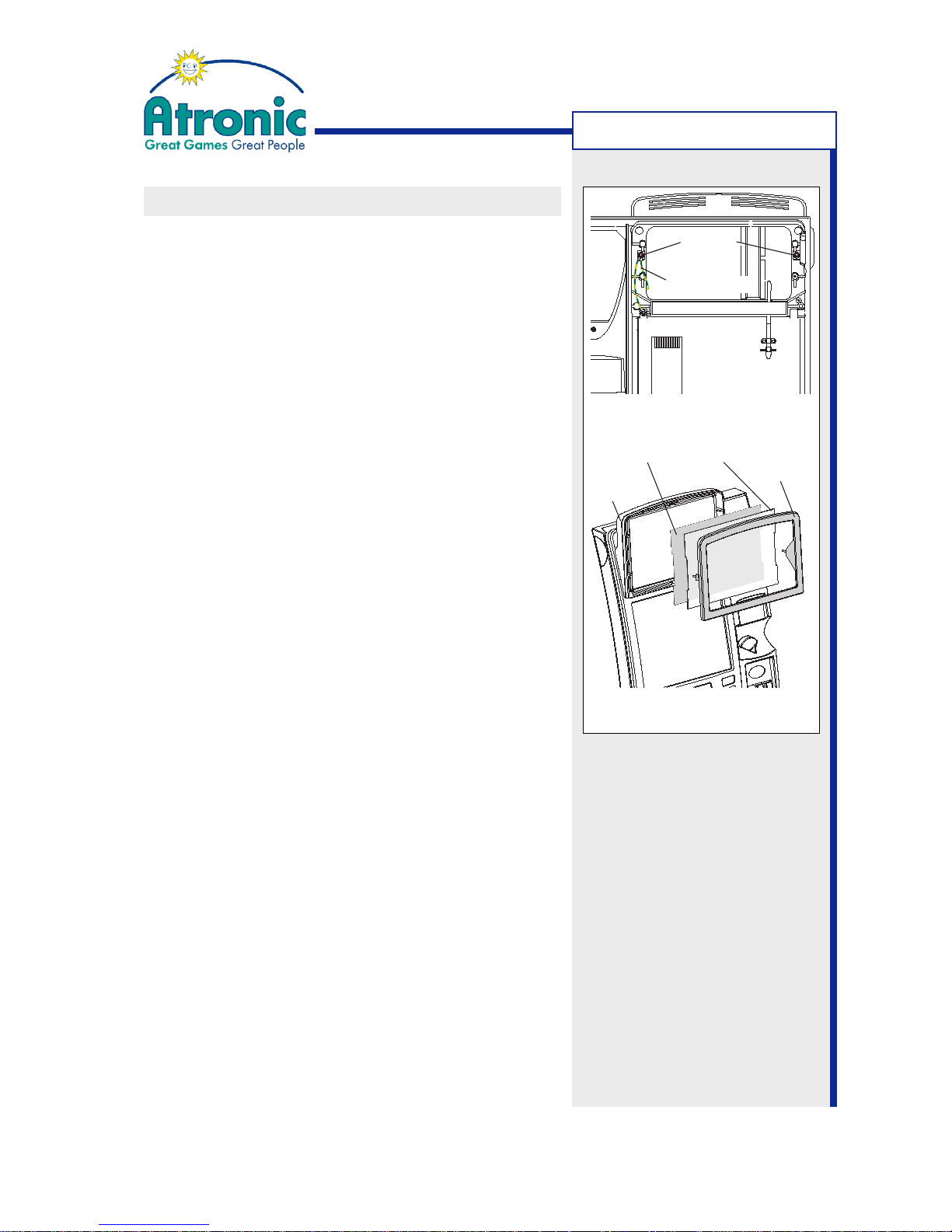
In case of a game conversion it is necessary to change
the (top glass) graphic film inside the feature box.
1. Open the maindoor and unscrew the two nuts M4
which hold the feature box cover (
figure 1
). Uncon-
nect the earthing cable.
2. Remove the feature box cover and take out the front
glass and the graphic film.
3. Make sure that front glass and the new graphic
film are free from dust and scratches. If necessary use a soft lint-free cloth and a mild glass cleaner for cleaning.
4. Stick in the game variant decals (play xx lines, win
up to xx credits, etc.) to the new graphic film.
Make sure that decals and game variant match.
5. Put the graphic film and the front glass into the
feature box and mount the feature box cover. Make
sure the cover is mounted flush to the feature box
before fastening.
6. Re-connect the earthing cable and fasten the cover using two nuts M4 with lock washer.
TECHNICAL PROCEDURES
figure 1
figure 2
Nuts M4
Earthing Cables
Graphic Film Front Glass
Cover
Feature
Box
 Loading...