

Page 1

User Guide Page 1
AATTO
aa
A BBLLUUEETTOOOOTTH
H HHEEAADDSSEETT
BBTT2200
UUSSEERR GGUUIIDDEE
First Edition, July 2001
© 2001, ATO Technolog y Ltd.
Rm. 1314-16, 13/F
Block B1, Yau Tong Industrial City
17 Ko Fai Road
Yau Tong, Kowloon
Hong Kong
Page 2

FEDERAL COMMUNICATIONS COMMISSION
INTERFERENCE STATEMENT
This equipment has been tested and found to comply with the limits for a Class B
digital device, pursuant to Part 15 of the FCC Rules. These limits are designed
to provide reasonable protection against harmful interference in a residential
installation. This equipment generates, uses and can radiate radio frequency
energy and, if not installed and used in accordance with the instructions, may
cause harmful interference to radio communications. However, there is no
guarantee that interference will not occur in a particular installation. If this
equipment does cause harmful interference to radio or television reception,
which can be determined by turning the equipment off and on, the user is
encouraged to try to correct the interference by one or more of the following
measures:
-- Reorient or relocate the receiving antenna.
-- Increase the separation between the equipment and receiver.
-- Connect the equipment into an outlet on a circuit different from that to which
the receiver is connected.
-- Consult the dealer or an experienced radio/TV technician for help.
CAUTION:
Any changes or modifications not expressly approved by the grantee of this
device could void
the user's authority to operate the equipment.
FCC RF Radiation Exposure Statement
This equipment complies with FCC RF radiation exposure limits set forth foran
uncontrolled environment. This device and its antenna must not be co-located
or operating in conjunction with any other antenna ortransmitter.
Page 3

User Guide Page 2
Table of Content
Table of ContentTable of Content
Table of Content
Introduction................................................................................................ 3
ATO Bluetooth Headset BT20............................................................ 3
Usage Requirement............................................................................ 3
Appearance ............................................................................................... 4
Putting On the Headset.............................................................................. 5
Adjust the ear hook for left-ear use............................................................ 6
Charging the battery.................................................................................. 7
Turn on the Headset.................................................................................. 8
Turn off the Headset.................................................................................. 8
Pairing........................................................................................................ 9
Bluetooth Passkey.............................................................................. 9
Pairing the Headset.......................................................................... 10
Adjusting the Listening Volume................................................................ 11
Making and Receiving Calls with a Bluetooth Mobile phone .................... 12
Making and Receiving Calls with a Mobile phone with ATO Mobile Phone
Adaptor installed...................................................................................... 13
Transferring Sound from a Bluetooth Mobile Phone to Headset.............. 14
Transferring Sound from Headset to a Bluetooth Mobile Phone.............. 14
Transferring Sound from a Mobile phone with ATO Mobile Phone Adaptor
installed to Headset................................................................................. 14
Transferring Sound from the Headset to a Mobile phone with ATO Mobile
Phone Adaptor installed........................................................................... 14
Page 4

User Guide Page 3
Introduction
IntroductionIntroduction
Introduction
ATA BluetoothTM Headset BT20
The ATO Bluetooth Headset BT20 is a portable handsfree audio device based
on Bluetooth wireless technology.
Bluetooth wireless technology is a global specification for personal area
wireless connectivity to ensure communication compatibility worldwide. It
connects any portable and stationary communication device easily without a
single inch of cable.
You can connect your wireless headse t to y our mobil e phone, co mputer or any
Bluetooth-enabled products that support the Headset Profile1 (as an audio
gateway2), so as to free your hands for other valuable tasks.
This User's Guide shows you how to use the Headset with the other Bluetooth
device such as a mobile phone or a PC.
You can handle incoming and outgoing calls, transfer an ongoing call, and
adjust the listening volume by using the two buttons on the Headset.
Usage Requirement
You can use the Bluetooth Headset with any device that is compatible with
Bluetooth wireless technology and supports the Headset Profile (as audio
gateway).
To use the Headset together with a mobile phone, you need to have a
Bluetooth-enabled phone or a phone with a Bluetooth adapter connected to it.
1
Headset Profile – Defined by the Bluetooth Special Interest Group (SIG), it describes how
manufactures should implement the various features supported by a Bluetooth Headset.
2
Audio Gateway - The device that is the gateway of the audio, both for input and output. Typical
Audio Gateways are mobile phones and personal computers
Page 5
User Guide Page 4
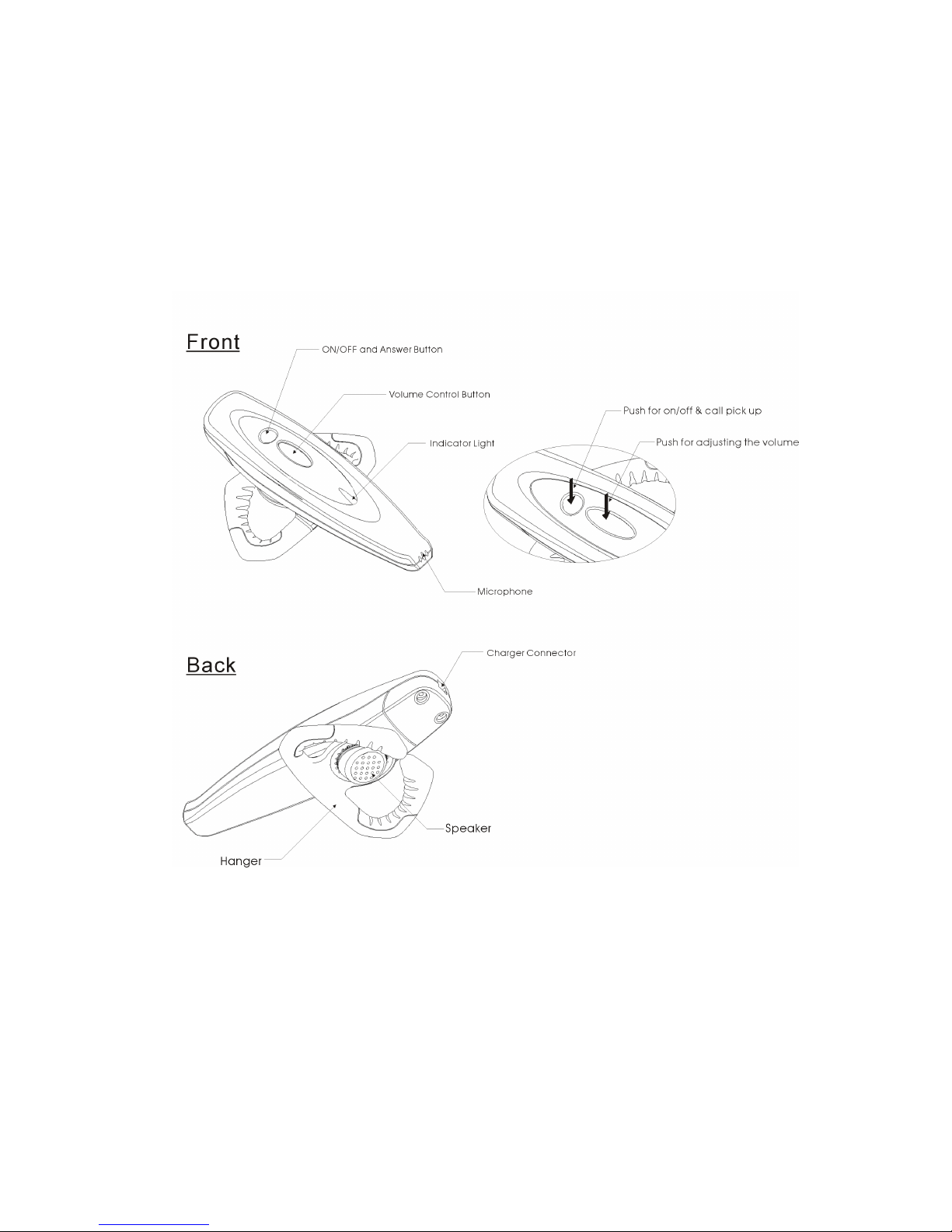
Appearance
AppearanceAppearance
Appearance
Page 6
User Guide Page 5
Putting On the Headset
Putting On the HeadsetPutting On the Headset
Putting On the Headset
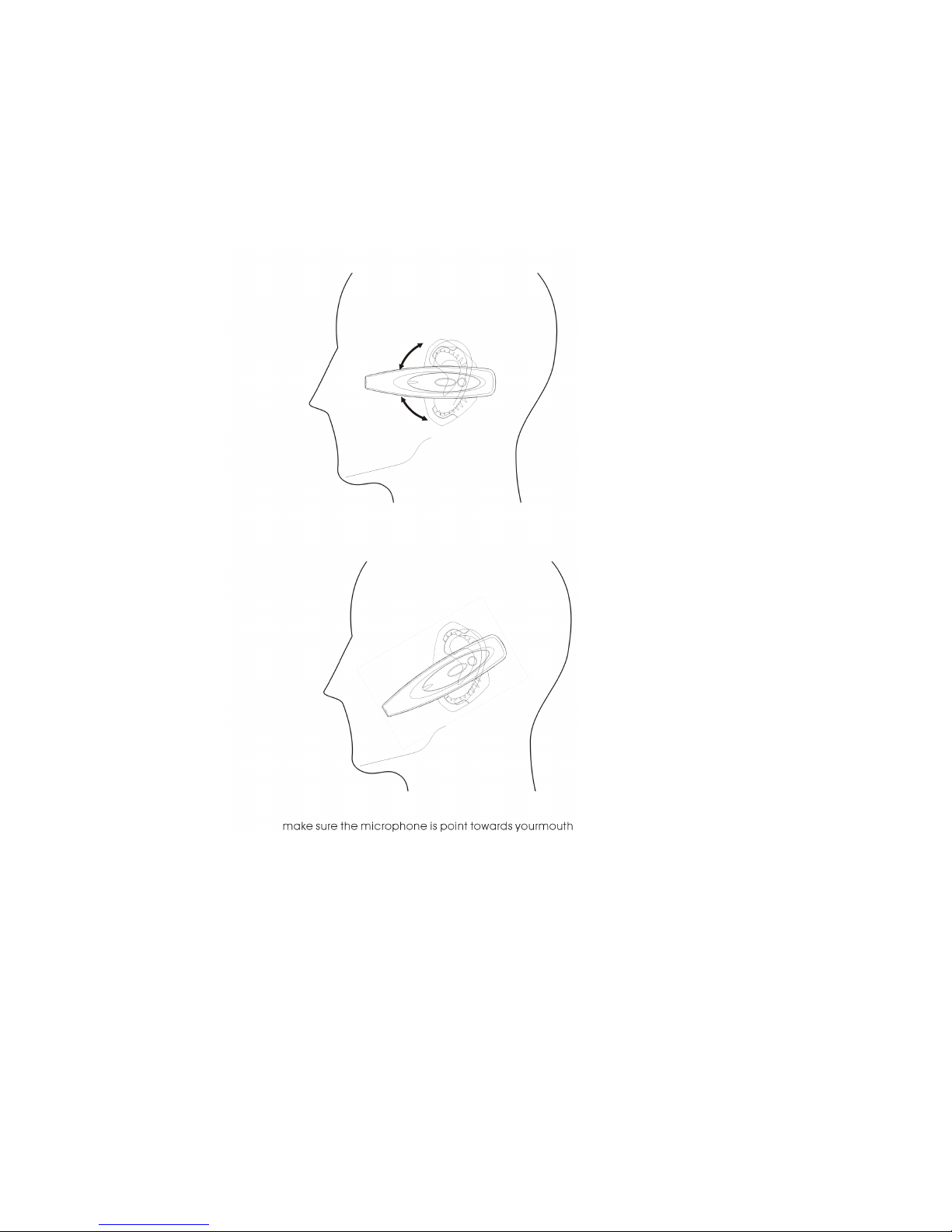
To put the Headset on your right ear:
1. Put on the Headset and make the hanger behind and holding your ear.
2. Rotate the Headset a bit such that the microphone is pointing towards
your mouth.
Page 7
User Guide Page 6
AAAAdjust the ear hook for left
djust the ear hook for leftdjust the ear hook for left
djust the ear hook for left----ear use
ear useear use
ear use
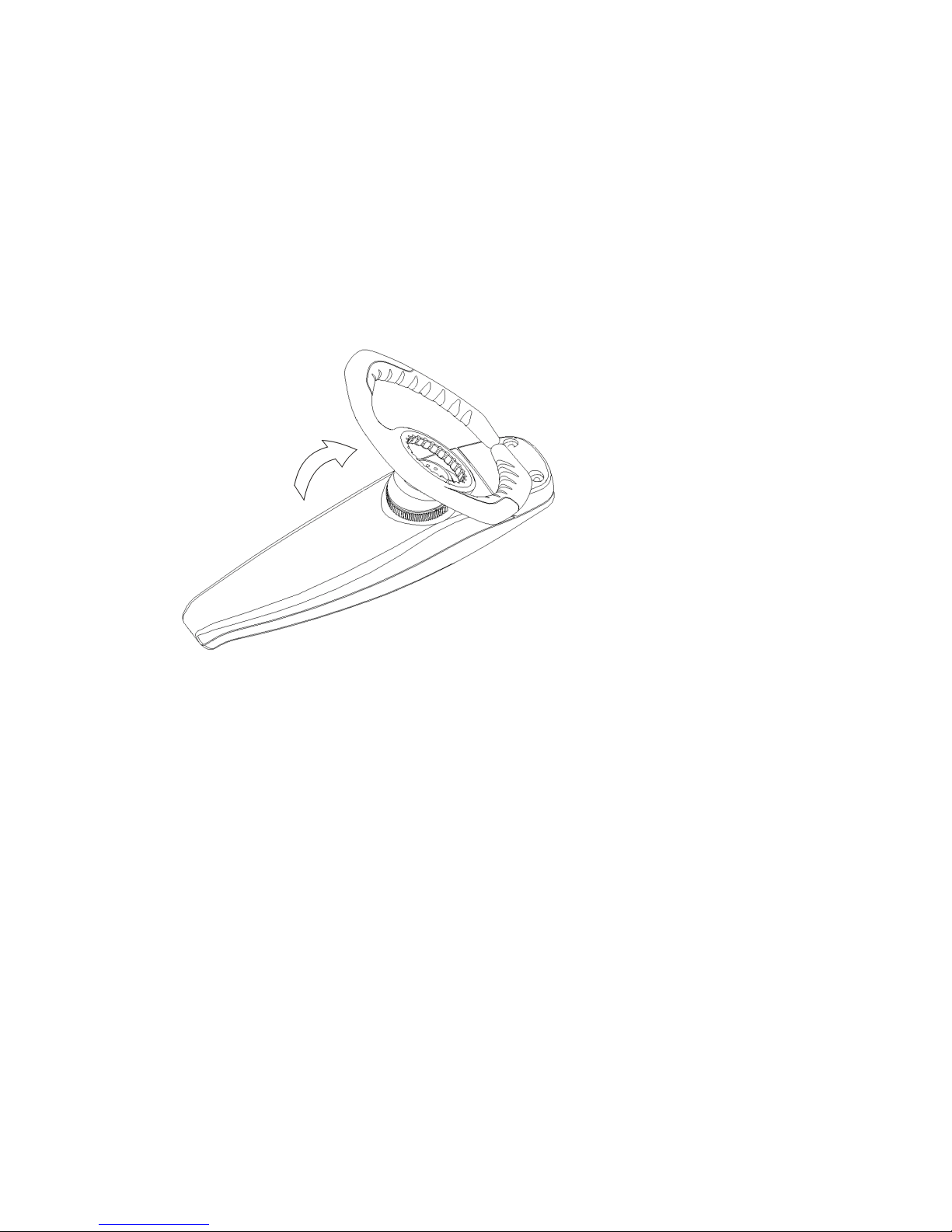
To wear the Headset on your left ear:
1. Gently turn the hanger to the opposite direction as shown.
2. Flip the headset to left ear side to wear it on.
3. Rotate the headset a bit such that the microp hone is pointing tow ards y our
mouth.
Page 8
User Guide Page 7
Charging
ChargingCharging
Charging the battery
the battery the battery
the battery
The Headset has a built-in rechargeable battery. You need to charge the
Headset before using it for the first time.
The indicator on the Headset will flash RED if the battery needed to be
recharged.
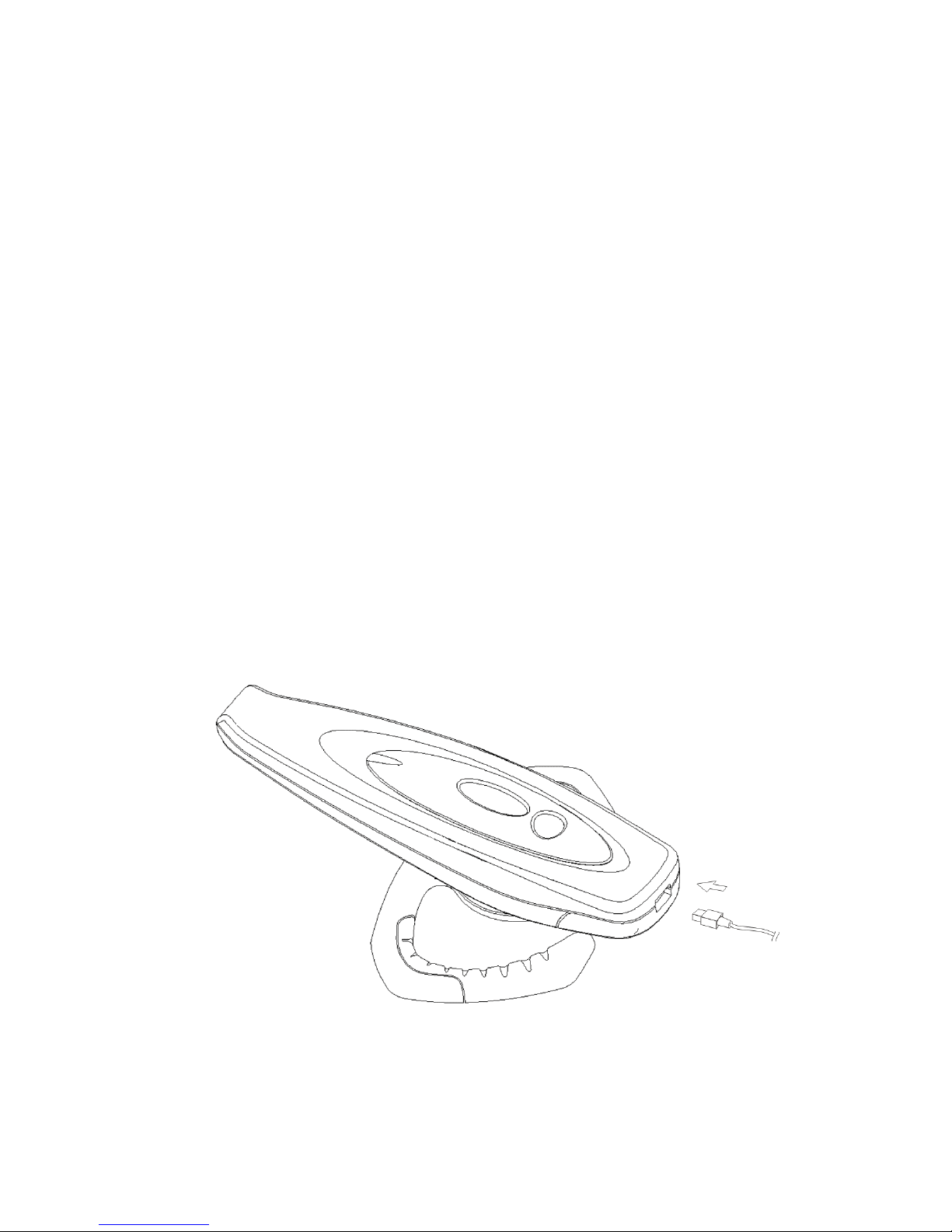
To charge the battery,
1. Connect the supplied external charger to AC main.
2. Plug the DC plug of the external charger into the DC jack located at the
end of the Headset to charge the battery.
3. It takes about 1 hour to fully recharge the battery.
4. During charging, the indicator light of the external charger is turned on.
When the battery is fully charged the indicator light is turned off.
Page 9

User Guide Page 8
TTTTurn
urn urn
urn on
on on
on the Headset
the Headsetthe Headset
the Headset
1. Press the ON/OFF button once, and the Headset indicator light flashes
green. The Headset is now ready to use.
2. If the battery is low, the Headset indicator light flashes red.
TTTTurn
urn urn
urn off
off off
off the Headset
the Headsetthe Headset
the Headset
1. Press and hold the ON/OFF button for about 3 seconds until the Headset
indicator light switches off.
2. To save battery power, turning off the headset after use is recommended.
Page 10

User Guide Page 9
Pairin
PairinPairin
Pairingggg
Bluetooth Passkey
The Bluetooth passkey (or PIN) is used to validate two Bluetooth devices to
each other and create a trusted relationship between them. It is used to
prevent unauthorized use of a Bluetooth device by people other than the
owner of the device. The process of creating a trusted relationship between
two Bluetooth devices is called “Pairing” (see next section).
Each ATO Bluetooth headset has a unique passkey, which is stored in its
internal memory. You can find the value of the passkey from the supplied
user registration card. Whether you need to use the passkey during pairing
depends on the kind of Bluetooth device that the headset will be connected to:
1. ATO Mobile Phone Adaptor – If you are using the headset with a mobile
phone that has the ATO Mobile Phone Adaptor that comes with the
Headset installed, you don’t normally need to use the passkey. Please
refer to the ATO Mobile Phone Adaptor user guide for more detailed
information.
2. ATO PC Adaptor – If you are using the headset with a PC that has the
ATO PC Adaptor connected, depending on the configuration of the PC
software, you may be required to enter the passkey on the PC during
pairing. Please refer to the user guide of the ATO PC Adaptor for
detailed information.
3. Bluetooth Mobile Phone or other devices – If you want to use the headset
with a mobile phone or other devices with Bluetooth capability, you are
usually required to enter the passkey on that device during pairing.
Please refer to the user guide of the mobile phone for the specific
operation.
Page 11

User Guide Page 10
Pairing the Headset
To use the Headset with a Blue tooth-e nabled devic e for the first ti me, y ou must
pair the Headset with that device, for example, a mobile phone.
Different device may r equir e differen t p airi ng pr ocedure. The p airi ng pr ocedur e
for the Headset is described here. Please refer to the user manual of the
other device for specific pairing method.
Each Headset has a unique passkey. To complete pairing, you need to enter
the correct passkey when required by the other device during pairing.
To pair the Headset with the device,
1. Activate the Bluetooth function in the other device if necessary. Please
refer to the user manual of the device.
2. Turn the Headset off first. Press and hold the VOLUME button of the
Headset and then press the ON/OFF button once. Wait until the
indicator light on the Headset flashes green and red. The Headset is
now ready for pairing. Make sure the Headset and the other device are
not too far apart (within 3 meters is recommended).
3. Initiate Bluetooth pairing in the other device to pair it with the Headset.
Please refer to the user manual for that device.
4. When asked by the device, enter the Headset passkey and then confirm if
necessary. If pairing is successful, the Headset indicator light flashes
green and is ready for voice connection.
5. If no pairing is possible for a period of time (approximately 1 and a half
minutes), the headset will turn itself off. Previous pairing (if any) is
revoked.
6. You can abort pairing any time by pressing and holding the ON/OFF
button for about 3 seconds until the Headset is turned off. Previous
pairing (if any) is revoked.
Page 12

User Guide Page 11
Adjusting the Listening Volume
Adjusting the Listening VolumeAdjusting the Listening Volume
Adjusting the Listening Volume
During a call, you can adjust the Headset listening volume using the VOLUME
control button. The Headset supports three listening levels, LOW, MEDIUM, &
HIGH.
To adjust the listening level,
1. Press the VOLUME control button once, the listening level changes
according to the following sequence:
…LOW→MEDIUM→HIGH→MEDIUM→LOW→MEDIUM→HIGH …
2. If the connected audio g ateway (eg. Mobile phone) suppor ts rem ote audi o
volume control, the listening level can also be adjusted on the audio
gateway side. Please refer to the user manual of the audio gateway for
detailed operation.
Page 13

User Guide Page 12
Making
Making Making
Making and Receiving
and Receiving and Receiving
and Receiving Calls
CallsCalls
Calls with a
with a with a
with a
BBBBluetooth
luetoothluetooth
luetooth MMMMobile phone
obile phoneobile phone
obile phone
After pairing the Headset with your mobile phone, you can make and receive
calls using the Headset within a range of approximate 10 meters. The
Headset light indicator flashes more quickly during a call.
To make a call using a Bluetooth enabled mobile phone:
1. Make sure the phone and the Headset are on and within range of each
other.
2. If the mobile phone supports voice dialing, press the ON/OFF button of
the Headset once. After hearing a beep sound from the Headset, you
can voice dial as you normally would.
3. If the mobile phone does not supports voice dialing, enter the number
using the phone’s keypad or recall it from the phone book the as you
normally would.
4. After the call has been set up, the call should be transferred to the
Headset automatically.
5. You can end the call by pressing ON/OFF button of the Headset.
To answer a call,
1. When th e Headset rings, press the ON/OFF button of the Headset once.
2. If the phone rings first, wait until the Headset rings, then press the
ON/OFF button
3. You can end the call by pressing ON/OFF button of the Headset once or
pressing the NO key on the phone.
Page 14

User Guide Page 13
Making
Making Making
Making and Receiving
and Receiving and Receiving
and Receiving Calls
CallsCalls
Calls with a
with a with a
with a M
M M
Mobile
obile obile
obile
phone with
phone with phone with
phone with ATO
ATO ATO
ATO Mobile Phone
Mobile Phone Mobile Phone
Mobile Phone Adaptor
AdaptorAdaptor
Adaptor
installed
installedinstalled
installed
To make a call using a mobile phone with ATO Mobile Phone Adaptor
installed:
1. Make sure the phone, the Mobile Phone Adaptor, and the Headset are on
and within range of each other.
2. Press the ON/OFF button of the Headset once. The Headset light
indicator flashes more quickly after linking to the Mobile Phone Adaptor.
during a call. Enter the number using the ph one’s keypad or recall i t from
the phone book the as you normally would.
3. After the call has been set up, the call will be transferred to the Headset
automatically.
4. You can end the call by pressing ON/OFF button of the Headset.
To answer a call,
1. When the phone rings, press the ON/OFF button of the Headset once.
The Headset light indicator flashes more quickly after linking to the Mobile
Phone Adaptor.
2. You can end the call by pressing ON/OFF button of the Headset once or
pressing the NO key on the phone.
Page 15

User Guide Page 14
Transferring Sound from
Transferring Sound from Transferring Sound from
Transferring Sound from a Bluetooth
a Bluetooth a Bluetooth
a Bluetooth
Mobile
Mobile Mobile
Mobile Phone to Headset
Phone to HeadsetPhone to Headset
Phone to Headset
If you have an ongoing call on your phone without using the Headset, you can
transfer the sound to a Headset (paired with the phone) within rang:
.
1. During the call, press the ON/OFF button of the Headset to transfer the
sound to the Headset
Transferring Sound from Headset
Transferring Sound from HeadsetTransferring Sound from Headset
Transferring Sound from Headset to
to to
to a
a a
a
Bl
BlBl
Bluetooth
uetooth uetooth
uetooth Mobile
Mobile Mobile
Mobile Phone
PhonePhone
Phone
If you have an ongoing call on your phone using the Headset (paired with the
phone), you should be able to transfer the sound back to the phone. Please
refer to the user manual of the mobile phone for detail.
Transferring Sound f
Transferring Sound fTransferring Sound f
Transferring Sound from
rom rom
rom a
a a
a Mobile phone
Mobile phone Mobile phone
Mobile phone
with
with with
with ATO
ATO ATO
ATO Mobile Phone Adaptor installed
Mobile Phone Adaptor installedMobile Phone Adaptor installed
Mobile Phone Adaptor installed
to Headset
to Headsetto Headset
to Headset
This feature is not currently supported.
Transferring Sound from
Transferring Sound from Transferring Sound from
Transferring Sound from the Headset to a
the Headset to a the Headset to a
the Headset to a
Mobile phone with
Mobile phone with Mobile phone with
Mobile phone with ATO
ATO ATO
ATO Mobile Phone
Mobile Phone Mobile Phone
Mobile Phone
Adaptor installed
Adaptor installedAdaptor installed
Adaptor installed
This feature is not currently supported.
 Loading...