

Page 1
o
'S G UdcbaZYXWVUTSRQPONMLKJIHGFEDCBA
HOME COMPUTERS
Page 2

Page 3
Table of Contents
What ModemLink Can Do For You 3
Hooking Up Your ATARI 1030 Direct-Connect Modem 4
Starting Up With ModemLink 6
Choosing Between Pulse and Tone Dialing 7
Dialing from the Keyboard 7
Manual Dialing with the Telephone 8
Switching from Originate to Answer 9
HELP When You're On Line 10
QuestionsaZYXWVUTSRQPONMLKJIHGFEDCBA& Answers 14
Helpful Definitions 16
ASCII Character Codes 18
-
Page 4
AT AR ll0 30
Page 5
What ModemLink Can Do For You
elcome to the fascinating world of telecommunications. Your ATARI
1030 Direct-Connect Modem with its built-in ModemLink telecom-
munications program places an almost infinite variety of information
w
and financial services-at your command.
A telephone call connects your ATARI Home Computer to information
utilities where you can shop, play interactive computer games, make airline
reservations .... Send and receive electronic mail. ... Or make new friends
on any of the hundreds of local bulletin board systems operated by home com-
puter owners like yourself .... All from the comfort of your home.
This owner's guide provides easy-to-follow setup procedures for the ATARI
1030 Direct-Connect Modem, plus instructions for loading ModemLink into your
computer and dialing a call from your computer keyboard. You'll also find
descriptions of the HELP features that make Modeml.ink convenient to use,
answers to many frequently asked questions, and helpful definitions that will
start any beginner on the way to becoming an expert in data communications.
Also included-for use once you've become an
Standard Code for Information Interchange (ASCII) characters that allow you to
redefine your computer's output.dcbaZYXWVUTSRQPONMLKJIHGFEDCBA
resources-worldwide databases, educational networks, business
aZYXWVUTSRQPONMLKJIHGFEDCBAII
expert "-are the American
3
Page 6
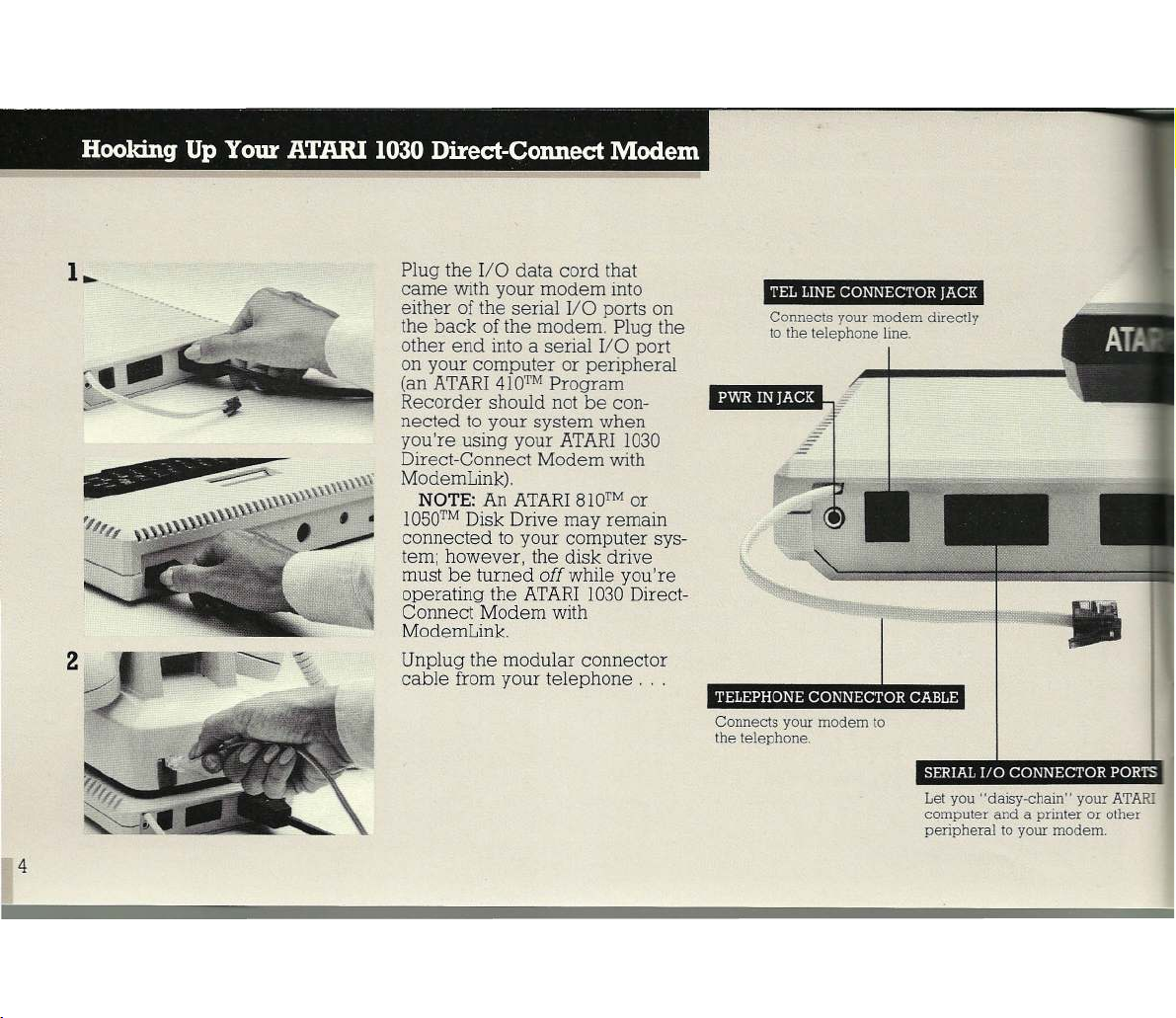
Hooking Up Your ATARI 1030 Direct-Connect Modem
Plug the I/O data cord that
came with your modem into
either of the serial I/O ports on
the back of the modem. Plug the
other end into a serial I/O port
on your computer or peripheral
(an ATARI
Recorder should not be con-
nected to your system when
you're using your ATARI
Direct-Connect Modem with
ModemLink).
NO TE :
1O50 ™
connected to your computer sys-
tem; however, the disk drive
must be turned off while you're
operating the ATARI
Connect Modem with
ModemLink.
Unplug the modular connector
cable from your telephone . .
aZYXWVUTSRQPONMLKJIHGFEDCBA410 TM
Program
103 0
An ATARI
81O ™
or
Disk Drive may remain
103 0
Direct-
TEL LINE CONNECTOR JACK
Connects your modem directly
to the telephone line.
TELEPHONE CONNECTOR CABLE
Connects your modem to
the telephone.
SERIAL I/O CONNECTOR PORTS
Let you "daisy-chain" your ATARI
computer and a printer or other
peripheral to your modem.
4
Page 7
'030
---
dcbaZYXWVUTSRQPONMLKJIHGFEDCBA
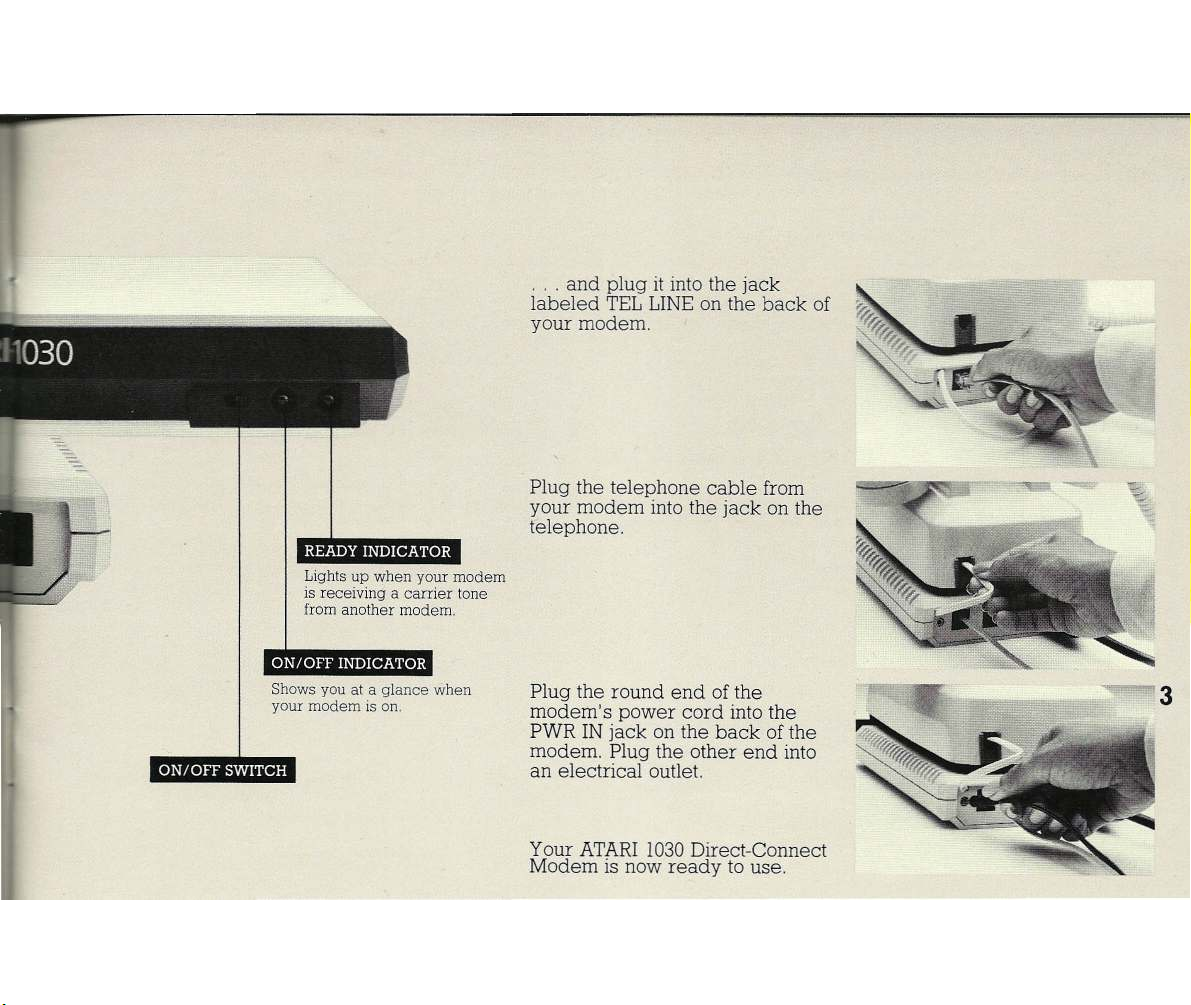
READY INDICATOR
Lights up when your modem
is receiving a carrier tone
from another modem.
ON/OFF INDICATOR
Shows you at a glance when
your modem is on.
ON/OFF SWITCH
... and plug it into the jack
labeled TEL LINE on the back of
your modem.
Plug the telephone cable from
your modem into the jack on the
telephone.
Plug the round end of the
modem's power cord into the
PWR IN jack on the back of the
modem. Plug the other end into
an electrical outlet.
Your ATARI 1030Direct-Connect
Modem is now ready to use.
3
Page 8

Starting U p With Modem Link
If you have an ATARI400™, ATARI800™, or ATARI
1200XLTMComputer, ModemLink loads automatically into
your computer -all you need to do is turn on your
modem, then turn on your computer. To load ModemLink
when you have a language cartridge-such as ATh.RI
BASIC or PILOT- plugged into your computer, first turn
on your modem, then the computer; then type DOS and
press
aZYXWVUTSRQPONMLKJIHGFEDCBAIlm I!l'iD '
If you have an ATARI600XLTMor ATARI800XLTMCom-
puter with built-in BASIC, first turn on your modem,
then-while holding down the
computer to load Modemhink. If your computer is
already on and you want to switch from BASIC to
ModemLink-or if you have a PILOT cartridge plugged
into your computer-type DOS and press
Modeml.ink.
When the ModemLink start-up screen appears, make
your selection by typing one of the numbers shown in in-
verse video (blue characters on a white background),
The words displayed in inverse video indicate the cur-
rent mode of operation,
NO TE:
three seconds before reloading
If you turn your computer off, you must wait
I+l:iimD
key-turn on your
Modeml.ink.
IiI!I!IB
to load
Page 9
Choosing Between Pulse and Tone Dialing
Before you use your computer's keyboard to dial a
call, make sure you've selected the correct dialing pro-
tocol-tone (push-button) or pulse (rotary)-for your
phone. To select tone (push-button) dialing, type 4. Type
4 again to return to pulse (rotary) dialing.
NO TE :
If you have an ATARI
aZYXWVUTSRQPONMLKJIHGFEDCBA40 Q T M
Home Computer,
you cannot use the tone (push-button) dialing feature to
dial from your computer's keyboard.
Dialing from the Computer Ke yboard
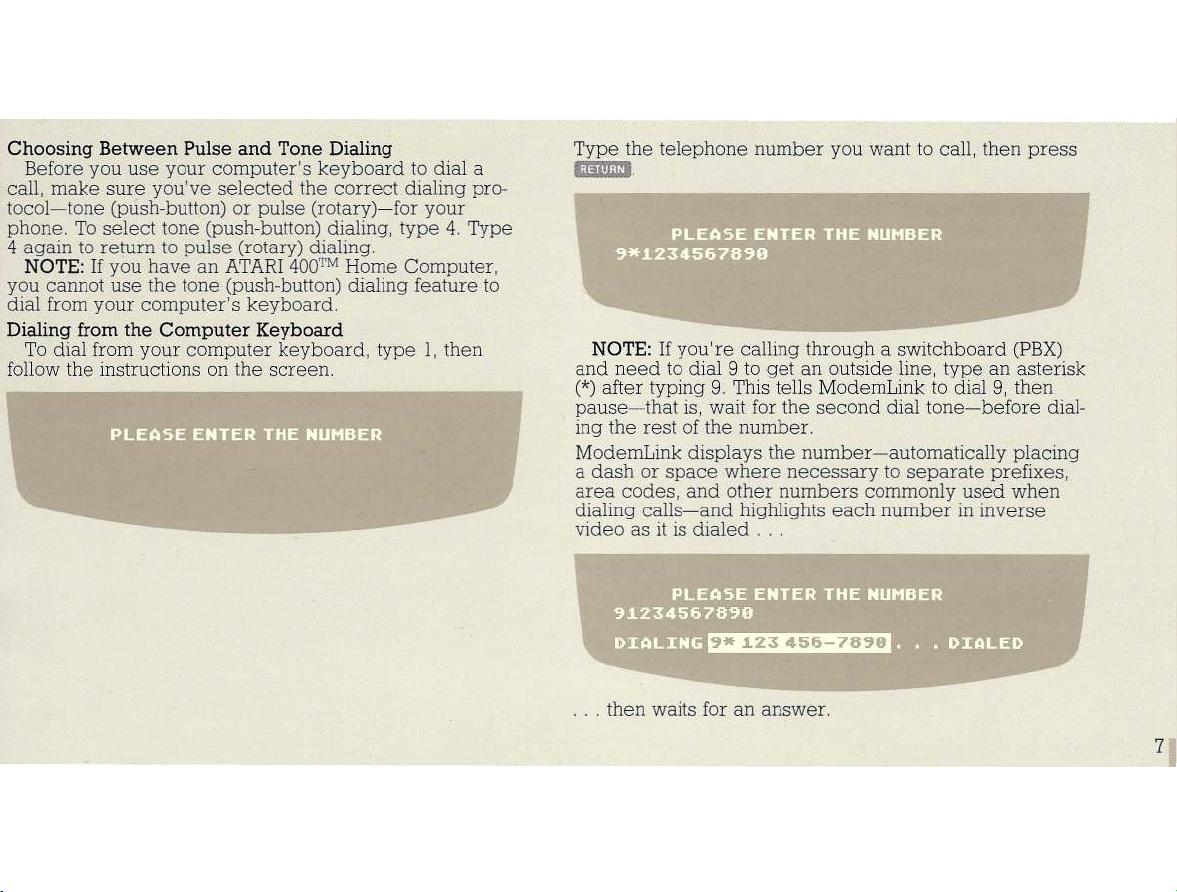
To dial from your computer keyboard, type l, then
follow the instructions on the screen.
Type the telephone number you want to call, then press
mi!rllI.
NO TE :
If you're calling through a switchboard (PBX)
and need to dial 9 to get an outside line, type an asterisk
(*)
after typing 9. This tells ModemLink to dial 9, then
pause-that is, wait for the second dial tone-before dial-
ing the rest of the number.
ModemLink displays the number-automatically placing
a dash or space where necessary to separate prefixes,
area codes, and other numbers commonly used when
dialing calls-and highlights each number in inverse
video as it is dialed . . .
~*
1.23 456
76 ~e
... then waits for an answer.
dcbaZYXWVUTSRQPONMLKJIHGFEDCBA
7
Page 10
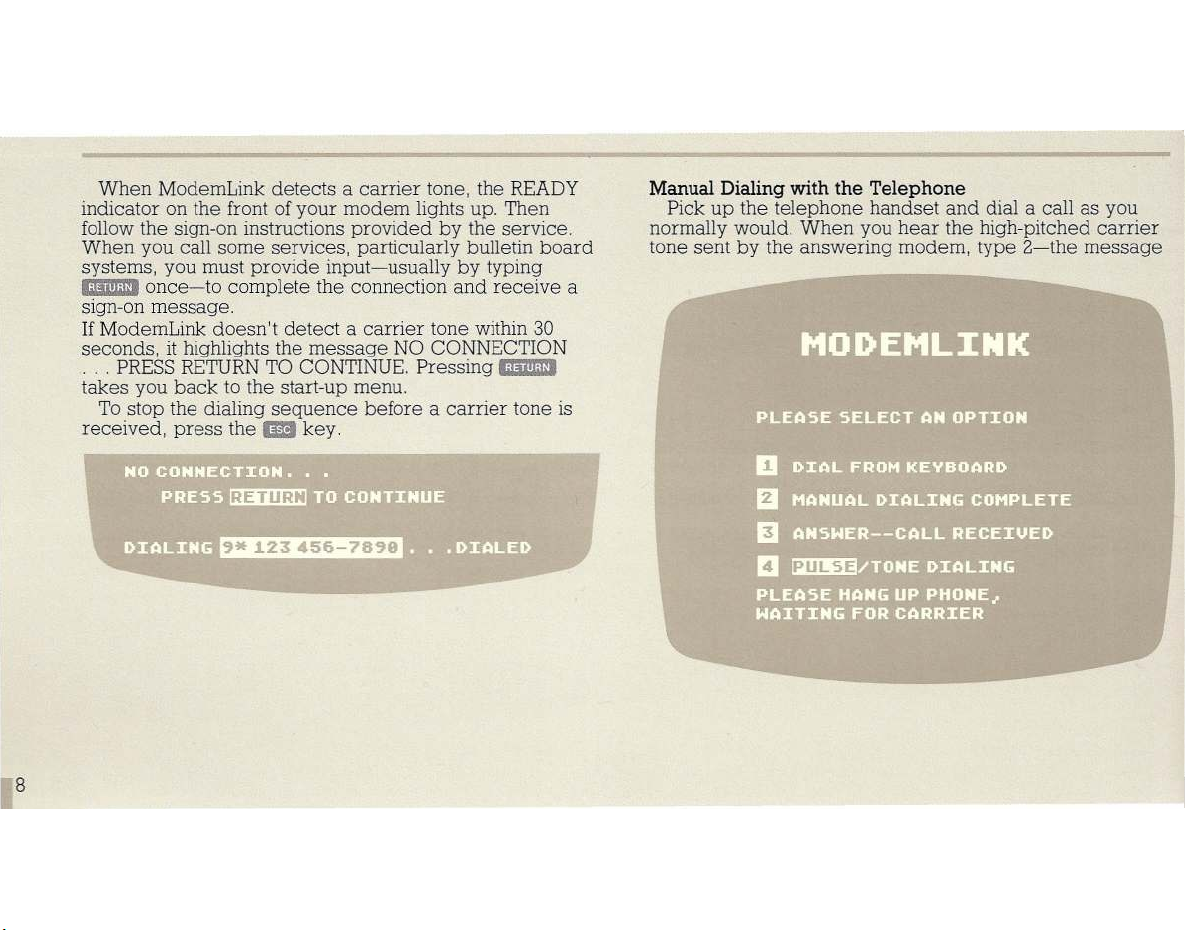
When ModemLink detects a carrier tone, the READY
indicator on the front of your modem lights up. Then
followthe sign-on instructions provided by the service.
When you call some services, particularly bulletin board
systems, you must provide input-usually by typing
m mm
once-to complete the connection and receive a
aZYXWVUTSRQPONMLKJIHGFEDCBA
sign-on message.
If ModemLink doesn't detect a carrier tone within 30
seconds,
... PRESSRETURNTO CONTINUE.Pressing
lkjihgfedcbaZYXWVUTSRQPONMLKJIHGFEDCBAit
highlights the message NO CONNECTION
m mm
takes you back to the start-up menu.
To stop the dialing sequence before a carrier tone is
1m
key.
received, press the
RE TUR N
~*
1.23 45 6
dcbaZYXWVUTSRQPONMLKJIHGFEDCBA
78 ~9
r:' .I1 :'7 .,, "r~
Manual Dialing with th e Telephon e
Pick up the telephone handset and dial a call as you
normally would. When you hear the high-pitched carrier
tone sent by the answering modem, type 2-the message
8
Page 11
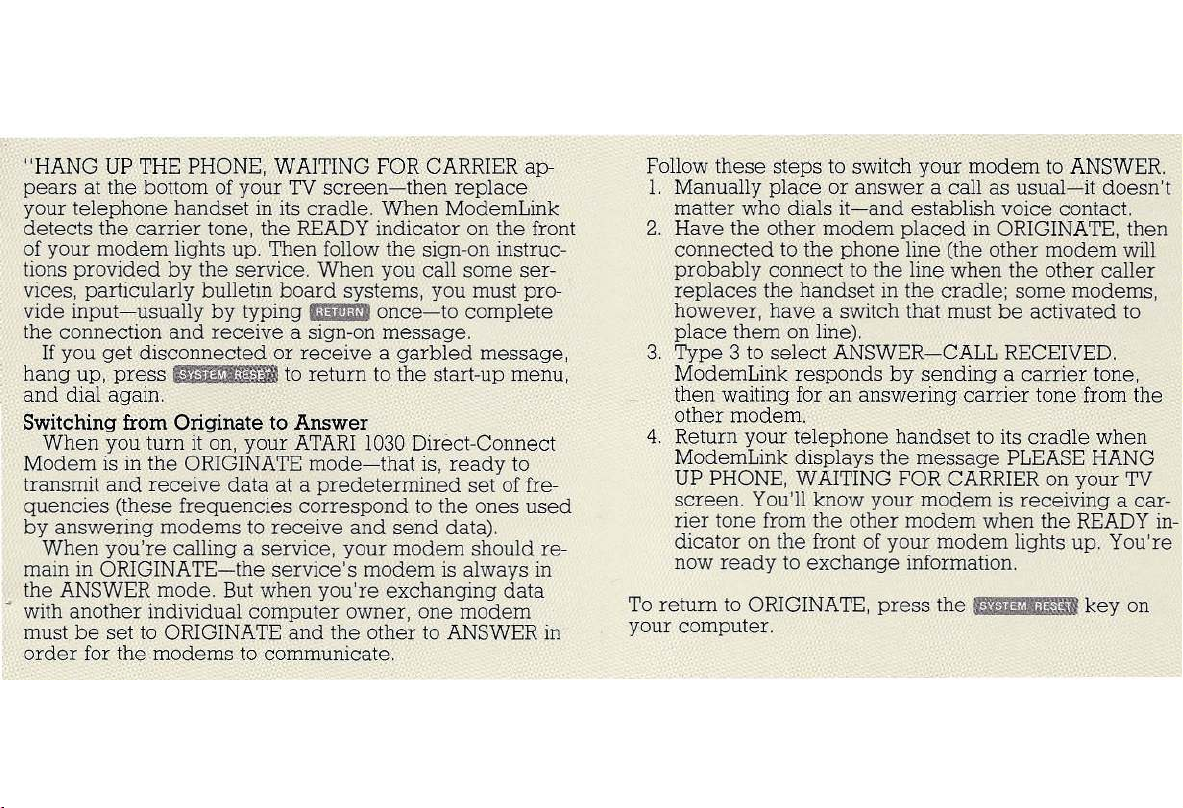
"HANG UP THE PHONE, WAITING FOR CARRIER ap-
pears at the bottom of your TV screen-then replace
your telephone handset in its cradle. When ModemLink
detects the carrier tone, the READY indicator on the front
of your modem lights up. Then follow the sign-on instruc-
tions provided by the service. When you call some ser-
vices, particularly bulletin board systems, you must pro-
vide input-usually by typingaZYXWVUTSRQPONMLKJIHGFEDCBAm m i'II once-to complete
the connection and receive a sign-on message.
If you get disconnected or receive a garbled message,
hang up, press
lkjihgfedcbaZYXWVUTSRQPONMLKJIHGFEDCBAi.t'MMiM'i'ii
to return to the start-up menu,
and dial again.
Switching from Origin ate to Answer
When you turn it on, your ATARI 1030Direct-Connect
Modem is in the ORIGINATE mode-that is, ready to
transmit and receive data at a predetermined set of fre-
quencies (these frequencies correspond to the ones used
by answering modems to receive and send data).
When you're calling a service, your modem should re-
main in ORIGINATE-the service's modem is always in
the ANSWER mode. But when you're exchanging data
with another individual computer owner, one modem
must be set to ORIGINATE and the other to ANSWER in
order for the modems to communicate.
Follow these steps to switch your modem to ANSWER.
1. Manually place or answer a call as usual-it doesn't
matter who dials it-and establish voice contact.
2. Have the other modem placed in ORIGINATE, then
connected to the phone line (the other modem will
probably connect to the line when the other caller
replaces the handset in the cradle; some modems,
however, have a switch that must be activated to
place them on line).
3. Type 3 to select ANSWER-CALL RECEIVED.
ModemLink responds by sending a carrier tone,
then waiting for an answering carrier tone from the
other modem.
4. Return your telephone handset to its cradle when
ModemLink displays the message PLEASE HANG
UP PHONE, WAITING FOR CARRIERon your TV
screen. You'll know your modem is receiving a car-
rier tone from the other modem when the READY in-
dicator on the front of your modem lights up. You're
now ready to exchange information.
To return to ORIGINATE, press the
i.i1"i'M ';i#'i'''
key on
your computer.
Page 12
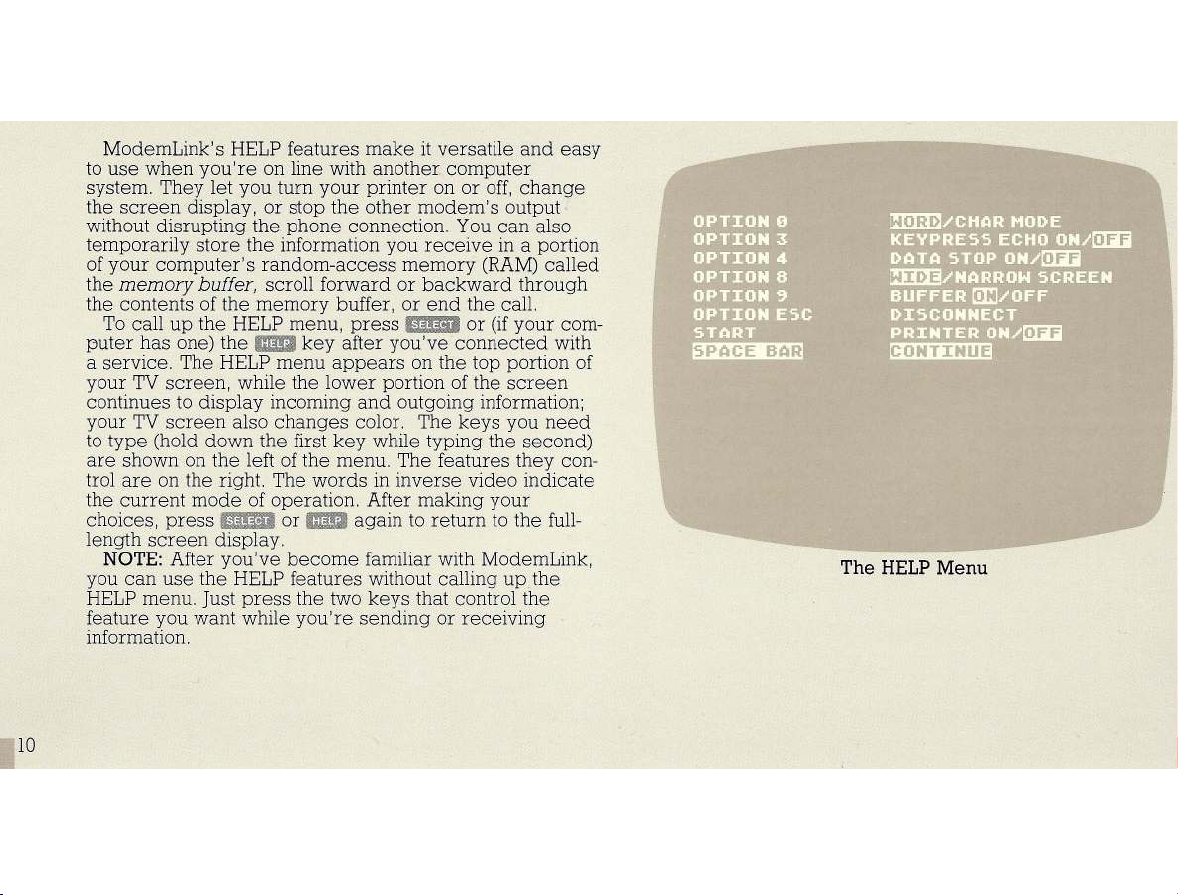
ModemLink's HELP features make it versatile and easy
to use when you're on line with another, computer
system. They let you turn your printer on or off, change
the screen display, or stop the other modem's output,
without disrupting the phone connection, You can also
temporarily store the information you receive in a portion
of your computer's random-access memory (RAM) called
the
memory buffer,
the contents of the memory buffer, or end the call.
To call up the HELP menu, press or (if your com-
puter has one) the
a service, The HELP menu appears on the top portion of
your TV screen, while the lower portion of the screen
continues to display incoming and outgoing information;
your TV screen also changes color, The keys you need
to type (hold down the first key while typing the second)
are shown on the left of the menu, The features they con-
trol are on the right. The words in inverse video indicate
the current mode of operation, After making your
choices, press
length screen display,
NO TE :
you can use the HELP features without calling up the
HELP menu, Just press the two keys that control the
feature you want while you're sending or receiving
information,
aZYXWVUTSRQPONMLKJIHGFEDCBAam
After you've become familiar with ModemLink,
scroll forward or backward through
1m
key after connected with
or again to return to the full-
lkjihgfedcbaZYXWVUTSRQPONMLKJIHGFEDCBA
Th e H E LP M enu
10
dcbaZYXWVUTSRQPONMLKJIHGFEDCBA
Page 13
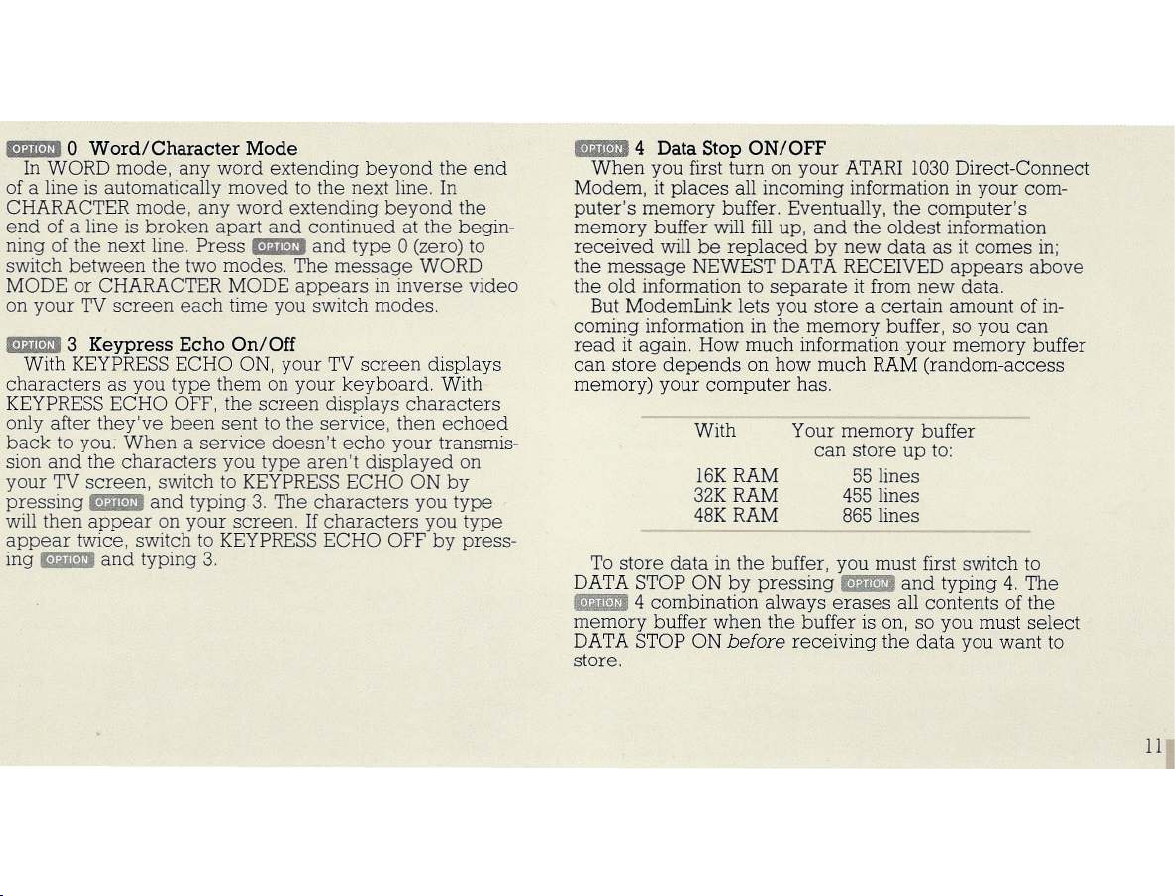
mmilI
dcbaZYXWVUTSRQPONMLKJIHGFEDCBA0 W o rd /C h ar ac te r Mod e
In WORD mode, any word extending beyond the end
of a line is automatically moved to the next line. In
CHARACTER mode, any word extending beyond the
end of a line is broken apart and continued at the begin-
ning of the next line. Press
switch between the two modes. The message WORD
MODE or CHARACTER MODE appears in inverse video
on your TV screen each time you switch modes.
mmilI3
With KEYPRESS ECHO ON, your TV screen displays
characters as you type them on your keyboard. With
KEYPRESS ECHO OFF, the screen displays characters
only after they've been sent to the service, then echoed
back to you. When a service doesn't echo your transmis-
sion and the characters you type aren't displayed on
your TV screen, switch to KEYPRESS ECHO ON by
pressing
will then appear on your screen. If characters you type
appear twice, switch to KEYPRESS ECHO OFF by press-
ing
Keypr ess Ec ho On /O ff
mmilI
mmilI
and typing 3. The characters you type
and typing 3.
mmilI
and type 0 (zero) to
lkjihgfedcbaZYXWVUTSRQPONMLKJIHGFEDCBA
mmilI4
When you first turn on your ATARI 1030 Direct-Connect
Modem, it places all incoming information in your com-
puter's memory buffer. Eventually, the computer's
memory buffer will fill up, and the oldest information
received will be replaced by new data as it comes in;
the message NEWEST DATA RECEIVED appears above
the old information to separate it from new data.
But ModemLink lets you store a certain amount of in-
coming information in the memory buffer, so you can
read it again. How much information your memory buffer
can store depends on how much RAM (random-access
memory) your computer has.
To store data in the buffer, you must first switch to
DATA STOP ON by pressing
mmilI
memory buffer when the buffer is on, so you must select
DATA STOP ON
store.
Data S to p ON/OFF
With
16K RAM
32K RAM
48K RAM
aZYXWVUTSRQPONMLKJIHGFEDCBA4
combination always erases all contents of the
before
Your memory buffer
can store up to:
55 lines
455 lines
865 lines
mmilI
receiving the data you want to
and typing 4. The
11
Page 14
12
After selecting DATA STOP ON, you can store informa-
tion in two ways:
1, You can be selective and store specific portions of
incoming information in the buffer. After you've
received the information you want to store, turn the
memory buffer off by pressing
Your modem will continue to accept new information
and display it on your TV screen, but data won't be
added to the buffer until you turn it back on again,
You can add to the buffer as often as you wish-until
the buffer is full, of course-by turning the memory
buffer on and off as necessary,
2, You can store all incoming information until the
memory buffer fills up completely, When the buffer is
full, the message MEMORY BUFFER FULL-PRESS
SPACE BAR TO CONTINUE appears on your screen,
and your modem sends a "stop transmission" signal to
the other modem (your modem won't accept new data
even when the other modem ignores the "stop
transmission" signal and continues to transmit),
Then you can either press the space bar (and erase the
contents of the memory buffer) or turn the memory buffer
off (and retain the entire contents of the buffer),
Pressing the space bar empties the buffer, sends a "start
transmission" signal to the other modem, and lets
ModemLink fill up the memory buffer.
Turning the memory buffer off sends a "start transmis-
sion" signal to the other modem and lets your modem
aZYXWVUTSRQPONMLKJIHGFEDCBAE1DiD
and typing 9,
accept information again (data received when the
memory buffer is off is displayed on your TV screen but
not placed in the buffer),
E1DiD
Press
This empties the buffer, sends a "start transmission"
signal to the other modem, and lets ModemLink accept
new information continuously again,
NO TE :
combination always erases the entire contents of the buf-
fer; when the buffer is off, ModemLink ignores the
4 combination,
E1DiD dcbaZYXWVUTSRQPONMLKJIHGFEDCBA1m
To end a call from your computer keyboard, press
E1DiD
highlighting the message LINE DISCONNECTED-PRESS
SYSTEM RESET FOR MENU on your screen,
EiI.i1D
printer. ModemLink displays PRINTER ON on your TV
screen, Press
ModemLink displays PRINTER OFF, If your printer is
turned off or not connected when you press
ModemLink displays PRINTER ERROR on your screen,
Printer when you have selected ANSWER-CALL
RECEIVED, Placing your modem in ANSWER mode
removes the
pressing
sounds a buzzer.
and 1m simultaneously, ModemLink responds by
Printer OnlOff
Press
NO TE :
and type 4 to return to DATA STOP OFF,
lkjihgfedcbaZYXWVUTSRQPONMLKJIHGFEDCBA
When the memory buffer is on, the
Disconnect
EiI.i1D
to print incoming information on your
E1&
again to stop printing, and
E1DiD
E1& ,
You cannot print incoming information on your
EiI.i1D
EiI.i1D
option from the HELP menu, and
when your modem is in ANSWER mode
4
E1DiD
Page 15
Em I
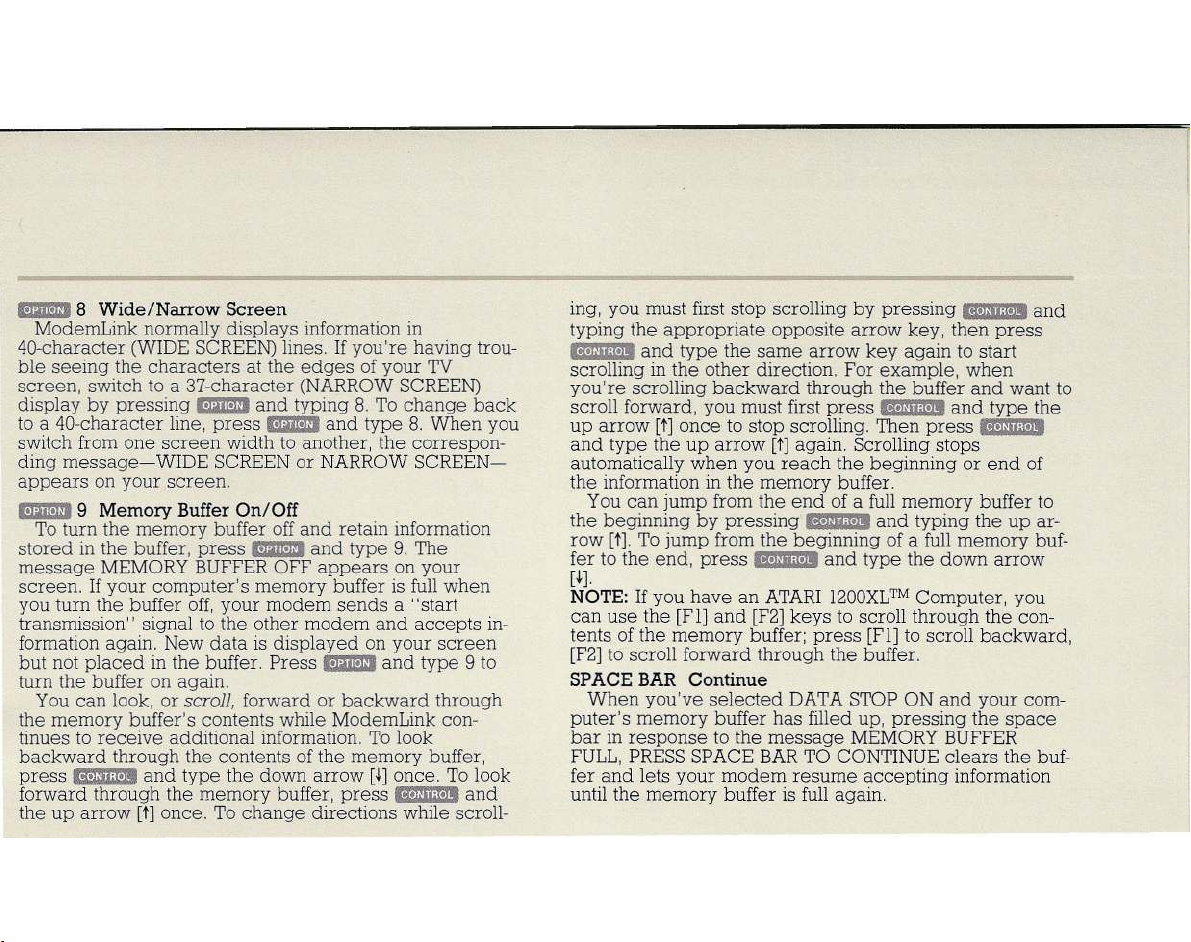
8 W ide/Narrow Screen
ModemLink normally displays information in
40-character (WIDE SCREEN) lines. If you're having trou-
ble seeing the characters at the edges of your TV
screen, switch to a 37-character (NARROW SCREEN)
display by pressing
to a 40-character line, press
switch from one screen width to another, the correspon-
ding message-WIDE SCREEN or NARROW SCREEN-
appears on your screen.
Em l9
To turn the memory buffer off and retain information
stored in the buffer, press
message MEMORY BUFFER OFF appears on your
screen. If your computer's memory buffer is full when
you turn the buffer off, your modem sends a "start
transmission" signal to the other modem and accepts in-
formation again. New data is displayed on your screen
but not placed in the buffer. Press
turn the buffer on again.
You can look, or
the memory buffer's contents while ModemLink con-
tinues to receive additional information. To look
backward through the contents of the memory buffer,
press
forward through the memory buffer, press
the up arrow
Me mory Buffer O n/Off
'B 'lIii;i.],
Em I
and typing 8. To change back
Em I
and type 8. When you
m arm J
and type 9. The
m arm J
and type 9 to
scroll,
forward or backward through
and type the down arrow
[t]
once. To change directions while scroll-
[-1-]
once. To look
Mo r.IIO
:!."
and
ing, you must first stop scrolling by pressing
typing the appropriate opposite arrow key, then press
iQ 'iiii;l·li
scrolling in the other direction. For example, when
you're scrolling backward through the buffer and want to
scroll forward, you must first press
up arrow
and type the up arrow
automatically when you reach the beginning or end of
the information in the memory buffer.
the beginning by pressing
row
fer to the end, press
[t].
NO TE : If you have an ATARI l200XLTM Computer, you
can use the [Fl] and [F2] keys to scroll through the con-
tents of the memory buffer; press [Fl] to scroll backward,
[F2] to scroll forward through the buffer.
SPACE BAR Continue
puter's memory buffer has filled up, pressing the space
bar in response to the message MEMORY BUFFER
FULL, PRESS SPACE BAR TO CONTINUE clears the buf-
fer and lets your modem resume accepting information
until the memory buffer is full again.
and type the same arrow key again to start
iII·lm i!· li
aZYXWVUTSRQPONMLKJIHGFEDCBA[t]
once to stop scrolling. Then press
You can jump from the end of a full memory buffer to
[t].
To jump from the beginning of a full memory buf-
lkjihgfedcbaZYXWVUTSRQPONMLKJIHGFEDCBA
When you've selected DATA STOP ON and your com-
[t]
again. Scrolling stops
iII'!mi"]'
iQ '!Iii;!.I'
and type the down arrow
and typing the up ar-
dcbaZYXWVUTSRQPONMLKJIHGFEDCBA'M il!;"]'
and type the
iII·Ijii;i· li
and
Page 16
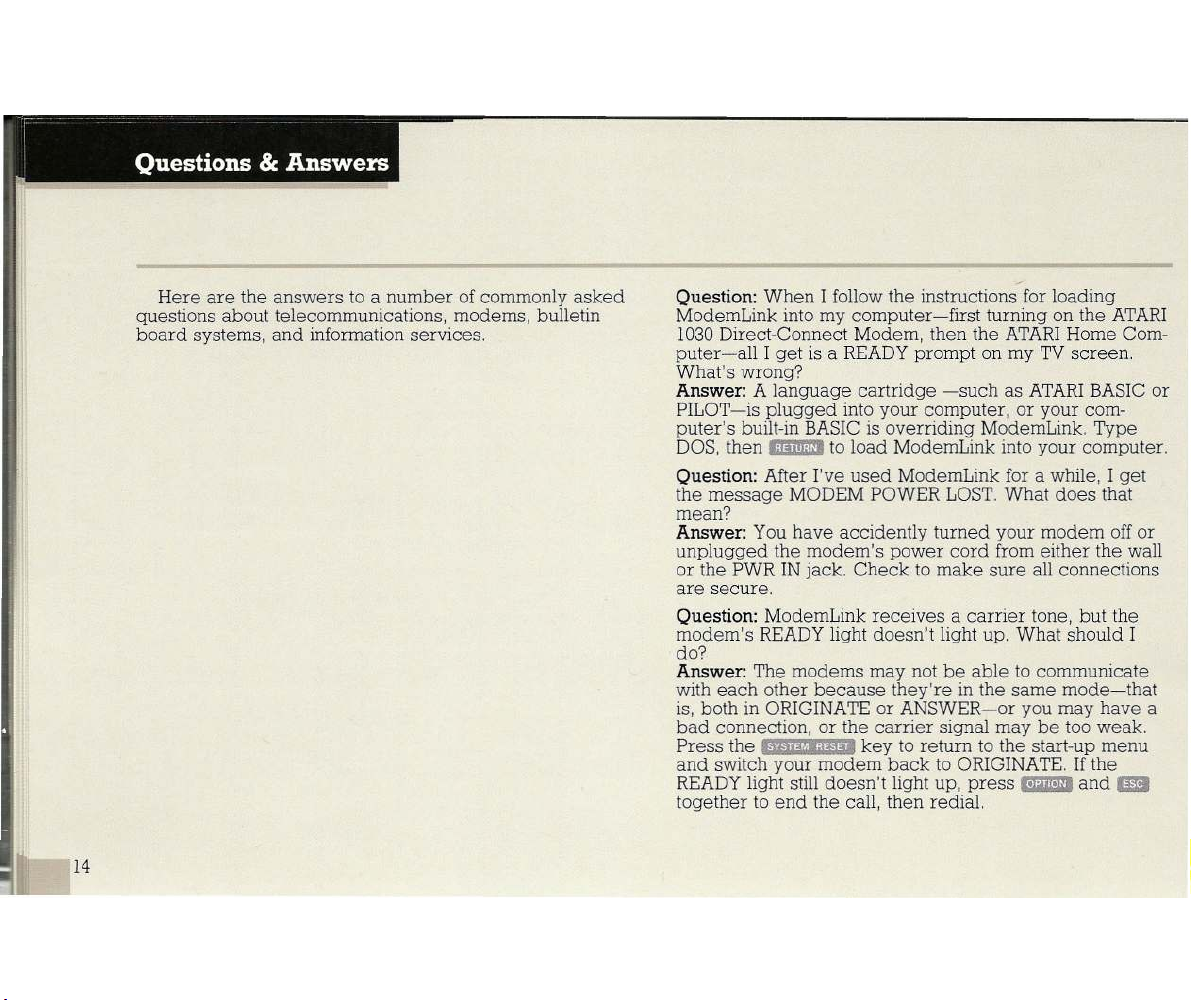
Here are the answers to a number of commonly asked
questions about telecommunications, modems, bulletin
board systems, and information services.
aZYXWVUTSRQPONMLKJIHGFEDCBA
,
Question:
When I follow the instructions for loading
lkjihgfedcbaZYXWVUTSRQPONMLKJIHGFEDCBA
ModemLink into my computer-first turning on the ATARI
1030 Direct-Connect Modem, then the ATARI Home Com-
puter-all I get is a READY prompt on my TV screen.
What's wrong?
Answe r:
A language cartridge -such as ATARI BASIC or
PILOT-is plugged into your computer, or your com-
puter's built-in BASIC is overriding ModemLink. Type
DOS, then
Question:
&mI
After I've used ModemLink for a while, I get
to load ModemLink into your computer.
the message MODEM POWER LOST. What does that
mean?
Answe r:
You have accidently turned your modem off or
unplugged the modem's power cord from either the wall
or the PWR IN jack. Check to make sure all connections
are secure.
Question:
ModemLink receives a carrier tone, but the
modem's READY light doesn't light up. What should I
do?
Answe r:
The modems may not be able to communicate
with each other because they're in the same mode-that
is, both in ORIGINATE or ANSWER-or you may have a
bad connection, or the carrier signal may be too weak.
Press the
dcbaZYXWVUTSRQPONMLKJIHGFEDCBAliMMUH.'
key to return to the start-up menu
and switch your modem back to ORIGINATE. If the
I':lim!lI
READY light still doesn't light up, press
and ••
together to end the call, then redial.
14
Page 17
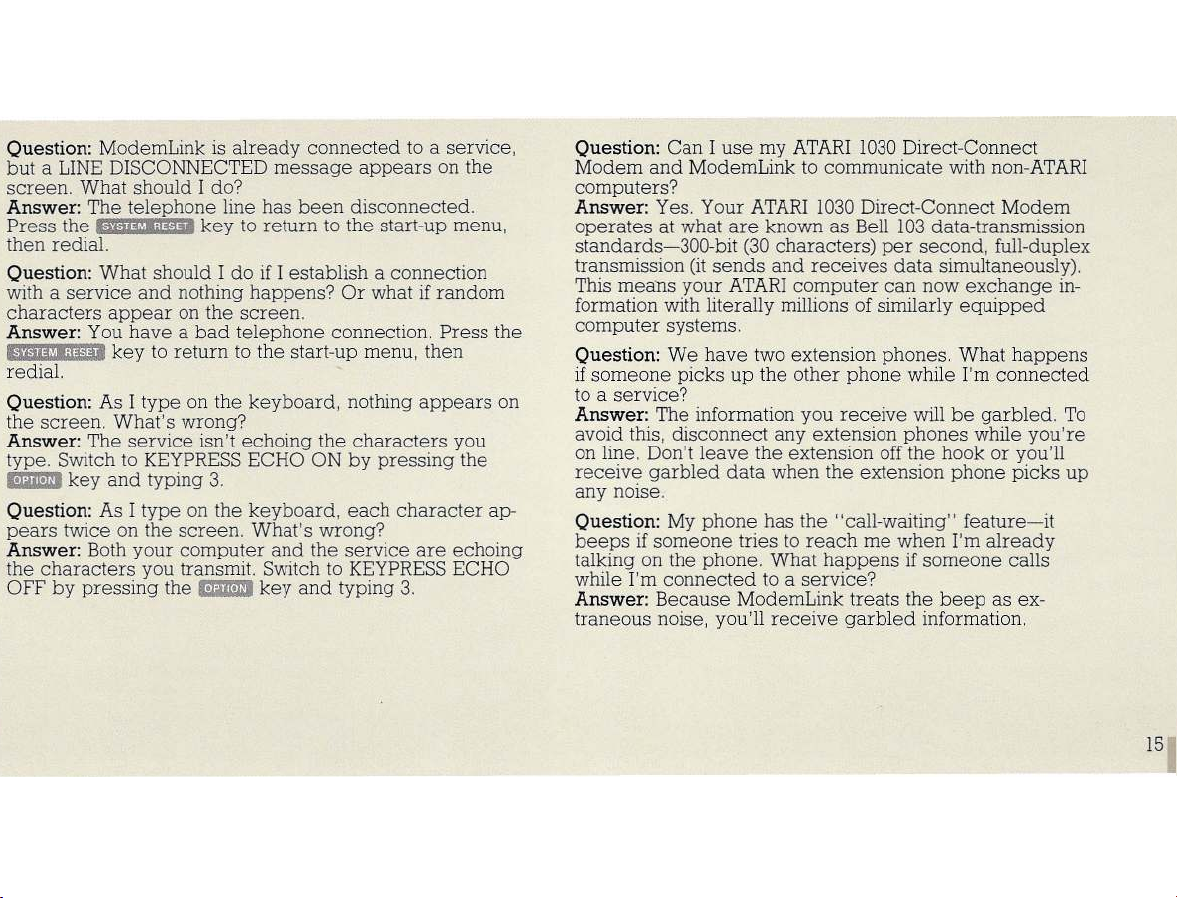
Question:
but a LINE DISCONNECTED message appears on the
screen. What should I do?
Answer:
Press the
then redial.
Question:
with a service and nothing happens? Or what if random
characters appear on the screen.
Answer:
••nii@i;i¥.fli
redial.
Question:
the screen. What's wrong?
Answer:
type. Switch to KEYPRESS ECHO ON by pressing the
E2m+D
Question:
pears twice on the screen. What's wrong?
Answer:
the characters you transmit. Switch to KEYPRESS ECHO
OFF by pressing the
ModemLink is already connected to a service,
The telephone line has been disconnected.
IW 'M i;iW'
What should I do if I establish a connection
You have a bad telephone connection. Press the
key to return to the start-up menu, then
As I type on the keyboard, nothing appears on
The service isn't echoing the characters you
key and typing 3.
As I type on the keyboard, each character ap-
Both your computer and the service are echoing
key to return to the start-up menu,
E2m+D
key and typing 3.
Question:
Modem and ModemLink to communicate with non-ATARI
computers?
Answer:
operates at what are known as Bell 103 data-transmission
standards-300-bit (30 characters) per second, full-duplex
transmission (it sends and receives data simultaneously).
This means your ATARI computer can now exchange in-
formation with literally millions of similarly equipped
computer systems.
Question:
if someone picks up the other phone while I'm connected
to a service?
Answer:
avoid this, disconnect any extension phones while you're
on line. Don't leave the extension off the hook or you'll
receive
aZYXWVUTSRQPONMLKJIHGFEDCBAn oise.
any
Question:
beeps if someone tries to reach me when I'm already
talking on the phone. What happens if someone calls
while I'm connected to a service?
Answer:
traneous noise, you'll receive garbled information.
Can I use my ATARI 1030 Direct-Connect
Yes. Your ATARI 1030 Direct-Connect Modem
We have two extension phones. What happens
The information you receive will be garbled. To
garbled data when the extension phone picks up
My phone has the "call-waiting" feature-it
Because ModemLink treats the beep as ex-
15
Page 18
_.
lkjihgfedcbaZYXWVUTSRQPONMLKJIHGFEDCBA
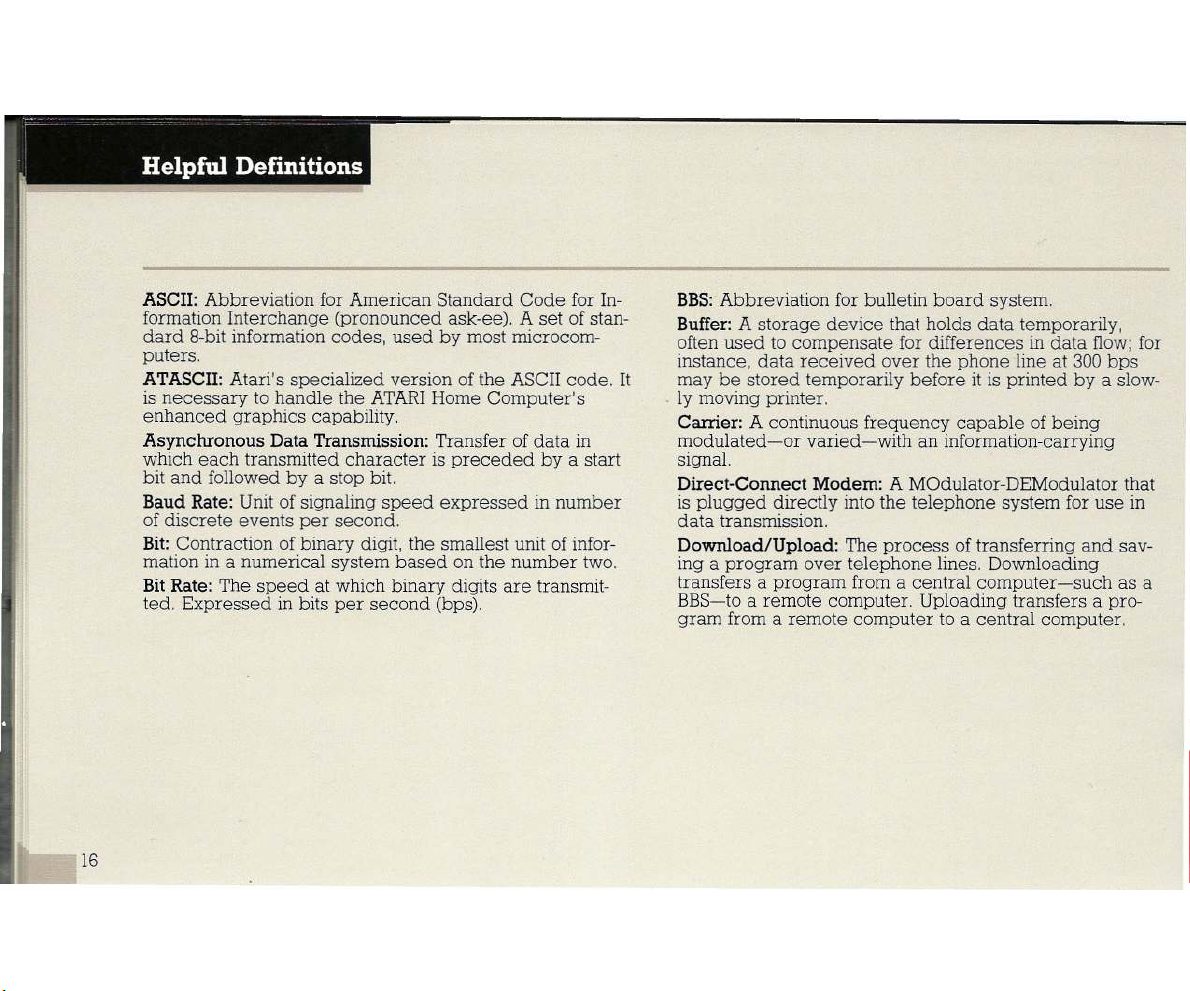
Helpful Definitions
ASCII: Abbreviation for American Standard Code for In-
formation Interchange (pronounced ask-ee). A set of stan-
dard 8-bit information codes, used by most microcom-
puters.
AT ASCII: Atari's specialized version of the ASCII code. It
is necessary to handle the ATARI Home Computer's
enhanced graphics capability.
Asynchronous Da ta Transmission: Transfer of data in
which each transmitted character is preceded by a start
bit and followed by a stop bit.
Baud Rate: Unit of signaling speed expressed in number
of discrete events per second.
Bit: Contraction of binary digit, the smallest unit of infor-
mation in a numerical system based on the number two.
Bit R ate: The speed at which binary digits are transmit-
ted. Expressed in bits per second (bps).
16
BBS: Abbreviation for bulletin board system.
Buffer: A storage device that holds data temporarily,
often used to compensate for differences in data flow; for
instance, data received over the phone line at 300 bps
may be stored temporarily before it is printed by a slow-
. ly moving printer.
Carrie r: A continuous frequency capable of being
modulated-or varied-with an information-carrying
signal.
Direct-Conne ct M od em: A MOdulator-DEModulator that
is plugged directly into the telephone system for use in
data transmission.
Download /Up load: The process of transferring and sav-
ing a program over telephone lines. Downloading
transfers a program from a central computer -such as a
BBS-to a remote computer. Uploading transfers a pro-
gram from a remote computer to a central computer.
Page 19
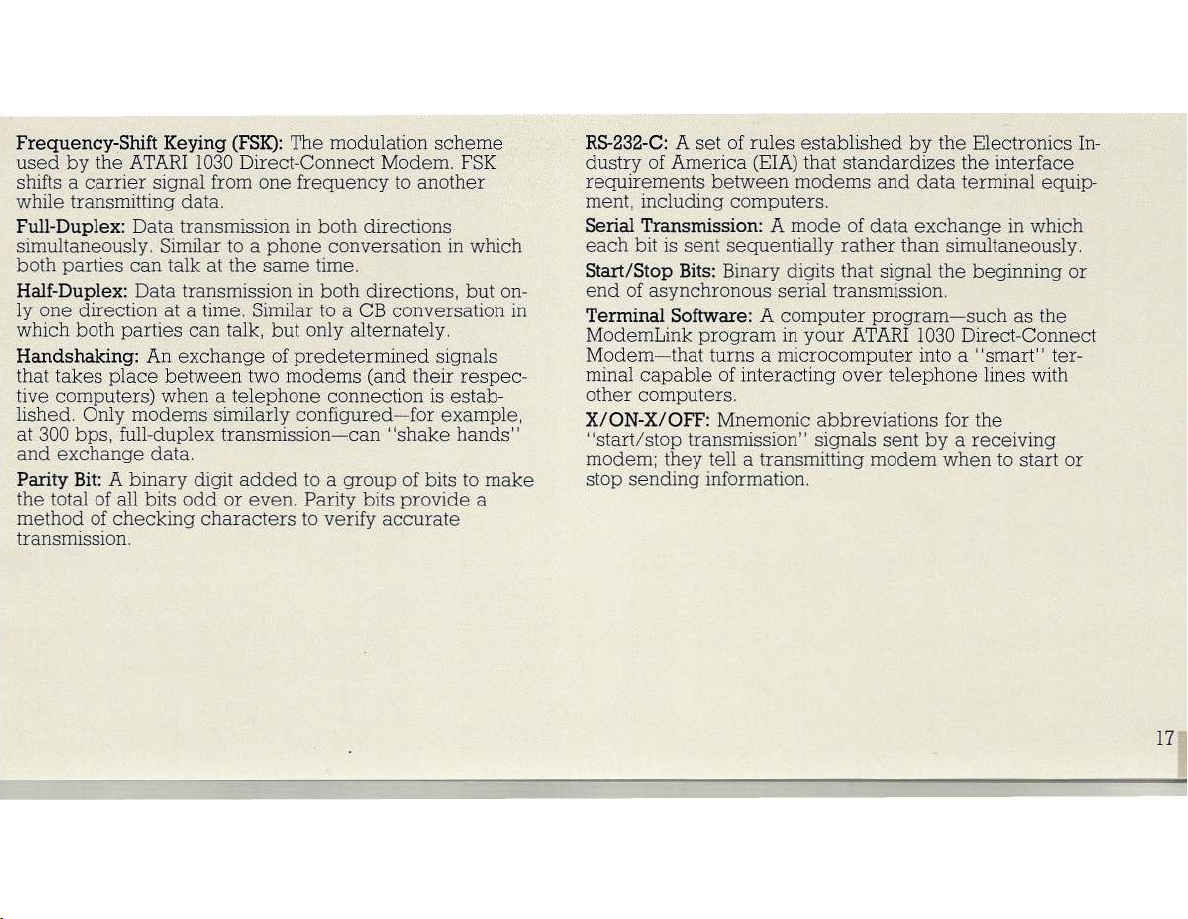
Frequency-Shift Keying (FSK):
The modulation scheme
used by the ATARI 1030 Direct-Connect Modem. FSK
shifts a carrier signal from one frequency to another
while transmitting data.
Full-D uplex:
Data transmission in both directions
simultaneously. Similar to a phone conversation in which
both parties can talk at the same time.
Half-D uplex:
Data transmission in both directions, but on-
ly one direction at a time. Similar to a CB conversation in
which both parties can talk, but only alternately.
Handshaking:
An exchange of predetermined signals
that takes place between two modems (and their respec-
tive computers) when a telephone connection is estab-
lished. Only modems similarly configured-for example,
at 300 bps, full-duplex transmission-can "shake hands"
and exchange data.
Parity Bit:
A binary digit added to a group of bits to make
the total of all bits odd or even. Parity bits provide a
method of checking characters to verify accurate
transmission.
dcbaZYXWVUTSRQPONMLKJIHGFEDCBA
RS-23 2-C:
A set of rules established by the Electronics In-
dustry of America (EIA) that standardizes the interface
requirements between modems and data terminal equip-
ment, including computers.
Serial Tran smission:
A mode of data exchange in which
each bit is sent sequentially rather than simultaneously.
Sta rt/Stop Bits:
Binary digits that signal the beginning or
end of asynchronous serial transmission.
Terminal Software:
A computer program-such as the
ModemLink program in your ATARI 1030 Direct-Connect
Modem-that turns a microcomputer into a "smart" ter-
minal capable of interacting over telephone lines with
other computers.
X/ON-X/OFF:
Mnemonic abbreviations for the
"start/stop transmission" signals sent by a receiving
modem; they tell a transmitting modem when to start or
stop sending information.
17
Page 20
-.:= :::::: :... ~- ---- -~-
ASCII Character Codes
lkjihgfedcbaZYXWVUTSRQPONMLKJIHGFEDCBA
18
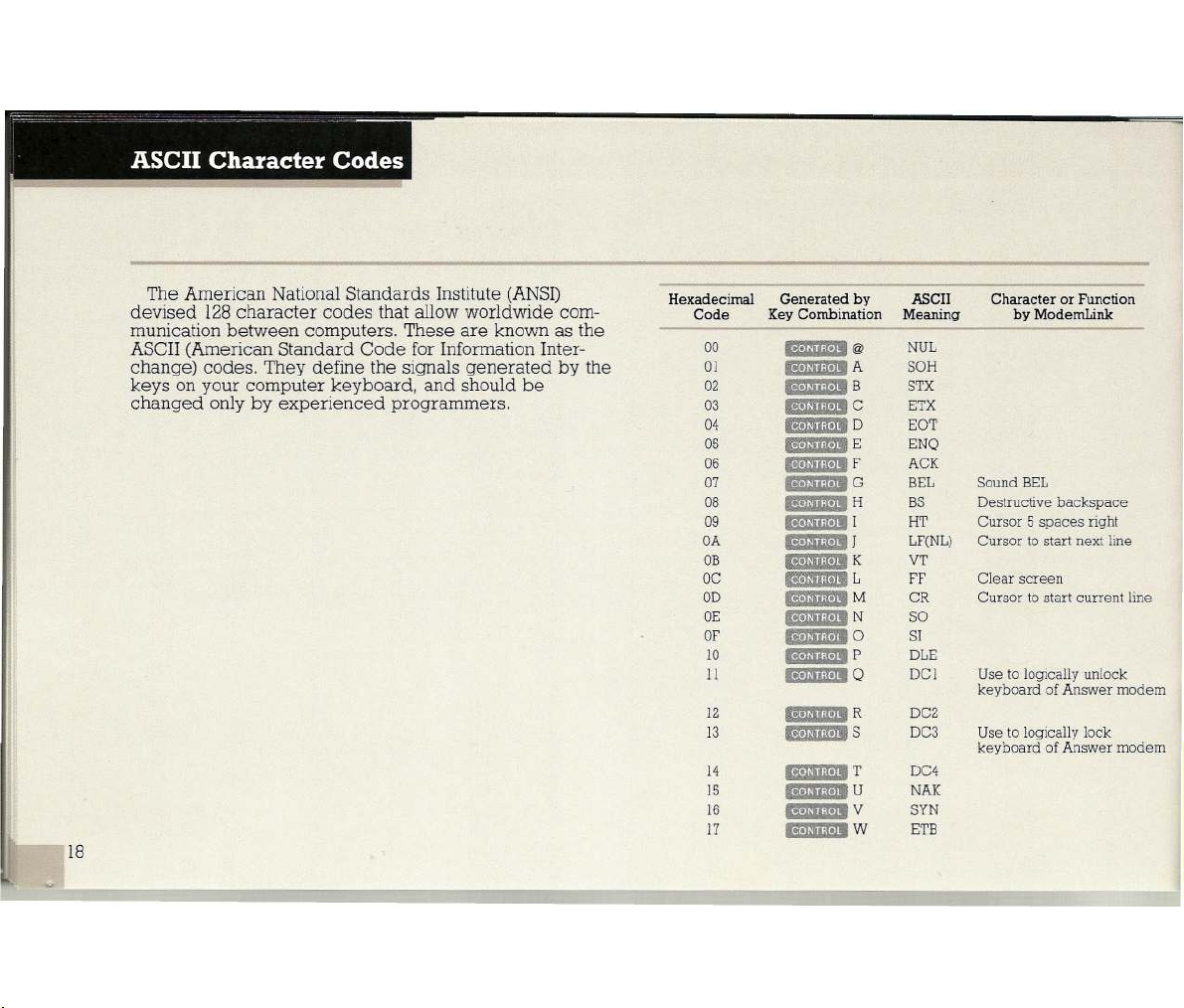
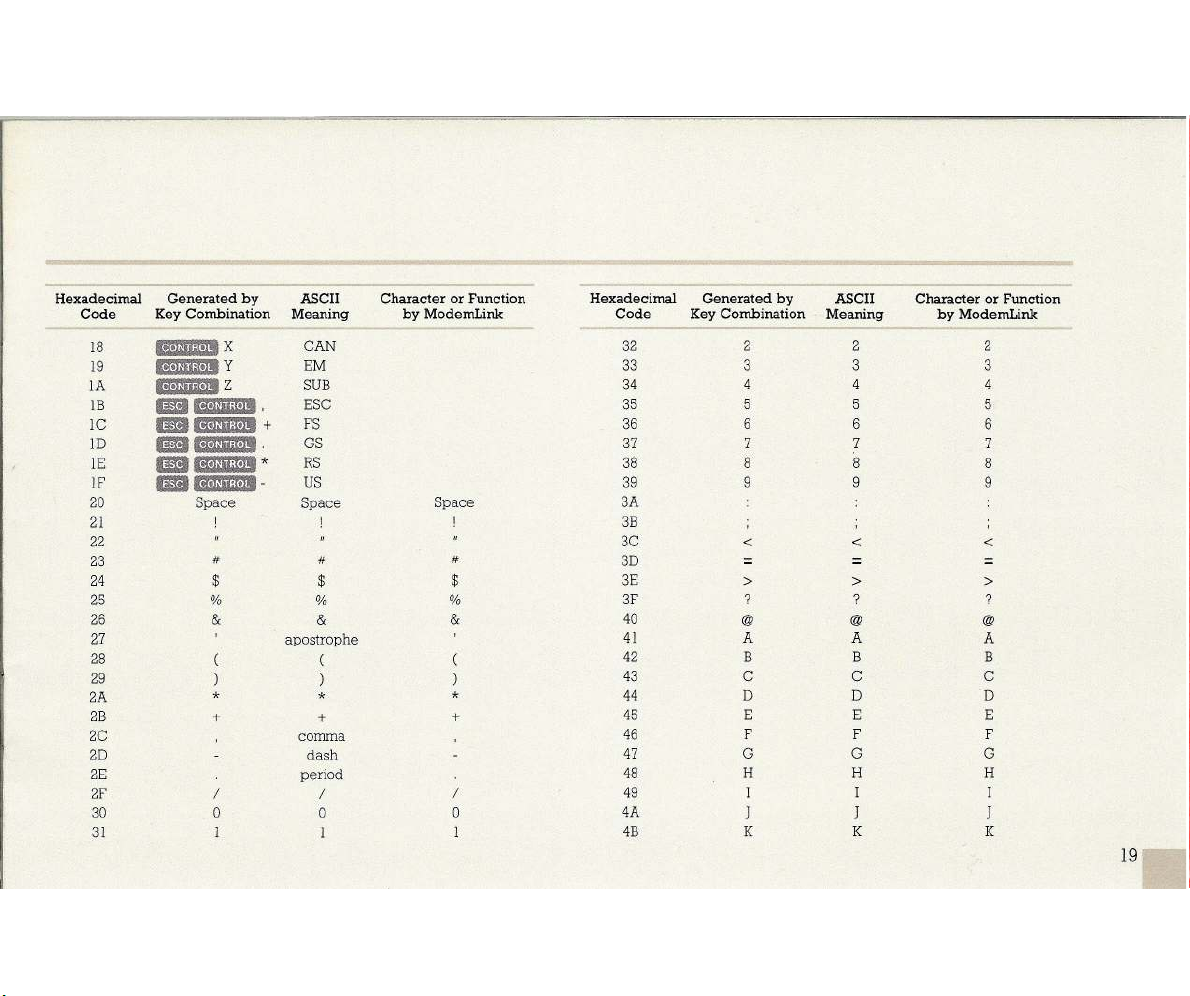
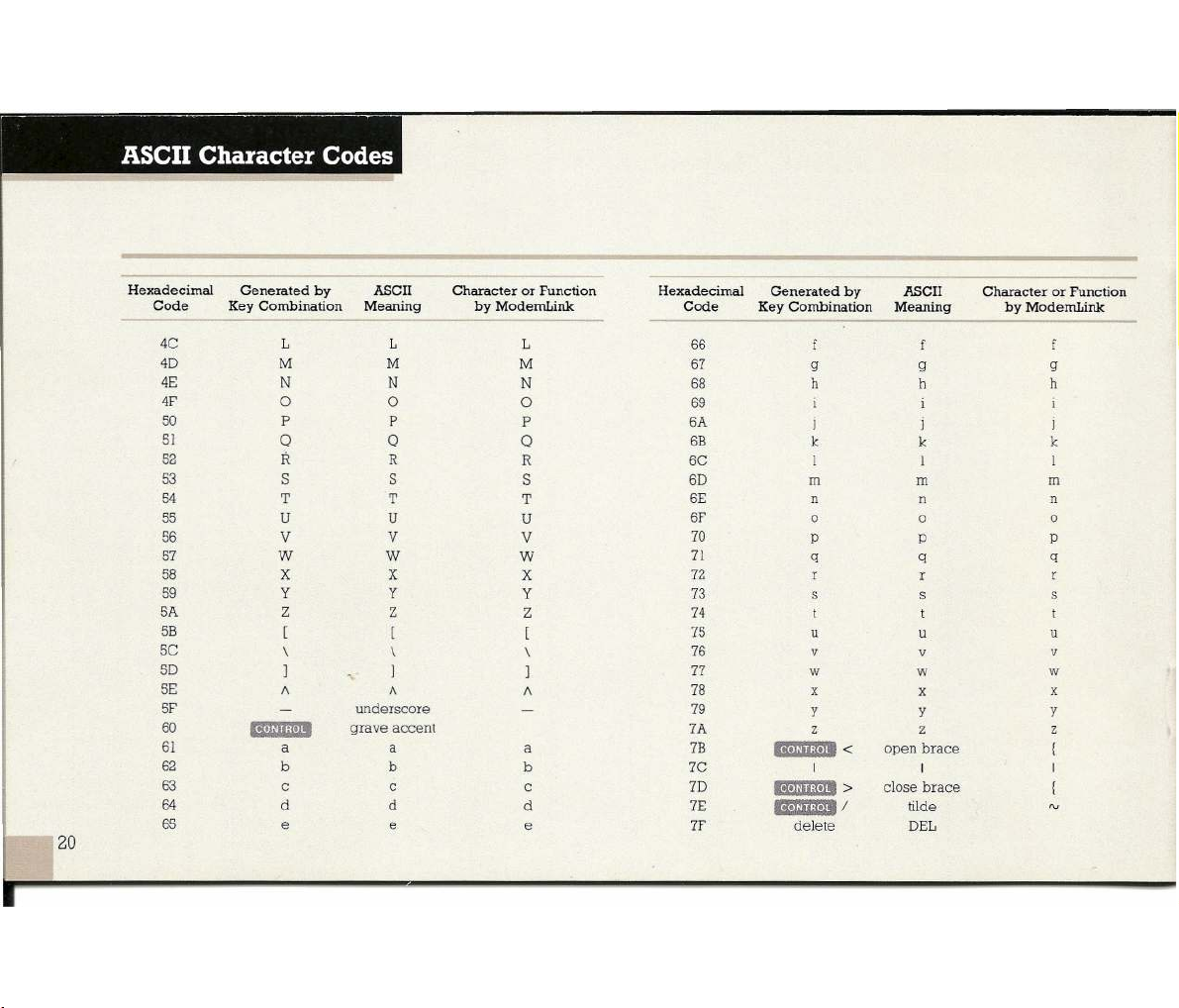
The American National Standards Institute (ANSI)
devised 128 character codes that allow worldwide com-
munication between computers. These are known as the
ASCII (American Standard Code for Information Inter-
change) codes. They define the signals generated by the
keys on your computer keyboard, and should be
changed only by experienced programmers.
Hex adecima l
Cod e
00
01
dcbaZYXWVUTSRQPONMLKJIHGFEDCBA
02
03
04
05
06
07
08
09
OA
OB
OC
OD
OE
OF
10
II
12
13
14
15
16
17
Gen erated by ASCI I Ch arac ter or Fu ncti on
Key Com bin ation
ii· U iI;!."
'Ii.n";!."
e.U";I.,,
'R-niiin)'
U,'hht."
'S'UO a."
iij_Vii;!."
E'W,,;!'"
M'diid."
'9-V";!'"
.a·Vii;!.i'
R'Vii;','.
g· 'd,;m'L
g.id bi.i'M
'g'V";I."
li"d!;""
R-U ";!'"
ii· V ";!'"
.B"dh""
iit'U iI;i.I'
19'U"d'"
IB'Vii;!."
li'Viid'"
'g-Vii;!.,.
Me anin g by Mod ern Link
NUL
@
SOH
A
B
STX
ETX
C
EOT
D
ENQ
E
F
ACK
BEL Sound BEL
G
BS
H
HT
I
LF(NL)
J
VT
K
FF
CR
SO
N
SI
0
DLE
P
DCI
Q
DC2
R
DC3
S
DC4
T
NAK
U
SYN
V
W ETB
Destructive backspace
Cursor 5 spaces right
Cursor to start next line
Clear screen
Cursor to start current line
Use to logically unlock
keyboard of Answer modem
Use to logically lock
keyboard of Answer modem
Page 21
Hexadecimal Generated by ASCII Character or Function
Code
18
19
IA
IB
IC
ID
IE
IF
20
21
Key Combination
lkjihgfedcbaZYXWVUTSRQPONMLKJIHGFEDCBA
,a'U"d']'
P-V";I· "
U"hi;J."
_ g.U
X
Y
Z
n;,."
mI'S·]Ui;l.]I
_ U· Uii;(· " .
1m
p_gUet.,!
1m
g'Uua
Space
aZYXWVUTSRQPONMLKJIHGFEDCBA
I
t
]! -
Meaning
CAN
EM
SUB
I
ESC
FS 36 6
+
GS 37 7 7 7
*
RS 38 8 8 8
US 39 9 9 9
Space
!
by ModemLink
Space
I
22 3C
23
24
25
26
27
#
$
% %
&
apostrophe
#
$
&
#
$
%
&
28
29
2A
2B
*
+ +
*
*
+
2C comma
2D dash
2E period
2F
30 0
31 I I
/
/
0
/
0
I
---
Hexadecimal
Code
dcbaZYXWVUTSRQPONMLKJIHGFEDCBA----
Generated by ASCII
Key Combination
Meaning
32 2 2 2
33 3 3 3
34 4 4 4
35 5
5 5
6 6
3A
3B
3D
< < <
3E
3F
40
> > >
? ?
@ @ @
41 A A
42 B B B
43 C C C
44 D D
45 E E E
46
F F F
47 G G G
48
49
4A
4B
H H H
I I I
J J J
K
K K
Character or Function
by ModemLink
CBA
?
A
D
19
Page 22
- - ----
~~-------
ASCII Character Codes
aZYXWVUTSRQPONMLKJIHGFEDCBA~lkjihgfedcbaZYXWVUTSRQPONMLKJIHGFEDCBA
20
Hexadecimal
Code Key Combination Meaning
4C
40
4E
4F
50
51
52
53
54
55
56
57
58
59
5A
5B
5C
50
5E
Generated by
L L
M M
N N
0
P
Q Q
R
S S
T
U U
V
W W
X X
y y
Z
[
\
1
1\ 1\
5F
dcbaZYXWVUTSRQPONMLKJIHGFEDCBA
60
61
62
63
64
65
lid
88'U
,I'
a a
b b
c c
d
e e
ASCII
0
P
R
T
V
Z
[
\
1
underscore
grave accent
d
Character or Function Hexadecimal
by ModemLink
L
M
N
0
P
Q
R
S
T
U
V
W
X
y
Z
[
\
1
1\
Code Key Combination Meaning by ModemLink
66
67
68
69
6A
6B
6C
60
6E
6F
70
71
72
73
74
75
76
77
78
79
7A
a
b
c
d
e
7B
7C
7D
7E
7F
Generated by
9
h
j
k
I I I
m
n n n
0 0 0
p
q
s
u
v v
w
x
y
ASCII
f
9
h
j
k
m
p
q
s s
u u
w
x
y
z z z
'g·W";'· "
g,Uii
j',"
'g'U ";I'" /
delete
<
>
open brace
I
close brace
tilde
DEL
Character or Function
CBA
9
h
j
k
m
P
q
r
v
w
x
y
Page 23
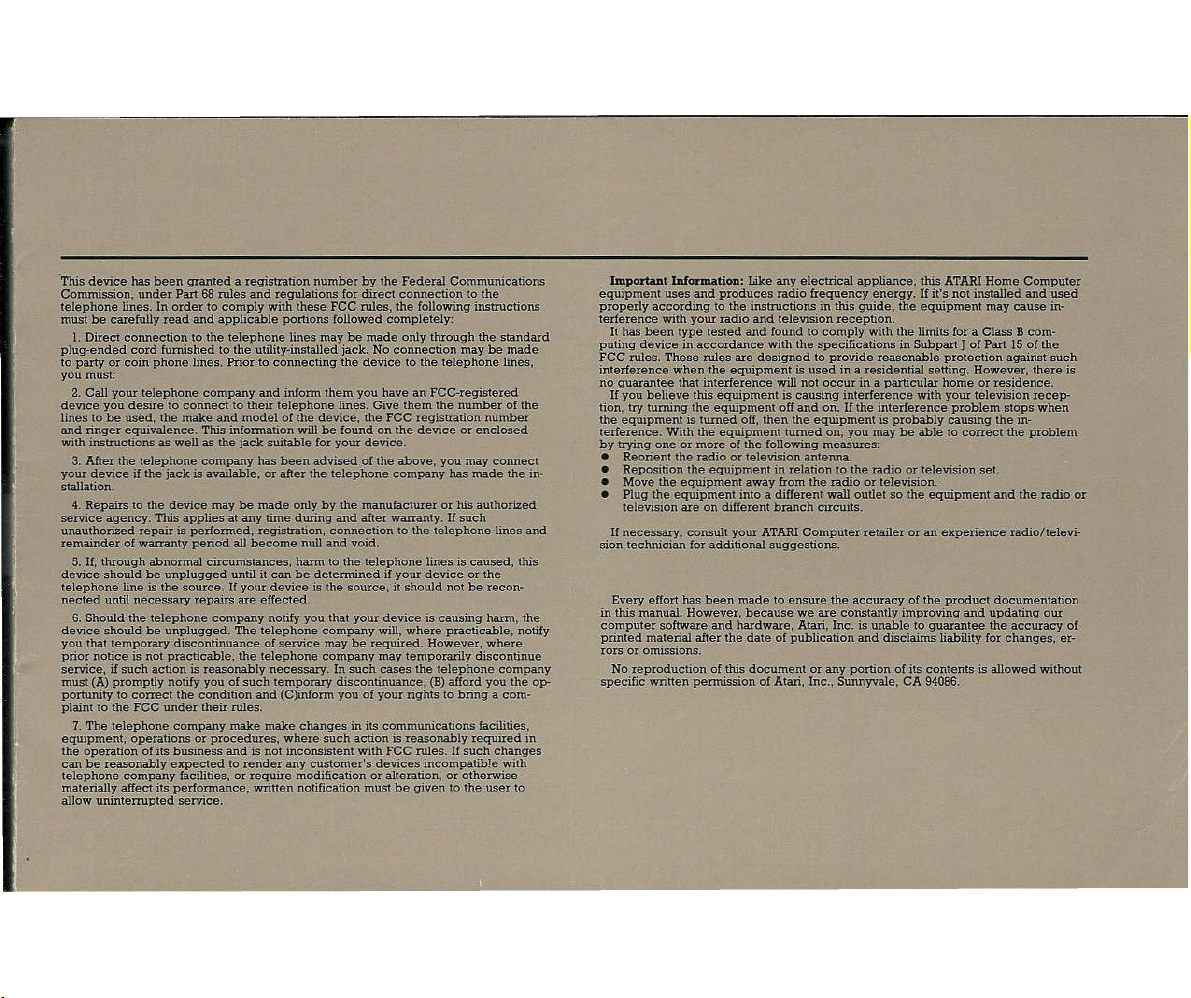
'This device has been granted a registration number by the Federal Communications
Commission, under Part 68 rules and regulations for direct connection to the
telephone lines. In order to comply with these FCC rules, the following instructions
must be carefully read and applicable portions followed completely:
I. Direct connection to the telephone lines may be made only through the standard
plug-ended card furnished te the utility-installed jaek. Ne connection ma¥ be made
to party or coin phone lines. Prior to connecting the device to the telephone lines,
you must:
2. Call your telephone company and inform them you have an FCC-registered
device you desire to connect to their telephone lines. Give them the number of the
lines to be used, the make and model of the device, the FCC registration number
and ringer equivalence. This information will be found on the device or enclosed
with instructions as well as the jack suitable for your device.
3. After the telephone company has been advised of the above, you may connect
your device if the jack is available, or aIIer the telephone company has made the in-
staJlation.
4. Repairs to the device may be made only by the manufacturer or his authorized
service agency. This applies at any time during and aIIer warranty. If such
unauthorized repair is performed, registration, connection to the telephone lines and
remainder of warranty period all become null and void.
5. If, through abnormal circumstances, harm to the telephone lines is caused, this
device should be unplugged until it can be determined if your device or the
telephone line is the source, If your device is the source, it should not be recon-
nected until necessary repairs are effected.
6. Should the telephone company notify you that yeur device is causing harm, the
device should be unplugged. The telephone company will, where practicable, notify
you that temporary discontinuance of service may be required. However, where
prior notice is not practicable, the telephone company may temporarily discontinue
service, if such action is reasonably necessary. In such cases the telephone company
must
(A)
promptly notify you of such temporary discontinuance, (B) afford you the op-
portunity to correct the condition and (Clinform you of your rights to bring a com-
plaint to the FCC under their rules.
7. The telephone company make make changes in its communications facilities,
equipment, operations or procedures, where such action is reasonably required in
the operation of its business and is not inconsistent with FCC rules. If such changes
can be reasonably expected to render any customer's devices incompatible with
telephone company facilities, or require modification or alteration, or otherwise
materially affect its performance, written notification must be given to the user to
allow uninterrupted service.
Imp ortan t lDformatiOD:
equipment uses and produces radio frequency energy. If it's not installed and used
properly according to the instructions in this guide, the equipment may cause in-
terference with your radio and television reception.
It has been type tested and found to comply with the limits for a Class B com-
puting device in aceerdance with the specifications in Subpart
FCC rules. 'I1hese niles are designed to provide reasonable protection against such
interference when the equipment is used in a residential setting. However, there is
no guarantee that interference will not occur in a particular home or residence.
If you believe this equipment is causing interference with your television recep-
tion, try turning the equipment off and on. If the interference problem stops when
the equipment is turned off, then the equipment is probably causing the in-
terference. With the equipment turned on, you may be able to correct the problem
by trying one or more of the following measures:
• Reorient the radio or television antenna.
• Reposition the equipment in relation to the radio or television set.
• Move the equipment away from the radio or television.
• Plug the equipment into a different wall outlet so the equipment and the radio or
television are
If necessary, consult your ATARI Computer retailer or an experience radio/televi-
sion technician for additional suggestions.
Every effort has been made to ensure the accuracy of the product documentation
in this manual. However, because we are constantly improving and updating our
computer software and hardware, Atari, Inc. is unable to guarantee the accuracy of
printed material aIIer the date of publication and disclaims liability for changes, er-
rors or o miss ions.
No reproduction of this document or any portion of its contents is allowed without
specific written permission of Atari, Inc., Sunnyvale, CA 94086.
Like any electrical appliance, this ATARI Home Computer
J
em
different branch circuits.
of Part 15 of the
Page 24
All ric hIs reserved
aZYXWVUTSRQPONMLKJIHGFEDCBA
a
dcbaZYXWVUTSRQPONMLKJIHGFEDCBAA Wa rne r Co mm unic ati ons Co mp an y
Printe
ill
U.S A
 Loading...