

Page 1
Product name /
Model / 型號: A701 / A701Dongle
Quick Start Guide
快速使用指南(繁體中文)
快速使用指南(簡體中文)
クイックスタートガイド (J P)
간단사 용설명서
Guide de démarrage rapide (FR)
Schnellstartanleitung (DE)
Guida rapida (IT)
Guia de Início Rápido (PT:BR)
Краткое руководство (RU)
Guía de inicio rápido (ES)
Beknopte handleiding (NL)
(KO)
Package contents
商品名稱
: Gaming Headset /
電競耳機
Gaming Headset Wireless Receiver /
Hızlı Başlangıç Kılavuzu (TR)
Стисле керівництво для початку експлуатації (UA)
Przewodnik szybkiego startu (PL)
Rychlý průvodce (CS)
Ghid de pornire rapidă (RO)
Gyors üzembe helyezési útmutató (HU)
Snabbstartshandbok (SV)
Pikaopas (FI)
Hurtigstartveiledning (NO)
Stručný návod na používanie (SK)
(AR)
)HB
Q23401a / First Edition / June 2024
無線接收器
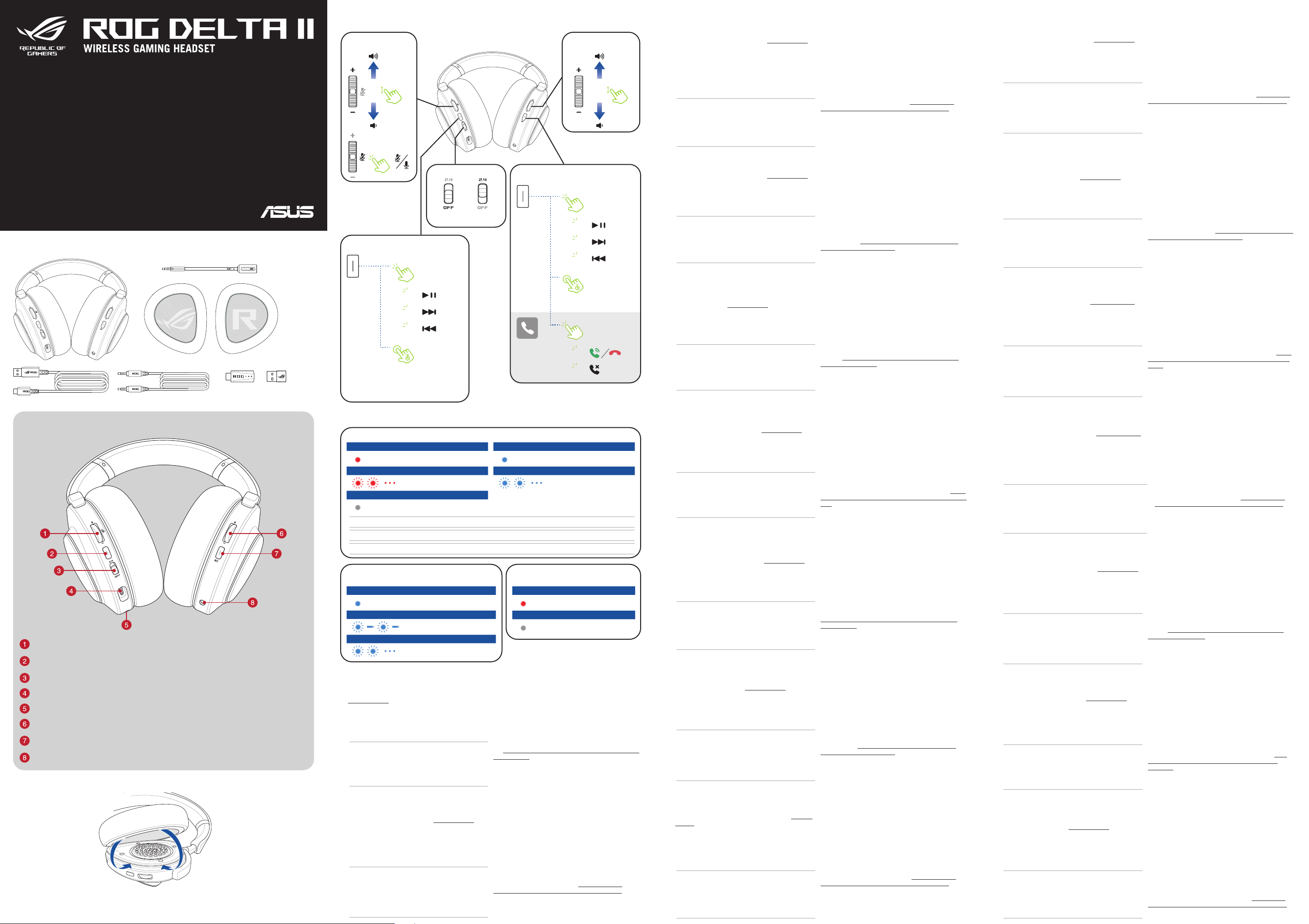
Buttons and switches
Audio control wheel
(2.4GHz)
Function button (2.4GHz)
Power switch (2.4GHz)
Power o
RF 2.4GHz
mode
Audio control wheel
(BT)
Power/Function button (BT)
1
2
3
Erste Schritte
So richten Sie Ihr ROG Delta II Gaming-Headset ein:
1. Verbinden Sie das Headset per Bluetooth oder Dongle mit Ihrem
Gerät.
2. Laden Sie die Armoury Crate Software unter http://rog.asus.com
herunter und installieren Sie sie dann auf Ihrem Computer.
Headset im kabelgebundenen Modus
verwenden
Wenn Sie das Headset mithilfe des mitgelieferten 3,5-mm-Audiokabels
verbinden, stellen Sie sicher, dass das Headset nicht auf den 2,4-GHzModus oder den Bluetooth-Modus eingestellt ist und nicht aufgeladen
wird.
HINWEIS:
• Beim Drücken der Ein-/Ausschalter / Funktionstaste (BT)
wird der Ton/die Musik für fünf Sekunden unterbrochen, bevor
die Wiedergabe fortgesetzt wird.
• Die Audioeigenschaften, einschließlich der Lautstärke, können
im 3,5-mm-Kabelmodus (passiver Modus) im Vergleich zu den
drahtlosen Modi (aktive Modi) variieren.
Procedimientos iniciales
Para configurar su Auriculares para juegos ROG Delta II:
1. Conecte los auriculares al dispositivo a través del Bluetooth® llave.
2. Descargue el software Armoury Crate desde http://rog.asus.com y,
a continuación, instálelo en el equipo.
Utilizar los auriculares en el modo cableado
Cuando conecte los auriculares con el cable de audio de 3,5 mm
incluido, asegúrese de que no estén establecidos en el modo de 2,4 Hz
ni en el modo Bluetooth®, y que tampoco estén cargando energía.
NOTA:
• Al presionar Power/Function button (BT) (botón de
Alimentación/Función [BT]), el sonido o la música se detendrán
durante 5 segundos antes de reanudar la reproducción.
• Las características de audio, incluido el volumen, pueden
variar en el modo de 3,5 mm (modo pasivo) en comparación
con las conexiones inalámbricas (modo activo).
DE FI
ES HU
Noch einmal über Bluetooth koppeln
Sie können noch einmal über Bluetooth koppeln, indem Sie die
folgenden Schritte ausführen. Die Schritte unterscheiden sich je
nachdem, ob der Bluetooth-Modus ein- oder ausgeschaltet ist.
• Bluetooth-Modus aus: Halten Sie die Ein-/Ausschalter /
Funktionstaste (BT) fünf Sekunden lang gedrückt.
• Bluetooth-Modus ein: Halten Sie die Ein-/Ausschalter /
Funktionstaste (BT) und die Funktionstaste (2,4 GHz) gleichzeitig
fünf Sekunden lang gedrückt.
Multi-Plattform-Kompatibilität
Sie können Ihr Headset gleichzeitig über den Bluetooth-Modus
und den 2,4-GHz-Modus verbinden. Weitere Informationen zu
unterstützten Plattformen finden Sie unter https://rog.asus.com/
headsets-audio/headsets/wireless-headsets/rog-delta-ii/spec/.
Volver a emparejar Bluetooth
Puede emparejar Bluetooth de nuevo siguiendo los pasos descritos
a continuación. Los pasos serán diferentes en función de si el modo
Bluetooth está activado o desactivado.
• Modo BT desactivado: Mantenga presionado Power/Function
button (BT) (botón de Alimentación/Función [BT]) durante 5
segundos.
• Modo BT activado: Mantenga presionado tanto Power/Function
button (BT) (botón de Alimentación/Función [BT]) como Function
button (2.4Hz) (botón Función [2,4 Hz]), al mismo tiempo durante
5 segundos.
Compatible con varias plataformas
Puede conectar los auriculares mediante Bluetooth® y 2,4 Hz
simultáneamente. Para obtener más información sobre las plataformas
compatibles, visite https://rog.asus.com/headsets-audio/headsets/
wireless-headsets/rog-delta-ii/spec/.
Näin pääset alkuun
ROG Delta II - kuulokkeiden asentaminen:
1. Liitä kuulokkeet laitteeseesi Bluetooth® tai käyttöavain.
2. Lataa Armoury Crate-ohjelmisto osoitteesta http://rog.asus.com ja
asenna se tietokoneeseen.
Kuulokkeiden käyttäminen langallisessa tilassa
Kun liität kuulokkeet mukana toimitetulla 3,5 mm:n äänikaapelilla,
varmista, että kuulokkeet eivät ole asetettu 2,4 GHz:n tilaan tai
Bluetooth®-tilaan, eikä niissä ole latausvirtaa.
HUOMAUTUS:
• Power/Function button (BT)(Virta-/toimintopainikkeen
(BT)) painaminen pysäyttää äänen/musiikin 5 sekunnin ajaksi
ennen toiston jatkamista.
• Äänen ominaisuudet, mukaan lukien äänenvoimakkuus,
voivat vaihdella 3,5 mm:n tilassa (passiivinen tila) verrattuna
langattomiin yhteyksiin (aktiivinen tila).
Első lépések
ROG Delta II játékosoknak szánt headset beállításához tegye a
következőket:
1. Csatlakoztassa a headsetet a készülékéhez a Bluetooth® vagy kulcs.
2. Töltse le az Armoury Crate szoftvert a http://rog.asus.com
webhelyről, és telepítse a számítógépére.
A headset vezetékes üzemmódban történő használata
Ha a headsetet a mellékelt 3,5 mm-es audiokábellel csatlakoztatja,
győződjön meg arról, hogy a headset nincs 2,4 GHz-es üzemmódra
vagy Bluetooth® üzemmódra állítva, és nem tölt.
MEGJEGYZÉS:
• A Power/Function (BT) (Főkapcsoló/Funkció [BT]) gomb
megnyomásával a hang/zene 5 másodpercre leáll, mielőtt
folytatódna a lejátszás.
• A hangjellemzők, beleértve a hangerőt is, eltérhetnek 3,5
mm-es üzemmódban (passzív üzemmód) a vezeték nélküli
kapcsolatokhoz (aktív üzemmód) képest.
Bluetooth-pariliitoksen muodostaminen uudelleen
Voit muodostaa Bluetooth-pariliitoksen uudelleen noudattamalla
seuraavia ohjeita. Vaiheet vaihtelevat sen mukaan, onko Bluetooth-tila
päällä vai pois päältä.
• BT-tila pois päältä: Pidä Power/Function button (BT)(virta/
toimintopainiketta (BT)) painettuna 5 sekunnin ajan.
• BT-tila päällä: Pidä sekä Power/Function button (BT)(virta/
toimintopainiketta (BT)) että Function button (2.4GHz)
(toimintopainiketta (2,4 GHz)) painettuna samanaikaisesti 5
sekunnin ajan.
Monialustayhteensopivuus
Voit liittää kuulokkeet samanaikaisesti sekä Bluetooth® että 2,4 GHz:n
kautta. Lisätietoja tuetuista alustoista on osoitteessa https://rog.asus.
com/headsets-audio/headsets/wireless-headsets/rog-delta-ii/spec/.
A Bluetooth újbóli párosítása
A Bluetooth újbóli párosítása az alábbi lépésekkel lehetséges. A lépések
attól függően különböznek, hogy a Bluetooth üzemmód be- vagy
kikapcsolt állapotban van-e.
•
BT üzemmód kikapcsolva: nyomja meg és tartsa lenyomva 5 másodpercig
a Power/Function (BT) (Főkapcsoló/Funkció [BT]) gombot.
•
BT üzemmód bekapcsolva: nyomja meg és tartsa lenyomva egyszerre
5 másodpercig a Power/Function (BT) (Főkapcsoló/Funkció [BT])
gombot és a Function (2.4GHz) (Funkció [2,4 GHz]) gombot.
Többplatformos kompatibilitás
A headsetet egyszerre csatlakoztathatja Bluetooth® és 2,4 GHz
használatával. A támogatott platformokkal kapcsolatos további
információkért látogasson el ide https://rog.asus.com/headsets-audio/
headsets/wireless-headsets/rog-delta-ii/spec/.
Headset features
Audio control wheel (2.4Hz) /
Function button with LED indicator (2.4Hz) /
能鍵(2.4Hz)(簡體中文)
Power switch (2.4Hz) /
USB-C® charging port /
Microphone jack /
Audio control wheel (BT) /
Power/Function button with LED indicator (BT) /
燈的電源 / 功能鍵(BT)(簡體中文)
3.5mm audio jack /
音效控制滾輪
電源開關(2.4Hz)(繁體中文)/ 電源開關(2.4Hz)(簡體中文)
USB-C®
充電連接埠(繁體中文)
麥克風插孔(繁體中文)/ 麥克風插孔(簡體中文)
音效控制滾輪(
3.5mm 音效插孔(繁體中文)/ 3.5mm 音頻插孔 (簡體中文)
Installing the ear cushions
(2.4Hz)
(繁體中文)/ 音頻控制滾輪
具備 LED 指示燈的功能鍵(2.4Hz)(繁體中文)/ 具備 LED 指示燈的功
/ USB-C®
充電接口(簡體中文
BT)
(繁體中文)/ 音頻控制滾輪(
具備 LED 指示燈的電源 / 功能鍵(
(2.4Hz)
(簡體中文)
BT)
(簡體中文)
BT)
(繁體中文)/ 具備 LED 指示
1
2
3
Turn on/o RGB
5s
lighting
Factory default
15s
LED indicators /
Function button LED (2.4Hz) /
Solid (red) /
Fast flashing (red) /
No light /
無燈光 / 無燈光
CAUTION! Using the headset whilst charging the power will cause the temperature of the headset to rise.
注意!在充電時使用耳機將可能造成耳機溫度升高。
注意!在充電時使用耳機將可能造成耳機溫度升高。
Power and Function button LED (BT)
電 源 / 功 能 鍵 指 示 燈(B T)/ 電 源 / 功 能 鍵 指 示 燈(B T)
Solid (blue) /
Flashing (blue) /
Fast flashing (blue) /
Getting started
To set up your ROG Delta II gaming headset:
1. Connect the headset to your device through Bluetooth® or dongle.
2. Download the Armoury Crate software from
http://rog.asus.com and then install it on your computer.
Using the headset in wired mode
When connecting the headset using the bundled 3.5mm audio cable,
make sure the headset is not set to 2.4GHz mode or Bluetooth® mode,
and not charging power.
NOTE:
• Pressing on the Power/Function button (BT) will cause the
sound/music to stop for 5 seconds before resuming playback.
• Audio characteristics including volume, may vary in 3.5mm
mode (passive mode) compared to wireless connections (active
mode).
Prise en main
Pour configurer votre casque gaming ROG Delta II :
1. Connectez le casque à votre appareil via Bluetooth ou le dongle.
2. Téléchargez le logiciel Armoury Crate sur http://rog.asus.com et
installez-le sur votre ordinateur.
Utiliser le casque en mode filaire
Lorsque vous connectez le casque à l'aide du câble audio 3,5 mm
fourni, assurez-vous que le casque n'est pas réglé sur le mode 2,4 GHz
ou le mode Bluetooth®, et qu'il n'est pas en charge.
REMARQUE :
• En appuyant sur le Bouton d'alimentation / fonction (BT),
le son / la musique s'arrêtera pendant 5 secondes avant de
reprendre la lecture.
• Les caractéristiques audio, y compris le volume, peuvent varier
en mode 3,5 mm (mode passif) par rappor t aux connexions
sans fil (mode actif ).
LED 指示燈 / LED 指示燈
恆亮(紅色)/ 恆亮(紅色)
Headset charging /
耳機充電中
快速閃爍(紅色)/ 快速閃爍(紅色)
Low battery (below 20%) /
低 電 量(低 於 2 0% )/低 電量(低 於 2 0% )
Headset o / Fully charged
耳機已關閉 / 已充滿/耳機已關閉 / 已充滿
恆亮(藍色)/ 恆亮(藍色)
閃爍(藍色)/ 閃爍(藍色)
快速閃爍(藍色)/ 快速閃爍(藍色)
功能鍵指示燈(2.4Hz)/ 功能鍵指示燈(2.4Hz)
耳機充電中
/
Connecting to a device
與裝置連線中
Searching for a Bluetooth device
搜尋藍牙裝置中
Pairing to a device
與裝置配對中
與設備連接中
/
搜索藍牙設備中
/
與設備配對中
/
EN
Solid (blue) /
恆亮(藍色)/ 恆亮(藍色)
Fast flashing (blue) /
Microphone indicator LED
麥克風指示燈 / 麥克風指示燈
Solid (red) /
No light /
Pairing Bluetooth again
You can pair Bluetooth again by following the steps below. The steps
will differ depending on whether Bluetooth mode is on or off.
• BT mode off: Press and hold Power/Function button (BT) for 5
seconds.
• BT mode on: Press and hold both the Power/Function button (BT)
and the Function button (2.4GHz) at the same time for 5 seconds.
Multi-platform compatibility
You can connect your headset using both Bluetooth® and 2.4GHz
simultaneously. For more information on supported platforms please
visit https://rog.asus.com/headsets-audio/headsets/wireless-headsets/
rog-delta-ii/spec/.
Appairer à nouveau le Bluetooth
Vous pouvez à nouveau appairer le Bluetooth en suivant les étapes cidessous. Les étapes diffèrent selon que le mode Bluetooth est activé ou
désactivé.
• Mode BT désactivé : appuyez et maintenez enfoncé le Bouton
d'alimentation / fonction (BT) pendant 5 secondes.
• Mode BT activé : appuyez et maintenez simultanément le bouton
d'alimentation / fonction (BT) et le bouton de fonction (2,4 GHz)
pendant 5 secondes.
Compatibilité multiplateforme
FR
Vous pouvez connecter votre casque en utilisant simultanément
les modes Bluetooth® et 2,4 GHz. Pour plus d’informations sur les
platesformes prises en charge, consultez https://rog.asus.com/
headsets-audio/headsets/wireless-headsets/rog-delta-ii/spec/.
無燈光 / 無燈光
Power on/o
3s
Bluetooth mode
Power on/o
Bluetooth mode
1
2
Connecting to a device
與裝置連線中
快速閃爍(藍色)/ 快速閃爍(藍色)
Searching for the dongle
搜尋接收器中
恆亮(紅色)/ 恆亮(紅色)
Microphone muted
麥克風已靜音
Microphone unmuted
麥克風已取消靜音
與設備連接中
/
搜索接收器中
/
麥克風已關閉
/
麥克風已開啟
/
Başlarken
ROG Delta II mikrofonlu oyun mikrofonlu kulaklığınızı kurmak için:
1. Mikrofonlu kulaklığı Bluetooth® dongle ına aracılığıyla aygıtınıza
bağlayın.
2. Armoury Crate yazılımını http://rog.asus.com adresinden indirip
bilgisayarınıza yükleyin.
Kulaklıklı mikrofon setini kablolu modda kullanma
Kulaklığı birlikte verilen 3,5 mm ses kablosunu kullanarak bağlarken,
kulaklığın 2,4 Hz moduna veya Bluetooth® moduna ayarlanmadığından
ve şarj olmadığından emin olun.
NOT:
• Power/Function button (BT)(Güç/Fonksiyon düğmesine
(BT))basılması, çalmaya devam etmeden önce sesin/müziğin 5
saniye süreyle durmasına neden olacaktır.
• Ses seviyesi de dahil olmak üzere ses özellikleri, kablosuz
bağlantılara (aktif mod) kıyasla 3,5 mm modunda (pasif mod)
değişebilir.
Začínáme
Pokyny pro zprovoznění sluchátek ROG Delta II herní náhlavní souprava:
1. Připojte náhlavní soupravu k vašemu zařízení přes Bluetooth® dongle.
2. Stáhněte software Armoury Crate z webu http://rog.asus.com a
potom jej nainstalujte do počítače.
Používání náhlavní soupravy v drátovém režimu
Při připojování náhlavní soupravy pomocí přibaleného 3,5 mm audio
kabelu se ujistěte, že náhlavní souprava není nastavena na režim 2,4 Hz
nebo Bluetooth® a nenabíjí se.
POZNÁMKA:
• Stisknutí tlačítka Power/Function button (BT) (Power/
Function (Napájení/Funkce) (BT)) způsobí, že se zvuk/hudba
na 5 sekund zastaví, než se obnoví přehrávání.
• Zvukové charakteristiky včetně hlasitosti se mohou lišit v
režimu 3,5 mm (pasivní režim) ve srovnání s bezdrátovým
připojením (aktivní režim).
Aan de slag
Uw ROG Delta II gamingheadset instellen:
1. Sluit de headset aan op uw apparaat via Bluetooth®-dongle.
2. Download de Armoury Crate-software van http://rog.asus.com en
installeer deze op uw computer.
De headset gebruiken in de bekabelde modus
Wanneer u de headset aansluit met de meegeleverde 3,5 mm
audiokabel, moet u ervoor zorgen dat de headset niet is ingesteld op
2.4Hz-modus of Bluetooth®-modus, en geen stroom oplaadt.
OPMERKING:
• Wanneer u op de Power/Function-knop (BT) (voedings-/
functieknop (BT)) drukt, stopt het geluid/de muziek
gedurende 5 seconden voordat het afspelen wordt hervat.
• Audiokenmerken, inclusief het volume, kunnen verschillen
in de 3,5 mm modus (passieve modus) in vergelijking met
draadloze verbindingen (actieve modus).
Iniciando
Para instalar os seus fone de ouvido para jogos ROG Delta II:
1. Conecte o seu fone de ouvido para jogos no seu dispositivo usando
Bluetooth® ou dongle.
2. Baixe o Armoury Crate a partir de http://rog.asus.com e instale-o no
seu computador.
Usando o fone de ouvido no modo com fio
Ao conectar o fone de ouvido usando o cabo de áudio de 3,5 mm fornecido,
certifique-se de que o fone de ouvido não esteja configurado para o modo
2,4 GHz ou modo Bluetooth® e não esteja carregando energia.
NOTA:
• Pressionar Power/Function button (BT) (botão de Energia/
Função (BT)) fará com que o som/música pare por 5 segundos
antes de retomar a reprodução.
• As características de áudio, incluindo o volume, podem variar
no modo de 3,5 mm (modo passivo) em comparação com
conexões sem fio (modo ativo).
Нàчàло рàботы
Для настройки игровой гарнитуры:
1. Подключите гарнитуру к устройству с помощью Bluetooth или
приемника.
2. Скачайте программное обеспечение Armoury Crate с http://rog.
asus.com и установите его на свой компьютер.
PT:BR SV
TR NO
CS PL
NL SK
Исполüзовàние гàрнитуры в провоäном
режиме
При подключении гарнитуры с помощью прилагаемого
аудиокабеля с разъемом 3,5 мм убедитесь, что гарнитура не
настроена на режим 2,4 ГГц или режим Bluetooth и не заряжается.
ПРИМЕЧАНИЕ:
• Нажатие кнопки питания/функции (Bluetooth) приведет
к приостановке звука на 5 секунд.
• Характеристики звука, включая громкость, могут
отличаться в режиме 3,5 мм (пассивный режим) по
сравнению с беспроводным подключением (активный
режим).
RU
Bluetooth tekrar eşleştiriliyor
Aşağıdaki adımları izleyerek Bluetooth’u tekrar eşleştirebilirsiniz.
Adımlar, Bluetooth modunun açık veya kapalı olmasına bağlı olarak
farklılık gösterecektir.
• BT modunu kapatın: Power/Function button (BT)(Güç/Fonksiyon
düğmesini (BT))5 saniye boyunca basılı tutun.
• BT modu açık: Power/Function button (BT)(Güç/Fonksiyon
düğmesini (BT)) ve Function button (2.4Hz)(Fonksiyon
düğmesini (2,4Hz)) aynı anda 5 saniye boyunca basılı tutun.
Çoklu platform uyumluluğu
Kulaklığınızı aynı anda hem Bluetooth® hem de 2.4Hz kullanarak
bağlayabilirsiniz. Desteklenen platformlar hakkında daha fazla bilgi
için lütfen https://rog.asus.com/headsets-audio/headsets/wirelessheadsets/rog-delta-ii/spec/ adresini ziyaret edin.
Opětovné spárování Bluetooth
Bluetooth můžete znovu spárovat podle následujících kroků. Kroky se
budou lišit v závislosti na tom, zda je režim Bluetooth zapnutý nebo
vypnutý.
• Vypnutí režimu BT: Stiskněte a podržte tlačítko Power/Function
button (BT) (Power/Function (Napájení/Funkce) (BT)) po dobu 5
sekund.
• Zapnutí režimu BT: Stiskněte a podržte současně tlačítko Power/
Function button (BT) (Power/Function (Napájení/Funkce) (BT))
a tlačítko Function button (2.4Hz) (Function (Funkce) (2,4Hz)) po
dobu 5 sekund.
Multiplatformní kompatibilita
Sluchátka můžete připojit pomocí Bluetooth® a 2,4 Hz současně. Pro
více informací o podporovaných platformách navštivte prosím https://
rog.asus.com/headsets-audio/headsets/wireless-headsets/rog-delta-ii/
spec/.
Bluetooth opnieuw koppelen
U kunt Bluetooth opnieuw koppelen met de onderstaande stappen. De
stappen zullen verschillen wanneer de Bluetooth-modus aan of uit is.
• BT-modus uit: Houd de Power/Function-knop (BT) (voedings-/
functieknop (BT)) 5 seconden ingedrukt.
• BT-modus aan: Houd de Power/Function-knop (BT) (voedings-/
functieknop (BT)) en de Function-knop (2.4Hz) (Functieknop)
tegelijk in gedrukt gedurende 5 seconden.
Compatibel met meerdere platformen
U kunt uw headset tegelijkertijd aansluiten met zowel Bluetooth® als
2.4Hz. Ga voor meer informatie over ondersteunde platforms naar
https://rog.asus.com/headsets-audio/headsets/wireless-headsets/
rog-delta-ii/spec/.
Emparelhando o Bluetooth novamente
Você pode emparelhar o Bluetooth novamente seguindo as etapas
abaixo. As etapas serão diferentes dependendo se o modo Bluetooth
está ativado ou desativado.
• Modo BT desligado: pressione e segure o Power/Function button
(BT) (botão de Energia/ Função (BT)) por 5 segundos.
• Modo BT ativado: Pressione e segure o Power/Function button (BT)
(botão de Energia/ Função (BT)) e o Function button (2.4GHz)
(botão de Função (2,4 GHz)) ao mesmo tempo por 5 segundos.
Compatibilidade multiplataforma
Você pode conectar seu fone de ouvido usando Bluetooth® e 2,4 GHz
simultaneamente. Para obter mais informações sobre as plataformas
suportadas, visite https://rog.asus.com/headsets-audio/headsets/
wireless-headsets/rog-delta-ii/spec/.
Повторное сопряжение Bluetooth
Для повторного сопряжения Bluetooth выполнив следующие
действия. Действия будут отличаться в зависимости от состояния
режима Bluetooth.
• Режим Bluetooth выключен: нажмите и удерживайте кнопку
питания/функции (Bluetooth) в течение 5 секунд.
• BT mode on: Press and hold both the Power/Function button (BT)
and the Function button (2.4GHz) at the same time for 5 seconds.
Совместимостü с рàзличными
плàтформàми
Гарнитуру можно подключать одновременно по Bluetooth и в
диапазоне 2,4 ГГц. Для получения дополнительной информации
о поддерживаемых платформах посетите https://rog.asus.com/
headsets-audio/headsets/wireless-headsets/rog-delta-ii/spec/.
Komme i gang
Slik setter du opp ROG Delta II spillhodesett:
1. Koble headset til enheten din gjennom Bluetooth® til dongle.
2. Last ned Armoury Crate-programvaren fra
installer den på datamaskinen.
Bruke hodesettet i kablet modus
Når du kobler til hodesettet med den medfølgende 3,5 mm lydkabelen,
må du kontrollere at det ikke er satt til 2,4 GHz-modus eller Bluetooth®
modus og ikke lader.
MERK:
• Trykker du Power/Function button (BT)(Strøm-/Funksjonknappen (BT)), vil lyden/musikken stoppe i 5 sekunder før
den fortsetter.
• Lydegenskaper, inkludert lydstyrke, kan variere i 3,5 mmmodus (passiv modus) sammenlignet med trådløse
tilkoblinger (aktiv modus).
http://rog.asus.com
, og
Rozpoczęcie
W celu skonfigurowania zestawu słuchawkowego dla graczy ROG Delta II:
1. Podłącz zestaw słuchawkowy do urządzenia za pomocą Bluetooth® lub
moduł.
2.
Pobierz oprogramowanie
następnie zainstaluj je w komputerze.
Armoury Crate
z http://rog.asus.com, a
Korzystanie z zestawu słuchawkowego w trybie
przewodowym
W przypadku podłączania zestawu słuchawkowego za pomocą
dołączonego kabla audio 3,5 mm należy upewnić się, że nie działa on w
trybie 2,4 Hz ani Bluetooth® i nie ładuje się.
UWAGA:
• Naciśnięcie Power/Function button (BT) (Przycisk zasilania/
funkcji (BT)) spowoduje wstrzymanie dźwięku/muzyki na 5
sekund przed wznowieniem odtwarzania.
• Właściwości dźwięku, w tym głośność, mogą być inne w
trybie 3,5 mm (tryb pasywny) w porównaniu z połączeniem
bezprzewodowym (tryb aktywny).
Začíname
Nastavenie herná náhlavná súprava ROG Delta II:
1. Náhlavnú súpravu pripojte k svojmu zariadeniu pomocou
Bluetooth® alebo hardvérový kľúč.
2. Softvér Armoury Crate si prevezmite z lokality http://rog.asus.čom a
potom ho nainštalujte do počítača.
Používanie hlavovej súpravy v káblovom režime
Pri pripájaní hlavovej súpravy pomocou dodaného 3,5 mm zvukového
kábla sa uistite, že nie je nastavená do režimu 2,4 Hz alebo režimu
Bluetooth® ani sa nenabíja.
POZNÁMKA:
• Stlačením tlačidla Power/Function (BT) (Napájanie/Funkcia
BT) pred obnovením prehrávania sa zastaví prehrávanie
zvuku/hudby na 5 minúť.
• V 3,5 mm režime (pasívny režim) sa môžu líšiť charakteristiky
zvuku vrátane hlasitosti v porovnaní s bezdrôtovými
pripojeniami (aktívny režim).
Komma i gång
För att installera ditt ROG Delta II Gaming Headset:
1. Anslut headsetet till din enhet med Bluetooth® eller dongel.
2. Hämta Armoury Crate-programmet från http://rog.asus.com och
installera det på datorn.
Använda headsetet i kabelanslutet läge
När man ansluter headsetet med den medföljande 3,5 mm ljudkabel,
får headsetet inte vara inställt på 2,4 Hz läge eller Bluetooth®-läge, och
inte ladda ström.
NOTERA:
• Tycker man på knappen Power/Function button (BT) (Ström-/
funktionsknapp (BT)) upphör ljudet/musiken att spela i 5
sekunder innan den börjar spela igen.
• Ljudegenskaper inklusive volym, kan variera i 3,5 mm läge
(passivt läge) jämfört med trådlösa anslutningar (aktivt läge).
Початок експлуатації
Для налаштування Ігрова гарнітура ROG Delta II:
1. Підключіть гарнітуру до пристрою сполучувачем Bluetooth® або
ключ.
2. Завантажте пз Armoury Crate з http://rog.asus.com, а потім
встановіть його на комп’ютер.
Користування гарнітурою в дротовому режимі
Підключаючи гарнітуру за допомогою 3,5-мм кабелю аудіо з
комплекту, переконайтеся, що гарнітуру не налаштовано на режим
2,4 Гц або режим Bluetooth®, і вона не заряджається.
ПРИМІТКА.
• Натискання Power/Function button (BT) (Кнопка
живлення/функція (ВТ)) зупинить звук/музику на паузу на
5 секунд, після яких відтворення відновиться.
• Характеристики аудіо, включаючи гучність, можуть
різнитися в режимі 3,5 мм (пасивний режим), порівняно із
бездротовими підключеннями (активний режим).
UA
Pare med Bluetooth igjen
Du kan pare med Bluetooth igjen ved å følge trinnene nedenfor.
Trinnene varierer avhengig av om Bluetooth-modus er på eller av.
• BT-modus av: Hold inne Power/Function button (BT)(Strøm-/
Funksjon-knappen (BT)) i 5 sekunder.
• BT-modus på: Hold inne både Power/Function button (BT)
(Strøm-/Funksjon-knappen (BT)) og Function button (2.4GHz)
(Funksjonsknappen (2,4 GHz)) samtidig i 5 sekunder.
Kompatibilitet med flere plattformer
Du kan koble til hodesettet ved hjelp av både Bluetooth® og 2,4 GHz
samtidig. For mer informasjon om støttede plattformer, besøk https://
rog.asus.com/headsets-audio/headsets/wireless-headsets/rog-deltaii/spec/.
Ponowne parowanie Bluetooth
Aby ponownie sparować przez Bluetooth, należy wykonać poniższe
czynności. Procedura różni się w zależności od tego, czy tryb Bluetooth
jest włączony czy nie.
• Tryb BT wyłączony: naciśnij Power/Function button (BT) (Przycisk
zasilania/funkcji (BT)) i przytrzymaj go przez 5 sekund.
• Tryb BT włączony: naciśnij jednocześnie Power/Function button
(BT) (Przycisk zasilania/funkcji (BT)) i Function button (2.4Hz)
(Przycisk funkcji (2,4 Hz)) i przytrzymaj je przez 5 sekund.
Zgodność z wieloma platformami
Zestaw słuchawkowy może być połączony jednocześnie w trybie
Bluetooth® i 2,4 Hz. Aby uzyskać więcej informacji na temat
obsługiwanych platform, odwiedź stronę https://rog.asus.com/
headsets-audio/headsets/wireless-headsets/rog-delta-ii/spec/.
Opätovné párovanie Bluetooth
Bluetooth môžete znova spárovať podľa krokov nižšie. Tieto kroky
sa budú líšiť v závislosti od toho, či je režim Bluetooth zapnutý alebo
vypnutý.
• Vypnutý režim BT: Stlačte a podržte tlačidlo Power/Function (BT)
(Napájanie/Funkcia BT) na 5 sekúnd.
• Zapnutý režim BT: Súčasne stlačte a podržte tlačidlo Power/
Function (BT) (Napájanie/Funkcia BT) aj Tlačidlo Function
(2.4Hz) (Funkcia 2,4 Hz) na 5 sekúnd.
Multiplatformová kompatibilita
Hlavovú súpravu nemôžete pripojiť súčasne pomocou Bluetooth®
a 2,4 Hz. Pre viac informácií o podporovaných platformách prosím
navštívte https://rog.asus.com/headsets-audio/headsets/wirelessheadsets/rog-delta-ii/spec/.
Parkoppla Bluetooth igen
Du kan parkoppla Bluetooth igen genom att följa stegen nedan. Stegen
skiljer sig åt beroende på om Bluetooth-läget är på eller av.
• BT-läge av: Håll Power/Function button (BT) (Ström-/
funktionsknapp (BT)) intryckt i 5 sekunder.
• BT-läge på: Håll Power/Function button (BT)(Ström-/funktionsknapp
(BT)) och Function button (2.4Hz)(Funktionsknapp (2,4 Hz))
intryckta samtidigt i 5 sekunder.
Kompatibilitet med era plattformar
Du kan ansluta till headsetet med både Bluetooth® och 2,4 Hz
samtidigt.
För mer information om stödda plattformar, vänligen besök https://
rog.asus.com/headsets-audio/headsets/wireless-headsets/rogdelta-ii/spec/.
Повторне поєднання в пару по Bluetooth
Знову поєднати в пару по Bluetooth можна, виконавши кроки
нижче. Вони різняться залежно від того, чи увімкнено режим
Bluetooth.
• Вимк. Режиму ВТ: Натисніть і утримуйте протягом 5 секунд
Power/Function button (BT) (Кнопка живлення/Функція (ВТ)).
• Увімкнення режиму ВТ: Натисніть і протягом 5 секунд утримуйте
обидві кнопки Power/Function button (BT) (Кнопка живлення/
Функція (ВТ)) і Function button (2.4Hz) (Кнопка функції (2,4
Гц)).
Сумісність багатьох платформ
Можна підключити гарнітуру за допомогою Bluetooth® і 2,4
Гц одночасно. Для отримання додаткової інформації про
підтримувані платформи, будь ласка, відвідайте https://rog.asus.
com/headsets-audio/headsets/wireless-headsets/rog-delta-ii/spec/.
Page 2
FCC COMPLIANCE INFORMATION
Asus Computer International
Product Name :
Gaming Headset
Model Number :
A701
Ver. 180125
DB103778
Bluetooth
Bluetooth
)BTBT
BT
)BT(
Bluetooth®
Noţiuni introductive
Pentru a configura Set de căşti pentru jocuri ROG Delta II:
1. Conectaţi setul de căşti la dispozitiv folosind Bluetooth® sau
adaptor cheie hardware.
2. Descărcaţi software-ul Armoury Crate de la adresa http://rog.asus.
com şi apoi instalaţi-l pe computer.
Utilizarea setului cu cască în modul cu r
Când conectați setul cu cască folosind cablul audio de 3,5 mm inclus în
pachet, asigurați-vă că setul cu cască nu este setat la modul 2,4Hz sau
modul Bluetooth® și că nu se încarcă.
NOTĂ:
• Apăsarea butonului alimentare/funcție (BT) va face ca
• Caracteristicile audio, inclusiv volumul, pot varia în modul de
開始設定
設定您的 ROG Delta II 電競耳機:
1. 透過藍牙或接收器將您的耳機連線至裝置。
2. 請至 http://rog.asus.com 下載 Armoury Crate 軟體然後
在電腦上進行安裝。
https://rog.asus.com/headsets-audio/headsets/
./wireless-headsets/rog-delta-ii/spec
AR IT
RO
sunetul/muzica să se oprească timp de 5 secunde înainte de a
relua redarea.
3,5 mm (mod pasiv) în comparație cu conexiunile fără fir (mod
activ).
重新設定藍牙
您可以按照以下步驟重新進行藍牙配對。步驟可能會依藍牙模式
是否開啟而有所不同。
•
•
http://rog.asus.comArmoury Crate 2
Bluetooth®
)BT
Asocierea din nou prin Bluetooth
Puteți asocia din nou prin Bluetooth, urmând pașii de mai jos. Pașii vor
fi diferiți în funcție de starea de activare a modului Bluetooth.
• Modul BT dezactivat: apăsați și mențineți apăsat butonul
alimentare/funcție (BT) timp de 5 secunde.
• Modul BT activat: mențineți apăsate simultan atât butonul
alimentare/funcție (BT), cât și butonul funcție (2,4Hz) timp de 5
secunde.
Compatibilitate cu platforme multiple
Puteți conecta setul cu cască utilizând simultan atât Bluetooth®, cât
și 2,4Hz. Pentru mai multe informații despre platformele acceptate,
vă rugăm să vizitați https://rog.asus.com/headsets-audio/headsets/
wireless-headsets/rog-delta-ii/spec/.
藍牙模式關閉:按住電源 / 功能鍵(BT)並保持 5 秒。
藍牙模式開啟:同時按住電源 / 功能鍵(BT)和功能鍵
(2.4Hz)並保持 5 秒。
ROG Delta II
Bluetooth
透過有線連接模式使用耳機
Bluetooth
當使用 3.5mm 音效線連接耳機時,請確保耳機未處於
2.4Hz 模式或藍牙模式,且耳機未在充電。
注意:
•
•
與無線連線(主動模式)相比,3.5mm 連接模式
/
按下電源
功能鍵(BT)將會暫停音訊
5
秒後會再重新播放。
(被動模式)下的音效功能(包含音量)將可能
不同。
ZH
/
音樂播放,
開始設置
設置您的 ROG Delta II 電競耳機:
1. 通過藍牙或接收器將您的耳機連接至設備。
2. 請至 https://rog.asus.com.cn 下載 Armoury Crate 軟
件然後在電腦上進行安裝。
通過有線連接模式使用耳機
當使用 3.5mm 音頻線連接耳機時,請確保耳機未處於
2.4Hz 模式或藍牙模式,且耳機未在充電。
注意:
•
按下電源 / 功能鍵(BT)將會暫停音頻 / 音樂播
放,5 秒後會再重新播放。
•
與無線連接(主動模式)相比,3.5mm 連接模式
(被動模式)下的音效功能(包含音量)將可能
不同。
시작하기
ROG Delta II 게이밍 헤드셋을 설치하는 방법 :
1. 블루투스
2. http://rog.asus.com 에서 Armoury Crate 소프트웨어를
다운로드한 후 이를 사용자의 컴퓨터에 설치합니다 .
유선 모드에서 헤드셋 사용법
제품과 함께 제공되는 3.5mm 오디오 케이블을 사용하여 헤드셋을
연결할 경우 헤드셋이 2.4Hz 모드 또는 Bluetooth® 모드로
설정되어 있지 않고 전원을 충전하는 중이 아니어야 합니다 .
:
참고
•
Power/Function button (BT)( 전원 / 기능 버튼 (BT))
누르면 사운드 / 음악이 5 초 동안 정지되었다가 재생을
다시 시작합니다 .
•
볼륨을 포함한 오디오 특성은 무선 연결 ( 액티브 모드 ) 과
3.5mm 모드 ( 패시브 모드 ) 가 서로 다를 수 있습니다 .
はじめ に
本製品を使用する準備をする:
1. Bluetooth®または付属のUSBレシーバーを使用し、本機とお使いの機器を接続
します。
2. コンピューターに接続している場合は、当社ウェブサイトhttps://rog.asus.com
から設定アプリArmouryCrateをダウンロードしてインストールします。
有線モードで使用する
付属の3.5mmステレオミニプラグケーブルを使用して本製品を接続する際は、
本機が2.4GHzモードまたはBluetooth®モードで起動していないこと、充電中
でないことをご確認ください。
ご参考 :
• 電源 / 機能ボタン (BT)を押すと、メディアの再生は5秒間停止します。
• 有線接続( パッシブモード )とワイヤレス接続( アクティブモード )で
は、音量やオーディオ特性が異なる場合があります。
Bluetooth
http://rog.asus.comArmoury Crate 2
3.5
5))BT(
3.5
ZH:SC
®
또는 동글 헤드셋을 사용자의 장치에 연결하십시오 .
KO
JP
®
1
Bluetooth®2.4GHz
HB
多平台相容
您可以同時透過藍牙以及 2.4Hz 連線耳機。關於支援平台的
更多資訊,請造訪 https://rog.asus.com/headsets-audio/headsets/
wireless-headsets/rog-delta-ii/spec/。
重新設置藍牙
您可以按照以下步驟重新進行藍牙配對。步驟可能會依藍牙模式
是否開啟而有所不同。
•
藍牙模式關閉:按住電源 / 功能鍵(BT)並保持 5 秒。
•
藍牙模式開啟:同時按住電源 / 功能鍵(BT)和功能鍵
(2.4Hz)並保持 5 秒。
多平台兼容
您可以同時通過藍牙以及 2.4Hz 連接耳機。關於支持平台
的更多信息,請訪問 https://rog.asus.com/headsets-audio/
headsets/wireless-headsets/rog-delta-ii/spec/。
블루투스를 다시 페어링하기
아래 단계에 따라 블루투스를 다시 페어링할 수 있습니다 . 단계는
블루투스 모드의 켜짐 / 꺼짐 여부에 따라 다릅니다 .
• BT 모드가 꺼진 경우 :
기능 버튼 (BT))
• BT 모드가 켜진 경우 :
기능 버튼 (BT))과 Function button (2.4Hz)( 기능
버튼 (2.4Hz))
다중 플랫폼 호환성
Bluetooth®와 2.4Hz 를 동시에 사용하여 헤드셋을 연결할 수
있습니다 . 지원되는 플랫폼에 대한 자세한 내용은 https://
rog.asus.com/headsets-audio/headsets/wireless-headsets/rog-
을
delta-ii/spec/ 를 방문하십시오 .
Bluetooth
BT
)BT
2.4GHzBluetooth
(
https://rog.asus.
com/headsets-audio/headsets/wireless-headsets/rog-delta-ii/
을 5 초 동안 길게 누릅니다 .
을 모두 동시에 5 초 동안 길게 누릅니다 .
ペアリングモードに切り替える
Bluetooth®機器を登録 / 再登録(ペアリング)する
には、本製品をペアリングモードに切り替える必要
があります。切り替えは、下記のいずれかの方法で
行うことができます。
• Bluetoot®モードがオフの場合 :電源 / 機能ボタン
(BT)を 5 秒間長押しします。
• Bluetooth®モードがオンの場合 :電源 / 機能ボタ
ン (BT)と機能ボタン (2.4GHz)を同時に 5 秒間長
押しします。
マ ル チ プ ラット フォ ー ム に 対 応
本製品はBluetooth®と2.4GHz の同時接続に対応し
ています。本製品の互換性について詳しくはhttps://
rog.asus.com/headsets-audio/headsets/wirelessheadsets/rog-delta-ii/spec/をご覧ください。
Bluetooth
BT
®
1
Power/Function button (BT)( 전원 /
Power/Function button (BT)( 전원 /
Bluetooth
5))BT
(
(
(
5))
./spec
Per iniziare
Per installare le vostre cuffie gaming ROG Delta II:
1. Collegate le cuffie al vostro dispositivo tramite il Bluetooth® o da
dongle.
2. Scaricate il software Armoury Crate da http://rog.asus.com quindi
installatelo sul vostro computer.
Utilizzo delle cue in modalità cablata
Quando si collegano le cuffie utilizzando il cavo audio da 3,5 mm in
dotazione, assicurarsi che le cuffie non siano impostate sulla modalità
2,4 Hz o sulla modalità Bluetooth® e che non siano in carica.
NOTA:
• Premendo il Power/Function button (BT) (Tasto di
alimentazione/funzione (BT)) il suono/la musica si arrestano
per 5 secondi prima di riprendere la riproduzione.
• Le caratteristiche audio, incluso il volume, potrebbero variare
in modalità 3,5 mm (modalità passiva) rispetto alle connessioni
wireless (modalità attiva).
Nuova associazione Bluetooth
È possibile associare nuovamente il Bluetooth seguendo i passaggi
seguenti. I passaggi variano a seconda che la modalità Bluetooth sia
attivata o disattivata.
• Modalità BT disattivata: Tenere premuto il Power/Function button
(BT) (Tasto di alimentazione/funzione (BT)) per 5 secondi.
• Modalità BT attivata: Tenere premuti contemporaneamente il
Power/Function button (BT) (Tasto di alimentazione/funzione
(BT)) e il Function button (2.4Hz) (Tasto funzione (2,4 Hz)) per 5
secondi.
Compatibile multipiattaforma
È possibile connettere le cuffie utilizzando sia Bluetooth® che 2,4 Hz
contemporaneamente. Per ulteriori informazioni sulle piattaforme
supportate, visitare il sito https://rog.asus.com/headsets-audio/
headsets/wireless-headsets/rog-delta-ii/spec/.
Safety Guidelines
About the accessories
Accessories that came with this product have been designed and veried for the use in connection with this product. Never use accessories for
other products to prevent the risk of electric shock or re.
付属品は本製品専用です。本製品を使用の際には、必ず製品パッケージに付属のものをお使いください。また、付属品は絶対他の製品
には使用しないでください。製品破損もしくは、火災や感電の原因となる場合があります。
Operating temperature
Operating temperature for this product while in use is 0°C ~ 40°C, with an operating voltage of 3.32V ~ 4.2V.
作業溫度與電壓
注意:本產品使用時工作溫度為 0~40 度,電壓為 3.32V ~ 4.2V。
本产品为微功率设备,消费者使用时应遵守以下规范,以免造成危害或损伤。
(一)本产品2.4G微功率模式使用频率为:2400-2483.5MHz,发射功率限值:10mW(e.i.r.p),频率容限:75kHz
搭载2.4GHz无线技术,用来配对连结PC,提供低延迟音讯传输,符合“微功率短距离无线电发射设
备目录和技术要求”
(二)不得擅自改变使用场景或使用条件、扩大发射频率范围、加大发射功率(包括额外加装射频功率
放大器),不得擅自更改发射天线;
(三)不得对其他合法的无线电台(站)产生有害干扰,也不得提出免受有害干扰保护;
(四)应当承受辐射射频能量的工业、科学及医疗(ISM)应用设备的干扰或其他合法的无线电台(站)
干扰;
(五)如对其他合法的无线电台(站)产生有害干扰时,应立即停止使用,并采取措施消除干扰后方可继
续使用;
(六)在航空器内和依据法律法规、国家有关规定、标准划设的射电天文台、气象雷达站、卫星地球站(
含测控、测距、接收、导航站)等军民用无线电台(站)、机场等的电磁环境保护区域内使用微功
率设备,应当遵守电磁环境保护及相关行业主管部门的规定;
(七)禁止在以机场跑道中心点为圆心、半径5000米的区域内使用各类模型遥控器;
(八)本产品使用时工作温度为0~40度,工作电压3.32-4.2V。
Notices
Federal Communications Commission Statement
This device complies with Part 15 of the FCC Rules. Operation is subject
to the following two conditions:
• This device may not cause harmful interference.
• This device must accept any interference received including
interference that may cause undesired operation.
This equipment has been tested and found to comply with the limits
for a Class B digital device, pursuant to Part 15 of the FCC Rules. These
limits are designed to provide reasonable protection against harmful
interference in a residential installation. This equipment generates,
uses and can radiate radio frequency energy and, if not installed
and used in accordance with manufacturer’s instructions, may cause
harmful interference to radio communications. However, there is no
guarantee that interference will not occur in a particular installation. If
this equipment does cause harmful interference to radio or television
reception, which can be determined by turning the equipment off and
on, the user is encouraged to try to correct the interference by one or
more of the following measures:
• Reorient or relocate the receiving antenna.
• Increase the separation between the equipment and receiver.
• Connect the equipment to an outlet on a circuit different from
that to which the receiver is connected.
• Consult the dealer or an experienced radio/TV technician for help.
CAUTION! The use of shielded cables for connection of the
monitor to the graphics card is required to assure compliance
with FCC regulations. Changes or modifications to this
unit not expressly approved by the party responsible for
compliance could void the user’s authority to operate this
equipment.
Radio Frequency (RF) Exposure Information
The radiated output power of the Wireless Device is below the
Innovation, Science and Economic Development Canada (ISED) radio
frequency exposure limits. The Wireless Device should be used in such
a manner such that the potential for human contact during normal
operation is minimized.
This device has also been evaluated and shown compliant with the
ISED RF Exposure limits under portable exposure conditions. (antennas
are less than 20 cm of a person's body).
Informations concernant l'exposition aux
fréquences radio (RF)
La puissance de sortie rayonnée du dispositif sans l est inférieure
aux limites d'exposition aux radiofréquences d'Innovation, Sciences
et Développement économique Canada (ISED). Le dispositif sans l
doit être utilisé de manière à minimiser le potentiel de contact humain
pendant le fonctionnement normal.
Cet appareil a également été évalué et montré conforme aux limites
d'exposition RF ISED dans des conditions d'exposition portable. (les
antennes mesurent moins de 20 cm du corps d'une personne).
Compliance Statement of Innovation, Science and
Economic Development Canada (ISED)
This device complies with Innovation, Science and Economic
Development Canada licence exempt RSS standard(s). Operation
is subject to the following two conditions: (1) this device may not
cause interference, and (2) this device must accept any interference,
including interference that may cause undesired operation of the
device.
CAN ICES-003(B)/NMB-003(B)
Déclaration de conformité de Innovation,
Sciences et Développement économique Canada
(ISED)
Le présent appareil est conforme aux CNR d’Innovation, Sciences et
Développement économique Canada applicables aux appareils radio
exempts de licence. L’exploitation est autorisée aux deux conditions
suivantes : (1) l’appareil ne doit pas produire de brouillage, et (2)
l’utilisateur de l’appareil doit accepter tout brouillage radioélectrique
subi, même si le brouillage est susceptible d’en compromettre le
fonctionnement.
CAN ICES-003(B)/NMB-003(B)
Limitation of Liability
Circumstances may arise where because of a default on ASUS’ part or
other liability, you are entitled to recover damages from ASUS. In each
such instance, regardless of the basis on which you are entitled to
claim damages from ASUS, ASUS is liable for no more than damages
for bodily injury (including death) and damage to real property and
tangible personal property; or any other actual and direct damages
resulted from omission or failure of performing legal duties under this
Warranty Statement, up to the listed contract price of each product.
ASUS will only be responsible for or indemnify you for loss, damages
or claims based in contract, tort or infringement under this Warranty
Statement.
This limit also applies to ASUS’ suppliers and its reseller. It is the
maximum for which ASUS, its suppliers, and your reseller are
collectively responsible.
UNDER NO CIRCUMSTANCES IS ASUS LIABLE FOR ANY OF THE
FOLLOWING: (1) THIRD-PAR TY CLAIMS AGAINST YOU FOR DAMAGES;
(2) LOSS OF, OR DAMAGE TO, YOUR RECORDS OR DATA; OR (3) SPECIAL,
INCIDENTAL, OR INDIRECT DAMAGES OR FOR ANY ECONOMIC
CONSEQUENTIAL DAMAGES (INCLUDING LOST PROFITS OR SAVINGS),
EVEN IF ASUS, ITS SUPPLIERS OR YOUR RESELLER IS INFORMED OF
THEIR POSSIBILITY.
RF exposure warning
The equipment complies with FCC RF exposure limits set forth for an
uncontrolled environment.
The equipment must not be co-located or operating in conjunction
with any other antenna or transmitter.
REACH
Complying with the REACH (Registration, Evaluation, Authorisation,
and Restriction of Chemicals) regulatory framework, we published the
chemical substances in our products at ASUS REACH website at
https://esg.asus.com/Compliance.htm.
ASUS Recycling/Takeback Services
ASUS recycling and takeback programs come from our commitment
to the highest standards for protecting our environment. We believe
in providing solutions for you to be able to responsibly recycle our
products, batteries, other components as well as the packaging
materials. Please go to https://esg.asus.com/en/Takeback.htm for
detailed recycling information in dierent regions.
NCC: Taiwan Wireless Statement
低功率射頻器材技術規範
取得審驗證明之低功率射頻器材,非經核准,公司、商號或使用者
均不得擅自變更頻率、加大功率或變更原設計之特性及功能。低功
率射頻器材之使用不得影響飛航安全及干擾合法通信;經發現有干
擾現象時,應 立即停用,並改善至無干擾時方得繼續使用。前述
合法通信,指依電信管理法規定作業之無線電通信。低功率射頻器
材須忍受合法通信或工業、科學及醫療用電波輻射性電機設備之干
擾。
VCCI: Japan Compliance Statement
VCCI Class B Statement
VCCI 準拠クラス B 機器(日本)
この装置は、クラス B 情 報技術装置です。この装置は、家庭
環境で使用することを目的としていますが、この装置がラジ
オやテレビジョン受信機に近 接して使用されると、受信障 害
を 引き 起こす ことがあり ます。
取扱説明書に従って正しい取り扱いをして下さい。
Prevention of Hearing Loss
To prevent possible hearing damage, do not listen at
high volume levels for long periods.
預防聽力受損
為預防聽力損害,請勿長時間聆聽高音量音源。
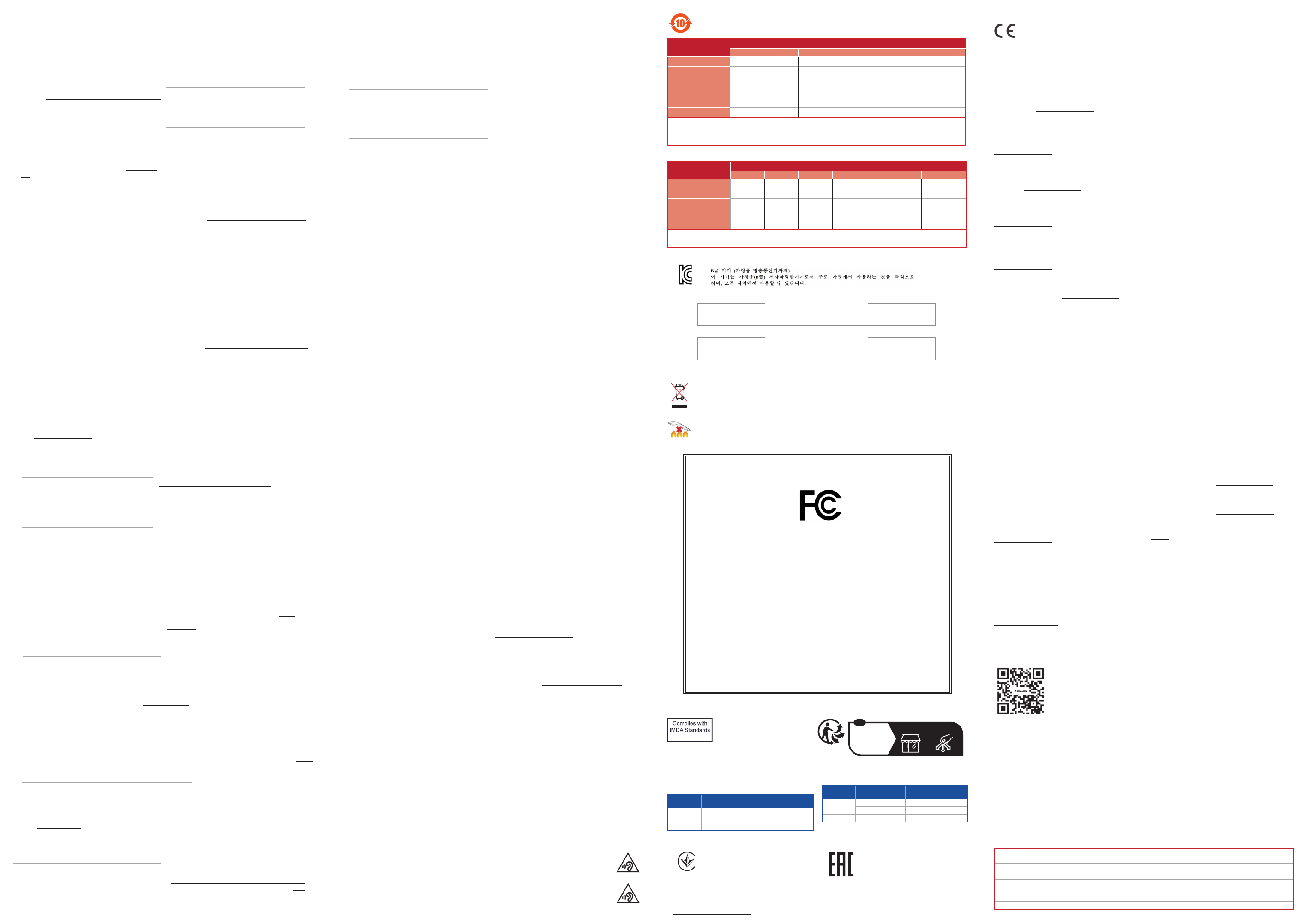
電子電氣產品有害物質限制使用標識:圖中之數字為產品之環保使用期限。僅指電子電氣
產品中含有的有害物質不致發生外洩或突變,從而對環境造成汙染或對人身、財產造成嚴
重損害的期限。
称
部件名
印刷電路板及電子組件
塑膠外壳
皮革耳罩
麥克風組
线
材
電池
本表格依據 SJ/T 11364 的規定編制。
○: 表示該有害物質在該部件所有均質材料中的含量均在 GB/T 26572 規定的限量要求以下。
×: 表示該有害物質至少在該部件的某一均質材料中的含量超出 GB/T 26572 規定的限量要求,然該部件仍符合歐盟指令 2011/65/EU 的規范。
備註:此產品所標示之環保使用期限,係指在一般正常使用狀況下。
限用物質及其化學符號:
單元 限用物質及其化學符號
印刷電路板及電子組件
塑膠外殼 ○ ○ ○ ○ ○ ○
皮革耳罩 ○ ○ ○ ○ ○ ○
麥克風組
其他及其配件
備考 1.“O”係指該項限用物質之百分比含量未超出百分比含量基準值。
備考 2.“-”係指該項限用物質為排除項目。
质
有害物
铅
(Pb) 汞 (Hg)
X
○
○
X
X
X
鉛(Pb) 汞(Hg) 鎘(Cd) 六價鉻(Cr
-
-
-
○ ○ ○ ○ ○
○ ○ ○ ○ ○
○ ○ ○ ○ ○
○ ○ ○ ○ ○
○ ○ ○ ○ ○
○ ○ ○ ○ ○
○ ○ ○ ○ ○
○ ○ ○ ○ ○
○ ○ ○ ○ ○
镉
(Cd) 六价铬 (Cr (VI)) 多溴联苯 (PBB) 多溴二苯醚 (PBDE)
+6
) 多溴聯苯(PBB) 多溴二苯醚(PBDE)
KC: Korea Warning Statement
R-C-MSQ-A701
R-C-MSQ-A701DG
Lithium-Metal Battery Warning
CAUTION: Danger of explosion if battery is incorrectly replaced. Replace only with the same or equivalent type
recommended by the manufacturer. Dispose of used batteries according to the manufacturer’s instruc tions.
鋰金屬電池安全警告
電池如果更換不正確,會有爆炸的危險,請依照製造商說明書使用相同或同款式電池,並請依照製
造商指示處理用過的電池。
Proper disposal
DO NOT throw the device in municipal waste. This product has been designed to enable proper reuse of parts
and recycling. The symbol of the crossed out wheeled bin indicates that the product (electrical, electronic
equipment and mercury-containing button cell battery) should not be placed in municipal waste. Check local
regulations for disposal of electronic products.
DO NOT throw the device in fire. DO NOT short circuit the contacts.
DO NOT disassemble the device.
Per FCC Part 2 Section 2.1077
Responsible Party:
Address: 48720 Kato Rd., Fremont, CA 94538
Phone/Fax No: (510)739-3777/(510)608-4555
hereby declares that the product
compliance statement:
This device complies with part 15 of the FCC Rules. Operation is subject to the
following two conditions: (1) This device may not cause harmful interference,
and (2) this device must accept any interference received, including
interference that may cause undesired operation.
Regional notice for Singapore
This ASUS product complies with
IMDA Standards.
UKCA RF Output table (The Radio Equipment
Regulations 2017)
Function Frequency Maximum Output Power EIRP
2.4GHz wireless
Bluetooth (2.4-2.4835GHz)- Headset < 100
(2.4-2.4835GHz)- Headset < 100
(2.4-2.4835GHz)- Dongle < 100
(mW)
Ukraine Certication Logo
France sorting and recycling information
FR
Cet appareil
se recycle
Points de collecte sur www.quefairedemesdechets.fr
Privilégiez la répara�on ou le don de votre appareil !
À DÉPOSER
EN MAGASIN
À DÉPOSER
EN DÉCHÈTERIE
OU
CE RED RF Output table (Directive 2014/53/EU)
Function Frequency Maximum Output Power EIRP
2.4GHz wireless
Bluetooth (2.4-2.4835GHz)- Headset < 100
(2.4-2.4835GHz)- Headset < 100
(2.4-2.4835GHz)- Dongle < 100
(mW)
EAC Certication Logo
Simplied UKCA Declaration of Conformity:
ASUSTek Computer Inc. hereby declares that this device is in compliance with the essential requirements and other relevant
provisions of The Radio Equipment Regulations 2017 (S.I. 2017/1206). Full text of UKCA declaration of conformity is available
at https://www.asus.com/support/.
CE Mark Warning
English ASUSTeK Computer Inc. hereby declares that this
device is in compliance with the essential requirements and
other relevant provisions of related Directives. Full text of EU
declaration of conformity is available at:
www.asus.com/support
Français AsusTek Computer Inc. déclare par la présente que
cet appareil est conforme aux critères essentiels et autres
clauses pertinentes des directives concernées. La déclaration
de conformité de l’UE peut être téléchargée à partir du site
Internet suivant : www.asus.com/support.
Deutsch ASUSTeK Computer Inc. erklärt hiermit, dass
dieses Gerät mit den wesentlichen Anforderungen und
anderen relevanten Bestimmungen der zugehörigen
Richtlinien übereinstimmt. Der gesamte Text der EUKonformitätserklärung ist verfügbar unter:
www.asus.com/support
Italiano ASUSTeK Computer Inc. con la presente dichiara
che questo dispositivo è conforme ai requisiti essenziali e alle
altre disposizioni pertinenti con le direttive correlate. Il testo
completo della dichiarazione di conformità UE è disponibile
all’indirizzo: www.asus.com/support
Русский Компания ASUS заявляет, что это устройство
соответствует основным требованиям и другим
соответствующим условиям соответствующих директив.
Подробную информацию, пожалуйста, смотрите на
www.asus.com/support
Български С настоящото ASUSTeK Computer Inc.
декларира, че това устройство е в съответствие със
съществените изисквания и другите приложими
постановления на свързаните директиви. Пълният текст на
декларацията за съответствие на ЕС е достъпна на адрес:
www.asus.com/support
Hrvatski ASUSTeK Computer Inc. ovim izjavljuje da je ovaj
uređaj sukladan s bitnim zahtjevima i ostalim odgovarajućim
odredbama vezanih direktiva. Cijeli tekst EU izjave o
sukladnosti dostupan je na: www.asus.com/support
Čeština Společnost ASUSTeK Computer Inc. tímto prohlašuje,
že toto zařízení splňuje základní požadavky a další příslušná
ustanovení souvisejících směrnic. Plné znění prohlášení o
shodě EU je k dispozici na adrese: www.asus.com/support
Dansk ASUSTeK Computer Inc. erklærer hermed, at denne
enhed er i overensstemmelse med hovedkravene og andre
relevante bestemmelser i de relaterede direktiver. Hele EUoverensstemmelseserklæringen kan findes på:
www.asus.com/support
Nederlands ASUSTeK Computer Inc. verklaart hierbij
dat dit apparaat voldoet aan de essentiële vereisten en
andere relevante bepalingen van de verwante richtlijnen.
De volledige tekst van de EU-verklaring van conformiteit is
beschikbaar op: www.asus.com/support
Eesti Käesolevaga kinnitab ASUSTeK Computer Inc, et see
seade vastab asjakohaste direktiivide oluliste nõuetele ja
teistele asjassepuutuvatele sätetele. EL vastavusdeklaratsiooni
täielik tekst on saadaval järgmisel aadressil:
www.asus.com/support
Suomi ASUSTeK Computer Inc. ilmoittaa täten, että
tämä laite on asiaankuuluvien direktiivien olennaisten
vaatimusten ja muiden tätä koskevien säädösten mukainen.
EU-yhdenmukaisuusilmoituksen koko teksti on luettavissa
osoitteessa: www.asus.com/support
Ελληνικά Με το παρόν, η AsusTek Computer Inc. δηλώνει
ότι αυτή η συσκευή συμμορφώνεται με τις θεμελιώδεις
απαιτήσεις και άλλες σχετικές διατάξεις των Οδηγιών της
ΕΕ. Το πλήρες κείμενο της δήλωσης συμβατότητας είναι
διαθέσιμο στη διεύθυνση: www.asus.com/support
Magyar Az ASUSTeK Computer Inc. ezennel kijelenti, hogy
ez az eszköz megfelel a kapcsolódó Irányelvek lényeges
követelményeinek és egyéb vonatkozó rendelkezéseinek. Az
EU megfelelőségi nyilatkozat teljes szövege innen letölthető:
www.asus.com/support
Latviski ASUSTeK Computer Inc. ar šo paziņo, ka šī ierīce
atbilst saistīto Direktīvu būtiskajām prasībām un citiem citiem
saistošajiem nosacījumiem. Pilns ES atbilstības paziņojuma
teksts pieejams šeit: www.asus.com/support
Lietuvių „ASUSTeK Computer Inc.“ šiuo tvirtina, kad šis
įrenginys atitinka pagrindinius reikalavimus ir kitas svarbias
susijusių direktyvų nuostatas. Visą ES atitikties deklaracijos
tekstą galima rasti: www.asus.com/support
Norsk ASUSTeK Computer Inc. erklærer herved at denne
enheten er i samsvar med hovedsaklige krav og andre
relevante forskrifter i relaterte direktiver. Fullstendig tekst for
EU-samsvarserklæringen finnes på: www.asus.com/support
Polski Firma ASUSTeK Computer Inc. niniejszym oświadcza,
że urządzenie to jest zgodne z zasadniczymi wymogami i
innymi właściwymi postanowieniami powiązanych dyrektyw.
Pełny tekst deklaracji zgodności UE jest dostępny pod
adresem: www.asus.com/support
Português A ASUSTeK Computer Inc. declara que este
dispositivo está em conformidade com os requisitos essenciais
e outras disposições relevantes das Diretivas relacionadas.
Texto integral da declaração da UE disponível em:
www.asus.com/support
Română ASUSTeK Computer Inc. declară că acest dispozitiv
se conformează cerinţelor esenţiale şi altor prevederi
relevante ale directivelor conexe. Textul complet al declaraţiei
de conformitate a Uniunii Europene se găseşte la:
www.asus.com/support
Srpski ASUSTeK Computer Inc. ovim izjavljuje da je ovaj
uređaj u saglasnosti sa osnovnim zahtevima i drugim
relevantnim odredbama povezanih Direktiva. Pun tekst EU
deklaracije o usaglašenosti je dostupan da adresi:
www.asus.com/support
Slovensky Spoločnosť ASUSTeK Computer Inc. týmto
vyhlasuje, že toto zariadenie vyhovuje základným
požiadavkám a ostatým príslušným ustanoveniam príslušných
smerníc. Celý text vyhlásenia o zhode pre štáty EÚ je dostupný
na adrese: www.asus.com/support
Slovenščina ASUSTeK Computer Inc. izjavlja, da je ta naprava
skladna z bistvenimi zahtevami in drugimi ustreznimi
določbami povezanih direktiv. Celotno besedilo EU-izjave o
skladnosti je na voljo na spletnem mestu:
www.asus.com/support
Español Por la presente, ASUSTeK Computer Inc. declara
que este dispositivo cumple los requisitos básicos y otras
disposiciones pertinentes de las directivas relacionadas. El
texto completo de la declaración de la UE de conformidad
está disponible en: www.asus.com/support
Svenska ASUSTeK Computer Inc. förklarar härmed att denna
enhet överensstämmer med de grundläggande kraven och
andra relevanta föreskrifter i relaterade direktiv. Fulltext av EUförsäkran om överensstämmelse finns på:
www.asus.com/support
Українська ASUSTeK Computer Inc. заявляє, що цей
пристрій відповідає основним вимогам та іншим
відповідним положенням відповідних Директив. Повний
текст декларації відповідності стандартам ЄС доступний
на:
www.asus.com/support
Türkçe AsusTek Computer Inc., bu aygıtın temel
gereksinimlerle ve ilişkili Yönergelerin diğer ilgili koşullarıyla
uyumlu olduğunu beyan eder. AB uygunluk bildiriminin tam
metni şu adreste bulunabilir: www.asus.com/support
Bosanski ASUSTeK Computer Inc. ovim izjavljuje da je ovaj
uređaj usklađen sa bitnim zahtjevima i ostalim odgovarajućim
odredbama vezanih direktiva. Cijeli tekst EU izjave o
usklađenosti dostupan je na: www.asus.com/support
ASUSTek Computer Inc.
2014/53/EU
https://
www.asus.com/support/
Официальное представительство в России
Горячая линия Службы технической поддержки в России:
Бесплатный федеральный номер для звонков по России: 8-800-100-2787
Номер для пользователей в Москве: +7(495)231-1999
Время работы: Пн-Пт, 09:00 - 21:00 (по московскому времени)
Официальные сайты ASUS в России:
www.asus.ru
www.asus.com/ru/support
Данное устройство соответствует требованиям Технического регламента Таможенного Союза ТР ТС 020/2011 Электромагнитная
совместимость технических средств утв. решением КТС от 09.12.2011г. №879
Service and Support
Visit our multi-language website at https://www.asus.com/support.
Manufacturer ASUSTek COMPUTER INC.
Address, City 1F., No. 15, Lide Rd., Beitou Dist., Taipei City 112
Authorized Representative in Europe ASUS COMPUTER GmbH
Address Harkortstrasse 21-23, 40880 Ratingen
Country Germany
Authorized Representative in United Kingdom ASUSTEK (UK) LIMITED
Address 1st Floor, Sackville House, 143-149 Fenchurch Street, London, EC3M 6BL, England
Country United Kingdom
 Loading...