

Page 1

SR15
INSTRUCTION BOOK
User Guide
Page 2

CONTENTS
Getting Started
Package Contents
Product Overview
Power Management
Charging
Connections
Firmware Updates
_01
02
03
05
06
07
12
Using the Device
Basic operations
Home Screen
Notification Panel
Music Store
AK Connect
Listening to Music
Playlist Management
USB DAC Installation
How to Use USB Audio
CD Ripping
Settings
Connecting to Wi-Fi
Using Bluetooth
Equalizer Setup
Miscellaneous
Safety Pre-Cautions
Troubleshooting
Copyright
Certifications
Registered Trademarks
Disclaimers
Specifications
_03
_02
13
17
19
21
22
27
30
33
34
36
38
44
45
47
50
52
53
54
54
54
55
Page 3
User Guide
Package
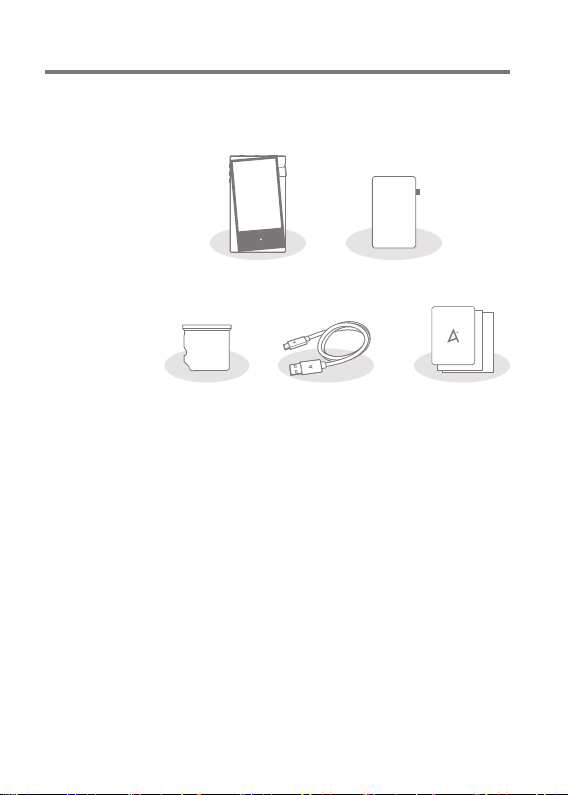
Contents
Components may be changed without prior notice to improve
the performance or quality of the product.
Protective FilmSR15
microSD Card
Slot Cover
Protective Film: Protects the product’s screen.
microSD Card Slot Cover: The cover is used to protect the
microSD card slot when not in use. It is installed in the
product by default.
5-Pin Micro USB Cable: For charging and data transfer.
Quick Start Guide: Basic overview of device functionality.
Warranty Card: Provides warranty details for your device.
Maintain a copy of this card since it may be required for future
technical support requests.
User Guide: The User Guide can be downloaded from the
Astell&Kern website:
[http://www.astellnkern.com Support > Download].
5-Pin Micro
USB Cable
Quick Start Guide
& Warranty Card
Getting Started
02
Page 4

User Guide
Product
Overview
The appearance of the product, as well as the printed and
engraved information, may vary depending on the model.
3.5mm Unbalanced Port
Micro USB Port
2.5mm Balanced Port
Previous/
Rewind
Play/Pause
Next/
Fast-Forward
microSD Card
Slot
Micro USB Port: - DC Power symbol.
For charging and data transfer.
3.5mm Unbalanced Port: - 3.5mm Unbalanced Port symbol.
For audio output, connect earphones or headphones that
utilize a 3.5mm jack.
2.5mm Balanced Port: - 2.5mm Balanced Port symbol.
For audio output, connect earphones or headphones that
utilize a 2.5mm jack.
Power: - Power symbol.
Press - Turns the screen on and off.
Press and Hold - Turns the device on or off.
Power
Getting Started
Volume
LCD
Touchscreen
Home Button
03
Page 5

User Guide
Previous/Rewind:
Short press - Play the previous song or restart the current
song.
Press and hold - Rewind the current song.
Play/Pause: Play or pause the current song.
Next/Fast-Forward:
Short press - Play the next song.
Press and hold - Fast-forward the current song.
microSD Card Slot: - microSD Card Slot symbol.
Insert a microSD card to access its files.
Volume: Turn the wheel to adjust the playback output volume
level.
LCD Touchscreen: Display screen with touch control features.
Home Button: Press to return to the Home Screen.
Getting Started
04
Page 6

User Guide
Power
Management
Powering the Device On/Off
1. Press and hold the [Power ] button to turn on the device.
2. While the device is on, press and hold the [Power ]
button to shut down the device. A confirmation message
will appear.
3. Press [OK] to turn off the device.
This device has an automatic shutdown feature to save battery
power. The device will turn off if there is no user input during the
period defined in [Menu - Settings - Timer Settings - Auto Power
Off]. (See Page 41)
Turning the Screen On/Off
1. While the screen is on, press the [Power ] button to
turn off the screen.
2. Press [Power ] button again to turn it on.
This device has an automatic timeout feature to save battery
power. The screen will turn off if there is no user input during the
period defined in [Menu - Settings - Timer Settings - Screen Off].
(See Page 41)
Reset Function
1. In cases of unexpected device failure or freeze, press and
hold [Power ] for 7 seconds to force a shutdown. The
device can then be restarted after the shutdown is complete.
Resetting the device will not affect stored data or time settings.
Do not use the reset function while the product is in use. Doing so
may corrupt the data on the device
Getting Started
05
Page 7

User Guide
Charging
Charging Via Computer Connection
1. The device will charge automatically when connected to a
computer via the 5-Pin Micro USB cable.
Charging Time: up to 8 hours (fully discharge, power off)
When charging via computer connection, the charging time may
vary depending on whether the device is turned on or off.
Depending on computer specifications, the device may charge
only when the computers is turned on.
Some computerss in power-saving mode may not charge the device.
The built-in battery will gradually lose capacity over time with
repeated charging/discharging.
Do not use a cable other than the 5-Pin Micro USB cable supplied
with the device. Doing so may cause malfunctions.
Charging Via USB Wall Adapter
1. Commercially available 5V 2A output adapters may be
used for charging.
Charging Time: Up to 4 hours 30 minutes
(Fully discharged, power off).
Maximum rated output adapter recommended is 5V 2A. Using a
higher rated or fast-charge adapter that supports varying
voltages (5V, 9V and 12V) is not recommended, may not charge
the device and may cause malfunctions
Getting Started
06
Page 8
User Guide
Connections
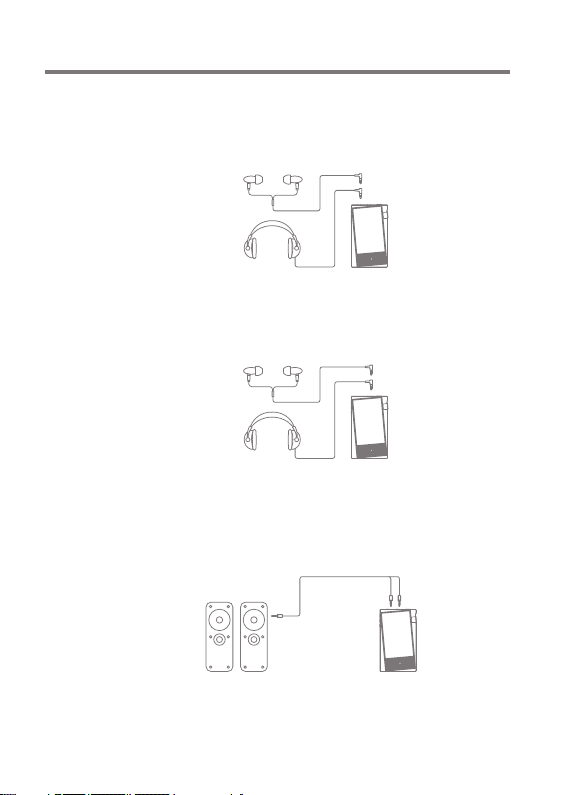
3.5mm Unbalanced Port
1. Connect earphones or headphones to the 3.5mm unbalanced
port.
OR
2.5mm Unbalanced Port
Connect earphones or headphones to the 2.5mm Balanced port.
1.
OR
Connecting to Balanced Audio Device
1. Connect to an external audio device by using the 3.5mm
unbalanced port and 2.5mm balanced port.
Unbalanced Port
(Ground)
Balanced Port
(LR)
Getting Started
07
Page 9
User Guide
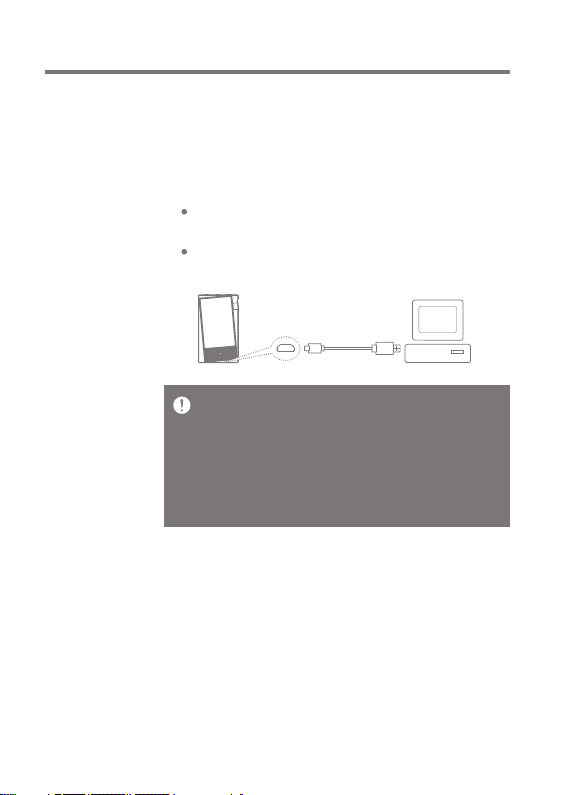
Connecting to a Computer
1. Turn on the device and your computer.
2. Use the 5-Pin Micro USB cable to connect the device to a
computer in accordance with settings in [Menu - Settings
- USB Mode].
[Default] Media Device (USB Drive): Transfer files from
a computer to the device.
DAC Input: Listen to music on a connected computer
through the device. (See Pages 33-35)
For an optimal connection, quit any unnecessary programs
before connecting the device to the computer.
Do not use cables other than the 5-Pin Micro USB cable provided
with the device. Doing so may cause malfunctions.
Mac users need to download and install Android File Transfer
from the Astell&Kern website. [http://www.astellnkern.com >
Support > Download]
For both Windows and MAC, the device only works with USB 2.0.
Getting Started
08
Page 10
User Guide
Disconnecting from the Computer
1. Disconnect the 5-Pin Micro USB cable after the transfer
between the device and computer is complete.
Disconnecting the device from the computer during an operation
(e.g., file transfer) may corrupt data on the device.
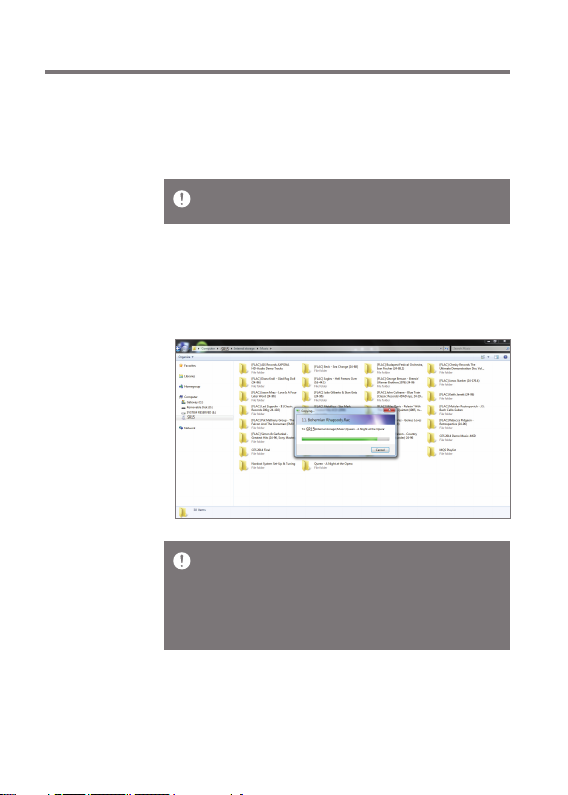
Copy Files (or Folders) to the Device
1. To copy files/folders from your computer, select the desired
files/folders and drag & drop them into the device folder.
Ensure the 5-Pin Micro USB cable is properly connected.
Turning off the device, computer or disconnecting the 5-Pin
Micro USB cable while copying or moving files/folders may
corrupt files or device memory.
File transfer speeds may be affected by the computer and/or
the OS environment.
Getting Started
09
Page 11
User Guide
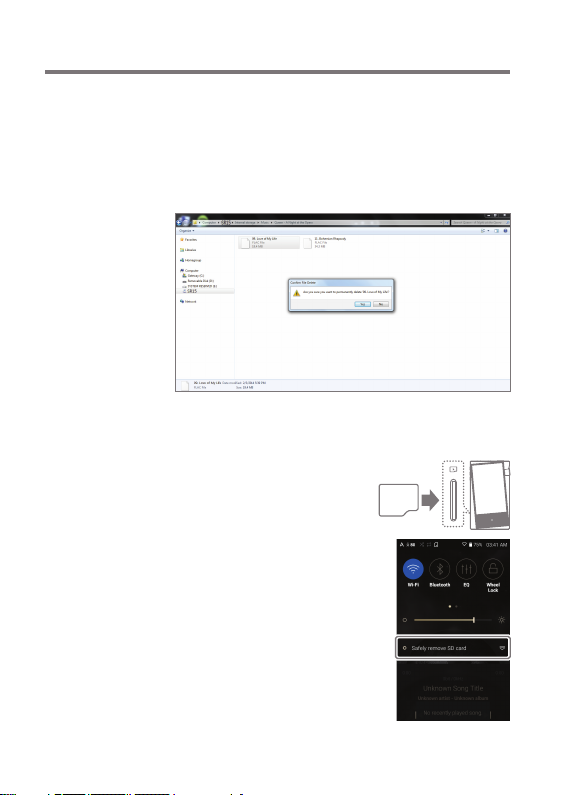
Delete Files (or Folders) from the Device
1. Select the file/folder to delete, right-click the mouse, and
select [Delete].
2. Select [Yes] in the [Confirm File/Folder Deletion] window
to delete the selected files/folders.
Insert/Remove a microSD Card
1. Refer to the diagram and gently
insert a microSD card into the
microSD Card Slot.
2. To safely remove a microSD
card, on the Home Screen,
select [Safely remove SD card]
from the Notification Bar or
select [Unmount SD card]
from [Menu - Settings System Information].
3. Gently press the microSD
card in to unlock and release
it from the slot.
Getting Started
10
Page 12

User Guide
Recommended microSD Cards
SanDisk, Transcend
Maximum Capacity: 400GB
Notes on Inserting a microSD Card
Do not force the microSD card into the slot. Doing so may cause
malfunction of the product and damage to the card.
Do not repeatedly insert/remove the microSD card.
If not inserted properly, the microSD card may cause product
malfunctions and may become lodged in the product.
Notes on Removing a microSD Card
Be sure to safely remove the microSD card from the device.
Not following the proper procedure may corrupt data and cause
serious damage to the both the card and device.
Do not remove the microSD card during use. Doing so may cause
malfunction, delete data and damage the microSD card.
Notes on Using a microSD Card
If the microSD card is not recognized or functions improperly,
format the card, preferably in the FAT32 system.
Using cards other than the recommended microSD card types
may cause malfunctions.
A microSD card is not included in the product package. Please
purchase separately.
Getting Started
11
Page 13

User Guide
Firmware
Updates
Wi-Fi Update / OTA (Over-the-Air)
1. Connect to a wireless network.
2. When a new firmware version is available, the screen will
display a Firmware Update Guide window.
3. Select [Update].
4. Follow the on-screen instructions to to proceed with the
firmware update.
For Wi-Fi connections, see Page 44.
The firmware update may not start if the battery level is too low.
(A minimum battery level of 20% is required.)
Moving to another screen during a file download will cancel the
download.
Do not disconnect from the wireless network while downloading
the update file. Doing so may cause data corruption and/or
damage to the system.
If an error occurs or the notice in the Notification Bar disappears
during an upgrade, download the firmware update again through
[Menu - Settings - Update - System].
Getting Started
12
Page 14
User Guide
Basic
operations
LCD Touchscreen
1. This device features an LCD touchscreen that allows you
to perform operations by touch.
Use the touchscreen to access various features on the
device.
To prevent damage to the screen, do not use a sharp object or
excessive force.
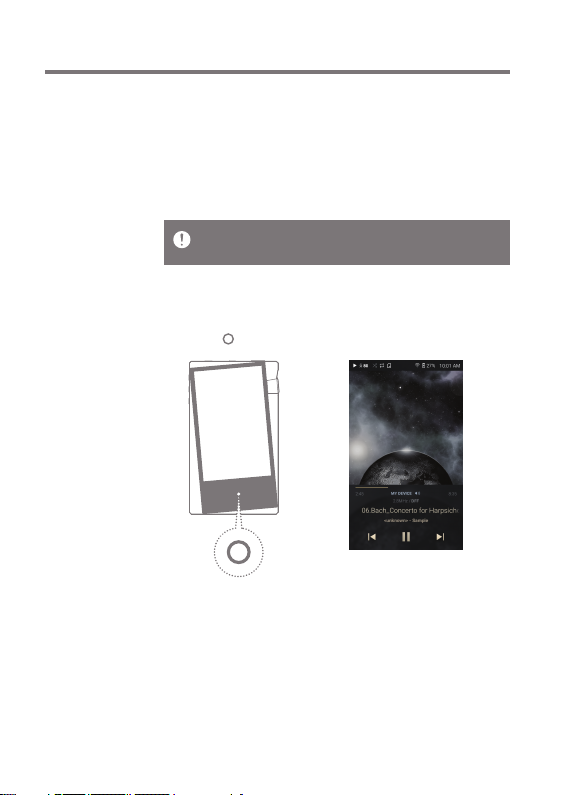
Return to the Home Screen
1. Press [ ] at any time to return to the Home Screen.
Home Screen
Using the Device
13
Page 15

User Guide
From the Home Screen, swipe your finger to the left, right, up or
down from any edge of the touchscreen to access display menus.
Each side of the Home Screen will activate a different display menu.
Main Menu
1. From the left edge of the touchscreen, swipe your finger
right to display the Main Menu.
Music files extracted using the AK CD-Ripper accessory that are
stored in the Ripping folder of the internal memory will be
displayed in the CD library menu.
Using the Device
14
Page 16

User Guide
Notification Bar
1. From the top edge of the touchscreen, swipe your finger
down to display the Notification Bar.
View Current Playlist
1. From the right edge of the touchscreen, swipe your finger
left to display the Now Playing menu.
Using the Device
15
Page 17
User Guide
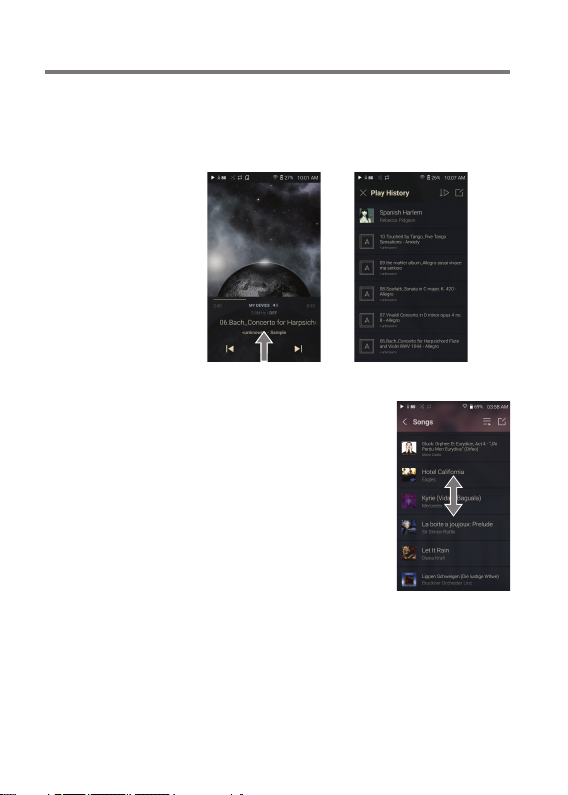
View Play History
1. From the bottom edge of the touchscreen, swipe your finger
up to display the Play History menu.
Moving Up/Down on a List
1. Scroll through a list by dragging
your finger up or down.
Using the Device
16
Page 18

User Guide
Home
Screen
1
6
2
3
4
5
7
8
9
10
Using the Device
17
Page 19

User Guide
1
2
3
4
5
6
7
8
9
10
Album Cover
Playback
Progress Bar
Song Progress
Details
Previous/
Rewind
AK Connect
Speaker
Output
Song
Duration
Title
Play/Pause
Next/FF
Displays album cover of current song.
Press [Album Art] to see Additional
Information and Additional Settings
menu.
Shows the current track playback
progress. Drag the Playback Progress
Bar to move to the desired track time.
Indicates song duration.
Displays current song information.
Short press: Play the previous song
or restart the current song.
Press and hold: Rewind the current song.
Shows the selected output speaker
when AK Connect is in use.
Indicates the song’s total duration.
Press to switch from elapsed time
to remaining time.
Song title information.
File name is displayed when the title
is unavailable.
Play or pause the current song.
Short press: Play the next song.
Press and hold: Fast-forward the
current song.
Using the Device
18
Page 20

User Guide
Notification
Bar
1 2 3 4 5 6 7 8
9
10
Wi-Fi
1
Bluetooth
2
Press [ ] to turn Wi-Fi on/off.
Press [ ] to turn Bluetooth on/off.
Using the Device
19
Page 21

User Guide
EQ
3
Press [ ] to turn the EQ on/off.
The most recent EQ settings are
applied by default.
4
Wheel Lock
Press [ ] to turn the Wheel Lock
on/off. The volume wheel is disabled
when the screen is locked.
Gapless
5
Playback
Line Out
6
Computer
7
Connection
Mode
Press [ ] to turn Gapless Playback
on/off.
Press [ ] to turn Line Out on/off.
Select the mode to use when connected
to a computer.
: Listen to music on a connected
computer through the device.
[Default] : Enables transfer of
media files.
USB Audio
8
After connecting the device to a
portable USB DAC, press [ ] to
connect or disconnect the device.
Brightness
9
Use the adjustment bar to control
the display brightness.
Notifications
10
Display
Press and hold an icon [ / / / ] to move to the
corresponding full settings menu screen.
You can add/delete Quick Settings buttons or change their order
in [Menu - Settings - Notification Panel].
Device notifications are displayed
in this area.
Using the Device
20
Page 22

User Guide
Music
Store
Listen to streaming services or purchase music from the
Store when connected to a wireless network. (Streaming
services and ability to purchase music vary by country.
Not all services are available in all countries.)
Streaming or Purchasing Music
1. Connect to a wireless network.
2. Select [Store] from the menu.
3. Select from the the list of service options available.
4. Check the user guide or help menu within each store for
detailed information.
Select [Menu > User Guide] within the Groovers Store for
detailed instructions.
Show Menu
User Guide
For Wi-Fi connections, see Page 44.
The currently supported stores are Groovers and Tidal.
Using the Device
21
Page 23

User Guide
AK
CONNECT
Access and play back music files stored on a computer on
the same network, as well as output sound through
compatible speakers with AK Connect.
MQS Streaming Server for your Computer
1.
Visit the Astell&Kern website and download the MQS Streaming
Server installer that corresponds to your operating system.
[http://www.astellnkern.com > Support > Download]
2. Run the downloaded installer and follow the on-screen
instructions.
3. Check the User Guide within the program for detailed
information on using the MQS Streaming Server.
Please refer to the following computer minimum system
requirements.
Minimum Computer Requirements
OS: Windows 7/8/10 (32 & 64-bit)
Mac Requirements
OS X 10.7 (Lion) or later
Using AK Connect to Link Music Libraries/Speakers
1. Turn on the music library device
and/or speaker and AK player.
Run the MQS streaming server
on your computer.
2. Connect all devices to the same
Wi-Fi network.
3. Turn on the AK CONNECT feature
by pressing and holding [ ] in the
Notification Bar or selecting [Menu Settings-AK CONNECT]
Using the Device
22
Page 24

User Guide
4. Press [AK CONNECT] on the menu.
5. A list of libraries/speakers that are
on the same network with AK player
will be displayed.
6. Select a library/speaker to connect.
7. After selecting a library/speaker,
select a category from the menu
to display the corresponding music
list.
For Wi-Fi connections, see Page 44.
Using the Device
23
Page 25

User Guide
Streaming Music from Your Library
1. Select a category from the library
menu to see your list of music.
2. Select a song to begin streaming.
Downloading Music from Your Library
1. Select a category from the library
menu to see your list of music.
2. Press [ ] button at the upper-right
corner of the music list.
3. Select the desired music and press
[ ] to initiate the download.
A message on the Notification Bar
will indicate when the download is
complete.
Depending on network conditions, song loading may be slow and
streaming may stutter.
Performing other operations on the linked computer may cause
slower response time.
If you stream and download at the same time, it may slow the
device’s response time depending on the speed of the Wi-Fi
network or server.
To stop a download in progress, tap the notification in the
Notification Bar to go to the download screen. Then, select the
items to pause or delete.
Using the Device
24
Page 26

User Guide
AK Connect Usage Example
Case 1
LIBRARY SPEAKER
AK T1SR15
Case 2
AK500N
LIBRARY SPEAKER
REMOTE
Case 3
AK500NSR15
REMOTE & LIBRARY
SPEAKER
Using the Device
AK T1SR15
25
Page 27

User Guide
Case 4
LIBRARY SPEAKER
AK500N
REMOTE
AK T1SR15
Case 5
SR15
LIBRARY
or
AK T1
SPEAKER
AK500N
LIBRARY
AK Connect APP
REMOTE
Using the Device
26
Page 28

User Guide
Listening
to Music
Selecting Music
1. Select a category from the menu to display the corresponding
music list.
2. Select a song from the list to begin playback.
Select [Folder] to search music by folder.
Continuous Playing Time: Approximately 10 hours (Music: FLAC,
16-bit, 44.1 kHz, unbalanced output, volume 80, EQ off, LCD off)
Supported Formats: PCM [8-192kHz(8/16/24bit)], DSD [2.8/5.6MHz]
Listening to Music
Turn the [Volume] wheel to adjust the volume.
Press [ ] during playback to pause and [ ] to resume
playback.
Press [ / ] during playback for the previous/next track.
Press and hold [ / ] to rewind/fast-forward the track.
Drag the indicator on the Playback Progress Bar to a
desired location of a track during playback.
Press [ ] to go to Home Screen.
Press [ ] at the top of the menu list to hide the menu list.
To search, press [ ] on the menu list and enter the title.
The search result will be displayed.
After selecting the [MQS] category, press [ / ] at the
top to sort the music list in order of high quality / alphabetical
order.
In the [MQS] category, the MQS tab shows PCM files of 24
bits or more, and the DSD tab shows DSD files.
MQS: PCM[8-192kHz(16/24bit)]
DSD: DSD [2.8/5.6MHz]
Using the Device
27
Page 29

User Guide
Select the [Folder] category to check the internal / external
memory capacity and number of files / folders, and copy /
move music.
After Selecting [Album] or [CD Library] category, press
[ / / ] at the top to sort by different viewing options.
Press [ ] on the music list to add all music to the
current playlist.
At the top of the Play History menu, press [ / ] to sort
the music list in order of most recently played/most played.
Press [Album Art] to see Additional Information and
Additional Settings menu.
: Displays Main Menu.
: Displays Now Playing Menu.
: Add the current song to the Favorites category.
: Go to the last displayed music list.
: Add the current song to the playlist.
: Set the repeat mode.
- Repeat the entire list of music that is now playing.
- Repeat the current song.
- Repeat mode off.
: Set track sequence for playback.
- Shuffle mode on.
- Shuffle mode off.
Press [ ] on top of the music list to view the options:
: Select / deselect entire list
: Add the selected list at the top / bottom / after the
current song of Now Playing
: Add selected list to a playlist
: Delete selected list
: Exit
Using the Device
28
Page 30

User Guide
Playlist Screen
1
2
Previous
1
Playlist
2
Edit mode
3
Play All
4
3
4
Return to the previous screen.
Displays the current playlist.
Display the editing options for the
music list.
Play all songs in the current list.
Using the Device
29
Page 31

User Guide
Playlist
Management
Creating a Playlist
1. Press [Playlists] on the menu to
view the playlists.
2. Select [ + ] in the upper right corner
of the screen.
3. Enter a name for the playlist, and
then press [Add] to create a new
playlist.
Adding a Song to a Playlist
1. Press [Playlists] to display the list
of playlists.
2. Select a playlist and press [+ Add
Song] to display a list of songs
by album.
3. Select a song and press [Add] to
add the song to the selected playlist.
Using the Device
30
Page 32

User Guide
Remove a song from a Playlist
1. Press [Playlists] to display the list
of playlists.
2. Select the playlist to edit.
3. Press[ ] at the top, then select
the song you want to delete from
the playlist.
4. Press [ ] on top of the screen.
5. Press [DELETE] to remove the song
from the selected playlist.
This action will only remove the song from the selected playlist,
not the memory.
Playing a Playlist
1. Select the desired playlist for
playback.
2. Press [ ] at the top right of the
screen to play the entire playlist.
3. To playback part of the playlist or
add it to a current Now Playing
playlist, press [ ] at the top of
the playlist, select the music you
want to play and press [ ] to
add the selected list to the top /
bottom / after the current song
of Now Playing.
Using the Device
31
Page 33

User Guide
Renaming a Playlist
1. Press [Playlists] to view the
playlists, and press [ ].
2. Select a playlist to be renamed.
3. Press [RENAME] at the top of the
screen to display the RENAME
window.
4. Enter a name for the playlist and
then press [RENAME] to confirm
the change.
Deleting a Playlist
1. Press [Playlists] to view the
playlists, and press [ ].
2. Select the playlist to be deleted.
3. Press [ ] at the top of the
screen.
4. Press [DELETE] to delete the
selected playlist.
Using the Device
32
Page 34

User Guide
USB DAC
Installation
The USB DAC function allows the device to be recognized as
a sound card on a computer. Music from the computer is
played through the device’s headphone port for an enhanced
listening experience.
USB DAC Specifications
Supported OS
Windows 7(32bit/64bit) / Windows 8(32bit/64bit) /
Windows 10(32bit/64bit)
OS X 10.7 (Lion) or later
USB DAC Support Specifications
Supported Formats: WAV, FLAC, WMA, MP3, OGG,
APE (Normal, High, Fast), AAC, ALAC, AIFF, DFF, DSF
Sample Rate: 44.1 kHz – 96 kHz
Bit Rate: 16-bit/24-bit
Playback is unavailable when settings exceed the supported
formats.
The Previous, Play, and Next buttons are unavailable when
connected as a USB DAC.
Playback may stutter when computer performance is slow or the
USB connection is experiencing heavy usage.
There may be issues with audio-to-video synchronization during
video playback depending on the sound quality and operating
environment.
Volume cannot be adjusted via the Windows volume control. The
volume wheel on the product or volume control on the
appropriate program must be used to adjust the volume.
Using the Device
33
Page 35

User Guide
How to
Use USB
Audio
Connect the device to a portable amp or DAC using USB Audio
Out.
How to Connect a Portable USB DAC
1. Connect the portable USB DAC to the AK device’s 5-Pin
Micro USB port with a dedicated cable.
2. Press [ ] in the Notification Bar.
3. Once [ ] is activated, you can enjoy music on the device
through the connected portable USB DAC.
The 5-Pin Micro USB cable that comes packaged with the device
is only to be used for computer data transfer or to charge the device.
The type of dedicated cable needed to connect to the portable
DAC varies; please refer to USB DAC manufacturer instructions
for correct cable type.
A USB DAC cable is not included with the device and must be
purchased separately.
Depending on the OTG cable used, the connection may be
unstable.
Using the Device
34
Page 36

User Guide
How to Change USB Audio DSD Output Type
You can change the type of DSD data that is outputted through
the USB audio out.
1. Select a DSD output type on [Menu - Settings - USB Audio].
PCM: DSD audio is converted into PCM before being
outputted through the USB audio out.
DoP : DSD audio is converted into DoP before being
outputted through the USB audio out.
The portable USB DAC must be able to receive digital input
through the micro-USB’s OTG.
Audio output may vary widely depending on the digital input
specs of the portable USB DAC used. This is not a defect in the
device output and not a reason for exchange or refund.
When using DoP as a DSD output type, no sound may be
outputted except noise depending on the portable USB DAC.
Using the Device
35
Page 37

User Guide
CD
Ripping
CDs can be ripped directly to the device using the AK CD-Ripper
(sold separately).
Connecting the AK CD-RIPPER
1. Connect the AK CD-RIPPER to 5-Pin Micro USB port of the
device using the proper cable.
2. In the Notification Bar press [ ] to link the devices and
activate the CD Ripping Menu.
3. When ripping is complete, before disconnecting, press [ ]
on the Notification Bar to unlink/disconnect the devices.
The 5-Pin Micro USB cable provided with the device is to be
used to connect to the computer or to charge the product.
Depending on the OTG cable used, the connection may be
unstable.
Automatic CD Ripping
1. In [Menu-Settings-CD Ripping], turn on automatic CD
ripping function.
2. Connect the AK CD-RIPPER to the device and insert a CD.
3. Metadata (ID3 tags) for the inserted CD will be retrieved
via Gracenote if Wi-Fi is turned on.
4. CD ripping will begin automatically after the metadata has
been downloaded.
5. When finished, press [OK] when prompted to complete the
automatic CD ripping process.
Using the Device
36
Page 38

User Guide
Manual CD Ripping
1. In [Menu-Settings-CD Ripping], turn off automatic CD
ripping function.
2. Connect AK CD-RIPPER and insert CD to display the [CD
Ripping] notification at the bottom of the Notification Bar.
3. Press [CD Ripping] and select from the file format options
of FLAC or WAV.
4. If Wi-Fi is turned on the Gracenote database will be searched
for matching CD metadata after the file format is selected.
5. When the database search is complete, press [Start] to
begin CD ripping.
CD Ripping Results
: Indicates that CD ripping is complete, or that CD ripping
was successfully completed after correcting an error
via error correction.
: Indicates that the song currently being ripped can be
canceled by user.
: Indicates that CD ripping failed due to an error that
can’t be corrected, such as a scratched CD, or that CD
ripping was canceled by user.
To search the Gracenote database, the device must be connected to
Wi-Fi. Database access time may vary depending on the network environment.
Please note that metadata for certain CDs may not be available
on the Gracenote database.
You cannot access the Home Screen while CD ripping is in progress.
The AK Connect service will be disabled during CD ripping. The
service will automatically restart when CD ripping is completed.
Music playback is disabled during ripping.
You can set the desired file format and ripping speed from the
[Menu - Settings - CD Ripping] menu.
Several attempts at correction will be made for data with errors
when the feature is enabled under [Menu - Settings - CD Ripping
- Error Correction]. Please note that the CD ripping speed will be
affected when this feature is enabled.
Using the Device
37
Page 39

User Guide
Settings
The settings menu allows users to customize the device.
The settings menu may vary depending on the firmware
version.
Setup
1. Select [Main Menu - Settings] or select [ ] from the
Notification Bar menu.
2. Select the feature to view setting options.
Wi-Fi
Change wireless network settings and turn Wi-Fi on/off.
See page 44 of the manual for more information on setting Wi-Fi.
Bluetooth
Connect a Bluetooth device to listen to music wirelessly.
See pages 45-46 for more information on setting Bluetooth.
AK Connect
Turn AK Connect on/off and set AK Connect options.
Using the Device
38
Page 40

User Guide
Equalizer
Set the equalizer according to the user's preferences.
USER EQ: Adjust the frequencies according to the user's
preferences.
Supported Formats for EQ: PCM [8 - 192kHz (8/16/24bit)]
Using the equalizer may negatively affect device performance.
See pages 47 - 49 for more information on using the equalizer.
Gapless Playback
Play the next song without any interruptions.
Gapless playback is only supported between two files with
identical bit depths, sample rates, and channels.
Line Out
Set the voltage value generated when Line Out is activated.
Do not use earphones with the Line Out feature enabled. Doing so
may cause permanent hearing loss.
Left-Right Balance
Adjust the left-right balance for earphones/headphones.
Playback Settings
Set how to add a song to Now Playing when a song is
selected from a music list.
Using the Device
39
Page 41

User Guide
Notification Panel
Drag and drop the button icons to add or change the order
of the quick settings buttons.
CD Ripping
Set the automatic CD ripping function as well as the file
format and ripping speed.
USB mode
Media Device (USB Drive): When connected to a computer,
device appears as a removable drive.
DAC Input: Output sound from a connected computer to
the device.
USB Audio
Select the type of DSD sound being outputted through USB
Audio Out to a connected portable DAC.
Screen Brightness
Adjust screen brightness settings.
Date & Time
Set the current date and time.
Using the Device
40
Page 42

User Guide
Device Name
Set the name of the device.
The maximum name length is 50 characters.
Language
Select the language for the device.
Supported languages are English, Korean, Japanese,
Chinese (Simplified/Traditional), French, Russian,
German, and Spanish.
Keyboard
Select a language for the keyboard.
Supported languages are English, Korean, Japanese,
Chinese (Simplified/Traditional), French, Russian,
German, and Spanish.
Supported languages may vary depending on your location.
Timer Settings
Auto Power Off: The device will automatically power off
after the selected amount of time of no user and device
activity.
Screen Off: The screen will turn off after the selected
amount of time of no user activity.
Screen Timer: Music playback will stop and the device will
turn off after the selected amount of time.
Using the Device
41
Page 43

User Guide
Downloads
Select a folder for downloaded files to be saved by default.
When using AK Connect to download music, if the [Default folder]
is selected in settings, downloading will automatically begin to
the pre-set Downloads folder.
When [Select Folder] is selected, the user is prompted to choose
a download folder each time a file is downloaded.
Update
System Update: Update the device when a new firmware
version is available.
Application Update: Update the default applications
(including the Store) when new versions are available.
System Information
Device Information: View model number, firmware version,
MAC address, and memory usage information. The microSD
card can be mounted/dismounted, and data can be deleted.
Legal information: Check open source licenses and
regulations.
Formatting the microSD card will delete all data on the memory
card. Be sure to backup any important files before formatting.
When formatting the microSD card on a computer, use of the
FAT32 system is recommended.
Using the Device
42
Page 44

User Guide
System Reset
Initialize Media Scan: Resets and rescans the internal
database.
Database initialization time may vary depending on the
number of files stored on the device.
Settings Reset: Resets all user settings back to the default
setting.
Factory Data Reset: Deletes all user data and resets all
user settings back to the default setting.
Using the Device
43
Page 45

User Guide
Connecting to
Wi-Fi
Connecting to a Wi-Fi Network
1. Press and hold [ ] from the
Notification Bar or select [Menu
- Settings - Wi-Fi] to display
a list of available Wi-Fi networks.
2. Select the desired AP to connect
to the wireless network.
Additional information such as
Wi-Fi password may be required
depending on Wi-Fi settings.
Networks requiring browser or other additional certifications
are not supported.
Wi-Fi Channels 1 through 13 are supported (but channels 12
and 13 are not supported by the FCC).
Using the Device
44
Page 46

User Guide
Using
Bluetooth
Connect a Bluetooth device to listen to music wirelessly.
Turning Bluetooth On/Off
A Bluetooth device must be paired
with the device prior to use.
Refer to the Bluetooth device's
instruction manual for details.
1. Select [ ] from the Notification
Bar menu or select [On/Off] from
[Menu - Settings - Bluetooth].
Bluetooth Pairing
1. In the Settings Menu, select the appropriate Bluetooth
device from the list of available devices.
Disconnect a Bluetooth Device
1. Press the connected Bluetooth
device and confirm the message
prompt to disconnect the device.
Using the Device
45
Page 47

User Guide
Removing a Bluetooth Pairing
1. Press [ ] to the right of the
paired device to go to settings.
2. Select [Remove] to complete the
process.
Bluetooth Support Specifications
Profile: A2DP, aptX HD
Device performance may be affected during Hi-Res playback.
Do not turn off the device while connected to Bluetooth.
Turn the Bluetooth device off then on in case of issue.
Pairing methods may differ for each individual Bluetooth device.
Always refer to the respective instruction manual for details.
When connecting the product to a Bluetooth device, the distance
between the two must be within 20 cm.
Audio quality will degrade with longer distances and the pairing
may disconnect at a distance of 2 m (6.5 ft.) or more. (Distances
may vary depending on device and environment.)
Crosstalk may be heard while using Bluetooth.
For multipoint devices, make the necessary connections prior to use.
Car audio Bluetooth connections may not be fully compatible.
Some features may not be supported and quality of playback may vary.
Malfunction, noise, and other undesirable effects may occur due
to the device's battery level and the environment.
If signal interference affects data transmission. (e.g., holding
the device while wearing a Bluetooth device, holding the device
while holding another electronic device, etc.)
If the device or Bluetooth headset's radio transmitters are
touching parts of the body.
If the transmission strength is affected by walls, corners,
partitions, etc.
If devices using the same frequencies cause interference. (e.g.,
medical devices, microwave ovens, Wi-Fi, etc.)
Areas with an excessive amount of interference or weak signals.
(e.g., elevators, underground, etc.)
Using the Device
46
Page 48

User Guide
Equalizer
Setup
Equalizer Setup
1. Press and hold [ ] on the
Notification Bar or turn on
[Menu - Settings - Equalizer].
2. Press [PRO EQ] to activate the
drop-down menu and select [ + ].
3. Enter a name for the custom EQ
settings and select [SAVE].
Using the Device
47
Page 49

User Guide
4. Adjust the frequencies up and
down according to the user's
preferences.
5. The number values at the lower left corner of the screen can be
adjusted for fine-tuning.
6. Press the [Advanced] tab on the top
to display PEQ settings screen.
Adjust Freq/Q/Gain.
Using the Device
48
Page 50

User Guide
Deleting a Custom Equalizer Setting
1. Press on the drop-down menu
at the upper-left corner of the
screen to display the list of the
saved EQ settings.
2. Press [ ] next to the EQ name
to be deleted.
3. Press [OK] to delete the selected
EQ setting.
Renaming a Custom Equalizer Setting
1. Press on the drop-down menu
at the upper-left corner of the
screen to display the list of the
saved EQ settings.
2. Press [ ] next to the EQ setting
name you wish to change and enter
a new name for the selected EQ.
3. Press [CHANGE] to save.
Using the Device
49
Page 51

User Guide
Safety
PreCautions
Device
When a plug is inserted into the earphones, 2.5mm balanced,
or USB port, do not apply any force or impact to the plug.
Do not insert any metal (coins, hairpins, etc.) objects or
flammable debris into the device.
Do not put heavy objects on the product.
If the device gets wet (rain, water, chemicals, medicine,
cosmetics, sweat, moisture, etc.), allow the device to dry
thoroughly before powering on. Contact the nearest IRIVER
Customer Support Center for service.
(Damage may not be repairable, however if deemed repairable,
any damage due to liquid exposure will be repaired for an
additional fee even if the device is under warranty.)
Avoid exposing the device to direct sunlight or extreme
temperatures (-10℃ ~ 50℃; 14°F ~ 122°F) such as a car
interior during the summer.
Do not store or use in hot and humid places such as saunas.
Avoid places with excessive dust, or smoke.
Do not use for an extended period on blankets, electric
blankets, or carpet.
Do not place near a fire or in a microwave.
Never disassemble, repair or alter the product.
Do not store for extended periods in a confined space with
the power on.
Do not place the device near magnetic objects (magnets,
televisions, monitors, speakers, etc.).
Do not let chemicals or detergents come in contact with
the product since they may damage the surface and paint.
Do not drop or expose the product to strong impacts
(places where there is strong vibration. etc.).
Do not press multiple buttons simultaneously.
Do not disconnect the 5-Pin Micro USB cable during data
transfer.
Miscellaneous
50
Page 52

User Guide
When connecting the device to a computer with the 5-Pin
Micro USB cable, use a USB port on the back of the
computer for best results. Connecting the cable to a defective
or damaged USB port on a computer may damage the device.
Displaying one image for an extended period may cause
screen burn-in (afterimage).
Using poor quality protective films or adhesive stickers on
the screen may cause damage.
Do not insert any foreign objects into the device ports.
The device may become warm while playing and charging,
so handle it carefully.
Other
Do not use earphones/headphones or use the product while
operating any type of vehicle. It is not only dangerous but
may be a violation of the law in certain regions.
Do not use the product during physical activities (driving,
walking, hiking, etc.).
Always use in a safe environment to avoid the risk of an accident.
When using the device while moving, make sure the area
is free of obstacles.
Avoid using the device during thunderstorms to reduce the
possibility of electric shock.
If there is a ringing in the ears, reduce the volume or stop
using the device.
Do not listen to music at excessive volumes for extended periods.
Do not use the earphones/headphones at excessive volume.
Make sure that the headphone/earphone does not get stuck
in another object or get caught between other objects.
Do not sleep with earphones in your ears or leave them in
for extended periods.
Miscellaneous
51
Page 53

User Guide
Troubleshooting
Solutions to Common Issues
1. The device won't turn on.
The battery may need to be recharged. Charge the device
for at least one hour and try again.
Reset the device and try again. (See Page 5)
2. The device will not charge when connected to a computer
via 5-Pin Micro USB cable.
Use a USB port on the back of the computer, and check
that the USB port is functioning properly.
Check if the 5-Pin Micro USB cable is connected correctly.
(Connect the device to a USB wall adapter using the provided
5-Pin Micro USB cable to charge directly from a wall outlet.)
3. The computer won't recognize the device or an error occurs
when connected.
Use a USB port on the back of the computer.
Check if the 5-Pin Micro USB cable is connected correctly.
Check if the device connects properly on a different computer.
For Mac, check to ensure the MTP program is installed properly.
4. The screen turns off repeatedly.
The screen turns off automatically after a defined period
to reduce battery consumption. Set the time at [Menu Settings - Timer Settings - Screen Off].
5. The screen does not display images properly.
Check the screen for debris.
6. There is no sound, or there is static/interference.
Check that the volume setting is above [0].
Check that the earphones are plugged in properly and
make sure debris isn't obstructing the port connection.
Verify that the music file is not corrupt. Verify that the
audio settings have been set properly.
(Balanced out, line out, etc.)
Miscellaneous
52
Page 54

User Guide
7. A file does not play, or the product becomes unstable when
a certain file is played.
File may be damaged or corrupt if the following occurs:
Playback stops or freezes.
Device may act erratically or freeze.
File may sound different on another device.
There may be a difference in the performance of
playback or other functions.
There may be differences in the file specs.
Converting the file to a different format or use of a different
file is recommended.
Copyright
Copyright IRIVER Limited retains the rights to patents,
trademarks, copyrights, and other intellectual property rights
related to this manual. No contents of this user manual may be
duplicated or reproduced in any format or by any means without
the prior approval of IRIVER.
Using or reproducing, in whole or part, the contents of this
document is subject to penalties.
Software, audio, video, and any other copyrighted contents are
protected in accordance with relevant copyright laws.
The user accepts all legal responsibility for the unauthorized
reproduction or distribution of the copyrighted contents from
this product.
Companies, organizations, products, people, and events used in
the examples are fictional. IRIVER has no intention to be associated
with any company, institution, product, person or incident through
this instruction book, and no such inference should be made.
It is the responsibility of the user to comply with applicable
copyright laws.
©1999-2018 IRIVER Limited. All rights reserved.
The SR15 was designed and audio-tuned under the advisement
of MSD.
Miscellaneous
53
Page 55

User Guide
Certifications
Registered
Trademarks
Disclaimers
KC / FCC / CE / TELEC
Class B Device (Communication equipment for residential use):
This is a Class B Device and is registered for EMC requirements
for residential use. This product can be used in residential
and all other areas.
FFC ID: QDMPPS11
This device complies with Part 15 of the FCC Rules. Operation
is subject to the following two conditions:
(1) this device may not cause harmful interference, and (2)
this device must accept any interference received, including
interference that may cause undesired operation.
Windows 7, Windows 8, Windows 10, and Windows Media
Player are trademarks of Microsoft Corp.
The manufacturer, importer, and distributor shall not be liable
for damages including accidental and personal injury due to the
improper use or operation of this product.
The information in this user manual was written based on
current product specifications.
The manufacturer, IRIVER Limited., regularly adds new features
and will continue to apply new technologies in the future.
Product specifications may be changed without prior notice.
There is no warranty against data loss due to the use of this product.
The device must be used a minimum of 5mm away from the human
(body) in normal use conditions.
Miscellaneous
54
Page 56

User Guide
Specifications
General Specifications
Model
Body Color
Body Material
Display
Supported Audio
Formats
Sampling Rate
CPU
DAC
Output level
Decoding
Input
Outputs
Wi-Fi
Bluetooth
Dimensions
Weight
Feature Enhancements
Audio Specifications
Frequency Response
S/N
Crosstalk
THD+N
IMD SMPTE
Clock Jitter
Memory
Built-in Memory
External Memory
Battery
Capacity
Supported OS
Supported OS
SR15
Dark Gray
Aluminum
3.3inch 480 x 800 touch display
WAV, FLAC, WMA, MP3, OGG, APE, AAC, ALAC, AIFF,
DFF, DSF
PCM: 8kHz-192kHz (8/16/24bits per Sample) /
DSD Native: DSD64(1bit 2.8MHz), Stereo
DSD(DSD to PCM) DSD128(1bit 5.6MHz), Stereo
Quad-core
CS43198 Dual DAC
Unbalanced 2.0Vrms / Balanced 4.0Vrms (Condition No Load)
Support up to 24bit / 192kHz Bit-to-Bit playback
USB Micro-B input (for charging & data transfer (PC & MAC))
PHONES (3.5mm) / Balanced Out (2.5mm, only 4-pole supported)
802.11 b/g/n (2.4GHz)
V4.1 (A2DP, AVRCP, aptX™ HD)
2.26” (57.5mm)[W] x 3.92” (99.7mm)[H] x 0.63” (16.1mm)[D]
about 5.6oz(159g)
Firmware update supported (OTA)
±0.030dB (Condition: 20 Hz~20 kHz) Unbalanced /
±0.024dB (Condition: 20Hz~20kHz) Balanced,
122dB @ 1kHz, Unbalanced / 122dB @ 1kHz, Balanced
137dB @ 1kHz, Unbalanced / 131dB @ 1kHz, Balanced
0.0008% @ 1kHz, Unbalanced / 0.0009% @ 1kHz, Balanced
0.0004% 800Hz 10kHz(4:1) Unbalanced /
0.0004% 800Hz 10kHz(4:1) Balanced
70ps
64GB[NAND]
microSD (Max 400GB) x1
3,150mAh 3.7V Li-Polymer
Windows 7, 8, 10 (32/64bit) /
MAC OS X 10.7.
Miscellaneous
55
 Loading...