

Page 1
Attainment Company’s
total
recording time:
8.5 minutes
(510 seconds)
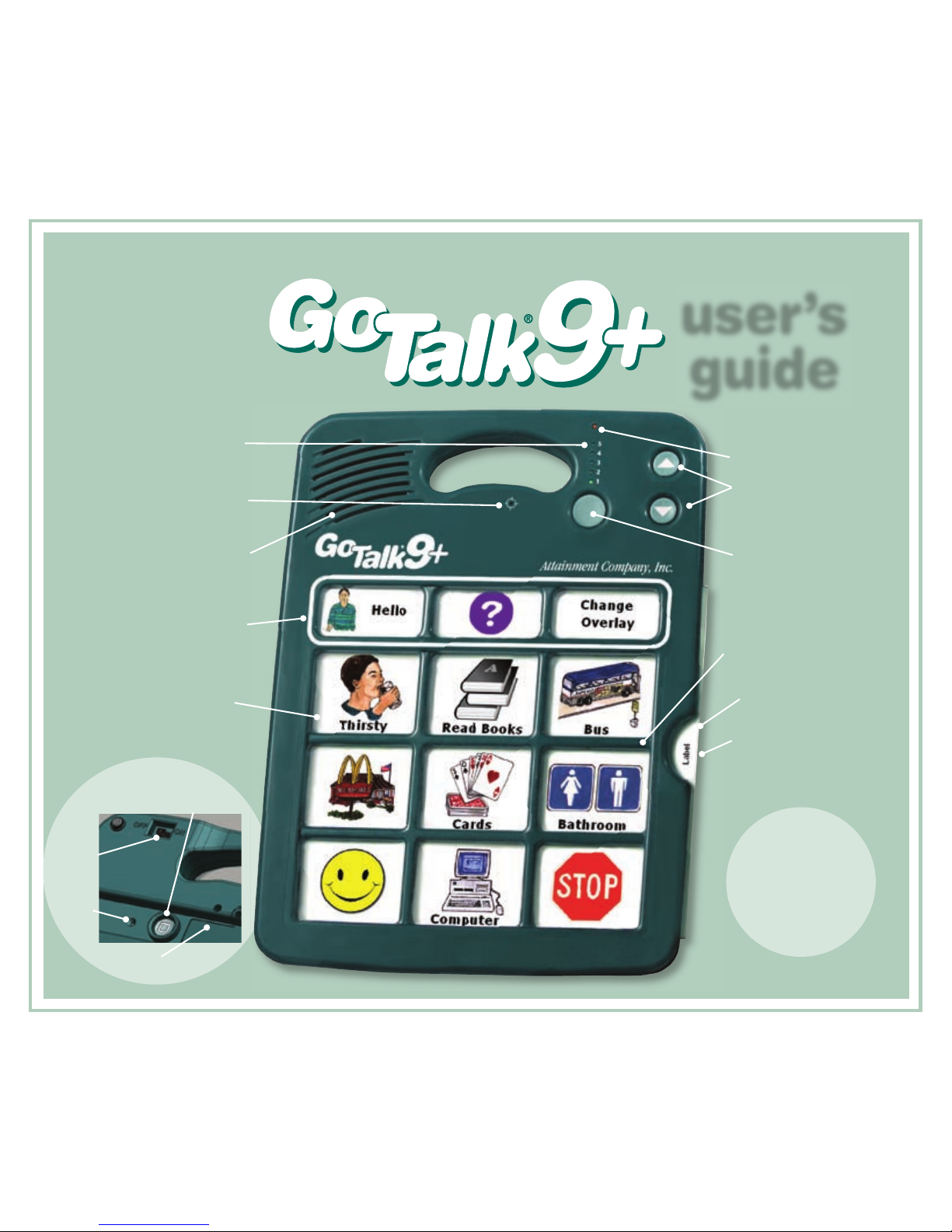
microphone
built in key guard
speaker
core vocabulary keys
12 seconds each
volume control
change level button
overlay tab and
overlay storage
(picture cues not included)
plastic insert
level indicating
(green) LEDs
record (red) LED
message keys
8 seconds each
on all 5 levels
user’s
guide
on/off
switch
erase
level
RECORD button
battery
compart ment
back view
size: 9" x 12" x 11/8" weight: 20 ounces
Page 2
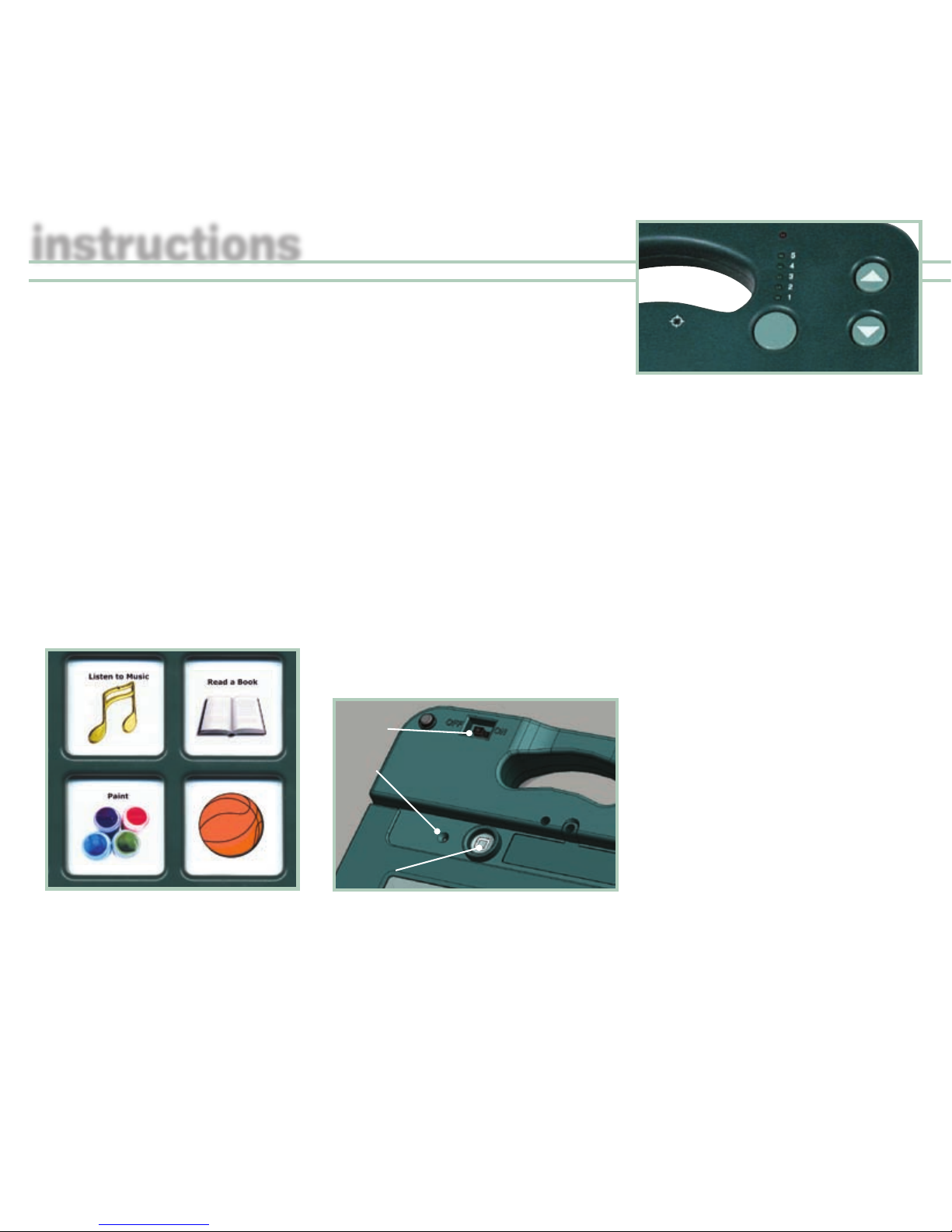
record message keys
Turn on the GoTalk 9+ and you’ll hear
a beep! Press and release the record
button, the level LED (green) and the
record LED (red) will light. While it is
lit, press and release the message
key that you’re going to record on.
As you press the message key, the
record LED (red) blinks to indicate
it’s recording.
When you finish the message, press
any key to stop recording. Continue
to record each message or record the
entire level. When you’ve recorded all
your messages (or the entire level or
levels) press and release the
record button.
Play a message
Press and release a message key;
the green level light will blink. The
message you recorded will playback.
levels
To change level, press and release
the change level button below
the green LEDs. The green LED
indicating the current level will blink.
Press again to change to another
level. Change the paper overlay to
correspond to the new level.
To erase level, press and release
the record button on the back of
the device. Push the Change Level
button to the level you want to erase.
Insert a pen point or paper clip into
the pinhole (Erase Level) on back of
unit. This will erase the entire level.
Repeat steps above to erase other
levels. Erase level does not erase
core vocabulary words or phrases.
lock features
Eliminates unwanted use of
these buttons.
• Level Lock—to activate level lock
follow these steps: Press and hold
down the record button on back of
the unit. The red record LED and
green level LED will turn on. While
still pressing the record button,
press and release the volume down
button. The record LED and the
level LED will turn off to show you
level lock is ON.
• Record Lock—to activate the record
lock: Press and hold down the
record button on the back of the
unit. The red record LED and green
level LED will turn on. While still
pressing the record button, press
and release the volume up button.
The record LED and level LED will
turn off to show the record lock
is ON.
To UNDO the record and level lock,
turn the unit off. While off, hold down
the record button and turn the unit
on. The green LED light turns on
and goes through each level and the
record LED goes on briefly
and beeps.
instructions
erase
level
RECORD
button
back view
on/off
switch
Page 3
core vocabulary
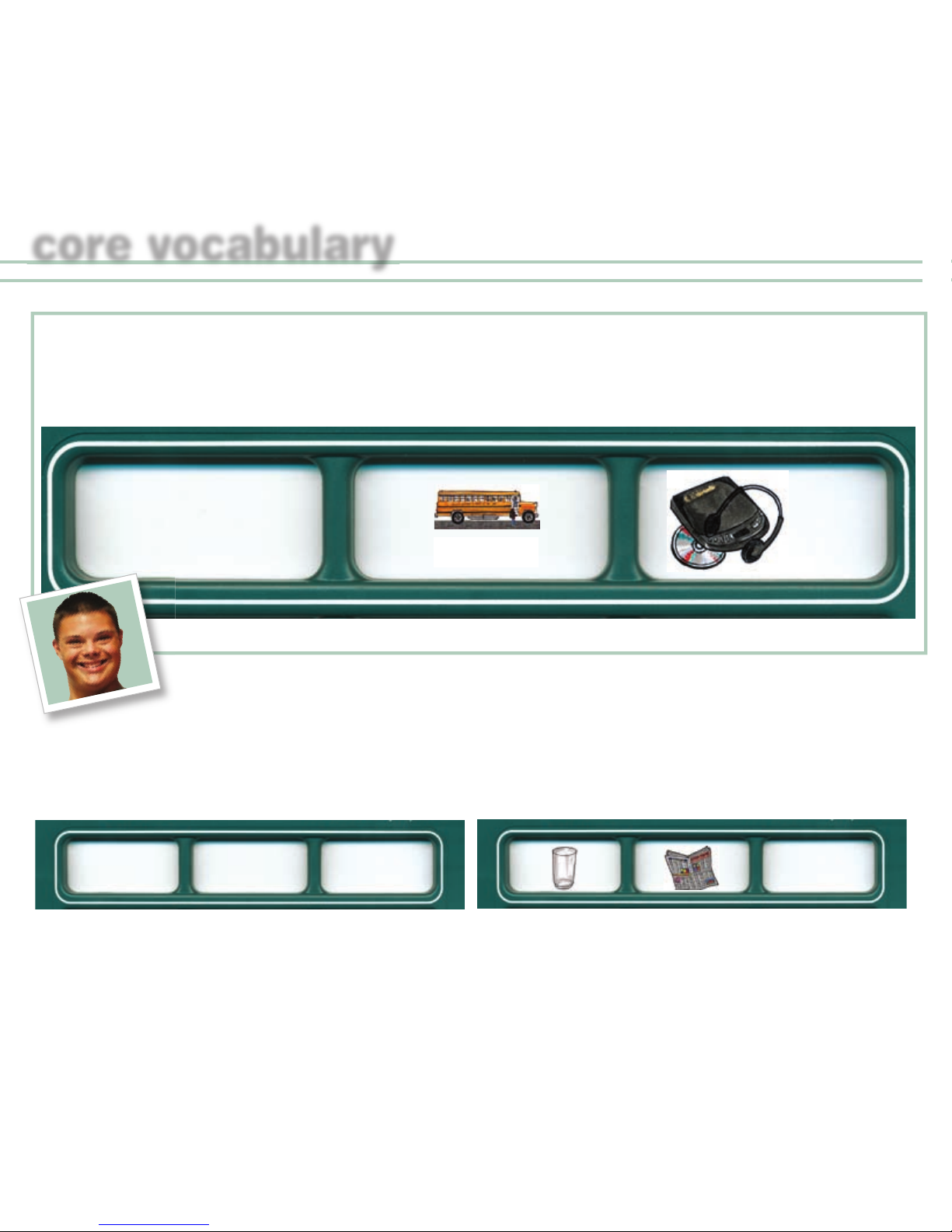
3 core vocabulary message keys
Follow the directions above to record a message. The core vocabulary messages stay the same on each level,
until you record over them.
actual size of core message keys
Place
student’s
picture
here
Listen
Bus
idea one idea two
Core vocabulary should be used for frequently communicated messages. These messages could include
greetings, comments, common questions, or basic needs. Core vocabulary messages will stay consistent
regardless of the level.
Break
Bye
Change
Overlay
These 3 messages can be customized to fit in any situation!
Hi
Page 4
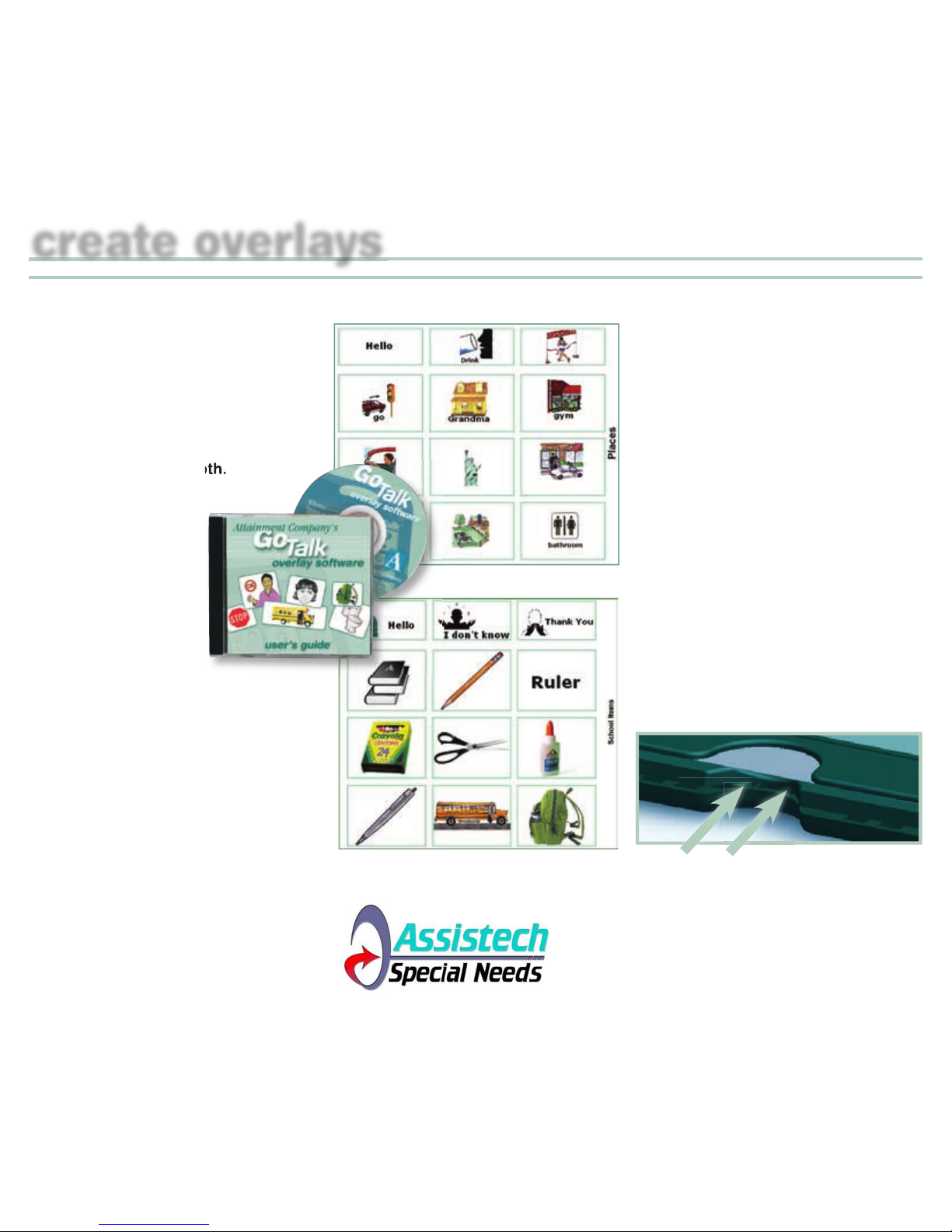
GoTalk™ overlay
software
Creating overlays is easy with GoTalk
Overlay Software! Includes over a
thousand photos and illustrations,
plus you can paste your own images
into any overlay. Overlay cells can
contain an image, text
(in any language!) or both.
Editing features let you
change color, size,
and font of text.
Move, enlarge,
rotate, and crop
pictures. Templates
included for all
GoTalk products.
Save overlay files
and share with other
GoTalk users.
implementation
ideas
You can use your GoTalk 9+
for many activities. Here are a
few possibilities:
•
expressive augmentative
communication device
•
modified curriculum activities
•
provide visual and auditory
language cues
•
give instructions across
environments or tasks
•
use in English as a second
language program
ideas overlays
There are several ways to make
overlays for the GoTalk 9+!
•
use GoTalk Overlay Software
•
write words on blank overlay
template with marker
•
cut/paste pictures or symbol cues
onto an overlay template
•
place velcro on each square
and add a texture cue for
visually impaired
overlay storage
compartment
You can now store at least one
overlay for each level in the overlay
storage compartment. This will
make it easier to change overlays
when you change environments or
conversational topics! Store your
user guide here too.
Attainment Company, Inc.
P.O. Box 930160 • 504 Commerce Parkway
Verona, WI 53593-0160 ••USA ••Phone 1-800-327-4269
INTERNATIONAL CALLS 1-608-845-7880
www.AttainmentCompany.com
Attainment Company, Inc.
P.O. Box 930160 • 504 Commerce Parkway
Verona, WI 53593-0160 •
INTERNATIONAL CALLS 1-608-845-7880
www.AttainmentCompany.com
create overlays
© Attainment Company
ASSISTECH
4801 W Calle Don Miguel
Tucson, AZ 85757
www.assistech.com
Call 866-674-3549
 Loading...