

Page 1

AsiaRF AWM002
User’s Manual
Version: 1.0
WiFi AP Router Module
www.asiarf.com
1
Page 2

AsiaRF AWM002
Copyright Statement
Trademarks
Copyright @2013
Contents are subject to change without notice.
All trademarks belong to their respective proprietors.
Copyright Statement
THIS DOCUMENT CONTAINS OF PROPRIETARY TECHNICAL
INFORMATION THAT IS THE PROPERTY OF THIS COMPANY. AND
NO PART OF THIS DOCUMENTATION MAY BE REPRODUCED,
STORED IN A RETRIEVAL SYSTEM OR TRANSMITTED IN ANY
FORM OR BY ANY MEANS, ELECTRICAL OR MECHANICAL, BY
PHOTOCOPYING, RECORDING, OR OTHERWISE, WITHOUT THE
PRIOR WRITTEN CONSENT OF THIS COMPANY.
Federal Communication Commission Interference Statement
This equipment has been tested and found to comply with the limits for
a Class B digital device, pursuant to Part 15 of the FCC Rules. These
limits are designed to provide reasonable protection against harmful
interference in a residential installation. This equipment generates,
uses and can radiate radio frequency energy and, if not installed and
used in accordance with the instructions, may cause harmful
interference to radio communications. However, there is no
guarantee that interference will not occur in a particular installation. If
this equipment does cause harmful interference to radio or television
reception, which can be determined by turning the equipment off and
on, the user is encouraged to try to correct the interference by one of
the following measures:
- Reorient or relocate the receiving antenna.
- Increase the separation between the equipment and receiver.
www.asiarf.com
2
Page 3

AsiaRF AWM002
- Connect the equipment into an outlet on a circuit different from
that to which the receiver is connected.
- Consult the dealer or an experienced radio/TV technician for
help.
This device complies with Part 15 of the FCC Rules. Operation is
subject to the following two conditions: (1) This device may not cause
harmful interference, and (2) this device must accept any interference
received, including interference that may cause undesired operation.
FCC Caution: Any changes or modifications not expressly approved by
the party responsible for compliance could void the user's authority to
operate this equipment.
IMPORTANT NOTE:
FCC Radiation Exposure Statement:
This equipment complies with FCC radiation exposure limits set forth
for an uncontrolled environment. This equipment should be installed
and operated with minimum distance 20cm between the radiator &
your body.
This transmitter must not be co-located or operating in conjunction with
any other antenna or transmitter.
www.asiarf.com
3
Page 4

AsiaRF AWM002
Contents
CHAPTER 1 INTRODUCTION
1.1 INTRODUCTION .............................................................. 1
1.2 HARDWARE FEATURES ................................................... 3
1.3 SOFTWARE FEATURES .................................................... 5
1.4 PACKAGE CONTENTS ...................................................... 6
CHAPTER 2 HARDWARE INSTALLATION
2.1 HOW TO START .............................................................. 7
2.2 LED INDICATOR AND PORT DESCRIPTION ...................... 9
2.3 POSITION SLIDE SWITCH ................................................ 9
2.4 RESET BUTTON .............................................................. 9
2.5 PIN DEFINITION ............................................................. 9
CHAPTER 3 FIRMWARE SETUP
3.1 DEFAULT CONFIGURATION ........................................... 12
3.2 CONFIGURE AWM002 ................................................. 13
3.2.1 STATUS ..................................................................... 14
3.4.1.2 BREAK-DETECTION ............................................... 17
3.4.1.3 MAC-CLONE ......................................................... 17
3.4.1.4 DDNS ................................................................... 17
3.4.2 LAN ......................................................................... 17
3.4.2.1 SETUP .................................................................... 17
3.4.2.2 BINDING ................................................................ 18
3.4.2.3 DHCP-TABLE ........................................................ 19
3.4.3 WIRELESS ................................................................. 19
www.asiarf.com
4
Page 5

AsiaRF AWM002
3.4.3.1 BASIC .................................................................... 20
3.4.3.2 SECURITY .............................................................. 20
3.4.3.3 ADVANCED ............................................................ 20
3.4.3.4 WDS ..................................................................... 20
3.4.3.4 WPS ...................................................................... 21
3.4.3.5 STATION LIST ........................................................ 21
3.4.3.6 MAC ACCESS ........................................................ 21
3.4.4 MEDIA ...................................................................... 21
3.4.5 SECURITY ................................................................. 21
3.4.5.1 FIREWALL .............................................................. 22
3.4.5.2 WEBSITE-BLOCK ................................................... 22
3.4.5.3 MAC-FILTER ......................................................... 22
3.4.5.4 ACCESS-RESTRICTIONS ......................................... 22
3.4.5.5 PORT-TRIGGERING ................................................ 23
3.4.5.6 DOS ....................................................................... 24
3.4.6.1 VISUAL SERVER..................................................... 26
3.4.6.2 APPLICATION ......................................................... 26
3.4.6.3 DMZ ..................................................................... 27
3.4.6.4 NAT ...................................................................... 27
3.4.7 ROUTING .................................................................. 27
3.4.7.1 TABLE .................................................................... 28
3.4.7.2 STATIC ................................................................... 28
3.4.8 ADMIN ...................................................................... 28
3.4.8.1 MANAGEMENT....................................................... 28
www.asiarf.com
5
Page 6

AsiaRF AWM002
3.4.8.2 TIME-SETTING ....................................................... 29
3.4.8.3 BACKUP & RESTORE .............................................. 29
3.4.8.4 FIRMWARE UPGRADE ............................................. 29
3.4.8.5 RESTART ................................................................ 29
3.4.8.4 FACTORY DEFAULT ................................................ 29
3.4.8.5 PASSWORD ............................................................. 29
3.5 WIRELESS AP CLIENT MODE ........................................ 29
3.5.1 WIFI WAN ............................................................... 30
3.6 WIRELESS AP MODE .................................................... 30
3.6.1 LAN SETTING ........................................................... 31
CHAPTER 4 FREQUENTLY ASKED QUESTIONS (FAQ)
4.1 WHAT AND HOW TO FIND MY PC’S IP AND MAC
ADDRESS? .......................................................................... 32
4.2 WHAT IS WIRELESS LAN? ........................................... 33
4.3 WHAT ARE ISM BANDS? .............................................. 33
4.4 HOW DOES WIRELESS NETWORKING WORK? ................ 33
4.5 WHAT IS BSSID? ......................................................... 35
4.6 WHAT IS ESSID? ......................................................... 35
4.7 WHAT ARE POTENTIAL FACTORS THAT MAY CAUSES
INTERFERENCE? ................................................................. 35
4.8 WHAT ARE THE OPEN SYSTEM AND SHARED KEY
AUTHENTICATIONS? ........................................................... 36
4.9 WHAT IS WEP? ............................................................ 37
4.10 WHAT IS FRAGMENT THRESHOLD? ............................ 37
www.asiarf.com
6
Page 7

AsiaRF AWM002
4.11 WHAT IS RTS (REQUEST TO SEND) THRESHOLD? ...... 39
4.12 WHAT IS BEACON INTERVAL? .................................... 40
4.13 WHAT IS PREAMBLE TYPE? ........................................ 40
4.14 WHAT IS SSID BROADCAST? ..................................... 41
4.15 WHAT IS WI-FI PROTECTED ACCESS (WPA)? ............ 41
4.16 WHAT IS WPA2? ........................................................ 42
4.17 WHAT IS 802.1X AUTHENTICATION? .......................... 42
4.18 WHAT IS TEMPORAL KEY INTEGRITY PROTOCOL
(TKIP)? ............................................................................. 43
4.19 WHAT IS ADVANCED ENCRYPTION STANDARD (AES)?
.......................................................................................... 43
4.20 WHAT IS INTER-ACCESS POINT PROTOCOL (IAPP)? .. 43
4.21 WHAT IS WIRELESS DISTRIBUTION SYSTEM (WDS)? 44
4.22 WHAT IS UNIVERSAL PLUG AND PLAY (UPNP)? ......... 44
4.23 WHAT IS MAXIMUM TRANSMISSION UNIT (MTU) SIZE?
.......................................................................................... 45
4.24 WHAT IS CLONE MAC ADDRESS? .............................. 45
4.25 WHAT IS DDNS? ....................................................... 45
4.26 WHAT IS NTP CLIENT? .............................................. 46
4.27 WHAT IS VPN? .......................................................... 46
4.28WHAT IS IPSEC? ........................................................ 46
CHAPTER5 TERMINOLOGY
www.asiarf.com
7
Page 8

AsiaRF AWM002
Chapter 1 Introduction
1.1 Introduction
Thank you for purchasing AWM002 WiFi AP Router
Module Multi-purpose Wireless device.
AWM002 is a tiny WiFi AP/Router Module with up to
150Mbps transmission rate. It supports three working modes:
AP Client, and Router.
The default mode is AP Client mode can be easily
switched by sliding the side switch.
AWM002 can be powered from either DC 3.3V 460mA
and 1.2V 500mW power input. The Base board is powered by
DC 12V 1A.
This Module could be installed in any electronic devices for
directly controlled.
Home Automation
power switch
air conditioner
heater
www.asiarf.com
1
Page 9

AsiaRF AWM002
coffee machine
television
water shower for planets
automation controller
surveillance camera, baby mornitor
Industrial Control
Machine control
Power saving control
Timer automatic
You can link with internet and do any you want from 3G
linking or any place in the world.
www.asiarf.com
2
Page 10

AsiaRF AWM002
Standard
IEEE 802.11 b/g/n standards
compliant
Wireless LAN
1T1R Mode
Connector Pins
Pitch
1.27mm
Antenna
iPex Connector *1 ( PIFA optional )
30-pin Interface
USB*1 ( Host )
UART*1
GPIOs
VCC/GND
I2S
I2C
PCM
Frequency Range
2.400 ~ 2.4835GHz ( subject to local
regulations)
Number of
Selectable
Channels
802.11n 20MHz/40MHz ;
802.11b/g
USA, Canada (FCC):11 channels
(2.412GHz~2.462GHz)
Europe (CE): 13 channels
(2.412GHz~2.472GHz)
Japan (TELEC): 14 channels
(2.412GHz~2.4835GHz)
Data Rate
802.11n: up to 150Mbps
802.11b: 1, 2, 5,5, 11Mbps
802.11g: 6, 9, 12, 18, 24, 36, 48,
54Mbps
Coverage Area
Up to 6 times faster then existing
802.11 b/g products
Receiver
-66dBm at HT40 MCS7
1.2 Hardware Features
Transmit
Power(EIRP)
www.asiarf.com
11n HT40 MCS7 : +11 dBm
11b CCK: +15 dBm
11g OFDM: +12 dBm
3
Page 11

AsiaRF AWM002
Sensitivity
-73dBm at 54Mpbs
-86dBm at 11Mpbs
Certifications
FCC/CE by request
Power
consumption
Pin input: 3.3V 460mA, 1.2V
500mA(LDO)
Total: 5V 550mA
Above are the peak, average is like
5V 300mA, depend on the system
design.
Weight
30g
Dimension
25x35 mm
Storage
Temperature
-20 to 85℃
Storage Humidity
0 to 85%
Operation
Temperature
0 to 70℃
Operation
Humidity
0 to 80%
www.asiarf.com
4
Page 12

AsiaRF AWM002
WAN
WiFi WAN
Static IP
DHCP Client
PPPoE (for ADSL)
Transparent Bridge
Networking
DHCP Client/Relay/Server
Dynamic DNS
NTP Client
DNS Cache/Proxy
Firewall:
PPTP
L2TP
IPSec
MAC/IP/Port Filter
Virtual Server
DMZ
Content Filter
Forbid BT
Forbid Mule
WIFI
2 Transmit and 2 Receive paths (2T2R)
20MHz/40MHz bandwidth
Support Hidden SSID
1.3 Software Features
www.asiarf.com
5
Page 13

AsiaRF AWM002
Support WPS
Clock rate up to 400MHz Legacy and
High Throughput Modes
High security: WEP64/128,TKIP,
WPA,WPA2 AES,mixed, 802.11i
802.1X Authentication with RADIUS
Client
QoS-WMM, WMM-PS
1.4 Package contents
The package contains the following items
1 AWM002
1 AWM002 Base Board
1 AC/DC Adapter
Input: 110~240V 50/60Hz,
Output: 12V 1A adapter
1 Quick Installation Guide
www.asiarf.com
6
Page 14
AsiaRF AWM002
Chapter 2 Hardware Installation
2.1 How to start
After you unpack the box, please make sure all the
components are completed.
Follow the below setup to setup the AWM002:
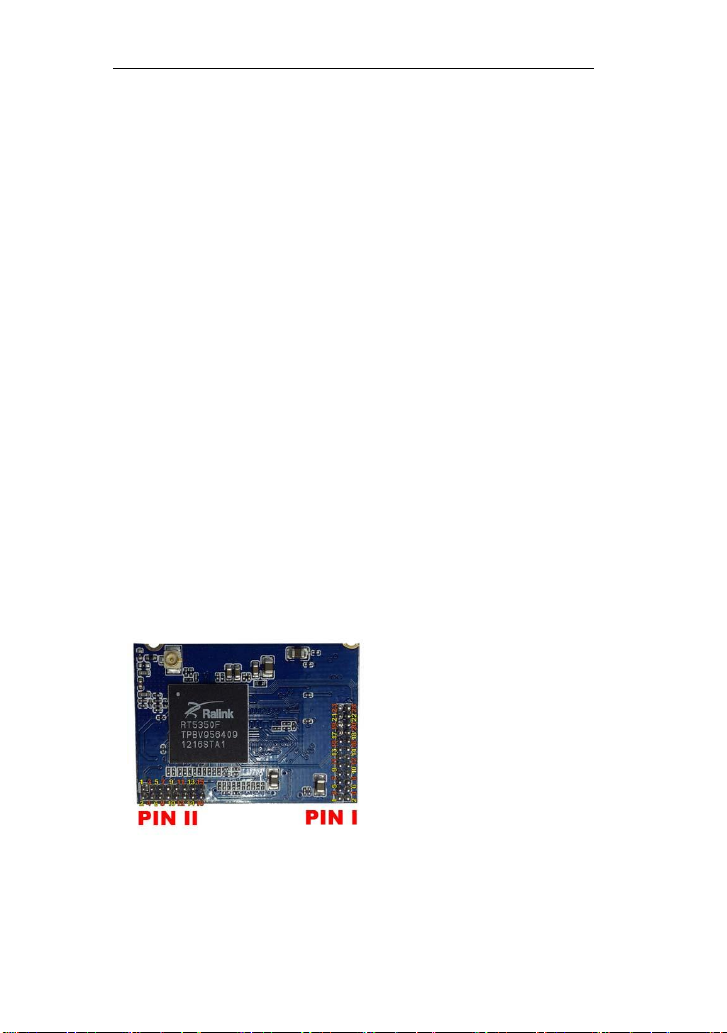
1. Put the AWM002 Module on Base board and linked
with a small PCB antenna.
2. Connect Power Adaptor to get the 12V 1A power.
LEDs will turn on and flashing.
3. Wait around one minute the WiFi signal start
flashing, you can see the WiFi signal from your
computer or mobile device with WiFi function.
4. Link WiFi or link RJ45 cable, log into the IP address
10.10.1.1 or 10.10.10.254, input admin/admin log in.
www.asiarf.com
7
Page 15
AsiaRF AWM002
www.asiarf.com
8
Page 16

AsiaRF AWM002
Description
Pin
Pin
Description
+3.3V
2
1
+3.3V
UART_Rx
4
3
GND
UART_Tx
6 5 Reserved
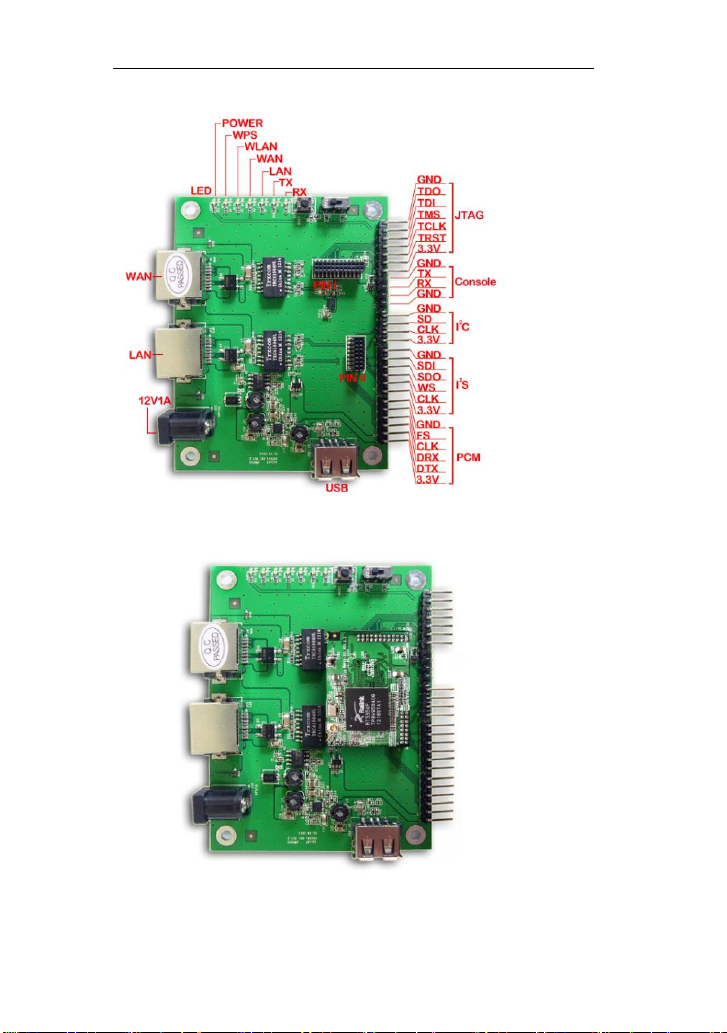
2.2 LED Indicator and Port Description
LED indicators description on front panel: (From R to L)
1. PWR: Indicates AWM002 is power on.
2. WPS: Flashing indicates AWM002 is negotiating
with the client in WPS mode.
3. WLAN: Indicates the WIRELESS LAN is
connected.
4. WAN: Indicates an Ethernet cable is connected
into WAN port.
5. LAN: Indicate an Ethernet cable is connected into
the LAN port.
6. TX: Indicate the data transfer.
7. RX: Indicated the data received.
2.3 Position Slide Switch, Customized by option.
2.4 Reset button
2.5 PIN DEFINITION
www.asiarf.com
I
9
Page 17

AsiaRF AWM002
GND
8 7 WPS/Reset to Default #
LED_WLAN#
10
9
GND
LED_WPS#
12
11
USB_D+
AP/Client
selection
14
13
USB_D-
1.2V
16
15
1.2V
GPIO #19
18
17
TX0+
GPIO #18
20
19
TX0-
GPIO #17
22
21
RX0+
LINK0_LED
24
23
RX0-
Description
Pin
Pin
Description
I2SCLK
2 1 PCMFS
I2SWS
4 3 PCMCLK
I2SSDO
6 5 PCMDRX
I2SSDI
8 7 PCMDTX
I2C_SCLK
10 9 I2C_SD
RX1+
12
11
TX1+
RX1-
14
13
TX1-
GND
16
15
GND
II
Size:
1. Size: 25*35 mm
www.asiarf.com
10
Page 18

AsiaRF AWM002
Double row 1.27mm pitch on the 35mm
side
2. Reserved: Available for use
3. Reserved is ACTIVE LOW
4. LEDs and WPS/Reset to Default are active LOW
Reset /Reset to default function is share AP/Client selection
pin
www.asiarf.com
11
Page 19

AsiaRF AWM002
IP address
10.10.1.1 or 10.10.10.254
Subnet mask
255.255.255.0
Username
admin
Password
admin
Operation Mode
AP Client
Chapter 3 Firmware Setup
This chapter is to describe how to configure AWM002
to setup different modes: Wireless Router (Transparent
Bridge), AP Client and Wireless AP mode.
Operation Mode:
Wireless Router (Transparent Bridge): In
this mode, the Ethernet WAN port is for WAN.
The connection type can be setup in WAN
page by using Static IP, DHCP (Auto config),
PPPoE, and Transparent Bridge. LAN port is
for LAN and wireless is LAN also.
Wireless AP Client: In this mode, the device
is supposed to connect to internet or the other
wireless router via Wireless WAN. The NAT is
enabled and PCs in LAN ports share the same
IP to ISP through WAN port.
3.1 Default Configuration
www.asiarf.com
12
Page 20

AsiaRF AWM002
DHCP
On
SSID
AWM002 / WioData
Channel
Smart select
Security
Off
3.2 Configure AWM002
1. Connect the Ethernet cable to the AWM002 LAN
port and your notebook/computer.
2. Power up to AWM002.
3. Open Internet Explorer from your
notebook/computer
4. Enter: http://10.10.1.1
5. Enter the Username and Password. If this is the
first time use, than enter “admin” and “admin” on
both username and password.
6. The following screen will show up and follow the
instruction
www.asiarf.com
13
Page 21
AsiaRF AWM002
3.2.1 Status
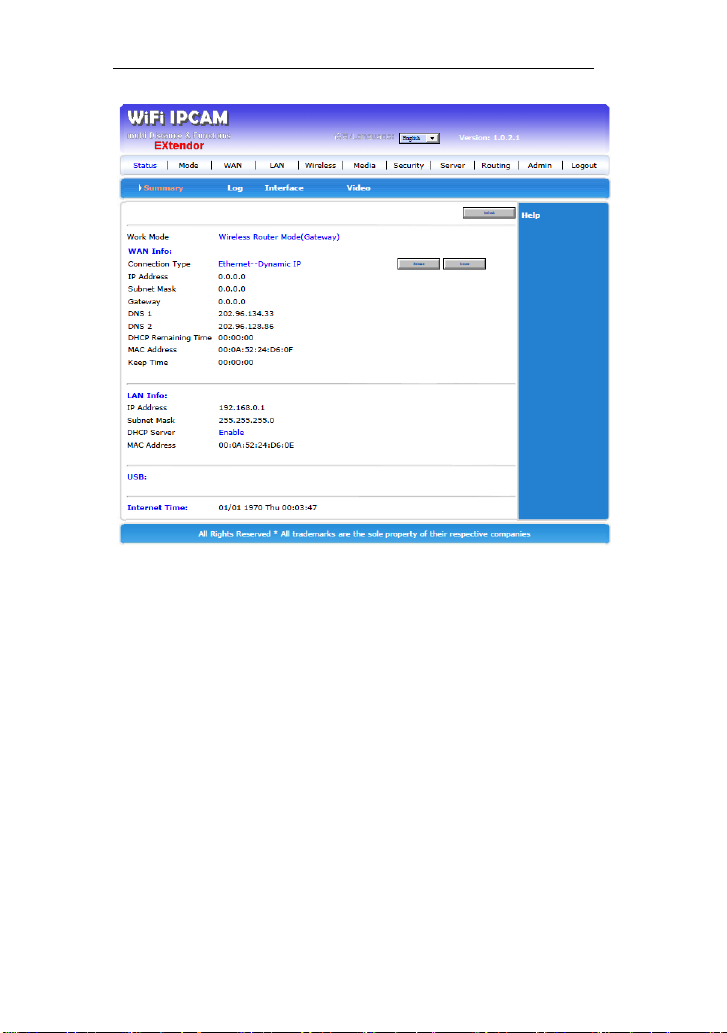
This directory is included Summary, Log, Interface,
and Video.
Summary shows the most information of the router.
Log is System Information, System warming, and
System Log records can let engineer or user to look the
turn on record and other linking devices.
Interface is the statistics of network.
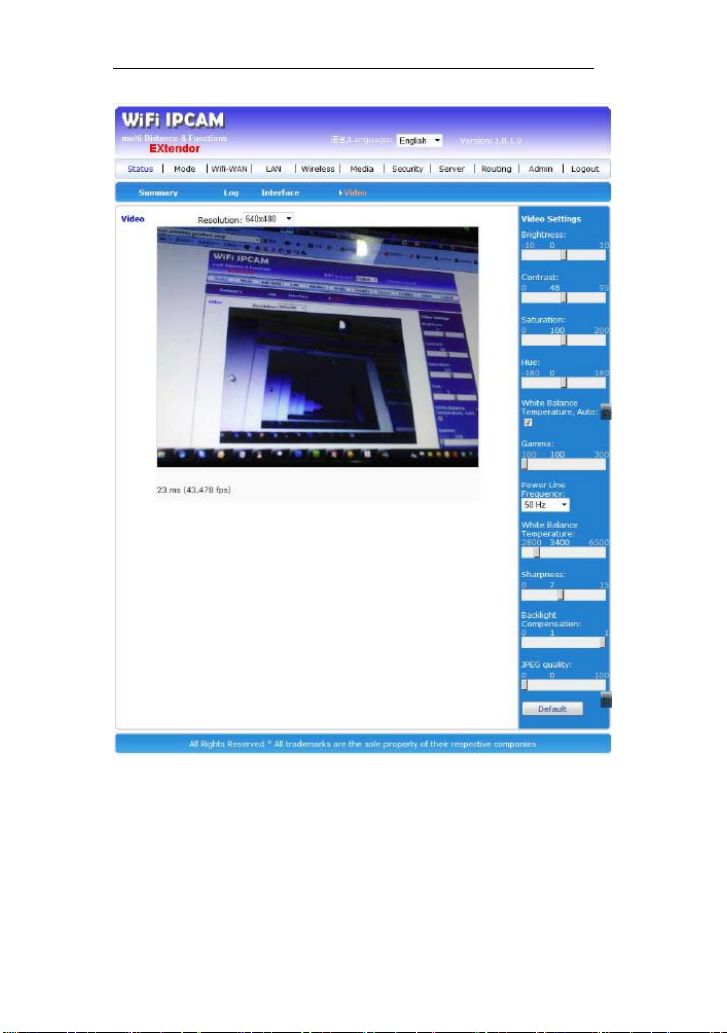
Video you can see the image when you plug the web
camera into AWM002 base board USB port as below.
www.asiarf.com
14
Page 22
AsiaRF AWM002
You can adjust Brightness, Contract, Saturation, Hue,
White Balance Auto, Gamma, Power line frequency, White
Balance Temperature, Sharpness, Backlight Compensation,
JPG quality.
15
www.asiarf.com
Page 23
AsiaRF AWM002
3.3 Mode
Three modes you can see, Wireless Router
(Gateway), Wireless AP Client, and Standard Wireless
AP mode. By switch, you can see what mode you are
using now.
3.4 Wireless Router (Transparent Bridge) Mode
3.4.1 WAN
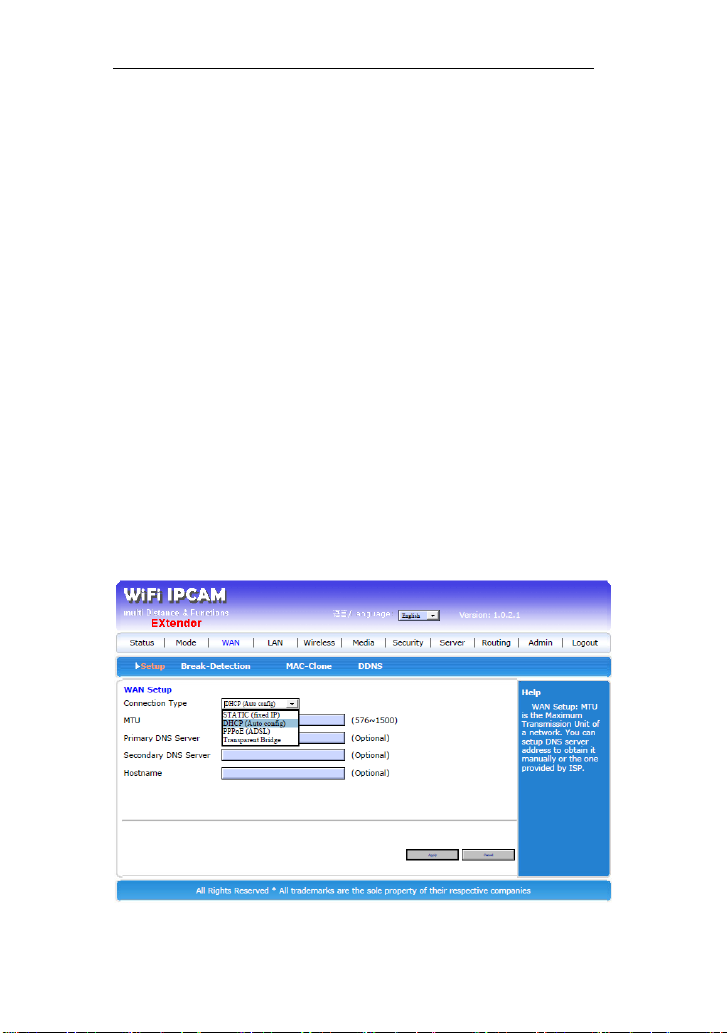
3.4.1.1 Setup
Default is DHCP, means can get IP address from the
main router or ISP. There are four selections:
Static (fixed IP)
DHCP (Auto config)
PPPoE (ADSL)
Transparent Bridge
www.asiarf.com
16
Page 24
AsiaRF AWM002
3.4.1.2 Break-Detection
Default is disable, it is send a message to Gateway to
reboot the linking.
3.4.1.3 MAC-clone
Change MAC address to the other MAC address for
fitting ISP’s identified.
3.4.1.4 DDNS
Dynamic DNS is for you to register one address in
DNS server for you from internet to get link back this
router. For more detail, please search in searching engine.
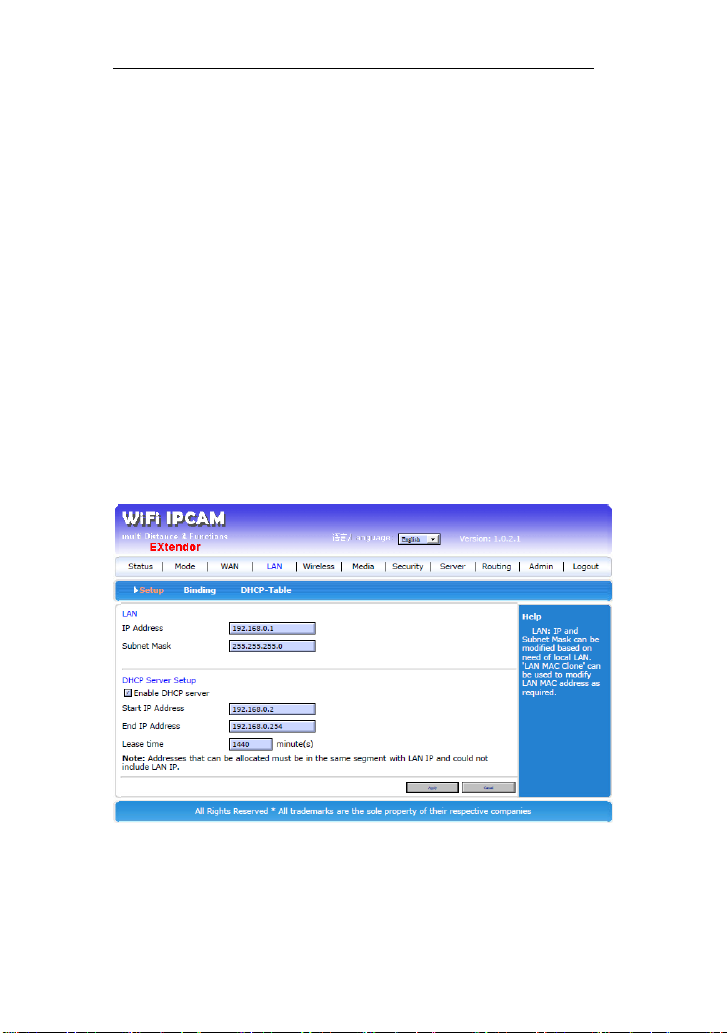
3.4.2 LAN
3.4.2.1 Setup
LAN you can set up the IP address and LAN’s DHCP
server.
www.asiarf.com
17
Page 25

AsiaRF AWM002
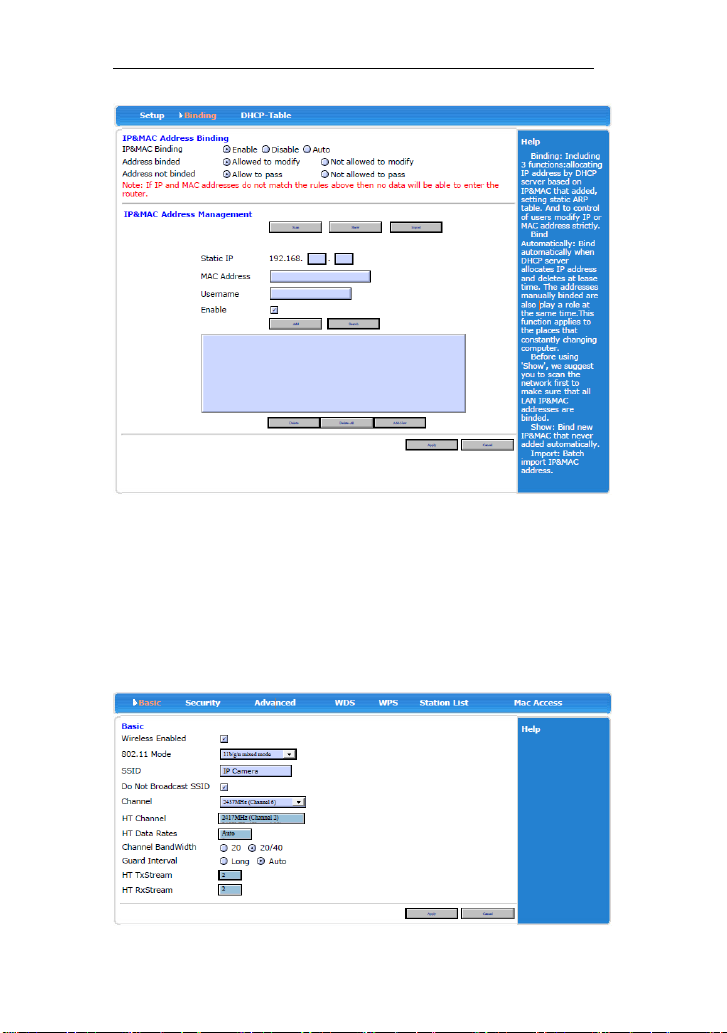
3.4.2.2 Binding
Binding: Including 3 functions: allocating IP address
by DHCP server based on IP&MAC that added, setting
static ARP table. And to control of users modify IP or
MAC address strictly. Bind Automatically: Bind
automatically when DHCP server allocates IP address and
deletes at lease time. The addresses manually binded are
also play a role at the same time. This function applies to
the places that constantly changing computer. Before using
'Show', we suggest you to scan the network first to make
sure that all LAN IP & MAC addresses are binded. Show:
Bind new IP&MAC that never added automatically.
Import: Batch import IP&MAC address.
www.asiarf.com
18
Page 26
AsiaRF AWM002
3.4.2.3 DHCP-table
DHCP Table: Display all IP address allocated by
current DHCP server.
3.4.3 Wireless
www.asiarf.com
19
Page 27

AsiaRF AWM002
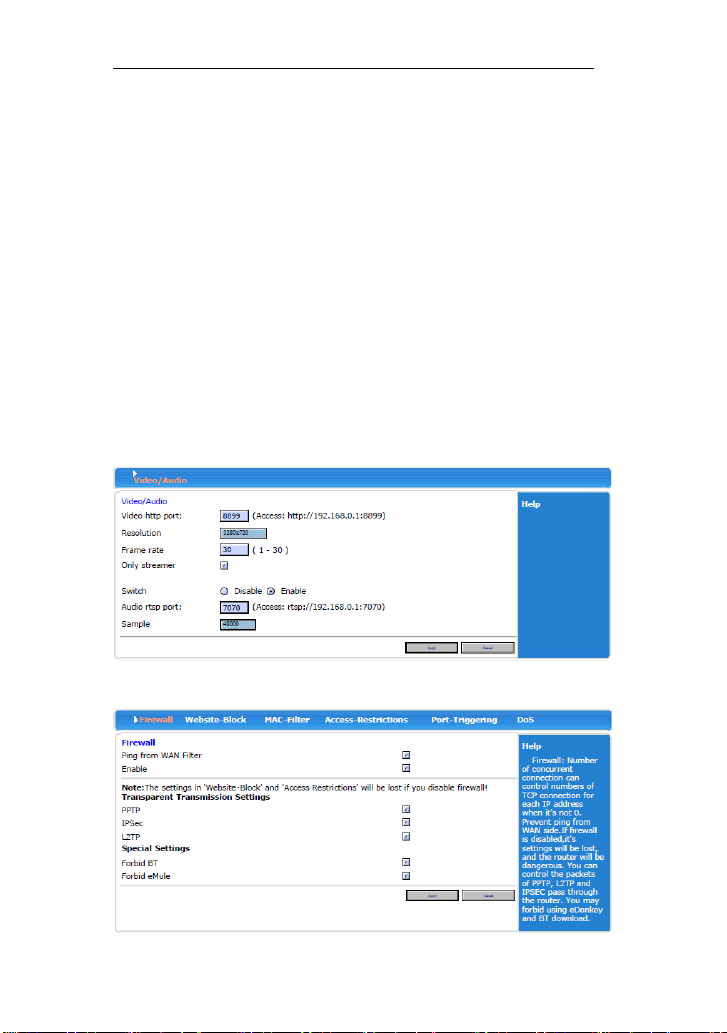
There are Basic, Security, Advanced, WDS, WPS,
Station List, and MAC Access.
3.4.3.1 Basic
Set wireless connection basic information, you could
set enable and disable wireless function, Broadcast and not
broadcast SSID, set SSID name and etc.
3.4.3.2 Security
The types of wireless security mode are as followings,
and you couls select as the need.
Disable
Open System
WPA
WPA-PSK
WPA2
WPA2-PSK
WPAPSKWPA2PSK (WPA-PSK and
WPA2-PSK)
WPA1WPA2(WPAand WPA2)
3.4.3.3 Advanced
Set advanced information of wireless connection.
3.4.3.4 WDS
There are Disable, Lazy mode, Bridge mode, and
www.asiarf.com
20
Page 28
AsiaRF AWM002
Repeater mode.
3.4.3.4 WPS
There are Enable and Disable.
3.4.3.5 Station List
3.4.3.6 MAC Access
MAC Access can limit the linking of Wireless by
MAC. Like allow or deny the MAC list you input here.
3.4.4 Media
You can set up Video and Audio setting
here.
3.4.5 Security
www.asiarf.com
21
Page 29

AsiaRF AWM002
3.4.5.1 Firewall
After enabling firewall, it can prevent internet
malicious attacks to roter or computers in LAN and ensure
safe operation of router computers in LAN. Especilly for
some open servers (such as virtual server, DMZ and etc.),
enabling router firewall function can block malicious
attacks and prevent DoS attack.
3.4.5.2 Website-Block
Select website block Enable, add to the list and
click “apply” to save.
3.4.5.3 MAC-Filter
In “MAC filter”, you could forbid the added MAC
address and also just allow the added MAC address
passing router.
3.4.5.4 Access-Restrictions
www.asiarf.com
22
Page 30
AsiaRF AWM002
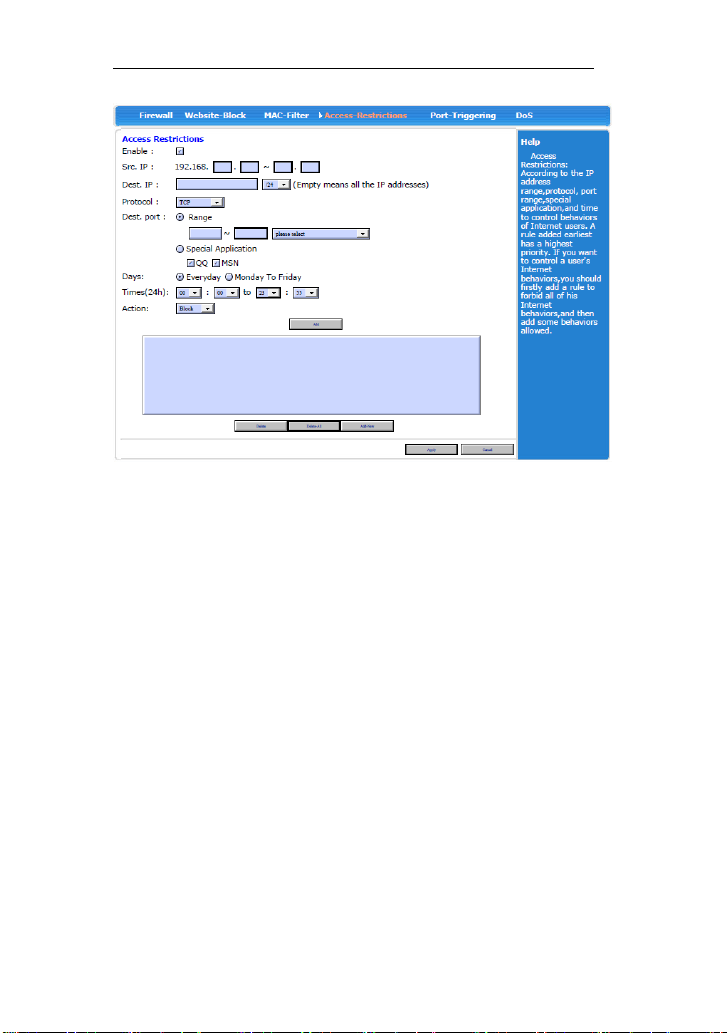
In the “Access-Restrictions”, you could block or
accept some ports passing router and effectively block
virus by controlling port range. Notes: The ports here
include source port and destination port. So, the data
packet will be disposed by discarded by router no matter
the source port or destination port of data packet within
this range.
3.4.5.5 Port-Triggering
In the “Port block, you could block some ports
passing router and effectively block virus by controlling
port range. Notes: The ports here include source port and
destination port. So, the data packet will be disposed by
discarded by router no matter the source port or destination
23
www.asiarf.com
Page 31

AsiaRF AWM002
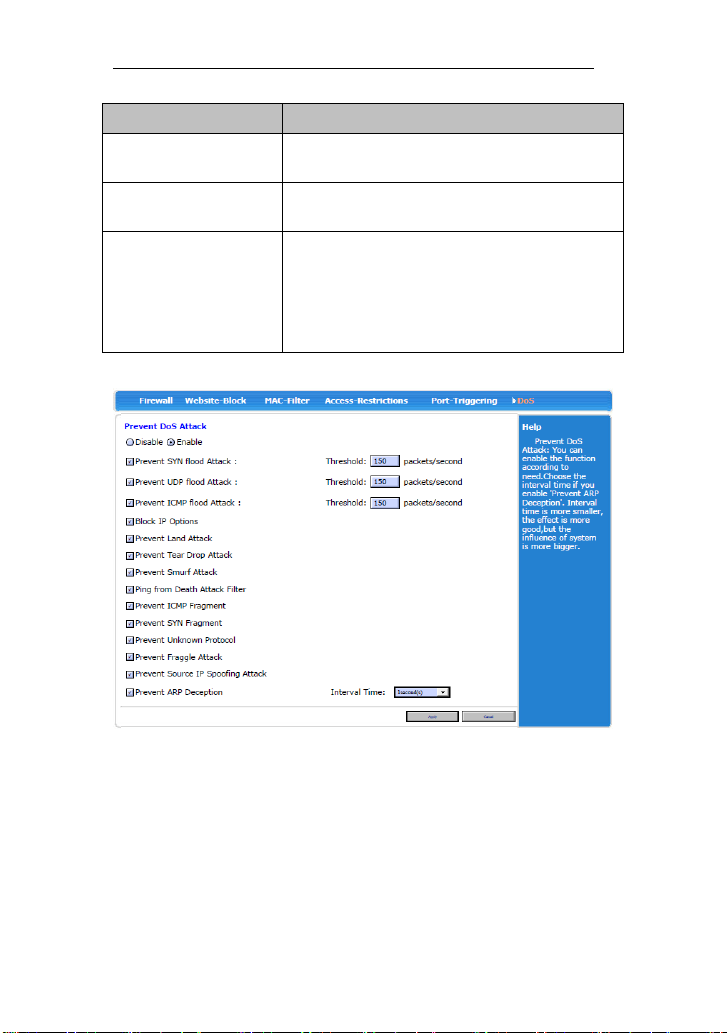
Items
Description
Forbid/Enable
Forbid or Enable the function of
preventing DOS attack.
Prevent SYN flood
attack
Prevent Syn Flood attack. Set maximum
rate of Syn packet according to visit
capacity of server in normal situation.
Threshold is150 packets/second.
Prevent UDP flood
attack
Prevent UDP flood attack. Set
maximum rate of UDP packet according
to visit capacity of server in normal
situation. Threshold is150
packets/second.
Prevent ICMP flood
attack
Prevent ICMP flood attack. Set
maximum rate of ICMP packet
according to visit capacity of server in
normal situation. Threshold is150
packets/second.
Prevent IP
Prevent IP attack by enabling this.
Prevent Land
attack
Prevent Land attack by enabling this.。
Prevent Tear Drop
attack
Prevent Tear Drop attack by enable this.
Prevent Smurf
attack
Prevent Smurf attack by enabling this.
Prevent Ping of
Death attack
Prevent Ping of Death attack by
enabling this.
Prevent ICMP
Fragment
Prevent ICMP Fragment attack by
enabling this.
Prevent unknown
protocol
Prevent unknown protocol attack by
enabling this.
port of data packet within this range.
3.4.5.6 DoS
www.asiarf.com
24
Page 32
AsiaRF AWM002
Items
Description
Prevent Fraggle
Attack
Prevent Fraggle ICMP Fragment attack
by enabling this.
Prevent source IP
spoofing attack
Prevent source IP spoofing attack
attack by enabling this.
Prevent ARP
Deception
Enable ARP deception function by
enabling this. The shorter the interval is,
the better preventing ARP deception
virus is. But it influences system a lot.
Please select according the need.
www.asiarf.com
25
Page 33
AsiaRF AWM002
3.4.6 Server
3.4.6.1 Visual Server
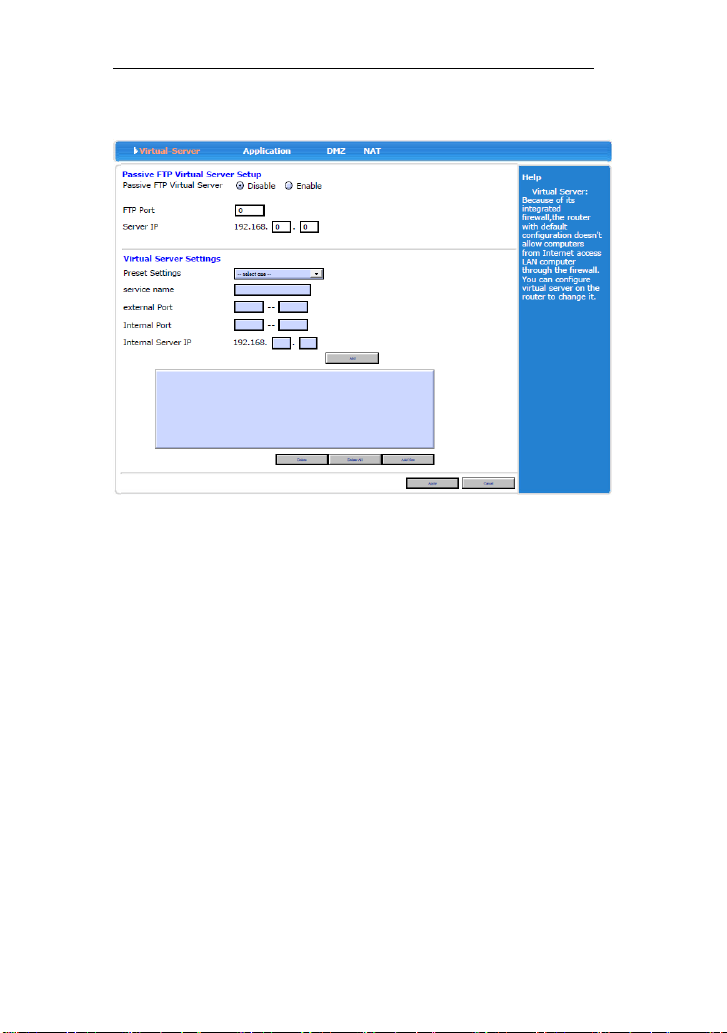
Virtual Server: Because of its integrated firewall, the
router with default configuration doesn't allow computers
from Internet access LAN computer through the firewall.
You can configure virtual server on the router to change it.
3.4.6.2 Application
Application: Some softwares are needed multiple
Internet connections, such as IP telephone, video
conference and so on, and normally the firewall will block
these connections. In order to make these softwares work
normally, the firewall must know what kind of situation
need to open multiple connections. Through the definition
26
www.asiarf.com
Page 34

AsiaRF AWM002
of special applications, when the firewall found a 'Trigger
Port' to be opened by a computer, it allows connections
from Internet to pass through the corresponding 'external
port' to be established.
3.4.6.3 DMZ
The DMZ host computer actually is a default virtual
server. If the router received a request from the external
network, it will check whether there is a virtual server
match in the list according to port of the external service
firstly, if there is, put forward the corresponding request to
the host, if not, put forward the corresponding request to
the DMZ host. When the DMZ host is not set, it will
discard the request.
3.4.6.4 NAT
Outside network IP address will be one-to-one
mapping to inside network address.
3.4.7 Routing
www.asiarf.com
27
Page 35
AsiaRF AWM002
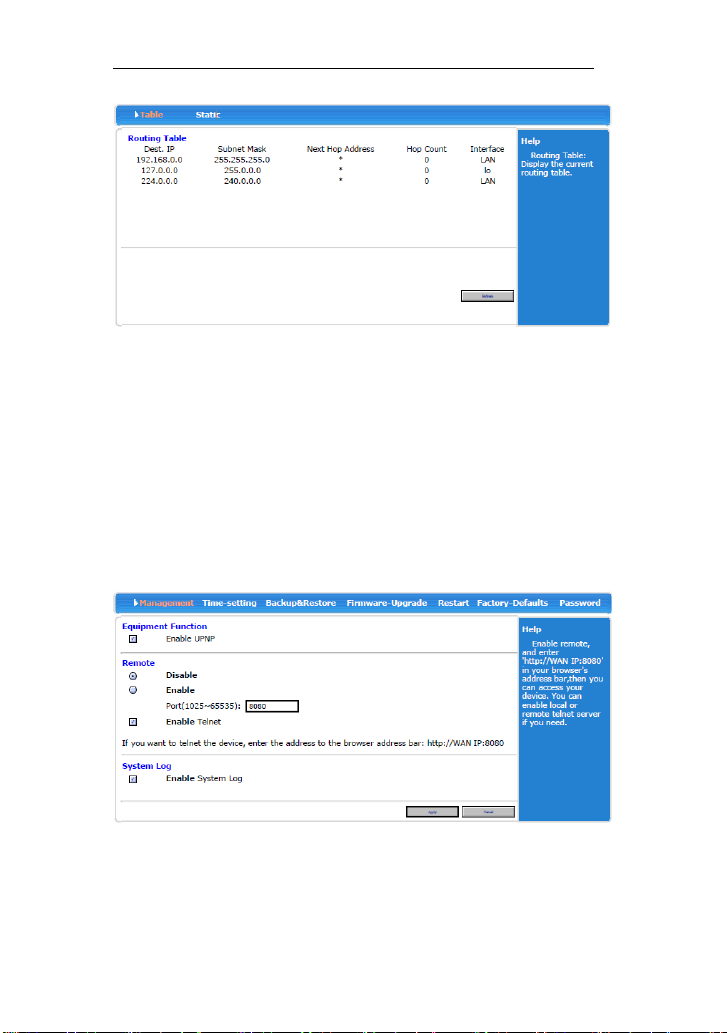
3.4.7.1 Table
Display the current routing table.
3.4.7.2 Static
Allow user define the path routing to the other host or
network.
3.4.8 Admin
3.4.8.1 Management
UPnP(Universal Plug and Play)the protocol for
www.asiarf.com
28
Page 36

AsiaRF AWM002
DLNA, the purpose is let smart electronic devices
communicated with each other.
Remote is administration from WAN control.
System Log function default is enable.
3.4.8.2 Time-setting
3.4.8.3 Backup & Restore
Setting’s backup and restore.
3.4.8.4 Firmware Upgrade
3.4.8.5 Restart
3.4.8.4 Factory Default
3.4.8.5 Password
Administration password setting.
3.5 Wireless AP Client mode
Ethernet and wireless are as a LAN connected with
PC or client devices, another Wireless Interface work as a
WAN port connected with other wireless AP or router.
29
www.asiarf.com
Page 37
AsiaRF AWM002
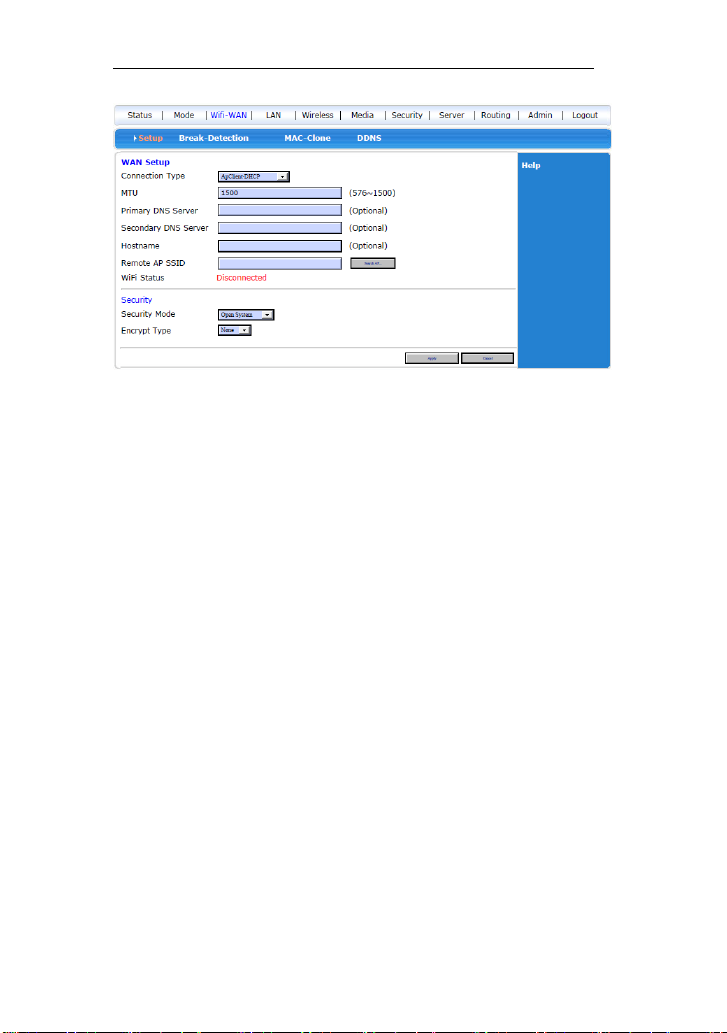
3.5.1 WiFi WAN
When you have a WiFi network, you can use this as a
WiFi repeater. Press “search AP”, there is a window pop
up with the list of active WiFi AP router, including the
SSID, encryption method.
Click the one you want to link and remember the
encryption mode, input the security part and press
“Apply”.
The router will be restarted, after restarted, in Status
you can see the linked successful or not. If not, do check
the encryption setting again.
3.6 Wireless AP mode
LAN and WAN port work as LAN port only.
Wireless is LAN also. All the IP addresses are the same IP
section.
30
www.asiarf.com
Page 38
AsiaRF AWM002
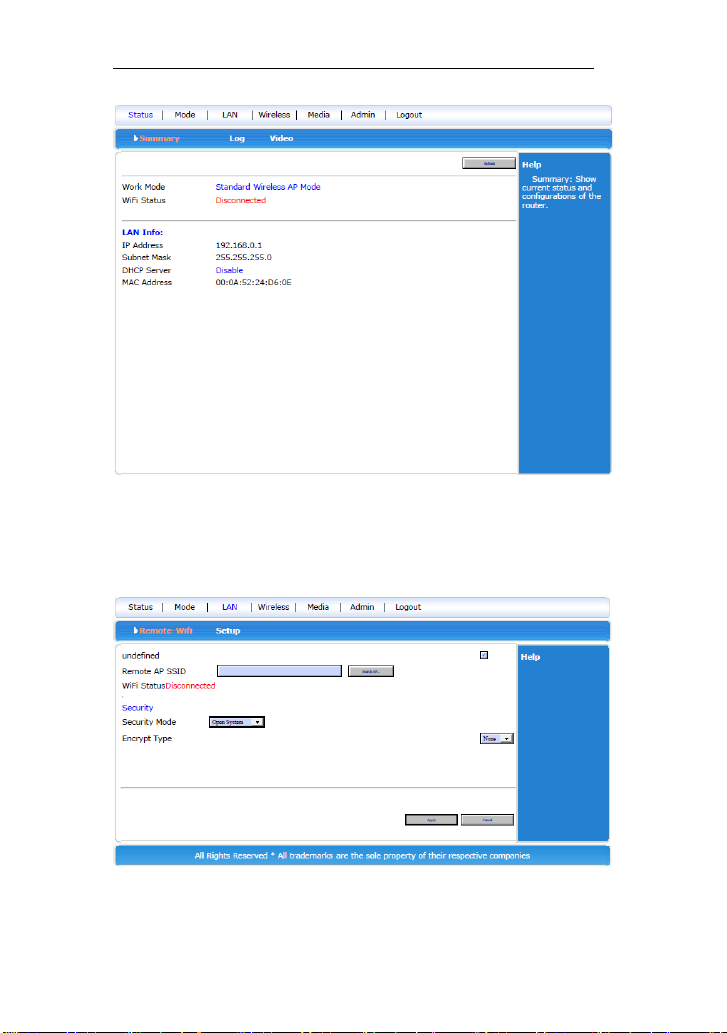
3.6 Wireless AP mode
Wireless and all Ethernet ports are in the same IP section.
3.6.1 LAN setting
www.asiarf.com
31
Page 39

AsiaRF AWM002
Chapter 4 Frequently Asked Questions (FAQ)
4.1 What and how to find my PC’s IP and MAC address?
IP address is the identifier for a computer or device
on a TCP/IP network. Networks using the TCP/IP protocol
route messages based on the IP address of the destination.
The format of an IP address is a 32-bit numeric address
written as four numbers separated by periods. Each
number can be zero to 255. For example, 191.168.1.254
could be an IP address.
The MAC (Media Access Control) address is your
computer's unique hardware number. (On an Ethernet
LAN, it's the same as your Ethernet address.) When you're
connected to the Internet from your computer (or host as
the Internet protocol thinks of it), a correspondence table
relates your IP address to your computer's physical (MAC)
address on the LAN.
To find your PC’s IP and MAC address,
Open the Command program in the
Microsoft Windows.
Type in ipconfig /all then press the Enter
button.
32
www.asiarf.com
Page 40

AsiaRF AWM002
Your PC’s IP address is the one entitled IP
Address and your PC’s MAC address is the
one entitled Physical Address.
4.2 What is Wireless LAN?
A wireless LAN (WLAN) is a network that allows
access to Internet without the need for any wired
connections to the user’s machine.
4.3 What are ISM bands?
ISM stands for Industrial, Scientific and Medical;
radio frequency bands that the Federal Communications
Commission (FCC) authorized for wireless LANs. The
ISM bands are located at 915 +/- 13 MHz, 2450 +/- 50
MHz and 5800 +/- 75 MHz.
4.4 How does wireless networking work?
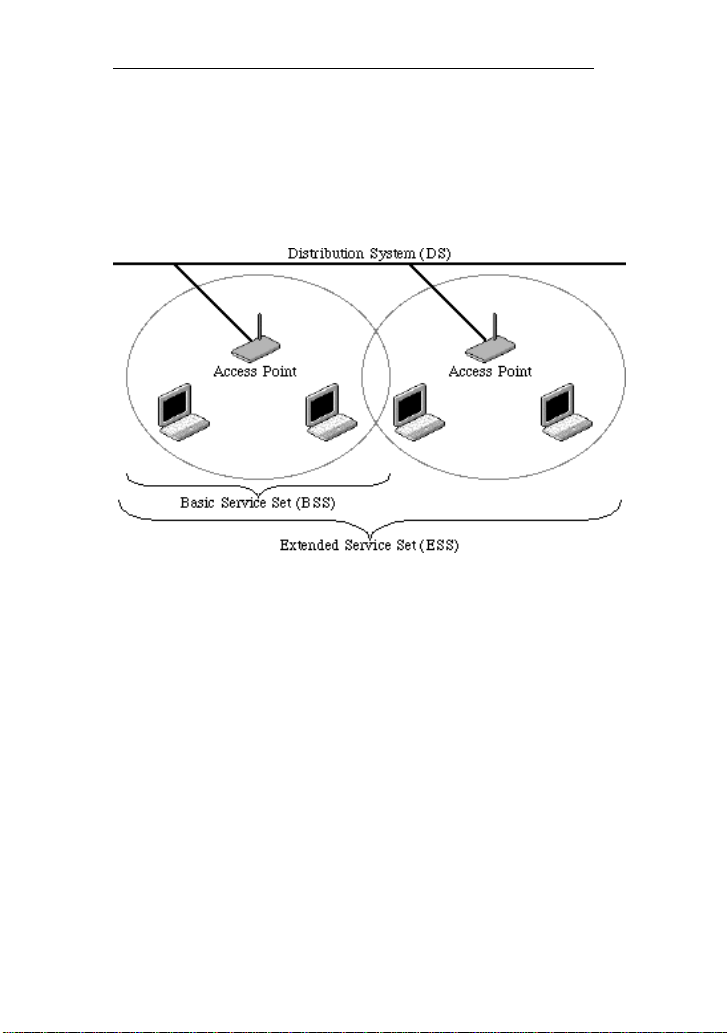
The 802.11 standard define two modes: infrastructure
mode and ad hoc mode. In infrastructure mode, the
wireless network consists of at least one access point
connected to the wired network infrastructure and a set of
wireless end stations. This configuration is called a Basic
Service Set (BSS). An Extended Service Set (ESS) is a set
of two or more BSSs forming a single subnetwork. Since
33
www.asiarf.com
Page 41
AsiaRF AWM002
most corporate WLANs require access to the wired LAN
for services (file servers, printers, Internet links) they will
operate in infrastructure mode.
Example 1: wireless Infrastructure Mode
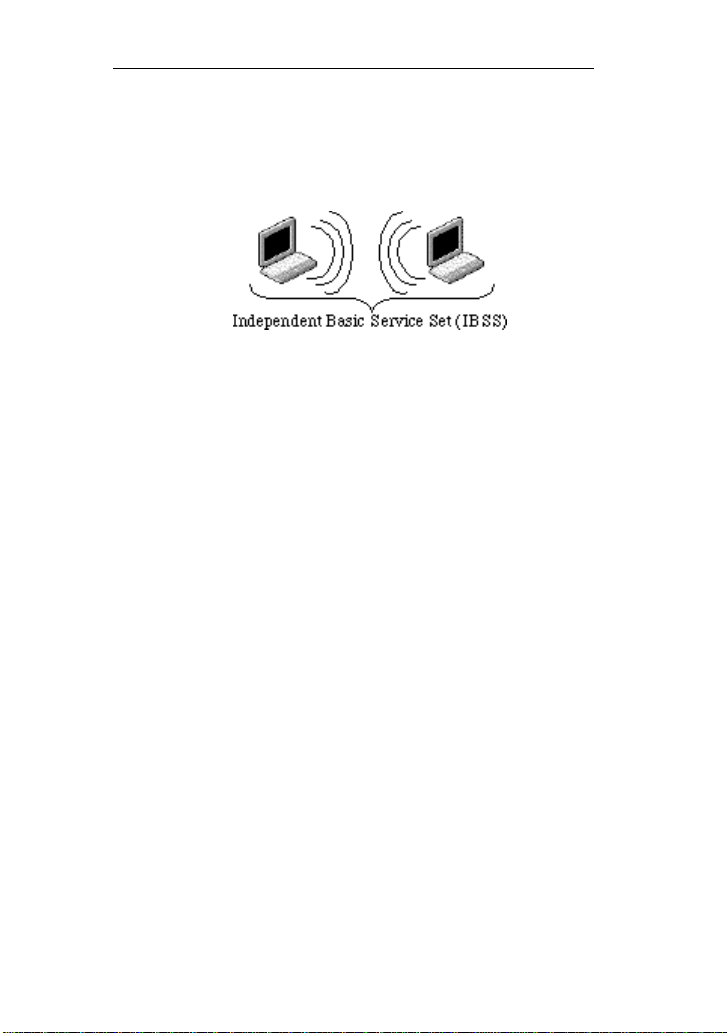
Ad hoc mode (also called peer-to-peer mode or an
Independent Basic Service Set, or IBSS) is simply a set of
802.11 wireless stations that communicate directly with
one another without using an access point or any
connection to a wired network. This mode is useful for
quickly and easily setting up a wireless network anywhere
that a wireless infrastructure does not exist or is not
required for services, such as a hotel room, convention
34
www.asiarf.com
Page 42
AsiaRF AWM002
center, or airport, or where access to the wired network is
barred (such as for consultants at a client site).
Example 2: wireless Ad Hoc Mode
4.5 What is BSSID?
A six-byte address that distinguishes a particular a
particular access point from others. Also know as just
SSID. Serves as a network ID or name.
4.6 What is ESSID?
The Extended Service Set ID (ESSID) is the name of
the network you want to access. It is used to identify
different wireless networks.
4.7 What are potential factors that may causes
interference?
Factors of interference:
35
www.asiarf.com
Page 43

AsiaRF AWM002
Obstacles: walls, ceilings, furniture… etc.
Building Materials: metal door, aluminum studs.
Electrical devices: microwaves, monitors and
electrical motors.
Solutions to overcome the interferences:
Minimizing the number of walls and ceilings.
Position the WLAN antenna for best reception.
Keep WLAN devices away from other electrical
devices, eg: microwaves, monitors, electric
motors, … etc.
Add additional WLAN Access Points if
necessary.
4.8 What are the Open System and Shared Key
authentications?
IEEE 802.11 supports two subtypes of network
authentication services: open system and shared key.
Under open system authentication, any wireless station can
request authentication. The station that needs to
authenticate with another wireless station sends an
authentication management frame that contains the identity
of the sending station. The receiving station then returns a
frame that indicates whether it recognizes the sending
station. Under shared key authentication, each wireless
station is assumed to have received a secret shared key
over a secure channel that is independent from the 802.11
36
www.asiarf.com
Page 44

AsiaRF AWM002
wireless network communications channel.
4.9 What is WEP?
An optional IEEE 802.11 function offers frame
transmission privacy similar to a wired network. The
Wired Equivalent Privacy generates secret shared
encryption keys that both source and destination stations
can use to alert frame bits to avoid disclosure to
eavesdroppers.
WEP relies on a secret key that is shared between a
mobile station (e.g. a laptop with a wireless Ethernet card)
and an access point (i.e. a base station). The secret key is
used to encrypt packets before they are transmitted, and an
integrity check is used to ensure that packets are not
modified in transit.
4.10 What is Fragment Threshold?
The proposed protocol uses the frame fragmentation
mechanism defined in IEEE 802.11 to achieve parallel
transmissions. A large data frame is fragmented into
several fragments each of size equal to fragment threshold.
By tuning the fragment threshold value, we can get
37
www.asiarf.com
Page 45

AsiaRF AWM002
varying fragment sizes. The determination of an efficient
fragment threshold is an important issue in this scheme. If
the fragment threshold is small, the overlap part of the
master and parallel transmissions is large. This means the
spatial reuse ratio of parallel transmissions is high. In
contrast, with a large fragment threshold, the overlap is
small and the spatial reuse ratio is low. However high
fragment threshold leads to low fragment overhead. Hence
there is a trade-off between spatial re-use and fragment
overhead.
Fragment threshold is the maximum packet size used
for fragmentation. Packets larger than the size
programmed in this field will be fragmented.
If you find that your corrupted packets or asymmetric
packet reception (all send packets, for example). You may
want to try lowering your fragmentation threshold. This
will cause packets to be broken into smaller fragments.
These small fragments, if corrupted, can be resent faster
than a larger fragment. Fragmentation increases overhead,
so you'll want to keep this value as close to the maximum
value as possible.
38
www.asiarf.com
Page 46

AsiaRF AWM002
4.11 What is RTS (Request To Send) Threshold?
The RTS threshold is the packet size at which packet
transmission is governed by the RTS/CTS transaction. The
IEEE 802.11-1997 standard allows for short packets to be
transmitted without RTS/CTS transactions. Each station
can have a different RTS threshold. RTS/CTS is used
when the data packet size exceeds the defined RTS
threshold. With the CSMA/CA transmission mechanism,
the transmitting station sends out an RTS packet to the
receiving station, and waits for the receiving station to
send back a CTS (Clear to Send) packet before sending the
actual packet data.
This setting is useful for networks with many clients.
With many clients, and a high network load, there will be
many more collisions. By lowering the RTS threshold,
there may be fewer collisions, and performance should
improve. Basically, with a faster RTS threshold, the
system can recover from problems faster. RTS packets
consume valuable bandwidth, however, so setting this
value too low will limit performance.
39
www.asiarf.com
Page 47

AsiaRF AWM002
4.12 What is Beacon Interval?
In addition to data frames that carry information from
higher layers, 802.11 includes management and control
frames that support data transfer. The beacon frame, which
is a type of management frame, provides the "heartbeat" of
a wireless LAN, enabling stations to establish and maintain
communications in an orderly fashion.
Beacon Interval represents the amount of time
between beacon transmissions. Before a station enters
power save mode, the station needs the beacon interval to
know when to wake up to receive the beacon (and learn
whether there are buffered frames at the access point).
4.13 What is Preamble Type?
There are two preamble types defined in IEEE 802.11
specification. A long preamble basically gives the decoder
more time to process the preamble. All 802.11 devices
support a long preamble. The short preamble is designed to
improve efficiency (for example, for VoIP systems). The
difference between the two is in the Synchronization field.
The long preamble is 128 bits, and the short is 56 bits.
40
www.asiarf.com
Page 48

AsiaRF AWM002
4.14 What is SSID Broadcast?
Broadcast of SSID is done in access points by the
beacon. This announces your access point (including
various bits of information about it) to the wireless world
around it. By disabling that feature, the SSID configured in
the client must match the SSID of the access point.
Some wireless devices don't work properly if SSID
isn't broadcast (for example the D-link DWL-120 USB
802.11b adapter). Generally if your client hardware
supports operation with SSID disabled, it's not a bad idea
to run that way to enhance network security. However it's
no replacement for WEP, MAC filtering or other
protections.
4.15 What is Wi-Fi Protected Access (WPA)?
Wi-Fi’s original security mechanism, Wired
Equivalent Privacy (WEP), has been viewed as insufficient
for securing confidential business communications. A
longer-term solution, the IEEE 802.11i standard, is under
development. However, since the IEEE 802.11i standard is
not expected to be published until the end of 2003, several
members of the WI-Fi Alliance teamed up with members
41
www.asiarf.com
Page 49

AsiaRF AWM002
of the IEEE 802.11i task group to develop a significant
near-term enhancement to Wi-Fi security. Together, this
team developed Wi-Fi Protected Access.
To upgrade a WLAN network to support WPA,
Access Points will require a WPA software upgrade.
Clients will require a software upgrade for the network
interface card, and possibly a software update for the
operating system. For enterprise networks, an
authentication server, typically one that supports RADIUS
and the selected EAP authentication protocol, will be
added to the network.
4.16 What is WPA2?
It is the second generation of WPA. WPA2 is based
on the final IEEE 802.11i amendment to the 802.11
standard.
4.17 What is 802.1x Authentication?
802.1x is a framework for authenticated MAC-level
access control, defines Extensible Authentication Protocol
(EAP) over LANs (WAPOL). The standard encapsulates
and leverages much of EAP, which was defined for dial-up
42
www.asiarf.com
Page 50

AsiaRF AWM002
authentication with Point-to-Point Protocol in RFC 2284.
Beyond encapsulating EAP packets, the 802.1x
standard also defines EAPOL messages that convey the
shared key information critical for wireless security.
4.18 What is Temporal Key Integrity Protocol (TKIP)?
The Temporal Key Integrity Protocol, pronounced
tee-kip, is part of the IEEE 802.11i encryption standard for
wireless LANs. TKIP is the next generation of WEP, the
Wired Equivalency Protocol, which is used to secure
802.11 wireless LANs. TKIP provides per-packet key
mixing, a message integrity check and a re-keying
mechanism, thus fixing the flaws of WEP.
4.19 What is Advanced Encryption Standard (AES)?
Security issues are a major concern for wireless
LANs, AES is the U.S. government’s next-generation
cryptography algorithm, which will replace DES and
3DES.
4.20 What is Inter-Access Point Protocol (IAPP)?
The IEEE 802.11f Inter-Access Point Protocol (IAPP)
43
www.asiarf.com
Page 51

AsiaRF AWM002
supports Access Point Vendor interoperability, enabling
roaming of 802.11 Stations within IP subnet.
IAPP defines messages and data to be exchanged
between Access Points and between the IAPP and high
layer management entities to support roaming. The IAPP
protocol uses TCP for inter-Access Point communication
and UDP for RADIUS request/response exchanges. It also
uses Layer 2 frames to update the forwarding tables of
Layer 2 devices.
4.21 What is Wireless Distribution System (WDS)?
The Wireless Distribution System feature allows
WLAN AP to talk directly to other APs via wireless
channel, like the wireless bridge or repeater service.
4.22 What is Universal Plug and Play (uPNP)?
UPnP is an open networking architecture that consists
of services, devices, and control points. The ultimate goal
is to allow data communication among all UPnP devices
regardless of media, operating system, programming
language, and wired/wireless connection.
44
www.asiarf.com
Page 52

AsiaRF AWM002
4.23 What is Maximum Transmission Unit (MTU) Size?
Maximum Transmission Unit (MTU) indicates the
network stack of any packet is larger than this value will
be fragmented before the transmission. During the PPP
negotiation, the peer of the PPP connection will indicate its
MRU and will be accepted. The actual MTU of the PPP
connection will be set to the smaller one of MTU and the
peer’s MRU. The default is value 1400.
4.24 What is Clone MAC Address?
Clone MAC address is designed for your special
application that request the clients to register to a server
machine with one identified MAC address.
Since that all the clients will communicate outside
world through the WLAN Outdoor Broadband Router, so
have the cloned MAC address set on the WLAN Outdoor
Broadband Router will solve the issue.
4.25 What is DDNS?
DDNS is the abbreviation of Dynamic Domain Name
Server. It is designed for user own the DNS server with
dynamic WAN IP address.
45
www.asiarf.com
Page 53

AsiaRF AWM002
3DES
Triple Data Encryption Standard
AES
Advanced Encryption Standard
ANSI
American National Standards Institute
AP
Access Point
CCK
Complementary Code Keying
CSMA/CA
Carrier Sense Multiple Access/ Collision
4.26 What is NTP Client?
NTP client is designed for fetching the current
timestamp from internet via Network Time protocol. User
can specify time zone, NTP server IP address.
4.27 What is VPN?
VPN is the abbreviation of Virtual Private Network.
It is designed for creating point-to point private link via
shared or public network.
4.28What is IPSEC?
IPSEC is the abbreviation of IP Security. It is used to
transferring data securely under VPN.
Chapter 5 Terminology
www.asiarf.com
46
Page 54

AsiaRF AWM002
Avoidance
CSMA/CD
Carrier Sense Multiple Access/ Collision
Detection
DDNS
Dynamic Domain Name Server
DH
Diffie-Hellman Algorithm
DHCP
Dynamic Host Configuration Protocol
DSSS
Direct Sequence Spread Spectrum
EAP
Extensible Authentication Protocol
ESP
Encapsulating Security Payload
FCC
Federal Communications Commission
FTP
File Transfer Protocol
IEEE
Institute of Electrical and Electronic
Engineers
IKE
Internet Key Exchange
IP
Internet Protocol
ISM
Industrial, Scientific and Medical
LAN
Local Area Network
MAC
Media Access Control
MD5
Message Digest 5
NAT
Network Address Translation
NT
Network Termination
NTP
Network Time Protocol
www.asiarf.com
47
Page 55

AsiaRF AWM002
PPTP
Point to Point Tunneling Protocol
PSD
Power Spectral Density
RF
Radio Frequency
SHA1
Secure Hash Algorithm
SNR
Signal to Noise Ratio
SSID
Service Set Identification
TCP
Transmission Control Protocol
TFTP
Trivial File Transfer Protocol
TKIP
Temporal Key Integrity Protocol
UPNP
Universal Plug and Play
VPN
Virtual Private Network
WDS
Wireless Distribution System
WEP
Wired Equivalent Privacy
WLAN
Wireless Local Area Network
WPA
Wi-Fi Protected Access
www.asiarf.com
48
Page 56

This device complies with the following radio frequency and safety standards.
Important to OEM Manufacturer:
This following FCC Warning must be included in the HOST User Manual.
FCC Warning
This device complies with Part 15 of the FCC Rules. Operation is
subject to the following two conditions:
(1) This device may not cause harmful interference, and (2) this device must accept any
interference received, including interference that may cause undesired operation.
NOTE 1: This equipment has been tested and found to comply with the limits for a Class B digital
device, pursuant to part 15 of the FCC Rules. These limits are designed to provide reasonable
protection against harmful interference in a residential installation. This equipment generates, uses
and can radiate radio frequency energy and, if not installed and used in accordance with the
instructions, may cause harmful interference to radio communications. However, there is no
guarantee that interference will not occur in a particular installation. If this equipment does cause
harmful interference to radio or television reception, which can be determined by turning the
equipment off and on, the user is encouraged to try to correct the interference by one or more of
the following measures:
- Reorient or relocate the receiving antenna.
- Increase the separation between the equipment and receive r .
-Connect the equipment into an outlet on a circuit different from that to which the receiver is
connected.
-Consult the dealer or an experienced radio/TV technician for help.
NOTE 2: Any changes or modifications to this unit not expressly approved by the party
responsible for compliance could void the user's authority to operate the equipment.
FCC Radiation Exposure Statement:
This equipment complies with FCC radiation exposure limits set forth for an uncontrolled
environment. End users must follow the specific operating instructions for satisfying RF exposure
compliance.
Note 1: This module certified that complies with RF exposure requirment under mobile or fixed
condition, this module is to be installed only in portable or mobile or fixed appl ications.
A mobile device is defined as a transmitting device designed to be used in other than fixed
locations and to generally be used in such a way that a separation distance of at least 20
centimeters is normally maintained between the transmitter's radiating structure(s) and the body of
the user or nearby persons. Transmitting devices designed to be used by consumers or workers
Page 57

that can be easily re-located, such as wireless devices associated with a personal computer, are
considered to be mobile devices if they meet the 20 centimeter separation requirement.
A fixed device is defined as a device is physically secured at one location and is not able to be
easily moved to another location.
Note 2: Any modifications made to the module will void the Grant of Certificatio n, t his module is
limited to OEM installation only and must not be sold to end-users, end-user has no manual
instructions to remove or install the device, only software or operating procedure shall be placed
in the end-user operating manual of final products.
Note 3: The device must not transmit simultaneously with any other antenna or transmitter.
Note 4: To ensure compliance with all non-transmitter functions the host manufacturer is
responsible for ensuring compliance with the module(s) installed and fully operational. For
example, if a host was previously authorized as an unintentional radiator under the Declaration of
Conformity procedure without a transmitter certified module and a module is added, the host
manufacturer is responsible for ensuring that the after the module is installed and operational the
host continues to be compliant with the Part 15B unintentional radiator requirements. Since this
may depend on the details of how the module is integrated with the host, AsiaRF Co., Ltd. shall
provide guidance to the host manufacturer for compliance with the Part 15B requirements.
Note 5: FCC ID label on the final system must be labeled with “Contains FCC ID:
TKZAWM002” or “Contains transmitter module FCC ID: TKZAWM002”.
The transmitter module must be installed and used in strict accordance with the manufacturer's
instructions as described in the user documentation that comes with the host product. AsiaRF Co.,
Ltd. is responsible for the compliance of the module in all final hosts.
WARNING:
This device will only installed in this host device as below:
Manufacturer: Venitek Ltd.
Address: B08, 14/F, WAH HEN COMM CENTRE, NO.383, HENNESSY RD., WANCHAI,
HONGKONG
Product Name: WiFi IP Camera & Storage AP Router
Model: AWAPN2411
 Loading...