

Page 1
Please read before use
Mobile Router Speed Wi-Fi NEXT W05
Connection Settings Guide
Thank you for applying for Asahi Net WiMAX 2+ Service.
To start using W05, please configure connection settings following the steps ①-③ shown below.
Insert au IC card to the router
①
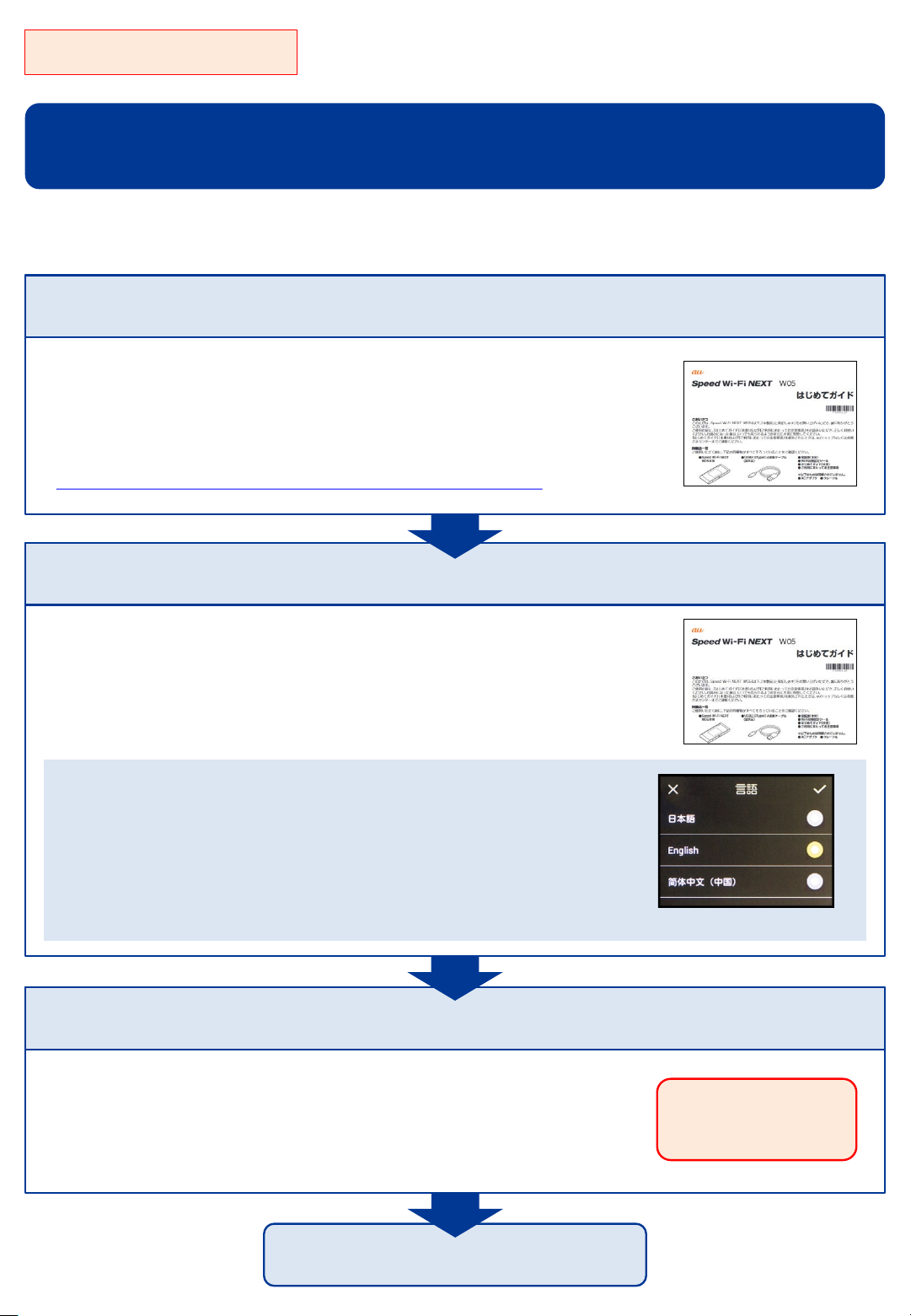
Referring to Attaching/Removing au IC card in the Quick Start Guide,
insert au IC card to the router.
* The Quick Start Guide included in the box is in Japanese.
The English Quick Start Guide is available in the following webpage.
https://asahi-net.jp/en/support/guide/mobile/wimax2plus/
Connect to Wi-Fi
②
Referring to Connecting by using Wi-Fi copy settings or Connecting
manually in the Quick Start Guide, connect your devices
(smartphones, computers, etc.) and the router with Wi-Fi.
How to switch to English display
Slide the home screen and tap 設定 (Settings) to show
システム設定 (Tools) screen.
Select 言語 (Language.)
Select English, and tap the check button at the top right
to switch the display to English.
Turn on the router and configure APN settings
③
「言語」(Language)screen
Referring to the Steps to Configure APN Settings on the reverse
side of the page, configure APN settings.
* Please configure APN settings before you
start using the router.
Settings completed
Proceed to the
reverse side of
the page
Page 2
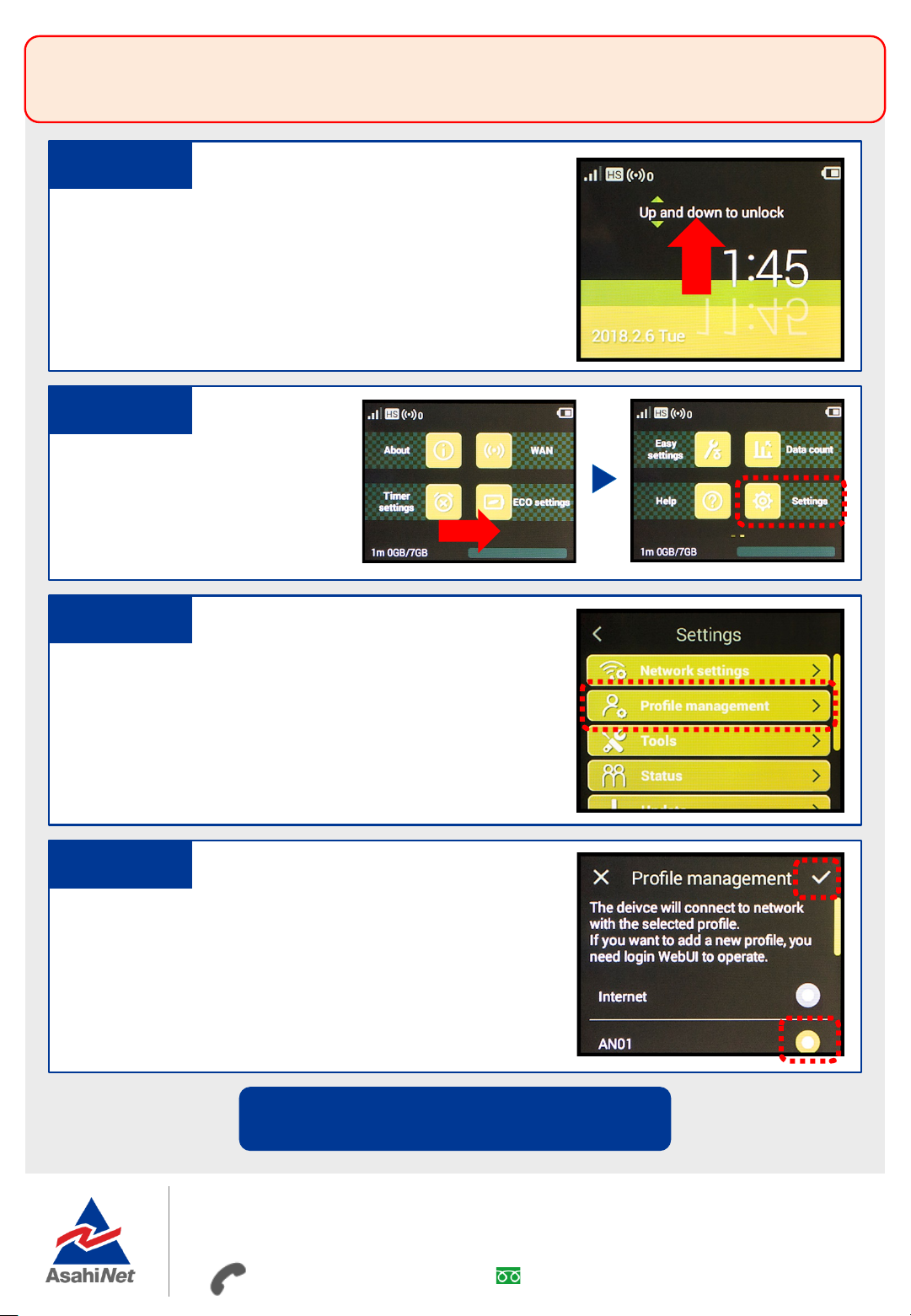
Steps to Configure APN Settings
* Please configure APN settings before you start using the router
STEP 1
Lightly press the power button of the router, and the
locked screen will appear. Slide up or down to unlock.
STEP 2
Home screen will appear.
Slide the screen and tap
Settings.
STEP 3
Settings screen will appear.
Tap Profile management.
STEP 4
Profile management screen will appear.
Select AN01
* If you are using a fixed IP address, select AN02.
*
, then tap the check button at the top right.
Settings are completed.
If you have any questions, please contact us below:
Asahi Net English Customer Support
Open hours: 10 a.m. to 5 p.m., Monday through Friday, excluding national holidays.
03-6631-0861
(For calls from a mobile phone, IP-Phone)
0120-577-135
(For calls from an NTT landline)
 Loading...