

Page 1
Up2Stream AMP2.1 User Manual
DGND
1. Introduction
Up2Stream AMP2.1 is a WiFi and Bluetooth 5.0 amplier with subwoofer output board that can be applied into your existing regular audio
system to make it wireless enabled, and it is also a all-in-one solution for DIYers to make their customized wireless audio system. After
connecting the device to your home network, with our 4STREAM app, you can play music from your home NAS, USB p en drive, cell phone
memory or from online streaming services like Spotify, Deezer, Tidal, Qobuz and so on. The wireless multiroom audio system can play the same
music to each room in sync or play different music to different rooms.
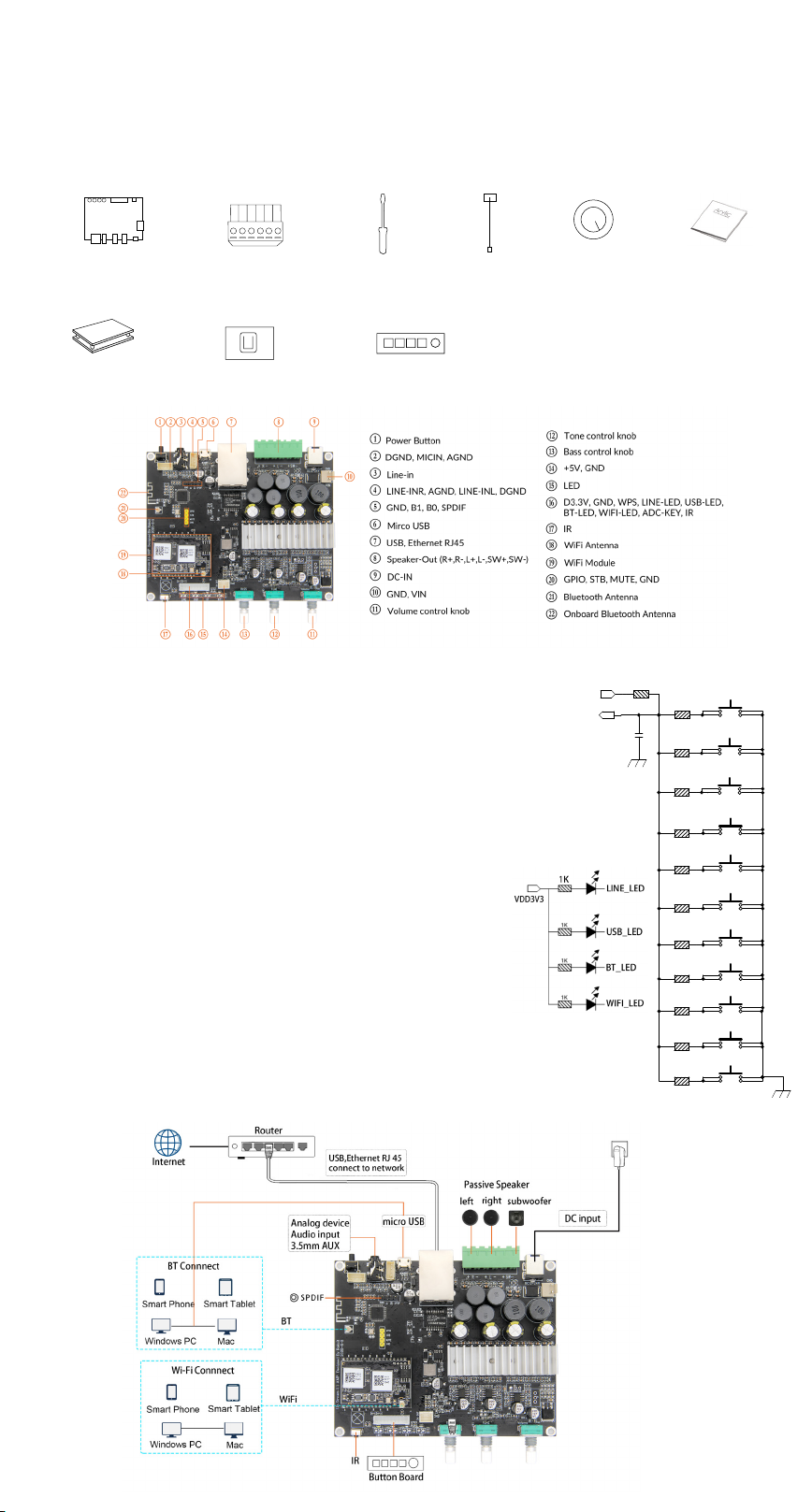
2. What's in the box
UpStream AMP2.1
6pin analog connector
Screw Driver
WiFi Antenna
3x Knob Cover
More accessories coming soon at www.arylic.com
Acrylic Case
External SPDIF Board
External Button Board
3. Interface
Power Button:
B
Short press to power off and on; When in WiFi mode, long press (press and hold the button for more than 5 seconds) to
reset WiFi settings and enter the paring mode; When in Bluetooth mode, long press to terminate current connection.
* Hold Power button then plug in the power can force the device to enter WiFi mode. If you have
setup router connection before, the device will auto connect to that router.
Volume control knob:
L
Tone control knob:
M
Short press to switch input mode: Wi, BT, USB, Line in, USB
Short press to reset treble level to 0, long press 5sec to increase
.
VDD3V3
KEY
crossover frequency by 10Hz. (Crossover frequency range from 80-200Hz)
Bass control knob:
N
Short press to reset bass level to 0, long press 5sec to decrease
crossover frequency by 10Hz. (Crossover frequency range from 80-200Hz)
Further Notes
PH2.0-4P: DGND, MICIN, AGND, MIC2IN:
C
PH2.0-4P: LINE-INR, AGND, LINE-INL, DGND:
E
This is reserved for future use.
For analog input to up2stream amp 2.1
board, it has the same signal as the 3.5mm Aux jack.
PH2.0-4P: GND, B1, B0, SPDIF:
F
This is reserved for external SPDIF input.
B1, B0 is for testing.
PH2.0-2P: GND, VIN:
K
PH2.0-2P: +5V, GND:
O
PH2.0-9P: D3.3V, GND, WPS, LINE-LED, USB-LED, BT-LED, WIFI-LED, ADC-KEY, IR:
Q
This is for DC-IN.
This is a 5V output.
You should connect 3.3V to a current limit resister and then to LED and then to the pin.
The LED pins are used to extend the LED and are common-anode connected.
WPS is for wi reset function.
ADC-KEY is used for external buttons, refer to the circuit on the right for key denitions.
IR is used for extend IR receiver.
PH2.0-4P: GPIO, STB, MUTE, GND:
U
Reserved for debug.
4. Connection Diagram
C27
0.1uF
R47 10K
DGND
User Manual
R64
100R
PLAY/PAUSE
R60
1K
R61
2.2K
R62
3.6K
R63
5.6K
R65
8.2K
R66
12K
R67
18K
R68
27K
R69
47K
R70
100K
MODE
NEXT
PREV
VOL+
VOL-
MUTE
NUM1
NUM2
NUM3
NUM4
Page 2
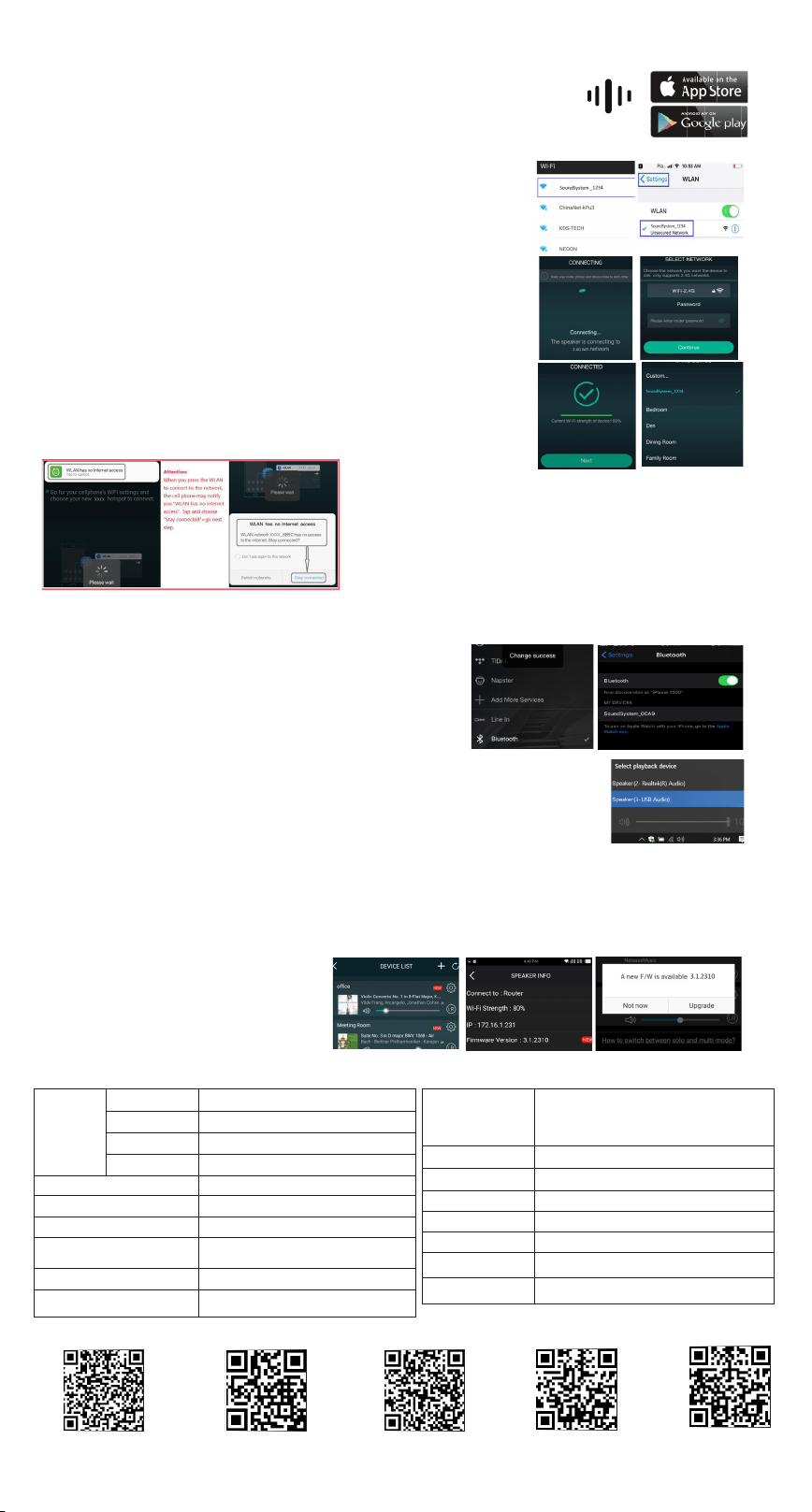
5. How To Use
5.1 App download
Download the 4STREAM application from App Store for iOS based devices and Google Play Store for
Android based devices.
The application supports English, Spanish, French, German, Italian, Portugese, Korean, Simplied
Chinese,Traditional Chinese and Japanese
5.2
First time usage & WiFi Setup:
1. Hold the POWER button then plug in the power cable.
2. The LED light will start ashing, release the button and wait till the LED ash slowly.
3. Goto your mobile WiFi settings and search for SoundSystem_xxxx WiFi and connect.
*If you cannot nd SoundSystem connection, long press the POWER button for 5 secs and
then refresh your mobile’s WiFi listing.
4. Open 4Stream APP and there will be 2 options: Direct Mode & Add Device.
5. Direct Mode: If you don’t have router, please choose direct mode. After connected, you
can play music store in your mobile.
6. Add Device: After you choose add device, select the router SSID you want your Up2stream
device connect to (enter password if required) and select continue.
7. Once connected, you can change the name of the device. You can select a preset one or
enter your own.
8. After you dene the name of the device, you will see it appears in the device list in 4stream
app and now you can start streaming music.
*If you change to another router, or the password of the connected router has been changed,
please long press POWER button for 5 secs in WiFi mode to reset the connection.
* Hold POWER button then plug in the power can force the device to enter WiFi mode. If you
have setup router connection before, the device will auto connect to that router.
*Attention for Android users
Different brand mobile phones may ask you to allow
to use SoundSystem WiFi network, please choose
yes, if not, you may not able to set up successfully .
It may also ask you to authorize other things, please
choose yes or it may affect your use.
4STREAM
5.3 Connection via LAN
Plug in the wired cable to the RJ45 Ethernet, the device will show on the app in about 10 seconds. (Note: the cell phone and the device must
be in the same network)
5.4 Bluetooth
To use bluetooth ,please swtich to bluetooth via
app or by remote controller,then find bluetooth
device SoundSystem_XXXX from your phone
bluetooth setting and pair it .
5.5 USB audio
Power up and connect the Up2Stream AMP to your PC with USB cable (make sure it’s a data cable
including the signal wires). The PC will automatically discover a USB sound card, and when you
activated it as the system main output, the PC will send the audio output over Up2Stream AMP in
digital (44.1KHz/16bits).
You can stream to other Up2Stream devices over multiroom connection.
NOTE: there’s about 3 seconds delay for multiroom slave devices.
5.6 Up2Stream DSP Audio Effects Tool (
Connect the Up2Stream device to your PC with USB cable (make sure it’s a data cable including the signal wires). And open the program
Up2Stream DSP Tool (only support Windows.), and you can tune audio effects conveniently, including Music Noise Suppressor, Virtual
Bass, Stereo Widener, Exciter, 10 bands EQ, etc. After editing the audio effects, you can save the changes to the device so the tuned
effects will remain. You can get more information from our website
5.7 Firmware update
The application will notify you in app when there is a
new rmware version available.It's recommended to
update rmware whenever available as this might not
only correct bugs or improve security,but also can add
new features or services.
Sell Separately
)
www.arylic.com
or from the Up2Stream DSP Tool manual.
,
6. Specication
Wireless network IEEE802.11 b/g/n 2.4G
Connectivity
Bluetooth Distance 10M
Power Input DC 12V - 24V
Audio Input Analog 3.5mm/4pin connector/Micro USB
Audio output
Frequency response 20Hz to 20kHz
Volume Control Volume Knob,Treble Knob,Bass Knob
Scan the QR codes below for more
Ethernet Single 10/100M RJ45
Bluetooth 5.0, SBS/AAC
USB Host Play USB music
Analog Speaker out with subwoofer out
(PIN SPACE-5.0mm)
Speaker Power
THD+N <0.03%, @1kHz/1W/24V/4Ω
Speaker Impedance 4-8ohms
Music Format FLAC/MP3/AAC/AAC+/ALAC/APE/WAV
Decoding Up to 24bit/192kHz
Protocols AirPlay, DLNA, UPnP, Spotify Connect, Qplay
Dimensions 124*100*25mm
IR Remote Controller Optional
2x50W@4Ω + 100W@2Ω BTL load at 24V
2x30W@8Ω + 75W@4Ω BTL load at 24V
2x22W@8Ω + 48W@4Ω BTL load at 19V
2x15W@8Ω + 30W@4Ω m BLT load at 15V
Complete User Manual
www.arylic.com
4STREAM App Facebook: arylicme YouTube:Arylic
Support: [email protected]
 Loading...