

Page 1
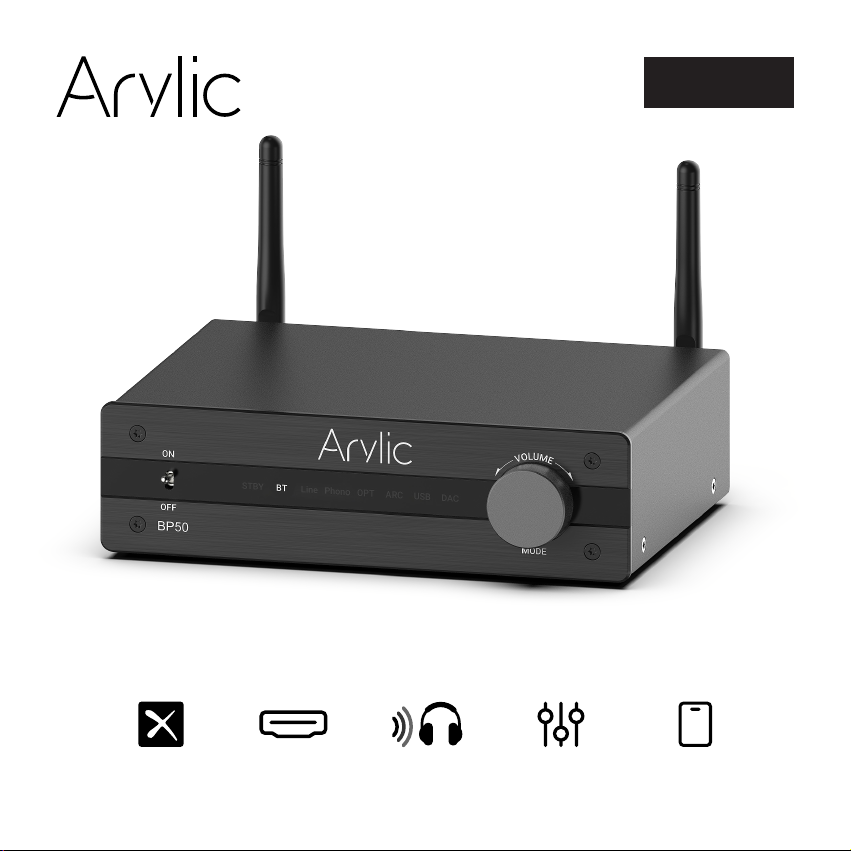
BP50
User's Manual
Wireless Stereo Pre-Amplifier with Audio Transmitter
aptX HD EQTV ARC Audio TX APP
Page 2

Page 3

Table of contents
1. Introduction ...........................................................................................................................................1
2. What's in the box ...................................................................................................................................1
3. Interface ...............................................................................................................................................2
4. Remote Controller .................................................................................................................................3
5. Installation .............................................................................................................................................4
6. Connection ............................................................................................................................................5
6.1 Line Out ..........................................................................................................................................5
6.2 Coaxial out ......................................................................................................................................6
6.3 Optical out ......................................................................................................................................6
6.4 Phono in .........................................................................................................................................7
6.5 Line in .............................................................................................................................................8
6.6 Optical in ........................................................................................................................................8
6.7 TV ARC ...........................................................................................................................................9
6.8 USB Disk Drive ...............................................................................................................................9
6.9 Connect to PC ............................................................................................................................ 10
7. Usage ................................................................................................................................................. 11
7.1 Bluetooth Receiver Mode ........................................................................................................... 11
7.2 Bluetooth Transmitter Mode ...................................................................................................... 12
7.3 Line in Mode ................................................................................................................................ 13
7.4 Phono in Mode ............................................................................................................................ 14
7.5 Optical in Mode ........................................................................................................................... 14
7.6 TV ARC Mode .............................................................................................................................. 15
7.7 USB Disk Drive Playback Mode .................................................................................................. 16
7.8 USB DAC Mode ............................................................................................................................ 17
8. ACPWrokBench (Sell Separately) ...................................................................................................... 18
9. Mobile Application ............................................................................................................................. 19
10. Specification .................................................................................................................................... 20
Page 4
1. Introduction
Arylic BP50 is a Bluetooth wireless stereo pre-amplier with the ability to transmit your music wirelessly
to Bluetooth earphones. BP50 has both analog and digital output for use with your amplier or active
speakers, it also comes with dierent types of analog and digital inputs including phono input for use
with turntable, TV ARC input for use with TV. You can also play music les stored in USB disk drive or
direct connect to a PC. All the input sounds can be output to connect amplier or stream wirelessly to
Bluetooth earphones or earbuds. You can control BP50 with remote controller or with our free mobile
application for both Android and iOS system, which lets you have full control on the device with user
friendly EQ system.
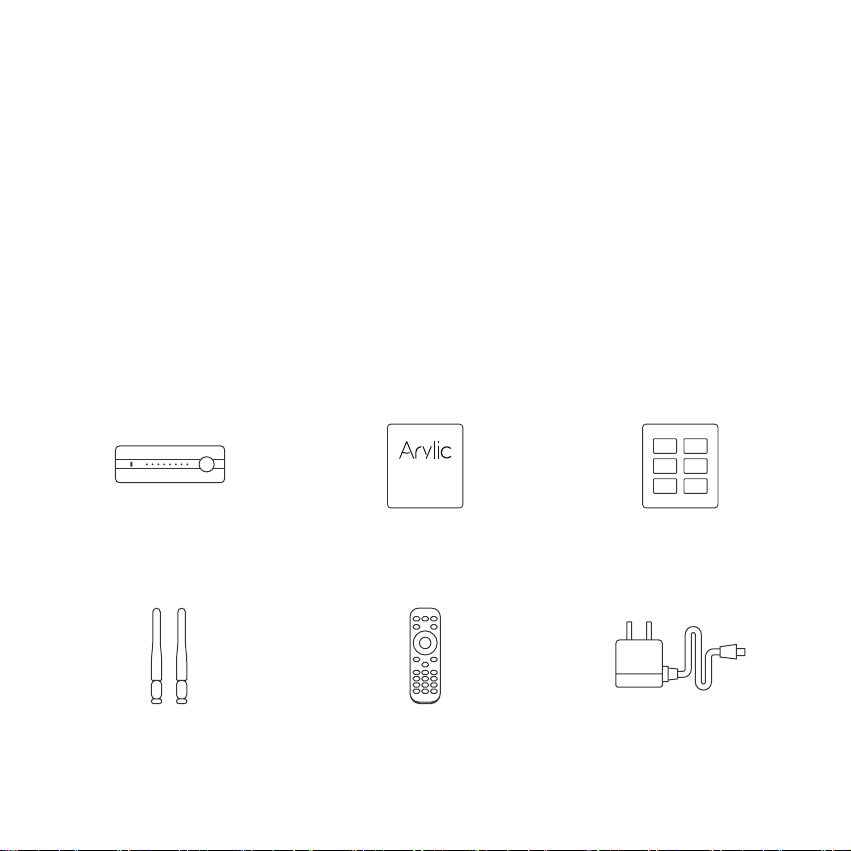
2. What's in the box
Main Unit x1 User's Manual x1 Usage x1
Antenna(3dBi) x2 Power Adapter 12V/1A x1Remote Control x1
1
Page 5
3. Interface
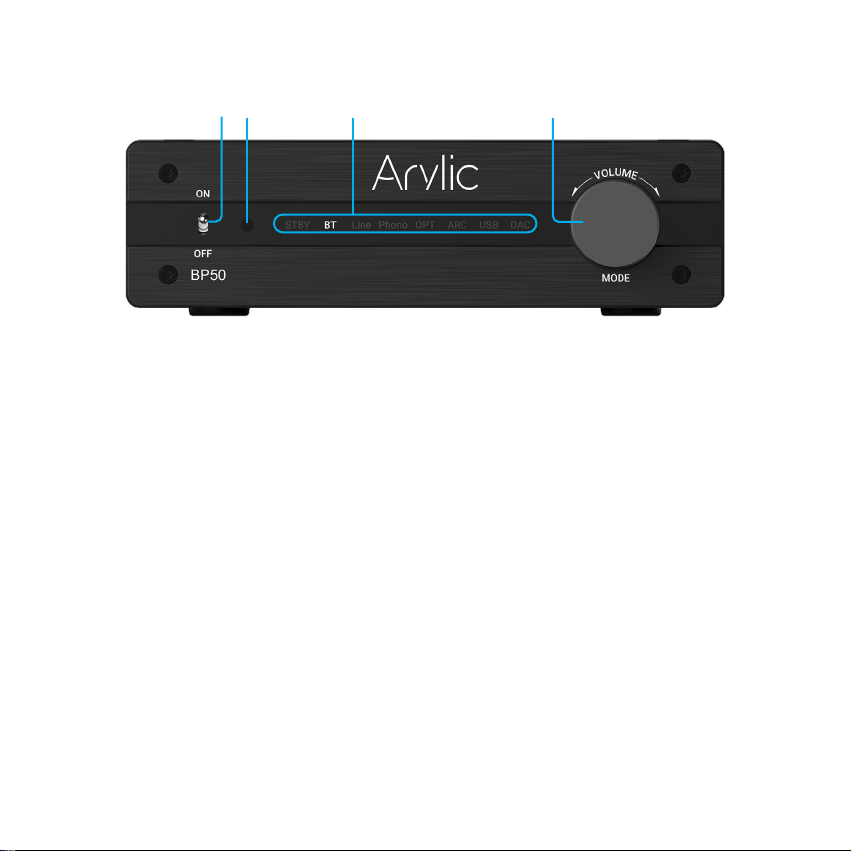
1 2 3 4
Turn on/o power of device.
1.
IR sensor: For IR remote controller to control the device.
2.
Status LEDs: LEDs indicate current status/input source.
3.
When BT LED is flashing, it indicates the device is in BT Receiver (RX) mode and is waiting for
connection. Once connected the LED will stay on.
When one of the source input LED is on and BT LED is also on, it indicates BT Transmitter (TX)
mode is on and is using the current source as input.
All LEDs will turn on during rmware update, do not turn o power at this time, wait till all LEDs turn
o and back to BT mode.
All LEDs will start flashing when device goes in protection mode, please turn off the device and
check for reason (generally is either over heat or output is short-circuited)
Volume knob + Input mode button: Turn to increase/decrease volume.
4.
Press to change input source mode.
2
Page 6
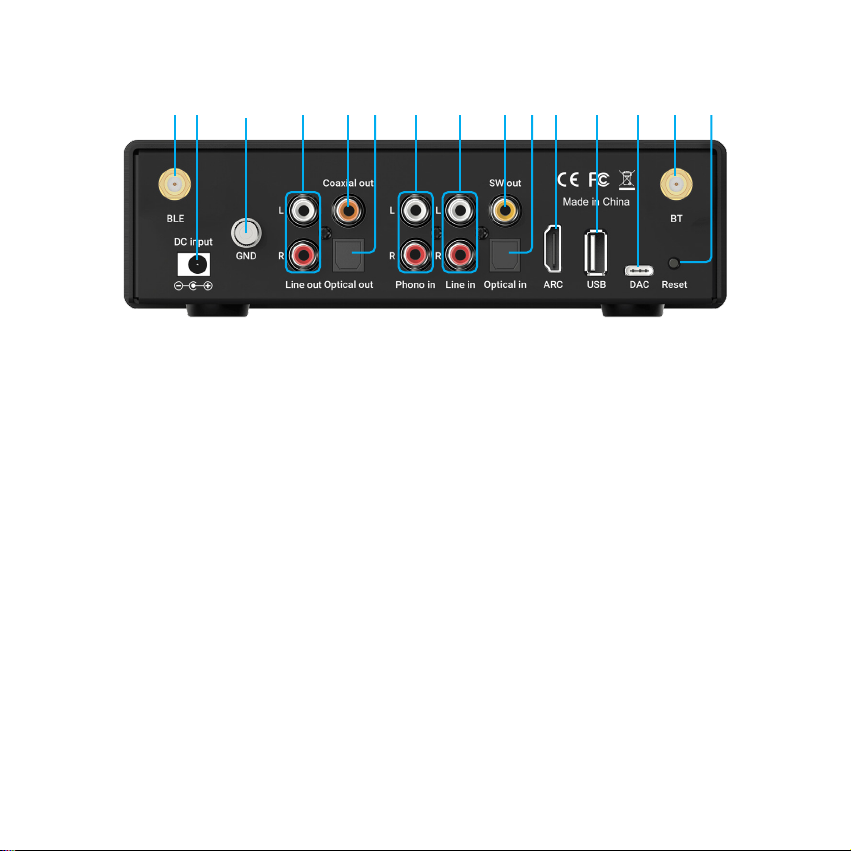
5 6 7 8 11109 12 13 14 15 16 17 18 19
BLE Antenna: For Bluetooth BLE connection.
5.
DC input: Please use the power adaptor comes with the package, using other power adaptor might
6.
damage the device.
Ground connector: For connection to turntable GND connector (Optional).
7.
Line out connector: For connection to amplier, active speaker or device with line input.
8.
Coaxial out connector: For connection to soundbar, amplier, or device with coaxial input.
9.
Optical out connector: For connection to soundbar, amplier or device with optical input.
10.
Phono input connector: For connection to turntable as phono amplier.
11.
Line input connector: For connection to device with line output.
12.
Subwoofer output connector: For connection to active subwoofer.
13.
Optical input connector: For connection to device with optical output.
14.
TV ARC connector: For connection to TV HDMI ARC port.
15.
USB Type-A port: For connection to USB disk drive.
16.
USB Type-C port: For connection to PC.
17.
BT Antenna: For Bluetooth connection.
18.
Reset button: When in Bluetooth Receiver mode, press twice to disconnect all Bluetooth
19.
connections.
When in Source input mode, press once to enable Bluetooth Transmitter connection, press twice to
disconnect all Bluetooth connections.
When a Bluetooth device or mobile is connected, press once to start second device connection.
Press and hold the button to do factory reset.
3
Page 7
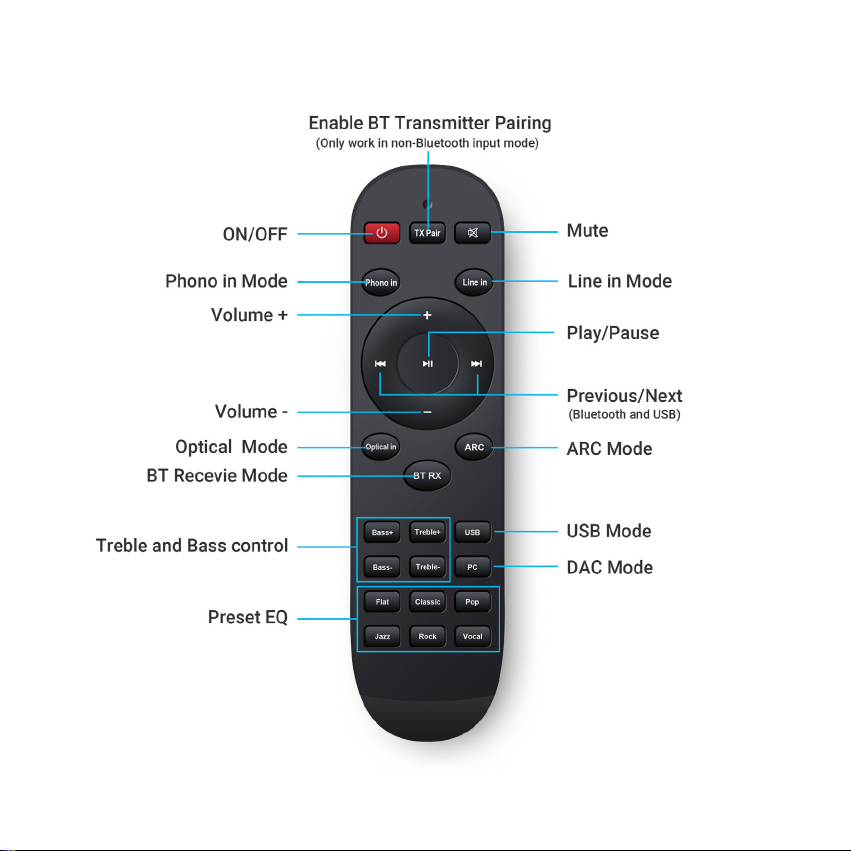
4. Remote Controller
4
Page 8
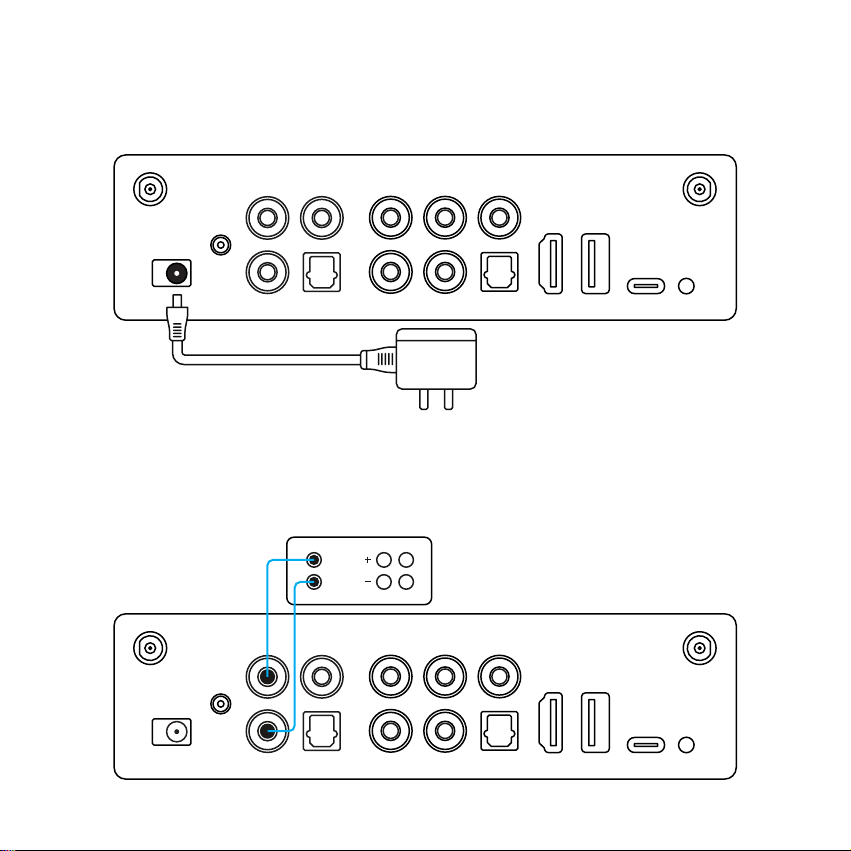
5. Installation
Install both antennas to the device and plug in the power adaptor.
(Please make sure power is o before connecting.)
DC input
6. Connection
6.1 Line Out
Use RCA cables to connect the device to your active speakers, amplier or other device with line input.
L
R
L
R
Line out
5
Page 9
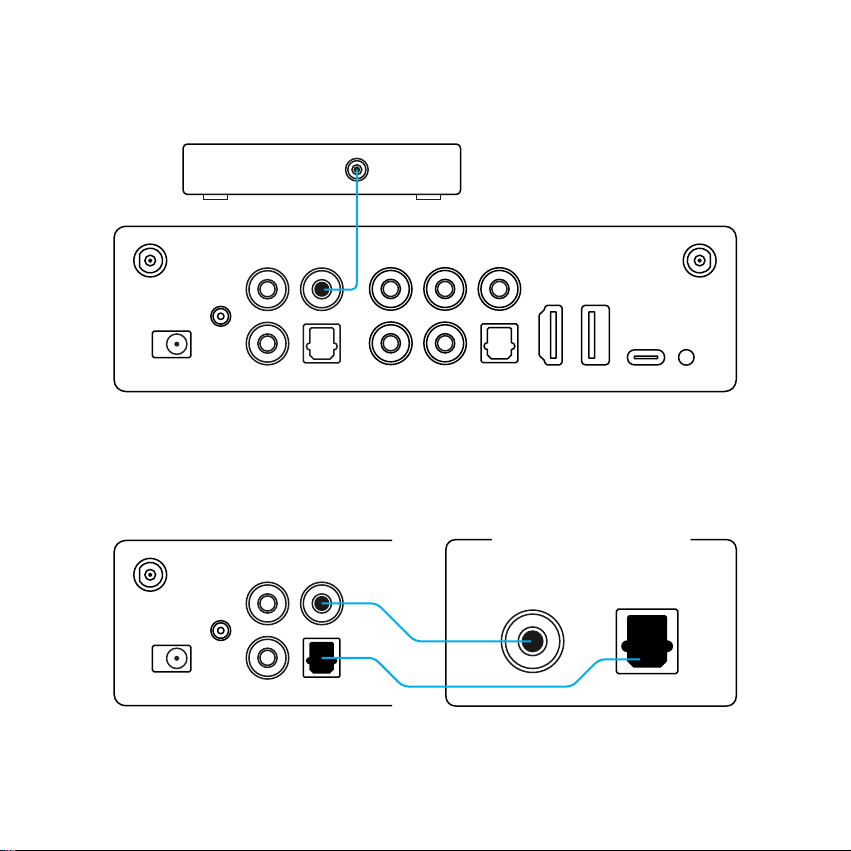
6.2 Coaxial Out
Use coaxial cable to connect the device to your soundbar or other device with coaxial input.
COAXIAL IN
Coaxial out
6.3 Optical Out
Use optical cable to connect the device to your amplier or other device with optical input.
AMPLIFIER
Optical Out
6
DEVICE
OPTICAL INCOAXIAL IN
Page 10
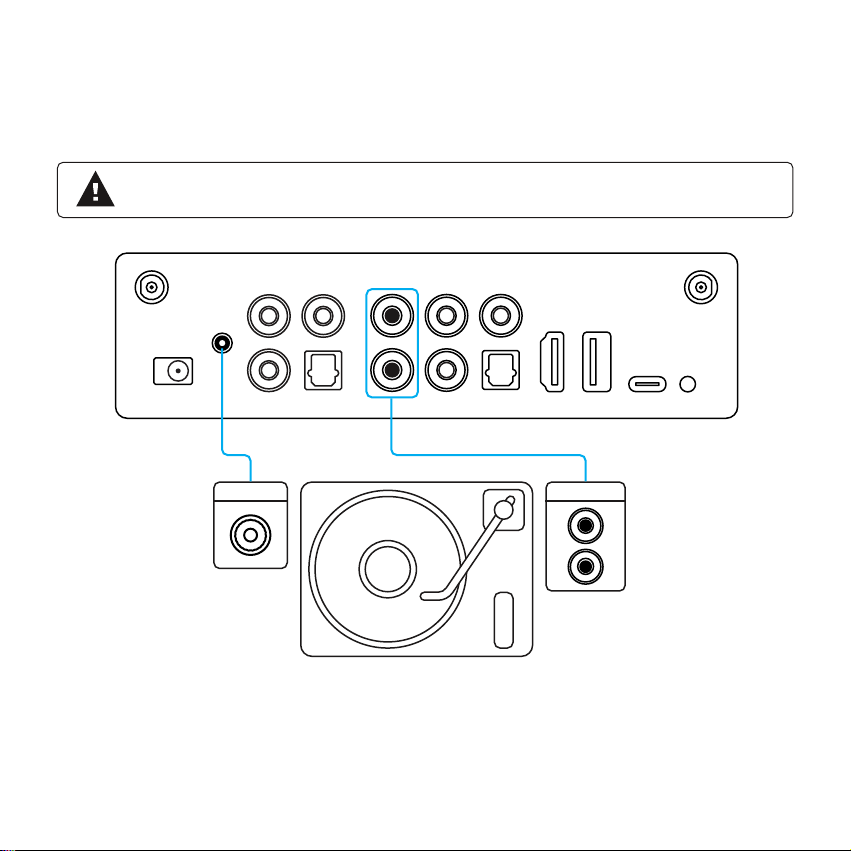
6.4 Phono in
Connect the turntable Audio out to the Phono in RCA connectors.
If your turntable has GND socket, you can connect it to the GND socket on the device. This is optional, if
your turntable doesn’t have GND socket, you can ignore it.
*Do not connect other device Line out to Phono in, it will create very loud voice and might
damage the device and connected speakers.
Phono in
GND
GND
L
R
PHONO OUT
7
Page 11
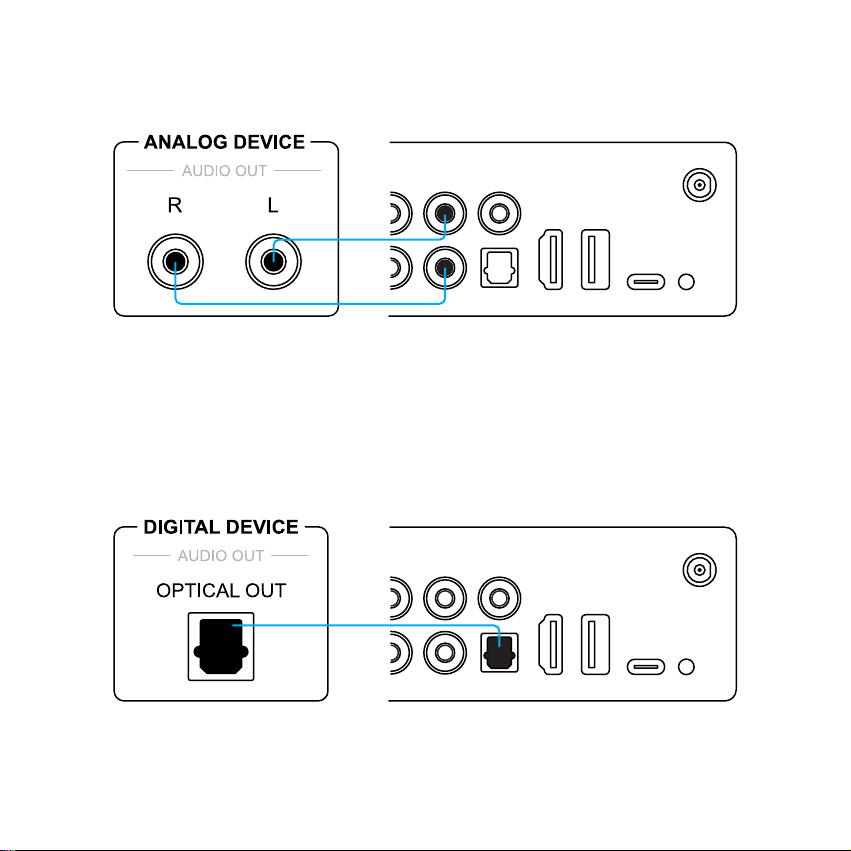
6.5 Line in
Connect any playback device with Audio out/Line out/AUX out to Line in using an RCA cable.
Line in
L
R
6.6 Optical in
Connect any playback device with Optical out to Optical in using an optical cable.
Optical in
8
Page 12
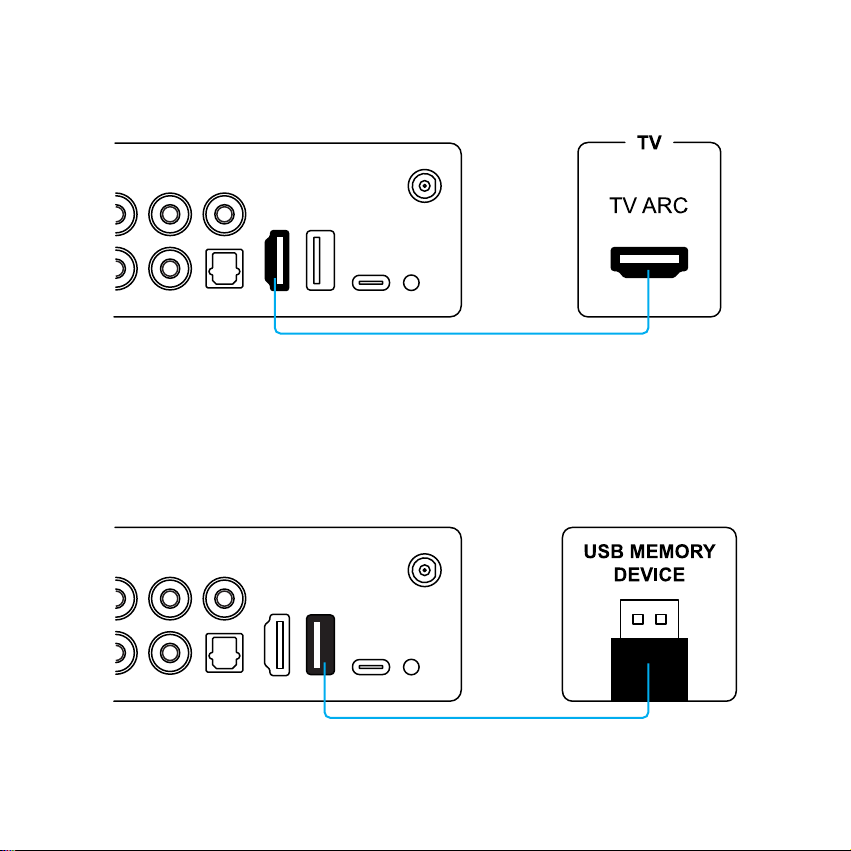
6.7 TV ARC
If you TV has HDMI ARC port, there should be a ARC text beside. You can use a HDMI cable to connect
it to the ARC port on the device.
ARC
6.8 USB Disk Drive
Plug in USB disk drive to the USB Host to play music.
USB
9
Page 13
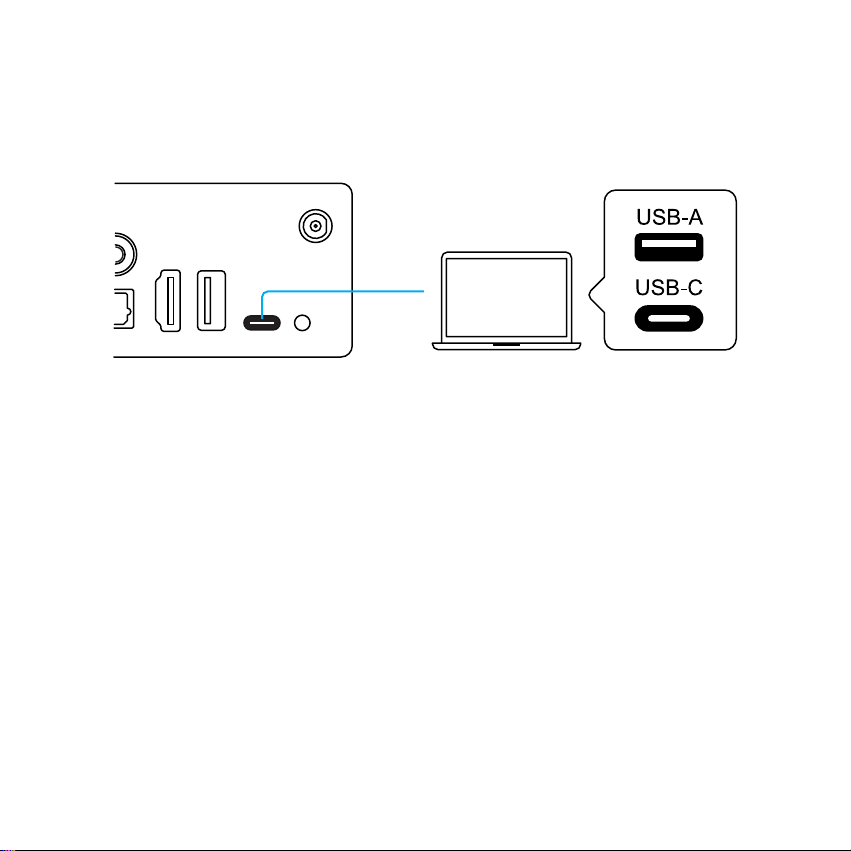
6.9 Connect to PC
Connect PC with a USB Type-C cable. Please make sure this cable is a Data link cable and not just a
charging cable, or else your PC will not recognize the device.
DAC
10
Page 14
7. Usage
7.1 Bluetooth Receiver Mode
When in Bluetooth receiver mode, the BT LED will be flashing which indicates it is waiting for
connection. In your BT transmitter device (mobile phone, pad, TV) you can search for a Bluetooth device
name “BP50 XXXX” (XXXX is the serial number) and connect to it.
Once connected, the BT LED will stay on which indicates the connection is successful and you can
start playing music from the connected device and hear the sound coming out of the connected output
device.
The device will remember connected devices, it will auto connect to paired device.
You can connect up to 2 devices at the same time, once the rst device has been connected, press the
Reset button on the back of the device or press the BT button on the remote controller to enter pairing
mode for the second device. The connection process is the same as the rst device.
Please note, only one device can play music at a time, only when the current playing device stop music
playback, can the other device start streaming music.
To disconnect the Bluetooth connection, quickly press the Reset button twice to disconnect all the
connection.
11
Page 15
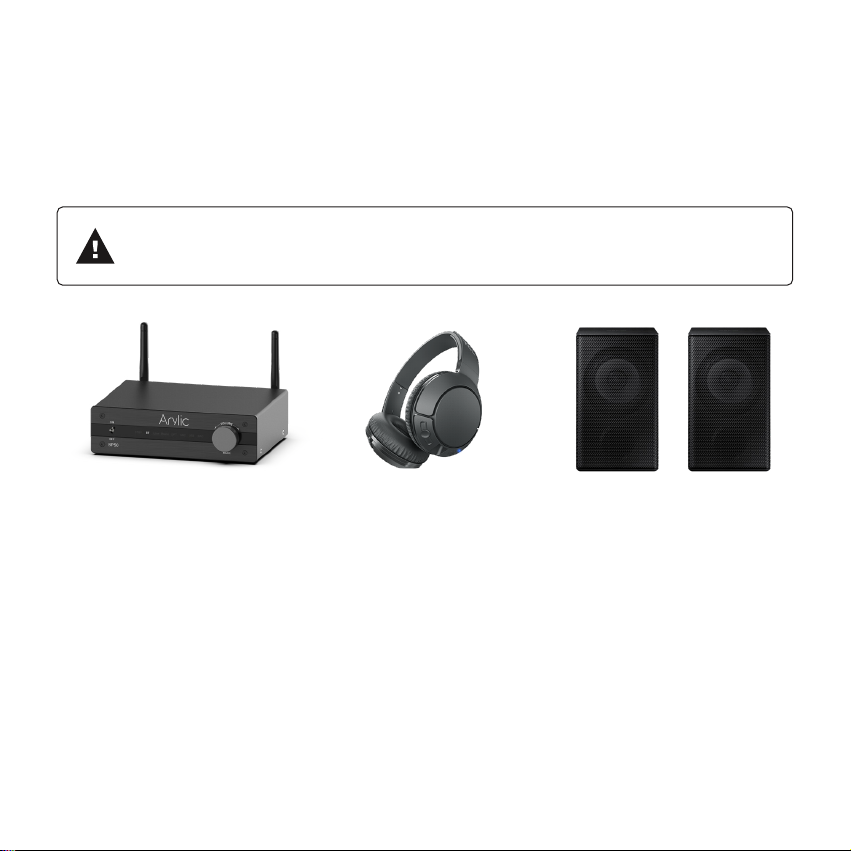
7.2 Bluetooth Transmitter Mode
To enable Bluetooth transmitter mode, once you are in one of the source input modes (Line in / Phono in
/ Optical in / TV ARC / USB disk drive / USB DAC) press the Reset button on the back or press the BT
TX button on the remote controller to enable.
Once enabled, you will notice the BT LED will start flashing, the device will then search for nearby
Bluetooth receiver device (Bluetooth Speakers, headphones) and connect to it.
Please note, some BT receiver device might need you to enter pairing mode rst, some
BT receiver device might need to press a connection button to establish the connection.
Please refer to the device user manual or contact the seller for advice if needed.
After successfully connected, the BT LED will stay on and you should be able to hear the sound coming
out from the connected Bluetooth device, and the connected output device will have no sound.
You can connect a second BT receiver device once the rst device has been successfully connected.
Press the Reset button on the back or press the BT TX button on the remote controller will trigger the
device to enter pairing mode for the second BT receiver device. The connection process is the same as
the rst device.
Connecting the second device will take 20 to 50 seconds, please be patient.
Once connected, both BT receiver device will have sound output.
To disconnect the Bluetooth connection, quickly press the Reset button twice to disconnect all the
connection.
12
Page 16
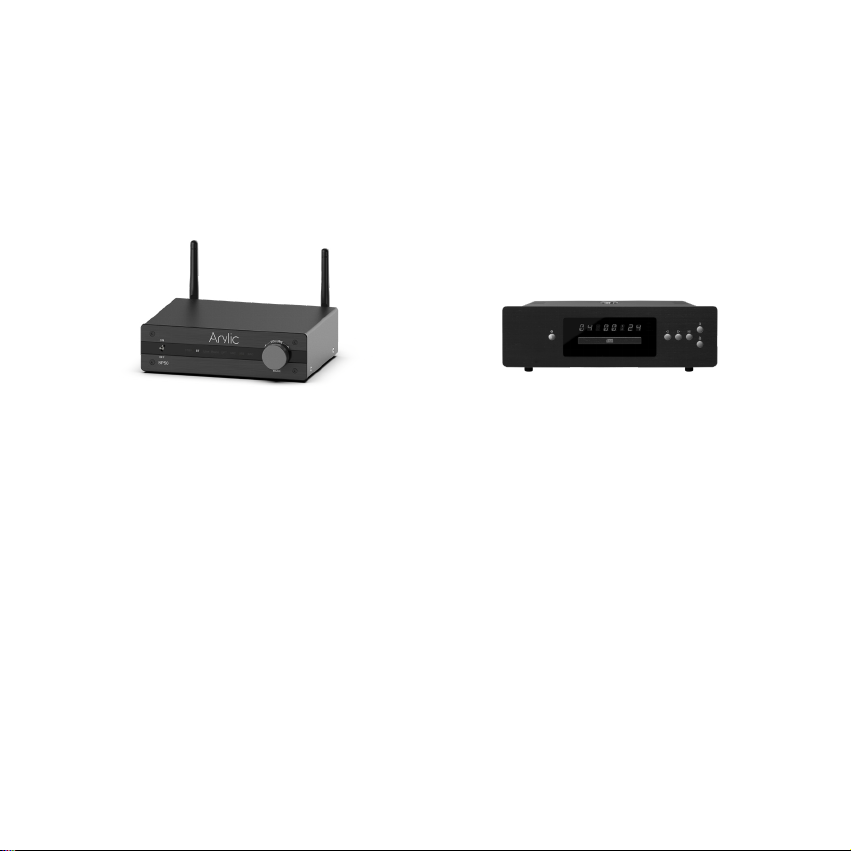
7.3 Line in Mode
You can connect any analog device with line out to BP50. You will need to switch to Line in mode with
the Mode button on the device, use the remote controller or in the Go Control APP. The Line LED will
turn on when BP50 is Line in mode.
You can also stream Line in audio through Bluetooth and listen from connected Bluetooth receiver
devices such as Bluetooth speakers or Bluetooth headphone.
13
Page 17
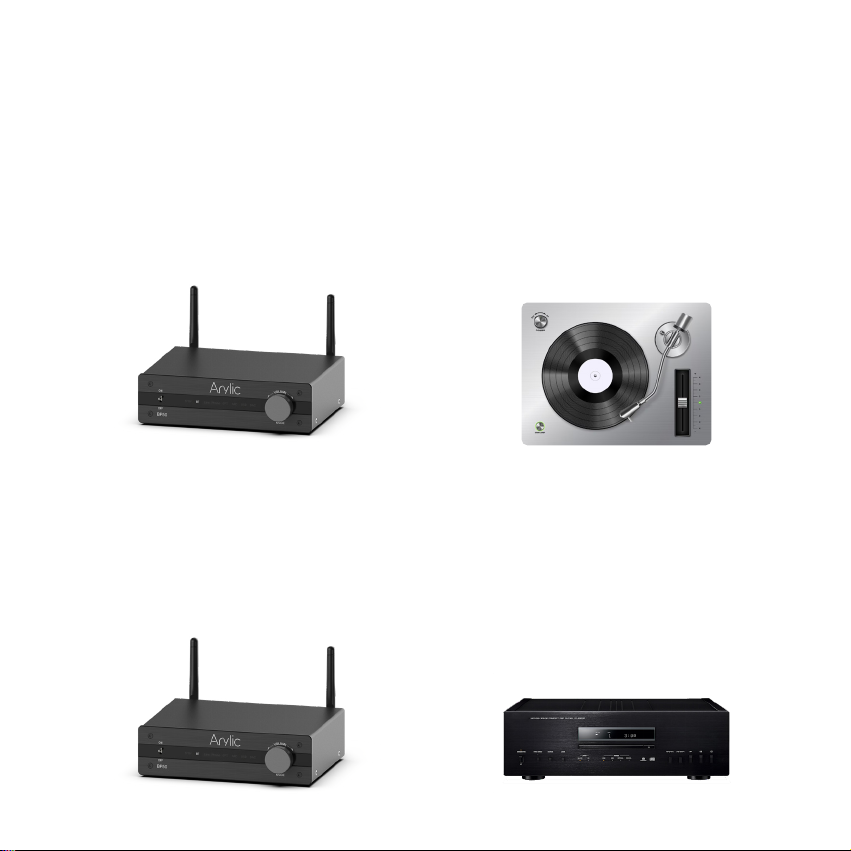
7.4 Phono in Mode
B5P0 is also a turntable amplier, you can connect your turntable to the Phono in connectors and the
GND connector to play music. Press the Mode button on the device, use the remote controller or in the
Go Control APP to switch to Phono in mode. The Phono LED will turn on when you in Phono in mode.
You can also stream turntable audio through Bluetooth and listen from connected Bluetooth receiver
devices such as Bluetooth speakers or Bluetooth headphone.
Please note, compare to Line in mode, Phono in mode has a very high amplication due to the low
volume of turntable. Do not connect any analog device line out to Phono in, it will create a very loud
voice and risk of damaging the device and connected speakers.
7.5 Optical in Mode
You can connect any device with digital optical output to BP50. You can press the Mode button on the
device, use the remote controller or in the Go Control APP to switch to Optical in mode. The OPT LED
will turn on when you in Optical in mode.
You can also stream Optical in audio through Bluetooth and listen from connected Bluetooth receiver
devices such as Bluetooth speakers or Bluetooth headphone.
14
Page 18
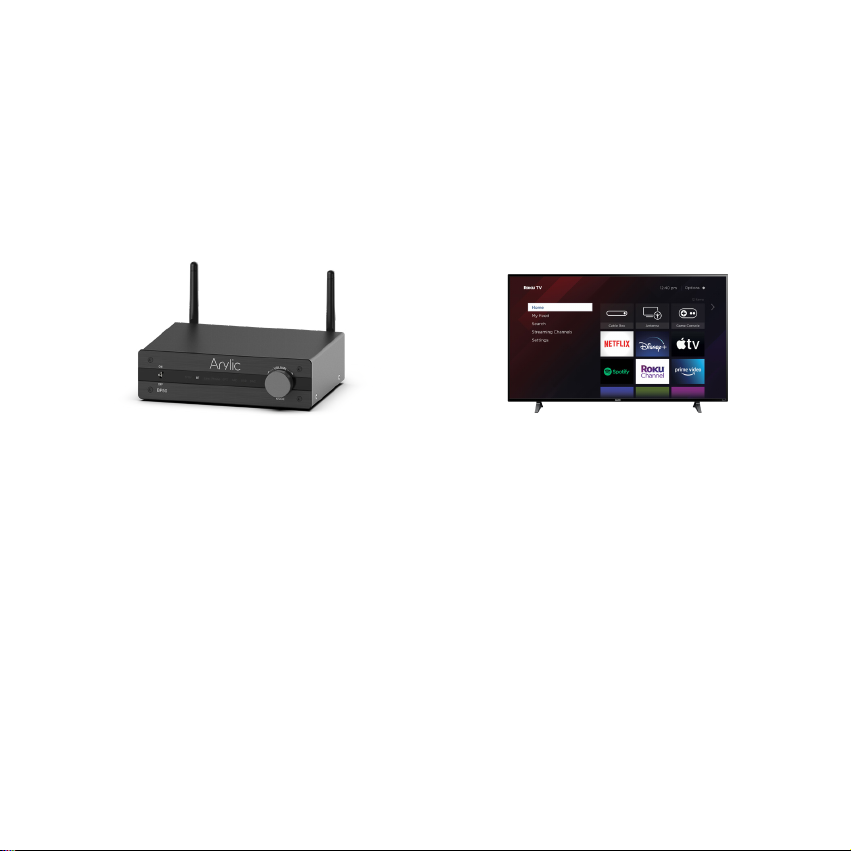
7.6 TV ARC Mode
Nowadays most TV comes with TV ARC which is a special HDMI port for audio output. BP50 has such
TV ARC port for you to connect to your TV as an external stereo sound system and play music from
your passive speakers. In order to use TV ARC, you will need to press the mode button on the device,
use the remote controller or in the Go Control APP to switch to TV ARC mode. The ARC LED will turn on
when you in TV ARC mode. BP50 support HDMI CEC function.
You can also stream the music from TV through Bluetooth and listen from Bluetooth headphone, when
you want to watch TV without disturbing others.
15
Page 19
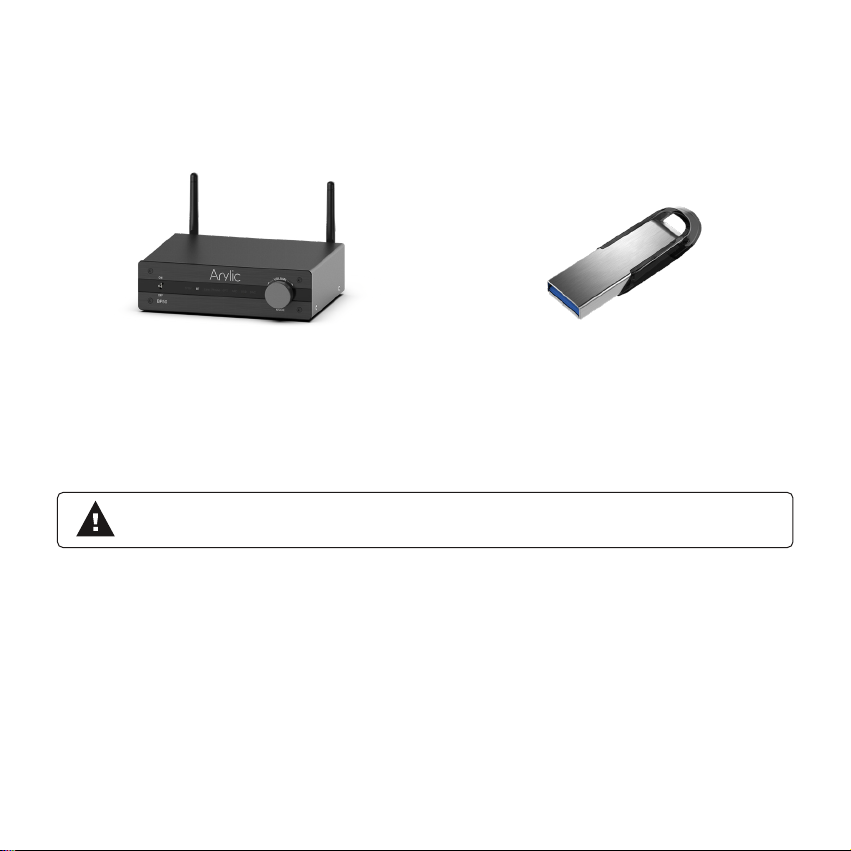
7.7 USB Disk Drive Playback Mode
If you have many music les and you want to play them, you can store them in a USB disk drive and
playback from BP50. Just plug in the USB disk drive with music les and BP50 will auto switch to USB
Mode and playback the music. The USB LED will turn on.
BP50 also has resume playback function, if you stop playing the music or switch to another source input
mode or unplug the USB disk drive, BP50 will start from the last song being played when you enter USB
disk drive playback the next time.
You can also stream stored music to connected Bluetooth speakers or headphones via Bluetooth
transmitter mode.
* Please note the USB disk drive le format has to be Fat16/Fat32/exFat.
* Can support up to 128GB USB disk drive.
16
Page 20
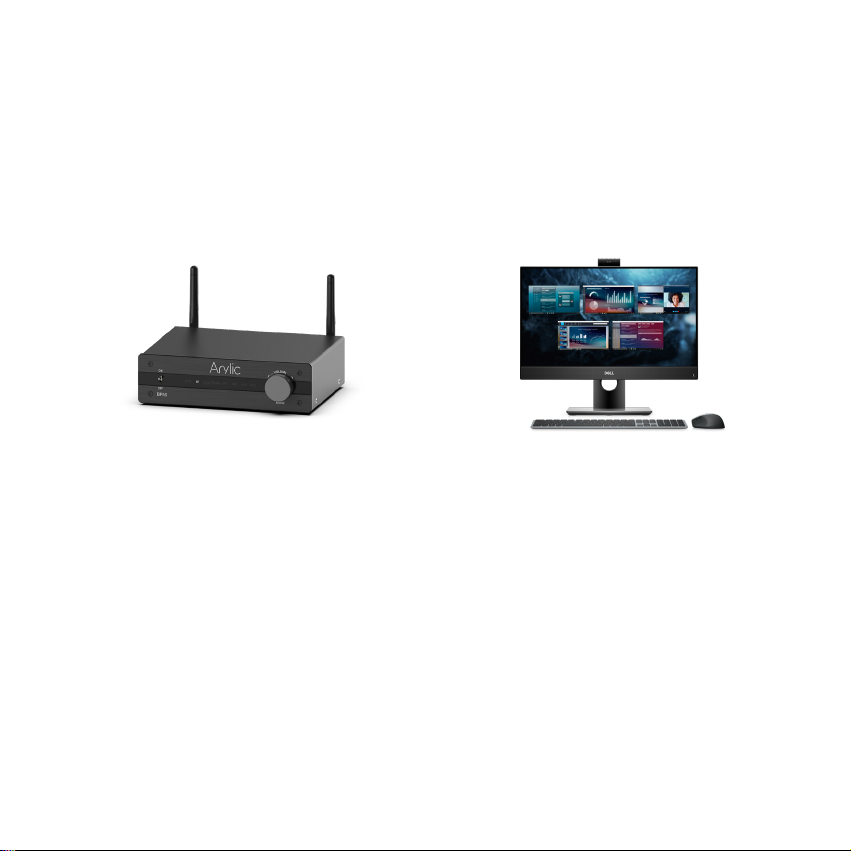
7.8 USB DAC Mode
You can connect BP50 to your PC to work as an external USB stereo sound system using a USB
Type-C cable. Please make sure the cable you use is data link cable and not just a charging cable.
Some charging cable is only for battery charging and does not contain data link to transfer data.
You will need to select BP50 as the sound output device in your PC for it work. Look for the device name
call “Up2Stream USB Audio” and connect to it. Same as other input modes, you can stream your PC
audio to other connected Bluetooth device.
17
Page 21
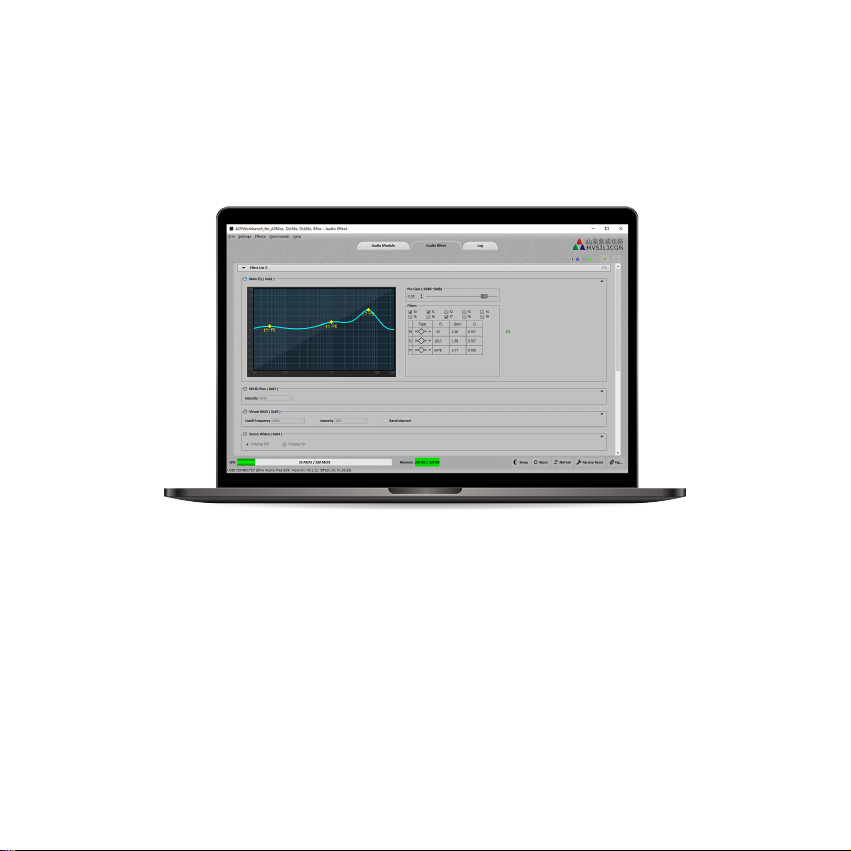
8. ACPWrokBench (Sell Separately)
ACPWorkbench is a windows application that allows you to tune BP50 audio effects conveniently,
including Music Noise Suppressor, Virtual Bass, Stereo Widener, Exciter, 10 bands EQ and many more.
When tuning, it will have real-time feedback and you can save and export the changes you made for use
in another BP50 device.
18
Page 22
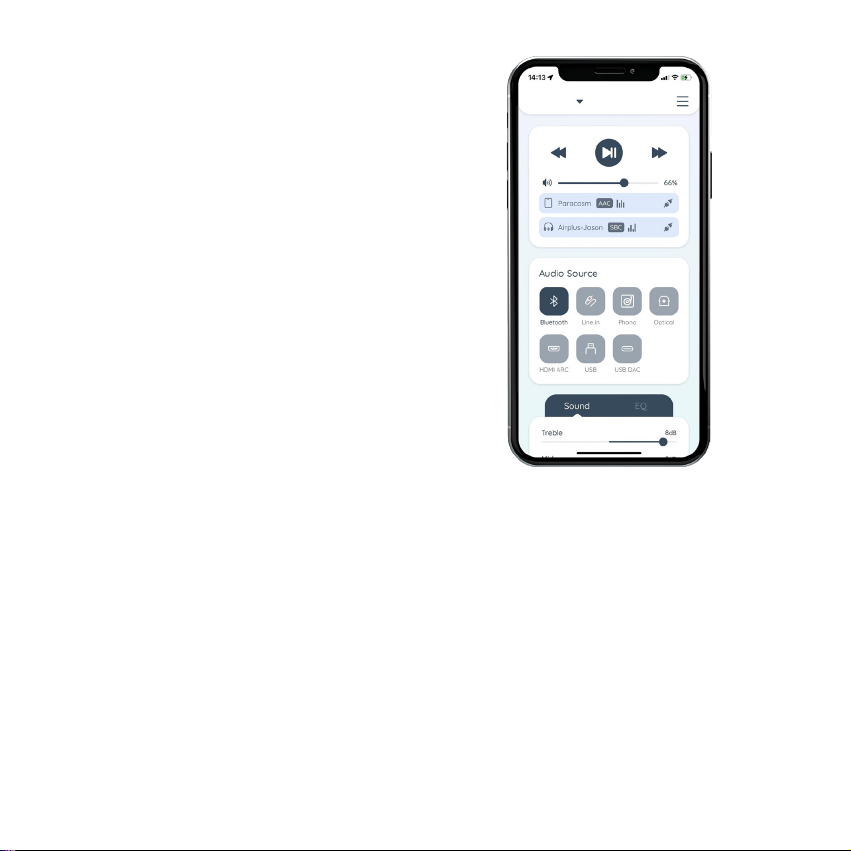
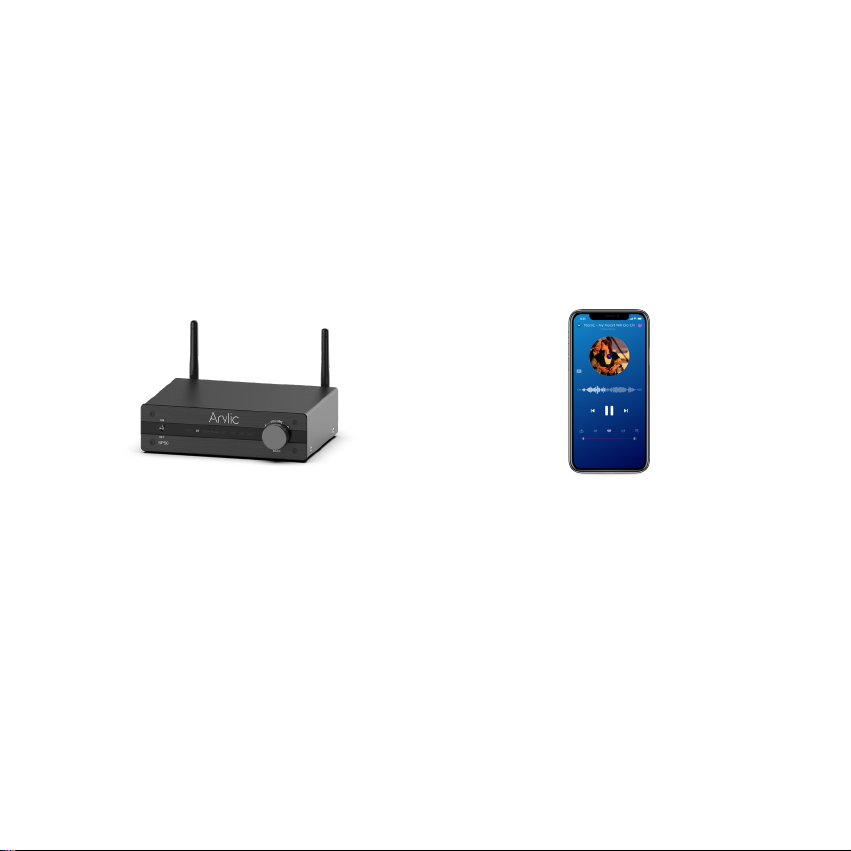
9. Mobile Application
Go Control is a user-friendly control application for
BP50. You can easily take control of the device
without complicate configuration, Go Control will
automatically detect close by BP50 device and
connect to it. Go Control lets you do playback
control, input source selection, enable Bluetooth
pairing, enable Bluetooth transmission and in-depth
EQ settings for BP50 device.
Go Control is available in both Google Play Store
and Apple App Store.
BP50
Features:
1. Manage multiple devices in one app.
2. Playback controls, such as stop, pause, mute, previous, next.
3. Switch audio sources remotely.
4. Control and show connected phone info and bluetooth codec in RX mode.
Control and show connected earphone info in TX mode.
5. Dark mode, Change device name, LED on/o, check rmware version.
6. More features available in future.
19
Page 23
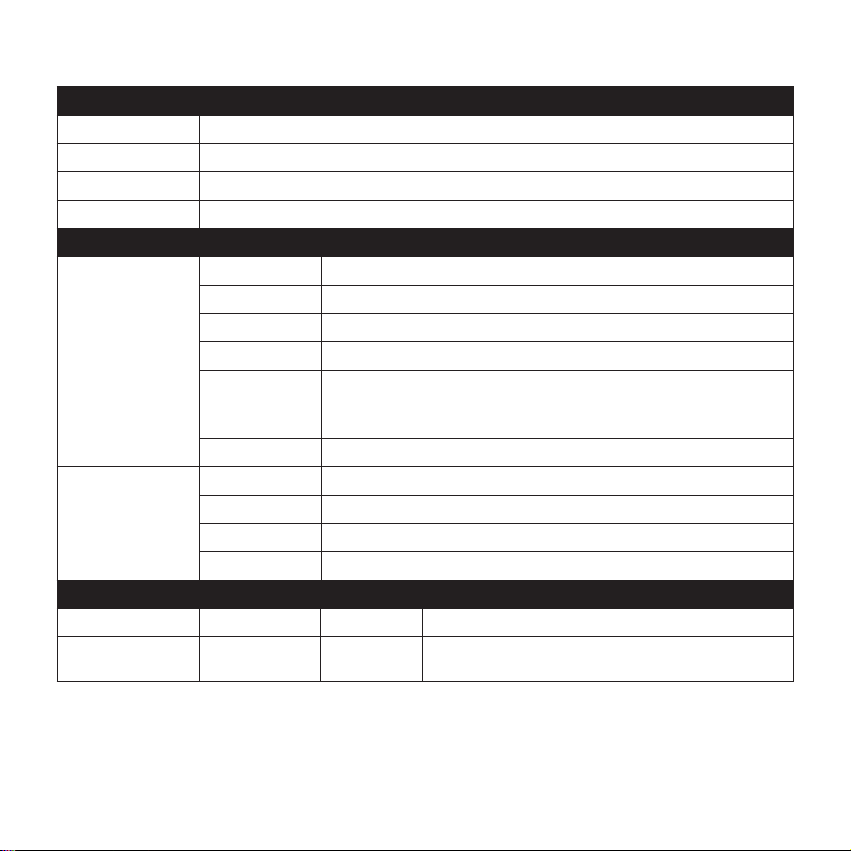
10. Specication
Bluetooth
Bluetooth Standard 5.2
Transmit 2x Bluetooth TX, able to connect up to 2 Bluetooth speaker or earbuds
Receive 2x Bluetooth RX, able to connect up to 2 Bluetooth transmitter devices
Codec aptX HD, aptX LL, aptX AD, AAC, SBC
Audio I/O
Line in Analog RCA, Max 2Vrms input
Phono in Analog RCA, Support MM/MC
Optical in Up to 192kHz/24bit PCM only
Audio Input
Audio Output
Power Input 12V/1A Size 185 x 155 x 50 mm
Weight 750g In the Box
TV ARC PCM only, CEC function supported
USB Host
USB Type-C USB DAC for PC connection, Sample rate: 48kHz
Subwoofer out Max 3Vrms output, Cutting frequency: 250Hz
Line out Max 2Vrms output
Optical out 48kHz/16bit output
Coaxial out 48kHz/16bit output
USB disk drive playback, support resume playback
Storage format: Fat16, Fat32, exFAT, up to 128GB
Support codec: mp3, mp4, wma, mov, m4a, aac, flac(96kHz/24bit), ape
General
Main Unit x1 / Antenna(3dBi) x2 / Remote Control x1
User's Manual x1 / Power Adapter x1
20
Page 24
Scan the QR codes below for more
Support: [email protected]
arylic.com
Go Control App User's Manual Forum
Facebook: arylicme YouTube:Arylic
©Copyright 2023 by Arylic. All Rights Reserved.
The information contained in this guide is believed to be accurate and reliable. Arylic assumes no responsibility for any
errors contained in this guide. Arylic reserves the rights to make changes in the specifications and/or design of the
above mentioned product without prior notice. The diagrams contained in this guide may also not fully represent the
product that you are using and they are for illustration purposed. Arylic assumes no responsibility for any differences
between the product mentioned in this guide and the product you may have.
v1.0
 Loading...