

Page 1
Wireless USB Adaptor
Reference Design Kit
Page 2
2 • Wireless USB Evaluation Kit
Getting Started
Thank you for purchasing the Artimi Wireless
USB Adaptor Reference Design (ADP-RDK) sample kit.
The ADP-RDK allows you to quickly and easily enable many of today’s common USB devices
with Wireless USB based on Certified Wireless USB from the USB-IF. It allows you to experience
for yourself how these devices would operate when wirelessly enabled with Artimi’s production
ready Wireless USB solutions.
Targeted specifically at USB connected hard disk drives and other storage type devices, this
version of the ADP-RDK supports nearly all devices which adhere to the USB 2.0 specification
for the mass storage class.
In addition to the contents of the evaluation kit, you will need the following:
• A PC with available USB 2.0 compliant port. This PC
must run Windows XP (SP2) or Windows Vista.
• A USB 2.0 compliant device which includes standard
mass storage class support.
• USB cable for connecting the USB device to a standard
USB type ‘A’ plug. This may have been supplied with
the device.
This quick start guide is designed to help you set up
and begin using Artimi’s Wireless USB solutions.
USB Type ‘A’ plug
Page 3
Quick Start Guide • 3
Equipment List
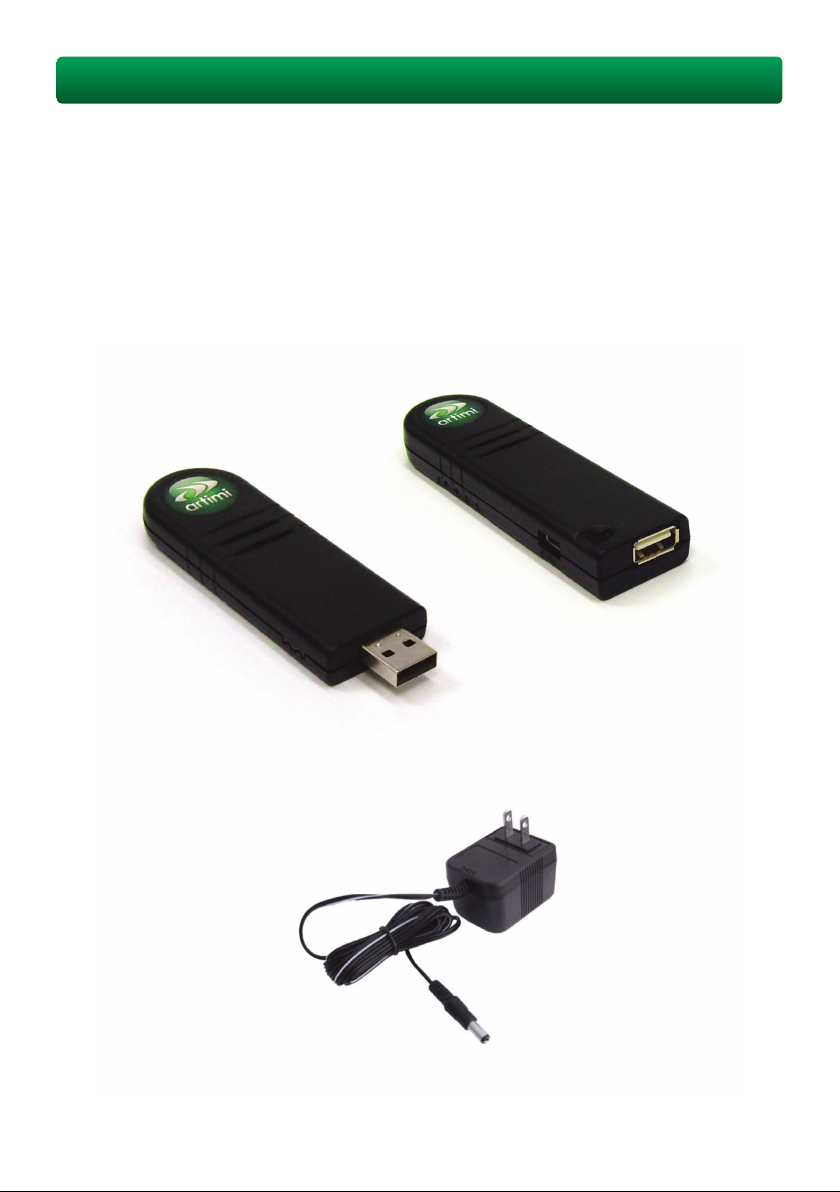
Before continuing, please check that all of the following items are included with your ADP-RDK
sample kit. If any items are missing, please contact Artimi through the ArtimiCustomer support
portal (details of how to access the portal should be included with your ADP-RDK package)
with a description of the missing item(s).
Device Side
Wireless Adaptor
Host Side
Wireless Adaptor
Power Adaptor for
Device Side Adaptor
Page 4
4 • Wireless USB Evaluation Kit
Device Overview
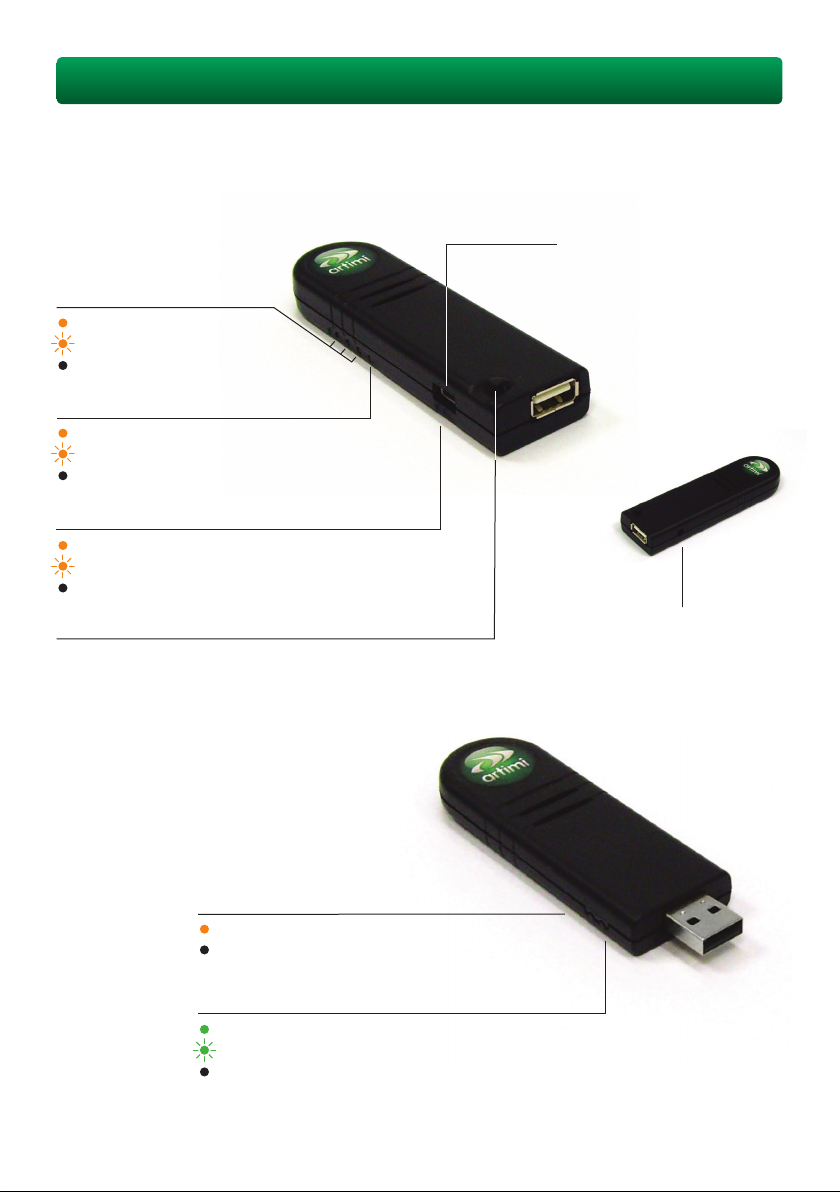
Device Side Wireless Adaptor
Wireless USB Connection
Status & Host Selection LEDs
Host selected and connected
Host selected but not connected
Host not selected
Wired USB Connection Status
Valid USB device connected
Validating USB device
No USB device connected
Host Association Status
Association is complete
Association is in progress
No host connected
Host Selection Button
This button is used to select which of the previously
associated hosts is currently selected/active.
USB Mini B port
for cabled association
DC power port
Host Side Wireless Adaptor
Wireless USB Connection Status
Communicating with a wireless device
Not communicating with a wireless device
Wired USB Connection Status
Connected to USB host
Connecting to USB host
Not connected to USB host
Page 5
Quick Start Guide • 5
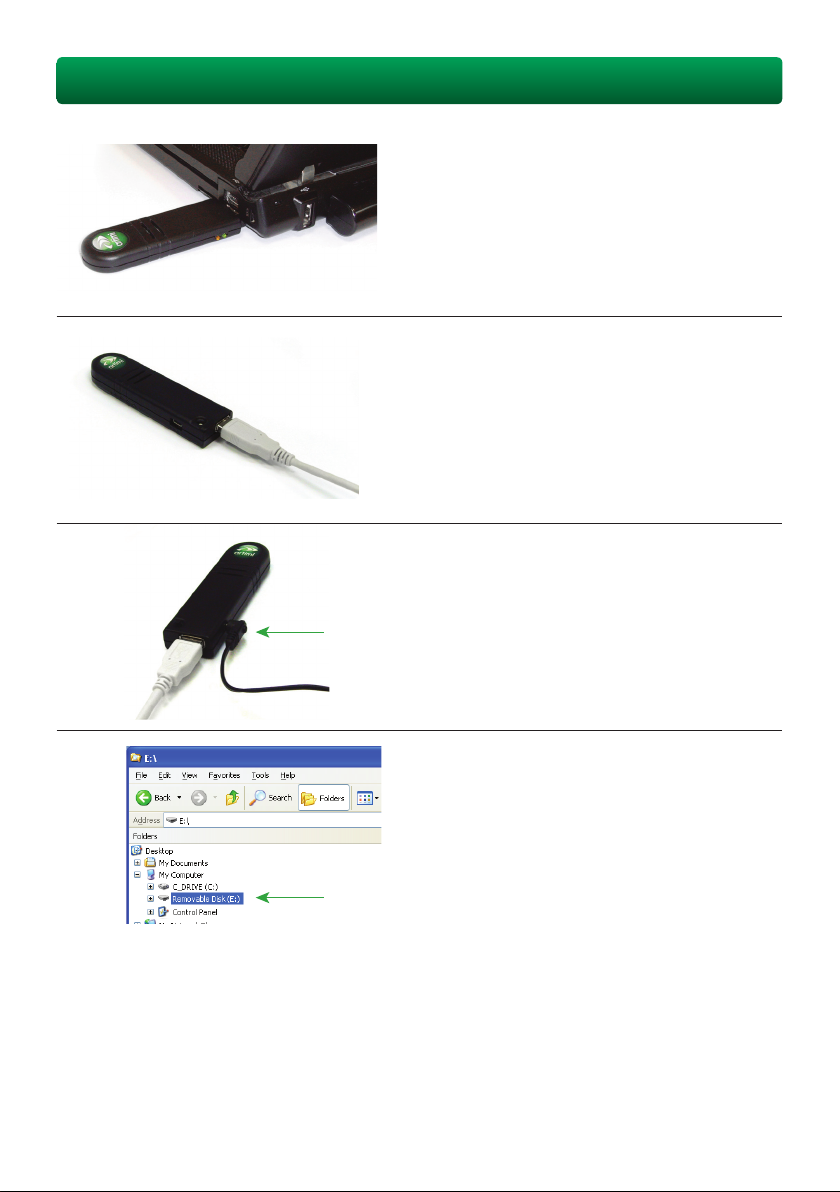
Quick Setup Instructions
Step 1
Insert the host side wireless adaptor into a
USB port on the PC.
Step 2
Using the USB cable supplied with the
USB device, connect the USB device to
the wireless adaptor.
Step 3
Apply power to the wireless adaptor.
Step 4
Confirm the connection. The device
will show up and operate as if it were
connected using standard wired USB.
The ADP-RDK sample kit is designed to use the Wireless USB protocol to replicate the operation
of a USB cable. If this is the first time the USB device has been connected to the PC the normal
operating system mass storage installation messages should appear. If the device has previously
been connected it should appear as a device on the PC in the normal way.
You are now ready to start using your USB device with standard PC applications!
Page 6
6 • Wireless USB Evaluation Kit
Usage with Certified Wireless USB PCs
The adaptors come shipped as ‘pre-associated.’ This means they have already been made
aware of each other, know they can communicate together and have exchanged security
information. In addition to this, the device side wireless adaptor can be associated with up to
two additional Certified Wireless USB hosts using the standards defined ‘cable association’
method. In order to associate a device side wireless adaptor with a new wireless host, perform
the steps below.
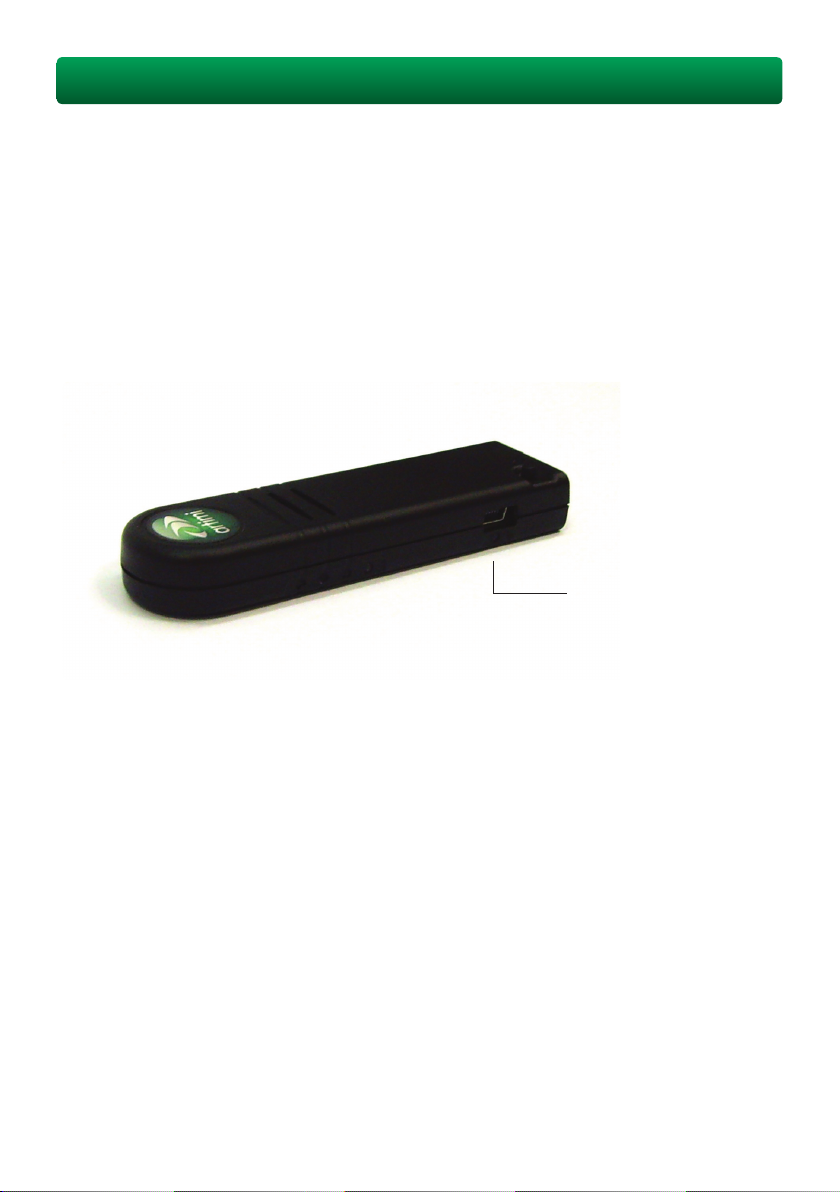
This procedure details cable
association of new wireless
hosts using the adaptor’s
USB Mini B port.
Step 1
Ensure the device side wireless adaptor is connected to power but not to a USB device.
Step 2
Using a USB cable with a type ‘A’ USB plug on one end and a type ‘mini B’ plug on the other,
connect the PC to the ‘mini B’ socket on the device side wireless adaptor.
Step 3
Open the Certified Wireless USB management application on the PC.
Page 7

Quick Start Guide • 7
Step 4
In the Certified Wireless USB management application on the PC, indicate that you want to
add a new device. When prompted, ensure that the ‘cable association’ method of connecting
is selected.
Step 5
Any further options provided in the wireless management application can be set as you wish.
Step 6
Once association is complete (should take no more than 5-10 seconds), disconnect the USB
cable between the PC and the device side wireless adaptor.
Step 7
Reconnect the USB mass storage device to the device side wireless adaptor.
You have now added a new host association! To switch between the ‘pre-associated’ host side
wireless adaptor and the wireless PC just associated, press and release the button on the top
of the device side wireless adaptor. An LED on the side of the device adaptor should change
to indicate which available host is now selected for use. The status of the connection to a host
is indicated as follows:
Host selected and connected
Host select but not connected
Host not selected
The ADP-RDK can store up to three associated hosts. When a fourth one is added, the
first one associated is overwritten (the association of the two adaptors in the sample kit is
permanent and cannot be overwritten).
Page 8

Troubleshooting
The ADP-RDK sample kit is designed to work with most common USB devices which
support mass storage class. Devices requiring other USB classes are not supported in the
current release. The most commonly reported problem relates to trying to use the kit with
devices which do not support or do not strictly implement the above class. Should this
problem occur, it will be indicated by continuous flashing of the Wired USB Connection
Status LED on the device side wireless adaptor.
In this case, please try another mass storage class supporting device. If problems persist,
contact Artimi through the ArtimiCustomer support portal.
Additional Notes
Device Compatibility
The ADP-RDK sample kit has been tested with a number of USB hard disk drives and other
USB mass storage devices.
Adaptor Orientation
The ADP-RDK sample kit is intended to produce the best performance with the antenna
in a vertical orientation. To assist in product design, Artimi has a variety of reference
design information and can provide support in achieving the best RF performance for each
particular product.
37th Floor • Taipei 101 #3740
7 Xinyi Rd, Section 5, 110 • Taipei, Taiwan
0408-0200
 Loading...