

Page 1
www.argonaudio.com
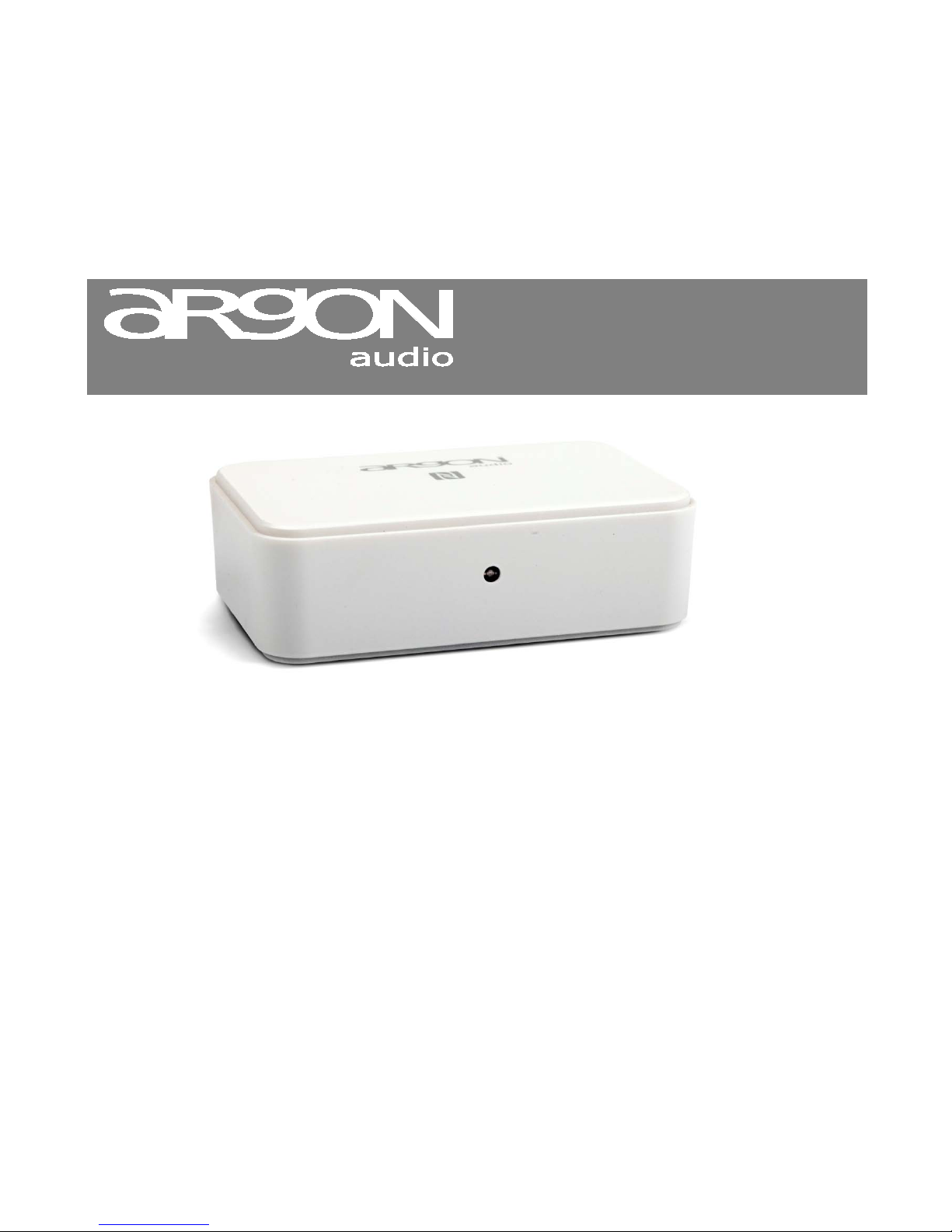
BT2
Dear Customer,
Quality has always been our driving force and founding Argon Audio is a natural extension of this philosophy.
We have 20 years’ experience in creating and specifying high quality products, manufacturing them and selling them on
to end users with Value-for-Money as the primary aim. And Argon Audio is a brand fully compliant with these values.
Design, features and quality standards are all specified in Denmark and manufacturing takes place in the Far East,
where quality vendors are highly competitive - and as a result supply outstanding Value-for-Money products.
– To the delight of both ourselves and our customers!
Congratulations with y our BT2 may it bring years of enjoyment.
Page 2
www.argonaudio.com
BT2
Safety
Safety Instructions
• Unplug this product from the wall outlet before
cleaning. Do not use this product near water or
moisture. Do not spill liquids on the product. Clean
only with a dry cloth.
• Place the unit on a solid surface.
• Do not put it in a closed bookcase or a cabinet that
may keep air from flowing through its ventilation
openings.
• Do not install near any heat sources, such as
radiators, heat registers, stoves or other appliances
that produce heat.
• Protect the power cord from being walked on or
pinched, particularly at plugs and the point where they
exit from the product.
• During Lightning storms, unplug the product from the
power source or if unused for long periods of time.
This will prevent lightning and power-line surge
damage to the product.
• Do not attempt to service this product yourself.
Opening or removing covers may expose you to
dangerous voltages or other hazards. Please contact
the manufacturer to be referred to an authorized
service center near you.
• Do not overload wall outlets, extension cords, or
integral power circuits as this can result in a risk of fire
or electric shock.
• Never push any object through the product openings,
as this can result in fire, electric shock or damage.
• Use proper power sources. Plug the product into a
proper power source, as described in the operating
instructions or as marked on the product.
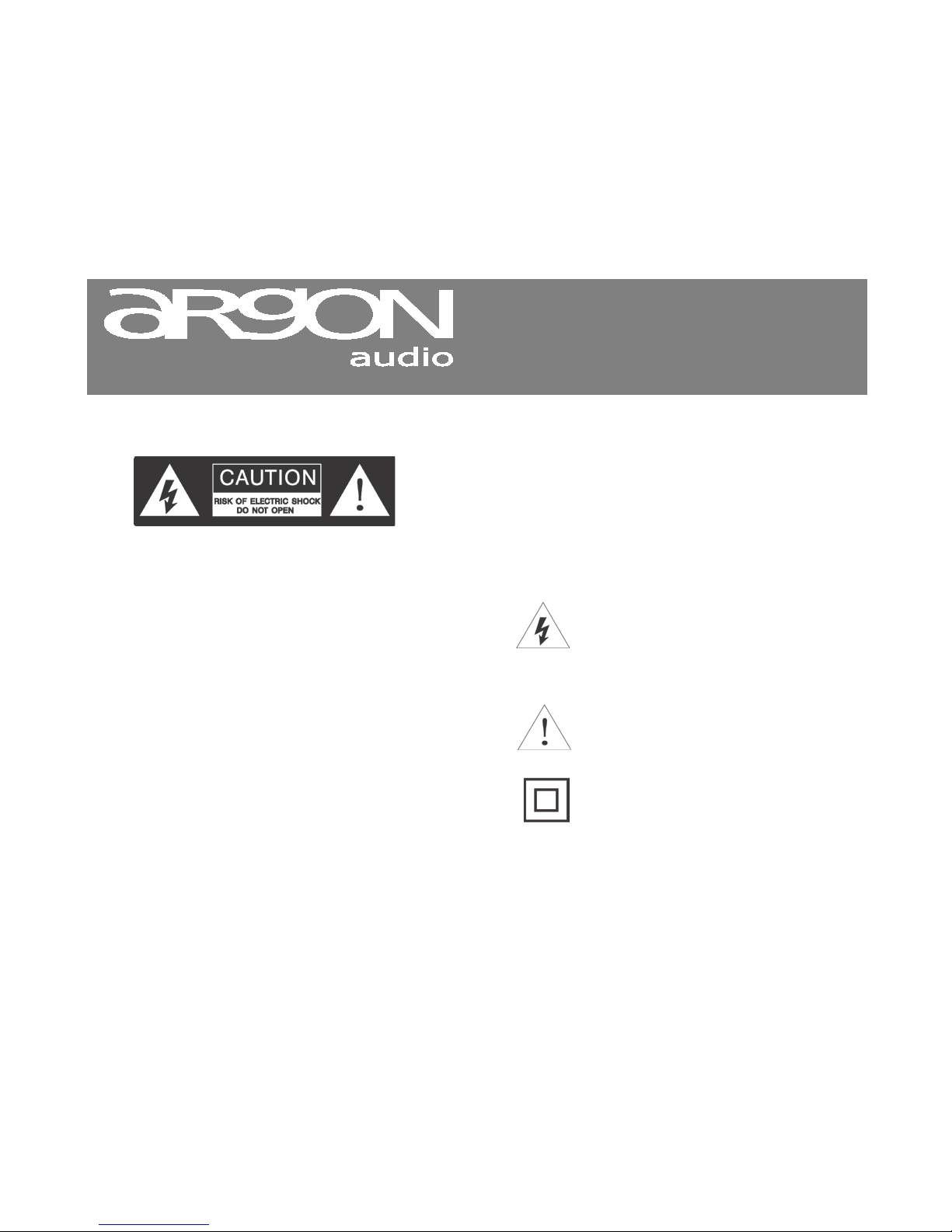
If there is a Lightning flash with an arrow head
on the product, it’s intended to alert the User
of the presence of un-insulated “dangerous
voltage” within the product, that might be of
sufficient magnitude to constitute a risk of
electric shock to persons.
If there is an Exclamation point on the
product, it’s intended to alert the User that
there is important operating and maintenance
(servicing) information in the User manual.
If there is a double rectangular symbol on the
product, it means that the product is double
insulated. Earth connection is not required.
Page 3
www.argonaudio.com
BT2
Start up and Connecting Argon Audio BT2
1. Connect the power supply to the Argon Audio
BT2 and connect the power supply to a power
outlet.
2. Connect Argon Audio BT2 to an Amplifier, using
either the (included) RCA cable or a Mini Jack or
an optical cable.
3. The small LED light on the front of Argon Audio
BT2 will turn Red, indicating it’s in Stand-by
mode.
4. Enable Bluetooth on your playback device
(Mobile Phone, Tablet, Lap Top etc.).
5. Turn ON Argon Audio BT2, by pressing the
Power button on the back.
6. The LED on the front of Argon Audio BT2 will turn
Blue and start blinking fast.
Now waiting to connect to a BT device. (Mobile
Phone, Tablet, Lap Top etc.).
7. Start Bluetooth device search on your playback
device (Mobile Phone, Tablet, Lap Top etc.).
8. Once “Argon Audio BT2” is found and shows in
the display of your device – depending on your
device, it either:
a. Connects automatically indicating
“Connected to Media Audio” or.
b. “Ask” to be Paired.
9. If it shows “Connected to Media Audio” you are
ready for playback.
10. If it ask to be Paired press “Argon Audio BT2 on
your device and it will show “Paired”.
11. Then Press “Argon Audio BT2” on your device
again and it will connect.
12. Notice you can adjust the volume both on your
playback device (Mobile Phone, Tablet, Lap Top
etc.). and on your Amplifier.
Connecting via NFC to play back device
1. Enable NFC on your phone
(Check the manual of your phone to see if it
has NFC function).
2. Make sure BT2 is in Stand-by mode (LED
indicator = Red).
3. Sweep you phone/device over BT2 and it
will connect. (You might have to try a few
times before it connects).
LED light indicators
No light = Off
Red = Stand-by / NFC connection enabled
Fast Blinking Blue = Waiting for Pairing/Connect
Slow Blinking Blue = Time out for connection.
To activate again, press Power twice until you
either get fast blinking Blue or Constant Blue LED
Constant Blue = Connected
Page 4
www.argonaudio.com
BT2
.
NOTICE: Argon Audio BT2 support only the high bit rate 24bit/192Khz on the optical output. If you do not get any sound
when connecting Argon Audio BT2 via Optical, then your Amplifier might not support 24bit/192khz. Consult your
Amplifier manual and/or connect the Argon Audio BT2 using either RCA or Mini Jack connection.
NOTICE: Some LapTops/PC does not default support Enhanced Data Rate on Bluetooth. If you cannot connect BT2 to
your LapTop/PC, you might need to go to your Laptop/PC manufactures support website and download a Bluetooth
package that will support Enhanced Data Rate for Bluetooth.
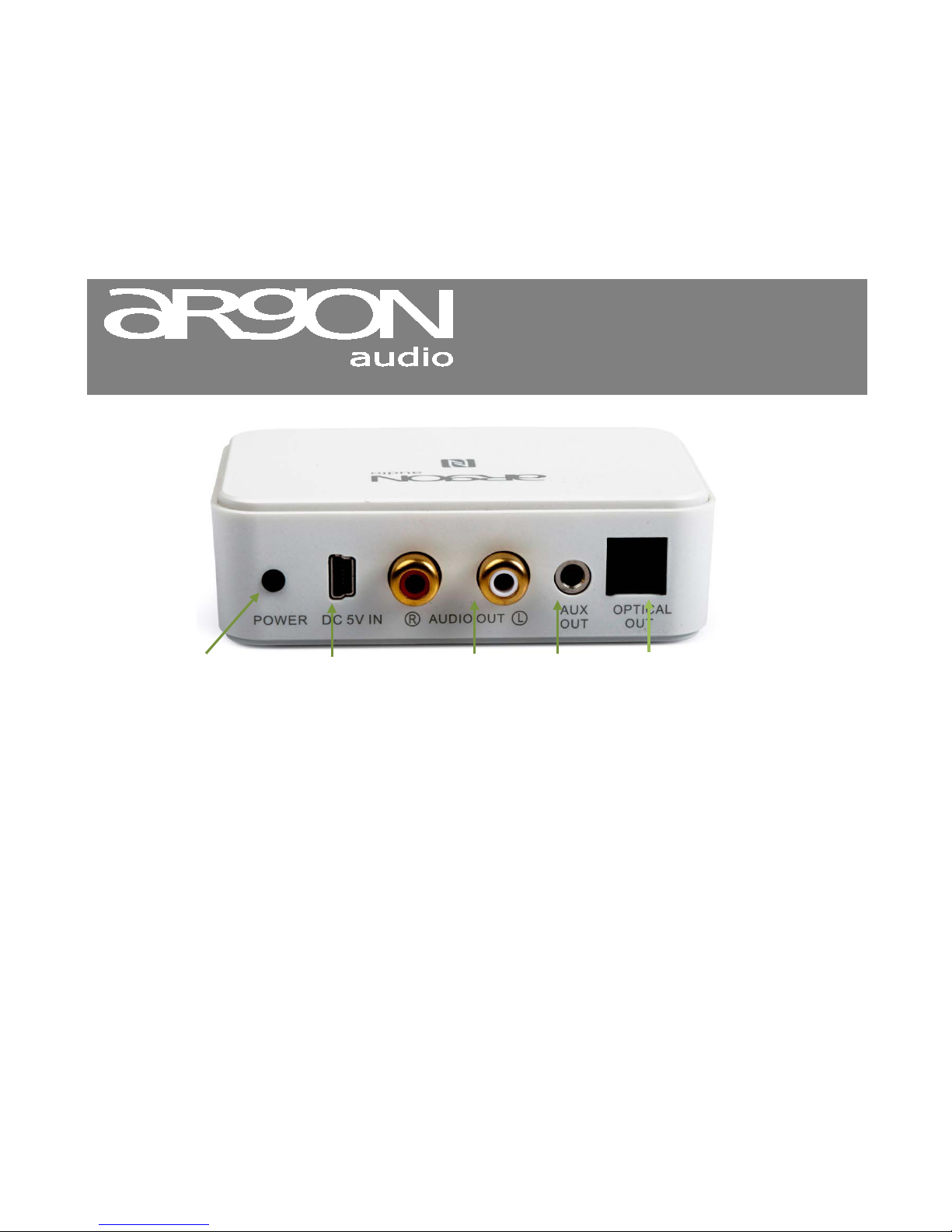
Power Button
Press and hold for a
few seconds to
turn off/on or
reactivate
Power connect
connect the
included
Power supply
Analogue out
Connect to a Hi-Fi
Amplifier using
the RCA both L/R
Analogue out
Connect to an
amplifier/device
that has only
Digital out
if your amplifier has digital
input, connect the BT2 via this
output. (Remember to remove
the small plastic protections on
the Digital cable)
Page 5
www.argonaudio.com
BT2
Specifications:
Type: Bluetooth adaptor
Outputs: Optical digital, Analogue L/R RCA stereo input,
Mini Jack 3,5 mm Stereo
Optical output bit rate: 24bit/192 Khz fixed
Bluetooth protocol: CSR 4,0, A2DP/AVRCP
Decoder support: Aptx, SBC, Kalimba DSP pro-processor
NFC pairing function
Power supply: 5Volt /1A
 Loading...