

Page 1
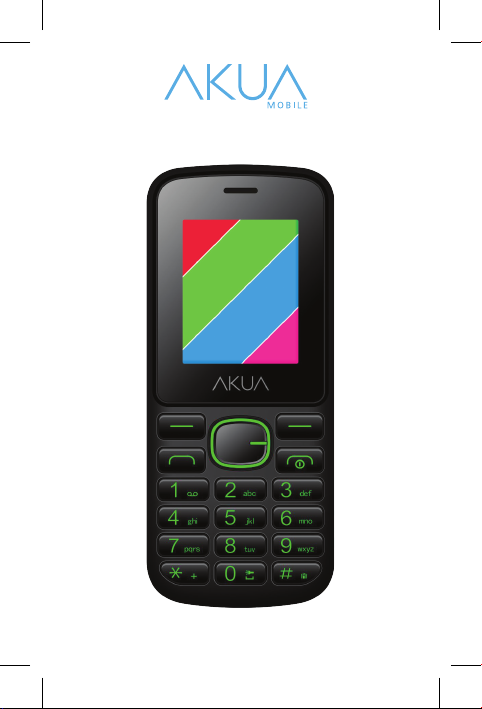
FK1a User Manual
2016 © Akua Mobile
English
FK1a User Manual
1
Page 2

FK1a User Manual
2016 © Akua Mobile
Contacts
1.You can use Contacts to store phone numbers. You can store names and
phone numbers.
2. Select a contact in the Contacts section to make a call and press the dial key.
3. You can press the left button to select one contact to Edit, delete, copy or
blacklist it.
4. Contact settings:
-Preferred storage
Select SIM1, SIM2, Phone and All. The contact list will change accordingly.
Select SIM1 and the contact list will only show SIM1 records.
-Speed dial
Open speed dial. If you press and hold the number key on the dialing interface
you will be able to make a call.
-Extra numbers
You can set xed dialing numbers.
-Memory status
View the memory usage and total contact capacity information.
-Copy contacts
You can copy contacts from the SIM to the phone/SIM and from the phone to
the SIM.
-Move contacts
You can move contacts from the SIM to the phone/SIM and from the phone to
the SIM.
-Delete all contacts
You can delete all contacts stored in the SIM card and in the phone.
-Backup contacts
You can back up all contacts
-Restore contacts
You can restore all contacts
Call logs
Call history
All calls
You can view all dialed calls, received calls and missed calls in this submenu.
Dialed calls/ Received calls/Missed calls
This submenu will display a list of Dialed calls/ Received calls/Missed calls.
Select call records and press the Options key to view, call, send text message,
save to Contacts, add to blacklist or delete a number.
Call settings
Call waiting
Activate this feature. The network will then notify you of an incoming call during a
current call. For specic use, check with your network provider.
Activated .................. Launch the function.
Deactivate ................ Close the function.
Query status ............. Query the function’s status.
2
Page 3

FK1a User Manual
2016 © Akua Mobile
Call Forwarding
The Network Call Transfer Service allows you to call a business case, by default,
to transfer it to a phone number you specify. The features include: Transfer all
voice calls, Transfer if unreachable, Transfer if no answer, Transfer if busy and
Transfer all data calls.
Call barring
In the “Call barring” submenu, you can set the following call barring settings in
any combination to improve security. Some network providers may not provide
this call restriction service. For specic use, please contact your network service
provider. The network service provider will provide a four-character password so
that you can enable call restrictions.
To change the password, enter the old call barring password and set new
password restrictions.
Advanced settings
Blacklist: You can add phone numbers into this list to reject the calls and
messages from that number.
Auto redial:
Toggle the on/off to activate or disable the feature. When it’s on, your phone will
automatically dial up to 10 times after any failed attempt to call. This feature can
save you the trouble of dialing multiple times.
Call reminder:
Off ......................... Disables the function.
Single .................... Enter any number between 1-3000 (sec) to remind you once.
Periodic ................ Enter any number between 30-60 (sec) for periodic reminders
Auto quick end:
You can set it on or off to control calling time.
Answering mode:
Cover answer: When there’s an incoming call and the cover is opened, the call
will be automatically connected.
Any key: You can press any key to answer an incoming call
Auto answer when in headset mode: Incoming call can be automatically
answered when in headset mode.
from the time you input it (in seconds).
Tools
Calculator
Your phone provides you with the basic arithmetic operations. Press the left soft
key “Clear”, Press the right soft key “Back” to exit the calculator.
Calendar
Enter the calendar and the screen will show a calendar month with the current
date marked. Press the up, down, left, and right navigation keys to change the
date. The calendar information on the screen will be updated accordingly. Press
the left soft key “Options” to display the calendar’s menu.
Alarm
Select and edit an alarm clock: You can set the alarm’s setting to on / off, Time,
Repeat and Alarm tone. You can choose to set to repeat:
Once, Every day and Custom.
Flashlight On/Off
You can enable and disable ashlight here.
3
Page 4

FK1a User Manual
2016 © Akua Mobile
Multimedia
Camera
The phone comes with a high-denition camera, you can take pictures at
anytime, anywhere and the photos will be saved to your phone or memory card.
Switch to video recorder:
You can go to video recorder here.
Photos:
The Photo album shows the current list of les.
Camera settings:
It includes LED highlight, anti-icker, scene mode, white balance and delay
timer.
Image settings:
It includes the image size and the image quality.
Storage:
Storage location can be set as Phone or Memory card.
Restore default settings:
Set all parameters to default settings.
Image viewer
Select an album sub-menu, you can easily view images when stored in the
camera’s album picture list, and press the left selection key to enter “Options” to
choose which pictures to View, Send, Use as, Rename, Delete, Sort by, change
Storage and check Image information operations.
Video recorder
This function enables you to record videos.
Video player
You can play videos, which are stored in the memory card.
Music
You can play music les located in the memory card/phone memory.
Sound recorder
New recording: Select this function to record a new le.
List: Recorded les are listed in this menu.
Settings: Select this function to set storage, placement, format and audio quality
for recording les.
FM radio
FM interface, press the OK key to turn on / off FM radio. Press the * key and the
# key to adjust the playing volume. Pressing the left selection key “Options” can
show FM options in the menu. The content shows as follow:
Channel list: Shows FM channel list.
Manual input: You can manually enter the channel frequency. The effective value
is from 87.5 ~ 108.0.
Auto search: Auto search FM channels in the list of channels.
Settings: You can set background and loudspeaker play.
4
Page 5

FK1a User Manual
2016 © Akua Mobile
Messages
Make sure that the written information is correct before sending the message.
Access the information menu so you can edit the message, if necessary.
Write message
Edit text messages and multimedia messages.
Inbox
Received messages.
Drafts
Drafted messages.
Outbox
Messages that have yet to be successfully sent.
Sent messages
Messages that have been successfully sent.
Templates
You can insert templates into the text message.
Message settings
You can change text message, multimedia messages and service message
settings.
Games
You can play games here.
Internet
Internet service
Homepage: You can log directly onto the homepage.
Bookmarks: There are several default bookmarks.
Search or input URL: You can input URL and access it.
Settings: You can set the internet service.
Settings
Proles
Proles include General, Silent, Meeting and Outdoor. First, based on the
current scene, select a different prole. Then, you only need a personal prole
to be set and activated.
General: General mode.
Silent: For Silent mode.
Meeting: Vibrate mode.
Press the left soft key “Options”:
Activate: Enables the selected prole.
Customize:
Alert type
Ring only/Vibrate Only/Vibrate and Ring/Vibrate then Ring.
Ring type: You can choose between repeat and beep once.
Ringtone
Ringtones can also be set according to your own preferences. They can also be
set from the memory card custom ringtones.
Ringtone volume
5
Page 6

FK1a User Manual
2016 © Akua Mobile
In the volume control interface, you can use the volume up and down navigation
keys on the headset. The volume has seven different levels.
Message
Set ringtones according to your own preferences.
Message volume
In the volume control interface, you can use the volume up and down as
navigation keys on the set. The volume has seven different levels.
Keypad
You can set keypad as silent, click and tone
Keypad volume
You can set the keypad volume.
Power on
You can set the power ringtone on.
Power off
You can set the power ringtone off.
Cover open
You can set the cover open feature ringtone.
Cover close
You can set the cover close feature ringtone.
System alert
Set it on or off.
Phone settings
Access phone settings, submenu. You can adjust the following settings:
Scheduled power on/off
You can pre-set when the power comes on/off in this menu.
Time and date
You can change the phone’s time and date settings in this menu.
Language
The phone supports many kinds of languages for you to select from.
Set a language, then Menu, the interface refresh before adjusting to the
corresponding language.
Preferred input method
The phone supports many kinds of input methods, choose an input method or
use the default when setting up.
Display settings
Wallpaper: Set wallpaper.
Auto keypad lock: You can set auto keypad lock time.
Screen saver: You can set it to On/off and change the image.
Power on display: You can set the power on the display.
Power off display: Set the screen’s auto lock time.
Show date and time: You can set it On/off.
Dedicated keys
Set the up, down, left and right navigation key for shortcuts.
Airplane mode
Switch between normal mode and airplane mode.
Miscellaneous settings
You can set the brightness and the LCD backlight timer.
6
Page 7

FK1a User Manual
2016 © Akua Mobile
Security settings
You can set the phone’s security options to mobile phone or SIM card in the
“Security Settings” menu to avoid unauthorized use.
SIM security
PIN lock: You can set a PIN to lock on or off by inputting the SIM’s PIN. You can
alternate between PIN and PIN2.
Phone security
Phone lock: You can set it on/off.
Changing the password:
Enter the old password to change the phone’s password, then enter a new
password. The phone’s default password is 0000.
Network settings
SIM1/SIM2:
Network selection (Automatic/Manual)
GPRS connection (When needed/Always)
GPRS transfers pref.: Data preferred/Call preferred
Dual SIM settings
Dual SIM open
Only SIM1 open
Only SIM2 open
Connectivity
BT wireless
Power: Turn BT wireless on or off.
Visibility: You can set it on/off.
My device: You can search for nearby BT wireless devices and pair them.
Search audio device: Search BT wireless audio device only.
My name: BT wireless device name. It can be renamed.
Advanced:
Audio path: In phone / Transfer to BT wireless headset.
Storage: The le will be automatically transferred to a specied path when it is
received, the path can be set to place it into the phone or into the memory card.
My address: BT wireless address.
Restore factory settings
Enter the password in this menu, once it is conrmed, the phone will
automatically reboot. Reset relevant parameters to return it to the default
settings. The default password is 0000.
File manager
Access the File manager menu. The menu will display Phone and Memory card.
Root directory: you can see all the les you have stored in the phone or in the
Memory card.
7
Page 8

FCC Stat em ent
1. This device complies wi th Part 15 of the FCC Rules. Operation is subject to the following two condition s:
(1) This device may not cause har m ful interferen ce.
(2) This device must accept any interference received, including interference that may cause undesired operat ion.
2. Chan ges or modifications not expressly approved by the party responsible for compliance could void the user ' s author ity to operate
the equipment.
NOTE:
This equipment has been tested and found to comply with the limits for a Class B digital device, pursuant to Part 15 of the FCC Rules.
These limits are design ed to provide reasonable protection against har m ful interference in a resi dential installation.
This equipment generates uses and can radiate radio frequency energy and, if not installed and used in accordance with the
instructions, may cause harmful interference to radio communications. However, there is no guarantee that interference will not occur
in a particular installation. If this equipment does cause harmful interference to radio or television reception, which can be determined
by turni ng the equi pment off a nd on, the user is encouraged to try to correct the interference by one or more of th e fol lowin g m easures:
Reorient or relocate the receiving ant enna.
Increase the separati on between the equipment and receiver.
Connect the equipment int o an outl et on a circuit different from that to which the receiver is connected.
Consult the dealer or an experienced radio/TV technician for help.
SAR Information Statement
Your wireless phone i s a radio transmit ter and receiv er. It is designed and manufactu red not to exceed th e em ission limits for exposure
to radiofrequency ( RF ) ener gy set by the Federal Com mun ications Commissi on of the U.S. Government. These limits are part of
compreh ensive guidelines and establ ish permitted levels of RF energy for the general populat ion. The guidelin es are based on
standards that were developed by independent scientifi c organizations through periodic and thorough evaluation of scientifi c studies.
The standards include a substantial safet y ma rgin designed to assure the safety of all persons, regardless of age an d health. The
exposu re standard for wireless mobile phones employs a unit of mea surement known as th e Specific Absorption Rate, or SAR. The
SAR lim it set by th e FC C is 1.6 W/k g. * Tests for SAR are conducted with the phone transmitting at it s highest certified pow er lev e l in all
tested fr equency bands. A lt hough the SAR is det ermined at the highest cert ified power l evel, the actual SAR level of the phone while
operat in g can be well bel ow the maximum value. Thi s is because the phone is designed to operate at multipl e power levels so as t o use
only the power required t o reach the network. In general, the closer you are to a wireless base station ant enna, the lower the power
output. Before a phone model i s available for sale to the public, it mu st be t ested and certified to the FCC that it does not exceed the
limit established by the government adopted requir em ent for safe exposure. The tests are performed in position s and locations ( e.g., at
the ear and worn on the body) as required by th e FC C for each model. The highest SAR value for this model phon e when tested for use
at the ear is 1.397W/Kg and when worn on the body, as described in thi s user guide, is 0.895W/Kg(Body-worn measurement s differ
among phone models, depending upon available accessories and FCC requirements). While there may be differences between the
SAR lev els of various phon es and at var ious positi ons, they all meet the government requirement for safe ex posure. The FCC has
granted an Equipment Authorization for this model phone with all reported SAR levels evaluated as in com pli ance with the FCC
RFexposu re guidelines. SAR infor ma tion on this model phone is on fil e w it h the FCC and can be found under the Display Grant section
of http://www.fcc.gov/ oet/fccid after sear ching on
FCC ID: 2AGE2-FK1A Additional information on Specific Absorption Rates (SAR) can be found on the Cellular Telecommunications
Indu stry Asso-ciat i o n (C TIA) web -s ite a t http://w w w . wow-com.com. * In the United Stat es and Canada, th e SA R li mit for mobile phones
used by the publi c is 1.6 watts/k g (W/kg) averaged over one gram of tissue. The standard incorporat es a sub-stantial margin of safety
to give additional prot ection for th e publi c and to account for any var iations in measur em ents.
Body-worn Operation
This device was tested for typical body-worn operations. To comply with RF exposure requirem ents, a minimum separation distance of
15mm must be maintained betw een the user’s body and the handset, including the antenna. Third-party belt -clips, holsters, and similar
accessories used by thi s device should not cont ain any metalli c components. Body-worn accessories that do not meet these
requirements may not com ply with RF exposure requ irements and should be avoided. Use only the supplied or an approv ed antenna.
 Loading...