

Page 1

Problems with the Print Server
The Print Admin program cannot attach a printer to a queue.
If you cannot attach a printer to a queue, someone else is probably already
using the printer. Wait for the job to finish printing. You can also use the print
utility that came with the printer to check the printer’s status.
A printer can’t be found.
When a printer that’s attached to a queue can’t be found on the network, the
following icon appears next to the printer name in the Monitor Queue
window for the queue to which the missing printer was attached.
Take t h e fol l owing actions:
m If the printer is not currently printing a document, switch the printer off
and then on again. Check the name of the printer on the test page.
m If someone has changed the printer’s name, rename it or try to attach the
printer again under its new name. (Instructions for renaming are described
in the manual that came with your printer.)
m If the problem persists, check the network connection.
A document can’t be queued.
If a user receives a message that a document can’t be printed, or if a
document can’t be sent to the Print Server, make sure a Print Server queue
is correctly sel e cted as the computer’s printer. Printers are listed in the
Chooser for Macintosh computers and in the printer-selecting software for
Windows users.
m Ver ify that the disk on which the Print Server stores jobs is not full.
m If the Print Server’s queues aren’t listed in the Chooser or Windows
printer-selecting software, check the Print Server to make sure that a
printer is attached to each queue.
Problems with the Print Server 285
Page 2

m If the Print Server’s queues still aren’t listed, check the network
connections. Refer to the documentation for your networking hardware
and software to answer any questions about setting up and troubleshooting
the network.
The Print Server can’t print a particular document.
m The PostScript printer description (PPD) file for the queue may be
inappropriate for the document. (For each queue, the Print Server uses the
PPD file for the printer that was attached first to the print queue. If you
attach printers that have different capabilities, documents that require those
capabilities will not print—even when they are assigned to the correct
printer.) Create a separate queue for the printer and try printing again.
m The program printing the document may not be compatible with the Print
Server. Have the user print directly on another printer that isn’t attached to
a queue.
m If no other printer is available, make an attached printer visible on the
network. (Select the queue in the Print Server Activity window and click
the Edit Queue button. In the Edit Queue window, choose Attached
Printers from the pop-up menu. Click the “Visible in Chooser” column for
an attached printer so that a checkmark appears.) Have the user print
directly on the printer by selecting its name in the computer’s Chooser or
Windows printer-selecting software. If the user still can’t print the
document, consult the manual that came with the printer and the
documentation that came with the program that is doing the printing.
The top job doesn’t print.
m If the Print Server doesn’t send the top job in the queue to a printer, make
sure the job is not on hold. If the job is not on hold, check for an icon in
the Print Se rver Activity window indicating that an attached printer is
out of paper or that paper is jammed. If you see such an icon, correct
the problem.
m If you see a message that the Print Server is looking for the printer, see the
information under “A Printer Can’t Be Found” earlier in this section. If the
printer is visible in the Chooser, see if the printer is busy with jobs from
computers that are bypassing the Print Server and printing directly.
286 Chapter 8 / Troubleshooting
Page 3

A document that may have printed can’t be found.
If you or a user can’t find a document that was sent to the Print Server, check
the Monitor Queue window for the queue to which the user printed, scrolling
through th e list of print jobs if necessary. If the job doesn’t appear in the
Monitor Queue window, it may have already been printed. Check the queue’s
log. If the job isn’t in the queue log, it was not completely sent to the Print
Server or more than 6 4K of information about printed jobs has been added to
the queue log after the missing job. (As new log information is added to the
log, the oldest information in the log is removed to make room for the new
information.)
m If the queue log shows that the document completed printing, ask other
users whether they picked up the printed document by mistake. The queue
log shows whose documents were printed immediately before and after the
missing document.
m If the queue log shows that the document was deleted from the print
queue, ask the user to print it again.
m If the queue log shows that a printing problem occurred, see the
information under “The Print Server Can’t Print a Particular Document”
earlier in this section.
Users say that printing is too slow.
Take t h ese steps in the following order:
m If the first printer that is attached to a print queue is not capable of storing
fonts, its PPD file is being used for all of the printers that are attached to
the queue, even if those printers are capable of storing fonts. (When a
printer is capable of storing fonts, the Print Server doesn’t have to
download fonts for each print job, so jobs print faster.) Create a new queue
and assign to it only those printers that aren’t capable of storing fonts.
m Close P rint Admin windows. Updating the Print Admin windows is CPU
intensive.
m Quit the Print Admin program.
m Quit any running programs that are not being used.
Problems with the Print Server 287
Page 4

m If printing is still too slow and you are also running the Web & File Server,
in the Web & File Admin program’s Web & File Activity window, move the
maximum slider to a lower percentage. Doing so reduces the processing
power that is given to the Web & File Server so that more processing
power is available to the Print Server. If that doesn’t help, consider moving
the Print Server to a different computer or running the Print Server on
more than one computer.
m If possible, turn off vir tual memory. I nstall more RAM if necessary.
You can’t display a log file.
If you can’t display a log file, too many files may be open. Close files that are
open and try again.
You can’t save a log file.
If you can’t save a log file, check for the following:
m Too many files may be open. Close files that are open and try again.
m The disk may be full.
The Print Server’s folder for storing jobs is accidentally removed.
The Print Server uses a folder in the Preferences folder inside the System
Folder on the startup disk to store incoming jobs. If the folder is removed, the
Print Server automatically creates and uses a new folder. Any jobs that were
in the folder that was removed must be resent.
The Print Server won’t start up.
Open the Print Admin program and examine the Print Server log. If the Print
Server can’t start up because of one or more missing files, it enters an error
message in the Print Server log.
288 Chapter 8 / Troubleshooting
Page 5

Appendix A AppleShare IP 5.0 Specifications
System requirements
m Any Power Macintosh computer or Apple Workgroup Server with a
PowerPC 601, 604, or 604e microprocessor
m Mac OS system software 7.6
m Open Transport 1.1.2
m 32 MB RAM minimum, 48 MB recommended
m CD-ROM drive
Web & File Server
File ser vice
m Maximum number of connected users: 250 or less, depending on
your serial number
m Maximum nu mber of unique open files: approximately 364
m Maximum number of all open files: 3000
m Maximum number of physical volumes: 50
m Maximum number of shared points: 100
m Maximum number of users in the Users & Groups Data File: 4096
m Maximum number of groups in the Users & Groups Data File: 4096
m Maximum number of group memberships per user: 42
Page 6

m Maximum nu mber of simultaneous launches: up to 250 (depends on
program and connected users)
m Maximum volume size: 2 terabytes (TB)
m Maximum number of multihomed ports (AppleTalk only): 4
m TCP port number : 548
Web se rv ice
m Supported standards: HTTP 1.0
m Id le connection timeout: 60 seconds
m CGI timeout: 60 seconds
m Keep alive: Supported
Default MIME type mappings
Action Suffix File Type Creator MIME Type/MIME Subtype
Binary .jpeg * * image/jpeg
Binary .jpg * * image/jpeg
Binary * JPEG * image/jpeg
Binary .gif * * image/gif
Binary * GIFf * image/gif
Binary .pict * * image/pict
Binary * PICT * image/pict
Binary .xbm * * image/x-xbm
Binary .tif * * image/tiff
Binary .tiff * * image/tiff
Binary .mcf * * image/vasa
Binary .qt * * video/quicktime
Binary .mov * * video/quicktime
Binary .qtc * * video/x-qtc
Binary * MOOV * video/quicktime
Binary * MooV * video/quicktime
Binary .mpg * * video/mpeg
290 Appendix A / AppleShare IP 5.0 Specifications
Page 7

Action Suffix File Type Creator MIME Type/MIME Subtype
Binary .avi * * video/x-msvideo
Binary .wrl * * x-world/x-vrml
Binary .hqx * * application/mac-binhex40
Binary .sit * * application/x-stuffit
Binary * SITD * application/x-stuffit
Binary .bin * * application/x-macbinary
Binary .zip * * application/x-zip
Binary .gz * * application/x-gzip
Binary .tar * * application/x-tar
Binary .ps * * application/postscript
Binary .pdf * * application/postscript
Binary .ra * * audio/x-pn-realaudio
Binary .midi * * audio/x-midi
Binary .mid * * audio/x-midi
Binary .aiff * * audio/x-aiff
Binary .aif * * audio/x-aiff
Binary .wav * * audio/x-wav
Binary .au * * audio/basic
Binary .class * * application/octet-stream
Binary .js * * application/x-javascript
Binary * TEXT BIWd text/html
Binary * * MD93 application/x-director
Binary * * BOBO application/x-clarisworks
Binary * * MWPR application/x-MacWrite Pro
Binary * * FMP3 application/x-FileMaker Pro
Binary * * dPro application/x-MacDraw Pro
Binary .doc * * application/x-msword
Binary * * MSWD application/x-msword
Binary * * MSWK application/x-msworks
Binary .xls * * application/x-excel
Binary .xl * * application/x-excel
Binary * * XCEL application/x-excel
Continued on following page
.
Web & File Server 291
Page 8

Default MIME type mappings
Action Suffix File Type Creator MIME Type/MIME Subtype
Binary * PDF * application/pdf
Binary * * PNst audio/x-pn-realaudio
Binary * * TVOD application/x-MoviePlayer
Binary * * mMPG application/x-Sparkle
Binary * * 8BIM application/x-Photoshop
Binary * * SCPL application/x-SoundApp
Binary * * PLP3 application/x-Persuasion
Binary * * idSW application/x-Doom
Binary * * 52.4 application/x-Marathon
Binary * TEXT * text/plain
Binary .dcr * * application/x-director
Binary .dir * * application/x-director
Binary .dxr * * application/x-director
Binary .swa * * application/x-director
CGI .acgi APPL * text/html
CGI .cgi APPL * text/html
Servlet .class * SVLT text/html
Text .html * * text/html
Text .htm * * text/html
Text .txt * * text/plain
Text .text * * text/plain
Text .rtf * * application/rtf
(continued)
292 Appendix A / AppleShare IP 5.0 Specifications
Page 9

Mail Ser ver
m Supported protocols
—POP Version 3
—SMTP
—APOP (for providing encrypted passwords)
—PASS (allows users to change their passwords)
m Maximum message size: Available disk space
m Maximum recipients per message (before expansion of group names): 512
m Supported character size: Eight-bit transparent for interoperability with
two-byte character sets
m Default number of concurrent POP and SMTP connections: 12 POP and
5 SMTP
m Additional concurrent connectio ns per MB of additio nal application
memory: 5 POP and 3 SMTP
m Maximum number of POP connections: 64
m Maximum number of client SMTP connections: 48
m Maximum number of transfers per POP connection: 2048
Print Server
m Supported printer s: AppleTalk LaserWriter pri nters a nd thi rd-par ty
PostScript printers that support the LaserWriter 8.4 printer driver
m Maximum number of attached printers: 30
m Maximum number of queues: 10
m Maximum number of concurrent connections: 32
m Maximum total nu mber of jo bs : 500
m Maximum log size: 64K
Print Server 293
Page 10

Page 11

Appendix BSerial Number Verification
and Conflict Resolution
Protect your seri al number
To us e Ap pleShare IP, you need to provide the unique serial number listed on
your AppleShare IP serial number card, included with your AppleShare IP
materials.
The serial number card is the only record of the serial number provided to
you by Apple—keep it safe and prevent its unauthorized use. You may wish
to make a photocopy of the card and keep the copy in a different location
from the original.
For convenience, the serial number card contains a small adhesive label with
your serial number. You can attach the label directly to your computer, in an
inconspicuous place, or on a page of your
Manual, but do so only if the label will remain in a safe,
locked location.
AppleShare IP Administrator’s
WARNING
CD-ROM disc (or any other CD-ROM or floppy disk). The label could
come loose while inside a CD-ROM drive and damage the drive.
Don’t put the adhesive label on your AppleShare IP
Page 12

Whe n you need to know your serial number
Here are some situations in which you need to know your serial number:
m during your initial AppleShare IP setup
m if you have to reinstall your computer’s software due to an unusual software
or hardware problem, such as a hard disk drive failure
m if another computer on your network appears to have the same serial
number as yours and you need to verify which computer has the correct
serial number
Serial number verification and conflict alerts
When the Web & File Server starts up, it checks the network zone in which
your computer resides for other computers using the same serial number as
the one registered on your computer. If no matching serial number is found,
your serial number is encrypted and registered on the network. If the Web &
File Server detects a matching serial number, it displays a message that a
duplicate serial number has been found on the network. When you click OK,
the Web & File Server program quits.
Your computer may detect a duplicate serial number on the network because
m an administrator has typed the wrong number duri ng setup
m an administrator made a copy of an existing computer’s software on
another computer but did not type the new serial number for it
m some one c opied the software in violation of the license agreement
296 Appendix B / Serial Number Verification and Conflict Resolution
Page 13

If your software detects a duplicate serial number
If you see the duplicate serial number dialog box on a computer you
administer, here are suggestions on how to resolve the conflict.
Be sure your serial number is correct
Follow these steps to check that you have typed your correct serial number:
1 Start the Web & File Admin program on the computer in question.
2 Choose Web & File Server Settings from the Server menu.
3 Choose Serialization from the pop-up menu.
4 Compare the number to the number on your AppleShare IP serial number card.
5 If your serial number is incorrect, delete the serial number, add the correct number, and
then restart the Web & File Server.
IMPORTANT
be restarted.
Only the computer with a new serial number needs to
Find the computer with the incorrect serial number
When you know that your serial number is correct, you need to contact
the administrator of the other computer as soon as possible. Try to locate the
administrator for servers in the zone or department where the duplicate
computer resides. Ask that person to verify the duplicate number and make
any needed corrections.
If necessary, contact the administrator of your entire network and ask for help
in locating, checking, and correcting the serial number.
Use n etwork tracking and analysis software to locate the duplicate software
If you can’t contact the other administrator but you or your network
administrator has network tracking and analysis software, use your software to
help locate the duplicate software. You need to convert the other computer’s
name and zone into an AppleTalk network address and use that address to
find the computer’s physical location on the network.
If your software detects a duplicate serial number 297
Page 14

Follow the network cable and check each computer
When you know the AppleTalk network address for the computer that is
running the duplicate software, work with your network administrator to
identify the physical location of the network cable that matches the network
address. This location will probably give you or your network administrator a
good idea where the computer is located.
If you still can’t find the computer, you need to follow the cable along its
path, systematically looking for any attached computer and checking each
computer to see if it’s the duplicate. Your network administrator may have a
network topology map you can use to help in your search.
Contact your App l e support representative
If you can’t contact the other computer’s administrator and you do not have
network tracking and analysis software, see the Apple Software Service
Directory that came with your AppleShare IP software for information about
contacting the appropriate support representative for your area. Apple’s
support representatives will help you determine if a new serial number is
needed. Be prepared to provide your identification and purchase information.
Whe n you find a computer with a duplicate serial number
Only a user who has administrative privileges can change the serial number. If
the administrator for the computer isn’t available, look for some identifying
information about that person in the area nearby or ask people working
nearby how to contact the administrator.
If you must resolve the conflict quickly, but you can’t contact the other
administrator, contact the appropriate Apple support representative in your
area to request a new serial number for your computer. (See the Apple
Software Service Directory that came with your AppleShare IP software for
details.) You’ll n eed to provide your identification and purchase information.
(Be sure to follow the guidelines at the beginning of this appendix for
recording a new number, making copies, and storing the information in
secure places.)
298 Appendix B / Serial Number Verification and Conflict Resolution
Page 15
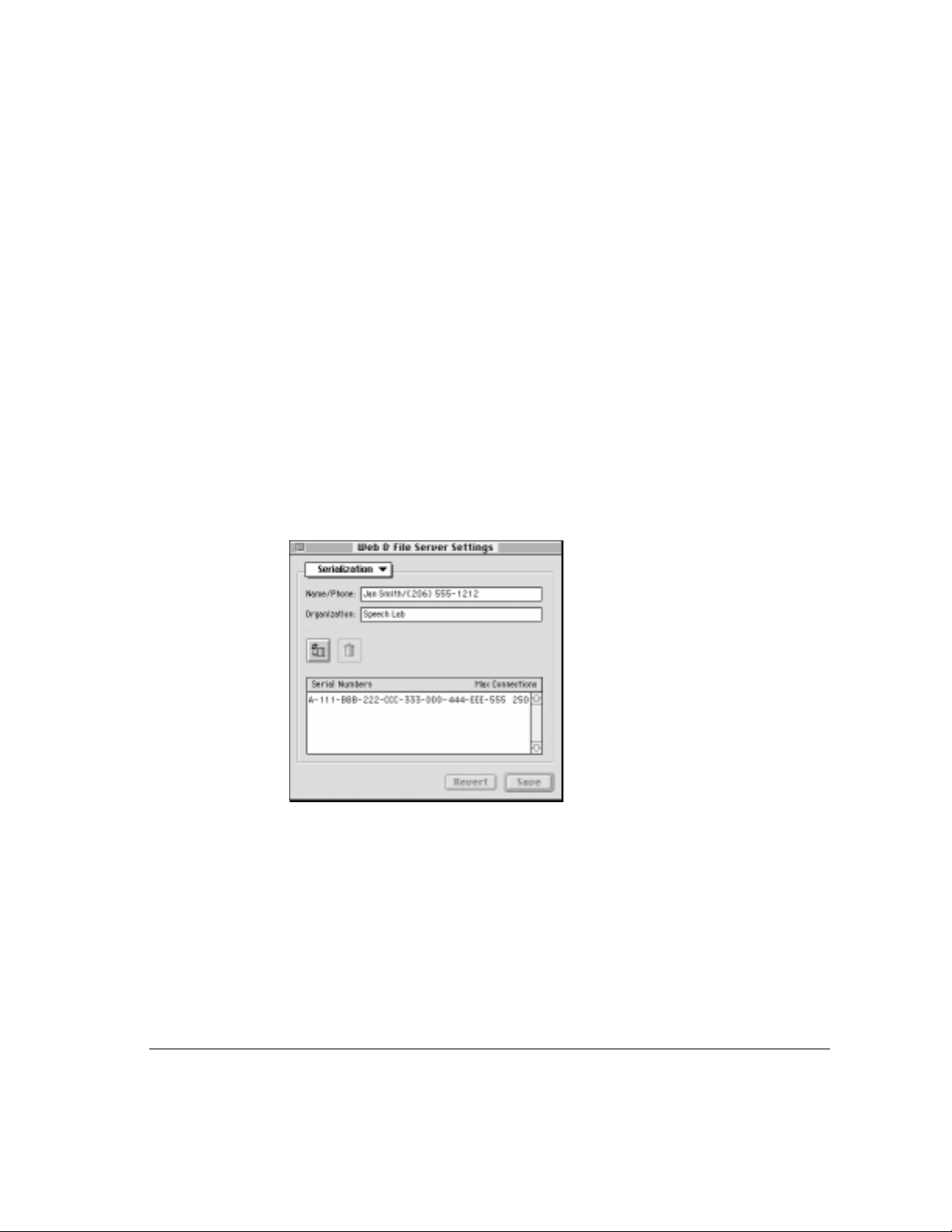
If you lose your serial number card
If you lose your AppleShare IP serial number card before you set up
AppleShare IP, contact the appropriate Apple support representative in your
area to request a new serial number for your computer. (See the Apple
Software Service Directory that came with your AppleShare IP software for
details.) You’ll n eed to provide your identification and purchase information.
If you lose your serial number after you start the Web & File Server, follow
these steps to display your serial number:
1 Open the Web & File Admin program and choose Web & File Server Settings from the
Server menu.
The Web & File Server Settings window appears.
2 Choose Serialization from the pop-up menu.
Your serial number appears in the Serial Numbers list.
3 Copy the serial number listed in the dialog box on paper and store it in a safe place. Put
a photocopy in another location, too.
If you lose your serial number card 299
Page 16

Page 17

Total RAM
System
software
Web & File Server
uses available RAM
as needed
Web & File
Server
program
Reserved RAM Available RAM
Memory reserved for
other programs (as set
in the Cache view of the
Web & File Server
Settings window)
Programs started
prior to starting the
Web & File Server
Appendix C Web & File Server Cache
The Web & File Server cache is a portion of random-access memory (RAM)
that the File Server uses for storing frequently used files, folders, and icons.
By caching items in RAM, the File Server provides faster access to shared
items than if they were retrieved from the computer’s hard disk.
The following illustration shows how RAM is apportioned in a computer that
runs the Web & File Server.
Page 18

Note that a portion of RAM is reserved for system software as well as for
programs opened before the Web & File Server. The Web & File Server
reserves a portion of RAM for use by other applications, as described in
“Limiting the Size of the Cache” in Chapter 4, and uses the remaining RAM
as needed.
The memory that the File Server Extension uses is one component of the
overall memory required by system software. T hus, the minimum of 5.5 MB
of RAM that the File Server Extension requires is part of the total memory
displayed for system software when you view your computer’s memory
allocation. (To view your computer’s memory allocation, choose About This
Computer from the Apple menu.)
If free RAM (that is, RAM not being used by system software or any
applications) is available on your computer, the Web & File Server uses it for
its cache as needed. As the cache expands, the amount of memory allocated
to “System Software” in the About This Computer window grows accordingly.
Once the Web & File Server has claimed available memory for its cache, it
does not automatically release the memory so that it can be used by other
applications. If, while the Web & File Server is running, you are unable to
open a program because not enough memory has been allocated for other
programs, you can flush the cache temporarily. That procedure is described in
the section “Resetting the Cache Temporarily” in Chapter 4.
302 Appendix C / Web & File Server Cache
Page 19

Here are a few things to keep in mind when considering the amount of
memory you plan to reserve for other applications:
m Use a minimum cache setting of 1 MB (the default setting); the Finder can
perform poorly (or crash) if there isn’t any free memory for it to use, so the
amount of memory reserved for other applications should always be at
least 1 MB.
m The Web & File Server cache does not attempt to claim memory used by
applications that have been opened prior to starting the Web & File Server,
or by applications that are running prior to the expansion of the Web &
File Server’s cache. So, if there are applications that you plan on using
often, consider starting them before you start the Web & File Server
program. For example, if you start a database application that has a 4 MB
memory partition
befor e you start the Web & File Server (or before the
Web & File Server tries to expand its cache), that 4 MB do es not count
toward the amount of memory reserved for other applications.
m If you think that the Web & File Server’s default cache of 1 MB is
sufficient for your file service needs, you can reserve all available RAM for
other applications. For instance, for a computer with 32 MB of RAM, you
can set the reserved value to 32 MB; the Web & File Server will not
attempt to allocate additional cache blocks.
m If you’re not planning to run many programs other than the Web & File
Server, lowering the amount of RAM reserved for other programs may
improve the performance of the Web & File Server.
Appendix C / Web & File Server Cache 303
Page 20

Page 21

Appendix D Changing the Startup Disk
The AppleShare IP servers use several files located in the System Folder of
your startup disk. If you change your startup disk after you install any of the
AppleShare I P ser ver programs, you need to install AppleShare IP on the new
startup disk and copy certain files and folders from the old startup disk to the
new startup disk.
This appendix provides instructions for two scenarios:
m adding a new disk, making it the startup disk, and keeping the old disk
m replacing the startup disk
Depending on whether you add or replace a startup disk and on which
AppleShare IP servers your computer is running, you may skip some of the
steps shown in this appendix.
To cha nge t he startup disk, follow these steps:
1 Shut down your computer and connect the hard disk you want to use as the startup disk.
See the manual that came with your computer for detailed instructions.
2 Restart your computer.
3 Make sure that the new hard disk has a name that is different from the startup disk.
4 Install System 7.6, Open Transport 1.1.2, and AppleShare IP software on the new
hard disk.
For information about installing this software, see Chapter 1.
Page 22

5 Drag a copy of the Users & Groups Data File from the Preferences folder inside the
System Folder on your startup disk to the Preferences folder inside the System Folder
on the new hard disk.
This step is not necessary if the Print Server is the only AppleShare IP server
your computer is running.
6 If your computer is being used to run the Web & File Server, drag a copy of the
AppleShare IP Preferences folder from the Preferences folder inside the System Folder
on your startup disk to the Preferences folder inside the System Folder on the new
hard disk.
7 If you are replacing your startup disk and if your computer is being used to provide
Web service, drag a copy of the current Web folder from your startup disk to the new
hard disk.
This step is not necessary if you are adding a disk that will be the new startup
disk and you plan to use both hard disks.
8 If you are replacing your startup disk and if your computer is being used to share data,
use the Web & File Admin program’s Duplicate Folder command to copy shared folders
from the startup disk to the new hard disk.
Do not use the Finder to copy the folders because the folders’ access
privileges will not be retained. For information about using the Duplicate
Folder command, see the section “Copying Files and Folders Between
Volumes ” i n Chapter 4.
9 If you are replacing your startup disk and if your computer is being used to run the Mail
Server, drag a copy of the AppleShare IP Mail Folder from your startup disk to the new
hard disk.
This step is not necessary if the AppleShare IP Mail Folder is not currently
located on your startup disk.
306 Appendix D / Changing the Startup Disk
Page 23

10 If you are replacing your startup disk and if your computer is being used to run the Print
Server, drag a copy the Print Server Preferences folder from the Preferences folder
inside the System Folder on your startup disk to the Preferences folder inside the
System Folder on the new hard disk.
By default, the Print Server stores jobs in a folder inside the Print Server
Preferences folder. If you have set up the Print Server to use a different folder,
you need to drag that folder to the new hard disk.
11 Open the Startup Disk control panel and click the icon of the disk you want to use as the
startup disk.
12 Choose Restart from the Special menu.
The disk that you selected in step 11 becomes the startup disk. After the
computer has restarted, start the AppleShare IP Manager from the new
startup disk.
13 If you are replacing your startup disk and if your computer is being used to run the Mail
Server, use the Mail Admin program to change the mail storage volume.
This step is not necessary if the AppleShare IP Mail Folder is not currently
located on your startup disk. For information on determining the current
location of the Ap pleShare IP Mail Folder, see the section “Changing General
Settings” in Chapter 6.
14 If you are replacing your startup disk and if your computer is being used to run the Print
Server, use the Print Admin program to change the folder in which jobs are stored.
For information on determining the folder that the Print Server is currently
using to store jobs, see the section “Changing Print Server Settings” in
Chapter 7.
15 If your computer is being used to run the Web & File Server, start the Web & File Server.
Ver ify that folders are being shared correctly. If Web service is enabled, use
the Web & File Admin program to verify and set the location (if necessary) of
the Web folder. If FTP service is enabled, verify that it is working correctly.
Appendix D / Changing the Startup Disk 307
Page 24

16 If your computer is being used to run the Mail Server, verify that the Mail Server is using
the correct mail database. Check the Mail Server log. For information, see the section
“Viewing Mail Server Logs” in Chapter 6.
17 If your computer is being used to run the Print Server, verify that the Print Server is
working correctly. Check the Print Server log. For information, see the section “Viewing
Print Server Logs” in Chapter 7.
18 If you are replacing your startup disk, stop each AppleShare IP server and shut down
your computer. Remove the disk that formerly was the startup disk (making sure that the
SCSI chain is terminated correctly) and restart your computer.
Repeat step 15 through step 17 to verify that the servers are working correctly.
308 Appendix D / Changing the Startup Disk
Page 25

Appendix EImport File Format
To use the Web & File Server Admin program’s Import Users command, you
need to have a file containing a list of user names (and optional attributes).
The file that you import must conform to the format described in this
appendix.
The simplest way to create a file that has the proper format is to use the Web
& File Server Admin program’s Export Users & Groups command. When you
use the Export Users & Groups command and specify that all of the users’
attributes are to be exported, a file having the following format is created:
User name Internet alias Comment E-mail attributes
Attribute fields are separated by a tab character, and user records are
separated by a carriage return character. Two adjacent tab characters indicate
an empty field. For example, if the user doesn’t have a comment, the empty
field is represented by two tab characters. If you don’t specify that an attribute
is to b e exported, the resulting file contains only the attributes that you
specified for export. For example, if you do not specify the Comment
attribute, the resulting file contains the following fields, separated by a
tab character:
User name Internet alias E-mail attributes
For security reasons, the Export Users & Groups command does not export
passwords. If you want, you can edit the file, add passwords after the Internet
alias field, and then import the file.
Page 26

The easiest way to add passwords is to use a spreadsheet program. In the
spreadsheet program, insert a column after the column of Internet aliases. By
saving the file as a tab-delimited text file, the spreadsheet program
automatically adds two tab characters for any users for whom you didn’t add
a password.
When passwords are added, the format of the file is as follows:
User name Internet alias Password Comment E-mail attributes
The following information applies to each field:
m User name. This field is mandatory. Its maximum length is 31 characters.
m Internet alias. This field is optional. The maximum length is 31 characters.
m Pass word. This field is optional. The maximum length is 8 characters.
m Comment. This field is optional. The maximum length is 194 characters.
m E-mail attributes. This field is optional.
Here is a sample record:
Jan Smith jan fhfg1s3g Jan’s comment HasMail
The E-mail attributes field is composed of one or more subfields, separated
by a tab character. The content of the e-mail attributes field can be on e of the
following keywords:
m The keyword “NoMail” is required if mail is not enabled for the user.
m The keyword “HasMail” is required to enable mail for the user.
The keyword “NO POP” indicates that APOP is not required.
The keyword “A POP” is required if the user’s client mail application
is required to supply an encrypted password when it logs on to the
Mail Server.
m The keyword “ForwardIntern et” is required to enable auto forwarding over
TCP for the user and is followed by a tab character and the e-mail address
to whi c h mail is to be forwarded. The maximum length of the Internet
address is 255 characters.
310 Appendix E / Import File Format
Page 27

m The keyword “ForwardAppleTalk” is required to enable auto forwarding
over AppleTalk for the user. It must be followed by a user name, a tab
character, a server name, a tab character, and a zone name. The
maximum length for the user name, server name, and zone name is
31 cha racters each.
Here is an example for each possible combination of e-mail attribute:
NoMail
HasMail NO APOP
HasMail APOP
ForwardInternet [email protected]
ForwardAppleTalk Jan Smith Shasta Excalibur
If a field or subfield does not conform to these requirements, the Impor t
Users command does not import the user and generates a message in the
log file indicating the reason for the failure.
Appendix E / Import File Format 311
Page 28

Page 29

Glossary
access privileges The ability of network users to
read, read and write, or make write-only changes to
a shared disk or folder. Access privileges are
determined by the administrator or by users. See
explicit access privileges and adopted access
privileges.
adopted access privileges Access privileges that
are the same as the folder’s enclosing folder. A
folder with adopted privileges automatically takes
on the User/Group and Everyone privileges of any
folder (or disk) into which it’s moved. See explicit
access privileges.
anonymous FTP An attribute you can set for FTP
service that allows users to log on to the Web &
File Server as anonymous, without providing
passwords.
alias A file that points to a file, folder, or disk.
When you open an alias, you’re actually opening
the file, folder or disk that the alias points to.
APOP Acronym for Authenticated Post Office
Protocol. APOP is a protocol used by some client
mail applications to encode passwords so they
cannot be observed on the network.
AppleShare client software Any software that
supports the AppleTalk Filing Protocol, including
AppleShare Client Software 3.7, AppleShare Client
for Windows, and COPSTalk.
AppleShare IP administrator The person who
sets up the Web & File, Mail, or Print Server,
registers users and their passwords, creates groups,
and maintains file, mail, and print services. See
network administrator.
AppleTalk A communications environment in
which many different kinds of computers,
peripheral devices, and software can work together
according to protocols (rules) developed by Apple
Computer.
attach To associate a printer with a queue.
banner page A printed page that shows the user’s
name, the program, the document name, the date
and time of printing, the name of the printer, and the
number of pages in a document.
cache A portion of RAM used for storing
frequently used folders, files, and icons. Because
cached items are already in RAM, access to them is
faster than if they were read from a storage device
each time they are used.
default port The port that non-multihoming-aware
applications use when multihoming is enabled. The
default port is the port that appears in the “Connect
via” pop-up menu of the AppleTalk control panel.
Page 30

DNS Acronym for Domain Name System. A
computer that runs DNS software provides name
service to the other computers on the network. DNS
provides the IP address when it is given the name of
a computer. When supplied with the IP address of a
computer, DNS provides the name of that computer
(a process known as reverse-name lookup).
DNS name The name by which a computer is
known to the Domain Name System (DNS) service.
For example, shasta.acme.com is a DNS name.
Ethernet A high-speed (10 megabits per second),
widely used network type. A newer Ethernet
standard (known as Fast Ethernet) runs at 100
megabits per second.
EtherTalk Software from Apple Computer that
allows you to use AppleTalk network services on an
Ethernet network.
Everyone A category of users for which you can
set access privileges to shared disks and folders.
The category refers to anyone who logs on to the
Web & File Server as a guest, a registered user, or
anonymous.
explicit access privileges Access privileges that
you set for a volume or folder by selecting read and
write, read, or write only for Owner, User/Group,
and Everyone. Explicit privileges set for a folder
remain with the folder regardless of where you
move it. See adopted access privileges.
file sharing The capability of sharing files among
users on a network. See Macintosh file sharing.
FTP Acronym for File Transfer Protocol.
Programs that support FTP allow users to connect to
the Web & File Server and transfer files.
home page The Web page that is displayed by
default when a user enters the top level URL for a
Web site.
HTML Acronym for HyperText Markup
Language. HTML is a document-layout and
hyperlink-specification language that Web servers
and client browsers exchange in order to display a
Web site.
Internet A collection of networks and computers
that has evolved from a small number of researchrelated networks to a loosely connected global
network that allows users of many different
computer types to exchange information easily.
intranet An internal network. Contrast with
Internet.
IP address An address used by the Internet
protocols to identify a computer.
group A group of registered users who have a
common set of access privileges.
guest A user who can log on to the Web & File
Server without providing a password.
LocalTalk Built-in networking hardware and
software that allows a Macintosh computer to be
part of an AppleTalk network.
locked file A file that cannot be renamed,
discarded, or changed, even by its owner. It can,
however, be copied, duplicated, or opened. You
lock a file by setting the Locked checkbox.
locked folder A folder that cannot be moved,
renamed, or deleted while the AppleShare IP Web
& File Server program is running, even by its
owner. It can, however, be copied, duplicated, or
opened. You lock a folder by enabling the “Can’t
move, rename, or delete this folder” box in its
Privileges window.
Macintosh file sharing A feature of system
software 7.0 (and later) that allows file sharing
between Macintosh computers on a network.
Mac OS The name of the operating system that
Macintosh computers use.
314 Glossary
Page 31

MIME Acronym for Multipurpose Internet Mail
Extensions. MIME is a standard for specifying an
action that is to take place when a file that has
certain characteristics is transferred.
mount To make hard disks and CD-ROM discs
available.
multihoming A feature of Open Transport that
allows a computer to be connected to up to four
network segments at the same time. Network
applications that are multihoming aware can work
over multiple segments. Network applications that
do not support multihoming work only on the
segment that is selected as the default port.
MX Acronym for mail exchange. An MX record
stores the IP address of a computer’s mail server.
network A collection of devices such as servers,
computers, and printers that are connected together
and communicate with one another. A network
allows users to store, share, and retrieve information
as well as share network devices such as printers.
network administrator The person responsible
for setting up, maintaining, and troubleshooting
a network. See AppleShare IP administrator.
Network Trash folder Deleted files and folders
that can accumulate on the server (in an invisible
folder called the Network Trash folder) if users are
disconnected. The AppleShare IP Web & File
Server empties the Network Trash folder
automatically when it starts up and periodically
thereafter.
owner The registered user who created or was
assigned ownership of a folder.
Parallel Directory Structure (PDS) file An
invisible file created on your computer when you
install the AppleShare IP software. This file keeps
track of unique identification numbers assigned to
each user and group that you create as well as each
folder on your computer’s hard disks.
password A unique word or set of characters that
must be entered before a registered user can gain
access to a volume on the Web & File Server or to
the user’s E-mail account.
PDS See Parallel Directory Structure (PDS) file.
POP Acronym for Post Office Protocol. Client
mail programs use this protocol to receive mail
from the Mail Server. The most recent version of
POP is version 3.
PPD file Acronym for PostScript printer
description file. The PPD file defines the
capabilities of a printer.
printer driver Software that controls the exchange
of information between a computer and a printer.
print queue log A chronological list of documents
that have been printed.
privileges See access privileges.
program linking The ability of a program to
exchange information directly with another program
over a network. To use program linking, both
programs must have the capability.
RAM Acronym for random-access memory. The
part of a computer’s memory that stores information
temporarily while you’re working on it. Information
in RAM can be referred to in an arbitrary or random
order, hence the term random access.
registered user A user who has been given a user
name and password by the administrator. Usually,
registered users have greater access privileges to
volumes on a file server than guests or anonymous
users.
shared disk A hard disk, CD-ROM disc, or other
storage medium whose contents can be retrieved
over the network.
shared folder A folder that is available to some or
all network users over the network.
share point A disk, CD-ROM disc, or folder that is
set to be shared in its Privileges window. All of the
folders that a share point contains are also shared.
Glossary 315
Page 32

sharing Making a hard disk, CD-ROM disc, or
folder available so network users can access it.
SimpleText An application that can display the
contents of the Web & File Server log if the log is
less than 32K in size.
SMTP Acronym for Simple Mail Transfer
Protocol. The Mail Server uses SMTP to
exchange mail with other mail servers. In addition,
client mail applications use SMTP to send mail to
the Mail Server.
special characters Characters that require two
bytes to represent them, such as the characters that
are formed by pressing the Option key in
combination with another key. The trademark and
bullet symbols are examples of special characters.
TCP Acronym for Transmission Control Protocol.
TCP is one of the most well known of the Internet
Protocols.
URL Acronym for universal resource locator. A
URL is the address of a Web site.
User/Group A category of users for which you can
set access privileges to shared folders and disks.
The category consists of any user or group that is
registered.
user name The name chosen by a user or network
administrator to identify a registered user.
Users & Groups Data File The file in which user
and group information is stored. The Users &
Groups Data File is in the Preferences folder, inside
the startup disk’s System Folder.
User window When you register a new user, you
enter the user’s name, password, user attributes, and
click Save. The user’s name then appears in the
window’s title bar. The window is then referred to
as the User window.
volume A hard disk attached to the computer, a
CD-ROM disc, or a folder contained on a hard disk
or CD-ROM disc, that is shared.
Web page The content of a single HTML file
displayed by a Web browser.
Web site A collection of related Web pages made
available by the same Web server.
zone Zones are set up by a network administrator
and are used to group devices on an AppleTalk
network.
316 Glossary
Page 33

Index
A
access privileges. See also guest access; security
assigning
for duplicate users 95
to Web folder 194
changing
log-on 103
for multiple users 102
the Owner or User/Group category 167–168
comparison of AppleShare versions and
153–154
controlling access
to disks, folders, and files 171–175
of unregistered users 170
to Web sites 194
enabling additional administrators 88
how users see 168–169
icons for 67
locking folders and files 172–175
reassigning for deleted users or groups 109–110
security features of 153–154
setting 66–67, 160–168
adopted privileges 163–164
explicit privileges 161–163
privileges of all enclosed folders 165–167
troubleshooting problems with 271–274, 277
user categories and 154–155
Action field
listing of defaults 290–292
for MIME type mapping 197
selecting action for 199
adding
comments to user’s accounts 91
greeting messages 142
MIME type mappings 198–200
passwords when duplicating new users 94, 95
serial numbers 149–151
users to groups 90
addresses
displaying IP addresses for computer 227
entering E-mail 72
entering IP 29
dynamic 239, 240, 241
static 239
router 29, 184–185, 239
administering users and groups 83–119. See also
groups; users
allowing and denying guest access 95–97, 273
changing
group membership 111–112
names of groups 111
user names, Internet aliases, and
passwords 100
creating
groups 98–99
new users individually 84–91
users by duplication 91–95
deleting users and groups 108–110
Page 34

maintaining the Users & Groups Data File
113–119
backing up 118
exporting users from 113–115
importing users to 115–118
restoring 119
removing users from groups 107–108
Administer Server dialog box 102
Administer Web & File Server dialog box 61
administrators
changing passwords 100
enabling additional 88
adopted access privileges
defined 160–161
setting 163–164
alert icon 253
anonymous FTP access. See also FTP service
enabling and disabling 127, 145
guest access and 95
message files displayed with 146
troubleshooting problems with 280
Anonymous FTP Log On line (Web & File Server
Activity window) 127
APOP (Authentic Post Office Protocol) encryption
standard 73, 210
Apple Guide help 15
Apple home page 16
Apple LaserWriter 8.4 printer driver 75
AppleShare 3. See also AppleShare IP 5.0
access privileges for 153–154
upgrading from 20, 64
AppleShare 4. See also AppleShare IP 5.0
access privileges for 153–154
upgrading from 20, 64
AppleShare Client Software 3.7
enabling and disabling connections over TCP
142–143
folder for 32
logging on to Web & File Server and 39
lowering number of concurrent connections
136–137
AppleShare Client User’s Manual 40
AppleShare icon 275
AppleShare IP Administrator’s Manual 11, 295
AppleShare IP Easy Setup 44–81
AppleTalk setup 50–53
Custom Setup option 54–59
first time setup
creating users 60–63
for FTP service 69
for Mail Server 70–74
for Printer Server 74–81
for Web & File Server 64–67
for Web service 68
Normal Setup option 45, 46–49
starting servers with 48–49, 52, 58
using AppleShare IP Manager 60
AppleShare IP 5.0. See also system software
access privileges for 153–154
allocating RAM memory 301–303
changing the startup disk 305–308
contents of folder 31
installing 17–42
new features of 11
running AppleShare IP Easy Setup 44–81
serial numbers for 295–299
specifications for 289–293
upgrading to 20
AppleShare IP Guide files 32
AppleShare IP home page 16
AppleShare IP Mail Database file
backing up 236
displaying information about 228
AppleShare IP Mail Server. See Mail Server
AppleShare IP Manager
starting with AppleShare IP Easy Setup 49,
53, 59
using 60
AppleShare IP Manager window 60
AppleShare IP Print Server. See Print Server
AppleShare IP Web & File Server. See Web &
File Server
AppleShare Workstation Software 39
Apple Software Service Directory 298
318 Index
Page 35

AppleTalk
Easy Setup for 50–53
entering serial number for 50
setting up 26–27
using multihoming 179–185
AppleTalk control panel 26
AppleTalk Filing Protocol (AFP) 39
AppleTalk Network System Overview 16
applications
limiting
access to 173–175
concurrent use of 175
RAM allocations for 301, 303
ResEdit program 198
setting up
client mail 73–74
modems for TCP/IP 242–245
assigning printers to print jobs 258
automatic directory listing 204
B
backing up
the mail database 236
the system 21
Users & Groups Data File 118
banner pages 76
BinHex encoding 196
C
cache. See also RAM
allocation memory in 301–303
flushing the 270
limiting the size of 138–139
minimum settings for 303
resetting temporarily 138
canceling
disconnections to Web & File Server 131–133
a shutdown 125
Cancel User Disconnect button (Web & File Server
Activity window) 132
Carl-Mitchell, Smoot 16
case-sensitivity 86–87
categories
changing the Owner or User/Group 167–168
description of 154–155
CD-ROM discs
avoiding labels on 295
installing system software from 22–23
sharing 156–160
troubleshooting for 272
unmounting 171–172
CD-ROM drive, specifications for 289
CGI (Common Gateway Interface) scripts 196
Change Password dialog box 106
changing
administrator privileges for multiple users 102
current Web folders and files 191–193
group membership 111–112
Internet alias 100
log-on privileges for multiple users 103
MIME type mappings 201–202
names
for groups 111
of queues 261
for users 101
for the Web & File Server 141
Owner user category 167–168
passwords
disabling users from 89, 106
reasons for 100
for users 100–101
Print Server settings 251–252
settings
for mail log 224–225
for mail routing 220–221
for Mail Server 222–223
the startup disk 305–308
User/Group user category 167–168
characters
restricted for queue names 76
valid for Internet aliases 87
Chooser
making printers visible in 78
troubleshooting items not appearing on 275
Index 319
Page 36

client mail applications
displaying POP account names 72–73
maximum connections for SMTP-compliant 293
setting up 73–74
color printing 77
Comer, Douglas 16
comments
adding to user’s account 91
duplicating for users 95
Common Gateway Interface (CGIs) scripts 196
computers
displaying DNS name for 227
entering names for system setup 23
running Mail Server on multiple 206–207
tracking incorrect serial numbers of 297–298
connections. See also troubleshooting
concurrent
increasing number of for Mail Server
236–237
lowering number of 136–137
for sending and receiving mail 229
setting limits for use of applications 175
system specifications for 293
enabling and disabling
AppleShare client connections over TCP
142–143
FTP 143–146
managing with other mail servers 237
monitoring 127
redialing with modem 243
services available with Macintosh protocols 38
viewing user’s type of 127
copying files and folders between volumes
176–177
copy-protecting files 173–175
creating
groups 98–99
multiple queues 251
queues and attaching printers 75–79
users 60–63, 84–95
Creator field
defined 197
listing of defaults 290–292
for MIME type mapping 197
selecting creator code for 200
Custom Install procedure 35–37
Custom Setup option 54–59
D
Date & Time control panel 34, 37, 272
dates
disabling log on after specified 89
resetting 272
setting computer’s internal 34, 37
setting expiration 104, 149
Delete Users/Groups button (Users & Groups List
window) 109
deleting
MIME type mappings 203
print jobs 259
queues 264–265
serial numbers 149–151
users and groups 108–110
denying guest access 95–97
detaching printers from queues 262–263
Detach Printer button (Edit Queue window) 262
Dinucci, Darcy 16
disabling
AppleShare client connections over TCP
142–143
energy saving setting 23
FTP connections 143–146
log on
after specified date 89
to Mail Server and Web & File Server 88
mail for users 226
users from changing passwords 89, 106
Web logging 140, 190–191
Web service 189
disconnecting users
canceling disconnection 131–133
setting time for 131
from Web & File Server 129–131
320 Index
Page 37

Disconnect User button (Web & File Server
Activity window) 130
Disconnect Users dialog box 130
Disk & Share Points window 65, 157
disks. See hard disks
disk space
requirements for installing AppleShare IP 5.0 19
setting preferred amount for Mail Server 223
displaying information
about AppleShare IP Mail Database file 228
about print jobs 254–255
DNS names and IP addresses for computers 227
POP account names 72–73
saving displayed logs as text files 266
serial numbers 299
DNS (Domain Name System) service. See
also MacDNS
displaying DNS name for computers 227
entering domain names 30, 55–56
Mail Server and 245–246
name servers and DNS service 29–30, 56
setting up AppleShare IP with 45
documentation
AppleShare Client User’s Manual 40
glossary for 313–316
locating files for 31–32
onscreen manual 12
overview of 12–13
retail books 15–16
technical 15
using onscreen help 14
WWW support pages 16
domain names 30, 55–56
Domain Name System (DNS) service. See
DNS service
Duplicate General Attributes checkbox (Duplicate
User Multiple window) 93, 94
duplicate serial numbers
how to resolve 298
troubleshooting 271
Duplicate User Multiple window 93
duplicating
MIME type mappings 202–203
user accounts 91–95
dynamic IP addresses
effects on Web & File Server usage 241
entering 240
E
Easy Install procedure
files and folders installed with 31–32
steps for 33–34
Easy Setup. See AppleShare IP Easy Setup
Elements of Web Design (Dinucci, Stiles, and
Giudice) 16
E-mail
addressed to unknown hosts 214–218
attributes for importing files 310–311
designating administrators for 57
entering user addresses 72
Mail Server
error log 235
viewing status of 231–232
maximum concurrent connections for 229
maximum number of messages per POP
connection 226
monitoring outgoing 230–232
setting up
client mail applications 73–74
mail forwarding 210–214
for users 70–73, 208–210
system specifications for 293
transferring to users 226
troubleshooting 282–284
undeliverable mail 221
E-mail administrators 57
enabling
AppleShare client connections over TCP
142–143
changing of passwords 89, 106
E-mail for users 208–210
FTP connections 143–146
guest access to Web & File Server 97
mail for users 70–74
Index 321
Page 38

multihoming 180–183
other administrators 88
program linking 88, 97, 105
Web logging 190–191
Web service 189
enclosed folders 164–167
Enclosing Privileges button (Disks & Share Points
window) 165
energy saving settings 23
entering
AppleTalk serial number 50
computer names 23
domain names 30, 55–56
E-mail addresses 72
Internet aliases 29, 63, 87
IP addresses 29, 239–241
passwords 23, 87
software serial numbers 47, 50, 54
subnet mask numbers 29, 230
URL names 68
user names 63, 86
error messages 277
Ethernet connection port 180
Evans, Jeff 16
Everyone user category 155, 170
expiration dates
for multiple users 104
for passwords 149
explicit access privileges
defined 160–161
setting 161–163
exporting users 113–115
Export Users and Groups dialog box 114
F
Field Type field 197
files. See also backing up; log files
for AppleShare IP Guide 32
assigning privileges for 171–175
mail database 228
personal files 272, 280
on Web sites 194
changing current Web 191–193
converting names to short names 133–134
copying between volumes 176–177
copy-protecting and locking 173–175
for documentation 31–32
FTP message 146
importing
format for 309–311
passwords for 116
index.html file 204
installed with Easy Install procedure 31–32
saving logs as text 266
troubleshooting access to 274, 280
types of log 195
Users & Groups Data 21, 113–119
File Server Extension 301, 302, 303
file service. See also Web & File Server
specifications for 289–290
types of Macintosh 39
for Windows and Windows 95 users 41–42
File Suffix field
defined 197
selecting file suffix for 200
File Transfer Protocol service. See FTP service
File Type field
defined 197
listing of defaults 290–292
selecting file type for 200
Finder 173
first-time computer setup 21
folders
access privileges
assigning to 153
explicit and adopted 160–161
setting for all enclosed 164–167
troubleshooting for 272, 274, 280
copying between volumes 176–177
HTTP Log 195
locking 172–173
Preferences 128, 252
share point icon for 67
sharing 156–160
moving shared 177–178
upgrading and 64
322 Index
Page 39

on startup disk 31–32
storing print jobs in selected 252
System 32
Web 191–193, 194
FTP (File Transfer Protocol) service. See also
anonymous FTP access
allowing and denying guest access 95–97
canceling disconnections 131–133
connecting to 143–146
disconnecting users 129–131
FTP message files 146
greeting messages for 142
logging on the first time 69
lowering number of concurrent connections to
136–137
naming hard disks and 21
overview of 39
server shutdowns
canceling 125
messages about 124
troubleshooting 279–281
FTP Anonymous Login Message file 146
FTP Connect Message file 146
FTP Login Message file 146
G
Giudice, Maria 16
glossary 313–316
greeting messages 142
groups 83–119
adding users to 90
changing
group membership 111–112
names of 111
creating 98–99
deleting 108–110
exporting 114
logging members with E-mail addresses 221
naming 99, 225
reassigning privileges for 109–110
removing users from 107–108
sending mail to 225–226
Group window 99
guest access. See also access privileges
allowing and denying 95–97, 273
enabling Web & File Server for 97, 127
Everyone user category and 170
preventing access to Web site 194
setting maximum number of concurrent
connections for 137
Guest Access for Web & File Server line (Web &
File Server Activity window) 127
H
hard disks. See also disk space; startup disk
changing the startup disk 305–308
controlling access to 171–175
entering owner name for 23
naming 21
sharing 156–160
share point icon 67
startup disk 66
upgrading and 64
unmounting 171–172
hardware requirements
for installing AppleShare IP 5.0 18
specifications for 289
help
Apple Guide 15
Tips 14
using onscreen 14
hold
placing a queue on 259–260
placing print jobs on 256
releasing a queue on 260
releasing jobs on 257
home pages
Apple and AppleShare 16
displaying your 68
HTML (HyperText Markup Language) codes 187
HTML The Definitive Guide (Musciano) 16
HTTP Log folder 195
Hunt, Craig 16
HyperText Markup Language (HTML) codes 187
Index 323
Page 40

I, J
icons
alert 253
AppleShare 275
for disconnections 131
Mail Server 60
None privilege 67
Print Server 60
Read & Write privilege 67
Read Only privilege 67
share point 67, 159
Web & File Server 60
Write Only privilege 67
import file format 309–311
importing users 115–118
Import Users command 309–311
index.html file 204
Inside AppleTalk (second edition) 16
installing AppleShare IP 5.0 17–42
Custom Install procedure 35–37
Easy Install procedure
files and folders installed with 31–32
steps for 33–34
file service
for Macintosh users 39
for Windows and Windows 95 users 41–42
mail service
for Macintosh users 40
for Windows and Windows 95 users 42
preparing your computer 20–30
backing up the system 21
configuring TCP 27–30
first-time computer setup 21
installing Open Transport 1.1.2 24–25
setting up AppleTalk 26–27
setting up system software 22–23
print service
for Macintosh users 40
for Windows and Windows 95 users 42
security 18
system requirements for 18–20
upgrading from earlier versions 20
Install Mac OS application 22
Internet alias
changing 100
duplicating user accounts and 91
entering 29, 63, 87
importing 309, 310
Internet Connection, The (Quaterman and Carl-
Mitchell) 16
Internetworking with TCP/IP (Comer) 16
invisible files 21
IP addresses
displaying for computer 227
entering 29, 87
static and dynamic 239
K
Kennedy, Bill 16
keyboard input speed 274
L
Le Vitus, Bob 16
LocalTalk connection port 180, 181
locking
files 173–175
folders 172–173
log files. See also monitoring
disabling Web 140, 190–191
saving as text 266
showing for all queues 267
system specifications for 293
troubleshooting problems with 288
types of 195
viewing Print Server 266–268
logging on
preventing 88–89, 124, 148
requiring new password for 89
troubleshooting difficulties 279
Log window 266
324 Index
Page 41

M
MacBinary encoding 196
MacDNS. See also DNS service
completing setup for 59
designating E-mail administrator for 57
name service and 246
setting up DNS names and 55–56
MacDNS Administrator’s Guide 59
Macintosh
connecting Mail and Print Servers for 40
file service for 39
support for multihoming 179
Mac OS 7.6 CD-ROM disc 22–23
MacTCP 22
Mail Administrator account 238
mail database file
backing up 236
displaying information 228
Mail Item Status button (Outgoing Mail
window) 230
Mail Item Status window 231–232
mail log settings 224–225
Mail Server 205–245
backing up the mail database 236
changing 220–225
general settings 222–223
mail log settings 224–225
mail routing 220–221
the startup disk 306–307
user names, Internet aliases, and
passwords 100
connections
increasing number of concurrent 229,
236–237
for Macintosh users 40
with other mail servers 237
for Windows and Windows 95 users 42
disabling
log on to 88
mail for users 226
disk space settings for 223
DNS and 245–246
features of 11
first time setup for 70–73
monitoring 227–235
checking network information 227
Mail Server Activity window 228–229
outgoing mail 230–232
viewing Mail Server logs 232–235
overview of 205
sending mail to groups 225–226
setting up 206–218
client mail applications 73–74
for mail addressed to unknown hosts
215–218
mail for users 208–210
mail forwarding for users 210–214
on multiple computers 206–207
an Open Transport/PPP connection 238–245
starting and stopping the 219, 270
system specifications for 293
transferring mail to users 226
troubleshooting 282–284
unable to start 270
using the Mail Administrator account 238
viewing status of 228
Mail Server Activity window 70, 228–229
Mail Server error log 221
Mail Server icon 60
Mail Server logs 232–235
Mail Server Settings window 224
managing
connections with other mail servers 237
print jobs 254–259
queues 259–265
memory. See RAM
messages
error 277
FTP 146
greeting 142
shutdown 124, 125
system messages about Web & File server
128–129
MIME type mappings 197–203
about 197–198
adding 198–200
Index 325
Page 42

changing 201–202
deleting 203
duplicating 202–203
listing of default 290–292
modem settings 242–245
Modem window 242
monitoring. See also log files
the Mail Server 227–235
checking network information 227
Mail Server Activity window 228–229
outgoing mail 230–232
viewing Mail Server logs 232–235
with Web & File Server Activity window
126–127
Web service 195
Monitor Queue window 254–255
mouse input speed 274
moving shared folders 177–178
multihoming 179–185
defined 179–180
enabling 181–183
using routers to connect network segments
184–185
multiple users 101–106. See also users
changing
administrator privileges 102
log-on privileges 103
creating 93–94
disabling changing of password 106
program linking 105
requiring new password on log-in for 106–107
setting expiration dates for user accounts 104
Musciano, Chuck 16
N
names
case-sensitivity of user 86
changing for Web & File Server 141
converting files names to short names 133–134
DNS 29–30, 56, 227
domain 30
entering
Internet aliases 63
at setup 23
URL 68
group 99, 111, 225
for hard disks 21
for log files 195
for MIME Mapping fields 198
for queues 76, 261
for users 63, 86, 101
name servers 29–30
entering IP addresses for 239
MacDNS and name service 246
network connections. See connections
Network Info window 227
networks. See also multihoming
monitoring information about 227
setting up type of 46
network zones. See zones
New Group button (Users & Groups List
window) 98
New MIME Type window 199
New Queue dialog box 76
New User button (Users & Groups List
window) 85
None access privilege 153
None access privilege icon 67
Normal Setup option 45, 46–49
O
onscreen manual 12
Open Selection button (Users & Groups List
window) 92
Open Transport Installation dialog box 25
Open Transport 1.1.2
installing 24–25
system requirements for 289
Open Transport PPP 1.0 22
Open Transport/PPP protocol, setting up 238–245
optimizing performance 134–140
allocating RAM and 303
limiting the size of the cache 138–139
326 Index
Page 43

lowering number of concurrent connections
136–137
resetting the cache temporarily 138
setting
maximum level of processing power
135–136
for Print Server 76–77
troubleshooting
CD-ROM mounting 272
mouse and keyboard input 274
printing 287–288
Web & File Server speed 273
upgrading and 38
Web logging and 140, 190–191
Outgoing Mail window 230–231
overview
of AppleTalk Filing Protocol (AFP) 39
of AppleTalk network system 16
of documentation 12–13
of File Transfer Protocol (FTP) 39
of the Mail Server 205
owner names 23
Owner user category
changing 167–168
defined 154
P
paper-conserving printer options 76–77
passwords. See also security
adding when duplicating new users 94, 95
case-sensitivity of 87
changing for users 100–101
disabling users from changing 89, 106
entering
for system setup 23
user 87
forgotten 274, 278, 281
importing 116, 309–310
preventing logon with incorrect 148
reasons for changing 100
requiring new 89
for multiple users 106–107
setting
expiration dates for 149
minimum length of 148
for users 61, 63
troubleshooting problems about 274, 276–277,
279, 281
personal files 272, 280
placing on hold
print jobs 256
queues 259–260
Planning and Managing AppleTalk Networks 16
POP (Post Office Protocol) connections
displaying account names of 72–73
increasing number of 236–237
information in Mail Server log about 234
maximum number of e-mail messages per 226
system specifications for concurrent 293
PPP dialog box 241
Preferences folder
storing print jobs and 252
Web & File Log in 128
printer drivers 40, 75
printers. See also queues
assigning to print jobs 258
compatibility with Print Server 75
making visible in Chooser 78
printing banner pages 76
queues
attaching to 75–79, 250–251
detaching from 262–264
queuing and printing a job 79–81
removing assignments for print jobs 259
system specifications for 293
printing
displayed logs 266
jobs while queuing 77
queuing and 79–81
troubleshooting 285–288
print jobs 254–259. See also queues
assigning printers to 258
deleting 259
displaying the Monitor Queue window 254–255
moving to top of queue 256–257
Index 327
Page 44

placing on hold 256
queuing and printing a job 77, 79–81
releasing jobs on hold 257
removing printer assignments 258
selecting folder for storing 252
Print Server 247–268. See also printers;
printing; queues
attaching printers to a queue 75–79, 250–251
changing
settings for 251–252
the startup disk 307, 308
connecting
for Macintosh users 40
for Windows and Windows 95 users 42
creating multiple queues 251
features of 11
managing
print jobs 254–259
queues 260–265
Print Server Activity window 253
sending jobs to queue from 79
setting up 74–81
creating queues and attaching printers 75–79
queuing and printing a job 79–81
starting the 248
stopping the 248–250
system specifications for 293
troubleshooting 285–288
unable to start 270
viewing logs of 265–268
Print Server Activity window 75, 253
Print Server icon 60
Print Server Settings dialog box 252
privileges. See access privileges
Privileges button (Disk & Share Points
window) 158
Privileges window 66
processors
optimizing power for 135–136
requirements for installing AppleShare IP 5.0 18
specifications for 289
Product Serial Number card 295
program linking
enabling 88
for guests 97
for multiple users 105
Program Linking dialog box 105
protecting serial numbers 295
protocol support 293
Q
Quaterman, John S. 16
queues 259–265. See also printers; print jobs
attaching printers to 75–79, 250–251
changing the names of 262
creating multiple 251
deleting 264–265
detaching printers from 262–264
holds on
placing 259–260
releasing 260
moving print jobs to top of 255–256
naming 76
printing jobs while queuing 77
queuing and printing a job 79–81
showing logs for all 267
system specifications for 293
troubleshooting problems in 285
viewing status of 79, 253
R
RAM (random access memory). See also cache
allocating
to Mail Server 236–237
for system software 301–303
for installing AppleShare IP 5.0 19
limiting the size of cache 138–139
resetting the cache temporarily 138
specifications for 289
system performance and 135
troubleshooting problems with 278
Read & Write access privilege 153, 155
Read & Write privilege icon 67
Read Only access privilege 153, 155
328 Index
Page 45

Read Only privilege icon 67
registered users 84
releasing holds
placed on queues 260
on print jobs 257
Remove From List button (Group window) 112
removing
AppleShare IP servers 279
a printer assignment 258
users from groups 107–108
Require APOP Login checkbox 73
Require New Password dialog box 107
ResEdit program 198
restoring Users & Groups Data File 119
retail books 15–16
routers
connecting network segments with 184–185
entering addresses for 29, 239
S
Sadler, Will 16
Schedule Disabled Log On dialog box 104
scissors icon 131
security 151–176. See also access privileges;
passwords
access privileges 153–154
to disks, folders, and files 171–175
how users see 168–169
setting 160–168
for unregistered users 170
enabling other administrators 88
installing AppleShare IP 5.0 and 18
setting expiration dates for passwords 149
sharing and 152, 156–160
user categories 154–155
Send Message dialog box 129
serial number card 295, 299
serial numbers 295–299
adding and deleting 149–151
concurrent connections allowed by 136
detecting duplicate serial numbers 297–298
displaying 299
entering
AppleTalk 50
for Custom Setup option 54
software 47
protecting 295
troubleshooting duplicate 271
verifying during Web & File Server startup 296
when you need to know 296
servers. See Mail Server; Print Server; Web &
File Server
setting up. See also installing AppleShare IP 5.0
AppleTalk 26–27
client mail applications 73–74
DNS names 55–56
DNS service 45
E-mail for users 70–73, 208–210
mail forwarding 210–214
Mail Server 206–218
modems for TCP/IP applications 242–245
Open Transport/PPP protocol 238–245
Print Server 74–81
system software 22–23
type of networks 46
Web & File Server 64–67
Web service 68
Set Up Servers button (AppleShare IP Easy Setup
window) 51
share point icon 67, 159
share points
folders as 156
setting 66–67
sharing. See also share points
disks and CD-ROM discs 156–160
folders 156–160, 177–178
security and 152
selecting items for 65
setting share point and privileges 66–67
startup disk 66
Sharing Setup control panel 23
Short Name command 133–134
Show Network Info dialog box 68
Index 329
Page 46

shutdown message
notifying canceling of shutdown 125
for Web & File Server 124
SMTP-compliant client mail applications
maximum connections for 293
setting up 73
software serial numbers
entering 47
verifying 295–299
starting. See also logging on
the Mail Server 219, 270
the Print Server 248
Web & File Server 64, 122
startup disk
changing 305–308
folders and files on 31–32
sharing 66
Start Web & File Server dialog box 122
static IP addresses 239
Status line (Web & File Server Activity
window) 127
Stiles, Lynne 16
Stop Delivery button (Outgoing Mail window) 230
stopping
the Mail Server 219, 270
the Print Server 248–250
Web & File Server 123–124
Stop Print Server (Server menu) 249
Stop Web & File Server dialog box 123
subnet mask numbers 29, 230
Suffix field 197, 200
listing of defaults 290–292
for MIME type mapping 197
support representatives 298
System Folder 32
system messages 128–129
system software
disabling energy saving setting 23
RAM allocations for 301, 302, 303
required for installing AppleShare IP 5.0 19
setting up 22–23
specifications for 289–293
version 7.6 22–23, 289
Web & File Server service 39, 289–292
system warnings 124
T
TCP/IP applications 242–245
TCP/IP control panel
configuring 27–30
entering information from MacTCP control panel
to 22
setting up for PPP 239–241
TCP/IP Network Administration (Hunt) 16
TCP protocol
configuring for 27–30
enabling and disabling AppleShare client
connections over 142–143
setting up client mail applications and 73
technical documentation 15
technical support
for duplicate serial numbers 297–298
for lost serial number cards 299
time
Mail Server activity and correct 229
resetting 272
setting
computer’s internal 34, 37
minutes before Web & File Server stops 124
minutes for disconnecting users 131
time zone settings 34, 37
Tips 14
troubleshooting 269–288
FTP service 279–281
Mail Server 282–284
Print Server 285–288
Web & File Server 270–279
Web service 282
U
Understanding Computer Networks 16
unknown hosts 214–218
unregistered users 170
upgrading
to AppleShare IP 5.0 20
optimizing performance and 38
running AppleShare IP Easy Setup and 43
sharing folders and hard disks and 64
330 Index
Page 47

URLs (universal resource locators)
entering 68
using automatic directory listing with 204
user categories 154–155
Everyone 155
Owner 154
User/Group 155, 167–168
User/Group user category
changing 167–168
defined 155
Users & Groups Data File 113–119
backing up 118
exporting users from 113–115
importing users to 115–118
restoring 119
troubleshooting problems with 270
Users & Groups List 85
users 83–119
adding
comments about 91
to groups 90
assigning privileges for duplicate 95
case-sensitivity for names of 86
categories of 154–155
changing
administrator privileges for multiple 102
names 100, 101
creating
by duplication 91–95
for the first time 60–63
multiple 93–94
new users individually 84–91
deleting 108–110
disabling mail for 226
disconnecting 129–131
E-mail
enabling for 70–74
forwarding for 210–214
setting up for 208–210
transferring to 226
enabling program linking for 88, 105
entering
Internet Alias for 29, 87
names for 63, 86
exporting from Users & Groups Data File
113–115
importing to Users & Groups Data File 115–118
log-on privileges
changing for multiple users 103
disabling 88–89
passwords
changing 100, 101
enabling or disabling from changing 89, 106
entering for 87
requiring new password on log-on 106–107
setting for 61, 63
reassigning privileges for 109–110
removing from groups 107–108
selecting and sorting lists of 85
sending messages about Web & File Server to
128–129
setting expiration dates for accounts 104
troubleshooting problems for 275–279, 281, 282
User window 86
Using Internet E-Mail (Sadler) 16
V
verifying serial numbers 296–297
viewing
logs
of Print Server 265–268
for Web & File Server 128
status
of Mail Server 228
of queues 79, 253
Visible in Chooser checkbox 78
volumes
copying files and folders between 176–177
selecting for mail storage 223
troubleshooting 277, 279
Index 331
Page 48

W, X, Y
Web & File Admin program 126
Web & File Log 128
Web & File Server 121–186
access for guests 97
administering Web service 187–204
automatic directory listing 204
CGIs 196
changing current Web folder and file
191–193
controlling access to Web site files 194
enabling and disabling Web service 189
lowering the number of Web connections
189–190
MacBinary and BinHex encoding 196
MIME type mappings 197–203
monitoring Web service 195
setting up for first time 68
cache memory allocation for 301–303
canceling
disconnections 131–133
a shutdown 125
changing
the name of 141
the startup disk 306
user names, Internet aliases, and
passwords 100
converting files names to short names 133–134
copying files and folders between volumes
176–177
disconnecting users 129–131
dynamic IP addresses and 241
enabling and disabling
AppleShare client connections over TCP
142–143
FTP connections 143–146
Web logging 140, 190–191
features of 11
installing system and client software with 39
messages
greeting 142
sending system 128–129
monitoring 126–127
optimizing performance 134–140
limiting the size of the cache 138–139
lowering number of concurrent connections
136–137
resetting the cache temporarily 138
setting maximum level of processing power
135–136
passwords 147–149
running AppleShare IP Easy Setup and 43
security 151–176
access privileges 153–154
controlling access of unregistered users 170
controlling access to disks, folders, and files
171–175
how users see access privileges 168–169
setting access privileges 160–168
user categories 154–155
serial numbers for 149–151
setting up for the first time 64–67
leaving window open or closed 67
sharing startup disk 66
starting 64
sharing 152
disks, CD-ROM discs, and folders 156–160
moving shared folders 177–178
selecting items for 65
specifications
for file service 289–290
for Web service 290–292
starting 122
stopping 123–124
temporarily disabling log on to 88
troubleshooting 270–279
using
multihoming 179–185
the Server menu 186
viewing log for 128
Web & File Server Activity window 126–127
Web & File Server Admin program 121–186
Web & File Server cache 301–303
Web & File Server icon 60
Web & File Server log 195
Web & File Server menu 186
Web & File Server Settings window 137, 188
332 Index
Page 49

Web & FTP MIME Types window 199
Web folder 32
assigning privileges to 194
changing current 191–193
Web logging 140, 190–191
Webmaster Macintosh (Le Vitus and Evans) 16
Web service 187–204
automatic directory listing 204
CGIs 196
changing current Web folder and file 191–193
controlling access to Web site files 194
enabling and disabling 189
lowering the number of Web connections
189–190
MacBinary and BinHex encoding 196
MIME type mappings 197–203
monitoring 195
setting up for first time 68
specifications for 290–292
troubleshooting 282
Web logging 140, 190–191
Web sites
Apple and AppleShare IP home page 16
assigning privileges to files on 194
canceling
disconnection of users and 131–133
a shutdown 125
controlling access to 194
lowering the number of Web connections
189–190
preventing guest access to 194
shutdown messages and 124
troubleshooting
information on 269
problems connecting to 282
Windows 95. See Windows platform computers
Windows platform computers
connecting Mail Server and Print Server for 42
converting file names to short names 133–134
file service for 41–42
Write Only access privilege 153, 155
Write Only privilege icon 67
WWW (World Wide Web). See Web sites
Z
zones
checking for serial numbers 296
choosing for computer ports 181
determining names of 184–185
selecting 27, 213, 218
Index 333
 Loading...