

Page 1

Repairing Power Mac G4 Quicksilver Central Processing Unit
Repairing Power Mac G4 Quicksilver Central
Processing Unit
Tools used in this guide
Phillips #0 Screwdriver (1)
Removing the CPU of the Power Mac G4 Quicksilver for replacement.
© 2010 iFixit — CC BY-NC-SA www.iFixit.com Page 1 of 8
Page 2
Repairing Power Mac G4 Quicksilver Central Processing Unit
Step 1 - Opening the case
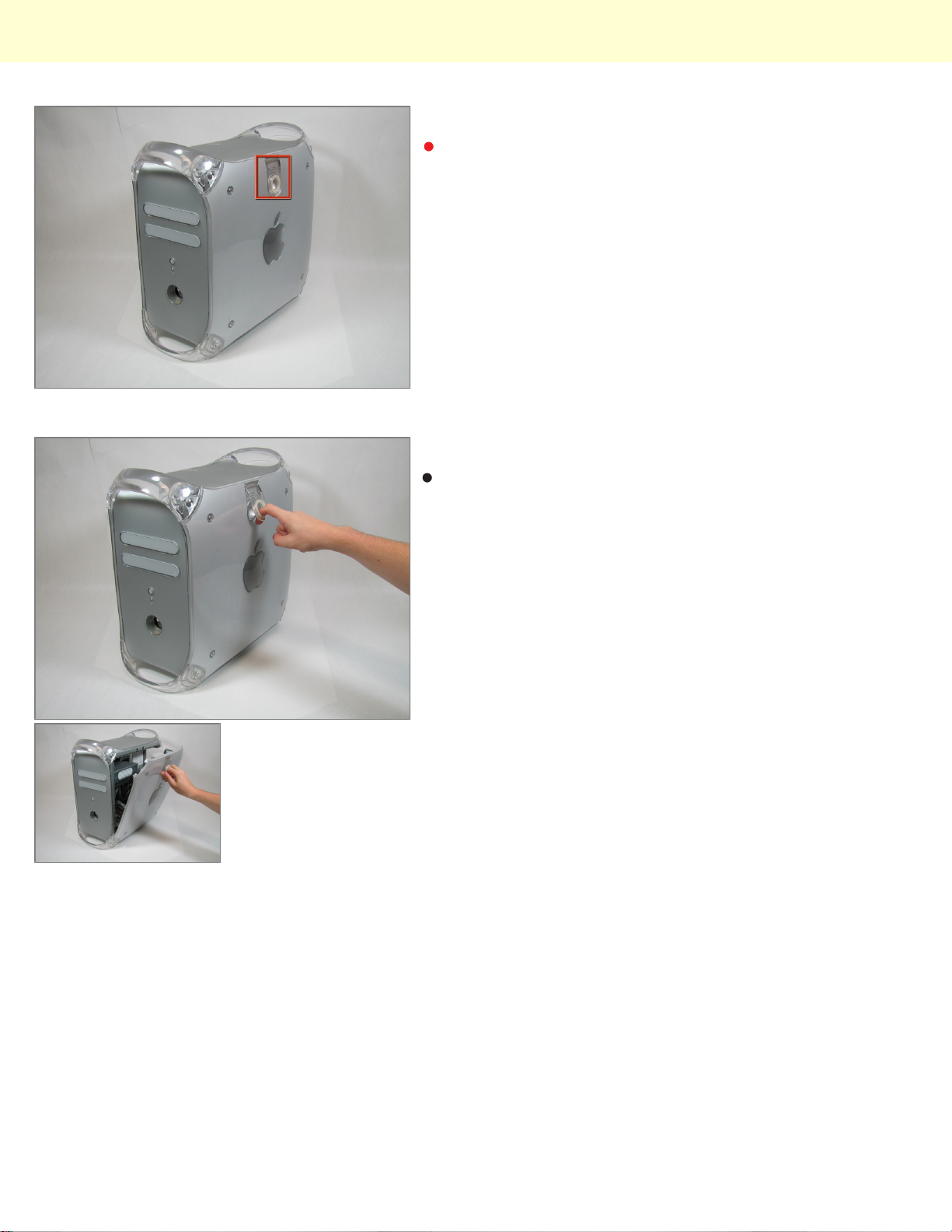
The handle to open your computer is located on top of
the right side panel.
Step 2
Grab the circular handle and pull outward.
© 2010 iFixit — CC BY-NC-SA www.iFixit.com Page 2 of 8
Page 3
Repairing Power Mac G4 Quicksilver Central Processing Unit
Step 3
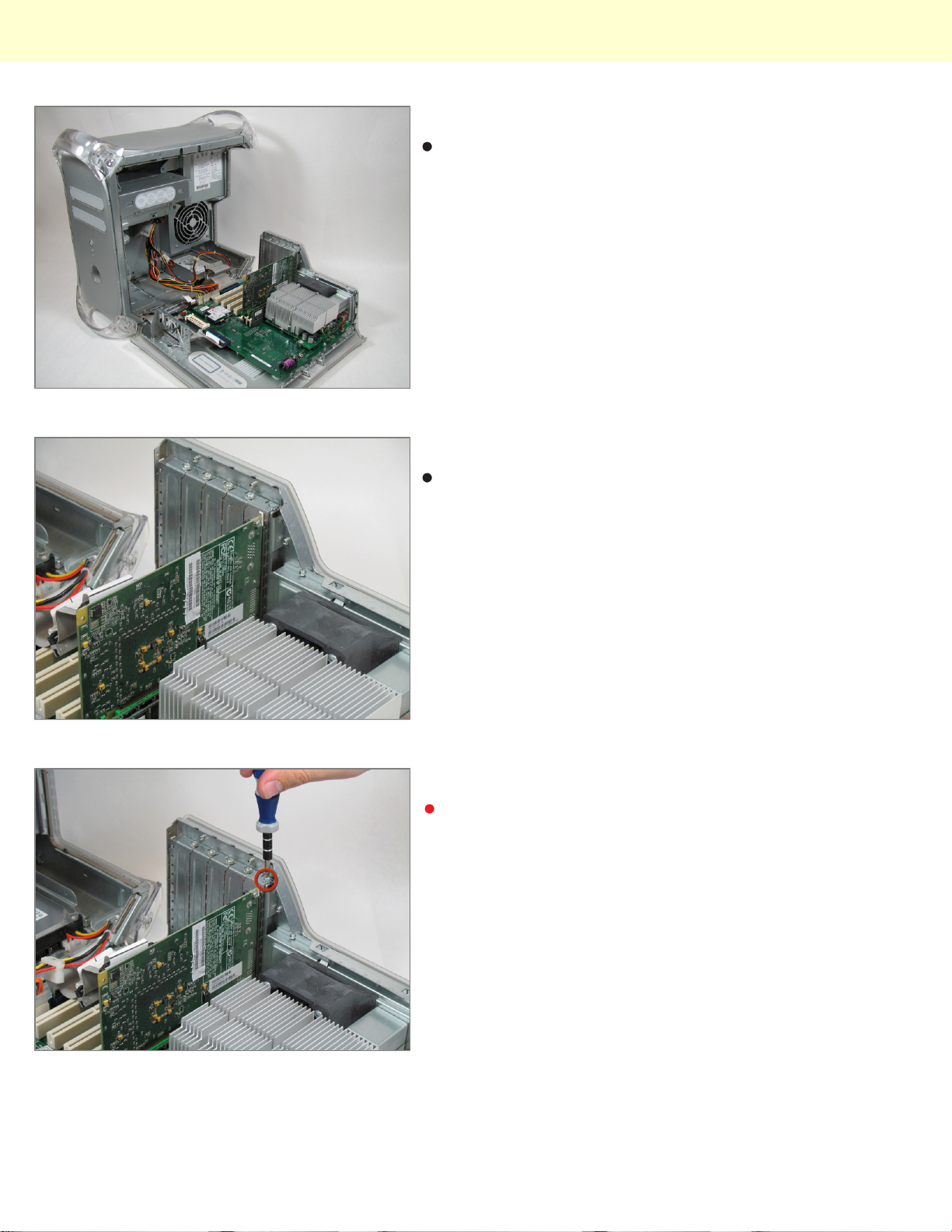
Your computer is now open and ready for repair.
Step 4 - Video Adapter
This is your Power Mac G4's video adapter.
Step 5
Start by removing the screw holding the card to the
chassis as shown.
© 2010 iFixit — CC BY-NC-SA www.iFixit.com Page 3 of 8
Page 4
Repairing Power Mac G4 Quicksilver Central Processing Unit
Step 6
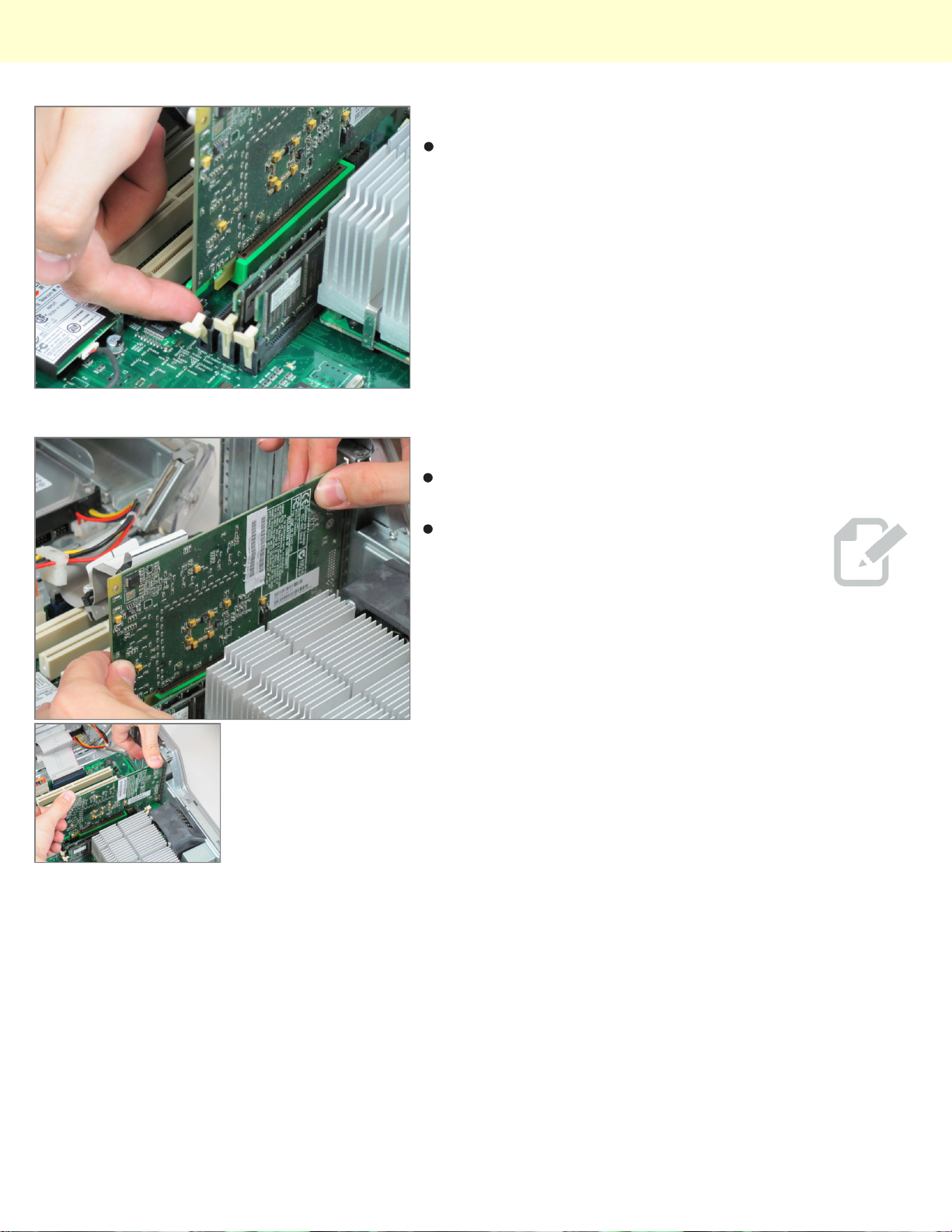
Before lifting the card out, this small plastic tab needs
to be pulled back there by releasing it entirely.
Step 7
With the tab and screw removed, lift the card straight
out.
When putting the card back in, take care to
apply even pressure across the top with
your thumbs. This will avoid damaging the
card.
© 2010 iFixit — CC BY-NC-SA www.iFixit.com Page 4 of 8
Page 5
Repairing Power Mac G4 Quicksilver Central Processing Unit
Step 8 - Central Processing Unit
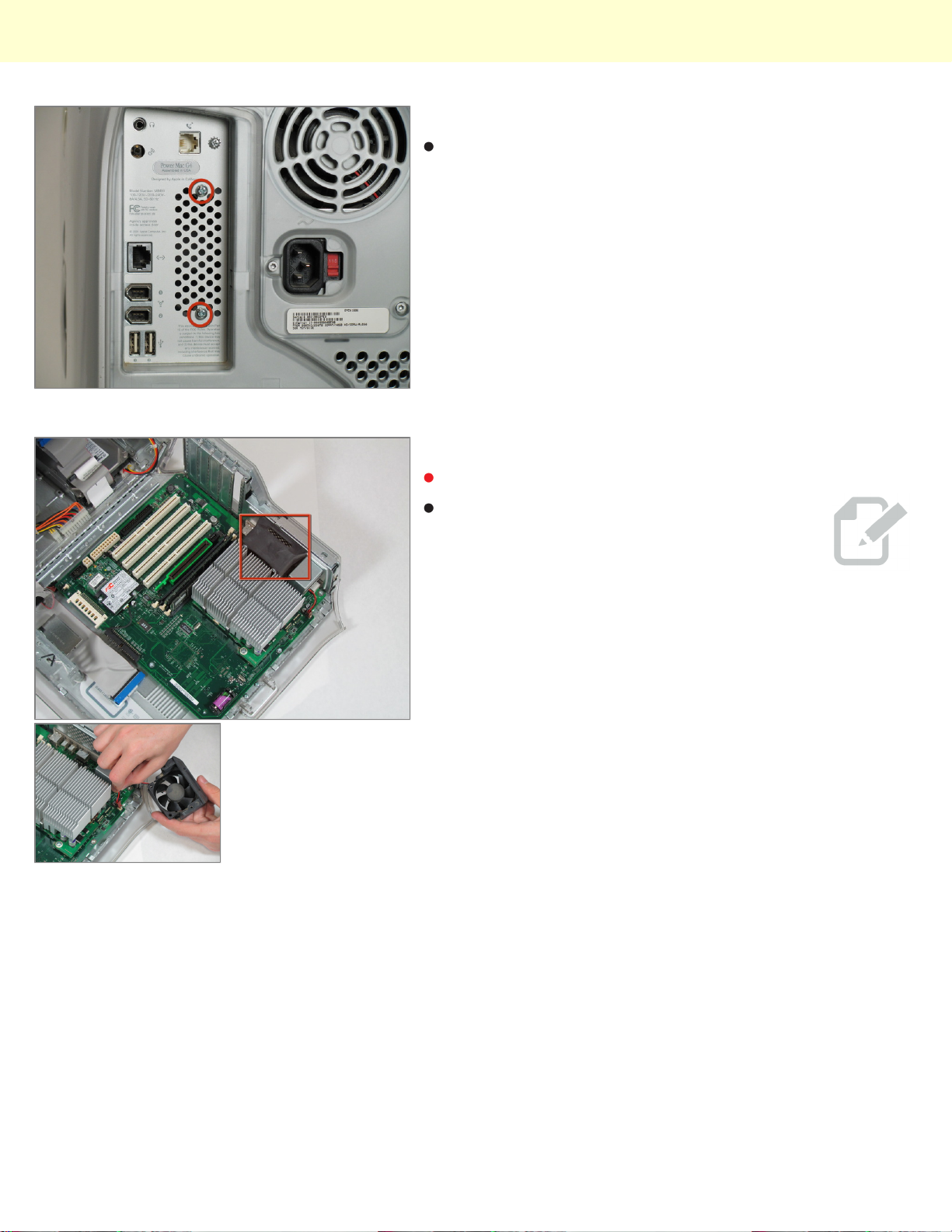
First you want to remove the fan. Remove the two
screws on the back of the computer in the upper left
hand corner.
Step 9
Remove the fan unit by pulling straight up and out.
Be carful not to rip out the cord still attached
to the motherboard. Remove it gently.
© 2010 iFixit — CC BY-NC-SA www.iFixit.com Page 5 of 8
Page 6
Repairing Power Mac G4 Quicksilver Central Processing Unit
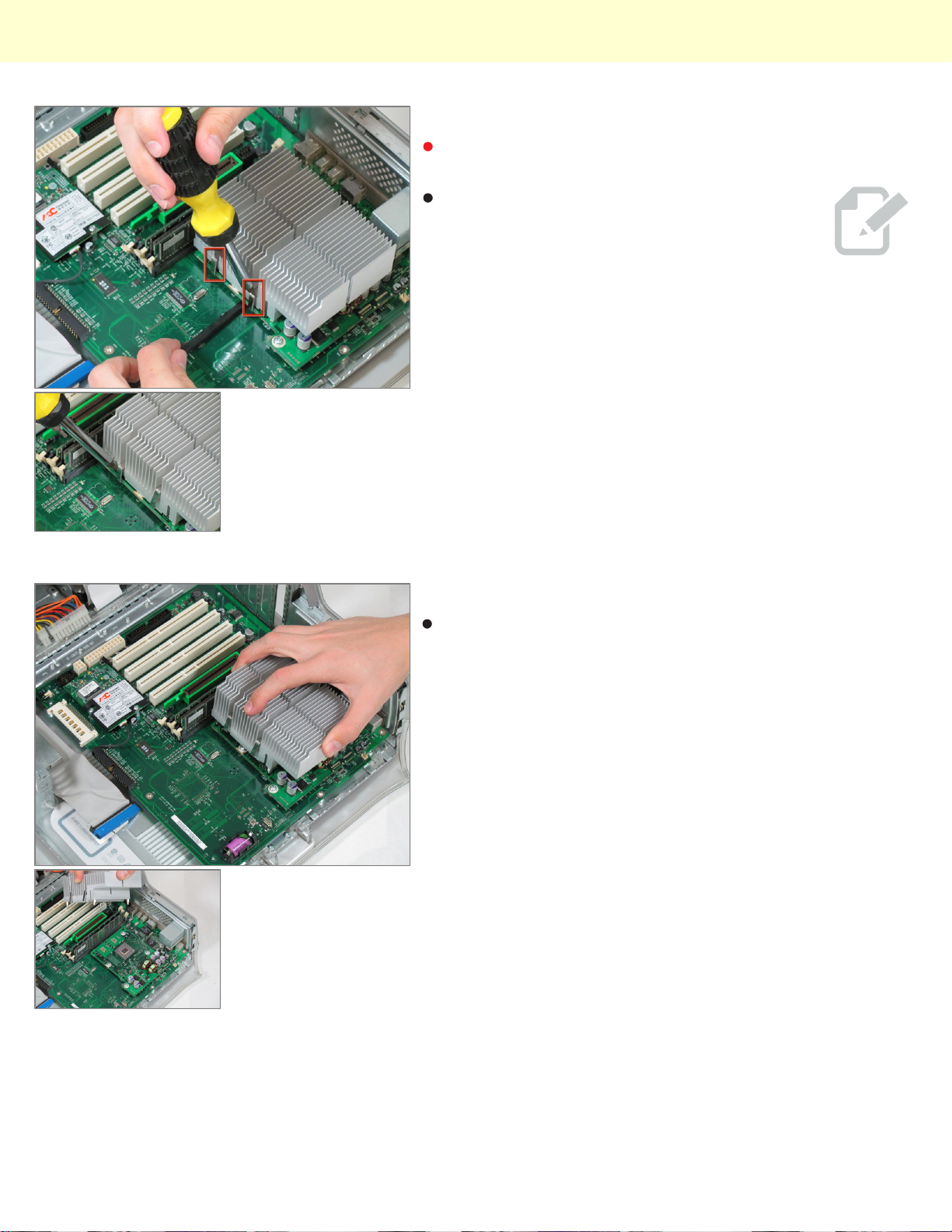
Step 10
You need detach the heat sink from the CPU. Locate
the four clamps holding it down, two on each side.
Taking off the clamps can be difficult. Use a
screwdriver to push down on the top of the
clip. Then insert a spudger below the heat
sink to pull it away from the board, releasing
the heat sink.
Step 11
Pull the heat sink up and off of the CPU.
© 2010 iFixit — CC BY-NC-SA www.iFixit.com Page 6 of 8
Page 7
Repairing Power Mac G4 Quicksilver Central Processing Unit
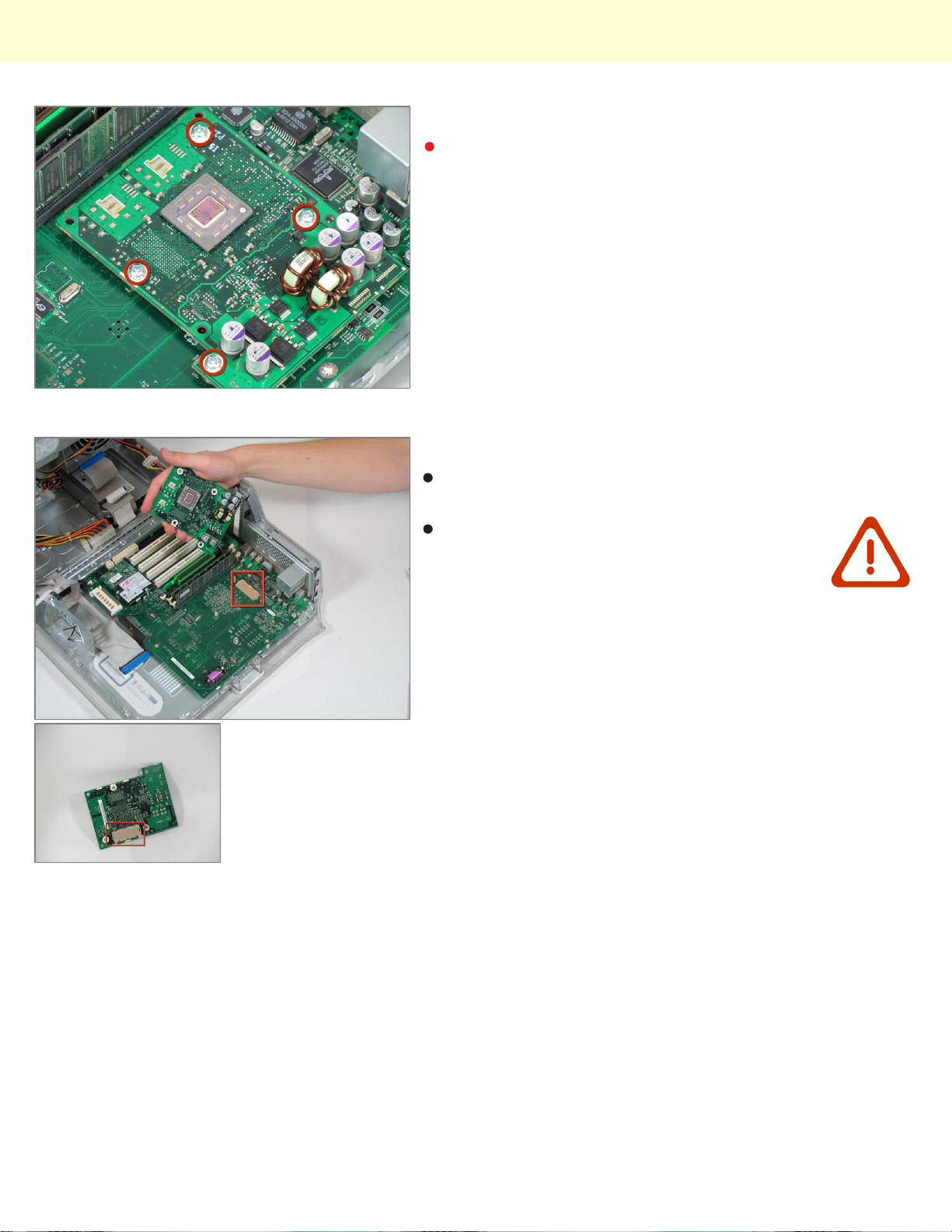
Step 12
Remove the four screws holding the CPU to the
motherboard.
Step 13
Now you can remove the CPU by pulling it straight up
from the motherboard.
Be very careful when you detach the CPU.
There is a connector that has hundreds of
little prongs. You must not bend or break
any of them! Be extremely careful.
© 2010 iFixit — CC BY-NC-SA www.iFixit.com Page 7 of 8
Page 8
Repairing Power Mac G4 Quicksilver Central Processing Unit
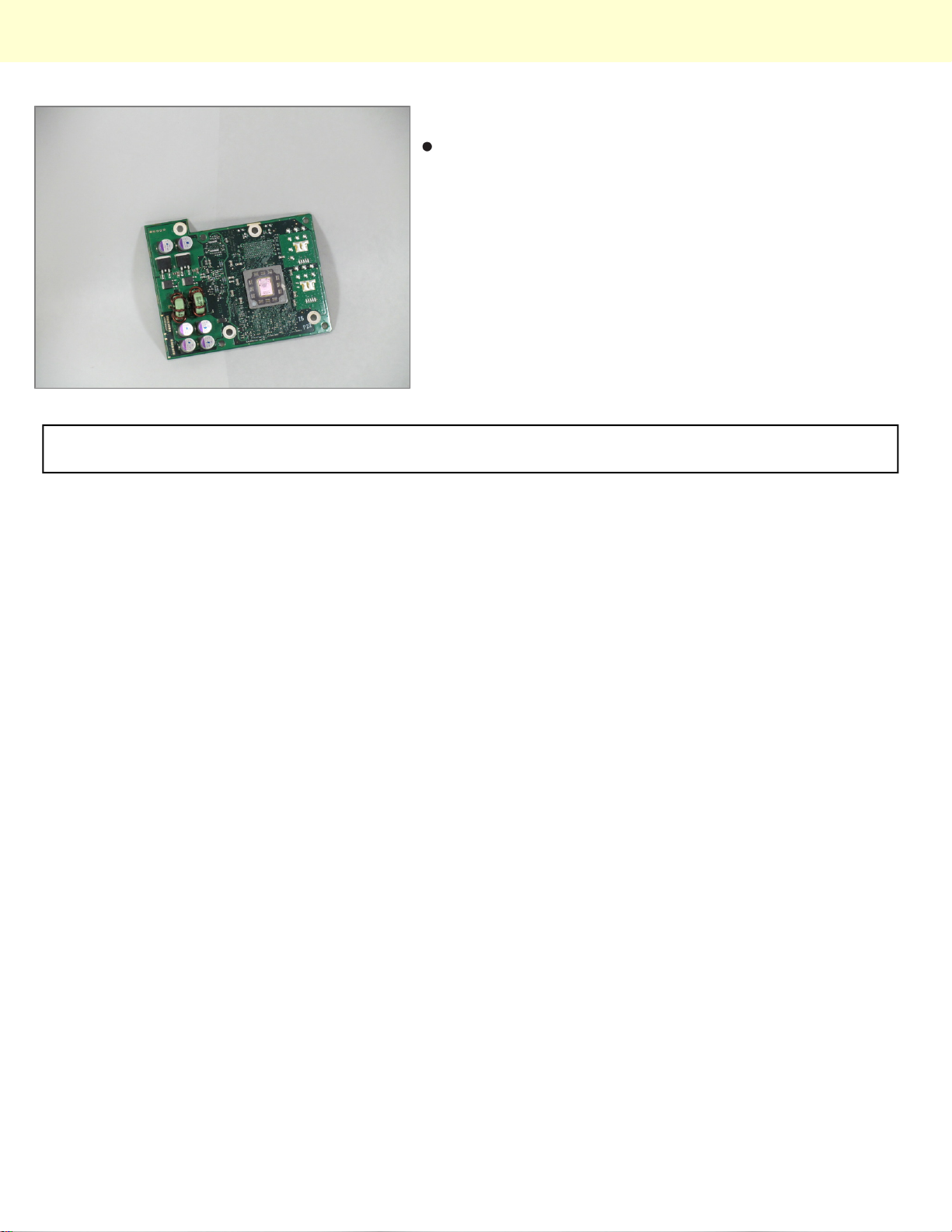
Step 14
You can now replace the CPU.
To reassemble your device, follow these instructions in reverse order.
This document was last generated on Dec 14, 2010.
© 2010 iFixit — CC BY-NC-SA www.iFixit.com Page 8 of 8
 Loading...