

Page 1
4k Advertising Media
Player Box
Model No. MP40
USER MANUAL
Before operating the unit, please read this manual
thoroughly.
Page 2

SAFETY INSTRUCTIONS
Before operating the Media Player, carefully read and follow the instructions below.
z
Retain this User Manual for future reference.
z
Read the safety and operating instructions carefully before using the product.
z
Do not expose the batteries to excessive heat such as sunshine, fire or the like.
z
Do not expose the player to rain or moisture. Water and moisture may cause short‐circuit to the
electronic components and lead to malfunctions.
z Do not use this product near strong electromagnetic sources, such as a microwave oven. The
electromagnetic interference may cause this product to malfunction.
z
Do not drop or apply shock/vibration to this product. Strong impacts may damage the components
inside.
z Do not insert objects other than compatible memory cards into the memory card slots of this product.
The metal contacts inside the slots can easilybecomedamagedbyforeignobjects.
z
Do not use an unknown power adapter other than the one supplied with the Media Player. Connecting
this product to an unknown power adapter is very dangerous and may lead to fire or explosion.
z Do not cut, bend, modify, place heavy objects, or step on the power adapter cord. Otherwise the
external insulation may be damaged and result in short‐circuit or fire.
z
Use a smooth, soft cloth to clean the surface of the screen.
z
Do not use liquid cleaners or glass cleaners.
z Replace the battery with the specified type only. Otherwise, fire or injury may result.
z Dispose of used batteries according to the instructions.
TABLE OF CONTENT
FEATURES
.............................................................................................
2
SUPPLIED ITEMS
.................................................................................
5
OVERVIEW
............................................................................................
6
REMOTE CONTROL
............................................................................
8
PRODUCT SPECIFICATION
...............................................................
9
DRAWING
.............................................................................................
10
APPENDIX
............................................................................................
11
Page 3

2
FEATURES
It is based on Android 6.0, the operation is Android universal. Most of functions and features are highly
customized. Normally, it supports the following.
z
HDMI (v2.0) Output and video decoding up to 4096x2160 @ 60fps
z
H.265 video decoding
z
Power On loop or Buttons for selecting different video files
z
Easy Mounting
z
Support SD Card/Micro SD and USB 2.0 drive
Additional Features or Functions
Software changes or additional hardware may be needed for additional features or functions. Please
contact your sales representative for more information.
z Capacitive Touch Buttons
z
Membrane Buttons
z
Motion Sensor
There are 4 different playback modes in our proprietary player app ( hrplayer as shown in next page):
1. Repeat All ( Loop All Videos )
2. Default Loop File + Button Selection Playback Then Return To Default Loop
3. Repeat one ( Selected File Loop )
4. Picture + Video Loop;
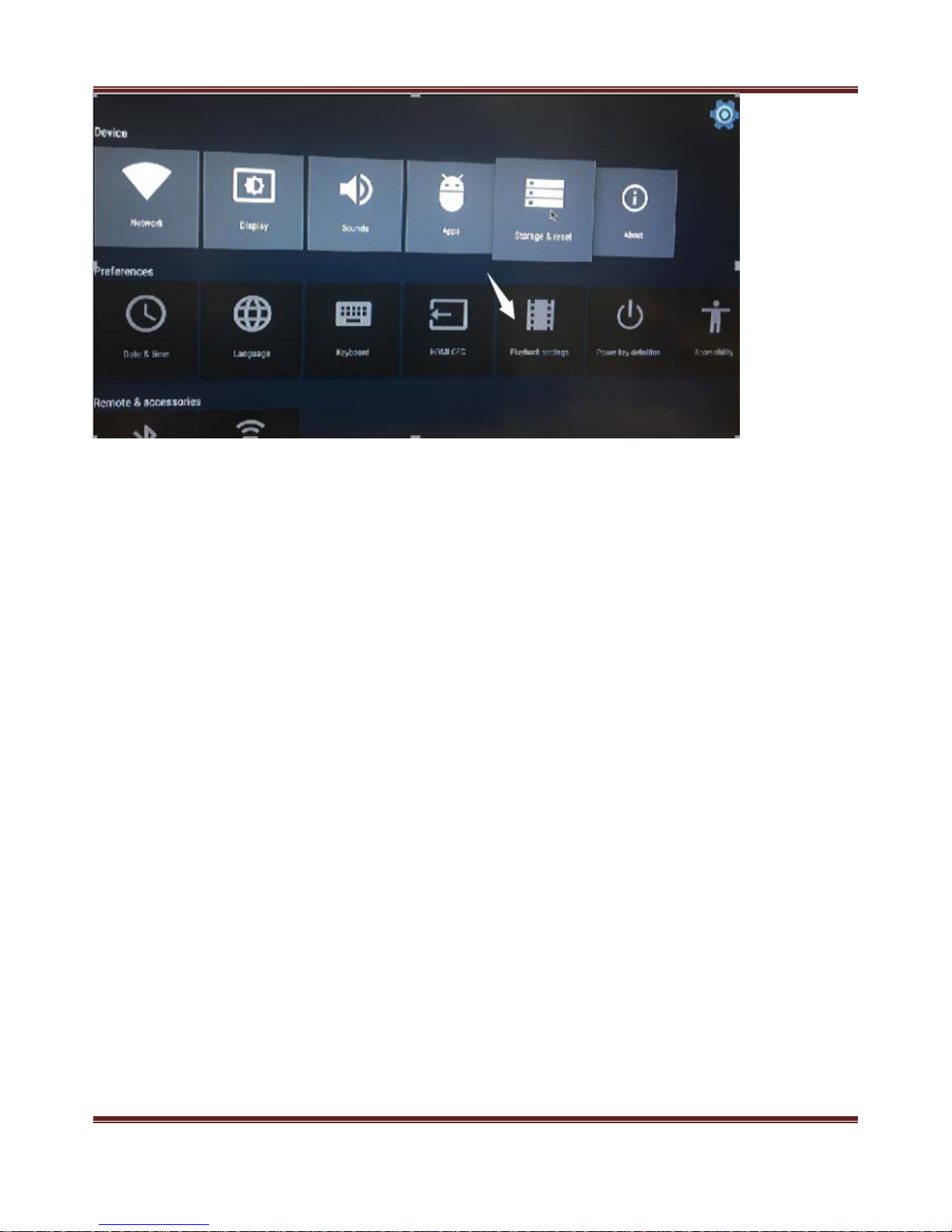
Optional: Administrators could use remote control to switch the playback modes (please refer to the
instructions in the remote control page ), or select the “playback setting” tab from the settings as following:
Page 4
3
Default Play Mode: Button Selector Mode;
►
The default app hrplayer would playback the loop video named mu, and playback X it the No. (X+1)
button is pressed (x=0,1,2,3,4,5,6,7 ).
NOTE: Button Mode File Structures
Mu.avi for the default loop;
00.avi for push button 1#
01.avi for push button 2#
02.avi for push button 3#
03.avi for push button 4#
04.avi for push button 5#
05.avi for push button6#
06.avi for push button 7#
07.avi for push button 8#
►Repeat (loop) All Files Mode:
The unit will loop all the files if factory default rest is enabled.
4K Video File Compatibility & Reliability Test
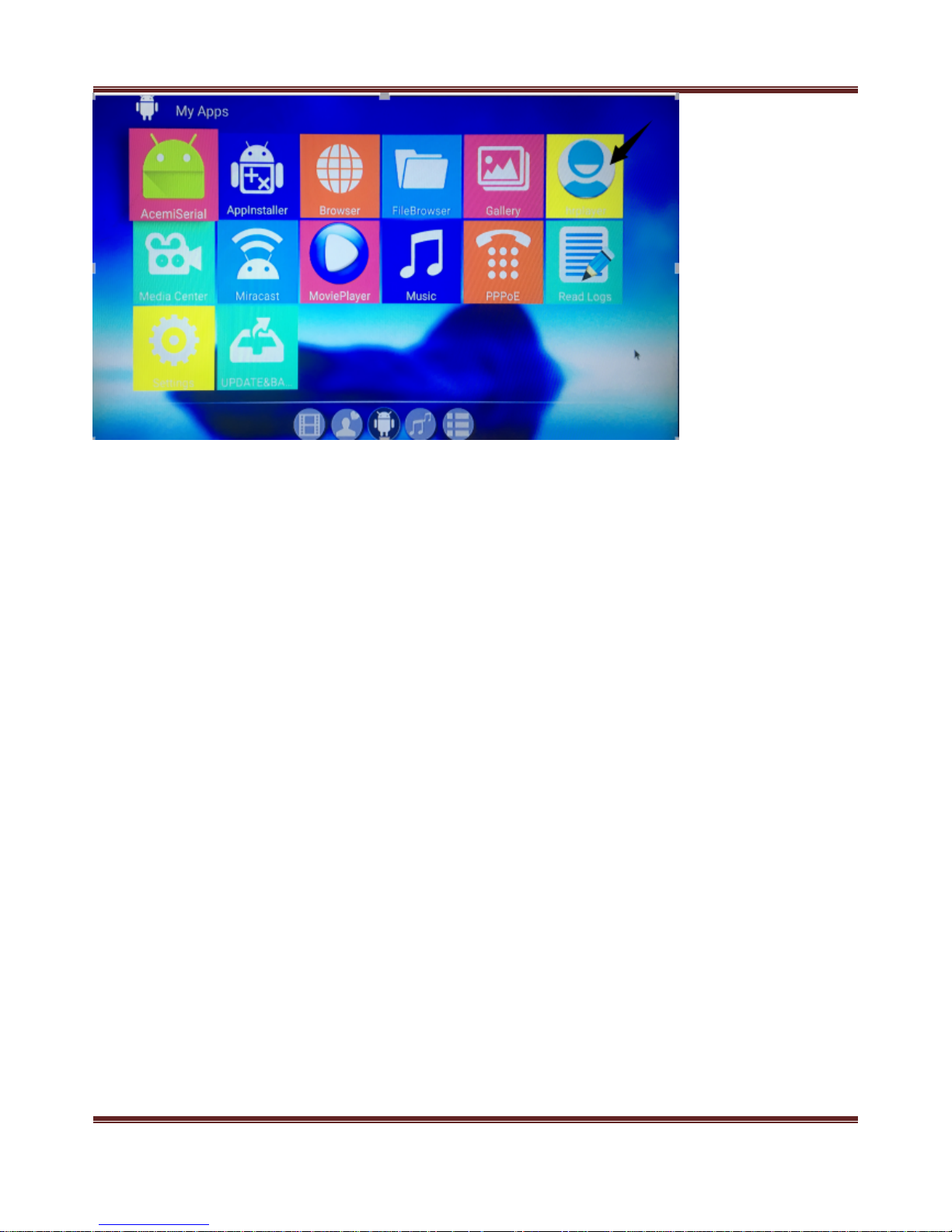
z
Finding the right player app: hrplayer.apk as per the following arrow.
Page 5
4
z
Loading the 4k video files in a blank SD card
z Within 10S, the unit will start looping the videos
Page 6
5
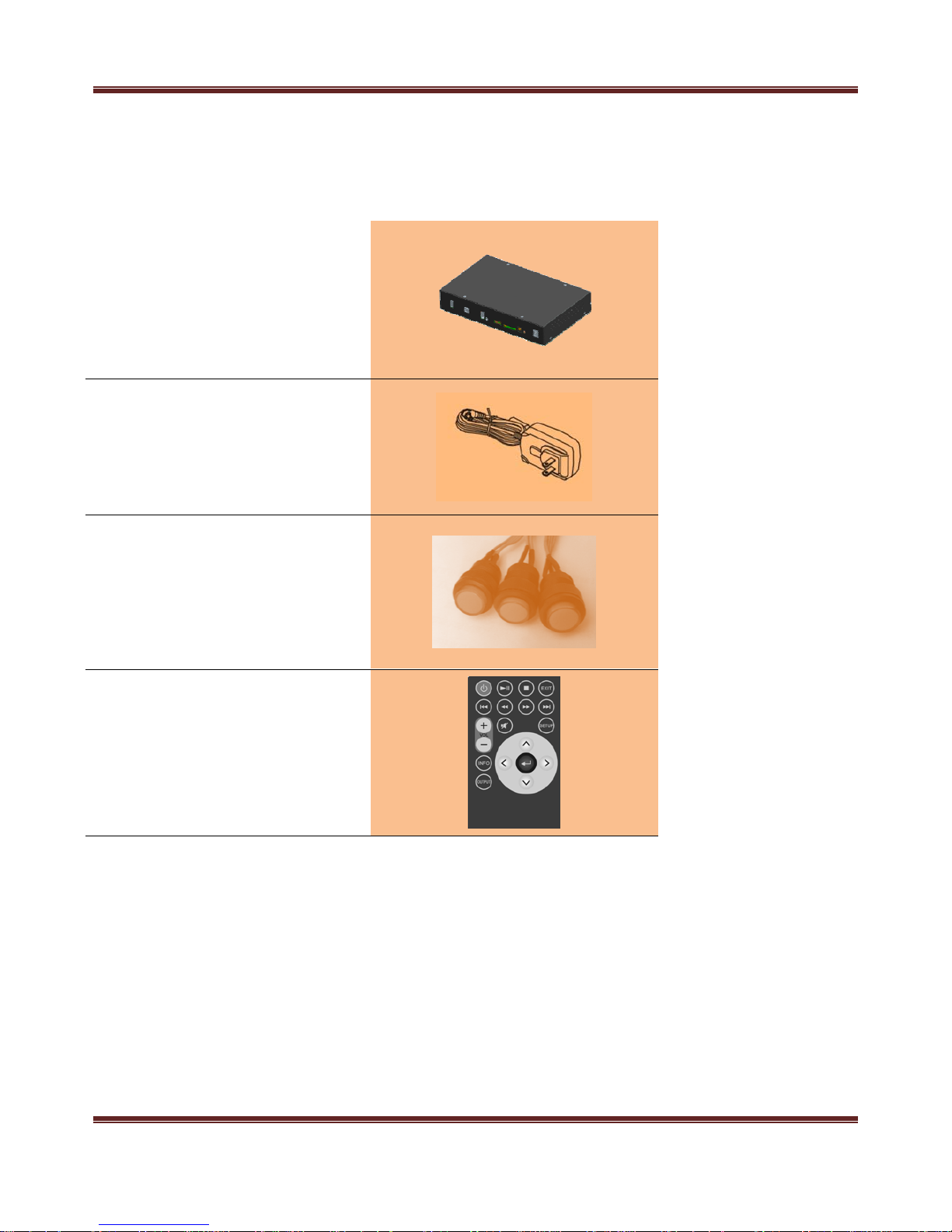
SUPPLIED ITEMS
Please contact your sales representative for more accessories and details.
Media Player
Adapter
(Optional)
Buttons with LED
Options:
1. Number of Buttons, up to 8
2. Colors
3. Brightness
Remote Control
(Optional)
Page 7
6
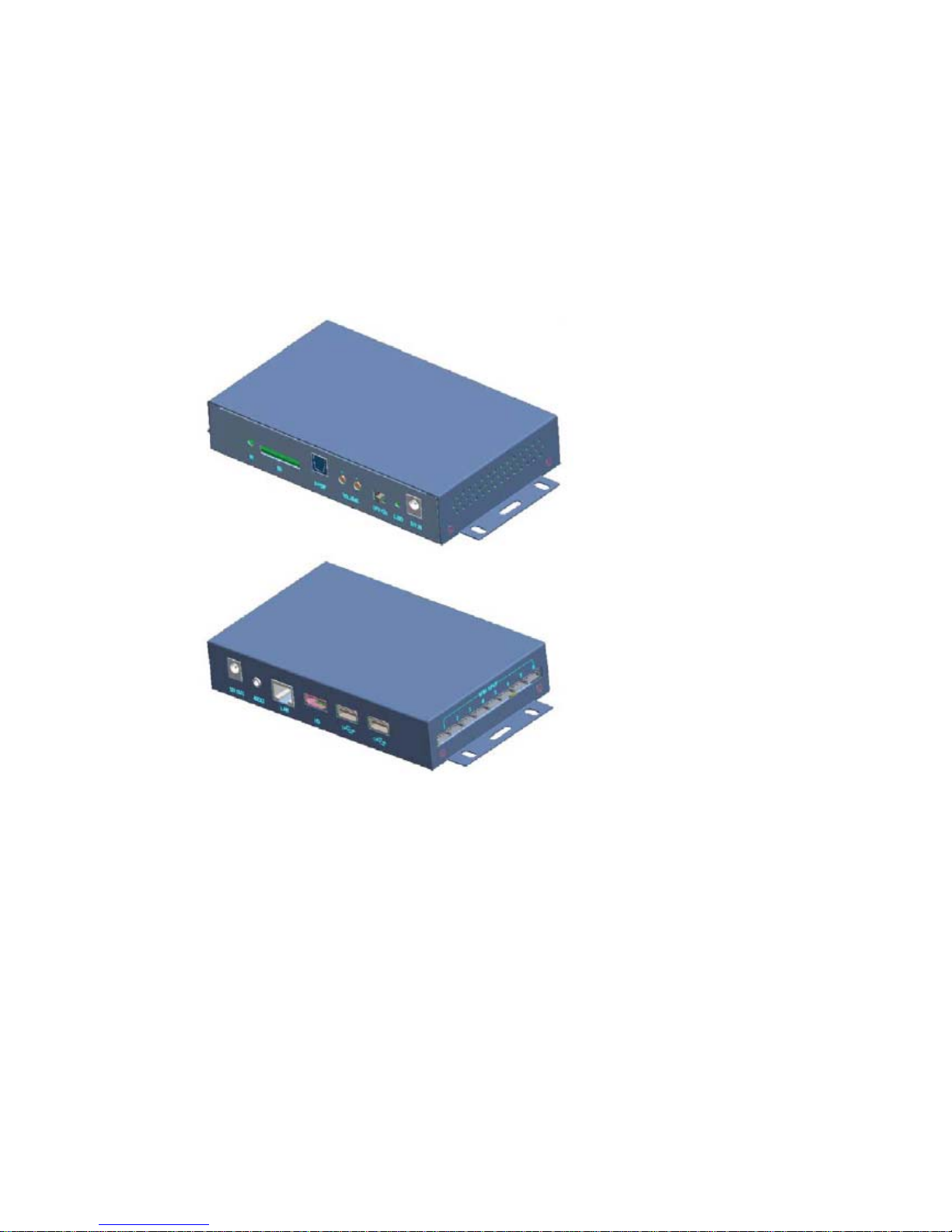
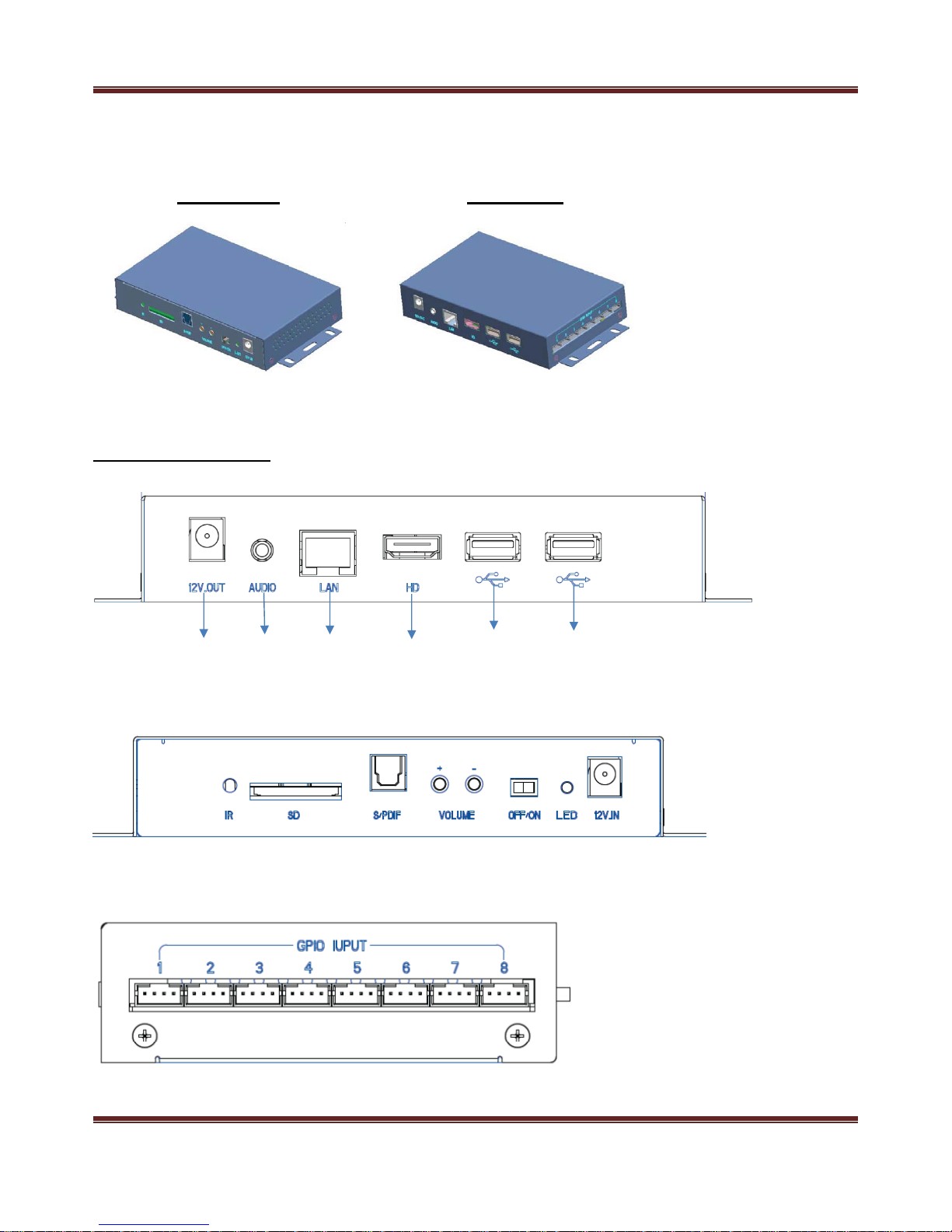
OVERVIEW
Front view Rear view
Parts and Controls
USB2.0
RJ45
HDMI Out
DC 12V
3.5mm
Page 8

7
No. Name Description
1 ON/OFF Switch Switch to turn on/off the Player
2 DC 12V
Connect one end of the AC power adapter
into the power jack and the other end into a
power outlet.
3SDCard
Memory card slot
Allows for an SD/SDHC
4 HDMI Out HDMI 2.0 output to TV
5 Audio 3.5mm / Headphone output
6 USB2.0 Allows for a USB flash drive.
7 Optical Optical audio output
8 USB2.0 Allows for a USB2.0 flash drive.
9 Power Status LED LED on when powered
10 IR Receiver Receiving Remote Control signal
11 Buttons 00 ~ 07 To play video file 00 ~ 07
12 WiFi Antenna & RJ45 Optional
Page 9
8
REMOTE CONTROL
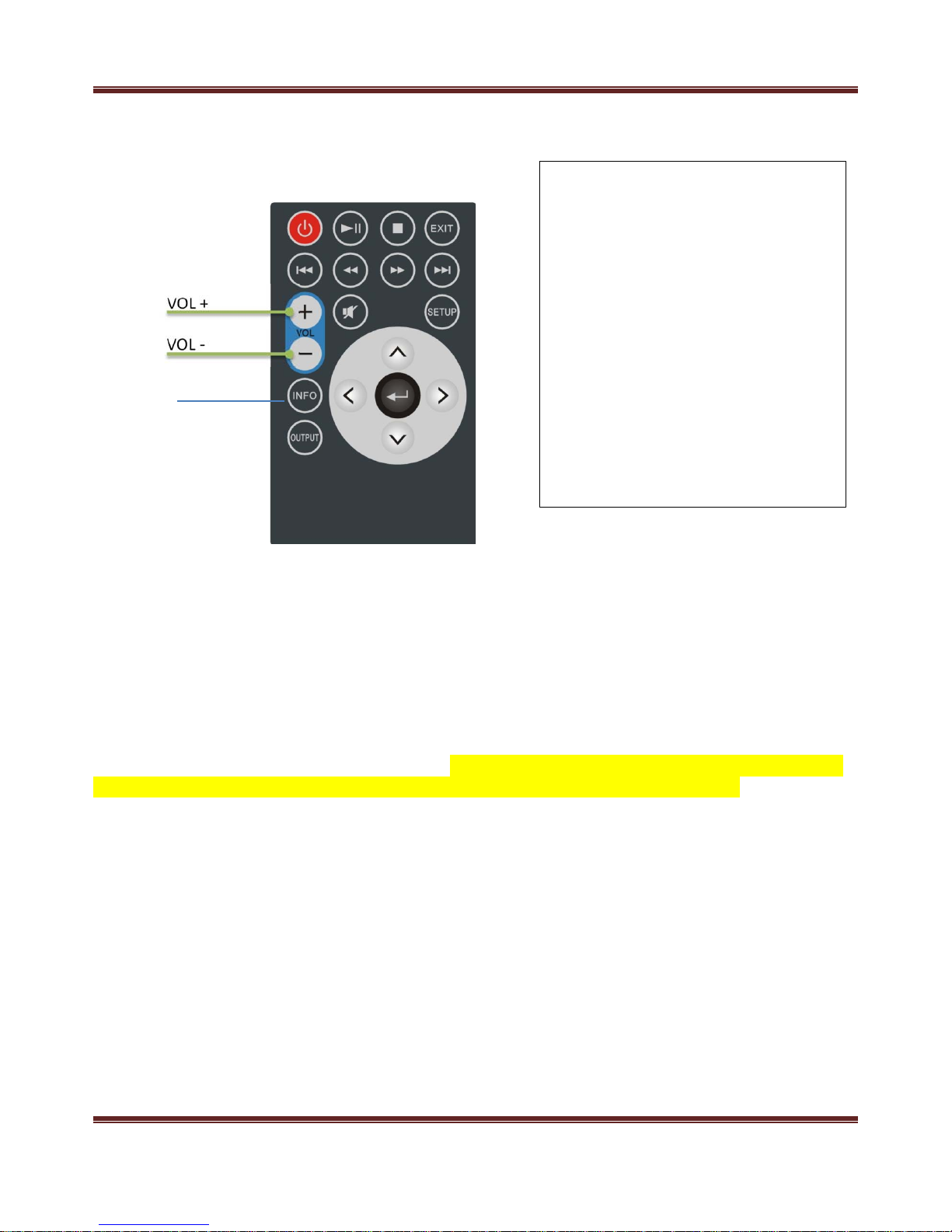
Play Mode
NOTE: Other buttons are disabled in most cases,
it is NOT recommended to supply remote controller to
store manager to change the display mode, instead, make the right mode before shipment.
Press“Info”ButtonOnTheRemote,On
The Top‐right Corner Of The LCD TV,
NumbersLike1,2,3,4WillDisplay
Accordingly, They Represent Different
Media Payback Modes:
1. Repeat All ( Loop All Videos )
2. Default Loop File + Button
Selection Playback Then Return To
Default Loop
3. Repeat one ( Selected File Loop )
4. Picture + Video Loop;
Page 10
9
PRODUCT SPECIFICATION
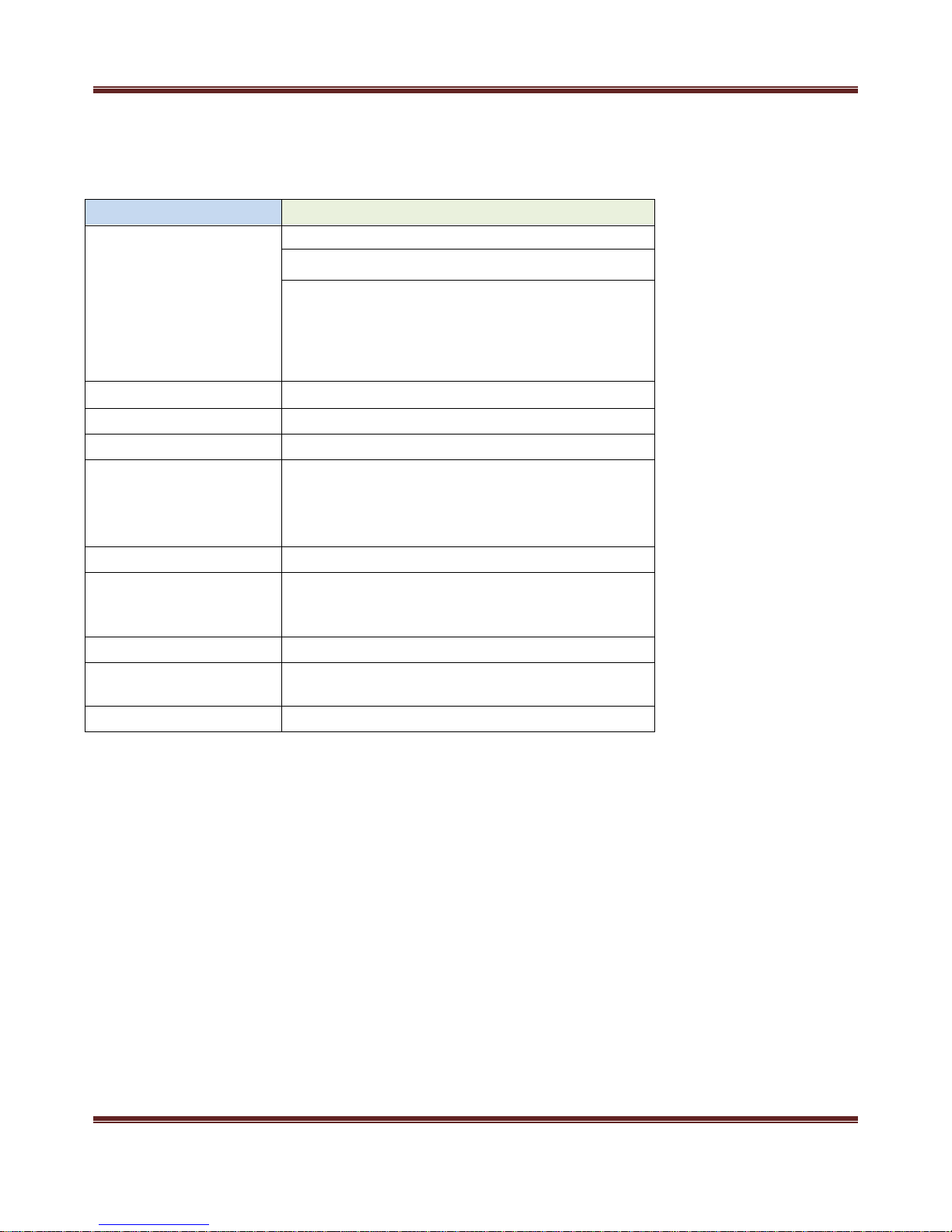
Item Description
Video
Resolution up to 4096 x 2160 @ 60fps
File Format: *.avi, *.mpg, *.mkv, *.ts
Codec:
H.265, HEVC MPEG2: MP@HL MPEG4.2: ASP@L5
MPEG4.10 (H.264): [email protected]
VC‐1: AP@L3
WMV9
Audio
File Format: *.mp3
HDMI Output
HDMI v2.0
Storage Device
z
1xUSB2.0
z
1xUSB2.0
z
1xSDCard
z
4GB Internal Memory
Audio Output
Optical out
Optional Features
z
Ethernet ‐‐ Gigabit 10/100M LAN(RJ45)
z
WiFi ‐‐ 801.2 b/g/n (optional )
z Remote Control
Power Consumption
6W (12V,0.5A)
Adapter
z
Input: 100 ~ 240 V 50Hz
z
Output: 12V, 0.5A
O/S
z
Android 6.0
Page 11
10
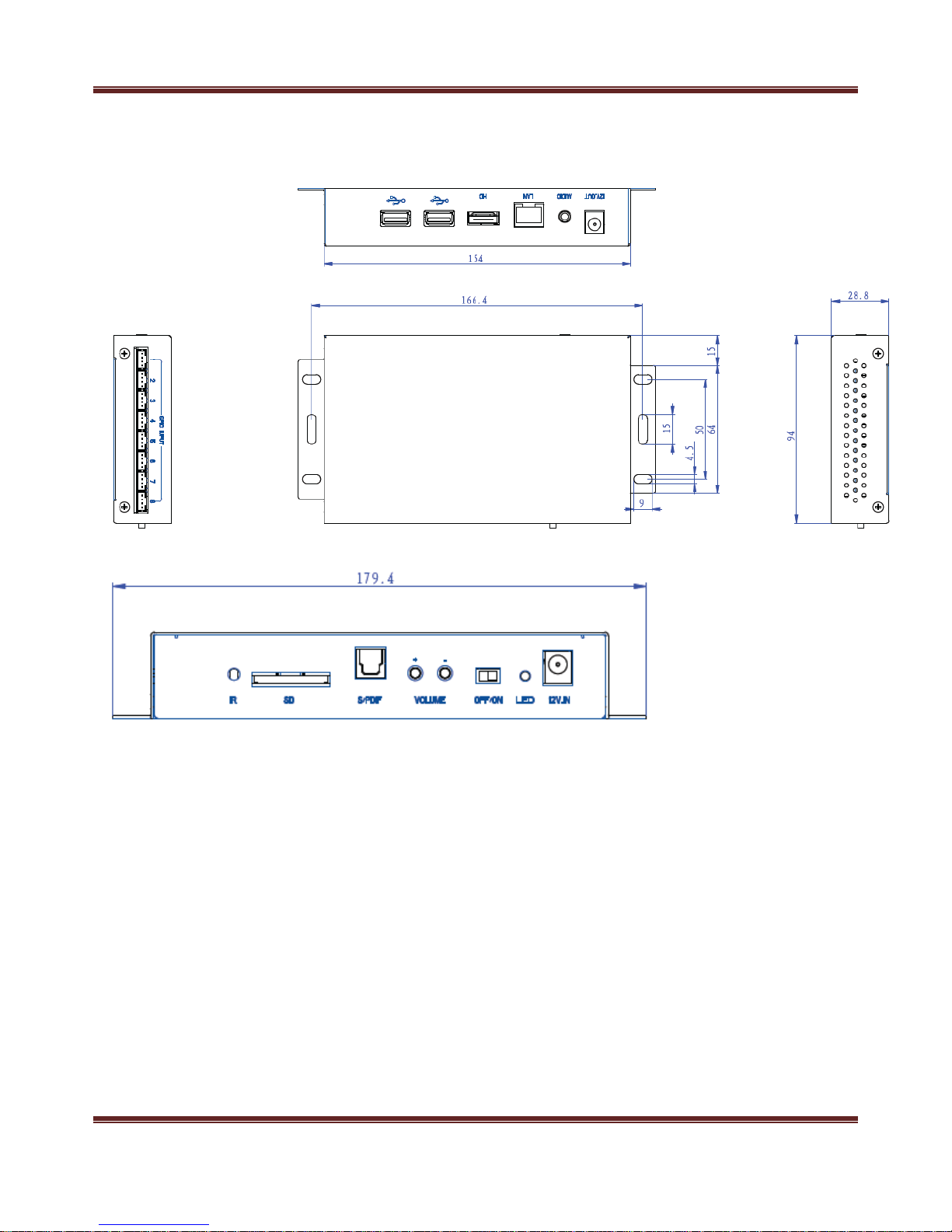
DRAWING
Page 12
11
APPENDIX
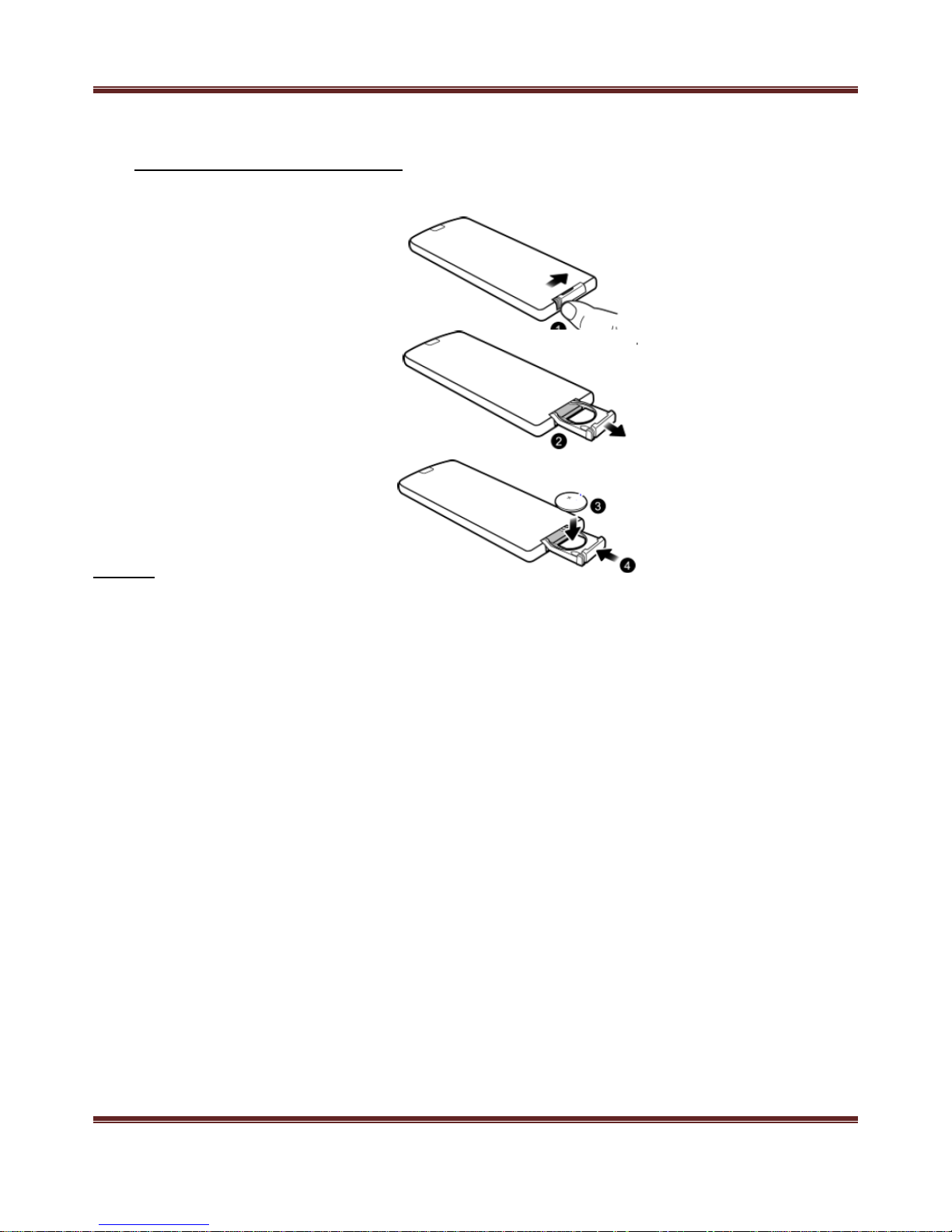
(1)►Replacing the remote control battery
1. On the back ofthe remote control, press the locking tab to the
right.
2. Pull out the battery holder.
3. Insert the new battery into the holder. The battery must be
placed with the positive charge facing upwards, as shown in the
illustration below.
4. Slide the battery holder into the remote control.
Caution:
•
Failure to replace the battery in the correct manner may damage the battery.
•
Use only the specified battery type.
•
Recycle or dispose used batteries properly according to local
guidelines and regulations.
•
The batteries are highly flammable, keep away from excessive heat or moisture.
•
If the battery is completely drained or not in use for extended period of time, remove the battery to
prevent leakage.
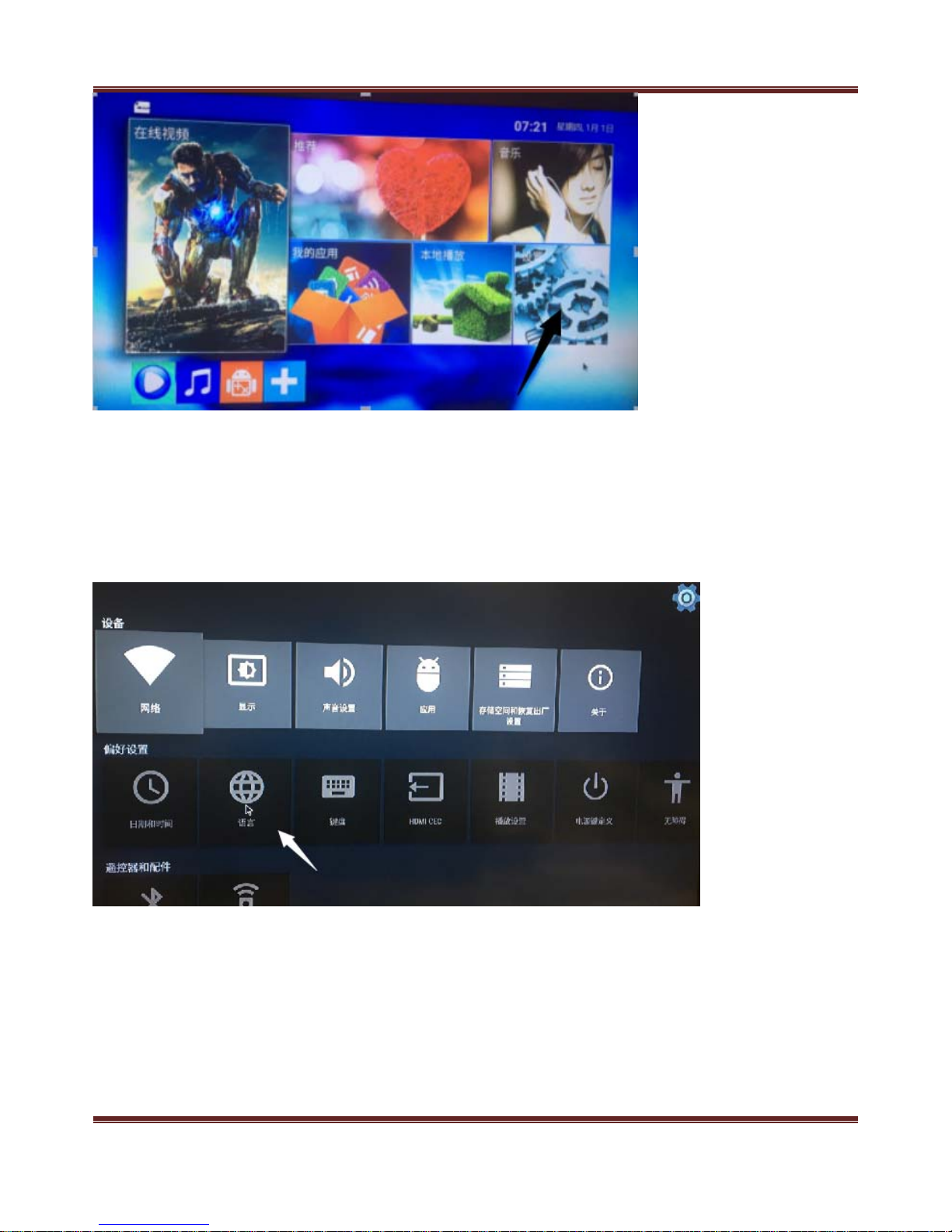
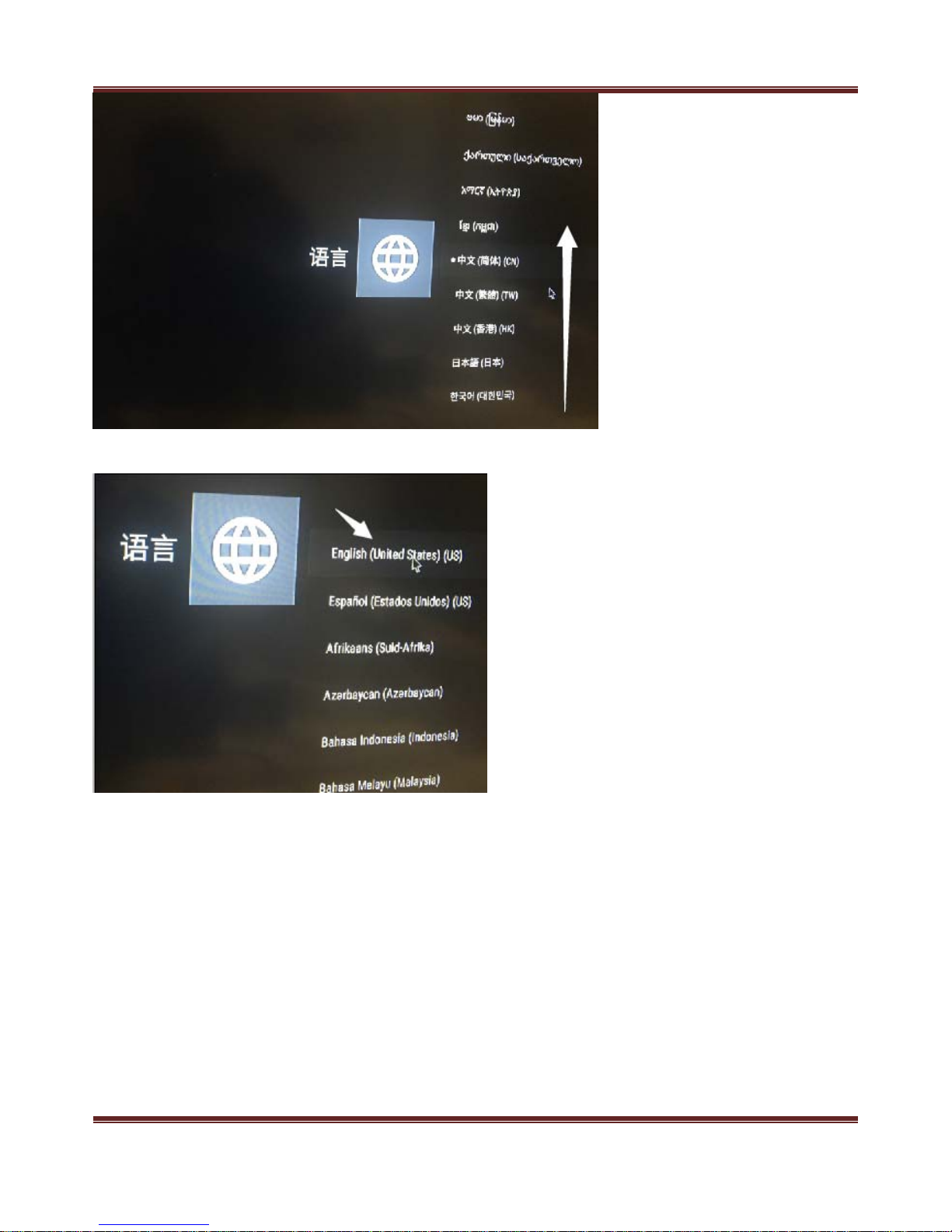
(2).►Switching from Chinese Back To English:
1. Hit the mouse click on settings as per arrow guided below:
Page 13
12
2. Hit on the globe icon as per below
Page 14
13
3. Scroll up to the top until “English” tab appears
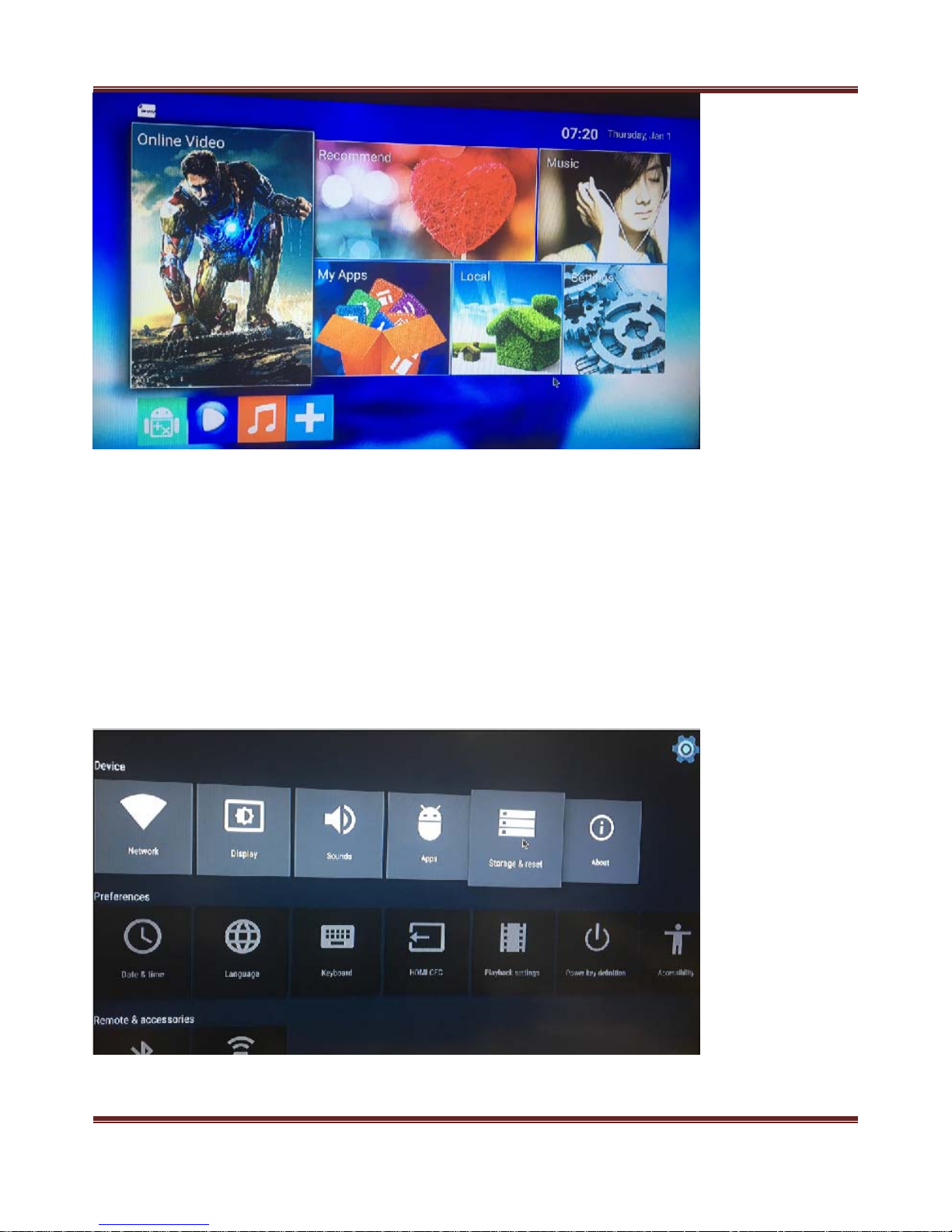
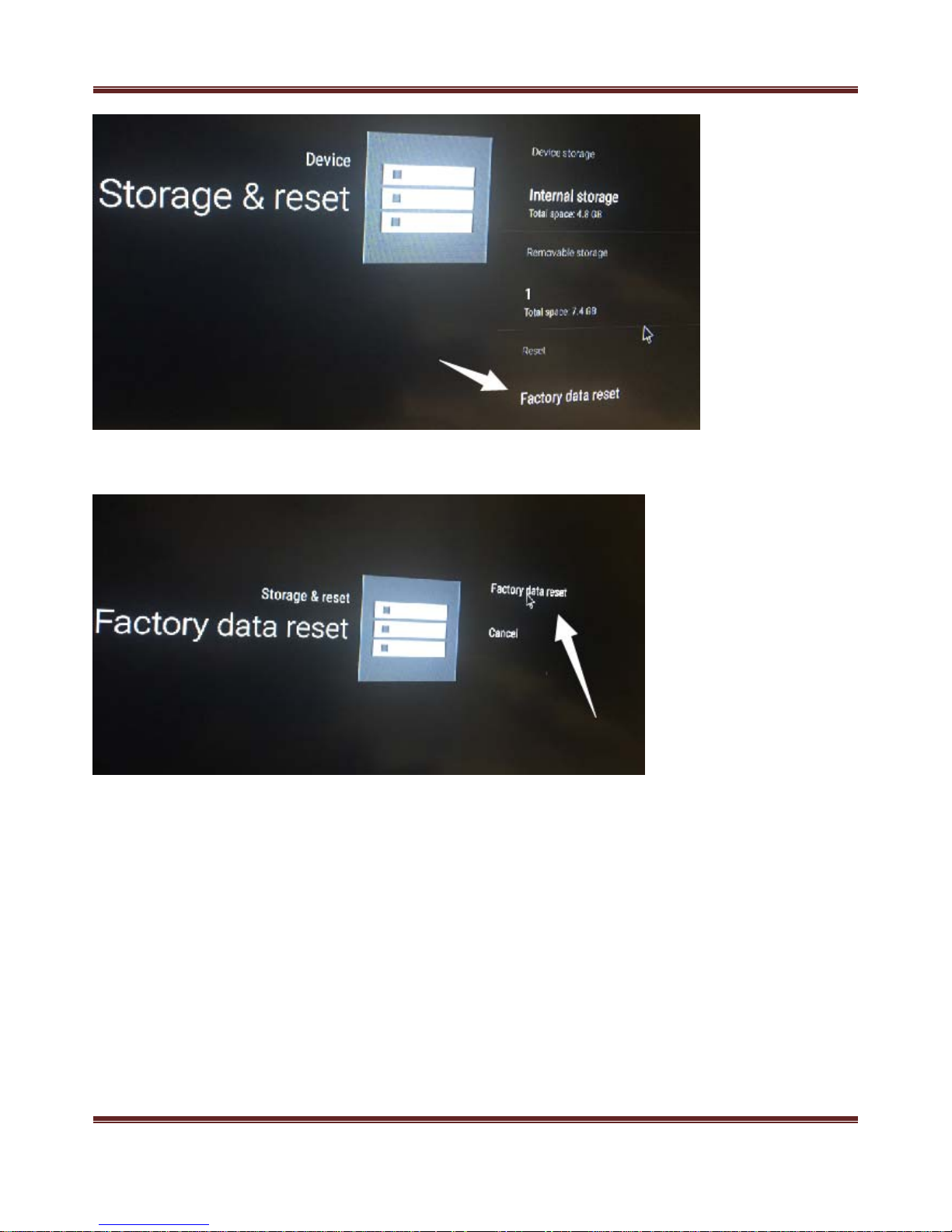
(3)►Reset to factory default:
Go to settings from home:
Page 15
14
Click on Storage & Reset:
Choose Factory Data Reset
Page 16
15
Confirm your selection via click the “factory data reset”
The unit will restart with android robot animation, it will take up to 10 minutes before it is recovered to
auto run hrplayer.apk
 Loading...