

Page 1
Smart tracker / Fitness tracker / Smart bracelet
User Instructions
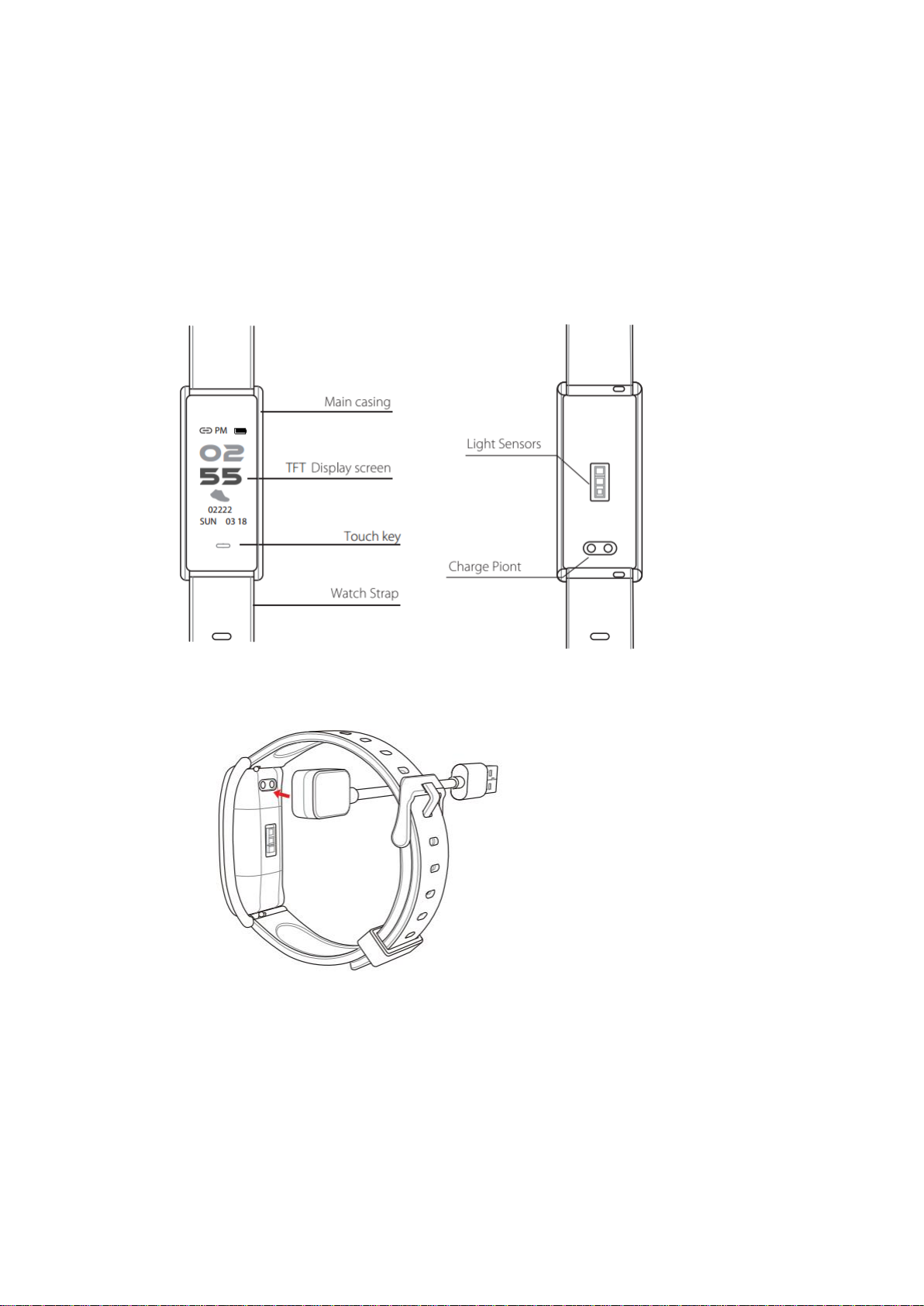
1. Description of appearance
1) Product Instructions
FCC ID: 2ASWN-TAP
2) Remove Strap and Charge Mode
3) Packaging List
1. Wristband X1 2. Gift box X1 3. User manual X1 4.Charger X1
2. Initial Use Instructions
Page 2

1) Introduction of equipment functional interfaces
The default display after turning on the device is time interface. Press the touch key and user can
change between multiple functional interfaces.
Time--------Run--------Steps---------Distance--------Calories----------Oxygen---------BP----------HR--------
Sleep--------Alarm--------Find phone-------Countdown-----Stopwatch-----Turn off
Tips: Find phone , the countdown, and the stopwatch interface are closed by default. User need
to restart those functions through APP settings > My device > Switch settings
2) Software Download
A. Search “H Band” in APP Store for iOS users;
B. Search “H Band” through Google Play, Ying Yong Bao, Peasecod for Android users.
3) Connecting Device
Under the interface of “APP settings > My Device”, pull under the interface and find Equipment
Model. After successfully connecting the device model, “SW158” will be shown under the list of
“My Device” in the APP. Also in the left top of the device the sign“ ”will be present. Please
reconnect if the sign “ ” is showing.
4) Connection and Matching Notifications
a) Make sure the phone Bluetooth is turned on;
b) Make sure the device has a full battery and is turned on or charged before using.
c) Make sure the device is within 50cm range while connecting with the phone;
d) If Android phone cannot find any device through APP, please check if it allows “H Band” to
use Bluetooth in the Phone Permission Settings;
3. Introduction of Main Functions
Attention: To ensure the data is valid, please input the right sex, height, weight and color of
the skin through APP personal information.
A. Starting Up/Shutdown
To start up the device, press the touch area for 3 seconds. The device will enter into the Time
Interface. After no manual operation for 5 seconds, the device will go into standby mode. Switch
to Device Shutdown page and shutdown the device by pressing the touch area for 3 seconds.
B. Running Mode
On the running page, long press to enter into running mode. While in running mode, to change
between realtime running data, and pause and exit screens, click the area. Data screens display
running time, heart rate, running distance, calories, and steps in real time. While in the pause
Page 3

and exit screen, long press to pause or exit running mode.
C. Motion Monitoring
Enter the motion Monitoring Interface by pressing the touch area through the main interface, the
device displays the current number of steps, distance, calories page on sequence. Screen will be
off if no operation in 5 seconds.
D. Sports reach standard remind
You can set a sports target value on your APP, When the number of moving sports reaches the
target value, the device will vibrate reminder.
E. Oxygen saturation monitor
The Device Measurement: Touch the touch key under the main interface of the device, switch to
the interface of blood oxygen, equipment monitoring data real-time display blood oxygen data
for 5minutes, if the monitoring process show 0% SPO2, please check whether the wearing a
posture is correct, is the device sensor Close to the skin?
APP Manual Measurement: At the bottom of the APP’s data panel, into the blood oxygen
manual test interface, continuously monitor and display the real-time blood oxygen value, until
Click pause to stop monitoring, Monitoring data will not be saved.
Blood oxygen monitoring in the night: Open blood oxygen night monitoring switch in APP. The
device will automatically monitor the blood oxygen data at 00:00-07:00 every day, real-time
monitoring. and the data report can be detailed in the APP data panel. In data panel click on the
blood oxygen analysis module into the data panel, the panel will display data from 00:00-07:00,
the results of the analysis, main indicator, interventions.
(1) click icon, You can view every ten minutes of data, Continue clicking on a single average, You
can look at each minute of data.
(2) Open the oxygen night monitoring switch, according to wear the day night monitoring blood
oxygen data, The results of the report are displayed in the analysis results in the panel,
divided into normal, mild, moderate, severe several levels.
(3) The analyze data panel, click on main indicators the “more”, The indicators will have an
overall presentation, Click on the each indicators, You can view the noun interpretation,
common symptoms and treatment methods of each indicator.
Page 4
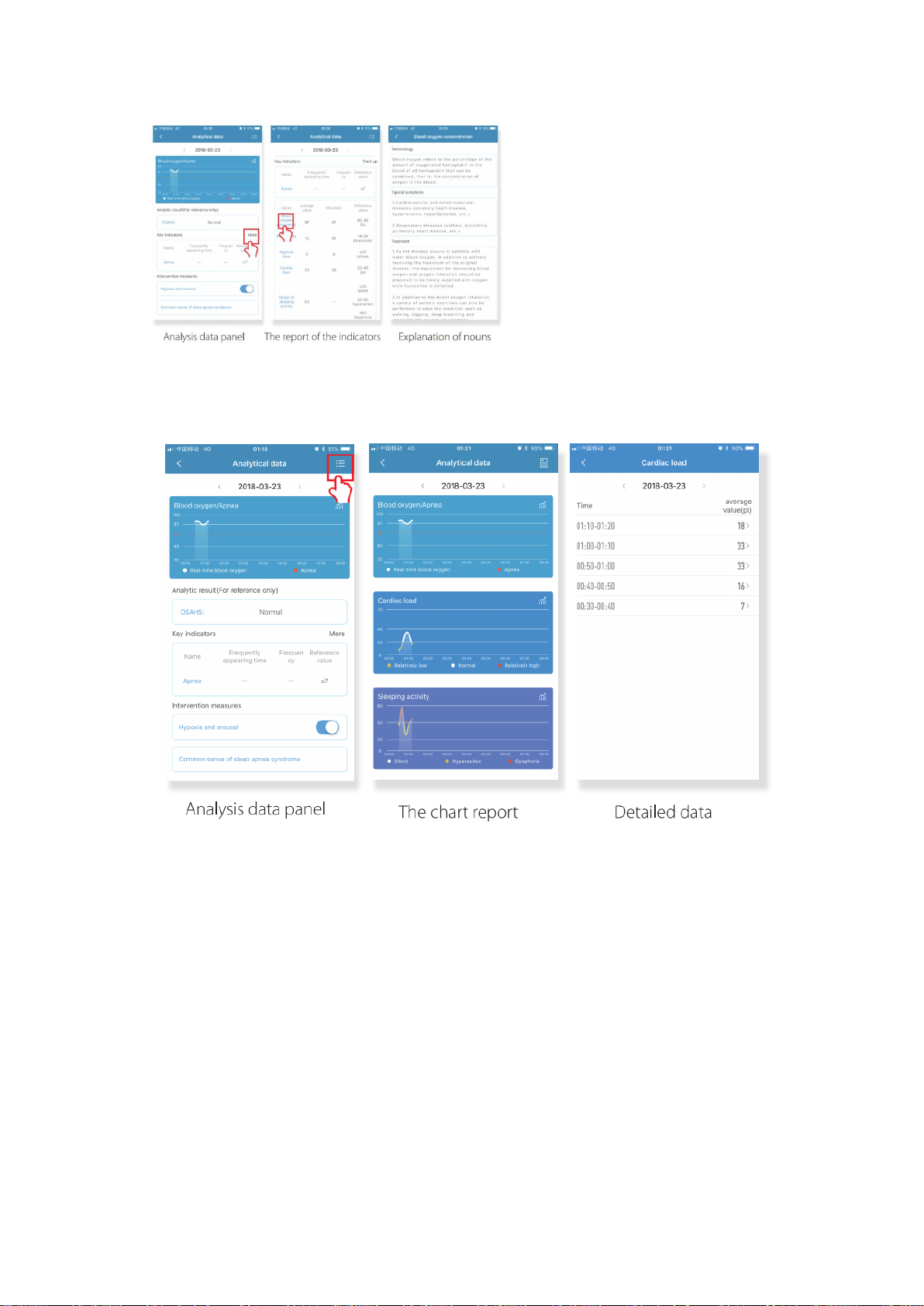
(4) Click icon, Enter the analysis data panel, To view about the blood oxygen/apnea, cardiac load,
sleep activity, pulse variability, respiratory rate, low oxygen time several big module chart
report, click on the name of each report, and to view the corresponding detailed data.
(5) Turn on the “hypoxic wake” switch on “intervention” , When the equipment detected the
blood oxygen continues too low. may be affect your health, the equipment will vibrate the
reminder for notification.
(6) Click at the bottom of the panel “breath pauses common sense”, Can see the “apnea
syndrome” related content.
F. HRV
If you need to know wear time ”heart rate variability” (According to the changes of each cycle of
heart rate, reflecting the degree of heart rate changes, law, you can determine its impact on
cardiovascular activity). In the app setting, Open the HRV night monitor switch, the equipment
will monitor the HRV data from 00:00-07:00 in real time, the reference index can be viewed in
detail in the APP data pane.
(1) Open the HRV data panel, you can view the HRV heath index, based on the monitoring data
Page 5
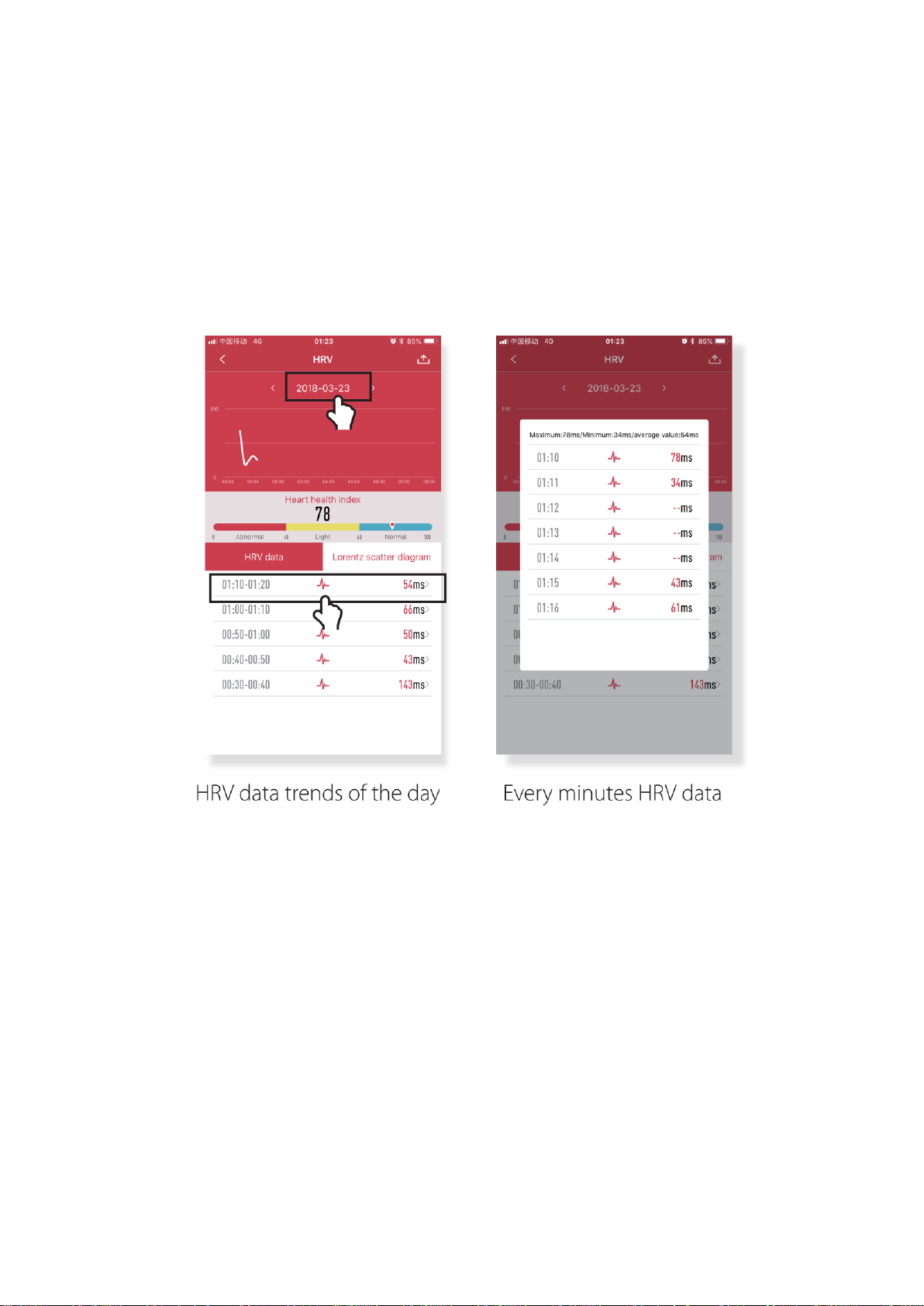
to determine whether the user is abnormal. Fatigue, tension, or excitement, The exponent is
notmal, indicating that the user is in a relaxed state.
(2) Select the date on the data panel to wear the bracelet, can check out the daily HRV data
charts. Sliding HRV data charts, can see the average difference in heartbeat cycles per 10
minutes.
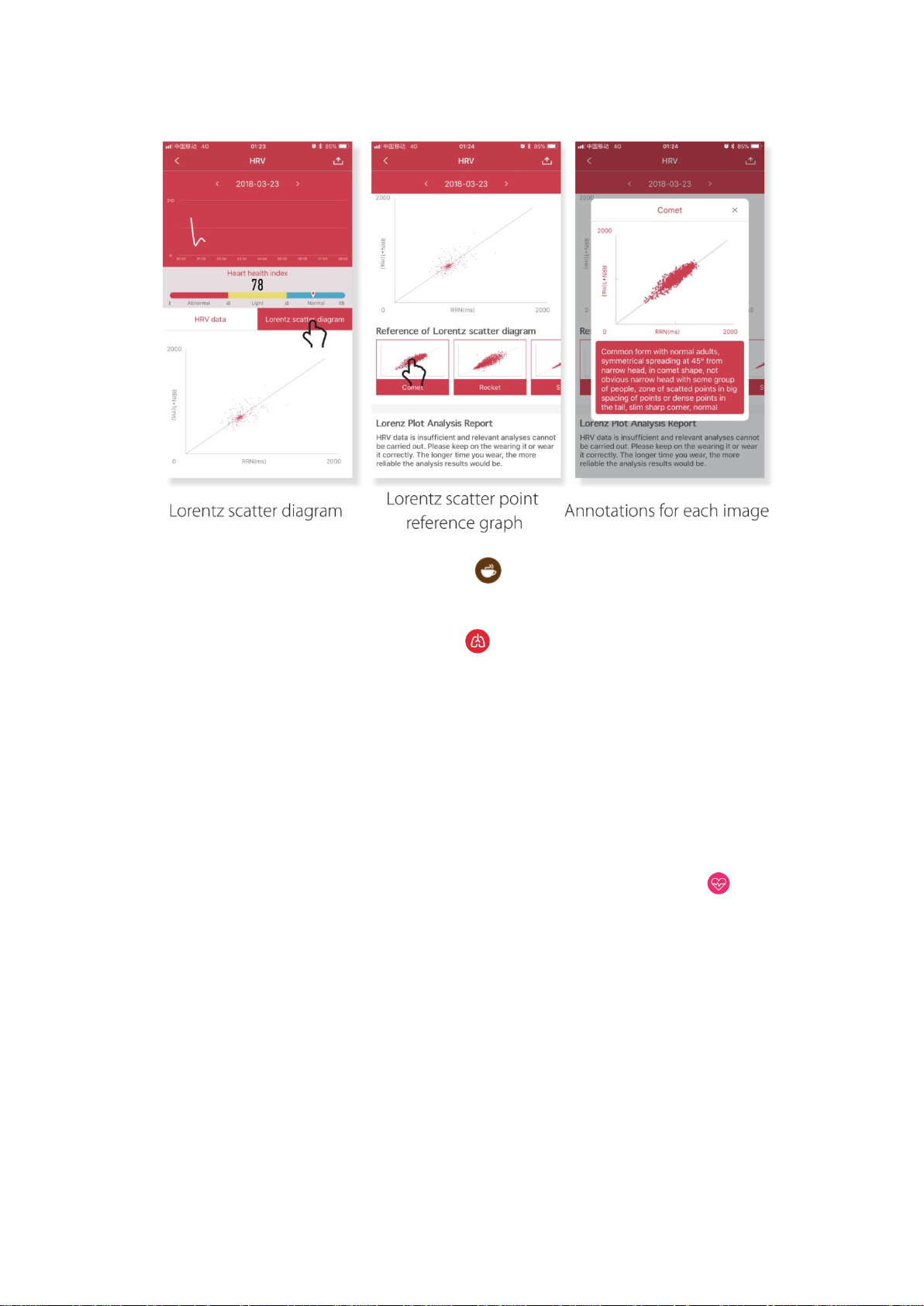
(3) At the bottom of the data panel, you can look at the HRV data for each minute, Lorentz
scatter diagram(Compare the same lorentz scatter reference graph and click the comment for
each image).
Page 6
G. At the bottom of the APP’s data pane, click enter into the fatigue test interface, After
the test, select whether or not to save the test results according to the popup window.
H. At the bottom of the APP’s data pane, Click enter into the respiratory rate test interface.
The test duration is one minute. Please maintain the correct posture during the test. The test
result will not be saved.
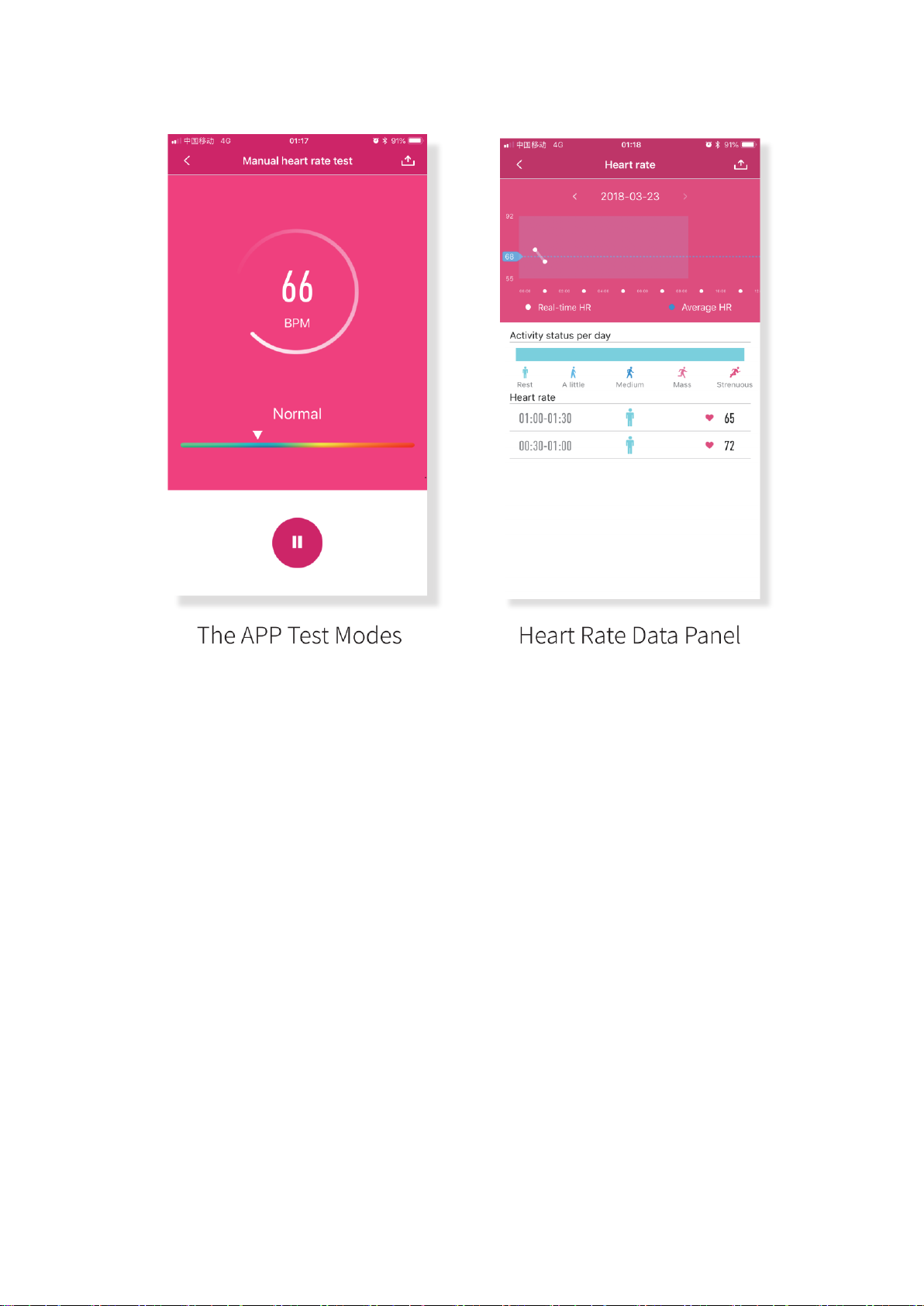
I. Manual Heart Rate Test and Automatic Monitoring
On heart rate detection manual page, device will detect automatically. The device will constantly
on the screen. After accumulating data for 60 seconds, the device will enter into standby mode
and this is not dependent upon receiving results to the test. The data tested through the device
will not be saved.
User can find the Heart Rate Icon at the bottom of the APP interface. Tap the icon and the
device enters the manual Heart Rate Test interface. While in this mode, the user can use the
device to test their heart rate manually. The data tested through the device will not be saved.
Turn on the button for the 24 hours automatic heart rate test through APP, then the device will
automatically capture the Heart rate of the user every ten minutes and will present captured data
every 30 minutes. After syncing, the result and details will be presented through the APP.
Page 7
J. .Sleep Monitoring
On sleep detection page, show total sleepy hours, display off in 5 seconds if no action in this
period.
K. Phone Tracking
“H Band” must be running in the background on the phone to use this feature. To track their
phone, the user must turn the device Mode to “seek phone.” A long press on the touch area will
cause the phone to respond.
L. Stopwatch
The stopwatch can be switched on using the Stopwatch function in the APP. Once it is turned on,
the device will go into Stopwatch mode. While the stopwatch is running, tap on the touch area to
pause or continue the count. Another long press stops the count.
Attention: While in stopwatch mode, all rest reminders and pushes notifications will be
temporarily blocked. The maximum time-count reaches up to 99 min 59 sec.
M. Count-Down
After setting countdown mode the count-down begins, A sand clock will display on the device will
Page 8

display on the device screen, and the device will vibrate both when count-down begins and
finishes. A quick start switch can also be set for high frequency events. A long hold on the touch
area will initiate the count-down quick start.
N. Alarm Clock and Events Reminder
Multiple alarms can be set through “Settings” in the APP. Snooze reminders for the alarms can be
set within the APP. This function can also add tags for important things which happening in the
future. When set time arrives, the device will vibrate and show those tags.
O. Notifications/Pushes
When a new message arrives, the device vibrates and the screen shows relevant notifications and
corresponding icons.
Attention: please switch on APP notifications first; Relevant communication tools should be set to
allow contents to be shown on the device screen.
P. Call reminder
The device will remind you with vibration when you have a coming call.Short press to mute, long
press to reject the call.
Q. Sedentary reminder
This function can be turned on using the APP. The user can set a time value for the warning .
When the device detects that the user has sat or kept still for the set time limit, the device will
vibrate to remind the user to move around.
R. Heart Rate Warning
Using the APP, the user can choose to turn on the heart rate warning and preset the upper limit
of their heart rate. If the device detects that the user's heart rate has reached or exceeded the
preset value, it will vibrates and display the following icon on the device screen.
S. Remote Photograph
To use the device to take a remote photograph, the user can turn on the Camera Mode in
the APP, then quickly shaking the waist.
T. Waterproof
The waterproof of this device is IP67, suitable for hands washing, rain or cold shower, not
suitable for plunge, dive or soak.
Page 9
U. Low power state
When the bracelet is too low, to avoid power consumption too fast and influence use, the
monitoring function of heart rate, blood oxygen and sleep will be automatically blocked.
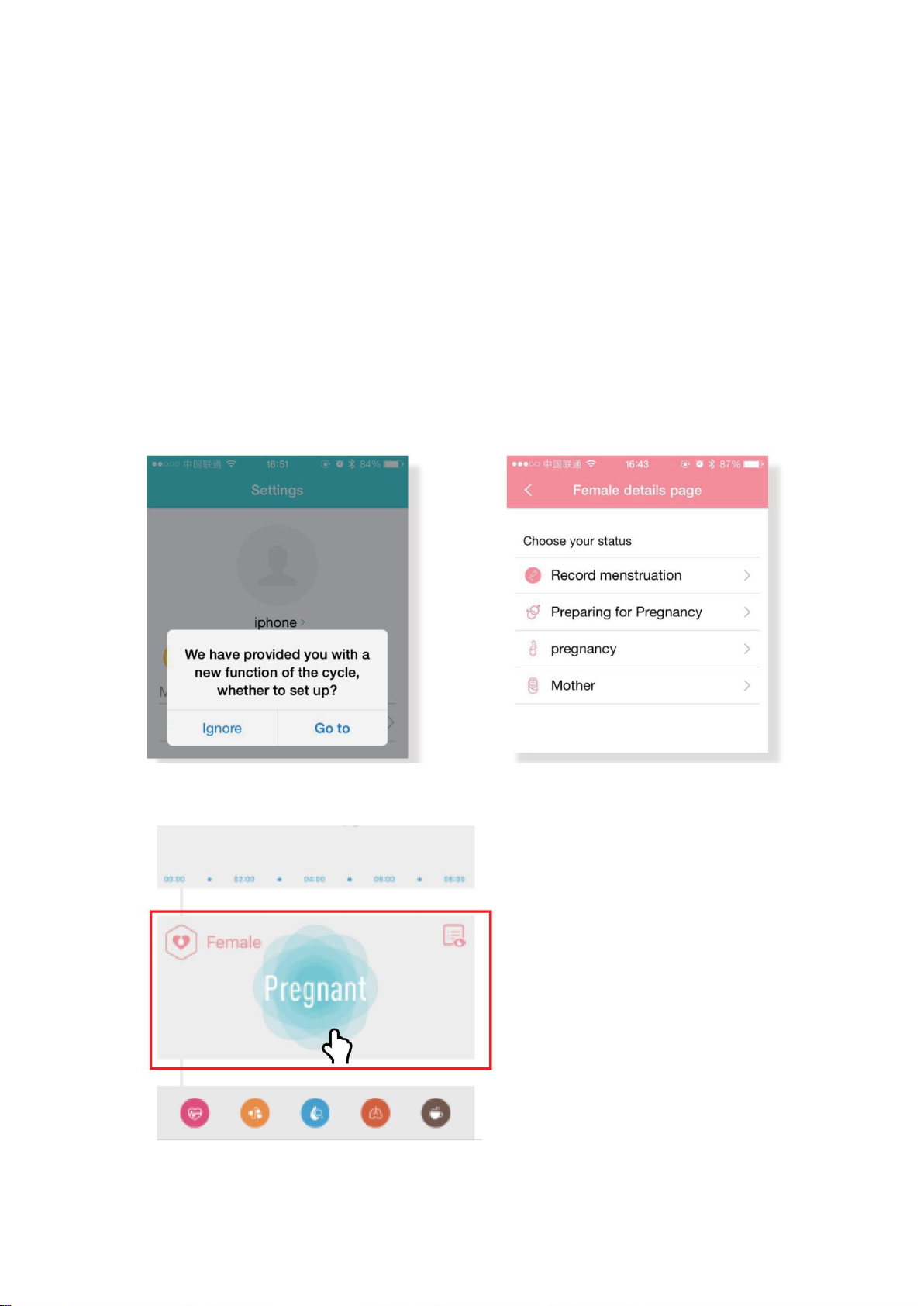
V. Physiological Period Reminder
This feature can be used as a timely reminder of the user’s different physiological states.
Note: This function is only available in Chinese/Englise system.
1).How to turn on the function?
User can set their gender in their profile within the APP. If the gender is “female”, the system
reminds the user promptly to set up her physiological period (If unnecessary then tap to skip).
There are four statuses for female physiological period. They are “Period”, “Preparing for
Pregnancy”, “Pregnancy”, “Postpartum”. User information and status will be saved in the APP.
2).How to modify current physiological status on user’s device?
Change the settings through the female section on the APP dashboard.
Page 10

3).How to change di erent physiological states?
Tap and enter into the “Personal Settings”, then pull down the list to the right bottom. Enter via
the
physiological status icon to adjust settings.
4). Icon shows
Menstrual period safe period Ovulatory period Ovulation date
4. Notes
1) Do not use a charger with a current greater than 5V2A. Charging time is 90 minutes;
2) Do not charge if the device is water damaged;
3) This is an electronic monitoring product; data received from it cannot be used as medical
reference and is for reference only;
4) The photoelectric sensor is a highly-sensitive component, and should be careful not to be
damaged by hard objects. The device may be sweat stained or have dust attached after wearing it
for a period of time. User can use soft cloth to clean regularly.
Page 11

5. Q&A
Q: What if the update fails?
A:If the initial upgrade fails, please reconnect the device “Dfulang.” The system will automatically
begin the update.
Q: Why is the sleeping heart rate test result inaccurate?
A: Wearable device monitors human activities through electronic sensors, and they are at the
consumer electronics level. It’s normal for certain deviation. The user should treat data
objectively.
Q: Where to set APP permissions?
A: Android Phone ‒ Settings ‒ Find “H Band” Application ‒ Set to “Trust this software.”
1. If the phone has a Security Management or Clean Up APP, please add the “H-Band” application
to the White List (Trusted List).
2. In System Settings, under Permission Manager, set “H Band” as a trusted application in order
to allow phone calls and incoming messages to be shown on the device display.
Q: How to set the time display?
A: The device will match the time display format of the phone when synced.
Q: How to set the language?
A: By changing the telephone language to change the APP’s language.
Q: How to set the password?
A:Long press the touch area for 6 seconds while in the sleep mode . The device will vibrate and
the password will be restored to“0000”.
6. Specifications
Model: Tap
Chipset: NORDIC 52832
HR / Oxygen Sensor: OSRAM SFH7060
Weight: 24.5g
Data Transfer: Bluetooth 4.0
Page 12

Battery: Polymer Lithium
Volume of Battery: 150mAh
Charging Voltage: 5V
Charging Current: 100mA
Working Temperature: -10℃-45℃
Waterproof: IP67
Device Requirement: Android 4.4/above; Bluetooth 4.0;
iPhone 4S/above, iOS 8.0/above;
7. FCC Warning
Warning: Changes or modifications to this unit not expressly approved by the party responsible
for compliance could void the user’s authority to operate the equipment.
This device complies with Part 15 of the FCC Rules. Operation is subject to the following two
conditions: (1) this device may not cause harmful interference, and (2) this device must accept
any interference received, including interference that may cause undesired operation.
Note: This equipment has been tested and found to comply with the limits for a Class B digital
device, pursuant to part 15 of the FCC Rules. These limits are designed to provide reasonable
protection against harmful interference in a residential installation. This equipment generates,
uses and can radiate radio frequency energy and, if not installed and used in accordance with the
instructions, may cause harmful interference to radio communications. However, there is no
guarantee that interference will not occur in a particular installation. If this equipment does
cause harmful interference to radio or television reception, which can be determined by turning
the equipment off and on, the user is encouraged to try to correct the interference by one or
more of the following measures:
-- Reorient or relocate the receiving antenna.
-- Increase the separation between the equipment and receiver.
-- Connect the equipment into an outlet on a circuit different from that to which the receiver is
connected.
-- Consult the dealer or an experienced radio/TV technician for help.
 Loading...