

Page 1
Quick Start Guide
Designed and Engineered By
TheOontZ.com
Page 2
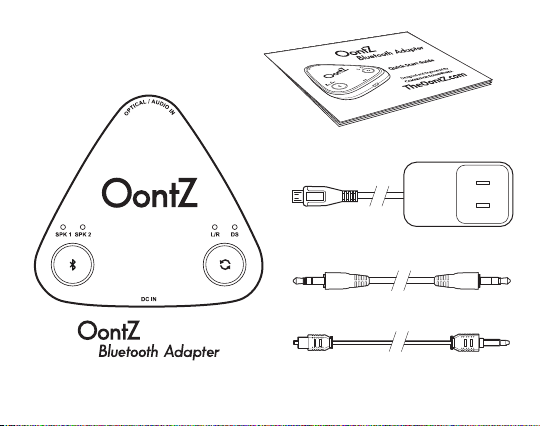
In the Package
Quick-Start Guide
Micro USB Power Cable
3.5mm Audio Cable
Digital Audio Optical Cable
Page 3

Table of Contents
Buttons, Lights, Connectors
Connecting with Television, Game Consoles or AV Equipment
Connecting with Devices Using 3.5mm Stereo Audio Cable
Powering OontZ Bluetooth Adapter
Pair & Connect with One Dual Wireless Capable OontZ Speaker
Pair & Connect with Two Dual Wireless Capable OontZ Speakers
Pair & Connect a Second Dual Wireless Capable OontZ Speaker
OontZ Bluetooth Adapter - Connect Two Dual Stereo
Capable OontZ Speakers Together
OontZ Bluetooth Adapter - Important Notes
Troubleshooting
Reset Function
Contacting Customer Support
Safety and Precautions
Pages
1
2 - 3
4
5
6
7
8
9 - 11
12 - 13
14
15
16
17 - 18
Page 4
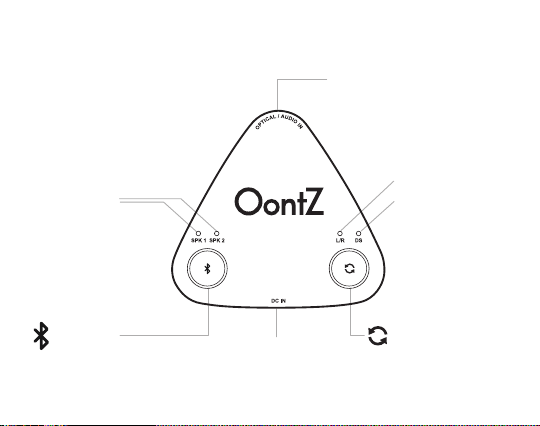
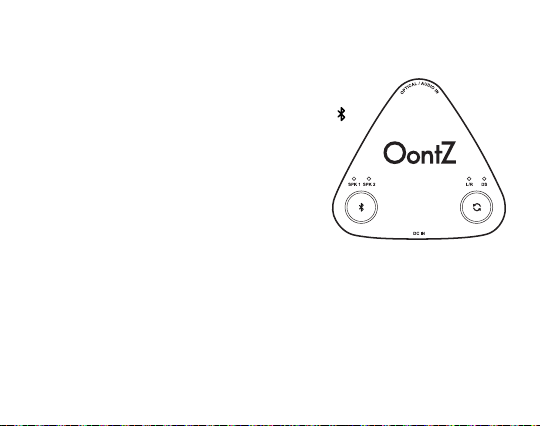
Buttons, Lights, Connectors
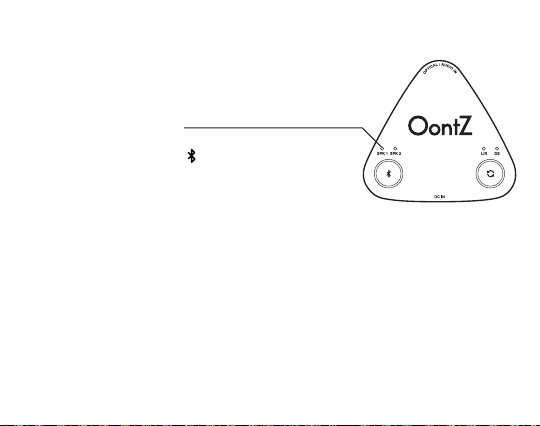
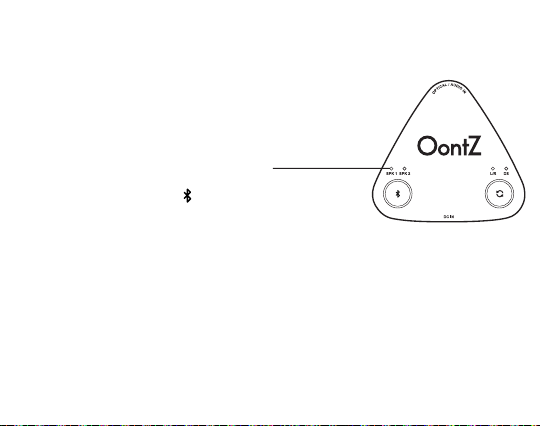
SPK 1 only Flashing Blue
- Ready for Bluetooth pairing
SPK 1 and SPK2
Alternating Flashing Blue
- In Bluetooth pairing mode
SPK 1 only Solid Blue
- One speaker connected
SPK 1 and SPK2
Both Solid Blue
- Two speakers connected
Bluetooth
Micro USB
Power Adapter
Connection
Analog Audio or
Digital Optical Input
White Light lit
Left Channel Right Channel mode
Orange Light lit
Dual Stereo mode
Selection between
Left Channel - Right
Channel mode and
Dual Stereo mode
when two speakers
are paired
Page 1
Page 5
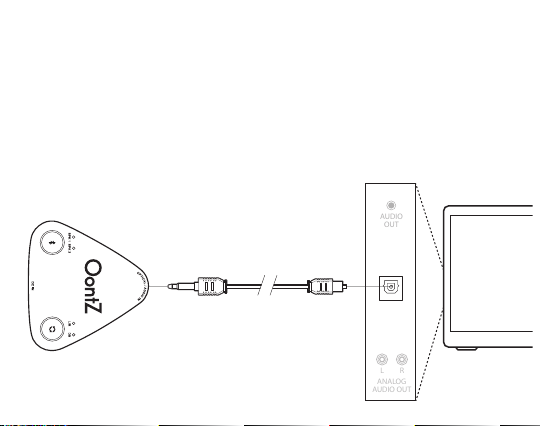
Connecting with Televisions, Game Console or
ANALOG
AUDIO OUT
L R
AUDIO
OUT
AV Equipment Using Digital Audio Optical Cable
- Plug end of the digital optical audio cable with longer end into the Optical/Audio In Jack
on the OontZ Bluetooth Adapter.
- Plug end of the digital optical audio cable with shorter end into the Optical - Digital
Audio Out on your device.
- Make sure both ends of the cable are fully inserted
- You are now ready to play.
OPTICAL
Digital Audio Optical cable is included
DIGITAL
AUDIO OUT
Page 2
Page 6
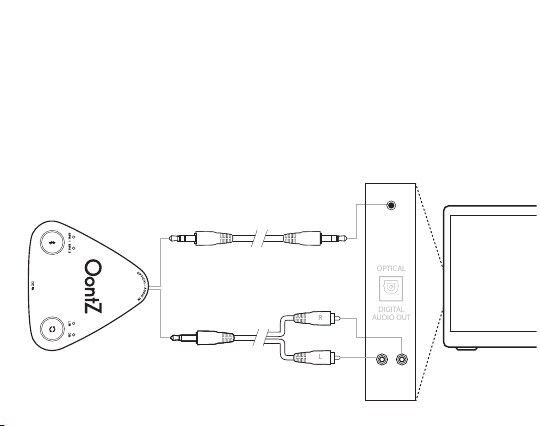
Connecting with Televisions, Game Console or
DIGITAL
AUDIO OUT
OPTICAL
L
R
AV Equipment Using 3.5mm Stereo Audio Cable
- Plug one end of a 3.5mm stereo audio cable into the Optical/Audio In Jack on the OontZ
Bluetooth Adapter.
- Plug the other end of that 3.5mm stereo audio cable into the Headphone or Audio-Out
jack on your device.
- Make sure both ends of the cable are fully inserted
- You are now ready to play.
3.5mm to 3.5mm audio cable (included)
OR
AUDIO
OUT
3.5mm to RCA audio cable is sold seperately
and is available at:
TheOontZ.com/accessories
L R
ANALOG
AUDIO OUT
Page 3
Page 7
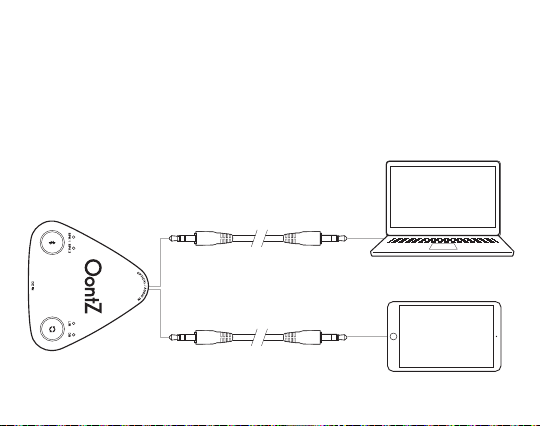
Connecting with Devices Using 3.5mm Stereo Audio Cable
- Plug one end of a 3.5mm stereo audio cable into the Optical/Audio In Jack on the OontZ
Bluetooth Adapter
- Plug the other end of that 3.5mm stereo audio cable into the Headphone or Audio-Out
jack on your device
- Make sure both ends of the cable are fully inserted
- You are now ready to play.
OR
Page 4
Page 8
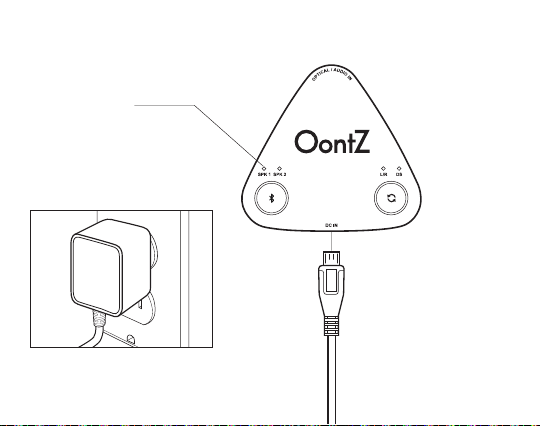
Powering OontZ Bluetooth Adapter
Blue Light lit
when powered:
- Slowly flashing Blue
ready to pair
- Solid Blue
paired with Dual Stereo
capable OontZ speaker
- Connect the wall plug end of the
Charging Cable into a power outlet.
- Insert the small end of
the Micro USB Charging
Cable into the DC In
Connector as shown.
Page 5
Page 9
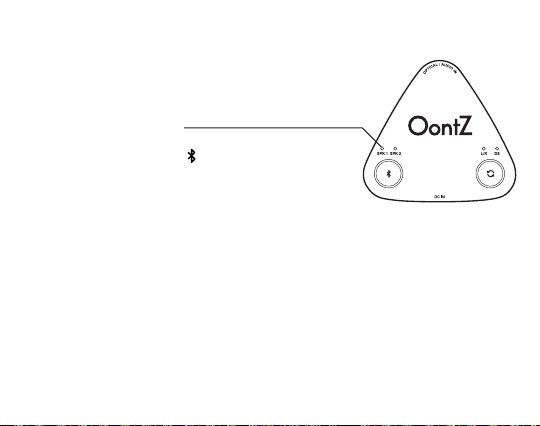
Pair & Connect with One Dual Stereo Capable OontZ speaker*
Connect your OontZ Bluetooth Adapter to power with
the micro-USB power adapter
Turn ON your Dual Stereo capable OontZ speaker
SPK1 - Flashing Blue Light
- The OontZ Bluetooth Adapter is ready to pair and connect.
- Press the Bluetooth button for at least one second.
SPK1 and SPK2 - Alternating Flashing Blue Lights
- The OontZ Bluetooth Adapter is in pairing mode and
searching for Dual Stereo capable OontZ speaker.
SPK1 - Solid Blue Light and SPK2 - Flashing Blue Light
- The OontZ Bluetooth Adapter is paired your Dual Stereo capable OontZ
speaker and searching for the another Dual Stereo capable OontZ speaker.
- Will time out after 60 seconds if no other speaker is found.
SPK1 - Solid Blue Light and SPK2 - No Light
- Your Speaker has connected to the OontZ Bluetooth Adapter and is ready to play.
- The OontZ Bluetooth Device allows the last speakers it was connected with to automatically
reconnect each time the speaker is turned on and that device is within range. *
- Your OontZ Bluetooth Adapter needs to be within 100 unobstructed feet of the Dual Stereo
capable OontZ speakers to pair and connect. If there is an issue when connecting please
move your speakers closer to the OontZ Bluetooth Adapter, then pair and connect.
Page 6
Page 10
Pair & Connect with Two Dual Stereo Capable OontZ speakers*
Connect your OontZ Bluetooth Adapter to power with the
micro-USB power adapter
Turn ON both of your Dual Stereo capable OontZ speakers
SPK1 - Flashing Blue Light
- The OontZ Bluetooth Adapter is ready to pair and connect.
- Press the Bluetooth button for at least one second.
SPK1 and SPK2 - Alternating Flashing Blue Lights
- The OontZ Bluetooth Adapter is in pairing mode and
searching for both Dual Stereo capable OontZ speakers.
SPK1 - Solid Blue Light and SPK2 - Flashing Blue Light
- The OontZ Bluetooth Adapter is paired to one of the speakers and searching
for the othe speaker.
SPK1 and SPK2 - Solid Blue Light
- OontZ Bluetooth Adapter has connected to both Dual Stereo capable OontZ
speakers and is ready to play.
- The OontZ Bluetooth Device allows the last speakers it was connected with to automatically
reconnect each time the speaker is turned on and that device is within range. *
- Your OontZ Bluetooth Adapter needs to be within 100 unobstructed feet of the Dual Stereo
capable OontZ speakers to pair and connect. If there is an issue when connecting please
move your speakers closer to the OontZ Bluetooth Adapter, then pair and connect.
Page 7
Page 11
Pair & Connect a Second Dual Stereo Capable OontZ speaker*
A single Dual Stereo capable OontZ speaker is already paired
with the OontZ Bluetooth Adapter and a new second Dual Stereo
capable OontZ speaker needs to also be paired.
Connect your OontZ Bluetooth Adapter to power with the
micro-USB power adapter
Turn ON both of your Dual Stereo capable OontZ speakers
SPK1 - Solid Blue Light and SPK2 - No Light
- Original speaker is connected to the OontZ Bluetooth Adapter.
- Press the Bluetooth button for at least one second.
SPK1 - Solid Blue Light and SPK2 - Flashing Blue Light
- The OontZ Bluetooth Adapter is in pairing mode and searching
for second Dual Stereo capable OontZ speakers.
SPK1 and SPK2 - Solid Blue Light
- OontZ Bluetooth Adapter has connected to both Dual Stereo capable
OontZ speakers and is ready to play.
- The OontZ Bluetooth Device allows the last speakers it was connected with to automatically
reconnect each time the speaker is turned on and that device is within range. *
- The Dual Stereo capable OontZ speakers must be the same model of speaker. For example, both
could be OontZ Angle 3 ULTRA speakers, but not one an OontZ Angle 3 ULTRA speaker and one an
OontZ Angle 3 RainDance speaker.
- Your OontZ Bluetooth Adapter needs to be within 100 unobstructed feet of the Dual Stereo capable
OontZ speakers to pair and connect. If there is an issue when connecting please move your
speakers closer to the OontZ Bluetooth Adapter, then pair and connect.
Page 8
Page 12
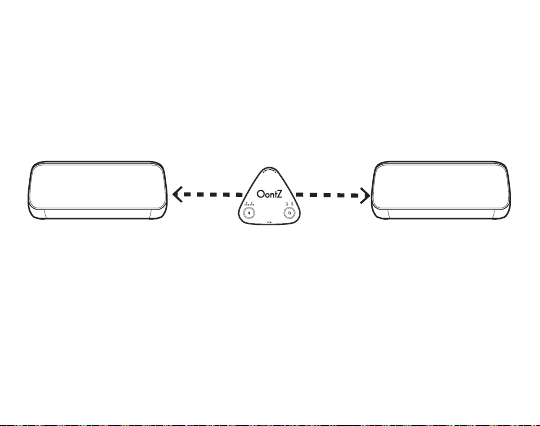
OontZ Bluetooth Adapter -
Connect Two Dual Stereo Capable Speakers Together
Play your music wirelessly with Left - Right stereo
separation up to 100 feet apart from connected device
Left Channel Right Channel
Left Channel - Right Channel
for stereo separation
*Placing the speakers on the ground or having walls or obstructions between the
speakers will significantly reduce the distance apart the two speakers can play together
*
Page 9
Page 13
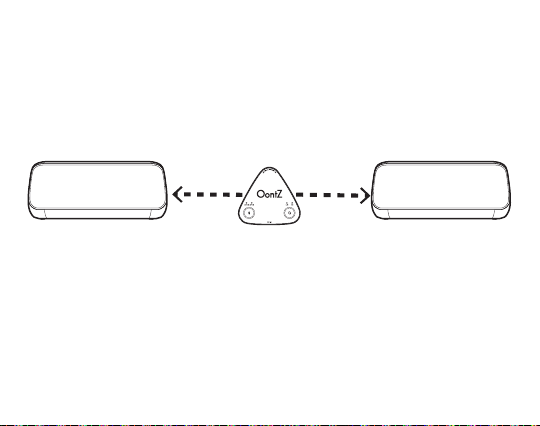
OontZ Bluetooth Adapter -
Connect Two Dual Stereo Capable Speakers Together
Play your music wirelessly in Dual Stereo
with each speaker up to 100 feet apart
Full Stereo Full Stereo
*
Dual Stereo
for full stereo in separate areas
*Placing the speakers on the ground or having walls or obstructions between the
speakers will significantly reduce the distance apart the two speakers can play together
Page 10
Page 14

Changing to Left Channel - Right Channel from Dual Stereo
Use Left Channel - Right Channel wanting when placing the two speakers
in the same area to have stereo seperation.
- With the speakers connected together for Dual Stereo, Orange Light will be lit.
- To change to Left Channel - Right Channel, press the button.
White Light will be lit and the Orange Light will turn off.
will say “Left Channel” and SPK2 will say “Right Channel” and you are ready to play.
- SPK1
Changing to Dual Stereo from Left Channel - Right Channel
Use Dual Stereo when placing the two speakers in different areas,
and both speakers will play in full stereo.
– With the speakers connected together for Left Channel - Right Channel.
White Light will be lit.
–
To change to Dual Stereo, press the button.
Orange Light will be lit and White Light will turn off.
–
Both speakers will say “Dual Stereo” and you are ready to play.
Page 11
Page 15

OontZ Bluetooth Adapter - Important Notes
Daul Stereo capable OontZ speakers need to have the same
version of firmware on each speaker to both pair together
with the OontZ Bluetooth Adapter.
Too check the firmware version on your speakers,
perform the below steps for each speaker.
– Step A: Power on your OontZ speaker
– Step B: Insert the 3.5mm audio cable in the Aux In Jack of the speaker, you
will hear the voice prompt: “Aux In Source”.
– Step C: Press and hold the bluetooth button on the speaker for about 5
seconds until the red light begins to flash. Release the bluetooth button.
- Count the number of times the red light flashes, then the number of
times the second colored light flashes and the number of times the third
colored light flashes.
- The same colored light on each speaker should flash the same amount of
times if the firmware is the same on both speakers. If they are not the
same, the firmware needs to be updated on one or both speakers.
For detailed instructions on upgrading the firmware and the firmware version
check for your specific OontZ speaker visit https://theoontz.com/pages/firmware.
Select your specific speaker on the page.
Page 12
Page 16

OontZ Bluetooth Adapter - Important Notes (continued)
Speaker Power
–
Using battery power - speakers will power off after 30 minutes of no
audio being played.
– C
onnected to power source using micro USB charging cable - speakers
will remain powered on.
– Turn speakers on and they will automatically try to connect to the OontZ
Bluetooth Adapter.
The volume control on your device and the speakers work independently of
each other. To play the speaker at the loudest volume, set the volume on your
device to maximum and raise the volume on the speaker to maximum.
Page 13
Page 17

Troubleshooting
My adapter will not power on.
– Please make sure the adapter is plugged into a wall outlet with the units Micro USB
charging cable and see if the SPK1 LED indicator turns blue.
I am having trouble pairing and connecting to my Bluetooth device.
Please check the following:
– Your speakers are both Dual Wireless capable OontZ speakers as listed on
www.theoontz.com.
– The adapter and your speakers are within an unobstructed 100 feet / 30 meters from
each other.
– The adapter is in pairing mode; this is indicated by the SPK1 and SPK2 blue LED
flashing alternately.
After connecting and pairing with my Bluetooth® device, I cannot hear
any music from my sound system. Please check the following:
– Your device is connected to the adapter via the 3.5mm Audio Cable or Digital Audio
Optical Cable.
– Make sure the music volume is at an audible level on both your speakers and device.
– Please make sure the settings for your device are enabled for the line-out/headphone
out or the Digital Audio out (depending on the cable you have connected to the OontZ
Bluetooth Adapter). Some devices (such as computer) require manually selecting the
audio output mode.
Page 14
Page 18
Reset Function
Step 1 : Connect power to the OontZ Bluetooth Adapter.
Step 2 : Press and hold down the Bluetooth button
for 5 seconds, then release.
Step 3 : The OontZ Bluetooth Adapter has now
been reset.
Step 4 : Pair with Dual Wireless capable OontZ
speakers (Refer to Pair and Connect instructions
on Pages 6, 7, and 8)
Page 15
Page 19

Customer Support
If you have a question about your OontZ Bluetooth Adapter or
experience an issue with the adapter, our Customer Support Team
wants to assist you.
For online troubleshooting tips please visit:
TheOontZ.com/troubleshooting
and select the OontZ Bluetooth Adapter
Contact us at:
TheOontZ.com/support
and fill in our customer support form
Page 16
Page 20

Safety and Precautions
When the OontZ Bluetooth Adapter is plugged in to a power source with the Micro
1.
USB power cable, never use near water, to prevent risk of electric shock.
Read and follow all instructions – All operating and use instructions should be followed.
2.
Protect the Micro USB power cable from being pinched, particularly at the connectors.
3.
Unplug the Micro USB power cable during lightning storms or when unused for long
4.
periods of time.
Do not place adpater near any heat sources such as radiators, heat registers, stoves, or
5.
other apparatus (including amplifiers) that produce heat.
Refer all servicing to qualified personnel. Servicing is required when the speaker has
6.
been damaged in any way.
Do not make alterations to this adapter.
7.
Use this adpater only with supplied MIcro USB power cable which meets local
8.
regulatory requirements (e.g., UL, CSA, VDE, CCC) in accordance with the manufacturer’s
specifications.
Do not place near naked flame sources, such as lighted candles, on or near the speaker.
9.
Do not expose this adapter to excessive heat
10.
(e.g. from storage in direct sunlight, fire or the like)
Page 17
Page 21

Safety and Precautions (continued)
This device complies with Part 15 of the FCC Rules. Operation is subject to the
following two conditions:
(1) This device may not cause harmful interference, and (2) this device must accept any
interference received, including interference that may cause undesired operation.
NOTE 1: This equipment has been tested and found to comply with the limits for a
Class B digital device, pursuant to part 15 of the FCC Rules. These limits are designed to
provide reasonable protection against harmful interference in a residential installation.
This equipment generates, uses and can radiate radio frequency energy and, if not
installed and used in accordance with the instructions, may cause harmful interference
to radio communications. However, there is no guarantee that interference will not
occur in a particular installation. If this equipment does cause harmful interference to
radio or television reception, which can be determined by turning the equipment off
and on, the user is encouraged to try to correct the interference by one or more of the
following measures:
- Reorient or relocate the receiving antenna.
- Increase the separation between the equipment and receiver.
- Connect the equipment into an outlet on a circuit different from that to which the
receiver is connected.
- Consult the dealer or an experienced radio/TV technician for help.
NOTE 2: Any changes or modifications to this unit not expressly approved by the party
responsible for compliance could void the user's authority to operate the equipment.
Apple, iPhone, iPad, iPod, Mac and Siri are registered trademarks of Apple Inc.
Amazon, Alexa, Amazon Echo and Amazon Echo Dot are registered trademarks of Amazon.com, Inc.
Windows is a registered trademark of Microsoft Corporation
Bluetooth is a registered trademark of Bluetooth SIG, Inc
UL is a registered trademark of UL.
Page 18
 Loading...