

Page 1
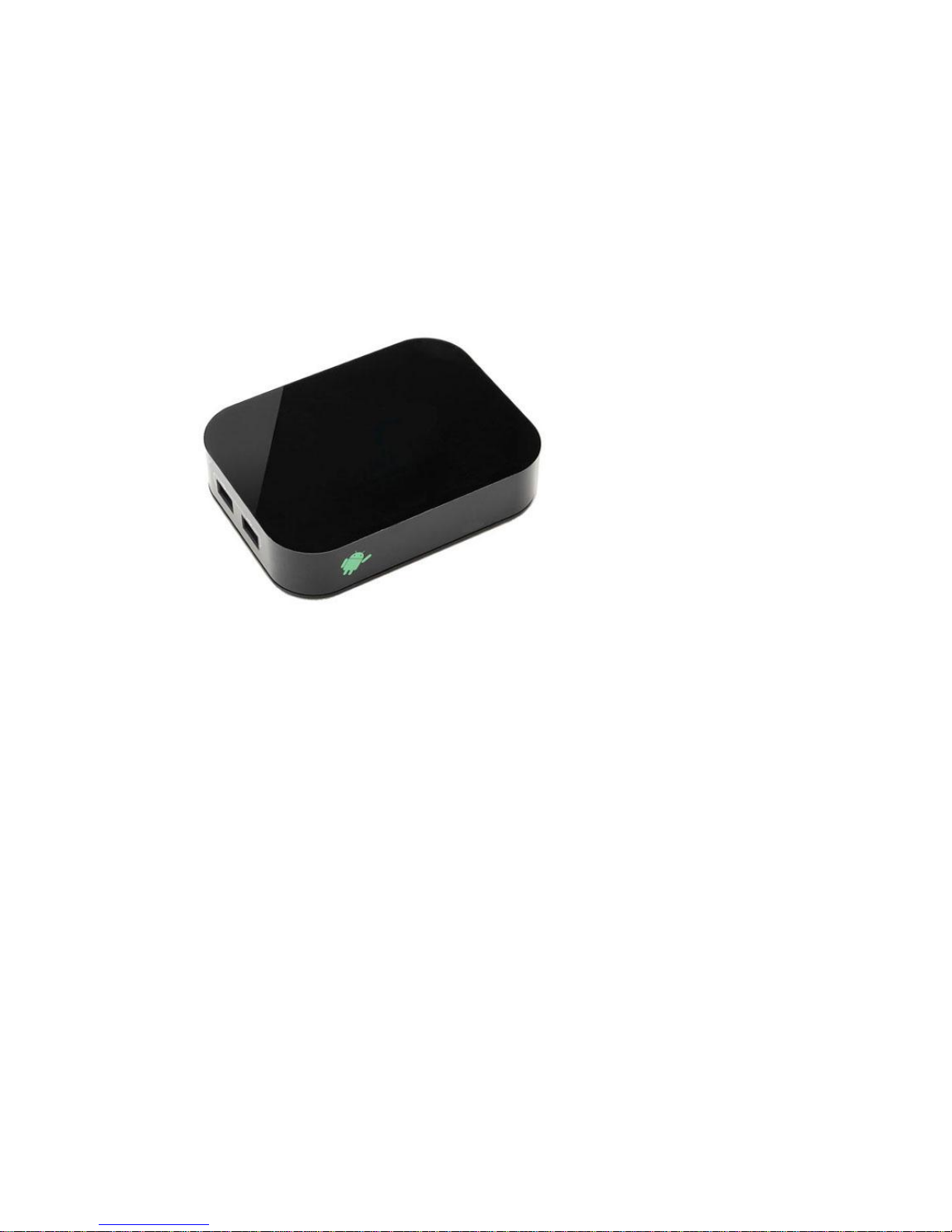
Android4.0 Media Player
User Manual
Before using this product, please read the manual carefully:
1, Suggest using 4 M or above the network connection, in order to
guarantee that the network video fluent play;
2, Suggestions to browse the network, playing games and use a variety of
applications, the use of the wireless mouse or flying squirrels, make the
operation more convenient and smooth.
Page 2

Table of Content
1. Products and accessories
1.1 Accessories
1.2 Simple Explanation of Housing
Front Panel_________________________________________________3
Back View_________________________________________________4
2. Specifications
3. Remote Control
4. INSTALL/DELETER APP
5. Menu Guide
Media Center Menu______________________________________________7
WIRELESS &Networks------------------------------------------------------------------------------DEVICE _________________________________________________________10
PERSONAL ___________________________________________________
SYSTERM ___________________________________________________
FILE BROWSER ___________________________________________________
WEB BROWSER ___________________________________________________
6. How to update the Firmware
7. Trouble shooting
Page 3
1. Products and accessories
1.1 Accessories
Accessory:
◆ Media Player
◆ Remote Control
◆ Power adapter
◆ Manual
◆ AV Cable
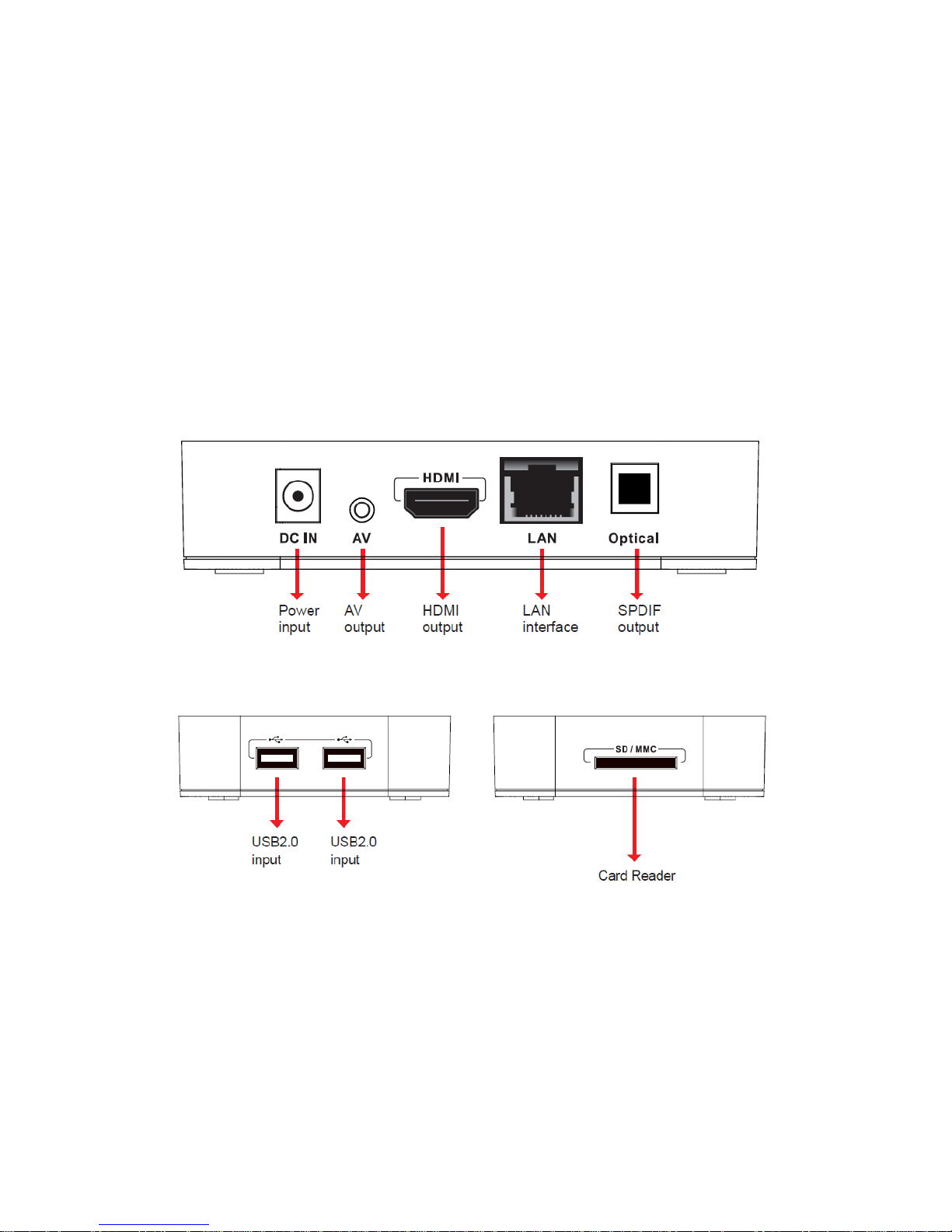
1.2 Simple Explanation of Housing
Front panel
Back View
2. Specifications
This chapter provides a brief overview of technical specifications.
Specifications:
CPU use ARM Cortex A8 architecture, CPU core frequency reaches 1.5 GHz;
The large capacity memory design to ensure that the system is running smooth,
The Android4.0 operating system, and it has good compatibility, the application in the
Page 4

mall with mass applications and games can download, want to how to play is how to
play;
Exquisite compact, easy to carry,
HDMI hd television output/color difference interconnects output output full interface;
The hardware acceleration, decoding, full hd 1080 p video format;
Built-in SD card reader;
Equipped with Wifi wireless network card and 100 m cable access network mouth,
enjoy the high-speed Internet access pleasure;
Built-in browser, meta support web site, with new style network navigation function, to
give users bring convenient, beautiful Internet experience;
Built-in file browsing system, with samda share files function;
Built-in hd broadcast files, support MPEG1/2/4, divx, h. 264, VC - 1 and ReaIVideo
etc coding video, support MKV, m2ts, ts, WMV, mp4, 3 gp, avi, dat, rm, ravb, WMV
suffix name film;
Built-in nondestructive sound instrument play software, support APE, FLAC and
common MP3 music, support the lyrics synchronous display;
3. Remote Control
Page 5
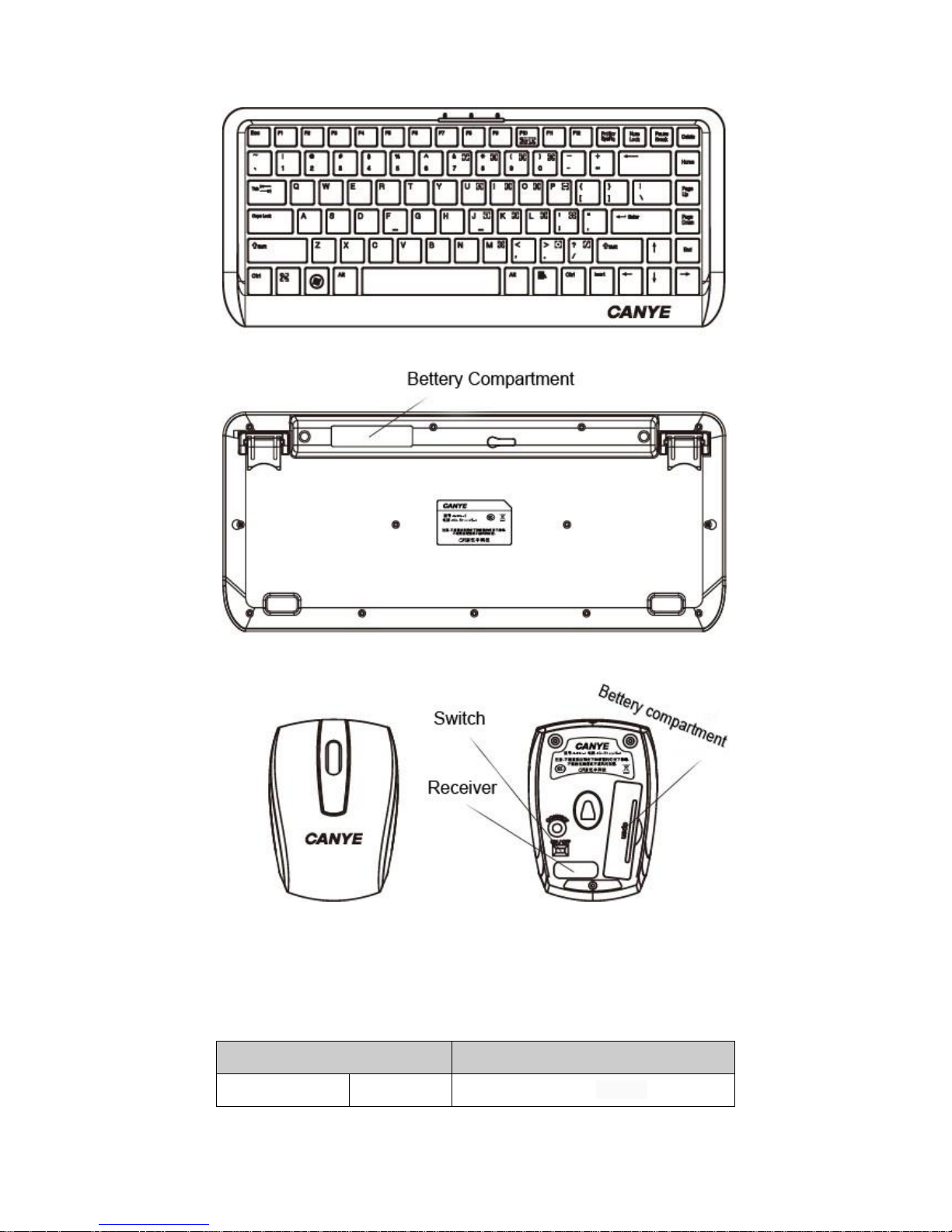
The mouse and keyboard each in a AAA battery, the mini USB receiving head inserted
into two boxes of USB port, moving the mouse bottom open about ON position, don't need
to code can be used.
The mouse function is introduced:
object
functional description
left button
Short press
Confirm/entrance
Page 6
Long press
Long according to move the mouse drag and
drop function
Text selection/copy/Paste menu
Application specific menu and function
right button------ Short press
Back/ESC
middle button
Short press
Menu
Mouse wheel
Up/down
switch
power switch
Bettery compartment
Receiver
Note: Wireless mouse and keyboard use the effective range of 10 meters, mouse need not when please
put the switches OFF position.
4. Insrall and Use
This chapter presents the user first use of this box need of cable connection and boot setting of
operation.
Attachment installed
Before use, please confirm your TV set can provide video input signal types;
Manual Guide
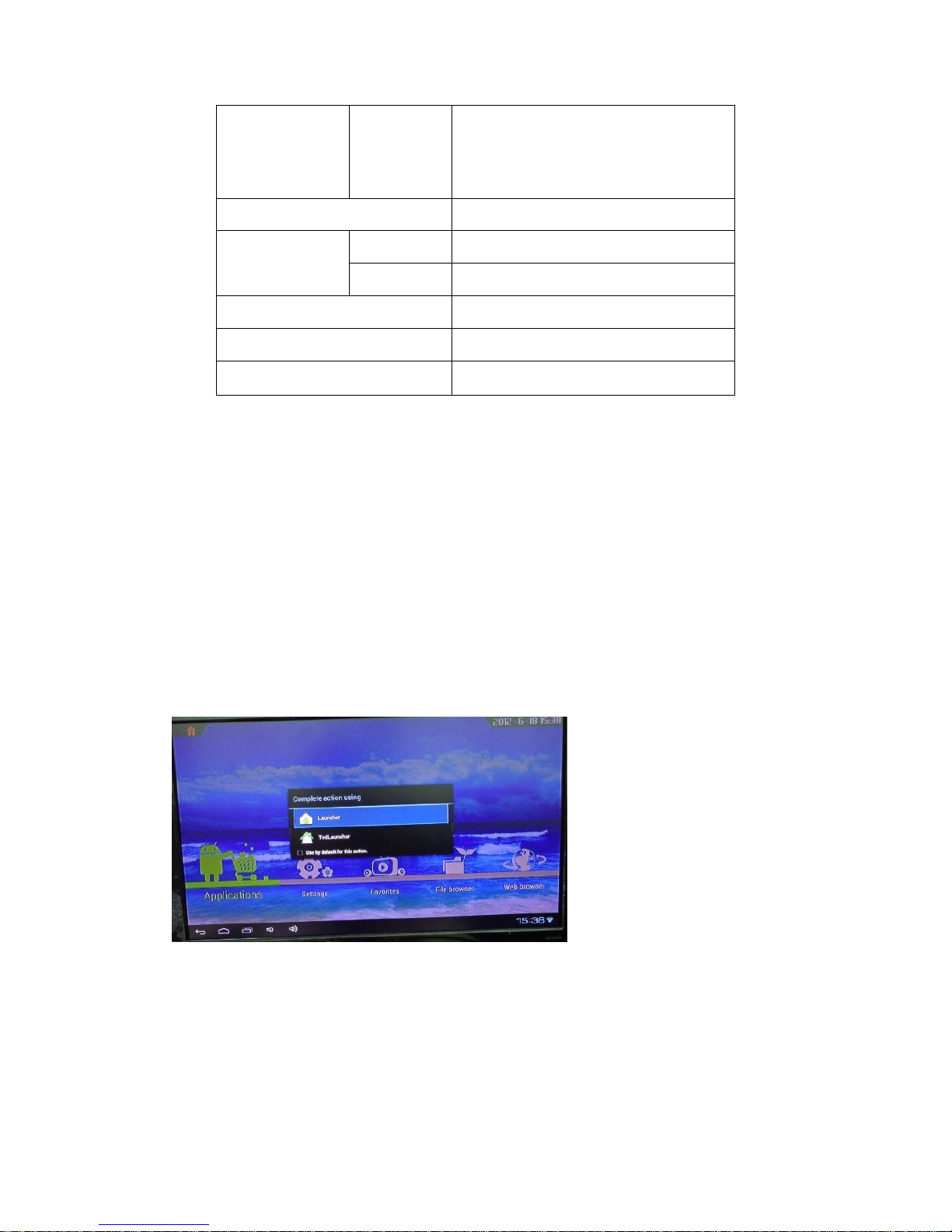
There are two ways (Launcher /TVdLauncher) to enter the main interface;
Launcher
When you select “Launcher” you will enter the interface.
Page 7
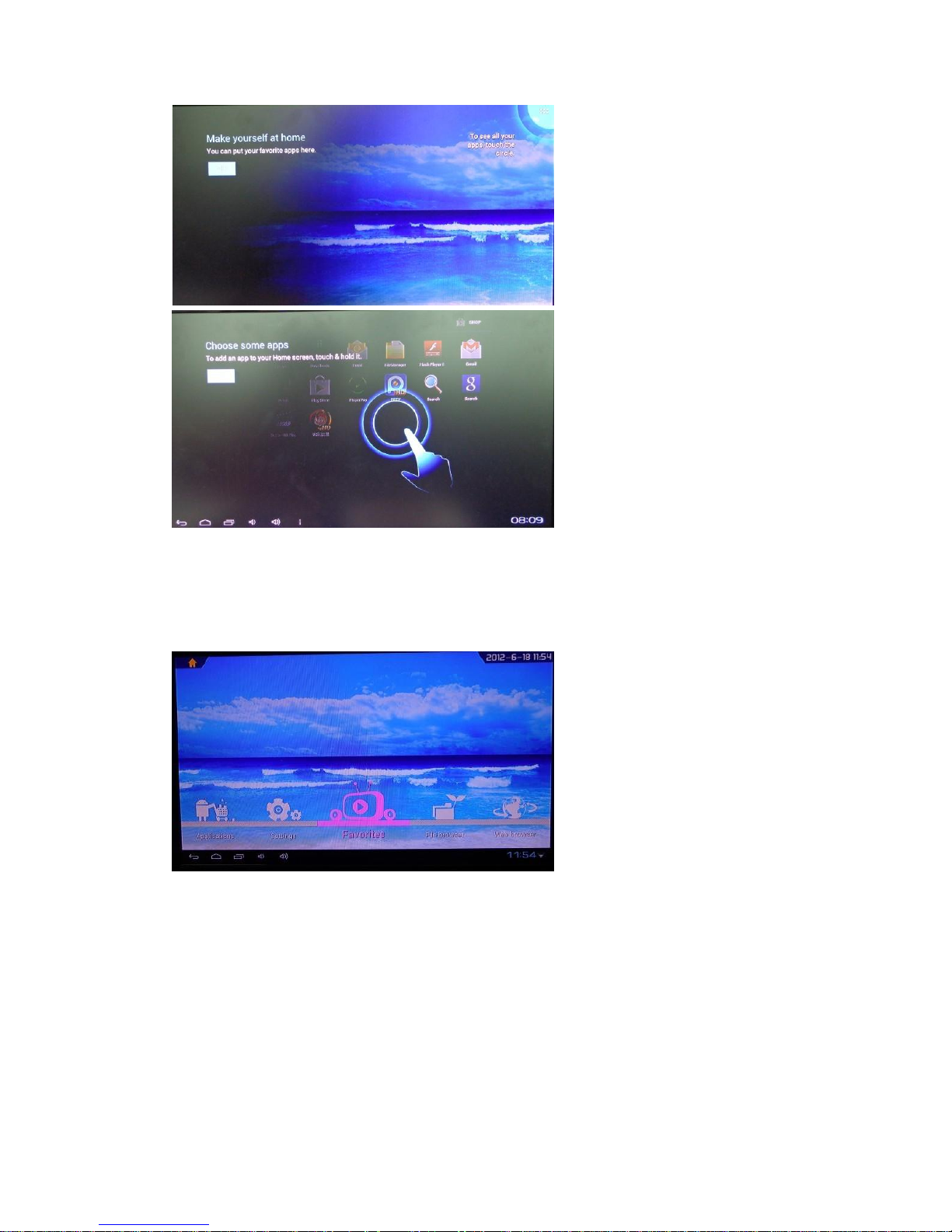
TV launcher
Media Center Menu
Applications
Page 8
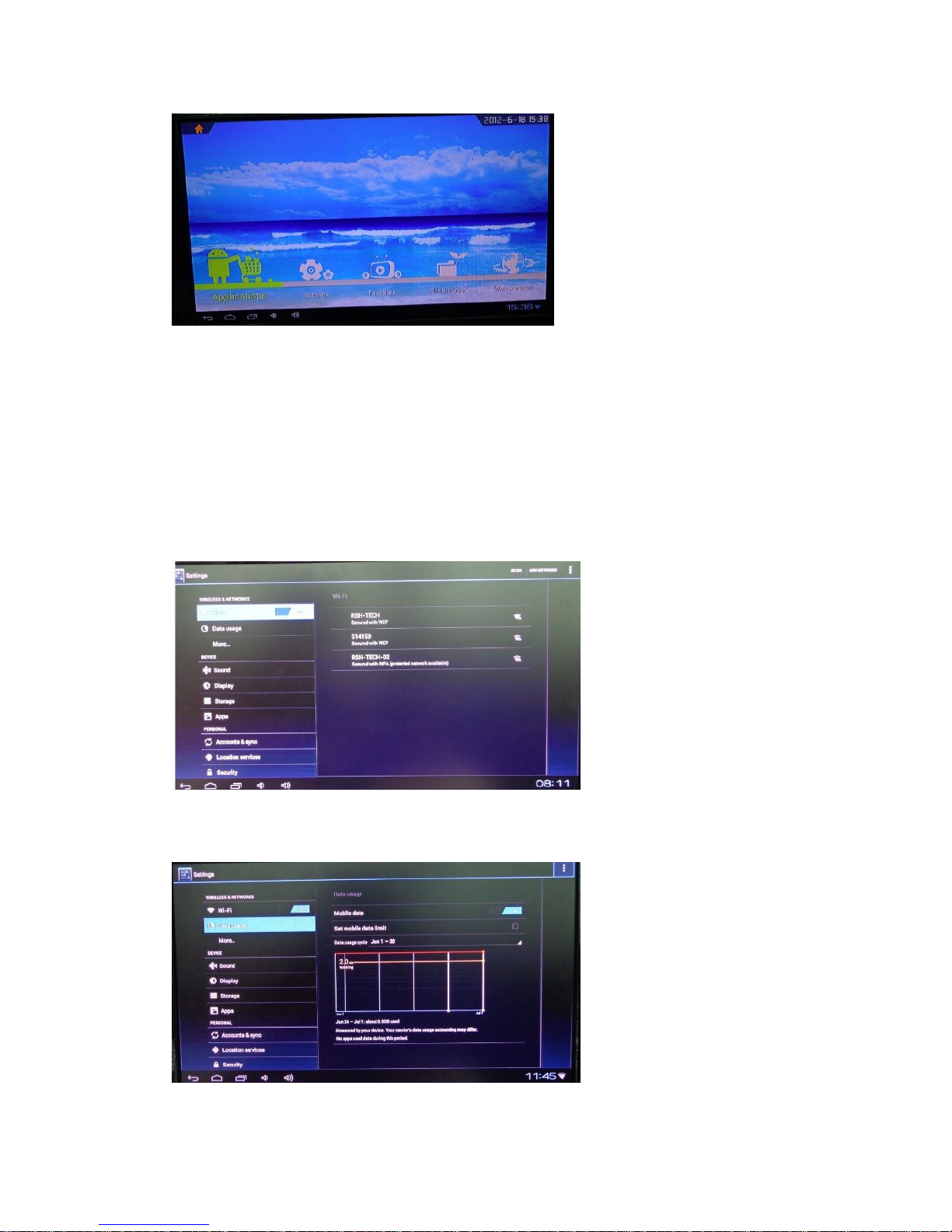
Move to “Applications” icon, press Ok to enter in.
You can see icons refereeing to different functions on the picture
Settings
Move to “settings” icon, press “ok “to system setting, you will see the menu on the
following picture.
WIRELESS &Networks
1. Wi-Fi setting and Network Setting
For external WIFI dongle it only supports the model as Realtek 8188.
2. Data Usage
3. More information about network setting (Airplane mode/Ethernet/PPPOE
Page 9
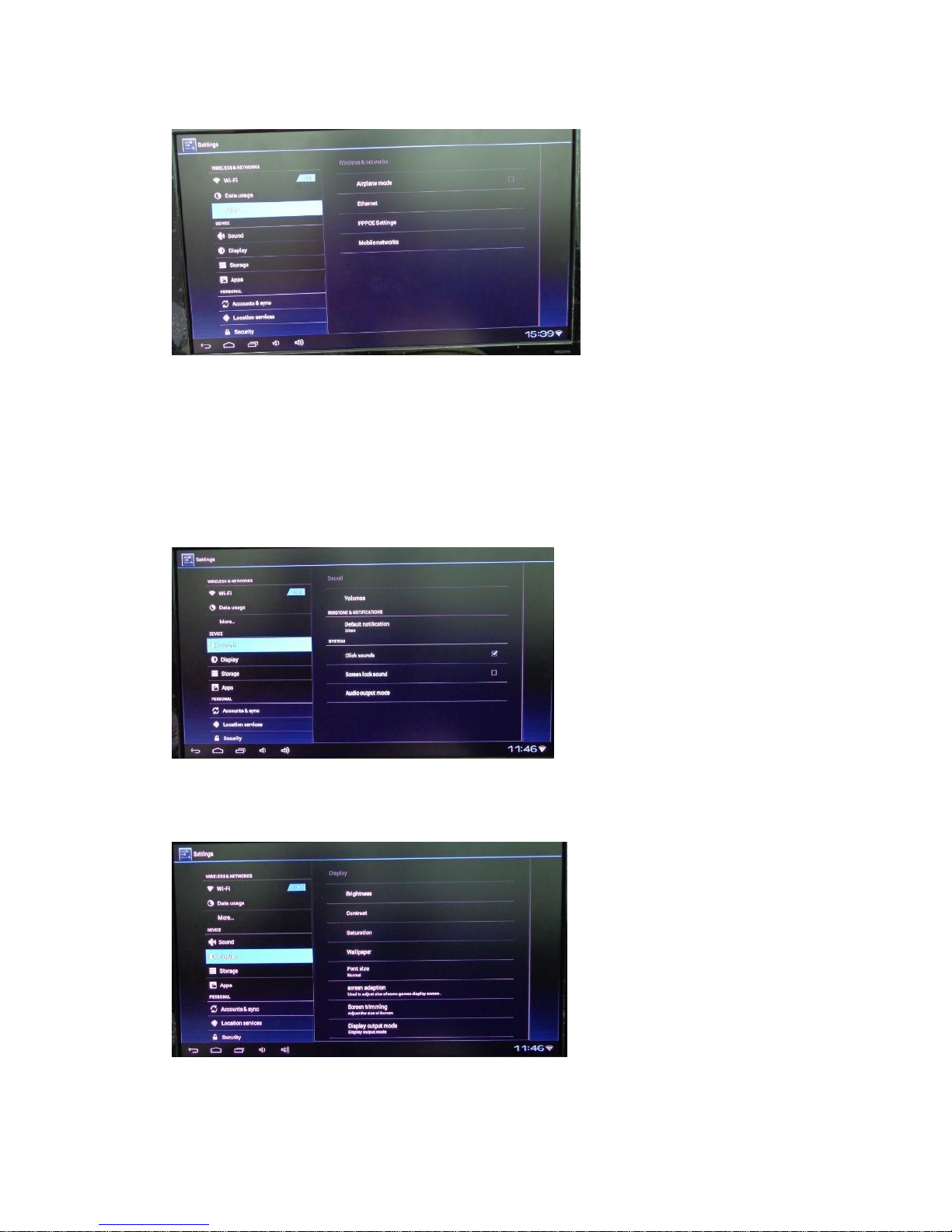
settings/Mobile networks)
DEVICE
1. Sound
You can adjust the volume from this page.
2. Display
Display settings
3. Storage
Page 10
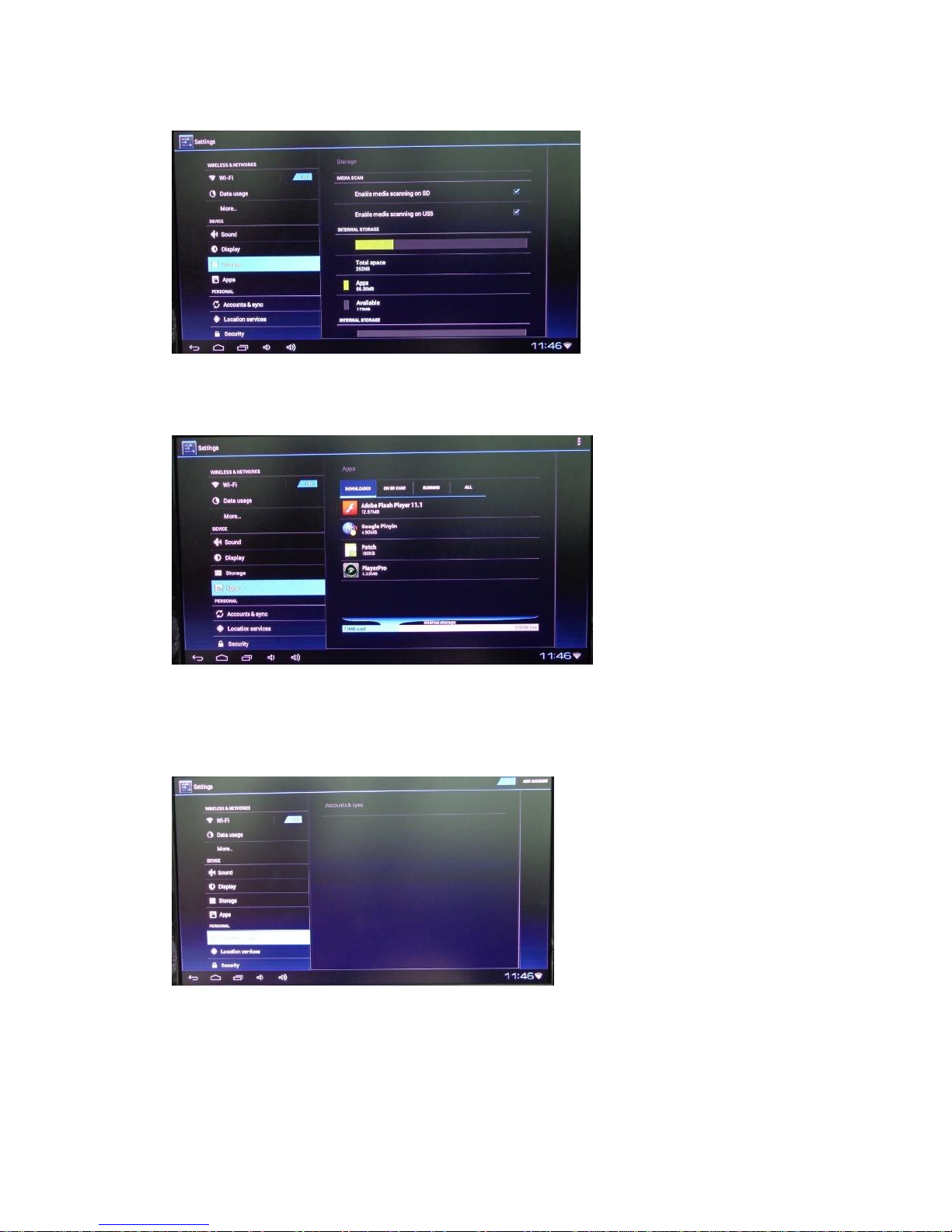
Storage information for media database.
4. APPS
All information APK for this device.
PERSONAL
1. Accounts &Sync
2. Location Services
Page 11
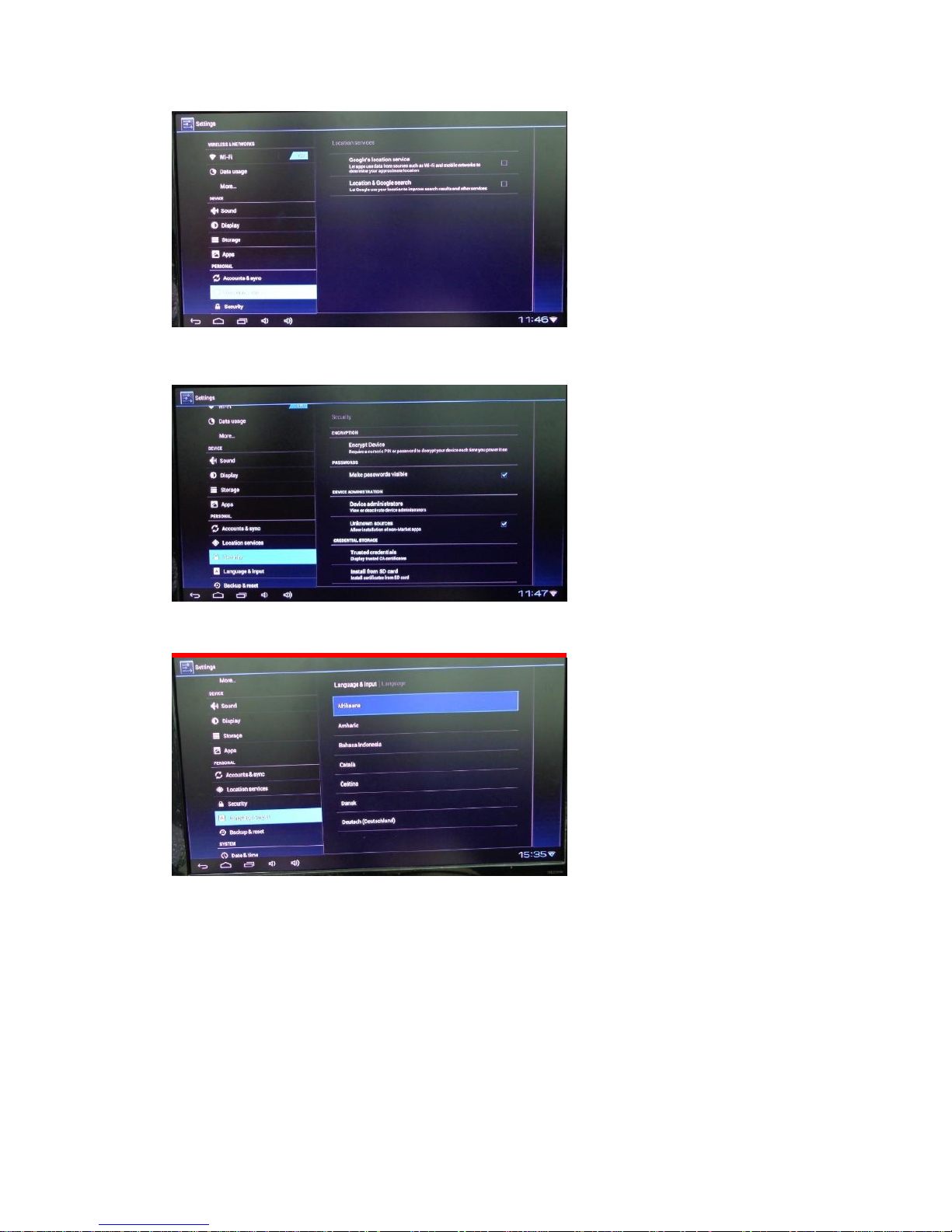
3. Security
4. Language &input
Mullti-language you can choose.
5. Backup &reset
Backup &restore for Firmware
Page 12
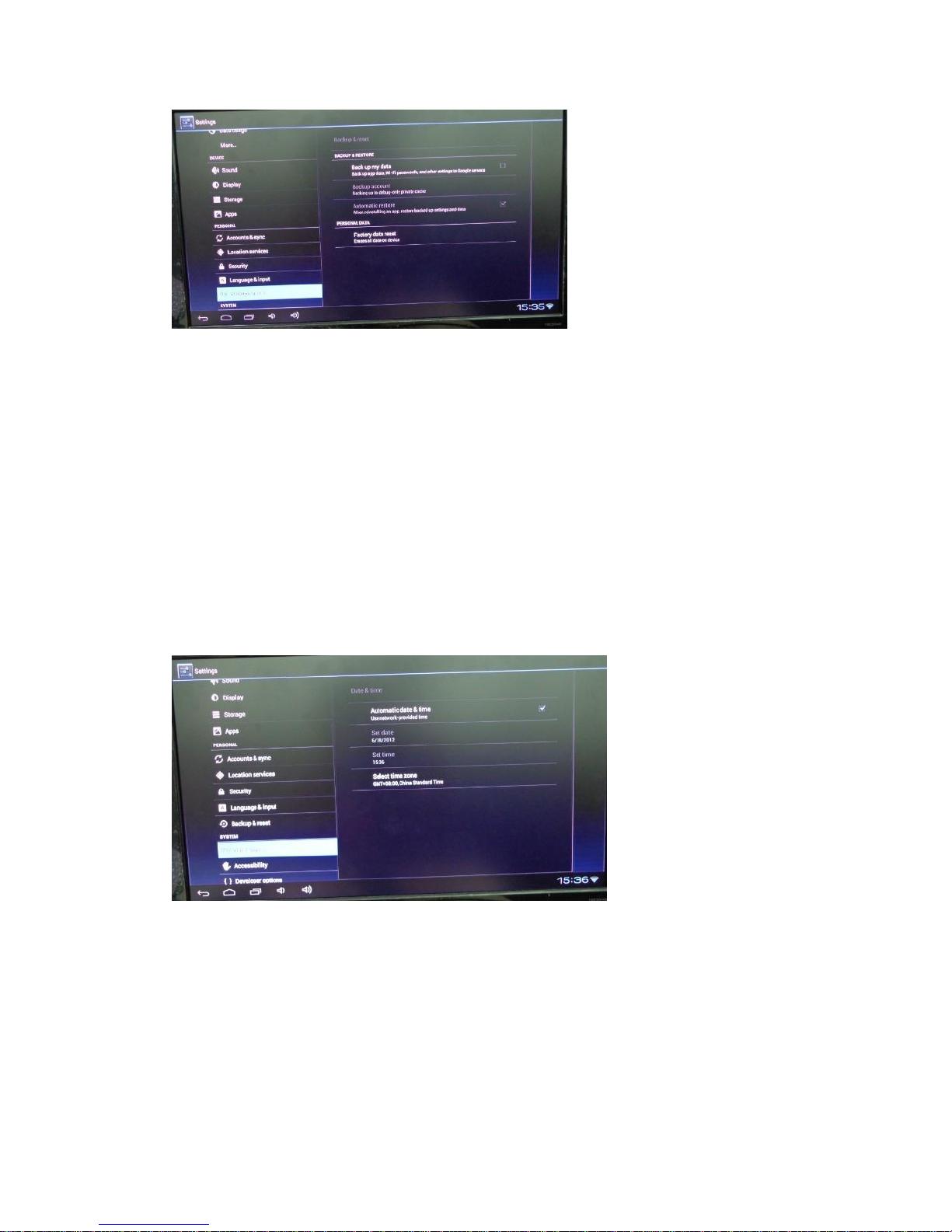
System
1.Date &time
2.Accessibility
Page 13
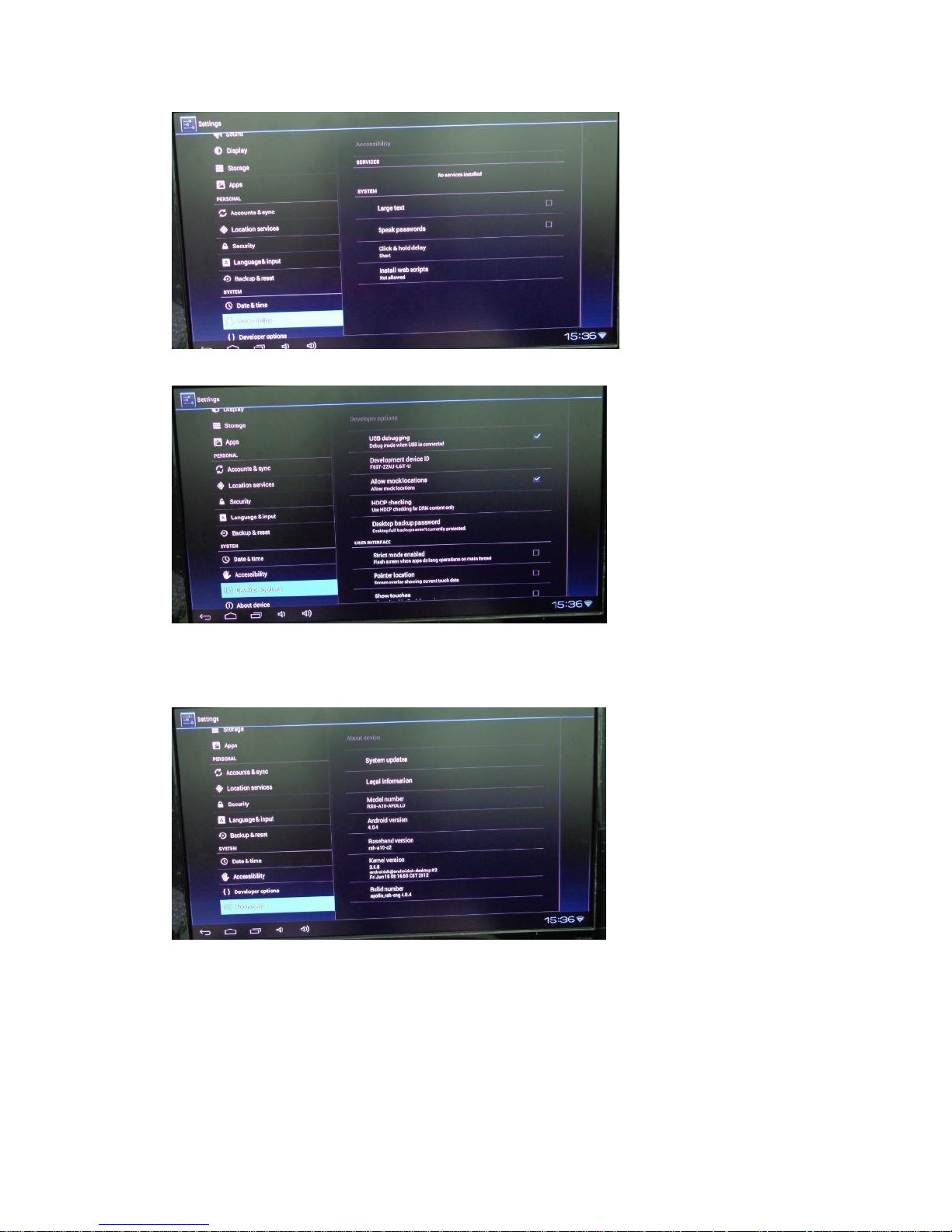
4. Developer options
5. About Device
All information for this Device.
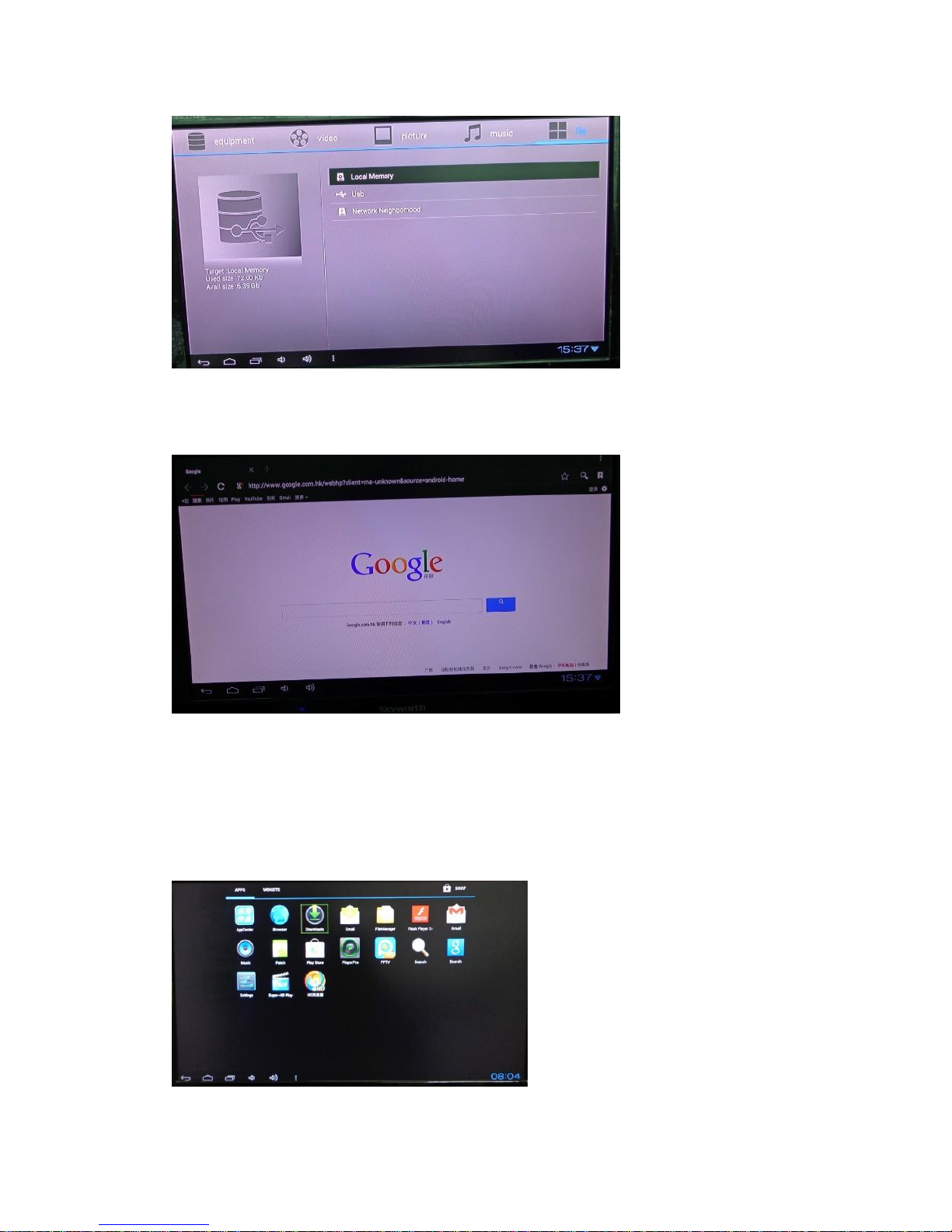
File browser
Browse and watch your video & Music& picture from USB Drive or SD/MMC card attached to the
Box.
Page 14
Web Browser
It is a direct way to go to your desired website.
Install/delete APP
please download different application software from APK center. After program
downloaded, just click it to install. You could also install Android program from other
storage device. Please click downloads to find downloads software package. Then click to
install.
Page 15
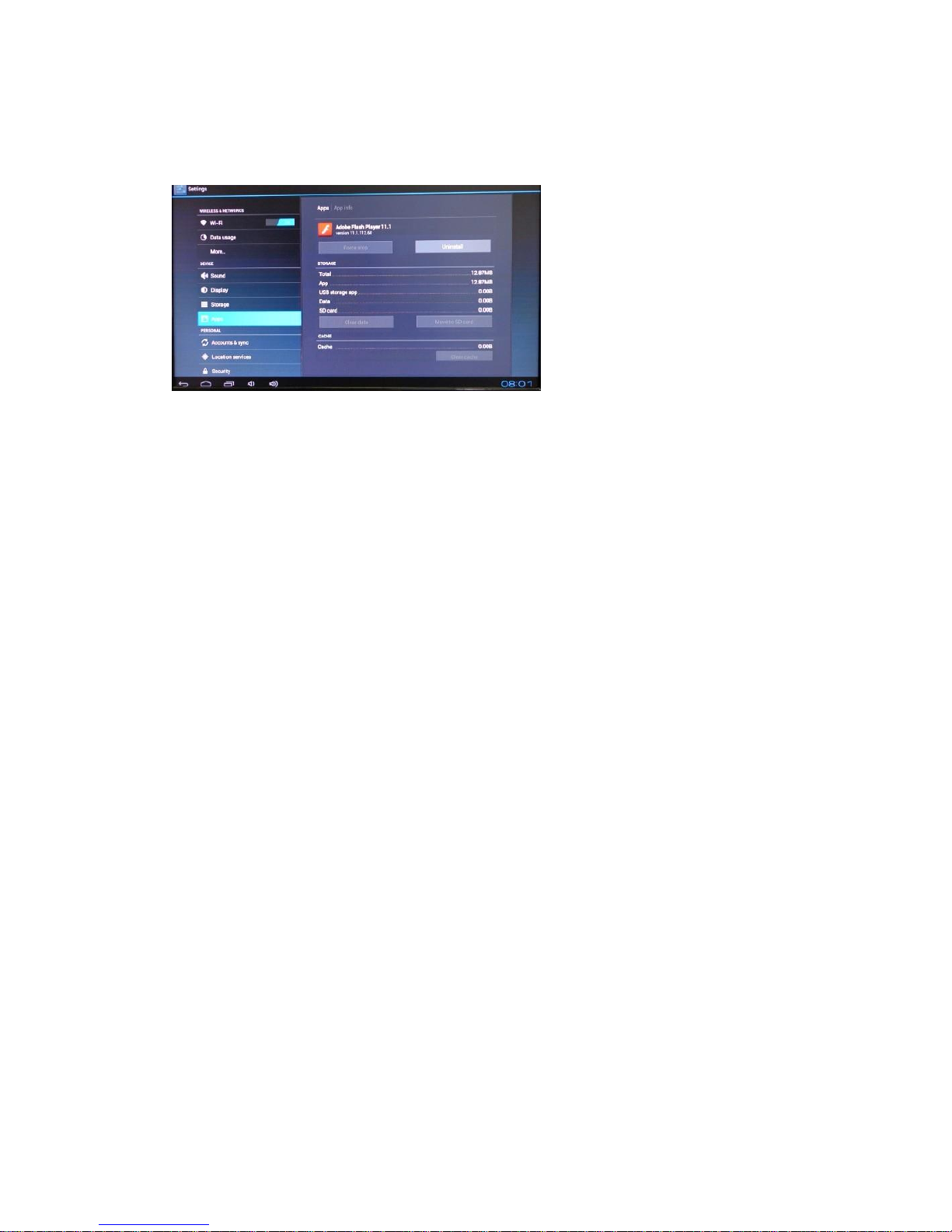
Delete Program
1. click “setting” and enter to “Apps”, it will show up all the installed program list.
2. click “uninstall” icon need to delete.
Page 16
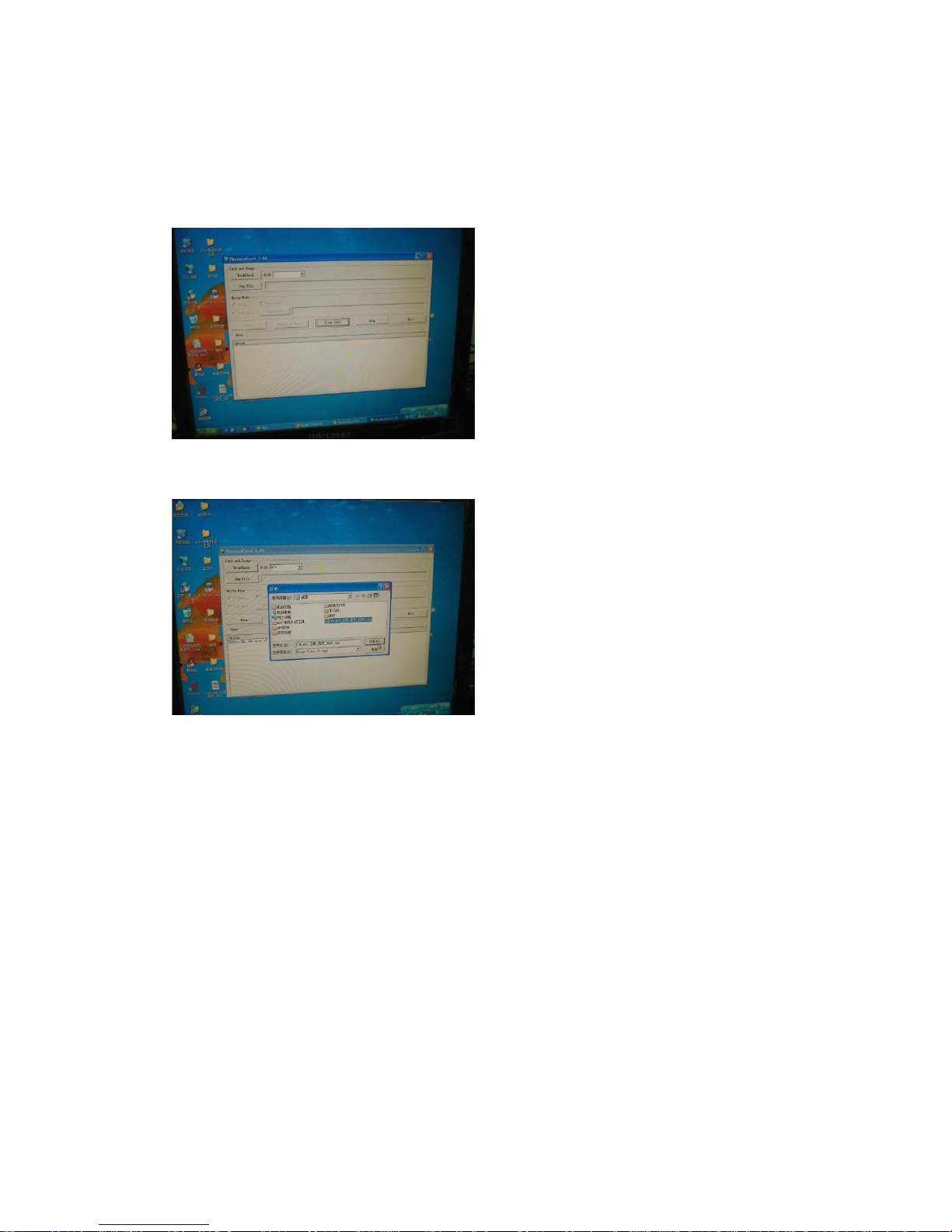
How to update the Firmware
Updater:
1. Copy the update tool file (phonenixCardv306-03-02) compress to your PC.
2. Then Use the SD card connect to your PC.
3. Please select the file you want to upgrade in the interface, and then run.
4. Runs successfully, the SD card to connect to the player, and then plug in the power.
Then the LED will remain flashing, this process takes 3-5 minutes, the lights went out on
to a successful upgrade. And then restart.
Page 17

Troubleshooting
Warning
Under no circumstances should you try to repair the box by yourself, as this is will
invalidate the warranty. Do not open the box as there is a risk of electric shock. If a fault
occurs, first check with points listed below before taking the box for repair. If you are
unable to remedy a problem by following hints, consult your dealer for help.
problem
solution
no power
Check if the power adapter is properly connected .
Check if the power adapter damaged or not.
No picture
Re-connect with HDMI cable or AV cable.
Re-connect power adapter;
Check if the output mode for TV and media box keep the same.
Check if the TV is switched on.
No Sound or
distorted sound
Adjust the volume
Check if the cable connect to TV and media plafyer well.
Check that the speakers are connected correctly
No audio or digital
output
check if the cable connected well.
Check if your amplifier is set correctly .
Re-connect power adapter.
Check if the output mode for TV and media box keep the same.
The remote control
does not work
Aim the remote control directly at the sensor at the front of the box.
Reduce the distance to the box.
Replace the batteries in the remote control.
Player does not
respond to some
operating commands
during display
Operations may not be permitted. Refer to the User manual.
Possibility of system halted, re-insert with Power adaptor to restart.
No sound during
movies display
The Audio codec may not be supported by the box. You can change to the
supported audio on playing menu.
Check the volume.
Check if the cable connected well.
Check if the output mode for TV and media box keep the same.
The contents of the
USB flash
drive&SD/MMC card
cannot be read
The USB flash drive format is not compatible with the box.
If one of the USB cannot read, please turn off the box and restart it.
No sound with HDMI
connectin
Check if TV output mode is the same with media box.
Check your TV systerm setup.
Check the volume.
The TV screen is
blank and the palyer
LED is blinking
Turn off your palyer, wait 30 seconds, turn it on again, if under HDMI status,
Check if HDMI connection is correct or change another HDMI cable.
Set the output solution of this box into 720P.
 Loading...