

Page 1
www.kiwiantennas.co.nz
Page 2

CONTENTS
1.
Start Use
2.
Specification and Packing List
3.
Interface
4.
RCU
5.
Settings
Ethernet Setting
WIFI Setting
Display Resolution
Language & Input Setting
System Upgrade
6.
Interface & Manageme
7.
Multi Screen Interaction & DLNA
8.
Live TV & VOD
9.
XBMC & Media
10.
Safety Warning & Trouble Shooting
Page 3
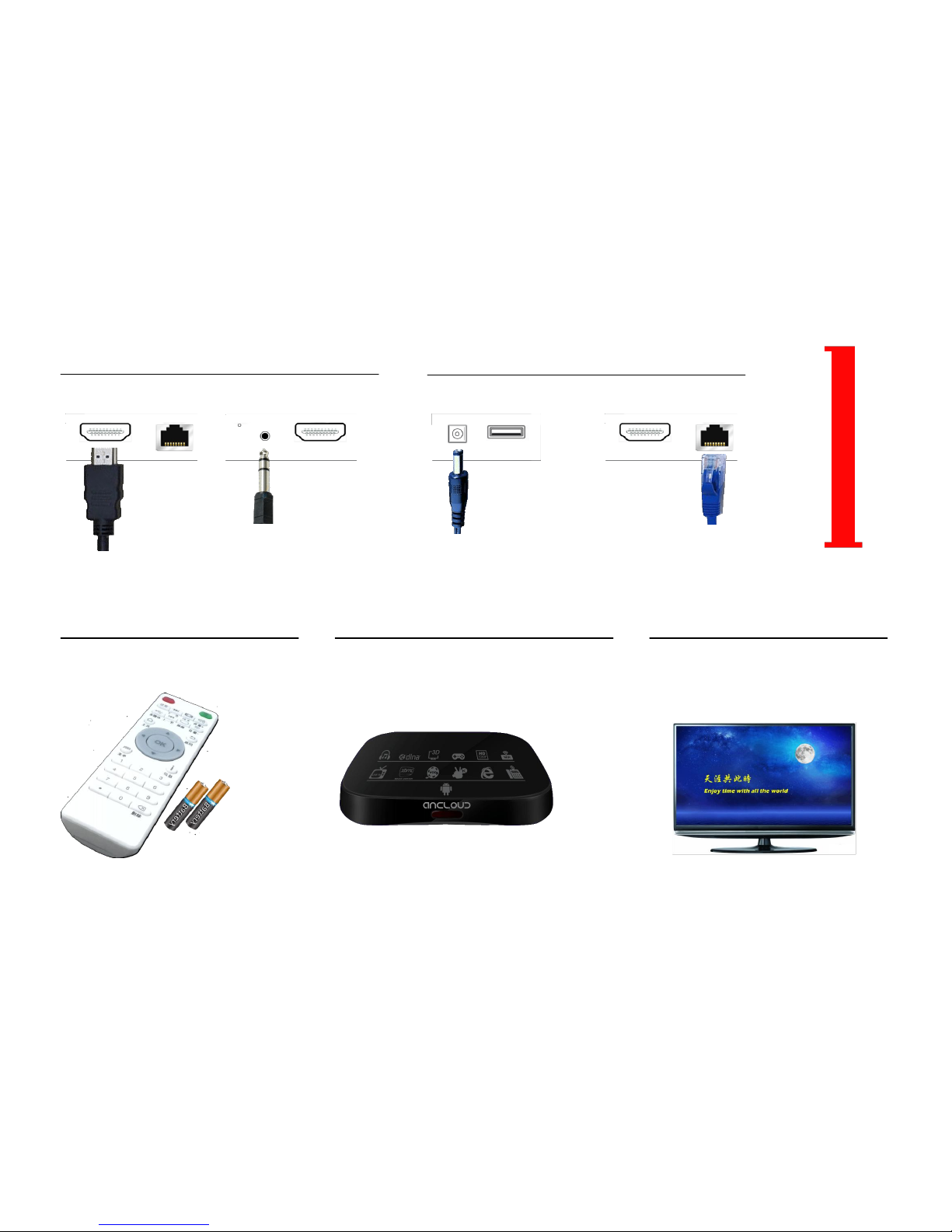
STEP 1
STEP 2
HDMI
Ethernet
Connect to TV by HDMI Cable
AV
HDMI
Connect to TV by AV Cable(CVBS)
Reset
DC IN
USB
Insert Power Adapter
HDMI
Ethernet
Connect LAN Cable incase
STEP 3
Put 2 AAA Batteries into RCU
STEP 4
Switch TV's Input Source to HDMI or AV according your
Connection.
STEP 5
If There Shows Some Booting Picture Like Below,it
Means Your Connection and Booting is Succeed.
(Need wait 20-30 Seconds for System Booting.)
START USE
Page 4
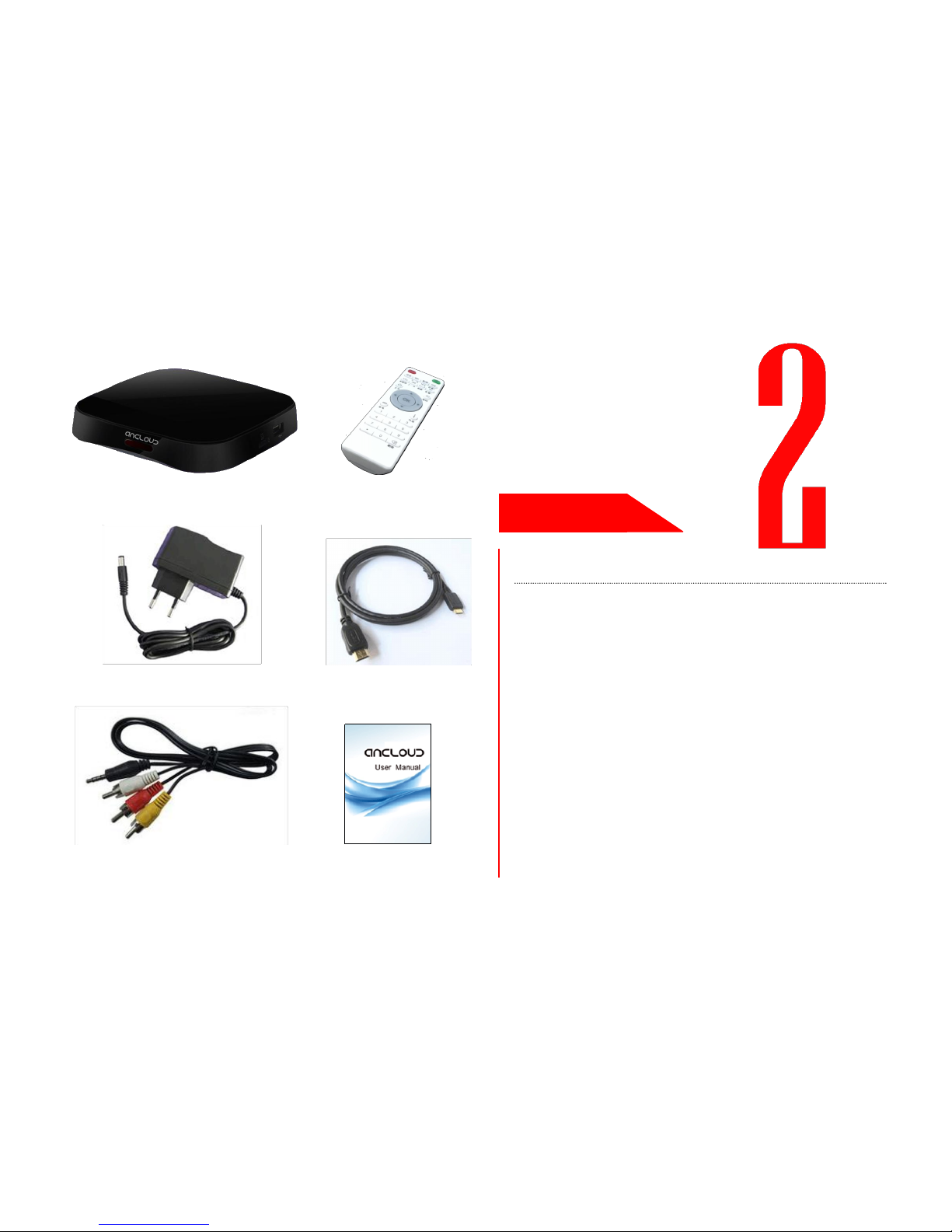
RCU X1
SPEC
ANCLOUD A920 X1
Items
specification
CPU
ARM CORTEX Dual Core
RAM
512MB/1GB
FLASH
4GB/8GB
USB Port
USB2.0,support U-Disk, Keyboard, Mouse, etc.
TF Socket
Micro-SD card,Maximum 32GB
Internet
10/100 Ethernet & WiFi802.11b/g/n (build in)
Video Out
HDMI1.4 HD & CVBS Analog
Audio Out
HDMI1.4 & Stereo Analog
O/S
Android 4.2.2
Power
5V 2A, Maximum 10W,Standby < 0.5W
Environment
Working Temp:-10°~ +40° Humi:93%
Storing Temp:-20°~ +55° Humi:90%
Size
125mmX125mmX22mm
Standard
GB4943.1-2011;GB9254-2008;YD/T993-1998
HDMI CABLE X1
POWER ADAPTER X1
USER'S MANUAL X1
AV CABLE X1
PACKING LIST
SPECIFICATION
Page 5
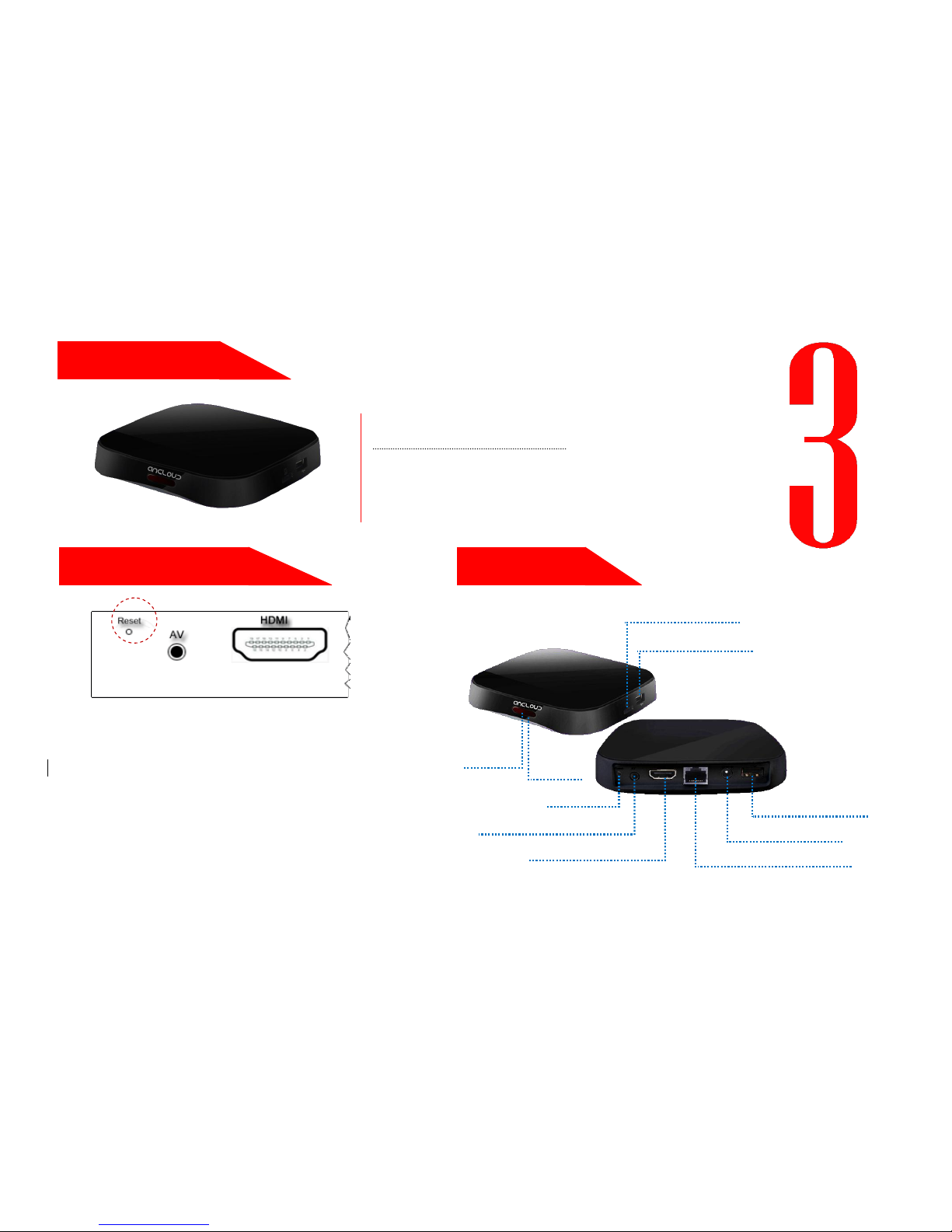
INTERFACE
Status
Display
On
White LED on
Standby
off
Off
off
TF CARD SOCKET
USB PORT
RCU
USB PORT
DC IN(5V 2A)
ETHERNET PORT
AV (CVBS)
FOR HDMI CABLE
INTERFACE
FACTORY DEFAULT
LED LIGHT
How to do Factory Default?
Turn off the BOX,Use Some Needle-Like Sticks to
push the Reset Button (at least 10 seconds), at the
Same Time Power On the BOX. After the BOX
Rebooted, all the user installed data will be deleted.
BOX will restore to the factory settings.
You also can do Factory Default in System Settings.
RESET
Page 6
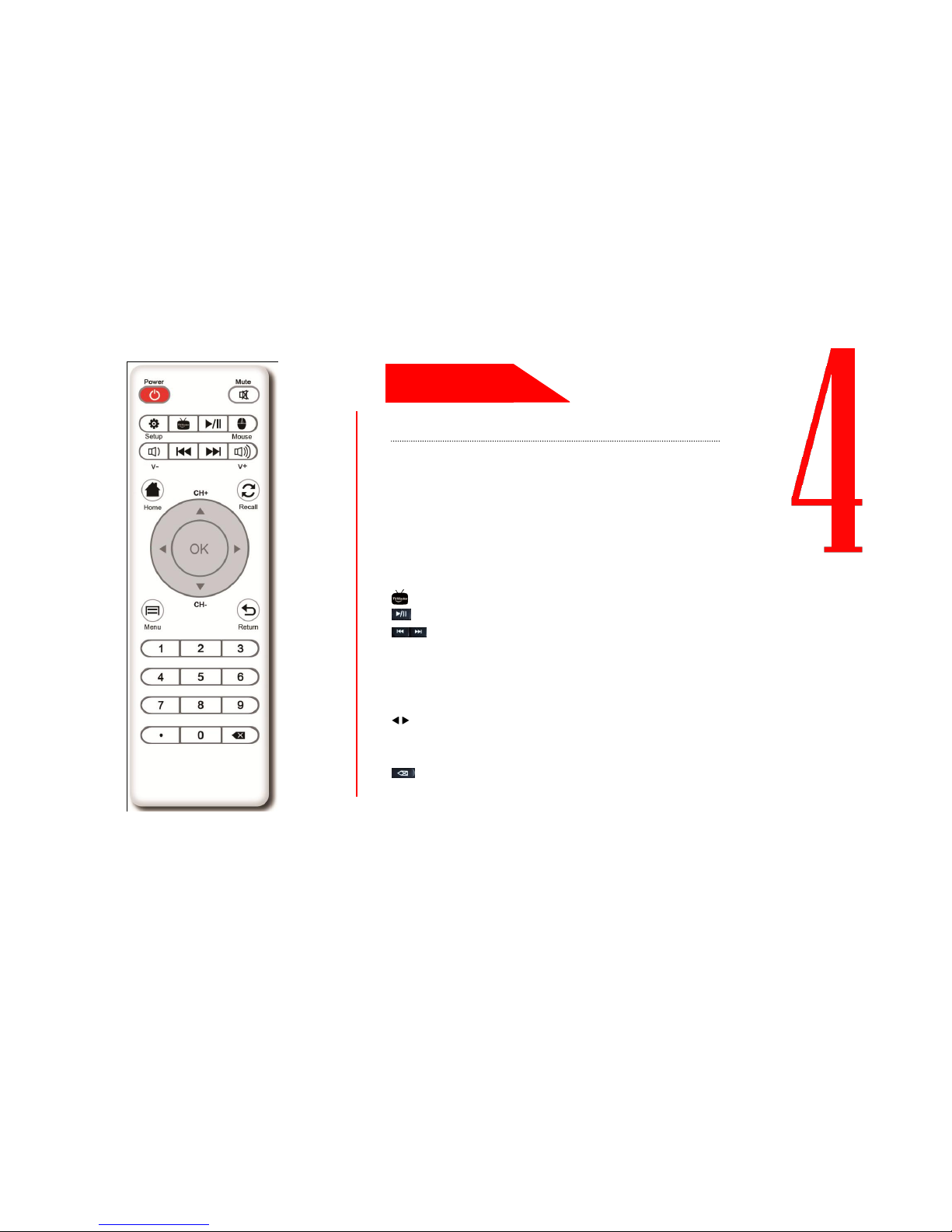
RCU
Buttons
Functions Description
Power
Power ON/OFF
Mute
Voice ON/OFF
Menu
Menu for Apps
Home
Go to Home page
Return
Return or Quit to Last Menu
Recall
Return to Last Channel
Setup
Settings for Network, Wifi, Language, Resolution, etc
Mouse
ON/OFF RCU Mouse function
Enter TV Master
Play or Pause
Play Last or Next file
V+/V-
Volume UP and Down
CH+/CH-
Move Cursor Up and Down
Switch to Last or Next file when Playing
Move Cursor Left and Right
Fast Forward and Rewind when Playing
0…9
Number for Input
Delete
DECRIPTION
※ You Also Can Use Smart Phone to Control ANCLOUD BOX. Take a Reference at page7 Multi Screen Interaction.
Page 7

SETTINGS
ETHERNET SETTING
Go MAIN Menu->Settings->Ethernet for the Setting. You can use DHCP to get auto assigned IP address
or manual set the IP address in your LAN domain.
WIFI SETTING
Go MAIN Menu->Settings->Wi-Fi,Select your Wi-Fi ID from the Hotpot List, Then Input the Password
to access. When there Shows Connected, it Means Wi-Fi connect succeed.
DISPLAY RESOLUTION
Go MAIN Menu->Settings->Display->Display Output Mode, Select the Right Resolution for your TV to
Get best Display. Default Resolution is 720P.
Go MAIN Menu->Settings->Display->Screen Trimming, you can adjust the Display Area on the Screen to Get
Best Display.
LANGUAGE & INPUT SETTING
Go MAIN Menu->Settings->Language&Input, you can Select the System Language and Input Method.
SYSTEM UPGRADE
Go MAIN Menu->Settings->System Upgrade, you can Upgrade the System software. Just Copy New
System Software into a USB drive or TF Card and then insert it to BOX, easily Select the file and finish the
Upgrade.
Page 8
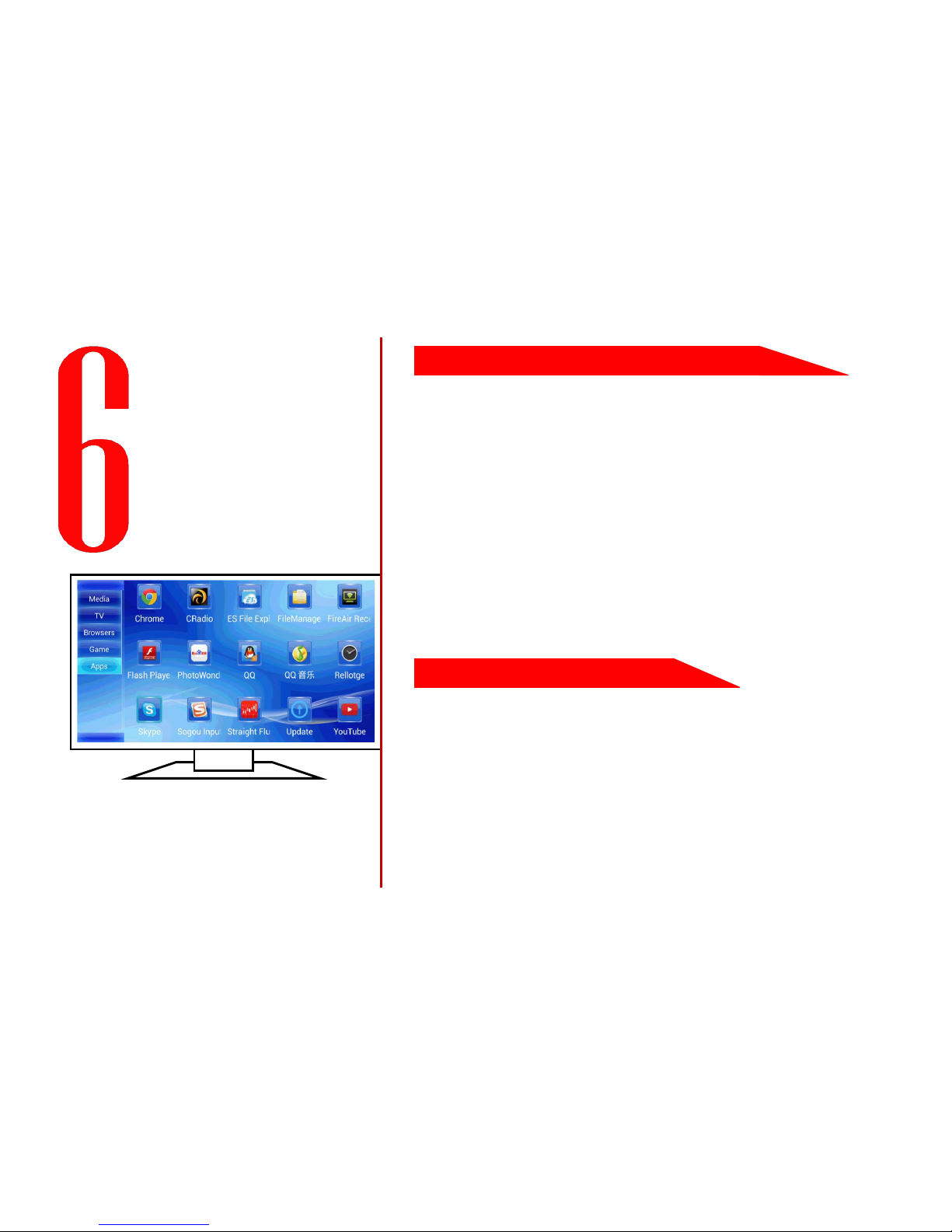
MANAGEME
APP INSTALL
SEARCH:
You can find interesting APPs (for TV) from Android Market
(e.g.:7PO , HiMarket) and some Forums(e.g.: www.pctvlab.com).
Download the APPs and easily install to ANCLOUD BOX.
(the related Android Markets and Forums belong to 3rd Party.)
INSTALL:
a. Use a PC to download the APK file from forum/website and copy
them to USB drive. Insert USB drive to ANCLOUD BOX, and use any
file management tool(e.g.ES file tool) to run the APK file;
b. Use ANCLOUD BOX to enter the ANDROID MARKET, download
your interested APPs and directly install to ANCLOUD BOX.
UNINSTALL:
Go MAIN Menu->Settings->Applications, can see the installed
applications list. Select the one which you want to uninstall and
then press “confirm” to complete the un-installation.
RENEW:
If the installed application has a new version, you will get a software
renew remind window when run the app, just select OK to complete
the APPs renew.
SEARCH AND INSTALL YOUR APPs
UNINSTALL & RENEW APPs
You can get whatever you want by downloading
& installing all kind of APPs (for TV), such as:
Game, Music, Free-Video-Chat, Karaoke,
Remote Education, Stock Index, Media
Player, etc..
Page 9
1
& DLNA
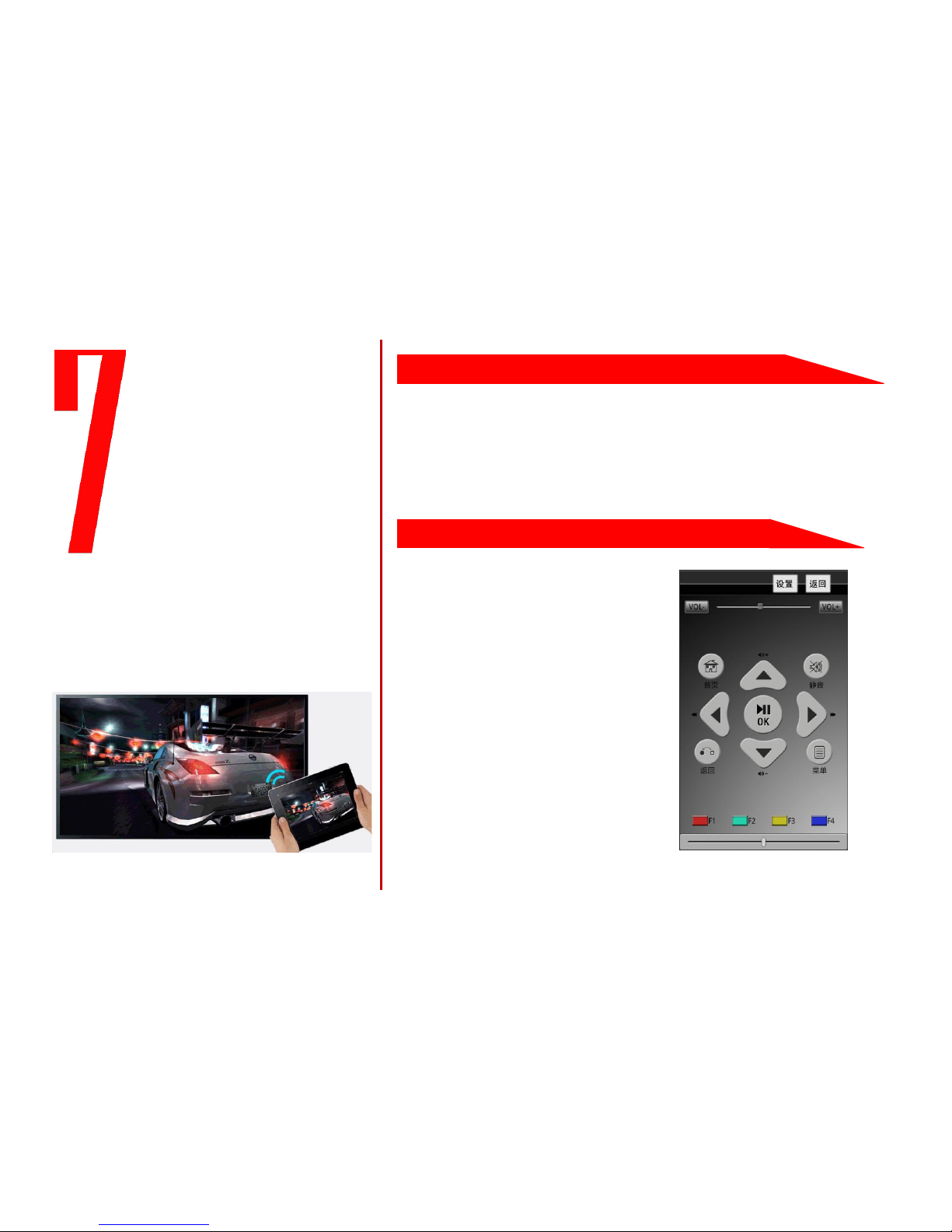
ANCLOUD BOX deeply optimized the DLNA
function, which strongly support multi-screen
interaction.
Multimedia contents (music, photo, video, etc...)
from smart phone/PAD can easily show on the TV
through ANCLOUD BOX.
INTERACTION
SMART PHONE (video,music,photo) to TV(same LAN)
Make sure that the smart phone and ANCLOUD BOX are in same LAN.
Activate smart phone's DLNA function;
Play media file from phone, and enable Multi Screen Interaction function,
select the target to ANCLOUD BOX, then all contents will show on the TV;
MOBILE Remotes and Remote Projection
KANKETV/看客 and TUZIV/兔子(both
3rd party APP) can support smart
phone remotes and remote projection
functions. Just install these APP at both
ANCLOUD BOX and smart phone, after
bundling the BOX and PHONE, user
can send media to BOX from different
place(not in same LAN).
With this functions, You can remotely
send photo, music, video to TV (in
home) from smart phone at anywhere
anytime.
MULTI SCREEN
Page 10
& VOD
LIVE TV
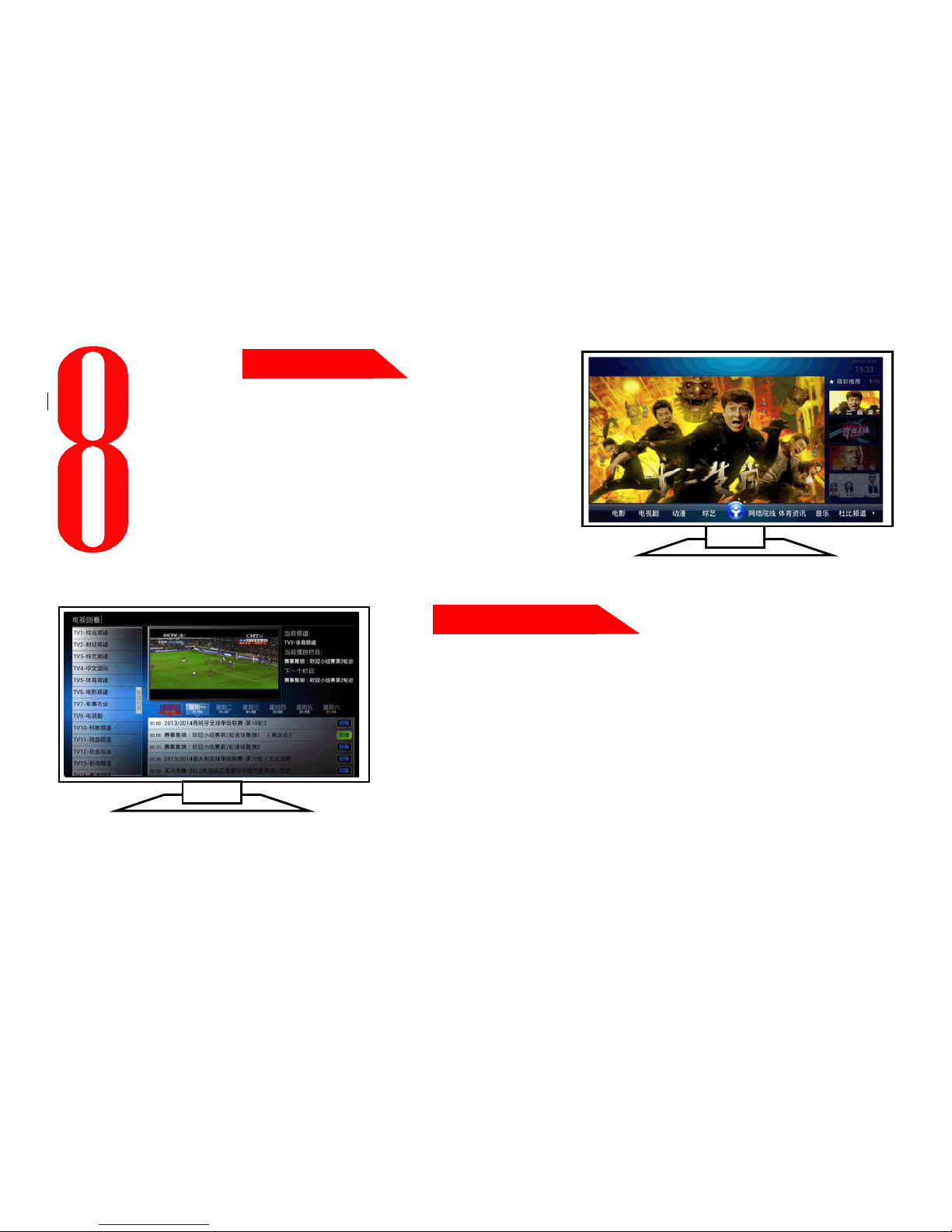
HD VOD
You can install all kind of 3rd party VOD APP to get
fruitful Video resource. Such as:
YOUTUBE, YOUKU, QIYI, QQLIVE, TOGIC, TUZIV,
KANKE, PPLIVE, PPS, FENGXING, etc..
With them, you can freely enjoy millions of movies/
TV dramas/ videos at any time.
LIVE TV
With some kinds of 3rd party LIVE TV app, such as JADE CLOUD,
ALADDIN LIVE & TV MASTER, you can get crystal clear high quality HD
LIVE TV service.
Also, WASU, KANKE, VST, and some other 3rd party LIVE TV app can
support 7 days replay function, which allow you to watch interested
programs without time limit.(service quality may have some problem
base on different time and countries)
Kindly Remind:if you cannot smoothly play the Live TV or VOD file,please check your internet bandwidth. We suggest you to use
4Mbps for all video related APP (minimum bandwidth should higher then 2Mbps).Higher bandwidth will support better HD video
quality.
Page 11

MEDIA
PLAY FROM MEMORY or MOBILE
1、 Copy the media file to USB-drive, hard disk, TF card, then insert it to ANCLOUD BOX;
2、 Open file management software, find the media file which you want to play, and run it;
3、 Install and use some HD player tool to player the media files;
4、 ANCLOUD BOX support 3D HD files. When you are running the 3D HD files, you need
a 3D TV and 3D glasses to help you to enjoy it.
5、 Play from Mobile Phone: Take a reference on page7 about the Multi Screen Interaction.
XBMC MEDIA CENTER
ANCLOUD BOX already deeply optimized for XBMC and can easily install. XBMC is a free
and open source media player developed by the XBMC Foundation, a non-profit technology
consortium. It supports most common audio, video, and image formats, playlists, slideshows,
audio visualizations, weather forecasts reporting, and third-party plugins
Detail information can get from www.xbmc.org.
Supported Media Format
File format
Video
MPG、MPEG、DAT、MP4、WMV、FLV、VOB、AVI、MOV、RMVB、RM、TS、3GP、F4V、WEBM、ASF、DIVX
Audio
MP3、WMA、FLAC、APE、3GP、MP4、WAV、TS、AAC
Picture
JPG、BMP、GIF、PNG、WEBP
XBMC &
Page 12

TROUBLESHOOTING
SAFTY WARNING &
1、 Electrostatic discharge or strong electromagnetic field may
cause failure to the product, please unplug the power cord,
the product will return to normal after restart.
2、 This equipment shall not be exposed to dripping or
splashing, and no object filled with liquids, such as vases,
shall be placed on the equipment.
3、 If the power plug or appliance coupler is used as a
disconnection device, the disconnection device should
maintain convenient operation.。
4、 Keep the product clean, prevent them from falling, throwing
or powerful strike, and avoid scratching the case or any
interfaces.
5、 Keep the product in a cool, dry, and dust-free place.
6、 Do not attempt to disassemble the product, repair work are
limited to authorized worker only.
If a product does not seem to be functioning correctly, some simple solutions can be found
in this chapter. If the problem still exists, or cause other problems, feel free to contact with
your dealer or ask solution on our technical support website: www.ancloudbox.com
UNABLE TO BOOT
Make sure that the power cord is properly and securely attached to the product and the
outlet, and check whether the power indicator is on or not. If it still not working, please
unplug your cord and then plug it back on both ends.
NO RESPONDING, BLACK SCREEN OR ABNORMAL DISPLAY
Make sure that all the cables are properly connected.
Make sure that the correct signal source is selected on the TV.
Go MAIN Menu->Settings->Display->Display Area Setting, to make sure that the optimal
area has been selected.
NO AUDIO
There is no sound output when you are in the user interface;
If it is playing music or video, please check whether the mute is on, you can use “V+/V-“ to
turn off the mute function;
Make sure that all the audio cables are properly connected.(see interface function
introduction)
REMOTE CONTROL IS NO-SENSITIVE OR NOT WORKING
Make sure the battery are properly seated;
Please try to change the battery first to avoid the drained battery problem。
NETWORK TIMEOUT
Please check the stability of the network, see whether there are some devices transferring
large data in the network;
Please Check the LAN, try to reset the network。
WARNING
TROUBLE SHOOTING
 Loading...