

Page 1
AMULET
HOTKEY
®
DXPC PCoIP Host
Quick Start Guide
Overview
The DXPC is a PCoIP® host card in a PCIe form factor. It has an integral MXM GPU
that supports dual wide-screen (1920 x 1200) monitors. Multiple DXPC cards can
be installed in a single computer to provide support for more than two monitors.
The DXPC can be used to replace existing graphics in the workstation and is ideal
where there is limited scope for expansion.
In the box
Unless an alternate model has been specified, the DXPC is fitted with an NVIDIA
Quadro FX 370M GPU. Each DXPC kit includes an alternative mounting bracket
which can be fitted in place of the factory fitted bracket where required.
Preparation
The DXPC must be installed into a PCIe slot inside a computer. The usual
precautions must be followed:
■ Ensure all power to the computer is switched off
■ Full anti-static protection should be used
■ Avoid contact with any liquids
■ Use only the appropriate tools
■ Do not over tighten screws or force any brackets
■ Take measures to avoid losing screws or fittings inside the computer case
■ Take care not to dislodge cables, fittings and fixtures already installed in the
Computer
■ Attach the appropriate mounting bracket to the DXPC card.
Warning
■ The DXPC is intended for installation and operation only within an enclosed
environment eg, inside a computer case.
■ The DXPC is not designed for hot plugging. Before installing or removing a
DXPC from the PCIe slot, you must disconnect all power from the host
computer for at least 60 seconds to allow internal power rails to fully
discharge.
Hardware installation
Installation is a simple process that is no more complex than fitting any other PCIe
card to a computer:
1. Power down the host computer and disconnect it completely from the mains
supply. See the Warning above.
2. Remove any covers to provide access to the PCIe sockets.
3. Install the DXPC in a vacant socket and secure.
4. Re-assemble the computer.
solutions you can bank on
Note: The DXPC has dual redundant
network ports. Take care when
using these. Both network ports are
connected to an internal,
unmanaged network switch. The
DXPC itself does not monitor its
network links and relies on the
spanning tree network protocol to
prevent loops and provide the
redundancy.
If both ports are connected when an
established connection between the
DXPC and a remote zero client is
interrupted (for example, because a
switch or switch port fails), spanning
tree brings up the redundant path
between the DXPC and zero client.
Software installation
After installation is complete and the computer re-assembled, you can reconnect
the power and switch on the computer. The operating system will detect the new
hardware and attempt to locate the appropriate drivers.
The only device on the DXPC that requires a third party driver is the MXM GPU.
Unless an alternative model has been specified, the GPU will be an NVIDIA Quadro
FX 370M. Up-to-date drivers for all operating systems are freely available to
download; we recommend that you search for and install these.
USB and audio drivers for the DXPC will already be present in the operating system
files and should be installed automatically.
Network connection
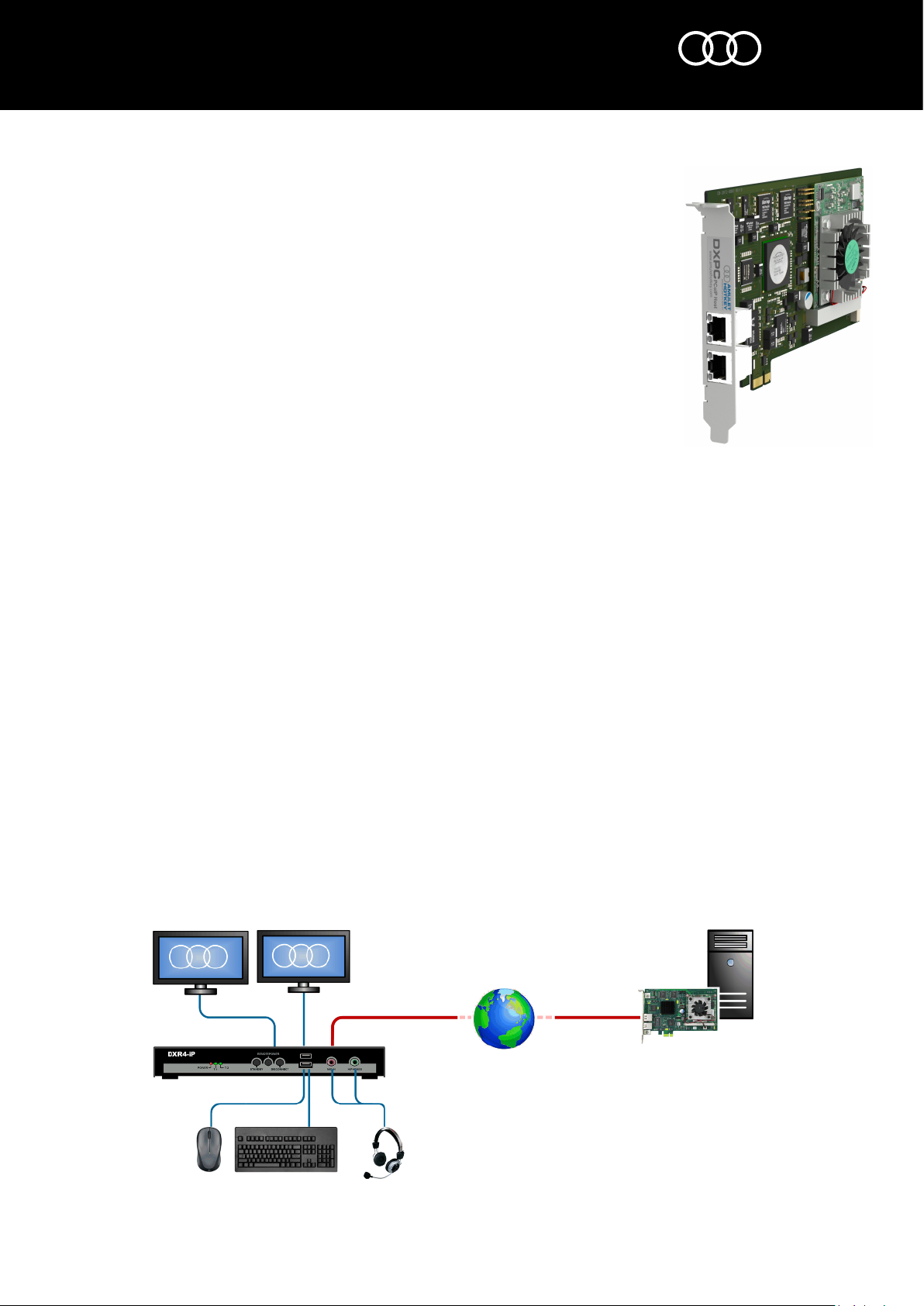
The DXPC is one half of a PCoIP system; the other is the zero client which is located
at a remote desktop. The diagram below shows a typical PCoIP setup.
The only external connection to be made is to the network. This requires a
standard patch cable which connects to only one of the RJ45 sockets on the DXPC
mounting bracket. The DXPC can be connected to any IP compatible LAN or WAN
but, where possible, the best performance will always be available from a network
dedicated to PCoIP traffic.
DXPC with dual redundant
RJ45 network ports.
Continues on next page.
®
www.amulethotkey.com
DXPC
1
23
Example dual head PCoIP system. DXPC on host workstation (1) connects over
a LAN or WAN (2) to a remote zero client with two video heads (3).
DXPC Quick Start Guide v2.1 June 2015
HB-DXPC-0001
Page 2

AMULET
HOTKEY
®
DXPC PCoIP Host
Quick Start Guide
Configuring the DXPC
To configure the card in detail, use the Administrative Web Interface (AWI). To
launch the AWI, browse to the DXPC’s IP address. DHCP is enabled by default, so
the DXPC will attempt to acquire an IP address from the DHCP server. If none is
found, after approximately 120 seconds the DXPC will adopt these settings:
■ Host IP: 192.168.1.100
■ Subnet Mask: 255.255.255.0
■ Gateway: 192.168.1.1
The AWI can be used to configure various network settings and optimise
performance for certain applications. These tasks are beyond the scope of this
Quick Start Guide, but details can be found in the DXPC Manual.
The final configuration task is to connect the DXPC using PCoIP to a remote zero
client. Briefly, the zero client has an On Screen Display which can be used to locate
the DXPC on a network (using its IP address) and connect the zero client to that
host card. The process is very simple and easily understood. The manuals provided
for Amulet Hotkey zero clients cover this process in more detail.
Once a connection between the zero client and DXPC host has been made, a user
is to log onto their operating system and work in the normal way.
Manuals and updates
Full manuals and firmware updates are available from the Amulet Hotkey website
or directly from Amulet Hotkey Technical Support (see opposite).
solutions you can bank on
Caution
To reduce the risk of electric shock, do not remove any circuit board or power
supply covers. There are no user serviceable parts inside; refer to qualified
personnel.
Warning
To reduce the risk of fire or electric shock, do not expose this appliance to rain
and moisture. The appliance should not be exposed to dripping or splashing and
no objects filled with liquids should be placed on or near the appliance.
Safety instructions
1. Clean the product only with a dry cloth.
2. Keep the product away from liquids.
3. Install in accordance with these instructions.
4. Do not install near significant sources of heat.
5. Ensure the product is properly earthed.
6. Only use attachments and accessories approved by Amulet Hotkey.
Refer all servicing to qualified personnel.
®
Technical Support
Europe: [email protected]
N America: [email protected]
Product documentation and downloads
www.amulethotkey.com/resources
EMEA Sales
+44 (0)20 7960 2400
N America Sales
+1 (212) 269 9300
APJ Sales
+61 431 745 057
+61 431 930 884
Defence and Security
Head Office
Amulet Hotkey Ltd
+44 (0)1626 837900
Cavalier Road, Heathfield Industrial Estate, Newton Abbot,
Devon TQ12 6TQ, UK
©2015 Amulet Hotkey Ltd. All rights reserved.
Information in this document is subject to change. No part of this document may be reproduced through any means including (but not limited to) electronic or
mechanical, without express written permission from Amulet Hotkey Ltd. Amulet Hotkey Ltd may have patents, patent applications, trademarks or copyrights or other
intellectual property rights covering subject matter in this document. PC-over-IP, PCoIP and the PCoIP logo are registered trademarks of Teradici Corp. Amulet Hotkey and
‘solutions you can bank on’ are registered trademarks of Amulet Hotkey Ltd. Other product names and company names listed within this document may be trademarks of
their respective owners. Amulet Hotkey products are designed and built in the UK.
www.amulethotkey.com
DXPC Quick Start Guide v2.1 June 2015
HB-DXPC-0001
 Loading...