

Page 1
ampire
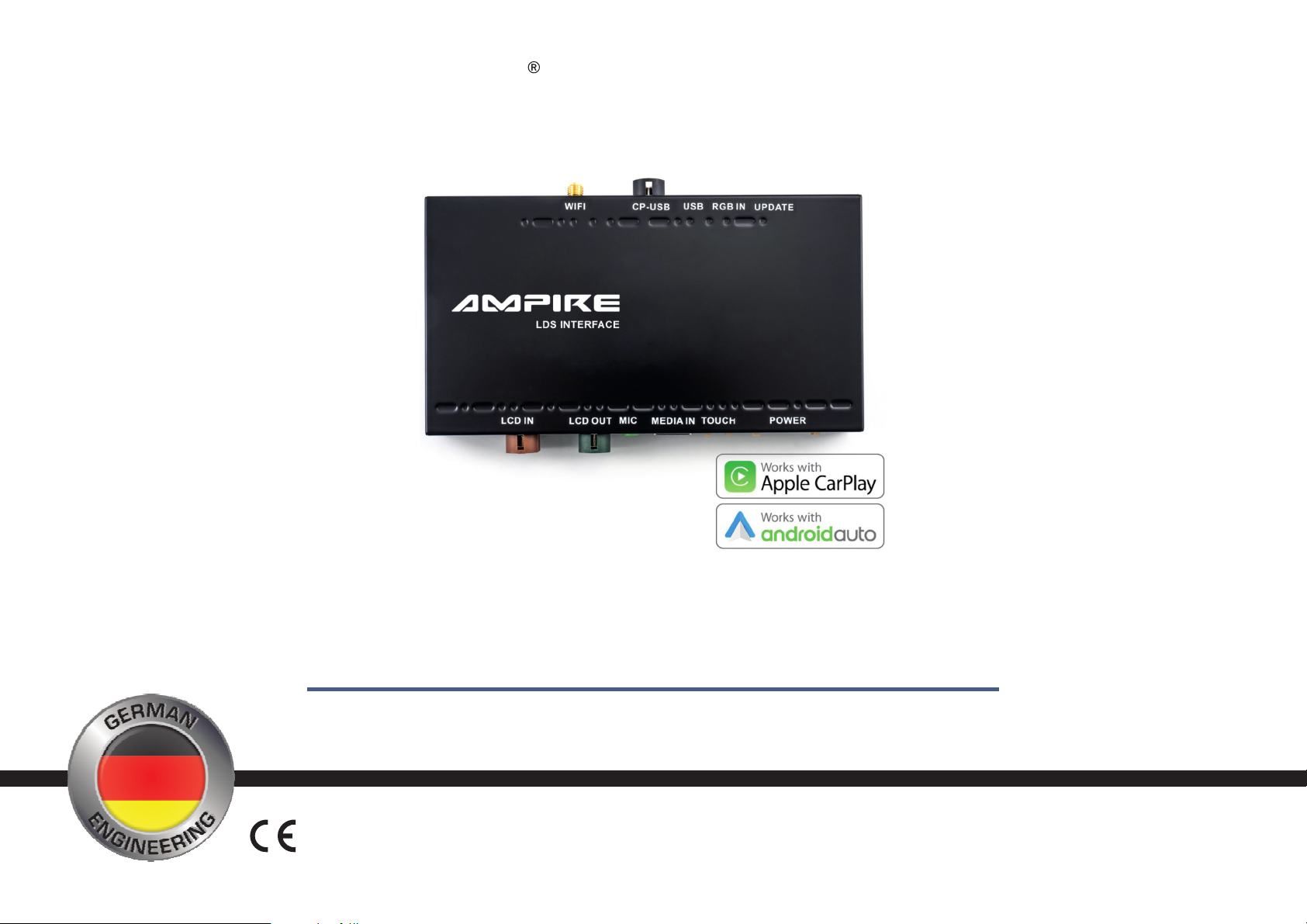
LDS-CCC-CP
German Engineering. Out of the ordinary.
Version 1
Bitte lesen Sie die komplette Anleitung aufmerksam durch bevor Sie mit der Installation beginnen.
Before attempting to connect or operate this product, please read the instructions completely.
Installationsanleitung
Installation Manual
Page 2
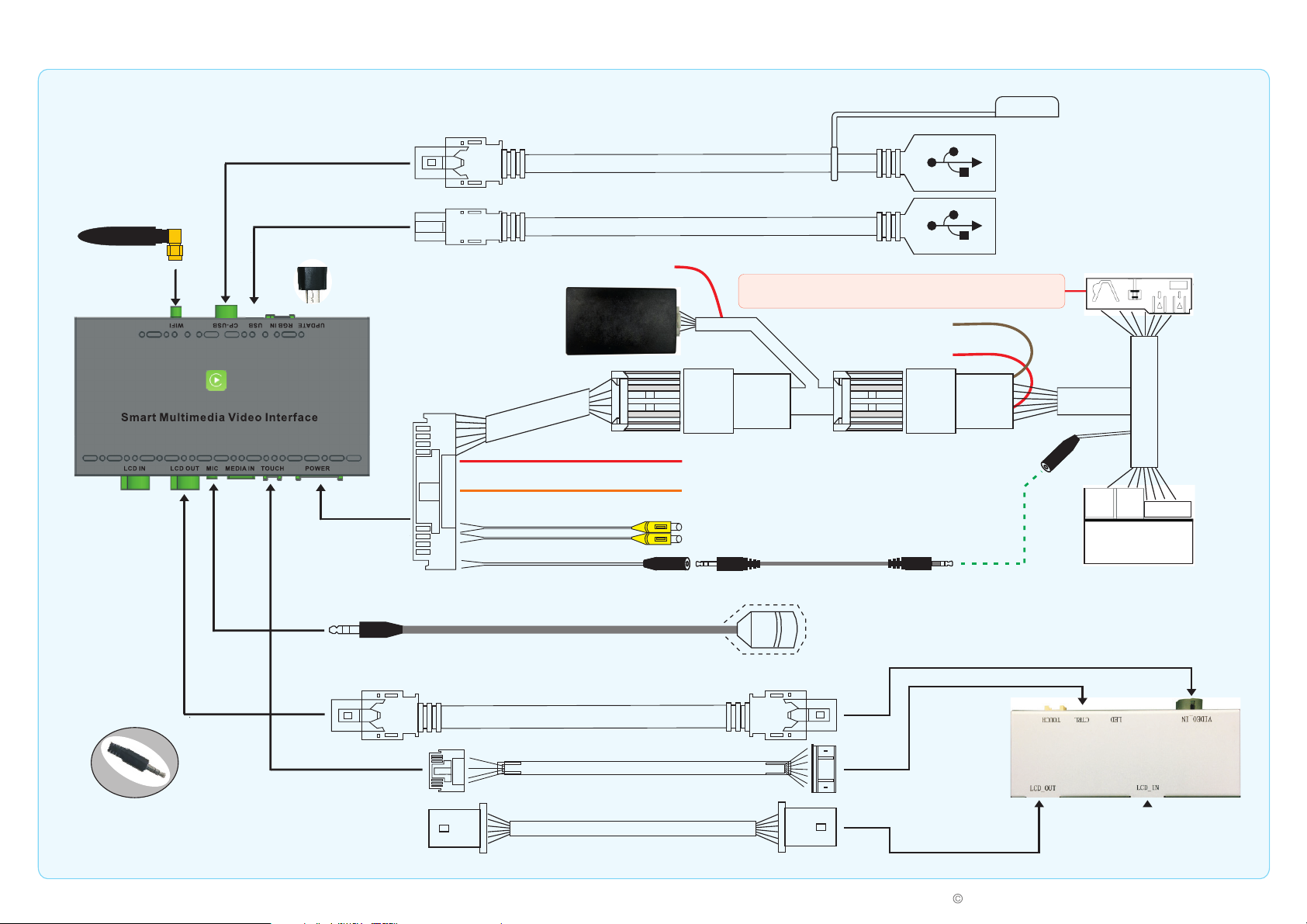
Wiring diagram LDS-CCC-CP
For wired Apple CarPlay
or Android Auto use
USB port for playing multimedia files
and for ISPBOOOT updates
WiFi antenna
USB adapter for
MCU updates
Power cable
Microphone cable
LCD OUT- cable
Red ACC --- See Features and Locations
CAN BOX
Audio AUX output
If present, detach the fiber optic cable from the original
connector and plug it into the same position of that connector.
Brown KEY_IN --- Do not use!
Red ACC --- Do not use!
REAR-VIN --- 12V/0.3A rear view camera output
REAR-C---12V rear view camera control line
(for connection to the reversing light if necessary)
RREAR_VIN --- Input for an NTSC rear view camera
FREAR_VIN --- Input for an NTSC front camera
3.5mm audio cable
Microphone for voice control
Plug into the original head unit
Connect to the original
wiring harness
Be sure to plug this
3.5mm dummy plug into
the vehicle AUX socket!
Touch cable
For connection to the
LVDS socket of the monitor.
LCD_OUT
LVDS ADAPATER
Unplug the BMW LVDS
cable from the monitor
and plug it in here.
ampire
2
2023
Electronics Irrtum und technische Änderungen vorbehalten–
Page 3
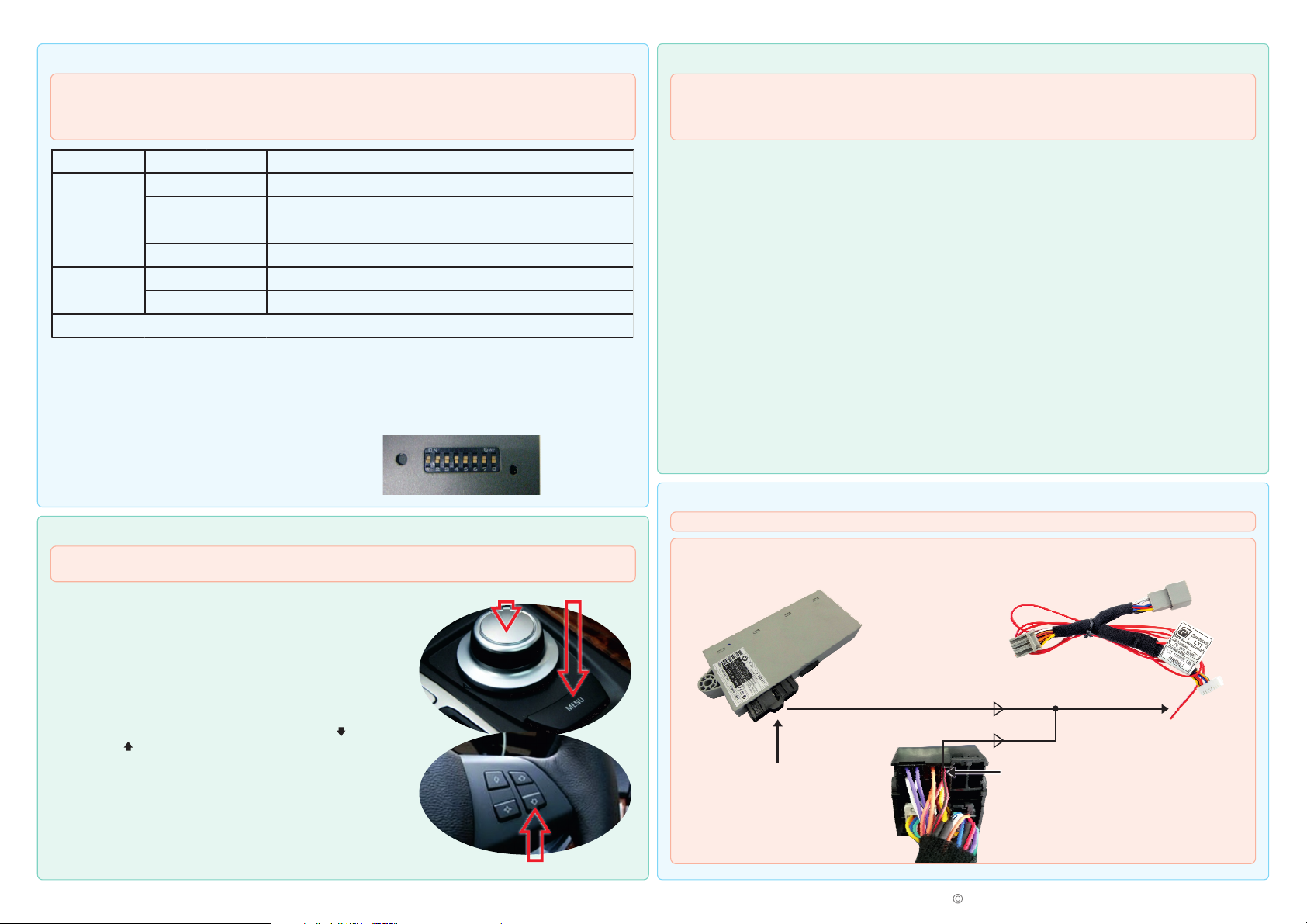
DIP switch settings
DIP switch Description
Guide lines off (for retrofit camera)
Guide lines (for retrofit camera, only if supported by the vehicle)
ManualiDrive controller without end stop
iDrive controller with vibration response when turning and end stop
OEM rear view camera or no camera
Retrofit rear view camera (together with DIP switch 4)
The switches 1, 2, 3, 6 and 7 have no function, please set to OFF.
Status
4
ON
OFF
5
ON
OFF
8
ON
OFF
The DIP switches are divided into two areas. The first determines the monitor resolution and the associated CAN bus
protocol. An incorrect setting always means an incorrect CAN bus protocol, which can lead to vehicle malfunctions.
Therefore, always make sure that the setting is correct. The second area determines the general settings for the rear
view camera.
After setting the DIP switches, please
be sure to press the reset button for
about 3 seconds. Otherwise the settings
will not take effect!
!
Operation
Before you switch to the LDS interface, you must switch on the AUX input in your multimedia system. Otherwise you
will have no sound.
Press and hold the MENU button (1) for a few seconds
to switch to the LDS interface. Pressing it again takes
you back to the BMW interface.
Reset DIP switches LED
ON
OFF
2 1
Wireless use of Apple CarPlay and Android Auto
The minimum requirements for wireless use are:
- Apple CarPlay: iPhone 5
- Android Auto : Android 11, Android Auto 4.8 or higher, WiFi 5GHz. Danger! Some manufacturers, such as Samsung,
have their own Android-based OS. Under certain circumstances, wireless use is not possible.
Pair smartphone
1) Start the LDS interface and select " Settings"
2) Scroll down to " Smartphone" or " Smart device" and switch " Android device" from " AutoLink" to " Android Auto" .
" Apple Device" must be set to " CarPlay" . Then go back to Settings.
3) Delete the saved connection to the vehicle's hands-free system on your smartphone.
4) Turn off WiFi and Bluetooth on your smartphone.
5) In the LDS settings, go to " Bluetooth" (not BT! ) and start the device search.
6) Now turn on WiFi and Bluetooth in your smartphone immediately.
7) The LDS interface finds your smartphone, which you please select.
8) A dialog for Bluetooth pairing appears on the smartphone display, which you confirm with " Pair" or " OK" .
9) A second dialog now appears asking whether you also want to use CarPlay or Android Auto. Confirm that.
Danger! With some Android devices, the second dialog is missing, the confirmation then takes place automatically.
10) After successful pairing, the LDS interface automatically switches to the CarPlay or Android Auto interface after a
few seconds. If this does not happen automatically, exit the settings and start CarPlay or Android Auto manually in
the LDS menu.
11) Now reestablish the connection between your smartphone and the vehicle's hands-free system, because the
LDS interface is never used for telephony, but only serves as a remote control for the telephone.
(For an iPhone, please go to Settings > Accessibility > Type > Audio output > change the value from " Automatic" to
" Bluetooth Headset" here.)
If the pairing did not work, delete all connections between the interface and the smartphone in both devices and repeat
the procedure.
Features and Locations
With a retrofitted front camera, the switchover must be activated in the LDS settings.
Please connect the red ACC line of the CAN box to the CAS to the cable on pin 2 and on the Quadlock connector
to the cable on pin 13. The cables must be separated from each other with two diodes (1N4001).
Briefly press the iDrive controller (2) to open Siri or
Hey Google for voice control.
The entire operation is carried out via the iDrive control knob (2).
Use the steering wheel buttons (3) to select track forward ( )
and backward ( ).
If you engage reverse gear, the interface switches to the
reversing camera*. If you leave reverse gear, the interface
switches to the front camera* for 10 seconds.
*If available.
2x 1N4001
CAS connector plug, please
use the wire from pin 2. The CAS
is located under the dashboard
to the left of the steering column.
3
3
Quadlock connector, cable on pin 13
ampire
2023
Electronics Irrtum und technische Änderungen vorbehalten–
Page 4

FAQ
Q: Why is thescreen sometimesblack andthe LDSinterface cannot beoperated whenI get intothe vehicle?
A: A smartphone can only connect to one WiFi network at a time. If you get into the vehicle and the
smartphone is still connected to thehome WLAN, the automaticconnection with the LDS interface cannot
take place. To force the pairing, simply connect the smartphone via a USB cable. As soon as the Apple
CarPlay or AndroidAuto interfaceappears, thecable canbe unplugged againfor wirelessoperation.
Q: Can Iwirelessly mirrormy smartphone.
A: No, mirroring is wired only. To do this, go to the LDS settings > Smartphone (or intelligent device) and
change the value from Android Auto to Autolink under Android device, or from Carplay to Autolink under
Apple device. Only now do you connect your smartphone to the LDS interface using a USB cable. Please
note that if you want to use Apple CarPlay or Android Auto later, you have to reset the values in the same
menu.
Q: Does theLDS interfacereplace ahands-free deviceand can youalso useit to makephone calls?
A: The supplied microphone is only used for voice control. You will continue to make calls using the
vehicle's hands-free system.
Q: Isit possibleto connectan HDMIsignal source to the LDS interface viathe HDMIsocket anddisplay iton the vehicle's
multimedia system?
A: The HDMIsocket isnot anHDMI inputand is usedto connectfuture peripherals.
Q: Does theLDS interfacefeed imageand soundinto the vehicle'smultimedia system?
A: No, onlythe imageis fed. Tofeed inthe sound, yourvehicle musthave an AUXinput orbe able togenerate
an AUX inputvia USB.
Q: CanI, for example,use Google Mapsvia the LDS interface and at the same time listen tothe radio orCD in thevehicle
via the multimediasystem?
A: Yes, but then you navigate without sound, since the source selection of the multimedia system is no
longer setto AUX, but to radio, for example! That's why we recommend using Radio.de or the TuneInAPP
to listen to the radio via the LDS interface. This gives you better sound quality and you don't have to do
without the navigationannouncements.
ampire
Seit der Firmengründung im Jahr 1987 hat
AMPIRE ELECTRONICS nur das eine Ziel, dem
Kunden die bestmöglichen Autoalarm-,
Autohifiund Multimediaprodukte zu liefern, die auf dem
internationalen Markt erhältlich sind.
Alle Fertigungsstätten und Zulieferer sind nach
ISO-9001 bzw. QS-9000 zertifiziert.
Die Qualitäts-produkte von AMPIRE werden
weltweit verkauft.
Ein Kundenservice ist in vielen Ländern
erhältlich. Für nähere Informationen über
Vertretungen im Ausland wählen Sie:
+49-2181-81955-0.
Wir fokussieren auf zukunftsorientierte
Entwicklung anwenderfreudlicher Produkte.
Unser hoher Anspruch an Qualität,
Funktionalität und Design zeichnet unsere
Erzeugnisse aus. „German Development" wird
bei AMPIRE wörtlich genommen.
LDS-CCC-CP
Since its founding in 1987 Ampire Electronics
has only one goal, to provide the best possible
Autoalarm-, Autohifi- and Multimedia products,
which are available on the international market.
All manufacturing facilities and suppliers are
certified according to ISO 9001 and QS-9000.
Ampire quality products are sold worldwide.
An Ampire customer service is available in
many countries.
For more information about distributors in your
territory please call: + 49-2181-81955-0.
We are focused on future oriented development
of user friendly products.
The outstanding high quality standards,
functionalities and designs of our products are
unique in the market. " German Development" is
taken literally in AMPIRE.
Q: Can wirelessAndroid Autobe usedwith allAndroid smartphones?
A: The minimum requirements are Android 11 with Android Auto 4.8 or higher and WiFi 5GHz. Danger!
Some manufacturers, such as Samsung, havetheir own Android-based OS. Under certain circumstances,
wireless use isnot possible.
Q: Is italso possibleto turnon thefront camera manually?
A: The front camera is automatically activated for 10 seconds when you leave reverse gear. The
requirements are either an OEM front or 360° camera, or a retrofitted front camera from the accessories,
e.g. the AmpireKIP100-F. Pleasenote theLDS settingsor the DIPswitch settings.
Langwadener Straße 60
D-41516 Grevenbroich
Email: [email protected]
Technischer Support:
Tel.: 02181-81955-0
Email: [email protected]
Langwadener Straße 60
D-41516 Grevenbroich
Email: [email protected]
Techical Support:
Phone: 02181-81955-0
Email: [email protected]
www.ampire.de
© 2020 AMPIRE ELECTRONICS. Alle Rechte vorbehalten. Nachdruck, auch auszugsweise, nur mit schriftlicher Genehmigung /
4
© 2020 AMPIRE ELECTRONICS. All rights reserved. Reproduction in whole or in part without written permission.
 Loading...