

Page 1
Wi-Fi Mobility Storage Car Charger
S6 Quick Start Guide
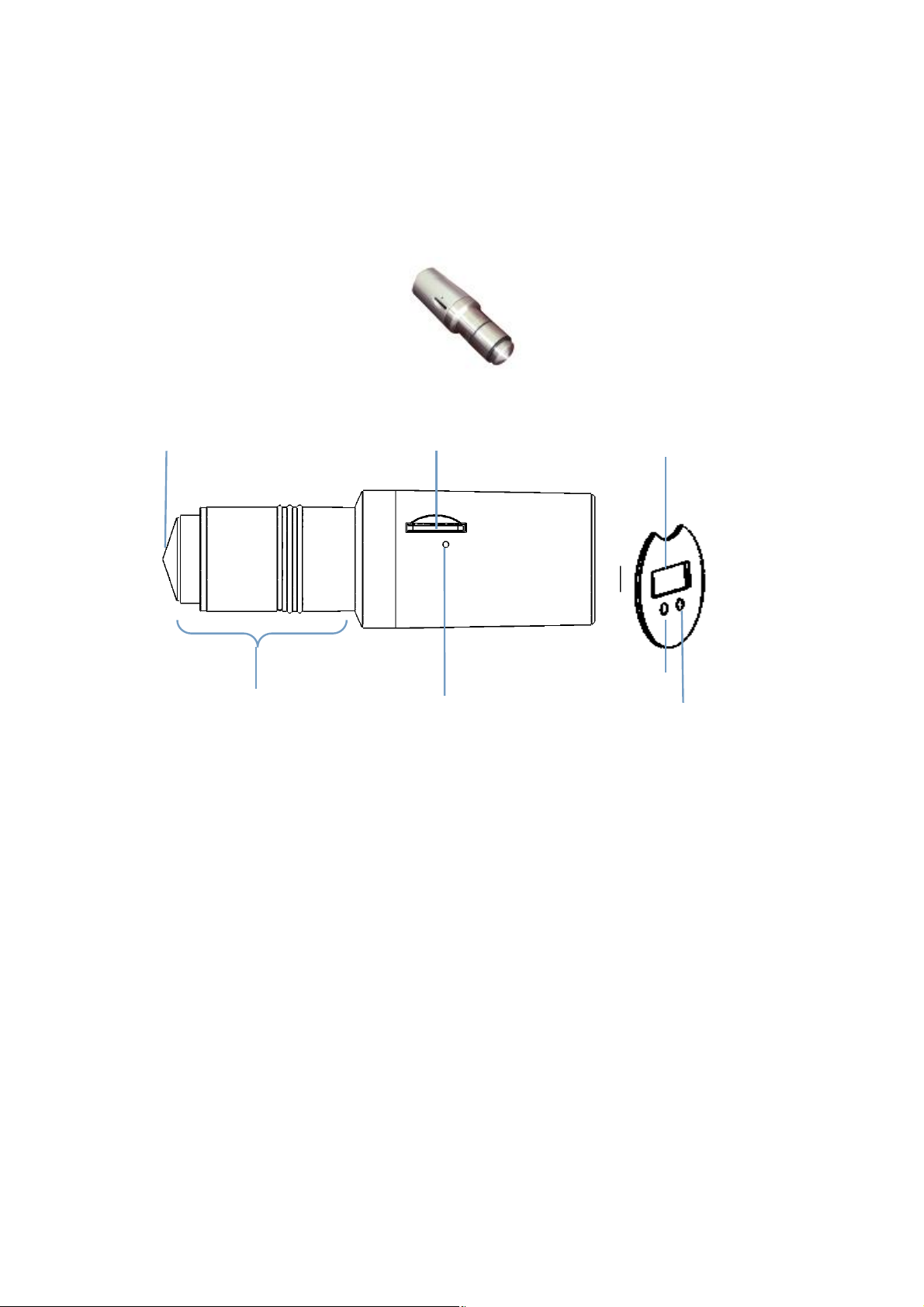
Device Layout:
Safety Hammer TF Card Slot Discharge Port/USB Port
Power light
Charge Head Reset Hole Wi-Fi Signal Light
Novice Road:
InStall the TF card
Before using, please insert TF card, then put the S6 in the car.
Turn on the S6
While the S6 power light (red LED) and Wi-FI signal light (green LED )will
light ,wating until the Green LED flashing, means the S6 benning turn on rightly.
Mobile App installation
For Apple users:
Method (1): Search for “ISeeStar” in the “App Store” to download and install the
app.
Method (2) :Scanning QR code For ios outside the package, then auto link to the
“App Store” download and install the “ISeeStar” app automaticly.
Method (3): Import the download address as following in your phones’ IE, then
to download and install the app.
1
Page 2
Download address: https://itunes.apple.com/us/app/iseestar/id988246029?mt=8
For Android users:
Method (1):Search for ”ISeeStar” in the” play Google”, to download and install
the app .
Method (2): Scanning the QR code for Android on outside of the package, to
download and install the app automaticly.
Method (3):Import the download address as following in your phones’ IE, then to
download andinstall the app.
Download address: http://www.ameristar.com.cn/apk/download.html
APP use steps of Apple phone
Using apple App to access the S6
Step1: Please confirm the S6 turn on correctly at first.
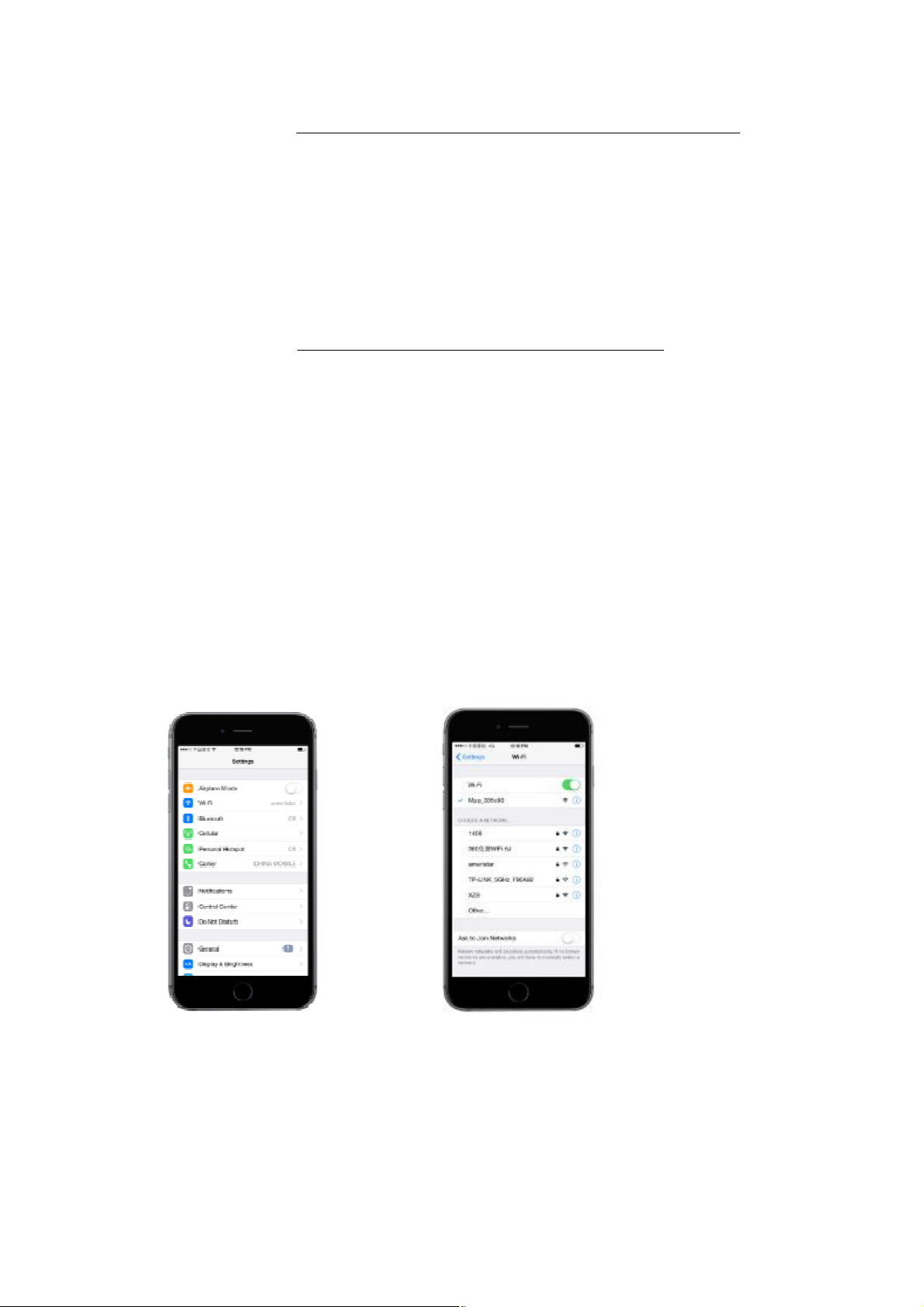
Step2: Enter the phone ”settings” menu, click the “Wi-Fi” menu to enter the Wi-Fi
network selecting interface.(apple picture 1)
Step3: Select the network name which start with of the ”Mpp” , such as
“Mpp-335c90”, after selected the network from the list.
Step4: exit the ”settings menu”.(apple picture 2)
apple picture 1 apple picture 2
step5: Find the app icon “ISeeStar” and touch to run the app , then the app start with
the turning on interface .(apple picture 3)
2
Page 3
apple picture 3
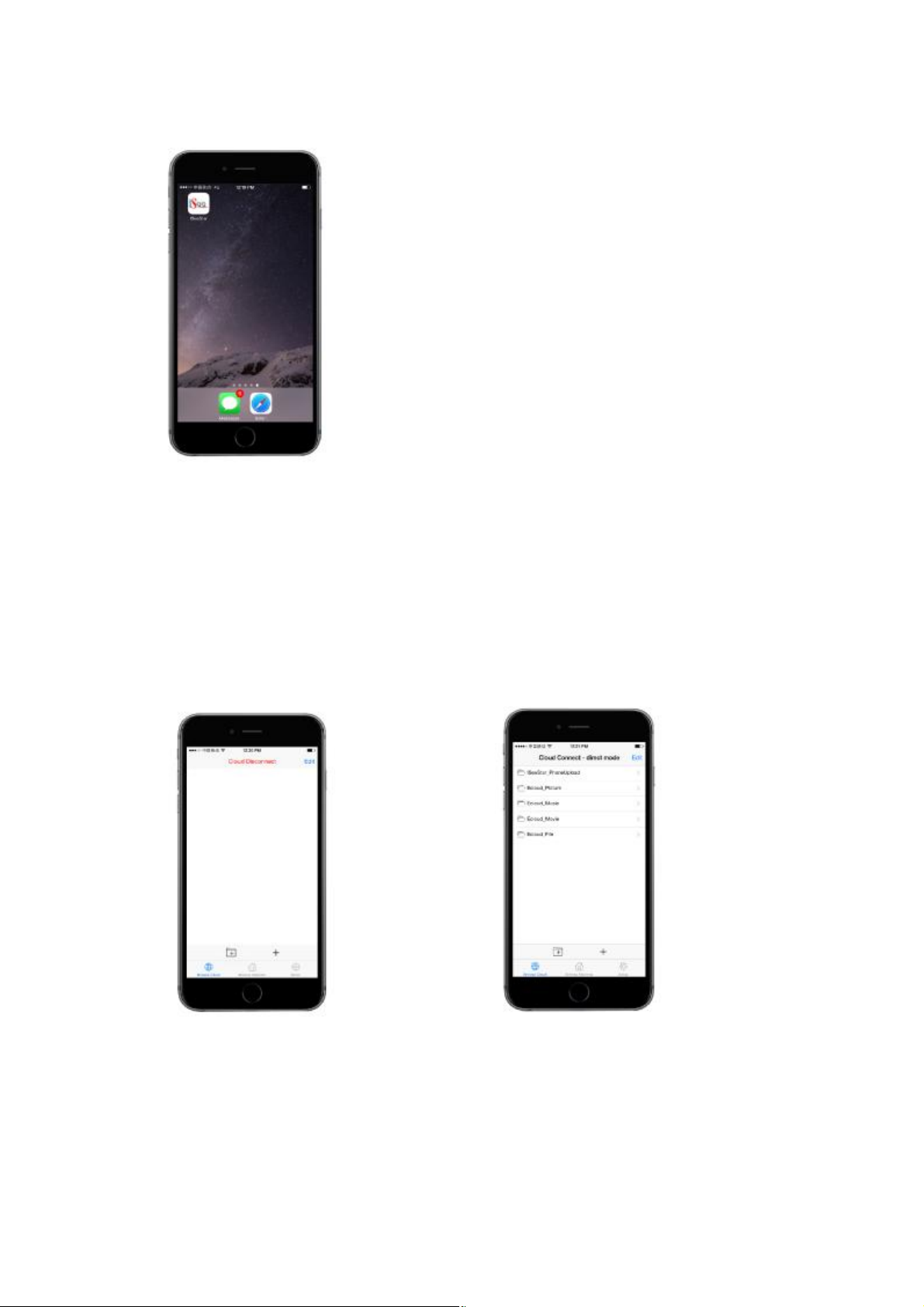
Step 6: The ISeeStar will enter the main browsing interface as figure 5,if the previous
steps are all executed correctly.
Step7: ISeeStar will dispaly as figure 4,if ISeeStar failed to connect to the S6.
If ISeeStar connect to the S6 correctly . The cotents are about the root
directory and file of the S6 in it’ main browsing interface.
apple picture 4 apple picture 5
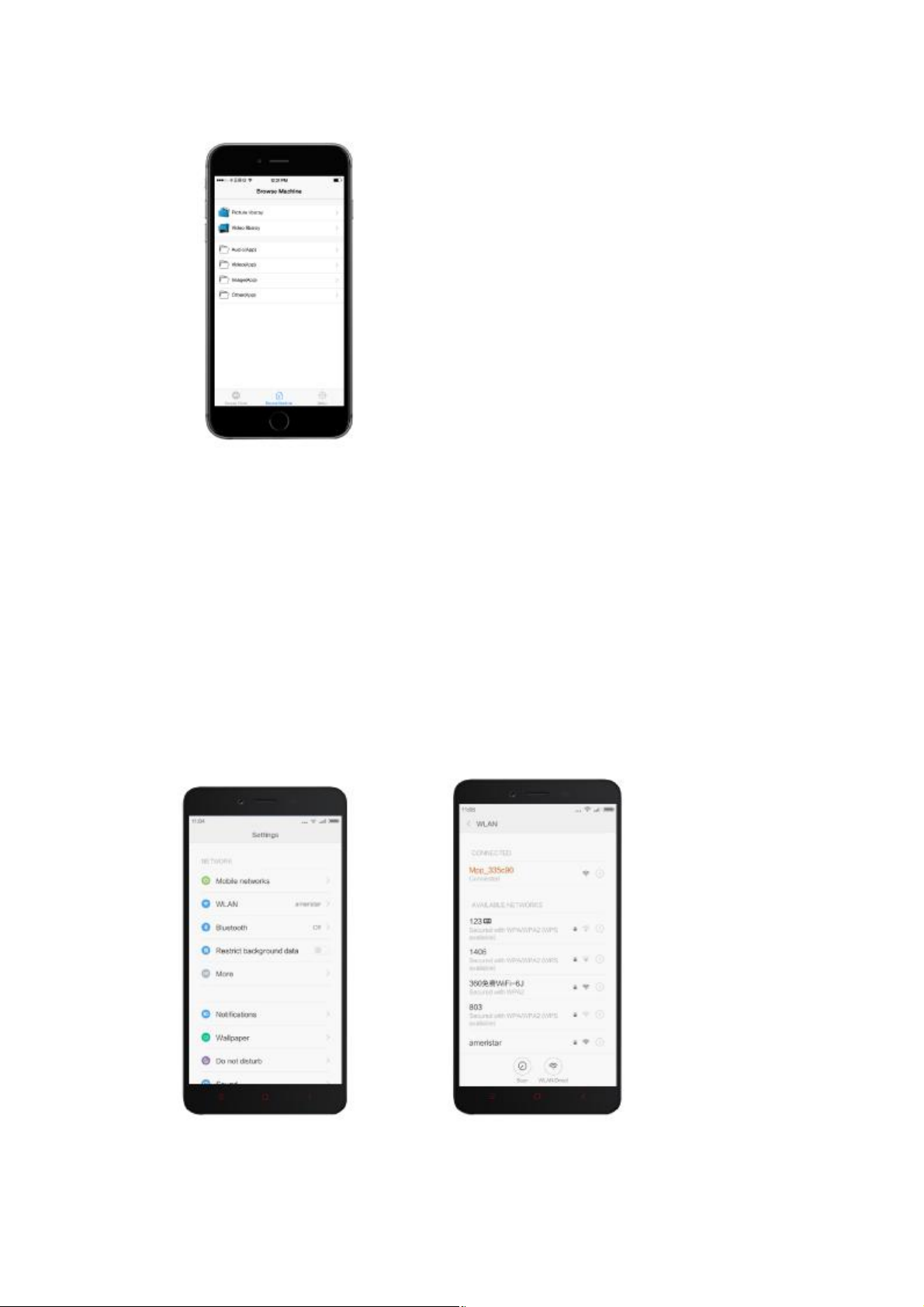
Step8: The browsing windows will display the content of local-storage within the
phone . It were the photo flies of the phone which display in the directory of “Phone
Library”. Those files were stored in directory of “other” which were downloaded
from the S6 as default. (apple picture 6)
3
Page 4
apple picture 6
APP use steps of Android phone
Use Android App to visit the S6
Step1: Please confirm the S6 turn on correctly at first.
Step2:Enter the phone ”settings” menu, click the “Wi-Fi” menu to enter the WiFi
network selecting interface. (android picture 1)
Step3: Select the network name which start with of the ”Mpp” ,such
as ”Mpp-335c90”,after selected the network from the list.
Step4:Exit the ”settings menu.(android picture 2)
android picture 1 android picture 2
4
Page 5
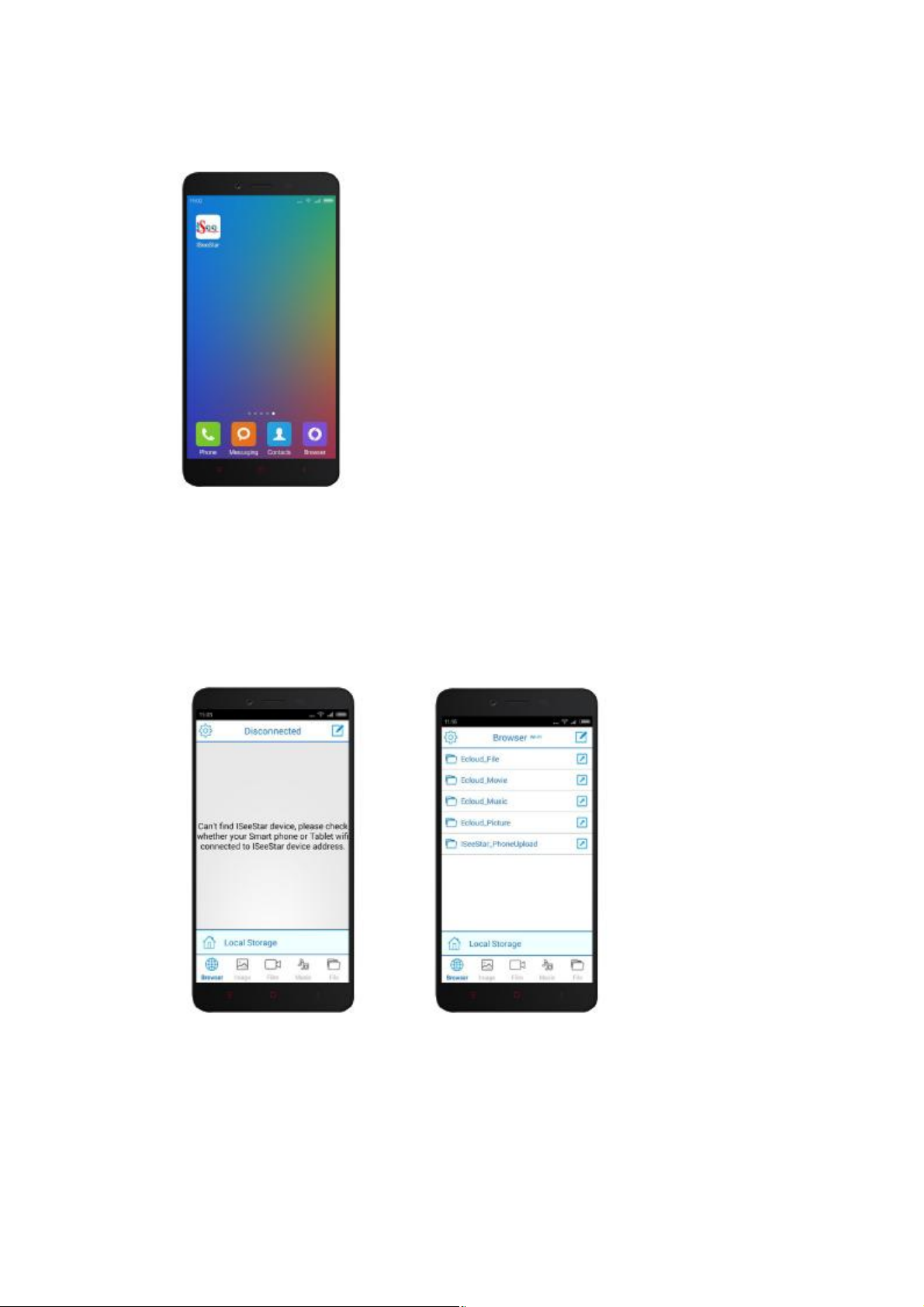
Step5:Find the app icon “ISeeStar” and touch to run the app , then the app start with
the truning on inter-face .(android picture 3)
android picture 3
Step 6: The ISeeStar will enter the main browsing interface as figure 5,if the previous
steps are all executed correctly.
Step7: ISeeStar will dispaly as figure4, if ISeeStar failed to connected to the S6 .
If ISeeStar connect to the S6 correctly . The cotents are about the root directory and
file of the S6 in it’ main browsing interface.
android picture 4 android picture 5
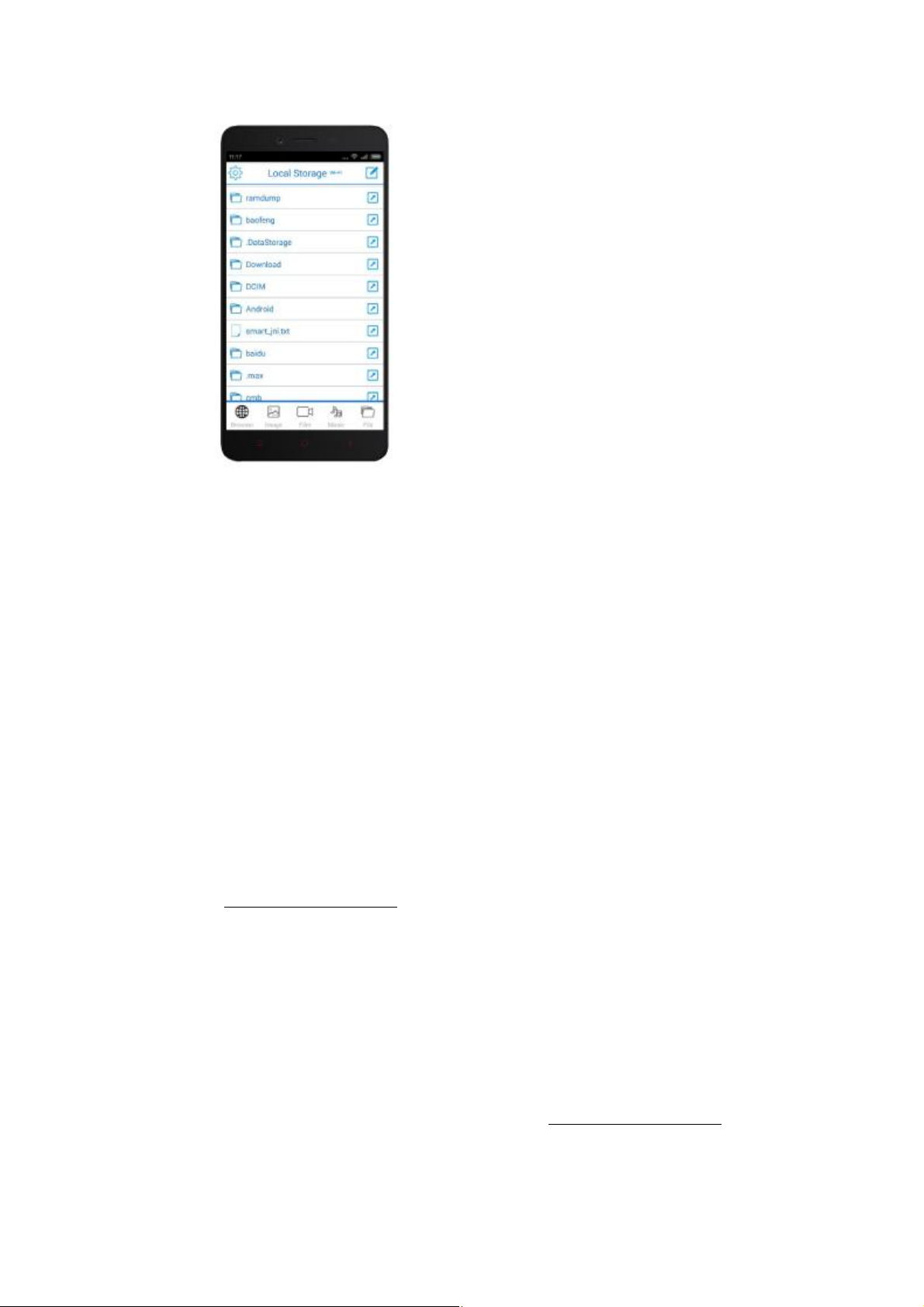
Step8: The browsing windows will display the content of local-storage within the
phone . It were the media flies of the phone which display in the directory of
“DICM” .Those files were stored in directory of “ISeeStar” which were downloaded
from the S6 as default. (android picture 6)
5
Page 6
android picture 6
Safe use of custody and preventive measures
Safe use to prevent electric shock, fire and explosion
Please avoid to fall or crash with the S6.
Please use the S6 in 5 to 35 degrees.
Please stop to use the S6 when it work over hot.
Do not pull a wet hand to pull the S6 or pull out the charging cable.
You had batter pull out the S6 when you parking flameout , avoid to cause the battery
power extra wasting.
Check User’s Manual
User’s manual provides detailed data on the cloud for a S6 operation, using process
can not solve the problems encountered in, please contact your service provider or in
Ameristar company network download the technical support of data
Website: www.ameristar.com.cn
S6 software support remote upgrade.
For Android User upgrading: please note that the App software upgrade tips.
For Apple User upgrading: please note that Apple Store upgrade tips
About video player
For Android phones or tablet users, it is recommended to download the storm or Play
MX player
For Apple’s mobile phone or tablet users, you can directly play
For more product information, please visit the website www.ameristar.com.cn
6
Page 7

FCCCaution
Thisdevicecomplieswithpart15oftheFCCRules.Operationissubjecttothe
followingtwoconditions:(1)Thisdevicemaynotcauseharmfulinterference,and(2)
thisdevicemustacceptanyinterferencereceived,includinginterferencethatmay
causeundesiredoperation.
AnyChangesormodificationsnotexpresslyapprovedbythepartyresponsiblefor
compliancecouldvoidtheuser'sauthoritytooperatetheequipment.
Note: ThisequipmenthasbeentestedandfoundtocomplywiththelimitsforaClass
Bdigitaldevice,pursuanttopart15oftheFCCRules.Theselimitsaredesignedto
providereasonableprotectionagainstharmfulinterferenceinaresidentialinstallation.
Thisequipmentgeneratesusesandcanradiateradiofrequencyenergyand,ifnot
installedandusedinaccordancewiththeinstructions,maycauseharmfulinterference
toradiocommunications.However,thereisnoguaranteethatinterferencewillnot
occurinaparticularinstallation.Ifthisequipmentdoescauseharmfulinterferenceto
radioortelevisionreception,whichcanbedeterminedbyturningtheequipmentoff
andon,theuserisencouragedtotrytocorrecttheinterferencebyoneormoreofthe
followingmeasures:
-Reorientorrelocatethereceivingantenna.
-Increasetheseparationbetweentheequipmentandreceiver.
-Connecttheequipmentintoanoutletonacircuitdifferentfromthattowhichthe
receiverisconnected.
-Consultthedealeroranexperiencedradio/TVtechnicianforhelp.
ThisequipmentcomplieswithFCCradiationexposurelimitssetforthforan
uncontrolledenvironment.Thisequipmentshouldbeinstalledandoperatedwith
minimumdistance20cmbetweentheradiator&yourbody.
 Loading...