

Page 1
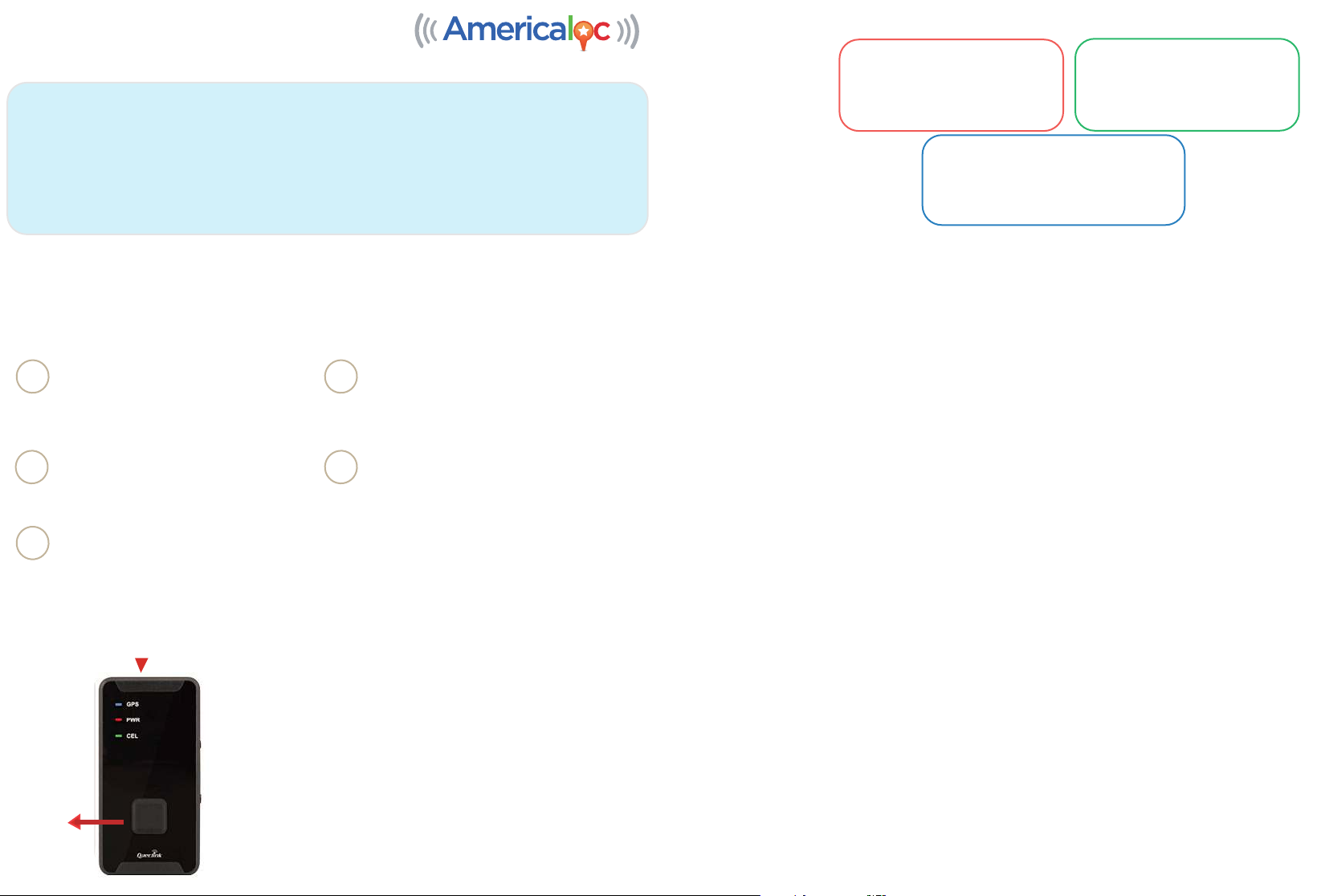
Led behavior
Welcome to AMERICALOC
IMPORTANT: Your complete satisfaction is our first priority! If you have a problem or need assistance
please contact us at [email protected]. Rest assured we will find a solution for you. Our friendly,
knowledgeable customer service representatives are standing by to explain our services and to assist
you in getting the most from your GPS tracking service.
Your device's settings are optimized for vehicle tracking. Please reach out to our Support Team at
[email protected] if you are tracking something other than a vehicle. We will gladly assist
you with configuring the device for maximum performance and battery life.
Before using our products or installing a device, carefully read our legal terms which you can find at
http://us.americaloc.com/legal_info.html .
Activate your account and device GL300 W
www.americaloc.com, select
Go to
1
United States and click the
Activate Now button.
Go to
www.americaloc.com and
log in with the username and
3
password established in the
previous step.
Turn OFF and then ON the device after initial service payment. Your device already comes
5
with a SIM card installed. Please do not remove the SIM card.
Fill in the required information. The IMEI
2
code can be found below the bar code
that is printed on the back of your device.
Your account will now be ready to use.
Purchase one of our service plans by
clicking on the
4
A window will open to provide you with
payment instructions.
Click to pay service button.
RED (POWER LED)
Fast flash: Charging
Slow flash: Low battery
Dark: Normal behavior or Device OFF
Solid: Charging completed
BLUE (GPS ERROR LED)
Will work for some minutes for testing
purposes and then it will go to sleep mode
to save battery.
GREEN (MOBILE NETWORK LED)
Fast flash: Searching for network
Slow flash: Registered on network
Dark: Device OFF
Frequently asked questions
Dear Customer. This section contains very important information. Please do not skip it.
1. How long does it take to activate my device after processing a payment?
Your device will be active after the payment once you turn it off and turn it back on.
2. How does this technology work?
Your device reads data from satellites to find its location; it then uses mobile networks to transmit its
location to our servers. Your device needs both: mobile network and GPS signals to work.
3. Do I need to purchase or provide a SIM card?
No, we ship the device with the SIM card it needs to transmit data. That SIM card only works with this
device.
4. Do I need to install the SIM card?
No, the card is already installed. Please do not remove it.
5. I can´t see my device’s location on the website.
If your device is powered ON, there are 2 reasons for this problem:
Appearance
Function
key
Power key
The POWER key is in the upper side of the device.
POWER ON: Press the power key for 5 seconds.
Check LEDs are ON before using
POWER OFF: Press the power key for 5 seconds, release
the button and wait until the LEDs power off. It may take
up to a minute for the device to power down.
CHARGING: Fully charge your device before using it for
the first time. A full charge takes about 8 hours.
FUNCTION KEY: You can configure notifications in your
Americaloc’s account so every time this key is pressed
an email will be sent to the subscribed email warning
about this event.
• Poor mobile network signal: Your device may be in a zone with poor mobile data coverage.
It will start transmitting again as soon as it gets into a better coverage zone. The device has an internal
memory to store locations in those cases. That information will be transmitted as soon as the device can
connect to the network again.
• Poor GPS signal: Your device may have lost GPS signal. That may happen when your GPS tracker is
covered by a thick surface or if your device is inside a building, underground or near tall buildings.
6. How long should I charge the device to fully charge the battery?
Eight hours of charge is enough. The device is fully charged after 8 hours or when the RED Power
LED is solid
7. My device reports a location that is slightly off from the actual location.
Accuracy depends on many factors beyond our control. For example: weather, clouds, tall buildings
or trees, bodies of water and device location.
Page 2
8. What is the Function Key for?
You can configure the device to generate an email notification when the function button is pressed.
However, we do not guarantee receipt of function button notifications, nor do we monitor or take
action on such notifications. Successful transmission of emails depends on many factors, most of
which are beyond our control; cellular coverage, email spam filters and mail server downtime, to
name a few. This button is provided by Americaloc but is to be used at your own risk. To configure
the email notifications go www.americaloc.com, locate your device and navigate to
Settings-->Notifications and select Panic/Key.
9. I'm using a magnetic case. Where should I place it?
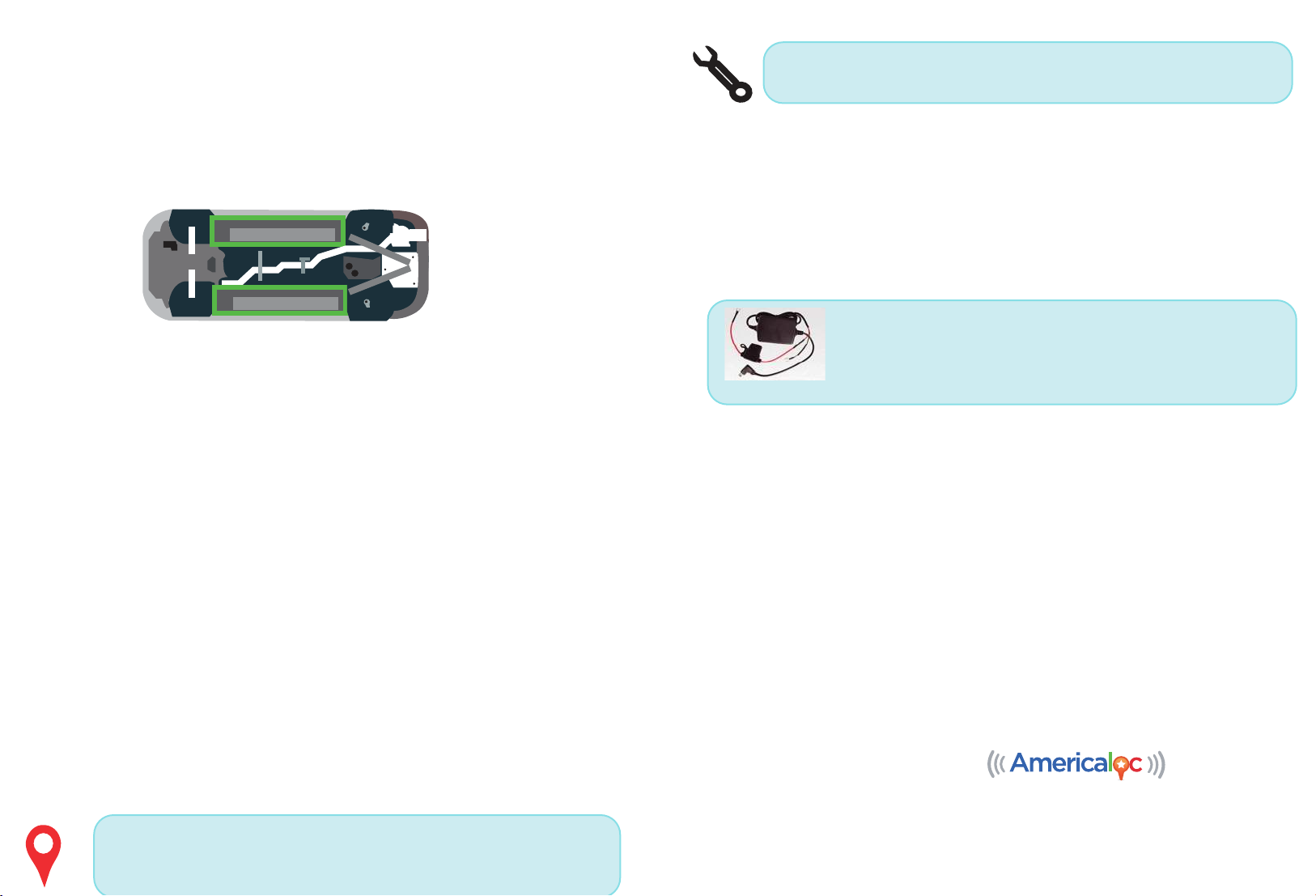
The green rectangles in the image below show the best locations for a magnetic case.
When you place the device inside the magnetic case, make sure the LEDS are facing the ground once
you place it under the vehicle. Plese avoid heat sources like the exhaust and engine.
10. I don’t have or do not want to use a magnetic case. Where should I place the device?
Best spots: glove compartment, under the windshield, seat pocket, rear tray, under a seat, door
compartment. Those spots usually work fine, but it also depends on the vehicle, so we encourage you
to try them and then select the best spot for your car.
Device settings. Click this icon to access and configure your device’s settings.
Important: If you set the speed alert to ON, your device will permanently read speed
data and this will strongly reduce battery life.
B. HOW TO WATCH HISTORY (User interface may change if you are using the website on a
desktop or in a mobile phone)
1. Click on “History” tab. Select from the list of pre-determined date and time ranges or select
Advanced Search to perform a historical search.
2. Click Search to view the results of the device you selected. Then Click Wat ch to view a map and
table of all the actions and paths taken by a given device for the date range selected.
3. Click on each icon in the path or table to display the corresponding details.
OPTIONAL ACCESSORY: The following cable allows you to connect your
device to your car so you don´t have to charge it. If you are interested
please email us at [email protected] .
IMPORTANT: If you buy it, please use only the red and black cables. Do not
use the small cables (if present) that are next to the USB plug.
You can find additional information about our devices and services in the “Help section” of your
account. To access the online help click the help button from the top right corner of your account
page. In this section you can also watch short videos corresponding to the “Frequently Asked
Questions”. Please note that functions may vary by model.
Worst spots: Do not place the unit in the trunk or under the hood. GPS signal levels are not good in
those spots. As a general rule we do not recommend the trunk. If you can not place the unit inside the car,
a magnetic case under the car is recommended.
11. Does weather affect my device?
Atmospheric conditions, such as rain or snow, can weaken signals. For example, if your car or case has a thick
coating of snow, then you can expect a lower accuracy level. Extreme temperatures can also affect battery
operated devices and cause signal degradation which may result in lower accuracy or communication failures.
Please do not put the device on a very hot or humid place, avoid exposure to direct sunlight. High
temperatures will damage the device or even cause battery explosion.
BASIC LOCATION INSTRUCTIONS
A. HOW TO LOCATE YOUR DEVICE
Follow these instructions to locate your device:
1. Click on menu 1. your devices; your list of devices will appear and you will see a group of buttons
next to your device.
Show location: Your device updates its location at predefined intervals. The default
interval is one minute while moving. We can configure the device to update it’s location
more frequently while in motion and idle. Please contact us in order to change this
configuration.
IMPORTANT: Thank you for buying our products. Our customers go first. We work strongly to ensure
our customers will have the best experience with our products. If you ever feel something does not
work as expected or have doubts, please feel free to contact us at [email protected] We will
find a solution for you. We can even ship a replacement unit if necessary. We are commited with
quality service.
To download our app please search by “Americaloc Viewer” in the Google Play Store and in the
App Store.
For further information please contact us at [email protected] or watch our
video tutorials at
http://us.americaloc.com/Help.html
Thank you for choosing
 Loading...