

Page 1
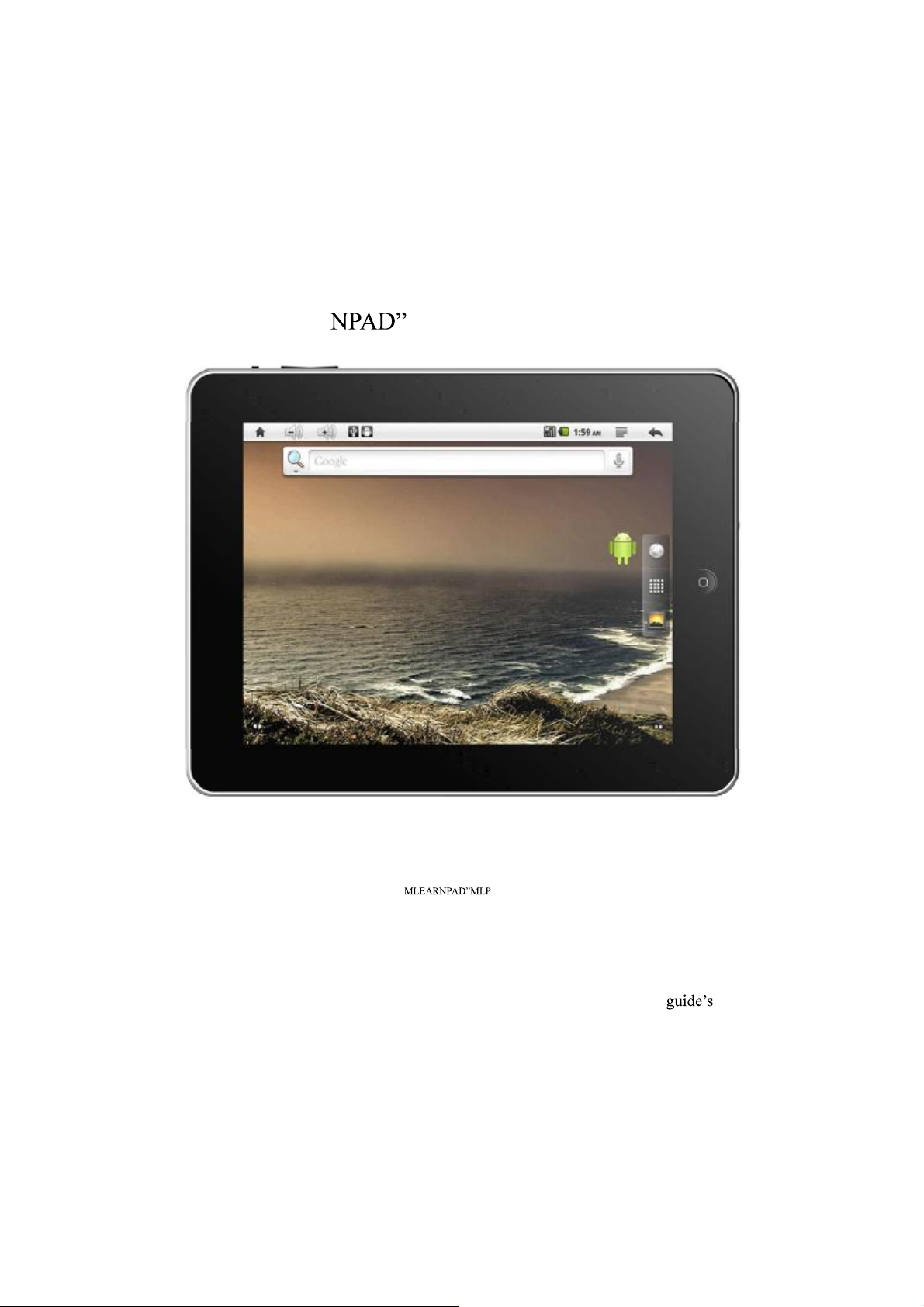
English User Guide
MLEAR MLP-EL8 Andriod Tablet
Hey there,
We want to thank you for choosing the -EL8. What you now possess in
your hands today is not merely a product of coincidence. Nor is your ownership of
it a mere result of coincidence. We sincerely hope that your experience will match
and exceed your expectations with this device!
The information contained in this guide is accurate as of this
publication date. However, as we continuously improve and update our product,
the actual software on your device may differ in both functionality and appearance
whencomparedwiththeusagescenariosshowninthisguide.
Page 2
-EL8 T ablet PC
Warnings and Cautions
This guide contains important
information on safety proced ures
English User Guide
and correct methods of using this device. Please thoroughly read this
be fore using this product..
Do not place this device in an ar ea where it is high in temperature, humid, or
dusty
Avoid dropping or impacting this product. Avoid the LCD display panel from
experiencing forces of extreme vibration, or it can result in display panel
malfunction.
Under the following conditions, please charge the battery:
-- Battery indicator that there is no battery power
-- System will automatically shutdown. Restarting the device under this
condition will result in a forced automatic shutdown quickly after startup, as well as
the loss of response from function keys. .
Insert the charger into the DC jack to enter the battery charging state,
! : This device contains an internal lithium polymer battery.. Only charge the
device with the charger supplied with the device.. After a lower battery power
shutdown, plugging in the charger, the device may indicate that the battery level is
insufficient to start the device, and indicate that the battery is being charged. If this
is the case, please wait for a while until the device battery power reaches a level
sufficient for the device to startup.
-- As the battery charges, the display will display an animated battery logo
-- When the battery charging process is complete, the battery logo will turn
green, and the animation will halt.
! : If not using the device for an extended period of time, please periodically
recharge the device in order to prevent the battery from being damaged due
to battery discharge. The damage caused by the over-discharge of the lithium
polymer battery is not covered under warranty. Problems arising from the use of
non-supplied chargers are also not covered under warranty.
Ourcompanyisnotresponsiblefordatalostasaresultofdevicedamage,
repair,andothermiscellaneouscauses.
1
Page 3

-EL8 T ablet PC
Do not attempt to open the device by yourself. Do not use alcohol, thinners, or
benzene.
Do not use this device while walking on the street or driving. Do not use this
device in areas where such electronic devices are prohibited from use.
Please select a comfortable volume to use the device. Do not turn the volume
too high when using headphones. If ears begin to ring, please turn the volume
down and consider taking a break.
this device is not water--resistant
! : The pictures contained in this user guide are for reference only! Our
company retains the right to alter the product appearance and specifications
without notice.. Sorry about any inconvenience this might cause.
English User Guide
2
Page 4
-EL8 T ablet PC
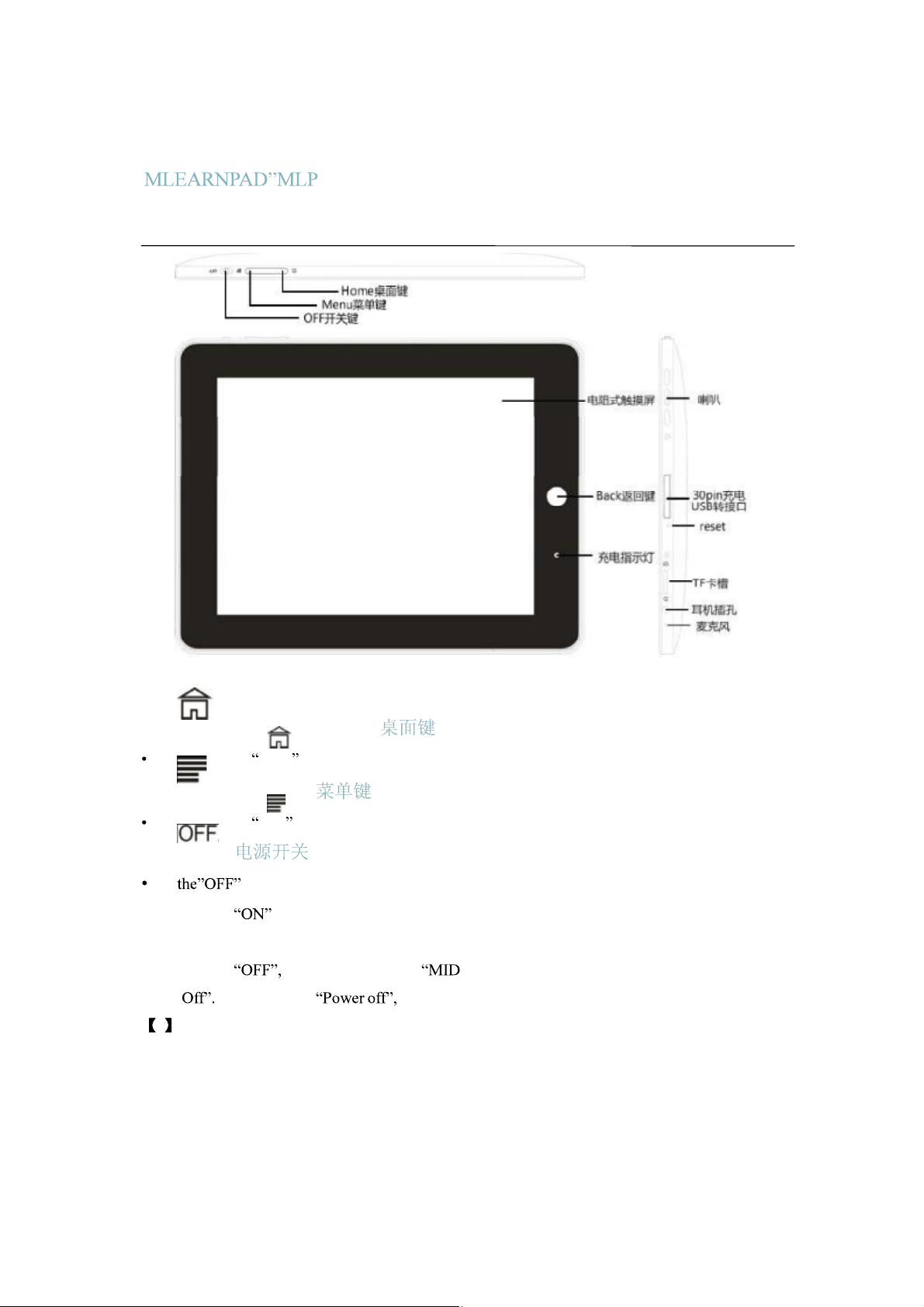
1.MLP-EL8 Device Overview
English User Guide
1.1 Home Button (Home )
Short-press button to return to the home screen
1.2 Menu (Menu )
Short-press to make the menu appear
1.3 ( )
Use sliding switch to turn on or off the device
--Sliding to position powers on, displays boot animation and enters
home screen
--Sliding to system will indicate Options: Silent Mode and Power
After selecting the device will normally shutdown.
! : 1. Device will automatically shutdown when battery life is insufficient
2.If device is improperly shutdown,, the device shall s can the integrity off
datadrivesandmaytakealongertimetostart upthan usual
3
Page 5
-EL8 T ablet PC
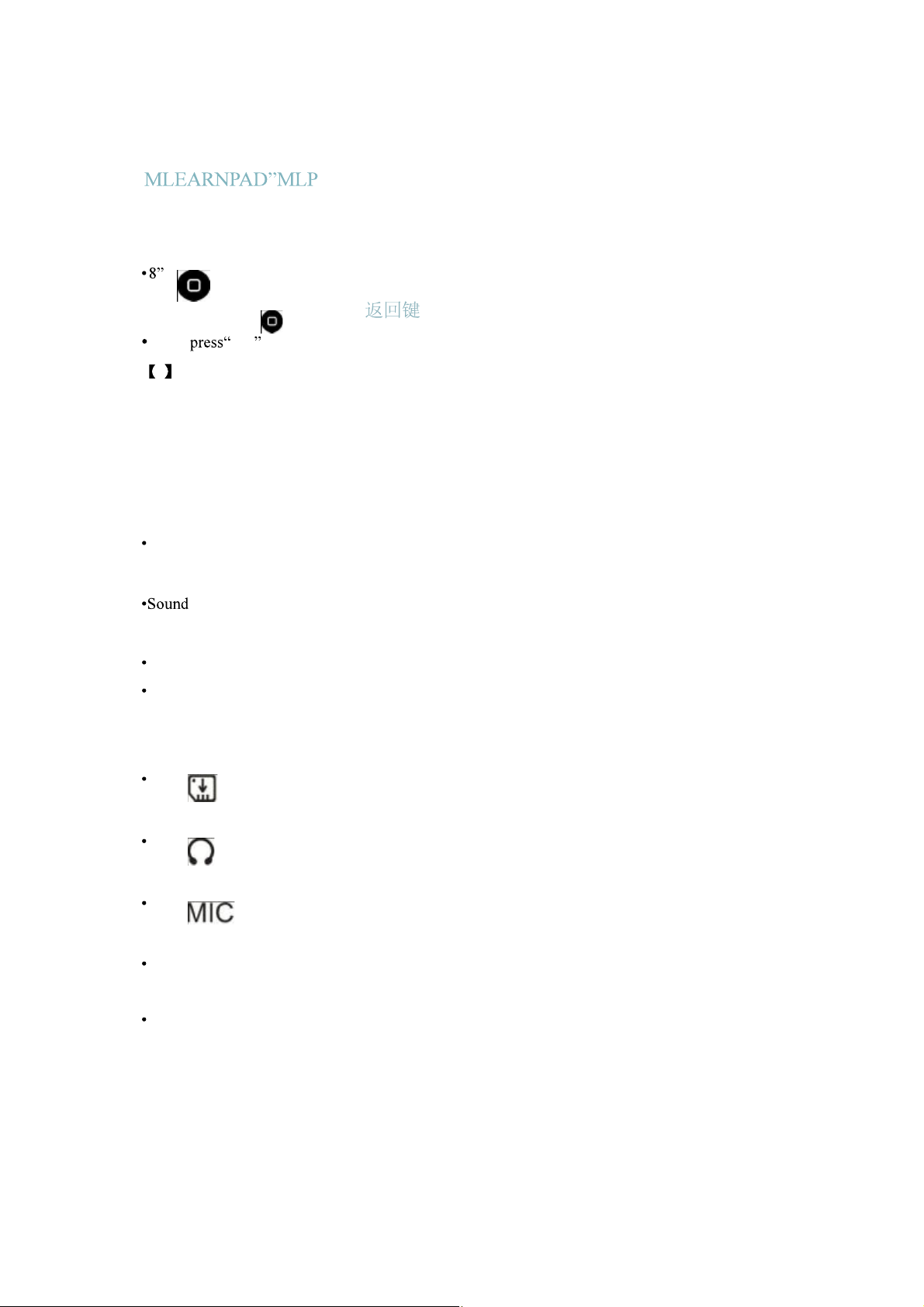
1.4 Resistive touch screen
resistive touch screen: Can perform dragging and pressing actions
1.5 Back Button (Back )
Short- return to the previous screen
! : Definition off button actions:
--- Short-pressing : Hold the button for less than 1..2 seconds.
--- Long-pressing:: Hold button for approximately 3 seconds.
This user manual does not describe all the actions associated
short-pressing buttons
1.6 Charging Light
When the device is charging, the charging light will light up
1.7 Speakers
output speakers
English User Guide
with
1.8 30PIN to DC Charger and to USB Connector
30pin to DC: Used for connecting char ging cable for charging the device battery.
30pinto USB: used to connect to the computer as a data cable or for connecting
to external peripherals
1.9 Reset
Restart the device
1.10 T-Flash (microSD) Card Clot
T-Flash (microSD) card slot: external T-Flash (microSD) storage
1.11 Headphone jack
3.5mm standard headphone jack
1.12 Microphone
Microphone sound input
1.13 Accessories
Standard accessories: User guide, charge cable×1, USB data cable ×1, OTG cable×
1
4
Page 6
-EL8 T ablet PC
English User Guide
2. First Time Use of the MLP-EL8 (Android Operations)
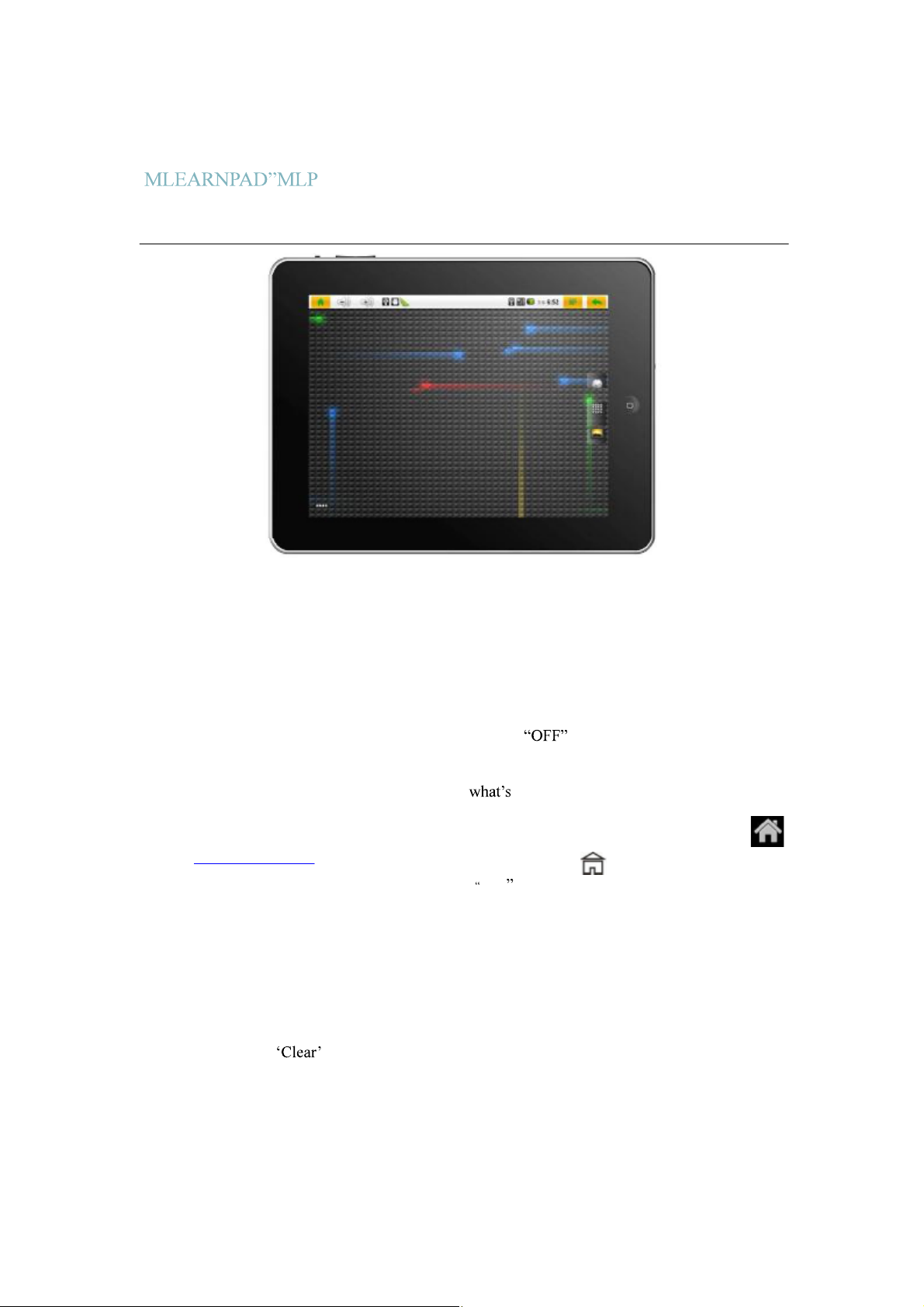
Image 2.1
2.1 Turning on the MLP-EL8 and Entering the Home
Screen
Welcome to your first use of your MLP-EL8 tablet! Even if you are just unfamiliar or a
newbie at Android, just follow our operating instructions to become an acquainted
this tablet! Before using your MLP-EL8 for the first time, please first fully char ge the
battery of the device. Then turn on your device by sliding the switch, and
allow the device to finish loading. The boot animation will be displayed. When your
device is done loading for the first time, you will see in Image 2.1, which is
your Android home screen. The MLP-EL8 runs on the Google Android operating
system (www.android.com ). To return to this screen at any time, just press the
logo located in the top-left corner of the screen, or the button at the side of
the device. The top light color bar at the top is the notification bar. You can drag it
down to display important notifications about your device. It will also occasionally
show information about applications running in the background, such as your
music player or a download in progress. Dragging the gripper at the bottom back
up will clear return the screen to your original state. Notifications can be cleared
away by pressing the button.
Androidusesasoftwarekeyboardthatautomaticallyappearswhenatext-fieldis
5
Page 7
-EL8 T ablet PC
selected. To hide the software keyboard, short-press the front button to
hide the software keyboard. Long-pressing any text-field will result in a menu that
allows you to change software keyboards from a list of installed and enabled
software keyboards. This is shown in more detail in Images 2.27 and 2.28, later in
this guide.
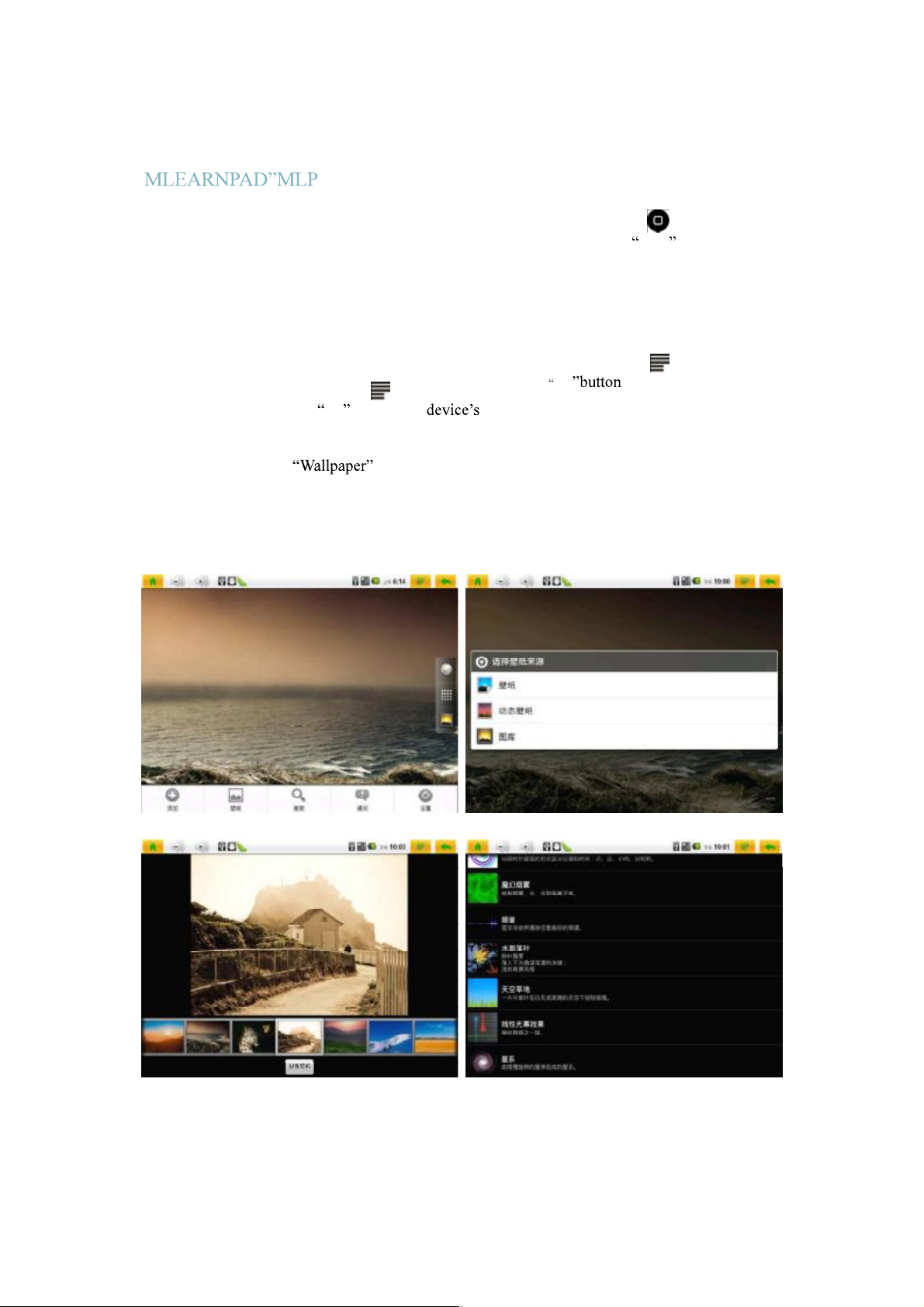
Starting from changing the default wallpaper, short-press the at the
side of the device, or press logo on the screen as indicated in the
top r ight corner of Image 2.1. This will result in a menu as shown in the bottom part
of Image 2.2. Select the option, and wait for the menus as shown in
Image 2.3 to appear. We can now select wallpapers from the Wallpaper Gallery,
Live Wallpapers, or from the Gallery application to set a per sonal image as your
wallpaper. Image 2.4 shows the Wallpaper Gallery. Image 2.5 shows the Live
Wallpapers selection screen.
English User Guide
Image 2.2 Image 2.3
Image2.4
Image2.5
6
Page 8
-EL8 T ablet PC
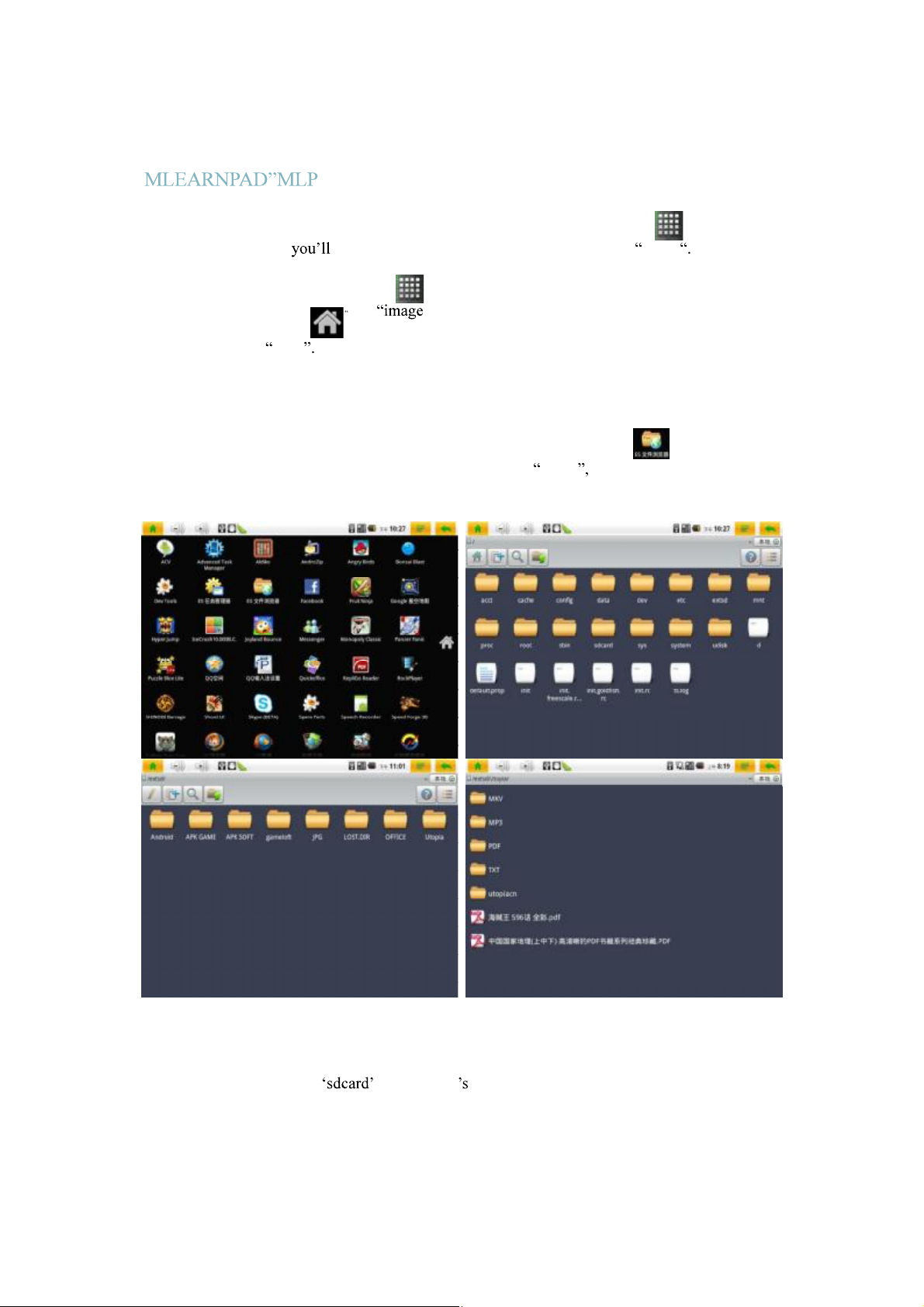
Back to Image 2.1, notice a logo that looks like this: When you
press it, it will expand into a screen shown in Image 2.6. This is your application
launcher. Also notice that your has transformed into a little house icon
that looks like this: Pressing this returns to the home screen shown in
Image 2.1. Drag up and down to see a list of all the applications available in our
device.
Next we want to show you how to use the file browser on this device. We have
bundled an application called ES Filer Explorer. Find this icon and press it
once to launch the application.
English User Guide
Image 2.6
We will now enter a screen as indicated in Image 2.6. Two common file
directoriesinthisdeviceare (yourdevice internalmemorystorage
7
Page 9
-EL8 T ablet PC
card), and (your external memory storage card .)
Particular to any Android operating system, APK files are setup files used for
install applications on the Android operating system. These software packages act
like setup executable files on a Microsoft Windows, .dmg files on a Mac, or .deb
files for Ubuntu.
English User Guide
2.2 Using the MLP-EL8 to Read EBooks and Manga (Comic Strips)
Image 2.7 Image 2.8
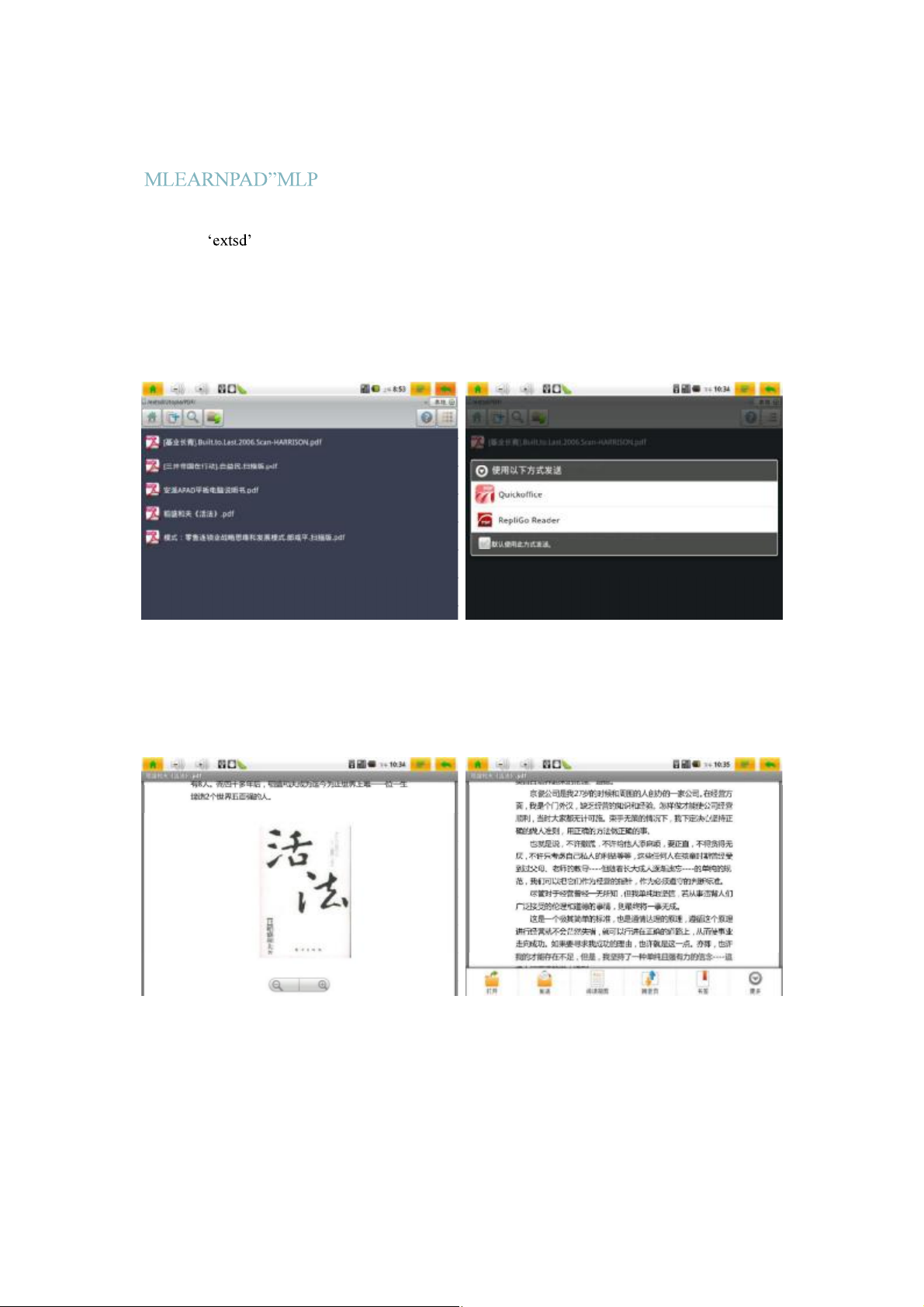
As shown in Image 2.7, we can browse to the TF (microSD) card and find PDF
documents we have copied over from our computer. After selecting the PDF file,
you can select an application to open the PDF file with. This is shown under Image s
2.9 and 2.10, for RepliGo Reader.
Image 2.9 Image 2.10
The MLP-EL8supports viewing in portrait or landscape view, with the use of the
integratedgravitysensingg-sensor,showninImages2.11-2.12foreBooksand
8
Page 10
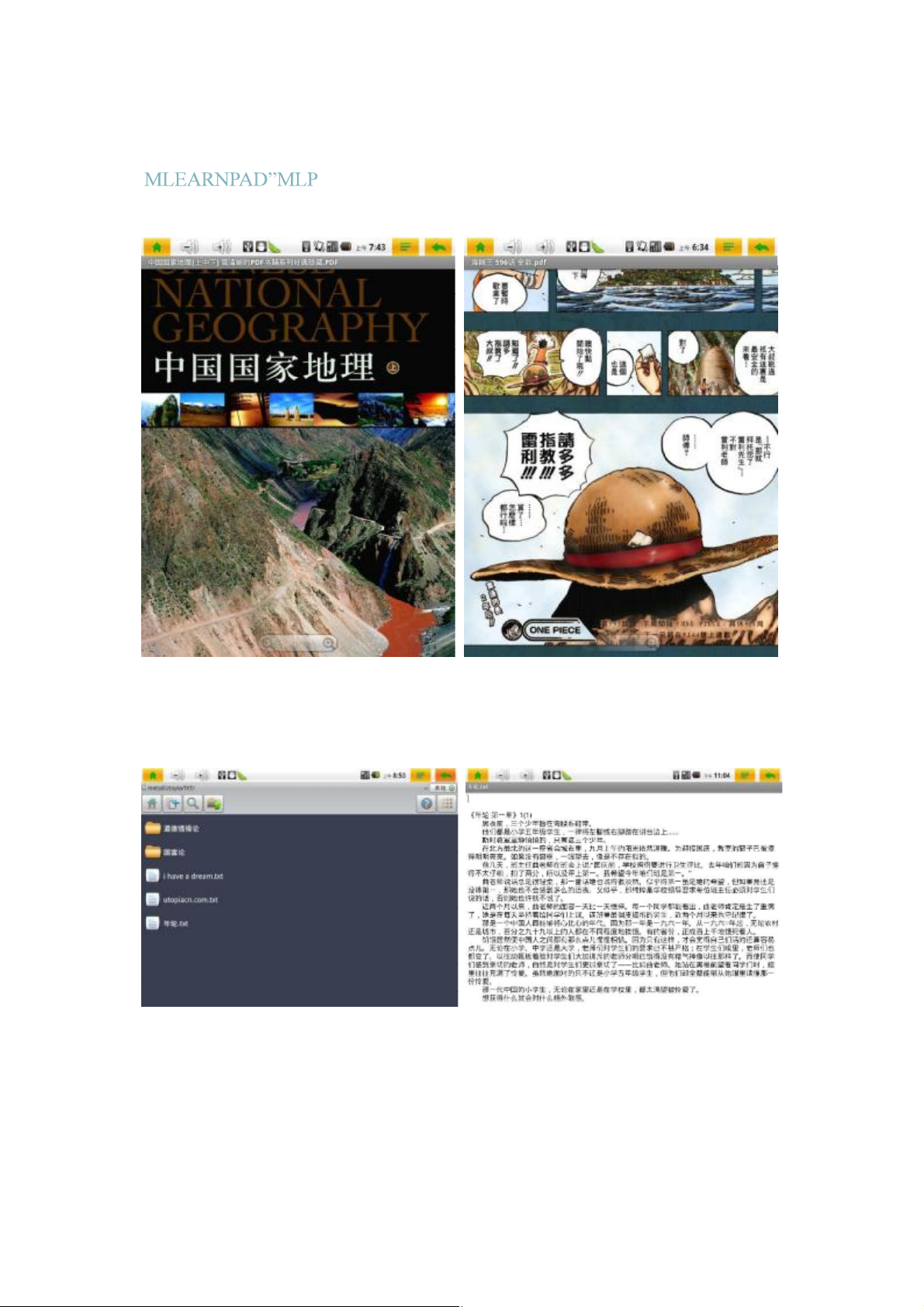
manga (comics).
-EL8 T ablet PC
English User Guide
Image 2.11 Image 2.12
Other than scanned PDF files, TXT format eBooks can be viewed as well. An
example of a software application on Android for viewing TXT format eBooks is
iReader.
Image 2.13 Image 2.14
9
Page 11
MLP-EL8 T ablet PC English User Guide
2.3 Using MLP-EL8 to Watch Movies and to Listen to Music
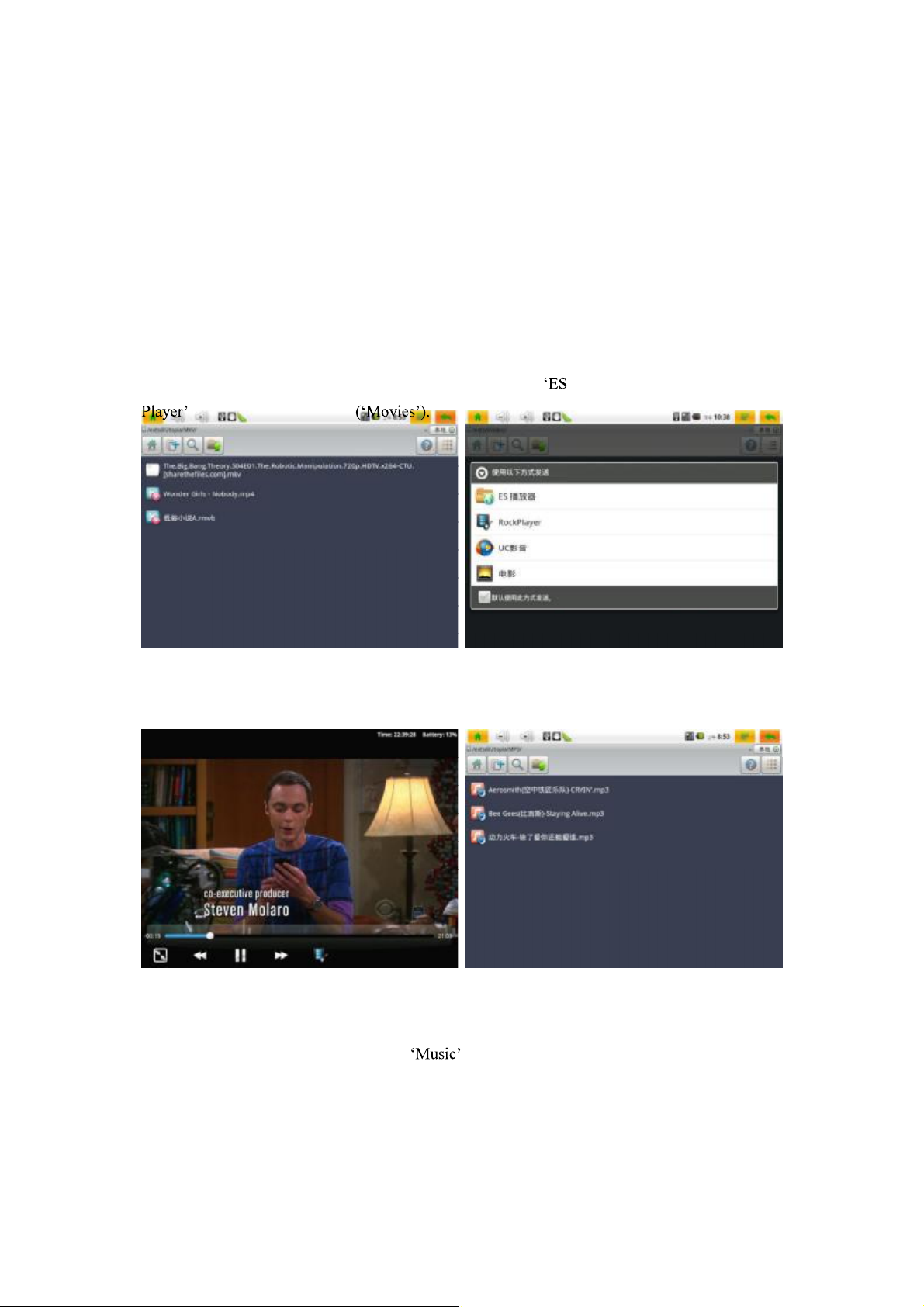
MKV or RMVB video clips can be played on the MLP-EL8. Browse to the location
of the files, as shown in Image 2.15. Then tap on the file to load the menus shown
in Image 2.16 . Now select the preferred playback application. Rockplayer is a
popular third-party video playback application for video playback. Alternately,
choose the internal Android video player by selecting either the Video
or the Gallery application
Image 2.15 Image 2.16
As shown in Image 2.17 , the MLP-EL8 supports smooth video playback 720P
video clips in various formats.
Image 2.17 Image 2.18
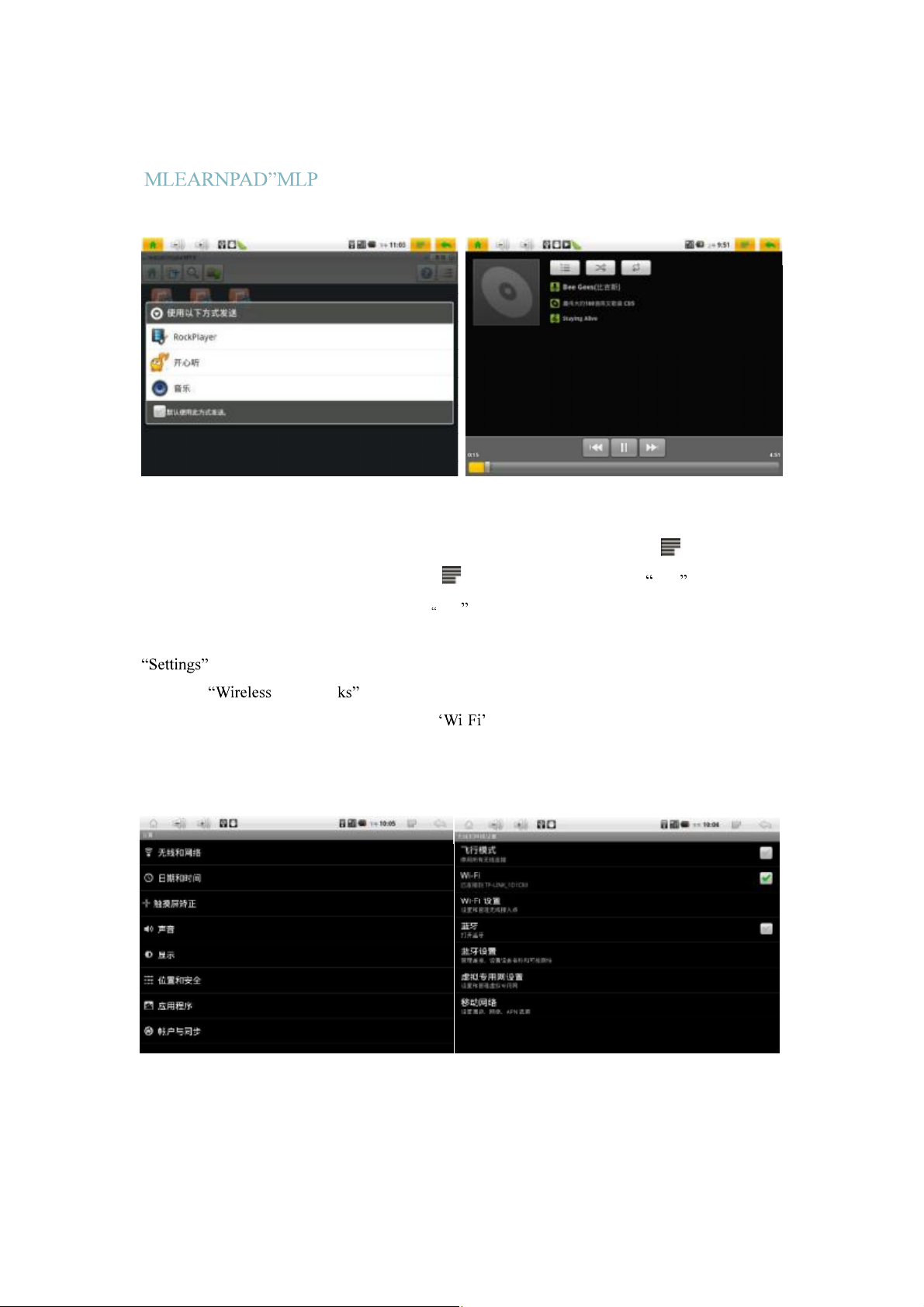
Now as shown in Image 2.18, select a MP3 file. A music player selection menu
will appear as shown in Image 2.19. Select to begin music playback with
thedefaultAndroidmusicplayer.AsshowninImage2.20,youcanchoosetoplay
10
Page 12
-EL8 T ablet PC
English User Guide
music in the background while you run other applications on an Android device.
Image 2.19 Image 2.20
2.4 Setting
MLP-EL
8
to Connect to a Wireless Network
From the home screen (shown in Image 2.1), short-press the at the side
of the device , or the top-right corner
icon shown in Image 2.1. This will result
in a menu popup similar to what is shown in the bottom of Image 2.2. Select
as shown in Image 2.21 to configure system settings. Continue to
press the & Networ list item to show a screen as shown in Image
2.22. Making sure that the checkbox next to the - setting is checked with a
green checkmark, a list of available Wi-Fi networks will appear automatically. Here
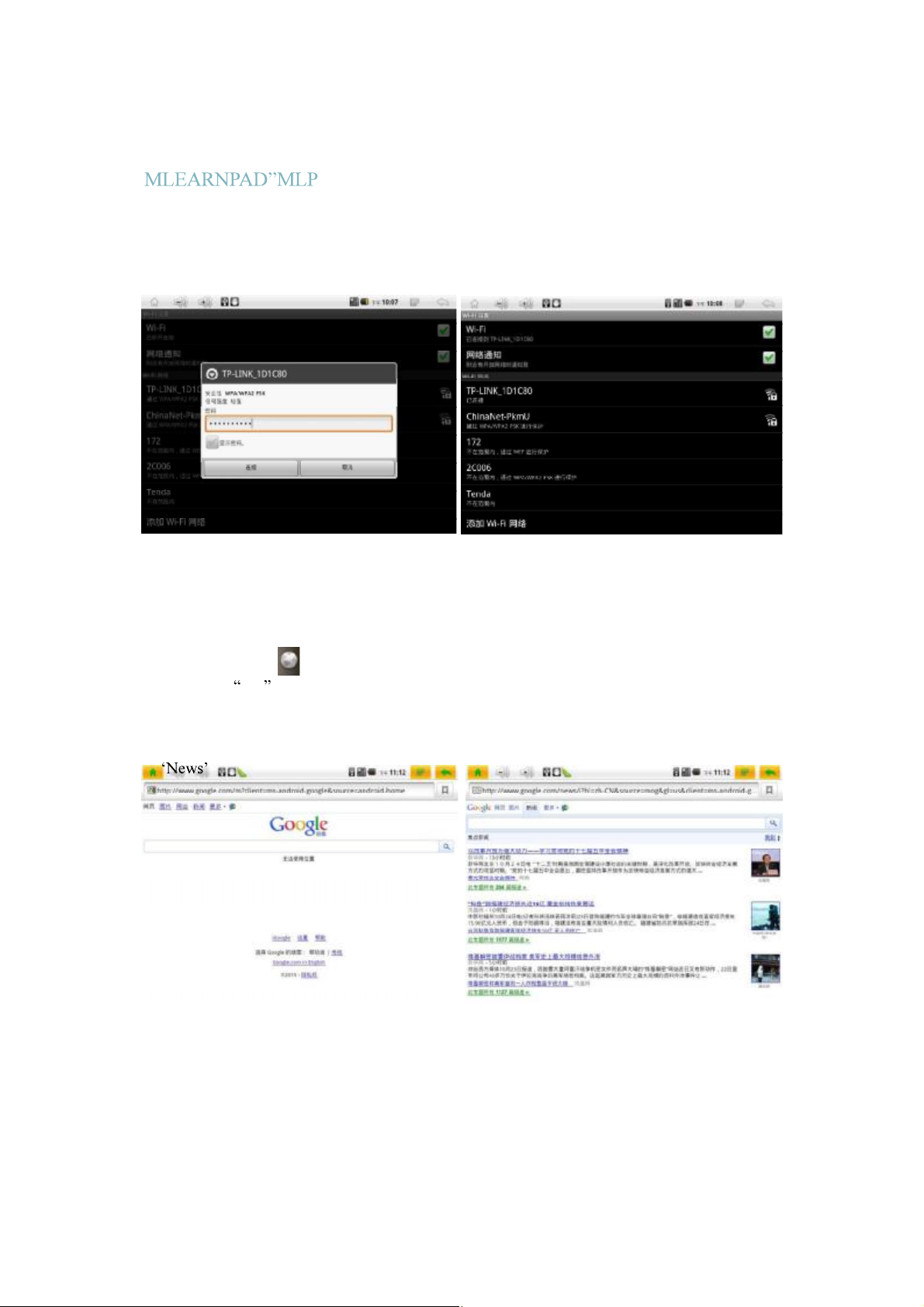
we show an example of connecting to our local password protected wireless
network in Image 2.23. The device will automatically connect to the Wi-Fi network
after correctly entering the password as indicated, shown in Image 2.24.
Image2.21 Image2.22
11
Page 13
-EL8 T ablet PC
If the device fails to connect in the case that the wrong password was
inputted, long-press the target network to show a menus to remove the failed
network attempt in order to try again.
Image 2.23
2.5 Using the
After being connected to the internet via Wi-Fi, we can now use the internet
MLP-EL8 for Internet Browsing
Image 2.24
English User Guide
browser to surf the web. Returning to the home screen shown in Image 2.1, press
the globe icon to launch the Browser. This application can also be found
within the application launcher. We will automatically enter the main page of
Google as shown in Image 2.25. We can use this just like a computer. For example,
hit to view the news, as shown in Image 2.26.
Image 2.25 Image 2.26
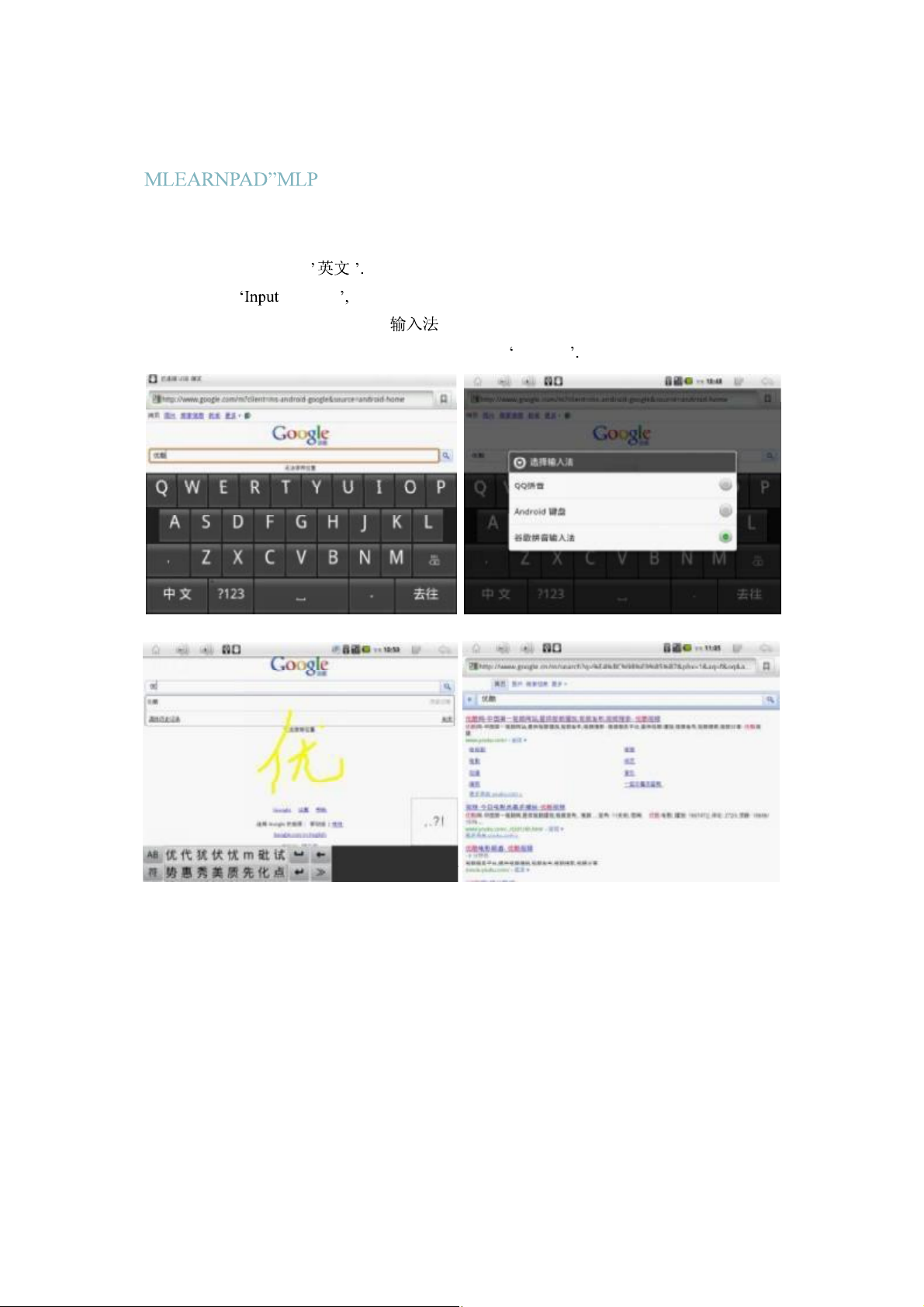
Withinthetext-field,asingleshort-presswilllaunchthesoftwarekeyboard,as
showninImage2.27.To changelanguagesofthiskeyboard(thedefaultAndroid
12
Page 14
-EL8 T ablet PC
software keyboard) between English and Chinese Pinyin, press the bottom right
hand button labeled To change input methods, long-press on the text
field and select Methods and select the desired input method as shown
in Image 2.28. QQ Input Method (QQ ) supports Chinese handwriting, as
demonstrated in Image 2.29.Now we attempt to search for youku
English User Guide
Press a
webpage is
Image 2.27 Image 2.28
Image 2.29
search result to proceed.
shown.
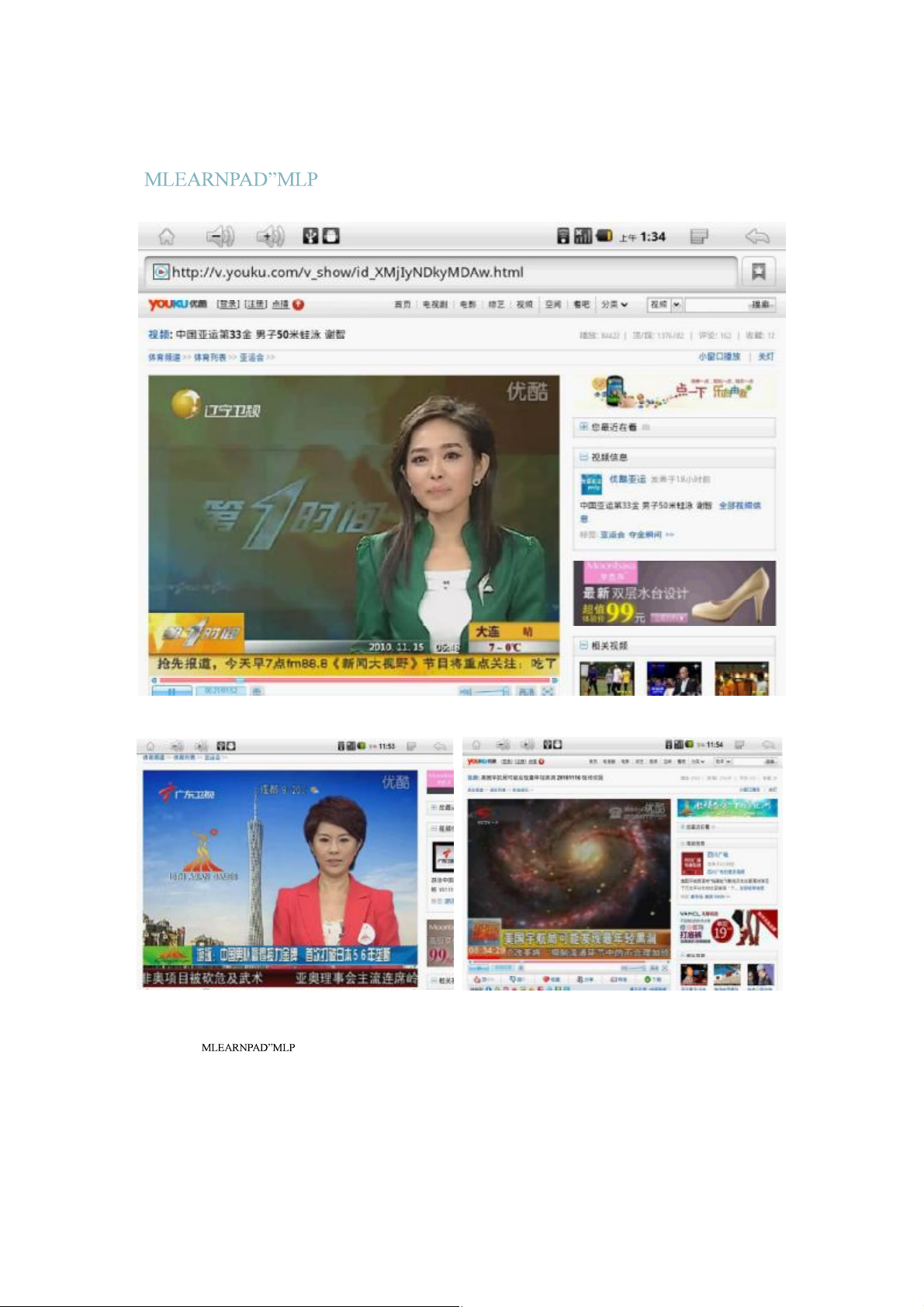
In Images
2.31 and 2.32, the official youku
Image 2.30
13
Page 15
-EL8 T ablet PC
English User Guide
Image 2.31 Youku Webpage
Image 2.32
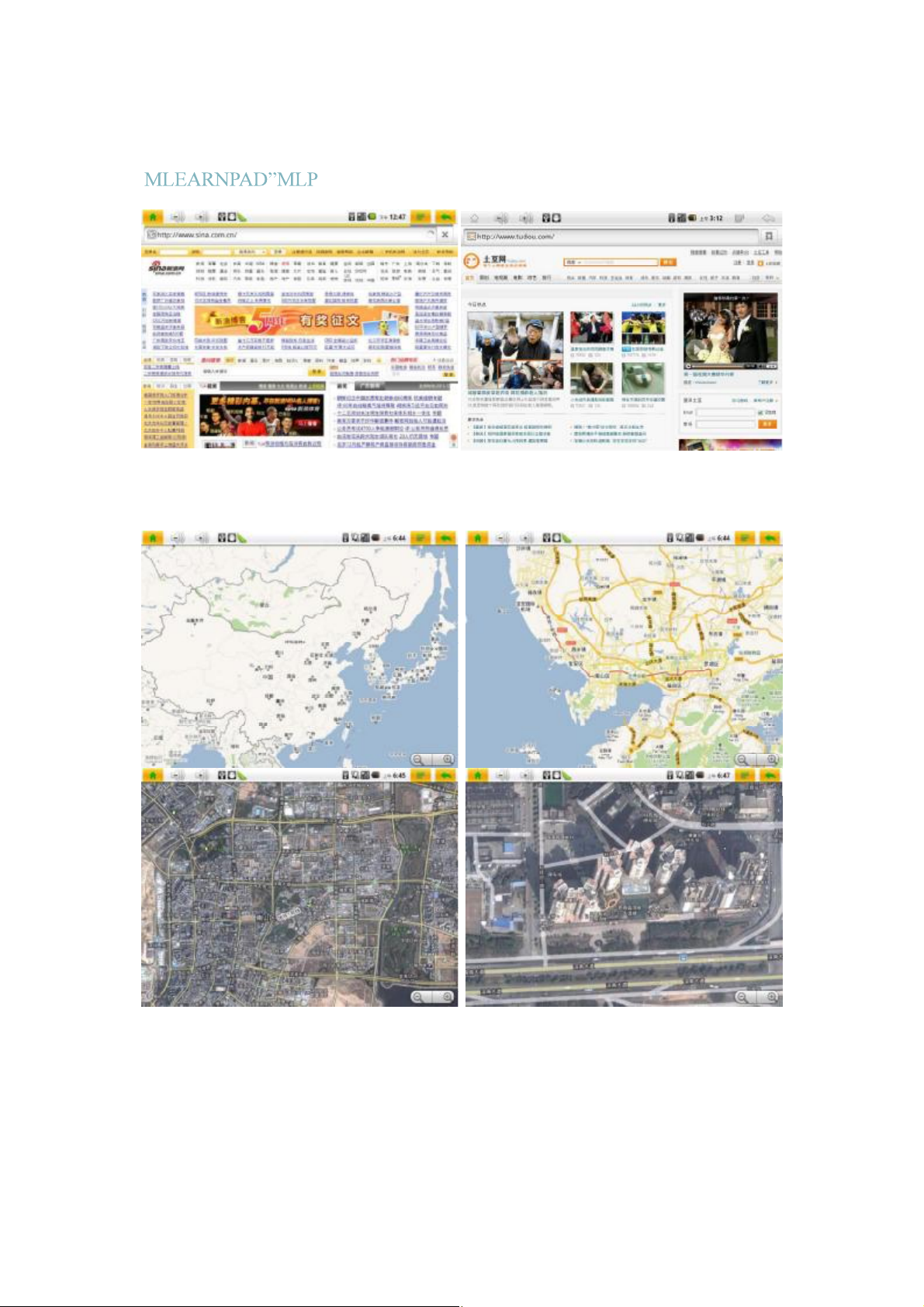
The -EL8 with Android
allowingforafullwebexperience.Images2.34and2.35showmoreexamples
surfingthewebonSinaandTudou.
2.2 has full
support for Adobe
Image 2.33
14
Flash 10.1,
of
Page 16
-EL8 T ablet PC
Image 2.34 Sina Homepage Image 2.35 Tudou Homepage
The web version of Google Maps can be accessed on the
things like satellite images as shown in Image 2.36.
English User Guide
MLP-EL8, allowing for
Image 2.36
15
Page 17
-EL8 T ablet PC
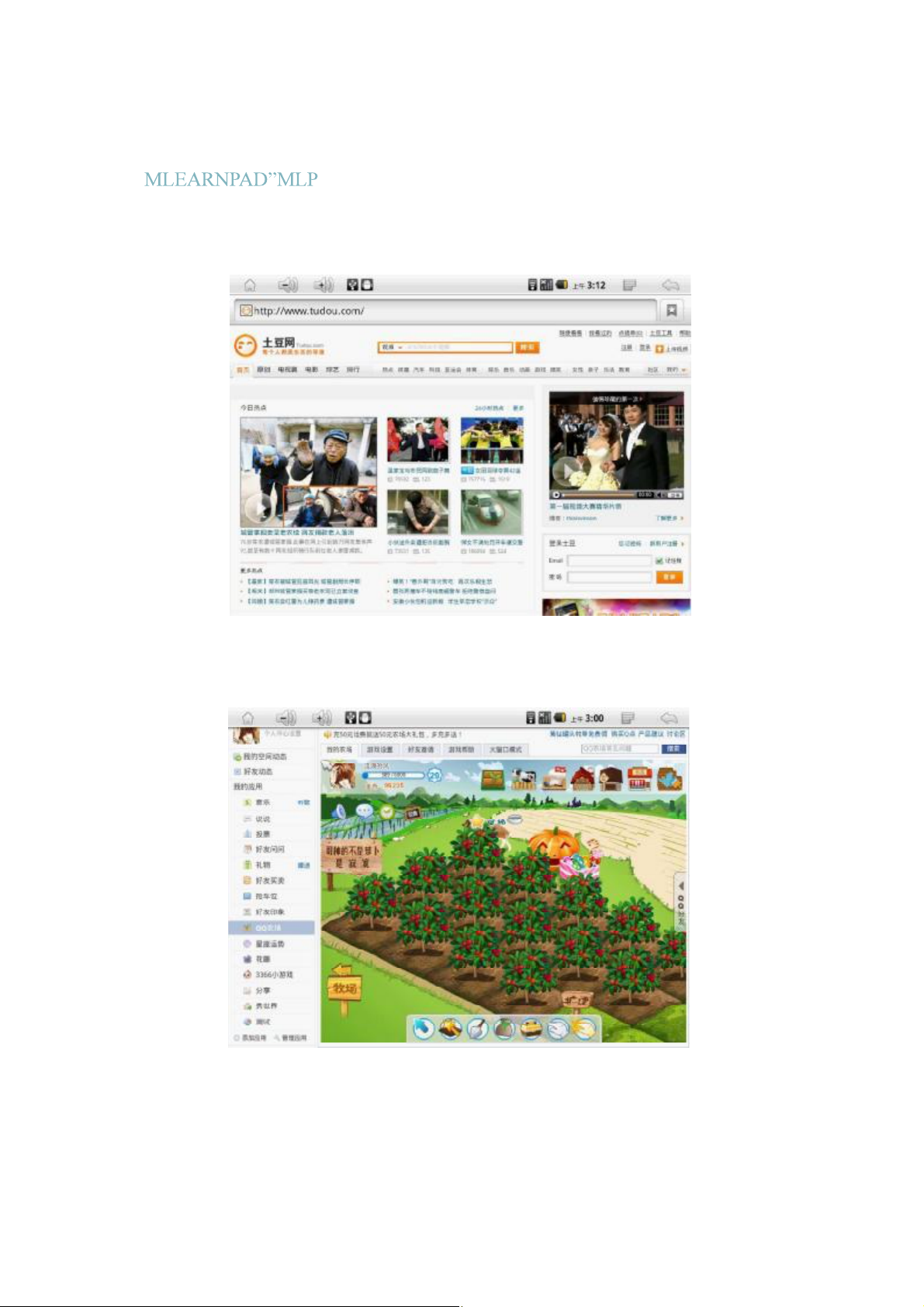
As shown in Image 2.37, Adobe Flash videos on Flash video sites such as Tudou
can be viewed directly in the web browser.
English User Guide
Image 2.37
Adobe Flash games on social networking webpages such as Facebook and QQ
can also be played, as shown in Image 2.38.
Image2.38
16
Page 18
-EL8 T ablet PC
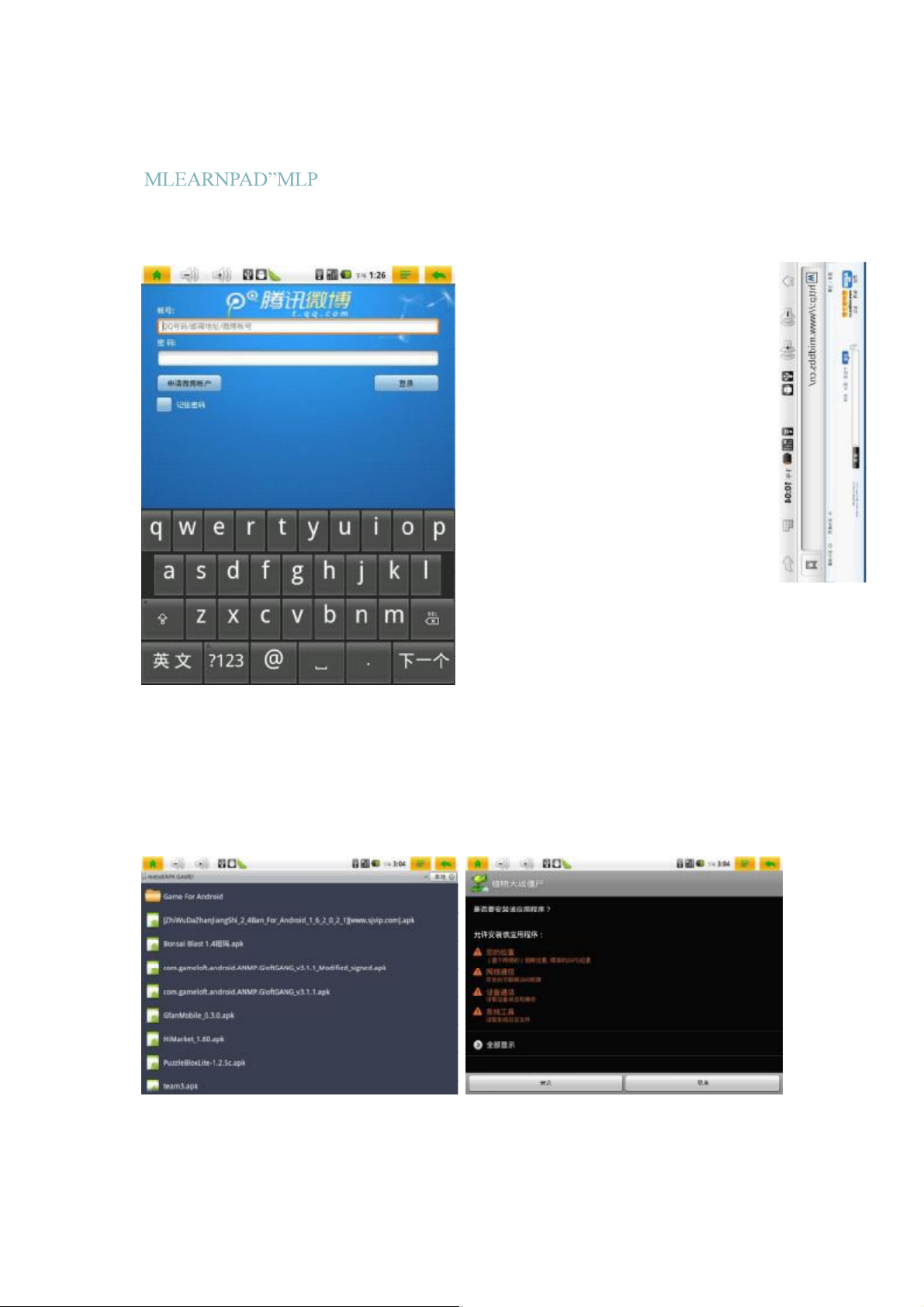
Other features include support for microblogs such as QQ and Twitter, as
shown in Images 2.39 and 2.40.
English User Guide
Image 2.39
Image 2.40
2.6 Gaming on the MLP-EL8
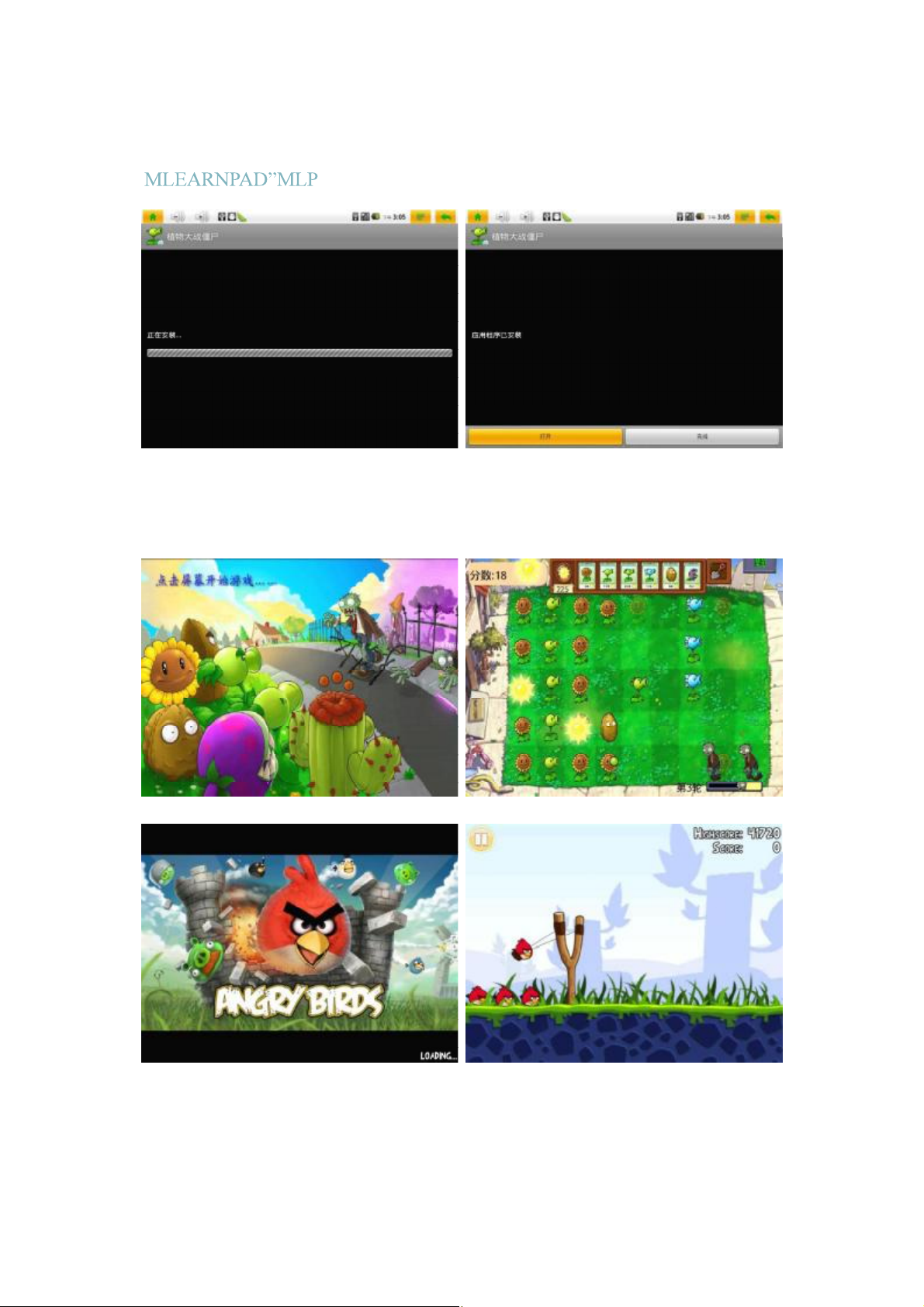
Applications downloaded from the Google Market can be installed on the
MLP-EL8 To install applications from the TF (microSD card), first place an APK file in
the memory cad. Then use ES File Explorer to browse to the memory card at the
/extsd directory. This is the root directory of your memory car d.
17
Page 19
-EL8 T ablet PC
Image 2.41
Now simply find your APK file to prepare for your install. As shown in Image
2.41, select any APK file and press it to start the install. This allows playing games
such as Angry Birds, and Plants vs. Zombies:
English User Guide
Image 2.42 Plants vs. Zombies Image 2.43
Image2.44AngryBirds
Image2.45
18
Page 20
guide
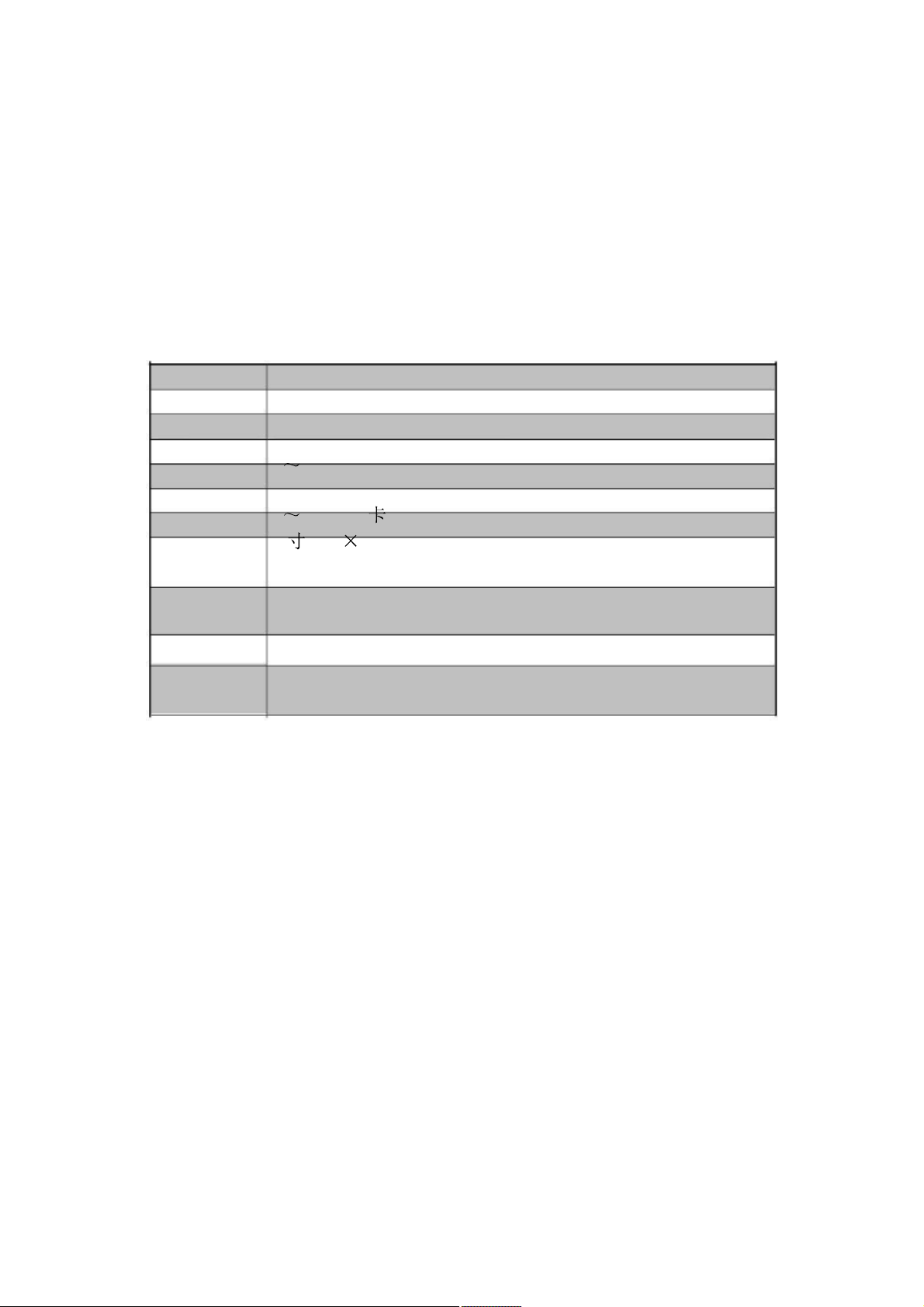
FREECALE MLP-EL8 8" Android Tablet Hardware
Specifications
CPU Freescale MLP-EL8 800MHz ARM Cortex A8
RAM 512MB DDR2
ROM 4 16GB microSDHC CLASS4
OS
Expansion
Screen
Audio
Casing
External
Connectors
Google Android 2.2 Supporting Flash10.1 APP2SD G-sensor
2 32GB TF
8 800 600 TFT Resistive Touchscreen
Integrated speakers and microphone
Utopia Technology Take-Apart Casing, Front Back button,
Side Menu and Home buttons
3.5mm audio-out jack, 30pin multifunction connector
Networking
Standard
accessories:
*Supported
*Supported
* Supported Image Formats: JPEG, PNG, BMP, GIF
* Supported Document Formats: PDF,TXT,CHM,DOC,XLS,PPT
* Supported Software Formats: APK
WIFI 802.11B/G
1,
Video
Audio
Formats: 720p MKV (H.264 HP)/RMVB/MPEG-4/FLV
Formats: MP3, WMA. FLAC, AAC, AC3, OGG, WAV
Page 21

FCCID:ZQTMLP-EL8
Thisdevice complieswithPart15 ofthe FCCRules.Operation
issubjecttothefollowingtwo conditions:(1)this devicemay
notcauseharmfulinterference, and(2)thisdevicemustaccept
anyinterferencereceived,includinginterferencethatmay cause
undesired operation.
changes ormodificationsnot expressly approved bythe partyresponsiblefor compliance
couldvoidthe user's authorityto operatethe equipment.
NOTE:Thisequipment has beentestedandfoundtocomplywiththelimitsfor a
ClassBdigitaldevice, pursuantto Part15 ofthe FCCRules.Theselimitsare
designedtoprovidereasonableprotection againstharmfulinterferencein a
residentialinstallation.This equipmentgenerates,usesand canradiateradio
frequency energy and, if notinstalledand usedin accordancewiththe
instructions,may causeharmfulinterferencetoradiocommunications.However,
thereis no guaranteethatinterferencewillnotoccurina particularinstallation.
Ifthis equipment does cause harmfulinterferencetoradioortelevisionreception,
whichcan bedeterminedbyturningthe equipment off and on,theuseris
encouragedtotrytocorrecttheinterference by one ormore ofthefollowing
measures:
--Reorientorrelocatethereceiving antenna.
--Increasetheseparationbetweenthe equipment andreceiver.
--Connectthe equipmentinto anoutlet ona circuit different
fromthattowhichthereceiveris connected.
--Consultthe dealeror an experiencedradio/TVtechnicianfor
help.
 Loading...