

Page 1

USER MANUAL
Page 2

WELCOME
Congratulations on your new Skybuds.
This user manual will help you
learn the basics.
Page 3

CONTENTS
Skybuds Basics
Skydock Basics
Skydock Battery Indicator
Getting Started
Wearing & Pairing
The App
Button Control Summary
Advanced Button Control
Troubleshooting & FAQs
5
6
7
8
10
14
20
21
22
Help & Resources
24
Page 4

LISTEN
TALK
GO
to all audio with
premium sound
using a digital
microphone for calls
with 24 hours additional
play time per charge
Page 5
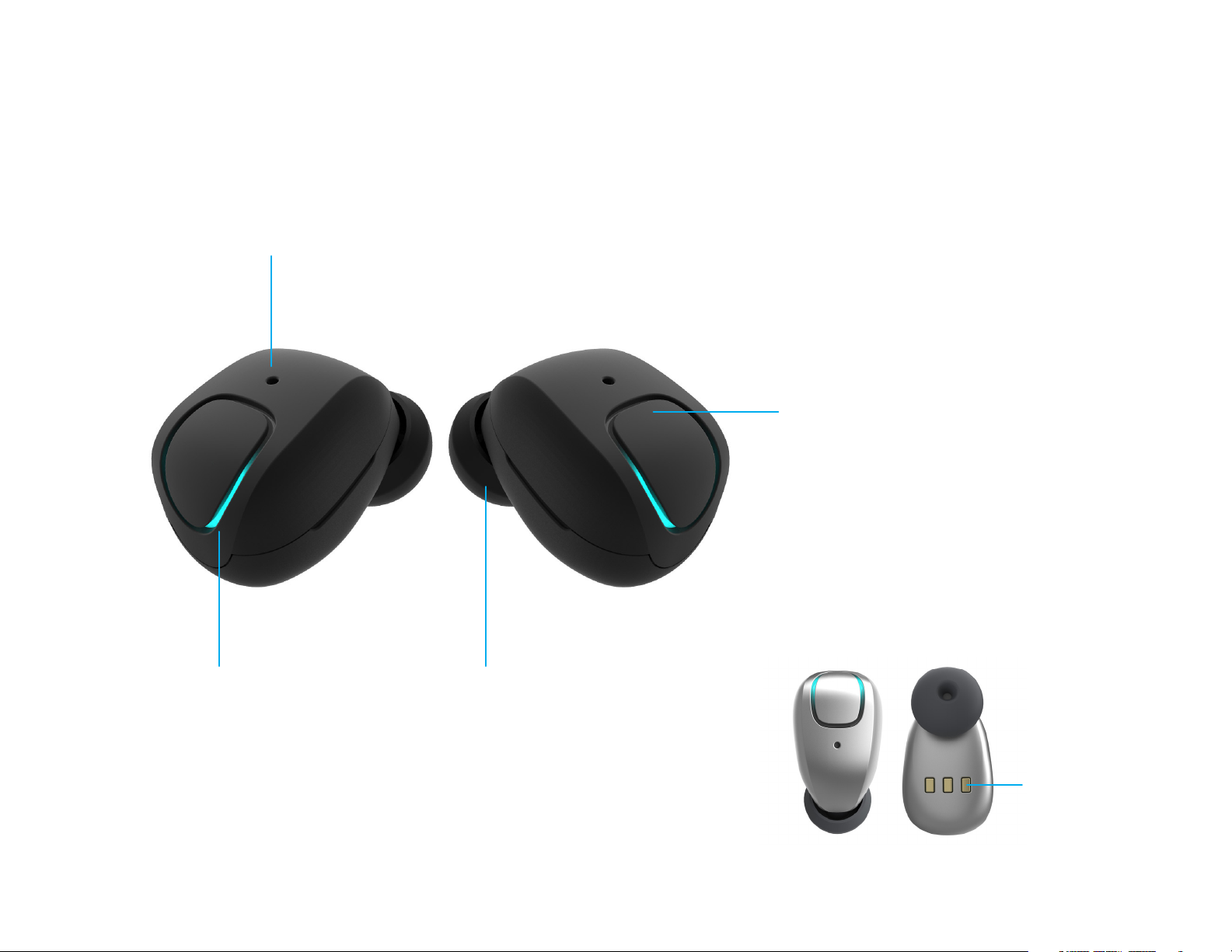
SKYBUDS BASICS
Microphone
Button
Press and hold button for
3 seconds to power on and o
See pages 20-21 for button
commands
LED Status
Light
Interchangeable
Fit Tips
Charging
Contact
Points
5
Page 6
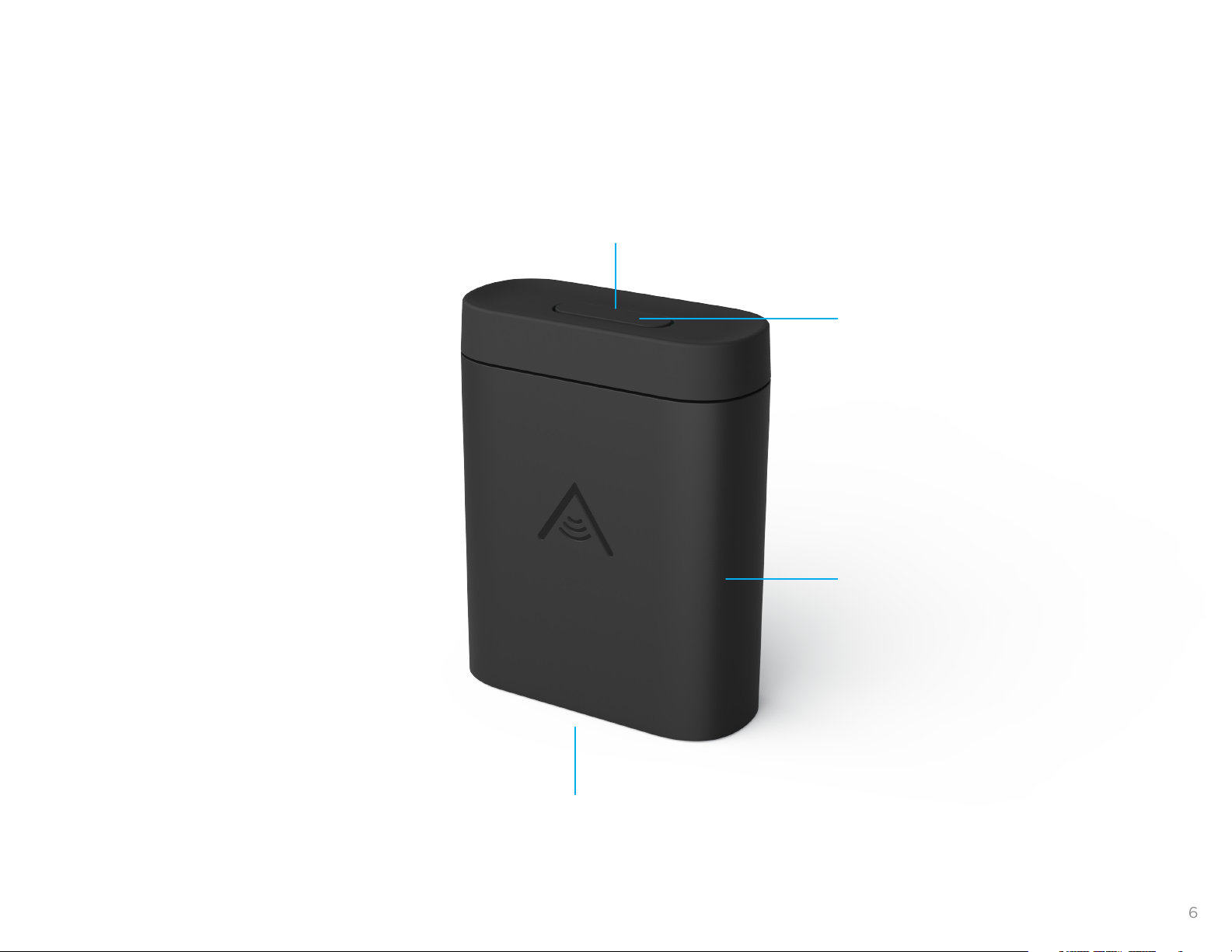
SKYDOCK BASICS
LED Status Light
Button
Press button on top of Skydock
to see Skybuds and Skydock
battery status
Micro USB Port
Sliding Cover
6
Page 7
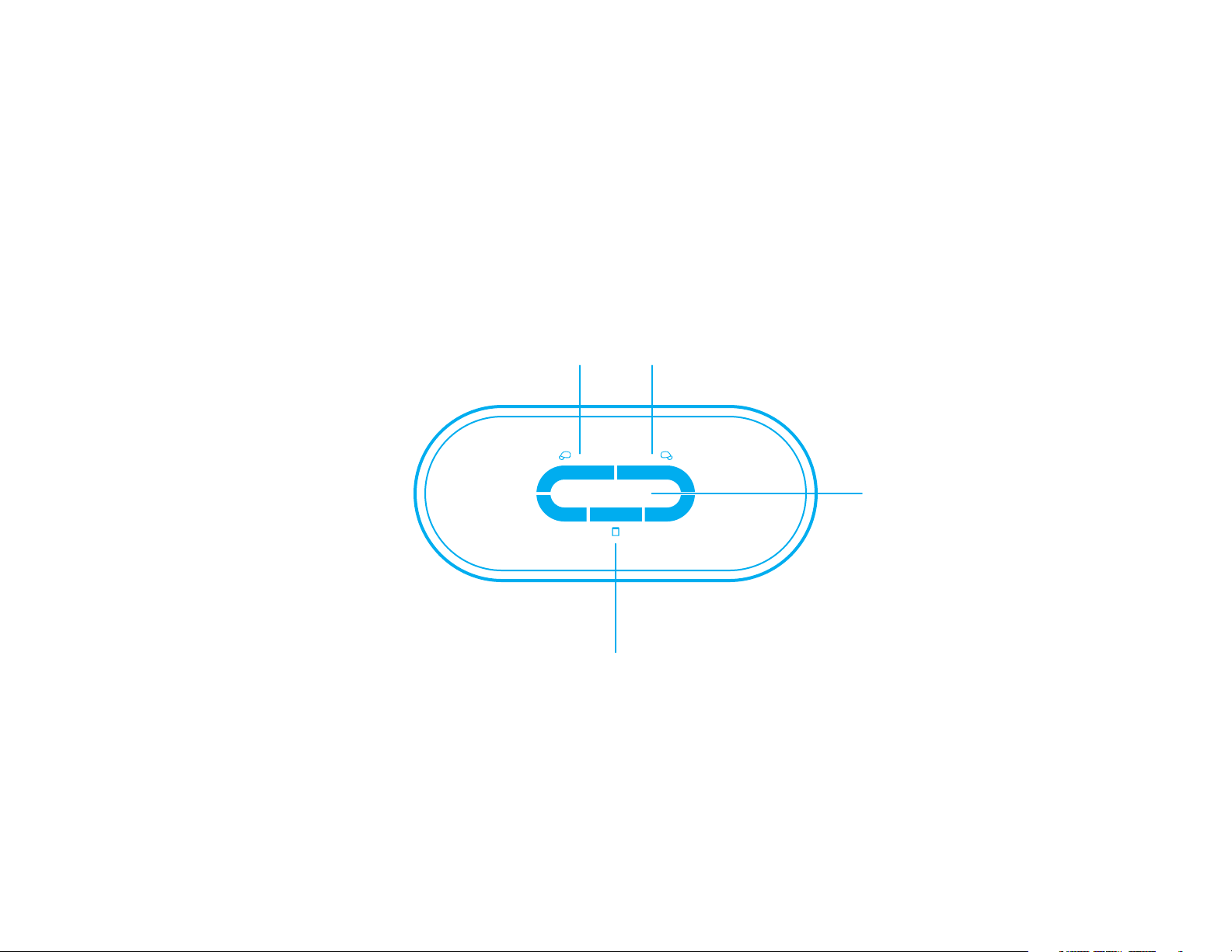
SKYDOCK BATTERY INDICATOR
Skybuds Battery Indicator
Solid blue:
fully charged
Pulsing blue:
charging
Skybud 2Skybud 1
Skydock Battery Indicator
Button
Press button to
illuminate battery
life LEDs lights
Pulsing blue:
charging
If Skydock shows 3 red LED lights, this indicates the battery is low and needs to be recharged. If
no LED lights turn on after plugging in the Skydock, Please contact us at [email protected]
1 Solid blue LED:
0-33% charged
2 Solid blue LEDs:
34-66% charged
3 Solid blue LEDs:
67-100% charged
7
Page 8
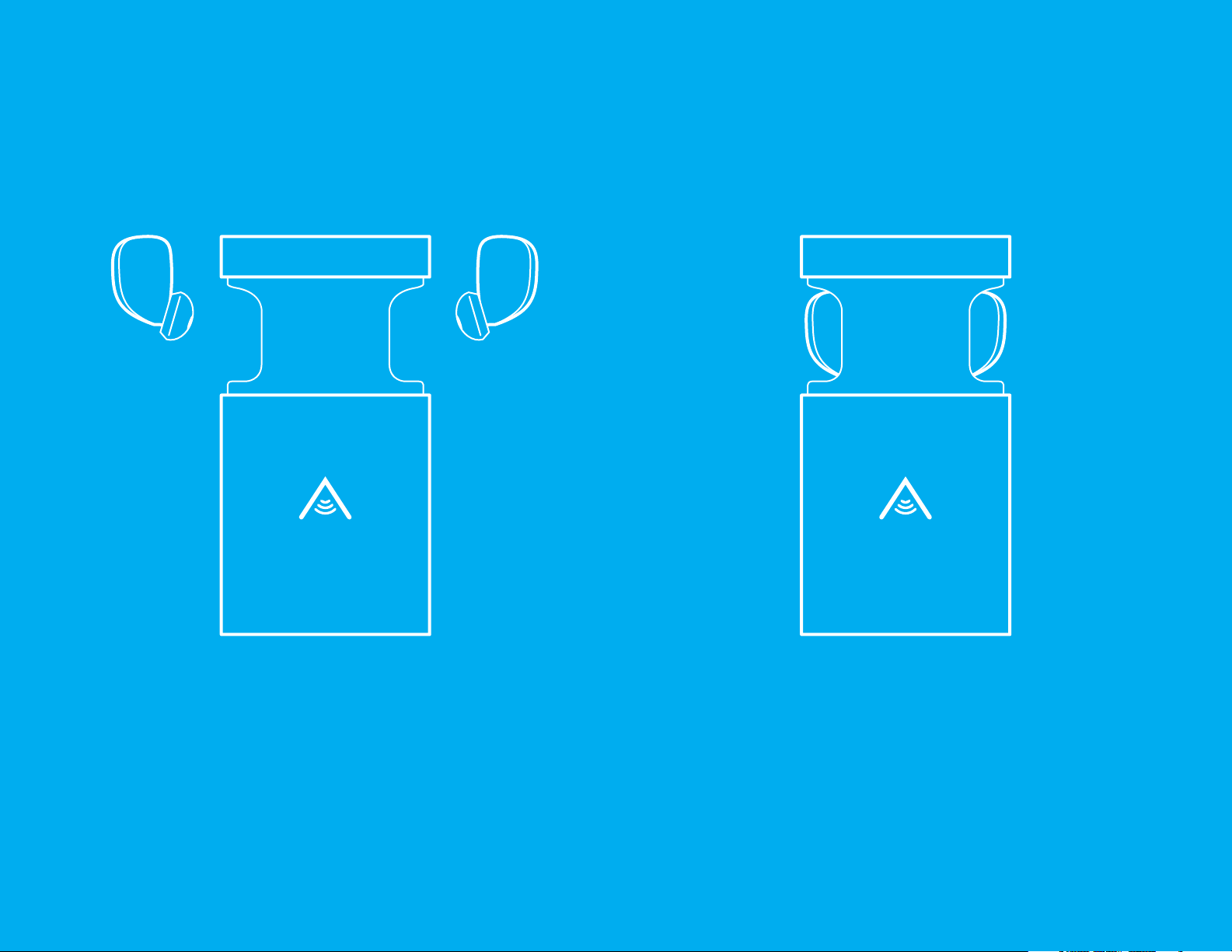
GETTING STARTED
STEP 1
Push up on the bottom of the Skydock
to open it and insert the Skybuds into
the Skydock as illustrated above.
8
Page 9
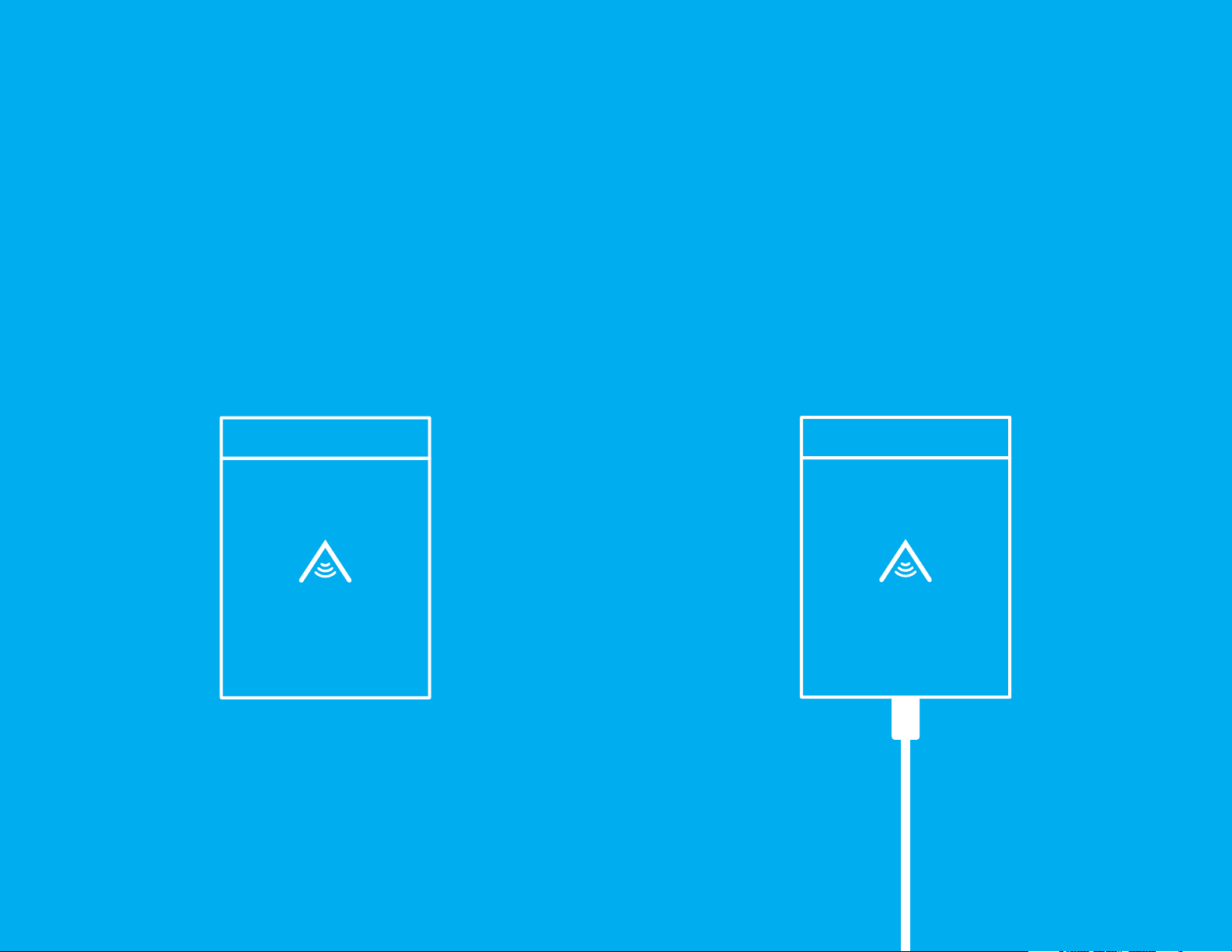
GETTING STARTED
STEP 2
Close sliding cover.
STEP 3
Charge Skybuds
and Skydock.
9
Page 10

WEARING
& PAIRING
Page 11
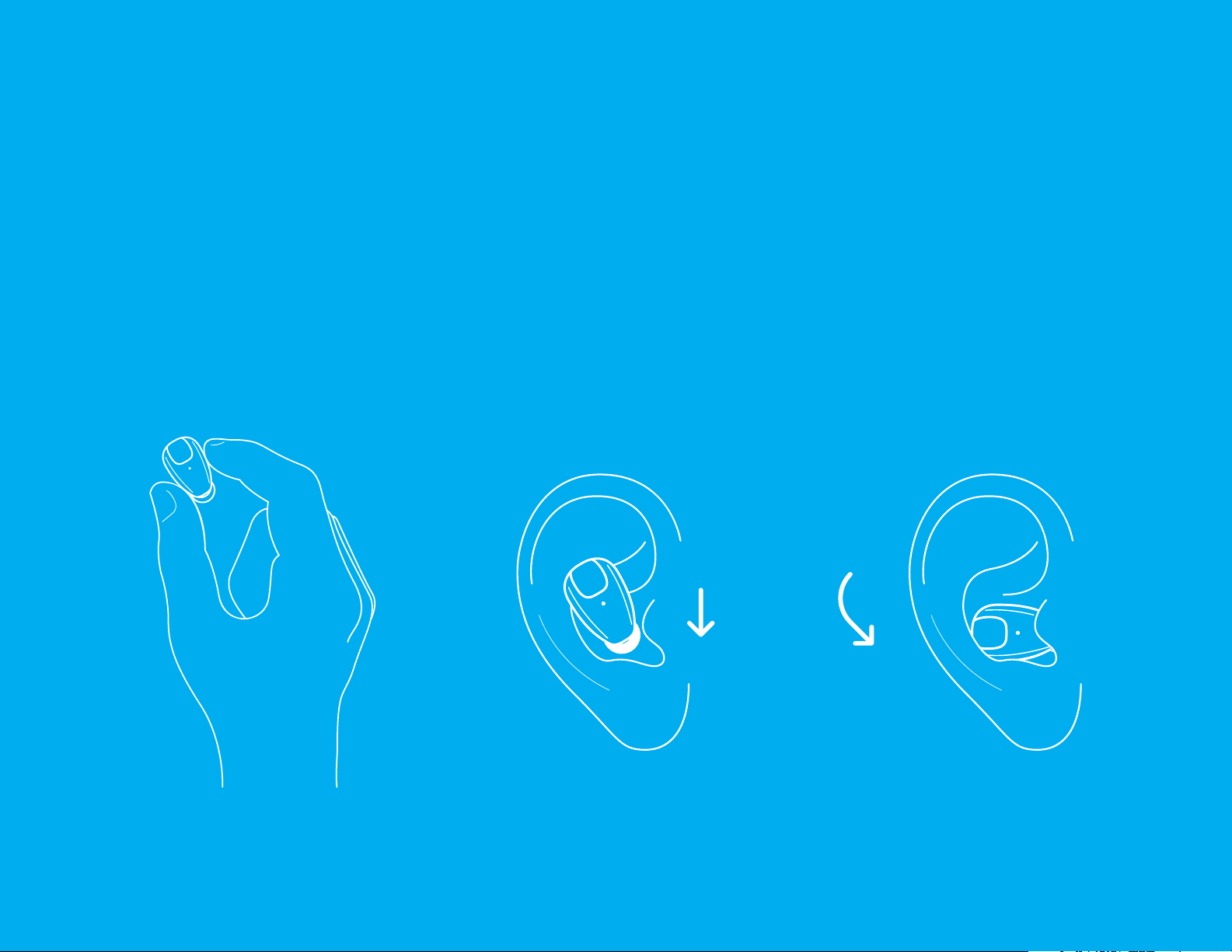
WEARING
STEP 1
Remove Skybuds from the package and place in
your ears as shown below. Try all the enclosed fit
tips. We recommend wearing the largest fit tips
possible for the best fit and highest audio quality.
Button faces out Tip faces down Twist downward and
lock in place
11
Page 12
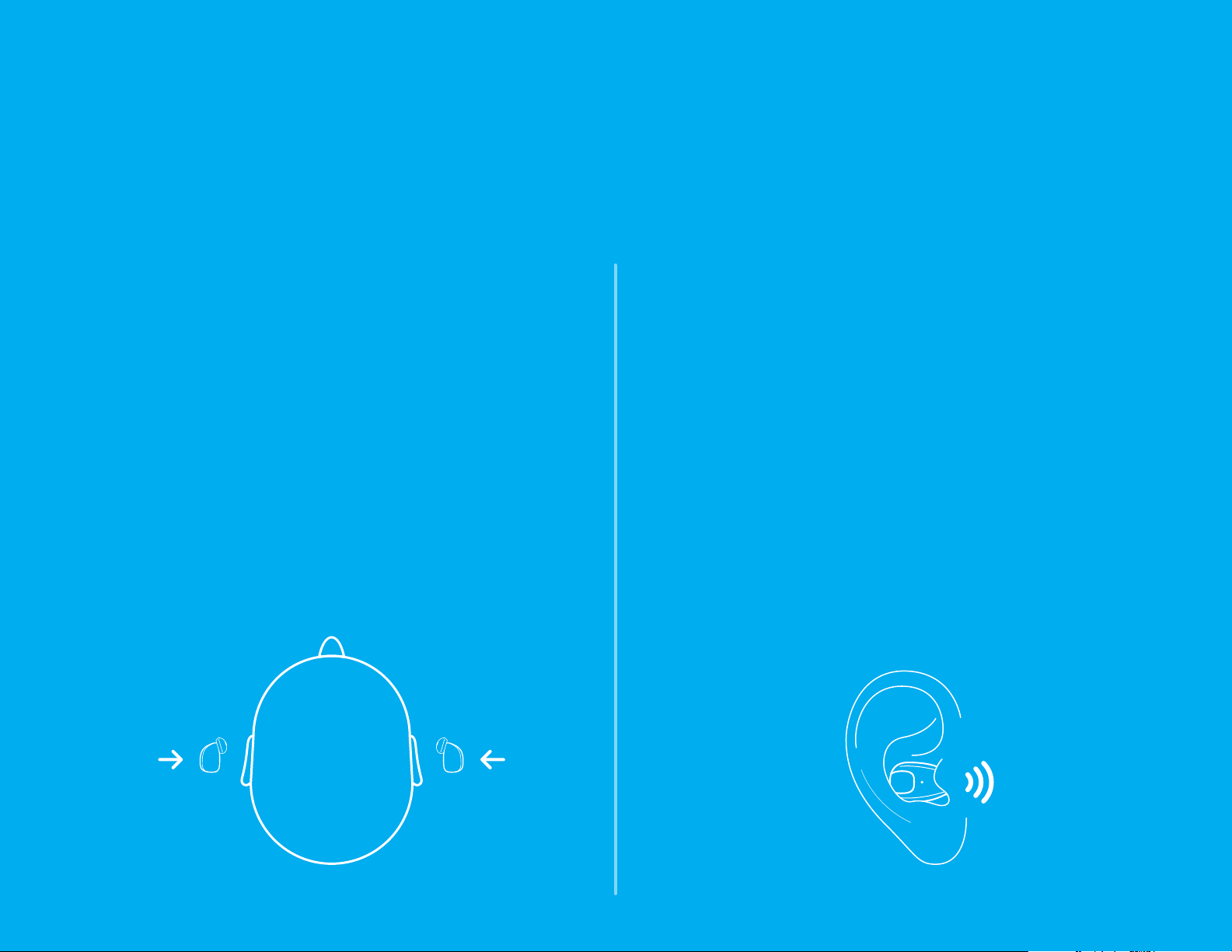
PAIRING: INITIAL SETUP
STEP 2
A. Press and hold the button on each Skybud
for 3 seconds. You will hear both Skybuds
power up.
B. Listen to the entire audio setup instructions
to get started.
C. Once the audio setup instructions finish
rapidly press the right bud 3x to put
Skybuds into pairing mode.
STEP 3
A. Go to the settings menu on your phone or
device and turn on Bluetooth.
B. Once you’ve accessed Bluetooth Settings,
you’ll see one Skybud ready to pair. Please
pair this Skybud to your device.
C. You’ll hear “you’re now online” in the voice
prompts. Now you’re ready to listen to
music and make phone calls.
D. To set up advanced features, please
download the Skybuds app on your
phone.
3 Sec.3 Sec.
12
Page 13
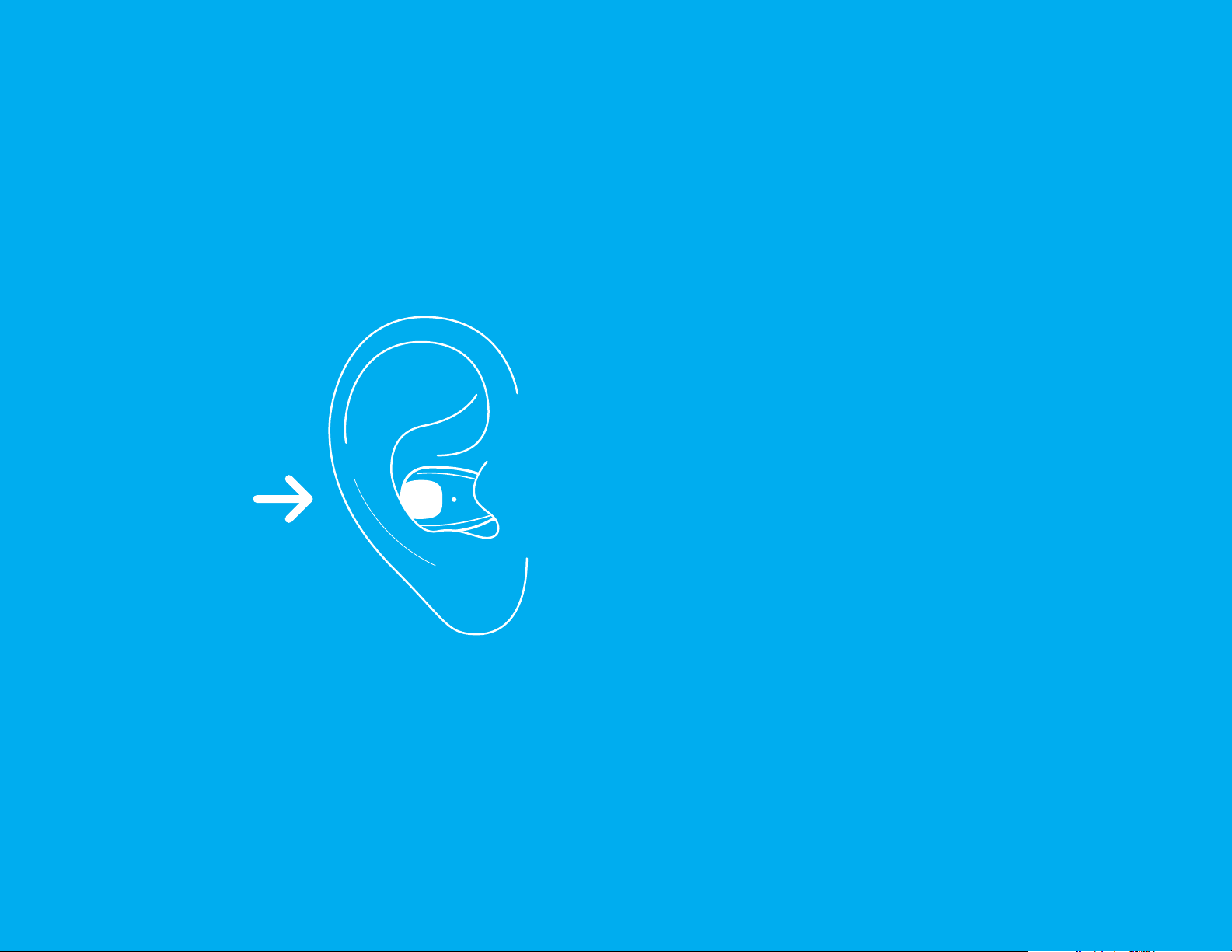
PAIRING: EVERYDAY USAGE
STEP 3
A. Press the button on either Skybud 3x.
B. Your Skybuds are now in pairing mode
and you will hear a sound in both earbuds
Press 3X
confirming this step.
C. You will hear an audio confirmation once
your Skybuds have successfully been paired
and are ready to use.
13
Page 14
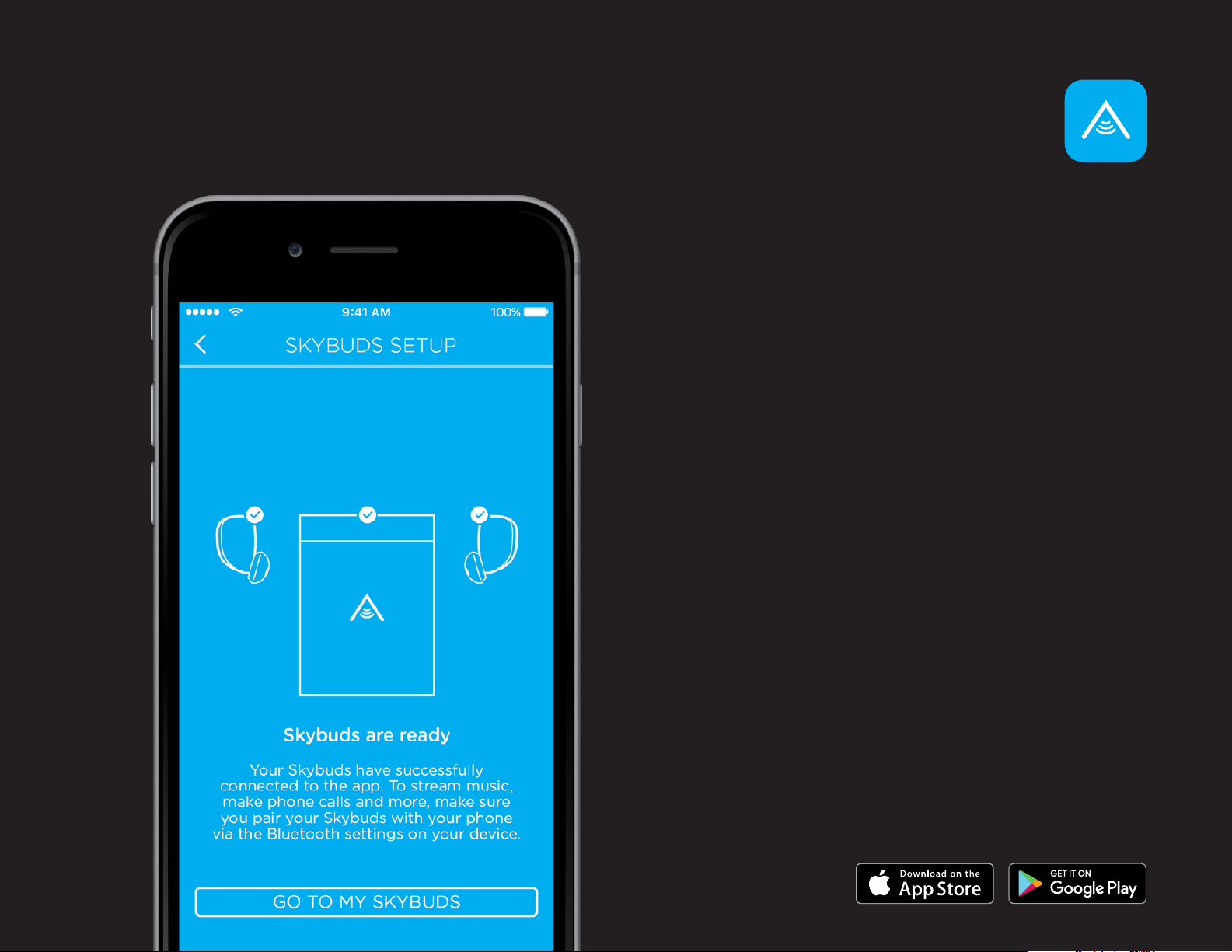
CONNECTING THE SKYBUDS APP
To your Skybuds and Skydock
The Skybuds app lets you take further
control of your Skybuds with even more
features.
STEP 1
Download the app from the Apple
App Store or Google Play Store.
STEP 2
Open the Skybuds app and follow
the on screen instruction to
complete the setup process and
pair Skybuds to the app.
To stream music, make phone calls and
more, make sure you pair your Skybuds
with your device via the Bluetooth
settings.
14
Page 15
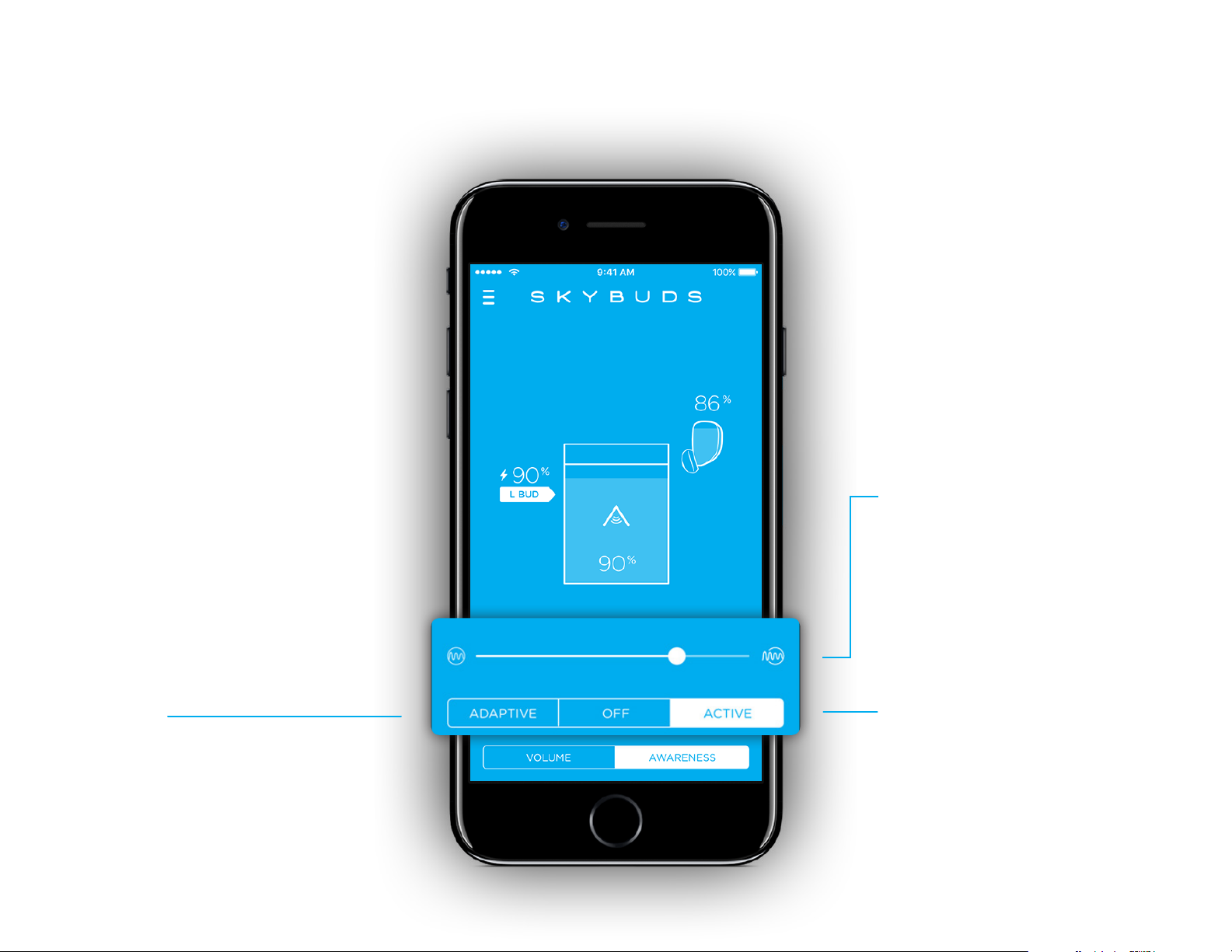
AWARENESS
Awareness gives you control
over the world around you.
Choose between two settings:
Active and Adaptive.
All Awareness features will turn
o when you put your Skybuds
in the Skydock.
If a call comes in, Awareness
will turn o while you’re talking
on the phone and turn back on
when your call ends.
Slider
The slider gives you the control to
adjust how much or how little of the
outside world you let in while using
Active or Adaptive Awareness.
Adaptive
Adaptive Awareness gives you the best
of both worlds, letting you tune out the
world while listening to audio and tune
it back in when you press pause on your
Skybuds or device.
Active
Active Awareness will let you hear
the outside world around you while
streaming audio including music,
podcasts and more.
15
Page 16
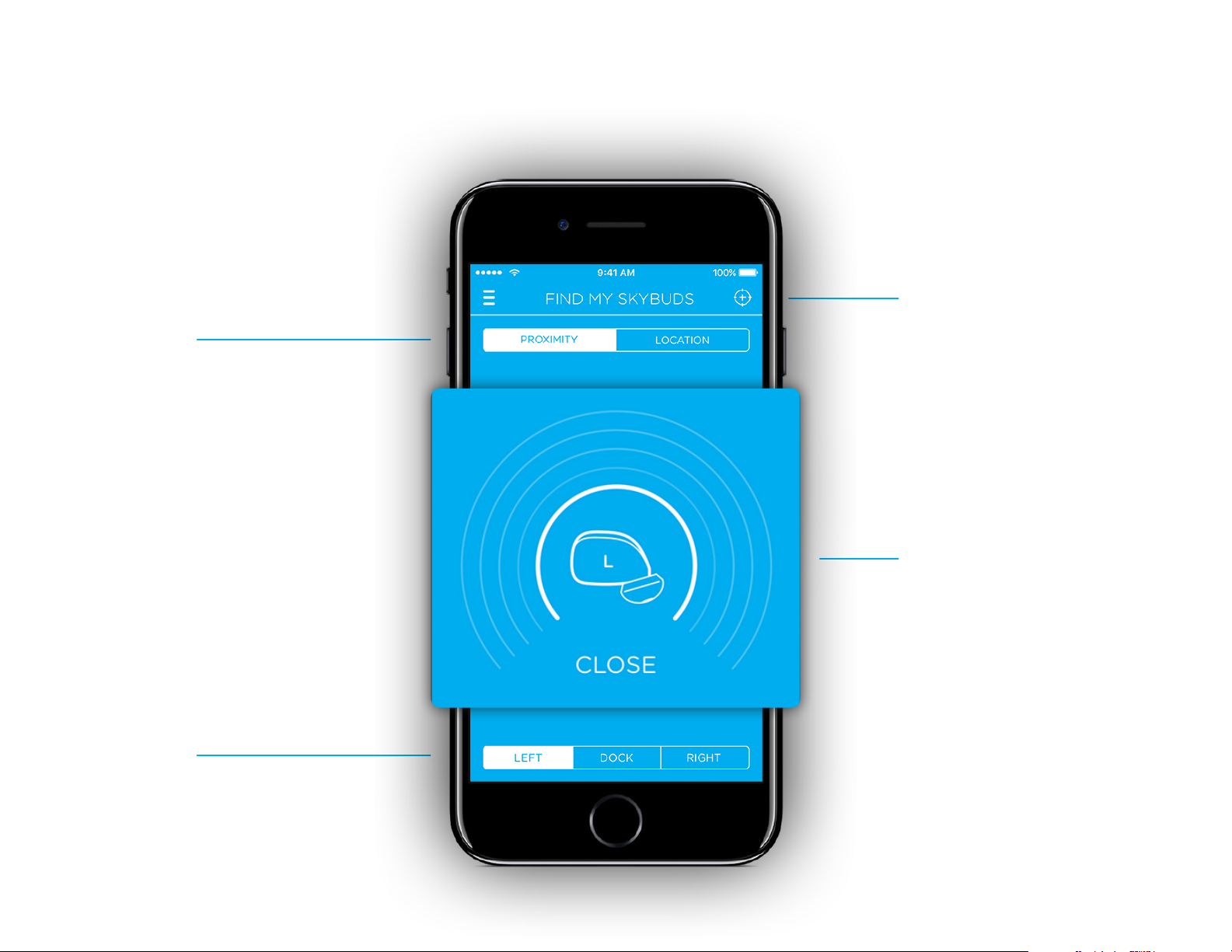
FIND MY SKYBUDS - PROXIMITY
Calibration
Proximity
Proximity finder can help you track
down nearby misplaced Skybuds
and Skydock by using a close, near,
far and very far range. Prior to using
proximity, you need to calibrate your
Skybuds by following the on screen
instructions.
Devices
For accuracy, you’ll need to
calibrate your device and
Skybuds/Skydock before initially
using the Proximity finder. Follow
the instructions on screen to
calibrate Skybuds and Skydock.
Radar
Use the radar range settings:
close, near, far, and very far to
locate nearby missing Skybuds
and/or Skydock. The radar
settings are based o the
proximity of the missing Skybud/
Skydock in relation to your device.
Use the buttons to select which part
of your Skybuds you’re trying to
locate. Choose between Left Skybud,
Right Skybud, and Skydock.
*To use Find My Skybuds features, you must have the Skybuds
app open in the foreground or background of your device.
*Device location is approximate and may not always be accurate.
16
Page 17
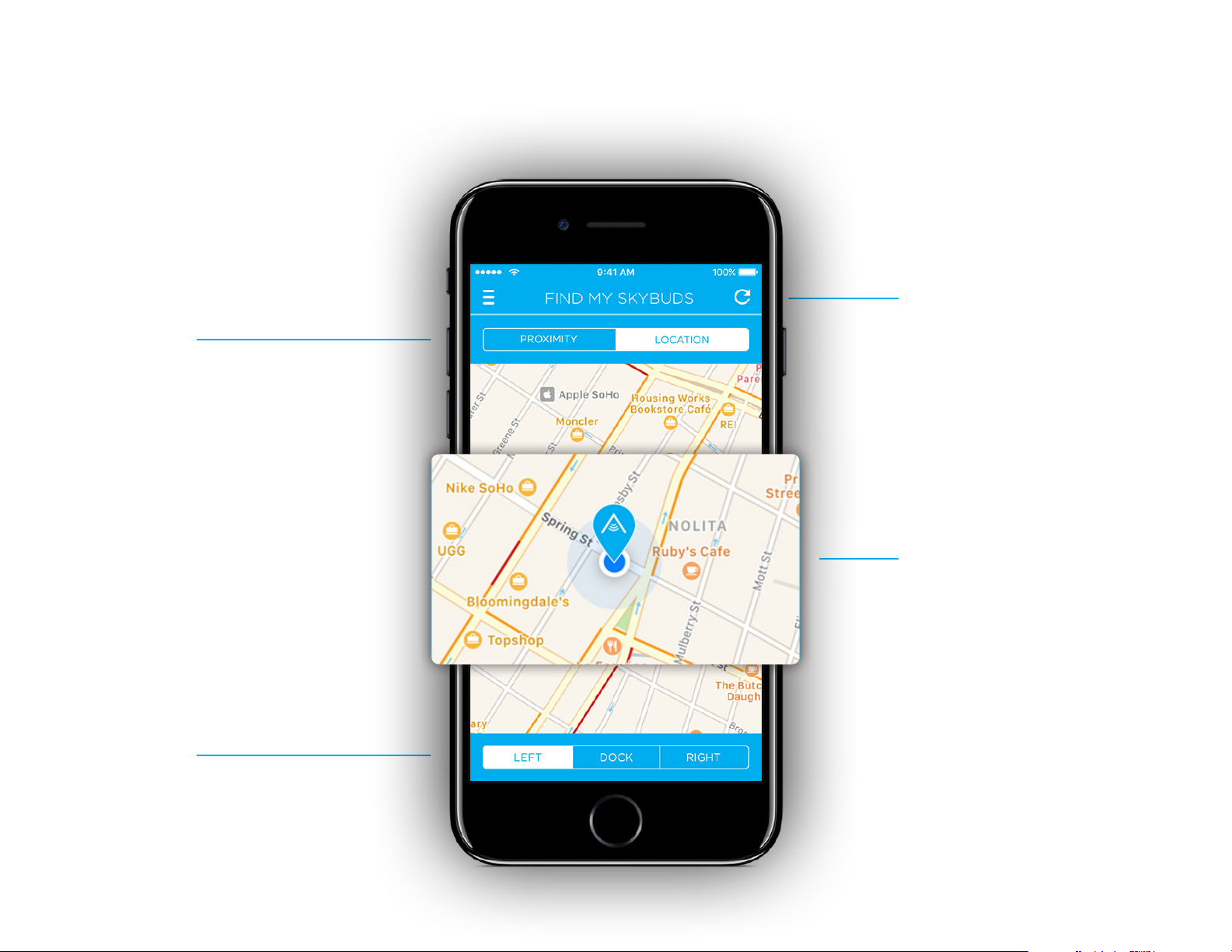
FIND MY SKYBUDS - LOCATION
Refresh
Location
Location will help you identify
the last known location where
Skybuds and/or Skydock went out
of Bluetooth range from your paired
device.
Devices
Refresh will recenter the map after
moving it’s positioning around.
Note: this will not change the
location of the pin.
Pin
The pin will show you on a map
the last known location of your
Skybuds when they went out of
Bluetooth range.
Use the buttons to select which part
of your Skybuds you’re trying to
locate. Choose between Left Skybud,
Right Skybud, and Skydock.
*To use Find My Skybuds features, you must have the Skybuds
app open in the foreground or background of your device.
*Device location is approximate and may not always be accurate.
17
Page 18
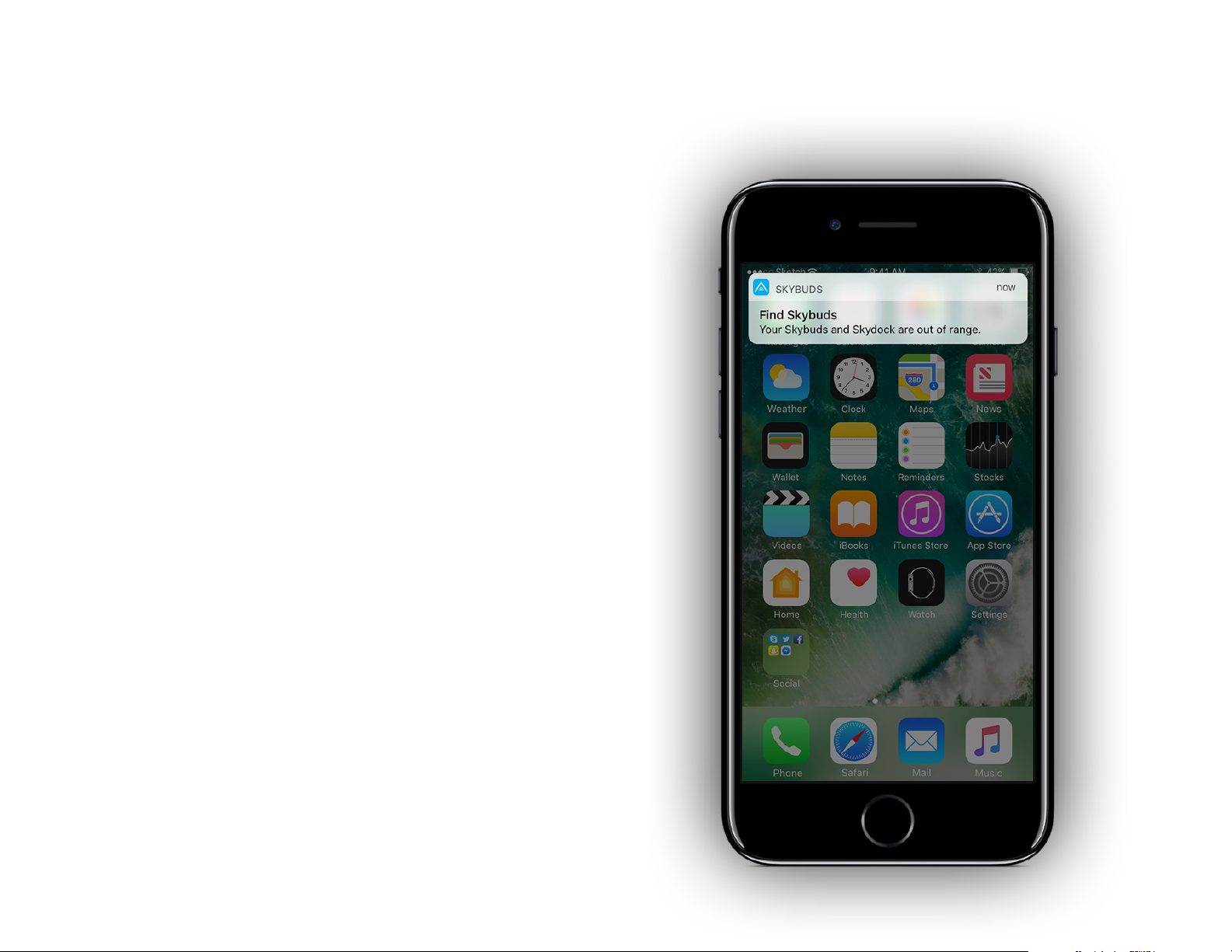
FIND MY SKYBUDS - NOTIFICATIONS
When your Skybuds and/or Skydock go out of
Bluetooth range from your paired device, you will
receive a push notification to alert you. In order to use
this feature, you must have the Skybuds app open and
have accepted push notifications on your device.
*To use Find My Skybuds features, you must have the Skybuds
app open in the foreground or background of your device.
*Device location is approximate and may not always be accurate.
18
Page 19
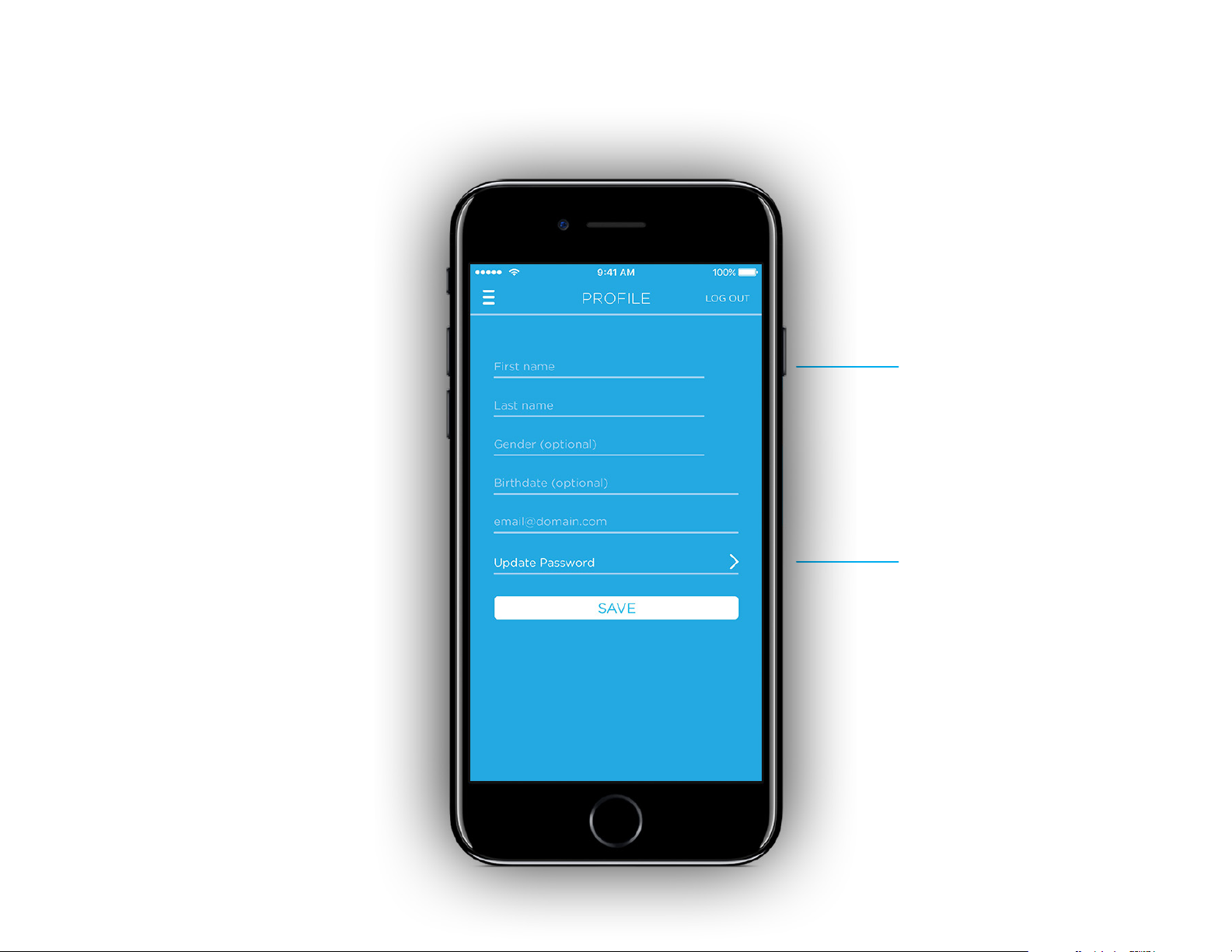
ACCOUNT
We’re always adding more
features and upgrades to
Skybuds.
Accounts are used to
customize your experience
with Skybuds. Plus you’ll be
the first to know when new
features are released.
Profile
Setup your Skybuds account by
filing in all requested information
to receive a more personalized
Skybuds experience.
Reset Password
Forgot your password? No
problem. You can reset your
password simply by clicking the
forgot password link.
19
Page 20
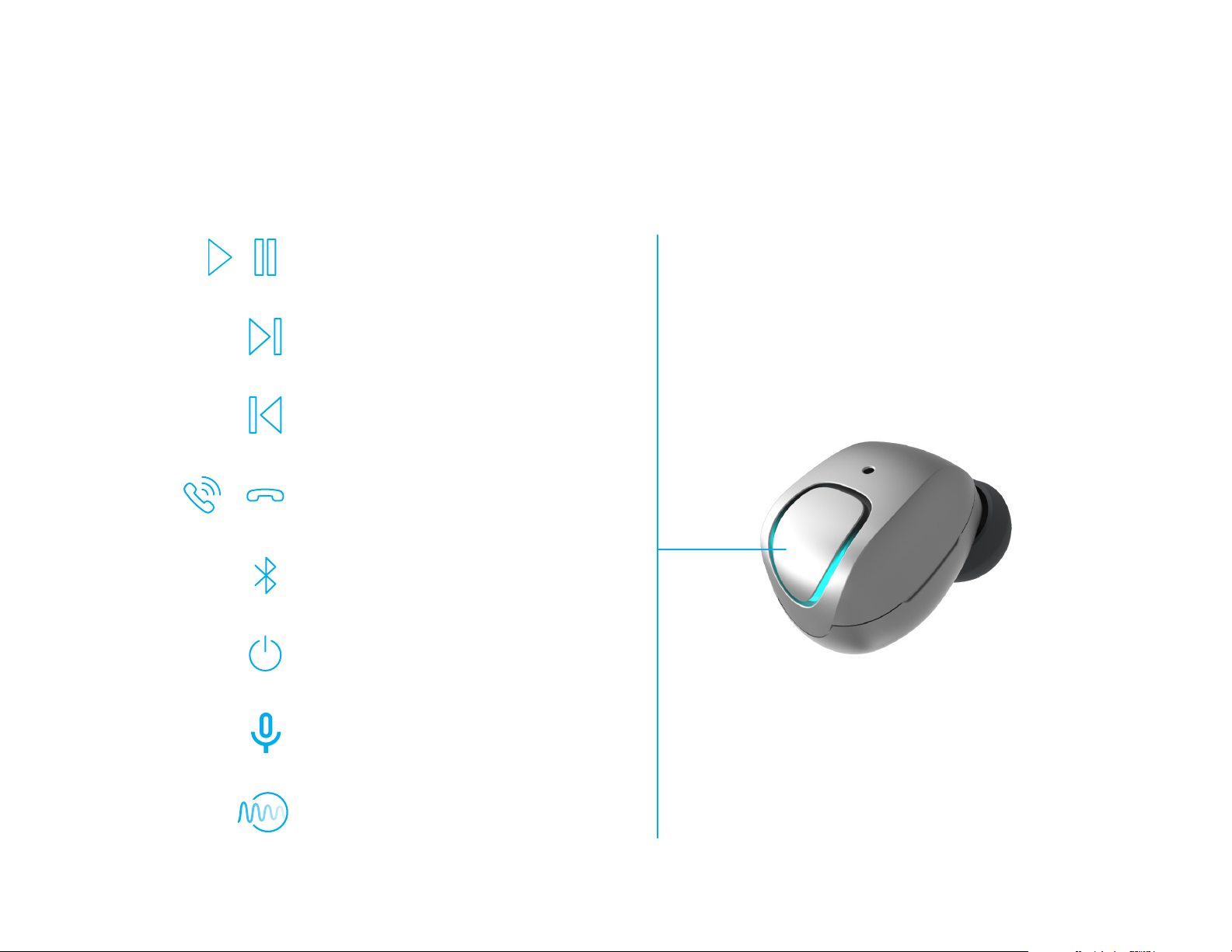
SKYBUDS BUTTON CONTROL
SUMMARY
Press Button 1x to
play / pause
Press Button 2x to
skip a track
RIGHT bud only
LEFT bud only
1
2
Press Button 3x to
skip to start or previous
track (only during playback)
Press button 1x to
answer call / end call
Press Button 3x to
enter pairing mode
Hold Button 3 sec.
to power on / o
Hold 1 sec.
to activate Siri/OK Google
Hold 1 sec.
to turn Awareness on /o
Skybuds automatically turn on
when removed from the Skydock
and o when returned to the
Skydock to charge.
1
Skybuds must have firmware version 1.3.0 or above
2
Skybuds must have firmware version 2.0.0 or above
20
Page 21

SKYBUDS BUTTON CONTROL
ADVANCED
ACTION
STATE
O
On (Standby)
Streaming Audio
Incoming Call
Active Call
Call on Hold
Press
1x
Play / Pause
Pick Up Call
Hang Up Call
Take Call O
Hold
Right Bud
Hold
1 Second
Trigger Siri /
OK Google
Trigger Siri /
OK Google
Left Bud
Hold
1 Second
Awareness
On/OFF
Awareness
On/OFF
Hold
2
2
2
3 Seconds*
Power On
Power O
Power O Skip Forward
Power O
Power O
Decline CallPower O
Press
2x
Press
3x
Enter Pairing
Mode
Skip backward /
Skip to start of
1
track
Active Call + Incoming Call
Note: All multiple presses are quick rapid fire presses. *This action must be performed on both Skybuds.
Ans. Incoming,
Hold Active
Power O
1
Skybuds must have firmware version 1.3.0 or above
2
Skybuds must have firmware version 2.0.0 or above
Ignore
Incoming Call
21
Page 22

TROUBLE-
SHOOTING
Page 23

TROUBLESHOOTING/FAQS
Q:
I can’t get my left bud to connect to bluetooth!
A:
Good! Only the right bud needs to connect to Bluetooth. The left bud functions by
connecting to the right bud.
Q:
I don’t see Skybuds R in my list of Bluetooth devices.
A:
Try refreshing your Bluetooth by turning it o, then turning it back on. You can also reset
your buds by holding each button for 15 seconds. Then put them in your ears and triple
press the right bud quickly. You should hear the sonar sound and Skybuds R should
become visible in your devices list.
My Skybuds aren’t loud enough.
Q:
A:
Try going a size up in fit tips - bigger tips seal the sound in better. Download the Skybuds
app to unlock additional volumes.
Q:
My Skybuds feel loose when I work out.
A:
Give the larger fit tips a try, you may be pleaseantly surprised.
Q:
My Skydock/Skybuds aren’t charging.
A:
Make sure your Skydock is plugged into a power source and that your Skybuds are
correctly inserted into the Skydock. When properly inserted, you will see a red light and
then it will fade to black. It only takes 1-2 hours for both the Skydock and Skybuds to fully
charge. If you download the Skybuds app, you ‘ll be able to see the exact percentage of
the battery in each of the buds and the skydock.
Alpha is dedicated to providing the best possible customer service.
To reach our support team go to skybuds.com/support
If you still need help, contact
23
Page 24

HELP & RESOURCES
CUSTOMER
SUPPORT
Alpha is dedicated to providing
the best possible customer service.
To reach our support team go to
skybuds.com/support
If you still need help, contact
UPDATES FOR
SKYBUDS
To get the latest features for your
Skybuds, make sure you’re using
the latest software. To check for
updates, download the Skybuds
App and go to the settings menu
in the app.
24
Page 25

FREE YOUR
SOUND
Page 26

@Skybuds Skybuds @GetSkybuds
 Loading...