

Page 1
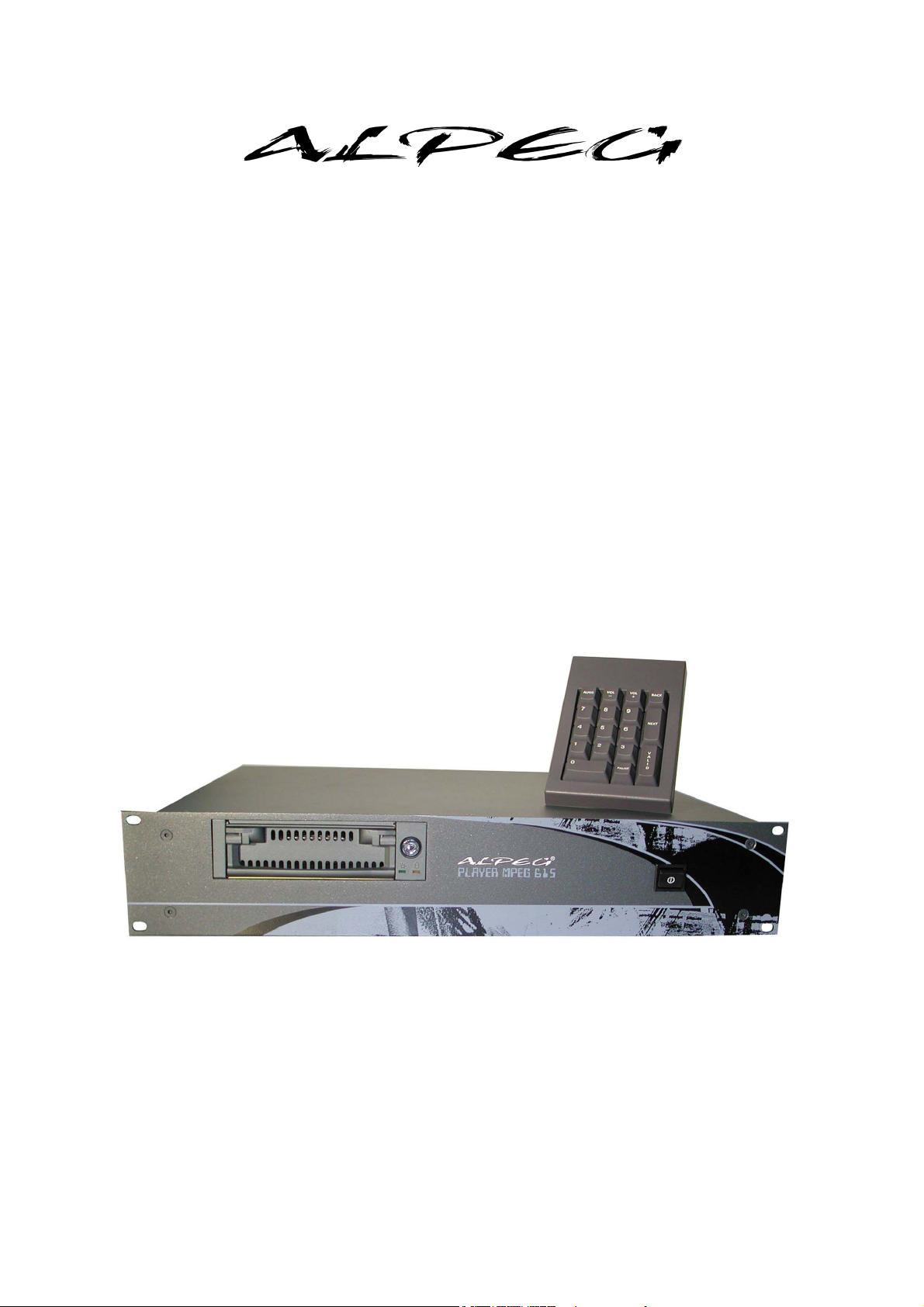
MP615/MP107
MPEG-2 video player
User guide
WWW.ALPEG.COM
Page 2

CONTENTS
2. COMPOSITION 2
3. USAGE 3
3.1 The player 3
3.1.1 Script file 3
3.1.2 Videos 3
3.1.3 File transfer 3
Introduction to the FTP transfer protocol 4
3.2 Controls and access methods 5
3.2.2 Network connection 5
3.2.3 RS232 connection 6
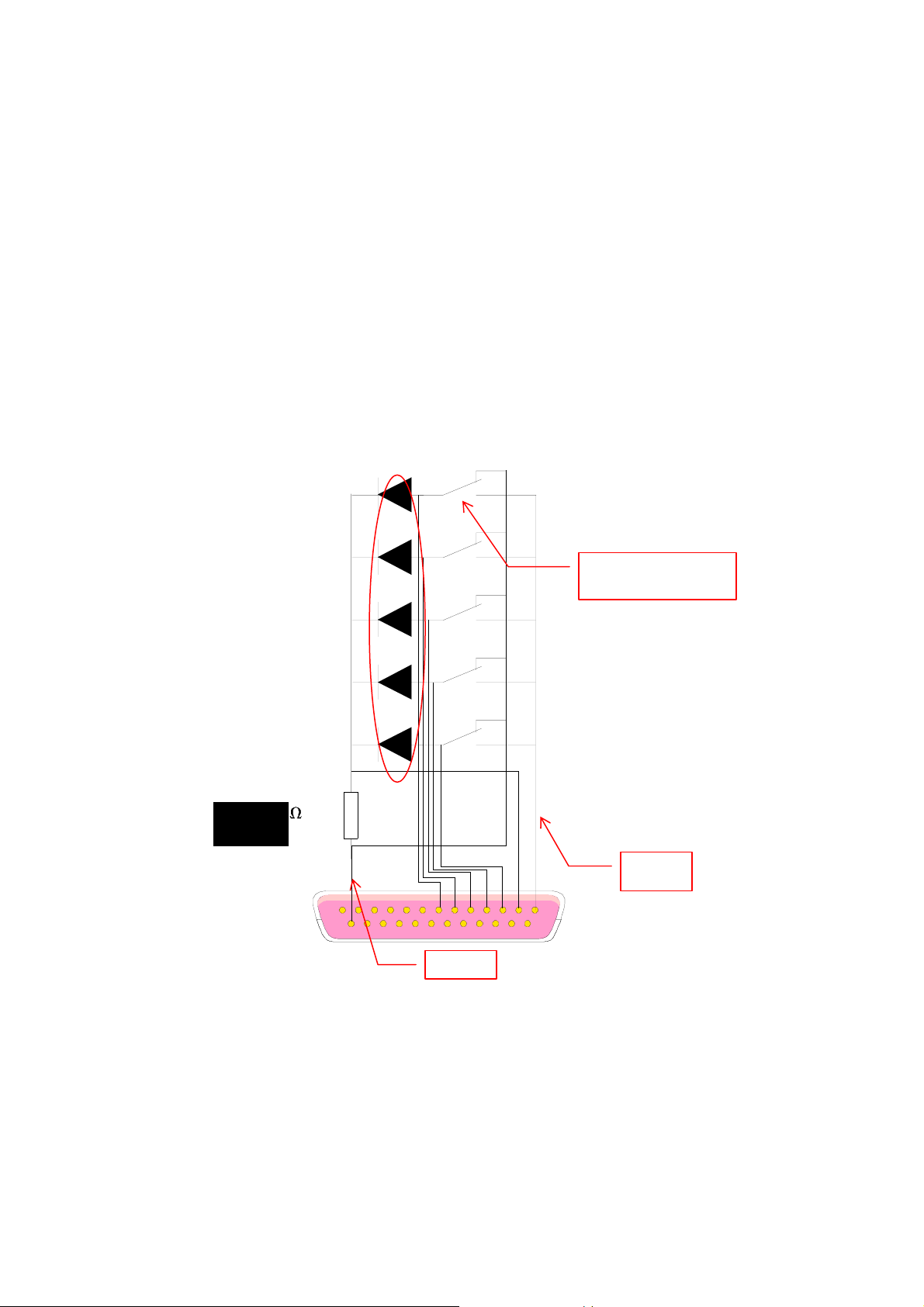
3.2.4 Parallel electronic GPI connector 6
4. HOW TO WRITE A SCRIPT(S) 7
4.1 Language 7
4.1.1 Play 7
4.1.2 Wait 7
4.1.3 Go to 7
4.1.5 Y (Number) 7
4.1.6 SC 8
4.1.7 Interrupt 8
4.1.8 R 8
4.2 Some examples 8
4.2.1 Example 1 8
4.2.2 Example 2 8
4.2.3 Example 3 9
4.2.4 Example 4 9
4.3 Recommendations 9
5. APPENDICES 9
5.1-Diagram of DB25 GPI parallel connector wiring (dry contact) 10
5.2- Language capacity 12
5.2.1 Sub-scripts 13
5.2.2 Video file 13
5.2.3 Commands 13
6. HTML DIALOGUE PAGES 14
6.1- Main page 14
6.2-Network interface pages 15
6.3- Direct TCP /IP reading control page 20
6.4 - Script editor page 21
6.5-Player status page (RS232 address) 26
6.6-Factory presetting page 27
6.7-MP615 Front panel 25
6.8-MP107 Front panel 26
6.9-MP107 Rear panel 27
6.10-MP615 Rear panel 28
RS232 COMMANDS AND PROTOCOL 27
SPECIFICATIONS 28
Rev 1.5 Page 1
Page 3

2. Composition
The digital video player is made up of a player section and the following different modules:
- A network connection.
- An RS232 connection.
- A GPI connector.
- A Keypad connector.
This is a list of the equipment supplied :
- A digital keyboard,
- this guide,
- a Y/C cable ,
- a BNC-BNC cable,
- a RCA-RCA stereo cable.
- special MP107 cords (mini din / RCA & mini din / 3 RCA)
- audio cord MP107 3.5mm jack / RCA stereo
Rev 1.5 Page 2
Page 4

3. Usage
3.1 The player
When you turn the player on, the script reader starts up automatically after about 30
seconds. You must verify beforehand that the disk is indeed plugged in and that the key
locking is activated.
The order of the script reading and the description of the interaction with external
modules are programmed in the script named SC00 and possibly in the sub-script files (SC01,
SC02 …).
3.1.1 Script file
The script files are basic programmes describing, with simple commands, the order in
which the video clips are played. External actions that may occur, possibly the time between
actions and/or the clips, loops it and calls on another sub-script.
They are written in simple text file.
You can edit them directly in the HTML interface (see script construction page) of the mp615
reader, or on your local computer with any text editor. You should name them SC00 without
any extensions and upload the script created in the player using an FTP service or a network
explorer.
3.1.2 Videos
The video clips must be in MPEG-1 (system) or MPEG-2 (program) format
3.1.3 File transfer
The file transfer is performed either by network link using drop and drag with your operating
system or with FTP transfer software.
File transfer is carried out using any FTP software.
See documentation concerning Web interface (network)
File transfer can also be done using the mobile rack via another computer recognising the hard
disk sharing format: FAT32.
Please consult us should you wish to acquire female mobile rack.
Rev 1.5 Page 3
Page 5

Introduction to the FTP transfer protocol
FTP = File Transfer protocol.
After electronic mail and the WEB, FTP is another Internet service that evolutions in
technology have made much easier to use, but the aspect of which is still not very userfriendly.
This service, with email and discussion groups, were the only tools in existence before the
appearance of the Web in 1990, and were at that time used mostly by research centres and
universities.
What does it do?
Everything is (almost) said in the title, and boils down to the possibility to transfer files to or
from other connected computers.
All over the world, millions of multimedia files (documents, latest versions of navigators,
plug-ins, utilities, shareware or freeware programmes, images, sound, videos, drivers, games,
fonts.... anything and everything!) are stored in directories on FTP sites, commonly called
FTP servers.
The ALPEG players are themselves ftp servers.
The programmes used to communicate with these FTP servers are called quite simply FTP
clients.
Here again we encounter the notion of Client/Server, where the client is the one who benefits
from the operation and the server is the one that makes itself available to you.
======================================================
Between two connected computers (even different ones: Mac, PC, Unix...) that use the same
FTP protocol, there will be transfer of files on the network.
The size of the file to be transferred is unlimited, however, it often conditions the length of the
connection.
- Download, means to import a document from a server to your computer.
- Upload, means to export (send) a document from your computer to a server.
It goes without saying that the above definitions reflect your position as a user, but the same
terms apply during transfer between two servers, which then function as relays.
Who has access to it?
Everyone doesn't have access everywhere, and for example the directory of my site is
protected by a code. It is usually this way for the server of a company storing files which are
often confidential, and reserved for managers and external heads of agencies, or in
universities, where the entry of certain documents is reserved for its students and teaching
staff only. You must know the password to have access to it.
Other FTP sites are freely accessible without a password, and you can go "shopping" there
with complete peace of mind. Sometimes it all happens without formalities, or some ask you
to fill in the identifying input field beforehand (your login = your name) that you simply
replace with the word anonymous and then to give your email address as password. This
service is known by the name of "anonymous FTP site".
Rev 1.5 Page 4
Page 6

On the contrary, others, before giving you access, ask you to fill out a little form. It's nothing
to worry about, and won't present any problems if your intentions are honest.
And if, upon the opening of an FTP page, you encounter the abbreviation pub, it has nothing
to do with publicity, it just signifies free and public access. .
For the ALPEG, the connection is made by directly typing your IP address with your login as:
anonymous, and no password.
How to access it?
-Either through your navigator. (All of them do not offer this possibility)
-Or by using specialised software, for example, in the case of particular or heavy FTP use.
As an individual, you are always the client, and you are going to have to use the protocol
dedicated to this service: ftp (the way you use http to browse the web, or @ pour email),
which, to connect to the ALPEG server, amounts to:
ftp://10.16.99.107 ............connection from a navigator.
ftp.10.16.99.107 .............if using specialised software.
In fact, on the Web you are downloading files practically all the time, but with a fundamental
difference with respect to FTP: the documents on the Web are only displayed temporarily,
for the time that you are viewing them.
3.2 Controls and access methods.
3.2.2 Network connection
The network connection is the way to access the player interface using a traditional Web
navigator for HTML pages, and by any FTP software for file transfer.
See the network interface section.
For direct connection between a PC and the player, you MUST use an inverter cable, for any
other type of link (e.g. via a hub), you can use a normal non-inverter RJ45-RJ45 cable.
If you are not sure which IP address to configure, contact your network administrator for the
IP address to configure the player so that it can be incorporated into your current system.
For a connection to the original IP address of the Player, you can use the following address on
your computer: 10.16.99.110 with subnet mask: 255.255.0.0
Rev 1.5 Page 5
Page 7

3.2.3 RS232 Connection
The RS232 connections allow the player to be driven.
- See programming chapter
- See connection appendix
3.2.4 Parallel electronic GPI connector
Enable a video numbered 1 to 5 to be read
- See the wiring diagram in the connection appendix
ATTENTION:
If the player comes with a hardware key that connects to the electronic parallel GPI
connector, in utilisation without commands by dry contacts, it is obligatory to set up
this hardware key, under pain of improper functioning of the player.
Rev 1.5 Page 6
Page 8

4 How to write script(s)
4.1 Language
*: equals a space
4.1.1 Play
Allows a script to be read
Command: Play file_name_mpeg (option).
Options:
- * /f: no transition to black between two video files.
- */l,n: read the video file ‘n’ times.
Example: play*/clips/drop.mpg*/f
4.1.2 Wait
Allows a time delay to be introduced
Command: wait*n
Example: wait*5: wait 5 seconds
4.1.3 Goto
Allows you to go to a line of data.
Command: goto *1
Example: goto*5: continue to execute script file at line n° 5
4.1.4 y (number)
Allows direct access to the command that is specified after the “y” number, by an external
module (RS232 & keyboard & dry contact Connector);
Command: y: any command
Example: 55:*play /clips/drop.mpg
4.1.5 SC
Allows another script from the play list to be started.
Command: SCxx
Example: SC15 start script n°15
Rev 1.5 Page 7
Page 9

4.1.6 R
Allows a specific command to be sent to another channel by the series port.
There are 3 commands possible:
- R*x,KEYyy: read on player n°x, script corresponding to event yy
- R*x,MPG/clips/fichier.mpg: read on player n°x video file.mpg.
- R*x,SEQy read on player n°x script yy
Examples:
- R 1,KEY12
- R 2,MPG/clips/drop.mpg
- R 3,SEQ14
_____________________________________________________
4.2 some examples
4.2.1 Example 1
play/clips/drop.mpg /1,2
wait 3
play/clips/pubsony.mpg /f
wait 2
goto 1
This script plays the drop.mpg video twice, waits 3 seconds, plays the pubsony.mpg video and
fixes the last image, waits 2 seconds and starts again from the beginning (line 1).
4.2.2 Example 2
play/clips/drop.mpg
wait 3
goto 1
5: play /clips/pubsony.mpg
wait 2
goto 1
This script reads and loops the drop.mpg video and waits 3 seconds between each play.
As well as this, we install a reaction to external event n°5.
When we confirm choice n°5, on the keyboard or parallel player, the player reads the
pubsony.mpg video followed by a pause of 2 seconds then returns to the beginning (line 1).
Rev 1.5 Page 8
Page 10

4.2.3 Example 3
play/clips/pubsony.mpg
wait 2
SC01
Goto 1
10 : SC02
Goto 1
This script plays the pubsony.mpg video, waits 2 seconds, reads the SC01 script and returns to
the beginning.
If event n°10 is called up, the SC02 script will be read and will then return to the beginning of
the script.
ATTENTION
: in the script file SC02 you must absolutely have a return order to the script
SC01 (SC01), otherwise, the reading will always remain on the script file SC02.
4.2.4 example 4
play/clips/pubsony.mpg
wait 2
R2, MPG/clips/drop.mpg
Goto 1
This script reads the pubsony.mpg sequence, waits 2 seconds, orders the player that is
identified as being n°2 to play the drop.mpg sequence.
Warning: the drop.mpg sequence must exist on the slave player.
4.3 Recommendations
The script language allows some remarks to be added. To do this, you must start the line with
a “#”.
Important to remember:
• Avoid Wait 0
• Don’t use Goto for a line that does not exist.
• Don’t do SCxx if the SCxx does not exist.
• If a sequence does not exist, or if a file format is not recognised, the sequence will be
ignored but the player also may block.
• If a line in the script contains an unknown command, it will be ignored.
Rev 1.5 Page 9
Page 11
t
p
)
5 Appendices
5.1 diagram of DB25 GPI parallel connector wiring (dry contact)
Diode=OA 90
Diode :OA 90 (direct low-voltage 0.3Volts
1
2
3
Switches to stable
osition
4
5 channels can be accessed.
ATTENTION: If fewer channels are used, the contacts must imperatively be earthed
(grounded).
The closing of contact 1 activates an action associated to a command number 1 (example in
the file SC00: 1: play /clips/video1.mpg ).
270
5
1k ,1/4w
25
7
0 vol
5 volts
1
Rev 1.5 Page 10
Page 12

The closing of contact 2 activates an action associated to a command number 2 (example in
the file SC00: 2: play /clips/video2.mpg ).
The closing of contact 3 activates an action associated to a command number 4 (example in
the file SC00: 4: play /clips/video3.mpg ).
The closing of contact 4 activates an action associated to a command number 8 (example in
the file SC00: 8: play /clips/video4.mpg ).
The closing of contact 5 activates an action associated to a command number 16 (example in
the file SC00: 16: play /clips/video5.mpg ).
Rev 1.5 Page 11
Page 13

5.2 Language capacity
5.2.1 sub-scripts.
The player allows up to 10 linked sub-scripts to be called up.
Example:
In the file SC00:
Play /clips/file.mpg
SC01
5.2.2 Video player
Because of the FAT32 system, the maximum size for one single video file is 4 Go.
5.2.3 Commands
The video output and format commands are:
Colour video system:
F0 = NTSC
F1= PAL
F2= PAL 60 Hz
Outputs:
F4= Comp -Y/C
F5= YUV
F6= RGsB
F7= SVGA (Format: 720x575 - 37.5Khz 70Hz)
Therefore, to be operated externally, a command like the one shown below should exist in the
script:
10: F1 (the command in RS232 will be called up by using the following formula:
ID0CDE:KEY10)
Attention:
If your files were encoded in PAL format in 50Hz (25 images/s), you must imperatively set
the player to "F1" on the first line of the reading script.
If your files were encoded in NTSC format in 60Hz (30 images/s), you must imperatively set
the player to "F0" on the first line of the reading script.
Rev 1.5 Page 12
Page 14
g
e
6. HTML dialogue pages:
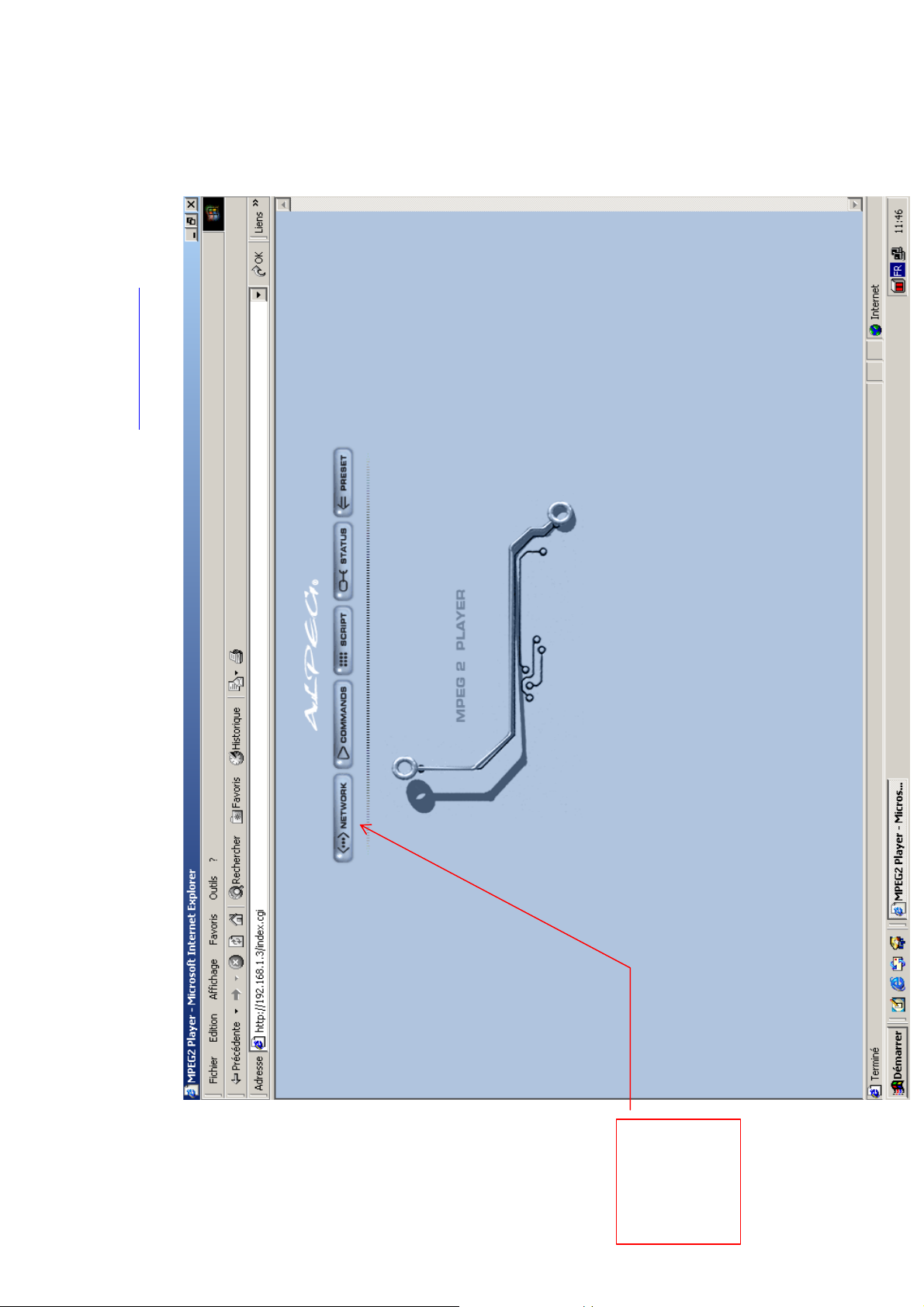
6.1 Main page: Open your Internet explorer and type in the following address of the player: http://10.16.99.107 the screen shown
below will appear.
Use this link to
access the
network
interface page
(see diagram 4)
a
Rev 1.1 Page 13
Diagram 2: Main
Page 15
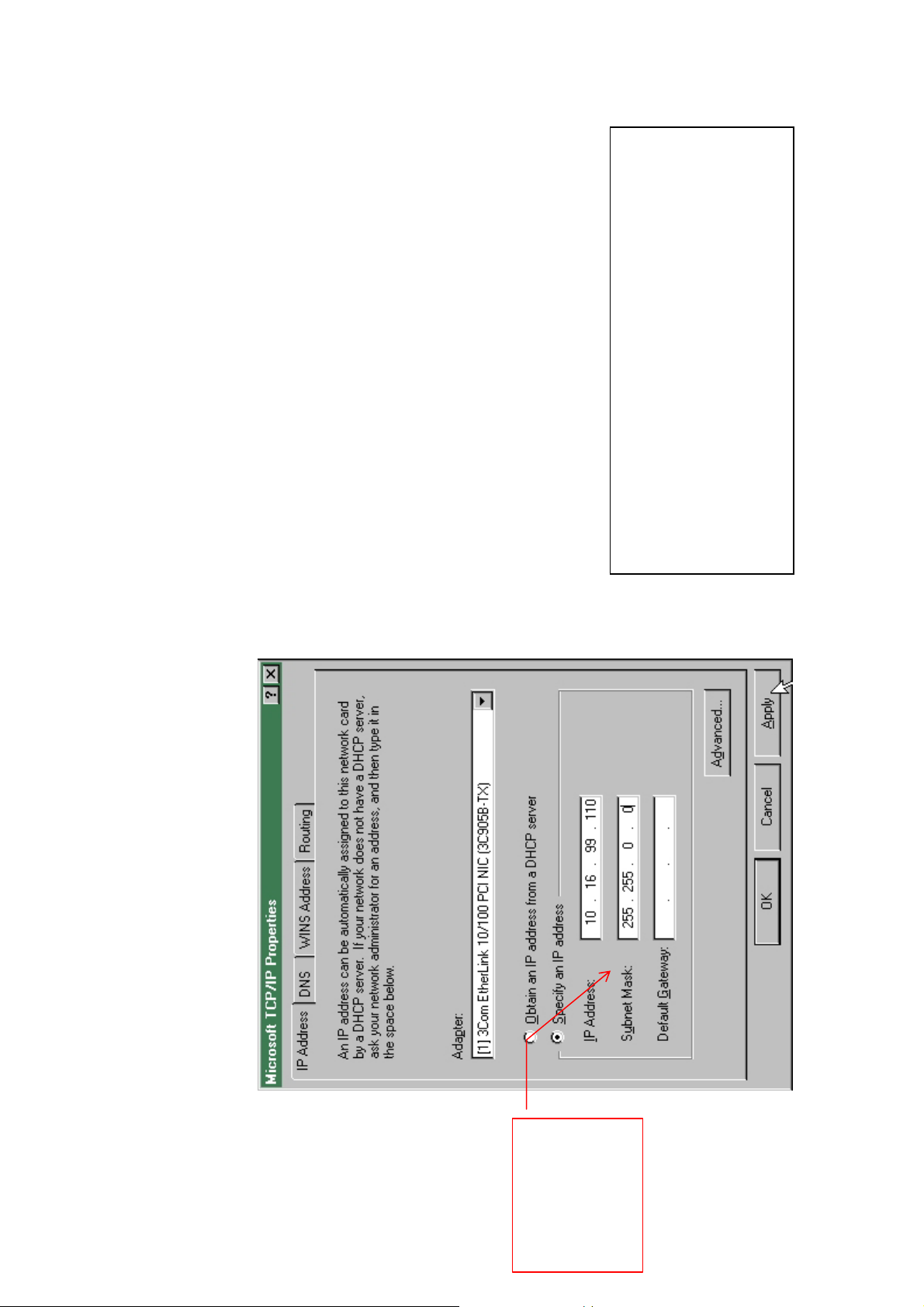
Default TCP/IP configuration of player:
Default factory address is :
10.16.99.107
Default subnet (sub-network) mask is:
255.255.0.0
6.2.1 TCP/IP:
To communicate with the player for the first time, the following initial steps must be taken:
6.2 Network interface page:
Diagram 1: computer TCP/IP parameters
Network configuration of local computer is recommended:
Rev 1.1 Page 14
IP Configuration &
sub network mask to
enter in order to
access player for the
first time
Page 16
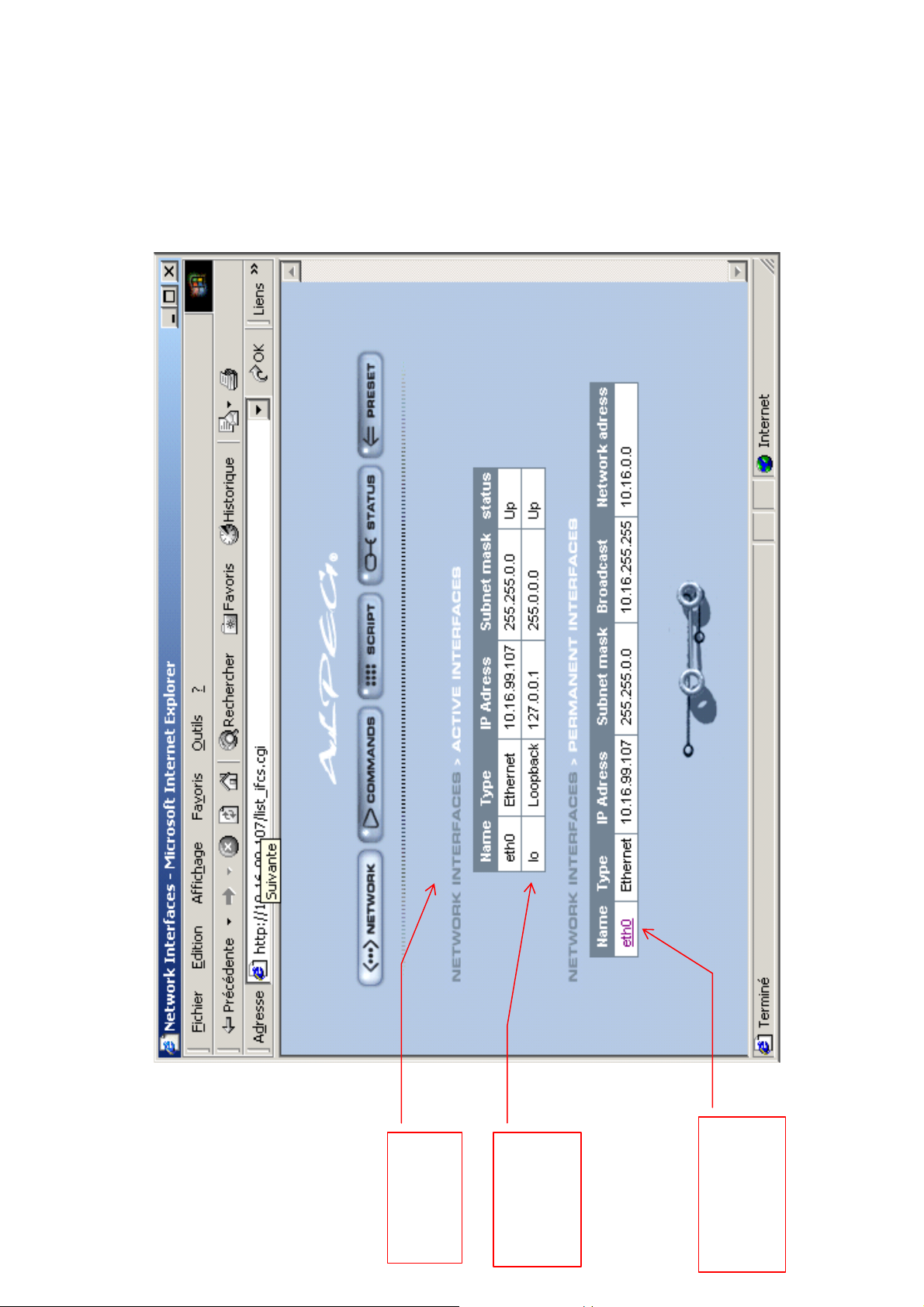
After having accessed the interface, you will get the following screen: network interface 1
6.2.2 Programming example so that the player is accessible by the following type of PC address: 192.168.0.10
Rev 1.1 Page 15
Current
configuration
Programmed
configuration
1) access to
configuration
page
Diagram 2:
network
interface page 1
Page 17
Rev 1.1 Page 16
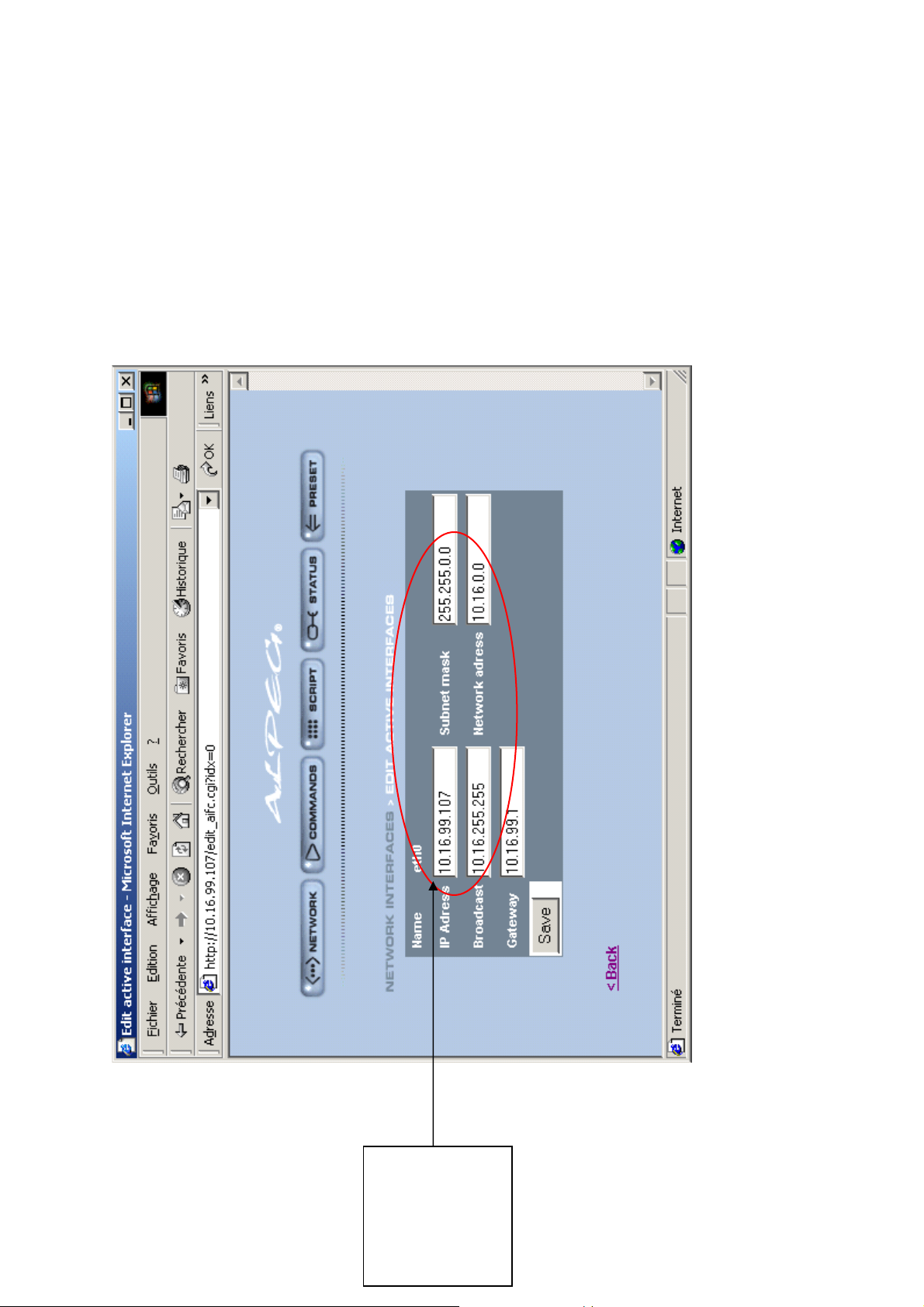
6.2.3 Network interface 2 (factory parameters below)
2) Change the
configuration
by modifying
the 5 fields as
shown in
diagram 4
Diagram 3:
network interface
page 2
Page 18
3
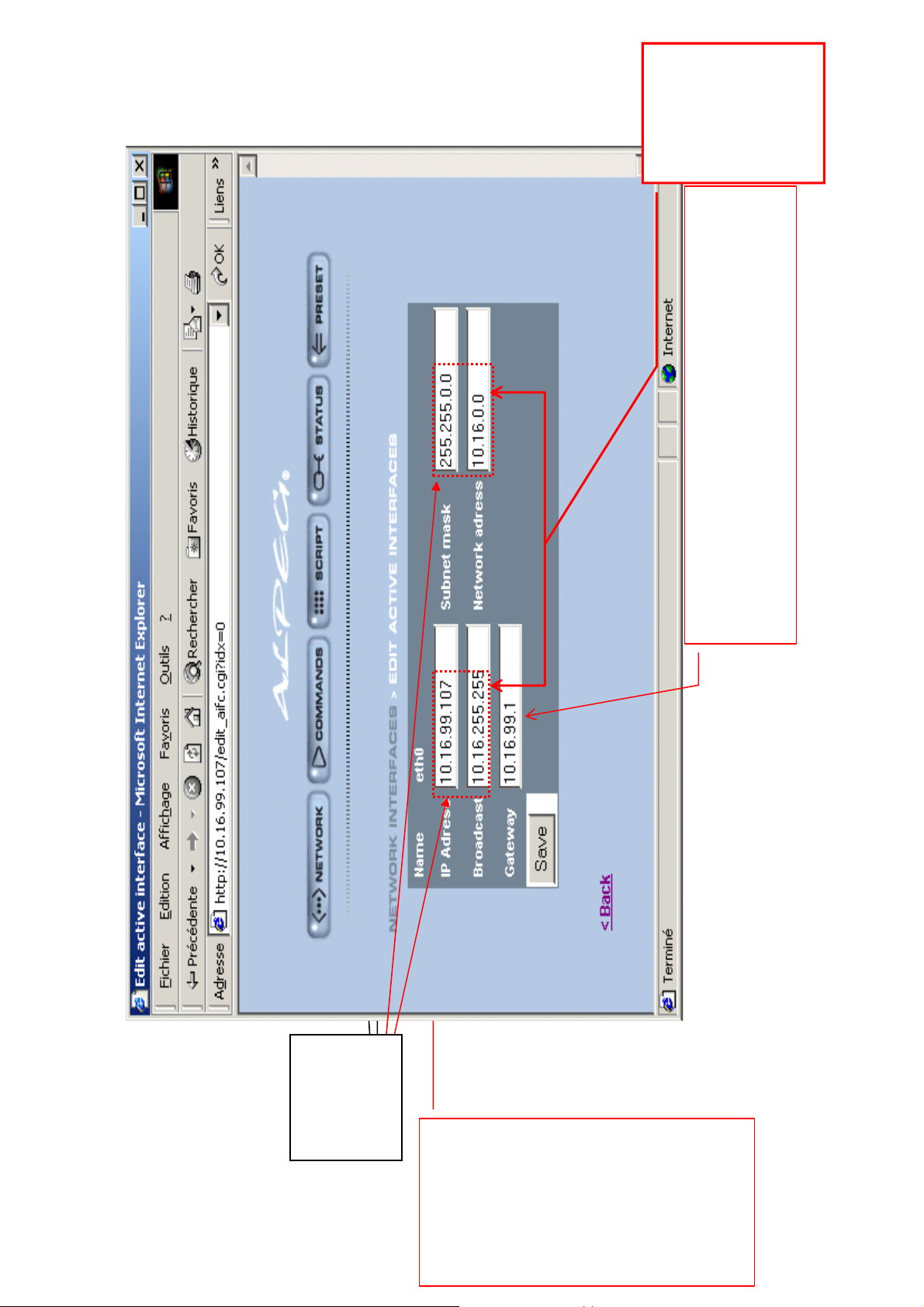
NOTE : The first
2 groups of
numbers from
fields 2 and 4 are
the same as those
in field 1 “IP
NOTE : the first
two groups of
numbers in
fields 2 and 4 are
4
3
4
the same as in
field 1 “IP
address”
address”
1
In the event of a connection by modem/router, for remote
administration/control, you must enter in this field the
number of the IP address of the router
2
1
2
6.2.4 Network interface 2 (programming)
Fields to change
to program the
address:
192.168.0.10
modification,
remember to
SAVE, return to
the previous
interface to check
the new address in
the “permanent
interfaces” then
turn the player off
and on again to
make the new
address an active
3) After any
one.
Diagram4
Rev 1.1 Page 17
Page 19

You will see the text "password: _" appear
Type: DEBIAN! and hit ENTER
Type: IFCONFIG
The IP address of the player is that which is found after the text "inet addr:"
IP Address: 198.168.1.5
1. Connect a standard computer (PC) keyboard to the violet socket miniDin (PS2)
2. Remove the black socket cover from the VGA connector that is next to the RS232 socket.
3. Connect a VGA computer screen to this socket.
4. You will see the command "UTRAM 3 login:" appear
5. Type: ROOT and hit ENTER
7.
6.
5) Reprogramming the TCP/IP properties of your computer to access the new address, in the current example this could be:
Subnet mask: 255.255.255.0
Next, after having restarted or not your computer to make the new IP address operational, open your Internet navigator and type in the
http://198.168..0.10, the main screen will appear.
IMPORTANT: If you have made a mistake or you are unable to find the address of the player, you have the option of
programming the player with the factory parameters: TO DO THIS :
address of the player as follows:
6.2.5 Reinitialising the IP address
It is imperative that you type halt and wait until the player displays Power down.
9.
10.
8.
Rev 1.1 Page 18
Page 20
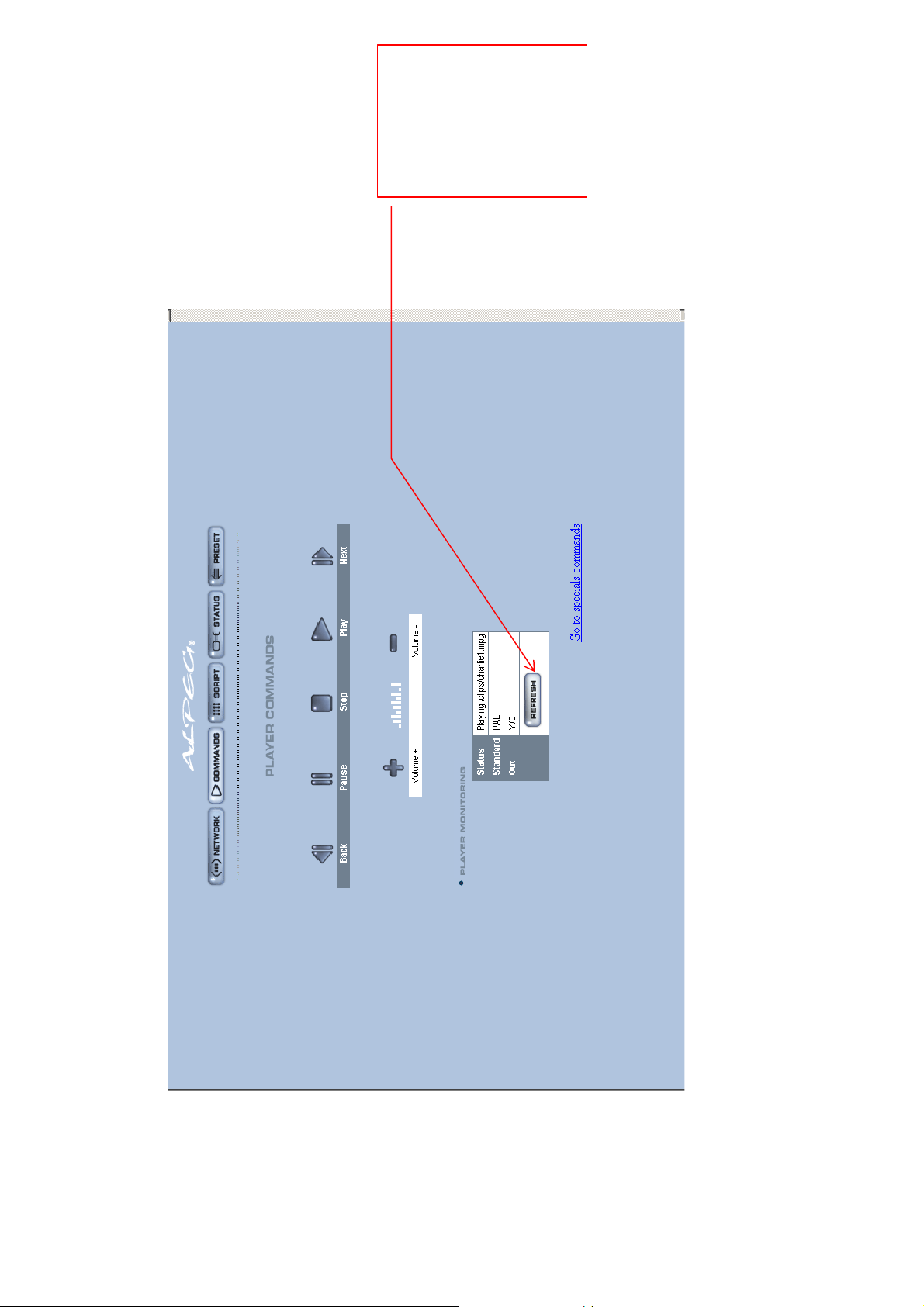
By pressing on this
button, the player
sends information
about what it is
currently doing.
This also happens if
you press any other
command
It is possible to control the Alpeg player by network with the following page:
6.3 Direct TCP/IP reading control page.
Rev 1.1 Page 19
Page 21
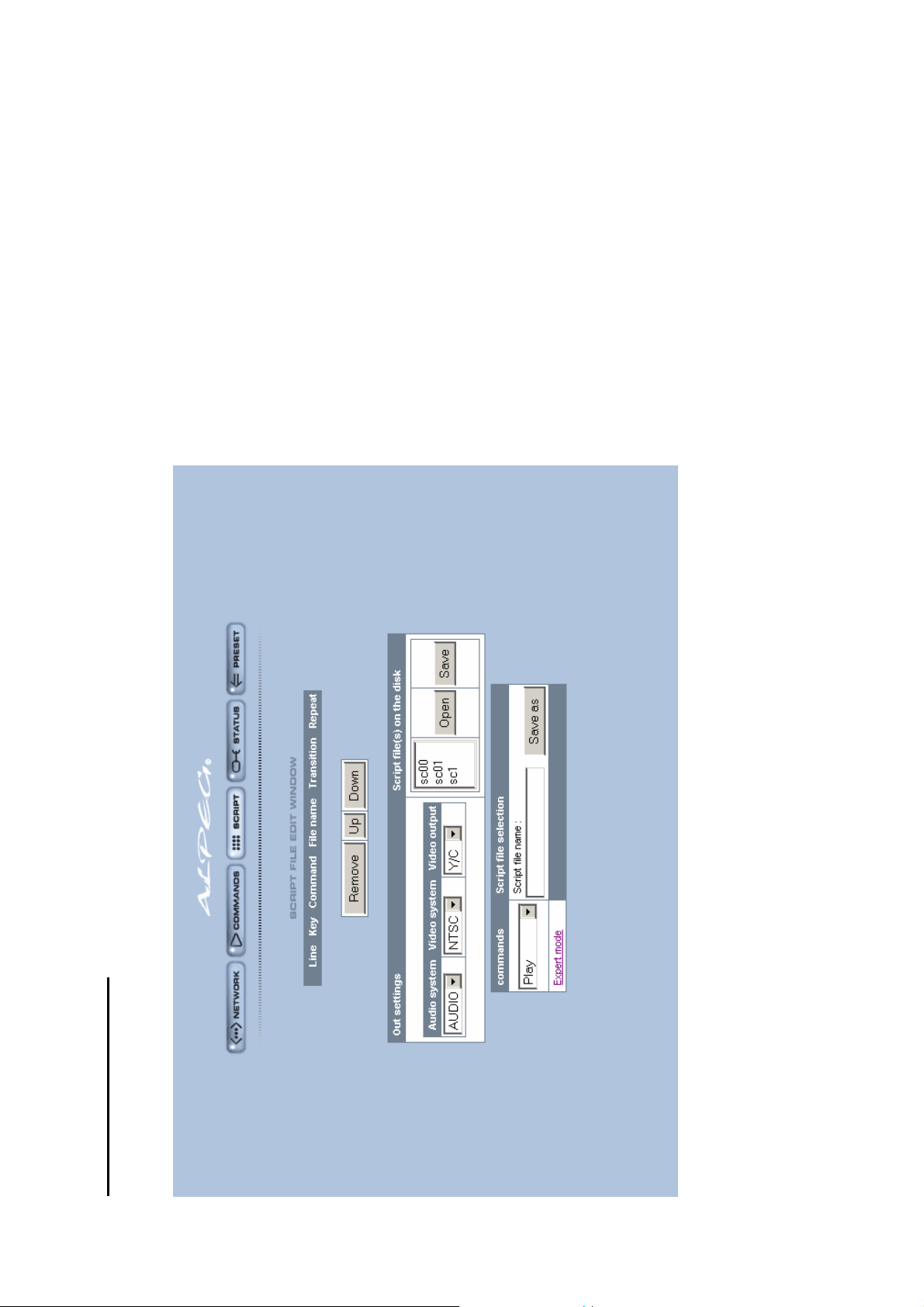
6. 4 Main script editor page :
Rev 1.1 Page 20
Writing the script is done entirely using the mouse intuitively, all you have to do is choose the commands,
The MPEG2 files to be read are to be chosen, and everything is to be saved in an exisitng script file or in a new script.
Page 22
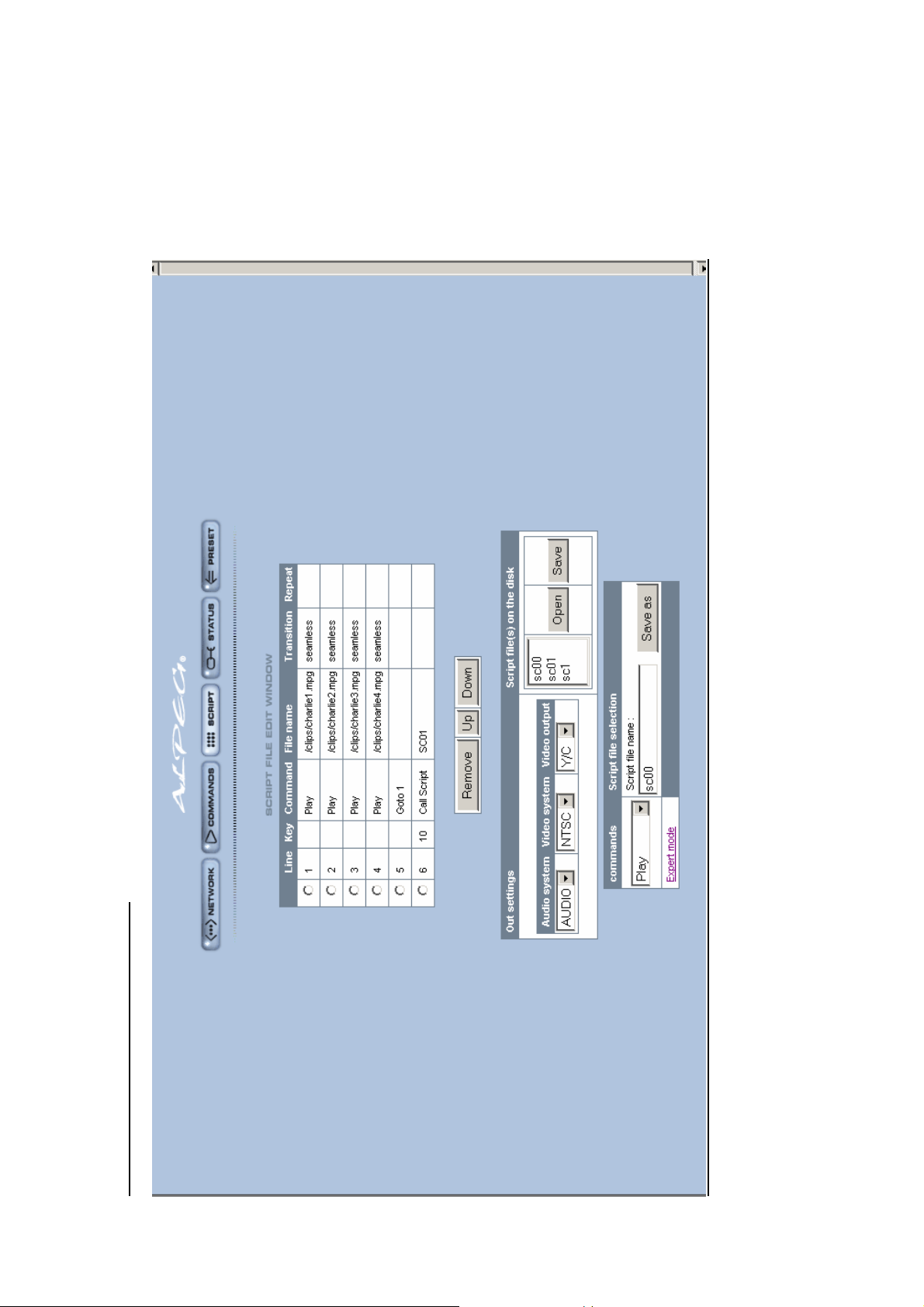
Rev 1.1 Page 21
Editing page with the SC00 file open.
Page 23
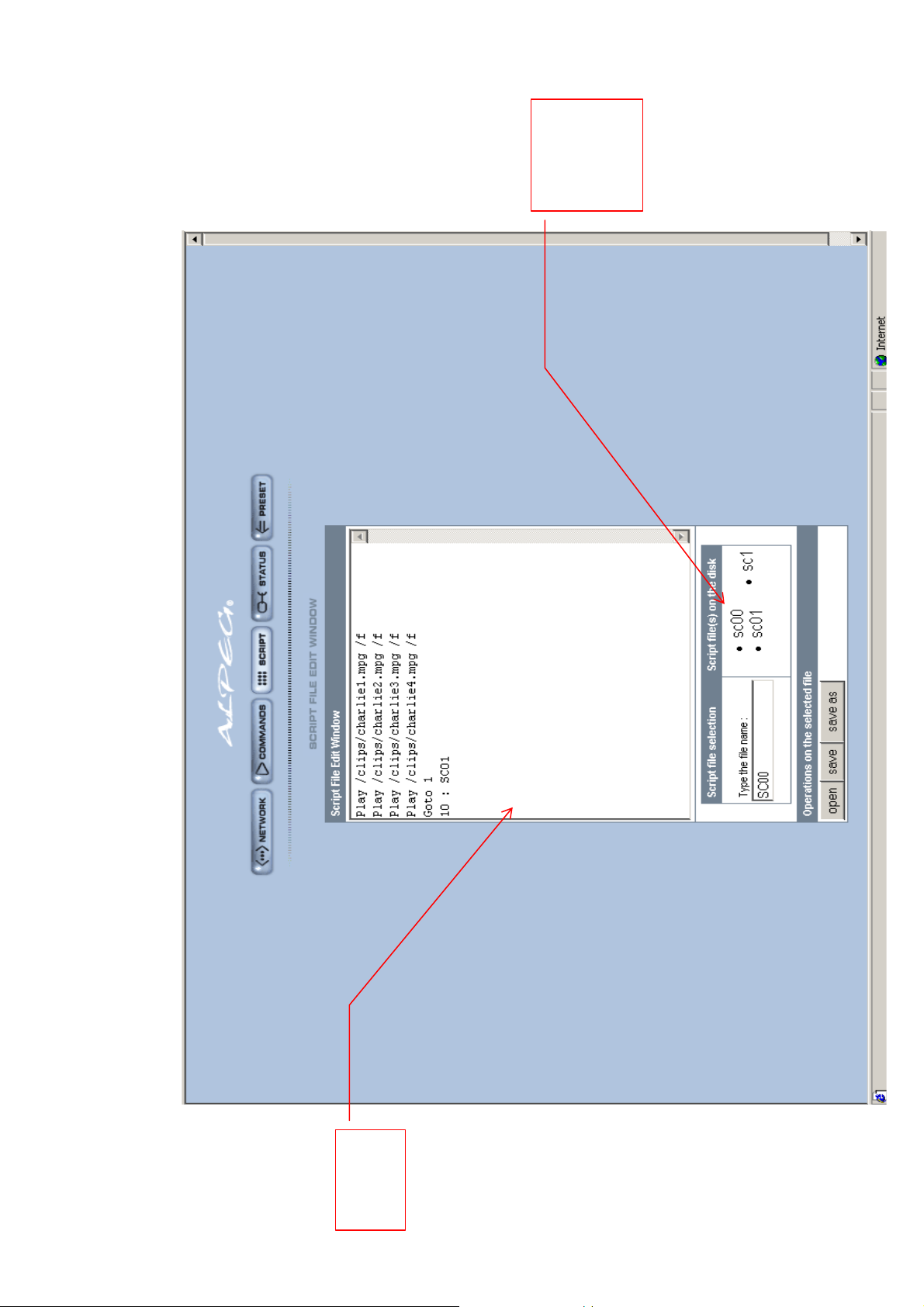
In this area,
all the scripts
appearing in
the player are
listed.
This is in text mode, also called "expert mode".
6.4.1 Script editing pages:
Editing
area
Rev 1.1 Page 22
Diagram 5: script
editor
Page 24
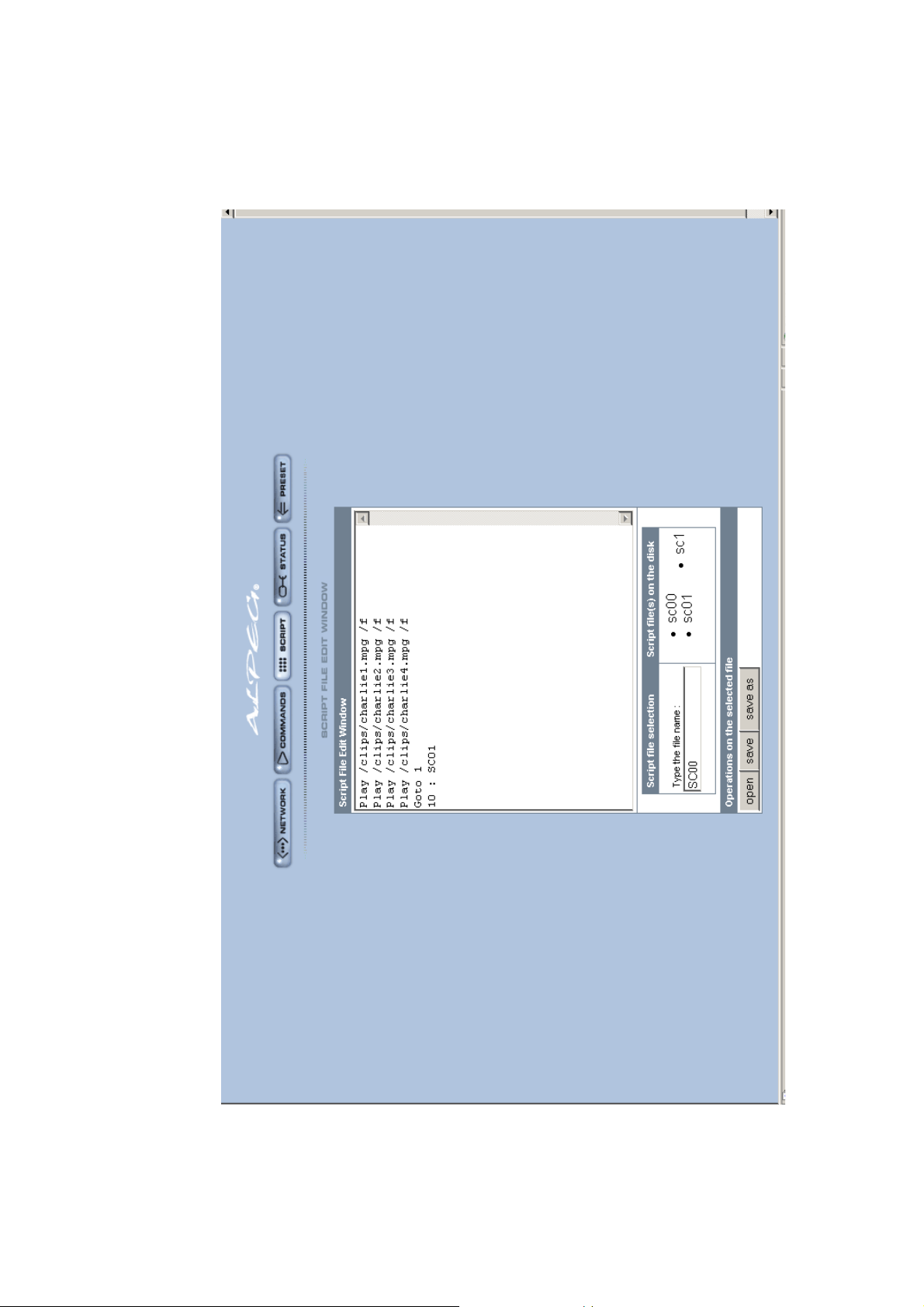
There is always, for all players, a default script text file called “SC00”
6.4.2 Opening a script in expert mode.
Rev 1.1 Page 23
Page 25
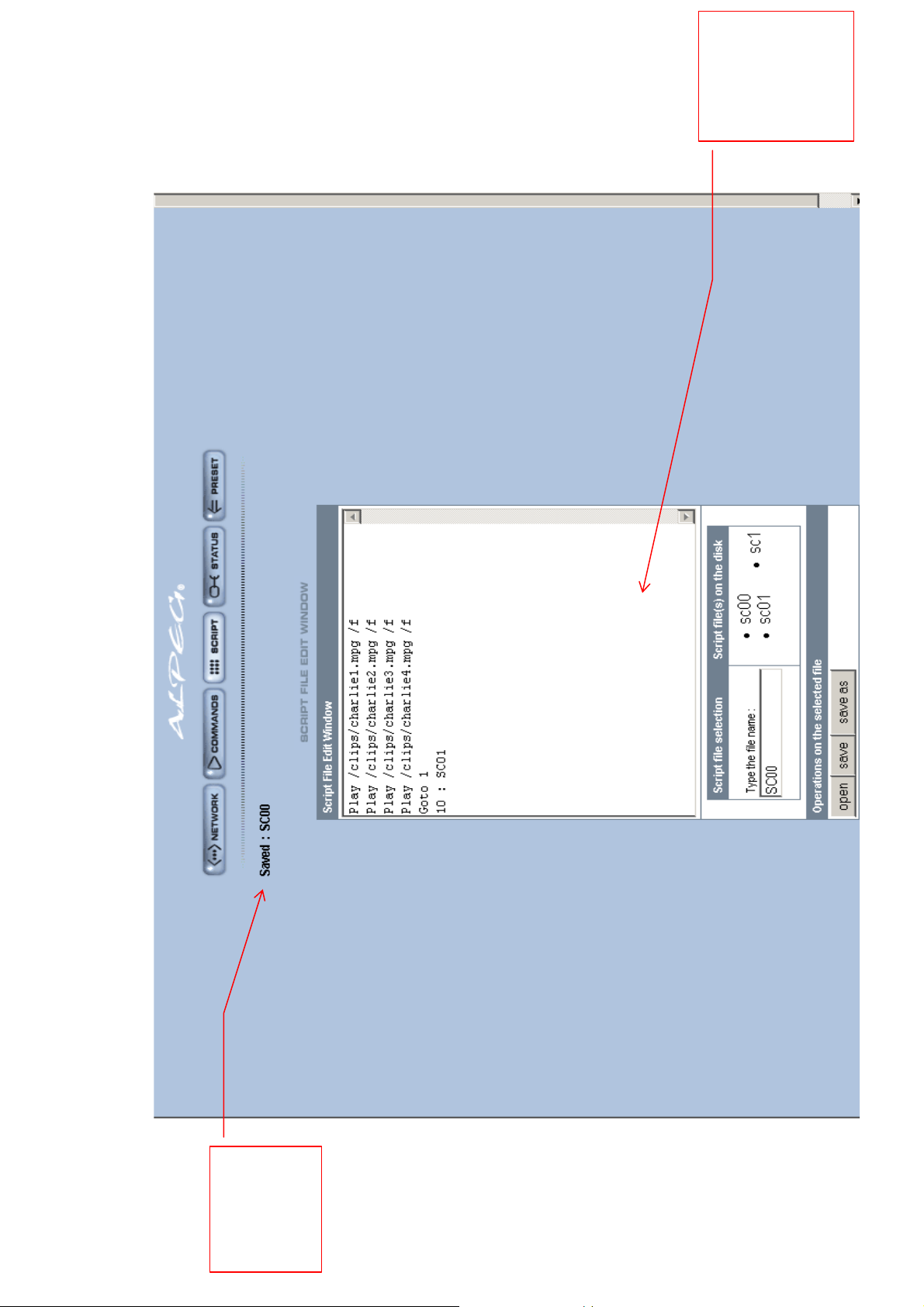
To write a script,
please use the
language chapter
instructions.
6.4.3 Saving a script file
The file that has
been saved is
shown here.
Rev 1.1 Page 24
Page 26
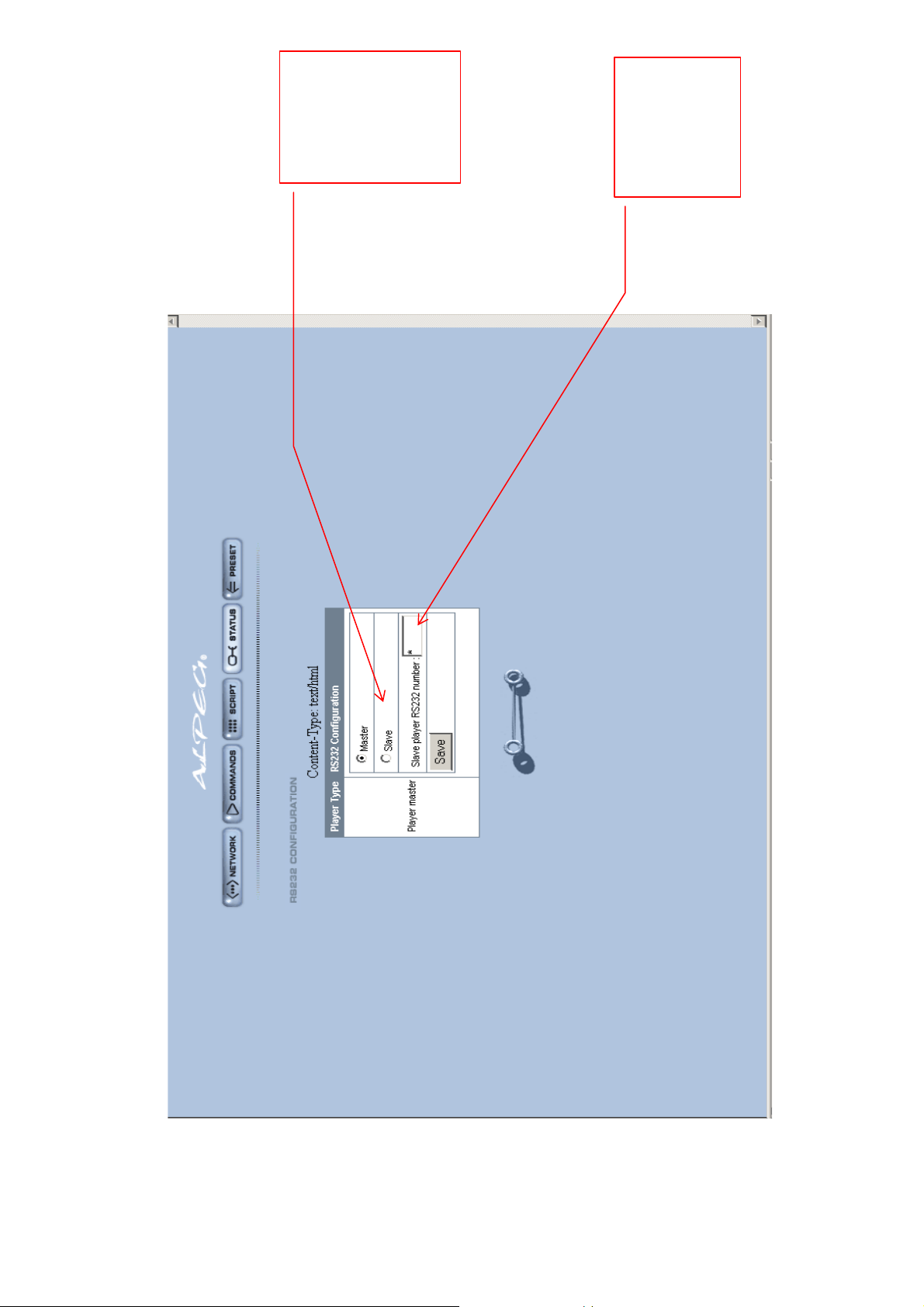
This is how to
ort of the player
give an address
to the RS232
If the player is
linked to another
player, the
number of the
player must be
defined here
6.5.Player status page (RS232 address)
Rev 1.1 Page 25
Diagram 6:
Status
Page 27
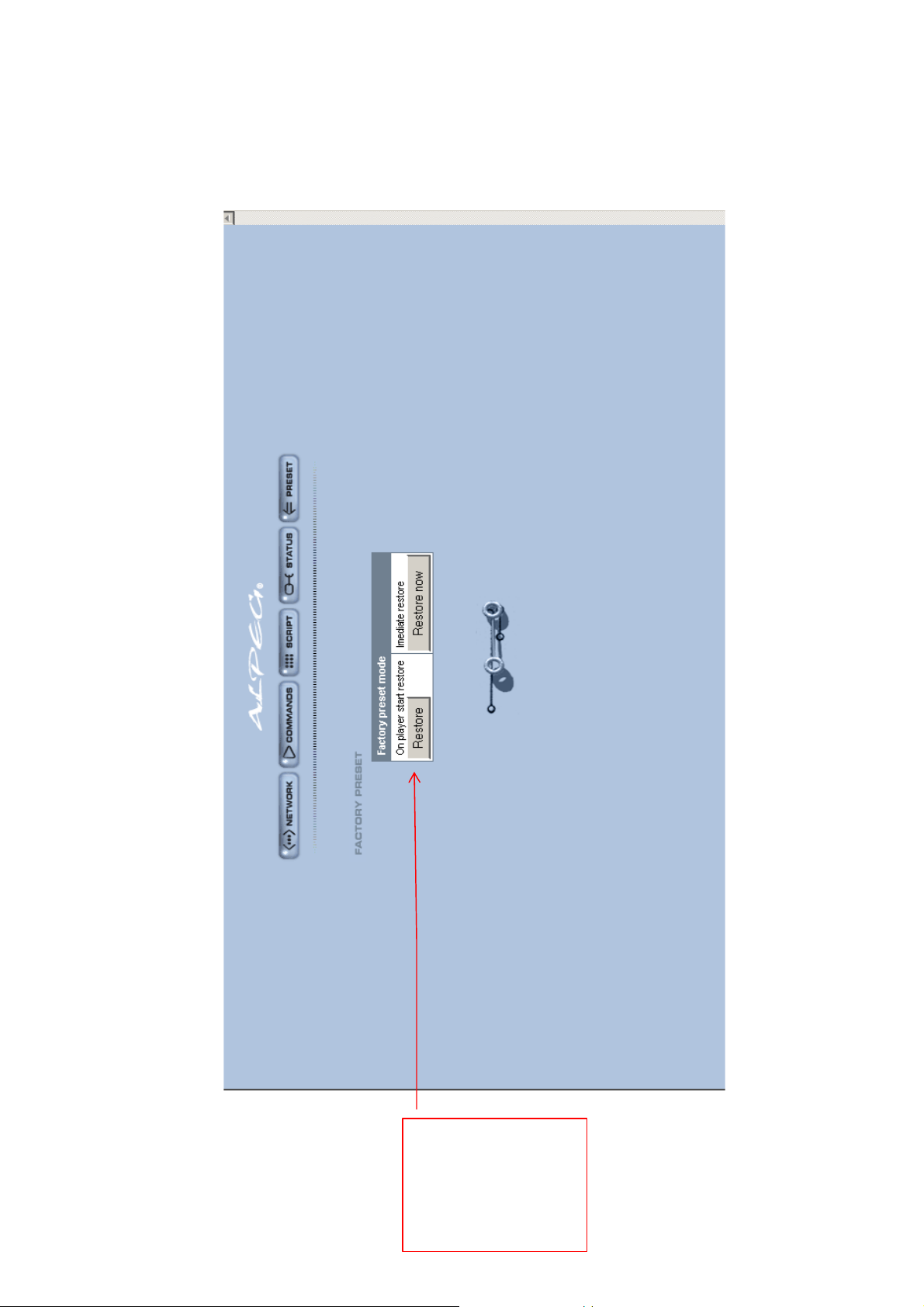
6.6 Factory preset page :
Rev 1.1 Page 26
Restore the
original TCP/IP
configuration;
the sound
volume will be
restored the next
time the player is
switched on
Page 28
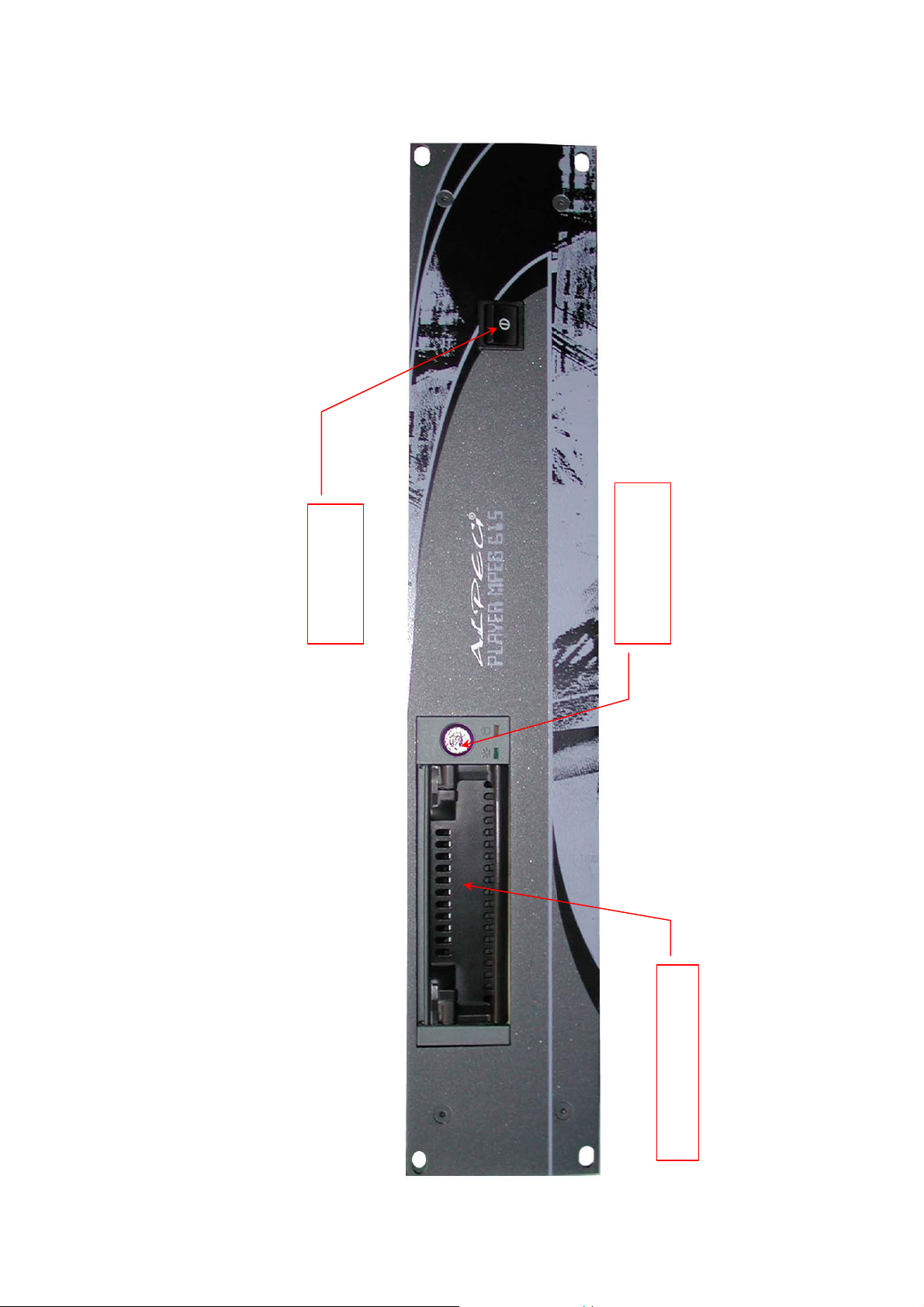
Lock key for hard
ON/OFF switch
disk
6.7: MP615 Front panel:
Extractible hard disk
Rev 1.1 Page 27
Page 29
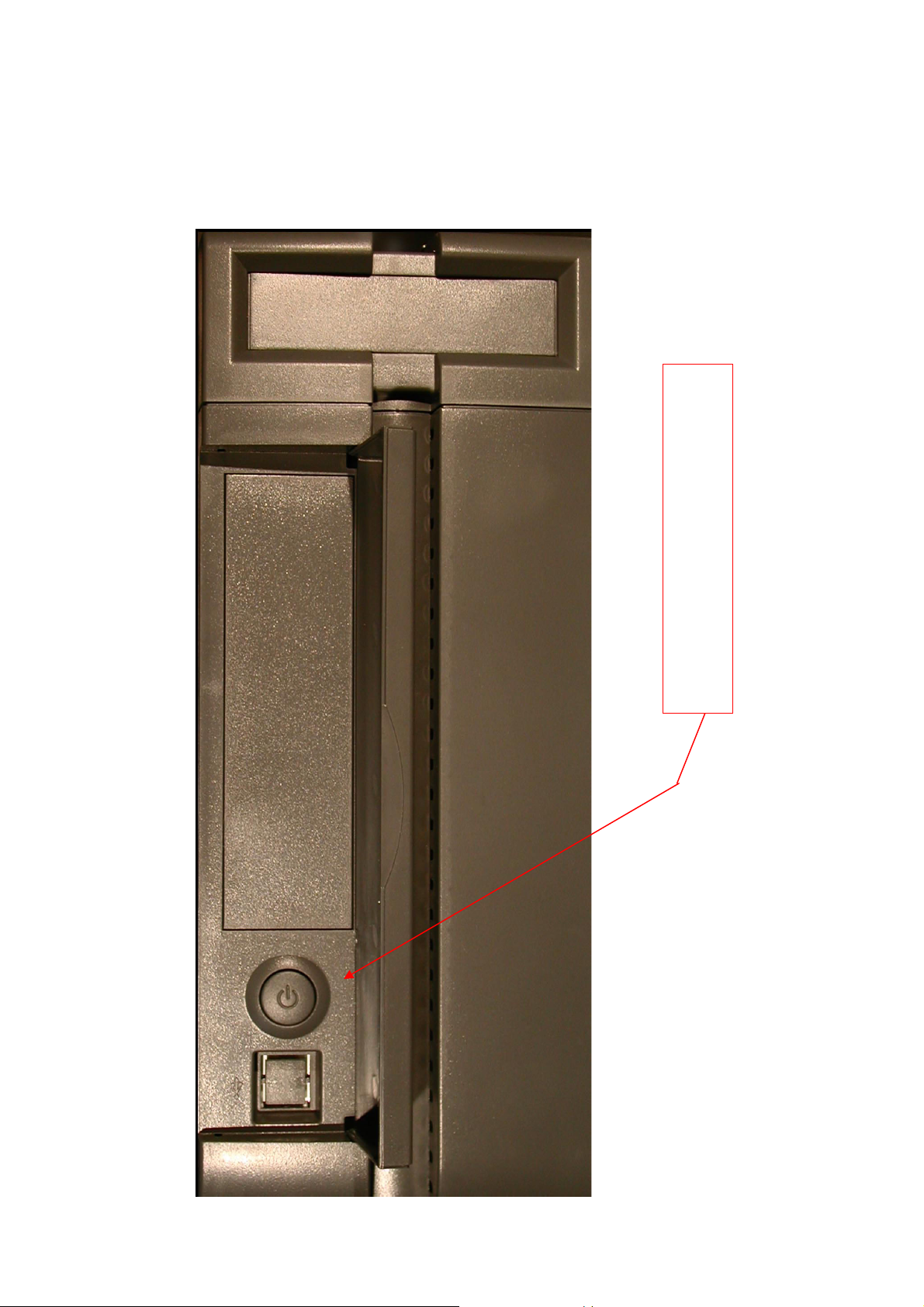
On/off button behind the hatch.
6.8 MP107 Front panel:
Rev 1.1 Page 28
Page 30
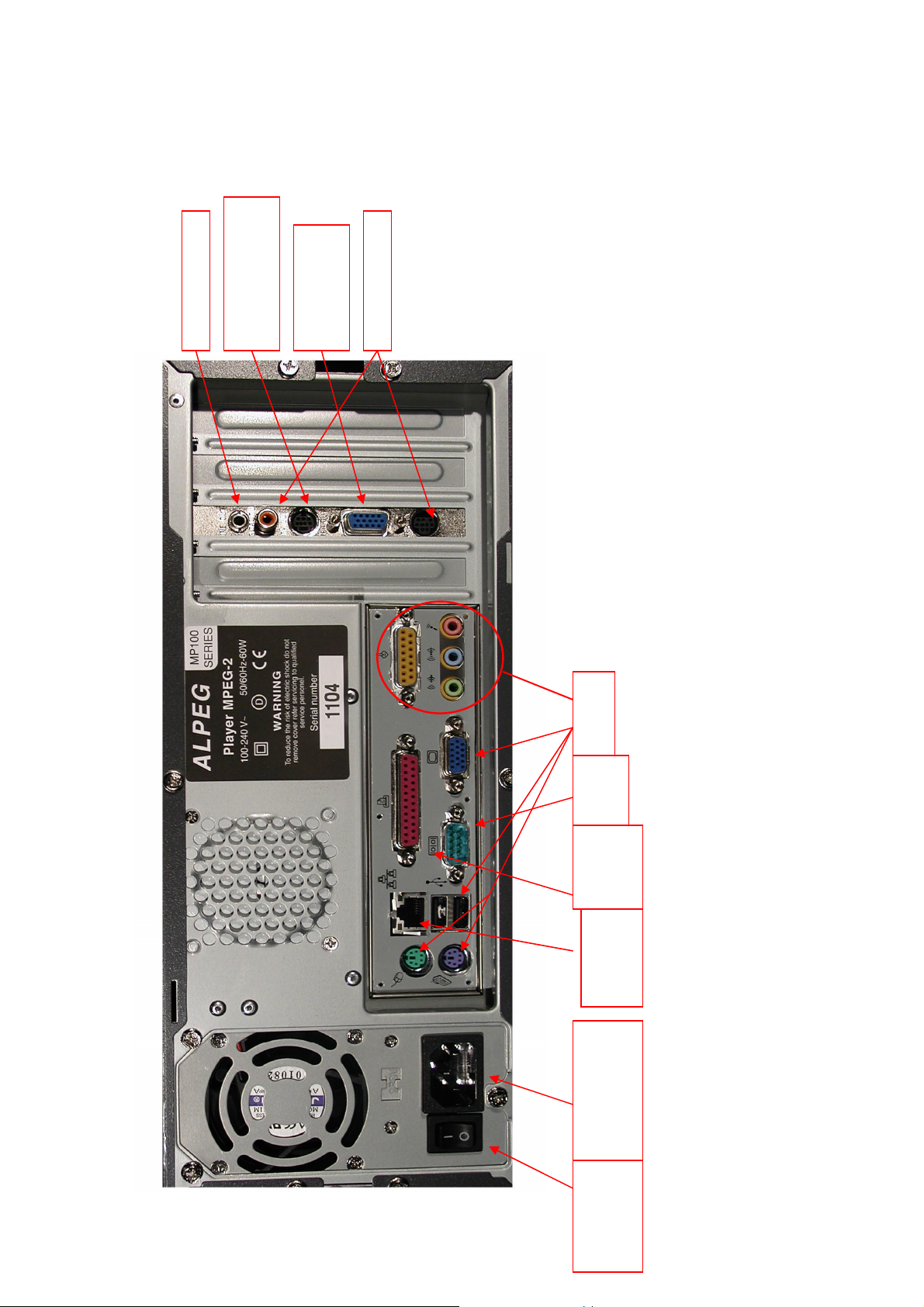
Audio Stereo Output
Direct video output
Y/C, CVBS or YUV
by adapter.
VGA output
Not used
Not used
6.9 MP107 Rear Panel:
RS232
input
Dry
contact
Network
connection
Power plug
General
on/off switch
socket
Rev 1.1 Page 29
Page 31
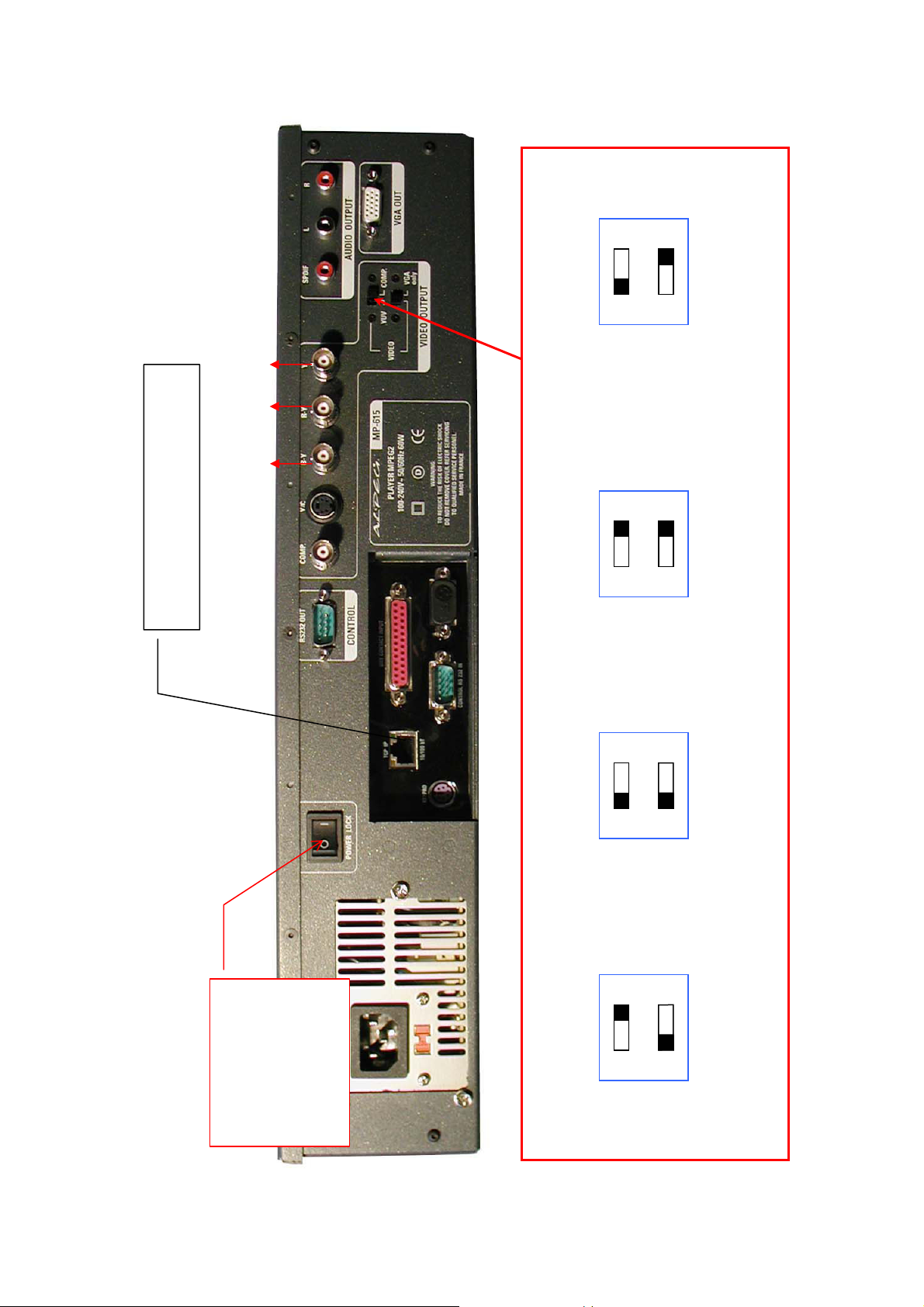
TCP/IP network connector 10/100
baseT
2 3 4
VGA connectors,
RGsB connectors,
DB15
identical to YUV
Locking of front panel
switch to avoid an
accidental switching
off of the front switch
6.10 MP615 Rear panel:
YUV= Blue :2, Red :3, Green :4
RGsB=Blue :2, Red :3, Green :4
0=locked position
Connectors
YUV, 3 x BNCs
Connectors
BNC & miniDin
Composite & Y/C,
Table showing position of switches according to video outputs.
Rev 1.1 Page 30
Page 32
RS232 Commands and protocol:
p
Protocol: 9600,n,8,1.
Each instruction must be ended with a carriage return. (Odh). You will receive an Echo back.
After each command sent by RS232, in return, the player sends the following channel status :
* equals “space”
STAT*n*/clips/filename.mpg*n*n
Function where :
0=Playing
1=Paused
2=Stopped
Colour Sys.
where :
0=NTSC
1=PAL
2=PAL 60 Hz
3= PAL M
All the RS 232 commands must be preceded by the following string of characters:
RS 232 port number of the player to which this command is dedicated
ID0CDE:
Commands :
KEYnn to read an introduction line,
PAU to pause the player,
SEQnn to read a specific script,
Examples :
IDnCDE:KEYyy Player IDn, is calling line n° yy
ID0CDE:KEY01 Call line numbered 1 by the Key command on player n°0 (master); this line can
control a change in the PAL or NTSC colour format, a change of the video output
« goto » « wait x » command, or simply control the reading of a video file.
ID0CDE:MPG/clips/filename.mpg (on player IDn, reads the video sequence specified)
ID0CDE:MPG/clips/drop.mpg on master player, reads the drop.mpg sequence
This is a ZERO, which corresponds to the RS232 port address of the player concerned, the
appearance of a ZERO means master player if the RS232 is connected. Check that the name of
the file is ACTUALLY
resent in the specified player.
ID0CDE:SEQxx On master player, reads the SCxx script
ID0CDE:SEQ00 On master player, read the SC00 script
A “SCnn” script corresponding to a specific script must be present in the player concerned.
↵
Video outputs used :
0=Composite & S-Video
1= YUV
2=RGsB
3=SVGA
1
, a
1
See after
Rev 1.1 Page 31
Page 33
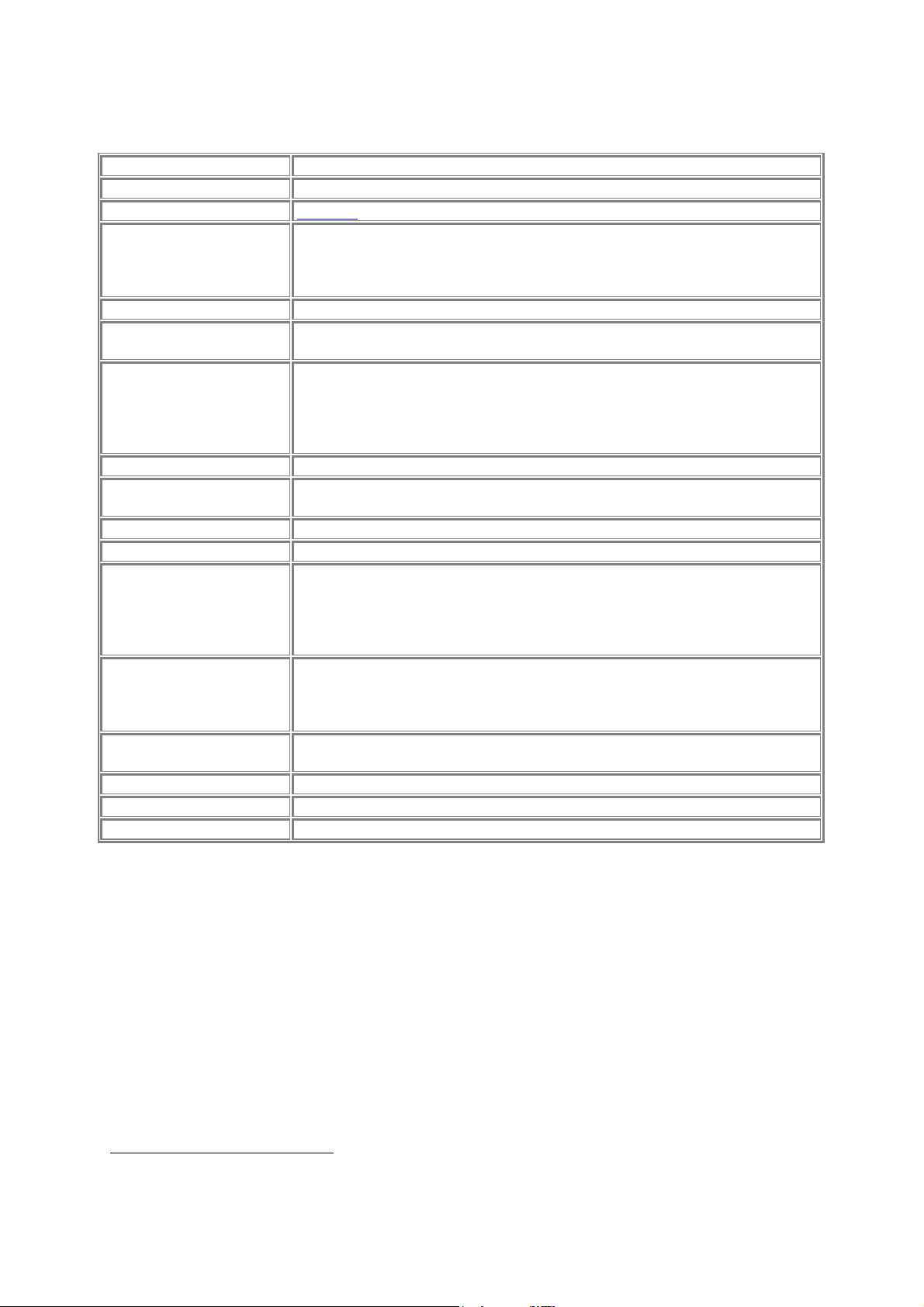
Spécifications2:
Description Specifications
Model number MP 615
Video Compression MP@ML, ISO 13818-2
Accepted MPEG Formats MPEG-1 system streams
MPEG-2 program stream at Half D1, 2/3D1, FullD1, CCIR 601. NTSC &
PAL colour systems.
Compatible with all types of encoding systems (hardware & software).
Output from 1 to 15 Mbits/s constant or variable
Hard disk 20 Go IDE supplied (90 minutes of video at 14 Mbits/s) in a container.
Can accept disks up to 70Go.
Video outputs Composite, 1x BNC
Y/C, 4 pins mini DIN
YUV, 3 x BNCs
RGsB, 3 x BNCs
SVGA (800x600) 37,5 kHz – 70 Hz, DB15
Audio outputs Asymmetric stereo 2 x RCA
Video sequence access
time
Number of sequences 2000 maximum
programming Very rich script language allowing for extreme flexibility
External control
Direct control 16 touch keyboard for direct access to commands and sequences.
Programming by TCP/IP Downloading of files possible during reading of files.
Consumption 100 watts
Weight 8,5 KG - 18 lbs
Dimensions (D x W x H) 13.85 x 3.46 x 19 inches – 352 x 88 x 480 mm.
± 15 ms, depending on configuration
transition of programming sequences: Black or seamless
DB25, dry contact for first 5 commands or keyboard sequence*.
RS232: instant access to commands and sequences.
Ethernet TCP/IP network interface (10/100base T).
Remote network control.
* 32 sequences with a multiplexer dice as an option
RS232, DB9 IN & DB9 OUT for linkage (1 master, n slaves)
Integrated http server: control & programming
ftp server: downloading of files..
Direct control: Play, Stop, Pause, Next, Back, sound volume driving.
2
the specifications of the product may be changed without prior notification. Check with your Alpeg® reseller
for the most recent and up to date configuration and specifications.
Rev 1.1 Page 32
Page 34

Rev 1.1 Page 33
 Loading...