

Page 1
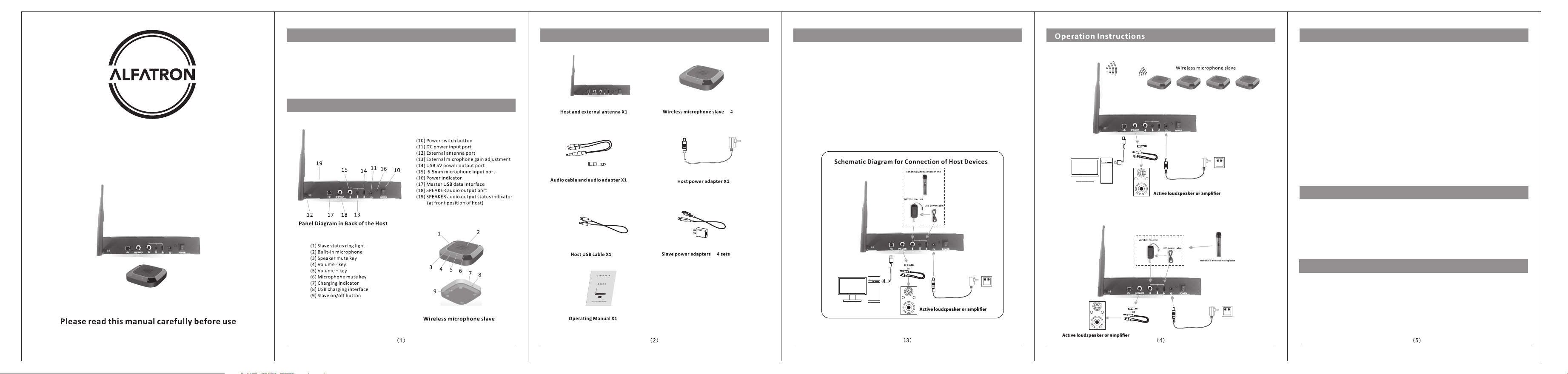
Overview
Packing List
Installation and Connection of Equipment
Operation Instructions
www.alfatronelectronics.com
ALFATRON ELECTRONICS GmbH
GERMANY
ALF-WMP4
The Alfatron WMP4 is a wireless microphone system with a controller and four 2.4GHz wireless
microphones with a wireless handheld microphone input. Compatible with conferencing
software such as Skype, Teams and Zoom. The device features intelligent processing with
digital audio processing, dynamic noise reduction, 384ms echo cancellation,
full-duplex voice calls, and 360° Omni-directional pickup.
The pickup radius of a single omnidirectional microphone is 2m.
Introduction
1. Application connection diagram
1. As shown in the schematic diagram for connection of host devices, connect the external antenna,
then connect the computer via USB to the host device and connect the power for the host device.
2. Make sure the microphones are fully charged before use. The charging indicator light will
be lit orange when charging and o when fully charged. When the host is connected wirelessly
to the microphone, the indicator ring will ash red if the battery is low.
3. To switch on the microphone, long press the power button until the circular green indicator light is on.
If the green light ickers, there is no wireless connection with the host.
X
X
4. The distance between the host loudspeaker and the wireless microphone must be more than 2m.
The recommended installation distance between the wireless microphones is 1.5m.
Connect to AC
power socket
Power adaptor
Connect PC via USB
Connect to AC
power socket
Power adaptor
Connect PC via USB
2. Application connection diagram for classrooms and meeting rooms with an external microphone
Connect to AC
power socket
Power adaptor
1. According to the application, determine the installation locations of the active speaker,
or amplier and speakers, and Wireless microphone. Install the antenna on the host.
Connect the host to the computer via USB. Adjust the speaker volume to low.
Insert the DC adaptor to the wall socket. Turn on the power switch on the host and the
power indicator will turn red. The indicator light of the speaker audio output status will turn green by default.
2. Press and hold the on button of each wireless slave microphone. When the green light indicator is on,
it means that the microphone is connected to the host wirelessly.
3. Open video conferencing software such as Teams, Skype or Zoom, and adjust
sound and microphone levels as needed.
4. During the call, press the “Microphone Mute” button to mute the wireless microphone,
the indicator light will turn red. To unmute, push the “Microphone Mute” button
again and the red light will turn o.
5. Push “Speaker mute” key of the wireless microphone to mute the incoming audio,
the indicator light will turn red. To resume audio, push the “Speaker mute” key again.
6. When an additional handheld microphone is needed, you can connect it to the back of
the host device using a 6.5mm Jack plug. You can adjust the external microphone gain as necessary.
NOTE: This device works on PC with Windows and other operating systems.
The USB interface adopts USB 1.1, USB 2.0 or above. USB is plug and play and does not require additional drivers.
Notes
1. To avoid any issues, please do not connect other USB microphones to the PC.
2. Connect the USB cable directly to the PC. Utilizing USB Hubs is not recommended.
3. After the device is connected, the default device for playing (output) and recording (input)
will display ALF-WMP4 in the sound and audio properties on the computer.
4. Please keep the battery of the equipment away from high temperatures and to avoid risk of explosion.
5. Do not attempt to repair the equipment, contact your local dealer.
Warranty
This product has a limited 7 Year Warranty. For more information, Please visit
www.alfatronelectronics.com
 Loading...