

Page 1

Voice Mail System
Personal Mailbox Management
Manual
Version 1.2 July 2003 Proprietary
Page 2

2003 Aleen Technologies
All rights reserved.
The information disclosed herein is proprietary to Aleen Technologies and may not be sold, transferred or
copied without the written consent of Aleen Technologies.
The information contained in this document is subject to change without notice.
.
Voice Mail System Personal Mailbox Management Manual, Version 1.2
Page 3

Contents
1 Introduction ................................................................................................... 1-1
1.1 Manual Audience and Contents.............................................................. 1-1
1.2 Manual Conventions ............................................................................... 1-1
2 PERSONAL MAILBOX MANAGEMENT (PMM) utility.................................. 2-1
2.1 Installation............................................................................................... 2-1
2.2 Mailbox Parameters................................................................................ 2-6
2.2.1 Mailbox Settings .......................................................................... 2-7
2.2.2 Mailbox Notifications.................................................................... 2-9
2.2.3 Mailbox Statistics ....................................................................... 2-12
2.3 Communication..................................................................................... 2-13
3 End User Operations..................................................................................... 3-1
Voice Mail System Personal Mailbox Management Manual, Version 1.2
Page 4

List of Figures
Figure 2-1: PMM Installation Window (IP address)..............................................................................2-2
Figure 2-2: PMM Installation Window (Mailbox number) .....................................................................2-3
Figure 2-3: Outlook window with Forward as Wave button..................................................................2-3
Figure 2-4: Personal Mailbox Management Main Screen .................................................................... 2-4
Figure 2-5: Personal Mailbox Management Main Screen (rep.) ..........................................................2-7
Figure 2-6: Mailbox Notification Parameters ........................................................................................2-9
Figure 2-7: Mailbox Statistics Screen.................................................................................................2-12
Figure 3-1: Mailbox Quick Reference...................................................................................................3-3
Voice Mail System Personal Mailbox Management Manual, Version 1.2
Page 5

This page is intentionally blank.
Voice Mail System Personal Mailbox Management Manual, Version 1.2
Page 6

Page 7

1
Introduction
1.1 Manual Audience and Contents
The Voice Mail System Personal Mailbox Management Manual is intended for
end-users of the Voice Mail System.
NOTE
Please read this manual before installation and operation.
The manual contains the following:
Chapter Heading
1 Introduction
2 Personal Mailbox Management (PMM) Utility
3 End-User Operations
1.2 Manual Conventions
The manual's typographic and command entry conventions are as follows:
Typeface Usage
Manual
NOTE text
Bold Text
Voice Mail System Personal Mailbox Management Manual, Version 1.2
Book titles, new words or terms and words to be
emphasized
Heading and text of a note, caution or warning
GUI items: dialogs, menu items, field names, etc.
Page 8

Page 9

2
PERSONAL MAILBOX MANAGEMENT (PMM) utility.
The Personal Mailbox Management Utility (PMM) is a tool to maintain your
personal mailbox. Via the Local Area Network (LAN) connection, the mailbox
owner can easy change the main parameters, such as Password, Language,
Mailbox type, etc. The PMM can also provide you with mailbox statistics.
2.1 Installation
Install the PMM software on the PC that is being used for the set up and
managing of your Personal Voice Mail account.
NOTES
The PMM software can be downloaded, installed and used for your
Personal Mailbox configuration.
The Mailbox owner’s PC has to be connected to a TCP/IP protocol based
Local Area Network (LAN).
The system administrator provides the mailbox owners with access to the
external notification variable parameters.
During the installation the Voice Mail System’s IP address and Voice Mailbox
number will be needed. Check this data with your local network
administrator. If the required data is not entered during the installation, the
PMM software will not run.
Once defined, the Voice Mail System’s IP address and Voice Mailbox
number can’t be changed.
The following describes the installation of the PMM software from CD. We
are aware that, in most cases, users will install the software from the
network. In that case, go directly to the second part from step 3 and
continue to follow the installation instructions.
To install the PMM software
1. Insert the support CD in the CD-ROM drive of your PC.
Voice Mail System Personal Mailbox Management Manual, Version 1.2
Page 10
2-2 PERSONAL MAILBOX MANAGEMENT (PMM) utility.
2. The CD should run automatically .If it doesn’t, press Start Run and
browse on the CD for the PMM Set up icon.
3. Click on the PMM Installation icon and follow the instructions on the
screen. During the installation the following two windows will appear:
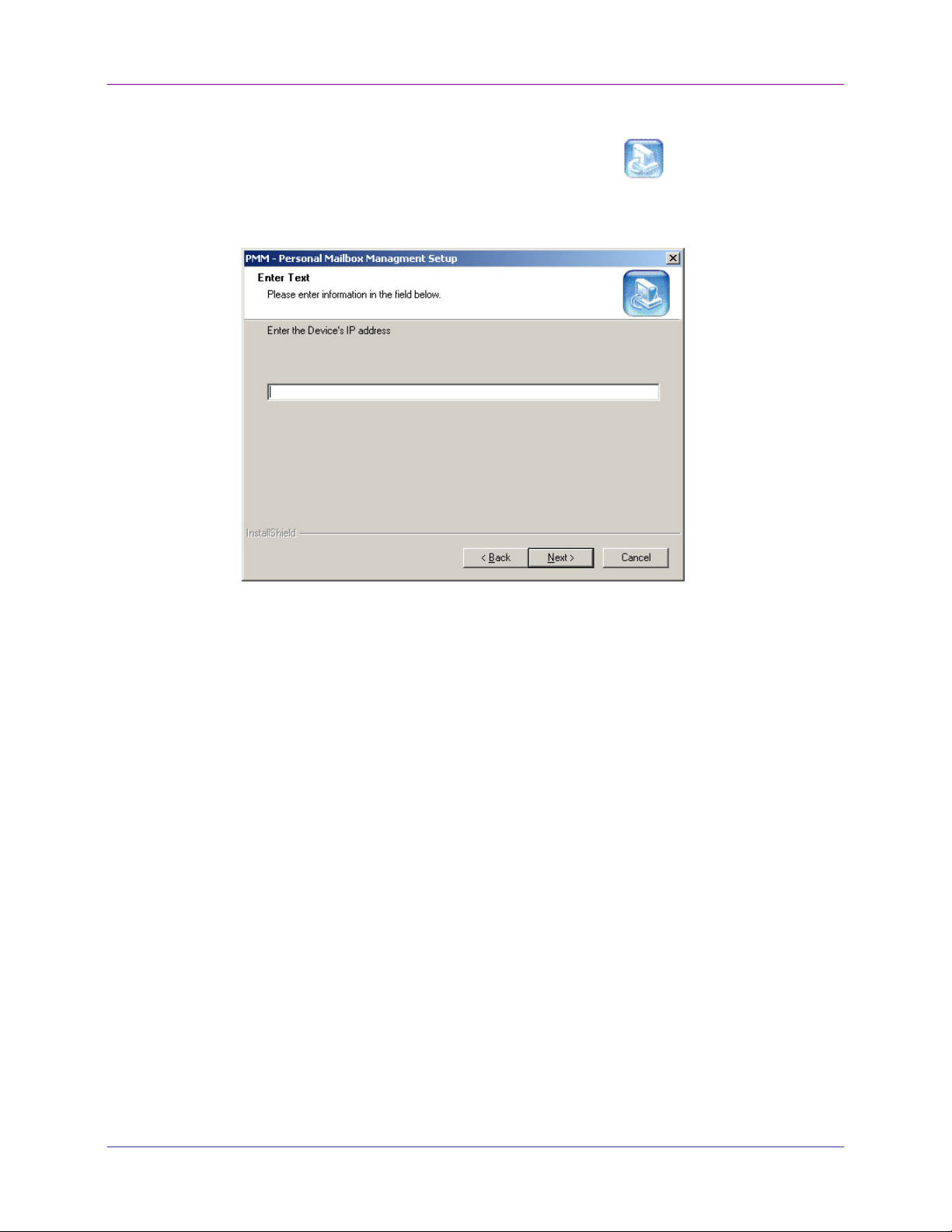
Figure 2-1: PMM Installation Window (IP address)
In this window, the IP address from the Voice Mail System has to be entered.
Contact the system administrator for this address.
Voice Mail System Personal Mailbox Management Manual, Version 1.2
Page 11
PERSONAL MAILBOX MANAGEMENT (PMM) utility. 2-3
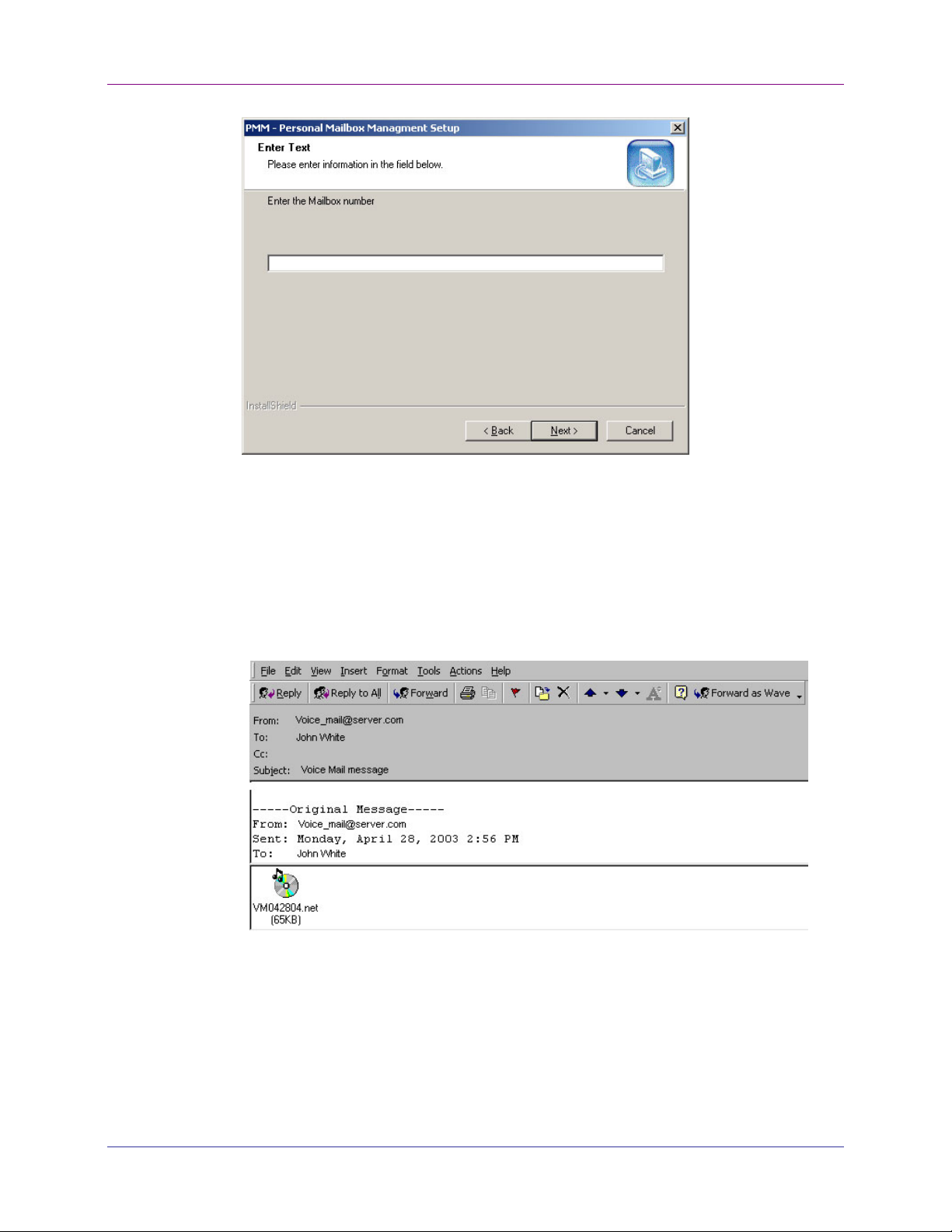
Figure 2-2: PMM Installation Window (Mailbox number)
In this window, your Personal Mailbox number has to be entered.
4. Open your mail client application (MS Outlook) and check if the new
button “Forward as wave” has been added to the toolbar (see Figure 2.3).
This button is used to convert the in the email attached recorded message
to WAV format, so that it can be forwarded to a user without an
installation of the PMM.
Figure 2-3: Outlook window with Forward as Wave button
5. To start the PMM program, click on Start Programs PMM –
Personal Mailbox Management <version> PMM.
Voice Mail System Personal Mailbox Management Manual, Version 1.2
Page 12
2-4 PERSONAL MAILBOX MANAGEMENT (PMM) utility.
Alternatively, double-click on the PMM – Personal Mailbox
Management shortcut on your desktop
6. Press OK to view your mailbox settings.
7. Enter your password (default is 1234) and click on OK.
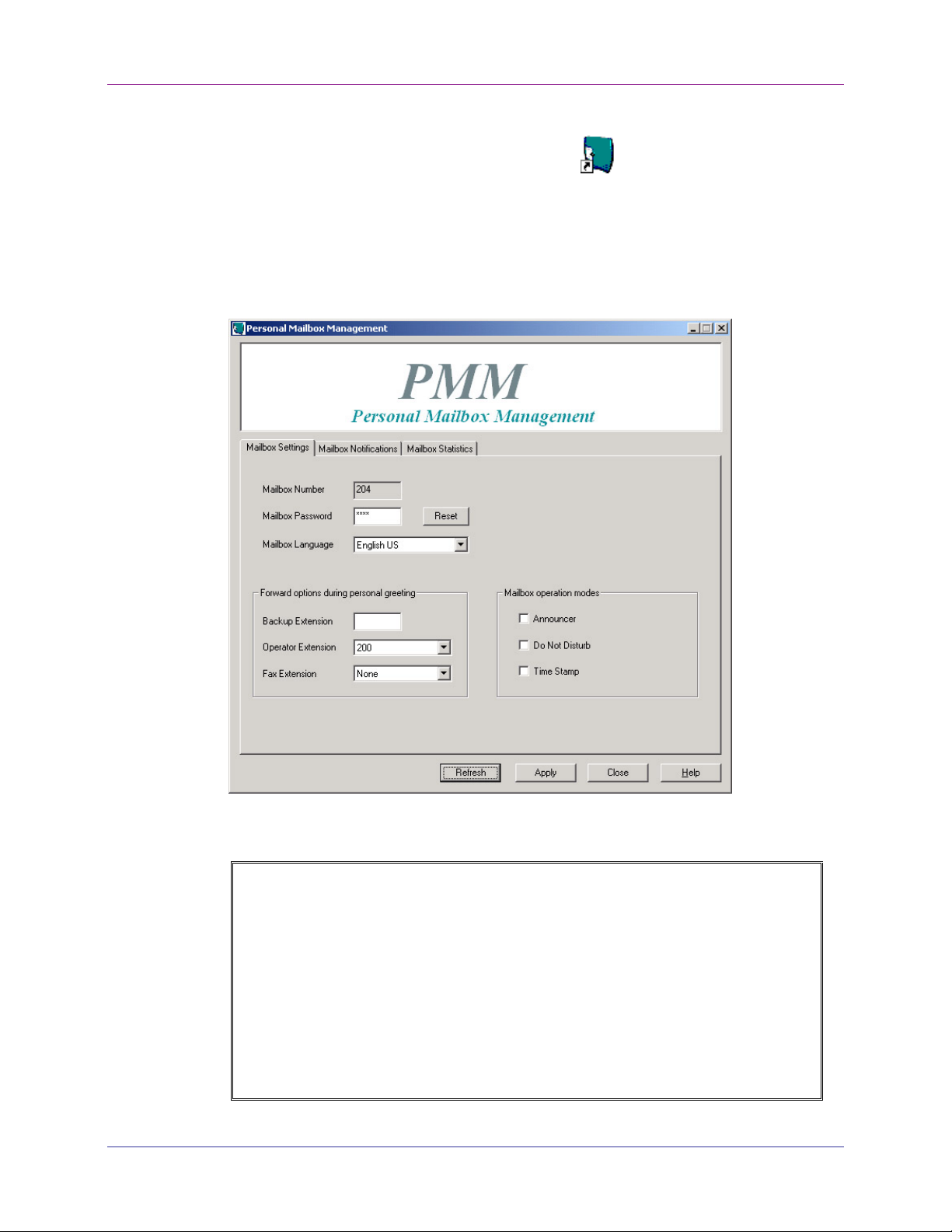
8. The PMM Main screen appears (Check the notes, in case the PMM Main
screen does not appear.):
Pmm.lnk
.
Figure 2-4: Personal Mailbox Management Main Screen
Voice Mail System Personal Mailbox Management Manual, Version 1.2
NOTES
Alternatively, a message box may suggest to “Work Off-Line”. This will
happen in one of the following 3 situations:
1. The defined mailbox doesn't exist. (Contact the system administrator.)
2. The incorrect password has been entered 3 times. (Use the off-line state
to check if your mailbox number is correct. The system administrator can
reset your mailbox password.)
3. There is a communication failure and the PMM failed reading the data.
(Check with the system administrator, if there is a communication failure.)
Page 13

PERSONAL MAILBOX MANAGEMENT (PMM) utility. 2-5
Voice Mail System Personal Mailbox Management Manual, Version 1.2
Page 14

2-6 PERSONAL MAILBOX MANAGEMENT (PMM) utility.
2.2 Mailbox Parameters
At the start of the PMM software, the user is prompted to load the mailbox
parameters. The mailbox owner can now change the parameters.
NOTES
Every time the PMM program starts, the Read parameters action is
automatically performed for the mailbox number that was define during
the installation.
The Extension number is not relevant for a Virtual mailbox (The Virtual
mailbox has been described in the manual for the system administrator.)
Voice Mail System Personal Mailbox Management Manual, Version 1.2
Page 15
PERSONAL MAILBOX MANAGEMENT (PMM) utility. 2-7
2.2.1 Mailbox Settings
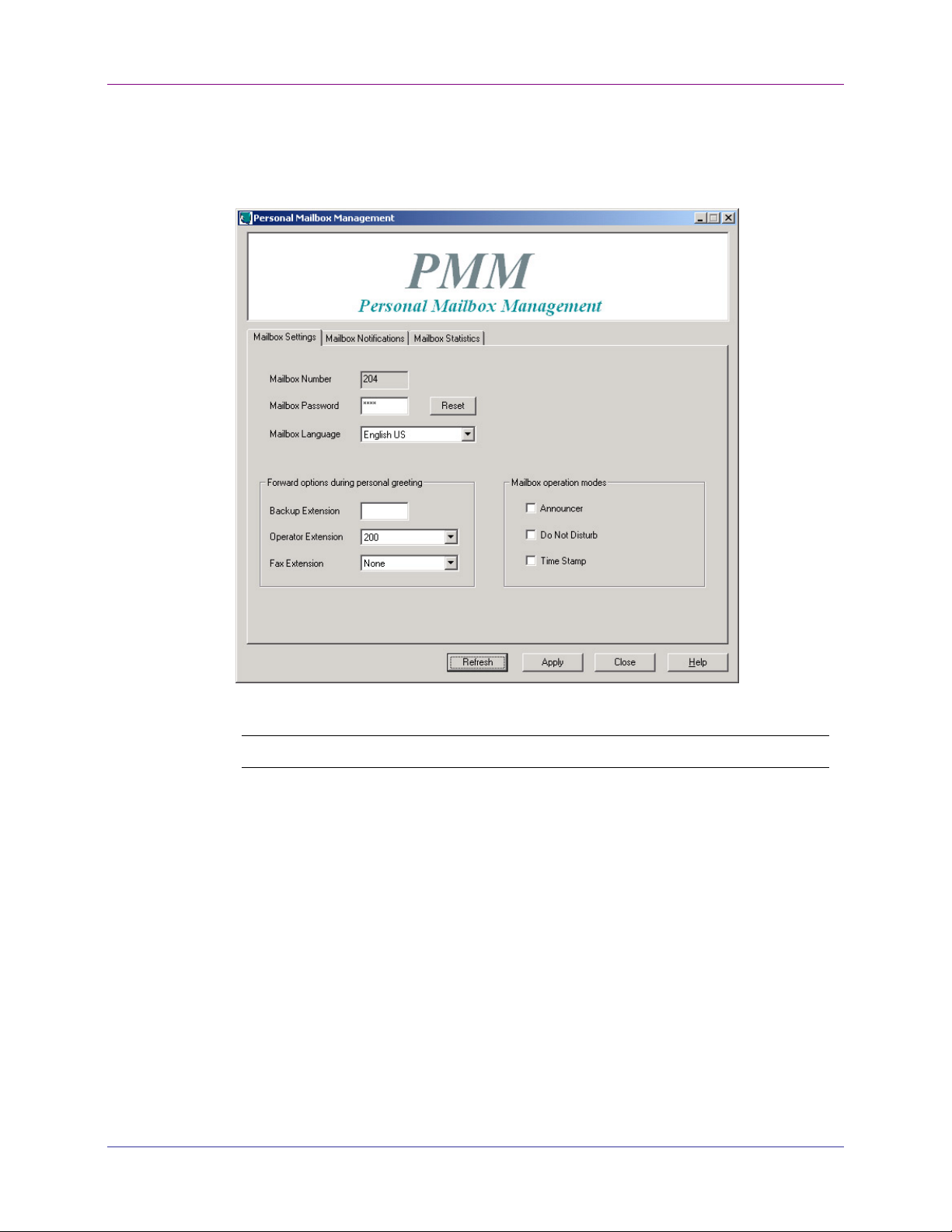
The general parameters show the mailbox number, password and language
settings.
Figure 2-5: Personal Mailbox Management Main Screen (rep.)
Parameter Usage
Mailbox Number
Shows the current Mailbox number. (Can’t be
edited!)
Mailbox Password
Mailbox’s features access code. (Can be reset,
by pressing the Reset button)
Mailbox Language
The language used by the mailbox to play
system messages.
Voice Mail System Personal Mailbox Management Manual, Version 1.2
Page 16

2-8 PERSONAL MAILBOX MANAGEMENT (PMM) utility.
The Forward options during Personal Greeting parameters provide the
possibility to transfer a call to another destination, during the time the Personal
Opening Greeting is playing.
Parameter Usage
Backup
Extension
Transfers a call from the Personal Greeting message to
another extension. When the caller dials the specified
digit (Forward ID code) while the Personal Greeting
Message is being played, the call is transferred to the
predefined extension. (Note: The Voice Mail System
Administrator must have specified the Forward ID code.)
Operator
Extension
Transfers a call from the Personal Greeting Message to
one of the eight local Operators. (Note: The Voice Mail
System Administrator must have specified the Transfer to
Operator code.)
FAX
Extension
Transfers a call to the specified fax extension. When,
during the Personal Greeting Message, a fax data signal is
detected, the call will automatically be transferred to the
fax extension.
The Mailbox Operation Modes parameters provide extra information to the
caller.
Check Function
Announcer
Plays a personal greeting (announcement), without
allowing a message to be left.
Do Not Disturb
Prevents call transfers from the Automated Attendant to
extensions in DND mode and plays a Do Not Disturb
message.
Time Stamp
Plays or does not play the time and date of the message.
Voice Mail System Personal Mailbox Management Manual, Version 1.2
Page 17
PERSONAL MAILBOX MANAGEMENT (PMM) utility. 2-9
2.2.2 Mailbox Notifications
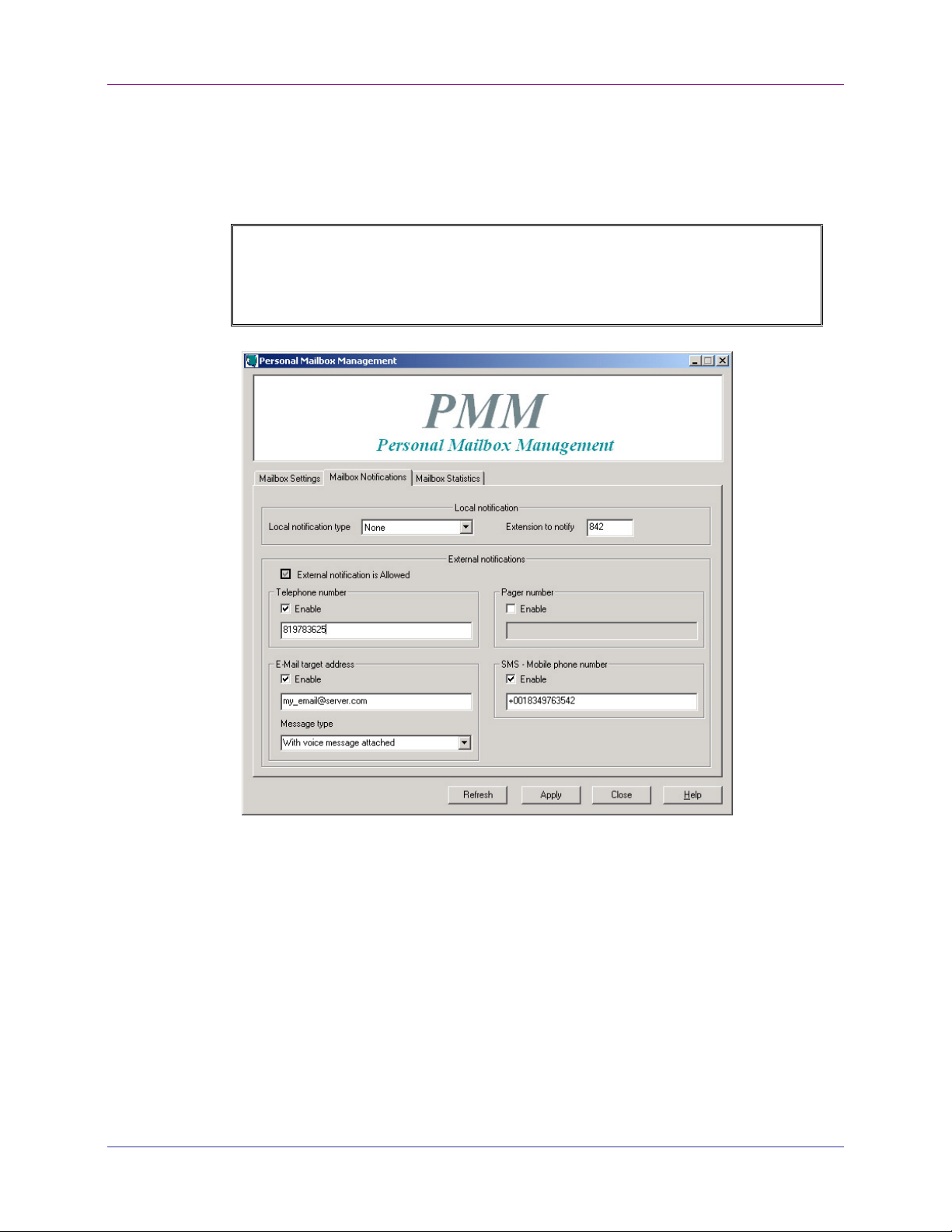
The Mailbox Notifications tab provides you with a window, in which several
notification options can be defined.
NOTE
The mailbox owner can only define the external notification options, if the
Voice Mail System Administrator has provided the permission. The “External
notification is Allowed” check box is always dimmed.
Figure 2-6: Mailbox Notification Parameters
The Mailbox Notification parameters provide options for the External
notification. The Administrator has defined the Local notification type and
Extension to notify.
Voice Mail System Personal Mailbox Management Manual, Version 1.2
Page 18

2-10 PERSONAL MAILBOX MANAGEMENT (PMM) utility.
Option Usage
Local
Notification
Type
Extension to
notify
The Administrator can set the following Local
Notification Type:
Option Usage
Message Light 1
Message Light 2 Identical to Message Light 1, but for
Sign Ring
Rings
Turns on the light on the telephone or
changes the dial tone of the extension,
by sending the code defined in the
Notification codes. (The Voice Mail
System Administrator has defined this
code.)
PBX units that support more than one
type of message notification code.
The Voice Mail System rings the
extension number once, to inform the
mailbox owner of new messages.
The Voice Mail System rings an
internal or external number for a period
of time. (These settings, defined by the
Voice Mail System Administrator via
the Ring Notification Duration and the
Ring Notification Retries parameters,
inform the mailbox owner of new
messages.) When the owner of the
mailbox calls the mailbox, the unit
plays a menu for retrieving the
messages.
The Extension number, with which the mailbox is
associated. After a new message has been recorded, a
local message notification will be sent to this number
(Set by the Administrator).
Telephone
number
Email target
address
Voice Mail System Personal Mailbox Management Manual, Version 1.2
Check the Enable box and enter the telephone number, the
Voice Mail System has to dial, to notify the Voice Mailbox
owner of new messages. The recorded message is played on
the remote telephone, after the mailbox owner enters the
correct password.
Check the Enable box and enter the email address, from
where mailbox owner can get his/her email messages.
Page 19

PERSONAL MAILBOX MANAGEMENT (PMM) utility. 2-11
Option Usage
Message
Type
Pager
number
SMS-Mobile
phone
number
Select the appropriate email notification mode from the
drop-down menu:
1.Without attachment. An email will be sent to the
target email address with information about the newly
recorded message, but without attachment.
2.With voice message attached. An email will be sent
to the target email address with an attached media file.
This file contains the recorded message.
3.Voice message attached and saved. After the email
notification, the voice message will be marked as saved
in the Voice Mail System.
4. Voice message attached and deleted. After the email
notification, the voice message will be marked as deleted
in the Voice Mail System.
Check the Enable box and enter the pager number, the Voice
Mail System has to dial, to notify the Voice Mailbox owner to
return a call and check his/her mailbox.
Check the Enable box and enter the mobile phone number, to
which the Voice Mail System has to send an SMS message via
the SMS Transmitter. The SMS message will contain
information about the newly recorded message. (Note: Only
the Voice Mail System administrator can define the displayed
SMS text and the option will only be available is the SMS
Transmitter is connected to the Voice Mail System.)
Voice Mail System Personal Mailbox Management Manual, Version 1.2
Page 20
2-12 PERSONAL MAILBOX MANAGEMENT (PMM) utility.
2.2.3 Mailbox Statistics
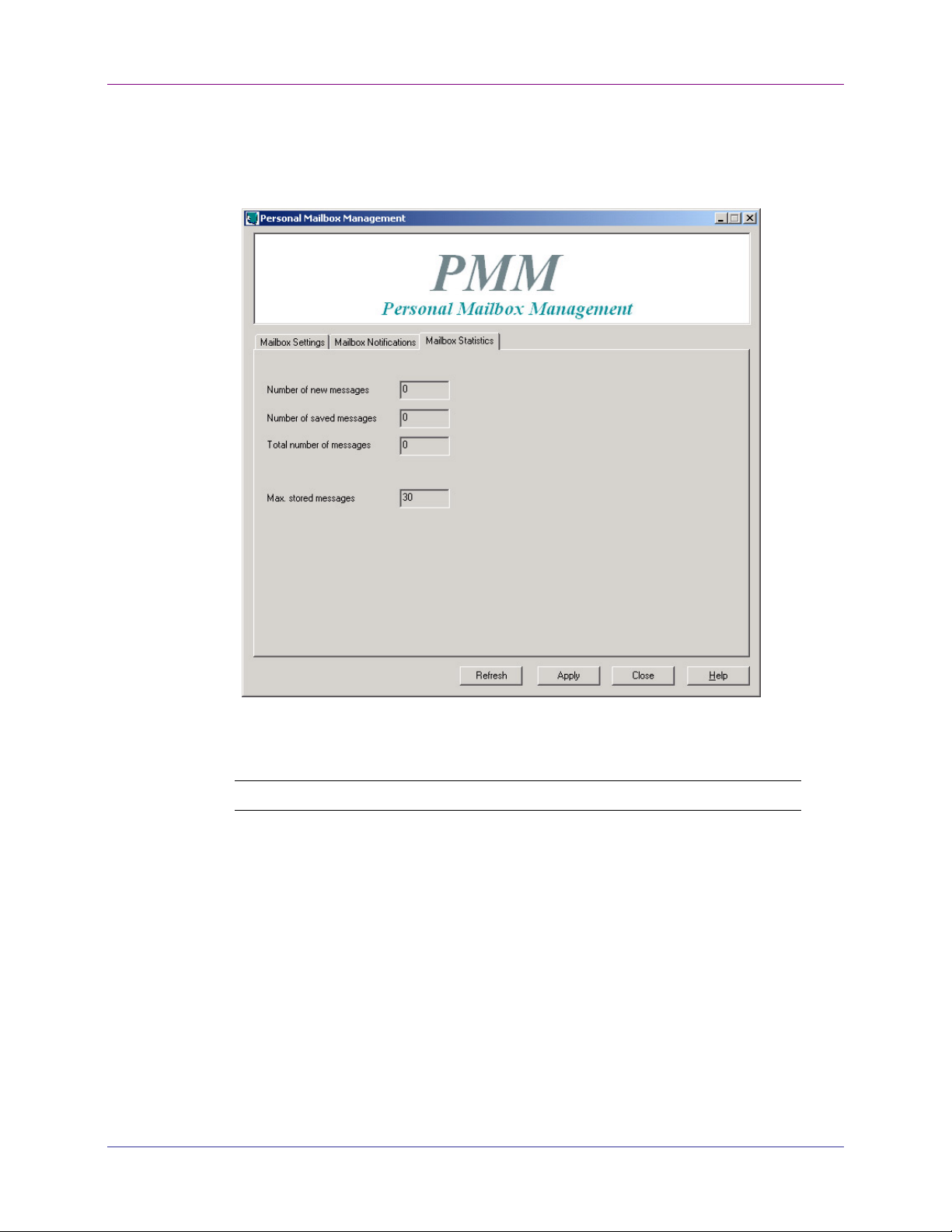
The Mailbox Statistics tab provides you with a window, from which the
mailbox usage figures can be read.
Figure 2-7: Mailbox Statistics Screen
The following statistics parameters will be shown:
Parameter Explanation
Number of New Messages
Number of Saved messages
Total number of massages
Max. stored messages
Shows the number of the new
recorded messages.
Shows the number of the saved
messages.
Shows the total number of recorded
messages.
Shows the maximum number of
messages, which can be recorded in
the mailbox.
Voice Mail System Personal Mailbox Management Manual, Version 1.2
Page 21

PERSONAL MAILBOX MANAGEMENT (PMM) utility. 2-13
2.3 Communication
You are able to refresh the mailbox data and to upload changes for your
mailbox to the Voice Mail System. The following steps have to be taken:
To refresh your mailbox data
1. When inside the PMM program, click on Refresh
2. Click on OK
To upload changes for your mailbox to the Voice Mail System
1. Click on the Apply button in the PMM program
2. Click on OK
Voice Mail System Personal Mailbox Management Manual, Version 1.2
Page 22

Page 23

3
End User Operations
The Voice Mail System end-user can execute the following mailbox operations:
Retrieve messages
Send messages
Set the mailbox parameters
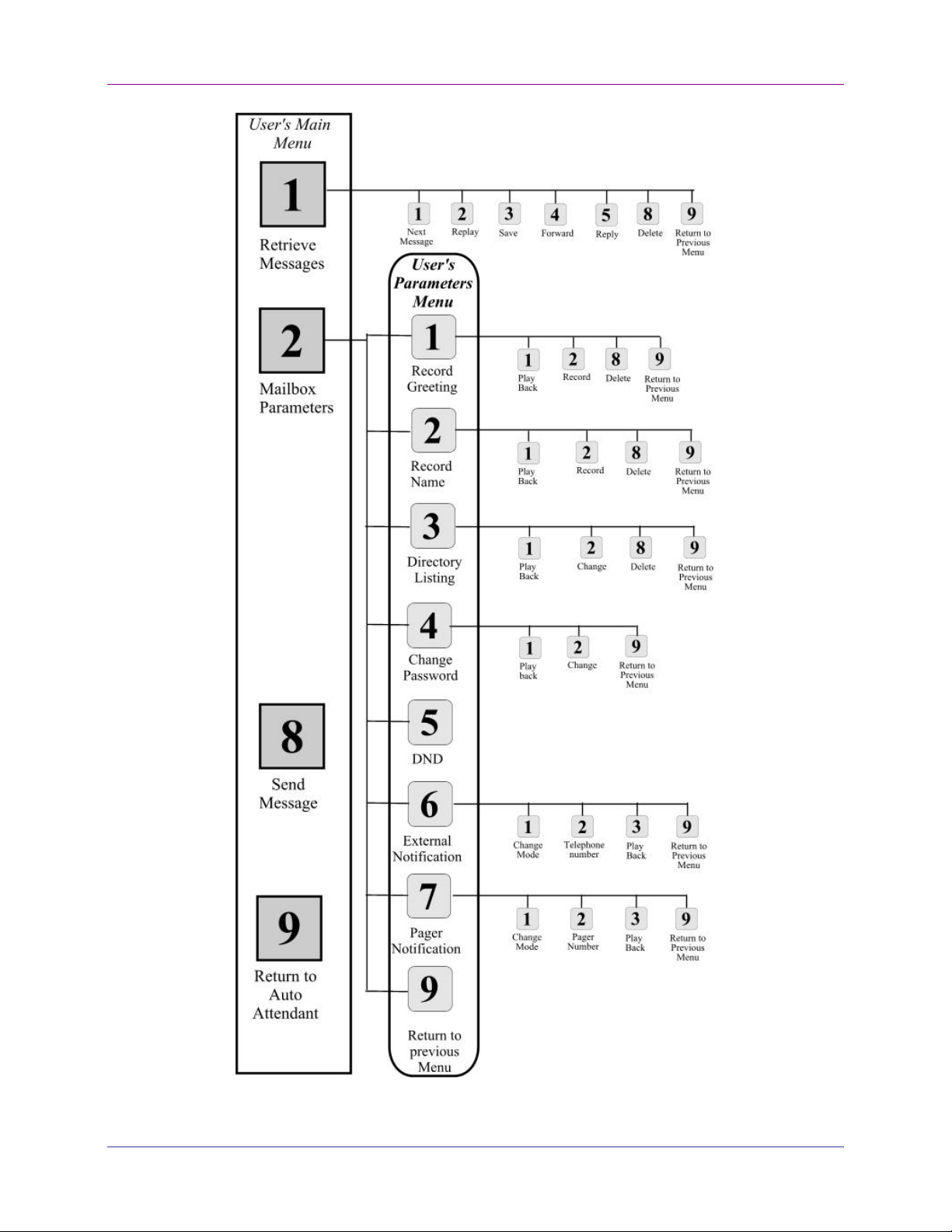
Use the outline in Figure 3-1 for a quick reference to mailbox menus or
continue to the procedures below.
To enter the user's main menu
1. Use one of the following three methods:
Enter the Automated Attendant access digits (*160) for retrieving
messages.
Press an access digit during the mailbox greeting.
Dial the voice mail extension and, if the PBX supports the in-band
DTMF protocol, enter the mailbox menu automatically.
NOTE
You can also enter the user's main menu by dialing the programmed “Key
to retrieve messages”, while the mailbox greeting is played. This parameter
is programmed via command *331 or via the VUP (9 is the default digit).
2. Listen to the Voice Mail System, which announces the number of received
messages and plays the main menu.
3. Press the digit, corresponding to the required option:
Press To
1 Listen to messages.
2 Set the mailbox parameters.
8 Send a message to a specific mailbox or to a group of
mailboxes.
9 Exit the main menu and return to the Automated Attendant.
Voice Mail System Personal Mailbox Management Manual, Version 1.2
Page 24

3-2 End User Operations
Voice Mail System Personal Mailbox Management Manual, Version 1.2
Page 25
End User Operations 3-3
Figure 3-1: Mailbox Quick Reference
Voice Mail System Personal Mailbox Management Manual, Version 1.2
Page 26

3-4 End User Operations
To handle received messages
1. Dial 1 to play the new messages followed by previously saved messages.
2. Listen to the receive message menu, played at the end of each message and
To set the mailbox parameters
1. Dial 2 to play the mailbox parameters menu.
press the digit, corresponding to the required option:
Press To
1 Play the next message.
2 Replay the current message.
3 Save the current message.
4 Forward the current message to another mailbox.
5 Reply to the message (only internal messages).
8 Delete the current message.
9 Return to the main menu.
2. Listen to the mailbox parameters menu and press the digit, corresponding
to the selected option from the mailbox parameters menu:
Press To
1 Record a greeting message for the mailbox.
2 Record your name.
3 Set the directory listing parameters.
4 Change the mailbox access password.
5 Enable or disable the Do Not Disturb function.
6 Set the external notification parameters (if allowed).
7 Set the pager notification parameters (if allowed).
9 Return to the main menu.
To handle the mailbox greetings
1. Dial 1 from the mailbox parameters menu.
2. Press the digit, corresponding to the selected option from the greetings
menu:
Press To
1 Play the current greeting message.
2 Record a new greeting message.
8 Delete the current message.
9 Return to the mailbox parameters menu.
Voice Mail System Personal Mailbox Management Manual, Version 1.2
Page 27

End User Operations 3-5
3. To record a greeting message for a mailbox group, enter the mailbox group
number. The above menu is played and a message can be recorded or
altered.
To edit your name record
1. Dial 2 from the mailbox parameters menu.
2. Press the digit, corresponding to the selected option from the name
recording menu:
Press To
1 Play the current recording.
2 Record a new name.
8 Delete the current name.
9 Return to the mailbox parameters menu.
To edit the directory listing parameters
1. Dial 3 from the mailbox parameters menu.
2. Press the digit, corresponding to the selected option from the directory
listing menu:
Press To
1 Play the current directory listing code.
2 Change the directory listing code.
8 Delete the directory listing code.
9 Return to the mailbox parameters menu.
To handle the 4-digit password
1. Dial 4 from the mailbox parameters menu.
2. Press the digit, corresponding to the selected option from the password
menu:
Press To
1 Play the current password.
2 Change the current password. Dial four digits (0 to 9) for the new
9 Return to the mailbox parameters menu.
password (see notes below).
Voice Mail System Personal Mailbox Management Manual, Version 1.2
Page 28

3-6 End User Operations
NOTES
To disable the password, dial 4 from the mailbox parameters menu, then
dial 0000.
The Administrator can reset the mailbox password to the default password
by using code *570 or via the VUP.
To enable/disable the Do Not Disturb mode
1. Dial 5 from the mailbox parameters menu and listen to the changed mode
(enabled or disabled).
2. When a caller dials an extension which has been set to the Do Not Disturb
mode, the Voice Mail System plays one of the following messages:
Message Type
121 System message (default).
25 Script message in the 1st language.
35 Script message in the 2
45 Script message in the 3
nd
rd
language.
language.
To handle the external notification of a mailbox
NOTE
Before being activated by the end-user, the external notification of a
mailbox must be enabled by the Administrator.
1. Dial 6 from the mailbox parameters menu.
2. Press the digit, corresponding to the selected option from the external
notification menu:
Press To
1 Change the external notification state (the alternate state is assumed
when pressing the digit).
2 Enter the telephone number of the extension to be notified.
8 Play the number of the external telephone.
9 Return to the mailbox parameters menu.
Voice Mail System Personal Mailbox Management Manual, Version 1.2
Page 29

End User Operations 3-7
To define the pager notification for a mailbox
NOTE
Before being activated by the end-user, the pager notification of a
mailbox must be enabled by the Administrator.
1. Dial 6 from the mailbox parameters menu.
2. Press the digit, corresponding to the selected option from the pager
notification menu:
Press To
1 Change the pager notification state (the alternate state is assumed when
pressing the digit).
2 Enter the number of the pager to be notified.
8 Play the number of the pager.
9 Return to the mailbox parameters menu.
Voice Mail System Personal Mailbox Management Manual, Version 1.2
Page 30

Page 31

http://www.aleentech.com/
mailto:[email protected]
 Loading...