

Page 1
995
Quick Start Guide
For more information about how to use the phone, please go to
www.alcatelonetouch.com to download the complete user manual.
From the website you can also consult FAQ, perform software
upgrades, etc.
English - CJB31Y0ALAAA
IP3956_995_QG_Eng_GB_21_120214.indd 1IP3956_995_QG_Eng_GB_21_120214.indd 1 2012-2-14 Lynn 9:42:582012-2-14 Lynn 9:42:58
1
Page 2
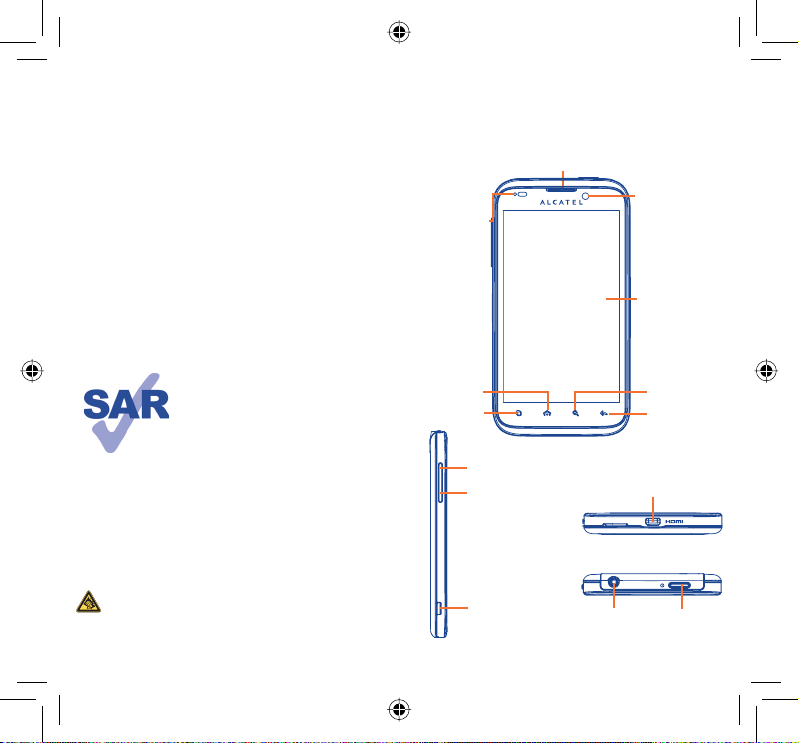
Table of contents
1 Your mobile ...................................................................................... 3
2 Text input ........................................................................................15
3 Phone call ........................................................................................16
4 Contacts ..........................................................................................17
5 Messaging.........................................................................................18
6 Email .................................................................................................19
7 Getting connected ........................................................................ 20
8 Identify my location using GPS satellites ................................. 23
9 Data backup ....................................................................................24
10 Factory data reset ......................................................................... 25
11 Applications ....................................................................................25
12 Making the most of your phone ................................................ 26
This product meets applicable
national SAR limits of 2.0 W/kg. The
specific maximum SAR values can be
found on page 31 of this user guide.
When carrying the product or using
it while worn on your body, either
www.sar-tick.com
use an approved accessory such as
a holster or otherwise maintain a
distance of 1.5 cm from the body to
ensure compliance with RF exposure
requirements. Note that the product
may be transmitting even if you are
not making a phone call.
Your mobile
1
Keys and connectors1.1
LED
notification
light
Home key
Menu key
Volume up
Volume down
Earpiece
..................
Front camera
Touchscreen
HDMI connector
(1)
Search key
Back key
Prolonged exposure to music at full volume on the music
player may damage the listener's hearing. Set your phone
volume safely. Use only headphones recommended by TCT
Mobile Limited and its affiliates.
2 3
IP3956_995_QG_Eng_GB_21_120214.indd 2-3IP3956_995_QG_Eng_GB_21_120214.indd 2-3 2012-2-14 Lynn 9:42:582012-2-14 Lynn 9:42:58
micro-USB
connector
(1)
Depending on your model.
Headset connector Power key
Page 3
On Home screen, press to quickly access the •
Settings menu or Notification panel; launch quick
search; manage applications; or customize your
Home screen by adding applications or by changing
its wallpaper/theme.
On other screens, press to view options list.•
Press: Return to the Home screen or back to the
central Home screen if it is extended.
Press and hold: Enter the recently used applications
Go back to the previous menu or screen.
Press: Lock the screen
Press and hold: When phone is off, power on the
Press to adjust the volume (in call/media playing
mode)
Open Search bar for searching within an application,
the phone or web.
list.
Light up the screen
phone.
When phone is on, enter Phone
options: Silent mode, Airplane
mode, Power off.
Getting started1.2
Set-up1.2.1
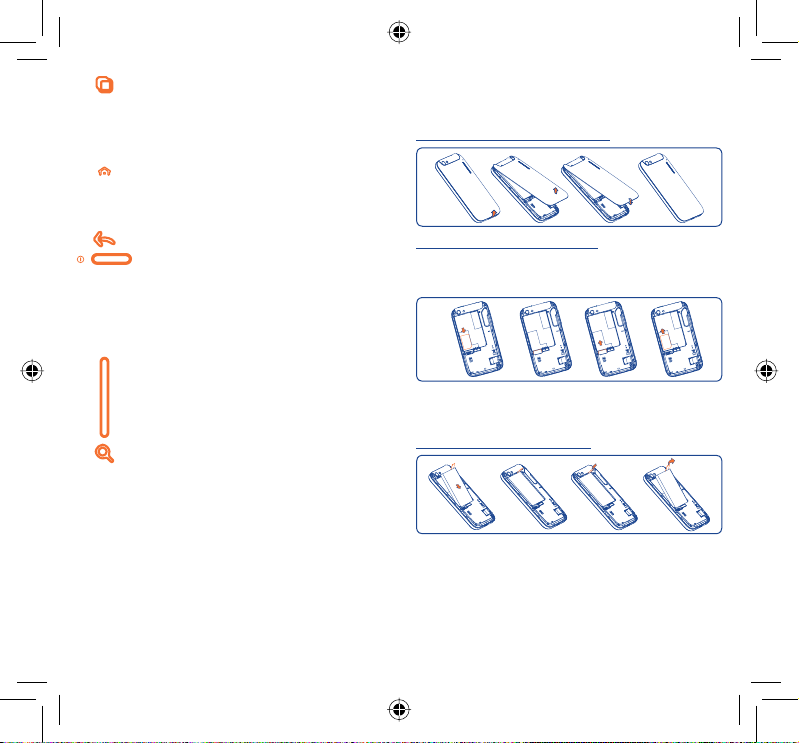
Removing or installing the back cover
Inserting or removing the SIM card
You must insert your SIM card to make phone calls. Please power
off your phone and remove the battery before inserting or removing
the SIM card.
Place the SIM card with the chip facing downwards and slide it into its
housing. Make sure that it is correctly inserted. To remove the card,
press and slide it out.
Installing or removing the battery
Insert and click the battery into place, then close the phone cover.•
Unclip the cover, then remove the battery.•
4 5
IP3956_995_QG_Eng_GB_21_120214.indd 4-5IP3956_995_QG_Eng_GB_21_120214.indd 4-5 2012-2-14 Lynn 9:42:592012-2-14 Lynn 9:42:59
Page 4
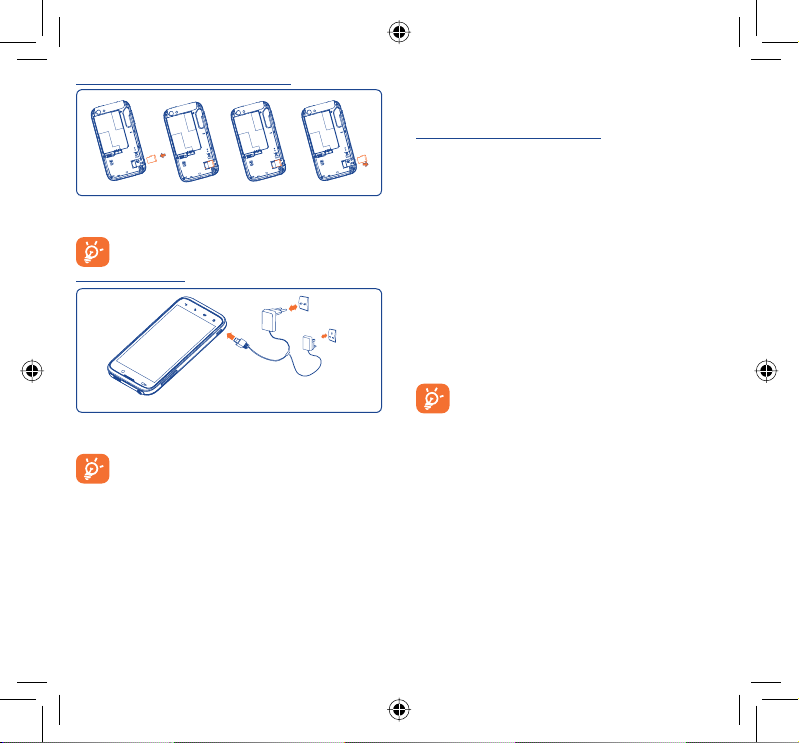
Installing and removing the microSD card
Power on your phone1.2.2
Hold down the Power key until the phone powers on. It will take
some seconds before the screen lights up.
Set up your phone for the first time
When you power on for the first time, you are prompted to set up
a range of your phones features: language, input method, mobile data
connection, account setup and synchronization, system update, etc.
Insert the microSD card into the slot with the golden contact facing
downwards. To remove the card, press and slide it out.
To avoid data loss and SD card damage, before removing the
SD card, please ensure that the SD card is unmounted.
Charging the battery
Standard charger
UK charger
You are required to sign into your Google account to synchronize
email, contacts, calendar and other Google applications
Enter your user name and password, then touch • Sign in. If you
forget your password, you can go to http://www.google.com/ to
retrieve it. If you don’t own a Google Account, you are prompted
to create one by touching Create.
Read the setup information on the screen• .
Mark/Unmark the check box to choose whether you want to take •
advantage of Google's location service, then touch Next.
Mark/Unmark the check box to choose whether you want to back •
up data with your Google account, then touch Next.
(1)
.
Touch • Finish setup.
This initial set up can be skipped and enabled later via
Settings\Accounts & sync.
Connect the battery charger to your phone and mains socket
respectively.
To reduce power consumption and energy waste, when
the battery is fully charged, disconnect your charger from
the plug; switch off Wi-Fi, GPS, Bluetooth or backgroundrunning applications when not in use; reduce the backlight
time, etc.
While in the power on screen but with no SIM card inserted, you can
still connect to a Wi-Fi network to sign into your Google account
and use some features.
Power off your phone1.2.3
Hold down the Power key from the Home screen until the phone
options appear, select Power off.
(1)
Application availability depends on country and operator.
6 7
IP3956_995_QG_Eng_GB_21_120214.indd 6-7IP3956_995_QG_Eng_GB_21_120214.indd 6-7 2012-2-14 Lynn 9:42:592012-2-14 Lynn 9:42:59
Page 5
Home screen1.3
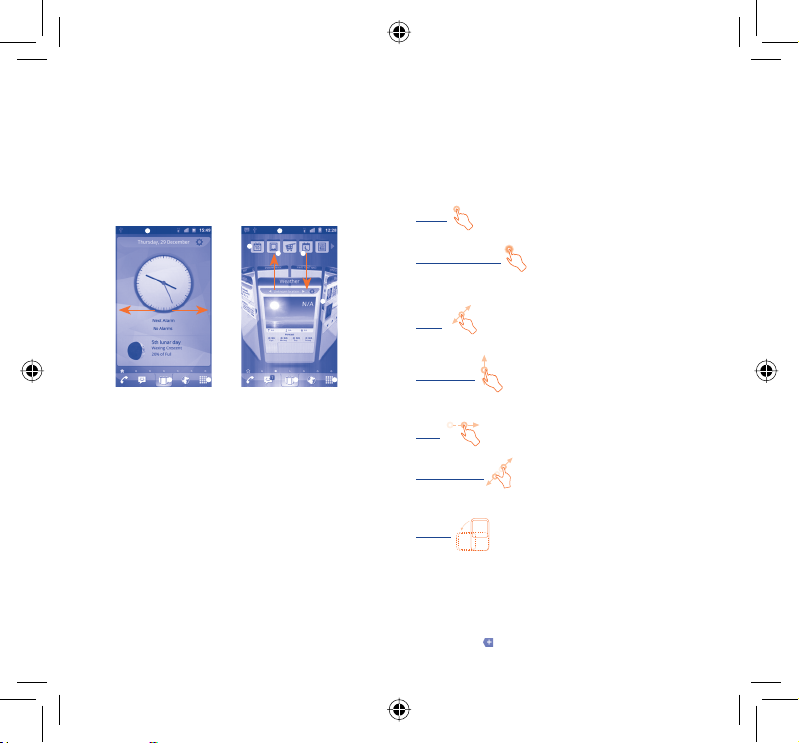
Your device provides two kinds of Home screens which are activated
by two different launchers: ONE TOUCH launcher and Android
launcher.
ONE TOUCH Home screen1.3.1
The ONE TOUCH Home screen enables you to organize applications
and folders directly from the Home screen itself. This allows you to
keep your most frequently used applications accessible while
structuring their content at the same time.
Normal mode
Carousel mode
(1)
Android Home screen1.3.2
To switch to Android Home screen:
• Touch the Application tab from the Home screen
• Select Settings\Launcher selection
• Mark the Android launcher checkbox
• Press Home key to go to the Android Home screen.
Using the touchscreen1.3.3
Touch
To access an application, touch it with your finger.
Touch and Hold
To enter the available options for an item, touch and hold the item.
For example, select a contact in Contacts, touch and hold this
contact, an options list will then appear on screen.
Drag
Place your finger on the screen to drag an object to another
location.
Status bar
• Status/Notification indicators
• Touch and drag down to open
notification
Panels bar
• Slide left or right to view more
available panels.
Carousel button
• Touch to access 3D carousel
mode
Carousel screen
• Touch a panel to view details,
return to Normal mode.
• Use left or right gesture to
move panels.
The Home screen is an extended user interface panel giving you
up-to-date information at a glance, such as time, weather, calendar,
upcoming appointments, next alarm, new messages, missed calls, new
emails, etc. It also has a fully customizable layout where you can add
your own favorite apps, folders, and widgets for one-touch access.
(1)
The availability of this feature depends on your network operator or region.
Application tab
• Touch to open applications list.
Add/Remove a carousel
panel
• To add a carousel panel, touch
and drag a panel from the panel
bar to the centre of the 3D
carousel area.
• To remove a carousel panel,
touch and drag the panel back
to the top panel bar.
(See arrows on above picture.)
Slide/Swipe
Slide the screen to scroll up and down the applications, images, web
pages… at your convenience.
Flick
Similar to swiping, but flicking makes it move faster.
Pinch/Spread
Place the fingers of one hand on the screen surface and draw them
apart or together to scale an element on the screen.
Rotate
Automatically change the screen orientation from portrait to
landscape by turning the phone sideways to have a better screen
view.
Status bar1.3.4
From the status bar, you can view both phone status (to the right
side) and notification information (to the left side). When the status
bar is full, the “
” icon will appear. Touch it to display hidden icons.
8 9
IP3956_995_QG_Eng_GB_21_120214.indd 8-9IP3956_995_QG_Eng_GB_21_120214.indd 8-9 2012-2-14 Lynn 9:42:592012-2-14 Lynn 9:42:59
Page 6
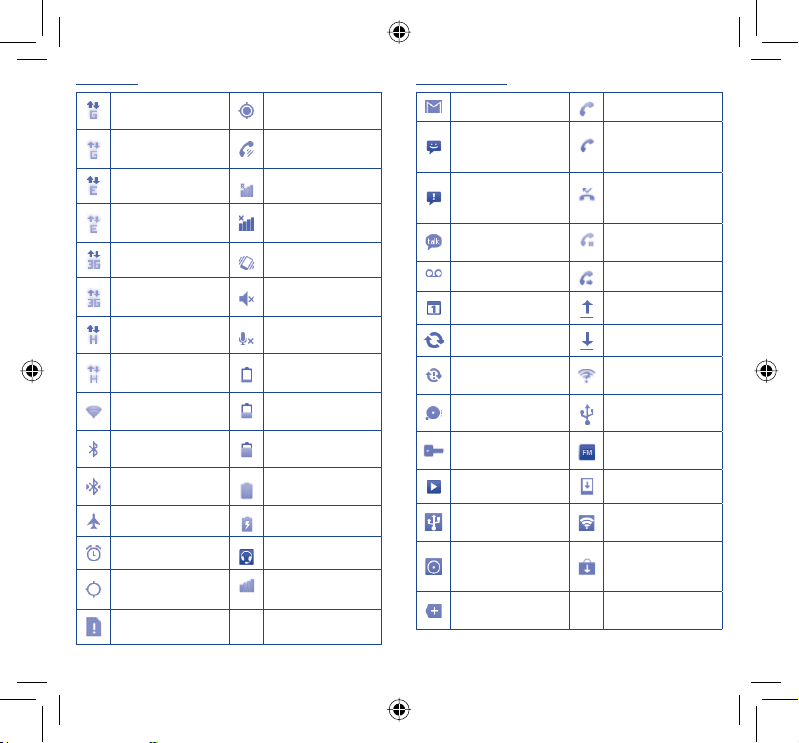
Status icons
GPRS connected
GPRS in use Speakerphone is on
EDGE connected Roaming
EDGE in use No signal
3G connected Vibrate mode
3G in use Ringer is silenced
HSPA (3G+) connected
HSPA (3G+) in use Battery is very low
Connected to a Wi-Fi
network
Bluetooth is on
Connected to a
Bluetooth device
Airplane mode Battery is charging
Alarm is set Headset connected
GPS is on Signal strength
No SIM card installed
Receiving location data
from GPS
Phone microphone is
muted
Battery is low
Battery is partially
drained
Battery is full
Notification icons
New Gmail message Call in progress (green)
New text or
multimedia message
Problem with text or
multimedia message
delivery
New Google Talk
message
New voicemail Call forwarding is on
Upcoming event Uploading data
Data is synchronizing Downloading data
Problem with sign-in or
synchronization
microSD card is full
Connected to or
disconnected from VPN
Song is playing System update available
USB tethering is on
Both USB tethering
and portable hotspot
are on
More notifications are
hidden
Call in progress using
Bluetooth headset
(blue)
Missed call
Call on hold
An open Wi-Fi network
is available
Phone is connected via
USB cable
Radio is on
Portable Wi-Fi hotspot
is on
Application update
available
10 11
IP3956_995_QG_Eng_GB_21_120214.indd 10-11IP3956_995_QG_Eng_GB_21_120214.indd 10-11 2012-2-14 Lynn 9:43:002012-2-14 Lynn 9:43:00
Page 7
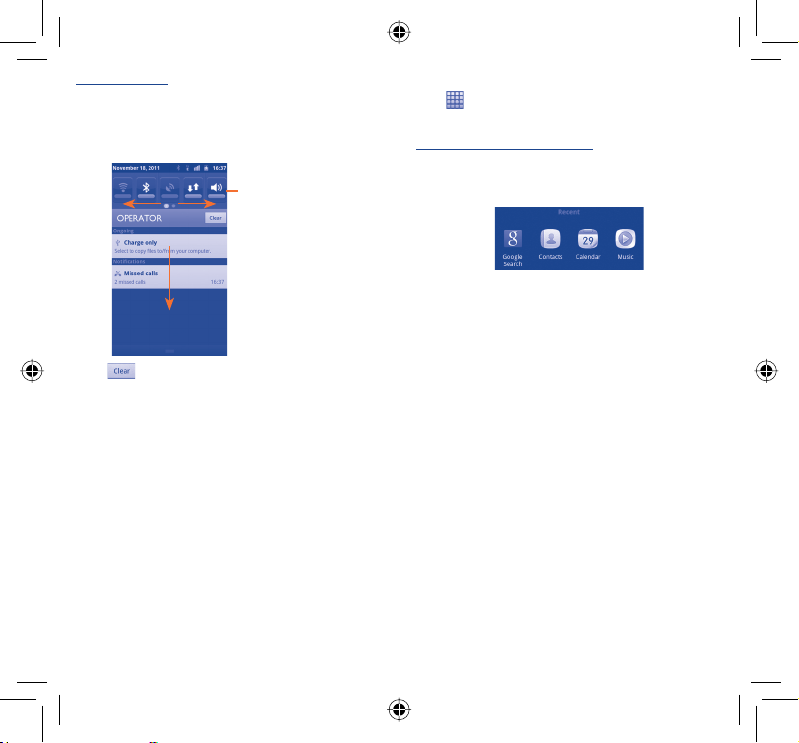
Notification panel
Touch and drag down the Status bar or press Menu key and touch
Notifications to open the notification panel. Touch and drag up
to close it. From the Notification panel, you can open reminders
indicated by notification icons, activate some functions or view
wireless service information.
Touch to activate/
deactivate Wi-Fi, Bluetooth,
GPS, etc.
Slide left/right to view
more functions.
Touch
notifications will remain).
to clear all event–based notifications (other ongoing
Lock/Unlock your screen1.3.5
To protect your phone and privacy, you can press Powe r key once
to lock the screen and you can also select Settings\Location &
Security\Set up screen lock to lock the phone screen by creating
a variety of patterns, a PIN or password, etc.
Application tab1.3.6
from the Home screen to enter the applications list.
Touch
To return to the Home screen, press Home key.
Consult recently-used applications
To consult recently-used applications, you can press and hold the
Home key from the Home screen. Touch an icon in the window to
open the related application.
Volume adjustment1.3.7
You can set alarm, media and phone ringtone volumes to your
preference with the Volume up/down key, or Settings\Sound
menu.
Applications list1.4
The Applications list contains all pre-embedded and newly installed
applications.
To access the Applications list, touch the Application tab from the
Home screen.
12 13
IP3956_995_QG_Eng_GB_21_120214.indd 12-13IP3956_995_QG_Eng_GB_21_120214.indd 12-13 2012-2-14 Lynn 9:43:002012-2-14 Lynn 9:43:00
Page 8
Text input
2
.....................
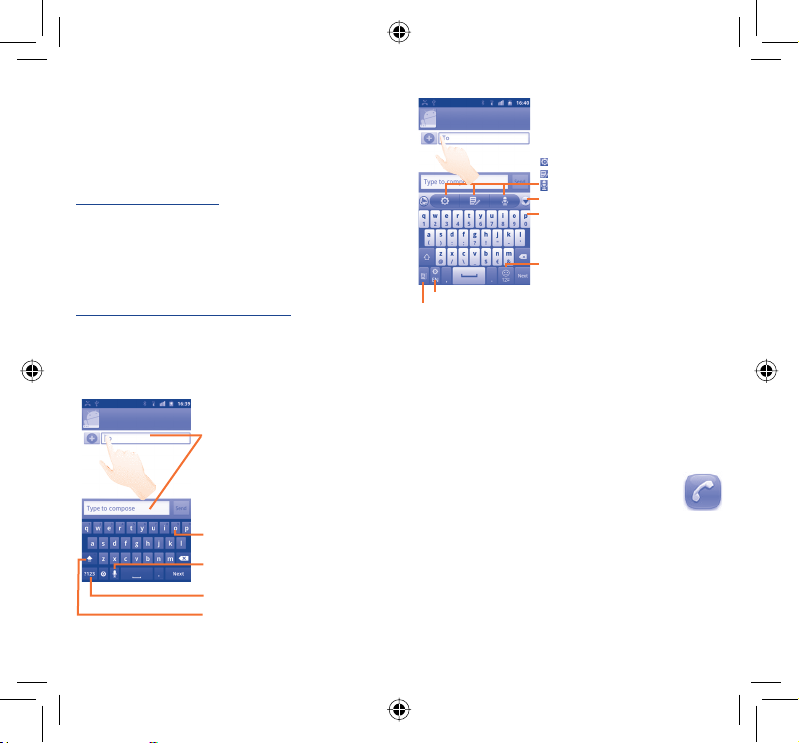
Using the Onscreen Keyboard2.1
The Onscreen keyboard will display automatically when a program
requires entering text or numbers.
Onscreen keyboard settings
When you touch the Application tab from the Home screen and
select Settings\Language & keyboard\TouchPal keyboard
or Android keyboard, a series of settings become available for
selection. In TouchPal keyboard, sliding the keyboard horizontally
left and right produces, a set of different keyboard styles for your
selection.
Adjust the onscreen keyboard orientation
Turn the phone sideways or upright to adjust the onscreen keyboard
orientation. You can also adjust it by using additional settings (Touch
Application tab from the Home screen, select Settings\Display).
Android keyboard2.1.1
Touch to enter text or numbers, touch
and hold to select input method.
TouchPal keyboard2.1.2
: TouchPal settings
: Edit panel
: Voice input
Touch to hide keyboard.
Touch and hold to enter multiple choice
mode.
Touch to enter numbers and symbols, etc.
Touch and hold to change input language.
Touch to activate word prediction mode.
Text editing2.2
You can edit the text you have entered.
Touch and hold text you have entered to display the options list.•
Select the text you want to edit by touching • Select text or
Select all.
Touch and hold the highlighted text, and select the operation you •
need (Copy, Cut, etc.)
Phone call
Touch and hold a letter, without lifting
finger, shift to the desired characters,
such as accented letter, number, etc.
Touch to enter Voice input.
Touch to switch to symbol and numeric
keyboard.
Touch twice to lock in capital letter
input mode.
14 15
IP3956_995_QG_Eng_GB_21_120214.indd 14-15IP3956_995_QG_Eng_GB_21_120214.indd 14-15 2012-2-14 Lynn 9:43:002012-2-14 Lynn 9:43:00
3
Placing a call3.1
You can easily make a call using Phone.
To Enter this menu, touch the Application tab from the Home screen
and select Phone.
...............
Page 9
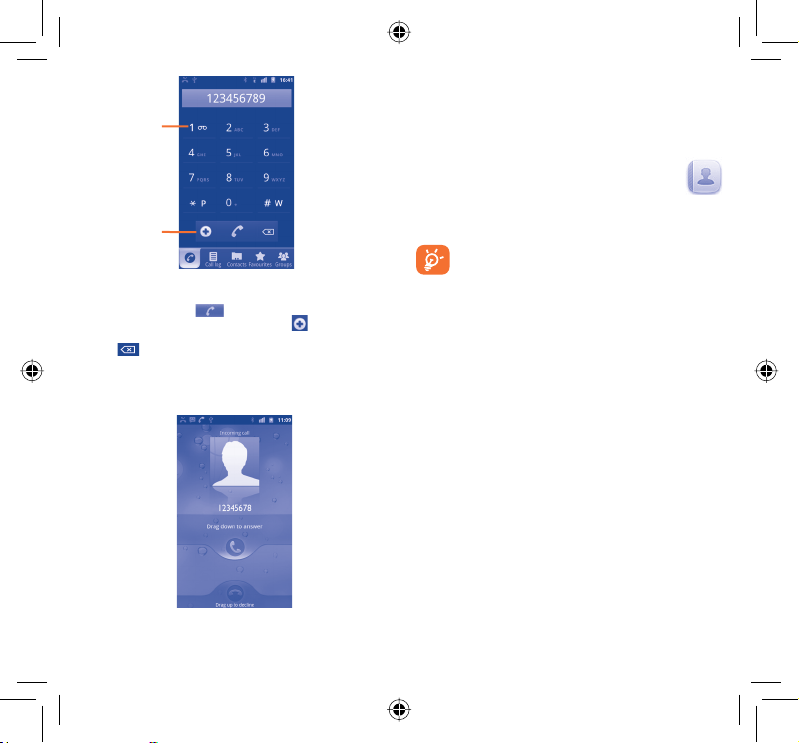
Touch and hold to
access Voicemail
Consulting your call memory3.3
You can access your call memory by touching the Application tab
from the Home screen and touching Call log to view call history in
categories of Missed calls, Outgoing calls, and Incoming calls.
Touch to add to
Contacts
Enter the desired number from the keyboard directly or select
a contact from Contacts, Call log, Favourites or Groups by
touching tabs, then touch
entered can be saved to Contacts by touching
If you make a mistake, you can delete the incorrect digits by
touching .
To hang up a call, touch End call.
to place the call. The number you
.
Answering or rejecting a call3.2
Contacts
4
You can view and create contacts on your phone and synchronize
these with your Gmail contacts or other applications on the web
or on your phone.
When using Contacts for the first time you are required
to add new contacts, import contacts from SIM card or
synchronize contacts from other application accounts to
the phone.
Adding a contact4.1
Touch the Application tab on the Home screen, select Contacts,
then press Menu key from contacts list screen and touch New
contact.
Importing, exporting and sharing 4.2
contacts
From the Contacts screen, press Menu key and touch Import/
Export. From here you can exchange contacts between the phone
and SD card or phone and SIM card.
You can share a single contact or contacts with others by sending the
contact's vCard to them via Bluetooth, SMS, Email, etc.
Touch a contact you want to share, press Menu key and touch
Share from the contact details screen, then select the application
to perform this action.
..................
Synchronizing contacts in multiple 4.3
accounts
Contacts, data or other information can be synchronized from
multiple accounts, depending on the applications installed on your
When you receive an incoming call, drag down the green phone icon
to answer. Decline the call by dragging up the red phone icon.
16 17
IP3956_995_QG_Eng_GB_21_120214.indd 16-17IP3956_995_QG_Eng_GB_21_120214.indd 16-17 2012-2-14 Lynn 9:43:012012-2-14 Lynn 9:43:01
phone.
Press Menu key from the contacts list screen, and touch
Accounts.
Page 10
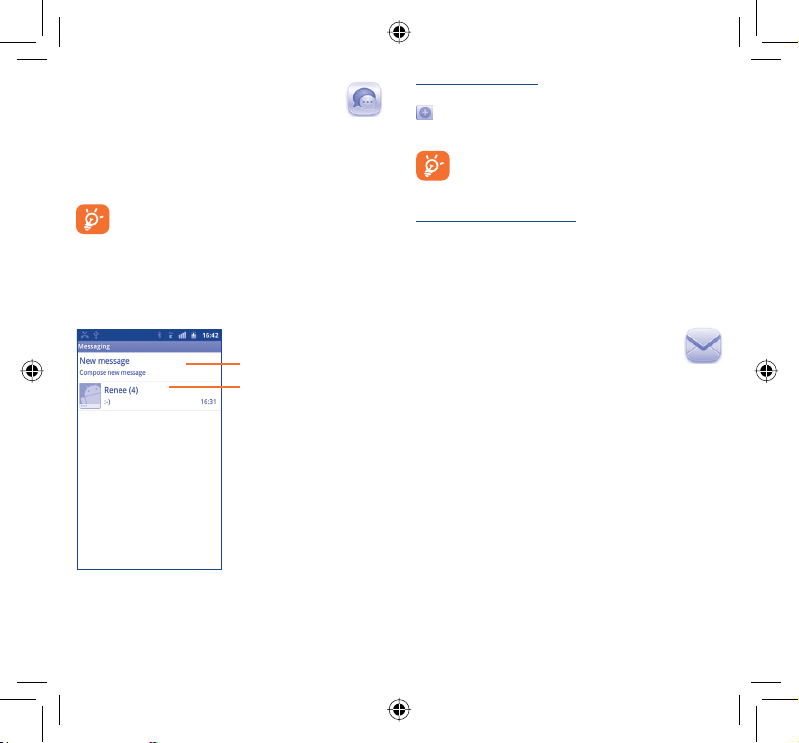
Sending a text message
Messaging
5
You can create, edit and receive SMS and MMS with this mobile
phone.
To access this feature, touch the Application tab from the Home
screen, then select Messaging.
All messages you receive or send out can be saved in the
phone memory or SIM card. To consult messages stored in
your SIM card, press Menu key from Messaging screen, then
touch Settings\Manage SIM messages.
................
Write message5.1
On the message list screen, touch Compose new message to write
text/multimedia messages.
Touch to create new message
Touch to view the whole
message thread
18 19
Enter the mobile phone number of the recipient on To bar or touch
to add recipients, touch the Type to compose bar to enter
the text of the message. When finished, touch Send to send the
text message.
An SMS of more than 160 characters will be charged as
several SMS. Specific letters (with accents) will also increase
the size of the SMS, this may cause multiple SMS to be sent
to your recipient.
Sending a multimedia message
MMS enables you to send video clips, images, photos, animations, slides
and sounds to other compatible mobiles and e-mail addresses.
An SMS will be converted to MMS automatically when media files
(image, video, audio, slides, etc.) are attached, a subject or email
address is added, the maximum number of characters reached, etc.
Email
6
Besides your Gmail account, you can also set-up external POP3 or
IMAP email accounts in your phone.
To access this function, touch the Application tab from the Home
screen, then select Email.
An email wizard will guide you through the steps to set-up an email
account.
Enter the email address and password of the account you want •
to set-up.
Touch • Next. If the account you entered is not provided by your
service provider in the phone, you will be prompted to go to
the email account settings screen to enter settings manually. Or
you can touch Manual setup to directly enter the incoming and
outgoing settings for the email account you are setting up.
Enter the account name and display name in outgoing emails.•
Touch • Done.
To add another email account, you can press • Menu key and touch
Accounts to access Email account screen. Press Menu key and
touch Add account to create.
.......................
IP3956_995_QG_Eng_GB_21_120214.indd 18-19IP3956_995_QG_Eng_GB_21_120214.indd 18-19 2012-2-14 Lynn 9:43:012012-2-14 Lynn 9:43:01
Page 11

To create and send emails
Press • Menu key from Inbox screen, and touch Compose.
Enter recipient(s)’s email address in • To field, and if necessary, press
Menu key and touch Add Cc/Bcc to include a copy or a blind
copy to the message.
Enter the subject and content of the message.•
Press • Menu key, touch Add attachment to send an attachment
to the receiver.
Finally, touch • Send.
If you do not want to send the mail right away, you can touch • Save
as draft or press the Back key to save a copy.
Getting connected
7
To connect to the Internet with this phone, you can use GPRS/
EDGE/3G networks or Wi-Fi, whichever is most convenient.
.......
Connecting to the Internet7.1
GPRS/EDGE/3G7.1.1
The first time you turn on your phone with a SIM card inserted, it will
automatically configure a network service: GPRS, EDGE or 3G.
To check the network connection you are using, touch Application
tab from the Home screen, select Settings\Wireless & networks\
Mobile networks\Network settings\Network operators or
Access Point Names.
Wi-Fi7.1.2
Using Wi-Fi, you can connect to the Internet when your phone is
within range of a wireless network. Wi-Fi can be used on your phone
even without a SIM card inserted.
To turn Wi-Fi on and connect to a wireless network
Touch Application tab from the Home screen.•
Select • Settings\Wireless & networks\Wi-Fi.
Mark/Unmark the checkbox to turn on/off Wi-Fi.•
Touch • Wi-Fi settings. The detailed information of any detected
Wi-Fi networks is displayed in the Wi-Fi networks section.
Touch a Wi-Fi network to connect. If the network you selected is •
secured, you are required to enter a password or other credentials
(you may need to contact the network operator for details). When
finished, touch Connect.
Browser7.2 ....................................
Using Browser, you can enjoy surfing the Web.
To access this function, touch Application tab from Home screen,
then touch Browser.
To go to a web page
On Browser screen, touch the URL box at the top, enter the address
of the web page, then touch
.
Connecting to a computer via USB7.3
With the USB cable, you can transfer media files and other files
between your phone’s microSD card and the computer.
To connect/disconnect your phone to/from the computer
To connect your phone to the computer:
Use the USB cable that came with your phone to connect •
the phone to a USB port on your computer. You will receive a
notification that the USB is connected.
Open the Notifications panel and touch • USB connected.
Touch • Mount in the dialog that opens to confirm that you want
to transfer files.
20 21
IP3956_995_QG_Eng_GB_21_120214.indd 20-21IP3956_995_QG_Eng_GB_21_120214.indd 20-21 2012-2-14 Lynn 9:43:012012-2-14 Lynn 9:43:01
Page 12
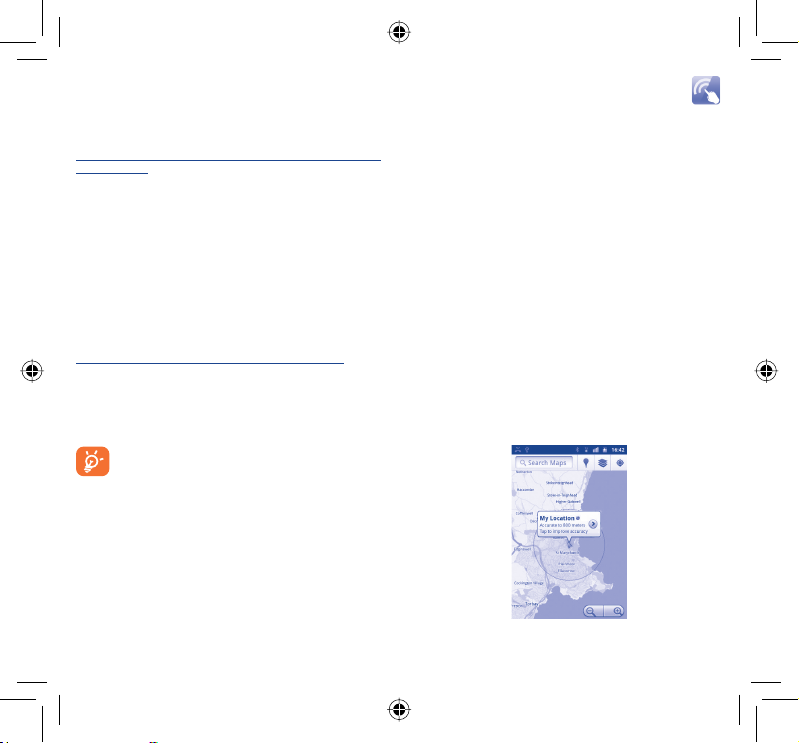
To disconnect:
Unmount the microSD card on your computer.•
Open the Notifications panel and touch • Turn off USB storage.
Touch • Turn off in the dialog that opens.
To locate data you have transferred or downloaded in your
microSD card
Touch Application tab from Home screen to open the applications list.•
Touch • File Manager.
All data you have downloaded are stored in File Manager, where
you can view media files (videos, photos, music and others), rename
files, install applications into your phone, etc.
Sharing your phone's mobile data 7.4
ONE TOUCH Share 7.6
ONE TOUCH Share service enables you to share media files with
DLNA (Digital Living Network Alliance) certified devices via a
Wi-Fi network.
Your device supports DMC (Digital Media Controller) category only.
7.7
Direct connection to other Wi-Fi devices
The Wi-Fi Direct feature allows Wi-Fi devices to connect to each
other without the need for a wireless access point.
To turn on/off Wi-Fi Direct
Open the application list •
Select • Settings\Wireless & networks\Wi-Fi Direct
Mark/Unmark the checkbox to turn on/off Wi-Fi Direct.•
(1)
.............
connection
You can share your phone's mobile data connection with a single
computer via a USB cable (USB tethering) or with up to eight devices
at once by turning your phone into a portable Wi-Fi hotspot.
To turn on USB tethering or Portable Wi-Fi hotspot
Touch Application tab from the Home screen.•
Select • Settings\Wireless & networks\Tethering & portable
hotspot.
Mark the check box of • USB tethering or Portable Wi-Fi
hotspot to activate this function.
The functions may incur additional network charges
from your network operator. Extra fees may also be
charged in roaming areas.
Identify my location
8
using GPS satellites
To activate your phone’s global positioning system (GPS) satellite receiver:
Touch Application tab from the Home screen•
Select • Settings\Location & Security\Use GPS satellites
Mark the checkbox•
Your location will now be identified when you open Maps.
Connecting your phone to a TV set7.5
Using an HDMI (High Definition Multimedia Interface) cable, you can
connect your phone to a TV set for better viewing.
To use this feature, please ensure that the checkbox has been marked
on Settings\Display\HDMI display.
(1)
With a Windows7 computer, using Windows Media Player (WMP), you
22 23
can directly browse and play the media files.
IP3956_995_QG_Eng_GB_21_120214.indd 22-23IP3956_995_QG_Eng_GB_21_120214.indd 22-23 2012-2-14 Lynn 9:43:012012-2-14 Lynn 9:43:01
Page 13

Use your phone’s GPS satellite receiver to pinpoint your location within
an accuracy of as little as several meters (“street level”). The process of
accessing the GPS satellite and setting your phone's precise location for
the first time will require up to 5 minutes. You will need to stand in a place
with a clear view of the sky and avoid moving. After this, GPS will only need
20-40 seconds to identify your precise location.
Data backup
9
This phone enables you to back up your phone’s settings and other
application data to Google Servers, using your Google Account.
If you replace your phone, the settings and data you’ve backed up
are restored onto the new phone the first time you sign in with
your Google Account.
To activate this function:
Touch Application tab from the Home screen•
Select • Settings\Privacy\Back up my data
Mark the checkbox•
Once this function is activated, a wide variety of settings and data
are backed up, including your Wi-Fi passwords, bookmarks, a list
of the applications you’ve installed, the words you’ve added to the
dictionary used by the onscreen keyboard, and most of the settings
that you configure with the Settings application. If you deactivate this
option, you stop backing up your settings, and any existing backups
are deleted from Google Servers.
24 25
..................
10
To activate factory data reset:
Touch Application tab from the Home screen•
Select • Settings\Privacy\Factory data reset
Mark the checkbox•
Resetting the phone will erase all of your personal data from internal
phone storage, including information about your Google Account,
any other accounts, your system and application settings, and any
downloaded applications. You can also mark the Erase SD card
check box to erase all the data on your microSD card, such as music
or photos. If you reset the phone in this way, you’re prompted to
re-enter the same kind of information as when you first started
Android.
When you are unable to power on your phone, there is another
way to perform a factory data reset by using hardware keys. Hold
down Volume up key and press Powe r key at the same time until
the screen lights up.
11
With this phone, some built-in Google applications and other third
party applications
With the built-in applications, you can
Communicate with friends•
Exchange messages or emails with friends•
Track you location, view traffic situations, search for locations and •
get navigation information to your destination
Download more applications from Android Market •
and more.
For more information about these applications, please check the user
manual online: www.alcatelonetouch.com.
(1)
Some pre-loaded third party apps are removable to free up more
memory.
Factory data reset
Applications
(1)
are available for your convenience.
............
.
IP3956_995_QG_Eng_GB_21_120214.indd 24-25IP3956_995_QG_Eng_GB_21_120214.indd 24-25 2012-2-14 Lynn 9:43:012012-2-14 Lynn 9:43:01
Page 14
12
Making the most
of your phone .........
You can download software upgrades for free from the website:
www.alcatelonetouch.com.
Android Manager12.1
The Android Manager includes:
Contacts•
It allows you to back up contact entries so that you don't have to
worry about losing, breaking, switching phones or changing service
providers.
Messages•
It frees you from painstakingly inputting text on the keypads. All of
your messages are easily accessible and well-organized.
Photos•
It allows you to easily import photos from a PC or the handset and
organize them in different albums for better management.
Videos•
It allows you to insert video files from a PC for playback and then
upload to a handset folder.
Music•
It allows you to quickly search for your favourites on a PC, manage
the ultimate Library, and enjoy the easiest digital jukebox in your
own mobile way.
Application •
It allows you to import downloaded mobile applications and have
them installed on your handset upon synchronization.
File •
It allows you to organize handset files - just a few clicks files on the
handset can be where you want them to be.
Sync•
It allows you to synchronize the Contacts and Calendar in Outlook/
Outlook Express with the handset.
Supported Operating Systems
Windows XP/Vista/Windows 7.
ONE TOUCH Upgrade12.2
Using ONE TOUCH Upgrade tool you can update your phone’s
software from your PC.
Download ONE TOUCH Upgrade from ALC ATEL website (www.
alcatelonetouch.com) and install it on your PC. Launch the tool and
update your phone by following the step by step instructions (refer
to the User Guide provided together with the tool). Your phone’s
software will now have the latest software.
All personal information will be permanently lost
following the update process. We recommend you
backup your personal data using Android Manager
before upgrading.
Supported Operating Systems
Windows XP/Vista/Windows 7.
26 27
IP3956_995_QG_Eng_GB_21_120214.indd 26-27IP3956_995_QG_Eng_GB_21_120214.indd 26-27 2012-2-14 Lynn 9:43:012012-2-14 Lynn 9:43:01
Page 15

Always handle your phone with care and keep it in a clean and dust-
Safety and use ......................
We recommend that you read this chapter carefully before using
your phone. The manufacturer disclaims any liability for damage, which
may result as a consequence of improper use or use contrary to the
instructions contained herein.
TRAFFIC SAFETY:•
Given that studies show that using a mobile phone while driving a vehicle
constitutes a real risk, even when the hands-free kit is used (car kit,
headset...), drivers are requested to refrain from using their mobile when
the vehicle is not parked.
When driving, do not use your phone and headphone to listen to music
or to the radio. Using a headphone can be dangerous and forbidden in
some areas.
When switched on, your phone emits electromagnetic waves that can
interfere with the vehicle’s electronic systems such as ABS anti-lock
brakes or airbags. To ensure that there is no problem:
- do not place your phone on top of the dashboard or within an airbag
deployment area,
- check with your car dealer or the car manufacturer to make sure that
the dashboard is adequately shielded from mobile phone RF energy.
CONDITIONS OF USE:•
You are advised to switch off the telephone from time to time to
optimise its performance.
Switch the phone off before boarding an aircraft.
Switch the phone off when you are in healthcare facilities, except in
designated areas. As with many other types of equipment now in regular
use, mobile telephones can interfere with other electrical or electronic
devices, or equipment using radio frequencies.
Switch the phone off when you are near gas or flammable liquids. Strictly
obey all signs and instructions posted in a fuel depot, petrol station, or
chemical plant, or in any potentially explosive atmosphere.
When the phone is switched on, it should be kept at least 15 cm from any
medical device such as a pacemaker, a hearing aid or insulin pump, etc. In
particular when using the phone, you should hold it against the ear on
the opposite side to the device, if any.
To avoid hearing impairment, pick up the call before holding your phone
to your ear. Also move the handset away from your ear while using the
“hands-free” mode because the amplified volume might cause hearing
damage.
Do not let children use the phone and/or play with the telephone and
accessories without supervision.
When replacing the cover please note that your phone may contain
substances that could create an allergic reaction.
free place.
Do not allow your phone to be exposed to adverse weather or
environmental conditions (moisture, humidity, rain, infiltration of
liquids, dust, sea air, etc). The manufacturer’s recommended operating
temperature range is -10°C to +55°C.
At over 55°C the legibility of the phone’s display may be impaired, though
this is temporary and not serious.
Emergency call numbers may not be reachable on all cellular networks.
You should never rely only on your phone for emergency calls.
Do not open, dismantle or attempt to repair your mobile phone yourself.
Do not drop, throw or bend your mobile phone.
Do not use the phone if the glass made screen, is damaged, cracked or
broken to avoid any injury.
Do not paint it.
Use only batteries, battery chargers, and accessories which are
recommended by TCT Mobile Limited and its affiliates and are compatible
with your phone model. TCT Mobile Limited and its affiliates disclaim any
liability for damage caused by the use of other chargers or batteries.
Remember to make back-up copies or keep a written record of all
important information stored in your phone.
Some people may suffer epileptic seizures or blackouts when exposed to
flashing lights, or when playing video games. These seizures or blackouts
may occur even if a person never had a previous seizure or blackout. If you
have experienced seizures or blackouts, or if you have a family history of
such occurrences, please consult your doctor before playing video games
on your phone or enabling a flashing-lights feature on your phone.
Parents should monitor their children’s use of video games or other
features that incorporate flashing lights on the phones. All persons should
discontinue use and consult a doctor if any of the following symptoms
occur: convulsion, eye or muscle twitching, loss of awareness, involuntary
movements, or disorientation. To limit the likelihood of such symptoms,
please take the following safety precautions:
- Do not play or use a flashing-lights feature if you are tired or need sleep.
- Take a minimum of a 15-minute break hourly.
- Play in a room in which all lights are on.
- Play at the farthest distance possible from the screen.
- If your hands, wrists, or arms become tired or sore while playing, stop
and rest for several hours before playing again.
- If you continue to have sore hands, wrists, or arms during or after
playing, stop the game and see a doctor.
When you play games on your phone, you may experience occasional
discomfort in your hands, arms, shoulders, neck, or other parts of your
body. Follow the instructions to avoid problems such as tendinitis, carpal
tunnel syndrome, or other musculoskeletal disorders.
Prolonged exposure to music at full volume on the music player
may damage the listener's hearing. Set your phone volume safely.
Use only headphones recommended by TCT Mobile Limited
and its affiliates.
28 29
IP3956_995_QG_Eng_GB_21_120214.indd 28-29IP3956_995_QG_Eng_GB_21_120214.indd 28-29 2012-2-14 Lynn 9:43:012012-2-14 Lynn 9:43:01
Page 16
PRIVACY:•
Please note that you must respect the laws and regulations in force in
your jurisdiction or other jurisdiction(s) where you will use your mobile
phone regarding taking photographs and recording sounds with your
mobile telephone. Pursuant to such laws and regulations, it may be strictly
forbidden to take photographs and/or to record the voices of other
people or any of their personal attributes, and duplicate or distribute
them, as this may be considered to be an invasion of privacy. It is the
user's sole responsibility to ensure that prior authorisation be obtained,
if necessary, in order to record private or confidential conversations
or take a photograph of another person; the manufacturer, the seller
or vendor of your mobile phone (including the operator) disclaim any
liability which may result from the improper use of the mobile phone.
BATTERY:•
Before removing the battery from your phone, please make sure that the
phone is switched off.
Observe the following precautions for battery use:
- Do not attempt to open the battery (due to the risk of toxic fumes
and burns).
- Do not puncture, disassemble or cause a short-circuit in a battery,
- Do not burn or dispose of a used battery in household rubbish or store
it at temperatures above 60°C.
Batteries must be disposed of in accordance with locally applicable
environmental regulations. Only use the battery for the purpose for
which it was designed. Never use damaged batteries or those not
recommended by TCT Mobile Limited and/or its affiliates.
This symbol on your telephone, the battery and the
accessories means that these products must be taken to
collection points at the end of their life:
- Municipal waste disposal centres with specific bins for
- Collection bins at points of sale.
They will then be recycled, preventing substances being disposed of in the
environment, so that their components can be reused.
In European Union countries:
These collection points are accessible free of charge.
All products with this sign must be brought to these collection points.
In non European Union jurisdictions:
Items of equipment with this symbol are not to be thrown into ordinary
bins if your jurisdiction or your region has suitable recycling and
collection facilities; instead they are to be taken to collection points for
them to be recycled.
CAUTION: RISK OF EXPLOSION IF BATTERY IS REPLACED BY AN
INCORRECT TYPE. DISPOSE OF USED BATTERIES ACCORDING TO
THE INSTRUCTIONS.
these items of equipment
CHARGERS•
Mains powered chargers will operate within the temperature range of:
0°C to 40°C.
The chargers designed for your mobile phone meet with the standard
for safety of information technology equipment and office equipment use.
They are also compliant to the ecodesign directive 2009/125/EC. Due to
different applicable electrical specifications, a charger you purchased in
one jurisdiction may not work in another jurisdiction. They should be
used for this purpose only.
RADIO WAVES:•
Proof of compliance with international standards (ICNIRP) or with European
Directive 1999/5/EC (R&TTE) is required of all mobile phone models before
they can be put on the market. The protection of the health and safety for
the user and any other person is an essential requirement of these standards
or this directive.
THIS DEVICE MEETS INTERNATIONAL GUIDELINES FOR EXPOSURE
TO RADIO WAVES
Your mobile device is a radio transmitter and receiver. It is designed
not to exceed the limits for exposure to radio waves (radio frequency
electromagnetic fields) recommended by international guidelines. The
guidelines were developed by an independent scientific organization
(ICNIRP) and include a substantial safety margin designed to assure the
safety of all persons, regardless of age and health.
The radio wave exposure guidelines use a unit of measurement known
as the Specific Absorption Rate, or SAR. The SAR limit for mobile devices
is 2 W/kg.
Tests for SAR are conducted using standard operating positions with
the device transmitting at its highest certified power level in all tested
frequency bands. The highest SAR values under the ICNIRP guidelines for
this device model are:
Maximum SAR for this model and conditions under which it
Head SAR UMTS 2100 + Wi-Fi + Bluetooth 0.586 W/kg
Body-worn SAR GSM 900 + Wi-Fi + Bluetooth 0.596 W/kg
During use, the actual SAR values for this device are usually well below
the values stated above. This is because, for purposes of system efficiency
and to minimize interference on the network, the operating power of
your mobile device is automatically decreased when full power is not
needed for the call. The lower the power output of the device, the lower
its SAR value.
Body-worn SAR testing has been carried out at a separation distance of
1.5 cm. To meet RF exposure guidelines during body-worn operation, the
device should be positioned at least this distance away from the body.
was recorded.
30 31
IP3956_995_QG_Eng_GB_21_120214.indd 30-31IP3956_995_QG_Eng_GB_21_120214.indd 30-31 2012-2-14 Lynn 9:43:012012-2-14 Lynn 9:43:01
Page 17
If you are not using an approved accessory ensure that whatever product
is used is free of any metal and that it positions the phone the indicated
distance away from the body.
Organizations such as the World Health Organization and the US Food
and Drug Administration have stated that if people are concerned and
want to reduce their exposure they could use a hands-free device to keep
the phone away from the head and body during phone calls, or reduce the
amount of time spent on the phone.
For more information you can go to www.alcatelonetouch.com
Additional information about electromagnetic fields and public health are
available on the following site: http://www.who.int/peh-emf.
Your telephone is equipped with a built-in antenna. For optimal
operation, you should avoid touching it or degrading it.
As mobile devices offer a range of functions, they can be used in positions
other than against your ear. In such circumstances the device will be
compliant with the guidelines when used with headset or USB data cable.
If you are using another accessory ensure that whatever product is used
is free of any metal and that it positions the phone at least 1.5 cm away
from the body.
LICENCES •
microSD Logo is a trademark.
The Bluetooth word mark and logos are owned by
the Bluetooth SIG, Inc. and any use of such marks by
TCT Mobile Limited and its affiliates is under license.
Other trademarks and trade names are those of their
respective owners.
ONE TOUCH 995 Bluetooth
QD ID B018738
TouchPal™ and CooTek™ are trademarks of Shanghai
HanXiang (CooTek)Information Technology Co., Ltd.
and/or its Affiliates.
The Wi-Fi Logo is a certification mark of the Wi-Fi
Alliance.
Your device uses non-harmonised frequency and
is intended for use in all European countries.
The WLAN can be operated in the EU without
restriction indoors, but cannot be operated outdoors
in France.
DLNA®, the DLNA Logo and DLNA CERTIFIED®
are trademarks, service marks, or certification marks
of the Digital Living Network Alliance.
HDMI logo is a trademark of the High Definition
Media Input standard.
Google, the Google logo, Android, the Android logo, Google Search,
Google Maps, Gmail, YouTube, Android Market, Google latitude and Google
Talk are trademarks of Google Inc.
General information ...........
Internet address:• www.alcatelonetouch.com
Hot Line Number:• see “TCT Mobile Services” leaflet or go to
our website.
On our website, you will find our FAQ (Frequently Asked Questions)
section. You can also contact us by e-mail to ask any questions you
may have.
An electronic version of this user guide is available in English and
other languages according to availability on our server:
www.alcatelonetouch.com
Your telephone is a transceiver that operates on GSM/GPRS/EDGE
in quad-band with 850/900/1800/1900 MHz or UMTS in dual-band
with 900/2100MHz.
This equipment is in compliance with the essential requirements and
other relevant provisions of Directive 1999/5/EC. The entire copy of
the Declaration of Conformity for your telephone can be obtained
through our website: www.alcatelonetouch.com.
This equipment may be operated in: AT BE
CY CZ DK EE FI FR
DE GR HU IE IT LV
LT LU MT NL PL PT
SK SI ES SE GB IS
LI NO CH BG RO TR
Protection against theft
Your telephone is identified by an IMEI (phone serial number) shown
on the packaging label and in the phone’s memory. We recommend
that you note the number the first time you use your telephone by
entering * # 0 6 # and keep it in a safe place. It may be requested by
the police or your operator if your telephone is stolen. This number
allows your mobile telephone to be blocked preventing a third
person from using it, even with a different SIM card.
(1)
Contact your network operator to check service availability.
(1)
32 33
IP3956_995_QG_Eng_GB_21_120214.indd 32-33IP3956_995_QG_Eng_GB_21_120214.indd 32-33 2012-2-14 Lynn 9:43:022012-2-14 Lynn 9:43:02
Page 18

Disclaimer
There may be certain differences between the user manual
description and the phone’s operation, depending on the software
release of your telephone or specific operator services.
TCT Mobile shall not be held legally responsible for such differences,
if any, nor for their potential consequences, which responsibility shall
be borne by the operator exclusively.
This handset may contain materials, including applications and
software in executable or source code form, which is submitted by
third parties for inclusion in this handset (“Third Party Materials”).
All third party materials in this handset are provided “as is”, without
warranty of any kind, whether express or implied, including the
implied warranties of merchantability, fitness for a particular purpose
or use/third party application, interoperability with other materials or
applications of the purchaser and non-infringement of copyright. The
purchaser undertakes that TCT Mobile has complied with all quality
obligations incumbent upon it as a manufacturer of mobile devices and
handsets in complying with Intellectual Property rights. TCT Mobile
will at no stage be responsible for the inability or failure of the Third
Party Materials to operate on this handset or in interaction with any
other devices of the purchaser. To the maximum extent permitted by
law, TCT Mobile disclaims all liability for any claims, demands, suits or
actions, and more specifically – but not limited to – tort law actions,
under any theory of liability, arising out of the use, by whatever
means, or attempts to use, such Third Party Materials. Moreover,
the present Third Party Materials, which are provided free of charge
by TCT Mobile, may be subject to paid updates and upgrades in the
future; TCT Mobile waives any responsibility regarding such additional
costs, which shall be borne exclusively by the purchaser. The
availability of the applications may vary depending on the countries
and the operators where the handset is used; in no event shall the
list of possible applications and software provided with the handsets
be considered as an undertaking from TCT Mobile; it shall remain
merely as information for the purchaser. Therefore, TCT Mobile shall
not be held responsible for the lack of availability of one or more
applications wished for by the purchaser, as its availability depends on
the country and the operator of the purchaser. TCT mobile reserves
the right at any time to add or remove Third Party Materials from its
handsets without prior notice; in no event shall TCT Mobile be held
responsible by the purchaser for any consequences that such removal
may have on the purchaser regarding the use or attempt to use such
applications and Third Party Materials.
Warranty ..............................
Your phone is warranted against any defect or malfunctioning which
may occur in conditions of normal use during the warranty period
of twelve (12) months
your original invoice.
(2)
Batteries
against any defect which may occur during the first six (6) months
from the date of purchase as shown on your original invoice.
In case of any defect of your phone which prevents you from normal
use thereof, you must immediately inform your vendor and present
your phone with your proof of purchase.
If the defect is confirmed, your phone or part thereof will be either
replaced or repaired, as appropriate. Repaired phone and accessories
are entitled to a one (1) month warranty for the same defect. Repair
or replacement may be carried out using reconditioned components
offering equivalent functionality.
This warranty covers the cost of parts and labor but excludes any
other costs.
(1)
The warranty period may vary depending on your country.
(2)
The life of a rechargeable mobile phone battery in terms of
conversation time standby time, and total service life, will depend
on the conditions of use and network configuration. Batteries being
considered expendable supplies, the specifications state that you
should obtain optimal performance for your phone during the first six
months after purchase and for approximately 200 more recharges.
(1)
from the date of purchase as shown on
and accessories sold with your phone are also warranted
34 35
(1)
IP3956_995_QG_Eng_GB_21_120214.indd 34-35IP3956_995_QG_Eng_GB_21_120214.indd 34-35 2012-2-14 Lynn 9:43:022012-2-14 Lynn 9:43:02
Page 19

This warranty shall not apply to defects to your phone and/or
accessory due to (without any limitation):
1) Non-compliance with the instructions for use or installation, or
with technical and safety standards applicable in the geographical
area where your phone is used,
2) Connection to any equipment not supplied or not recommended
by TCT Mobile Limited,
3) Modification or repair performed by individuals not authorised by
TCT Mobile Limited or its affiliates or your vendor,
4) Inclement weather, lightning, fire, humidity, infiltration of liquids or
foods, chemical products, download of files, crash, high voltage,
corrosion, oxidation…
Your phone will not be repaired in case labels or serial numbers
(IMEI) have been removed or altered.
There are no express warranties, whether written, oral or implied,
other than this printed limited warranty or the mandatory warranty
provided by your country or jurisdiction.
In no event shall TCT Mobile Limited or any of its affiliates be liable
for indirect, incidental or consequential damages of any nature
whatsoever, including but not limited commercial or financial loss or
damage, loss of data or loss of image to the full extent those damages
can be disclaimed by law.
Some countries/states do not allow the exclusion or limitation
of indirect, incidental or consequential damages, or limitation of
the duration of implied warranties, so the preceding limitations or
exclusions may not apply to you.
Troubleshooting...................
Before contacting the service centre, you are advised to follow the
instructions below:
You are advised to fully charge ( •
operation.
Avoid storing large amounts of data in your phone as this may •
affect its performance.
Use User Data Format and the ONE TOUCH Upgrade tool to •
perform phone formatting or software upgrading, (to reset User
Data format, hold down Volume up key while simultaneously
pressing the Powe r key). ALL User phone data: contacts, photos,
messages and files, downloaded applications like APK games will be
lost permanently. It is strongly advised to fully backup the phone
data and profile via Android Manager before doing formatting and
upgrading.
and carry out the following checks:
My phone is frozen or cannot switch on
Check the battery contacts, remove and reinstall your battery, then •
turn your phone on
Check the battery power level, charge for at least 20 minutes•
If it still does not work, please use User Data Format to reset •
the phone
My phone has not responded for several minutes
Restart your phone by pressing and holding the • Powe r key
Remove the battery and re-insert it, then restart the phone•
My phone turns off by itself
Check that your keypad is locked when you are not using your •
phone, and make sure Powe r key is not accidentally activated while
the keypad is unlocked.
Check the battery charge level•
My phone cannot charge properly
Make sure you are using an Alcatel batter y and the charger from •
the box
Make sure your battery is inserted properly and clean the battery •
contact if it’s dirty. It must be inserted before plugging in the
charger
Make sure that your battery is not completely discharged; if the •
battery power is empty for a long time, it may take around 20
minutes to display the battery charger indicator on the screen.
Make sure charging is carried out under normal conditions (0°C •
to +40°C)
When abroad, check that the voltage input is compatible•
) the battery for optimal
36 37
IP3956_995_QG_Eng_GB_21_120214.indd 36-37IP3956_995_QG_Eng_GB_21_120214.indd 36-37 2012-2-14 Lynn 9:43:022012-2-14 Lynn 9:43:02
Page 20

My phone cannot connect to a network or “No service”
is displayed
Try connecting in another location•
Verify the network coverage with your operator•
Check with your operator that your SIM card is valid•
Try selecting the available network(s) manually•
Try connecting at a later time if the network is overloaded•
My phone cannot connect to the Internet
Check that the IMEI number (press *#06#) is the same as the one •
printed on your warranty card or box
Make sure that the internet access service of your SIM card is •
available
Check your phone's Internet connecting settings•
Make sure you are in a place with network coverage•
Try connecting at a later time or another location•
Invalid SIM card
Make sure the SIM card has been correctly inserted•
Make sure the chip on your SIM card is not damaged or scratched•
Make sure the service of your SIM card is available•
Unable to make outgoing calls
Make sure you have dialed a valid number and touch •
For international calls, check the country and area codes•
Make sure your phone is connected to a network, and the network •
is not overloaded or unavailable
Check your subscription status with your operator (credit, SIM •
card valid, etc.)
Make sure you have not barred outgoing calls •
Make sure that your phone is not in flight mode•
Unable to receive incoming calls
Make sure your phone is switched on and connected to a network •
(check for overloaded or unavailable network)
Check your subscription status with your operator (credit, SIM •
card valid, etc.)
Make sure you have not forwarded incoming calls •
Make sure that you have not barred certain calls•
Make sure that your phone is not in flight mode•
The caller’s name/number does not appear when a call is
received
Check that you have subscribed to this service with your •
operator
Your caller has concealed his/her name or number•
I cannot find my contacts
Make sure your SIM card is not broken•
Make sure your SIM card is inserted properly•
Import all contacts stored in SIM card to phone•
The sound quality of the calls is poor
You can adjust the volume during a call by pressing the • Volume
key
Check the network strength •
Make sure that the receiver, connector or speaker on your phone •
is clean
I am unable to use the features described in the manual
Check with your operator to make sure that your subscription •
includes this service
Make sure this feature does not require an Alcatel accessory•
When I select a number from my contacts, the number
cannot be dialed
Make sure that you have correctly recorded the number in your •
file
Make sure that you have selected the country prefix when calling •
a foreign country
I am unable to add a contact in my contacts
Make sure that your SIM card contacts are not full; delete some •
files or save the files in the phone contacts (i.e. your professional
or personal directories)
My callers are unable to leave messages on my voicemail
Contact your network operator to check service availability•
I cannot access my voicemail
Make sure your operator’s voicemail number is correctly entered •
in “My numbers”
Try later if the network is busy•
I am unable to send and receive MMS
Check your phone memory availability as it might be full•
Contact your network operator to check service availability and •
check MMS parameters
Verify the server centre number or your MMS profile with your •
operator
The server centre may be swamped, try again later•
SIM card PIN locked
Contact your network operator to obtain the PUK code (Personal •
Unblocking Key)
I am unable to connect my phone to my computer
Install Alcatel Android Manager first of all•
Check that your USB driver is installed properly•
Open the Notification panel to check if the Android Manager •
Agent has activated
Check that you have ticked the checkbox of USB debugging in •
Settings\Applications\Development\USB debugging
38 39
IP3956_995_QG_Eng_GB_21_120214.indd 38-39IP3956_995_QG_Eng_GB_21_120214.indd 38-39 2012-2-14 Lynn 9:43:022012-2-14 Lynn 9:43:02
Page 21
Check that your computer meets the requirements for Alcatel •
Android Manager Installation
Make sure that you’re using the right cable from the box.•
I am unable to download new files
Make sure there is sufficient phone memory for your download•
Select the micro-SD card as the location to store downloaded •
files
Check your subscription status with your operator•
The phone cannot be detected by others via Bluetooth
Make sure that Bluetooth is turned on and your phone is visible •
to other users
Make sure that the two phones are within Bluetooth’s detection •
range
How to make your battery last longer
Make sure you follow the complete charge time (minimum 3 •
hours)
After a partial charge, the battery level indicator may not be exact. •
Wait for at least 20 minutes after removing the charger to obtain
an exact indication
Switch on the backlight upon request•
Extend the email auto-check interval for as long as possible•
Update news and weather information on manual demand, or •
increase their auto-check interval
Exit background-running applications if they are not being used for •
a long time
Deactivate Bluetooth, Wi-Fi, or GPS when not in use•
The phone becomes warm after prolonged calls, game playing,
internet surfing or running other complex applications
This heating is a normal consequence of the CPU handling •
excessive data. Ending above actions will make your phone return
to normal temperature.
ALCATEL is a trademark of Alcatel-Lucent
and is used under license by
TCT Mobile Limited.
© Copyright 2012 TCT Mobile Limited
All rights reserved
TCT Mobile Limited reserves
the right to alter material
or technical specification
without prior notice.
40
IP3956_995_QG_Eng_GB_21_120214.indd 40IP3956_995_QG_Eng_GB_21_120214.indd 40 2012-2-14 Lynn 9:43:022012-2-14 Lynn 9:43:02
 Loading...