

Page 1
Page 2

Introduction ................................
TCT Mobile Limited would like to thank you for purchasing this mobile
phone.
Home screen
• Convenient at-a-glance view of Widget applications
• Menu shortcuts for quick access
Power media applications
• Music & Radio
• Video & Streaming
• Webcam
The 2.0 Megapixel camera is a good companion for PC instant
messaging.
Bluetooth
With Bluetooth 2.1 supporting A2DP profiles, enjoy handsfree
conversations.
Facebook
A popular social networking site that connects people with friends and
others who work, study and live around them.
1 2
Page 3

Table of contents
Safety and use ......................................................................7
General information ......................................................... 12
1 Getting started ............................................................ 14
1.1 Set-up ...................................................................................................14
1.2 Power on your phone ......................................................................16
1.3 Power off your phone ......................................................................16
2 Your mobile .................................................................. 17
2.1 Keys and connectors ........................................................................ 17
2.2 Status bar icons ..................................................................................20
2.3 Home screen ......................................................................................22
3 Making a call ................................................................ 24
3.1 Placing a call ........................................................................................ 24
3.2 Calling your voicemail ......................................................................24
3.3 Receiving a call ...................................................................................25
3.4 During a call ........................................................................................25
3.5 Conference calls ................................................................................27
3.6 Line switching .....................................................................................27
4 Menu arrange ...............................................................28
5 Messages ....................................................................... 29
5.1 Access ..................................................................................................29
5.2 Conversational On (Off) mode......................................................29
5.3 Write message ...................................................................................30
5.4 Available options ................................................................................30
6 Email ............................................................................. 34
6.1 Access ..................................................................................................34
6.2 Email account set-up.........................................................................34
6.3 Write email ......................................................................................... 35
6.4 Inbox .....................................................................................................35
6.5 Outbox .................................................................................................35
6.6 Sent .......................................................................................................35
6.7 Drafts....................................................................................................35
3 4
6.8 Available options ................................................................................36
7 Contacts ....................................................................... 37
7.1 Consulting your contacts ................................................................37
7.2 Adding a contact ................................................................................38
7.3 Available options ................................................................................39
8 Call log .......................................................................... 41
8.1 Access ..................................................................................................41
8.2 Available options ................................................................................41
9 Media applications ....................................................... 45
9.1 Music.................................................................................................... 45
9.2 Image ....................................................................................................47
9.3 Video ....................................................................................................47
9.4 Radio .....................................................................................................48
10 Internet ........................................................................ 49
10.1 WEB......................................................................................................49
10.2 WAP .....................................................................................................49
10.3 News .................................................................................................... 50
10.4 Weather ............................................................................................... 51
10.5 mTweet ................................................................................................52
11 Apps .............................................................................. 53
11.1 Locate the item you want to download ...................................... 53
11.2 Download, install and manage applications ................................. 54
11.3 Update and settings ..........................................................................54
12 Facebook ...................................................................... 55
12.1 News Feed ..........................................................................................55
12.2 Me ......................................................................................................... 56
12.3 Messages ..............................................................................................56
12.4 Friends .................................................................................................. 57
12.5 Photos .................................................................................................. 57
12.6 Search ...................................................................................................58
12.7 Notice .................................................................................................. 58
12.8 Events ...................................................................................................58
Page 4

13 Wi-Fi ............................................................................. 59
14 Entertainment ............................................................. 60
14.1 Stopwatch ............................................................................................ 60
14.2 Ebook ................................................................................................... 60
14.3 Java ........................................................................................................61
15 Camera .........................................................................63
15.1 Access ..................................................................................................63
15.2 Camera ................................................................................................63
15.3 Video .................................................................................................... 65
16 Profiles ..........................................................................66
16.1 General ................................................................................................ 66
16.2 Meeting ................................................................................................67
16.3 Outdoor ..............................................................................................67
16.4 Indoor...................................................................................................67
16.5 Silent .....................................................................................................67
16.6 Flight mode .........................................................................................67
17 File manager ................................................................ 68
17.1 My audios ............................................................................................68
17.2 My images ............................................................................................ 69
17.3 My videos ........................................................................................... 69
17.4 Ebook ................................................................................................... 69
17.5 My creations .......................................................................................69
17.6 Others ..................................................................................................69
17.7 Phone....................................................................................................69
17.8 SD card ................................................................................................70
17.9 Managing audios, images, videos and others................................71
17.10 Formats and compatibility ...............................................................72
17.11 Memory status ...................................................................................72
18 Bluetooth™ ..................................................................73
19 Others ........................................................................... 75
19.1 Calendar ..............................................................................................75
19.2 Calculator ............................................................................................76
19.3 Notes .................................................................................................... 76
5 6
19.4 Memo ................................................................................................... 77
19.5 Tasks .....................................................................................................77
19.6 Alarm ....................................................................................................78
19.7 Clock .................................................................................................... 78
19.8 Converter ............................................................................................ 78
20 Settings .........................................................................79
20.1 Phone settings ....................................................................................79
20.2 Call settings .......................................................................................82
20.3 Security ................................................................................................ 82
20.4 Networks ............................................................................................ 83
20.5 Connectivity ........................................................................................ 83
20.6 Check software update ....................................................................83
21 Making the most of your mobile ............................... 84
21.1 PC suite ...............................................................................................84
21.2 ONE TOUCH Upgrade ....................................................................85
21.3 Webcam ............................................................................................... 85
22 Latin input mode/character table .............................86
23 Telephone warranty .................................................... 88
24 Accessories................................................................... 90
25 Troubleshooting ........................................................... 91
This product meets applicable national SAR limits of 2.0 W/
kg. The specific maximum SAR values can be found on page
10 of this user guide.
When carrying the product or using it while worn on your
www.sar-tick.com
body, either use an approved accessory such as a holster or
otherwise maintain a distance of 1.5 cm from the body to
ensure compliance with RF exposure requirements. Note that
the product may be transmitting even if you are not making
a phone call.
Page 5

Safety and use .............................
We recommend that you read this chapter carefully before using your phone. The manufacturer
disclaims any liability for damage, which may result as a consequence of improper use or use
contrary to the instructions contained herein.
• TRAFFIC SAFETY:
Given that studies show that using a mobile phone while driving a vehicle constitutes a real risk,
even when the hands-free kit is used (car kit, headset...), drivers are requested to refrain from
using their mobile when the vehicle is not parked.
When driving, do not use your phone and headphone to listen to music or to the radio. Using a
headphone can be dangerous and forbidden in some areas.
When switched on, your phone emits electromagnetic waves that can interfere with the vehicle’s
electronic systems such as ABS anti-lock brakes or airbags. To ensure that there is no problem:
- do not place your phone on top of the dashboard or within an airbag deployment area,
- check with your car dealer or the car manufacturer to make sure that the dashboard is
adequately shielded from mobile phone RF energy.
• CONDITIONS OF USE:
You are advised to switch off the telephone from time to time to optimise its performance.
Switch the phone off before boarding an aircraft.
Switch the phone off when you are in health care facilities, except in designated areas. As with
many other types of equipment now in regular use, mobile telephones can interfere with other
electrical or electronic devices, or equipment using radio frequency.
Switch the phone off when you are near gas or flammable liquids. Strictly obey all signs and
instructions posted in a fuel depot, petrol station, or chemical plant, or in any potentially explosive
atmosphere.
When the phone is switched on, it should be kept at least 15 cm from any medical device such as
a pacemaker, a hearing aid or insulin pump, etc. In particular when using the phone, you should
hold it against the ear on the opposite side to the device, if any.
To avoid hearing impairment, pick up the call before holding your phone to your ear. Also move
the handset away from your ear while using the "hands-free" mode because the amplified volume
might cause hearing damage.
Do not let children use the phone and/or play with the telephone and accessories without
supervision.
When replacing the cover please note that your phone may contain substances that could create
an allergic reaction.
Always handle your phone with care and keep it in a clean and dust-free place.
Do not allow your phone to be exposed to adverse weather or environmental conditions (moisture,
humidity, rain, infiltration of liquids, dust, sea air, etc). The manufacturer’s recommended operating
temperature range is -10°C to +55°C.
At over 55°C the legibility of the phone’s display may be impaired, though this is temporary and
not serious.
Emergency call numbers may not be reachable on all cellular networks. You should never rely only
on your phone for emergency calls.
Do not open, dismantle or attempt to repair your mobile phone yourself.
Do not drop, throw or bend your mobile phone.
Do not paint it.
Use only batteries, battery chargers, and accessories which are recommended by TCT Mobile
Limited and its affiliates and are compatible with your phone model (see Accessories List, page
92). TCT Mobile Limited and its affiliates disclaim any liability for damage caused by the use of
other chargers or batteries.
Remember to make back-up copies or keep a written record of all important information stored
in your phone.
Some people may suffer epileptic seizures or blackouts when exposed to flashing lights, or when
playing video games. These seizures or blackouts may occur even if a person never had a previous
seizure or blackout. If you have experienced seizures or blackouts, or if you have a family history
of such occurrences, please consult your doctor before playing video games on your phone or
enabling a flashing-lights feature on your phone.
Parents should monitor their children’s use of video games or other features that incorporate
flashing lights on the phones. All persons should discontinue use and consult a doctor if any of
the following symptoms occur: convulsion, eye or muscle twitching, loss of awareness, involuntary
movements, or disorientation. To limit the likelihood of such symptoms, please take the following
safety precautions:
- Do not play or use a flashing-lights feature if you are tired or need sleep.
- Take a minimum of a 15-minute break hourly.
- Play in a room in which all lights are on.
- Play at the farthest distance possible from the screen.
- If your hands, wrists, or arms become tired or sore while playing, stop and rest for several hours
before playing again.
- If you continue to have sore hands, wrists, or arms during or after playing, stop the game and
see a doctor.
When you play games on your phone, you may experience occasional discomfort in your hands,
arms, shoulders, neck, or other parts of your body. Follow the instructions to avoid problems such
as tendinitis, carpal tunnel syndrome, or other musculoskeletal disorders.
Prolonged exposure to music at full volume on the music player may damage the listener's
hearing.
Set your phone volume safely. Use only headphones recommended by TCT Mobile Limited and
its affiliates.
7 8
Page 6
• PRIVACY:
Please note that you must respect the laws and regulations in force in your jurisdiction or other
jurisdiction(s) where you will use your mobile phone regarding taking photographs and recording
sounds with your mobile telephone. Pursuant to such laws and regulations, it may be strictly
forbidden to take photographs and/or to record the voices of other people or any of their personal
attributes, and duplicate or distribute them, as this may be considered to be an invasion of privacy.
It is the user's sole responsibility to ensure that prior authorisation be obtained, if necessary, in
order to record private or confidential conversations or take a photograph of another person;
the manufacturer, the seller or vendor of your mobile phone (including the operator) disclaim any
liability which may result from the improper use of the mobile phone.
• BATTERY:
Before removing the battery from your phone, please make sure that the phone is switched off.
Observe the following precautions for battery use:
- Do not attempt to open the battery (due to the risk of toxic fumes and burns).
- Do not puncture, disassemble or cause a short-circuit in a battery,
- Do not burn or dispose of a used battery in household rubbish or store it at temperatures above
60°C.
Batteries must be disposed of in accordance with locally applicable environmental regulations. Only
use the battery for the purpose for which it was designed. Never use damaged batteries or those
not recommended by TCT Mobile Limited and/or its affiliates.
This symbol on your telephone, the battery and the accessories means that these
phones must be taken to collection points at the end of their life:
- Municipal waste disposal centres with specific bins for these items of equipment
- Collection bins at points of sale.
They will then be recycled, preventing substances being disposed of in the environment, so that
their components can be reused.
In European Union countries:
These collection points are accessible free of charge.
All phones with this sign must be brought to these collection points.
In non European Union jurisdictions:
Items of equipment with this symbol are not to be thrown into ordinary bins if your jurisdiction or
your region has suitable recycling and collection facilities; instead they are to be taken to collection
points for them to be recycled.
CAUTION: RISK OF EXPLOSION IF BATTERY IS REPLACED BY AN INCORRECT TYPE.
DISPOSE OF USED BATTERIES ACCORDING TO THE INSTRUCTIONS.
• CHARGERS
Mains powered chargers will operate within the temperature range of: 0°C to 40°C.
The chargers designed for your mobile phone meet with the standard for safety of information
technology equipment and office equipment use. They are also compliant to the ecodesign directive
2009/125/EC. Due to different applicable electrical specifications, a charger you purchased in one
jurisdiction may not work in another jurisdiction. They should be used for this purpose only.
RADIO WAVES:•
Proof of compliance with international standards (ICNIRP) or with European Directive 1999/5/
EC (R&TTE) is required of all mobile phone models before they can be put on the market. The
protection of the health and safety for the user and any other person is an essential requirement
of these standards or this directive.
THIS DEVICE MEETS INTERNATIONAL GUIDELINES FOR EXPOSURE TO RADIO WAVES
Your mobile device is a radio transmitter and receiver. It is designed not to exceed the limits for
exposure to radio waves (radio frequency electromagnetic fields) recommended by international
guidelines. The guidelines were developed by an independent scientific organization (ICNIRP) and
include a substantial safety margin designed to assure the safety of all persons, regardless of age
and health.
The radio wave exposure guidelines use a unit of measurement known as the Specific Absorption
Rate, or SAR. The SAR limit for mobile devices is 2 W/kg.
Tests for SAR are conducted using standard operating positions with the device transmitting at
its highest certified power level in all tested frequency bands. The highest SAR values under the
ICNIRP guidelines for this device model are:
Maximum SAR for this model and conditions under which it was recorded.
Head SAR GSM 900 + Wi Fi + Bluetooth 0.981 W/kg
Body-worn SAR GSM 900 + Wi Fi + Bluetooth 0.776 W/kg
During use, the actual SAR values for this device are usually well below the values stated above.
This is because, for purposes of system efficiency and to minimize interference on the network, the
operating power of your mobile device is automatically decreased when full power is not needed
for the call. The lower the power output of the device, the lower its SAR value.
Body-worn SAR testing has been carried out at a separation distance of 1.5 cm. To meet RF
exposure guidelines during body-worn operation, the device should be positioned at least this
distance away from the body. If you are not using an approved accessory ensure that whatever
product is used is free of any metal and that it positions the phone the indicated distance away
from the body.
Organizations such as the World Health Organization and the US Food and Drug Administration
have stated that if people are concerned and want to reduce their exposure they could use a
hands-free device to keep the phone away from the head and body during phone calls, or reduce
the amount of time spent on the phone.
For more information you can go to www.alcatelonetouch.com
9 10
Page 7
Additional information about electromagnetic fields and public health are available on the following
site: http://www.who.int/peh-emf.
Your telephone is equipped with a built-in antenna. For optimal operation, you should avoid
touching it or degrading it.
As mobile devices offer a range of functions, they can be used in positions other than against your
ear. In such circumstances the device will be compliant with the guidelines when used with headset
or usb data cable. If you are using another accessory ensure that whatever product is used is free
of any metal and that it positions the phone at least 1.5 cm away from the body.
• LICENCES
Obigo® is a registered trademark of Obigo AB.
microSD Logo is a trademark.
The Bluetooth word mark and logos are owned by the Bluetooth SIG, Inc. and
any use of such marks by TCT Mobile Limited and its affiliates is under license.
Other trademarks and trade names are those of their respective owners.
ONE TOUCH 838 Bluetooth QD ID
B019558
Java™ and all Java™ based trademarks and logos are trademarks or registered
trademarks of Sun Microsystems, Inc. in the U.S. and other countries.
Facebook and the f Logo are trademarks of Facebook, Inc., and are used under
license.
Twitter and the T Logo are trademarks of Twitter, Inc., and are used under
license.
The Wi-Fi Logo is a certification mark of the Wi-Fi Alliance.
Your device uses non-harmonised frequency and is intended for use in all
European countries. The WLAN can be operated in the EU without restriction
indoors, but cannot be operated outdoors in France.
General information ..................
• Internet address: www.alcatelonetouch.com
• Hot Line Number: see "TCT Mobile Services" leaflet or go to our
Internet site.
On our Internet site, you will find our FAQ (Frequently Asked Questions)
section. You can also contact us by e-mail to ask any questions you may
have.
An electronic version of this user guide is available in English and other
languages according to availability on our server:
www.alcatelonetouch.com
Your telephone is a transceiver that operates on GSM networks with 850,
900, 1800 and 1900 MHz bands.
This equipment is in compliance with the essential requirements and
other relevant provisions of Directive 1999/5/EC. The entire copy of the
Declaration of Conformity for your telephone can be obtained through
our website: www.alcatelonetouch.com.
This equipment may be operated in: AT BE
CY CZ DK EE FI FR
DE GR HU IE IT LV
LT LU MT NL PL PT
SK SI ES SE GB IS
LI NO CH BG RO TR
11 12
Page 8
Protection against theft
Your telephone is identified by an IMEI (phone serial number) shown on
the packaging label and in the phone’s memory. We recommend that you
note the number the first time you use your telephone by entering * # 0
6 # and keep it in a safe place. It may be requested by the police or your
operator if your telephone is stolen. This number allows your mobile
telephone to be blocked preventing a third person from using it, even
with a different SIM card.
(1)
Disclaimer
There may be certain differences between the user manual description
and the phone’s operation, depending on the software release of your
telephone or specific operator services.
TCT Mobile shall not be held legally responsible for such differences, if
any, nor for their potential consequences, which responsibility shall be
borne by the operator exclusively.
Getting started .....................
1
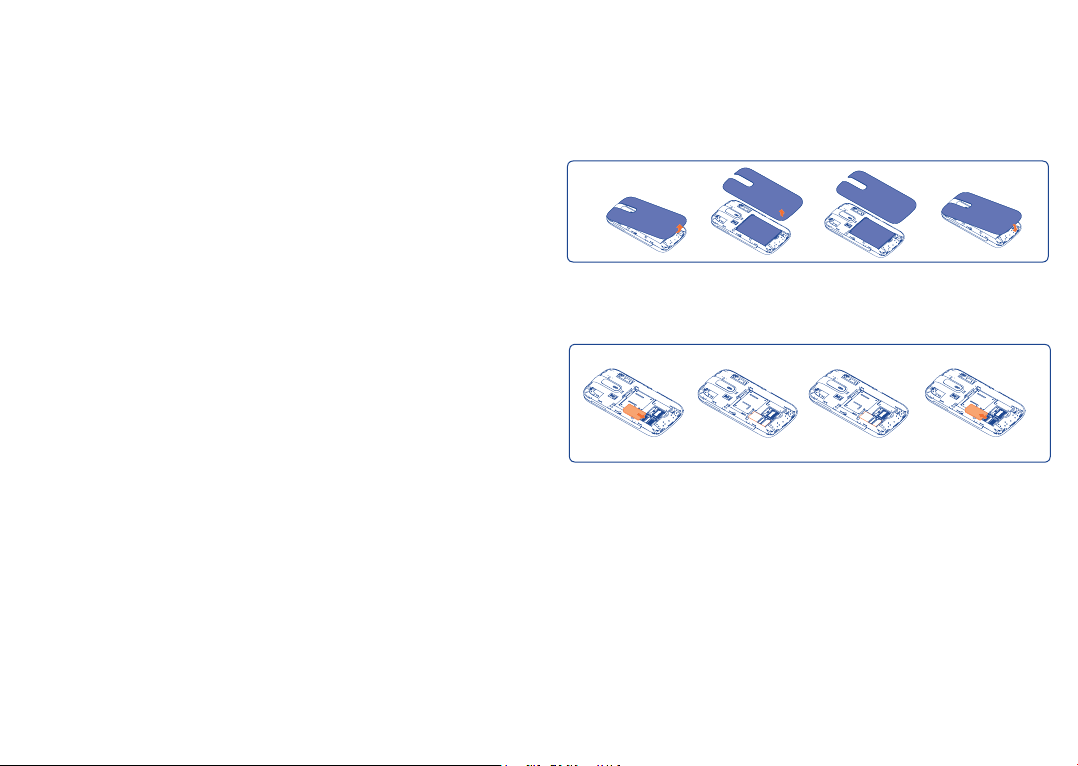
1.1 Set-up
Removing or installing the back cover
Inserting or removing the SIM card
You must insert your SIM card to make phone calls. Please power off your
phone and remove battery before inserting or removing the SIM card.
Place the SIM card with the chip facing downwards and slide it into its
housing. Make sure that it is correctly inserted. To remove the card, press
the bottom and slide it out.
(1)
(1)
Contact your network operator to check service availability.
13 14
(1)
Check with your network operator to make sure that your SIM card is 3V or
1.8V compatible. The old 5 Volt cards can no longer be used. Please contact
your operator.
Page 9
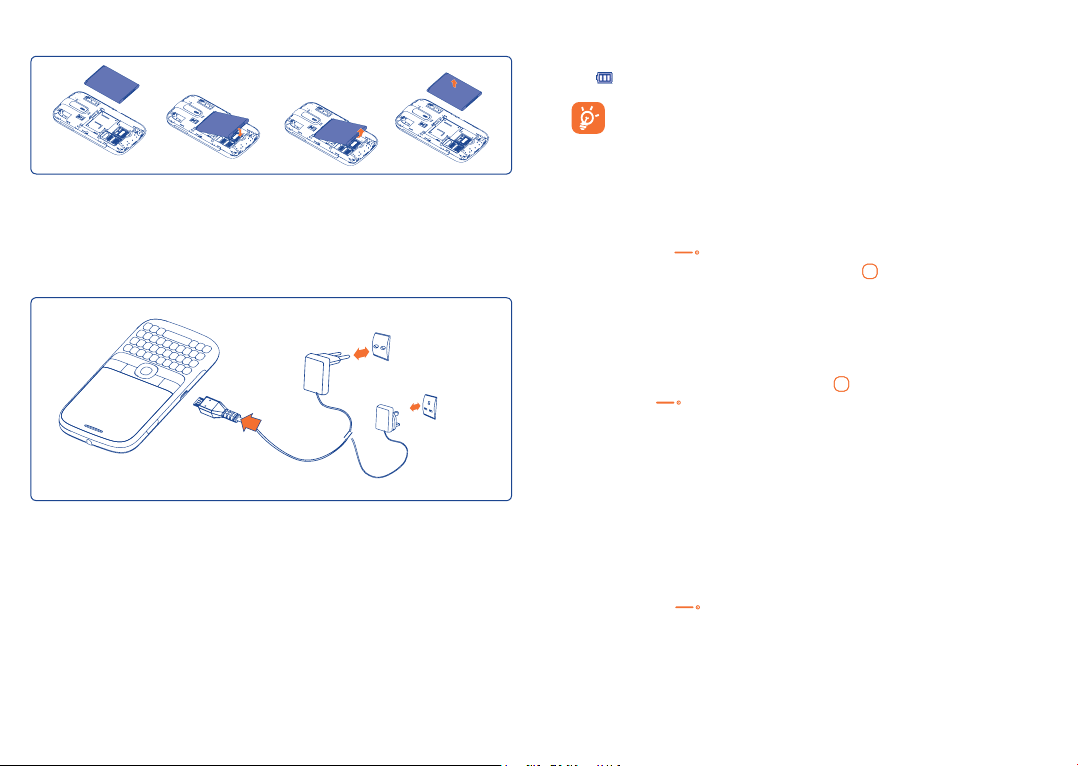
Installing or removing the battery
Insert and click the battery into place, then close the telephone cover.
Unclip the cover, then remove the battery.
Charging the battery
Standard charger
UK charger
Connect the battery charger to your phone and mains socket respectively.
• Charging may take about 20 minutes to start if the battery is flat.
• Be careful not to force the plug into the socket.
• Make sure the battery is correctly inserted before connecting the
charger.
• The mains socket must be near to the phone and easily accessible
(avoid electric extension cables).
• When using your telephone for the first time, charge the battery fully
(approximately 3 hours). You are advised to fully charge the battery
( ).
To reduce power consumption and energy waste, when battery
is fully charged, disconnect your charger from the plug; switch
off Wi-Fi, Bluetooth or background-running applications when
not in use; reduce the backlight time, etc.
1.2 Power on your phone
Hold down the key until the telephone powers on, type in your PIN
code if necessary and then confirm with the key. The Home screen is
displayed.
If you do not know your PIN code or if you have forgotten it, contact
your network operator. Do not leave your PIN code with your telephone.
Store this information in a safe place when not in use.
If Broadcast SMS are displayed, use the
or press the to return to the Home screen.
While the phone is searching for a network, "Searching/Emergency"
will be displayed.
Set up your phone for the first time
The first time you power on the phone, you are required to adjust
initial basic settings and login to your Facebook account to synchronize
Facebook information.
key to browse through them
1.3 Power off your phone
Hold down the key from the Home screen.
15 16
Page 10
Your mobile .........................
2
2.1 Keys and connectors
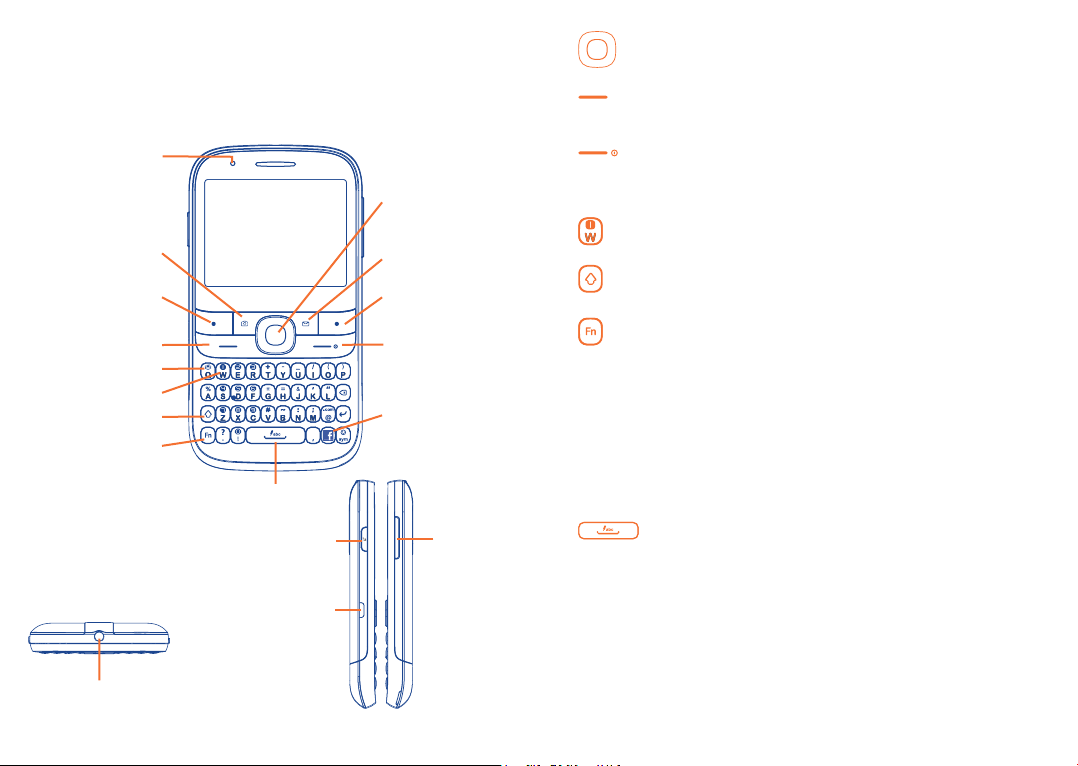
LED light
Navigation key/
OK key
Camera key
Left softkey
Send key
Vibration key
Voicemail key
Caps key
Fn key
Space key
Music key
micro-USB
connector
Message key
Right softkey
End key
Facebook key
Volume key
Press to go left/right/up/down•
Press to confirm an option •
Pick up/Send a call•
Enter Call log•
Press once: End a call •
Return to the Home screen
Press and hold: Power on/off•
Press and hold: Access your voicemail•
Press once: Input a capital letter•
Press twice: Lock the keyboard in capital letter input mode•
Press once: Input a top-half key character•
Press twice: Lock the keyboard in top-half key input mode•
Press and hold: Input top-half characters only until key is •
released
In home screen:•
Fn+B: Access Bluetooth•
Fn+M: Access Music•
Fn+F: Access News Feed•
Fn+J: Access Java applications•
Press once: Enter a space and confirm an option (on edit •
mode)
Press and hold: Access language list (on edit mode)•
Lock the keypad (on Home screen)
Hold down Fn key, then press Space key to switch input •
method
Headset connector
17 18
Page 11

Enter symbol table•
Hold down Fn key, then press sym key to enter emoticon •
table
Confirm an option•
Enter the next line (on edit mode)•
Vibration alert •
2.2 Status bar icons
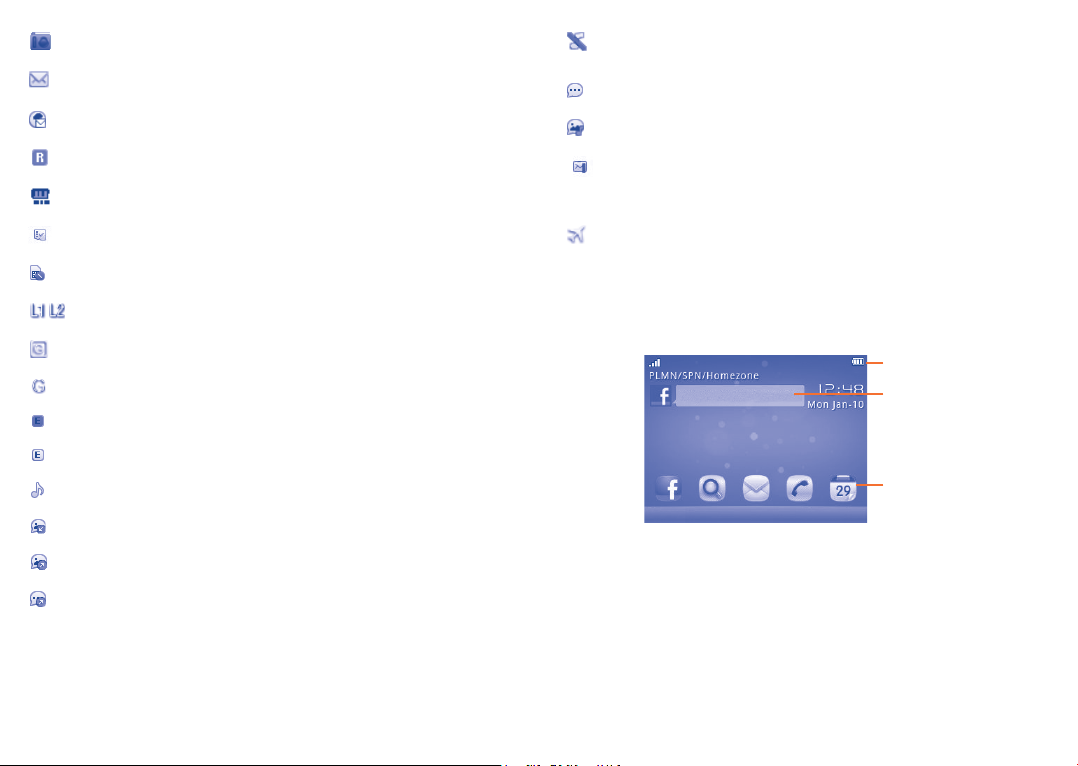
Battery charge level
Vibrate alert: your phone vibrates, but does not ring or
beep with the exception of the alarm (see page 68).
Bluetooth status (Activated).
(1)
Volume up/down•
Scroll up/down (in News Feed or Music playing screen, etc.)•
Bluetooth status (Connected to an audio device).
Java status (Activated).
Headset connected.
Press to enter music function.•
Press to write message•
Press to enter camera•
Press to enter Facebook main menu.•
Call forwarding activated: your calls are forwarded
(see page 45).
Alarm or appointments programmed (see page 77,
80).
Level of network reception.
Voicemail message arrived.
Missed calls.
Call in progress.
Stopwatch is active.
(1)
The icons and illustrations in this guide are provided for informational
purposes only.
19 20
Page 12
Radio is on.
Email unread.
WAP messages
(1)
.
Roaming.
SD card scanning in progress.
SD card scanning completed.
Silence mode: your phone does not ring, beep or vibrate
with the exception of the alarm (see page 68).
SMS unread.
MMS unread.
(Flickering) Message list is full: your phone cannot
accept any new messages. You must access the message list and
delete at least one message on your SIM card.
Flight mode.
SIM card unavailable.
Line switching
(1)
: indicates the selected line.
GPRS connection status (Activated).
GPRS connecting.
EDGE connecting.
EDGE attached.
Music active.
MMS receipt in progress.
Sending a SMS.
Sending a MMS.
(1)
Depending on your network operator.
2.3 Home screen
You can customize your Home screen by selecting "Personalise" through
Right softkey.
Status bar
Facebook
update status
Widget bar
21 22
Page 13

2.3.1 Facebook status update
The Home screen provides quick access for users to update their own
status or view status updates of Facebook friends.
Use the
feelings or ideas.
When finished, press to share them with your Facebook friends.
To login to Facebook using your phone, please refer to page 57.
2.3.2 Widget bar
Widgets are convenient shortcuts for quick access from the Home
screen.
To add/remove a widget, select "Edit widgets" and use
Off, and then confirm by pressing "Save". To reorder widgets, select
"Reorder widgets" and choose one item by pressing key, scroll up
or down to the required position, place it by pressing key, and then
confirm by selecting "Done" with Right softkey.
2.3.3 Change wallpaper
You can select a folder to choose one image as favourite wallpaper by
selecting "Change wallpaper" (see page 71).
key to locate your cursor on the Facebook bar and enter your
key to On/
You aren't allowed to add more than five widgets. Two widgets
cannot be removed: Call log, Messages.
Making a call .........................
3
3.1 Placing a call
Dial the desired number then press the key to place the call. The
number you entered can be saved to Contacts by selecting "Save". If you
make a mistake, you may press Delete key to delete the incorrect digits
one by one, or you may press and hold Delete key to delete all.
To hang up the call, press the
Making an emergency call
If your phone has network coverage, dial emergency number and press
the
key to make an emergency call. This works even without a SIM
card and without typing the PIN code.
3.2 Calling your voicemail
Your voicemail is provided by your network to avoid missing calls. It
works like an answering machine that you can consult at any time. To
access your voicemail, hold down the key.
If the access number for your operator’s voicemail service does not work,
dial the number that you were given. To change this number at a later
date, refer to "My number" (see page 44).
To use your voicemail service from abroad, contact your
network operator before leaving.
key.
(1)
(1)
Contact your network operator to check service availability.
23 24
Page 14

3.3 Receiving a call
When you receive an incoming call, press the key to talk and then
hang up using the key.
icon is displayed, the vibrator is activated and there is no ringtone.
If the
If the icon is displayed, the phone neither rings nor vibrates.
The caller’s number is displayed if it is transmitted by the
network (contact your network operator to check service
availability).
Muting the ringtone
To mute ringtone of current incoming call, press Left softkey/volume
down key once.
Rejecting a call
Press the
reject).
key once, or press Right softkey to reject it by SMS (SMS
• End single call (End the current call)
• DTMF (Enable/Disable sending DTMF during the call)
• Contacts (Enter the Contacts)
• Messages (Enter Message)
• Calendar (Enter Calendar)
• Services (Enter the Service menu)
• Sound recorder (record your current call).
You can use Handsfree function by pressing
during a call.
You may also adjust sound level by using key directly during a call.
Move the handset away from your ear while using the "Handsfree"
option because the amplified volume might cause hearing
damage.
Handling two calls
• Answering a second call (ensure that "Call waiting" is activated, see
page 44).
• To call a second party during a call, you can select "Options\New call".
3.4 During a call
(1)
During a call, following options are available:
• New call (Hold the current call and dial another number)
• Hold single call (Hold the current call)
• Switch audio path (Switch the audio speech from handset to Bluetooth
device)
(1)
Contact your network operator to check service availability.
25 26
Page 15

3.5 Conference calls
Your phone allows you to talk to several people at the same time
(up to five). If you are on a double call, press "Options" and select
"Conference". If a third call comes in, answer it by pressing the key
and speak with your new caller.
This caller becomes a member of the conference if you press "Options"
and select "Conference call". Pressing
call.
3.6 Line switching
Your SIM card can contain two distinct telephone numbers. Under "Call
log\Options\Call settings", choose "Line switching" and then select
a default line; all your outgoing calls will be made from this number.
Incoming calls, however, will continue to use either of the two lines.
The services programmed on the default line do not impact those selected
on the other line.
(1)
disconnects the current
(1)
Menu arrange .......................
4
It is designed to vary according to your preference.
Change the order
Access the main menu, focus on the main menu item you want to move,
select "Options\Move", and tick "√" will be shown on the item you
selected, then release it to your favourite destination.
Show/Hide
Access the main menu, select "Options\Add and remove menu", and
select the left check box of the selected menu once to show/hide, and
then select "Done" to save the operation.
(1)
Contact your network operator to check service availability.
27 28
Page 16
Messages .........................
5
You can create, edit and receive SMS, MMS with this mobile phone.
MMS enables you to send video clips, images, photos, animations and
sounds to other compatible mobiles and e-mail addresses.
The MMS function can only be used if the service is provided
by your operator, and if your contract includes the MMS
option and if all the parameters for MMS have been entered
(see page 32).
5.1 Access
You may access this menu using the following options:
• Access from the main menu by selecting "Messages".
• Select
from widget bar, and then enter the sub-menu you require.
5.2 Conversational On (Off) mode
In conversational on mode, you can view chat history in chronological
order. In conversational off mode, you may have access to the following
folders: Inbox, Outbox, Sent, Drafts, Broadcast SMS, Empty
folder, Templates, Settings. Conversational view mode is set as
default. You may switch to conventional mode by selecting "Options\
Settings\Conversational mode\On (Off)". The following instructions
are based on conversational mode.
5.3 Write message
You can select "Messages\Write message" from the main menu or
press from the keypad directly to write text/multimedia message. One
or more recipients can be added from contact list and you can remove
a recipient by pressing Delete key. Press "Contacts" through key to
multi-select recipients from Contacts.
An SMS will be converted to MMS automatically when images, videos,
audio, slides or attachments are inserted; Subject, CC/BCC/email address
is added; or the message contains more than 8 pages of text.
Timer send
Schedule an SMS/MMS to be sent out at predefined time (“Options\
Timer send”).
An SMS message of more than a certain number of characters
(the number of characters depends on your language) will be
charged as several SMS. An MMS message containing photos
and/or sounds may also be billed as more than one message.
Specific letters (accent) will increase the size of the SMS, this
may cause multiple SMS to be sent to your recipient.
5.4 Available options
5.4.1 Alerts
Setting messages
The storage of provisioning messages.
29 30
Page 17

Broadcast SMS
Store the received Broadcast SMS.
WAP messages
Store WAP push messages.
5.4.2 Delete
To delete a thread (containing all chat history), select "Options\Delete",
and then confirm with
key.
5.4.3 Switch view mode
You can switch message view mode between conversational on and off
modes.
5.4.4 Memory status
Memory used on the phone.
5.4.5 Settings
Conversational mode
This option enables you to switch on/off conversational message view
mode.
Text messages
Profile settings • Profiles can be retrieved directly from SIM card.
Alternatively, you can create your own profile.
Common
settings
• Delivery report, request for acknowledgement of
delivery report On/Off. Reply path
(1)
: show reply
path.
Alphabet
management
SMS memory
• Enables the definition of SMS data coding for
management SMS sending.
• Memory used on SIM or phone.
status
Preferred storage • Select default message storage, SIM or phone.
Preferred bearer • Bearer preference.
(1)
Depending on your network operator.
31 32
Page 18

Multimedia messages
Edit • Set slide timing, edit mode, image size signature,
etc.
Outgoing MMS • Set the values for validity period, Read report,
etc.
Incoming MMS • Set the values for Home network, Roaming
network, etc.
Profile • Follow the same procedure as for setting your
WAP connection.
MMS memory
status
Broadcast SMS
Receiving mode • Enable to receive Broadcast SMS.
Languages • Language selection.
Channel settings • Select/Add/Edit/Delete channels.
• Memory used on the phone.
(1)
Email ..............................
6
Your phone has an email client with the settings pre-defined for a few
popular email services like – Gmail, Yahoo, AOL, etc. Besides this, you can
set up other POP3 or IMAP4 email accounts that you may be using.
6.1 Access
Press "Menu" through Left softkey from the Home screen to enter the
main menu, and then select "Email".
6.2 Email account set-up
Pre-defined email service
If you own an email account of predefined services, you can install it to
your phone by selecting the service (GoogleMail, Yahoo, etc.), entering
the username, password and display name, and then confirming with
"Save".
New email service
To set up a new email account other than the predefined email services,
select "Other Email accounts".
(1)
Depending on your network operator.
33 34
Page 19

You are required to enter your email address, display name, password,
account name, then confirm with "Save". After you‘ll need to select
protocol
and outgoing server address, select "Save".
(1)
(POP3 or IMAP4), then enter your incoming server address
6.3 Write email
Select "Email\Options\Write email" to enter write email interface.
You can add recipient by entering Email address from enter bar, or
selecting contact from Contacts.
6.4 Inbox
Folder of all received Emails.
6.5 Outbox
Folder of all unsent Emails.
6.6 Sent
Folder of all sent Emails.
6.7 Drafts
Folder of all draft Emails.
6.8 Available options
Select Select to enter the menu.
Send and receive To connect the email server in order to receive/
send mails.
Send and receive To connect all email accounts’ server in order to
all accounts receive/send mails.
Write email To create a new email.
Edit account To edit the detailed configuration information of
the selected account.
Delete account To delete the current selected account.
New account To create a new email account.
Empty folder Delete all emails in "Inbox/Outbox/Sent/Drafts".
Pull interval To check for new emails at a pre-set interval.
Empty all folders Delete all emails in all folders.
Signature To attach your signature when sending emails.
Delete marked To delete marked emails.
(1)
Consult your email service provider for more information about protocol.
35 36
Page 20

Contacts ........................
7
7.1 Consulting your contacts
You can access to this function from the main menu by selecting
"Contacts".
All Contacts stored both in phone and SIM card
Phone Contacts stored in phone
SIM Contacts stored in SIM card
Your favourite contacts are at the top of the entire contact list in your
phone contacts.
Favourite
For the first time consulting your contacts, your are required to
import contact from SIM card to your phone.
Contacts with the
friends.
Searching for a contact
You can search for a contact by inputting the initial of their name.
Subsequent letters may be added to refine the search.
icon are your merged contacts from facebook
Viewing a contact
Select a name from your contacts to read the contact information.
Making the call
Press the
associated with the name to be called, you must first choose the number
from the list (Mobile, Home, Work, etc.), and then press the key to
make the call.
key once the name is selected. If several numbers are
7.2 Adding a contact
You can add a new contact to phone or SIM card by selecting "Options\
Create contact".
Following fields are accessible when you create a new contact in the
Contacts: First name, Last name, Image, Mobile, Home, Work, Email,
Birthday, Birthday reminder, Address, Group, Ringtone, URL.
You can move from one field to another using the
Adding birthday reminder
You can set a birthday reminder when editing contact information. This
will remind you at regular intervals during the day prior to the set date.
If you use your phone abroad, store the numbers in your
Contacts in international format "+" followed by the country
code.
key.
37 38
Page 21

7.3 Available options
From the contact list, you can access the following options:
Send message Send an SMS/MMS to a contact you selected from the
Contacts.
Create contact Add a contact (name, numbers, address, e-mail, etc.)
in the Contacts.
Send Email Send an email to contacts you selected from
Contacts.
Edit Modify the contents of a file: name, number, ringtone,
image, etc.
Delete Delete the selected contact.
Link to
Facebook
Edit before call Edit the phone number before placing a call.
Delete more Delete marked contacts in the current Contacts.
Copy more
Send vCard Exchange data via SMS, MMS, Email, Bluetooth.
Set as favourite/
Remove from
favourites
Group You can view, send messages or e-mails to the group
Call Call person you select.
Link the contact with your Facebook friends.
Copy the whole contacts to the SIM or phone only if
there is sufficient memory.
Set the contacts as your favourite or not, whose
ringtone you would like to be different.
you select or you can create, delete groups as you
want.
Settings • Preferred
storage
• My number Type in, modify or send the
• Memory status View used and available space
• Synchronization Launch synchronization with the
• Hide favourites/
Show favourites
Select the default storage
location for messages.
user’s own number by SMS,
MMS, Email, Bluetooth.
in SIM, Phone contacts, and
Facebook.
account you set.
Hide or show your favourites
contacts at the top of entire
contact list in your phone
contacts.
39 40
Page 22

Call log ...........................
8
8.1 Access
You can access the function using the following options:
• Select
• Press
• Select
from main menu
key from Home screen
from widget bar, and then enter the sub-menu you require.
Missed calls
Outgoing calls (Redial)
Answered calls/Rejected calls
8.2 Available options
When you press "Options", you can have access to Send message,
Dial, Missed calls, Call settings, Edit before call, Delete, etc.
8.2.1 Call settings
You can access a number of items with this option:
(1)
My number
Type in or modify your telephone number or the number to access
your voicemail and confirm. Your telephone number is usually written
on your SIM card.
Call duration & data counter
You can access different items with this option:
Last call cost/
Total cost/Max
cost/Reset cost/
Price per unit
Duration • You can view the total duration of all outgoing calls or
GPRS counter • Management of data usage volume (in kilobytes).
Beep duration • You can activate or cancel the beep emitted during
• You can view the last, max or cost of charged calls,
modify it or reset it and enter the cost of a call in the
currency of your choice.
reset it.
a call with a specified frequency (enter the frequency
and confirm by pressing
(2)
key).
Call waiting
Activate/deactivate the notification of a second incoming call by a beep.
(1)
Contact your network operator to check service availability.
(2)
Depending on your network operator.
41 42
Page 23

Call forwarding
You can activate, cancel or verify the status of the call forwarding to
the voicemail or to a specified number. The following configurations are
possible:
• Unconditional: systematic forwarding of all your calls. The
displayed.
icon is
• Conditional: if your line is busy, if you don’t answer or if you are outside
the network range.
Call barring
You can activate or deactivate the call barring for outgoing and incoming
calls. The various options are:
Outgoing calls The following configurations are possible:
All calls• All outgoing calls are barred.
International •
calls
International •
except home
Outgoing international calls
are barred.
Outgoing international calls
except those to your country
of subscription are barred.
Incoming calls The following configurations are possible:
All calls• All incoming calls are barred.
Roaming• Incoming calls are barred
when you are abroad.
Cancel all barring Deactivate all call barring.
Change barring
Password
Change the original Password for activating call
barring.
Caller ID
Activate/deactivate CLIR.
Line switching
(1)
Line switch between line 1 and line 2.
Auto redial
You can activate or deactivate the automatic callback of your party for calls
that do not get through the first time.
Text phone
Activate/Deactivate TTY mode.
(1)
Depending on your SIM card.
43 44
Page 24
Media applications ...............
9
9.1 Music ...............................................................
You can access this feature from the main menu by selecting "Music" or
directly press left music key.
You will have full flexibility of managing music both on your mobile and
SD card.
You can have access to your music files through one of the following:
All songs Contains all songs both on phone and SD card.
Favourites
Folders Category of songs in folder.
Album/Artist/ Music files are categorized by Album, Artist or
Genre Genre based on information stored in the tags.
Update songs Update the information of songs saved in phone or
You can simply add your favourite songs to "Music
library" by holding down during playing music (max
100).
Those missing such information will be classified as
"Others".
SD card.
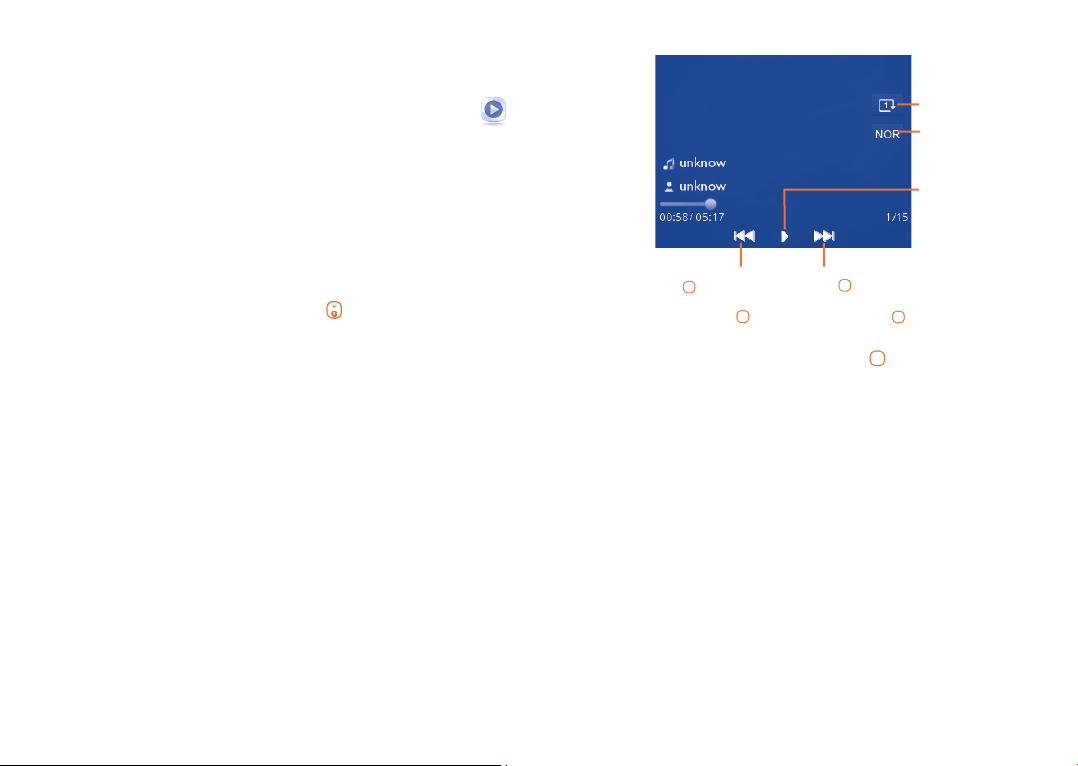
9.1.1 Music playing mode
Play mode
Equalizer
Play/pause
- Previous song
(press key)
- Backward
(press and hold
To adjust the volume, use the Volume key or key.
Press and hold the volume key to switch between songs when the
background is in idle mode.
9.1.2 Settings
Access by pressing the Left softkey for following options:
Play mode Enable you to switch among Normal, Repeat,
Repeat all, Shuffle and Repeat shuffle.
Equalizer Different music styles preset in the phone.
Display Enable your player to display spectrum, song
information or lyric.
Bluetooth
settings
You can set BT stereo output and BT stereo
headset.
key)
- Next song
(press key)
- Forward
(press and hold
key)
45 46
Page 25

9.1.3 Playing with lyrics
Lyrics can be displayed in synchronization with the music.
9.2 Image .............................................................
A library links to the images in "My creations" in phone and SD card to
be shown in list, slide, set as wallpaper, power on/off display and incoming
call image or sent by MMS, Email, Bluetooth, or send to Facebook.
Press a image once to view it in full screen.
9.4 Radio ..............................................................
Your phone is equipped with a radio
(1)
with RDS
can use the application as a traditional radio with saved channels or with
parallel visual information related to the radio program on the display, if
you tune to stations that offer Visual Radio service. You can listen to it
while running other applications.
To use it, you must plug in your headset, which works as an
antenna connected with your phone.
(2)
functionality. You
9.3 Video ..............................................................
Contains all video clips both in phone and SD card and enables you to play,
send, set as power on/off display, delete, rename, sort, etc.
Streaming URL
This feature enables the user to start watching video almost as soon as it
begins downloading from internet.
Useful icons/keys:
/
/ /
/
/
Switch between Normal screen and Full screen
display.
Set as play/pause/resume
Set the volume level
Press key: Previous/next video
Press and hold key: Backward/forward
Back to previous menu or exit
47 48
Available options:
Channel list Open the list of saved stations.
Save channel Save the current tuned station to the "Channel
list".
Auto search Start auto search and stations will be automatically
saved to "Channel list".
Enter Enter the frequency manually.
frequency
Record Record the radio: files will be automatically saved to
"Voice memo".
Settings Use
key to manage settings.
Turn off Stop playing the radio.
Activate Listen to the radio using loudspeaker or headset.
loudspeaker/
Play in headset
Optimize radio Optimize the audio quality.
frequency
Activate mono Switch between mono and stereo mode.
mode/stereo
mode
(1)
The quality of the radio depends on the coverage of the radio station in that
particular area.
(2)
Depending on your network operator and market.
Page 26

(1)
...........................
10
Internet
10.1 WEB ...............................................................
WEB not only gives you the full Web experience where you stay in touch
with your friends, obtain information, do your online banking etc., but also
saves time by using compressed web pages.
10.2 WAP ..............................................................
10.2.1 Homepage
Launch the WAP browser with the preset homepage.
10.2.2 Bookmarks
Access your favourite sites.
10.2.3 Go to URL
Enter the URL of WAP site.
10.2.4 Open file
Open web pages stored on your phone.
10.2.5 Last web address
Last visited URL.
10.2.6 Recent pages
Pages which you recently browsed.
10.2.7 Offline pages
Pages available for offline viewing.
10.2.8 Service inbox
Store WAP push messages.
10.2.9 Settings
Customise your browser preferences.
10.3 News ..............................................................
It is a huge time saver providing news updates from a website in a simple
form.
Once subscribed to a channel, it gives you the ability to track and
manage all your favourite RSS content on your mobile phone at anytime,
anywhere!
Available options:
Update Refresh the content of a channel.
Create channel Create a new channel with name and URL.
Delete Delete the channel.
Edit Edit the name or URL of a channel.
Update all Refresh all channels.
(1)
Depending on your network operator. May cause additional network charges
for data flow to provide this service. Extra fees might also be charged in
roaming states.
49 50
Page 27

Settings Select a regular interval to retrieve updates
Enable/Disable all
auto-update
Send Share a channel with your friend by sending it by
automatically, set to show images or not, as well
as a WAP account to connect to.
Activate auto-update or not to all channels.
SMS, MMS or Email.
Available options:
More information Search more weather information online.
Forecast Display 3-day weather forecast.
Update Refresh weather information.
My cities List all my cities, you can add new city, set default city,
delete the selected city, etc. via "My cities\Options".
Settings Set unit, update mode and network.
10.4 Weather ........................................................
Your phone is equipped with a weather function for consulting up to 3-day
forecasts of favourite cities.
To access the function, you can press "Menu" through Left softkey to
access the main menu and select the .
Select "AccuWeather.com" to access online website, which may
charge extra fee.
51 52
10.5 mTweet ........................................................
Twitter is a social networking and microblogging service that has gained
notability and popularity worldwide. This feature enables phone users
to exchange news updates and ideas with a community in the form of
messages or posts. Posts are displayed on the author's profile page and
delivered to the author's subscribers or followers.
To open an account online, please go to: http://m.twitter.com
Page 28
11
Apps store is an online software store, where you can download and install
applications and games to your phone.
You can access this function by selecting "Apps" from the main menu.
Apps ..............................
11.1 Locate the item you want to download
The Apps store home page offers several ways to find applications. It
showcases different kinds of applications in Featured and Categories.
Featured: This shows pictures of recommended applications. You can
select one to view its details.
Categories: This arranges applications under Feature, New, App and Game
headings. Select a category to choose the application you require.
Also, you can press the Search tab, enter the name of an application, and
then press Go to find the result.
11.2 Download, install and manage applications
• Navigate to the item you want to download and select it to enter the
details screen from which you can read its overall rating or comments,
view developer’s information, etc.
• To download an application, you can press Options\Download or
press Download from the application details screen.
• You can check the status of any application that is currently being
downloaded using the Download tab. This enables you to delete, pause
or resume downloading.
• When downloading has finished, you can manage your application using
the Manager tab. You can select an application, and then press Options\
Run to install it or Options\Delete to delete it.
Be particularly cautious with applications that can access many
functions or a significant amount of your data. You are responsible
for the results of using this item on your phone.
11.3 Update and settings
In the Apps store home page, you can press Options\Update to check
for and install any updates for your applications. You can also press
Options\Setting to automatically check for updates at either weekly or
monthly intervals.
53 54
Page 29

12
Facebook is a social utility that connects people with friends and others
who work, study and live around them. It provides a number of features
with which users may interact: Wall, a space on every user's profile page
that allows friends to post messages for the user to see; Pokes, which
allow users to send a virtual "poke" to each other, etc.
To get a Facebook account, please visit http://m.facebook.com.
You can access this menu from the main menu by selecting "Facebook".
You can also press
Before accessing Facebook page, you must log in by selecting "Facebook
update status" bar in home screen, then input your facebook account
and password.
Facebook .......................
key on the keypad to enter the Facebook page.
12.1 News Feed ...................................................
To access this feature, select "Facebook\News Feed" from the main
menu screen.
This menu enables users to view a constantly updated list of their
Facebook friends’ activity, profile changes, upcoming events, birthdays,
conversations taking place between the walls of their friends, etc.
This menu displays the following tabs when accessed:
News Feed Displays latest news or status update of your
Favourites Displays the News Feeds of all friends selected
Facebook friends.
as favourite contacts.
12.2 Me ..................................................................
To access this feature, select "Facebook\Me" from the main menu
screen.
This menu displays the following tabs when accessed:
Info Displays your Facebook profile information.
Wall Displays your status and all messages posted
Groups Displays group information.
Likes and interests Displays all pages that you like or find interesting.
from your Facebook friends.
12.3 Messages .......................................................
From this menu, you can exchange messages with your Facebook
friends.
Select "Write new Facebook message" to enter the message editing
screen, enter your friend's name or select one or more friends from your
friends list by pressing the
finished, press the
Press "View" using the
Facebook friends you selected.
Available options:
View recipients View recipients' profiles if there are two or
Delete Delete the current conversation thread.
Delete all Delete all threads.
Refresh Data refresh.
key, then enter your message text. When
key to send it.
key to view all the message threads of the
more recipients.
55 56
Page 30

12.4 Friends ..........................................................
You can access this function from the main menu screen by selecting
"Friends".
When accessing this menu, you will see a list of all contacts.
Available options:
Set as favourite/
Remove from
favourites
Link to local
contact
Copy to phone Copy the selected contact.
Select (or deselect) a contact as a favourite.
Link a Facebook contact with your local contact.
12.5 Photos ...........................................................
This menu displays photos downloaded from Facebook.
Select "Create new album" to enter a caption and description, then
press
key to finish creating the album.
Your Facebook gallery is displayed in albums. The first album will be "Fan
photos" which is generated automatically and contains all photos where
you have been tagged.
12.6 Search ...........................................................
To access this feature, select "Facebook\Search" from the main menu
screen.
This menu enables users to search for a friend they want to connect with,
or locate a page they want to view, etc.
12.7 Notice ...........................................................
To access this feature, select "Facebook\Notice" from the main menu
screen.
This menu displays all notifications from your Facebook friends.
12.8 Events ............................................................
To access this feature, select "Facebook\Events" from the main menu
screen.
This menu displays the list of all events and the list of birthdays of all
Facebook friends.
57 58
Page 31

13
Using Wi-Fi, you can connect to the Internet when your phone is within
range of a wireless network. Wi-Fi can be used on phone even when no
SIM card is inserted.
To access this function, press "Menu" to enter the main menu, and select
To connect and disconnect to a wireless network
To connect a Wi-Fi network, select one of the following two ways:
• Press "Connect"
• Select "Options\Connect"
If the network you selected is secured, you are required to enter a
password or other credentials (contact network operator for details).
When finished, select "Options\Done".
To disconnect a Wi-Fi network, select "Options\Disconnect" .
Available options:
Add Press to add new Wi-Fi networks of your choice
Refresh Press to refresh all the available Wi-Fi networks
Edit Press to edit the network
Delete Press to delete the network
Change priority Press to set the priority of networks
Wi-Fi status Press to check the status of Wireless Local Area
Disable Wi-Fi Press to deactivate Wireless Local Area
Define access point Press to define access point
Wi-Fi ..............................
.
when Wi-Fi is on
Networks
Networks
14
Entertainment ...................
14.1 Stopwatch ........................................................
The stopwatch is a simple application for measuring time with the
possibility to register several results and suspend/resume measurement.
14.2 Ebook ............................................................
A bookshelf contains the electronic books (.txt and .pdb file only). While
reading the book, you may add bookmark, or reach the text by searching
words, phrases (Options\Find, Options\Jump to).
Available options:
Book information Display the detailed information (title, size and
Delete Delete the current book.
Mark Mark books for further options.
Sort Sort the books by name, type, time or size.
Global settings Set the font, scroll mode, display format, etc.
Apply global settings Select to apply global settings.
Help List all hotkeys.
To avoid character corruption, please ensure that the encoding
format is correct (Global settings or Settings\Encoding
format).
format) about the book.
59 60
Page 32

14.3 Java ................................................................
14.3.1 Launch an application
Select "Java applications" to launch applications.
14.3.2 Download application
Download Java applications from ALCATEL ONE TOUCH website.
14.3.3 Java settings
The "Java" menu allows you to manage Java settings, in which you may
set Java audio, vibration, network and identify how much Heap size is
available.
14.3.4 Java networks
Select a network.
14.3.5 Trusted certificates
View detailed information of the trusted certificates supported by your
phone.
Disclaimer
Downloading or running applications will not damage or alter any software
already in your mobile telephone designed to support Java™ technology.
TCT Mobile Limited and its affiliates waive any responsibility and refuse
to guarantee applications that are subsequently used, as well as for all
applications not embedded in the handset upon purchase.
The purchaser alone bears the risk of loss, damage or defect of the
handset, or of applications/software, and generally of any damage or
consequence resulting from the use of the said applications/software.
In the event that the said applications/software, or the subsequent
setup of any function are lost due to technical reasons resulting from
the handset being replaced/repaired, the mobile phone owner should
repeat the operation and download or set up again. TCT Mobile Limited
and its affiliates grant no guarantee and disclaim any responsibility if the
operation cannot be repeated or cannot be performed without incurring
some cost.
61 62
Page 33

15
Your mobile phone is fitted with a camera for taking photos and shooting
videos that you can use in different ways:
• store them in your "File manager\My creations".
• send them in a multimedia message (MMS) to a mobile phone or an
• send them directly by MMS, Email, Bluetooth or send to Facebook.
• customise your Home screen (see page 81).
• select them as incoming call image to a contact in your Contacts.
• transfer them by data cable or microSD card to your computer.
Camera .........................
email address.
15.1 Access
Select from the main menu to access this function or directly press
from the keypad.
15.2 Camera
15.2.1 Take a photo, save or delete
The screen acts as the viewfinder. Position the object or landscape in
the viewfinder and press
automatically saved. If you don’t want it, you may directly delete it.
to take the image and the images will be
15.2.2 Settings in framing mode
Before taking the photo, you can adjust a number of settings:
From the photo shot screen, press
Night mode, Brightness, Image size, Camera sound, Video.
Image size
Camera sound
Switch to video
Night mode
Brightness
15.2.3 Options available after taking the photo
When you have taken a photo, pressing
options:
Send by Email
Send by Bluetooth
Access My creations folder
Upload to Facebook
Send by MMS
When uploading a picture to Facebook, you are required to edit the
caption and tag friends, and to select a Facebook album to store the
pictures.
through Left softkey to access:
, you will see the following
63 64
Page 34

15.3 Video
You can record a video clip of unlimited length, as long as the battery
sustains and there is sufficient memory.
15.3.1 Framing mode
When you enter the "Video" function, you are in Framing mode. Use
the mobile screen as a viewfinder and press
access: Night mode, Brightness, switch to camera, and Record
audio.
15.3.2 Recording mode
Once you have chosen your settings, you can launch the recording of your
video-clip by pressing the key.
If you receive a call in recording mode, video recording will be
stopped and a pop up message will inquire if you want to save it.
15.3.3 Further operations after shooting a video
After shooting a video, you can choose to send your video by Email, MMS,
Bluetooth or go to "My videos" to view it.
In the list of "My videos", press "Options" to rename the video, set as
power on/off screen, etc.
through left softkey to
16
With this menu, you may personalise ringtones for different events and
environments.
Profiles ..........................
16.1 General
To modify the sound settings, press "Edit" and you will see the functions
below using key:
Ringtone Select a melody from the list by scolling up/down.
Mode You may set your phone ringtone to Normal, Discreet
Volume Adjust the volume by
Message beep Select a melody for a new incoming message.
Power on beep Select a Power on melody for your phone.
Power off beep Select a Power off melody for your phone.
Facebook tone Select a Facebook tone.
(ring with beep), Vibration (all sounds are replaced by
vibrations except for alarms), Vibration and Melody,
Vibration then Melody, Beep and vibration, Silence
(no sounds except for alarms, the icon
displayed).
key.
will be
65 66
Page 35

16.2 Meeting
When this is selected the phone will not ring or beep unless an alarm has
been set. A new event will cause it to vibrate.
16.3 Outdoor
It is a profile designed for outdoor users who require louder ringtones.
16.4 Indoor
Ringtone/beep volume will be slightly lower than General mode volume.
16.5 Silent
This profile will turn off all ringtones, even notification sounds.
16.6 Flight mode
Voice calls, Bluetooth and Messages functions are barred. It can be used
to increase standby duration.
17
You will have access to all audio and visual files stored in phone or SD
card in File manager.
Two icons behind will indicate the saving locations of each file:
File manager ................
Saved in phone
Saved in SD card
17.1 My audios
Choose an audio for an incoming call ringtone, a message alert beep,
power on/off ringtone, etc.
The "My audios" album contains the following folders
• Music: full track music.
• Melodies: melodies that can be set as ringtone.
• Recorded: all recorded sounds.
• General: contains all audio files stored in phone or SD card.
DRM: Digital Rights Management feature allows sounds and
images to be played while protecting the associated copyright.
DRM counter-based files and files with expired rights will not be
automatically played when scrolling the list.
(1)
:
(1)
The embedded folder names cannot be modified. However, in certain cases,
you can modify, delete and add items included in these folders.
67 68
Page 36
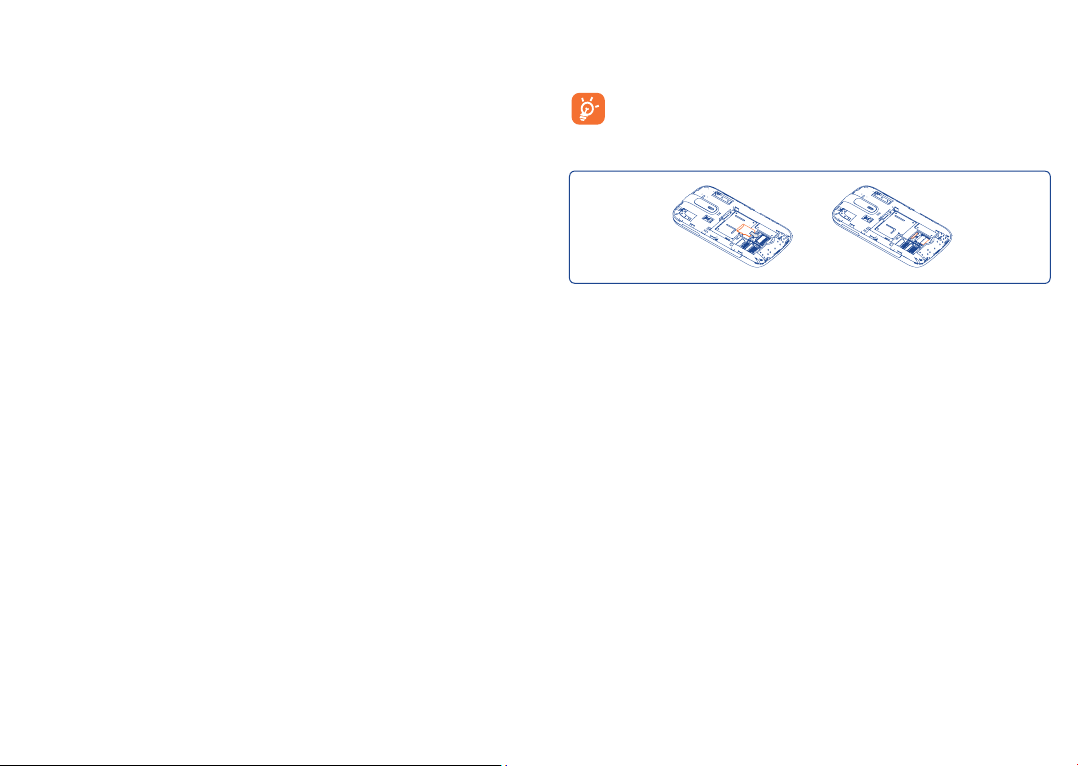
17.2 My images
You can select an image or a photo as wallpaper, power on/off screen, or
assign it as incoming call image.
17.3 My videos
"My videos" album contains video clips recorded, received or
downloaded.
17.4 Ebook
A bookshelf containing the electronic books (.txt and .pdb files only).
17.8 SD card
You can access all files stored in the SD card here.
When a SD card is inserted for the first time, it will be scanned
and the default folders will be created.
Inserting the SD card:
17.5 My creations
This feature stores all the photos captured by your mobile phone.
17.6 Others
Store files of random format.
17.7 Phone
An entry to access all files in all folders stored in phone.
69 70
To release the microSD card holder, slide it in the direction of the
arrow and lift it. Then insert the microSD card with the golden contact
downward. Finally, turn down the microSD holder and slide it in the
opposite direction to lock it.
Available options
Create folder Create more folders.
Delete folder Remove folders.
Rename folder Edit folder’s name.
Empty folder Delete all files in one folder.
SD card To format or to query its memory status.
Page 37

17.9 Managing audios, images, videos and others
According to the item chosen, you can access some of the functions
below:
(1)
Send
Send the audio/image/video/Java.
Delete Delete the audio/image/video selected (not applicable for
Set as • Image
• SoundÆringtone, message beep, power on/off, assign it to
• Video
Mark/ Mark/Unmark a tick on a file for further operation. Press
Unmark Left softkey on Mark menu to mark all diretly.
Download Download new items.
Rename Rename the audio/image/video.
Sort Sort the files by name, type, time and size.
Move to Move a file from the phone memory to the SD card
phone/ and vice-versa.
SD card
Properties Display part of the ID3 Tag content of an MP3 file.
Activate DRM file option.
Copy to Copy a file to the phone memory or the SD card.
phone/
SD card
Picture Show pictures in list, slide, view.
show
Delete all Delete all the files except the embedded ones.
embedded items).
Æwallpaper, power on/off, assign it to a contact.
a contact.
Æpower on/off.
17.10 Formats and compatibility
(1)
• Sounds: mp3, m4a, aac, midi, wav, amr, wma
• Images: jpg, gif, wbmp, bmp
• Videos: 3gp, H.263, MPEG4 (may vary on specific product)
17.11 Memory status
Indicates how much space is used and how much is currently free on your
phone and SD card (if any).
17.11.1 Phone
View available memory space.
Your phone’s memory is shared among several functions: contacts,
calendar, messages, images, melodies, games and video clips.
17.11.2 microSD card
View the memory available on your microSD card.
You are advised to save large files (like songs) on your microSD card.
(1)
Files marked with cannot be sent.
(1)
Depending on product and market.
71 72
Page 38
(1)
18
Access this feature by pressing "Menu" through Left softkey from the
Home screen to enter the main menu, then selecting "Bluetooth".
To use your phone with a Bluetooth device, you need to proceed in two
steps:
• Pair and register the device to your phone,
• Select it to use hands-free communication. Only one Bluetooth audio
Pair and register your Bluetooth device
Activate the Bluetooth feature by selecting the "Bluetooth\Activation\
On" option. Then enter the "Device list" menu to search for
connectable Bluetooth devices. From the list, select the device you want
to pair directly. If the bluetooth device has no keyboard, enter its default
password to register it with your phone. If the Bluetooth device has
keyboard/keypad, enter the same set of password on both handset and
the device to get it registered.
Press the "Options" to search, show service, delete and rename from
the connected list.
Bluetooth™
device (your Bluetooth headset or your Bluetooth car kit) can be
connected during the communication.
Don’t forget to turn on your Bluetooth device and activate the
pairing mode while pairing it with your phone.
..............
Visibility
Select whether you want to hide or show to all.
My phone's name
You may change your phone name,which is visible to the others.
Available functions
Data transmit Exchange files with another Bluetooth device.
Handle a call Initiate or receive a phone call with a Bluetooth
Listen to music Support A2DP profile.
Dialup networking
profile
Always activate Bluetooth in your phone first before connecting
it to a Bluetooth device. Be aware that Bluetooth activation will
slightly affect battery life of your phone.
Bluetooth technology allows free wireless connections between all
Bluetooth-compliant devices within short range. Please make sure that the
Bluetooth headset or the Bluetooth car kit and your mobile phone are in
this range and set as visible.
headset.
Network connection can be activated via
bluetooth.
(1)
You are recommended to use ALCATEL ONE TOUCH Bluetooth headsets,
which have been tested and proved compatible with phone. You can go
to www.alcatelonetouch.com for more information about ALCATEL ONE
TOUCH Bluetooth headset.
73 74
Page 39

19
Others ..................................
19.1 Calendar .......................................................
Once you enter this menu from the main menu, there is a monthly-view
calendar for you to keep track of important meetings, appointments, etc.
Days with events entered will be marked in color.
Available options:
Today's
appointments
All appointments See all the created appointments.
Jump to date Input the required date and it will be immediately
Go to today Focus on today's date.
Create Create an appointment.
Synchronization Synchronize with the account you've set.
Settings Set the first day of the week and the first week
See today’s appointments.
highlighted.
of the year.
19.2 Calculator ....................................................
Access this feature by selecting "Calculator" from the main menu.
Enter a number, select the type of operation to be performed using the
navigation keys, and enter the second number, then select "=" to display
the result.
Once an operation is complete, you can select "Clear" to clear numbers
and carry out a new operation.
To return to the main menu, select "Back".
To return to the Home screen, press the
key.
19.3 Notes .............................................................
You can create a note in text format by accessing "Notes" from the
main menu.
Available options:
Send
Create text note Add new text note.
Delete Delete note.
Rename Rename the note.
Delete all Delete all notes.
Send by Email, Bluetooth, SMS and MMS.
75 76
Page 40

19.4 Memo ............................................................
Accessing "Memo" from the main menu allows you to make voice or
sound recordings.
Available options:
List
To show a list of your recordings.
Settings To set your preferred Storage, File format and
Audio quality options.
Send Send by MMS, Email or Bluetooth.
Rename Rename a recorded file.
Delete Delete the selected voice/sound recording.
Delete all Delete all sound recordings.
Edit reminder Edit the time, mode, and melody of a reminder.
Set reminder on Set the reminder.
19.5 Tasks ..............................................................
Enables you to easily manage and track the progress of a task with
priorities. All the tasks will be sorted by due date.
Available options:
View View current task
Create Add new task
Delete Delete the current task
Mark as done/Mark
as not done
Change task’s status
19.6 Alarm ............................................................
Your mobile phone has a built-in alarm clock with a snooze feature. You
can set up to five separate alarms and choose whether or not the alarm
should repeat.
Repeat You may select Once (default)/Every day/Days or
Customize to your desire.
Snooze The alarm will repeat at regular intervals.
Mode You may select the mode of Ringtone: Ring, Vibration only,
You may choose one melody as the alarm ringtone.
Melody
(1)
Radio
or Vibration and Ring.
19.7 Clock ...............................................................
The World clock shows current local time and the time zone in different
cities. You may view up to 3 cities at one time.
19.8 Converter ......................................................
You can use the Weight and Length conversion by selecting the unit
you wish to convert, then press to input the digits. Finally confirm with
"OK".
(1)
In Radio mode, you are required to plug in headset first. Your phone will
power on automatically before Radio is on.
77 78
Page 41

20
From the main menu, select the menu icon and select the function of
your choice in order to customise your telephone.
Settings ................................
20.1 Phone settings
20.1.1 Time and date
Allows you to have settings of date and time, including 12/24h format.
You can also set the daylight saving adjustment.
20.1.2 Display
Wallpaper
The wallpaper is displayed when you switch on your telephone.
By selecting "Wallpaper" you can customise it by replacing the default
image or animation displayed on your telephone.
Power On/Off
You can customise your welcome animation or image that appears when
you switch on your phone.
You can also customise your OFF screen with an image or animation.
Brightness
You may adjust black level with respect to LED display by using key.
(1)
Backlight
• Screen Allows you to reduce brightness for enhanced battery performance
• Keypad You may customise your keypad light by selecting On/Off or
20.1.3 Languages
Display language for messages. The "Automatic" option selects the
language according to the home network (if available).
20.1.4 Headset mode
Switch audio play (incoming call, message beep, alarm beep...) between
Headset only and Phone and headset.
20.1.5 Keypad shortcuts
Speed dial
These keys have predefined functions, which vary from one model to
another. You can customise them, assigning functions, numbers from your
contacts, or a selected URL to each key.
Combined Fn keys
By pressing Fn key and other keys, you can access some function
accordingly. Followings are default combinations:
Fn + B: Access Bluetooth
Fn + M: Access Music
Fn + F: Access News Feed
Fn + J: Access Java applications
and to save power during periods of expected inactivity.
inputting your preferred duration directly.
(1)
(1)
Depending on the model.
(1)
Contact your network operator to check service availability.
79 80
Page 42

Softkeys, Navigation key
These keys have predefined functions, which vary from one model to
another (operator services, games access, or Games & Applications...)You
can customise
(1)
them, assigning the functions, numbers from contacts and
URL you wish to each key.
20.1.6 Input method
(2)
Please see chapter "Latin input mode", page 88. In addition to the
specific characters table for Cyrillic, Chinese, other data input modes are
also available in your telephone. This feature allows you to write short
messages and add names with special characters to your contacts.
20.1.7 Default browser
With this option, you can select either WAP or WEB as the default
browser.
20.1.8 Reset WEB
Select this option, all your bookmarks and relevant speed dial shortcuts
will be lost.
20.1.9 Widget bar
From Widget bar, you can quickly access the features that you use the
most. When activated, pressing left/right to access application shortcuts
one by one, and pressing up/down to access a list of available actions of
the selected applications. You can choose to display, hide or edit the
widget bar (see page 23).
20.2 Call settings
See page 44.
20.3 Security
Activate PIN The SIM card protection code is requested each time
Change PIN Change PIN code.
Change PIN2
Activate phone
code
Change phone
code
Fixed dialed
number
the phone is powered on if this code is activated.
A protection code for certain SIM card features
(Billing/Cost/FDN, etc.) will be requested if you
attempt to access it, if the code is activated. Select to
update it with a new one (between 4 and 8 digits).
It is requested each time the phone is powered on if
this code is activated.
Change phone password, its initial one is 1234.
Allows the phone to be "locked" so that it can
only dial certain numbers, or numbers with certain
prefixes. To activate this function, PIN2 code is
mandatory.
(1)
Depending on your network operator.
(2)
Depending on the language.
81 82
Page 43

20.4 Networks
Network selection
Preferred
network
Select network • The choice of network connection is left up to the
Search mode • Network connection can be switched between
GPRS connection
When needed • GPRS mode active depending on connection
Always • GPRS mode continuously active.
GPRS international roaming
GPRS data services can be used while roaming overseas.
• List of networks to which you wish to be
connected in order of priority.
user.
"Manual" and "Automatic".
(1)
requirements.
20.5 Connectivity
A set of profile settings for messaging (MMS, Email...) and Web
connection.
20.6 Check software update
Select to check software version and update status.
21
Making the most of your
mobile ..................................
21.1 PC suite
You can download PC Suite for free from the website (www.
alcatelonetouch.com). The PC suite includes:
• Backup/restore
You can backup the important data in your mobile and restore them
when needed.
• GPRS modem
Use your mobile phone to connect PC to the internet.
•
Multimedia Personalization
Customize your mobile with images, animations and melodies.
• Messages
You can compose SMS/MMS easily on your PC and transfer them to your
phone.
Supported Operating Systems
Windows XP/Vista/Windows 7.
(1)
Depending on network availability.
83 84
Page 44

21.2 ONE TOUCH Upgrade
Using ONE TOUCH Upgrade tool you can update your phone’s software
from your PC.
Download ONE TOUCH Upgrade from ALCATEL ONE TOUCH
website (www.alcatelonetouch.com) and install it on your PC. Launch the
tool and update your phone by following the step by step instructions
(refer to the User Guide provided together with the tool).
Your phone’s software will now have the latest software.
All personal information will be permanently lost following the
update process. We recommend you backup your personal data
using PC Suite before upgrading.
22
Latin input mode/character
table .....................................
There are two text entry methods that can be used to write messages:
• Normal
• CooTek mode
Normal
This mode allows you to type text by choosing a letter or a sequence of
characters.
Supported Operating Systems
Windows XP/Vista/Windows 7.
21.3 Webcam
You can use your phone as a webcam for instant messaging on your PC.
• Connect your phone to PC via USB cable.
• Go to "My computer" folder on your PC and find USB video device
(Under Scanners & Cameras).
(1)
The using of webcam may vary according to the operating system of your
PC.
(1)
85 86
CooTek mode
This mode can perform predictive input in hardware keypad and supports
multi-language input.
Page 45
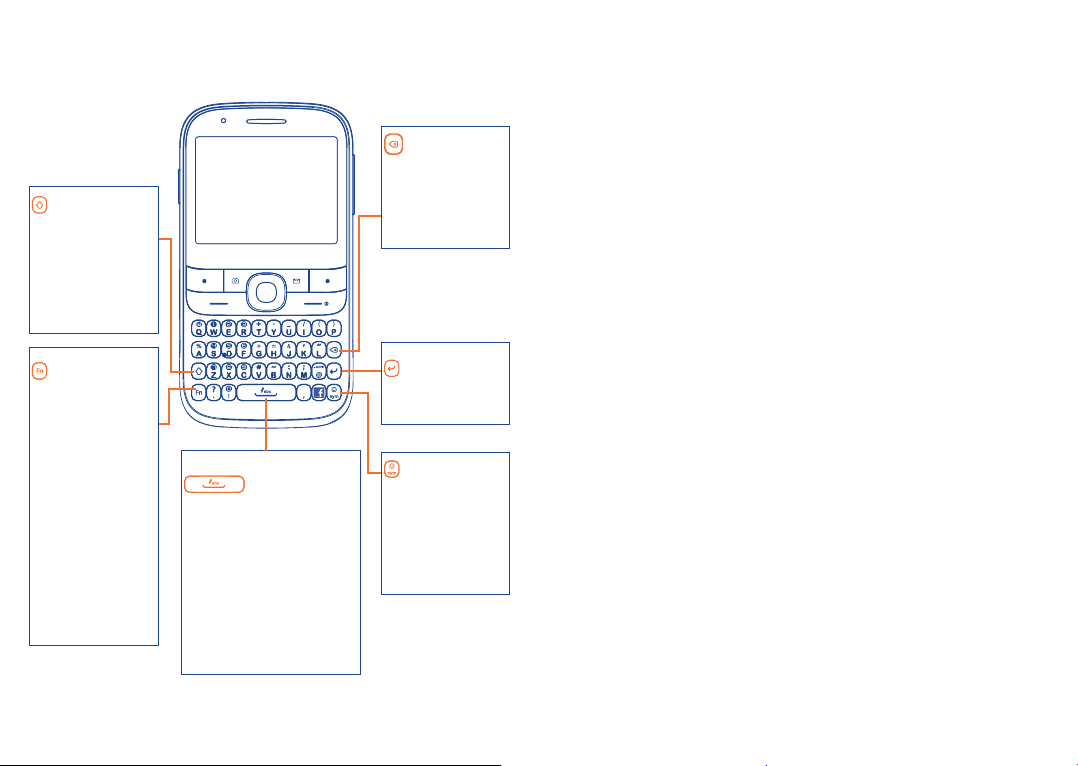
Keypad inputting
key:
- Press once: Input
a capital letter
- Press twice: Lock
the keyboard
in capital letter
input mode
key:
- Press once:
Input a top-half
character
- Press twice:
Lock the
keyboard in tophalf character
input mode
- Press and hold:
Input top-half
characters only
until key is
released
key:
- Press once: Enter a
space and confirm an
option
- Press and hold
Access language list
- Hold down Fn key, then
press space key to select
input method
87 88
key:
- Press once:
Delete one by
one
- Press and hold:
Delete all
key:
- Enter the next
line
key:
- Enter symbol
table
- Hold down Fn
key, then press
sym key to enter
emoticon table
23
Your phone is warranted against any defect or malfunctioning which may
occur in conditions of normal use during the warranty period of twelve
(12) months
invoice.
Batteries
against any defect which may occur during the first six (6) months
the date of purchase as shown on your original invoice.
In case of any defect of your phone which prevents you from normal
use thereof, you must immediately inform your vendor and present your
phone with your proof of purchase.
If the defect is confirmed, your phone or part thereof will be either
replaced or repaired, as appropriate. Repaired Phone and accessories
are entitled to a one (1) month warranty for the same defect. Repair or
replacement may be carried out using reconditioned components offering
equivalent functionality.
This warranty covers the cost of parts and labor but excludes any other
costs.
(1)
(2)
Telephone warranty ...........
(1)
from the date of purchase as shown on your original
(2)
and accessories sold with your phone are also warranted
The warranty period may vary depending on your country.
The life of a rechargeable mobile phone battery in terms of conversation
time standby time, and total service life, will depend on the conditions of use
and network configuration. Batteries being considered expendable supplies,
the specifications state that you should obtain optimal performance for your
phone during the first six months after purchase and for approximately 200
more recharges.
(1)
from
Page 46
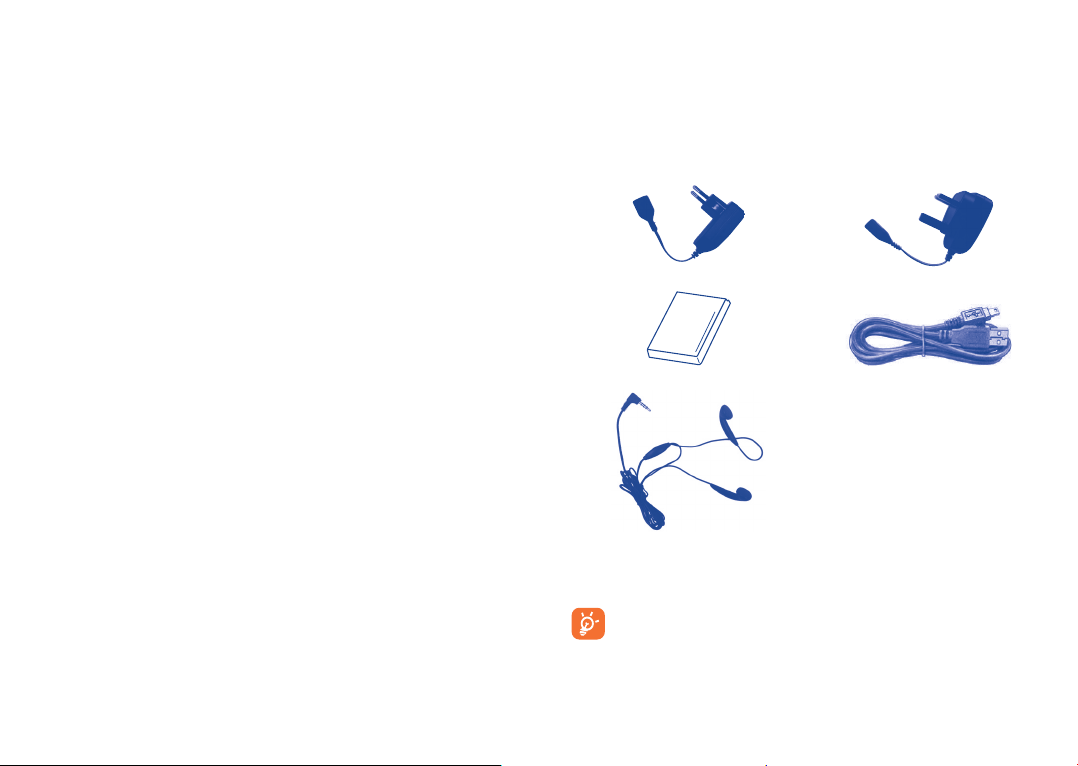
This warranty shall not apply to defects to your phone and/or accessory
due to (without any limitation):
1) Non-compliance with the instructions for use or installation, or with
technical and safety standards applicable in the geographical area where
your phone is used,
2) Connection to any equipment not supplied or not recommended by
TCT Mobile Limited,
3) Modification or repair performed by individuals not authorised by TCT
Mobile Limited or its affiliates or your vendor,
4) Inclement weather, lightning, fire, humidity, infiltration of liquids
or foods, chemical phones, download of files, crash, high voltage,
corrosion, oxidation…
Your phone will not be repaired in case labels or serial numbers (IMEI)
have been removed or altered.
There are no express warranties, whether written, oral or implied, other
than this printed limited warranty or the mandatory warranty provided by
your country or jurisdiction.
In no event shall TCT Mobile Limited or any of its affiliates be liable for
indirect, incidental or consequential damages of any nature whatsoever,
including but not limited commercial or financial loss or damage, loss of
data or loss of image to the full extent those damages can be disclaimed
by law.
Some countries/states do not allow the exclusion or limitation of indirect,
incidental or consequential damages, or limitation of the duration of
implied warranties, so the preceding limitations or exclusions may not
apply to you.
24
The latest generation of ALCATEL ONE TOUCH GSM mobile phones
offers a built-in handsfree feature that allows you to use the telephone
from a distance, placed on a table for example. For those who prefer to
keep their conversations confidential, an earpiece is also available known
as the headset.
Accessories
Standard charger UK charger
Battery USB cable
Stereo headset
Only use your telephone with ALCATEL ONE TOUCH
batteries, chargers and accessories in your box.
(1)
......................
(1)
Images for reference only.
89 90
Page 47

25
Before contacting the service centre, you are advised to follow the
instructions below:
and carry out the following checks:
My phone is frozen or cannot switch on
My phone has not responded for several minutes
My phone turns off by itself
Troubleshooting .................
You are advised to fully charge (• ) the battery for optimal operation.
Avoid storing large amounts of data in your phone as this may affect its •
performance.
Use User Data Format and the ONE TOUCH Upgrade tool to perform •
phone formatting or software upgrading, (to reset User Data format, hold
down # while simultaneously pressing the power on/off key). ALL User
phone data: contacts, photos, messages and files, downloaded applications
like Java games will be lost permanently. It is strongly advised to fully
backup the phone data and profile via PC suite before doing formatting and
upgrading.
Check the battery contacts, remove and reinstall your battery, then turn •
your phone on
Check the battery power level, charge for at least 20 minutes•
If it still does not work, please use User Data Format to reset the phone•
Restart your phone by pressing and holding the • key
Remove the battery and re-insert it, then restart the phone•
Check whether your phone is locked when not in use, and make sure you •
don't accidentally turn off your phone when locking it by pressing the power
key.
Check the battery charge level•
My phone cannot charge properly
Make sure you are using an ALCATEL ONE TOUCH battery and the •
charger from the box
Make sure your battery is inserted properly and clean the battery contact if •
it’s dirty. It must be inserted before plugging in the charger
Make sure that your battery is not completely discharged; if the battery •
power is empty for a long time, it may take around 20 minutes to display
the battery charger indicator on the screen.
Make sure charging is carried out under normal conditions (0°C to +40°C)•
When abroad, check that the voltage input is compatible•
My phone cannot connect to a network or “No service” is displayed
Try connecting in another location•
Verify the network coverage with your operator•
Check with your operator that your SIM card is valid•
Try selecting the available network(s) manually (see page 85)•
Try connecting at a later time if the network is overloaded•
My phone cannot connect to the Internet
Check that the IMEI number (press *#06#) is the same as the one printed •
on your warranty card or box.
Make sure that the internet access service of your SIM card is available.•
Check your phone's Internet connecting settings•
Make sure you are in a place with network coverage•
Try connecting at a later time or another location•
Invalid SIM card
Make sure the SIM card has been correctly inserted (see page 14)•
Make sure the chip on your SIM card is not damaged or scratched•
Make sure the service of your SIM card is available•
Unable to make outgoing calls
Make sure you have dialed a valid number and press •
For international calls, check the country and area codes•
Make sure your phone is connected to a network, and the network is not •
overloaded or unavailable
91 92
Page 48

Check your subscription status with your operator (credit, SIM card valid, •
etc.)
Make sure you have not barred outgoing calls (see page 45)•
Make sure that your phone is not in flight mode•
Unable to receive incoming calls
Make sure your phone is switched on and connected to a network (check •
for overloaded or unavailable network)
Check your subscription status with your operator (credit, SIM card valid, •
etc.)
Make sure you have not forwarded incoming calls (see page 45)•
Make sure that you have not barred certain calls•
Make sure that your phone is not in flight mode•
The caller’s name/number does not appear when a call is received
Check that you have subscribed to this service with your operator•
Your caller has concealed his/her name or number•
I cannot find my contacts
Make sure your SIM card is not broken•
Make sure your SIM card is inserted properly•
Import all contacts stored in SIM card to phone•
The sound quality of the calls is poor
You can adjust the volume during a call by pressing the •
Check the network strength •
Make sure that the receiver, connector or speaker on your phone is clean•
I am unable to use the features described in the manual
Check with your operator to make sure that your subscription includes •
this service
Make sure this feature does not require an ALCATEL ONE TOUCH •
accessory
key
When I select a number from my contacts, the number cannot be
dialed
Make sure that you have correctly recorded the number in your file•
Make sure that you have selected the country prefix when calling a foreign •
country
I am unable to add a contact in my contacts
Make sure that your SIM card contacts are not full; delete some files or •
save the files in the phone contacts (i.e. your professional or personal
directories)
My callers are unable to leave messages on my voicemail
Contact your network operator to check service availability•
I cannot access my voicemail
Make sure your operator’s voicemail number is correctly entered in "• My
numbers"
Try later if the network is busy•
I am unable to send and receive MMS
Check your phone memory availability as it might be full•
Contact your network operator to check service availability and check •
MMS parameters (see page 33)
Verify the server centre number or your MMS profile with your operator•
The server centre may be swamped, try again later•
The flickering
You have saved too many short messages on your SIM card; delete some of •
them or archive them in the phone memory
SIM card PIN locked
Contact your network operator to obtain the PUK code (Personal •
Unblocking Key)
I am unable to connect my phone to my computer
Install ALCATEL ONE TOUCH PC suite first of all•
Check that your computer meets the requirements for ALCATEL ONE •
TOUCH PC Suite installation
Make sure that you’re using the right cable from the box.•
icon is displayed on my standby screen
93 94
Page 49

I am unable to download new files
Make sure there is sufficient phone memory for your download•
Select the microSD card as the location to store downloaded files•
Check your subscription status with your operator•
The phone cannot be detected by others via Bluetooth
Make sure that Bluetooth is turned on and your phone is visible to other •
users (see page 75)
Make sure that the two phones are within Bluetooth’s detection range•
How to make your battery last longer
Make sure you follow the complete charge time (minimum 3 hours)•
After a partial charge, the battery level indicator may not be exact. Wait •
for at least 20 minutes after removing the charger to obtain an exact
indication
Switch on the backlight upon request.•
Extend the email auto-check interval for as long as possible.•
Update news and weather information on manual demand, or increase their •
auto-check interval.
Exit background-running Java applications if they are not being used for a •
long time.
Deactivate Bluetooth when not in use.•
ALCATEL is a trademark of Alcatel-Lucent
and used under license by
TCT Mobile Limited.
All rights reserved © Copyright 2012
TCT Mobile Limited.
TCT Mobile Limited reserves
the right to alter material or technical
specification without prior notice.
English - CJA32D0ALAAA
95 96
 Loading...