

Page 1
CONTENTS
Safety and precautions p. 4
Information p. 7
1.Your telephone p. 8
1.1 Keys p. 9
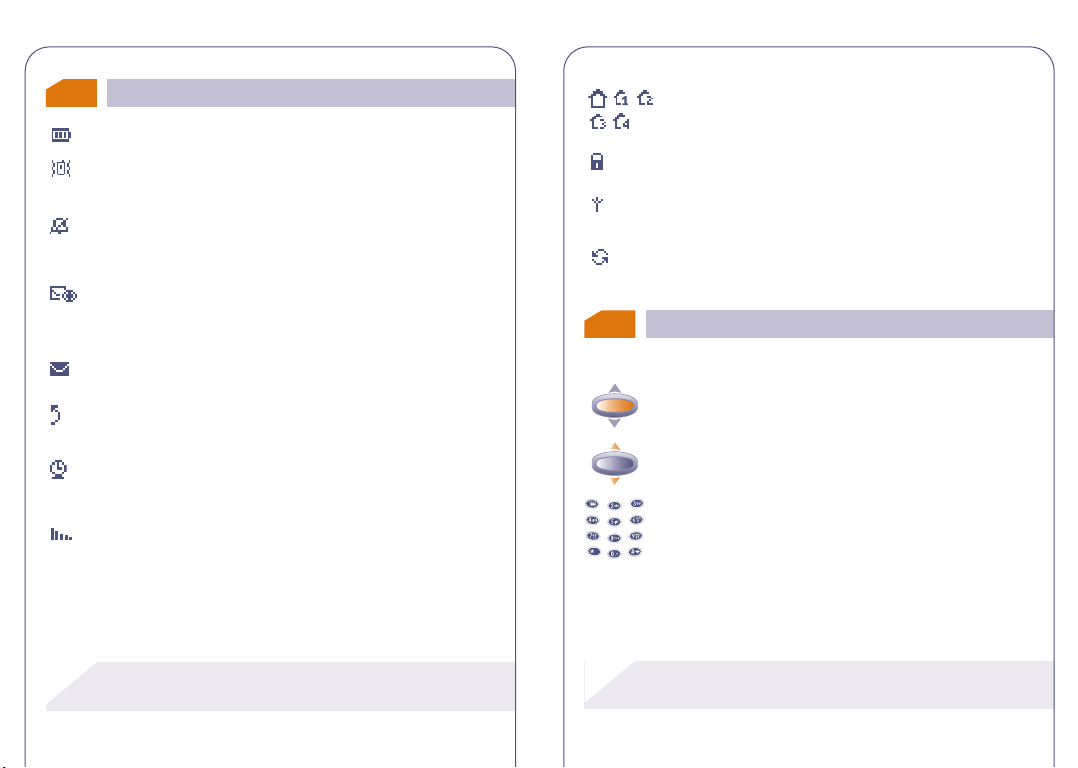
1.2 Icons p. 10
1.3 Conventions used in this User’s Guide p. 11
2. Getting started p. 12
2.1 SIM card and battery p. 12
2.2 Switching your phone on p. 14
2.3 Switching your phone off p. 15
3. Calls p. 16
3.1 Making a call p. 16
3.2 Call your voice mail p. 17
3.3 Receiving a call p. 17
3.4 During the call p. 18
4. Call memory p. 22
4.1 Accessing and calling back p. 22
4.2 Available options p. 23
5. MENU p. 24
6. Events p. 27
7. Directory p. 29
7.1 Accessing your directory p. 29
7.2 Creating a file p. 31
7.3 Available options p. 33
7.4 Assigning a file to a family p. 34
1
Page 2

7.5 Using voice recognition p. 34
7.6 Assigning a ring tone to a family p. 36
7.7 Temporary SIM card p. 36
8.Vibrator p. 37
8.1 Activating / deactivating the vibrator p. 37
9. Messages p. 38
9.1 Accessing messages p. 38
9.2 Reading your messages p. 39
9.3 Composing a message p. 43
9.4 Icons, sounds, smileys p. 44
9.5 Data entry system p. 45
9.6 Sending a message p. 49
10. My setup p. 50
10.1 Sounds p. 50
10.2 Main screen p. 55
10.3 Information p. 55
10.4 Zoom p. 56
10.5 Switch ON/OFF screens p. 57
10.6 Numbers p. 57
11.Alarms p. 59
11.1 Wake up p. 59
11.2 Appointments p. 60
11.3 Birthdays p. 60
11.4 Options p. 60
12. Memo p. 61
12.1 Recording a voice memo p. 61
12.2 Using a voice memo p. 62
13. FM Radio p. 63
13.1 Switching on the FM radio p. 63
13.2 Available options p. 64
13.3 Listening to the radio p. 64
13.4 Searching for a radio station p. 65
13.5 Pre-setting a radio station p. 66
13.6 An incoming call p. 66
14. Calculator/converter p. 67
14.1 Calculator p. 67
14.2 Convert p. 68
14.3 Currency selection p. 69
15. Setup p. 71
15.1 Services p. 71
15.2 Clock p. 79
15.3 Languages p. 79
15.4 Dictionary p. 80
15.5 Display p. 80
15.6 Automatic call pick up p. 80
15.7 Automatic power off p. 81
15.8 Keypad lock p. 81
16.WAP p. 82
16.1 Accessing Mobile Internet Services p. 82
16.2 Available options p. 83
16.3 Setting up your access p. 84
17. Games p. 86
18.Warranty p. 89
19.Accessories p. 92
32
Page 3
SAFETY AND
PRECAUTIONS
We recommend that you read this chapter carefully before use.The
manufacturer disclaims any liability for damage which may result as a
consequence of improper use or use contrary to the instructions
contained herein.
• CONDITIONS OF USE:
Switch the phone off before boarding an aircraft. Use could lead to
legal action against the user. Switch the phone off when in health care
facilities except in areas specified. Like many other types of
equipment now in regular use, mobile telephones can interfere with
other electrical or electronic devices in their proximity.Persons with
a medical device (such as a pacemaker, hearing aid, insulin pump)
should not carry the phone in a place close to the device. When
placing or receiving a call, persons with a pacemaker or hearing aid
should hold the telephone against the ear on the opposite side to the
device if any.
Switch your phone off when near gas or flammable liquids. Strictly
obey all signs and instructions when in a fuel depot or chemical plant,
at a refuelling point (service station) or in any potentially explosive
atmosphere. Do not let small children use the phone without
supervision. Do not attempt to open or repair it yourself. Use only
the batteries, battery chargers and accessories approved by the
manufacturer. The manufacturer disclaims any liability for damage
caused by use of other batteries, chargers or accessories. Do not
expose the phone to unfavourable environmental conditions
(humidity, rain, infiltration of liquids, dust, sea air, etc.). The
manufacturer’s recommended operating temperature range is -20 °C
to +40 °C. Over 55°C the legibility of the phone’s display may be
impaired, though this is temporary and not serious.
• BATTERY:
Before removing the battery from your phone,please make sure that
the phone is switched off.
Battery use precautions are: Do not attempt to open the battery
(chemical substances may cause burns). Do not pierce nor cause a
short-circuit in a battery. Do not burn or dispose of a used battery
in household waste or store it at temperatures above 60 °C.
Batteries must be disposed of in accordance with locally applicable
environmental legislation. Batteries should not be used for other
purpose than the one they are designed for. Never use damaged
batteries.
• TRAFFIC SAFETY:
Remember to always check whether local legislation allows
operation of a mobile phone while driving a vehicle.When it is said
that the use of mobile phones while driving a vehicle is a risk factor,
we strongly recommend that you park the car before using the
phone. However if you intend to use your phone while driving, you
must use it connected to the Alcatel Car Kit accessory.
Your mobile phone when powered emits radiation likely to interfere
with the vehicle electronic systems such as anti-lock brakes (ABS,
airbag). Consequently, you should:
- avoid placing the phone on the dashboard.
- connect imperatively the phone to an external antenna. The
antenna should be mounted and located away from the driver and
passengers or separated from them by a metal screen (e.g. the car
roof).
- check with the car manufacturer that the dashboard is adequately
shielded from mobile phone RF energy.
• ELECTRONIC WAVES:
THIS MOBILE PHONE COMPLIES WITH EUROPEAN
REQUIREMENTS ON ELECTROMAGNETIC WAVES.
54
Page 4
!
Validation of conformity with European directive 1995/5/EC
(R&TTE) is a requirement prior to launching any mobile phone
model on the market. Protection of public health and safety, in
particular the mobile phone user’s is the main aspect in this directive.
Your mobile phone is a radio transceiver. It has been designed to
operate under certain thresholds of exposure to Radio frequencies
(RF) recommended by the European Union Council (1) for people
and users. They were established by independent expert groups
based on scientific evaluations which are carried out regularly and in
detail. These limits allow for significant safety margin in order to
ensure everyone’s security whatever his or her age or health
condition.
Standard of exposure for mobile phones is determined by a
measurement standard called Specific Absorption Rate (SAR). The
SAR limit recommended by the European Union Council is 2.0 w/kg
(2). Testing has been performed on telephones emitting at maximal
strength level for all frequency bandwidths, on the basis of standard
using modes as defined by the current specifications. Although the
SAR is tested at the highest strength possible, the actual SAR level in
a mobile phone in current use is normally way below the maximum
values obtained during the tests. Your mobile phone is designed to
operate at a level of strength strictly necessary to allow for its
connection to the network. In principle, the closer you are to a base
station antenna, the lower the mobile phone’s SAR strength level.
Your telephone is equipped with a built-in antenna. For optimal
operation, you should avoid touching it or degrading it.
(1) EC Recommendation 1999/519/EC
(2) SAR limit on mobile phones in general is 2.0 watts/kg
at average for 10 g of human tissue.The limit includes
a significant safety margin to increase the user’s
protection and take into account measurements
variation.
INFORMATION
• Web site: www.alcatel.com
• Wap address: wap.alcatel.com
• Alcatel hotline No.: see “Alcatel Services” leaflet (calls charged at
applicable local rate in your country).
Your telephone is designed to emit and receive calls. It operates on
GSM networks with 900 MHz and 1800 MHz bands.
The
EC directive 1999/5/EC (R&TTE) and the accessories with applicable
EC directives.The entire copy of the Declaration of Conformity for
your telephone can be obtained on Alcatel website www.alcatel.com.
January 2001
0165 mark indicates that your telephone complies with
76
Page 5
!
!
1
OK
@
05:13
18-06-2001
@
OK
OK
1
Delete
Switch on
Switch off
Voice mail
Backlighting
Access Internet
services (1)
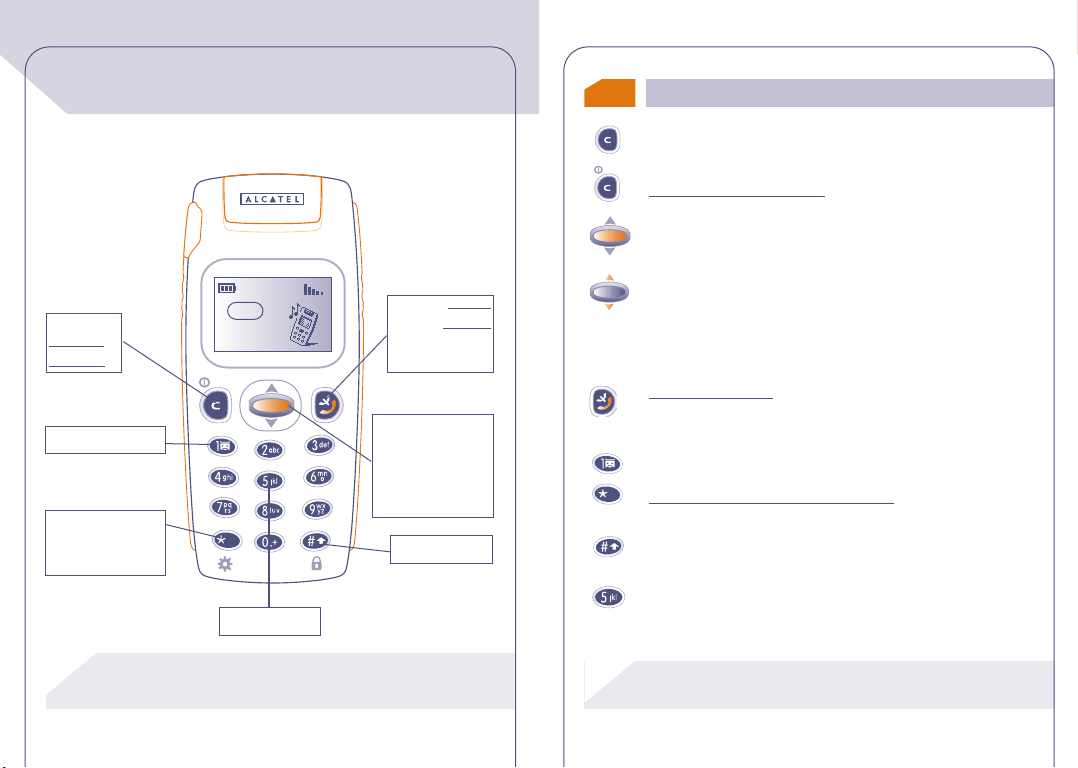
YOUR TELEPHONE
Network
Vibrator (1)
Answer
Hang up
Redial
Voice reco.
Menu
Scroll
Directory (1)
Volume
FM Radio (2)
Lock
1.1
Keys
Delete (short keypress).
Return to previous screen (long keypress).
Switch phone ON/OFF (long keypress).
Access the MENU / Directory / Short messages,
Confirm an option.
Volume control during a call.
Scroll to select an option.
Switch to a different pre-set FM station (2).
Access the directory (1) (keypress downwards).
Access the messages (1) (keypress upwards).
wer/Hang up
Ans
Access call memory (Redial).
Use the voice recognition functions (long keypress).
Access your voice mail (long keypress).
Switch ON/OFF the backlighting
Access Internet services (WAP) (long keypress) (1).
Lock keypad (long keypress).
Enter upper/ lower case letters, digits, punctuations.
Activate / deactivate the vibrator (long keypress)(1).
(long keypress).
(1) Depending on your phone model.
(2) Depending on the accessory in use.
(1) Depending on your phone model.
(2) Depending on the accessory in use.
98
Page 6
!
!
Icons (1)
OK
OK
@
1.2
Battery charge level.
Vibrator mode: your telephone vibrates but emits no ring
tone nor beep. (See page 52)
Silent mode: your telephone emits no ring tone, no beep
and does not vibrate. (See page 52)
Events (Consult information): You can access your voice
mail where all unanswered calls, unread short messages, unlistened voice memos are gathered. (See page 27)
Short message list is full: your terminal cannot store any
more messages.You must access the short message list and
delete at least one message. (See page 39)
Forward: your calls are forwarded.
(See page 74)
Appointments, birthdays and anniversaries, or
wake-up.
(See page 59)
Signal strength indicator.
Preferred tariff area.(1)
Keypad locked.
“Manual Network Search” mode.
(See page 79)
Roaming within your subscription country.
Conventions used in this User’s Guide
1.3
The following symbols are used in the text which follows:
Briefly press the scroll key in its centre in order to confirm
an option.
Move the scroll key up or down in order to select an
option.
Use the keypad keys to enter digits, letters, and
punctuations.
(1) Icons and other illustrations shown in this User’s
Guide are for information only.
(1) Check the availability of this service with your
operator.
1110
Page 7
!
CLICK
CLICK
2
2
GETTING STARTED
Charging the battery
SIM card and battery
2.1
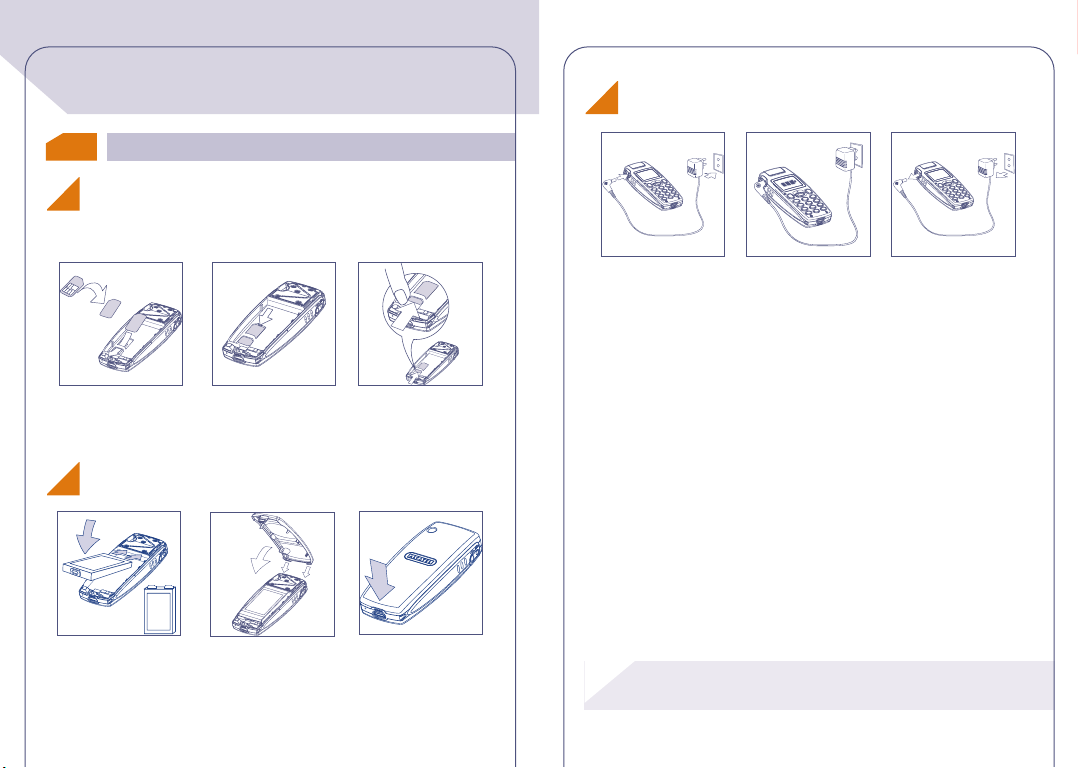
Inserting and removing the SIM card
You must insert a SIM card in order to use your phone.
1
2
Fit SIM card with chip
facing downwards
3
Slide the SIM card into
its compartment. Check
that it is properly
inserted
Fitting the battery
C
L
I
C
K
2
1
Insert the battery
2
1
Close the battery as
shown
1
2
Push the SIM card with
your finger to release it
3
CLICK
Click into place
2
1
Connect the battery
charger
2
The on-screen indicator
stops flashing when
charging is over
1
Disconnect the battery
charger once charging is
complete
• A beep will sound when charging begins.
• The charging indicator icon may take several minutes to start to
flash.
• The mains socket outlet must be close to the phone and easily
accessible.
• Avoid using excessive force when connecting the battery charger
to the telephone.
When you first use your phone you must charge the
battery for approximately 3 hours.
12 13
Page 8
!
OK
OK
OK
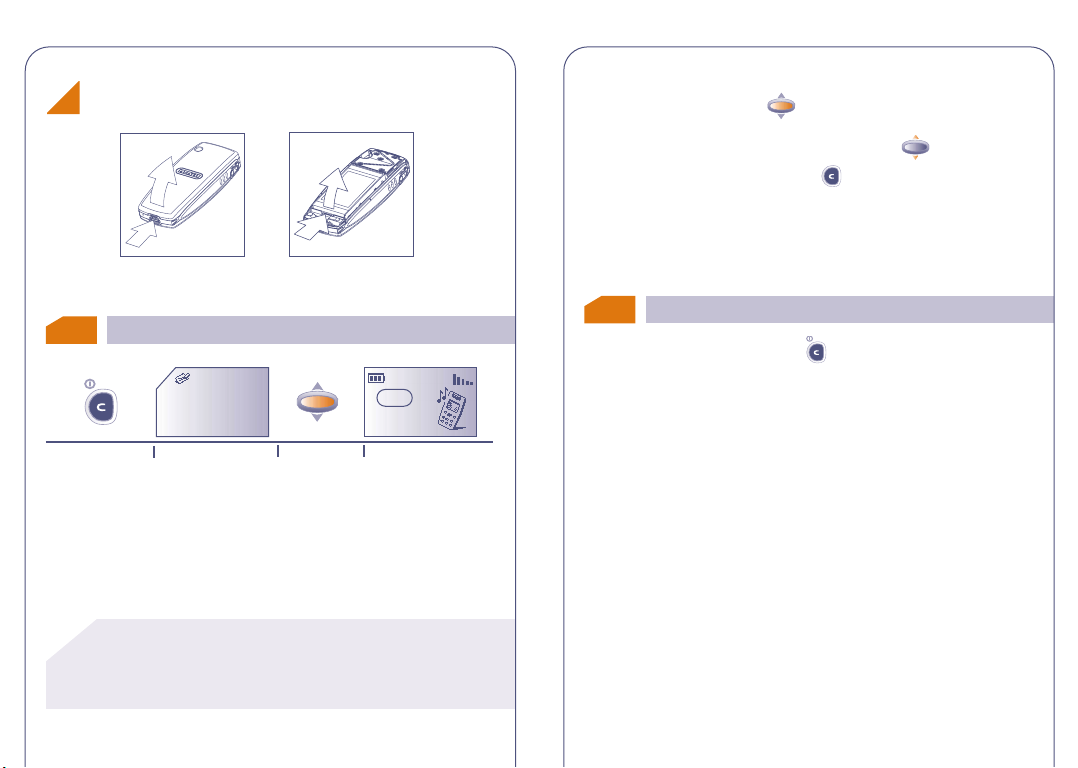
Removing the battery
You are prompted to enter the time and date, enter new data if
necessary, then confirm by .
Push and lift
Switching your phone on
2.2
Switch your phone
on (long keypress)
2
1
PIN CODE
Please enter
PIN Code:
..................
Enter your PIN code
2
1
Remove the battery
Network
If you do not know your PIN code, please contact your
network operator.
Do not leave your PIN code near your phone and store
your card in a safe place when you are not using it.
14 15
05:13
18-06-2001
Main screenConfirm
If cell broadcast messages are displayed, use the key to browse
through them in full or press the key to return to the main
screen.
While the phone is searching for a network, <<<–>>> is displayed.
(???-??? is displayed if your SIM card is rejected by the network, in this
case please contact your operator).
Switching your phone off
2.3
From the main screen, press the key (long keypress).
Page 9
!
!
3
@
3
3.1
CALLS
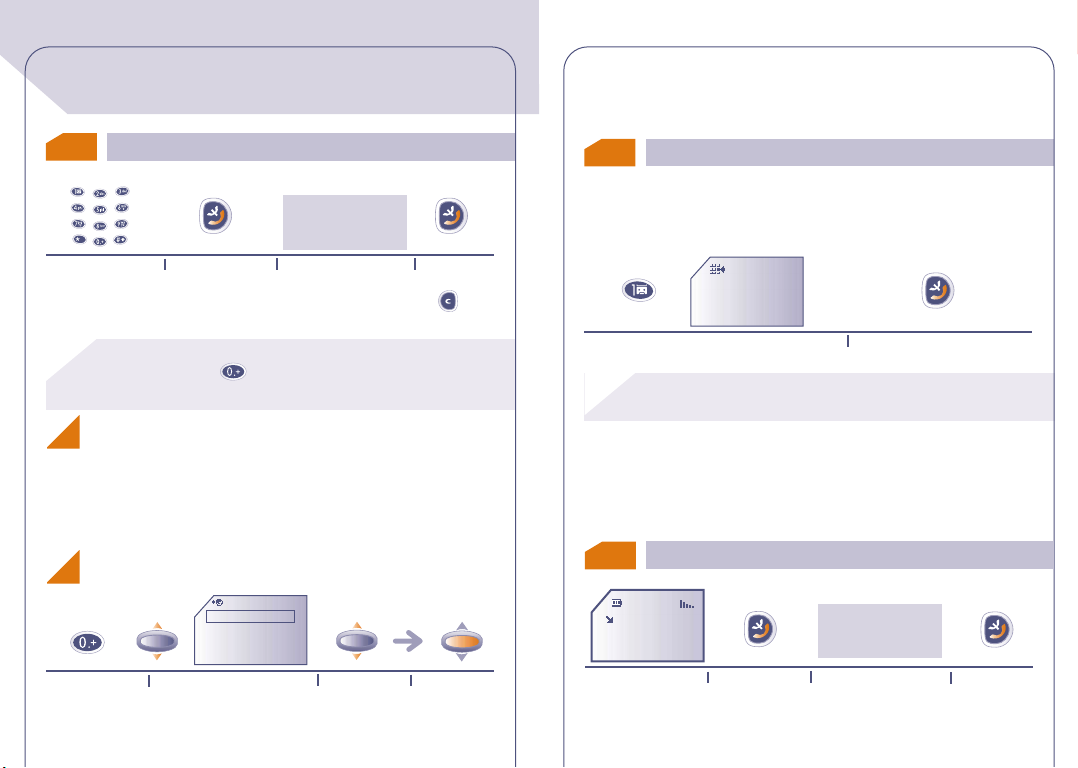
Making a call
Once the country code is displayed, dial the rest of the number and
make the call.
Call your voice mail
3.2
bla,bla,bla
bla,bla
Dial the number
If you make a mistake,you can delete digits by pressing the key.
To enter characters "+" or "P" (pause), make a long
keypress on the key (the following characters scroll:
0, +, o, P).
Making an emergency call
If your telephone is within the area covered by a network, to make
an emergency call, dial 112 or any other number provided by your
operator.
Making an international call
Display the "+"
prefix (long
keypress)
Make the call
Countries
Albania
Algeria
OK
Andorra
Angola
Display the list of countries
Talk
OK
Select the
country
Hang up
OK
Confirm
The network provides voice mail service to ensure that you do not
miss any calls; it works like an answering machine which you can
interrogate at any time.
Voicemail:
Call?
Access your voice mail (long keypress) Make the call
To use your voice mail abroad, contact your operator
before leaving.
If your operator's voice mail access number is not shown, dial the
number that was supplied to you with your subscription. To later
modify this number, use the "Numbers" MENU option, page 57.
Receiving a call
3.3
VERONICA
Incoming call
Take the call
1716
bla,bla,bla
bla,bla
Talk
Hang up
Page 10
OK
!
!
!
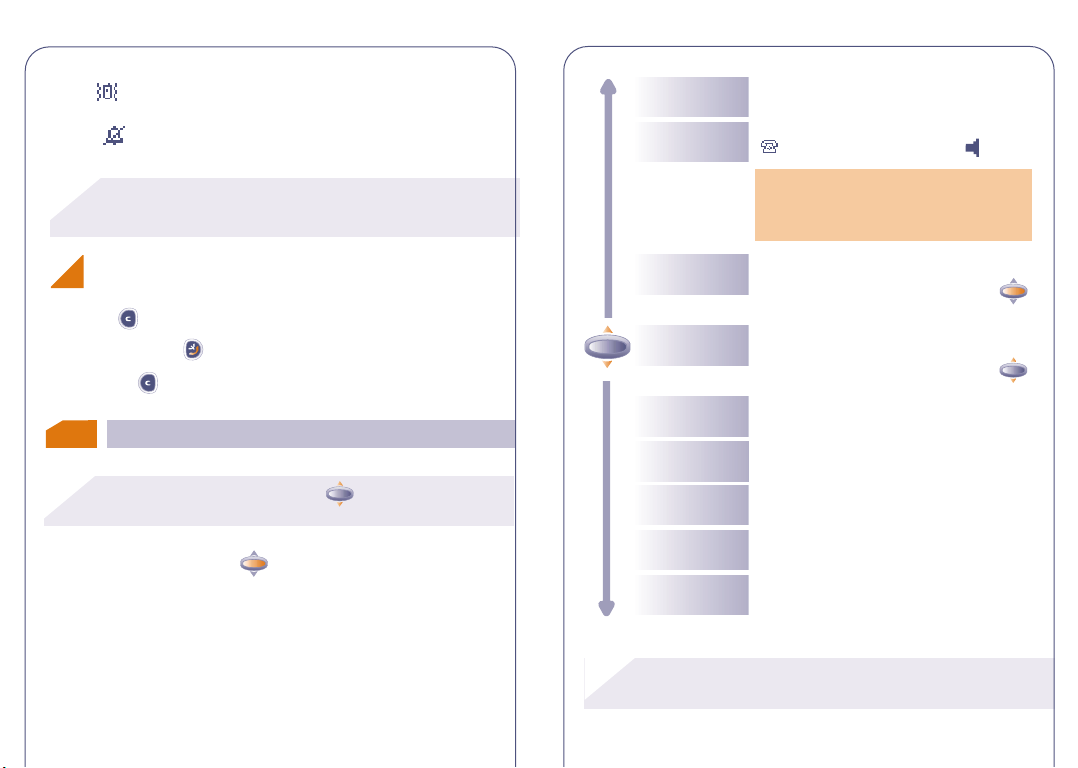
If the icon is displayed, the vibrating system is enabled and no
OK
OK
OK
ring tone is heard.
If the icon is displayed, the vibrator and ring tone are both
deactivated.
The caller's number is displayed if it is provided by the
network (check the availability of this service with your
operator.).
Volume
Handsfree
Increase or decrease the sound level
Activate/deactivate handsfree mode (the
symbol is then replaced by )
Caution: move the handset away from
your ear before activating this mode
because the amplified volume could cause
hearing damage
Switching the ring tone off (without losing the
call!)
Press the key while the phone is ringing; you can still answer the
call by pressing the key.
Pressing the key again rejects the call.
During the call
3.4
During a call, you can use the key to adjust the
volume.
During a call, you can use the key to access the following options:
18
Hold call (1)
Place an ongoing call on hold (you can
later resume the call by pressing the
key)
OK
Dial
Make a second call (an ongoing call will be
automatically put on hold and you can
switch between calls by pressing the
key)
Save Number
Directory
Messages
Services (1)
Store a phone number in the directory
Access the directory
Read your messages
Access the services supported by your
network operator
Back Return to the previous screen
(1) Check the availability of this service with your
operator.
19
Page 11
!
OK
OK
OK
OK
OK
OK
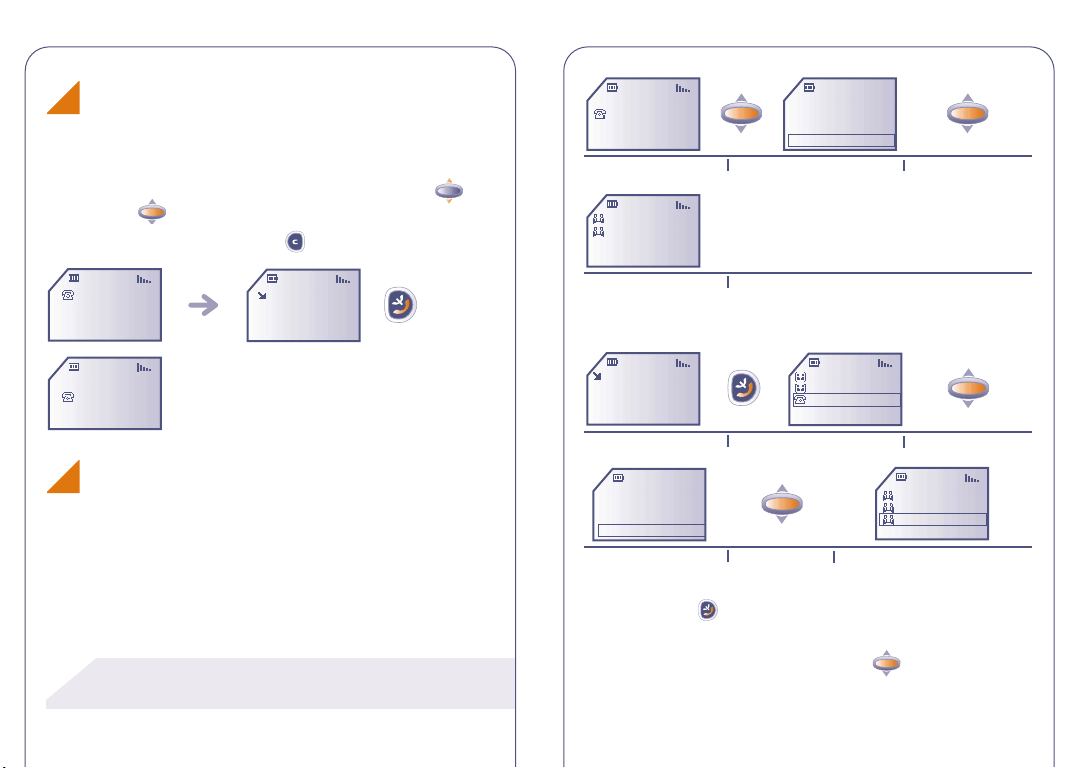
Handling a second incoming call (1)
OK
You already have a call and a second call comes in:
If you accept the new call, the ongoing call is automatically put on
hold; you can then switch between the calls by pressing the key
and then the key.
To refuse the second call, press the key twice.
18:06
18:06
MARIE
AUDREY
...
MARIE
AUDREY
You have received a second
call
MARIE
AUDREY
The conference starts
• A third call comes in
Handsfree
Swap calls
End 2nd call
Conference
Select "Conference"
Confirm
18:08
... MARIE
AUDREY
Conference calls (1)
Your telephone allows you to converse with several persons at the
same time.
(1) Check the availability of this service with your
operator.
DAN
A third call comes in
Handsfree
Swap calls
End 2nd call
Conference
Select "Conference"
Answer the call and speak with
your new caller
Confirm
MARIE
AUDREY
DAN
The caller joins the conference
MARIE
AUDREY
DAN
Confirm
Pressing on the key hangs up the communication you had with
the caller you have selected.
To end the conference call, click on the key and select the
“End Conf. Call” option.
2120
Page 12
!
!
4
4
4.1
CALL MEMORY
Accessing and calling back
Available options
4.2
To Directory
Store the selected phone number in the
directory
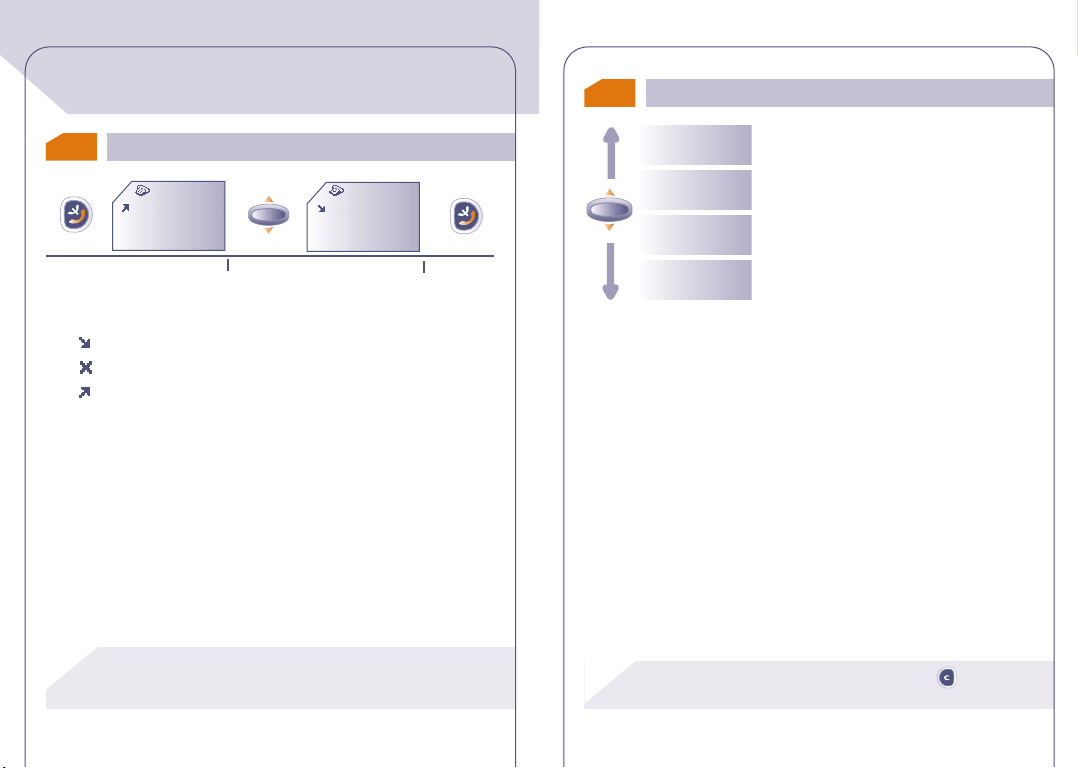
CallMemory
PHILIP
24/11 08:56
Access the call memory
Each call is identified by one of the following symbols:
Answered incoming call
Unanswered incoming call
Outgoing call
The caller's number is displayed if it was transmitted by the
network (check the availability of this service with your
operator).
OK
Select the number
22
CallMemory
VERONICA
29/11 08:56
Make the call
Modify Num.
OK
Clear
CallMem
Back
To return to the main screen, press the key (long
keypress).
Modify the selected phone number
Clear all the numbers in the call memory
Return to the previous screen
23
Page 13
!
OK
OK
5
OK
OK
OK
05:13
18-06-2001
5
MENU
Organisation of functions
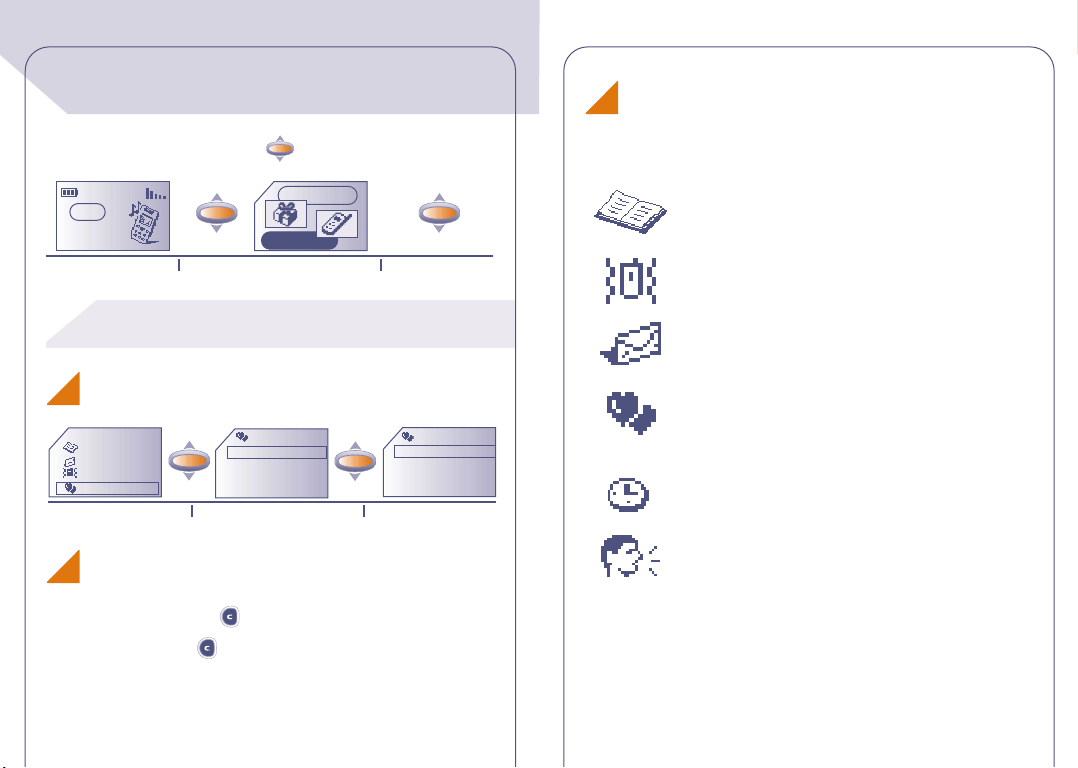
From the main screen, press the key to go to the MENU.
SERVICES
Network
Main screen
Direct access to the MENU depends on your operator and
on the SIM card which you are using.
Choosing a MENU function
Directory
Messages
Vibrator
My setup
List of functions
Return to the screen:
Previous screen: Press (short press).
Main screen: Press (long press).
MENU
Select MENU
MY SETUP
Sounds
Main screen
ON/OFF
Information
Select an option
Confirm
SOUNDS
Mode
Volume
Ring tones
Compose
Confirm
For each of the listed functions, refer to the appropriate chapter in
this User’s Guide.
Directory:
Access / store and make calls from your directory.
Vibrator:
Activate / deactivate the vibrator when you don't want
to be disturbed.
Messages (SMS):
Read, write and send your short messages.
My setup:
Customise your ring tones, icons, switch ON/OFF
screens, your direct dial numbers, your keypad and
prefixes.
Alarms:
Set your telephone's alarms (appointments, birthdays,
anniversaries, wake-up, etc.).
Memo:
Record and listen to voice messages.
24 25
Page 14
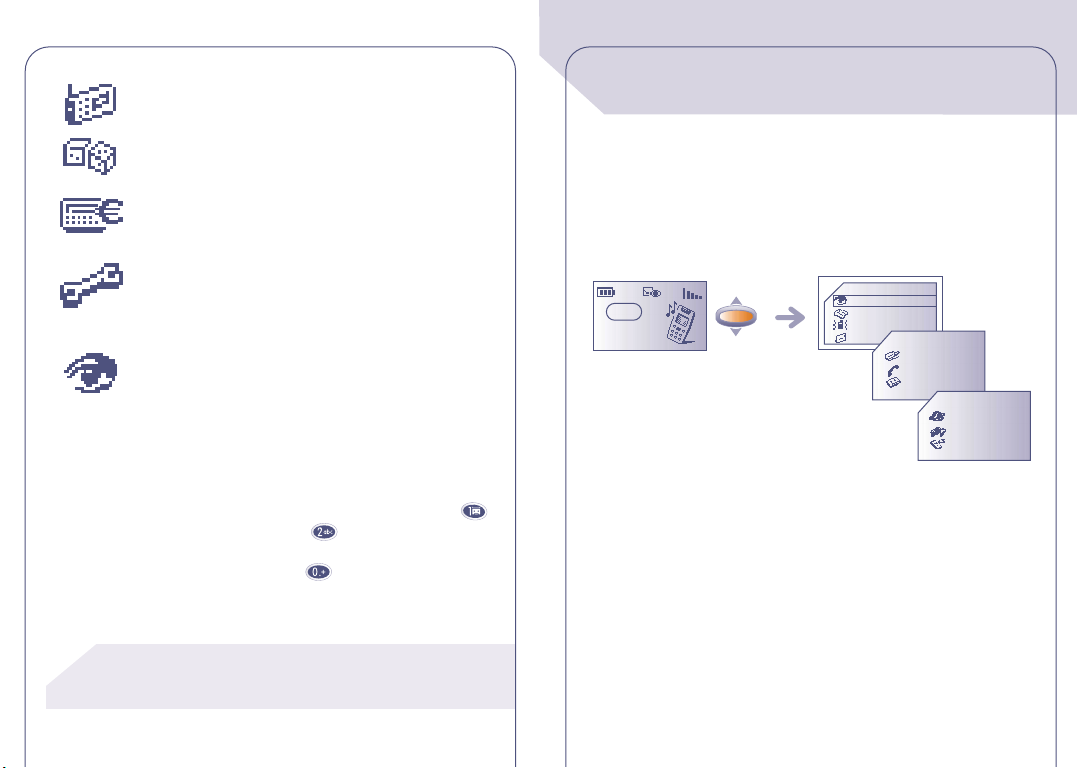
FM Radio (1) :
!
Listen to the radio and pre-set your FM stations.
Games:
Play games on your telephone.
Calculator/Converter:
Perform basic calculations and currency conversions
(Euros, etc.).
Setup:
Set up your telephone (displays, formats, etc.) and take
advantage of the features provided by your operator
(security, call forwarding, etc.).
Events:
Access your voice mail, unanswered incoming calls,
unread short messages, voice memos, and information
received in the handset as well as WAP notifications
(1).
You can customise your MENU by changing the order of the options,
for example, you can choose to display “Messages” after
“Directory”. Select this option, make a long keypress on the
key to place it in the first position, on to place it in the
second position...
To cancel, make a long keypress on the key.
EVENTS
6
6
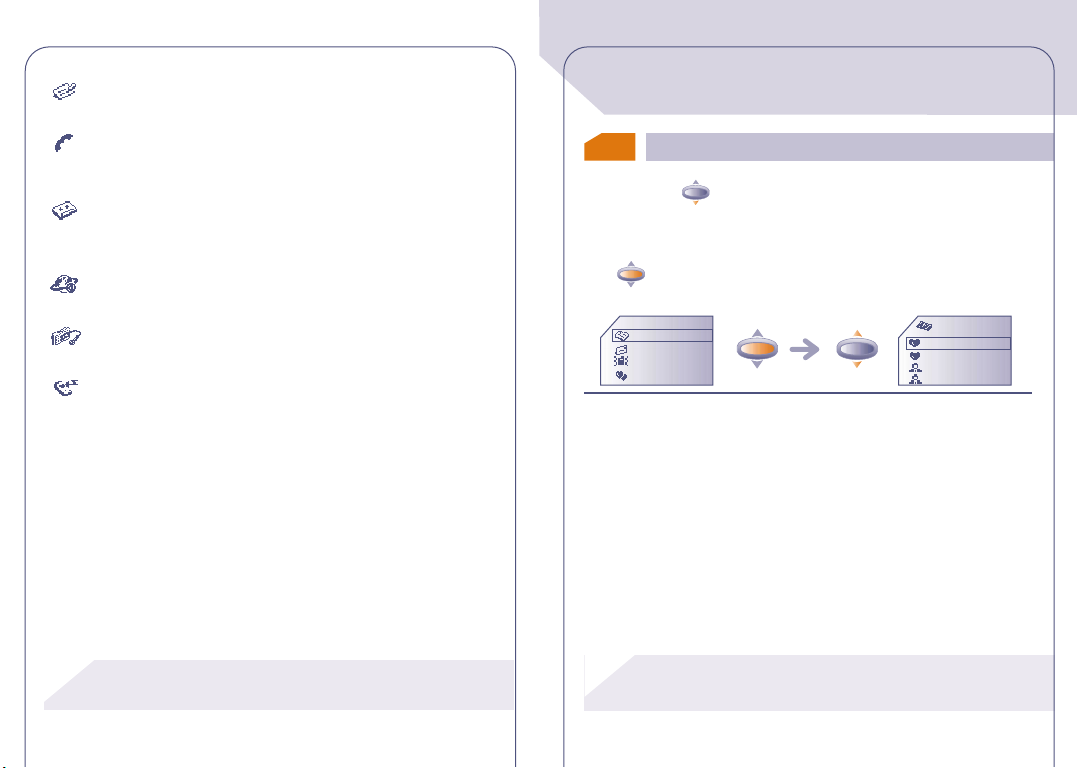
You can access all of the events which occurred on your telephone
in your absence and which you have not yet accessed.
Voice messages which you have not yet listened to, unread short
messages, unanswered incoming calls and voice memos are gathered
under this icon.
05:13
18-06-2001
Network
OK
Events
Directory
Messages
Vibrator
0 Msg.
1 Calls
0 Vocal
0 WAP
0 Memo
0 Info
(1) Depending on the accessory in use.
(2) Depending on your model, the language and availability
of this service with your operator.
26
27
Page 15
!
!
Short messages (Msg.):
OK
OK
Access unread short messages. (See page 38).
Unanswered incoming calls (Calls):
Display the numbers of callers who tried to reach you in your
absence. (See page 22)
Voice mail (Vocal):
Call your voice mailbox to listen to your new voice messages.
See page 17.
Notifications (WAP) (1) :
Access the WAP notifications you received.
Voice memos (Memo):
Listen to the voice memos you recorded. (See page 62).
Information received (Info):
Access the received information you have downloaded.
DIRECTORY
7
7
7.1
Accessing your directory
• Press the key to access the directory from the main
screen.(1)
• Or using the MENU (see page 24), access the directory by pressing
the key.
Directory
Messages
Vibrator
My setup
OK
To search for the name you are looking for.
OK
DIRECTORY
VERONICA
BRIAN
FLORENCE
ALAN
(1) Check the availability of this service with your
operator.
28
(1) Depending on your phone model.
29
Page 16

OK
OK
OK
OK
Searching for a name by its first letter
OK
You can also search for the name of the person you wish to contact
by pressing the key associated with the first letter of his/her name.
Example: press the key twice to find the first name beginning
with "B", then scroll the list to the name you are looking for using the
key.
Calling from the directory
Displaying a phone number
DIRECTORY
VERONICA
DENNIS
HELEN
ALAN
VERONICA
0148............
0663............
0139............
View
OK
Create
Zoom
Modify
You can assign 3 different numbers to the same name:home, mobile,
office. (See page 31) If you want to call a party who has several
numbers, first you must choose the number you wish in the list.
DIRECTORY
VERONICA
DENNIS
HELEN
ALAN
Choose the appropriate number
DIRECTORY
VERONICA
HOME
MOBILE
OFFICE
OK
7.2
Creating a file
From the list of names in your directory, press the key to create
a file.
DIRECTORY
VERONICA
DENNIS
HELEN
ALAN
CREATE
Enter the
name:
OK
View
OK
Create
Zoom
Modify
OK
3130
Page 17

!
!
OK
OK
Mobile:
Home:
CREATE
CREATE
Office:
CREATE
7.3
Available options
From the list of names in your directory, you can access the following
options by pressing the key:
View
Display the contents of each file
You can save the information you have entered at any time by
pressing the key and by choosing "Save".
If you use your telephone abroad,store the numbers in the
directory in the international format with the "+" prefix
(see page 16).
The files you create are organized in alphabetical order. It is also
possible to organize them by family: Private , Profession. , and
Others (see page 34).
You don't have to fill in all the information, but at least one
number must be entered for each name.
The directory's capacity depends on the operator.
Alphabetical/
OK
Create
Zoom
Modify
By family
Delete
Classify
Ring tones
Voice reco.
Create a file
Change the character size
Modify the file contents
Display files by family:Private, Professional,
Others, None
Delete the selected file
Classify the selected file in the appropriate
family
Assign a melody to a family
Record a voice recognition command for a
file
File number Change the file number
Back to list Return to the previous screen
3332
Page 18

!
7.4
OK
OK
OK
OK
OK
Assigning a file to a family
To differentiate your files, you can classify them in groups called
"families": Private , Profession. , Others , or None.A different
ring tone can be assigned to each family.This classification will allow
you to easily distinguish a professional call from a private call. It is
possible to screen incoming calls by family (see page 76).
ALAN
0641..........
0215..........
0235..........
Select the number Say the name
ALAN
Repeat word!
ALAN
Say the word
ALAN
Vocal recog.
saved for
Using voice recognition
7.5
Recording a voice recognition command
Select a contact from the directory for which you would like to
record a voice recognition command.
DIRECTORY
ALAN
VERO
AUDREY
MATTHEW
Select a file Select "Voice reco."
Classify
Ring tones
By family
Voice reco.
34 35
Say the name again to
confirm the voice recognition
recording
The function is activated
Contacts for which you have stored a voice recognition
command are identified by the icon.
Fifty names can be accessed by using the voice recognition
function.
Using the voice recognition command
From the main screen
Say the name of the person to be called.
Long keypress
Page 19

!
7.6
OK
OK
OK
Assigning a ring tone to a family
When you receive a call from a contact classified in a particular
family, the ring tone for the incoming call will be the one assigned to
that family. An icon is also assigned to each of the family, allowing
you to easily recognize your caller's family.
7.7
Temporary SIM card
VIBRATOR
8
8
You can enable the vibrator in public places (such as restaurants,
museums, etc.) allowing you to keep your telephone switched on
while remaining as discreet as possible.When you receive a call, your
telephone will vibrate instead of ringing or beeping.
8.1
Activating / deactivating the vibrator
When you create a file, you can include 3 different numbers (Home,
Office, Mobile).
If you change SIM cards, an informational message will be displayed
when the telephone is switched on.You must then decide if this card
will become your new SIM card or if it is being inserted temporarily:
• If the SIM card is to become your main card, you can modify your
directory as you wish. If you reinsert your old SIM card, you will no
longer find the 3 numbers that were formerly associated with the
same name on that card.
• If the SIM card is being inserted temporarily, you will not be
authorized to create files including 3 numbers. If you then reinsert
the first card (your main card), you will find all the information it
originally contained.
36
• By pressing (long keypress) the key from the main screen (1).
• Or by pressing the key from the MENU (see page 24).
Directory
Messages
Vibrator
My setup
(1) Depending on your product.
37
Activate / Deactivate
Page 20

!
!
!
9
OK
OK
OK
OK
OK
9
9.1
MESSAGES (1)
Accessing messages
9.2
Reading your messages
The messages are stored in your SIM card and classified in 2 family:
unread messages and read messages.
• Make a keypress on the key from the main screen.
• Or press the key from the MENU (see page 24).
Unread
Read
Write
OK
My canned
Zoom
Parameters
(1) Check the availability of this service with your
operator.
Read new messages.
Read old messages already read
Create a new message
Create your own canned messages. You
can save or edit them later on using the
key.
Change character size
Set parameters, especially the number of
the service centre if it is not automatically
suggested (you cannot send a message
without this number).
38
The capacity of your SIM card depends on your operator.
The icon is displayed when there are too many stored
messages: delete some messages.
When a new message is received,an audible signal (1) is emitted and
the icon is displayed.
The icon disappears as soon as you have read all of the new
messages.
Reading a new message
MESSAGES
Unread (5)
Read (4)
Write
My canned
(1) To deactivate the audible signal, see page 50.
UNREAD
KARIN
LOUIS
MATTHEW
DIANA
39
View
Delete
Answer
Forward
Page 21

!
OK
Consulting read messages
Delete
Delete the selected message
Received messages that have already been read and messages that
have been written, sent or stored.
Messages may be preceded by the following symbols:
Message sent and acknowledgement received.
Message sent and no acknowledgement received, or
message not delivered (in this case you should send the
message again).
Your friends can send you messages containing icons, animations,
smileys, sounds and text.When you receive messages, in addition to
the options listed below, you may also store the icons, smileys,
sounds, and animations so that you can use them later.
If a message contains several icons, sounds, or animations, select the
desired object using the arrows.
While reading a message, you can access the following options by
using the key:
Answer
Forward
Answer an incoming message
Send the selected message again after
modifying the recipient's name or the
parameters
Save Number
Save icon (1)
Animation (1)
OK
Save message
Save
Save
sound (1)
Store the first number contained in the
text of the message in the directory
Store an icon in the list of icons
Store an animation in the list of animations
Store a sound in the list of sounds
Store this message as a canned message
(1) If the received message contains sounds, images, icons,
smileys.
40 41
Page 22

Parameters
OK
OK
OK
OK
Zoom
Back
Update the following parameters:
Serv. Centre: your operator’s service
centre call number (may be provided
automatically)
E-mail : calling number for sending an
e-mail (can be automatically presented to
you)
Format: format in which the message is
to be delivered to your correspondent
(SMS, e-mail, fax, etc.)
Validity: time during which the network
presents the message again to your
recipient in case of unsuccessful delivery
Receipt: acknowledgement receipt
request
Change the character size
Return to the current message
9.3
Composing a message
• Make a keypress upwards on the key from the main screen.
• Or on the key from the MENU (See page 24) .
You can create a message or add to a (canned) stored message.
You can create a message with text only but can also assign icons or
sounds, or smileys. (See page 44)
Directory
Messages
Vibrator
My setup
MESSAGES
Unread (5)
Read (4)
Write
My canned
MESSAGES
Create
My Number
Call back
Meet you on at
42
43
Page 23

!
!
OK
!
9.4
Icons, sounds, smileys
9.5
Data entry system
Your messages can be customised with icons, sounds or smiley to
reflect your emotion:
Ironic Upset
Smiling Amazed
Skeptical Crying
You can also create your own smileys using the alphabetical
characters (example: :-)).
You can view the message once it is created: the icons, sounds, and
smileys that you have inserted will be displayed.
You can add more icons and sounds to your phone by downloading
them from the internet. (See page 55)
The recipient of the message must have a compatible EMS mobile
phone in order to display icons and smileys,and listen to the sounds
attached to your message.
The icon or sound that you inserted is represented by a
symbol ( or ).
To make it easier to write short messages,your phone has an assisted
data entry system (predictive data entry) (1). To create a word, all
that is needed is a single keypress on the key for any of the letters
which the word contains.
The character displayed may not correspond to the one
you entered; the system suggests the most usual word. Do
not worry about the words initially suggested,go on typing,
the system will make better suggestions as you type.
The cursor shape varies with the selected entry mode:
predictive mode
normal mode
To confirm a word, press the key downwards or the key
(a space will be automatically inserted).
(1) Depending on the language.
44
45
Page 24

While writing the message in predictive mode, you can access the
OK
following options by pressing the key:
Confirm word
Accept the word suggested
Send to
Insert icon Add icons
Insert sound Add sounds
Insert Smiley Add smileys
Preview Preview the message
OK
Save message
Send the message
Save the message
OtherWords
Insert digits
Punctuation
Normal mode
Add word
Access the list of other suggested words
Insert a digit
Insert a punctuation mark or a symbol in
the text
Switch to normal or predictive mode
Add a word to the dictionary
Back Return to the main screen
4746
Page 25

You may also use the following keys:
OK
@
05:13
18-06-2001
OK
OK
OK
OK
@
OK
Network
Access to options
Delete
Space
Other words
Accept displayed word
or numbers (press
downwards only)
Scroll the text
Upper case/lower
case/numbers/
punctuation
There is a dictionary in which you can add, modify or delete words.
Add a word while composing a message by pressing the key
and selecting the “Add word” option.
From the MENU (See page 24), it is possible to manage your own
dictionary.
9.6
Sending a message
You can send a message:
• Manually (keying in your correspondent’s number)
Send to
Insert icon
Insert sound
Insert Smiley
MESSAGES
TO:
0493.....
Send?
ADDRESSES
Directory
Dial
Distrib.list
E-mail
MESSAGES
TO:
0493.....
0493.....
Msg.sent!
• To a recipient from the directory (See page 29).
• To several recipients by selecting the group of recipients (choose
Distrib.list" option.
the "
• To a recipient with an e-mail, address.
48
49
Page 26

10
OK
OK
OK
OK
OK
OK
10
MY SETUP
Mode
Select the mode (see below)
For each of the functions described in the rest of this chapter, select
the desired option.
From the main screen, press the key to access the MENU.
MY SETUP
Sounds
Main screen
ON/OFF
Information
10.1
Directory
Messages
Vibrator
My setup
Sounds
From the “Sounds” menu, press the key to access the various
options.
MY SETUP
Sounds
Main screen
ON/OFF
Information
SOUNDS
Mode
Volume
Ring tones
Compose
OK
Volume
Ring tones
Compose
Key beeps
Msg. alert
ON sound
OFF sound
Adjust the volume with
Select the ring tone for incoming calls with
OK
Compose a melody
Activate/deactivate the beep played with
each short or long keypress
Choose a sound to announce the arrival of
a message
Choose the sound which will be played
when the phone is switched on
Choose the sound which will be played
when the phone is switched off
5150
Page 27

OK
@
Mode
OK
OK
OK
@
To compose your melody, use the keypad as shown below:
You can choose from the following modes:
Sound Normal ring tone (increasing volume).
Vibrator + Vibrator is activated followed by a normal ring
tone tone (increasing volume).
Vibrator No sound is emitted (ring tone, message or
appointment alert, low battery beep) but the
vibrating system is activated, the icon is
displayed (see page 37).
Silent No sound is emitted and the vibrator is
deactivated.The icon is displayed.
Compose my melody
From the "Compose" option, you can create your own tunes.
52
Primary notes of an
octave (C, D, E, F, G,A,
B)
Change octave
MY SETUP
Sounds
Main screen
ON/OFF
Information
Save
Save&Quit
Last 5 notes
Play all
Add a pause
SOUNDS
Mode
Volume
Ring tones
Compose
53
Change duration
(brief, short,
normal, long)
Add a sharp
Page 28

!
!
!
OK
Available options
While you are composing your tune, use the key to access the
following options:
Save
Save your tune
10.2
The main screen is displayed when your telephone is switched on
and/or when no feature is in use (calls, sending short messages, etc.).
From the MENU, you can personalise your screen by changing the
icon and display format for the date.
Main screen
Save&Quit
Last 5 notes Listen to the last five notes
Play all Listen to the entire melody
Modify title
OK
Instrument
Tempo
Delete
Back
To return to the main screen, press the key (long
keypress).
Save your tune and return to the previous
screen
Change the title of the melody
Choose an instrument: piano, percussion,
etc.
Choose the tempo: allegro, andante, lento
Delete the selected melody
Return to the previous screen
54
10.3
Your telephone is equipped with a system allowing you to download
icons, sounds, animations, and canned messages. Downloading is
performed from a computer. Once you are connected to a website
offering this service on the internet, (1) select the object you wish
to download. Once the download is completed, you will receive an
SMS containing the selected object.
Information
You have the option of displaying, saving, or refusing an
object being downloaded at any time.
(1) Depending on the country.
55
Page 29

OK
OK
OK
New icon!
OK
OK
OK
!
ICON 04/07
Save
Refuse
Back
Save
Refuse
10.5
Switch ON/OFF screens
You can personalise the welcome message, the animation or icon
which appears when your telephone is switched on.
You can also personalise your telephone's switch off screen by
choosing an icon or an animation.
The saved data will then appear in the appropriate lists (sounds,
main/switch on/switch off screens).
10.4
Zoom (1)
Your telephone can display different sized characters (small or large).
If you want to display more information (Wap, directory, SMS,
MENU), select the zoom function.
MY SETUP
Main screen
ON/OFF
Information
Zoom
MY SETUP
Main screen
ON/OFF
Information
Zoom
Numbers
(1) Depending on your phone model and the language.
56
10.6
Numbers
My number
Save your telephone number, (usually given on your SIM card). Enter
the number - confirm by pressing .
Voicemail
Change your voice mail number (enter the number - confirm by
pressing ).
57
Page 30

!
!
OK
OK
OK
OK
OK
OK
OK
Keyboard (1)
Direct dial numbers, once entered, can be dialled directly from the
main screen by a long keypress on keys "2" to "4" and “6” to “9”on
the keyboard.
• If no numbers are programmed:
CREATE
Enter the
key number:
CREATE
Enter the
tel. number:
CREATE
Enter the
key name:
• If a number has already been programmed:
KEYBOARD
2RAY
3 DIANA
4 FRANCK
Modify
Delete
Back
Prefix
Activates/cancels the prefix which will be added automatically in
front of the phone number when making the call (enter the number
- confirm by pressing ).
ALARMS
11
11
Access the alarms features from the MENU (see page 24) by pressing
the key.
05:13
18-06-2001
Network
11.1
Wake up
OK
Set the alarm time and confirm by pressing .
Once this feature is activated, the icon appears on the main
screen. Under "Options", you can choose to program the alarm
clock with a melody or the FM radio (1). The alarm will sound
whether the phone is switched on or off, but pressing any key will
shut it off.
Messages
Vibrator
My setup
Alarms
ALARMS
Wake up
Appointment
Birthdays
Options
(1) Check the availability of this service with your
operator.
58
(1) Depending on the accessory in use.
59
Page 31

11.2
OK
OK
You can schedule your appointments (enter the date and time –
confirm by pressing – enter the purpose of the appointment –
confirm by pressing ) and program how often they occur (once,
daily, weekly).
Once an appointment is scheduled, the icon appears. You can
schedule up to five appointments.The alarm will sound whether the
phone is switched on or off, but pressing any key will shut it off.
You can also change or cancel an appointment. In addition, you can
program a short message to be sent (with icons, and/or a melody) at
the appointment time.
11.3
You schedule birthdays and anniversaries in the same way as
appointments but on an annual basis. You can schedule up to five
anniversary dates.
11.4
The "snooze" function can be activated when you program any
alarm.The alarm will be repeated at regular ten minute intervals after
the first sounding.
Appointments
Birthdays
Options
MEMO
12
12
The voice memo feature acts as a dictaphone and allows you to
record personal messages.
Access the voice memo function from the MENU (See page 24).
12.1
MEMO
Create
NotListened
Listened
Message
recorded!
Vibrator
My setup
Alarms
Memo
Recording a voice memo
OK
RECORD
OK
OK
Speak
(C) to cancel
MEMO
Create
NotListened
Listened
Speak
(C) to cancel
60
61
Page 32

12.2
!
!
OK
OK
OK
You have the option of using a voice memo to personalize the sounds
played by your telephone:
• when your telephone is switched on or off,
• when there is an incoming call from a caller classified in a directory
• when an appointment, an alarm or an anniversary becomes due.
Using a voice memo
family.
Vibrator
My setup
Alarms
Memo
MEMO
Create
OK
NotListened
Listened
OK
Play
Name
Delete
Memo->Melody
FM RADIO (1)
13
13
The "headset" or FM radio earpiece must be plugged in for
the FM radio to work properly.They also work as antenna.
13.1
You access the radio from the MENU (see page 24) by pressing the
Switching on the FM radio
key.
FM Radio
Games
Calc/Conv
Setup
Play
Setup
FM Radio
FM Radio
2 Manu FM
90.8
(1) Depending on the accessory in use.
62
63
Page 33

13.2
OK
OK
OK
OK
OK
OK
05:13
18-06-2001
Available options
The following options are available while listening to the radio:
Confirm
Return to the main screen leaving the
radio on
FM Radio
2 Manu FM
90.8
Confirm
Volume
Handsfree
Radio stations
To mute the radio, press the key.
To stop the radio
Press on (C)
Network
Adjust the volume
Handsfree operation (using the standard
equipment headset or FM radio earpiece)
Access the list of your pre-set radio
stations
Save the frequency of the current station
Mute the radio
Return to the previous screen
OK
13.3
Volume
Handsfree
Radio stations
Save
Stop radio
Back
Listening to the radio
It is possible to listen to the FM radio from the main screen.
64
!
Do you want
to stop
the FM radio?
Network
To change the pre-set station, press the key.
13.4
Searching for a radio station
There are 2 types of searches:
• Manual: (short keypress).Radio frequencies are displayed by
increments of 0.05MhZ.
• Automatic: (long keypress).
65
Page 34

13.5
!
OK
OK
OK
OK
OK
OK
Pre-setting a radio station
FM Radio
Play
Setup
FM Radio
Frequency:
90.8
FM Radio
No preset
station has
been set!
FM Radio
Enter radio’s
station name:
FM Matthew
You can change, delete or cancel a pre-set station at any time.
CALCULATOR/
14
14
You can access the calculator and the currency converter from the
main screen in two different ways:
• Press the key and select the "Calculator" or "Convert"
option.
• Enter a figure directly on the keypad, then press the key and
select the "Calculator" or "Convert" option.
14.1
Calculator
CONVERTER
13.6
An incoming call
When there is an incoming call, the radio is temporarily interrupted.
There are two options available to you:
• If you refuse the call, the radio will resume operation.
• If you pick up the call, the radio is interrupted during the call and
resumes operation once you hang up.
66
Calculator Calculator
Calculator
+
-
OK
*
/
+
-
OK
*
/
10
13
Calculator
10
@
10
+
@
3
To enter decimals ("."),use the key (long keypress).To
return to the main screen, press the key (long
keypress).
67
+
-
OK
*
/
+
-
*
/
Page 35

!
14.2 14.3
OK
Converter Currency selection
The currency converter allows you to:
• Directly convert a currency into Euros and vice-versa (1).
• Convert a sum of money into another currency (e.g. dollars into
French francs).
Example of conversion into Euros:
Convert
Euro
Curren/Curren
Convert
Amount to
convert:
100
OK
OK
Convert
£ in Euro
Euro in £
Currency
Convert
100.0 £
152,45 Euro
OK
Result is displayed
(1) The currency converter uses the final conversion rates
for the EURO set on 31/12/1998, which are used in
accordance with the official conversion rules.
68
Access the currency table.
Convert
£ in Euro
Euro in £
Currencies
OK
Convert
FF Franc
FB Franc B
FFu Franc L
CHF Franc S
From this table, choose the currencies to convert (into euros or into
another currency) using the key to access the following
options:
Confirm
Create
OK
Modify Modify a currency which you have created
Delete
Back
Select the currency
Add a new currency (which can
subsequently be changed)
Delete the new currency
Return to the previous screen
69
Page 36

!
!
If you are in the Euro converter:
OK
OK
Once the currency has been selected or created, you must enter the
exchange rate of the currency in euros (or confirm it if it is already
shown).
If you are in the currency converter:
When you have selected or created the first currency, repeat the
same operation for the second currency, then enter the rate for
exchanging these 2 currencies.
SETUP
15
15
Access "settings" from the MENU (See page 24) by pressing the
key.
FM Radio
Games
Calc/Conv
Setup
SETUP
Services
Clock
Languages
Dictionary
15.1
PIN Code (1) SIM card protection code requested each time the
PIN2 Code (1) Protection code for certain functions on the SIM
To return to the main screen, press the key (long
keypress).
70
Services
Security
phone is switched on if the code is activated.
Activate/ Activate (or cancel) this code.
Deactivate
Change Update the code (4 to 8 digits).
card (Billing / Cost / FDN, etc.) requested when
these functions are used if this code is activated.
Change Update the code (4 to 8 digits).
(1) Contact your operator if necessary.
71
Page 37

!
!
Netwrk Code requested to access the “Forbidden”
OK
OK
OK
Code (1) options associated with the network.
MENU Code Protection code for certain MENU functions
(Services, Settings / Language), requested when
these functions are used if this code is activated.
Activate/ Activate (or cancel) this code.
Deactivate
Change Update the code (4 to 8 digits).
Prod.Code Protection code for your telephone, requested
each time it is switched on if this code is activated.
Activate/ Activate (or cancel) this code.
Deactivate
Change Update the code (4 to 8 digits).
Change SIM Defines SIM card as the main SIM card
(see page 36).
Billing
Duration Call time management.
Last call Duration of last call.
Avail.Duration Remaining time available in relation to time
indicated under the "InclusiveTime" (for user's
information only).
Cumul. dur. Total duration of calls made.
InclusiveTime Duration of subscription (enter the time - confirm
by ).
Reset Reset (immediately or periodically) the total
duration of calls made.
Beep durat. Activates/cancels the beep which sounds during a
call at an interval set by the user (enter the interval
- confirm by ).
Expense (1) Management of call charges.
Last call Cost of last charged call.
Credit Remaining credit in relation to "Set Credit".
Cumul. Cost Total cost of charged calls
Set Credit Maximum credit beyond which all charged calls are
barred (enter credit - confirm by ).
Reset Reset the total cost of charged calls.
Unit value Cost of one telecom unit in the chosen currency
(select the "Other?" option for another currency
and press the key to enter a decimal point).
(1) Check the availability of this service with your
operator.
(1) Check the availability of this service with your
operator.
7372
Page 38

!
!
Forward (1)
All All your calls are forwarded. The
displayed.
Conditional Calls are forwarded if the line is busy, the call isn't
answered or the phone is out of range of the
network.
If busy Calls are forwarded only if your line is busy.
No reply Calls are forwarded only if the call isn't answered.
Unreach. Only if the phone is out of range of the network.
Data Data calls are forwarded to the specified number.
Fax Fax calls are forwarded to the specified number.
Status List of call forwarding operations activated from
this phone.
Cancel All Cancels all activated call forwarding.
Calls
Call wait (1) Activates/cancels signalling of a second incoming
call by a beep while you are in communication.
Conceal ID Activates/cancels the option which makes your
(CLIR) (1) calls anonymous (your number is not transmitted
by the network to the parties you call).
icon is
Caller ID Activates/cancels presentation of the caller's
(CLIP) (1) number (or name if it is stored in the directory)
with every call.
Auto Redial (1)
Activate/ Activates/cancels automatic call back if the first call
Deactivate was unsuccessful.
Forbidden No List of numbers for which automatic call back was
unsuccessful (10 unsuccessful attempts).
Reset Reset the blacklist.
Ntwk.A.Redial (Completion of Calls to Busy Subscribers)
Automatic callback of the last dialled busy number.
Call Barring
Outgoing Activates/cancels call barring. This option is
applicable in the following cases:
Except Calls to numbers not stored in the phone's
Dir. directory are barred.
All (1) All outgoing calls are barred.
International(1)Outgoing international calls are barred.
Excpt-
>
Home (1) country are barred.
Outgoing calls except those to the subscription
(1) Check the availability of this service with your
operator.
74
(1) Check the availability of this service with your operator.
75
Page 39

!
!
Except FDN(1) Calls to numbers other than the specific FDN
OK
directory (contained in the SIM card) are barred.
Activate/ All calls which do not begin by one of the numbers
Deactivate stored in the "FDN" directory are barred.
Change If the "Exc. FDN" option is activated, you can
update the "FDN" directory after entering PIN2
code (update "FDN" directory by pressing ).
View View the list of FDN numbers.
Exc. All calls other than those to numbers included in
"Private" the "Private" family are barred.
Exc. All calls other than those to numbers included in
"Prof." the "Prof." family are barred.
Exc. All calls other than those to numbers included in
"Other" the "Other" family are barred.
Incoming Activates/cancels incoming call barring.This option
is applicable to the following cases:
Except Dir. (1) All calls from a number not stored in the
phone's directory are barred.
All (1) All incoming calls are barred.
If abroad (1) Incoming calls are barred if you are abroad.
Exc. All calls other than those from numbers included in
"Private" the "Private" family are barred.
Exc. All calls other than those from numbers included in
"Prof." the "Prof." family are barred.
Exc. All calls other than those from numbers included in
"Other" the "Other" family are barred.
Status List of call barring operations activated.
(1) Check the availability of this service with your
operator.
76
(1) Check the availability of this service with your
operator.
77
Page 40

!
OK
!
OK
OK
Networks
SMS CB (1) Messages broadcast over the network (weather,
traffic, etc.) are automatically displayed on the main
screen.
CB list List of the message codes to be displayed:
Reception Depending on the selected option, the phone
displays messages broadcast by the network.
Full The phone permanently scans the network and
displays received messages according to your list
(see "CB list" option).
Limited The phone intermittently scans the network and
displays received messages according to your list
(see "CB list" option).
None The phone does not receive any messages.
Searching Search for a home network.
Available List of available networks in your radio
environment.
Mode Depending on the selected option, search mode is:
Automatic First searched network is the last one used.
Manual User chooses the home network.
Preferred List of networks for priority connection (update
Forbidden List of forbidden networks (update the list with
15.2
Time/Date Setting your telephone's date and time.
Format Date and time display format.
15.3
Message display languages (select by pressing ). The
"Automatic" option chooses the language of the subscription
network (if it is available in the phone).
this list with ).
).
Clock
Languages (1)
(1) Check the availability of this service with your
operator.
78
(1) Depending on your phone model.
79
Page 41

!
OK
OK
@
OK
15.4
OK
Dictionary (1)
There is a dictionary to which you can add your own words to those
already contained in the assisted data entry system.
When you consult your dictionary, you can add, modify or delete
words using the options available by pressing the key.
Automatic Automatically (without touching a key) after
approximately 2 rings (this option is only available
if your phone is connected to an audio accessory.
Key
=
After pressing the key.
Any key After touching any key on the keypad (1 to #).
15.5
Display (1)
Backlight Backlighting intensity (press to adjust); we
recommend using the minimum necessary intensity
to save battery power. However, you can use the
key (long keypress) to activate backlighting.
Contrast Display contrast (press to adjust).
15.6
Automatic call pickup
Pickup Allows you to choose the way a call will be
answered.
(1) Depending on your phone model and language.
15.7
Automatic power off
Power off When this option is activated, the phone is
automatically switched off if it is not used (i.e. no
keypresses,no calls, no incoming messages) after an
amount of time chosen by the user (enter the
duration - confirm by ).
15.8
Keypad lock
Keypad lock When this option is activated, the keypad will be
automatically locked (if you are not going to use
your phone for a prolonged period of time).
8180
Page 42

!
!
@
OK
WAP (1)
@
16
16
16.1
WAP (Wireless Application Protocol) is a service that allows you to
access the mobile Internet. Thanks to WAP, you can obtain
information such as weather conditions, stock market averages,
traffic conditions, etc.
You can access mobile Internet services from the main screen by
pressing the key and then selecting the "Services" option or
by a long keypress on the key (1).
The following screen will pop up:
Accessing Mobile Internet Services (2)
WAP
HomePage
Profiles
Go to URL
The "HomePage" option allows you to launch the WAP browser if
it is already configured.
The "Profiles" option allows you to set up the connection
parameters for your WAP services access providers. In most cases,
your navigator connection parameters will have already been set up.
If that is not the case, refer to the "Go to URL" option.
16.2
While consulting an Internet page, you can access a number of
options by pressing the key.
Available options (1)
...
HomePage
Can be accessed from the current page
Return directly to the home page
Go to URL
OK
Bookmarks
(1) Depending on your phone model and the language.
(2) Check the availability of this service with your
operator.
82
(1) At any moment when browsing, make a long keypress
on the to exit the WAP mode.
Access the address of a site directly
Access your favourite sites
83
Page 43

!
!
OK
Show URL
Connect.
Status
Alert List
Display the address of the site you are
currently visiting (1)
Display the information bar for your
Internet session
Display the list of your notifications (2)
Confirm
Try profile Try the profile home page
OK
Create
Confirm the profile that you will use to
access Wap services
Create a new profile
Zoom Change character size
Help
Exit WAP
Back
16.3
Select a profile from the list of profiles and access the following
options by pressing the key.
Setting up your access (2)
(1) Depending on your phone model.
(2) Check the availability of this service with your access
provider.
Display on-line help messages
Finish consulting Internet services and
return to the main screen
Return to the previous screen
84
Modify
Delete
Back
To create a new profile, you must fill in all of the following
parameters (1) :
• Profile name
• Home Page address
• Profile Address
• Profile Port
• Parameters
- Access type (analogue, ISDN)
- Input name
- Password
- Access Number
- Transmission speed
(1) Enter the information supplied by your operator.
Modify the profile parameters
Delete a profile
Return to the list of profiles
85
Page 44

!
!
OK
GAMES (1)
17
17
The game software built into your terminal was designed
and developed using Infograms. They are covered by
copyright laws. Any non-authorized reproduction of this
software as well as any alterations to the copyright notices
or other rights appearing on the software are categorically
prohibited.
You can access the games from the MENU by pressing the key.
Games
Numbers
Setup
FM Radio
You have the option of setting the parameters for the Games in the
“Config.” option (keyboard, sounds, difficulty...).
Starshot, a hero from deep space, travels throughout the galaxy to
discover new entertainment. He is accompanied by his two faithful
companions, Willfall (the little robot) and Willfly (the little rocket).
Help him foil the traps set for him by the terrible Wolgang.
Killer expo
While at the commands of the Willfly rocket, you must avoid
obstacles and at the same time eliminate the enemies you cross at
the 4 levels on the way to save starshot.
To steer, use the , , , , keys.
To fire, use the key.
During the game, you can display:
• Your position ,
• Your result,
• Your shield points ,
• Your life points .
Eyes & stars
For this strategy game, you must align 4 pawns (horizontally, vertically
or diagonally). Your opponent, over several rounds, is the terrible
Wolgang.You have the option of choosing your pawns to affront the
enemy.
To align the pawns,use the , , ,
keys.
To confirm the placement of a pawn, use the key.
(1) Depending on your phone model
86
87
Page 45

Run, run
Help Starshot make his way across the platforms (linked together by
cables and ladders) to escape from the labyrinth.
Starshoot can run on these platforms, climb up and down the
ladders, hang himself and move along the cables, jump from one
platform to the other and finally control the stars that he collected
on the way with which he can dig a hole to trap in his opponents.
Note, you must absolutely find the key to advance through the 7
steps of each of the 4 levels.
To guide yourself from one platform to the next, use the
,,
To fire, or climb up or down, use the key.
During the game, you can display:
• Your result,
• Your star points ,
• Your life points .
, keys.
WARRANTY
18
18
18.1
Congratulations for choosing this mobile phone - we hope that this product
will satisfy all your needs.
Notwithstanding any other applicable statutory warranties, this mobile phone
and the battery are guaranteed against any manufacturing defect for a period
of ONE (1) year from the date of purchase shown on your invoice.
Nevertheless, if the statutory warranty in force in your country exceeds one
(1) year, the statutory warranty will apply in place of the manufacturer’s
warranty.The present warranty terms also apply to the accessories but for a
period of SIX (6) months from the date of purchase shown on your invoice.
Under the terms of this warranty, you must inform your dealer or any
maintenance centre (see list of maintenance centres at our website www.alcatel.com) without delay of any defect and present the invoice given to
you at the time of purchase.
The dealer will decide whether to replace or repair, as appropriate, all or any
part of the equipment (telephone or accessory) found to be defective. This
warranty covers the cost of parts and labour but excludes any other costs.
Repair or replacement may be carried out using reconditioned components
offering equivalent functionality.
Servicing under the terms of this warranty, especially repair, modification or
replacement of parts shall entitle to a three month warranty unless there are
statutory provisions to the contrary.
This warranty shall not apply to damage or defects (to your telehone and/or
accessory) caused by:
• use not conforming with the instructions for use or installation,
• non observation of the technical and safety standards applicable in the
Warranty for the telephone
country where the equipment is used,
88
89
Page 46

• improper maintenance of batteries and other sources of energy, and of the
overall electric installation,
• Accidents or the consequences of theft, (of the vehicle), acts of vandalism,
lightning, fire, humidity, infiltration of liquids, atmospheric influences,
• Combination or integration of the equipment in hardware not supplied by
the manufacturer unless the latter gave written, explicit consent for such,
• Modifications, alterations, or repairs carried out by parties not authorised
by the manufacturer or by the maintenance centre,
• Use of the equipment for a purpose other than that for which it was
designed,
• Normal wear,
• Deterioration caused by external causes (RF interference produced by
other equipment, fluctuations in mains voltage and/or voltages on telephone
lines, etc),
• Modifications made to the equipment even if they are mandatory due to
changes in regulations and/or modification of network parameters,
• Connection faults resulting from unsatisfactory radio propagation or caused
by the absence of radio relay coverage.
Equipment on which markings or serial numbers have been
removed or altered, and handsets on which labels have been
removed or deteriorated shall be excluded from the warranty.
Apart from the statutory warranty, the above provisions constitute the only
claims which can be made against the manufacturer and dealer on the grounds
of equipment defects, this warranty excludes any other explicit or implied
warranty associated with the sale of the equipment.
9190
Page 47

!
ACCESSORIES (1)
!
19
19
Alcatel latest generation of GSM mobile phones feature a built-in
"hands-free " which enables use of the telephone at a certain distance,
i.e. on a table. Users who wish to protect confidentiality of their
conversations may use the headset accessory.
Basic cradle
MP 80
SMS Keyboard
KB 1
Carrying case
HC 26
Standard charger
C 55
Easy-to-install hands-
free car kit
MP 81
(1) Depending on your phone model and availability.
Cigar lighter charger
C 56
Antenna kit
A 3
92
Basic car kit
MP 79
Headset
M 13
Battery
B 55
Belt clip
BC 11
Online purchase: www.alcatel.com
93
FM radio kit
M 15
Page 48

1 23456789101112
"
@
CHARACTER SET
To enter a word, press the key which corresponds to the desired
letter several times until the wanted letter appears.
© ALCATEL BUSINESS SYSTEMS 2000.
All rights reserved.Alcatel reserves the right to alter
material or technical specification of its products
without prior notice.
: space.
94
English 3DS07899AAAA01
Page 49

 Loading...