

Page 1
Alba_4_LTE_Android_cover (AC40Helium).indd 1 25/11/2015 11:03:28
Alba 4” LTE
Instruction manual
Page 2
Table of contents
Package contents.........................................................................................
Description of the phone............................................................................
Getting started...............................................................................................
Mobile data & WiFi connection...................................................................
Google &Contacts........................................................................................
Hints & tips for AndroidTM............................................................................
Improving security on your Alba Phone.................................................
Troubleshooting............................................................................................
For more information, please consult the FAQs on the vendors
website such as www.argos.co.uk. Make sure to read them before
considering any product return. As we are often updating and
improving our products, your device’s software may have a slightly
dierent appearance or modified functionality than presented in this
Quick Start Guide.
Alba_4_LTE_Android_book (AC40Helium).indd 1 26/11/2015 11:28:35
2
3
6
10
12
14
16
20
1
Page 3
Package Contents
Check your product box for the following items:
- Alba 4” LTE Android
- Battery
- Headset
- USB cable
- 2 silicone cases
- Charger
- Quick start guide
- Warranty Legal & Safety notices
The items supplied with your device and available accessories may
vary depending on your region or service provider.
The supplied items are designed only for your device and may not be
compatible with other devices.
Unapproved accessories may cause your device to malfunction.
2
Alba_4_LTE_Android_book (AC40Helium).indd 2 26/11/2015 11:28:35
Page 4
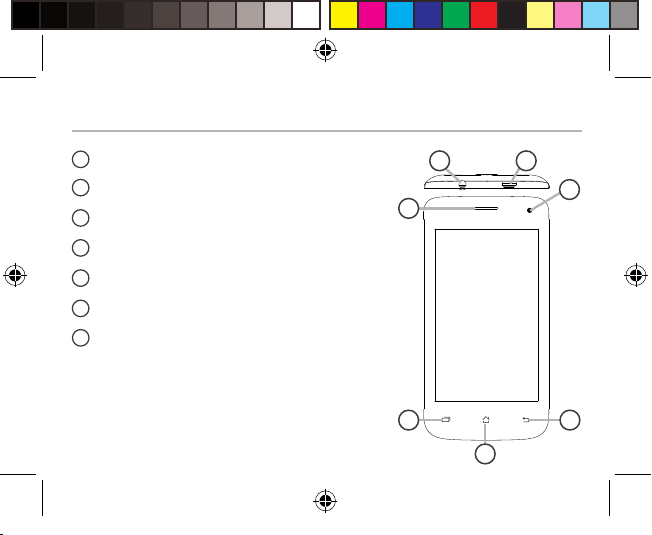
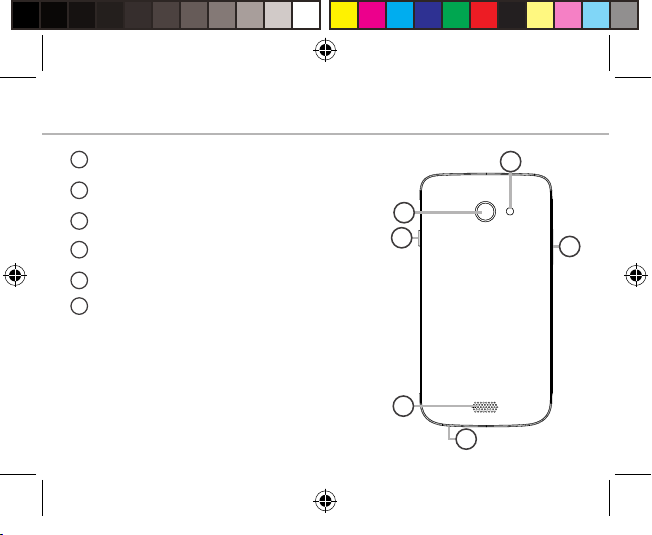
Description of the phone
1
2
3
4
5
6
7
Alba_4_LTE_Android_book (AC40Helium).indd 3 26/11/2015 11:28:35
Headset jack
Micro-USB port
Phone speaker
Front camera
Recent apps
Home/Google NOW
Back
1 2
3
4
75
6
3
Page 5
Description of the phone
8
9
10
11
12
13
4
Alba_4_LTE_Android_book (AC40Helium).indd 4 26/11/2015 11:28:36
Camera
Flash light
ON/OFF button
Volume buttons
Loudspeaker
Microphone
10
9
8
11
12
13
Page 6
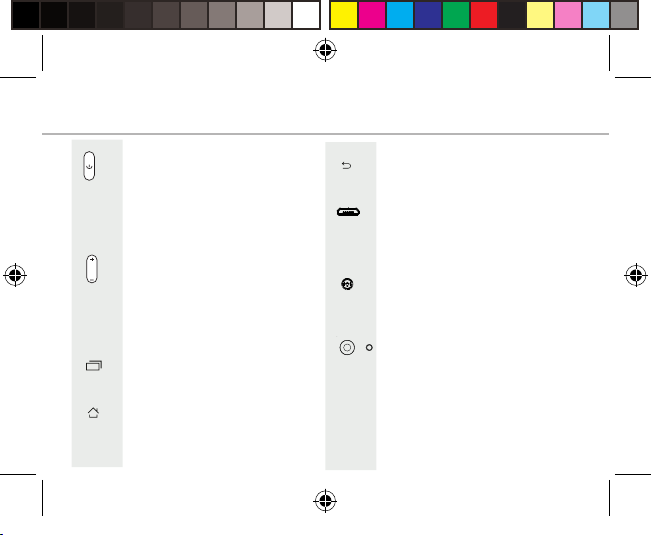
ON/OFF: when the device
is o, long press to turn
on. When the device is on,
short press to turn o the
screen and long press to
display options.
Volume +/-: press +/- to
adjust the volume. When
you press the button,
notification options are
displayed. You can select
the most appropriate one.
Recent apps: press to
display recent apps.
Home: short press to return
to the homescreen, long
press to access Google
Now.
Back: press to go back to
the previous screen.
Micro-USB port: plug the
provided cable to charge
the device or to connect it
to a computer.
Headphone jack: connect
the provided earphones to
make hand-free calls.
Camera & Flash: take
pictures or make movies.
To extend movies duration,
insert a micro-SD card
(max 32GB). Activate the
flash option in a dark
environment and use it as
a torch through the quick
settings.
5
Alba_4_LTE_Android_book (AC40Helium).indd 5 26/11/2015 11:28:37
Page 7
Getting started
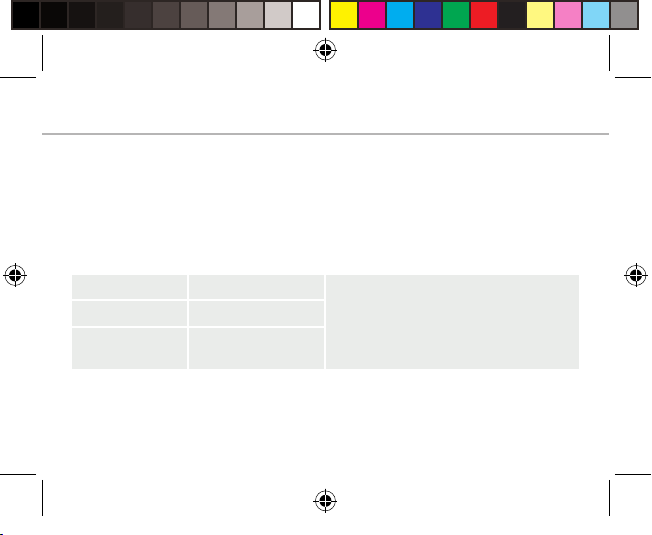
Assembling
After you have unpacked your mobile phone box:
1. Remove the device’s back cover using the notch.
2. Insert your SIM card or Memory card in the corresponding slot.
3. Insert the device’s battery.
4. Replace the back cover.
4G/3G/2G slot 1 When inserting your SIM card or
2G slot 2
Micro-SD card slot 3 (Maximum
6
Alba_4_LTE_Android_book (AC40Helium).indd 6 26/11/2015 11:28:37
capacity 32 GB)
micro-SD card (max 32GB), make
sure to follow the illustration,
otherwise you may damage the slot
or the card.
The 2G slot is below the 3G/2G slot.
Page 8

Lift the back cover using the notch
Alba_4_LTE_Android_book (AC40Helium).indd 7 26/11/2015 11:28:37
3
1 2
7
Page 9

Getting started
Turning on
1. Plug the charging cable in the Micro-USB port and connect it to its
charger.
Before using your device for the first time, charge its battery
completely.
2. Press and hold the ON/OFF button to turn on the device.
The first time you start up your tablet, the installation wizard will
help you set up your device.
3. Follow the onscreen instructions.
If you have inserted a SIM card, you may need to enter a PIN code.
Beware of typing a wrong PIN code.
Tip:
Your device goes in standby mode when you do not use it for a
specified period of time. To wake up your device, press the ON/OFF
button. To set the duration, go to Settings > Display > Sleep.
8
Alba_4_LTE_Android_book (AC40Helium).indd 8 26/11/2015 11:28:37
Page 10

On your homescreen
1. Swipe right to access Google Now
2. Press
3. Hold your finger
on an app
4. Say “Ok Google” to launch the search page.
5. Touch and pull down the status bar to display it.
Touch again the bar to reveal the quick settings.
Alba_4_LTE_Android_book (AC40Helium).indd 9 26/11/2015 11:28:39
to access all your apps
to move it right and create a
new homescreen.
5
4
1
3
2
9
Page 11

Mobile Data & WiFi connection
Mobile data connection
If your mobile phone subscription includes a mobile data option,
you should be connected to the Internet without any further setup.
The device will only have signal if you are in an area covered by your
provider’s 4G or 3G network.
Activating/Deactivating the mobile data
1. Touch and pull down the status bar to display it.
2. Touch the bar again to reveal the quick settings.
3. Select the Settings icon.
4. In Wireless & networks, select Data usage, then the SIM card tab.
5. Slide the Mobile data switch to turn on/o.
10
Alba_4_LTE_Android_book (AC40Helium).indd 10 26/11/2015 11:28:39
3
4
5
Page 12

WiFi connection
WARNING: Make sure that you are in a WiFi zone. You can access the WiFi settings quickly
from the status bar.
1. Touch and pull down the status bar to display it.
2. Touch again the bar to reveal the quick settings.
3. Select the WiFi icon to activate the WiFi connection .
4. Open the selection of available WiFi networks by touching
the small down arrow.
5. Touch the name of network you want to connect to.
Private networks are shown with a lock icon and will require
you to enter your password.
Alba_4_LTE_Android_book (AC40Helium).indd 11 26/11/2015 11:28:40
3
5
11
Page 13

Google & Contacts
Adding a Google account
A Google account lets you take full advantage of any Google apps
and services that you may want to use.
1. Go to “Settings” > “Accounts” > “Add account”.
2. Select the account type “Google” to add.
3. Follow the onscreen instructions to enter information about the
account.
Once the account is created, you can access Play Store, Gmail,
Hangouts, Maps and many other apps.
Synchronizing info
Information must be sync to be saved. Your data is backed up on
Google servers.
1. Go to “Settings” > “Accounts” > “Google”.
2. Select your account.
The list of information that can be sync are displayed.
Automatic sync should be activated. To launch the sync, press the
Menu button , then Sync now. You can get them back in case of loss
of your device or SIM card. When your Google account is added to a
new device, all your saved information is transferred.
12
Alba_4_LTE_Android_book (AC40Helium).indd 12 26/11/2015 11:28:40
Page 14

Saving your contacts
When your contacts are saved, they are always available on the web
and can be synced to any Android phone that’s set up with your
Google account.
1. Install the SIM card with your contacts in your phone.
2. From the Home screen or the All Apps screen, select the Contacts
app .
3. Touch the Menu button > “Import/Export”.
4. In Import/export contacts, select “Import from SIM card”.
5. Select your Google account.
6. Check contacts to be imported and validate.
7. Once the contacts are imported in the Google account, go to
“Settings” > “Accounts” > “Google”.
8. Select you Google account.
9. Select the Menu button , then “Sync now”.
Your contacts are saved to your Google account.
Alba_4_LTE_Android_book (AC40Helium).indd 13 26/11/2015 11:28:40
13
Page 15

Hints & tips with Android
Moving a home screen item:
Touch and hold your finger onto it, then slide it to the desired
location, and release your finger.
Removing a home screen item:
Touch and hold it, slide your finger towards the top of the screen
and drop it over the “Remove” icon.
Uninstalling an item:
From the “All apps” screens, touch and hold it, slide your finger
towards the top of the screen and drop it over “Uninstall” bin.
Creating application folders:
Drop one app icon over another on a home screen and the two
icons will be combined.
14
Alba_4_LTE_Android_book (AC40Helium).indd 14 26/11/2015 11:28:40
TM
Page 16

Widgets:
Hold your finger on a homescreen at an empty location. Touch
“Widgets”.
Changing your wallpaper:
Hold your finger on a home screen at an empty location.
Touch “Wallpapers”.
Locking the touchscreen:
Select the “Settings” app, then scroll down and touch “Security”.
Touch “Screen lock”. Touch the type of lock you would like to use.
After you set a lock, a lock screen is displayed whenever your screen
wakes up, requesting the pattern, pin or other specified key.
Alba_4_LTE_Android_book (AC40Helium).indd 15 26/11/2015 11:28:40
15
Page 17

Improving security on your Alba Phone
Online
In order to avoid online threats we recommend that you install
antivirus and security software on your device and keep these and
your browser and other software up to date to take advantage of
security fixes.
Physical theft
If you store valuable information on your phone including passwords
and logins for personal accounts etc. you may want to enhance the
security of your phone in case it is stolen or lost.
Setting a PIN or password
You can set a pin code (4-8 digit numerical code) or you can
set a password which is 4 to 17 digits. We recommend you set
a password, the longer and more complex it is the harder it is to
break. For the best passwords use a mixture of upper and lower case
letters, numbers and special characters such as %, # and *.
• In ‘Settings’, select ‘Security’, then ‘screen lock’, then select PIN or
Password.
16
Alba_4_LTE_Android_book (AC40Helium).indd 16 26/11/2015 11:28:40
Page 18

Encrypting your memory
In order to prevent more technically capable persons gaining access
to your data, in the event that your phone is lost or stolen, you
can encrypt your phone’s memory so that even if the password is
breached the data will be unreadable.
Please note encryption will have a modest effect on performance
but for most tasks this will not be noticeable. For memory intensive
tasks such as playing back video files stored in the phone’s memory
it may cause some buffering.
In order to encrypt your phone you must first set a PIN or password
as shown above.
Before you encrypt, you must charge your phone to at least 80%
battery capacity, then with your phone still on charge go to;
• ‘Settings’, select ‘Security’, then ‘Encrypt phone’. The phone will
then ask you for your password. Type this, then press ‘Encrypt
phone’. The encryption can take up to 90 minutes. Do not interrupt
the process. Failure to follow this routine exactly may result in your
phone becoming unusable.
Alba_4_LTE_Android_book (AC40Helium).indd 17 26/11/2015 11:28:40
17
Page 19

Improving security on your Alba Phone
• Please note that your phone cannot be decrypted by the same
process. To decrypt you must return the phone to factory settings
which will erase all of your files and downloaded apps (securely).
• To reset to factory defaults go to ‘Settings’, select ‘Backup and
Reset’ then ‘Factory data reset’.
Erasing your personal data
If you sell your phone on or discard it, you should erase the data in
memory before you do so, using a file eraser program that actively
writes to every record in the memory. This securely erases your data
so that it cannot be recovered. Please note that simply returning
your phone to factory settings is not a reliable way of erasing your
personal data (unless you have first encrypted your data).
• To download a file eraser go to Google Play store, select a file
eraser program such as Remo File Eraser – download and install.
• Open the app and follow instructions to securely erase your data.
Further Advice
For further advice on how to stay safe there are government lead
18
Alba_4_LTE_Android_book (AC40Helium).indd 18 26/11/2015 11:28:40
Page 20

initiatives such as Get Safe Online https://www.getsafeonline.org/
which give good advice about a how to avoid a range of security
threats. Don’t let security issues spoil your enjoyment of your
phone.
Alba Phones Helpline
For detailed advice on this or any other issue concerning your Alba
phone you can consult with the technical support helpline – 0207
744 0346
Alba_4_LTE_Android_book (AC40Helium).indd 19 26/11/2015 11:28:40
19
Page 21

Troubleshooting
My phone is frozen or cannot switch on:
Check the battery contacts, remove and reinstall your battery, then
turn your phone on. Check the battery power level, charge for at
least 20 minutes.
My phone cannot connect to a network or “No service” is displayed:
Try connecting in another location. Verify the network coverage
with your operator.
Unable to make outgoing calls:
Make sure your phone is connected to a network, and the network is
not overloaded or unavailable.
Unable to receive incoming calls:
Make sure your phone is switched on and connected to a network
(check for overloaded or unavailable network).
SIM card PIN locked:
Contact your network operator to obtain the PUK code (Personal
Unblocking Key).
20
Alba_4_LTE_Android_book (AC40Helium).indd 20 26/11/2015 11:28:40
Page 22

To configure a new 4G network:
On your device, tap Settings.
Select Wireless & networks > More... > Mobile networks.
Select Network settings. In Network operators, select your operator.
In Access Point Names, select the correct access point name
and enter the exact connection parameters provided by your 4G
provider.
SAR
After the labortory measurement, this mobile phone SAR value is
Head: 1.290 W/kg; Body: 0.809 W/Kg
Argos declares that this device is in compliance with the essential
requirements and other relevant provisions of Directive 1999/5/EC.
A copy of the declaration of conformity can be obtained from: Argos
Ltd. 489-499 Avebury Boulevard, Milton Keynes, MK9 2NW, UK
Alba_4_LTE_Android_book (AC40Helium).indd 21 26/11/2015 11:28:40
21
Page 23

www.argos.co.uk
Alba_4_LTE_Android_cover (AC40Helium).indd 2 25/11/2015 11:03:28
Argos Limited © 2015. All rights reserved.
P/N: 114582
 Loading...