

Page 1
User Guide
AB100
Bluetooth UHF RFID Reader
Page 2

AB100_User Guide
Notice
Registered Trademark
ARETE mobile is launched by PHYCHIPS Inc. for mobile device and currently registered worldwide
with its ARETE mobile trade mark legally protected by law.
© 2012 PHYCHIPS Inc. All rights reserved.
This User Guide is produced by PHYCHIPS Inc. and protected by Copyright Laws.
Please note that there may be possible mistake or omission of information in this document.
Applicable Device
This document is applicable for Android 2.2.1~4.0.4
2 / 22
Page 3

AB100_User Guide
Contents
Chapter 1: Understanding AB100 ........................................................................................................ 4
1.1 AB100 at a Glance ..................................................................................................................... 4
1.2 Accessories ................................................................................................................................ 4
1.3 Specifications ............................................................................................................................. 5
Chapter 2: Basics .................................................................................................................................. 6
2.1 Activating .................................................................................................................................... 6
2.2 Application: How to Install in your Phone................................................................................... 7
2.3 Bluetooth Pairing ........................................................................................................................ 9
2.4 Inventory .................................................................................................................................. 10
2.5 When disconnected from phone .............................................................................................. 11
2.6 How to Grip .............................................................................................................................. 12
Chapter 3: How to use Application .................................................................................................... 13
3.1 Main Display ............................................................................................................................ 13
3.2 Pairing with AB100 ................................................................................................................... 13
3.3 Read EPC Tag ......................................................................................................................... 14
3.4 Read Tag Memory .................................................................................................................... 15
3.5 Write Tag Memory .................................................................................................................... 16
3.6 Lock Tag Memry ....................................................................................................................... 17
3.7 Kill Tag Memory ....................................................................................................................... 18
3.8 Additional Functions ................................................................................................................. 19
Chapter 4: Information ........................................................................................................................ 20
4.1 Safety Information .................................................................................................................... 20
4.2 Troubleshooting ....................................................................................................................... 20
4.3 Disposal and Recycling ........................................................................................................... 21
4.4 Customer Service .................................................................................................................... 21
3 / 22
Page 4
Chapter 1: Understanding AB100
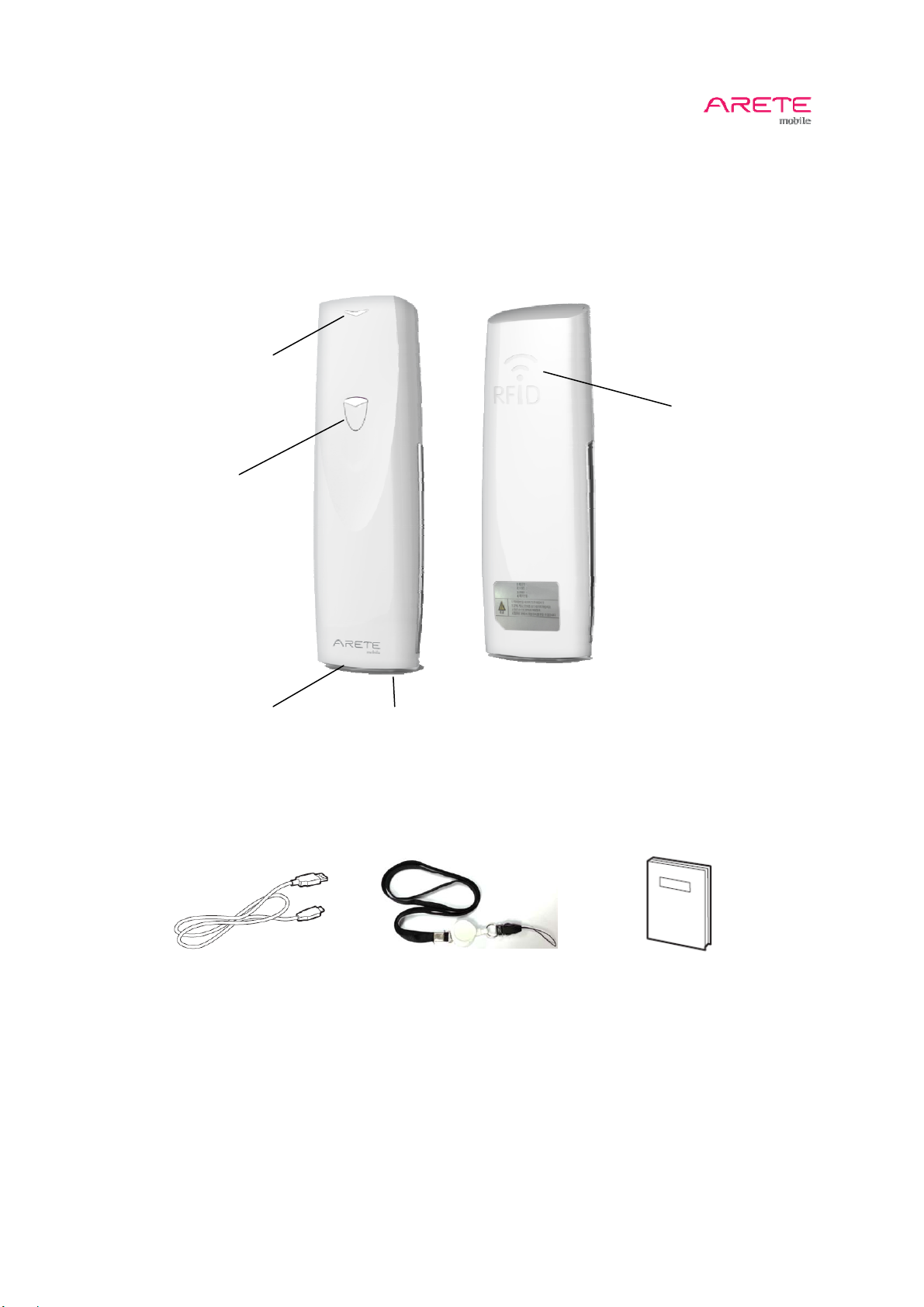
1.1 AB100 at a Glance
AB100_User Guide
Status Indicator_LED
Power ON/OFF
Button
Charger Connector
1.2 Accessories
RFID Antenna
Strap Holder
USB Cable
Neck Strap
Quick Manual
4 / 22
Page 5

AB100_User Guide
1.3 Specifications
PHYSICAL
Dimension(WxLxH) 35.9 x 101.5 x 11.7mm
Weight 40g
Indication Power on LED(Blue), Charging LED(Red/Green), Tagging(Red blinking)
Battery Rechargeable, 350mAh Li-polymer
Continuous Time 2.5 hours , Sleep mode function
Charging Micro USB 5pin
Color White
RFID PERFORMANCE
RFID Reader Chip PR9000
Air Protocol ISO 18000-6C/ EPC Class1 Gen 2
Operating Frequency
OS Apple IOS 4.01, Android 2.2 above, Windows XP, Windows7
Output (EIRP) 25mW(14dBm)
RFID Read Distance Max 0.5m (depend on tags)
Antenna Circularly Polarized Patch Antenna
Tag Read, Write
902.75 ㎒ ~ 927.25 ㎒
BLUETOOTH PERFORMANCE
Bluetooth V2.1 + EDR
Frequency 2.4GHz
Profile SPP, IAP
Bluetooth Distance Max 10m
USER ENVIRONMENT
Operating Temp 0~40˚C
Storage Temp -20~60˚C
5 / 22
Page 6
AB100_User Guide
Chapter 2: Basics
2.1 Activating
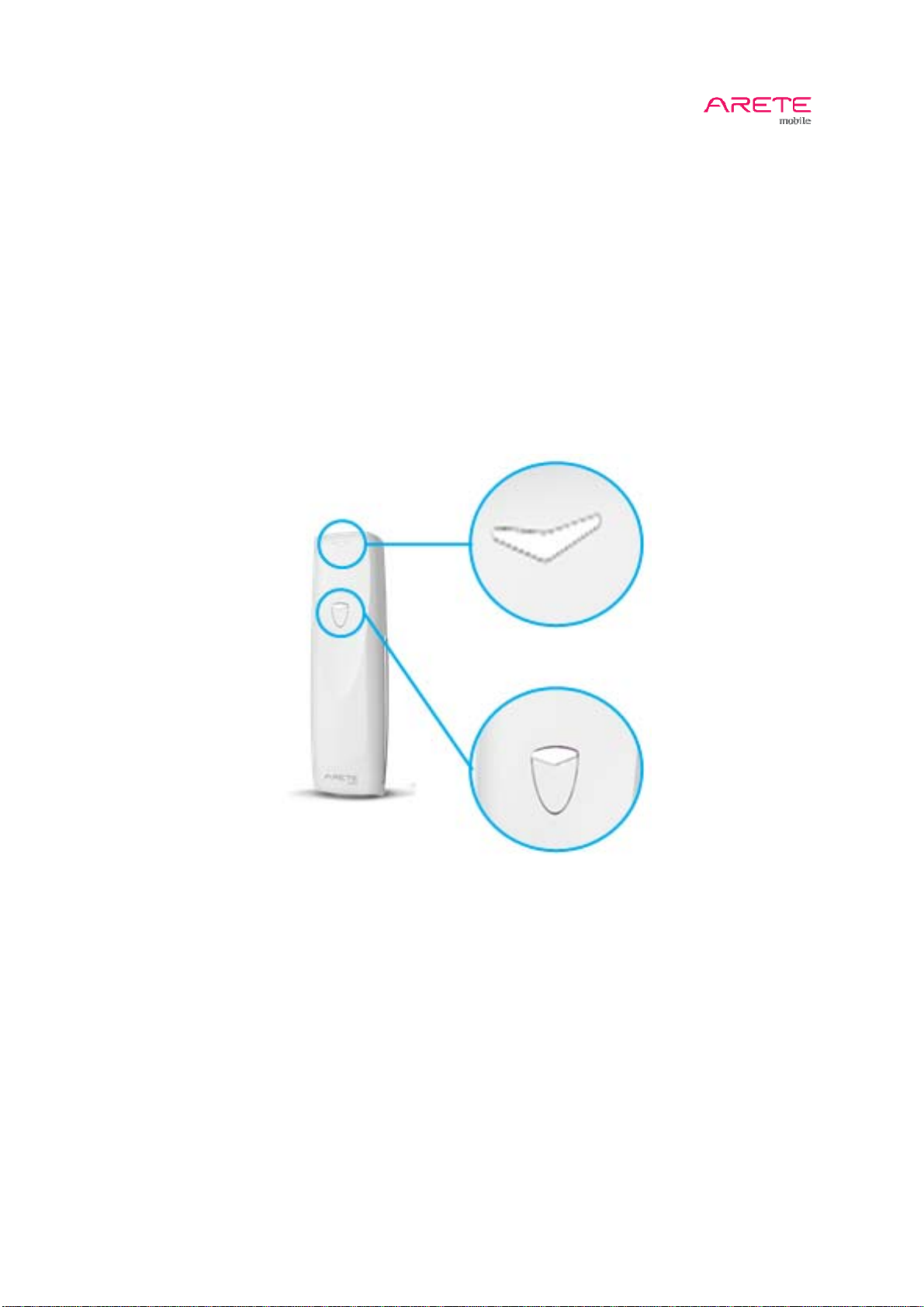
1. Power ON
1) Power button is located on the front side of the product
2) Power button should be pressed for 2 seconds
3) LED indicator will be blinked for 60 seconds in blue color
2. Power OFF
1) AB100 will be changed to “Power off” mode automatically if fail to pairing for 60 seconds
2) AB100 will be changed to “Power off” mode automatically after 60 second of pairing and tag
reading
3. Battery Charging
1) Battery will be charged by Micro B USB connector
2) It is compatible with general Micro B USB connector
3) Charging time is about 2 hours
4) Red LED blinking: under charging
5) Blue LED blinking: completed charging
LED Indicator
Power Button
6 / 22
Page 7
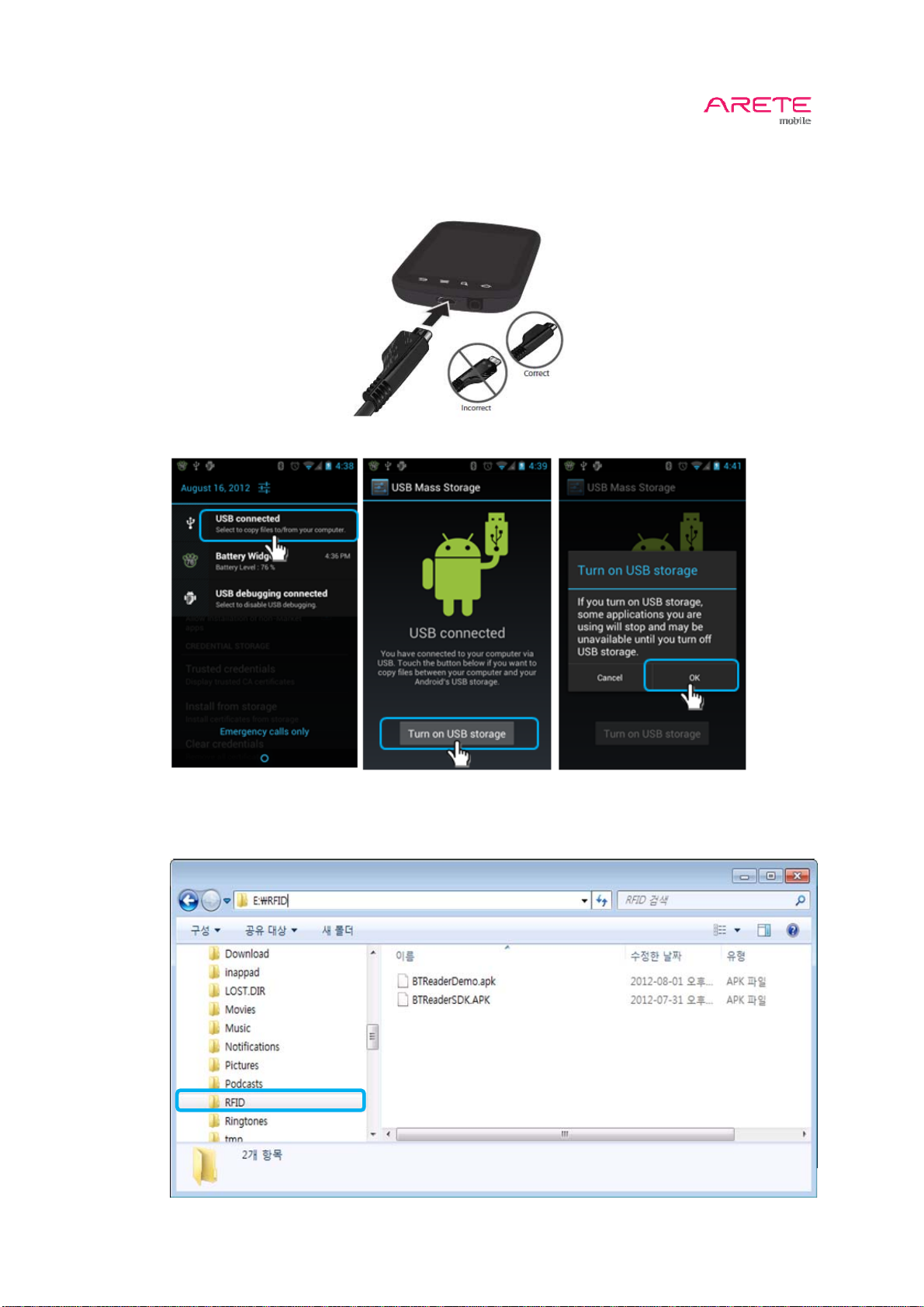
2.2 Application: How to Install in your Phone
1. Connect your phone to PC
2. Turn on USB storage
AB100_User Guide
3. Copy apps into your phone
1) Your phone shows up as a removable device on your PC.
2) Create a folder and copy apps on removable drive.
7 / 22
Page 8
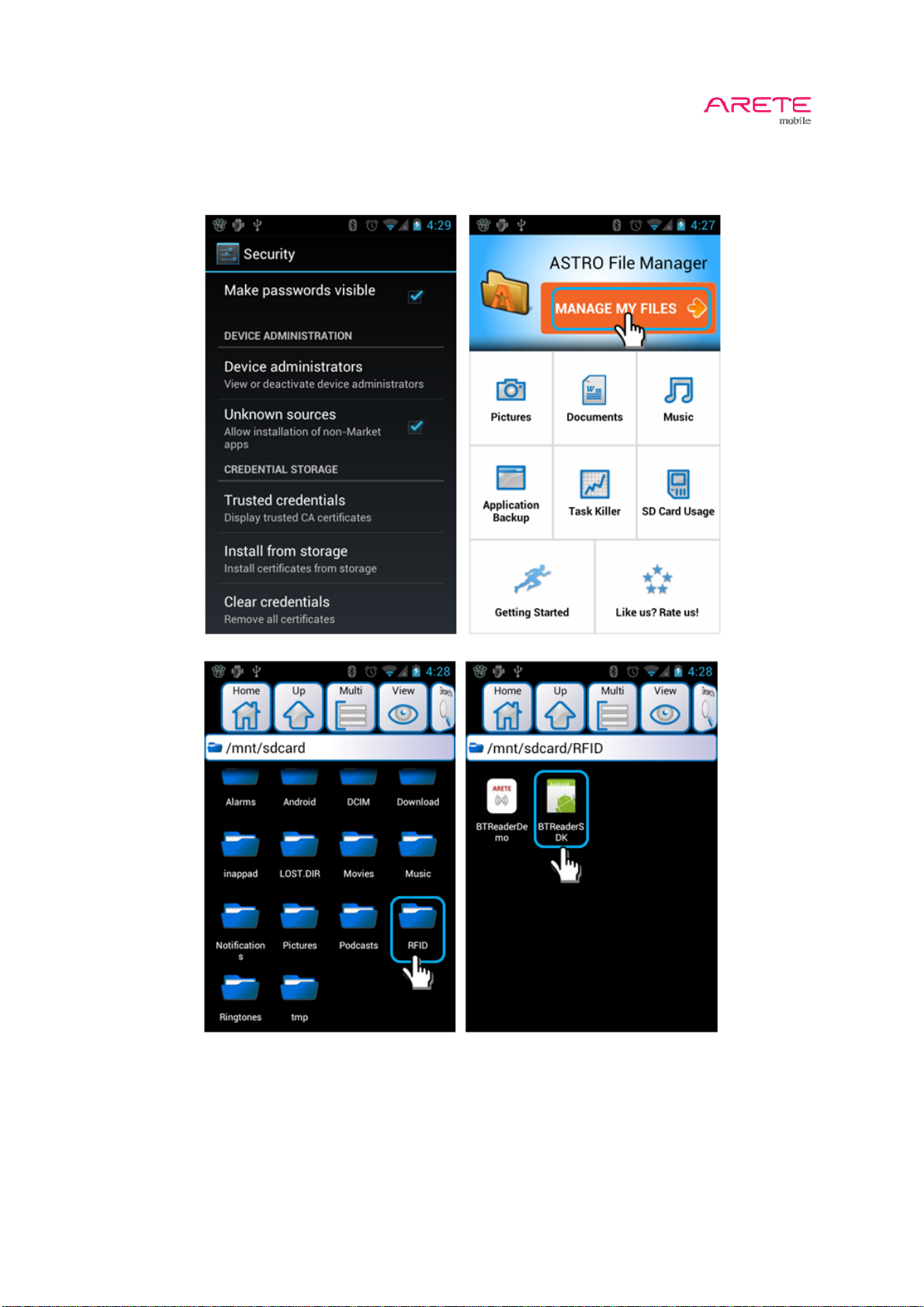
4. Install
1) Allow unknown sources
2) Open your file browser app
3) Install the APK file
AB100_User Guide
8 / 22
Page 9
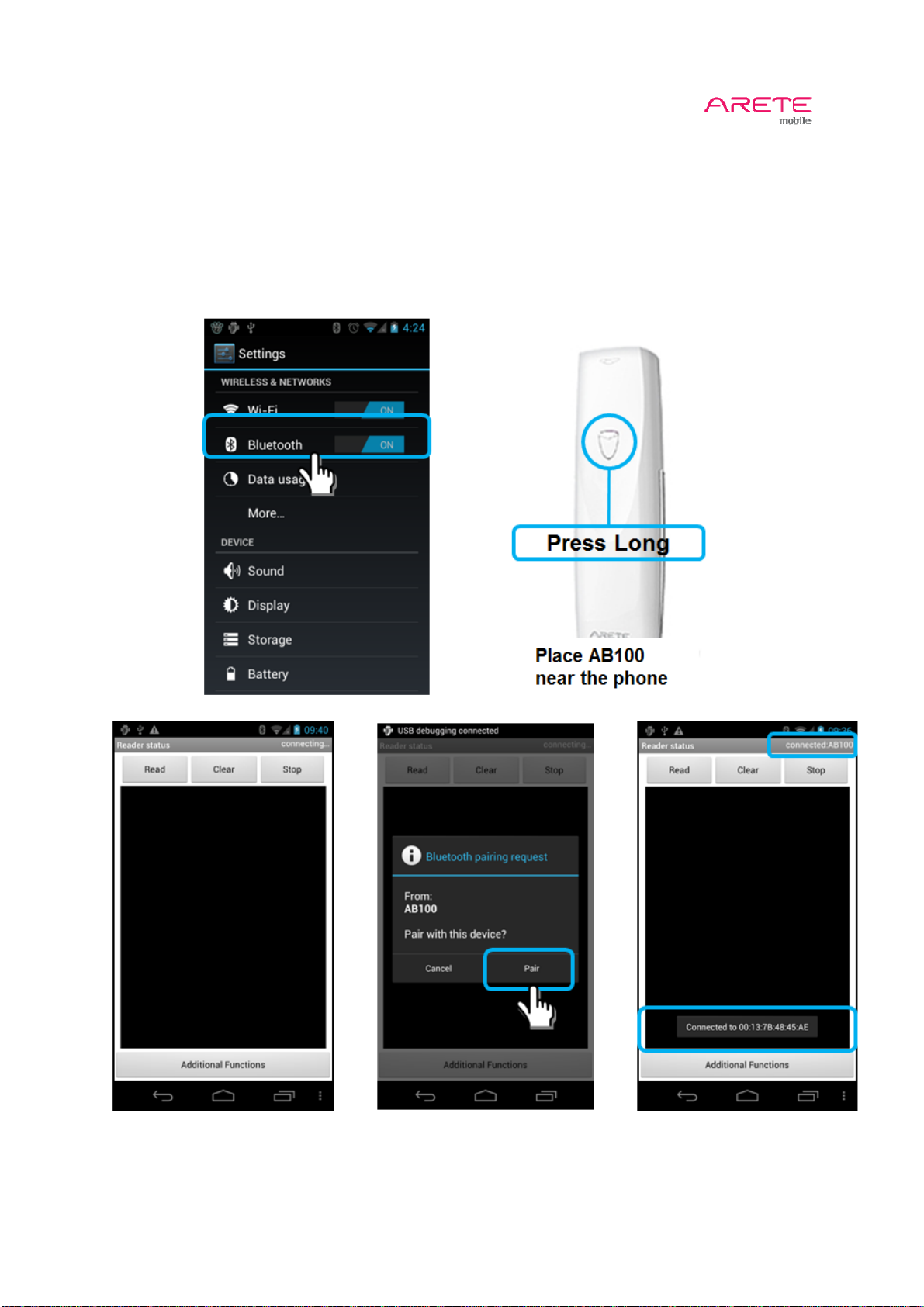
2.3 Bluetooth Pairing
1. Turn on Bluetooth at Settings
2. Turn on AB100
3. Run App
4. Touch Pair
5. Connected
AB100_User Guide
9 / 22
Page 10
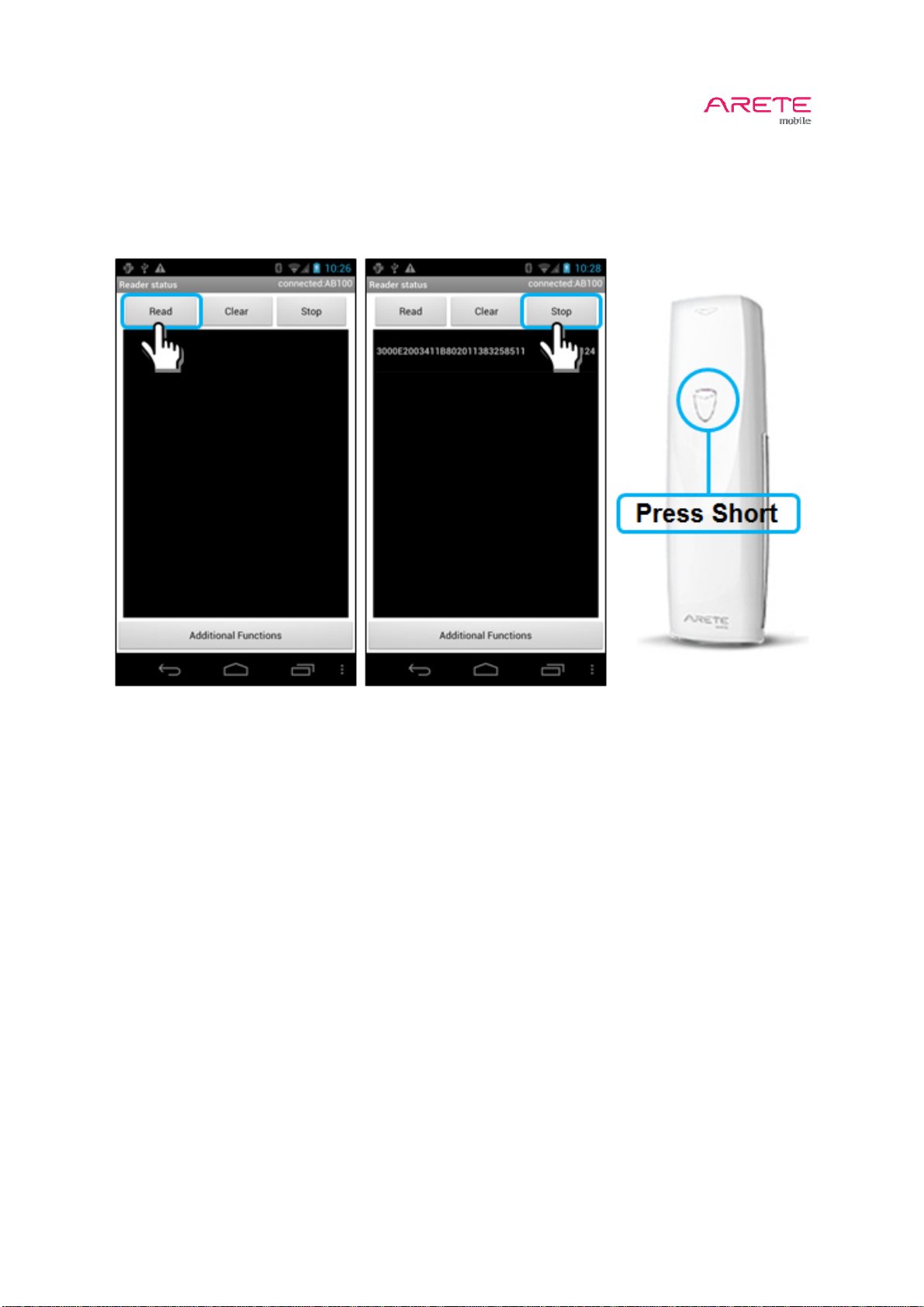
2.4 Inventory
1. Touch Read button to inventory tag continuously
2. Touch Stop button to finish inventory tag
3. Press shortly the reader button to inventory tag 1 short time
AB100_User Guide
10 / 22
Page 11
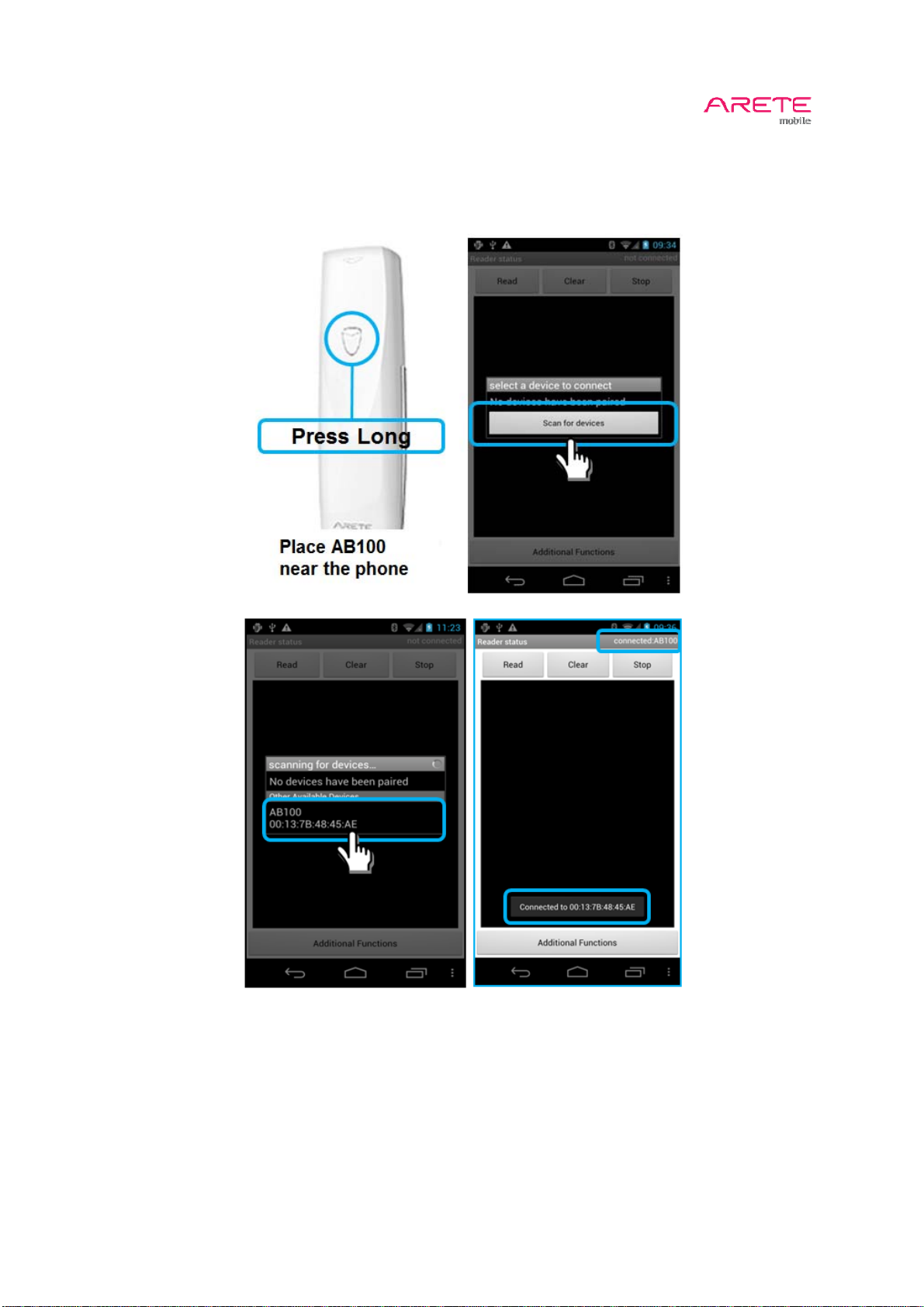
2.5 When disconnected from phone
1. Turn on AB100
2. Scan for Device
3. Now connected
AB100_User Guide
11 / 22
Page 12
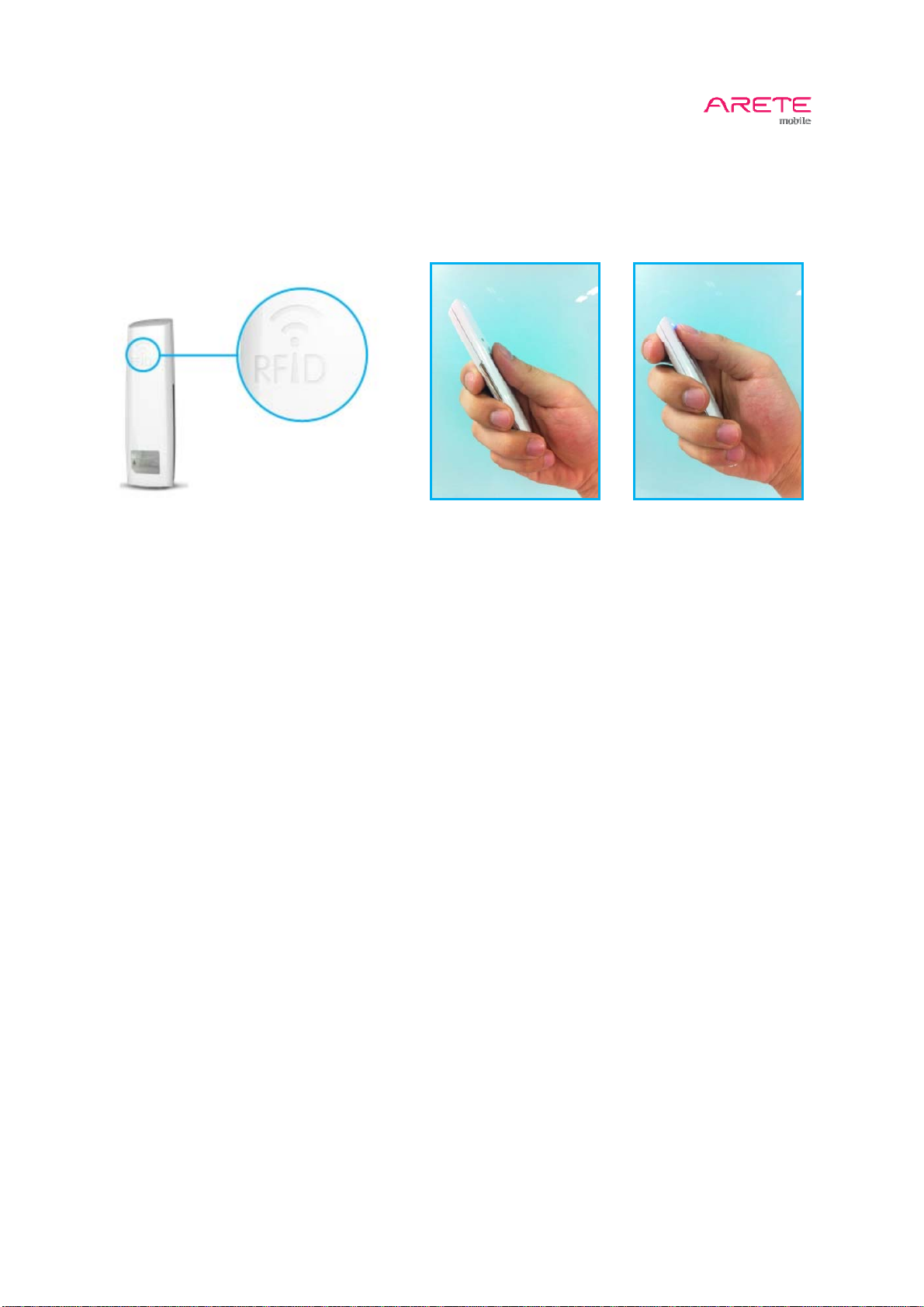
2.6 How to Grip
1. Do not cover RFID antenna area by hand
2. Hand Effect
RFID reader performance will be lower if antenna area covered by hand.
RFID Antenna
AB100_User Guide
12 / 22
Page 13
Chapter 3: How to use Application
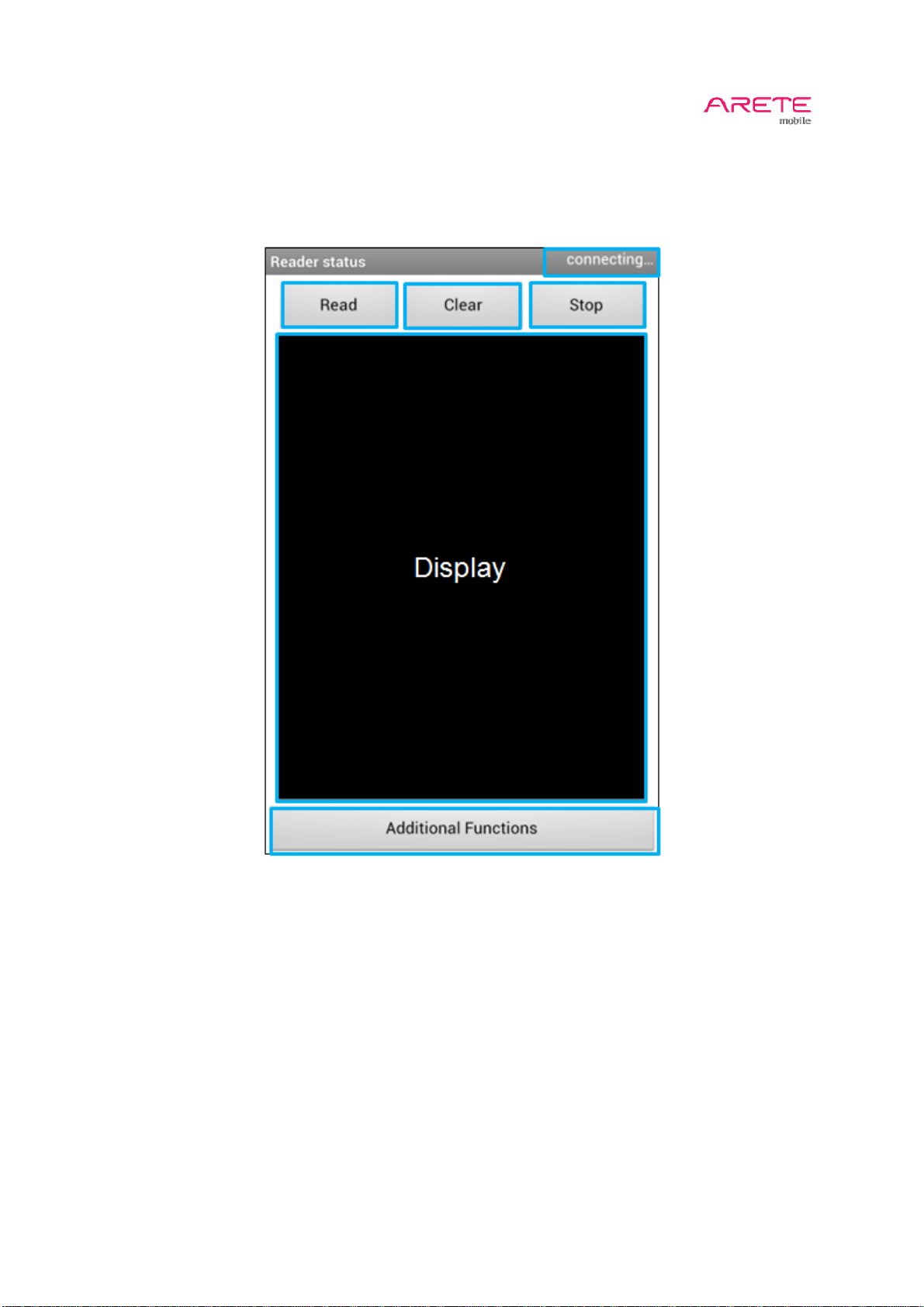
3.1 Main Display
AB100_User Guide
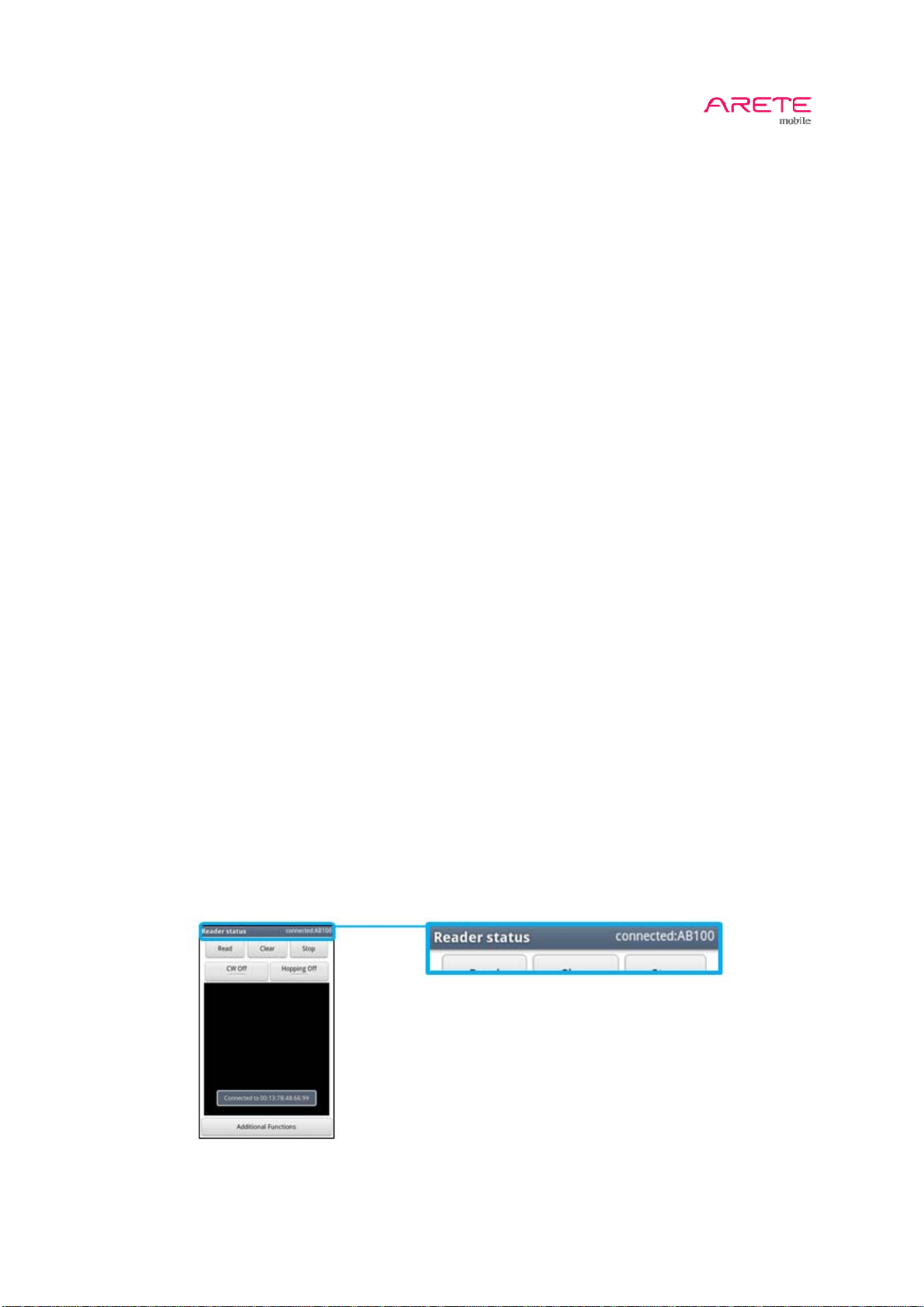
- Connection Status: Connection status with AB100 such as not connected, connecting, con nected
- Read Button: Start to read “Tag EPC”
- Clear Button: Remove Read Record
- Stop Button: Stop Tag Reading
- Display: Show Tag Read Record
- Additional Functions: Set Access Password
3.2 Pairing with AB100
See Chapter 2.3 Bluetooth pairing
13 / 22
Page 14
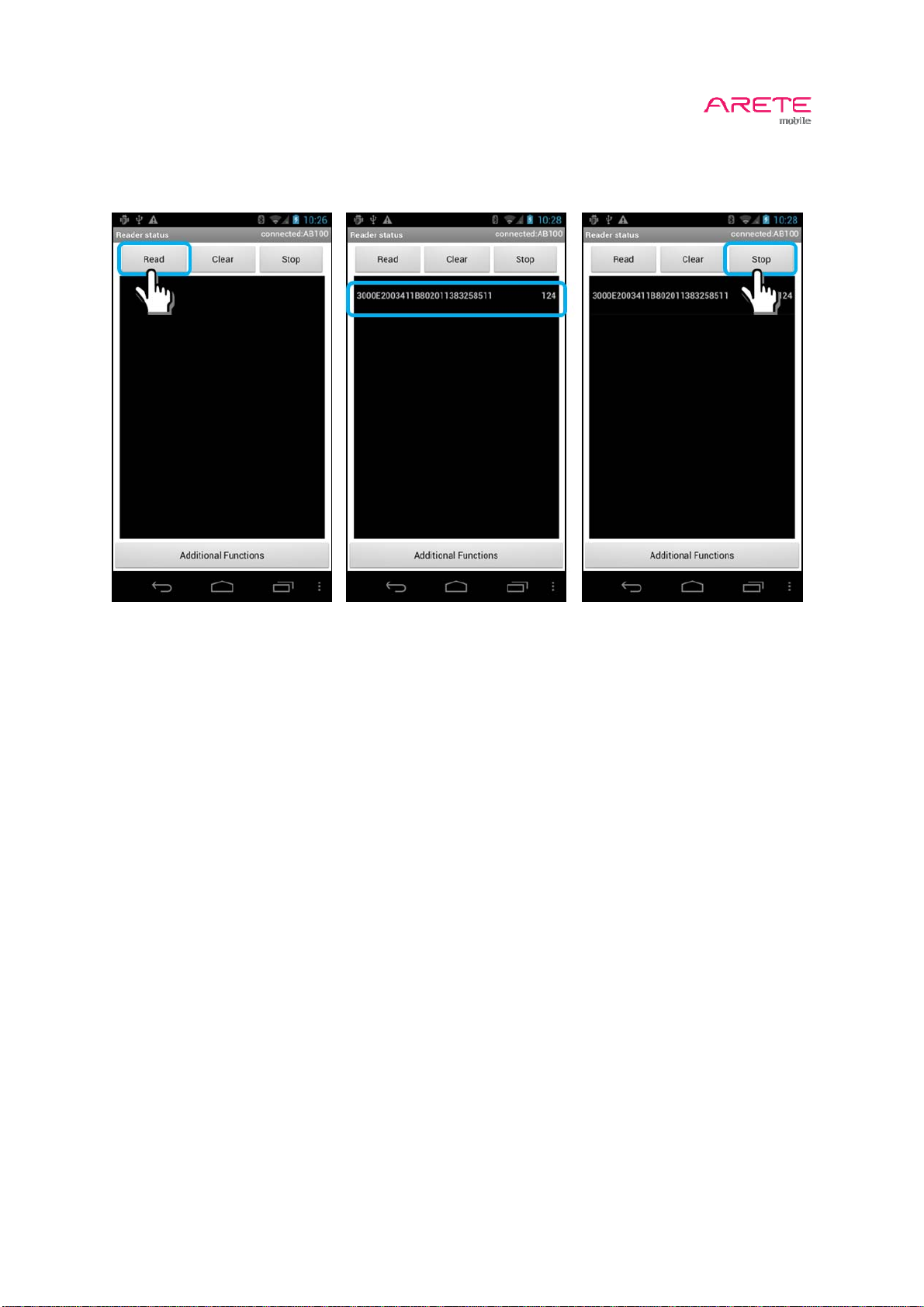
3.3 Read EPC Tag
1. Touch Read button to start Tag reading
2. Touch Stop button to stop tag reading
AB100_User Guide
14 / 22
Page 15
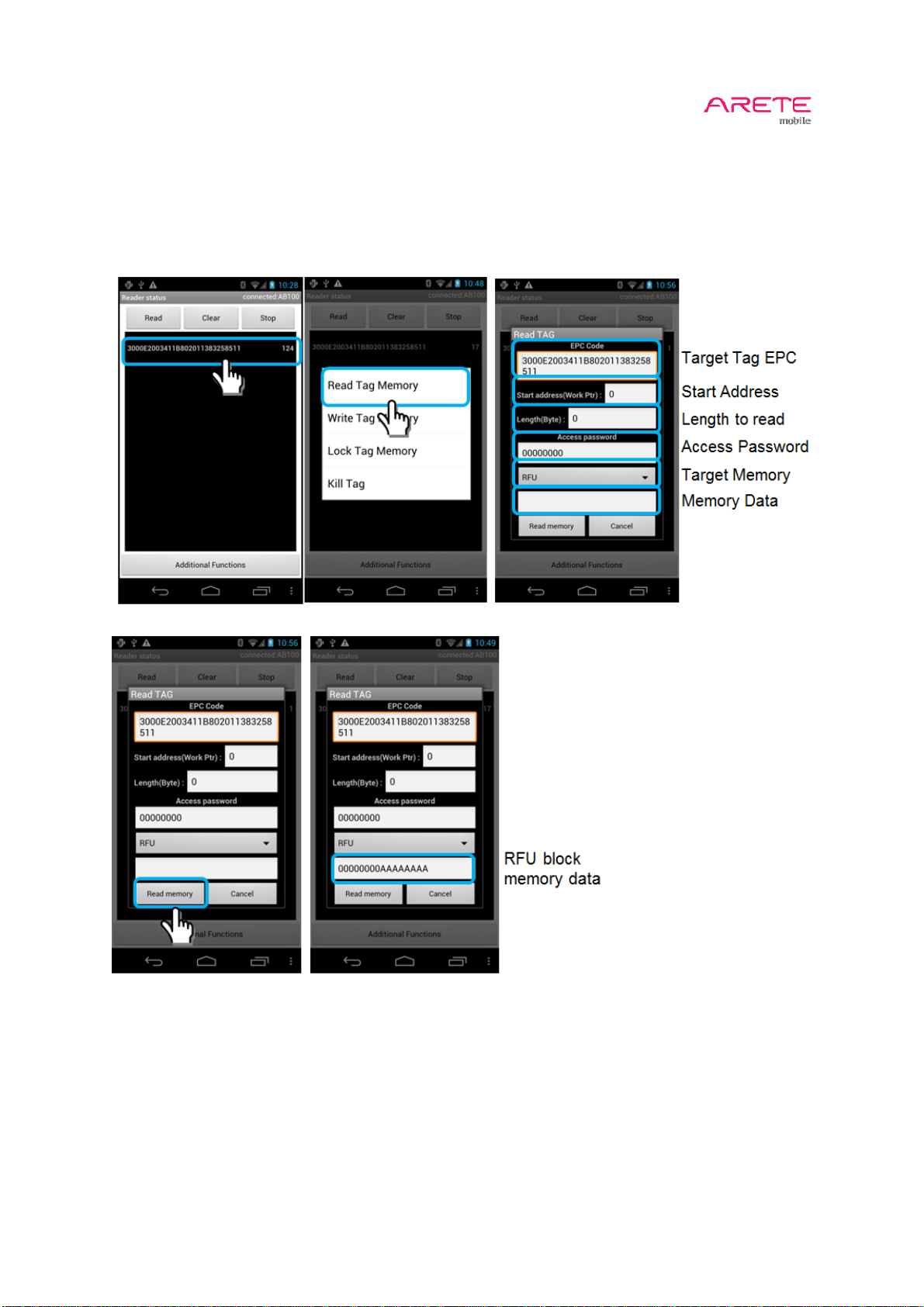
3.4 Read Tag Memory
1. Touch long target EPC code
2. Touch Read Tag Memory
3. Give parameters
4. Touch Read Memory
5. Check Data
AB100_User Guide
15 / 22
Page 16
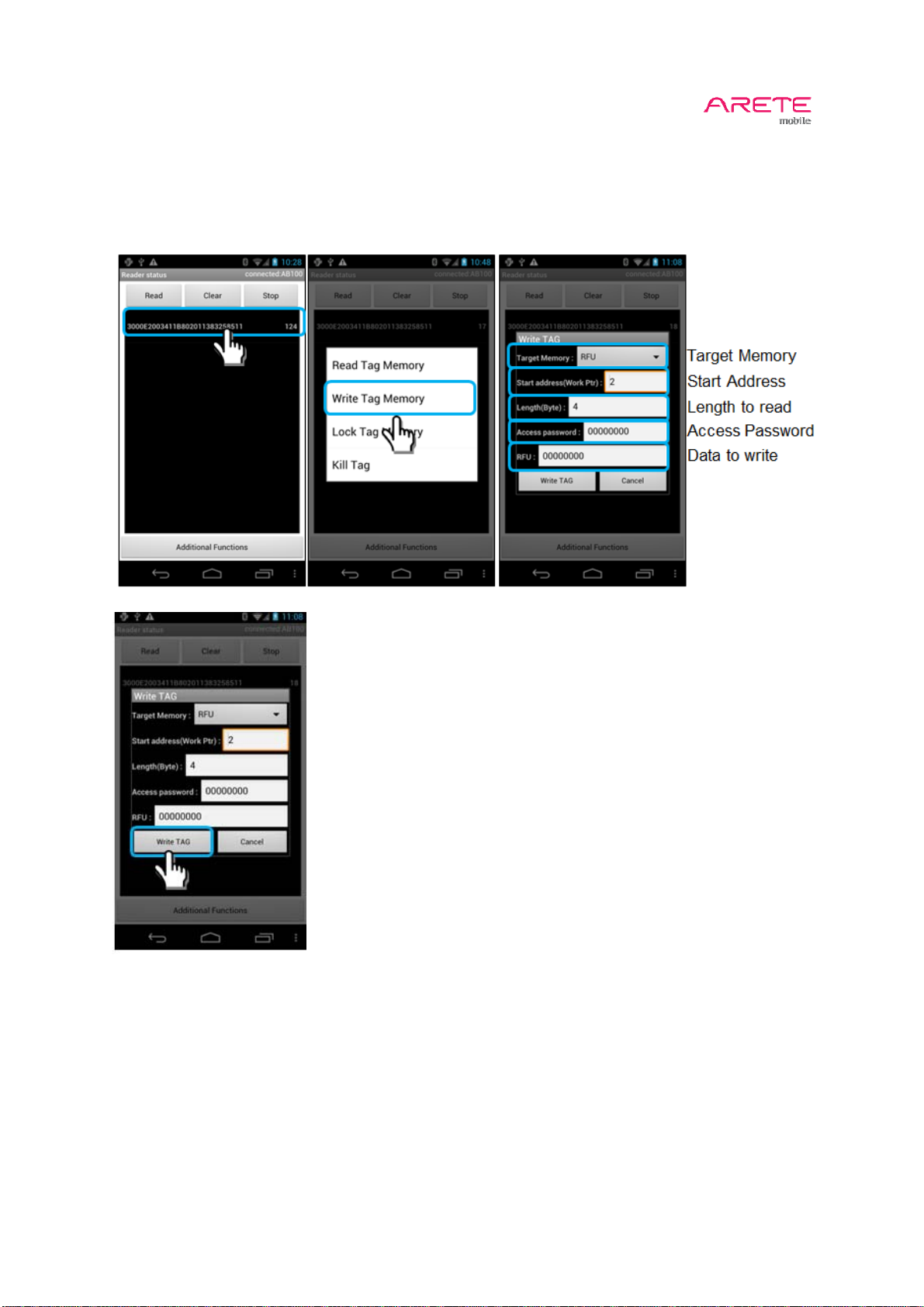
3.5 Write Tag Memory
1) Touch long target EPC code
2) Touch Write Tag Memory
3) Give Parameters
4) Touch Write TAG
AB100_User Guide
16 / 22
Page 17
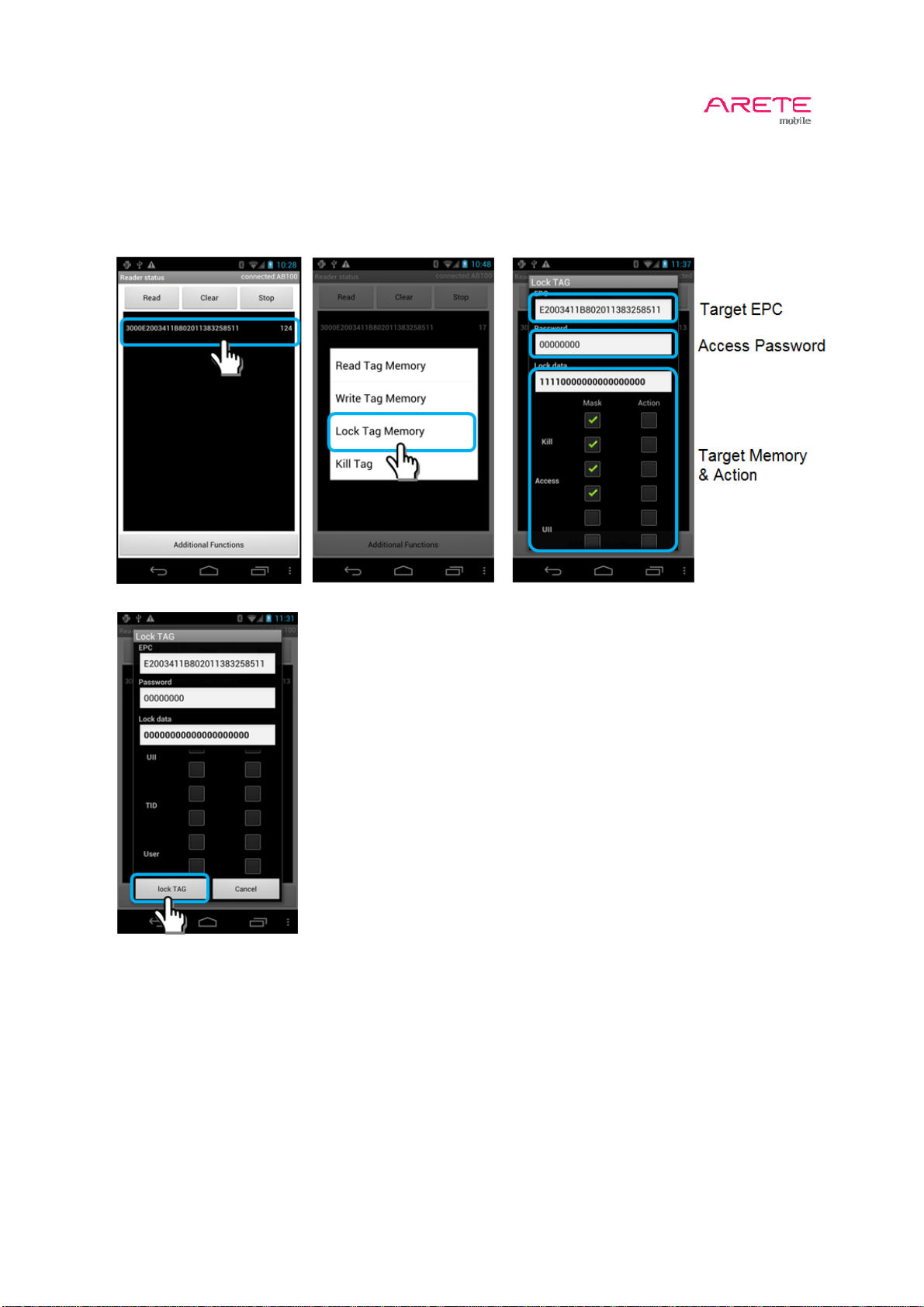
3.6 Lock Tag Memory
1) Touch long target EPC code
2) Touch Lock Tag Memory
3) Give Parameters
4) Touch Lock TAG
AB100_User Guide
17 / 22
Page 18
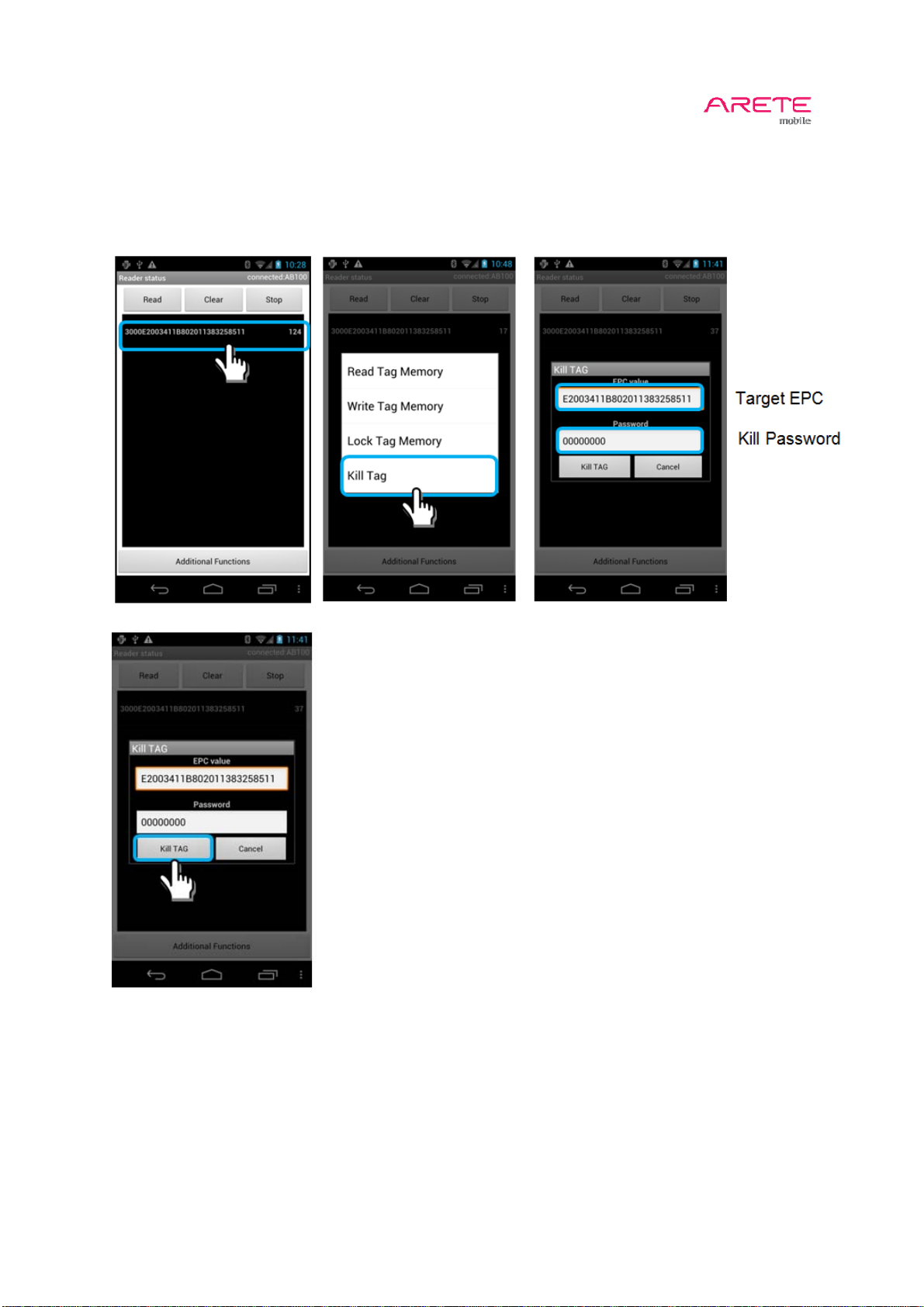
3.7 Kill Tag Memory
1) Touch long target EPC code
2) Touch Kill Tag
3) Give Parameters
4) Touch Kill TAG
AB100_User Guide
18 / 22
Page 19
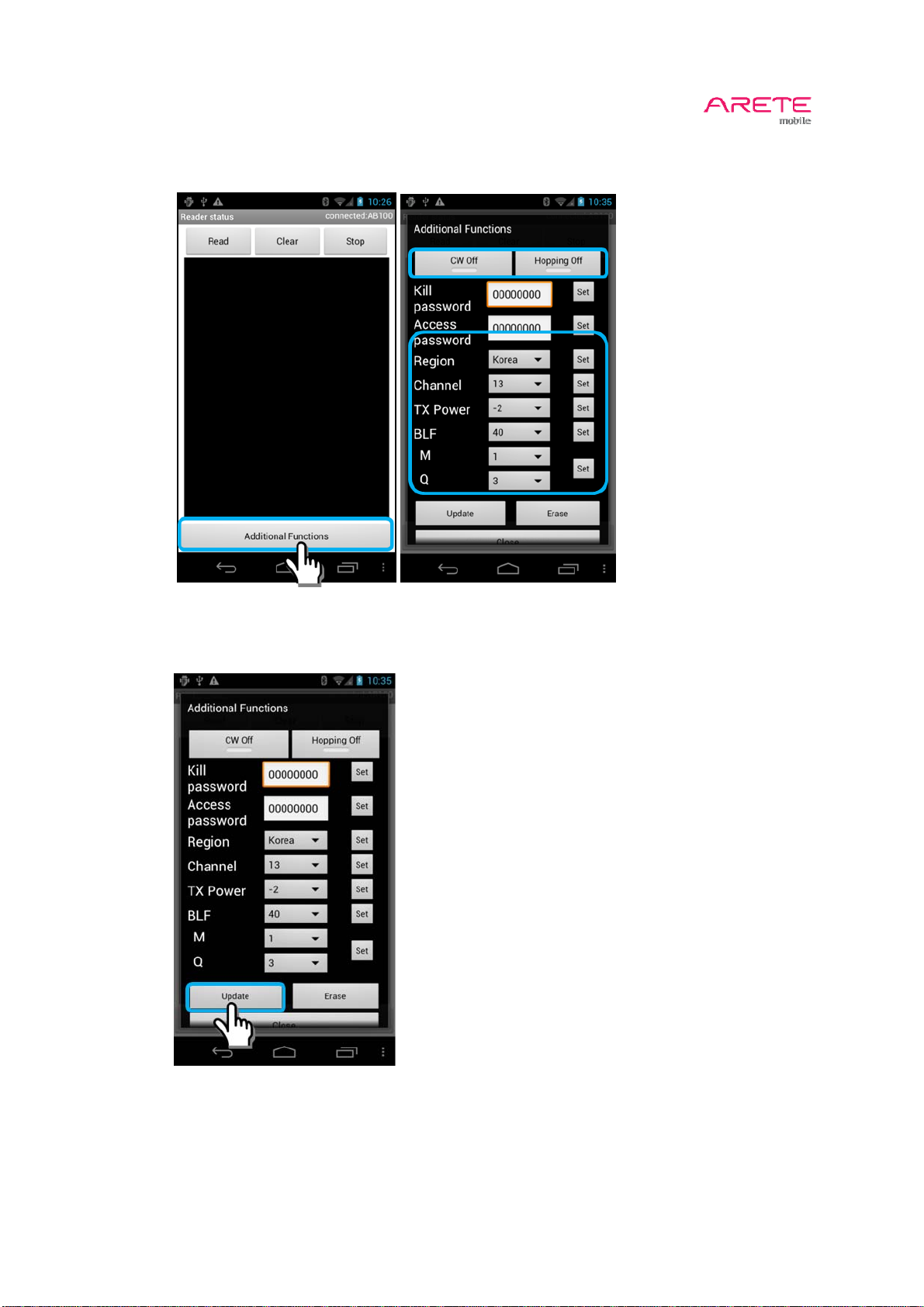
3.8 Additional Functions
1. Setting for Local Regulations
AB100_User Guide
2. Save Setting to AB100
You can store your settings in AB100 flash memory by touching update button.
If you touch erase button, stored setting are cleared.
19 / 22
Page 20
AB100_User Guide
Chapter 4: Information
4.1 Safety Information
1. Do not disassemble or repair arbitrarily but contact where you buy when AB100 is in trouble.
2. Do not use chemical substance(alcohol, benzene, detergent etc) and water to clean AB100
3. Please avoid vibrations and shocks. Please place in a safe place when not in use.
4. Please avoid high/low temperature and high humidity.
5. Please turn AB100 off in explosive area as there may be danger due to electric wave.
6. Please use medical device(pacemaker, hearing aid etc) which is blocked from RF energy.
7. Please stop using AB100 and consult a medical expert in case of any allergic reactions and
side effect.
4.2 Troubleshooting
Q: What should I do if I fail to turn on AB100?
A: First, check the batter power status.
Second, recharge for a certain amount of time and try again.
If you fail to turn it on again, please contact where you buy it.
Third, if red LED is blinking in standby status, it is battery failure.
Please contact where you buy it.
Q: What should I do if AB100 gets wet?
A: Dry it first.
If it does not working properly after being dried, then contact where you buy it.
Q: What should I do if AB100 fail to pair with device?
A: First, check AB100 ID
Second, check power status of AB100
Third, check Bluetooth function as “ON”
Q: What should I do if I fail to read tag?
A: First, check whether Bluetooth connected or not.
Second, check power status of AB100.
Third, it is possible to fail to read tag due to interference if other RFID readers are being used
in the same place.
20 / 22
Page 21

4.3 Disposal and Recycling
You must dispose of AB100 properly according to your local laws and regulations.
Because electronic components and a battery are included in the AB100.
4.4 Customer Service
1. ARETE mobile Customer Service
1) Phone: + 82 42 864 2402
2) Fax: + 82 42 864 2403
3) Email: [email protected]
4) Address
PHYCHIPS Inc.
#205 Migun Technoworld 1, 533 Yongsan-dong, Yuseong-gu, Daejeon, Kore a, 305-500
5) Working Day and time
- Monday to Friday
- 09:00~18:00(Korean Time, GMT Time + 9 hours)
6) RMA Rule
- http://www.arete-mobile.com/pdf/RMA%20Policy_ARETE%20mobile.pdf
2. Local Customer Service
Please contact where you buy.
4.5 FCC Information to User
AB100_User Guide
This equipment has been tested and found to comply with the limits for a Class B digital device,
pursuant to Part 15 of the FCC Rules. These limits are designed to provide reasonable protection
against harmful interference in a residential installation. This equipment generates, uses and can
radiate radio frequency energy and, if not installed and used in accordance with the instructions, may
cause harmful interference to radio communications. However, there is no guarantee that interference
will not occur in a particular installation. If this equipment does cause harmful interference to radio or
television reception, which can be determined by turning the equipment off and on, the user is
encouraged to try to correct the interference by one of the following measures:
• Reorient or relocate the receiving antenna.
• Increase the separation between the equipment and receiver.
• Connect the equipment into an outlet on a circuit different from that to which the receiver is connected.
• Consult the dealer or an experienced radio/TV technician for help.
Caution
21 / 22
Page 22

Modifications not expressly approved by the party responsible for compliance could void the user’s
authority to operate the equipment.
AB100_User Guide
FCC Compliance Information :
subject to the following two conditions: (1) This device may not cause harmful interference, and (2)
this device must accept any interference received, including interference that may cause undesired
operation
======================================================================
RF Exposure Statement
The equipment complies with FCC RF radiation exposure limits set forth for an uncontrolled
environment. This device and its antenna must not be co-located or operation in conjunction with any
other antenna or transmitter.
=======================================================================
:
This device complies with Part 15 of the FCC Rules. Operation is
22 / 22
 Loading...