

Page 1

POE-200CAM
1/3 Sharp CCD Dual Stream
DOM IP Camera
User’s Manual
AirLive POE-200CAM User’s Manual
i
Page 2

e
e
n
s
s
t
t
e
t
g
h
Declaration of Conformity
n
r
We, Manufacturer/Importer
OvisLink Corp.
5F., NO.6, Lane 130, Min-Chuan Rd.,
Hsin-Tien City, Taipei County, Taiwa
Declare that the product
1/3 Sharp CCD Dual Stream DOM IP Carema
AirLive POE-200CAM
is in conformity with
In accordance with 2004/108/EC Directive and 1999/5 EC-R & TTE Directive
Claus
■ EN 55022:2006 Class B Limits and methods of measurement of radio disturbanc
Description
characteristics of information technology equipme
■ EN 61000-3-2:2000+ Disturbances in supply systems caused by household appliance
A2:2005 Class A and similar electrical equipment "Harmonics
■ EN 61000-3-3:1995+ Disturbances in supply systems caused by household appliance
A1:2001+A2:2005 and similar electrical equipment "Voltage fluctuations
■ EN 55024:1998+A1:2001 Information Technology equipment-Immunity characteristics-Limi
+A2:2003 And methods of measuremen
■ AS/NZS CISPR22:2006 Electromagnetic compatibility-requirements for radio disturbanc
Class B characteristics of information technology equipmen
■ CE markin
Manufacturer/Importe
Signature :
Name : Albert Ye
Position/ Title: Vice President (Stamp) Date: 2008/10/1
Page 3

AirLive POE-200CAM CE Declaration Statement
Country Declaration Country Declaration
cs
Česky [Czech]
da
Dansk [Danish]
de
Deutsch
[German]
et
Eesti [Estonian]
en
English
es
Español
[Spanish]
el
Ελληνική [Greek]
fr
Français [French]
it
Italiano [Italian]
lv
Latviski [Latvian]
sv
Svenska
[Swedish]
OvisLink Corp. tímto prohlašuje, že tento AirLive
POE-200CAM je ve shodě se základními
požadavky a dalšími příslušnými ustanoveními
směrnice 1999/5/ES.
Undertegnede OvisLink Corp. erklærer herved, at
følgende udstyr AirLive POE-200CAM overholder
de væsentlige krav og øvrige relevante krav i
direktiv 1999/5/EF.
Hiermit erklärt OvisLink Corp., dass sich das
Gerät AirLive POE-200CAM in Übereinstimmung
mit den grundlegenden Anforderungen und den
übrigen einschlägigen Bestimmungen der
Richtlinie 1999/5/EG befindet.
Käesolevaga kinnitab OvisLink Corp. seadme
AirLive POE-200CAM vastavust direktiivi
1999/5/EÜ põhinõuetele ja nimetatud direktiivist
tulenevatele teistele asjakohastele sätetele.
Hereby, OvisLink Corp., declares that this AirLive
POE-200CAM is in compliance with the essential
requirements and other relevant provisions of
Directive 1999/5/EC.
Por medio de la presente OvisLink Corp. declara
que el AirLive POE-200CAM cumple con los
requisitos esenciales y cualesquiera otras
disposiciones aplicables o exigibles de la
Directiva 1999/5/CE.
ΜΕ ΤΗΝ ΠΑΡΟΥΣΑ OvisLink Corp. ΔΗΛΩΝΕΙ
ΟΤΙ AirLive POE-200CAM ΣΥΜΜΟΡΦΩΝΕΤΑΙ
ΠΡΟΣ ΤΙΣ ΟΥΣΙΩΔΕΙΣ ΑΠΑΙΤΗΣΕΙΣ ΚΑΙ ΤΙΣ
ΛΟΙΠΕΣ ΣΧΕΤΙΚΕΣ ΔΙΑΤΑΞΕΙΣ ΤΗΣ ΟΔΗΓΙΑΣ
1999/5/ΕΚ.
Par la présente OvisLink Corp. déclare que
l'appareil AirLive POE-200CAM est conforme aux
exigences essentielles et aux autres dispositions
pertinentes de la directive 1999/5/CE
Con la presente OvisLink Corp. dichiara che
questo AirLive POE-200CAM è conforme ai
requisiti essenziali ed alle altre disposizioni
pertinenti stabilite dalla direttiva 1999/5/CE.
Ar šo OvisLink Corp. deklarē, ka AirLive
POE-200CAM atbilst Direktīvas 1999/5/EK
būtiskajām prasībām un citiem ar to saistītajiem
noteikumiem.
Härmed intygar OvisLink Corp. att denna AirLive
POE-200CAM står I överensstämmelse med de
väsentliga egenskapskrav och övriga relevanta
bestämmelser som framgår av direktiv
1999/5/EG.
lt
Lietuvių
[Lithuanian]
nl
Nederlands [Dutch
mt
Malti [Maltese]
hu
Magyar
[Hungarian]
pl
Polski [Polish]
pt
Português
[Portuguese]
sl
Slovensko
[Slovenian]
sk
Slovensky [Slovak]
fi
Suomi [Finnish]
Íslenska [Icelandic]
no
Norsk [Norwegian]
Šiuo OvisLink Corp. deklaruoja, kad šis AirLive
POE-200CAM atitinka esminius reikalavimus ir kitas
1999/5/EB Direktyvos nuostatas.
Hierbij verklaart OvisLink Corp. dat het toestel AirLive
POE-200CAM in overeenstemming is met de
essentiële eisen en de andere relevante bepalingen
van richtlijn 1999/5/EG.
Hawnhekk, OvisLink Corp, jiddikjara li dan AirLive
POE-200CAM jikkonforma mal-ħtiġijiet essenzjali u
ma provvedimenti oħrajn relevanti li hemm
fid-Dirrettiva 1999/5/EC.
Az OvisLink Corporation kijelenti, hogy az AirLive
POE-200CAM megfelel az 1999/05/CE irányelv
alapvető követelményeinek és egyéb vonatkozó
rendelkezéseinek.
Niniejszym OvisLink Corp oświadcza, że AirLive
POE-200CAM jest zgodny z zasadniczymi wymogami
oraz pozostałymi stosownymi postanowieniami
Dyrektywy 1999/5/EC.
OvisLink Corp declara que este AirLive
POE-200CAM está conforme com os requisitos
essenciais e outras disposições da Directiva
1999/5/CE.
OvisLink Corp izjavlja, da je ta AirLive POE-200CAM
v skladu z bistvenimi zahtevami in ostalimi
relevantnimi določili direktive 1999/5/ES.
OvisLink Corp týmto vyhlasuje, že AirLive
POE-200CAM spĺňa základné požiadavky a všetky
príslušné ustanovenia Smernice 1999/5/ES.
OvisLink Corp vakuuttaa täten että AirLive
POE-200CAM tyyppinen laite on direktiivin 1999/5/EY
oleellisten vaatimusten ja sitä koskevien direktiivin
muiden ehtojen mukainen
Hér með lýsir OvisLink Corp yfir því að AirLive
POE-200CAM er í samræmi við grunnkröfur og aðrar
kröfur, sem gerðar eru í tilskipun 1999/5/EC.
OvisLink Corp erklærer herved at utstyret AirLive
POE-200CAM er i samsvar med de grunnleggende
krav og øvrige relevante krav i direktiv 1999/5/EF.
A copy of the full CE report can be obtained from the following address:
OvisLink Corp.
5F, No.6 Lane 130,
Min-Chuan Rd, Hsin-Tien City,
Taipei, Taiwan, R.O.C.
This equipment may be used in AT, BE, CY, CZ, DK, EE, FI, FR, DE, GR, HU, IE, IT, LV, LT, LU, MT, NL, PL, PT, SK,
SI, ES, SE, GB, IS, LI, NO, CH, BG, RO, TR
Page 4

Before you use this Product
This AirLive product has been designed with safety in mind. However, if not used properly electrical products can
cause fires which may lead to serious body injury. To avoid such accidents, be sure to heed the following.
Legal Caution
Video and audio surveillance can be forbidden by laws that vary from country to country. Check the laws in your
local region before using this product for surveillance purposes.
Heed the safety precautions
Be sure to follow the general safety precautions and the “Operation Notice.”
In case of a breakdown
In case of system breakdown, discontinue use and contact your authorized AirLive dealer.
In case of abnormal operation
• If the unit emits smoke or an unusual smell,
• If water or other foreign objects enter the cabinet, or
• If you drop the unit or damage the cabinet:
1 Disconnect the cable and the connecting cables.
2 Contact your authorized AirLive dealer or the store where you purchased the product.
Operation Notice - Operating or storage location
Avoid operating or storing the camera in the following locations:
• Extremely hot or cold places (Operating temperature: 0 °C to +50 °C [32 °F to 122°F])
• Exposed to direct sunlight for a long time, or close to heating equipment (e.g., near heaters)
• Close to sources of strong magnetism
• Close to sources of powerful electromagnetic radiation, such as radios or TV transmitters
• Locations subject to strong vibration or shock
Ventilation
To prevent heat buildup, do not block air circulation around the device.
Transportation
When transporting the camera, repack it as originally packed at the factory or in materials of equal quality.
Cleaning
• Use a soft, dry cloth to clean the external surfaces of the device. Stubborn stains can be removed using a soft
cloth dampened with a small quantity of detergent solution, then wipe dry.
• Do not use volatile solvents such as alcohol, benzene or thinners as they may damage the surface.
i
AirLive POE-200CAM User’s Manual
Page 5

Table of Contents
Chapter 1: Installation ............................................................................ 1
1.1 Installation Steps ........................................................................................................ 1
1.2 Package Contents....................................................................................................... 1
1.3 Overview...................................................................................................................... 1
Chapter 2: Using IP Camera via Mobile Phone .................................... 2
2.1 3G Mobile Phone viewing........................................................................................... 2
2.2 2.5G Mobile Phone viewing........................................................................................ 2
Chapter 3: Using IP Camera via Web Browser..................................... 3
3.1 Camera Installation..................................................................................................... 4
3.2 Initial accessing the IP camera .................................................................................. 6
3.3 Configuration of Main Menu....................................................................................... 8
3.3.1 Setting ............................................................................................................... 8
3.3.2 Client Setting .................................................................................................... 8
3.4 Image Setup................................................................................................................. 9
3.5 Live View...................................................................................................................... 9
Chapter 4: Setting..................................................................................11
4.1 Basic .......................................................................................................................... 11
4.1.1 System ............................................................................................................ 11
4.1.2 Camera ............................................................................................................ 14
4.1.3 Network ........................................................................................................... 20
4.1.4 Security ........................................................................................................... 26
4.2 Advance..................................................................................................................... 28
4.2.1 FTP Client ....................................................................................................... 28
4.2.2 SMTP ............................................................................................................... 31
4.2.3 HTTP Event ..................................................................................................... 35
4.2.4 Schedule ......................................................................................................... 37
4.2.5 Alarm Buffer ................................................................................................... 38
4.2.6 Motion Detection ............................................................................................ 39
4.2.7 System Log..................................................................................................... 41
Appendix A – Frame Rate & Bit Rate Table .................................................. 42
Appendix B – Storage Requirement Table ................................................... 46
AirLive POE-200CAM User’s Manual
ii
Page 6

Chapter 1: Installation
)
1.1 Installation Steps
Follow these steps to install the AirLive POE-200CAM on your Ethernet:
1. Check the package contents against the list below.
2. Set the device. See IP Installer User Manual on the available methods.
1.2 Package Contents
Item Description
IP Camera AirLive POE-200CAM IP Camera
Power Adapter Country-specific
Screw Pack Screws for Mounting the Camera
CD User Manual / IP Installer and Document
Printed Document Quick Installation Guide
1.3 Overview
Network (POE
Red line: Audio In
Green line: Audio Out
Video Out
Power
AirLive POE-200CAM User‘s Manual
1
Page 7

Chapter 2: Using IP Camera via Mobile Phone
To use IP cameras via mobile phones, please make sure your RTSP is set to “ON”. (Default is “ON”) To change
the settings of IP cameras, please see “Settings” for details.
2.1 3G Mobile Phone viewing
For 3G mobile phone viewing, type “rtsp://<IP>:<PORT>/video.3gp” into your 3G web browser. <IP> is the IP
address of your IP camera, <PORT> is the RTSP port of your IP camera (Default value is 8554.)
Example: rtsp://100.10.10.1:8554/video.3gp
Note:
• You can also use RTSP clients (RealPlayer, MPlayer, Windows Media Player, Quicktime…etc.) to view RTSP
streaming, just type in “rtsp://<IP>:<PORT>/video.3gp” as the Player’s URL
2.2 2.5G Mobile Phone viewing
For 2.5G mobile phone viewing, type “<IP>/mobile.wml” into your 2.5G web browser. <IP> is the IP address of
your IP camera.
AirLive POE-200CAM User’s Manual
2
Page 8
Chapter 3: Using IP Camera via Web Browser
System Requirement
To use the product normally, we strongly recommend your computer follows our minimum system requirement
(Computer level is lower than this might cause some problems)
Item Requirements
CPU Pentium 4 1600MHz (or equivalent AMD)
Graphic Card 64MB RAM graphic cards (or equivalent on-board graphic cards)
RAM 512MB
Operating System
Web Browser Internet Explorer 6 or later
Windows 98, ME (Please see Note)
Windows 2000, 2003, XP, Vista
Note:
• If you’re using Windows 98 or ME, please install IP Installer before using WEB UI to ensure the system runs
normally.
•If you can’t view the recorded video file (missing video decoder), please install Xvid codec while installing
Intelligent IP Installer. (For Windows 98, ME or 2000 server, the codec might not work properly. You’ll need to
download Xvid codec 1.0 from the internet.
3
AirLive POE-200CAM User’s Manual
Page 9
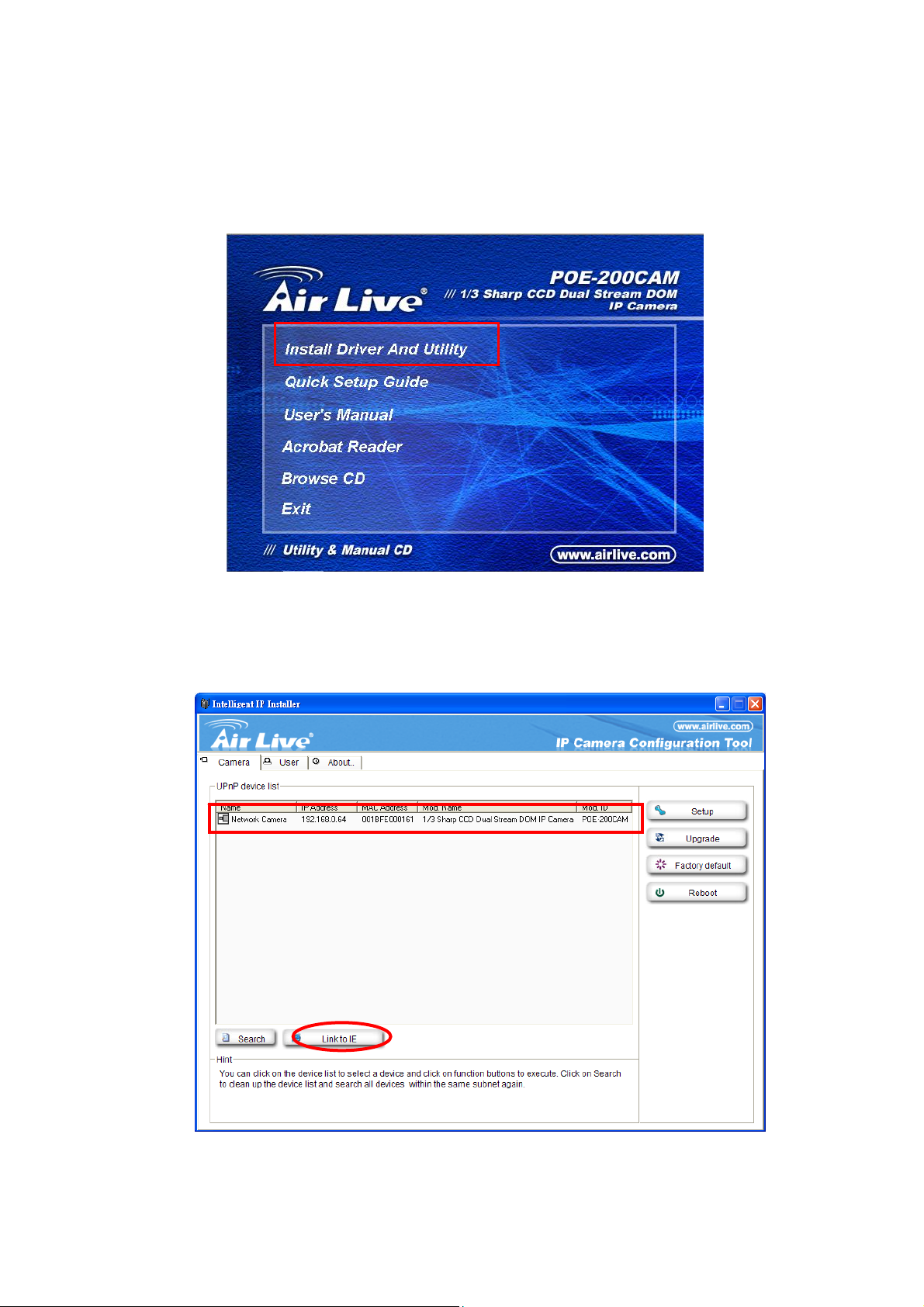
3.1 Camera Installation
1. Insert CD into your PC/Laptop.
2. Auto Run Screen then shows up, click “setup wizard” to install the configuration tool software
3. After complete installation, Run the configuration tool software
4. The Software scans the network and finds the IP Camera, then list in the dialog box.
5. If the Camera’s IP address is in the same IP segment as your LAN, select the founded IP Camera and click
“Link to IE” to proceed.
AirLive POE-200CAM User’s Manual
4
Page 10
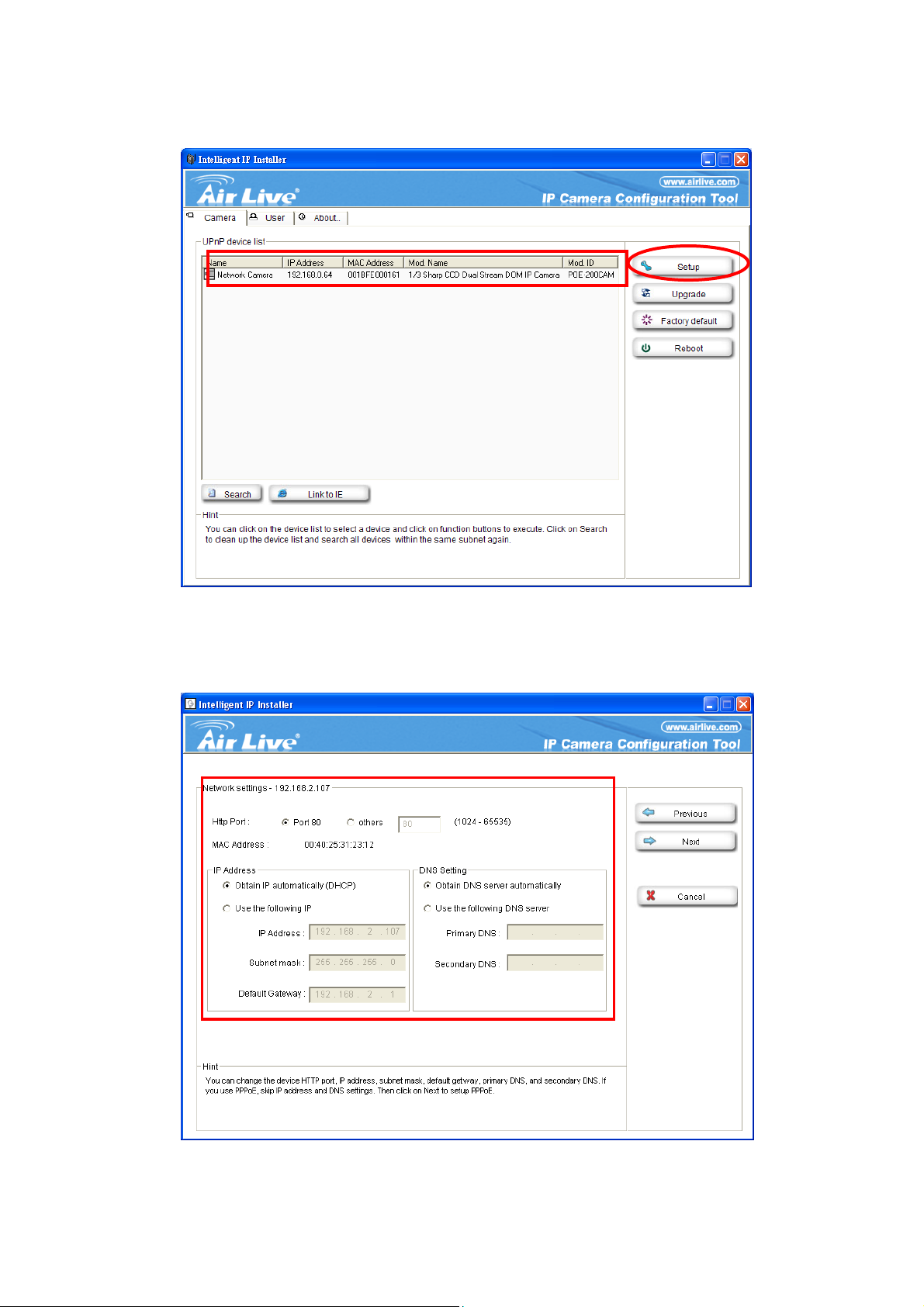
6. If the IP is not in your IP segment, select the founded IP Camera and click “Setup”
Note that the text color of the listed IP Camera is red if it is not in same the IP segment with your PC.
7. Follows setup instruction to change the IP address of the IP Camera.
Change IP Here
5
AirLive POE-200CAM User’s Manual
Page 11
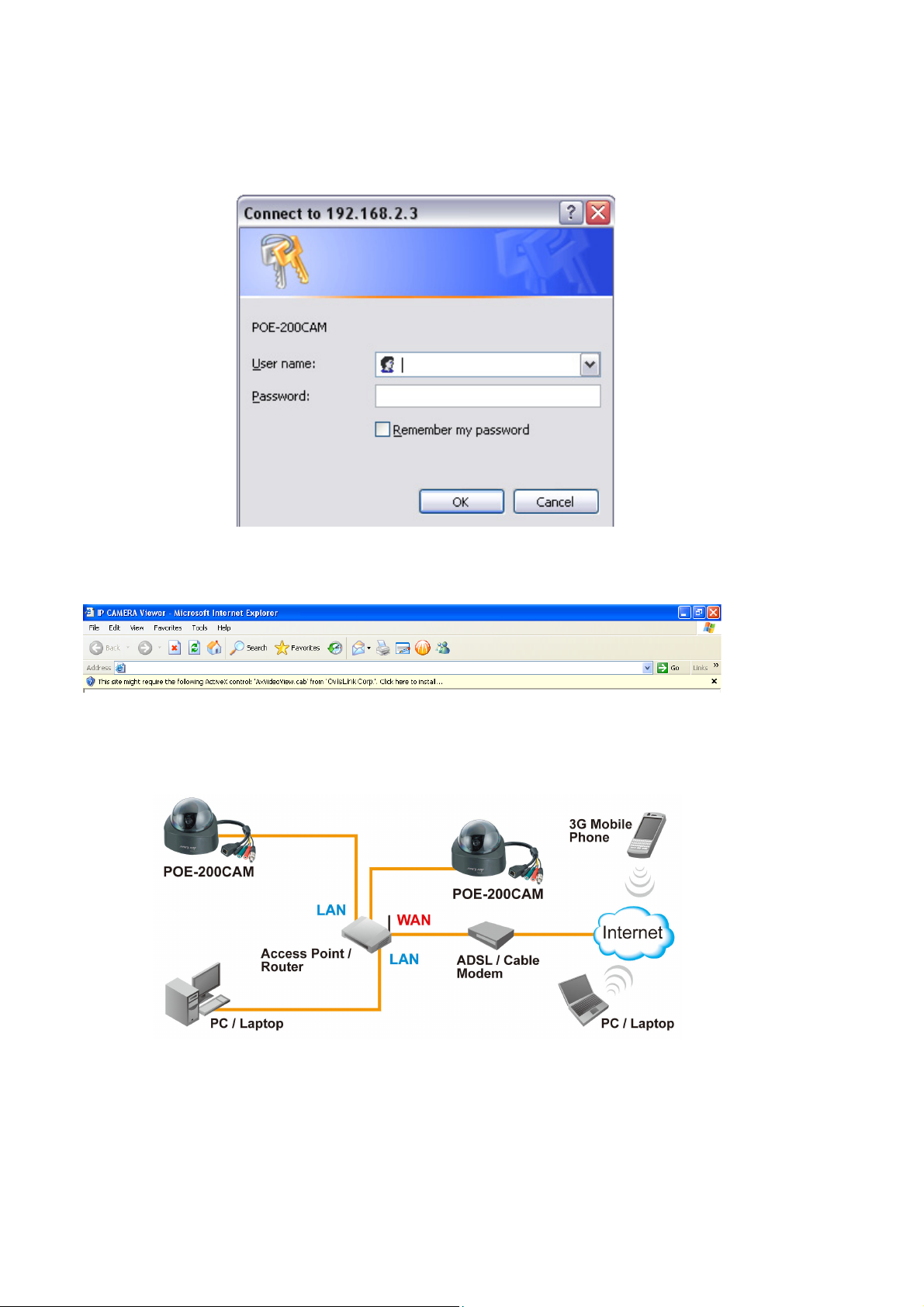
8. At the end of the setup instruction, the IP Camera Reboots
9. Click the Search button to search again
10. Click “Link to IE” to proceed.
11. The tool launch your Internet Explorer and prompts up the login dialog
12. Enter default user name and password: admin / airlive
13. After a successful login, the browser asks for ActiveX installation.
14. Install the ActiveX, and the browser shows the video stream.
Note:
If you need a public IP for your Router, please contact your ISP for the service.
3.2 Initial accessing the IP camera
1. Start your web browser, and enter the IP address or host name of the AIRLIVE IP camera in the Location / Address
AirLive POE-200CAM User’s Manual
6
Page 12
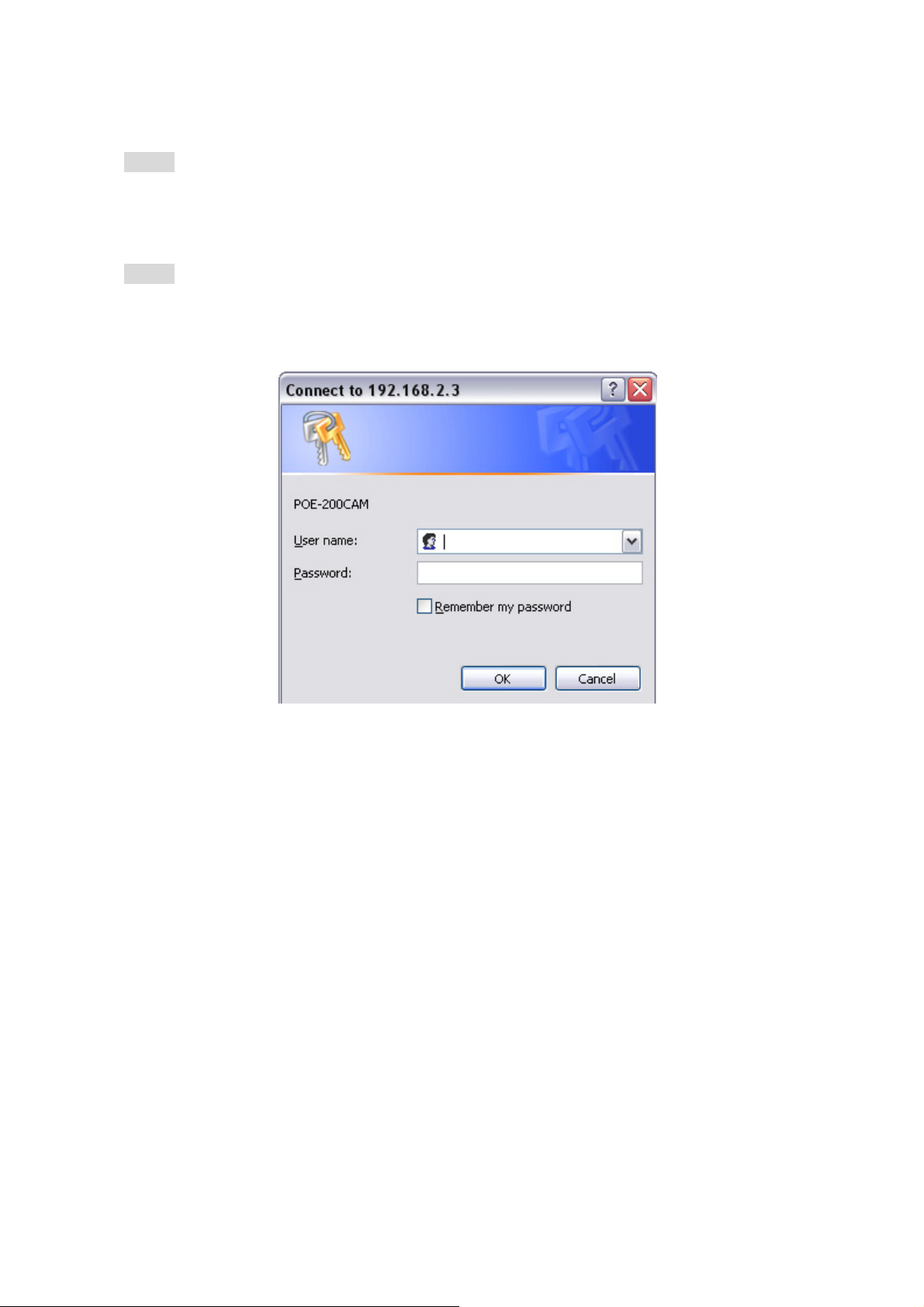
field of your browser.
Note:
• If you only want to view the video without setting page, enter “http://<IP>/index2.htm” as your web URL.
2. Use the default account “admin” and default password “airlive”.
Note:
• The default user name “admin” and the password are set at the factory for the administrator. You can
change them in the Account Menu under Setting.
3. The monitor image will be displayed in your browser.
7
AirLive POE-200CAM User’s Manual
Page 13

3.3 Configuration of Main Menu
3.3.1 Setting
This function is only for the Administrator. Click this button to get into the Basic and Advance settings menu.
3.3.2 Client Setting
Mode: Click the pulldown box to choose between MPEG4 and MJPEG video compression mode.
Note:MJPEG streaming is unavailable if RTSP mode is ON.
View Size: Select the desired display image resolution to 640X480 or 320X240.
Protocol: Select the transferring protocol from TCP, UDP, HTTP and Multicast.
AirLive POE-200CAM User’s Manual
8
Page 14
Video Buffer: Turn the Video Buffer function On/Off. The Video Buffer function makes the streaming more
smooth in unsteady network environment, but might cause a little delay in live viewing.
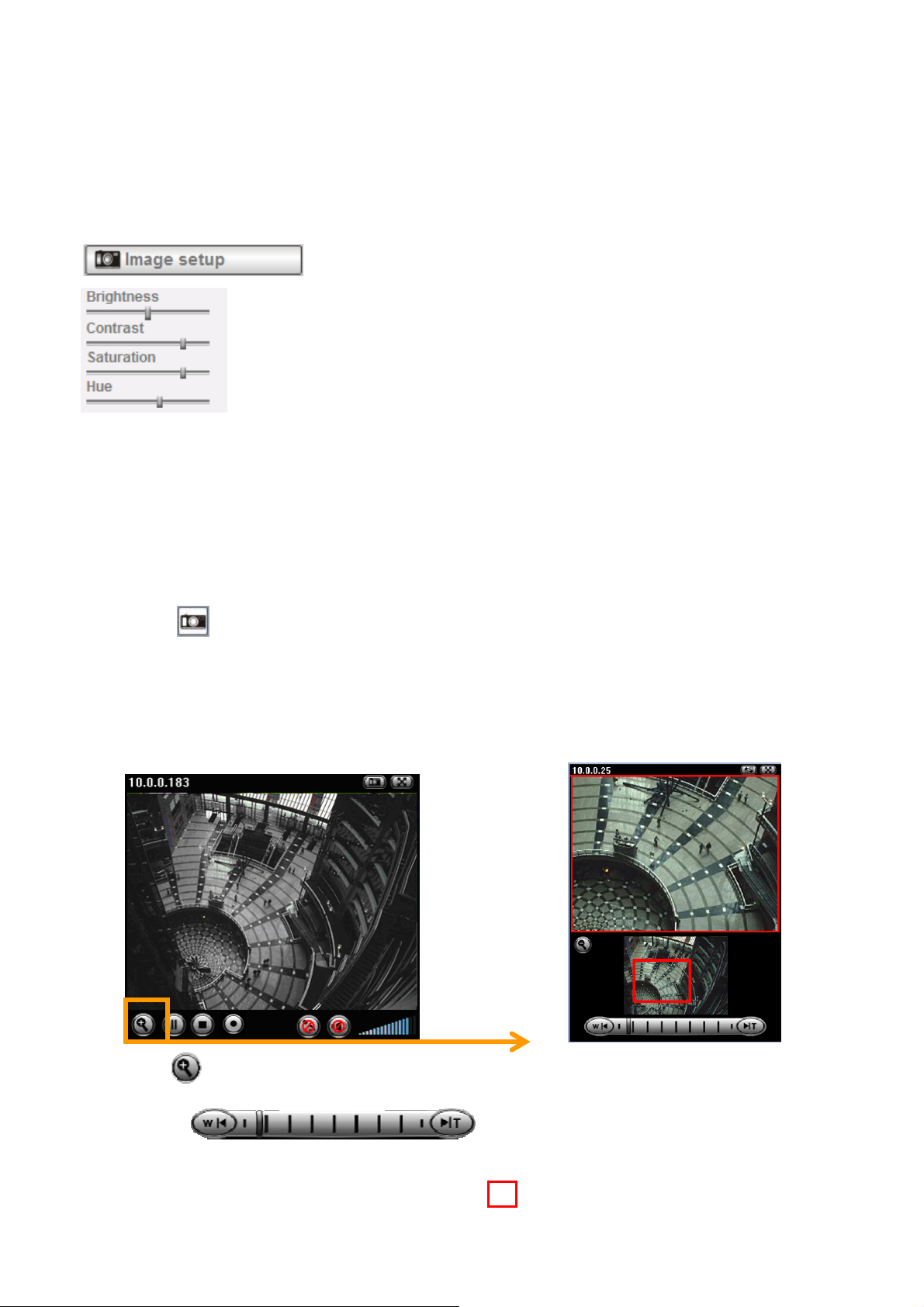
3.4 Image Setup
You can use the tool bar to optimize video brightness, contrast, and saturation.
3.5 Live View
Snapshot:
You can capture a still image shot by the camera and save it in your computer.
1. Press
2. Click “Save” to save the picture in your computer.
3. Click “Close” to return to the view page.
Digital Zoom in / out the image via the monitor window
, and a snapshot window will appear.
1. Click to display the digital zoom in window.
2. Pull the
on the above window.
3. You can use the left click of your mouse to move the to any where on the window.
to adjust the digital zoom range, and it will be showed
9
AirLive POE-200CAM User’s Manual
Page 15
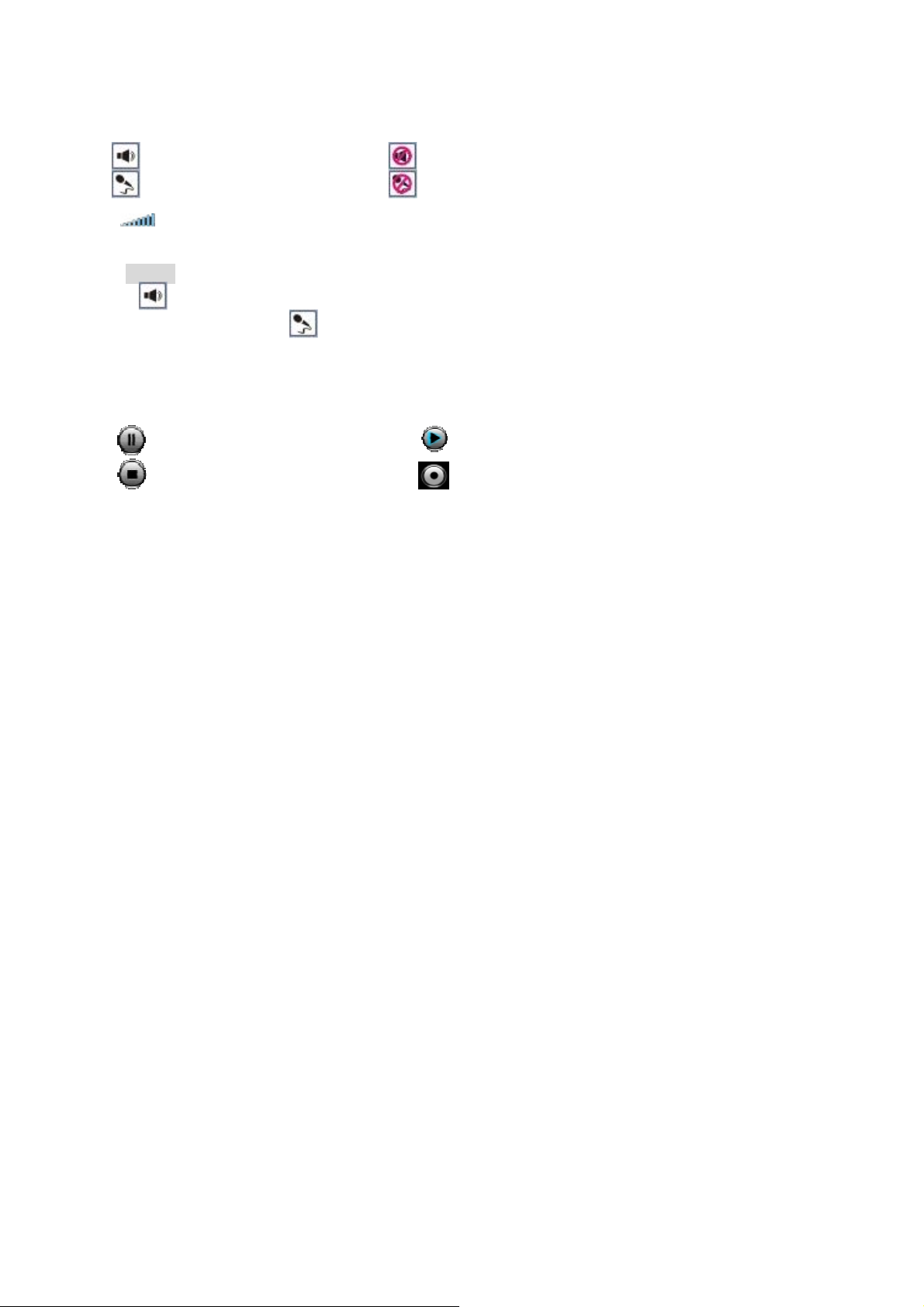
Audio buttons:
:Speakers turned on. :Speakers turned off.
:Microphone turned on. :Microphone turned off.
: Volume control bar.
Note:
•
It means the speakers of your computer are turned on to transmit the sounds from the connected IP
camera(s). Similarly,
using your microphone.
Video play buttons:
:Pause the current video :Play the video.
:Stop the current video. :Record the current video.
means you can broadcast to the connected IP camera(s) via the Ethernet
AirLive POE-200CAM User’s Manual
10
Page 16
Chapter 4: Setting
4.1 Basic
Click the “Basic” folder to display the sub folders, including System, Camera, Network, and Security.
4.1.1 System
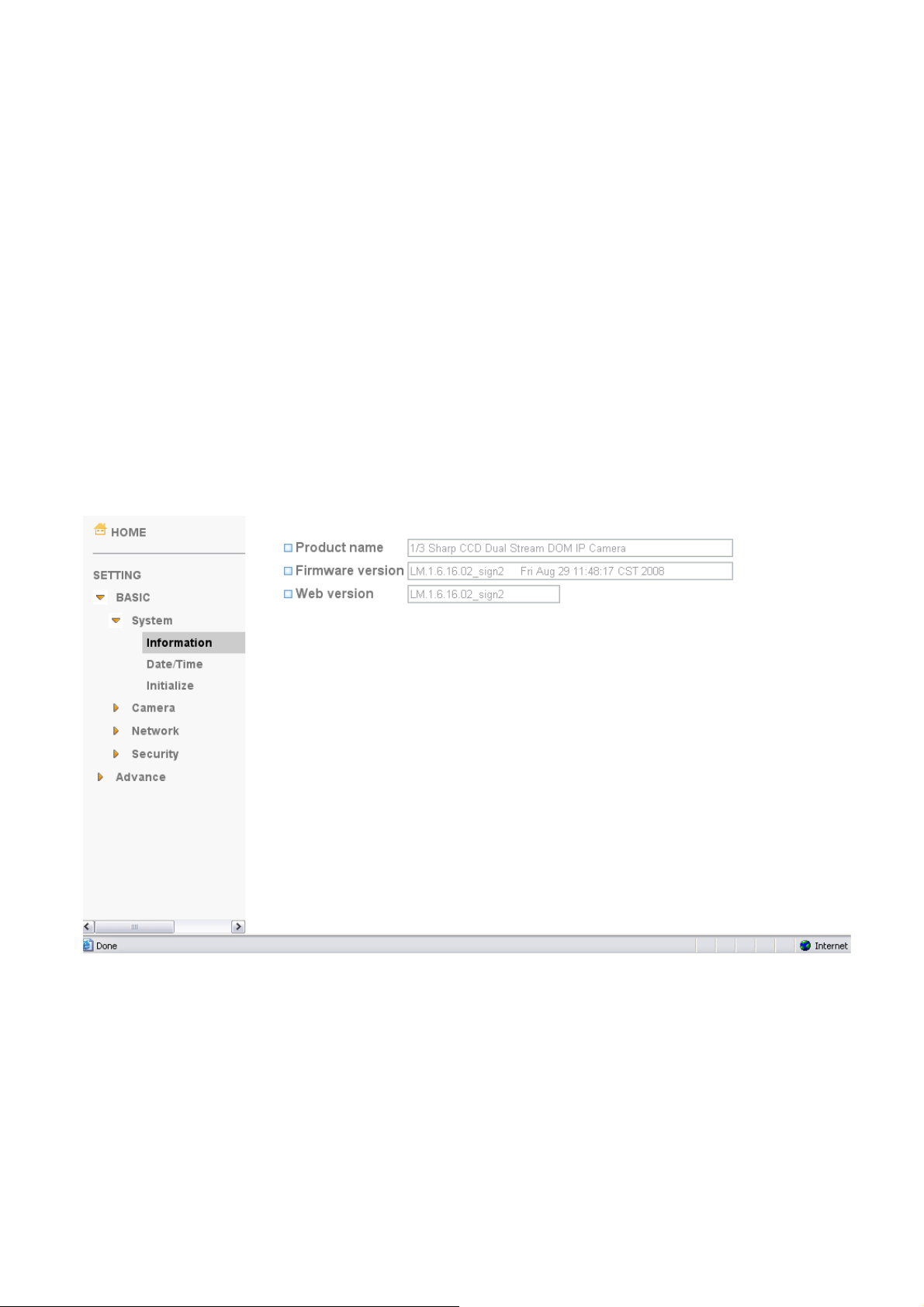
Information
The Information page provides you with product factory information, including Product name, Firmware version,
and Web version.
11
AirLive POE-200CAM User’s Manual
Page 17

Day & Time
Current date & time:This displays the current date and time of the device.
PC clock:This displays the date and time of the monitoring PC clock.
Date & time format:Click the pulldown box to select among different time display formats, including
yyyy-mm-dd hh:mm:ss (year-month-day hour:minute:second), mm-dd-yyyy hh:mm:ss (month-day-year
hour:minute:second), and dd-mm-yyyy hh:mm:ss (day-month-year hour:minute:second).
Adjust:Select one of four time adjusting modes.
Keep current setting:Select this mode to keep the current date and time of the device.
Synchronize with PC:Select this mode to make the date and time of the device the same as the monitoring
PC.
Manual setting:Select this mode to manually adjust the date & time of the device.
Synchronize with NTP:Specify the NTP server name and the Refresh Interval to synchronize the date and
time of the device with those of the time server, known as the NTP (Network Time Protocol) server.
Note:
• The NTP server (Network Time Protocol) is the time server which is an Internet standard protocol (built on
top of TCP/IP) that assures accurate synchronization to the millisecond of computer clock times in a
network of computers.
NTP server name:Type the host name or IP address of the NTP server, up to 64 characters.
Time zone:Select the time zone and time difference from Greenwich Mean Time in the area where the device is
installed from the pulldown box.
AirLive POE-200CAM User’s Manual
12
Page 18

Initialize
Reboot:Click this button to reboot the device. A confirmation dialogue will appear. Click OK to proceed. It takes
about two minutes to reboot the device.
Factory default:Click this button to reset the device to the factory default settings. A confirmation dialogue will
appear. Click OK to proceed, the network indicator on the device will start to blink. After completing adjustments
to the default settings, the device will reboot automatically. Do not turn off the device until the device reboots.
Backup setting data:Save the setting data of the device to a file. Click Save, and follow the instructions on the
browser to save the setting data file to your specified location.
Restore setting:Load the saved setting data of the device. Click Browse and select the file in which the setting
data is stored. Click OK, and the device is adjusted according to the loaded data and restarted.
Firmware update:Upgrade the device software. Click Browse and select the file for upgrading. A confirmation
dialogue will appear. Click OK to start upgrading. The device will reboot upon completion.
Note:
• Use only upgrade files that are special for this device. Problems may occur otherwise.
• Do not turn off the device power or disconnect the network until the upgrading is completed.
Upload language pack:Upgrade the device language pack. Click Browse and select the file for upgrading. A
confirmation dialogue will appear. Click OK to start upgrading. The upgrade is applied immediately. The default
language is “Englsh”
13
AirLive POE-200CAM User’s Manual
Page 19

4.1.2 Camera
General
RTSP: Switch the RTSP streaming On/Off.
Note:
• RTSP: Real Time Streaming Protocol. RTSP is supported by most of the media clients . (RealPlayer,
Media Player, QuickTime, etc…)
Deinterlace Filter:Switch the deinterlace filter on/off.
Overlay:Select to add Text Overlay or Privacy Mask on/off the display screen.
Tex t Ove rlay :Enables users to see some information on the display screen, including Date/Time and
user-defined text. You can also change the background color.
Privacy Mask:Enables users to conceal an area of the video image.
AirLive POE-200CAM User’s Manual
14
Page 20

MPEG4
Computer View
RTSP (If RTSP mode is ON)
RTSP port: Specify the transmission port number of RTSP streaming video. Default value is 554.
Viewer authentication: If the viewer authentication is ON, users viewing through RTSP will be requested
to key-in username and password.
RTP (If RTSP mode is ON)
Unicast streaming:
Unicast streaming Video/Audio port range: Specify the transmission port range of RTP streaming video.
RTP will select a port randomly from the range.
Multicast streaming:
Multicast address: Specify the multicast server address.
Video / Audio Port: Specify the transmission port number of the video data. Specify an even number from
1024 to 65534.
Time-To-Live: Set the maximum TTL that multicast can pass through.
15
AirLive POE-200CAM User’s Manual
Page 21

MPEG4 viewer port (If RTSP mode is OFF)
Unicast streaming Video/Audio port number : Specify the transmission port number of the video data. It is
initially set to 8090. Specify an even number from 1024 to 65534.
Image Size:Specify the image size the network camera transmits. You can choose among 704 × 480, 352 × 240
and 176 × 120 for NTSC mode and 704 × 576, 352 × 288 and 176 × 144 for PAL mode.
Frame rate:Set the frame rate of the MPEG4 image. Selectable values are 5, 10, 15, 20, 25, 30 fps. The unit
“fps” stands for “frames sent per second”.
Quality
Auto:The quality and bitrate will be automatically decided according to the frame rate.
Fixed Quality:The selectable values are Medium, Standard, Good, Detailed and Excellent.
Fixed Bitrate:Set the bit rate of MPEG4 image transmission for a line. Selectable values are 64, 128, 256, 384,
512, 768, 1024, 1280, 1536 and 2048 kbps.
Note:
• The selected frame rate and bit rate are a tentative value. The actual frame rate and bit rate may be
different according to the image size, the shooting scene or the network condition.
AirLive POE-200CAM User’s Manual
16
Page 22

Mobile View
RTSP (If RTSP mode is ON)
RTSP port: Specify the transmission port number of RTSP streaming video. Default value is 8554.
RTP (If RTSP mode is ON)
Unicast streaming:
Unicast streaming Video/Audio port range: Specify the transmission port range of RTP streaming video.
RTP will select a port randomly from the range.
Multicast streaming:
Multicast address: Specify the multicast server address.
Video / Audio Port: Specify the transmission port number of the video data. It is initially set to 10000 and
11000. Specify an even number from 1024 to 65534.
Time-To-Live: Set the maximum TTL that multicast can pass through.
Image Size: The Image size of Mobile view is fixed at 176x120.
Frame rate:Set the frame rate of the MPEG4 image. Selectable values are 5, 10, 15, 20 fps. The unit “fps”
stands for “frames sent per second”.
Quality
17
AirLive POE-200CAM User’s Manual
Page 23

Fixed Bitrate:Set the bit rate of MPEG4 image transmission for a line. Selectable values are 64, 32, and
16kbps..
AirLive POE-200CAM User’s Manual
18
Page 24

MJPEG
Note:
• MJPEG settings are unavailable if the RTSP mode is ON, which means the MJPEG streaming is closed.
MJPEG viewer port
Unicast streaming Video/Audio port number : Specify the transmission port number of the video data. It is
initially set to 8070. Specify an even number from 1024 to 65534.
Note:
• Unicast streaming:Specify the transmission port number of the video data and audio data used when
UDP (Unicast) is selected with the TCP/UDP transmission switching icon in the main viewer.
Image Size:Specify the image size the network camera transmits. You can choose among 704 × 480, 352 × 240
and 176 × 120 for NTSC mode and 704 × 576, 352 × 288 and 176 × 144 for PAL mode.
Frame rate:Set the frame rate of the MJPEG image. Selectable values are 5, 10, 15 fps. The unit “fps” stands for
“frames sent per second”.
Quality
Auto:The quality will be automatically decided.
Fixed quality:The selectable values are Medium, Standard, Good, Detailed and Excellent.
19
AirLive POE-200CAM User’s Manual
Page 25

4.1.3 Network
Information
MAC address:Display the MAC address of the device.
Obtain an IP address automatically (DHCP):If a DHCP server is installed on the network, to select this while
the IP address is assigned by the DHCP server.
Note:
• When you set Obtain an IP address automatically (DHCP), make sure that the DHCP server is working
on the network.
Use the following IP address:Select this when a fixed IP address is set.
IP address:Enter the IP address of the device.
Subnet mask:Enter the subnet mask.
Default gateway:Enter the default gateway.
Use the following DNS server address:Select this when you set the fixed address as the IP address of DNS
server.
Primary DNS server:Enter the IP address of the primary DNS server.
Secondary DNS server:Enter the IP address of the secondary DNS server, if necessary.
HTTP port number:Select 80 in general situations. If you want to use a port number other than 80, select the
text box and enter a port number between 1024 and 65535.
Note:
• When you have set the HTTP port number to a number other than 80 on the Network setting page or in
AirLive POE-200CAM User’s Manual
20
Page 26

the Setup Program, access the device by typing the IP address of the device on the web browser as
follows:
Example: when HTTP port number is set to 2000 Æ http://192.168.1.100:2000/
PPPoE
Use this when you connect the device through PPPoE (Point -to- Point Protocol over Ethernet). PPPoE
connection is the protocol that is widely used in xDSL (digital affiliate line such as ADSL, VDSL or SDSL) as the
authentication and connection system.
IP address:The IP address obtained at the PPPoE connecting with network.
User ID:Enter the user ID for authentication necessary for PPPoE connections. Type it up to 64 characters.
Password:Enter the password for authentication necessary for PPPoE connections. Type it up to 32 characters.
Re-type password:Re-type the password to confirm.
Obtain DNS server address automatically:Select this to obtain the address of DNS server automatically.
Use the following DNS server address:Select this when you set the fixed address as the IP address of DNS
server.
Primary DNS server:Enter the IP address of the primary DNS server.
Secondary DNS server:Enter the IP address of the secondary DNS server.
DDNS
21
AirLive POE-200CAM User’s Manual
Page 27

Server name:Choose the DDNS Server from the list.
User ID:Enter the user ID for authentication necessary for DDNS connections. Type it up to 64 characters.
Password:Enter the password for authentication necessary for DDNS connections. Type it up to 32 characters.
Re-type password:Re-type the password to confirm.
Host name:Enter the host name that is registered to the DDNS server.
Note:
• When you want to use DDNS function, you need to register an account in DDNS server first.
UPnP
The device includes support for UPnP, which is enabled by default. If also enabled on your computer, the device
will automatically be detected and a new icon will be added to “My Network Places.” It provides port forwarding
for opening a port in a router or firewall in a private network in order to let a party from the outside world contact
a user inside.
AirLive POE-200CAM User’s Manual
22
Page 28

HTTP port:Enter the HTTP port number and default HTTP port is 80.
SSL port: Enter the SSL port number and default SSL port is 443.
MPEG4 viewer port:Enter the MPEG4 viewer port number and default MPEG4 viewer port is 8090.
MPEG4 viewer port(SSL): Enter the MPEG4 SSL viewer port and default is 8091.
MJPEG viewer port:Enter the MJPEG viewer port number and default MJPEG viewer port is 8070.
MJPEG viewer port(SSL): Enter the MPEG4 SSL viewer port and default is 8071.
MPEG4 RTSP port: Enter the MPEG4 RTSP port, default value is 8050 for computer view, 8030 for mobile view.
23
AirLive POE-200CAM User’s Manual
Page 29

IP Notification
When network notify type is set to On, you can send an e-mail notification of the completion of the
network setting.
Notify type:Select type of DHCP, Static IP and PPPoE will notify.
SMTP server name:Type the SMTP server name up to 64 characters, or the IP address of the SMTP server.
Authentication:Select the authentication required when you send an email.
Off: Select if no authentication is necessary when an email is sent.
On: When authentication is necessary an e-mail is sent, select one of the authentication methods from the
followings.
SMTP: Select if SMTP authentication is necessary when an e-mail is sent.
POP before SMTP: Select if POP before SMTP authentication is necessary when an e-mail is sent.
Note:
• When you set to On, be sure to select either or both SMTP or/and POP before SMTP.
POP server name:It is necessary when the POP before SMTP is selected in Authentication. Type the POP
(receiving mail) server name up to 64 characters, or type the IP address of the POP server. This setting is
necessary when the SMTP server which sends e-mails performs authentication using the POP user account.
User name, Password:Type the user name and Password of the user who has the mail account. This setting is
necessary when the SMTP server which sends e-mails performs authentication.
Recipient e-mail address:Type the recipient e-Mail address up to 64 characters. You can specify up to three
recipient E-mail addresses.
Administrator e-mail address:Type the Administrator e-Mail address up to 64 characters. This address is used
AirLive POE-200CAM User’s Manual
24
Page 30

for reply mail and sending system messages from the SMTP server.
Subject:Type the subject/title of the e-Mail up to 64 characters. With respect to mail which is sent according to
the IP notification.
Message
Type the text of the E-mail up to 384 characters. Default value provides network information including IP, Port,
MAC, Model, Firmware Version and Web Version.
25
AirLive POE-200CAM User’s Manual
Page 31

4.1.4 Security
Account
The device default account and password setting is “admin/airlive”. That means everyone might access the
device including the configuration as long as the IP address is known. It is necessary to assign a password if the
device is intended to be accessed by others. Use this menu to set the user names and passwords of
Administrator and up to 9 different users (User 1 to User 9), and the access right of each user.
User name:Set a user name between 5 and 16 characters.
Password:Set a password between 5 and 16 characters.
Re-type password:Re-type the password to confirm.
Viewer Mode:Set a user to Admin, Operator or Viewer mode.
Viewer authentication:Allows any viewer direct access to Live View.
HTTPS
HTTPS is a URI scheme used to indicate a secure HTTP connection. It is syntactically identical to the http://
scheme normally used for accessing resources using HTTP. Using an
used, but with a different default TCP port (443) and an additional encryption/authentication layer between the
HTTP and TCP. You can use the IP camera through HTTPS easily by using https:// instead of http://.
https: URL indicates that HTTP is to be
AirLive POE-200CAM User’s Manual
26
Page 32

To use the HTTPS encryption, please set up “Create self-signed certificate” for the first time you use the
HTTPS function, then set up the connection policy for different users, and click “Set Policy” to apply the settings.
Create & Install: Create a self-signed certificate for HTTPS to recognize.
Installed Certificate: Display or remove the properties of the installed certificate.
HTTPS Connection Policy: Set HTTPS connection policy for different level of users.
27
AirLive POE-200CAM User’s Manual
Page 33

4.2 Advance
4.2.1 FTP Client
Use this menu to set up for capturing and sending images to an FTP server. By using FTP client function, you
can send the image and audio file which has been shot and recorded linked with the external sensor input or with
the built-in motion detection function to FTP server. FTP client setting menu is composed of two tabs, General,
Alarm sending and Periodical sending.
General
FTP client function:To activate the FTP client function, select On. The FTP client setting page appears. When
you do not wish to use the FTP client function, select Off.
Note:
• The frame rate and operability on the main viewer may decrease while a file is being transmitted by the
FTP client function.
FTP server name:Type the FTP server name to upload still images up to 64 characters, or the IP address of the
FTP server.
User name:Type the user name for the FTP server.
Password:Type the password for the FTP server.
Retype password:To confirm the password, type the same characters as you typed in the Password box.
Passive mode:Set whether you use the passive mode of FTP server or not when connecting to FTP server.
AirLive POE-200CAM User’s Manual
28
Page 34

Select On to connect to FTP server using the passive mode.
Attached file type:Set attached file type to MJPEG or MPEG.4
Alarm sending
Set to forward the image and audio file to the specified FTP server linked with the alarm detection by the external
sensor input or by the built-in motion detection function. Select On to send the image and audio file to FTP server
linked with the alarm detection.
Remote path:Type the path to the destination in FTP server up to 64 characters.
Image file name:Type the file name you want to assign to the images when sending to the FTP server. You can
use up to 10 alphanumeric characters, - (hyphen) and _ (underscore) for naming.
Suffix:Select a suffix to add to the file name:
Date & time: The date & time suffix is added to the Image file name. The date/time suffix consists of lower
two-digits of year (2 digits), month (2 digits), date (2 digits), hour (2 digits), minute (2 digits), second (2
digits), and consecutive number (2 digits), thus 14-digit number is added to the file name.
Sequence number: A consecutive number of 10 digits between 0000000001 and 4294967295 and two
fixed digits 00 is added to the Image file name.
Motion Detection:Click it on for using Motion Detection function as a sensor. You can set the motion detection
function page.
Note:
• Motion Detection works only when the Video mode is set to MPEG4 and the Cropping is set to Off.
Alarm Buffer:Select Use alarm buffer when you forward the image/ audio of before and after the alarm
detection (pre-alarm, post-alarm). If you do not select it, only the image of the moment of the alarm detection is
forwarded. Click Alarm buffer to display the Alarm buffer setting menu. For details, see “Setting the Alarm
29
AirLive POE-200CAM User’s Manual
Page 35

Buffer — Alarm buffer setting Menu on page.
Effective period:Set the period when the periodical sending is effective.
Always:The periodical sending is always effective.
Schedule:You can specify the period when the periodical sending is effective in the schedule setting in the
other section. Click Schedule and the setting menu for the effective period is displayed.
Periodical sending
You can set to send an image file to FTP server periodically by selecting On to send the image file to FTP server
linked with setting period.
Remote path:Type the remote path up to 64 characters.
Image file name:Type the file name of the image sent to FTP server up to 10 alphanumeric characters, -
(hyphen) and _ (under score).
Suffix:Select a suffix to be added to the file name sent to FTP server.
None:The name of the sent file will be the Image file name.
Date & time:The date & time suffix is added to the Image file name. The date & time suffix consists of lower
two-digits of year (2 digits), month (2 digits), date (2 digits), hour (2 digits), minute (2 digits) and second (2 digits),
and consecutive number (2 digits), thus 14-digit number is added to the file name.
Sequence number:A consecutive number is added to the Image file name.
Sequence number clear:Click Clear and the suffix of the sequence number returns to 1.
Interval:Set the periodical sending is effective interval. Min value is 1 min and Max value is 24 hour.
AirLive POE-200CAM User’s Manual
30
Page 36

Effective period:Set the period when the periodical sending is effective.
Always:The periodical sending is always effective.
Schedule:You can specify the period when the periodical sending is effective in the schedule setting in the
other section. Click Schedule and the setting menu for the effective period is displayed. (“Setting the
Schedule — Schedule setting Menu” on page 34)
4.2.2 SMTP
Set the SMTP menu when you want to send an image via e-mail. By using Mail (SMTP) function, you can send a
mail with attached image which has been shot linked with the external sensor input or with the built-in motion
detection function. The image file can also be sent periodically. E-Mail (SMTP) setting menu is composed of
three tabs, General, Alarm sending and Periodical sending.
4.2.2.1 General
Select On when you use the SMTP function. The common setting options are displayed below. If you do not wish
to use the e-Mail (SMTP) function, select Off and click OK.
Note:
31
AirLive POE-200CAM User’s Manual
Page 37

• During transmission of an image file via mail, the frame rate and operation performance of the monitor
image of the main viewer decline.
• While the camera video mode is set to MPEG4, the image of the composite video signal output from the
video output connector of the camera may be distorted during mail transmission.
• You cannot send an audio file by using the mail sending function.
SMTP server name:Type the SMTP server name up to 64 characters, or the IP address of the SMTP server.
Authentication:Select the authentication required when you send an email.
Off: Select if no authentication is necessary when an email is sent.
On: When authentication is necessary an e-mail is sent, select one of the authentication methods from the
followings.
SMTP: Select if SMTP authentication is necessary when an e-mail is sent.
POP before SMTP: Select if POP before SMTP authentication is necessary when an e-mail is sent.
Note:
• When you set to On, be sure to select either or both SMTP or/and POP before SMTP.
POP server name:It is necessary when the POP before SMTP is selected in Authentication. Type the
POP (receiving mail) server name up to 64 characters, or type the IP address of the POP server. This
setting is necessary when the SMTP server which sends e-mails performs authentication using the POP
user account.
User name, Password:Type the user name and Password of the user who has the mail account. This
setting is necessary when the SMTP server which sends e-mails performs authentication.
Recipient e-mail address:Type the recipient e-Mail address up to 64 characters. You can specify up to
three recipient E-mail addresses.
Administrator e-mail address:Type the Administrator e-Mail address up to 64 characters. This address
is used for reply mail and sending system messages from the SMTP server.
Attached File Type: Select to attach the file as JPEG or MPEG4.
Subject:Type the subject/title of the e-Mail up to 64 characters. With respect to mail which is sent
according to the alarm detection when Alarm sending of the alarm tab is set to On, the characters
standing for the sensor type added to the subject.
Message:Type the text of the E-mail up to 384 characters. (A line break is equivalent to 2 characters.)
AirLive POE-200CAM User’s Manual
32
Page 38

4.2.2.2 Alarm sending
Set to send the mail with connection to the alarm detection by the external sensor input or by the built-in motion
detection function.
Alarm sending:Select On to set to send mail with connection to the alarm detection.
File attachment:Set whether an image file is attached to the mail sent or not. When On is selected, the image
file made by the settings below is attached. When Off is selected, only the message is sent.
Image file name:Type the file name you want to assign to the image to attach a mail. You can use up to 10
alphanumeric, - (hyphen) and _ (underscore) for naming.
Suffix:Select a suffix to add to the file name:
None: No suffix is added. The Image file name is assigned to the image to be sent via an e-Mail.
Date & time: The date & time suffix is added to the Image file name. The date/time suffix consists of lower
two-digits of year (2 digits), month (2 digits), date (2 digits), hour (2 digits), minute (2 digits), second (2
digits), and consecutive number (2 digits), thus 14-digit number is added to the file name.
Sequence number: A consecutive number of 10 digits between 0000000001 and 4294967295 and two
fixed digits 00 is added to the Image file name.
Motion Detection:Click it on for using Motion Detection function as a sensor. You can set the motion detection
function page.
Note:
• Motion Detection works only when the Video mode is set to MPEG4 and the Cropping is set to Off.
Alarm Buffer:Select Use alarm buffer when you forward the image/ audio of before and after the alarm
detection (pre-alarm, post-alarm). If you do not select it, only the image of the moment of the alarm detection is
forwarded. Click Alarm buffer to display the Alarm buffer setting menu. For details, see “Setting the Alarm
33
AirLive POE-200CAM User’s Manual
Page 39

Buffer — Alarm buffer setting Menu on page.
4.2.2.3 Periodical sending
You can set to send an image file by SMTP server periodically by selecting On to send the image file by SMTP
server linked with setting period.
Image file name:Type the file name of the image sent by SMTP up to 10 alphanumeric characters, - (hyphen)
and _ (under score).
Suffix:Select a suffix to be added to the file name sent by SMTP.
None:The name of the sent file will be the Image file name.
Date & time:The date & time suffix is added to the Image file name. The date & time suffix consists of lower
two-digits of year (2 digits), month (2 digits), date (2 digits), hour (2 digits), minute (2 digits) and second (2 digits),
and consecutive number (2 digits), thus 14-digit number is added to the file name.
Sequence number:A consecutive number is added to the Image file name.
Sequence number clear:Click Clear and the suffix of the sequence number returns to 1.
Interval:Set the periodical sending is effective interval. Min value is 30 min and Max value is 24 hour.
Effective period:Set the period when the periodical sending is effective.
Always:The periodical sending is always effective.
Schedule:You can specify the period when the periodical sending is effective in the schedule setting in the
other section. Click Schedule and the setting menu for the effective period is displayed. (“Setting the
Schedule — Schedule setting Menu” on page 34)
AirLive POE-200CAM User’s Manual
34
Page 40

4.2.3 HTTP Event
Use this menu to set up for capturing and sending images to an HTTP server. By using HTTP client function, you
can send the image and audio file which has been shot and recorded linked with the external sensor input or with
the built-in motion detection function to HTTP server. HTTP client setting menu is composed of two tabs,
General and Alarm sending.
4.2.3.1 General
HTTP event: Set up the HTTP server URL, port, user id, password, and proxy server settings.
35
AirLive POE-200CAM User’s Manual
Page 41

4.2.3.2 Alarm sending
Set to send the mail with connection to the alarm detection by the external sensor input or by the built-in motion
detection function.
Alarm sending:Select On to set to send mail with connection to the alarm detection.
Motion Detection:Click it on for using Motion Detection function as a sensor. You can set the motion detection
function page.
Note:
• Motion Detection works only when the Video mode is set to MPEG4 and the Cropping is set to Off.
Alarm Buffer:Select Use alarm buffer when you forward the image/ audio of before and after the alarm
detection (pre-alarm, post-alarm). If you do not select it, only the image of the moment of the alarm detection is
forwarded. Click Alarm buffer to display the Alarm buffer setting menu. For details, see “Setting the Alarm
Buffer — Alarm buffer setting Menu on page.
Effective period:Set the period when the periodical sending is effective.
Always:The periodical sending is always effective.
Schedule:You can specify the period when the periodical sending is effective in the schedule setting in the
other section. Click Schedule and the setting menu for the effective period is displayed.
AirLive POE-200CAM User’s Manual
36
Page 42

4.2.4 Schedule
When you click Schedule on the Advanced mode menu, the Schedule setting menu appears. This is the same
menu as the setting menu which is displayed when you click Schedule to set Effective period and Schedule in
FTP client setting menu, e-Mail (SMTP) setting menu, Alarm out setting menu and so on. Example: When setting
e-Mail (SMTP) (the alarm sending) in the Schedule setting menu.
Setting
Schedule selection
Select the list box to specify the schedule you want to set. e-Mail (SMTP) – Alarm, e-Mail (SMTP) – Periodical,
FTP – Alarm, FTP – Periodical, HTTP event – Alarm, Alarm output – Alarm or Alarm output – Timer, can be
selected.
Mon (Monday) to Sun (Sunday)
The time period on the right of the checked day is the effective period of the schedule.
Start time, End time
Specify the Start time and the End time.
Use the same time schedule every day
When this is checked, the Start time and End time set to Mon (Monday) are applied to all days. In this case,
the Start time and End time of the other days than Mon (Monday) cannot be input.
37
AirLive POE-200CAM User’s Manual
Page 43

4.2.5 Alarm Buffer
You can set the Pre-alarm image and audio (the image and audio before the alarm detection) and the Post -
alarm image and audio. These can be set when Alarm sending FTP client setting menu or Image memory
setting menu is set to On, and besides when Use alarm buffer is selected.
Setting
Alarm buffer:To activate the Alarm buffer function, select On. The basic setting options are displayed below.
When you do not use the Alarm output function, select Off.
Recording capacity
Pre-alarm period:Display the maximum recording capacity of image/audio before the alarm detection.
Post-alarm period:Display the maximum recording capacity of image/audio after the alarm detection.
Recording time
Set the recording time for the Pre-alarm image/audio and Post alarm image/audio.
Pre alarm period:Type it with recording time of the image/audio before the alarm detection.
Post alarm period:Type it with recording time of the image/audio after the alarm detection.
Note:
• The value of Recording capacity differs depending on Image size, Bitrate (for MPEG4) and Image
quality (for MPEG4 and MJPEG) in the camera setting menu.
AirLive POE-200CAM User’s Manual
38
Page 44

4.2.6 Motion Detection
When you click Motion Detection on the Advance mode menu, the Motion Detection setting menu appears.
There are three Motion Detection functions as sensors to set for different detecting zones. Each one has
Threshold and Sensitivity inputs which you can adjust to specific zone sequentially. Motion Detection
function can support to FTP, SMTP and Alarm output for capturing and sending images or starting alarm
output.
Click it On when you use the Motion Detection function and detecting zone appears for adjusting and moving.
The common setting options are displayed below. If you do not wish to use the Motion Detection function,
click it Off and press OK.
Motion Detection 1:Click it on for using Motion Detection 1 function as a sensor. You can adjust and move
the detecting zone by using mouse.
Motion Detection 2:Click it on for using Motion Detection 2 function as a sensor. You can adjust and move
the detecting zone by using mouse.
Motion Detection 3:Click it on for using Motion Detection 3 function as a sensor. You can adjust and move
the detecting zone by using mouse.
Threshold:You can use the tool bar to set up-limit value. When detecting zone signals are over setting value,
it would carry on assigned work.
Sensitivity:You can use the tool bar to set down-limit value. When detecting zone signals are over setting
value, it would carry on assigned work.
39
AirLive POE-200CAM User’s Manual
Page 45

Carry out the following steps:
1. Click On to Motion Detection 1 choose one of eight orders.
2. A detecting zone 1 appears and use mouse to adjust and move the zone boundaries and position.
3. Use tool bar to set Threshold and Sensitivity value.
4. Follow the steps to set the other Motion Detection.
5. Click the OK to save the setting.
Note:
• Be careful! Motion Detection function don’t work with Patrol function at same time.
AirLive POE-200CAM User’s Manual
40
Page 46

4.2.7 System Log
The System Log function allows users to review any changes and events happened. The system starts
logging automatically after started.
Remote Log: Enables user to send the log data to a specified log server
.
41
AirLive POE-200CAM User’s Manual
Page 47

Appendix A – Frame Rate & Bit Rate Table
This chapter provides tables that help you to optimize your IP camera with your network environment. Base
on your network upload environment to choose the best Image-Quality setting.
For example, if the network environment is ADSL 256Kb(upload) / 2Mb(download), the most fluent
Image-Quality needs to set up under 256 Kb situation.
A.1. NTSC CCD IPCamera
A.1.1. MPEG4 @ 30fps / kbps
Quality 704*480 352*240 176*120
Excellent
Detailed
Good
Standard
Medium
A.1.2. MPEG4 / kbps, fps
Image-Size Bitrate Setting
704*480 2048 30
704*480 2048 15
704*480 1536 30
704*480 1536 15
704*480 1024 30
704*480 1024 15
704*480 512 30
704*480 512 15
2000 800 200
850 250 80
450 150 60
350 110 50
250 90 40
Frame-Rate
Current Bitrate
Setting
1800 25
2100 16
1500 30
1700 16
1050 30
1100 16
520 30
650 16
Current
Frame-Rate
352*240 1536 30
352*240 1536 15
352*240 1024 30
352*240 1024 15
352*240 512 30
352*240 512 15
176*120 1024 30
176*120 1024 15
176*120 512 30
176*120 512 15
176*120 128 30
176*120 128 15
AirLive POE-200CAM User’s Manual
1500 30
1600 16
1100 30
1100 16
530 30
600 16
1000 30
900 16
530 30
550 16
150 30
150 16
42
Page 48

A.1.3. MJPEG @ 15fps / kbps
Quality 704*480 352*240 176*120
Excellent
Detailed
Good
Standard
Medium
A.1.4. MJPEG / kbps, fps
Image-Size Quality Setting
704*480 Excellent 15
704*480 Excellent 5
704*480 Good 15
704*480 Good 5
704*480 Medium 15
704*480 Medium 5
352*240 Excellent 15
7500 2800 1000
5000 1500 700
3500 1000 500
2000 800 400
1300 500 300
Frame-Rate
Current
Current Bitrate
Setting
Frame-Rate
7500 11
4000 5
3500 13
1500 5
1300 13
550 5
2800 12
352*240 Excellent 5
352*240 Good 15
352*240 Good 5
352*240 Medium 15
176*120 Medium 5
176*120 Excellent 15
176*120 Excellent 5
176*120 Good 15
176*120 Good 5
176*120 Medium 15
176*120 Medium 5
1200 5
1000 12
450 5
500 12
220 5
1000 15
400 5
500 15
200 5
300 15
100 5
43
AirLive POE-200CAM User’s Manual
Page 49

A.2. PAL CCD IPCamera
A.2.1. MPEG4 @ 25fps / kbps
Quality 704*576 352*288 176*144
Excellent
Detailed
Good
Standard
Medium
A.2.2. MPEG4 / kbps, fps
Image-Size Bitrate Setting
704*576 2048 25
704*576 2048 15
704*576 1536 25
704*576 1536 15
704*576 1024 25
704*576 1024 15
704*576 512 25
1800 400 100
600 150 50
400 100 40
300 80 30
200 60 20
Frame-Rate
Current
Current Bitrate
Setting
Frame-Rate
2000 23
2100 16
1600 25
1700 16
1100 25
1200 16
550 25
704*576 512 15
352*288 1536 25
352*288 1536 15
352*288 1024 25
352*288 1024 15
352*288 512 25
352*288 512 15
176*144 1024 25
176*144 1024 15
176*144 512 25
176*144 512 15
176*144 128 25
176*144 128 15
650 16
1500 25
1600 16
1100 25
1100 16
550 25
600 16
1000 25
1000 16
550 25
600 16
150 25
150 16
AirLive POE-200CAM User’s Manual
44
Page 50

A.2.3. MJPEG @ 15fps / kbps
Quality 704*576 352*288 176*144
Excellent
Detailed
Good
Standard
Medium
A.2.4. MJPEG / kbps, fps
Image-Size Quality Setting
704*576 Excellent 15
704*576 Excellent 5
704*576 Good 15
704*576 Good 5
704*576 Medium 15
704*576 Medium 5
352*288 Excellent 15
7800 1700 650
4300 1000 450
2500 650 350
1300 450 250
1000 300 180
Frame-Rate
Current
Current Bitrate
Setting
Frame-Rate
7800 11
4000 5
2500 11
1200 5
1000 11
500 5
1700 11
352*288 Excellent 5
352*288 Good 15
352*288 Good 5
352*288 Medium 15
352*288 Medium 5
176*144 Excellent 15
176*144 Excellent 5
176*144 Good 15
176*144 Good 5
176*144 Medium 15
176*144 Medium 5
900 5
650 11
330 5
300 11
160 5
650 12
300 5
350 12
150 5
180 12
75 5
45
AirLive POE-200CAM User’s Manual
Page 51

Appendix B – Storage Requirement Table
This chapter provides tables that helps you set your recording storage system.
Please refer to the following table to find out the capability for recording into your hard disk.
B.1 MPEG4 Storage Requirement GB / channel / day @ 30fps
Quality 704*480 352*240 176*120
Excellent
Detailed
Good
Standard
Medium
B.2 MPEG4 Storage Requirement GB / channel / day @ 15fps
Quality 704*480 352*240 176*120
Excellent
Detailed
Good
Standard
Medium
B.3 MPEG4 Storage Requirement GB / channel / day
Image-Size Bitrate Setting Frame-Rate Setting
21.1 8.4 2.1
9.0 2.6 0.8
4.7 1.6 0.6
3.7 1.2 0.5
2.6 0.9 0.4
10.5 4.2 1.1
4.5 1.3 0.4
2.3 0.8 0.3
1.8 0.6 0.2
1.3 0.5 0.2
Storage
Requirement
704*480 2048 30
704*480 2048 15
704*480 1536 30
704*480 1536 15
704*480 1024 30
704*480 1024 15
704*480 512 30
704*480 512 15
352*240 1536 30
352*240 1536 15
352*240 1024 30
352*240 1024 15
352*240 512 30
352*240 512 15
176*120 1024 30
23.0
22.1
18.5
17.9
11.1
11.6
5.5
6.9
15.8
16.9
11.6
11.6
5.6
6.3
10.5
AirLive POE-200CAM User’s Manual
46
Page 52

176*120 1024 15
9.5
176*120 512 30
176*120 512 15
176*120 128 30
176*120 128 15
B.4 MJPEG Storage Requirement GB / channel / day @ 15fps
Quality 704*480 352*240 176*120
Excellent
Detailed
Good
Standard
Medium
79.1 29.5 10.5
52.7 15.8 7.4
36.9 10.5 5.3
21.1 8.4 4.2
13.7 5.3 3.2
B.5 MJPEG Storage Requirement GB / channel / day
Image-Size Quality Setting Frame-Rate Setting Current Bitrate
704*480 Excellent 15
5.6
5.8
1.6
1.6
79.1
704*480 Excellent 5
704*480 Good 15
704*480 Good 5
704*480 Medium 15
704*480 Medium 5
352*240 Excellent 15
352*240 Excellent 5
352*240 Good 15
352*240 Good 5
352*240 Medium 15
176*120 Medium 5
176*120 Excellent 15
176*120 Excellent 5
176*120 Good 15
176*120 Good 5
176*120 Medium 15
42.2
36.9
15.8
13.7
5.8
29.5
12.7
10.5
4.7
5.3
2.3
10.5
4.2
5.3
2.1
3.2
176*120 Medium 5
1.1
47
AirLive POE-200CAM User’s Manual
 Loading...